

Build the game server locally, prove both services work, then plan remote TCP access
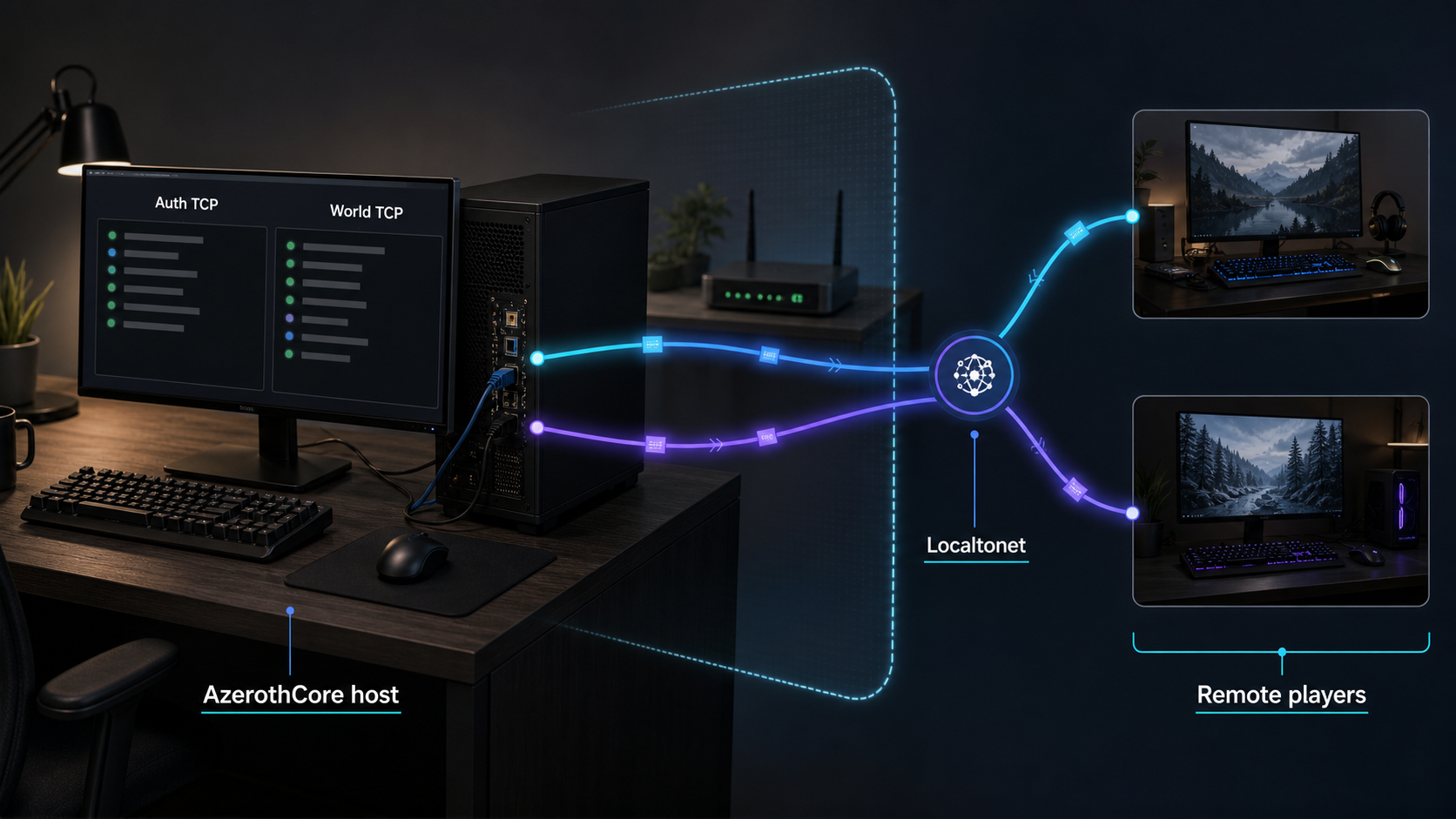
AzerothCore is an open-source, modular C++ game server framework that recreates the World of Warcraft 3.3.5a experience. This guide explains the verified installation workflow, the roles of Authserver and Worldserver, local validation, realm networking, and the checks required before remote players connect. After the local server works, we show how Localtonet can publish its TCP services without inbound router port forwarding, firewall changes, VPN setup, or a public IP address. We also identify an important compatibility check involving the public ports assigned to the tunnels rather than assuming that every endpoint mapping will work automatically.
📋 What's in this guide
How an AzerothCore WoTLK server is structured
AzerothCore is an open-source game server application and framework for hosting massively multiplayer online role-playing game environments based on World of Warcraft patch 3.3.5a. The project is written in C++, released under the GNU GPL v2 license, and designed around a modular architecture. Community modules can extend or customize the server, but the safest initial installation is a minimal core deployment that works before optional modules are introduced.
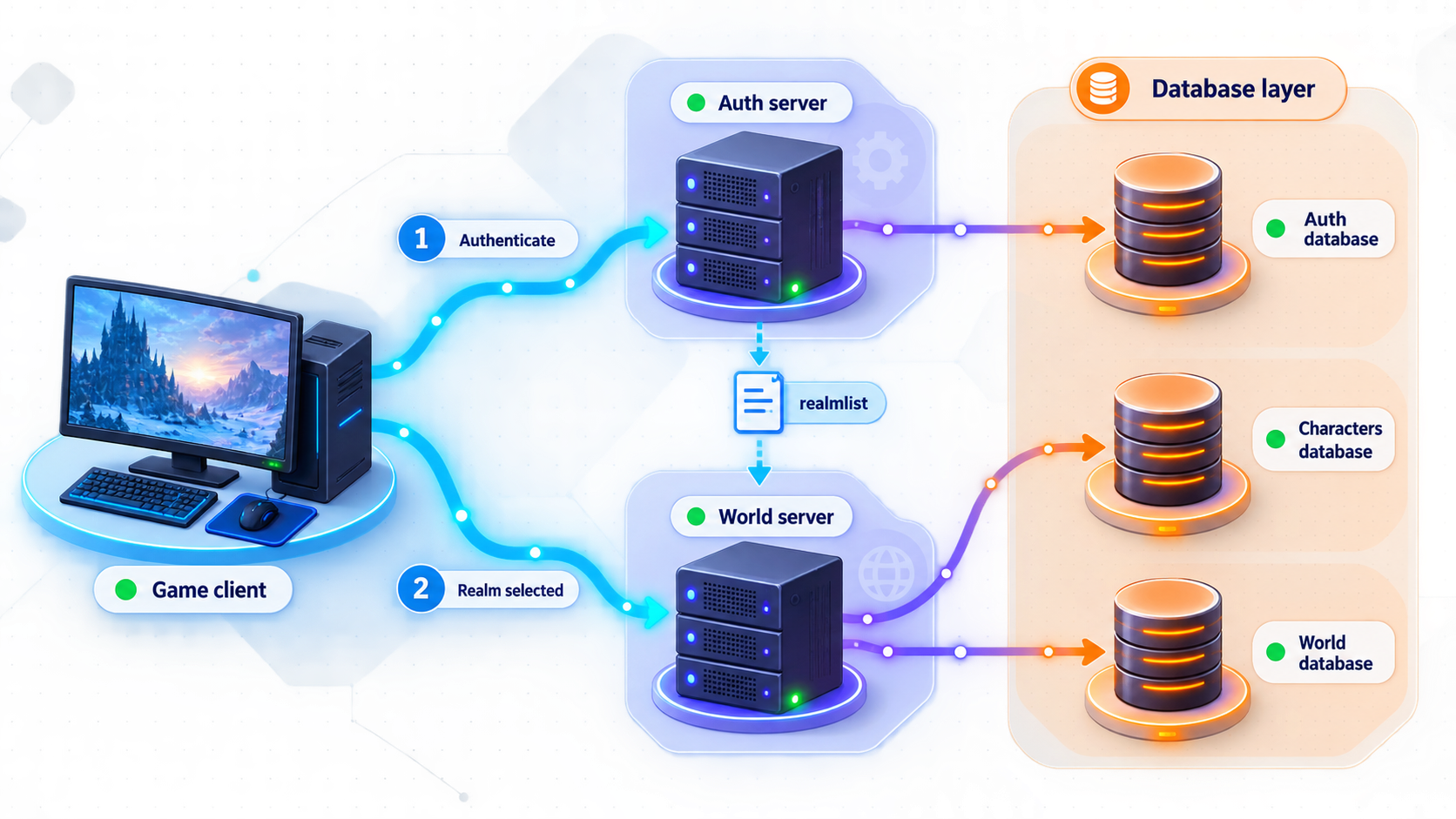
A working installation is more than one executable listening on one port. The official networking guidance distinguishes two player-facing server applications: Authserver and Worldserver. Authserver handles the initial authentication connection, while Worldserver provides the realm connection used for gameplay. AzerothCore documents TCP port 3724 for Authserver and TCP port 8085 for Worldserver.
The server also depends on its databases. The official networking instructions identify the acore_auth database and its realmlist table as the place where the realm address is configured. The value stored there tells an authenticated client where to find the realm. That makes remote access a two-stage networking problem: a player must first reach Authserver, and the address returned for the realm must then lead the player to a reachable Worldserver.
realmlist table in acore_auth contains the address that directs clients to the realm.
AzerothCore is not an official Blizzard Entertainment product and is not affiliated with or endorsed by World of Warcraft or Blizzard Entertainment. Confirm that your use of the server, client software, game data, accounts, and any distributed material is lawful and consistent with the applicable licenses and terms. Remote reachability does not grant permission to run an unauthorized public service.
Why local verification comes before tunneling
A tunnel can carry traffic to a listening local endpoint, but it cannot repair an incomplete build, initialize missing databases, correct invalid game data, or start a stopped server process. If Authserver or Worldserver is not working on the host, the corresponding public endpoint will also fail.
Treat remote access as the final integration layer. First install the core, complete database and final-server setup, start both applications, connect locally, and confirm that the realm is usable. Only then should you replace the local-only realm address with the public address needed by remote players.
Prerequisites and deployment decisions
AzerothCore maintains separate operating-system-specific setup paths. The supplied official material confirms Linux, macOS, and Windows server setup pages, but it does not provide a complete current package list, supported operating-system versions, compiler versions, database versions, directory layout, or hardware requirements. Those values change and must not be guessed.
Before installing, select the operating system and follow its current path in the AzerothCore server setup guide. Do not combine commands from different operating systems or from an old community tutorial. The project also explicitly warns against downloading the ZIP assets from its rolling “Latest” release page. Its recommended procedure is to use the current official installation tutorial.
| Requirement | Why it matters | What to confirm |
|---|---|---|
| Supported host environment | Build tools and service procedures differ among Linux, macOS, and Windows. | Use the current OS-specific AzerothCore guide and its supported version requirements. |
| Database environment | Authentication, characters, realm metadata, and world data depend on the database installation. | Use the database engine and version required by the current official installation path. |
| Game data | Worldserver requires the data prepared by AzerothCore's installation process. | Complete the official data extraction and placement steps for the chosen installation path. |
| Compatible client | AzerothCore targets the World of Warcraft 3.3.5a experience. | Use a lawfully obtained compatible client and configure it for the intended realm. |
| Local TCP reachability | Authserver and Worldserver must listen successfully before remote forwarding can work. | Confirm TCP services on the documented Authserver and Worldserver ports. |
| Localtonet client device | The device running our client must be able to reach both local services. | Install the Localtonet client on the server itself or another trusted device with network access to it. |
Choose where each component will run
The simplest topology places the databases, Authserver, Worldserver, and the Localtonet client on one machine. In that case, the tunnel targets can normally use a loopback or local address, subject to how the server processes are bound and how the Localtonet client itself is deployed.
A split topology is also possible in principle because Localtonet targets can point to a local IP address and port reachable from the connected client device. For example, our client could run on a trusted machine that can reach the AzerothCore host over a LAN. Before choosing that design, verify the LAN route, host firewall policy, and the addresses on which Authserver and Worldserver listen.
Build and test the official core before adding modules, custom database changes, reverse proxies, containers, or remote access. Adding one layer at a time makes failures much easier to isolate.
Install AzerothCore using the official workflow
The AzerothCore repository contains files associated with multiple development and deployment approaches, including build configuration and container-related files. Their presence does not establish that one command or one path is correct for every host. The official project directs users to its installation documentation rather than to release ZIP archives.
The extracted documentation identifies a staged installation guide containing Core Installation, Server Setup, Database Installation, Networking, and Final Server Steps. Exact commands, dependency versions, paths, generated filenames, and startup procedures are operating-system-specific and were not included in the supplied evidence. For that reason, this article preserves the verified workflow without fabricating commands that could produce an outdated or insecure installation.
Select the current operating-system installation path
Open the official AzerothCore installation guide and select its Linux, macOS, or Windows path. Record the required OS version, build tools, database packages, and any platform-specific preparation before changing the host.
Complete Core Installation
Obtain the current source using the method in the official tutorial, install the documented dependencies, configure the build, and compile the core. Do not use the ZIP files attached to the rolling Latest release because AzerothCore explicitly directs users to its official installation procedure instead.
Complete the OS-specific Server Setup stage
Follow the server setup instructions for the selected operating system. Use the paths and generated configuration files produced by that exact installation method rather than copying paths from another platform or an older guide.
Complete Database Installation
Initialize the required AzerothCore databases and apply the official database installation procedure. Confirm that the server's configured database account can access only the databases and permissions it needs. Do not expose the database listener to players or through a game-service tunnel.
Complete Networking configuration
Preserve the normal localhost-related configuration for a basic installation unless the documented topology requires a change. AzerothCore says the default localhost settings should be left alone in almost all basic scenarios and that the default BindIP value of 0.0.0.0 should normally remain unchanged.
Complete Final Server Steps
Finish the official data, configuration, account, and startup tasks required by the current guide. Start Authserver and Worldserver using the operating-system-specific procedure, then review their consoles or logs for database, configuration, data, or listener failures.
The available verified material does not establish one current command sequence for all supported systems. Publishing guessed package names, compiler flags, database versions, directories, service units, container commands, or executable paths would make the guide unreliable. Use only the commands shown in the current official branch for your selected operating system.
What completion should look like
At the end of installation, both Authserver and Worldserver should start without immediately exiting. They should connect to the expected databases, load the required configuration and game data, and listen for TCP connections. The realm record should exist in acore_auth.realmlist, and a compatible local client should be able to authenticate and enter the realm.
Do not treat a successful compilation as a finished installation. Compilation proves that the source built. It does not prove that the databases were imported, the configuration points to the correct database, required data exists, or the two player-facing processes are reachable.
Configure local and remote realm addressing
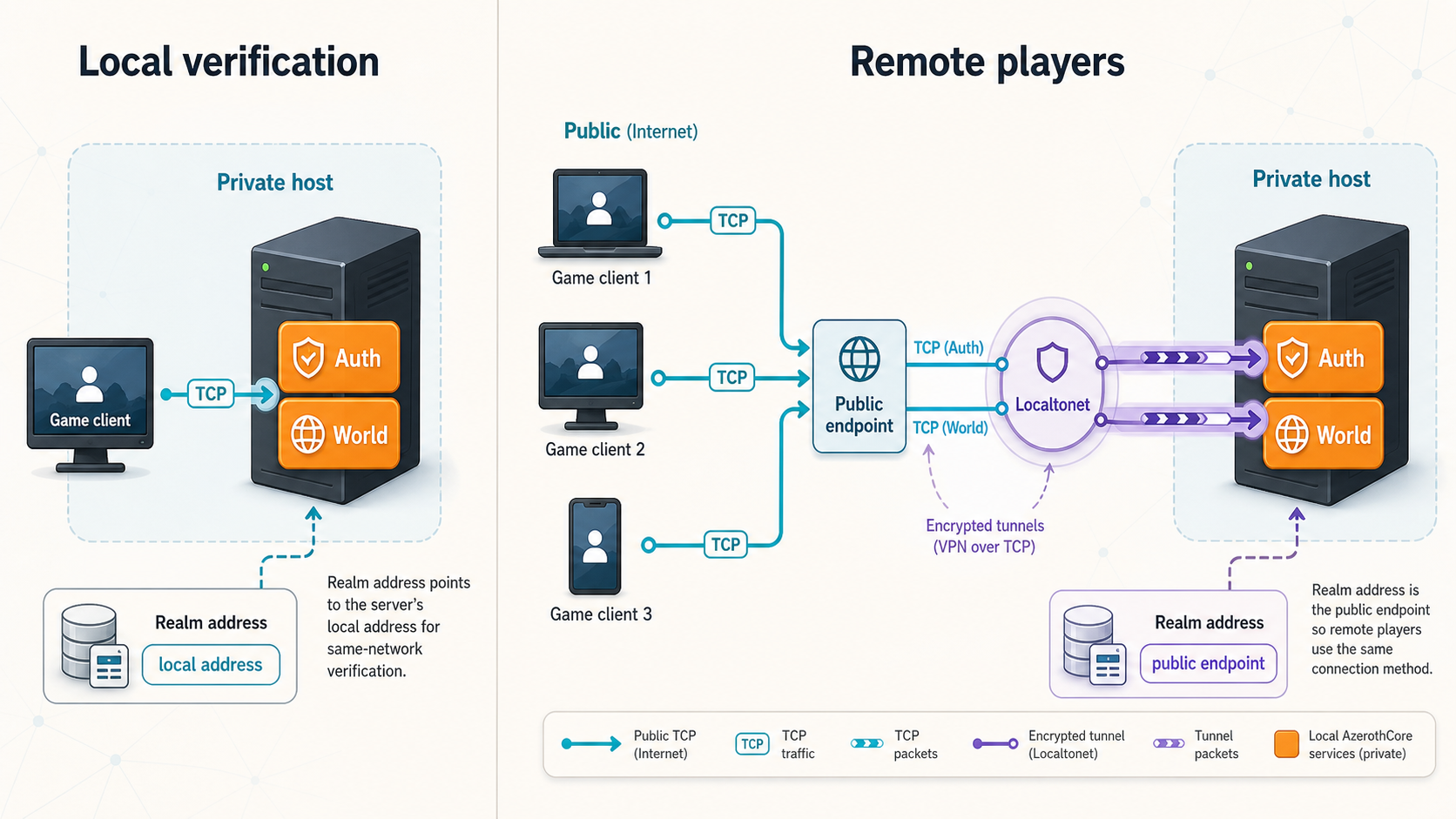
AzerothCore's networking documentation recommends leaving the normal localhost settings and the default BindIP value alone for most basic setups. The realm address is a separate concern. It is stored in the realmlist table of the acore_auth database and tells the client where the realm can be reached.
| Realm address | Use it when | Important limitation |
|---|---|---|
127.0.0.1 |
The game client and AzerothCore run on the same computer. | Only that computer can resolve the address to its own server. |
| LAN address | The client and server are different devices on the same local network. | Remote internet players generally cannot route to private LAN addresses. |
| Public IP address | The host has conventional public reachability and the required inbound routing is configured. | Traditional hosting generally requires router and firewall configuration. |
| Fully qualified domain name | A stable hostname resolves to the publicly reachable server. | DNS and the underlying public network path must both be configured correctly. |
| Localtonet public host | A verified Localtonet TCP mapping is compatible with the client's expected endpoint behavior. | The assigned public port must be checked carefully before the realm is advertised. |
Editing the realm address
Use a trusted database management tool or the database command-line interface on the server. Open the acore_auth database, locate the realmlist table, and update the address value for the intended realm. If using HeidiSQL, the AzerothCore instructions note that values should be edited from its Data tab.
The official networking guide supplies the following MySQL operation. Replace the placeholder with the exact address chosen for the current test stage. Make a database backup before changing production data.
USE acore_auth;
UPDATE realmlist
SET address = '[your_ip_or_hostname]'
WHERE id = 1;
The condition WHERE id = 1 targets realm ID 1. If the installation contains a different realm ID or multiple realms, inspect the table first and update only the intended row. Do not blindly apply a copied identifier to an unfamiliar database.
AzerothCore's networking documentation says not to change the localAddress field from its default value in Docker deployments. Container networking introduces additional address translation, so use the current Docker-specific instructions rather than adapting a bare-host configuration by trial and error.
Verify the complete server locally
Local verification should test the application path, not merely whether a port appears open. A listening socket confirms that a process accepted a bind operation. It does not confirm successful authentication, a correct realm address, usable world data, or entry into the game world.
Start the database environment
Confirm that the database service required by the chosen AzerothCore installation is running and that the configured AzerothCore account can reach the expected databases.
Start Authserver
Use the startup procedure from the selected OS guide. Check its output for configuration, credentials, schema, and TCP listener errors before continuing.
Start Worldserver
Allow its initialization to complete and inspect the output for missing data, database failures, module errors, or an inability to listen on the configured endpoint.
Confirm both TCP listeners
Use the operating system's connection or socket inspection tools to confirm that Authserver and Worldserver are listening on their configured local addresses. AzerothCore documents TCP ports 3724 and 8085 for the standard networking setup.
Test with a compatible local client
Point the compatible client at the local address appropriate to the topology. Authenticate, confirm that the realm appears, enter it, and verify that a character can reach the game world.
Record the known-good baseline
Record the working realm address, listener addresses, ports, process state, and relevant configuration backup. This baseline lets you distinguish a later tunnel problem from an AzerothCore configuration problem.
Interpret failures by connection stage
If the client cannot authenticate, begin with Authserver, its database access, and TCP port 3724. If authentication works but the realm cannot be entered, inspect the realmlist address, Worldserver, and TCP port 8085. If the client enters the realm but gameplay fails later, investigate Worldserver logs, data, modules, database state, and client compatibility rather than assuming the tunnel is responsible.
Connect remote players through Localtonet TCP tunnels
Once the local AzerothCore deployment is proven, Localtonet can provide public TCP endpoints for services running on the host. Our client establishes an outbound connection to a Localtonet relay server, so the workflow does not require inbound router port forwarding, firewall changes, VPN setup, or a public IP address.
AzerothCore documents two TCP services, so the expected design uses one TCP tunnel for Authserver and another TCP tunnel for Worldserver. Each tunnel points to the corresponding local IP address and port reachable from the device running our client.
A Localtonet TCP tunnel provides a public host and port, but the supplied AzerothCore networking excerpt only documents an address field for directing clients to the realm. It does not establish, within the evidence available for this draft, how an arbitrary externally assigned Worldserver port should be advertised to a standard 3.3.5a client. Before publication or production use, verify the relevant AzerothCore realm-port behavior and confirm that the public ports assigned by the current Localtonet configuration match what the compatible client expects. Do not assume that changing only the hostname makes a different public port transparent.
This compatibility check is especially important for the second connection. A player may successfully reach Authserver while still failing to enter the realm if the realm response points to a Worldserver endpoint that is unreachable at the expected public port.
Create the two TCP tunnels
Install and run the Localtonet client
Install our client on the AzerothCore host or on a trusted device that can reach both local services. Confirm that this device has stable local connectivity to Authserver and Worldserver.
Authenticate or select the client device
Use the device-specific authentication token through the approved Localtonet workflow. Never place the token in a public article, script repository, screenshot, client configuration, or message to players.
Select an available relay server
Choose from the relay servers or regions currently available in the dashboard. Available values can vary, so they must be selected from the current product rather than copied from a tutorial.
Create TCP mappings for both services
Create one TCP tunnel targeting the local Authserver endpoint and a separate TCP tunnel targeting the local Worldserver endpoint. For the standard documented setup, those local service ports are 3724 and 8085. Use the actual local IP address reachable from the Localtonet client device.
Start both tunnels
Creating a tunnel does not make it run. Start each tunnel and record its assigned public host and port. The endpoints remain available only while the selected client device is connected and the tunnels are running.
Validate the assigned endpoints end to end
Confirm public-port compatibility, update the intended realm address only after that check, restart or reload components if required by the current AzerothCore procedure, and test from a device outside the server's LAN. Stop or delete the tunnels when remote access is no longer needed.
Use the correct local target address
If our client runs directly on the AzerothCore host, the target may be a local address accepted by the two applications. If it runs on another LAN device, do not use that second device's loopback address. Point each tunnel at the AzerothCore server's reachable LAN address and verify that the host permits the connection from the Localtonet client device.
The public host and port belong in the remote connectivity plan. They do not replace the local target configuration inside the tunnel. Mixing those two sides is a common cause of failure: the tunnel listens publicly at one endpoint and forwards to a separate private endpoint.
| Connection stage | Local target | Remote requirement |
|---|---|---|
| Authentication | Authserver TCP endpoint, documented standard port 3724 | The player must reach the assigned public Authserver host and port. |
| Realm discovery | acore_auth.realmlist supplies the advertised realm address |
The advertised value must resolve or route to the remote Worldserver path. |
| Gameplay connection | Worldserver TCP endpoint, documented standard port 8085 | The player must reach the public Worldserver endpoint on the port expected by the client. |
Test from a genuinely external network
A test performed from the server itself does not prove remote connectivity. Use a permitted test device on another internet connection. Confirm the Authserver stage first, then realm visibility, then entry into Worldserver. Keep both server consoles or logs visible during the test so that you can determine whether the connection reached either process.
Avoid distributing the endpoint until this end-to-end test succeeds. If a public TCP probe reaches a tunnel but no event appears at the local service, review the tunnel target and local reachability. If Authserver receives the player but Worldserver does not, focus on the realm address and Worldserver public-port compatibility.
Security and operating practices
Publishing a game server creates an internet-facing service. Although our client establishes the relay connection outbound, traffic arriving at the public endpoint is still delivered to the selected local service. The absence of router port forwarding does not remove the need for patching, account controls, monitoring, backups, and careful exposure.
Do not expose the database as a convenience
Players do not need direct database connectivity. The database belongs on a trusted interface and should be reached by AzerothCore through the configuration established during installation. If remote database administration is required, use a separately designed administrative access method with authentication and least privilege. Do not reuse the public game tunnel for database access.
Plan updates as controlled changes
AzerothCore is actively developed. Before updating, preserve a working backup, read the current project's update instructions, and account for database changes and module compatibility. Update in a maintenance window, test locally, and only then restart public tunnels. Avoid replacing a known-good installation with a release ZIP, especially because the project explicitly directs users to its installation tutorial instead of those ZIP assets.
Separate core troubleshooting from module troubleshooting
If a module changes authentication, realm behavior, data loading, or Worldserver startup, disable the customization and reproduce the issue on the supported core configuration. A tunnel forwards TCP traffic and does not understand AzerothCore modules. A failure introduced by a module must be corrected in the application layer.
Troubleshooting AzerothCore and Localtonet connectivity
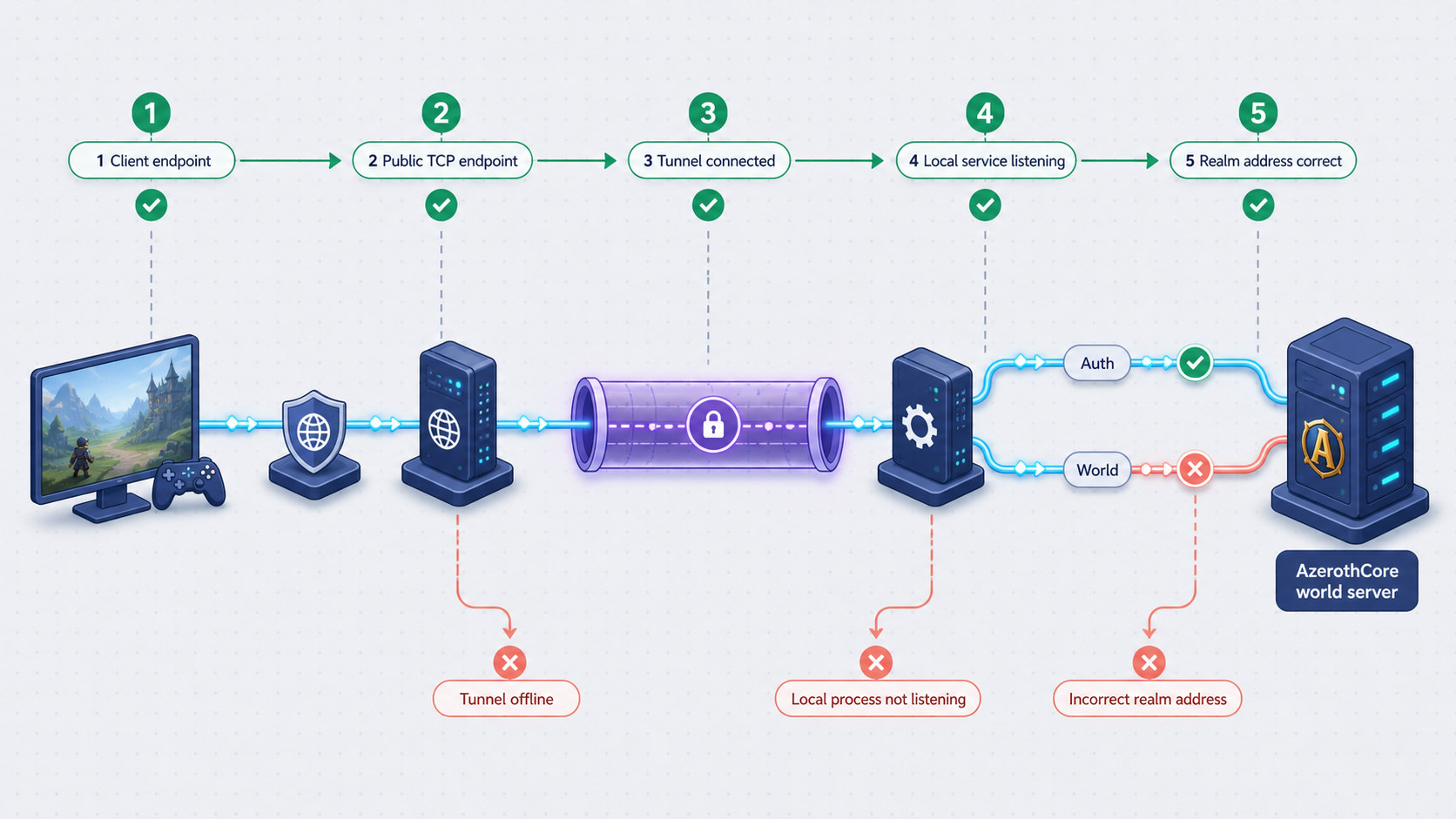
| Symptom | Likely area | Checks |
|---|---|---|
| Authserver or Worldserver exits at startup | AzerothCore installation | Review configuration, database access, schema state, game data, modules, and the process output. |
| No local TCP listener | Process or bind configuration | Confirm the process is running, inspect its configured port, and check for another process using the endpoint. |
| Local client cannot authenticate | Authserver path | Check Authserver, its database connection, the local client target, and TCP port 3724. |
| Authentication works but the realm is unavailable | Realm advertisement or Worldserver | Inspect acore_auth.realmlist, Worldserver state, and the TCP 8085 path. |
| Tunnel exists but is unreachable | Localtonet lifecycle | Confirm the selected device is connected and that the tunnel was started, not merely created. |
| Public endpoint opens but the service does not respond | Local tunnel target | Verify the local IP and port from the Localtonet client device and confirm the target process accepts that connection. |
| Remote authentication works but realm entry fails | Worldserver public mapping | Verify the advertised realm host, assigned public Worldserver port, client expectations, and end-to-end TCP reachability. |
| LAN tests work but internet tests fail | Public endpoint configuration | Check that the remote client uses the public endpoint rather than a loopback or private LAN address. |
Check the layers in a fixed order
Start with the database, then Authserver, Worldserver, local listeners, a local client test, the Localtonet client connection, tunnel status, and finally an external client. This order prevents a public networking symptom from hiding a local application failure.
If no local client can enter the realm, stop troubleshooting Localtonet and restore the local baseline. If local access works and an external TCP test reaches neither tunnel, inspect our client and tunnel lifecycle. If Authserver works remotely but Worldserver does not, inspect the realm advertisement and public-port behavior.
Do not confuse a hostname problem with a port problem
A hostname resolves to an IP address. It does not, by itself, instruct a traditional game client to use an arbitrary alternative port. If the assigned public tunnel port differs from the port expected by the client, changing only the address field may be insufficient. Verify the current AzerothCore schema and client connection behavior before changing additional realm fields.
Keep a copy of the last working local realm configuration. If remote testing fails, restore the local value and confirm the baseline again. This makes it clear whether the failure came from the server or the remote-access integration.
Frequently asked questions
What is AzerothCore WoTLK?
AzerothCore is an open-source, modular C++ game server application and framework designed around the World of Warcraft 3.3.5a experience. It is community maintained and released under the GNU GPL v2 license. It is not affiliated with or endorsed by Blizzard Entertainment.
Which AzerothCore ports need remote connectivity?
AzerothCore's networking documentation identifies TCP port 3724 for Authserver and TCP port 8085 for Worldserver in the standard setup. Confirm the actual listener configuration on your installation before creating tunnels.
Do I need two Localtonet TCP tunnels?
The documented AzerothCore design has two player-facing TCP services, so the expected mapping is one tunnel for Authserver and one for Worldserver. Each tunnel points to its corresponding local service. The assigned public ports must be checked for compatibility with the client and realm configuration.
Does Localtonet require router port forwarding?
No. Our client establishes an outbound connection to a Localtonet relay server, so Localtonet can expose the selected local service without inbound router port forwarding, firewall changes, VPN setup, or a public IP address.
Should I tunnel the AzerothCore database?
No. Players need the Authserver and Worldserver services, not direct database access. Keep the database private and restrict its account permissions. Design any required remote administration as a separate secured workflow.
Why can a player authenticate but not enter the realm?
Authentication and realm gameplay use separate services. Successful authentication proves the Authserver path, but realm entry still depends on the address advertised from acore_auth.realmlist, a running Worldserver, and a reachable public Worldserver port compatible with the client.
Can I use a Localtonet VPN instead of TCP tunnels?
This guide uses standard TCP tunnels because AzerothCore documents TCP player services. Standard tunneling is not VPN functionality. Localtonet VPN Manager is a separate private mesh VPN feature and represents a different network design.
Does creating a tunnel make it immediately available?
No. A tunnel must be started after it is created. It remains available only while the selected Localtonet client device is connected and the tunnel is running. It can later be stopped or deleted.
Can I install AzerothCore from the ZIP attached to the Latest release?
AzerothCore explicitly advises users not to download those release ZIP files. Follow the project's current official installation procedure for the selected operating system instead.
Connect your verified AzerothCore server with Localtonet
Once Authserver and Worldserver work locally, install our client, create separate TCP mappings for the two verified endpoints, confirm public-port compatibility, and test the full login and realm-entry flow from an external network.
Get Started Free →

