

Deploy the self-hosted Telegram media server reproducibly, validate its database and addon flow, and add remote HTTPS access only after local testing
Telegram-Stremio is a self-hosted FastAPI application that indexes authorized Telegram media in MongoDB and presents it through a Stremio or Nuvio addon. This guide covers Docker prerequisites, revision pinning, private startup configuration, container validation, first-run readiness, MongoDB backup and recovery, controlled updates, and troubleshooting. After the service works locally on port 8000, you can connect it to a Localtonet HTTP tunnel without inbound router port forwarding, firewall changes, VPN setup, or a public IP address. The upstream project changes over time, so this tutorial records its verification boundary and avoids treating the moving master branch or an Android-only release as a stable server specification.
📋 What's in this guide
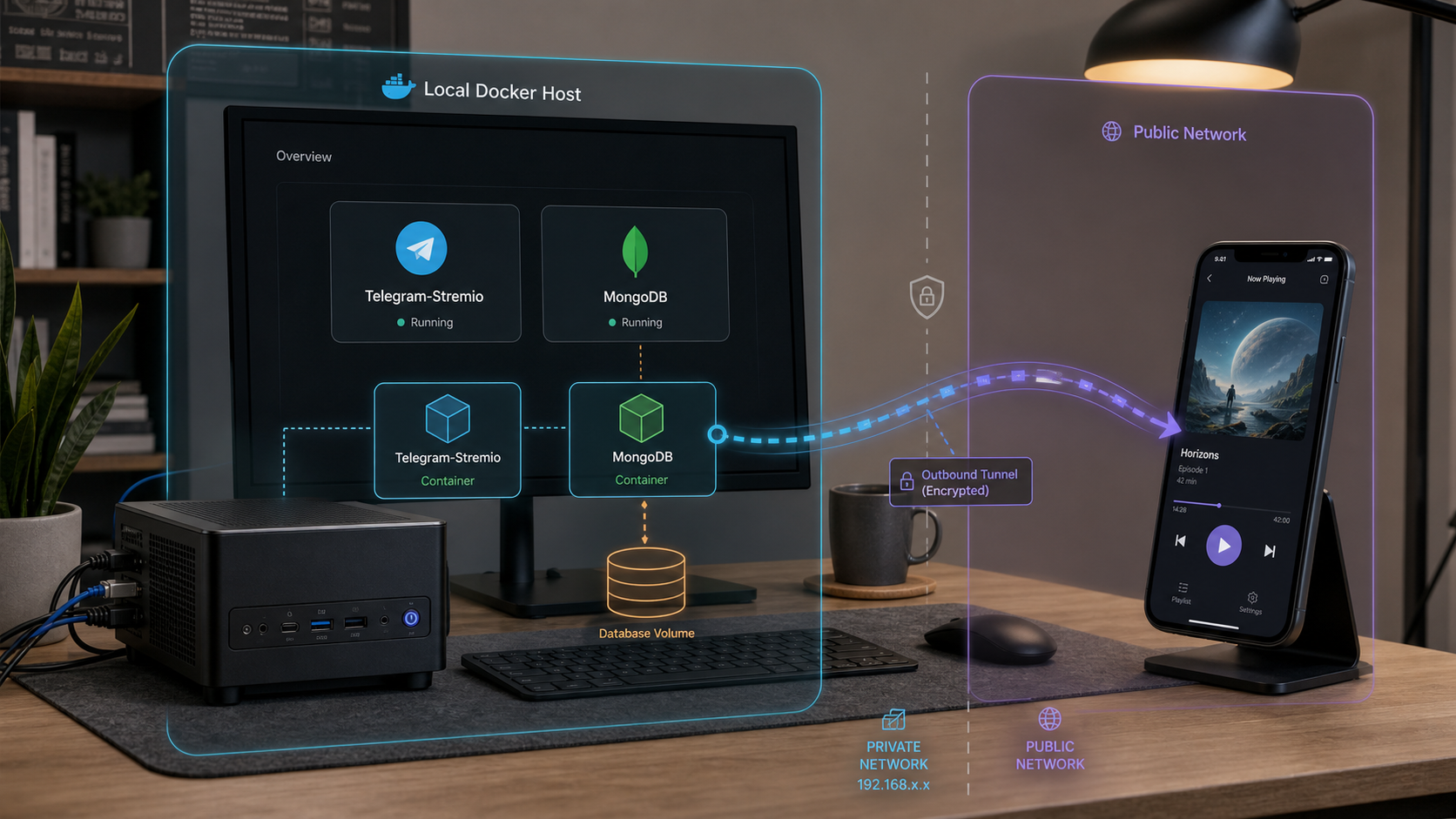
Version scope and reproducibility
The canonical project is the
weebzone/Telegram-Stremio repository.
The upstream repository currently identifies Telegram-Stremio as a self-hosted FastAPI, MongoDB, and PyroFork media server. Its repository contains Dockerfile, docker-compose.yaml, sample_config.env, start.sh, and the application source. Its application metadata declares port 8000.
This revision was reviewed against the canonical repository snapshot available during the 2026 editorial audit. The supplied evidence confirms the current README description and repository file inventory, but it does not include the complete contents of the current Compose file or sample configuration, and it does not provide the server snapshot's commit hash. For that reason, this article does not fabricate service names, volume names, MongoDB URI variable names, or startup fields that are absent from the evidence. The installation records the exact commit immediately after cloning, and that recorded hash becomes the specification for your deployment.
Clone the canonical repository, immediately record its full commit hash, review the files at that revision, and retain the hash with your deployment notes and backups. Do not run git pull automatically. A later commit can change configuration, database behavior, image dependencies, ports, or startup requirements.
Telegram-Stremio and TeleStremio are different deployments
Telegram-Stremio is the Docker-based, self-hosted server covered here. It uses FastAPI and MongoDB and is intended for an always-on host or VPS. TeleStremio is a separate Android application designed to run the personal server workflow on a phone without Docker or MongoDB.
The upstream release tagged v1.0.5, commit c132c19, is titled
TeleStremio v1.0.5.
Its cache cleanup behavior and its “Refresh advertised URL” or “Refresh addon URL” controls describe the Android application. They must not be attributed to the Docker server unless a server-specific README or release explicitly documents the same behavior.
| Deployment | Runtime | Database model | Remote access described upstream |
|---|---|---|---|
| Telegram-Stremio server | VPS or Docker-capable host | MongoDB-backed indexed database | Public server URL appropriate to the deployment |
| TeleStremio Android app | Android phone | Lighter phone-based workflow without MongoDB | Tailscale is described by the current README |
| This tutorial | Docker Engine and Docker Compose | The MongoDB connection declared by the pinned server revision | Optional Localtonet HTTP tunnel to port 8000 |
How the self-hosted server works
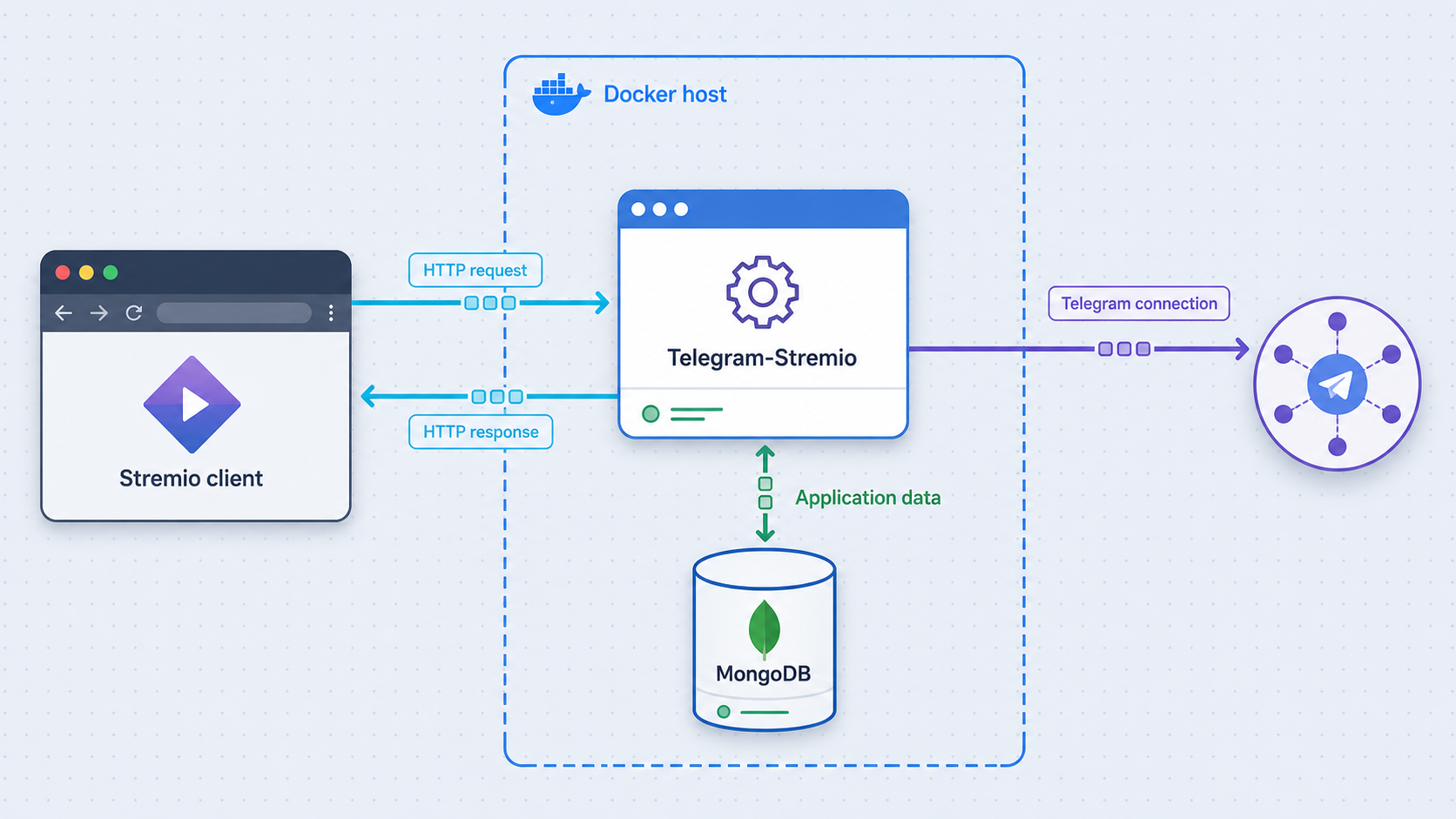
Telegram-Stremio is not a conventional media server that scans a local movie directory. Telegram channels and messages are its media source. MongoDB stores indexed records such as media metadata and Telegram message references. PyroFork handles Telegram interaction and streaming, while FastAPI exposes the web panel and the HTTP operations consumed by compatible addon clients.
When an authorized file is forwarded to a configured Telegram channel, the server can interpret its filename or caption, associate the file with title metadata, and save the relevant record in MongoDB. The addon then exposes catalog, metadata, and stream operations to Stremio or Nuvio. A successful installation therefore requires more than an open web page. Telegram authentication, channel authorization, MongoDB persistence, catalog generation, and playback must all be tested.
Self-hosting does not change copyright, licensing, Telegram, Stremio, Nuvio, or hosting-provider rules. Configure channels and content only when you have the necessary rights and permission. Protect private catalogs and streams from unauthorized users.
Install Docker Engine, Compose, and Git
Choose a host that can remain available whenever clients use the addon. A Linux server or VPS is the most direct Docker deployment, while Windows and macOS can use Docker Desktop for testing or an always-on host. The server needs outbound connectivity to Telegram and any metadata services that you configure.
Linux
Install Docker Engine from Docker's repository for your exact Linux distribution rather than using an unreviewed convenience script. The official installation pages include distribution-specific package repository and signing-key instructions. Install Docker Engine, the Docker CLI, containerd, the Buildx plugin, and the Docker Compose plugin.
The package names used by Docker's official Debian and Ubuntu repositories are commonly:
sudo apt-get update
sudo apt-get install docker-ce docker-ce-cli containerd.io docker-buildx-plugin docker-compose-plugin
These commands assume that Docker's official package repository has already been configured for the installed distribution. Do not run them against an unconfigured package source and assume the result is current. For Fedora-family systems, follow Docker's corresponding RPM repository instructions and install the equivalent packages through the system package manager.
Enable and start Docker where the operating system uses systemd:
sudo systemctl enable --now docker
sudo docker version
sudo docker compose version
You may operate Docker through sudo or configure a dedicated deployment user according to Docker's documented post-installation procedure. Membership in the Docker group is highly privileged and should not be granted casually.
Windows and macOS
Install Docker Desktop using Docker's supported installer for the operating system. Docker Desktop includes Docker Engine access and the docker compose command. On Windows, use the supported WSL 2 or Hyper-V backend selected by Docker Desktop. Reboot if the installer requests it, start Docker Desktop, and wait until the engine reports that it is running.
Verify every host
git --version
docker version
docker compose version
docker run --rm hello-world
The final command verifies that the Docker daemon can download and run a container. Remove unrelated software from port 8000 or plan a deliberate host-side port change. If you change the published host port, retain the application's internal container port and use the new host port in local tests and the Localtonet target.
| Requirement | Purpose | Readiness check |
|---|---|---|
| Git | Clones and identifies the upstream revision | git --version |
| Docker Engine | Builds and runs containers | docker version reaches the daemon |
| Docker Compose plugin | Processes docker-compose.yaml |
docker compose version |
| Telegram application credentials | Authenticates the Telegram client session | API ID and API hash obtained from your Telegram application |
| Telegram bot token | Authenticates the bot used by the server | Token created through BotFather and stored privately |
| MongoDB connection | Stores indexed and application state | URI or Compose service supplied by the pinned revision |
| Port 8000 | Publishes the FastAPI HTTP service | No unintended listener occupies the selected host port |
Obtain and protect the startup configuration
The canonical repository uses sample_config.env as the template for config.env. Configuration names are case-sensitive. The current upstream documentation confirms Telegram API credentials, a primary bot token, MongoDB-backed storage, and subsequent configuration through the web settings page. Older forks may expose additional startup variables, but a fork is not authoritative for the current canonical server.
Telegram API ID and API hash
Sign in to Telegram's application-development portal using your own Telegram account, create an application if you do not already have one for this deployment, and copy its numeric API ID and API hash into the corresponding API_ID and API_HASH fields. The API hash is a secret. Do not place either value in this article's example commands.
Primary bot token
Open a private conversation with Telegram's official BotFather account, create a bot, and copy the generated token into BOT_TOKEN. Add the bot as an administrator only in channels that the server is authorized to process. Grant no unrelated channel permissions.
MongoDB connection
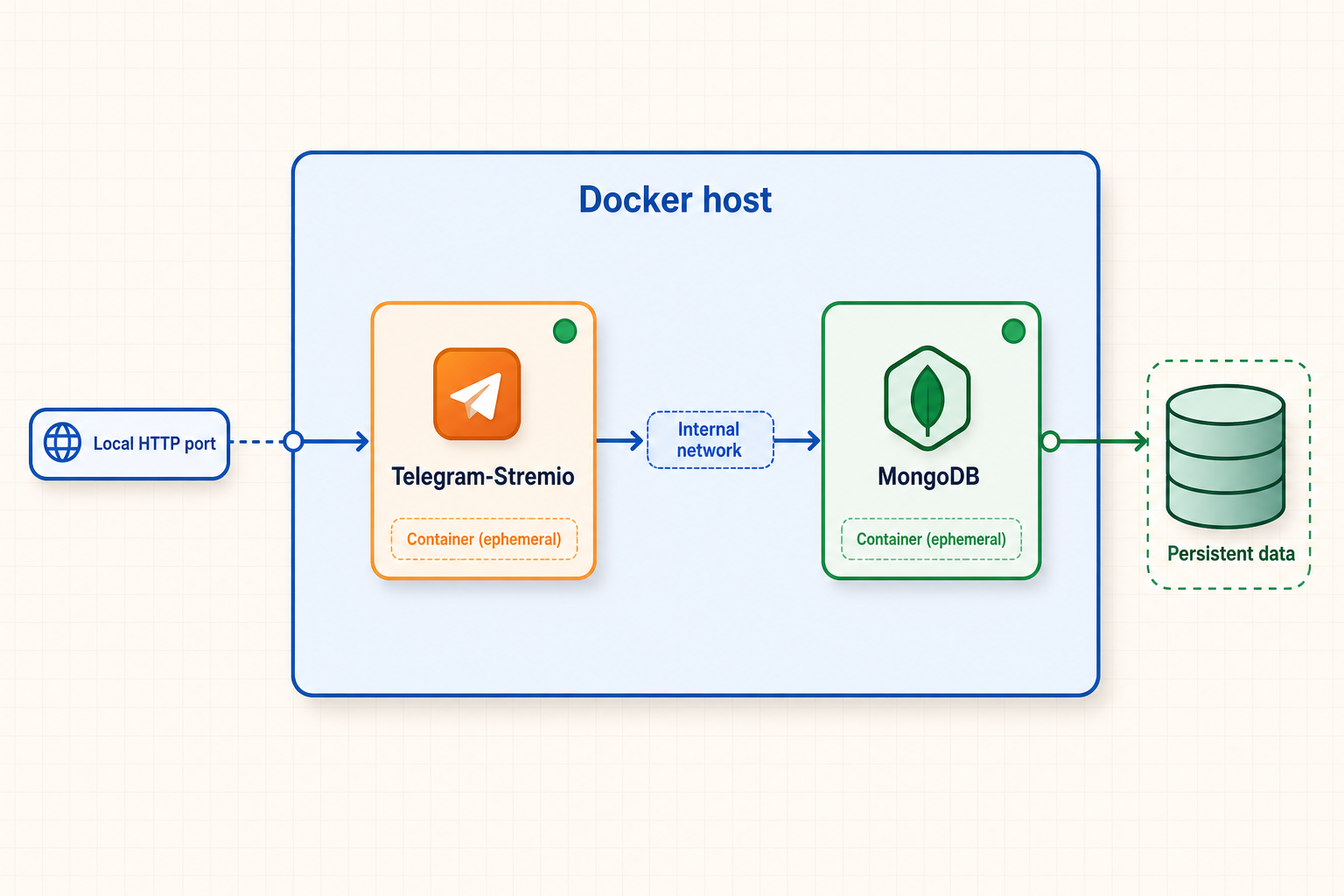
Telegram-Stremio requires MongoDB. The actual connection string must match the deployment model declared by the pinned Compose and sample configuration files. If the pinned Compose definition includes a MongoDB service, the application must use that service's internal Compose hostname and the database must use its declared persistent volume. If the pinned definition contains only the application service, supply a restricted external MongoDB URI through the exact field named by that revision.
Do not substitute localhost for another container. Inside the Telegram-Stremio container, localhost means the application container itself. A separate Compose service is reached by its service name on the Compose network. An external database is reached through its private or provider-assigned hostname.
Other startup fields
Copy every field from the pinned revision's sample_config.env into config.env, preserving names and formatting. Values not independently confirmed by the canonical server evidence are intentionally not listed here. This prevents obsolete variables from older forks from being presented as current server requirements.
For each additional field in the pinned sample, use this rule:
- Obtain Telegram identifiers from resources you control, not screenshots or public examples.
- Obtain metadata-service keys from the service named by that exact field.
- Generate administrator secrets with a cryptographically secure password manager or secret generator.
- Use the MongoDB database and credentials created for this deployment.
- Leave an optional value empty only when the sample or README says that empty is supported.
- Never guess channel IDs, user IDs, tokens, URI formats, or boolean spellings.
Publishing a guessed list would create an unsafe and potentially nonfunctional installation. Treat the copied sample_config.env at your recorded server commit as the exact field inventory. Keep a sanitized list of field names in your deployment notes, but never copy their values into tickets, chat messages, screenshots, or source control.
Install and start Telegram-Stremio with Docker Compose
Clone the canonical repository
Download the upstream server repository into a dedicated deployment directory and enter that directory.
Record and pin the exact commit
Save the full commit hash before editing or starting anything. Create a local deployment tag so later branch movement cannot silently redefine the installed version.
Create the private environment file
Copy sample_config.env to config.env, supply the values obtained in the previous section, and restrict access to the file.
Validate the pinned Compose model
Confirm its services, environment-file reference, port publication, network, and persistent storage without posting the rendered output publicly.
Build and start the declared services
Use the repository's Compose file without inventing service names or adding an unrelated MongoDB container.
Inspect status and startup logs
Confirm that every required service remains running and resolve configuration or database errors before opening the web panel.
Clone and pin the source
git clone https://github.com/weebzone/Telegram-Stremio.git
cd Telegram-Stremio
git rev-parse HEAD
git status
git tag local-deployment-baseline
Copy the full output of git rev-parse HEAD into your private deployment record. To return the working tree to that exact snapshot later, use the saved hash rather than relying on the current meaning of master.
Create the environment file
cp sample_config.env config.env
chmod 600 config.env
The chmod command applies to Unix-like hosts. On Windows, use NTFS permissions to limit the file to the deployment account and administrators. Edit the file with a local text editor. Do not pass secrets directly on a command line because they can enter shell history or process listings.
Identify the exact Compose arrangement
The service and volume names belong to the pinned repository revision. Record them once:
docker compose config --services
docker compose config --volumes
docker compose config --networks
Also verify that the application loads config.env, that the expected host port maps to container port 8000, and that MongoDB state has a persistent destination if MongoDB is part of the Compose project. If no database service appears, the application is using the configured external MongoDB connection and no local MongoDB container should be invented.
docker compose config can render environment values. Run it only in a trusted terminal. Do not redirect its complete output into an unencrypted file or paste it into a support request. Redact Telegram tokens, API hashes, session material, database credentials, channel identifiers, administrator secrets, and private URLs.
Build and launch
docker compose config --quiet
docker compose up -d --build
docker compose ps
docker compose logs --tail=200
A successful command exit is not sufficient. The application and every required dependency must remain running. If a container restarts, inspect the earliest error. Repeatedly issuing docker compose restart can hide the original configuration or database failure.
Follow a particular service only after obtaining its actual name:
docker compose config --services
docker compose logs -f ACTUAL_SERVICE_NAME
Replace ACTUAL_SERVICE_NAME with a value printed by the first command. Do not type the placeholder literally.
Complete first-run configuration and readiness checks
A first run is complete only when the containers are stable, MongoDB is connected, the management interface opens, Telegram authentication succeeds, an authorized channel can be indexed, and the generated addon can load and play a controlled test item.
Confirm service stability
Run docker compose ps several times and ensure that required services are not repeatedly restarting.
Request the local HTTP endpoint
From the Docker host, request http://127.0.0.1:8000 or the deliberately selected host port.
Finish settings locally
Open the self-hosted web panel from a trusted browser and complete the settings offered by the pinned server revision.
Verify Telegram and channel access
Complete the server's Telegram login flow and assign channel roles. The bot must be an administrator in every configured authorization channel.
Index one authorized test file
Forward a clearly named item and confirm that the expected record appears without a database or metadata error.
Install and test the addon
Use the addon URL generated by the self-hosted server, load the catalog in Stremio or Nuvio, and request playback.
Check the local HTTP path
curl -i http://127.0.0.1:8000
An HTTP response confirms that the host port reaches an HTTP service. The exact status code or redirect can vary by the pinned revision and its authentication state. A 404 on a guessed subpath does not prove the whole application is unavailable. Open the root address and correlate the request with application logs.
Finish the web settings before exposure
The current canonical README describes a web configuration panel and in-application Telegram login. Use your own local instance for phone number, login code, or two-factor authentication entry. Verify the browser address before entering them. Do not complete this process through a URL sent by another person.
Assign one role to each channel. The current project describes authorization, manual, announcement, global-search, and skipped-file roles. An authorization channel can also be marked for anime. Separate movie, television, anime, split-file, and season-pack channels are organizational choices, not mandatory server components.
Test one controlled media item
Begin with one file you are authorized to use. A movie filename or caption should contain a recognizable title, year, and quality. A television episode should contain a recognizable series title, season and episode notation such as S01E04, and a quality label. Watch the logs and management panel while the server processes it.
If the item is identified incorrectly, use the correction mechanism in the pinned server interface rather than forwarding a large library with ambiguous names. Verify that the record remains present after restarting the Compose project. Persistence across a restart is an important first-run completion criterion.
Install the server-generated addon
Obtain the addon URL from your running self-hosted Telegram-Stremio server using the workflow exposed by that pinned server version. Install that URL in Stremio or Nuvio, load the test catalog, open the test title, and request playback. The web panel and addon can share one HTTP service while using different paths, so opening the panel alone is not an addon test.
TeleStremio v1.0.5 documents Android-specific refresh controls. The supplied canonical server evidence does not confirm those controls for the Docker server. For remote installation, use the addon URL that the pinned self-hosted server actually generates and verify that every URL required by the client is reachable through the selected public origin.
Back up, restore, update, and roll back safely
Docker images and application containers are replaceable. MongoDB records, private configuration, and any application-managed state are not. Create a backup before an update, test restoration separately, and retain the source commit associated with each backup.
Identify the database model first
docker compose config --services
docker compose config --volumes
git rev-parse HEAD
If the pinned Compose project includes MongoDB, use its actual service name in the container backup procedure. If it uses an external MongoDB deployment, run MongoDB Database Tools from a trusted host that can reach that database. In both cases, use mongodump and mongorestore versions compatible with the deployed MongoDB server.
Back up a Compose-managed MongoDB service
Create a protected backup directory, then stream a compressed archive from the actual MongoDB service. Replace the placeholder only with the service name shown by docker compose config --services.
mkdir -p backups
chmod 700 backups
docker compose exec -T ACTUAL_MONGODB_SERVICE mongodump --archive --gzip > backups/mongodb.archive.gz
test -s backups/mongodb.archive.gz
This command assumes the MongoDB container has mongodump and can authenticate through its configured environment. If authentication arguments are required, do not place a password directly in shell history. Use the credential-handling method supported by that deployment.
Back up an external MongoDB deployment
Store the connection URI in a protected temporary environment variable or credential mechanism rather than writing it into a shared script:
mkdir -p backups
chmod 700 backups
mongodump --uri="$MONGODB_URI" --archive=backups/mongodb.archive.gz --gzip
test -s backups/mongodb.archive.gz
Set MONGODB_URI privately in the current session. Clear the session when finished. Protect the archive because database backups can contain catalog records, user information, Telegram references, and operational configuration.
Back up configuration and revision metadata
git rev-parse HEAD > backups/source-commit.txt
cp config.env backups/config.env
chmod 600 backups/config.env backups/source-commit.txt
Encrypt the backup set before moving it off the host. Do not store plaintext credentials in a public object-storage bucket or source repository.
Restore MongoDB in a controlled maintenance window
Stop the application service or the complete stack before replacing database contents so that the server does not write while restoration is in progress. Preserve the current database until the replacement has been verified.
For a Compose-managed MongoDB service:
docker compose stop ACTUAL_APPLICATION_SERVICE
cat backups/mongodb.archive.gz | docker compose exec -T ACTUAL_MONGODB_SERVICE mongorestore --archive --gzip --drop
docker compose start ACTUAL_APPLICATION_SERVICE
docker compose ps
docker compose logs --tail=200
For an external MongoDB deployment:
mongorestore --uri="$MONGODB_URI" --archive=backups/mongodb.archive.gz --gzip --drop
The --drop option removes collections before restoring them. Test the procedure against an isolated database first. Confirm the selected URI, database scope, archive date, and application downtime before restoring production data.
Perform a controlled update
Record the current revision and make a fresh backup. Fetch upstream changes without immediately changing the working tree:
git rev-parse HEAD
git status
git fetch --tags origin
git log --oneline --decorate HEAD..origin/master
Review the canonical README, docker-compose.yaml, sample_config.env, Dockerfile, and release or migration notes at the candidate commit. Compare configuration field names and Compose storage before checking out that commit.
git checkout CANDIDATE_SERVER_COMMIT
docker compose config --quiet
docker compose build
docker compose up -d
docker compose ps
docker compose logs --tail=200
Replace CANDIDATE_SERVER_COMMIT with a reviewed full server commit hash. Do not use the TeleStremio Android v1.0.5 tag as proof that the Docker server is compatible with that release.
Roll back
If the update fails before changing database data, return to the recorded previous commit and rebuild:
git checkout PREVIOUS_SERVER_COMMIT
docker compose up -d --build
docker compose ps
docker compose logs --tail=200
If the new version migrated or modified MongoDB incompatibly, code rollback alone may be insufficient. Stop the application, restore the backup created immediately before the update, then start the previous commit. Keep the failed deployment logs after redacting credentials so the cause can be reviewed.
Expose the verified HTTP service with Localtonet
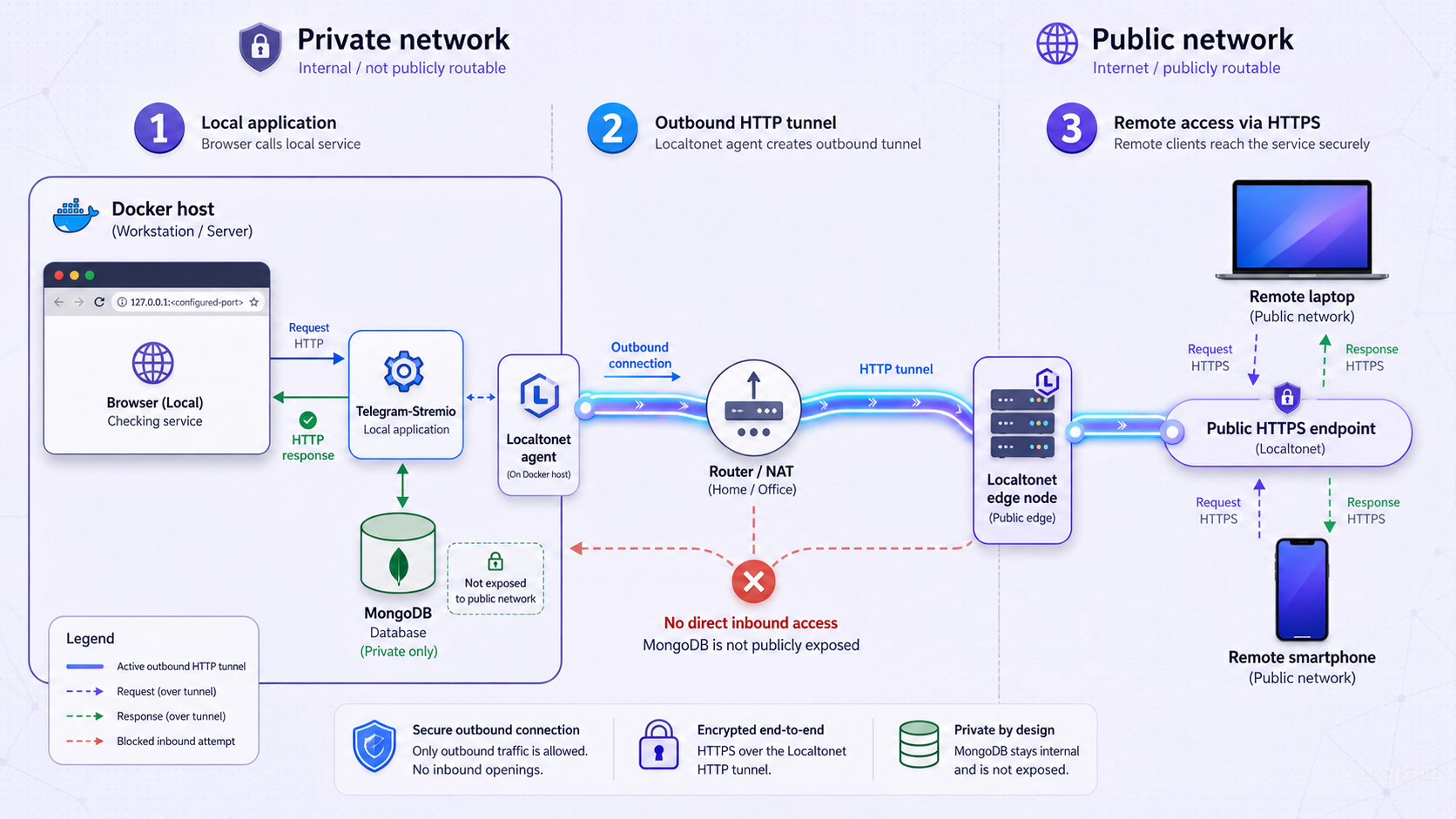
Complete this section only after the local panel, database, indexing, addon catalog, and playback tests succeed. Our client establishes an outbound connection to a Localtonet relay server. The resulting HTTP tunnel provides a public HTTPS address without inbound router port forwarding, firewall changes, VPN setup, or a public IP address.
Install and run the Localtonet client
Run our client on the Docker host or another device that can reach the Telegram-Stremio host and its published HTTP port.
Authenticate or select the device
Use the device-specific Localtonet token through the supported client workflow, then select that connected device in the dashboard. Never publish the token.
Select an available relay server
Choose a currently available server or region from the dashboard. Available values vary, so no server code is hardcoded here.
Create an HTTP tunnel
Target 127.0.0.1 and port 8000 when our client runs on the same host and that local test succeeds. Otherwise use the Docker host's reachable LAN address and actual published host port.
Start the tunnel
Creating a tunnel does not start it. Press Start and wait until the selected client and tunnel are connected.
Test from an external network
Open the assigned HTTPS address from outside the LAN and verify the server response. Then use only a server-supported addon URL whose required requests resolve through that public origin.
If the Localtonet client runs on another LAN device, 127.0.0.1 points to that device rather than the Docker host. Use the Docker host's LAN address and verify that the client device can open it before starting the tunnel.
Localtonet HTTP tunnels can use a random subdomain, a custom subdomain where supported, or a custom domain. All three process types serve the local HTTP content through a public HTTPS address. Check the current dashboard and Localtonet HTTP tunnel documentation before configuring a custom domain or DNS.
Telegram-Stremio and MongoDB must be healthy, the selected Localtonet client must remain connected, and the tunnel must be running. Creating the tunnel configuration alone does not make the service available.
Validate the addon through the public origin
Opening the panel through the tunnel proves only that one HTTP path works. Install the addon URL produced by the pinned self-hosted server, load the test catalog, open its metadata, and request playback from an external network. Inspect the application logs while doing so.
If the generated addon or stream URLs contain localhost, a private IP address, or an obsolete hostname, do not assume the TeleStremio Android refresh control exists in the server. Consult the canonical README and server interface at your recorded commit for its supported public-origin configuration. If that revision does not document a way to generate externally reachable addon URLs, stop and do not claim that panel reachability alone provides complete remote addon support.
Security checklist for public access
Do not treat an obscure addon or tunnel URL as authentication. Configure the access tokens, subscriptions, private catalogs, administrator authentication, or other controls supported by the pinned server revision. Where practical, test both an authorized request and a request without authorization.
Keep the host operating system, Docker, the server source, and MongoDB current through scheduled and reversible maintenance. Avoid unattended application updates. If a credential appears in a public log, screenshot, repository, or support post, revoke or rotate it through the system that issued it. Deleting the disclosure does not make the old credential safe.
Troubleshooting Telegram-Stremio, MongoDB, and Localtonet
Docker cannot contact the daemon
Run docker version and read the daemon error. Confirm that Docker Engine or Docker Desktop is running and that the deployment account has permission to access it. Do not expose the Docker socket or make it globally writable.
Compose reports missing or invalid configuration
Confirm that config.env was copied from sample_config.env at the same recorded commit. Compare field names without displaying values. Run docker compose config --quiet, then correct the first unresolved field or syntax error.
The application repeatedly restarts
Run docker compose ps and docker compose logs --tail=200. Common failure categories include malformed configuration, failed Telegram authentication, an unreachable MongoDB deployment, port conflicts, insufficient disk space, or an incompatible database migration. Start with the earliest error.
MongoDB cannot be reached
Use docker compose config --services to confirm the pinned architecture. If MongoDB is a Compose service, verify that it is running and that the application uses the internal service hostname. If MongoDB is external, test reachability from the application host and validate its restricted credentials. Never publish MongoDB as a shortcut.
Port 8000 is occupied
Identify the existing listener before changing the Compose mapping. Stop the unrelated service or deliberately map another host port to the application's container port. Use the actual host-side port in curl and Localtonet.
The local web interface does not open
Confirm that the application remains running and that Compose publishes the expected port. Test from the Docker host with curl -i http://127.0.0.1:8000. If that works but another LAN device cannot connect, inspect the host binding and firewall. When our client runs on the same host, Localtonet can target loopback without LAN publication.
The panel works but no catalog entries appear
Check MongoDB connectivity, channel roles, bot administrator access, and the test filename or caption. Use one unambiguous authorized item. Inspect the logs and any skipped-file view offered by the pinned server before importing more content.
The addon does not install
Confirm that you copied the addon URL generated by the self-hosted server rather than the web panel URL or a TeleStremio Android address. Verify the manifest request from the same network as the client. Do not guess addon paths.
The Localtonet URL returns an error
Test the exact local target from the device running our client. Confirm that the selected device is connected, the HTTP tunnel has been started, and its target IP and port match the successful test. If the client runs on another device, do not use 127.0.0.1 for the Docker host.
Catalogs load remotely but playback fails
Verify local playback first. Inspect logs during the remote request and check whether URLs required for playback use a reachable public origin. Also check Telegram session validity, bot permissions, channel access, disk space, and the server's temporary-storage behavior. Do not attribute the Android v1.0.5 cache cleanup schedule to the Docker server.
The service failed after an update
Stop the updated application, retain sanitized logs, and return to the recorded previous commit. If MongoDB was migrated or changed, restore the pre-update database backup before restarting the previous code. A source rollback alone cannot reverse incompatible database changes.
The public URL stops working later
Check all lifecycle layers independently: Docker services, MongoDB, Telegram authentication, the Localtonet client connection, and tunnel status. A host reboot, application crash, expired Telegram session, database failure, disconnected client, or stopped tunnel can interrupt the path.
Frequently asked questions
Does Telegram-Stremio require MongoDB?
Yes. The self-hosted server uses MongoDB for indexed media and application records. Use the connection model declared by your pinned server revision and keep the database private.
Is TeleStremio v1.0.5 the Docker server release?
No. The v1.0.5 release is titled TeleStremio and describes the separate Android application. Its cache cleanup and advertised-URL controls must not automatically be treated as Docker server features.
Why should I record the Git commit?
The master branch can move. A full commit hash identifies the exact README, sample configuration, Compose file, Dockerfile, and application code that you installed, making updates and rollback review possible.
Which port does the self-hosted server use?
The canonical repository metadata identifies application port 8000. Confirm the host-side mapping in the Compose file at your pinned commit, particularly if you have deliberately changed it.
Should I expose MongoDB through Localtonet?
No, not for this workflow. Create an HTTP tunnel only to the Telegram-Stremio FastAPI service. Keep MongoDB on its private Compose network or another restricted network.
Does Localtonet require router port forwarding?
No. Our client establishes an outbound connection to a Localtonet relay server, so this workflow does not require inbound router port forwarding, firewall changes, VPN setup, or a public IP address.
Can the Localtonet client run on another device?
Yes, if that device can reach the Docker host and its published HTTP port. Target the Docker host's reachable LAN address rather than 127.0.0.1.
Does creating a Localtonet tunnel start it automatically?
No. Creating a tunnel stores its configuration. You must press Start, and the selected Localtonet client must remain connected. You can stop or delete the tunnel later.
Can I copy configuration from an older fork?
No. Forks and older revisions can use different fields, defaults, Compose services, or database assumptions. Copy sample_config.env from the exact canonical server commit you deploy and obtain each value through its official issuing workflow.
Connect your verified Telegram-Stremio server with Localtonet
After the Docker deployment, MongoDB persistence, channel indexing, addon catalog, and playback all work locally, create a Localtonet HTTP tunnel to the verified host port. Keep MongoDB and every credential private, test the complete addon path externally, and stop the tunnel whenever remote access is unnecessary.
Get Started Free →

