

Build and verify a local media library, then add remote browser access without opening router ports
Universal Media Server is a free DLNA, UPnP, and HTTP/S media server with releases for Windows, Linux, and macOS. This guide covers platform selection, installation, media-folder access, first startup, local browser verification, routine operation, updates, and troubleshooting. It also explains how browser access differs from DLNA or UPnP discovery. Once the local HTTP service works, you can connect it to a Localtonet HTTP tunnel and use a public HTTPS address while the selected Localtonet client is connected and the tunnel is running.
📋 What's in this guide
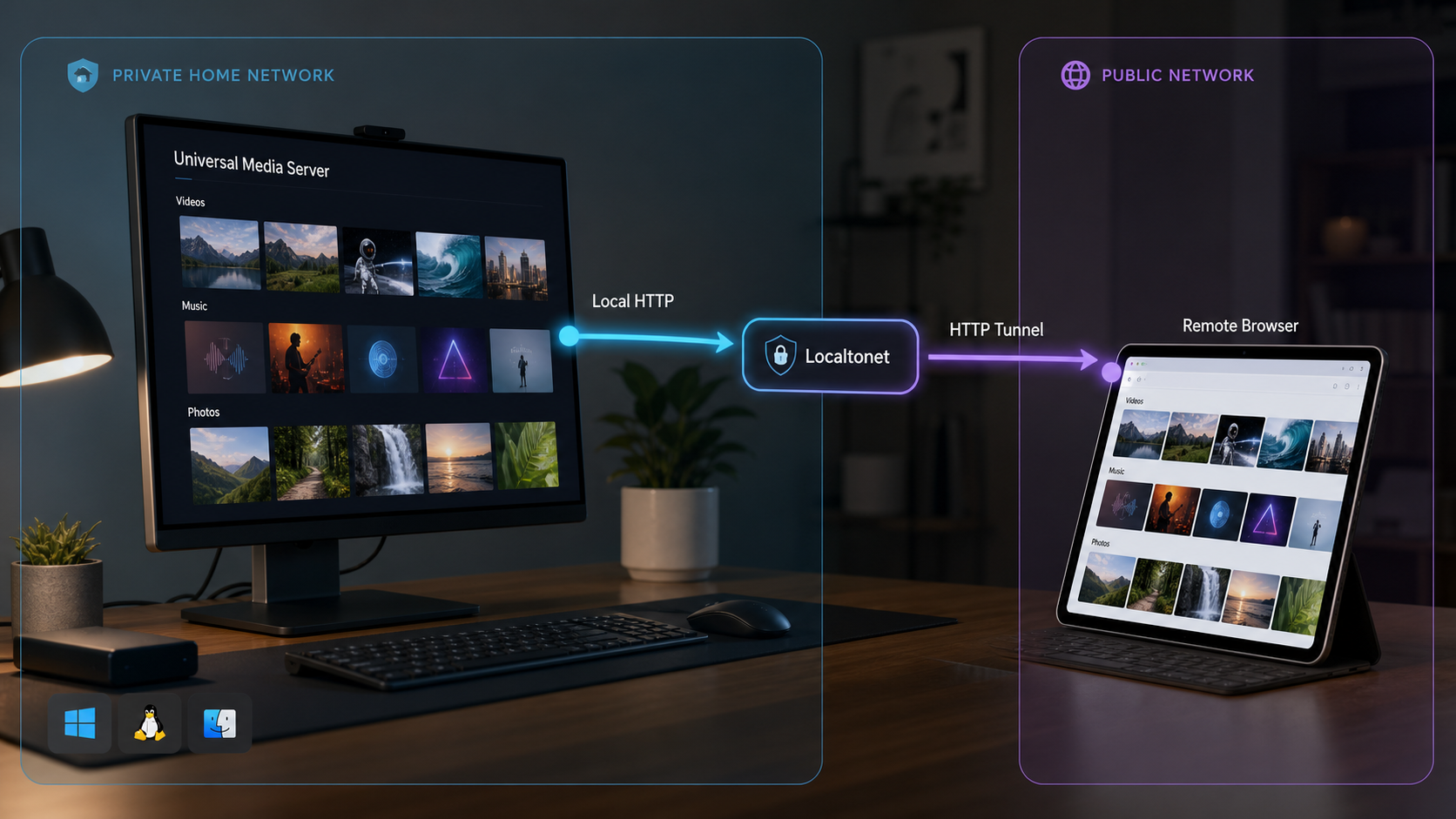
What Universal Media Server provides
Universal Media Server, commonly abbreviated as UMS, shares video, audio, and images with compatible televisions, smartphones, game consoles, computers, audio receivers, and other devices. The project describes itself as a DLNA, UPnP, and HTTP/S media server. It can pass media to a receiving device unchanged when that device supports the format, or transcode media when conversion is needed for the device, network, or selected preferences.
There are two access models to understand before installing the software. DLNA and UPnP are primarily associated with discovering and using a media server from compatible devices on the local network. The UMS web interface is an HTTP/S application that can be opened in a browser. A device can therefore use UMS through local media discovery, through a browser, or through both paths, depending on its capabilities.
This distinction becomes especially important for remote access. A conventional HTTP tunnel can forward browser requests to the UMS HTTP service. It does not reproduce a remote device's local LAN or guarantee that DLNA and UPnP discovery packets will cross the tunnel. The remote-access portion of this tutorial consequently targets the verified browser interface rather than promising remote DLNA discovery.
UMS publishes releases for Windows, Linux, and macOS. Its official website identifies direct downloads and package-manager or container options such as Chocolatey, Homebrew, AppImage, and Docker. The primary installation evidence available for this revision confirms Windows and macOS installers and provides a command-by-command Linux tarball procedure tested on Ubuntu 22.04. It does not publish the individual screens, button labels, destination paths, or startup choices presented by the current Windows and macOS installers. Those platform sections therefore document the supported sequence without inventing prompts that may differ between releases.
Prerequisites and installation planning
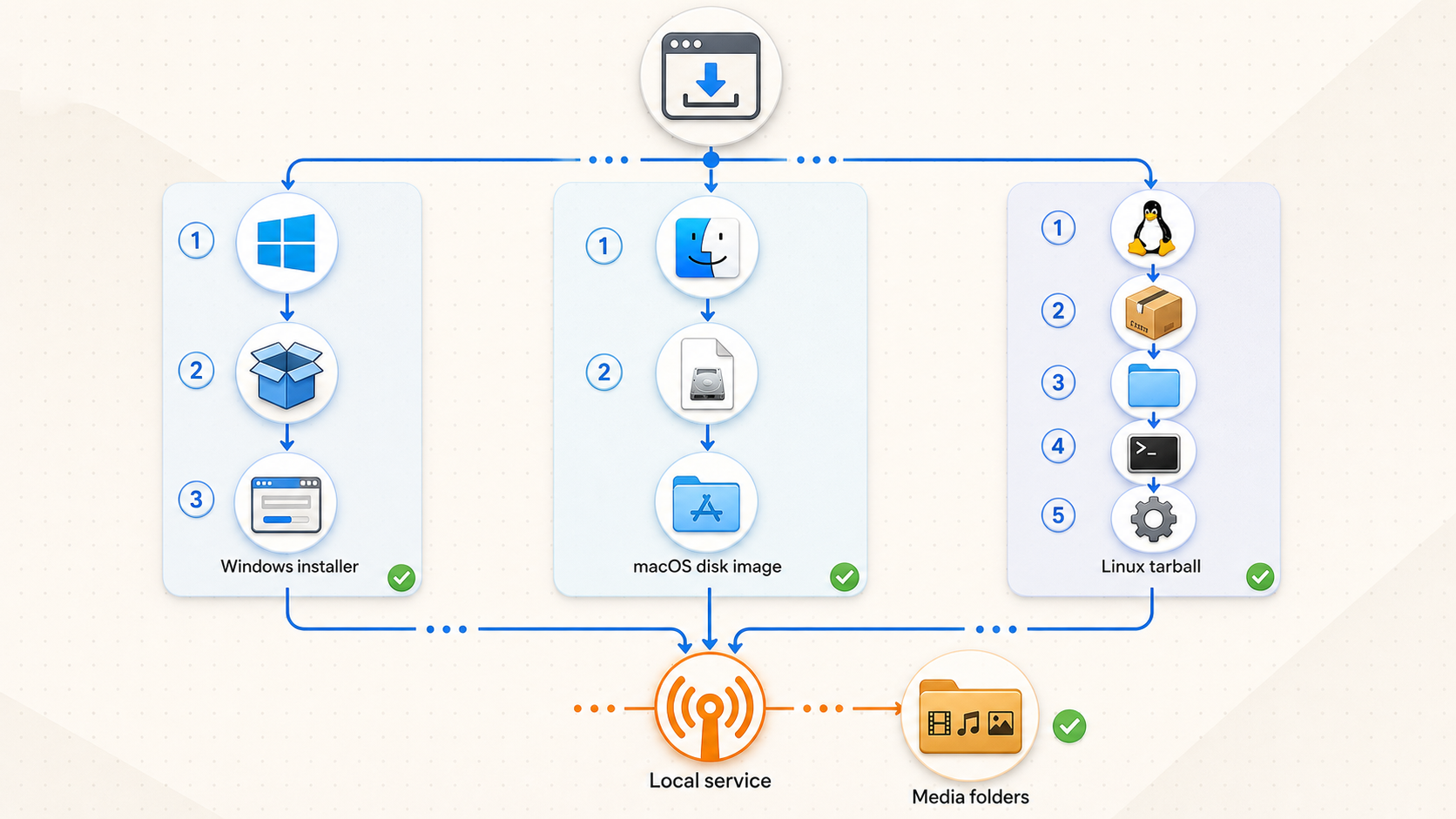
Install UMS on a computer that can read the media you intend to share. The files can be on directly attached storage or another location available to the host account, but that account must have adequate filesystem permission to traverse the parent directories and read the selected files. If UMS needs to create thumbnails, metadata, configuration, or other working data, its own working and configuration locations must also remain writable.
The host must remain powered on, connected to the relevant network, and running UMS whenever another device needs the library. Closing the application, suspending the computer, disconnecting an external drive, or losing access to a network-mounted folder can interrupt browsing or playback. Remote access adds two further dependencies: the Localtonet client must remain connected, and the HTTP tunnel must remain started.
Confirm the operating system and architecture
Download the current package from the official Universal Media Server website. Confirm both the operating system and processor architecture instead of relying solely on automatic detection. This is especially important on ARM systems and on Macs where Intel and Apple silicon packages may be distinct. Release filenames and current version numbers can change, so copy any version placeholder used below from the archive you actually downloaded.
Check storage and media access
Allow space for the UMS application, its configuration and working data, and any metadata or thumbnails generated during operation. The available official evidence does not state a universal storage requirement because practical use depends on the release and library. Confirm that the application volume is not full and that each media volume will remain mounted at a stable path.
Before installation, sign in as the account that will normally run UMS and open a representative media file from each intended folder. This simple check catches disconnected storage, invalid network credentials, and filesystem permission problems before they become server errors. Do not run UMS with administrator or root privileges merely to work around a media-folder permission problem. Correct access for the normal service account instead.
Understand the Java requirement
The official UMS installation file states that releases bundle a Java Runtime Environment except for ARM architecture releases. For an ARM Linux release, ensure that JRE 17 is installed and usable by the account that will start UMS. Do not assume that another Java major version is interchangeable when the project specifically requires JRE 17 for this path.
| Platform | Official package path covered here | Preflight check | Startup consideration |
|---|---|---|---|
| Windows | Current Windows installer | Confirm the Windows build and processor architecture, plus access to all media folders. | Start UMS from the application entry created by the installer and review any network prompt narrowly. |
| macOS | Current macOS installer | Confirm the package architecture and that macOS permits the application to read the selected folders. | Start UMS after installation and review local-network and file-access permission requests. |
| Linux | Official tarball | Install the documented dependencies; ARM releases also require JRE 17. | Launch ./UMS.sh as a non-root user from the extracted working directory. |
Do not copy a version number, installer path, port, URL path, or bind address from an older tutorial. The available primary evidence does not establish one fixed browser endpoint for every current installation. Use the endpoint reported by the running UMS installation and verify it locally before configuring remote access.
Install Universal Media Server on Windows
UMS officially provides an installer for Windows. The current project installation file does not enumerate the individual installer screens or define a fixed destination, Windows service mode, startup setting, or firewall choice. The supported sequence below therefore stays within what can be verified while still taking the installation from download through first launch.
Download the current Windows installer
Open the official UMS website on the Windows host. Select the Windows download that matches the computer's architecture. If the website selects a different platform or architecture, use its manual file-selection control rather than installing the detected package without checking it.
Run the downloaded installer
Launch the installer from the download location. Approve operating-system elevation only after confirming that this is the package obtained from the official project website. Complete the sequence presented by that release and review its displayed destination, components, and startup choices rather than assuming that an older screenshot is still accurate.
Start Universal Media Server
Use the application entry created by the installer. Allow the initial startup to finish before diagnosing the interface or adding media. Keep the application running during local tests.
Review network and folder access
If Windows shows a network-access prompt, select only the network scope appropriate for the server and your local policy. Verify separately that the normal UMS account can read the media folders. Avoid granting broader administrator or network access as a substitute for correct folder permissions.
A completed installer does not prove that the media service is usable. Continue to the configuration section, select the intended media through the controls in the running UMS interface, locate the endpoint reported by that installation, and test browsing and playback from a local browser.
Windows startup and update considerations
Keep UMS open while clients use it. If the current installer offers startup behavior, choose it according to whether this machine should serve media after sign-in. The available primary installation evidence does not establish that every Windows release installs or supports the same service or automatic-start option, so this tutorial does not prescribe an unverified service command or Task Scheduler configuration.
Before replacing a working release, record the current media configuration and local endpoint and review the current UMS release information. After updating, repeat the local browser and playback tests before assuming that remote access is still healthy. Do not expose an updated installation publicly until its authentication and access behavior have been checked again.
Install Universal Media Server on macOS
The UMS project officially provides a macOS installer. As with Windows, the primary installation file does not specify the current installer's individual dialogs, destination path, architecture-specific filename, login-item behavior, or the exact macOS security messages that may appear. These details can vary with the UMS release and macOS version, so the procedure avoids fabricating labels.
Download the macOS package
Visit the official UMS website from the Mac and select the current macOS download. Verify whether the package is intended for the Mac's processor architecture. If automatic detection is incorrect, manually select the appropriate file from the download choices.
Open the installer and complete its displayed sequence
Open the downloaded package and complete the installation steps presented by that release. Review any destination or permission information shown by the installer. Do not substitute an unverified Homebrew command for the supported installer workflow covered here.
Launch Universal Media Server
Start the installed application and allow its initial setup to complete. If macOS blocks the launch, verify that the package came from the official UMS download before using the operating system's current security controls to review the blocked application.
Grant only necessary access
Review requests for local-network, file, removable-volume, or folder access. UMS needs to read the media locations you select, but it should not receive unrelated filesystem access merely for convenience. Confirm that external and network volumes are mounted before startup and remain available during use.
macOS startup and update considerations
UMS must remain running for clients to use it. The supplied primary evidence does not document one universal login-item or background-service workflow for current macOS releases, so no launch-agent file or command is introduced here. If the installed release exposes an automatic-start preference, review it in the current interface and test it by signing out or restarting before relying on unattended availability.
macOS privacy permissions can change after an application update or after media is moved to another folder or volume. Following an update, confirm that UMS still starts, can read the selected library, reports a working browser endpoint, and plays a test item locally.
Install Universal Media Server from the Linux tarball
The UMS project documents a tarball installation workflow and states that it was tested on Ubuntu 22.04. It says something similar should work on most Unix distributions, but that statement does not make the Ubuntu package names portable to every distribution. Use the commands below on the tested Ubuntu family path. For another distribution, obtain equivalent dependencies through that distribution's supported repositories.
The archive examples use $VERSION as a placeholder. Replace it with the version embedded in the downloaded filename. For example, if the archive is named according to the documented ums-$VERSION.tgz pattern, the directory created during extraction will use the corresponding version. Inspect the real filename rather than typing a version copied from this article.
Install the documented Ubuntu dependencies
Run the official dependency command on the tested Ubuntu path from an account authorized to install packages:
sudo apt-get install mediainfo dcraw vlc-bin mplayer mencoderUMS releases bundle a Java Runtime Environment except for ARM releases. On ARM, ensure JRE 17 is installed before launching UMS. Other Linux distributions may use different package names and package managers.
Download the correct tarball
Obtain the direct download from the official UMS website. The site should detect the operating system and architecture. Verify the result, and use the site's manual file selector if it presents the wrong package.
Extract the archive
Open a terminal in the directory containing the archive, set or replace $VERSION with the downloaded release version, and run the documented extraction command:
tar xzvf ums-$VERSION.tgzIf the command reports that the file does not exist, compare the command with the actual filename. A differently named release asset requires using that exact local filename rather than assuming the example pattern.
Enter the directory and start UMS as a non-root user
Use the commands documented by the project:
cd ums-$VERSION
./UMS.sh
UMS accesses some files in the extracted ums-$VERSION/ working directory and looks for other files under ~/.config/UMS. Preserve ownership and access for the non-root account that runs the server.
The official installation instructions explicitly say that UMS should not run as root. Use a non-root account with read access to the intended media and appropriate access to the extracted working directory and ~/.config/UMS.
Keeping the Linux process available
The documented tarball sequence starts UMS interactively with ./UMS.sh. If that terminal session or process ends, the server is no longer running. The available primary evidence does not provide an official systemd unit, background flag, or startup-service procedure for this tarball, so this article does not invent one. For unattended operation, use only a persistence method documented for the installed UMS release and your distribution, run it as the same non-root account, and preserve the expected working directory.
When moving or replacing the extracted directory during an update, remember that UMS accesses files in that working directory and stores other files under the user's configuration directory. Back up important configuration before changing releases, preserve correct ownership, and repeat the complete local verification process after the update.
Configure the media library and verify local playback
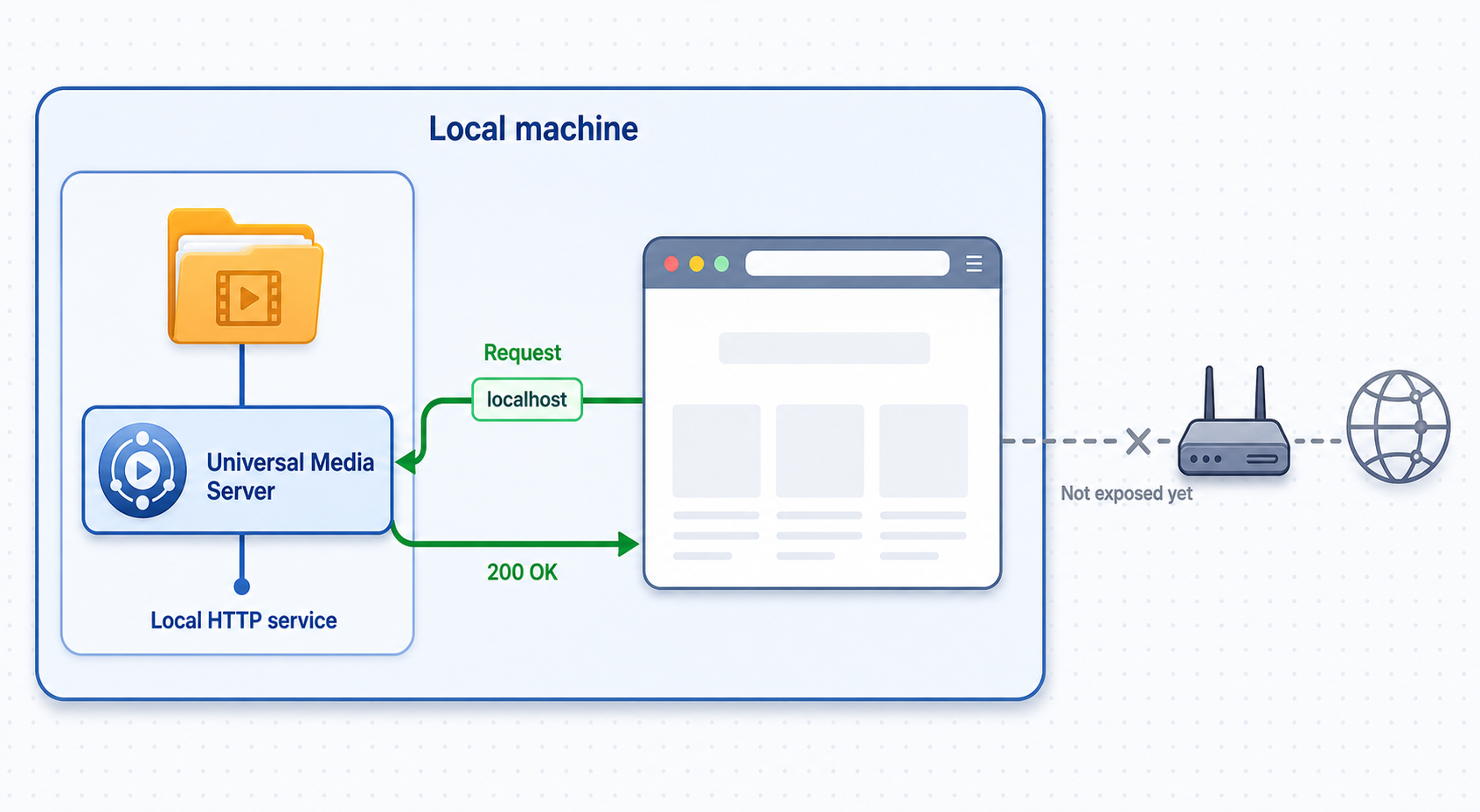
Installation, media selection, HTTP availability, and playback are separate checkpoints. A process can be running while its media paths are unreadable or its browser interface is unavailable. Work through these checks in order so that each result has a clear meaning.
1. Select only the media you intend to publish
In the running UMS interface, use the current release's media or shared-folder controls to add the folders that contain the intended video, audio, or images. The available evidence confirms that UMS can expose these media types, but it does not provide a stable control name or click path for all current platform builds. For that reason, this revision cannot safely claim that one specific menu label applies everywhere.
Begin with a small test folder containing one or two non-sensitive files. Confirm that UMS can browse those files before adding an entire personal library. This reduces indexing and permission variables and prevents accidental exposure of unrelated folders. If media is on an external or network volume, verify that the path remains mounted under the same name used during configuration.
2. Confirm that the server remains running
Watch the current UMS interface or launch output for an unresolved startup failure. On Linux, keep the terminal open during the first test so that errors are visible. On Windows and macOS, ensure that the application has not exited or been blocked by an operating-system security control.
3. Locate the actual web-interface endpoint
Use the address reported by the running UMS interface or its current startup output. Record the scheme, host or IP address, port, and any path as one complete endpoint. An address contains more than a port, and changing any part can target a different service.
The primary UMS evidence supplied for this revision confirms an HTTP/S web interface but does not establish one universal port, one fixed path, or one exact interface control that reveals it across current platforms. Assigning an exact URL without that evidence would create a false verification step. The correct endpoint for this tutorial is therefore the complete address displayed by the installed and running release.
4. Test the endpoint on the host
Open that exact endpoint in a browser on the UMS computer. Confirm that the interface loads without a connection refusal or unresolved browser error. If UMS reports an address using a specific local interface rather than a loopback address, use the reported address exactly for this test.
5. Browse the library and play a sample
Confirm that the small test folder appears and that at least one permitted item can be opened or played. Browsing proves that UMS can enumerate the configured path. Playback adds checks for file access and media processing. A successful page load alone is not sufficient evidence that the library is ready.
6. Test from another local device where appropriate
If you plan to run the Localtonet client on another machine, open the UMS endpoint from that exact machine before creating the tunnel. A loopback address such as a host-local address is meaningful only on the UMS computer. A client on another device must target an address that is reachable from that device, subject to local firewall and UMS binding behavior.
The browser interface uses HTTP or HTTPS. DLNA and UPnP discovery commonly depend on local-network behavior. Successfully opening the UMS browser interface does not prove that a television will discover UMS, and discovering UMS on a television does not identify the HTTP endpoint required by a Localtonet tunnel.
Routine operation, updates, and access lifecycle
Start UMS before attempting to use the library. Confirm that every required media volume is mounted, particularly after a restart. Keep the host awake and connected while streaming. If an operating system sleeps the host or disconnects a removable drive, clients may see errors even though their saved server address has not changed.
Treat the configured media folders as a publication boundary. Review that list after moving files, changing mount points, restoring a configuration, or adding another user account. Remove folders that should no longer be served and recheck access after changing filesystem permissions.
UMS releases evolve. The official project website publishes current downloads, while release information describes changes and dependency updates. Before updating a working host, back up important personal configuration using functionality available in the installed release, record the current endpoint and media locations, and plan a local verification window. The available evidence for UMS 15.8.0 identifies a backup and restore feature for personal data, including fully played status, bookmarks, playback positions, and play counts. Verify the feature in the version you actually run before relying on it.
After every update, confirm startup, folder access, browsing, and playback locally. Then test any Localtonet public address from a separate network. An unchanged tunnel configuration cannot repair a local endpoint that moved, stopped listening, or became inaccessible after an application update.
Add remote HTTP access with Localtonet
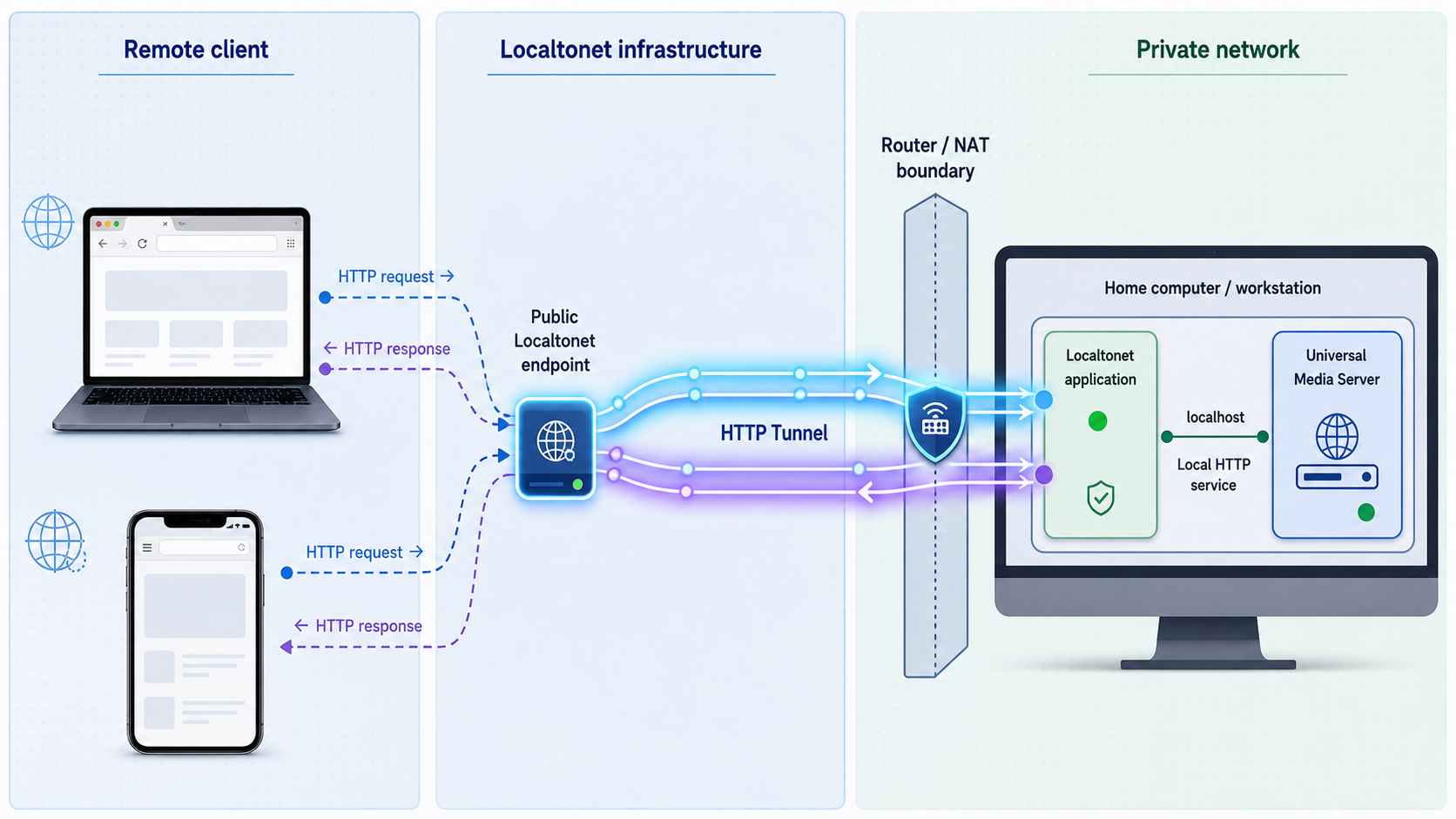
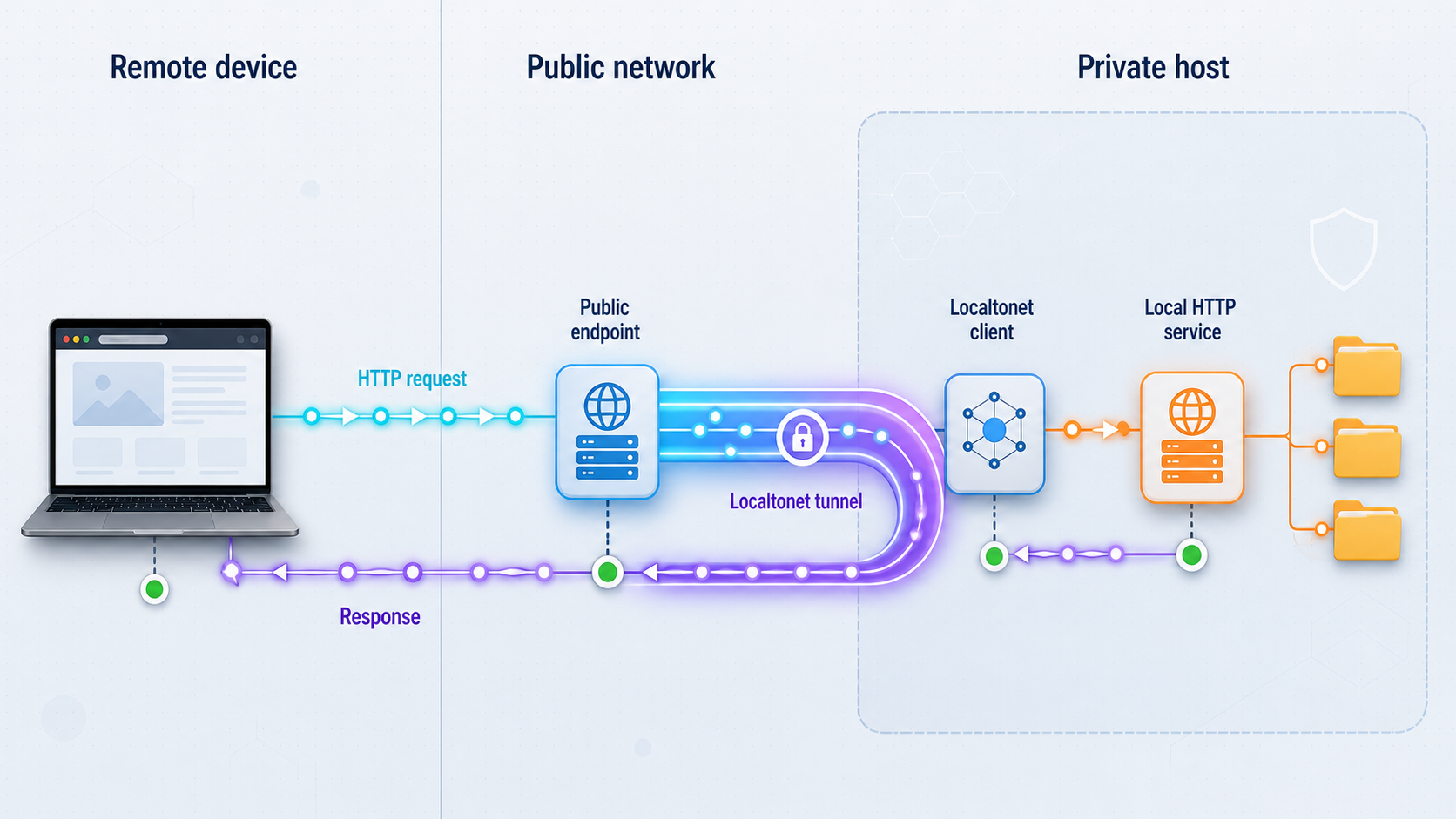
After local browser playback succeeds, you can publish that HTTP service with Localtonet without inbound router port forwarding, firewall changes, VPN setup, or a public IP address. Our client on the selected device establishes an outbound connection to a Localtonet relay server. The resulting tunnel maps a public HTTPS address to the local IP address and port you verified.
Install the Localtonet client on the UMS host or on another device that can reach the UMS HTTP endpoint. If it runs on another device, test the endpoint from that device first. A browser test that works only on the UMS host does not prove that a separate tunnel device can reach it.
HTTP tunnels may use Random Sub Domain, Custom Sub Domain, or Custom Domain as their Process Type. Each serves the configured content through a public HTTPS address. Current availability can vary by plan or configuration. Exact custom-domain DNS requirements should be taken from the current dashboard and documentation rather than inferred from another setup.
Install and run the Localtonet client
Install our client on the UMS computer or another device that can reach its verified HTTP endpoint. Keep both UMS and the Localtonet client running during configuration and testing.
Authenticate and select the device
Use the device-specific authentication token for the client that will run the tunnel. Tokens identify devices and must not be guessed, published, embedded in screenshots, or copied into shared instructions.
Select an available relay server
Choose a relay server or region currently shown in the Localtonet dashboard. Obtain available values from the current product rather than hardcoding a server code from another account or article.
Create the HTTP tunnel configuration
Select an HTTP tunnel, choose the appropriate Process Type, and enter the local IP address and port that succeeded during UMS verification. If our client is on another device, use the UMS address reachable from that client rather than a loopback address that refers to the client itself.
Start the tunnel
Creating a tunnel does not mean it is running. Use the Start button and confirm that the selected client is connected and the tunnel is running.
Test the public HTTPS address
Open the assigned address from a genuinely separate network, such as a device not connected to the UMS host's LAN. Confirm that authentication behaves as expected, browse the intended folder, and play a non-sensitive test item. Stop or delete the tunnel when public access is no longer needed.
See the Localtonet HTTP tunnel documentation for the current dashboard workflow. The local target must still be verified independently because the tunnel forwards requests to the address you configure; it does not select or repair the UMS service automatically.
Secure a remotely accessible media library
Starting an HTTP tunnel gives a previously local service a public entry point. Before sharing the URL, inspect the authentication and authorization controls provided by the installed UMS release and verify them in practice. The available primary UMS evidence does not establish a universal default authentication policy, so do not assume that the browser interface is protected automatically.
Use strong, unique credentials wherever the current UMS configuration supports them. Apply least-privilege access and any appropriate restrictions available in the current application and Localtonet configuration. Review access again after a UMS update, restore, or configuration migration.
Never reveal Localtonet device tokens, account information, personal media paths, private endpoints, or credentials in screenshots or support messages. If an editor adds interface screenshots to this tutorial, all such details must be redacted before publication.
A successful owner session can hide an authentication problem because the browser may retain cookies or credentials. Test from a private session on a separate network. If the intended access control is absent or ineffective, stop the tunnel and correct the UMS configuration before trying again.
Troubleshoot installation, playback, and remote access
Troubleshoot from the media files outward. First prove that the host account can read the files, then prove that UMS starts, then verify its browser interface, and only then inspect the Localtonet tunnel. Changing multiple layers at once makes it difficult to identify the actual failure.
| Symptom | Likely layer | Check next |
|---|---|---|
| UMS does not launch | Package, dependency, architecture, or permissions | Confirm the correct package, review launch output, and check the platform-specific items below. |
| UMS runs but media is missing | Media configuration or filesystem access | Recheck selected folders, mounted volumes, parent-directory permissions, and file readability. |
| Local web page does not open | UMS HTTP service, endpoint, binding, or host firewall | Use the exact reported endpoint and confirm that UMS remains running. |
| Local page works but another LAN device fails | Binding, LAN routing, or host firewall | Test the host's reachable LAN address and review only the required local network access. |
| Local target works but public URL fails | Localtonet client, target, relay selection, or tunnel lifecycle | Confirm the selected device is connected, compare the target, and verify that the tunnel was started. |
| Public page opens but playback fails | Media permissions, processing, or application behavior | Play the same item locally and inspect UMS output before changing the tunnel. |
Windows installation or launch failures
Verify that the downloaded installer matches Windows and the host architecture. If the application does not start, confirm that installation completed and inspect any message shown by Windows or UMS. If startup succeeds but another local device cannot connect, distinguish an operating-system network restriction from a UMS binding issue by testing the reported endpoint on the host first.
If media is missing, open the same file while signed in as the account running UMS. A file that is available only to another account or through a disconnected mapped location will not become readable merely because the installer completed.
macOS permission or launch failures
Confirm that the package architecture matches the Mac. If macOS blocks the application, validate the official download before reviewing it through current macOS security controls. Do not disable platform protections globally to launch an unverified file.
If UMS opens but cannot see a folder, review the file and folder access granted to the application and confirm that removable or network storage is mounted. If another device cannot reach the local endpoint, check local-network permission, the reported bind address, and the host firewall before introducing a tunnel.
Linux dependencies, Java, and launch failures
A missing command or package during the Ubuntu dependency step may indicate that package metadata is unavailable or that the host is not using the Ubuntu 22.04 path for which the instructions were tested. Do not assume that the same package names exist on another distribution. Resolve dependencies through that distribution's current repositories.
On ARM, verify that JRE 17 is installed and available to the non-root account. If ./UMS.sh fails with a permission error, confirm that extraction completed, that the account owns or can access the working directory, and that the script retains suitable execute permission. If UMS cannot create or update configuration, check access to ~/.config/UMS for the same account.
If the extraction command cannot find the archive, compare ums-$VERSION.tgz with the actual filename and current directory. If cd ums-$VERSION fails, inspect the extracted directory name rather than assuming that the placeholder expanded correctly.
Local binding versus tunnel failure
From the device running the Localtonet client, open the exact UMS target configured in the tunnel. If that request fails, the problem is local. Check whether the target uses the correct IP address, port, and interface. In particular, a loopback address refers to whichever machine makes the request. It reaches UMS only when the Localtonet client and UMS are on the same host.
If the target works from the tunnel device, confirm that the correct Localtonet device is connected, the selected relay server is currently available, and the tunnel is running. Compare the saved target with the address that just succeeded. Then test the public URL from a separate network.
If the public page loads but displays unexpected content, stop the tunnel and recheck the target. The configured port may belong to another local service. Never leave an unintended application publicly reachable while investigating.
Frequently asked questions
What is the default Universal Media Server HTTP port?
The available primary evidence does not establish one universal port and path for every current UMS installation. Use the complete HTTP or HTTPS endpoint reported by the running installation, then verify that exact address locally before creating a tunnel.
Can Localtonet expose UMS without router port forwarding?
Yes. Our client establishes an outbound connection to a Localtonet relay server, so the verified UMS HTTP service can receive a public address without inbound router port forwarding, firewall changes, VPN setup, or a public IP address.
Will a Localtonet HTTP tunnel provide remote DLNA discovery?
This workflow forwards the UMS HTTP service. It does not establish remote DLNA or UPnP discovery, which commonly relies on local-network discovery behavior. Remote users should use the assigned browser URL for this setup.
Does the Linux release include Java?
The official UMS installation file states that releases bundle a Java Runtime Environment except for ARM architecture releases. ARM users must ensure that JRE 17 is installed.
Should UMS run as root on Linux?
No. The project's official installation instructions explicitly say that UMS should not run as root. Use a non-root account with access only to the media, working files, and configuration it needs.
Does creating a Localtonet tunnel start it automatically?
No. Creating and starting a tunnel are separate lifecycle actions. Use the Start button after creating the configuration. The public address remains available only while the selected client is connected and the tunnel is running.
Can the Localtonet client run on a different computer?
Yes, if that computer can reach the UMS HTTP endpoint. Test the endpoint from the Localtonet client device first and configure the reachable UMS IP address and port. Do not use a loopback address unless both applications run on the same host.
Why must the public URL be tested from a separate network?
A separate-network test verifies the actual remote route and reduces the chance that a local path, cached page, or existing authenticated session hides a problem. Use a private browser session to verify authentication as well as page loading and playback.
Connect your verified UMS web interface with Localtonet
Install Universal Media Server, confirm that its actual HTTP endpoint can browse and play media locally, then create and start a Localtonet HTTP tunnel for controlled remote browser access without opening an inbound router port.
Get Started Free →

