

Give your browser agent a remotely reachable model endpoint without exposing the extension itself
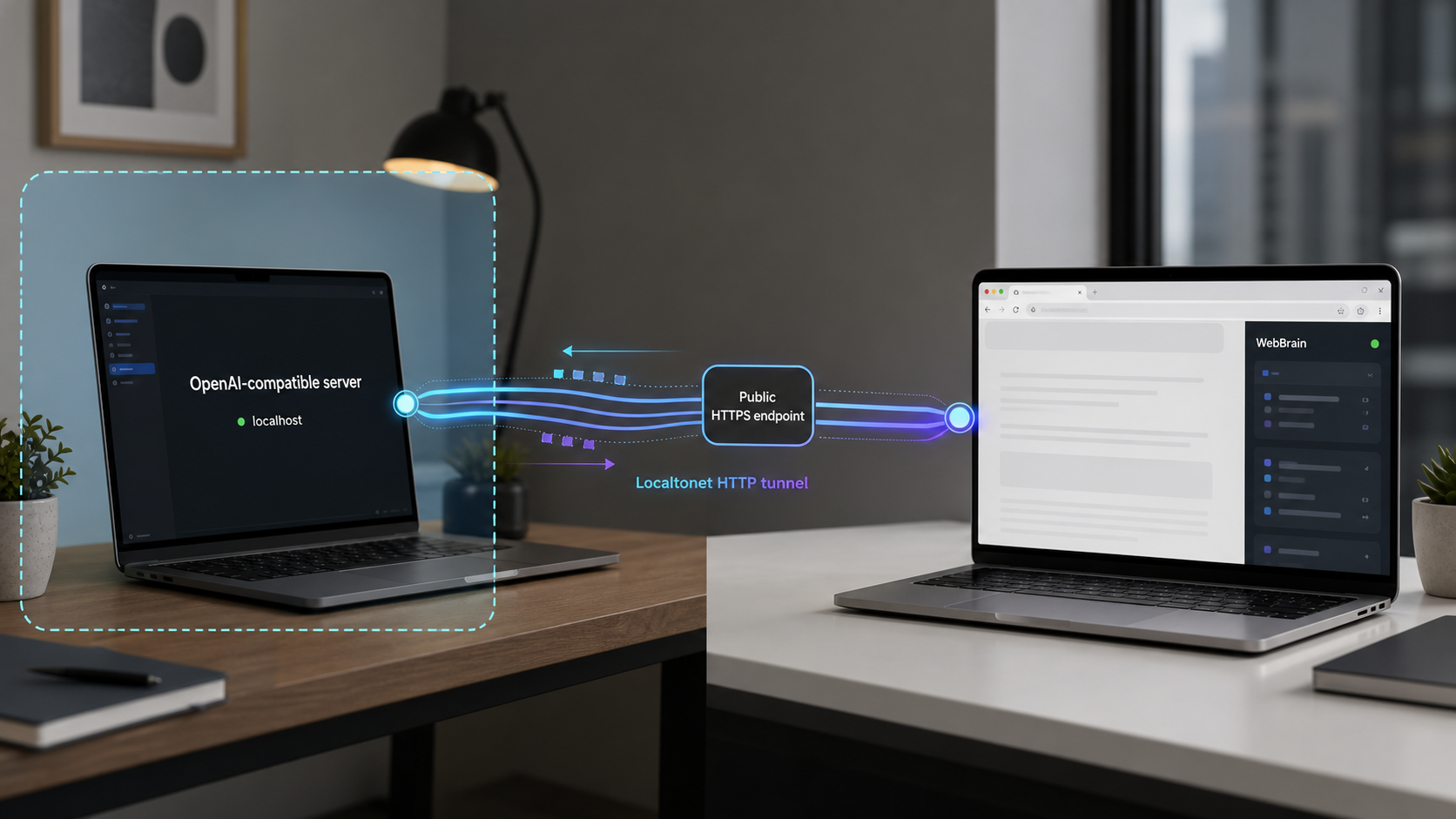
WebBrain is an open-source browser extension that can read pages, answer questions, extract data, and automate browser tasks using a selected language model. This tutorial installs WebBrain, prepares one complete Ollama-based model-server path, verifies the API locally, and publishes that API through a Localtonet HTTP tunnel. It also explains same-host and separate-host networking, endpoint paths, browser permissions, CORS, authentication limitations, routine operation, and safe shutdown. WebBrain does not listen on a network port, so Localtonet must point to the model server rather than the extension.
📋 What's in this guide
Understand the WebBrain and Localtonet architecture
WebBrain is an AI browser agent distributed as an extension for Chrome, Firefox, and Microsoft Edge. It lives in the browser side panel and sends requests to a configured language-model provider. Its current feature set includes page understanding, structured data extraction, and browser interaction. Ask mode is read-only by default, while more capable modes can click, type, scroll, navigate, inspect pages, and perform other browser actions.
The important networking fact is that WebBrain is a client, not a server. Installing it does not create a website, open a TCP port, or launch an inference process. The model server is a separate application. In this tutorial, Ollama runs that service and exposes an OpenAI-compatible HTTP API. WebBrain sends requests to the API, and Ollama loads the selected model and performs inference.
When the browser and Ollama run on the same machine, WebBrain may be able to use a loopback endpoint such as http://127.0.0.1:11434/v1, subject to the extension's permissions and the server's cross-origin policy. A remote browser cannot use that address because 127.0.0.1 always means the device making the request. It would refer to the browser computer, not the model computer.
Localtonet solves the reachability part. Our client establishes an outbound connection from a selected device to a Localtonet relay server. An HTTP tunnel then provides a public HTTPS address and forwards requests to the configured local IP address and port. This does not require inbound router port forwarding, firewall changes, VPN setup, or a public IP address. The tunnel is available only while the selected Localtonet client is connected and the tunnel is running.
Configure Localtonet for the device and port where Ollama is listening. Do not search for a WebBrain port because the browser extension does not open one.
Prerequisites and deployment choices
You need a supported desktop browser, permission to install an extension, an Ollama-supported computer with enough resources for the model you select, and a Localtonet account and client device. Git is needed only if you choose to load WebBrain from source. Store installation is the safer default for routine use because development builds may be unreviewed, may change unexpectedly, and generally receive updates differently from store-managed releases.
WebBrain's current guidance recommends at least a 16,000-token context window for local models. It says an 8,000-token context can work with Compact mode. Smaller contexts may fail when the system prompt, page content, conversation history, and tool definitions exceed the available window, but the exact outcome depends on the model, mode, page, and request. This tutorial therefore creates an Ollama model profile with a 16,384-token context instead of making a categorical claim that every smaller configuration will fail.
Choose where the Localtonet client will run
| Layout | Localtonet target | Binding requirement | Operational impact |
|---|---|---|---|
| Localtonet and Ollama on the same computer | 127.0.0.1:11434 |
Ollama can remain bound to loopback | Recommended because the API does not need to be opened to the LAN |
| Localtonet on another device in the same LAN | The model computer's private LAN IP and port 11434 |
Ollama must listen on an interface reachable from that device | Requires careful firewall, binding, and LAN access control |
| Browser and Ollama on the same computer without a tunnel | No Localtonet target is needed | Loopback normally suffices | Useful for initial WebBrain testing, but not remote access |
The same-host layout is preferable for this tutorial. It limits Ollama's direct exposure to loopback while allowing the Localtonet client on that computer to reach it. If you deliberately use a separate LAN device, test from the Localtonet device before creating the tunnel. A service bound only to 127.0.0.1 cannot be reached from another machine, even if both devices are on the same network.
Prepare access and secrets
- A device-specific Localtonet authentication token for the computer that will run the tunnel.
- A currently available relay server or region selected from the Localtonet dashboard.
- A model identifier that actually exists in Ollama.
- A non-sensitive page and prompt for the first WebBrain test.
- An authentication gateway if the public endpoint will remain available beyond a tightly controlled test.
Ollama is designed primarily as a local service and does not make an arbitrary value entered in an OpenAI-style API-key field into real access control. Do not treat a placeholder key as protection. For continuing public use, place an authentication and authorization layer in front of the API, restrict it to the necessary inference routes, and keep administrative or unrelated routes unavailable.
Install WebBrain in Chrome or Firefox
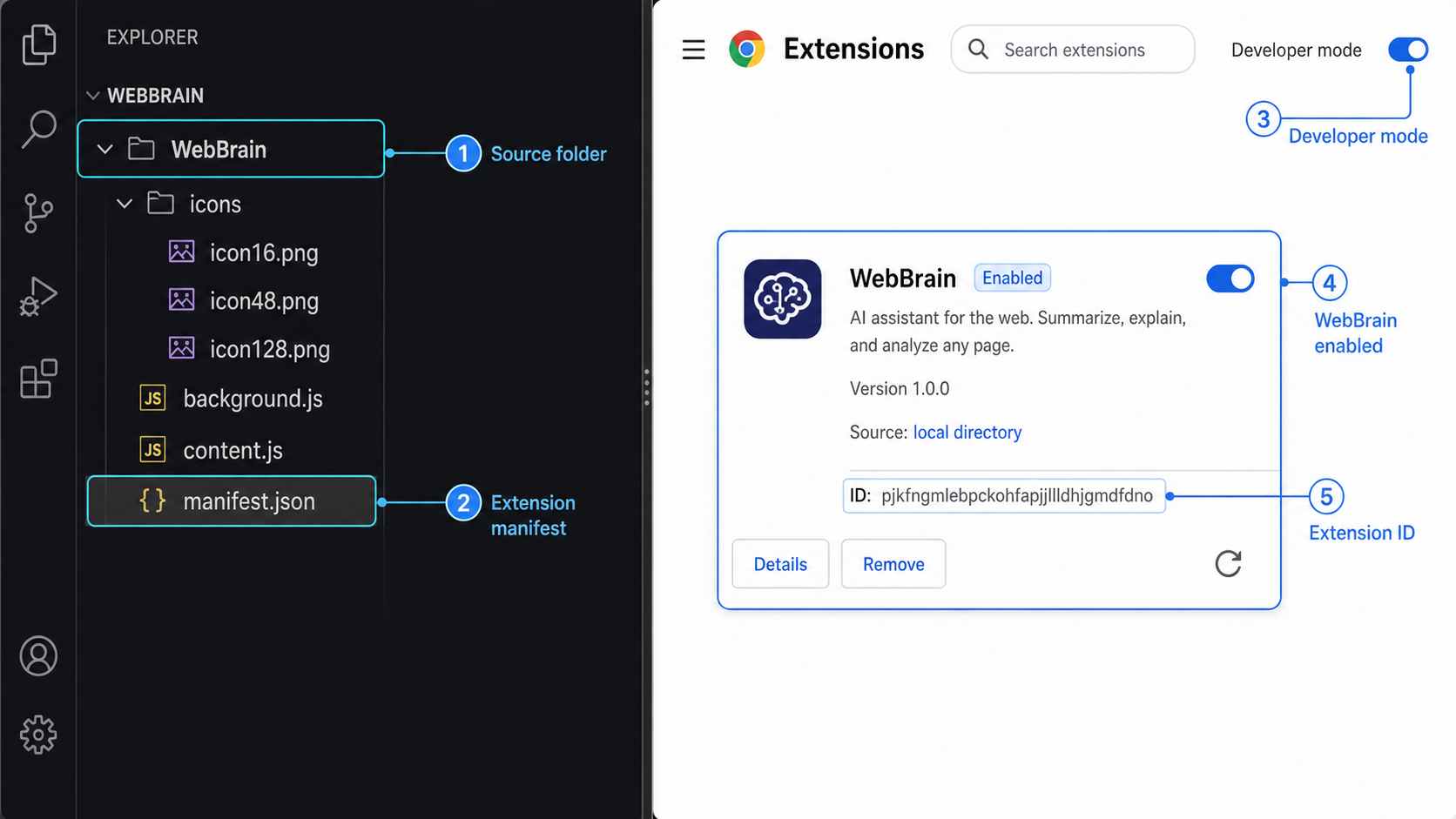
For ordinary use, begin at the official WebBrain website and follow its current extension installation link. The site currently identifies WebBrain as available for Chrome, Firefox, and Edge and highlights its Chrome Web Store distribution. Browser-store listings and availability can change, so use the official site rather than an unrelated download mirror.
The source-loading instructions below are intentionally limited to Chrome and Firefox. They are useful for inspecting or testing the repository version, but they should not be confused with a normal store installation. Only load code from a repository and revision you trust. Review changes before updating a checked-out development build, and do not use an unreviewed build for sensitive accounts merely because it loads successfully.
Clone the official WebBrain repository
Open a terminal in the parent directory where you want to keep the project and clone the repository.
git clone https://github.com/webbrain-one/webbrain.gitLoad the source in Chrome
Open chrome://extensions/, enable Developer mode, select Load unpacked, and choose the webbrain/src/chrome directory from the cloned repository.
Load the source temporarily in Firefox
Open about:debugging#/runtime/this-firefox, select Load Temporary Add-on, and choose src/firefox/manifest.json. Firefox removes this temporary debugging installation when the browser restarts.
Confirm that the side panel opens
Select the WebBrain extension icon and confirm that its side panel appears. At this stage, verify only that the interface loads. A model-backed answer will not work until a provider is configured.
Normal release versions of Firefox generally require signed extensions for persistent installation. The temporary debugging workflow above does not persist. Development, testing, self-distribution, and enterprise-managed Firefox deployments have additional signing and policy considerations, so permanent installation is not accurately described by one rule for every Firefox environment. Use Mozilla's current guidance for the particular Firefox channel and deployment model you operate.
Use Ask mode and a non-sensitive page for the first connection test. Before enabling actions, review the extension's requested permissions and understand which page data can be sent to the configured model endpoint. Act or development capabilities can have consequences on authenticated websites, forms, downloads, administrative interfaces, and financial systems.
Install and configure Ollama as the model server
Ollama is used here because it provides a local server and an OpenAI-compatible API that WebBrain can call. Other compatible servers may also work, but their installation commands, ports, route prefixes, authentication behavior, CORS settings, model identifiers, and context controls are not interchangeable. Complete this Ollama path first rather than mixing instructions from several providers.
Install Ollama
Download the current package for your operating system from the official Ollama download page. Complete the platform installer and launch Ollama if the installer does not start it automatically. Linux packaging and service behavior can differ by distribution, so use the installation path currently provided for your system rather than copying an old package command.
Open a new terminal and verify that the executable is available:
ollama --versionA version response confirms that the command is installed. It does not prove that the API is running or that a model has been downloaded. Those checks come next.
Acquire a model and create a 16K context profile
The example uses llama3.1:8b as the source model and creates a distinct Ollama model named webbrain-llama. Model availability and hardware requirements can change, and an 8B model may still be too large or slow for some computers. If you choose another tool-capable model, replace the source identifier consistently and confirm its capabilities with the current model documentation.
ollama pull llama3.1:8b
Create a plain text file named Modelfile with the following content:
FROM llama3.1:8b
PARAMETER num_ctx 16384
Create the profile:
ollama create webbrain-llama -f ModelfileThis gives the configured profile a predictable model identifier and requests a 16,384-token context. A larger context uses additional memory. If the machine cannot allocate enough memory, reduce workload, use an appropriate smaller model, or use WebBrain's Compact mode with a context supported by your deployment. Do not assume that configuring a context length makes inadequate hardware capable of serving it efficiently.
Start the Ollama server
Ollama desktop installations may already run the server in the background. Check the API before starting another process:
curl http://127.0.0.1:11434/api/tagsIf that request cannot connect and Ollama is not running as a service or desktop application, start it in a terminal:
ollama serveKeep the process running while you test. If the command reports that the address is already in use, do not start a second copy. Verify the existing process instead.
When Localtonet and Ollama run on the same computer, target 127.0.0.1:11434. There is no need to make Ollama listen on every LAN interface. If the Localtonet client runs on another device, follow Ollama's current host-binding guidance, allow only the required local source through the operating-system firewall, and verify the private LAN address from that device before proceeding.
Verify the model API locally
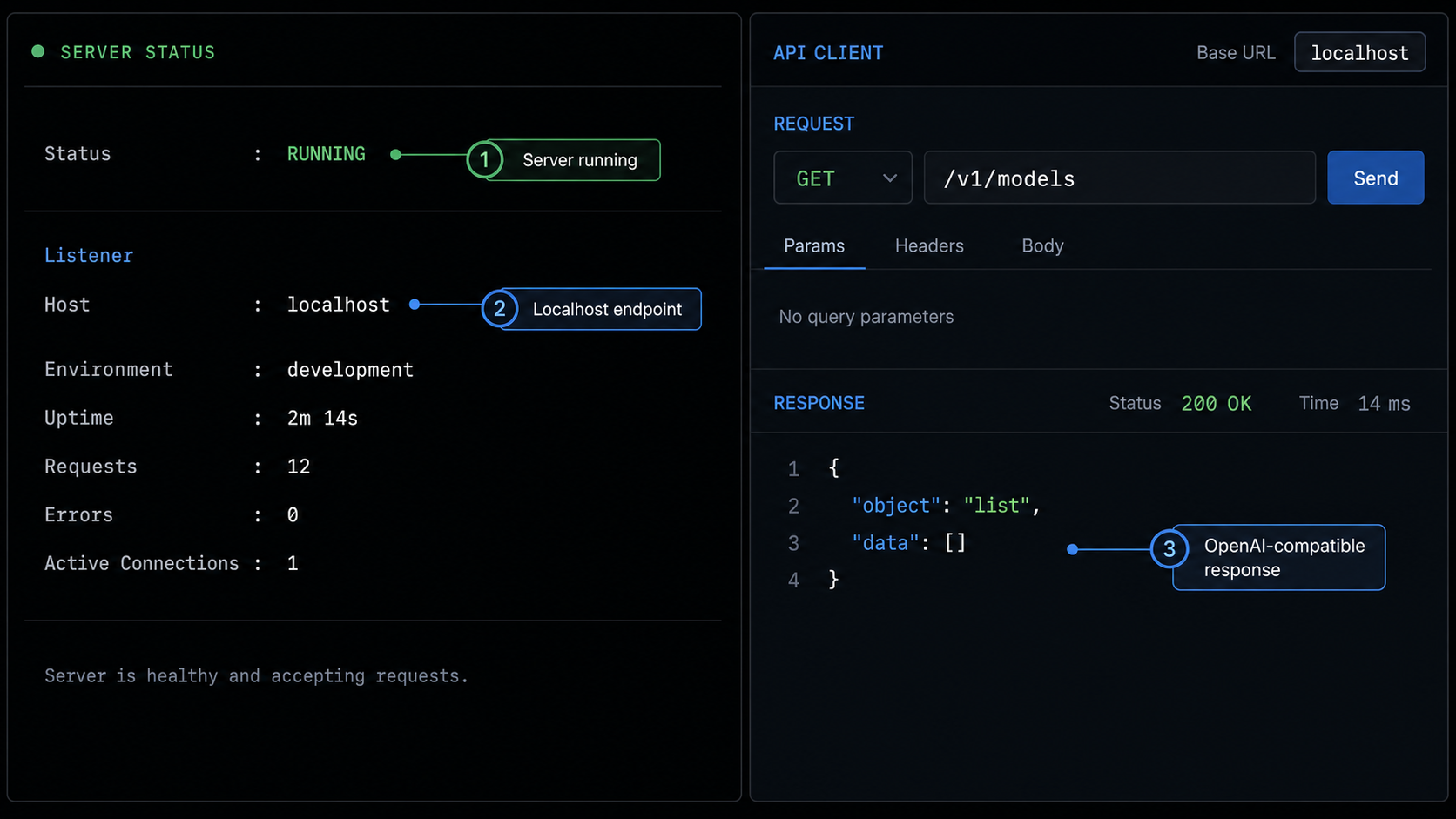
Perform local verification from the model computer. If Localtonet will run on a separate LAN device, repeat an equivalent check from that device using the model computer's private address. Do not create the public tunnel until both model discovery and generation succeed.
Discover the actual model identifier
curl http://127.0.0.1:11434/api/tags
Confirm that the response includes webbrain-llama. If it does not, review the output from ollama create and list the installed models:
ollama listCopy the identifier exactly. Model names, tags, punctuation, and capitalization must match what the server recognizes.
Verify the OpenAI-compatible models route
curl http://127.0.0.1:11434/v1/models
This verifies the route family that WebBrain will use. The API base is http://127.0.0.1:11434/v1, while /models is a resource beneath that base. Do not enter /v1/models as the provider base unless the current WebBrain field explicitly asks for a full models endpoint.
Run a minimal generation request
curl http://127.0.0.1:11434/v1/chat/completions \
  -H "Content-Type: application/json" \
  -d '{
    "model": "webbrain-llama",
    "messages": [
      {
        "role": "user",
        "content": "Reply with exactly: local model ready"
      }
    ],
    "stream": false
  }'
A successful JSON response containing an assistant message confirms that the model can load and generate through the expected OpenAI-compatible route. The first request may take longer because the model must be loaded into memory.
On PowerShell, use its native request handling if shell quoting changes the JSON:
$body = @{
  model = "webbrain-llama"
  messages = @(
    @{
      role = "user"
      content = "Reply with exactly: local model ready"
    }
  )
  stream = $false
} | ConvertTo-Json -Depth 5

Invoke-RestMethod `
  -Uri "http://127.0.0.1:11434/v1/chat/completions" `
  -Method Post `
  -ContentType "application/json" `
  -Body $body
Stop here if the local test fails. A tunnel cannot repair a missing model, invalid model name, exhausted memory, incorrect API path, or stopped Ollama process.
Install Localtonet and create the HTTP tunnel

Install the Localtonet client on the model computer for the recommended same-host arrangement. Obtain the current installer and platform instructions through the Localtonet documentation. Run the client and associate it with its device-specific authentication token. Treat that token as a secret because it identifies the client device.
The current dashboard may evolve, so the workflow below uses the stable configuration concepts rather than relying on a screenshot's exact placement. For current page details, use our HTTP tunnel documentation.
Install and run the Localtonet client
Install the client on the computer that can reach Ollama. For the same-host layout, this is the model computer. Confirm that the client remains running before configuring the tunnel.
Authenticate or select the intended device
Use the device-specific authentication token associated with this client. Do not paste the token into screenshots, shell history, source files, browser prompts, or shared documentation.
Select an available relay server
Choose a currently available server or region from the dashboard. Available values can vary, so do not copy a hardcoded server code from an old tutorial.
Create the HTTP tunnel configuration
Create an HTTP tunnel. For a same-host deployment, enter 127.0.0.1 as the local IP address and 11434 as the local port. If the client is on another LAN device, use the verified private address of the Ollama computer instead of loopback.
Start the tunnel
Review the target and use the Start button. Creating a tunnel does not start it. The assigned public address works only while the selected client is connected and the tunnel is running.
Record the assigned HTTPS origin
Copy the public HTTPS origin without adding credentials or unrelated routes. You will append /v1 for WebBrain and use specific resource paths during verification.
HTTP tunnels may use a generated subdomain, a selected subdomain where supported, or a custom domain. These process types serve the configured target at a public HTTPS address. Options can vary by current product configuration or plan. Check the dashboard and current documentation rather than assuming that every option is available to every account.
Verify the public Localtonet route
Test the public route before entering it into WebBrain. Replace YOUR-ASSIGNED-HOST only with the hostname shown for your running tunnel. Do not use the illustrative hostname as a real endpoint.
curl https://YOUR-ASSIGNED-HOST/v1/modelsThe response should represent the same model API observed locally. Then send the same minimal generation request through the public route:
curl https://YOUR-ASSIGNED-HOST/v1/chat/completions \
  -H "Content-Type: application/json" \
  -d '{
    "model": "webbrain-llama",
    "messages": [
      {
        "role": "user",
        "content": "Reply with exactly: public route ready"
      }
    ],
    "stream": false
  }'
This layered test gives failures a clear boundary:
- If the local request fails, repair Ollama or the model configuration.
- If local succeeds but public fails, inspect the Localtonet client, tunnel state, target IP, target port, and path.
- If both command-line tests succeed but WebBrain fails, inspect its provider fields, browser permissions, authorization behavior, and cross-origin handling.
The direct Ollama route in this tutorial does not provide meaningful API authentication. Start the tunnel only when ready to test, use non-sensitive prompts, and stop it immediately afterward unless you have placed a suitable authentication and authorization gateway in front of Ollama.
Connect WebBrain to the tunneled endpoint
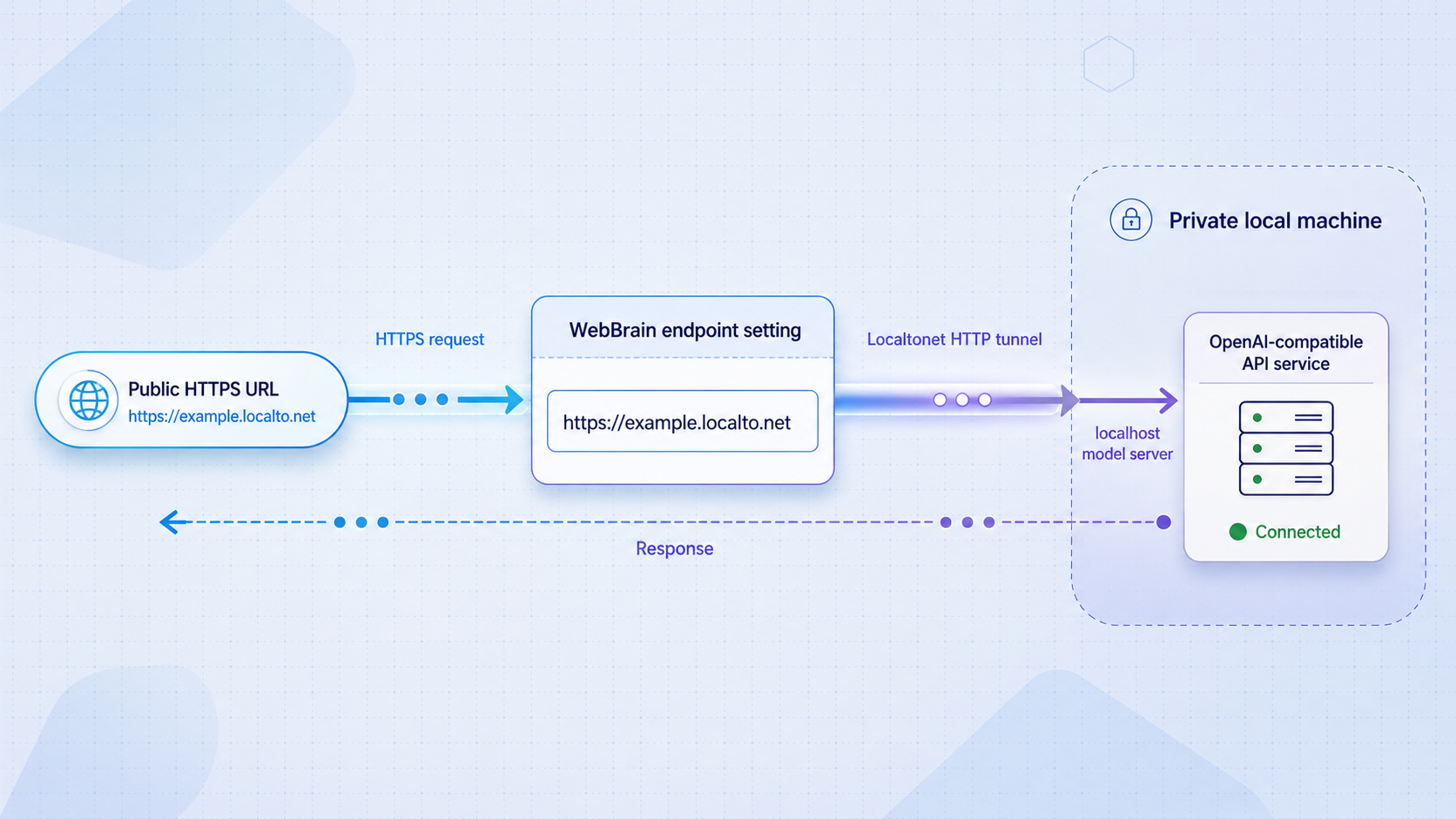
/v1 API base and use the exact model identifier verified through Ollama.
Open WebBrain's settings and choose its Ollama option or an OpenAI-compatible provider option supported by the installed build. WebBrain's interface can change, so field labels may not be identical across store and source versions. Map the settings by purpose rather than guessing values.
| Provider value | Value for this tutorial | Common mistake |
|---|---|---|
| Provider type | Ollama or the build's generic OpenAI-compatible option | Selecting an unrelated cloud-provider adapter with different authentication or routes |
| API base URL | https://YOUR-ASSIGNED-HOST/v1 |
Omitting /v1 or entering the complete /chat/completions resource as the base |
| Model | webbrain-llama |
Using a display name that does not match ollama list |
| API key | Follow the selected WebBrain provider's field requirement | Assuming an arbitrary placeholder key authenticates the public Ollama endpoint |
| Context or operating mode | Use the normal mode with the 16,384-token model profile, or Compact mode when appropriate | Configuring a context larger than the server or available hardware can sustain |
If the WebBrain form requires an API-key value for OpenAI-compatible requests, a non-secret placeholder may satisfy client-side validation, but Ollama does not use that placeholder to secure access. Never reuse a real cloud API key as a placeholder. If an authentication gateway has been added, enter only the gateway credential through the designated secret field and follow that gateway's required authorization scheme.
Save the provider configuration, open a non-sensitive public page, and begin in Ask mode. Use a small request such as:
Summarize the main topic of this page in one sentence.Confirm three things: WebBrain shows the request as successful, the answer relates to the current page, and the model server remains responsive. Do not move immediately to tool-driven navigation. First verify that simple text requests are stable and that page content is being sent only to the endpoint you intended.
CORS and extension host permissions
A browser extension request can be affected by both extension host permissions and the API server's cross-origin policy. A command-line request can succeed while a browser request is blocked because command-line clients do not enforce browser CORS rules. Development and store builds can also have different extension origins or declared permissions.
If the browser reports a cross-origin failure, inspect the extension's error details and confirm that the active WebBrain build is permitted to contact the Localtonet HTTPS host. If Ollama's allowed-origin configuration must be changed, allow only the exact trusted extension origin or required HTTPS origin according to current Ollama guidance. Avoid a wildcard origin on a publicly reachable inference API. Restart the affected Ollama process after changing server environment settings, then repeat the local, public, and WebBrain checks.
Security requirements for browser agents and public inference APIs
A working endpoint is not automatically a safe endpoint. WebBrain processes page information and may be able to act in the browser. Ollama consumes substantial compute and exposes model operations. A Localtonet URL makes the configured HTTP target reachable from the public internet while the tunnel is active. Protect each layer according to what it can access or perform.
Do not send confidential pages to a remote browser-agent endpoint unless the entire path is approved for that data. This includes page text, form values, screenshots, downloaded content, prompts, and model responses. Review any optional profile or autofill information stored by the extension and keep such features disabled unless they are required and understood.
Browser pages can also contain misleading or adversarial instructions. WebBrain describes protections against hidden prompt injection and asks before consequential actions, but defensive product behavior does not remove the need for user review. Check proposed actions, destination hosts, form contents, uploads, and final submission steps.
Routine operation, restarts, and safe shutdown
Starting a session
- Start Ollama or confirm that its existing service is healthy.
- Run the local
/v1/modelscheck. - Confirm that the Localtonet client is connected.
- Start the HTTP tunnel.
- Run the public
/v1/modelscheck. - Open WebBrain and perform a small Ask-mode request.
This order avoids interpreting a model startup delay as a tunnel problem. It also prevents WebBrain from repeatedly retrying an endpoint whose model process is not ready.
Handling process restarts
A foreground ollama serve process ends when its terminal or session ends. A desktop or service installation may have different persistence behavior. After an operating-system reboot, update, crash, or service restart, repeat the local API check before assuming that the tunnel target has recovered.
Localtonet also depends on its selected client being connected. A saved tunnel configuration does not guarantee availability. If the client is offline or the tunnel has been stopped, the public endpoint will not reach Ollama. Start the tunnel only after its target is healthy.
Endpoint and model changes
If the Localtonet public hostname changes, update WebBrain's base URL and retest the public route. If you rename or replace the Ollama model, update the model field with the exact identifier returned by ollama list. Changing only one side produces an unknown-model error even when the network path works.
Credential rotation
Rotate a Localtonet device token if it may have been exposed, then update only the intended client through the approved account workflow. If an authentication gateway protects Ollama, rotate its credentials separately and update WebBrain's secret field. Do not confuse the Localtonet device token, which identifies the tunnel client, with an API credential used by WebBrain.
Safe shutdown
- Finish or cancel any active WebBrain operation.
- Close sensitive pages or return WebBrain to read-only use.
- Stop the Localtonet tunnel so the public endpoint is no longer routed.
- Delete the tunnel if the configuration is no longer needed.
- Stop Ollama if local inference is also no longer required.
- Remove temporary extension builds from development browsers when testing is complete.
Troubleshooting WebBrain, Ollama, and Localtonet
The local API cannot connect
Confirm that Ollama is running and listening on port 11434. Check whether another process is using the port. If ollama serve reports that the address is already occupied, test the existing service rather than launching more copies. A failed /api/tags request indicates an Ollama process, address, or port issue before Localtonet is involved.
The Localtonet client is on another LAN device
Do not configure 127.0.0.1 as the target unless Ollama runs on that same device. Use the model computer's private LAN address and verify it from the Localtonet device. Ollama must listen on a LAN-reachable interface, the operating-system firewall must allow the required local source, and both devices must have a valid network route. Avoid binding to every interface unless that exposure is deliberately controlled.
The public URL fails although local Ollama works
Confirm that the selected Localtonet client is connected, the correct relay server is selected, and the tunnel has been started. Recheck the local target address and port. Creating the configuration alone is insufficient. If the model or client restarted, verify both before retesting the public address.
The endpoint returns 404 or route-not-found
Check path construction. For this setup, the API base is the Localtonet HTTPS origin followed by /v1. Model discovery is /v1/models, and generation is /v1/chat/completions. Avoid duplicating the prefix as /v1/v1, omitting it, or storing the full chat route in a field that expects only the base URL.
WebBrain reports an unknown model
Run ollama list and compare the returned identifier with the WebBrain model field. Use webbrain-llama only if the model creation command completed successfully. A model displayed on a website or in a file name is not necessarily the identifier registered with Ollama.
The server returns an authorization error
Determine which component produced the response. A gateway may require a specific authorization header, while direct Ollama access does not turn an arbitrary API-key value into authentication. Confirm the provider's header behavior and gateway configuration without printing credentials. Do not add secrets to the endpoint URL.
Command-line requests work but WebBrain fails
This usually narrows the issue to provider fields, browser extension permissions, CORS, or request format. Confirm the exact public base URL and model name. Inspect the extension's diagnostic output for a blocked origin or missing host permission. If changing server origins, allow the narrowest required origin and restart Ollama before retesting.
The model reports a context-window error
Confirm that WebBrain is using webbrain-llama, not the original profile with different defaults. Reduce page scope and conversation history, use Compact mode where appropriate, and verify that the custom profile was created from the intended Modelfile. A larger configured context also requires more memory, so context failures can overlap with resource limits.
Requests time out or generation is very slow
Compare a minimal local generation request with the public request. If both are slow, the limiting factor is likely model startup or local compute rather than the tunnel. Close competing workloads, select a model appropriate for the available hardware, and avoid testing first with a large page or long conversation. If local requests are fast but public requests fail, return to the client, tunnel, target, and route checks.
Ollama exits or reports insufficient resources
The model or context may exceed available memory. Stop other inference sessions, use a smaller suitable model, lower the operational workload, or choose a context configuration that the machine can sustain. Do not repeatedly expose an unstable process and rely on WebBrain retries, because that obscures the underlying resource failure.
WebBrain opens but cannot answer
Opening the side panel verifies only the extension interface. Repeat verification in order: local Ollama models route, local generation, public models route, public generation, provider base URL, model identifier, and then the WebBrain prompt. This sequence identifies the first failing boundary without changing several variables at once.
Frequently asked questions
Does WebBrain itself need a Localtonet tunnel?
No. WebBrain is a browser extension and does not expose a listening port. The Localtonet HTTP tunnel targets Ollama or another compatible model server that WebBrain needs to reach.
Can Localtonet run on a different device from Ollama?
Yes, if that device can reach Ollama over the LAN. In that layout, Ollama cannot remain available only on loopback. It must listen on an appropriate LAN-reachable interface, and the Localtonet target must use the model computer's private address and verified port.
What API base URL should WebBrain use?
For the Ollama setup in this guide, use the assigned Localtonet HTTPS origin followed by /v1. Do not add /chat/completions unless the installed WebBrain build explicitly asks for the complete resource URL rather than an API base.
Does an API-key field protect Ollama?
Not by itself. A client field or placeholder value is not authentication unless a server or gateway validates it. Direct Ollama exposure should be treated as unauthenticated. Use a suitable authentication gateway for continuing public access.
Why can curl reach the endpoint while WebBrain cannot?
Browser extensions can be affected by host permissions and CORS, while command-line clients are not subject to browser CORS enforcement. Also check WebBrain's provider type, base path, model identifier, and any gateway authorization header.
Does creating a Localtonet tunnel start it automatically?
No. Use the Start button after creating and reviewing the tunnel. It remains available only while the selected Localtonet client is connected and the tunnel is running.
Is the Firefox source installation permanent?
No. The runtime-debugging method loads a temporary add-on that disappears after Firefox restarts. Persistent installation requirements vary among normal release distribution, development channels, testing workflows, self-distribution, and enterprise-managed environments.
Must every WebBrain model have exactly a 16K context?
WebBrain currently recommends at least 16K for local models and says 8K can work with Compact mode. Actual requirements depend on page content, tools, prompt size, history, model behavior, and available hardware. This tutorial uses 16,384 tokens as a practical configured target, not as a universal guarantee.
Connect your verified model API with Localtonet
After Ollama responds locally and you have planned appropriate access control, create a Localtonet HTTP tunnel for the verified model address and port. Test the public API route before adding it to WebBrain, and stop the tunnel as soon as remote access is no longer required.
Get Started Free →

