

Build a persistent wger deployment, validate it locally, and publish only its web endpoint
wger is a free and open-source workout, nutrition, body-weight, and fitness tracking application that supports self-hosting with Docker Compose. This guide starts with the maintained wger Docker deployment, including repository acquisition, environment preparation, service startup, endpoint discovery, local testing, backups, restoration, routine operations, and version-aware upgrades. After the application works from the Localtonet client device, you will create an HTTP tunnel for remote browser or mobile access without inbound router port forwarding, firewall changes, VPN setup, or a public IP address.
📋 What's in this guide
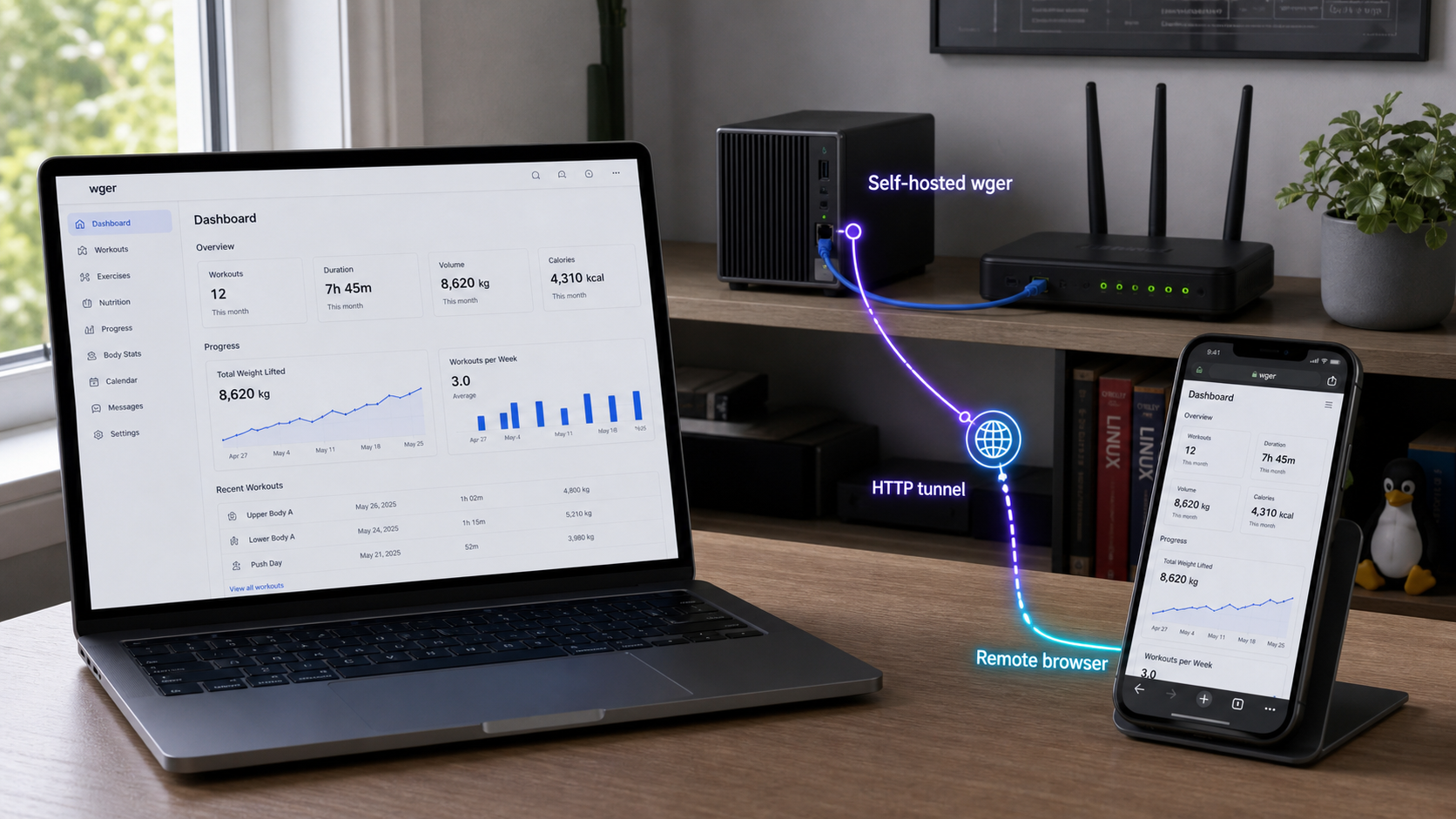
Understand the wger and Localtonet architecture
wger is a self-hosted fitness manager for people and organizations that want control over workout and nutrition data. Its application code is licensed under AGPL-3.0-or-later. Exercise and ingredient data use Creative Commons licenses that can vary by entry, while the documentation is licensed under CC-BY-SA-4.0.
The application supports custom workout routines, automatic weight progression rules, diet plans, calorie logging, body-weight records, custom measurements, progress photos, an exercise wiki, multiple users, and basic gym-management functionality. Nutrition features can use food information from Open Food Facts. wger also provides a REST API for integrations and automation, and compatible applications are available for Android, iOS, F-Droid, and Flathub.
Two independent layers
The deployment has two distinct layers. Docker Compose runs wger and its supporting services on your machine. Localtonet then publishes the already working web endpoint. Our tunnel does not install wger, initialize its database, manage application accounts, or replace backups.
The maintained Docker bundle is a multi-service deployment rather than a single disposable web container. Its Compose definition coordinates the wger web application with PostgreSQL, supporting background or cache services, persistent media, and an HTTP proxy. Current 2.6-era deployment configuration also includes PowerSync-related components and proxy changes needed for mobile offline synchronization. The exact active service names and profiles remain defined by the revision of the Docker repository you clone, so use docker compose config --services as the authoritative list for your checkout.
This separation gives you a reliable diagnostic boundary. If wger does not work through its local published address, repair the Docker deployment first. If it works from the Localtonet client device but fails through the public address, investigate the tunnel target, client connection, tunnel state, application URL, and authentication flow.
Do not copy a host port, password, secret, or server code from an unrelated installation. The active Compose configuration determines the published host port, while the current Localtonet dashboard supplies available relay choices. This guide shows how to discover and test those values instead of assigning universal ones.
Prerequisites and preparation
Choose a host that can remain online whenever wger should be available. Allow storage for container images, the PostgreSQL database, uploaded media, configuration files, and multiple backup generations. Exact CPU, memory, and disk requirements depend on user count and data volume, so this guide does not invent a universal minimum.
Install Docker Engine and the Docker Compose plugin using the supported procedure for the host operating system. The commands below use the current docker compose form. They also assume Git is installed and that your account can manage Docker.
git --version
docker version
docker compose version
All three commands should complete successfully. If Docker requires administrative privileges on your host, follow the operating system’s Docker administration guidance rather than changing socket permissions broadly. Run the deployment from a controlled directory, and do not place its environment file in a public source repository.
| Requirement | Purpose | Verification |
|---|---|---|
| Git | Clones and later updates the maintained deployment repository | git --version succeeds |
| Docker Engine | Runs the web, database, proxy, and supporting containers | docker version can contact the engine |
| Compose plugin | Creates and coordinates the multi-container stack | docker compose version succeeds |
| Persistent storage | Retains PostgreSQL data and uploaded media across replacement | The rendered Compose configuration contains the expected mounts |
| Local HTTP access | Provides a testable target before tunneling | The published endpoint loads from the client device |
| Localtonet client | Creates the outbound connection to our relay platform | The selected device is connected when the tunnel runs |
Use the two official wger repositories for different purposes
The wger application repository contains the application source, project information, and releases. Production-style Compose deployment files are maintained separately in the wger Docker deployment repository. Clone the Docker repository for this tutorial. Do not clone only the application source and then expect the deployment commands below to find the production Compose configuration.
The project’s Docker administration documentation is useful for checking changes made after this article was reviewed. The instructions below remain self-contained for the workflow covered here, but the repository revision you use is still authoritative for its current file names and optional profiles.
Perform a fresh wger installation
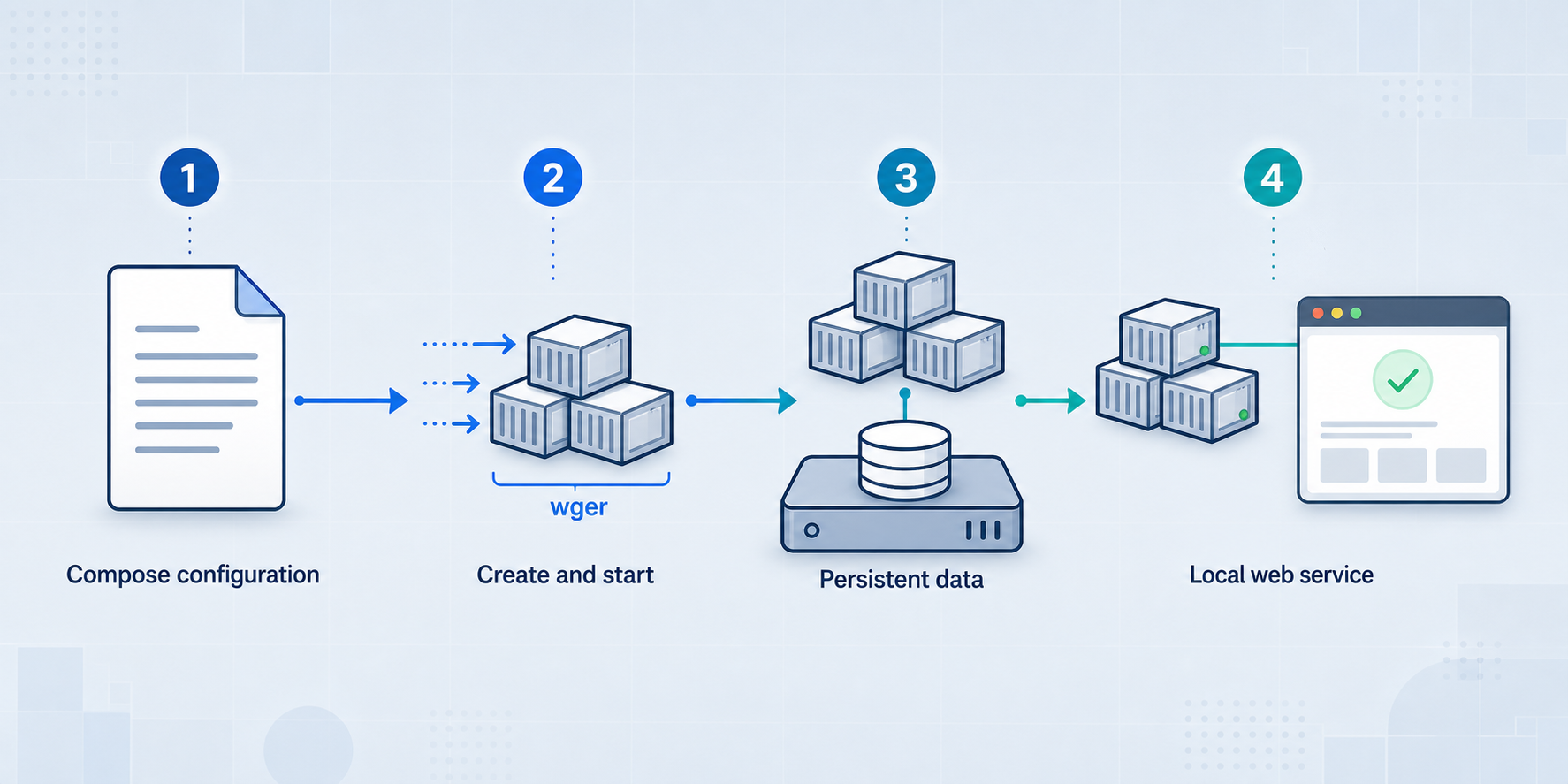
These steps are for a new installation. They are not an upgrade procedure for an existing deployment. Existing installations may contain data, customized proxy files, an older environment layout, or release-specific migrations that must be preserved.
Clone the maintained Docker repository
Clone the official deployment repository and enter its top-level directory. Keep the Git metadata because it is useful when reviewing future configuration changes.
Create the production environment file
Copy the supplied production environment example to config/prod.env. If a future repository revision renames the example, use the template shipped by that revision rather than creating an unrelated file.
Set required secrets and URL values
Edit config/prod.env, replace example credentials and secrets, review PostgreSQL values, and set SITE_URL to the URL through which users will ultimately access this installation. Protect the file from unintended users and never commit it.
Validate the rendered Compose configuration
Ask Compose to parse the files, list the services, and render the effective configuration. Review service dependencies, published ports, environment-file references, and persistent mounts before starting containers.
Pull images and start the stack
Pull the images referenced by the checkout, then start all configured services in detached mode. Compose handles dependency creation, but initialization may take time on the first run.
Inspect status and initialization logs
Confirm that expected services are running and that none repeatedly exit or restart. Review the web, database, proxy, and supporting service logs before opening the application.
1. Acquire the deployment files
git clone https://github.com/wger-project/docker.git
cd docker
git status
ls
ls config
Confirm that you are in the cloned Docker deployment directory and can see the Compose definition plus its config directory. Running docker compose from an unrelated directory can produce a “configuration file not found” error or, more dangerously, operate on another project.
2. Prepare the environment file
cp config/prod.env.example config/prod.env
chmod 600 config/prod.env
Open config/prod.env in a local editor. Replace documented sample secrets and passwords with strong unique values. Review at least the PostgreSQL variables POSTGRES_USER, POSTGRES_PASSWORD, and POSTGRES_DB, along with SITE_URL and the current JWT key settings. The maintained 2.6 deployment reads PostgreSQL credentials from this environment file instead of hardcoding them in the Compose YAML.
Do not paste the environment file into issue reports or screenshots. It may contain database credentials, Django secrets, JWT key material, mail credentials, or provider secrets. The same protection applies to backups of this file.
wger 2.6 requires SITE_URL to represent the server URL. If you plan to use an assigned Localtonet HTTPS URL, custom subdomain, or custom domain, make the application and public address consistent before relying on login callbacks or integrations. If the final address is not known during the first local startup, keep the deployment private, obtain the public address, update the setting through the supported environment workflow, and retest authentication.
3. Inspect the actual topology and storage
docker compose config --services
docker compose config
docker compose config --volumes
The first command lists the service names recognized by your checkout. The second renders the effective configuration after environment substitution. The third lists named volumes where supported by your Compose version. Review the output rather than assuming that every historical deployment has identical services.
The maintained bundle persists the PostgreSQL database separately from the containers and mounts wger media storage used for uploaded content. It also defines application, proxy, and supporting services, including the PowerSync additions in current 2.6-era configuration. Database records and uploaded media have different recovery boundaries, so both must be included in a complete backup.
Search the rendered configuration for ports: to identify the host-facing proxy mapping. A mapping such as HOST_PORT:CONTAINER_PORT means browsers use the host-side value. Bind addresses can further restrict whether that listener is available only on the Docker host or across the local network.
4. Pull and start the deployment
docker compose pull
docker compose up -d
docker compose ps
The official wger project describes self-hosting as being a docker compose up -d away, but that command assumes the repository and environment preparation are complete. It creates or updates the configured services and leaves them running after the shell command exits.
Give a first startup enough time to initialize PostgreSQL, apply application setup, and start dependent services. Then inspect recent output:
docker compose logs --tail=200
docker compose ps
If a specific service fails, use the exact name returned by docker compose config --services:
docker compose logs --tail=200 SERVICE_NAME
docker compose logs -f SERVICE_NAME
Replace SERVICE_NAME with a real service name from your checkout. Press Ctrl+C to stop following logs. This stops only the log display, not the container.
Discover and verify the local wger endpoint
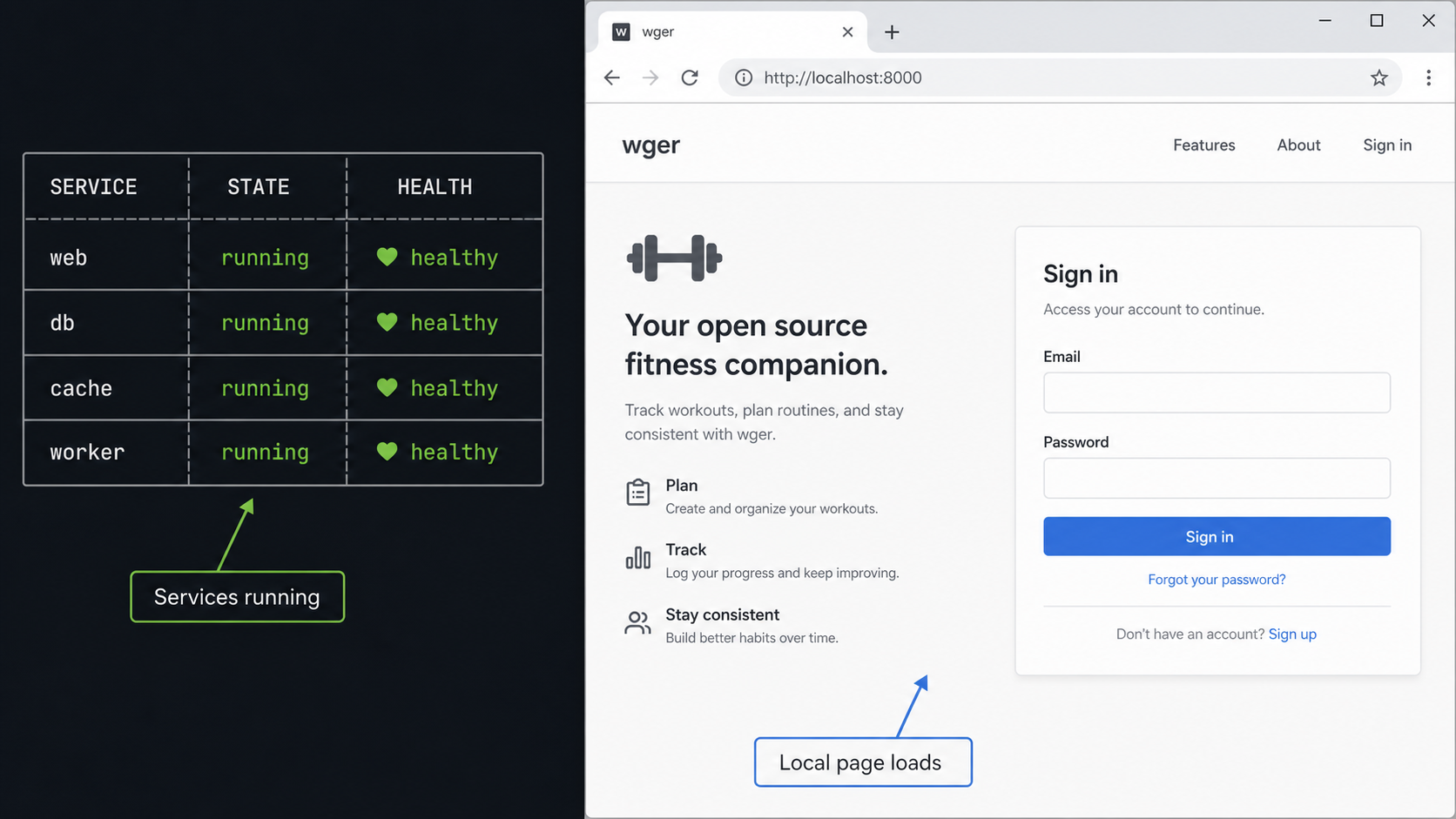
A healthy container list does not prove that the correct application is reachable. Discover the published endpoint from runtime state, test it on the Docker host, and then test it from the device that will run our client.
Read the published port
docker compose ps
Inspect the PORTS column for the web-facing proxy service. You can also use docker compose config to review the configured mapping. Record the host address and host port. Do not use a PostgreSQL, cache, internal application, or PowerSync storage port as the HTTP tunnel target.
If the active proxy service and its container port are known from your rendered configuration, Compose can report the corresponding host mapping:
docker compose port PROXY_SERVICE CONTAINER_HTTP_PORTReplace both placeholders with values shown by your own Compose configuration. This avoids presenting a proxy name or port as universal when the maintained repository supports evolving proxy configuration.
Test from the Docker host
Open the discovered address in a browser. You can also perform a basic HTTP request, replacing the placeholder with the published host port:
curl -I http://127.0.0.1:<HOST_PORT>An HTTP redirect can be normal when the proxy sends the browser to a canonical path or HTTPS address, but the response must belong to your wger deployment. A connection refusal means there is no reachable listener at that address. A generic proxy error usually indicates that the proxy cannot reach its upstream application.
Test from the Localtonet client device
If our client will run on the Docker host, the successful loopback test is directly relevant. If it will run on a different device, repeat the browser or HTTP test from that device using the Docker host’s reachable private address and the discovered host port:
curl -I http://<DOCKER_HOST_LAN_ADDRESS>:<HOST_PORT>
A loopback address always refers to the machine on which the Localtonet client is running. Therefore, 127.0.0.1 on a separate client device does not refer to the Docker host. If the cross-device test fails, correct the local binding or network path before creating a tunnel. Do not make unrelated internal services broadly reachable as a workaround.
Verify application behavior and persistence
Complete the account creation or administrative workflow presented by your deployed wger version. The supplied project evidence does not establish a universal default username or password, so this guide does not provide one. Use the supported first-run process and create individual accounts rather than sharing an administrator login.
Sign in and create a small non-sensitive test record, such as a routine or measurement. Reload the page and confirm that the record remains. If you intend to use progress photos, upload a disposable test image as well. Database records and uploaded media use separate persistent storage, so test both paths that matter to you.
Finally, restart the deployment and repeat the checks:
docker compose restart
docker compose ps
docker compose logs --tail=100
Sign in again and verify that the database record and test upload remain. If data disappears, stop here and repair persistent storage before enabling remote access.
Operate the Docker Compose deployment
Run routine commands from the cloned Docker deployment directory. This ensures Compose reads the intended project definition and environment file.
| Task | Command | Effect |
|---|---|---|
| Show service state | docker compose ps |
Lists running, stopped, unhealthy, or restarting services and published ports |
| Read recent logs | docker compose logs --tail=200 |
Displays recent output from all services |
| Follow one service | docker compose logs -f SERVICE_NAME |
Streams logs for a service named by the current configuration |
| Restart services | docker compose restart |
Restarts existing containers without intentionally deleting persistent volumes |
| Stop services | docker compose stop |
Stops containers while retaining them for a later start |
| Start stopped services | docker compose start |
Starts containers previously stopped by Compose |
| Remove containers and networks | docker compose down |
Removes project containers and networks but does not request named-volume deletion |
| Recreate from current configuration | docker compose up -d |
Creates or updates services from the active Compose files |
Commands such as docker compose down -v request deletion of named volumes associated with the project. That can destroy the persistent database or media covered by those volumes. A plain restart, stop, or recreation does not require volume deletion.
Restart automatically after a host reboot
Container restart behavior is controlled by the policies in the maintained Compose definition and by Docker starting with the host. Verify the effective policies in docker compose config, enable Docker through the supported mechanism for your operating system, and test one controlled reboot before depending on unattended access.
After a reboot, run:
cd /path/to/docker
docker compose ps
docker compose logs --tail=100
Replace the path with your clone location. Also confirm that the Localtonet client has restarted and reconnected if continuous remote access is required. A healthy wger stack does not make the public URL available when the selected Localtonet client is disconnected.
Back up and restore database, media, and configuration
A complete wger recovery set has at least three parts: a consistent PostgreSQL dump, the persistent media files, and the deployment configuration needed to interpret them. Container images and generated static assets can ordinarily be reacquired, but user records, uploaded media, and private environment values cannot.
Create a PostgreSQL logical backup
First create a protected backup directory outside the repository. Then use the database service name shown by docker compose config --services. In the maintained bundle this is commonly the PostgreSQL service, but the command must use the actual name in your checkout.
mkdir -p ../wger-backup
chmod 700 ../wger-backup

docker compose exec -T DB_SERVICE sh -c \
  'pg_dump -U "$POSTGRES_USER" "$POSTGRES_DB"' \
  > ../wger-backup/database.sql
Replace DB_SERVICE with the service that runs PostgreSQL. The variables inside single quotes are expanded inside that container, where the maintained environment provides them. Check that the resulting file exists and is not empty:
test -s ../wger-backup/database.sql
ls -lh ../wger-backup/database.sql
Back up uploaded media
The wger application uses persistent media storage for user-uploaded content. Confirm the mount and container path in docker compose config. For the maintained wger container layout where media is mounted at /home/wger/media, create an archive through the web service:
docker compose exec -T web \
  tar -C /home/wger -czf - media \
  > ../wger-backup/media.tar.gz

test -s ../wger-backup/media.tar.gz
ls -lh ../wger-backup/media.tar.gz
If your checkout maps media to a different path or uses a different application service name, use the values shown by the rendered Compose configuration. Do not archive an empty container directory while assuming it is the persistent mount.
Back up configuration securely
cp config/prod.env ../wger-backup/prod.env
git rev-parse HEAD > ../wger-backup/docker-revision.txt
docker compose config > ../wger-backup/compose-rendered.yml
chmod 600 ../wger-backup/prod.env
The rendered Compose file can contain substituted values depending on the Compose version and configuration. Treat it as sensitive. Store the backup outside public repositories and protect it according to the credentials it contains.
Restore into an isolated deployment
Test restoration on an isolated host or project before relying on the backup. Check out the recorded Docker repository revision where possible, restore the protected environment file, create the services, and keep the restored instance off the public internet.
After the database service is running, restore the SQL dump using its current service name:
cat ../wger-backup/database.sql | \
  docker compose exec -T DB_SERVICE sh -c \
  'psql -U "$POSTGRES_USER" "$POSTGRES_DB"'
Restore media only after confirming that /home/wger/media is the persistent media mount in that deployment:
cat ../wger-backup/media.tar.gz | \
  docker compose exec -T web \
  tar -C /home/wger -xzf -
Bring the complete stack up, inspect logs, sign in, open records, and retrieve an uploaded test file. Database restoration requirements can differ when restoring over an already initialized database, moving between PostgreSQL major versions, or changing wger releases. For those cases, create a clean compatible target and follow the PostgreSQL and wger administration guidance rather than forcing a dump into an unknown state.
File existence alone does not prove recoverability. Periodically restore the database, media, and configuration into an isolated environment, verify records and uploads, and record the procedure that worked for your deployment revision.
Upgrade wger without treating every release like 2.6
A routine image refresh and a release with breaking deployment changes are not the same operation. Before every upgrade, read the release notes between your installed version and the target version, back up the database and media, record the current Git revision, and review changes to the Docker repository and environment template.
General Compose update workflow
After creating and testing a backup, inspect your local repository before pulling:
git status
git rev-parse HEAD
git fetch
git diff HEAD..origin/HEAD -- docker-compose.yml config/
Review upstream changes and reconcile any local configuration deliberately. When ready:
git pull
docker compose config
docker compose pull
docker compose up -d
docker compose ps
docker compose logs --tail=200
Test login, database writes, uploaded media, mobile synchronization, and any API clients after the update. If the release introduces manual commands, execute only those documented for your source and target versions.
Special instructions for an existing installation upgrading to wger 2.6
The wger 2.6 release notes describe breaking changes. Docker users must pull the latest Docker repository configuration because the release adds a powersync service, updates nginx or Caddy proxy configuration, and adds settings to prod.env. Updating only the wger image can leave the deployment incomplete.
Existing Docker installations upgrading to 2.6 must create the dedicated PowerSync database user and schema:
docker compose exec web ./manage.py setup-powersync-storage
The old SIGNING_KEY setting is replaced by JWT_PRIVATE_KEY and JWT_PUBLIC_KEY. Generate the new key pair as directed by the release:
docker compose exec web ./manage.py generate-jwt-keys
Confirm that SITE_URL contains the actual server URL. If the default database password was changed, review PS_DATABASE_URI and provide the wger database connection using the documented PostgreSQL URI format. PS_STORAGE_PG_URI controls non-default PowerSync storage settings. PostgreSQL credentials are now read from prod.env through POSTGRES_USER, POSTGRES_PASSWORD, and POSTGRES_DB.
The release also removes unused thumbnail sizes. Run the thumbnail pruning command in the web container:
docker compose exec web ./manage.py prune-thumbnailsThe default location for ingredient images changed. Existing entries continue to work at the old paths, but the release recommends migrating them for consistency:
docker compose exec web ./manage.py migrate-ingredient-image-pathsReview the command output and application logs after each operation. Then restart or recreate services using the updated Compose definition and test the complete application.
These commands address the specific upgrade described by the wger 2.6 release. They are not universal maintenance commands for every earlier or later version. Determine your installed version, read every intervening release note, back up first, and follow the sequence applicable to that exact upgrade path.
Authentication and API changes in 2.6
Version 2.6 adds social authentication and two-factor authentication using security codes or passkeys. Existing website sessions may require users to sign in again. The project provides separate multi-factor authentication administration guidance and social authentication administration guidance.
Several version 2 API resources changed from integer IDs to string UUIDs, including measurements, nutrition plans, meals, nutrition diaries, workout sessions, and workout logs. Scripts that parse IDs as integers must be updated.
The release removes /api/v2/login/, /api/v2/register/, and /api/v2/token. The allauth login flow respects multi-factor authentication. Users who need a permanent token are directed to the API key page in user settings. JWT refresh tokens rotate on use and can be blacklisted after rotation, so clients must retain each newly returned refresh token.
Publish the verified wger endpoint with Localtonet
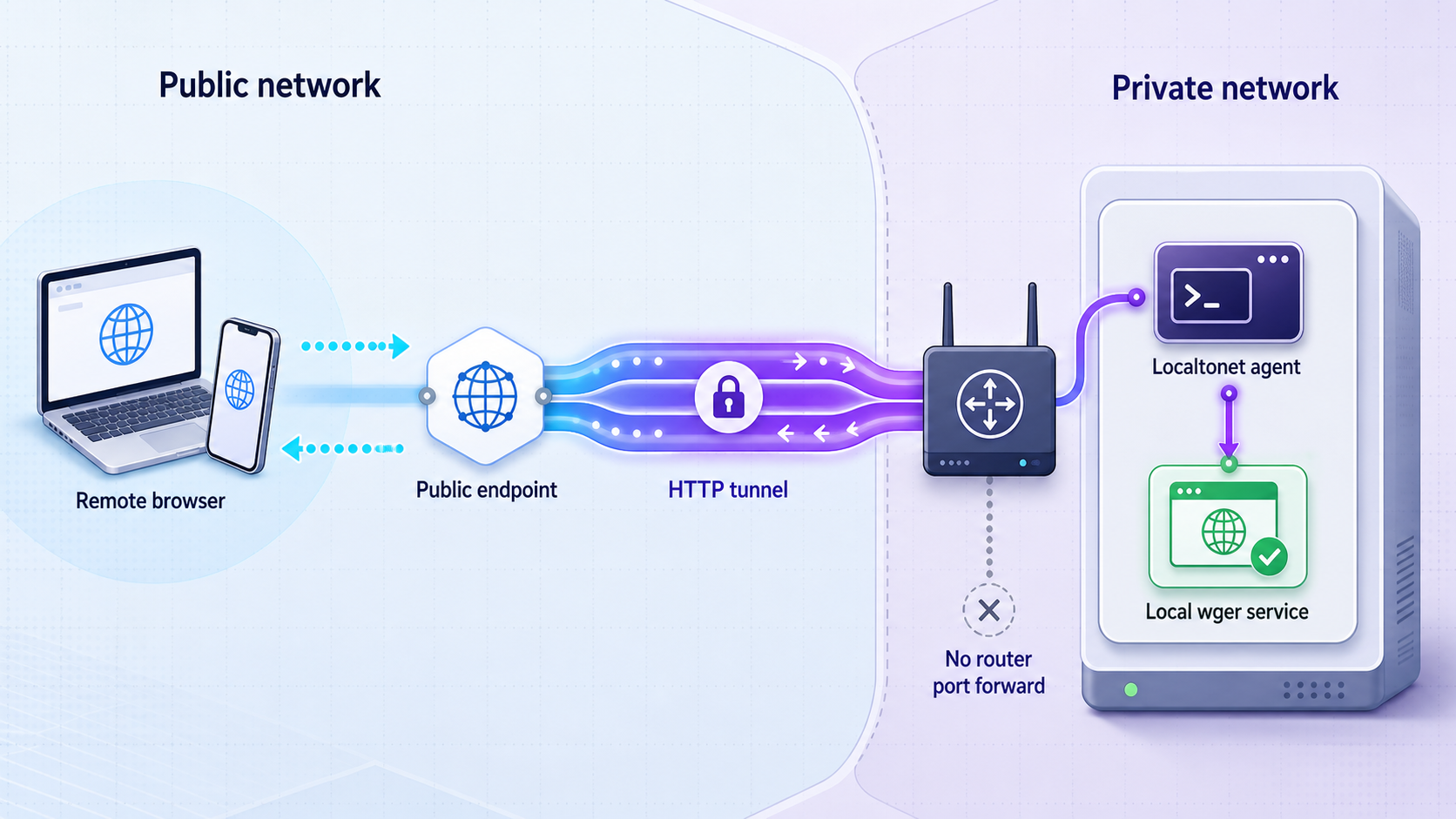
Once wger works locally, create an HTTP tunnel to its web-facing address. Our client establishes an outbound connection to a Localtonet relay server. This removes the need for inbound router port forwarding, firewall changes, VPN setup, or a public IP address.
An HTTP tunnel requires a local IP address and port reachable from the selected client. Use the exact endpoint that passed the client-device test. Do not target PostgreSQL, Docker’s management socket, a cache, an internal-only container address, or PowerSync’s storage database.
Install and run the Localtonet client
Install our client on the Docker host or another trusted device that can reach wger’s published local HTTP endpoint. The client must remain connected while remote access is needed.
Authenticate or select the device
Use the device-specific authentication token through the supported client and dashboard workflow. Keep the token out of wger files, public screenshots, shell transcripts, and source control.
Select an available relay server
Choose a server or region currently available in your Localtonet dashboard. Available values can vary, so do not copy a hardcoded server code from another tutorial.
Create the HTTP tunnel
Enter the local IP address and published host port that successfully served wger from the client device. Select Random Sub Domain, Custom Sub Domain, or Custom Domain according to the options available for your configuration.
Start the tunnel
Creating the configuration does not start it. Use the Start button and confirm that the selected device is connected and the tunnel is running.
Verify the final public URL
Open the assigned HTTPS address from a device or network outside the local environment. Confirm that wger loads, login and logout work, protected pages remain protected, and redirects stay on the intended public hostname.
The current dashboard workflow is documented in our HTTP tunnel documentation. HTTP and File Server process types can include generated, selected, or custom-domain public addresses where supported. Check the current dashboard and documentation before changing custom-domain DNS records or assuming an option is included in a particular plan.
A saved tunnel is not automatically reachable. Start it explicitly after creation. You can stop it later to suspend public access without deleting the configuration, or delete it when it is no longer required. The public address is available only while the selected client is connected and the tunnel is running.
Test authentication through the final hostname
Open the public URL in a private browser session. Confirm that unauthenticated visitors cannot access account data, then sign in using a non-administrator test account. Test logout, a protected page, and any configured multi-factor challenge. If registration should not be generally available, review the current wger account policy before sharing the URL.
If the public request redirects to a private hostname, loopback address, or previous domain, review SITE_URL and the proxy configuration from the maintained Docker bundle. After making a supported configuration change, recreate the affected services with docker compose up -d and repeat both local and public tests.
Secure a remotely accessible fitness tracker
Workout schedules, nutrition logs, body measurements, account details, and progress photos can be sensitive. A public route must be paired with application authentication, least privilege, secure account recovery, current software, and tested backups.
Require wger authentication for every user. Never rely on URL obscurity, and never expose the Localtonet device token, wger API keys, database passwords, JWT private keys, refresh tokens, social-login secrets, or account credentials.
Troubleshoot the deployment and tunnel
Compose cannot find a configuration file
Run pwd, git status, and ls. Confirm that the shell is inside the cloned wger-project/docker repository and that its Compose file is present. The startup command does not download the repository or create the production environment file.
Environment substitution fails
Confirm that config/prod.env exists and was created from the supplied example. Run docker compose config before startup. It can identify parsing errors, missing values, and invalid Compose structure without requiring you to guess which container will fail.
A service exits or continually restarts
docker compose ps
docker compose logs --tail=200
docker compose logs --tail=200 SERVICE_NAME
Look for the first relevant error rather than only the final restart message. Common categories include missing environment values, database authentication failure, unavailable dependencies, storage permissions, incomplete migrations, and host-port conflicts. Use the service names from docker compose config --services.
The host port is unclear or already occupied
Read the PORTS column from docker compose ps and the proxy mapping from docker compose config. If another process owns the selected host port, change only the documented host-side mapping or deployment setting. Do not change an internal container port without also understanding the proxy’s upstream configuration.
wger works on the Docker host but not from the Localtonet client
Check where our client runs. When it is on another device, test the Docker host’s private address and published port from that exact device. A listener bound only to loopback is not reachable across the local network. Running our client on the Docker host can provide a narrower path than exposing the listener broadly.
The public URL does not respond
Confirm that the Localtonet client is connected and that the tunnel was explicitly started. Recheck the selected device, local IP address, and local port. Then repeat the local HTTP test from the client device. If the local test fails, return to the Docker or local-network configuration. If it succeeds, review the tunnel state and assigned public address in the dashboard.
The public URL redirects to a private or obsolete address
Review SITE_URL and the maintained proxy configuration. Update the application configuration through config/prod.env, recreate affected services with docker compose up -d, and test in a private browser session. Do not mask an incorrect canonical URL with browser-specific workarounds.
Login or API automation fails after a 2.6 upgrade
Browser users may need to sign in again. API clients must stop using the removed version 2 login, registration, and token endpoints. Check for code that assumes numeric IDs where wger now returns UUID strings. JWT clients must save each newly rotated refresh token.
Images are missing after an upgrade
Confirm that persistent media was mounted and restored. For an upgrade to 2.6, review whether the recommended ingredient image path migration was completed. The old paths continue to work according to the release notes, but migration is recommended for consistency.
Data is missing after recreation
Stop making changes until you identify the database and media mounts in the rendered Compose configuration. Compare them with the backup set. Do not run docker compose down -v, create replacement empty volumes, or repeatedly initialize new databases while investigating.
Frequently asked questions
Which repository should I clone to run wger with Docker Compose?
Clone https://github.com/wger-project/docker.git for the maintained deployment bundle. The separate wger-project/wger repository contains the application source, project information, and releases.
What is the basic command for starting wger?
Run docker compose up -d from the cloned Docker deployment directory after creating and completing config/prod.env. Pulling images first with docker compose pull makes the acquisition step explicit.
Which local port should I enter in Localtonet?
Use the host port published by the web-facing proxy in your active Compose configuration. Discover it with docker compose ps and docker compose config, then verify the complete endpoint from the Localtonet client device. Do not assume a port copied from another deployment.
What must a complete wger backup contain?
Include a consistent PostgreSQL dump, persistent uploaded media, the protected production environment file, and enough deployment metadata to reproduce the compatible Compose stack. Test restoration in an isolated environment.
Does restarting or recreating containers delete wger data?
Properly configured persistent database and media storage survives normal restart and recreation. Volume-deletion operations can remove persistent data, so do not use docker compose down -v as routine maintenance.
Do I need to run the wger 2.6 migration commands on a fresh or later installation?
Do not apply release-specific commands blindly. The PowerSync setup, JWT key generation, thumbnail pruning, and ingredient image migration listed here are documented for the upgrade to 2.6. Use the instructions applicable to your actual source and target versions.
Does Localtonet install or host wger?
No. Docker Compose runs wger on your machine. Our client publishes the already working local HTTP endpoint through an outbound connection. Localtonet does not replace application configuration, persistent storage, account security, or backups.
Do I need router port forwarding or a public IP address?
No. The Localtonet client creates an outbound connection to our relay platform, so this workflow does not require inbound router port forwarding, firewall changes, VPN setup, or a public IP address.
Will the public URL remain available if the client disconnects?
No. The tunnel is available only while the selected client device is connected and the tunnel is running. Disconnecting the client or stopping the tunnel removes public access without stopping the local wger containers.
Can I use a custom domain for wger?
HTTP tunnels can use Random Sub Domain, Custom Sub Domain, or Custom Domain process types where supported. Check the current Localtonet dashboard and HTTP tunnel documentation for availability and exact DNS requirements before changing records.
Make your verified wger installation available remotely
After the complete Compose stack is healthy, records and media survive a restart, backups have been tested, and wger authentication works, install our client and create an HTTP tunnel to the exact local endpoint you verified.
Get Started Free →

