

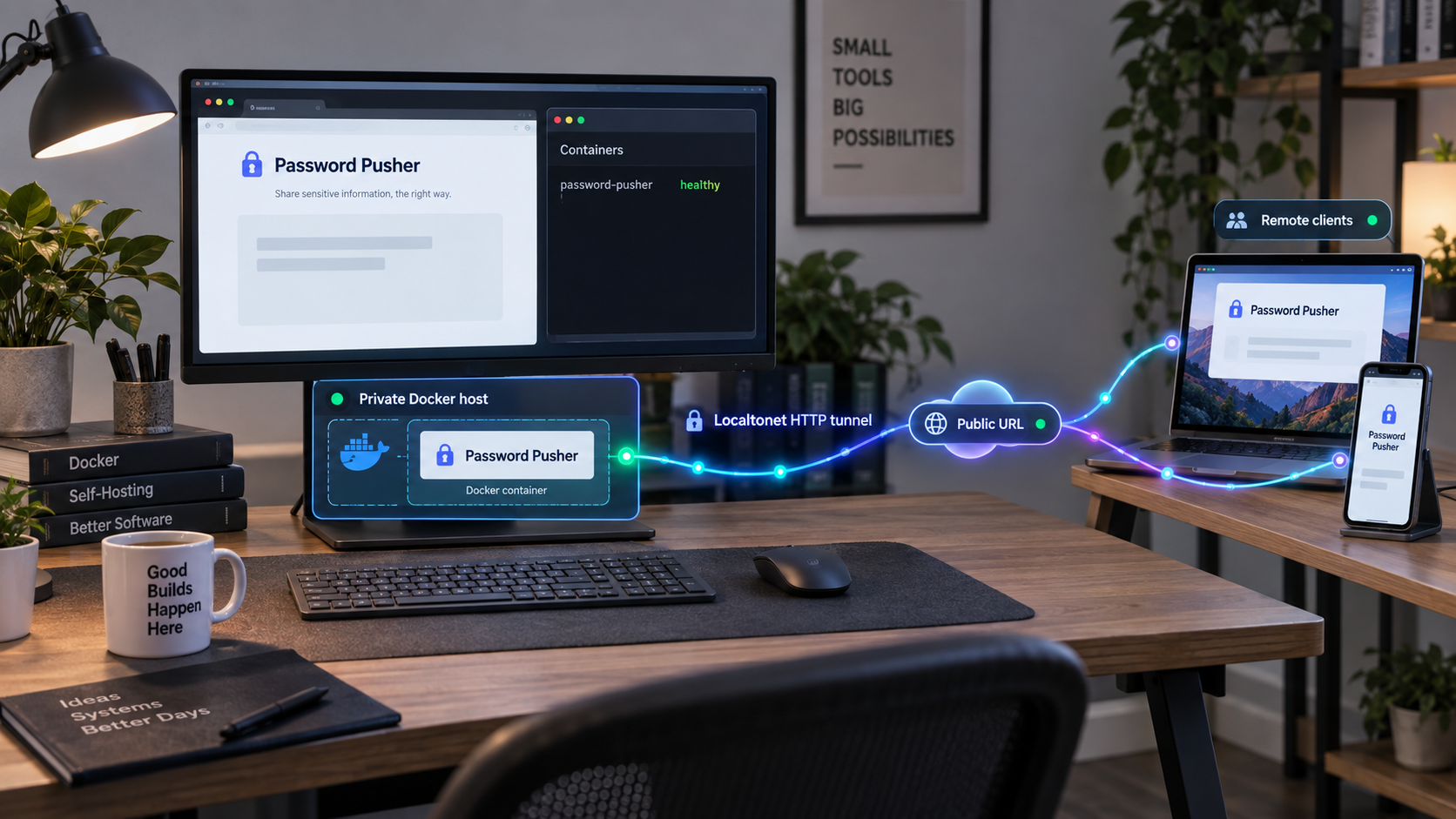
Build a private secret-sharing service locally, verify it, and publish it through a controlled HTTP tunnel
Password Pusher is an open-source web application for sharing passwords, notes, files, and URLs through links that expire by time or view count. In this guide, we install a private Password Pusher instance with its supplied Docker Compose configuration, expose its documented local HTTP port, and verify the application before adding remote access. We then connect the working service to a Localtonet HTTP tunnel without requiring inbound router port forwarding, firewall changes, a VPN, or a public IP address. The result is a practical self-hosted workflow in which Docker runs the application and our outbound tunnel provides the public address.
📋 What's in this guide
How the Password Pusher and Localtonet architecture works
Password Pusher is designed to replace unsafe secret delivery methods such as placing a password directly in an email or ordinary chat message. A sender creates a push containing a supported type of information, configures an expiration policy, and shares the resulting link. The application can expire a push after a specified duration, a specified number of views, or both. It also supports an optional passphrase for an additional access condition.
The open-source application supports passwords, text, files, and URLs. It stores sensitive data in encrypted form and removes expired content. It also provides audit capabilities, although the amount of identity information available in an audit depends on how the instance and its user accounts are configured. Password Pusher additionally includes a JSON API, an administrative interface, multilingual presentation, themes, and branding options. These features make it useful for individuals and teams, but they do not remove the need to protect the host, database, administrative accounts, and public endpoint.
Docker Compose supplies the application runtime for this guide. The official project configuration supports automatic TLS when a DNS name points to the server and TLS_DOMAIN is configured. That is a valid deployment model, but it is not the model used here. Instead, we leave TLS_DOMAIN unset, enable the documented port mapping for port 5100, and first access Password Pusher over local HTTP at http://your-ip:5100.
Once that local endpoint works, the Localtonet client running on the same host, or on another device that can reach it, establishes an outbound connection to one of our relay servers. An HTTP tunnel points to the local Password Pusher IP address and port. Localtonet then assigns a public HTTPS address according to the selected HTTP process type. The tunnel exists only while the selected Localtonet client is connected and the tunnel is running.
TLS_DOMAIN, the documented local access path is port 5100 after its port mapping is uncommented in the Compose file.
Which component handles which responsibility?
| Component | Responsibility | Important boundary |
|---|---|---|
| Password Pusher | Creates, stores, displays, audits, expires, and deletes pushes according to application configuration. | It does not by itself make a private LAN service reachable through NAT. |
| Docker Compose | Creates and manages the containers, networking, health checks, and persistent storage defined by the project. | Publishing a container port makes the service reachable according to the host's network and firewall configuration. |
| Localtonet client | Connects the local environment outward to our relay and forwards the HTTP tunnel to the selected local target. | The client must remain connected, and the configured tunnel must be running. |
| Localtonet public address | Provides the remote HTTPS entry point associated with the running HTTP tunnel. | Anyone who has an unrestricted public URL may attempt to reach it, so application security still matters. |
Password Pusher can obtain automatic TLS when you point DNS to the server and configure TLS_DOMAIN. This guide instead uses the documented local HTTP endpoint and places a Localtonet HTTP tunnel in front of it. Do not mix the two workflows without understanding the resulting proxy, certificate, DNS, and port behavior.
Prerequisites and deployment decisions
Prepare the host before changing the Compose file. You need a machine that can run Docker and the modern Docker Compose plugin, which uses the docker compose command. You also need permission to create containers and persistent data on that host. The machine may be a server, workstation, home lab device, or other Docker-capable system, provided it has enough resources for the services declared by the current Password Pusher Compose file.
The supplied evidence does not establish a universal minimum CPU, memory, or disk requirement. Actual capacity depends on the Password Pusher version, enabled features, database usage, file uploads, retention, traffic, and host operating system. Rather than inventing a minimum, monitor the containers and host after deployment. If you permit file pushes, plan storage and backups around the expected file volume.
Obtain the current project files from the official Password Pusher repository. You can clone the repository with Git, or download its current docker-compose.yml. Using the complete repository is helpful when you want the surrounding configuration comments and upgrade information. Using only the Compose file is appropriate only when you also preserve every file or directory that the current Compose definition references.
For Localtonet access, install our client on the Docker host or on a device that can reach the host's port 5100. The client device needs outbound connectivity to establish its relay connection. You also need a Localtonet device authentication token, but tokens are device-specific and must be copied from your own account. Never place a token in a Compose file, tutorial screenshot, source repository, or shared log.
Preflight checklist
- Docker is installed and the Docker service is running.
- The
docker composecommand is available. - You have the current Password Pusher repository or its complete required deployment files.
- You can edit
docker-compose.yml. - Port
5100is not already occupied on the selected host address. - You know whether Password Pusher should be reachable only from the same machine, from the LAN, or from another specific device.
- The Localtonet client can run on a device that reaches the chosen local endpoint.
- You have a private backup location for persistent application data.
The Password Pusher instructions identify port 5100 as the local HTTP endpoint, but the exact host binding in the current Compose file determines which interfaces can accept connections. If the Localtonet client runs on the Docker host, prefer a loopback-only binding when the supplied configuration and your Docker environment allow it. If our client runs on another LAN device, the service must listen on an address reachable from that device. Do not expose port 5100 directly to the internet through a router rule for this workflow.
Confirm Docker Compose before deployment
Run the following commands on the intended host. They do not install Docker, but they confirm that the Docker engine and Compose plugin are callable. Installation procedures vary by operating system and Docker distribution, so use the supported Docker installation method for your host rather than copying an unrelated package command.
docker --version
docker compose version
Both commands should print version information. If the first fails, Docker is not installed or is not on the command path. If only the second fails, the Compose plugin may be missing or the host may have an older standalone Compose installation. This guide uses the currently documented docker compose syntax.
Install Password Pusher with Docker Compose
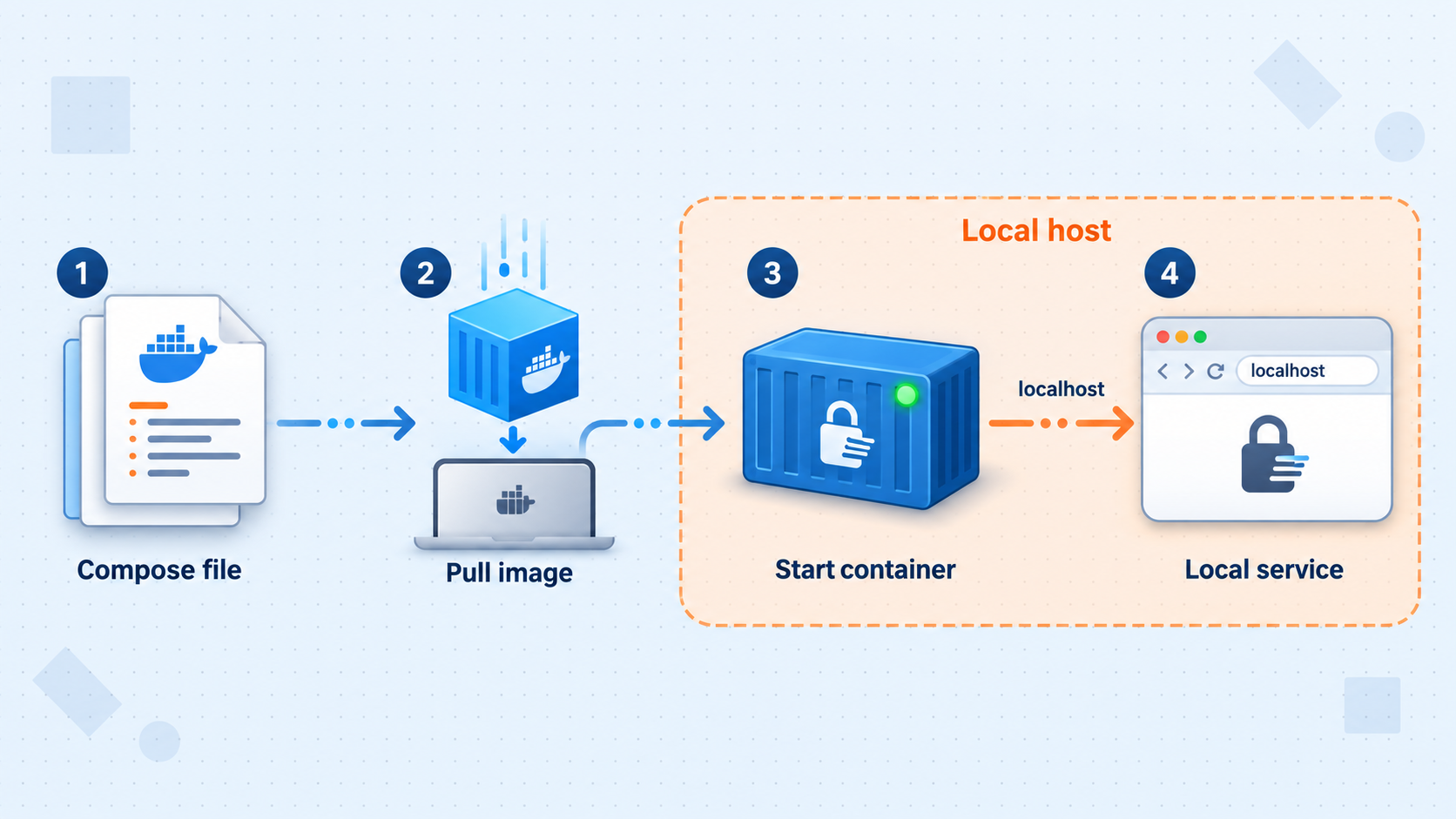
The official quick-start sequence is concise: obtain the project Compose file, configure it, and run docker compose up -d. The critical difference between a direct-DNS deployment and this Localtonet workflow is the TLS setting. We will not configure TLS_DOMAIN. Instead, we will enable the port 5100 mapping documented for local HTTP access.
Obtain the official Password Pusher deployment files
Clone the official repository or download the current docker-compose.yml and every file it references. Work in a dedicated directory so that configuration, persistent-data paths, and future updates remain manageable.
Configure the supplied Compose file
Open docker-compose.yml. Leave TLS_DOMAIN unset for this workflow. Find the documented port 5100 mapping and uncomment it so the application has a host-accessible HTTP endpoint. Review all comments and replace only values that the current file explicitly asks you to set.
Start the deployment
From the directory containing docker-compose.yml, run docker compose up -d. Compose creates or starts the declared services in detached mode and returns control to the terminal.
Open the local application
Browse to http://your-ip:5100, replacing your-ip with the address through which the browser reaches the Docker host. When testing from the same host, use the appropriate local address for the binding you configured.
If Git is installed, the repository can be obtained with the following command. The second command enters the project directory. Review the repository's current Compose file before starting it because configuration can change between versions.
git clone https://github.com/pglombardo/PasswordPusher.git
cd PasswordPusher
In docker-compose.yml, locate the existing, commented settings rather than adding guessed service names or replacing the file with a simplified example. For automatic certificate issuance on a directly addressed server, the project documents a setting shaped like the following:
TLS_DOMAIN: 'pwpush.example.com'
Do not enable that setting for the Localtonet-backed local HTTP workflow. Instead, uncomment the supplied mapping for port 5100. The exact surrounding YAML and service name should come from the version of docker-compose.yml you downloaded. Preserving the official file avoids accidentally omitting its persistent storage or health checks.
Start the configured project from its directory:
docker compose up -dDetached mode is useful for a service because closing the terminal does not stop the containers. It does not mean the application is automatically ready the instant the command finishes. Containers can still be starting, running migrations, waiting for a dependency, or failing a health check. Inspect the deployment before creating a tunnel.
The Compose file includes comments for optional values such as PWPUSH_MASTER_KEY. If you configure such a value, generate it with the project's documented method and store it through an appropriate secret-management workflow. Do not copy a real key into a public repository, support request, article, or shared terminal recording. Preserve required keys during upgrades because changing an encryption-related key can make existing encrypted data unusable.
Verify Password Pusher before exposing it remotely
Local verification is a required checkpoint. A tunnel cannot repair an unhealthy container, an unavailable database, an incorrect port mapping, or an application that never finished starting. Confirm the container state, read logs for errors, open the web interface, and perform a controlled functional test before involving the public endpoint.
Inspect container status
docker compose psThe command lists the services in this Compose project and their current state. Service names vary with the supplied file, so do not assume a particular container name. Look for services that repeatedly restart, remain exited, or report an unhealthy state. A healthy application service and its required dependencies should remain running.
Read startup logs
docker compose logsFor a continuously updating view during diagnosis, use:
docker compose logs -f
Stop following the output with Ctrl+C. This ends the log-view command, not the detached containers. Investigate database connection failures, permission errors, invalid environment values, failed migrations, missing files, and address conflicts. Do not publish logs without reviewing them for email addresses, IP addresses, push identifiers, paths, or other sensitive data.
Test the local HTTP endpoint
Open http://your-ip:5100 in a browser. The correct value for your-ip depends on where the browser runs and how the host port is bound. A browser on the Docker host may use a loopback address when the service is bound locally. A browser or Localtonet client on another device must use a reachable LAN address and requires a binding that accepts that connection.
The Password Pusher interface should load without a proxy-generated error. Create a temporary test push containing non-sensitive text. Configure a short expiration period or low view limit, open the generated link in a separate browser context, and confirm that the push behaves as expected. If you test optional passphrase protection, communicate the test passphrase through a different channel instead of placing it beside the URL.
Also verify expiration. A link that is supposed to expire by view count should stop revealing its contents after that limit is reached. A test does not prove every security property of the installation, but it confirms the essential create, retrieve, and expire workflow before remote access is introduced.
Loading the home page confirms only basic HTTP reachability. A useful acceptance test creates a harmless push, retrieves it, checks any selected passphrase behavior, and confirms expiration. If you intend to share files or URLs, test those specific push types with non-sensitive sample content as well.
Expose the verified instance with a Localtonet HTTP tunnel
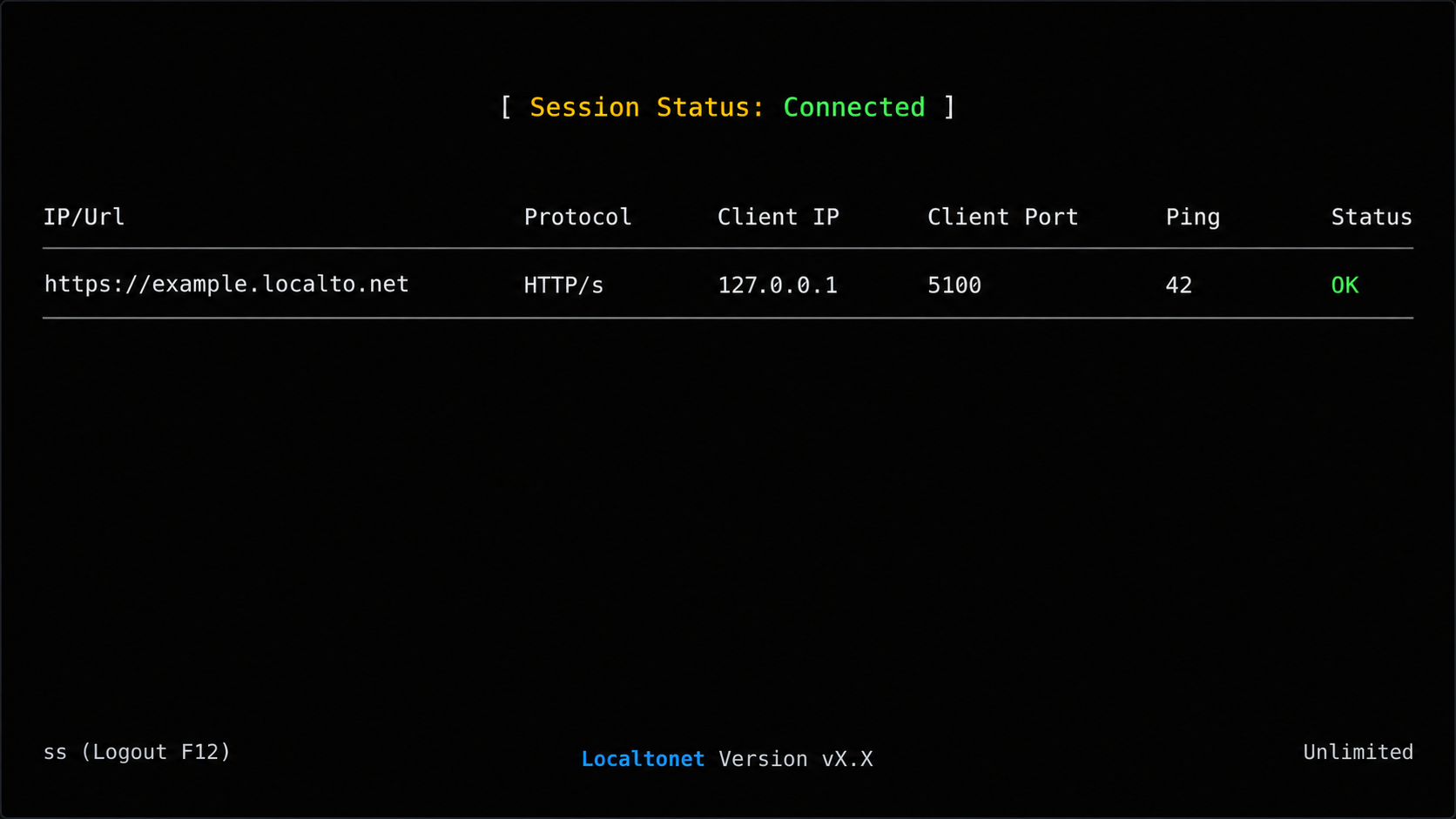
Add Localtonet only after Password Pusher works over its local HTTP endpoint. Our client establishes an outbound connection to a relay server and forwards incoming requests from the assigned public address to the configured local IP address and port. This avoids inbound port forwarding and works without requiring the Docker host to have a public IP address.
An HTTP tunnel is the appropriate tunnel family because Password Pusher presents a web application over HTTP on port 5100 in this configuration. Do not select a File Server tunnel, proxy tunnel, or VPN Manager for this task. Those products have different target models and purposes.
Install and run the Localtonet client
Install our client for the operating system on a device that can reach the verified Password Pusher endpoint. Running it directly on the Docker host usually permits a local target. Running it elsewhere requires network reachability to the Docker host.
Authenticate the intended device
Use the device-specific authentication token from your Localtonet account to identify the client that will run the tunnel. Keep the token private and verify that the intended device appears connected before continuing.
Select an available relay server
Choose an available server or region from the current dashboard. Availability can vary by account, plan, and deployment, so use the values shown in your account rather than copying a hardcoded server code from a tutorial.
Create an HTTP tunnel to Password Pusher
Create an HTTP tunnel and set its local target to the IP address that reaches Password Pusher and port 5100. If the client and Docker port are on the same host, use the address compatible with the configured binding. If they are on different devices, use the Docker host's reachable private address.
Start the tunnel
Creating a tunnel does not start it. Use the Start control and confirm that the tunnel is running. HTTP process types can provide a generated subdomain, a selected subdomain where supported, or a custom domain, and each serves the target at a public HTTPS address.
Test the assigned public address
Open the assigned HTTPS URL from a network outside the host's LAN, create another harmless test push, retrieve it, and confirm expiration. Stop or delete the tunnel when remote access is no longer required.
The current dashboard is authoritative for available relay selections and process types. Exact custom-domain DNS requirements can change and are not established by the supplied evidence, so check the current configuration guidance before assigning a custom domain. For the maintained product workflow, see our HTTP tunnel documentation.
Select the correct local target
| Client location | Target approach | What to verify |
|---|---|---|
| Localtonet client on the Docker host | Use a local address that reaches the published port 5100. |
The same host can open the target URL and the Compose port binding accepts that address. |
| Client on another LAN device | Use the Docker host's private network address and port 5100. |
The client device can open the endpoint directly, and the host firewall permits only the required private path. |
| Client in a container | Use an address resolvable and reachable from that container's network. | Container loopback refers to the client container itself, not automatically to the Docker host or Password Pusher container. |
Once started, the assigned URL can receive internet traffic. An expiring push link protects a particular push according to its settings, but it is not a substitute for securing the whole application. Protect administrative access, require strong account credentials, enable MFA where appropriate, keep the deployment updated, and avoid placing real secrets into a test push.
Security guidance for a secret-sharing service
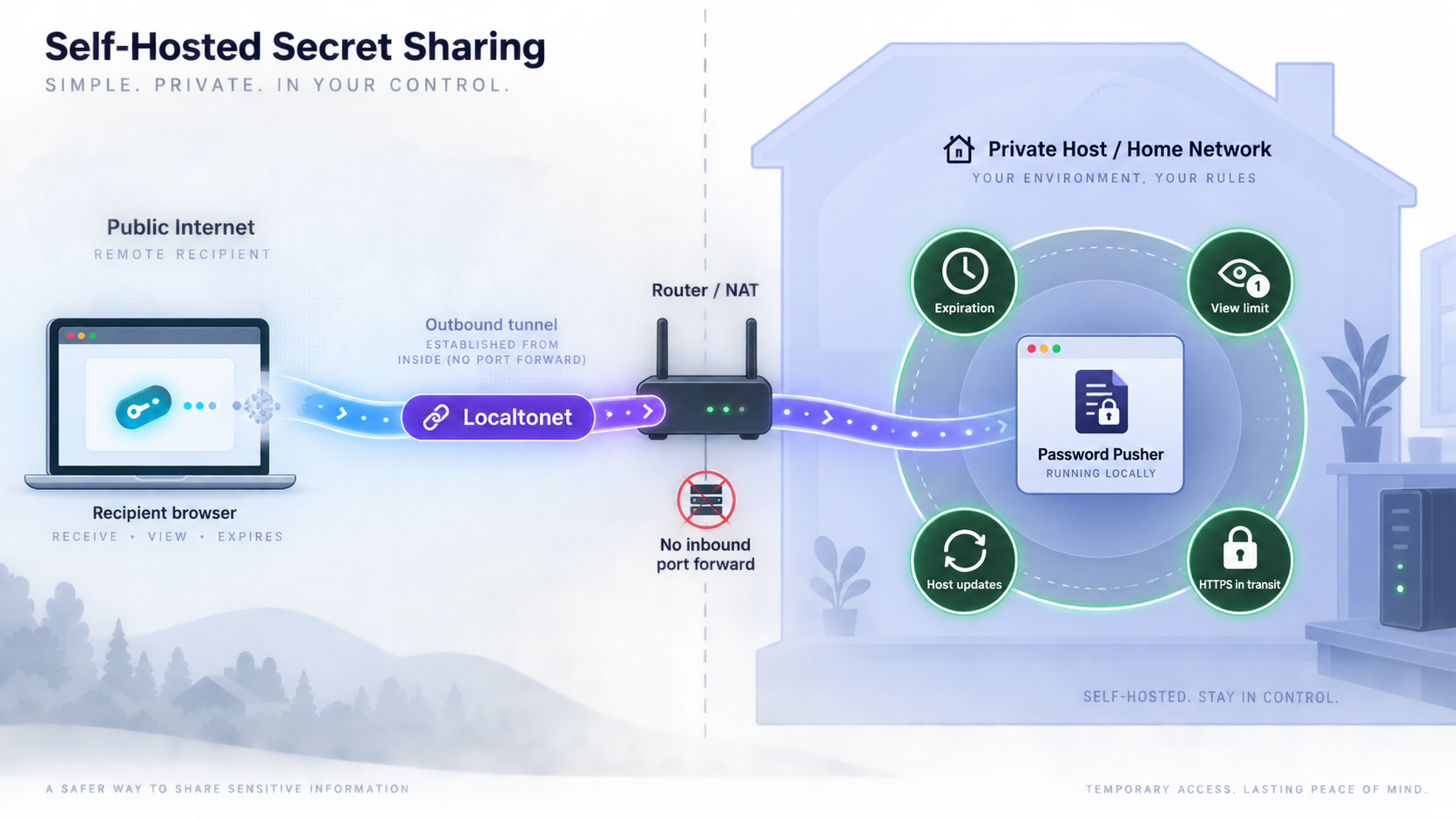
Self-hosting gives you control over the deployment, but it also assigns you responsibility for patching, account security, backups, monitoring, network scope, and incident response. Password Pusher is designed for controlled secret delivery, not as a reason to ignore the surrounding host and network.
Use expiration and passphrases intentionally
Select the smallest practical lifetime and view count for each push. A link intended for one recipient generally should not remain retrievable indefinitely. Where the sensitivity justifies it, require a passphrase and deliver that passphrase through a separate communication channel. Sending the URL and passphrase together in the same compromised conversation weakens the benefit.
A view count is also not identical to a recipient count. Link scanners, security gateways, automated previews, and accidental opens can consume a view, depending on how they request the page and how the application processes the request. Test your organization's messaging path before relying on an exact single-view workflow for critical delivery.
Protect identities and administrative access
Password Pusher supports TOTP-based multi-factor authentication with backup codes, and an administrator can require MFA instance-wide with PWP__REQUIRE_MFA=true. Before applying an environment setting, verify it against the documentation for the exact version you deploy and plan secure handling for recovery codes. Store administrative credentials and backup codes separately from the host.
Audit logs can help establish what was created and viewed, especially when logins provide identity context. Audit information is sensitive operational data in its own right. Limit access to it, define a retention policy appropriate to your organization, and avoid interpreting an IP address alone as proof of a person's identity.
Understand the transport boundary
In this workflow, a remote browser uses the public HTTPS URL provided for the Localtonet HTTP tunnel, while our client forwards traffic to the local HTTP target. Do not describe this as application-managed end-to-end encryption. Password Pusher's encrypted storage, its push passphrases, public HTTPS transport, and the protection of the local network path are separate layers with different responsibilities.
When the Localtonet client runs on the Docker host and connects to a loopback-bound port, the local HTTP segment remains on that machine. If the client runs elsewhere, local HTTP crosses the intervening private network. Evaluate that network according to the sensitivity of your deployment. If policy requires encryption on every segment, use an architecture reviewed for that requirement rather than assuming public HTTPS alone proves it.
Keep the host narrow and recoverable
- Apply operating system and Docker security updates on a controlled schedule.
- Run only required services on the host and avoid unnecessary public listeners.
- Restrict access to Docker because control of the Docker daemon usually implies extensive control over the host.
- Back up persistent data and every required secret or key through an encrypted, access-controlled process.
- Test restoration instead of treating the existence of backup files as proof of recoverability.
- Review logs and storage for sensitive metadata before sharing them with support personnel.
- Stop the Localtonet tunnel when continuous public access is not needed.
Password Pusher removes sensitive content from its active application storage when a push expires. That does not automatically prove immediate removal from every external backup, snapshot, replicated disk, log, or monitoring system in your environment. Design backup retention and access controls with this distinction in mind.
Routine operation, shutdown, and updates
A self-hosted secret-sharing service needs an operating procedure, not just an installation command. At minimum, define who can update it, where persistent data is stored, how backups are protected, how the service is tested after a change, and how public access is disabled during maintenance.
Check status and review logs
docker compose ps
docker compose logs
Run these commands from the directory containing the same Compose project. Status checks are useful after host reboots, configuration changes, application updates, or unexpected tunnel errors. Log review should be access-controlled because application logs can contain operational metadata even when they do not contain the secret body.
Restart the Compose project
docker compose restartA restart is useful when containers are healthy enough to stop and start but need to reload. It is not a substitute for correcting invalid configuration or unavailable dependencies. After restarting, repeat the local browser test before trusting the public URL.
Stop without deleting the project definition
docker compose stopThis stops the project containers while retaining them for a later start. You should also stop the Localtonet tunnel so that the public address is not left pointing to an unavailable backend. To start the Compose project again, run:
docker compose startRemove the running Compose resources carefully
docker compose downThis removes the project containers and networks created by Compose. Do not add volume-removal options unless you deliberately intend to delete persisted data and have verified backups. The treatment of storage depends on how the current Compose file declares its volumes and bind mounts.
Plan updates as controlled changes
Before updating, identify the currently deployed version, read the release and upgrade notes between that version and the intended target, and back up persistent data plus required keys. Password Pusher releases can introduce configuration changes. For example, version 2.13.0 removed several older password-generator environment variables and replaced them with newer structured generator settings. That illustrates why blindly replacing an image or Compose file can break customized deployments.
The exact image-update command and migration sequence depend on the version and current Compose file. The supplied evidence does not establish one universal update procedure for every release, so this guide does not invent one. Follow the upgrade instructions for the specific source and target versions, then validate the Compose configuration, start the deployment, inspect health and logs, and repeat both local and remote functional tests.
Coordinate application and tunnel maintenance
- Stop the Localtonet tunnel before planned application maintenance when remote users should not connect.
- Back up persistent data and protected configuration.
- Apply the reviewed Password Pusher change.
- Start and verify the Compose project locally.
- Test creation, retrieval, passphrase behavior, and expiration with non-sensitive content.
- Start the Localtonet tunnel and verify the public HTTPS URL from an external network.
This order keeps the public endpoint out of the diagnostic path until the application is known to work. It also helps distinguish a Password Pusher problem from a tunnel problem.
Troubleshooting the installation and tunnel
docker compose up -d fails
Confirm that the command is being run from the directory containing docker-compose.yml. Validate that YAML indentation was not damaged while uncommenting settings. Check whether required referenced files exist and whether Docker can pull the configured images. The terminal error and docker compose logs output should guide the next step.
If Docker reports a permission error, use the supported Docker access model for the host. Do not broadly weaken file permissions or expose the Docker socket as a shortcut. If it reports an address conflict, identify the process already using port 5100 and decide which service should own that port.
The containers run, but port 5100 does not respond
Reopen the current docker-compose.yml and confirm that its documented port 5100 mapping is uncommented. Run docker compose ps and inspect the published ports. Then read the application logs for startup, dependency, health-check, or migration failures.
Test from the Docker host first. If local access works but another LAN device cannot connect, inspect the host binding, local firewall, routing, and network isolation. A loopback-only binding is intentionally unavailable to other devices. Do not change it to an all-interface binding unless that wider LAN exposure is required and understood.
The local page works, but the Localtonet URL does not
Separate the path into checkpoints:
- Confirm that Password Pusher still opens directly from the device running the Localtonet client.
- Confirm that the intended Localtonet device is connected.
- Confirm that the HTTP tunnel points to the same reachable IP address and port
5100. - Confirm that the tunnel was started, not merely created.
- Confirm that the selected relay is available in the current dashboard.
- Retry from an external network to avoid confusing local DNS or browser state with public reachability.
If the client runs in a different container, remember that 127.0.0.1 refers to that client container. It will not automatically reach a service published by another container or the Docker host. Use a network path that is valid from the client's own network namespace.
The public address displays an application error
An application-generated error means the HTTP request probably reached Password Pusher, so inspect its logs and configuration. Consider whether the application needs awareness of its public URL or proxy headers for the feature being used. The available evidence does not define a universal Password Pusher reverse-proxy environment setting for this exact tunnel workflow, so do not add guessed variables. Check the configuration documentation for the deployed version if generated links, redirects, or request metadata are incorrect.
A push expires sooner than expected
Verify both configured expiration controls. A push may expire because its maximum age was reached or because its view limit was consumed. Automated link checking or message previews can sometimes access links before the intended recipient. Use a non-sensitive test to understand how your mail or chat system handles Password Pusher URLs.
Existing data is unavailable after an update
Stop making additional changes and preserve the current storage state. Verify that the updated Compose file still points to the original persistent storage and that required keys were retained. Review all upgrade notes between the old and new versions. Do not initialize new storage over the old deployment or rotate an encryption-related key while diagnosing the problem.
Test the application container, then the host port, then reachability from the Localtonet client device, then the running tunnel, and finally the public URL. This progression identifies the failed layer more reliably than changing Docker, firewall, DNS, and tunnel settings at the same time.
Frequently asked questions
Does Password Pusher require a public IP address?
Not for this workflow. Password Pusher listens on a local HTTP endpoint, and the Localtonet client establishes an outbound connection to our relay. This provides a public address without requiring the Docker host to have a public IP or an inbound router port-forwarding rule.
Should I configure TLS_DOMAIN when using a Localtonet HTTP tunnel?
Not in the installation model documented here. Password Pusher uses TLS_DOMAIN for its direct DNS and automatic TLS workflow. This guide leaves it unset, enables the documented local HTTP port 5100, and publishes that endpoint through a Localtonet HTTP tunnel with a public HTTPS address.
Can the Localtonet client run on a different machine?
Yes. It must be able to reach the Docker host's Password Pusher endpoint over the local network. Configure the tunnel target with the Docker host's reachable private address and port 5100. Limit the host firewall rule to the required private path rather than opening the port broadly.
Is creating a Localtonet tunnel enough to make it available?
No. Tunnel creation and tunnel execution are separate lifecycle states. The selected client device must be connected, and you must start the tunnel. It remains available only while the client is connected and the tunnel is running.
Does an expiring link make it safe to share any secret?
Expiration reduces the time or number of views for which the content is available, but it cannot prevent an authorized viewer from copying the secret after retrieval. Use short expiration settings, an optional passphrase where appropriate, a separate channel for that passphrase, and rotate highly sensitive credentials after their intended use.
Is Password Pusher data persistent in this Docker Compose setup?
The official Compose configuration includes persistent storage. Confirm the actual volume or bind-mount definitions in the exact file you deploy, include that data in protected backups, and avoid volume-removal commands unless deletion is intentional.
Can I use a custom domain for the Localtonet address?
HTTP tunnels may use a generated subdomain, a selected subdomain where supported, or a custom domain. Exact availability can vary, and custom-domain DNS requirements should be checked in the current Localtonet dashboard and documentation rather than copied from an older tutorial.
What should I back up before upgrading?
Back up the persistent data used by the current Compose project, the reviewed Compose configuration, and every required application secret or key. Read the release and migration notes for all versions in the upgrade path. Keep backups encrypted and test restoration in a controlled environment.
Make your verified Password Pusher instance reachable with Localtonet
Install Password Pusher, confirm its local port 5100 workflow, and then create an HTTP tunnel from a connected Localtonet device. Start with non-sensitive test content, verify the assigned public HTTPS address, and keep the tunnel running only for as long as remote access is needed.


