

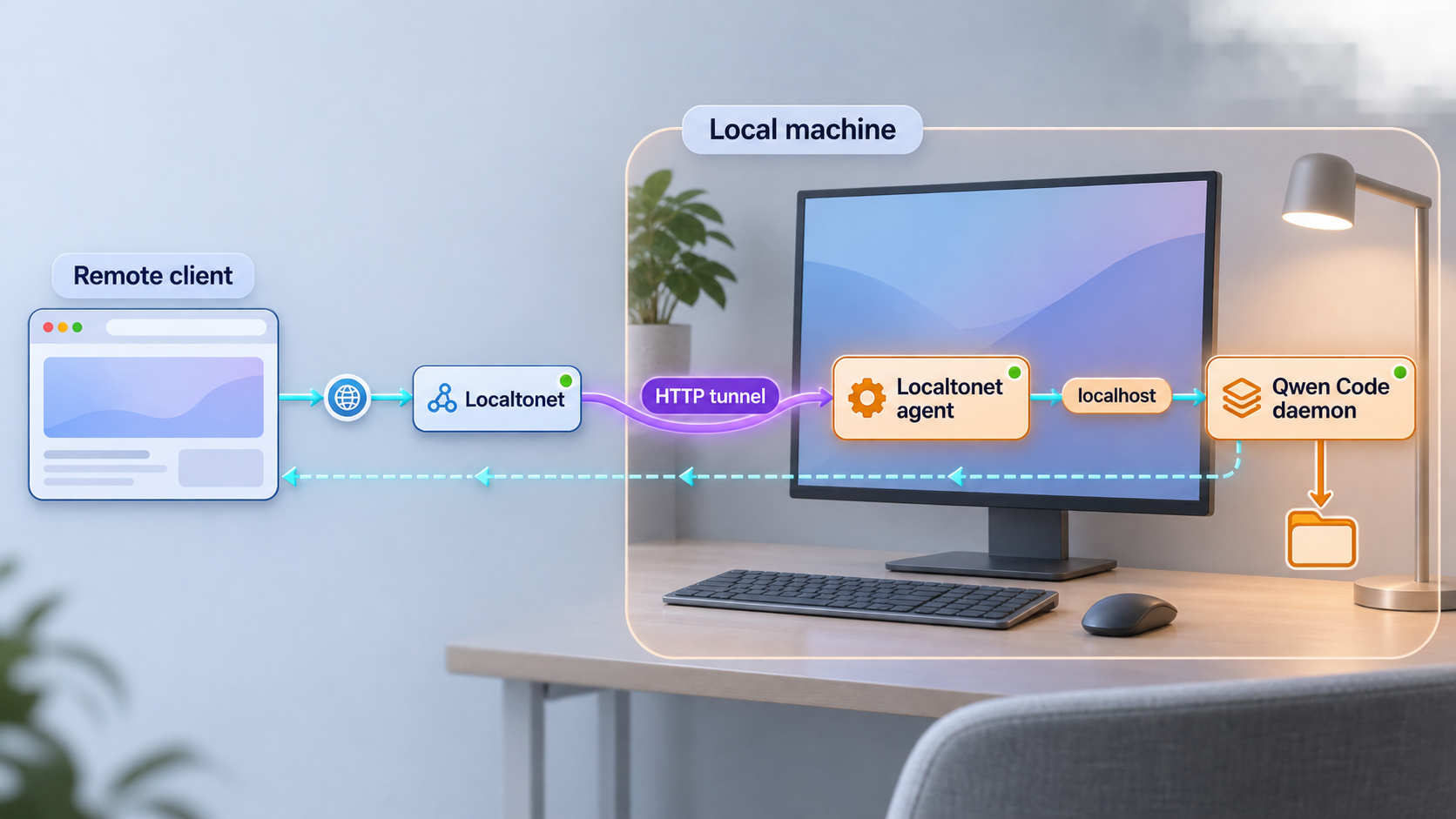
Run Qwen Code as a local HTTP and SSE service, verify it safely, and prepare it for controlled remote access
Qwen Code can run as more than an interactive terminal application. Its daemon mode starts a local Web Shell and an HTTP plus Server-Sent Events interface that other clients can use. This guide covers the documented installation paths, local startup, browser verification, operational boundaries, and the security decisions required before exposing an AI coding agent. Once the local service works, we show how an HTTP tunnel with Localtonet can provide a public HTTPS address without inbound router port forwarding, firewall changes, VPN setup, or a public IP address.
📋 What's in this guide
What Qwen Code daemon mode provides
Qwen Code is an open-source AI coding agent designed to work from the terminal. In its normal interactive form, a user starts the program and works with the agent in that terminal session. Daemon mode changes the integration model: the qwen serve command starts a persistent local HTTP service that can be used by a browser, an application, or another compatible client.
The documented quickstart exposes a Web Shell and an HTTP plus SSE API on http://127.0.0.1:4170. HTTP handles request and response operations, while Server-Sent Events provide a long-lived stream over which the daemon can send events to a connected client. This arrangement is useful when a browser or custom interface needs ongoing updates from an agent rather than a single conventional HTTP response.
127.0.0.1, limiting direct connections to the same machine. This is the correct place to begin verification before adding any remote path.
Qwen Code's developer documentation describes a broader daemon architecture, including workspace-scoped behavior, permission mediation, typed events, client SDK support, session lifecycle concepts, and adapters. You do not need to implement those internals to use the Web Shell, but they matter if you later build a client against the wire protocol.
The daemon documentation covers experimental and actively developed surfaces. Confirm protocol routes, request bodies, authentication flags, and SDK compatibility against the documentation for the exact Qwen Code version you install. This guide deliberately does not invent route names or configuration flags that are not established by the supplied evidence.
Prerequisites and deployment decisions
Choose the machine and workspace before installing anything. The Qwen Code process should run on a computer that contains, or can safely reach, the project files it is expected to work with. Because a coding agent may be permitted to read files, edit files, and invoke development tools, do not use a broadly privileged account simply for convenience.
For the npm installation path, the documented requirement is Node.js 22 or newer. Confirm that both Node.js and npm are available before installing the package:
node --version
npm --version
The first command should report a Node.js major version of 22 or later. If it does not, upgrade Node.js through the installation method appropriate for your operating system before continuing. The Homebrew path is available where Homebrew is installed. Qwen Code also provides standalone installer paths for Linux, macOS, and Windows, but the exact installer commands and artifacts are version-sensitive and are not established by the supplied evidence. Use the current Qwen Code release instructions rather than copying an unverified filename or download URL.
| Installation path | Prerequisite | Best fit | Documented action |
|---|---|---|---|
| npm | Node.js 22 or newer and npm | Developers already managing JavaScript tools with npm | Install the latest @qwen-code/qwen-code package globally |
| Homebrew | A working Homebrew installation | Systems where Homebrew is the preferred package manager | Install the qwen-code formula |
| Standalone installer | A supported Linux, macOS, or Windows environment | Users who do not want the npm installation path | Follow the current release instructions for the exact platform and version |
You will also need whatever model-provider authentication and configuration apply to your chosen Qwen Code workflow. Those details can vary by provider and version, and the supplied evidence does not establish one universal credential variable or login command. Do not guess an environment-variable name or paste credentials into shell history. Complete the provider setup using the current Qwen Code authentication flow, then test the program locally.
For the Localtonet stage, prepare a Localtonet account and install our client application on the same machine as Qwen Code, or on a device that can reach the daemon's local IP address and port. A Localtonet device token identifies the client device and must be kept private. Do not place it in screenshots, source code, logs, or this daemon's workspace.
Start Qwen Code in a project directory that contains only the files the agent should be able to access. Avoid launching it from a home directory, filesystem root, secrets directory, production deployment directory, or a workspace containing unrelated repositories. Operating-system permissions and workspace isolation remain important even when application authentication is enabled.
Install Qwen Code
Pick one installation method. There is normally no benefit in installing the same command through npm, Homebrew, and a standalone installer at the same time. Multiple installations can place different qwen executables on the command search path and make upgrades difficult to reason about.
Option 1: Install with npm
After confirming Node.js 22 or newer, install the latest published Qwen Code package globally:
npm install -g @qwen-code/qwen-code@latest
A global installation makes the qwen command available through npm's global binary location. If npm reports a filesystem permission error, correct the npm installation or global package configuration appropriate to your operating system. Do not solve the problem by habitually running the coding agent itself with administrator or root privileges.
Option 2: Install with Homebrew
On a system with Homebrew, use the documented formula:
brew install qwen-codeLet Homebrew manage later upgrades for this installation. Avoid adding a second npm installation unless you intentionally need it and understand which executable your shell will select.
Option 3: Use a standalone installer
Standalone installation is documented as available for Linux, macOS, and Windows. Exact download filenames and installer commands can change between releases, and they are not sufficiently established in the supplied evidence to reproduce safely here. Select the artifact for your operating system and architecture from the current Qwen Code release instructions, validate it according to those instructions, and follow the platform-specific installation process.
Confirm which executable will run
On Linux and macOS, use the shell's standard command lookup:
command -v qwenOn Windows Command Prompt, use:
where qwen
A path confirms that the shell can locate an executable named qwen. If more than one path is listed, determine which installation should take precedence before proceeding. This avoids starting an older package while assuming that the newly installed version is active.
Qwen Code and its daemon SDK are released independently in some contexts, and SDK releases can identify a bundled CLI version. When building a custom daemon client, record both the Qwen Code CLI version and the client or SDK version. Do not assume that examples from a different release use an identical protocol.
Configure the workspace and start daemon mode
First change into the project directory that Qwen Code should treat as its working context. The example below uses a placeholder path, which must be replaced with the actual restricted project directory:
cd /path/to/your/projectReview that directory before startup. Remove credentials that do not need to be present, check the permissions of sensitive files, and make sure the operating-system account running Qwen Code has no more access than required.
Start the documented loopback Web Shell workflow with:
qwen serve --openThis starts daemon mode and opens the Web Shell. The documented default local endpoint is:
http://127.0.0.1:4170
Binding to 127.0.0.1 means the service is addressed through the local loopback interface. Other devices cannot directly connect to that address because every device interprets 127.0.0.1 as itself. This local-only behavior is useful during setup and does not prevent our Localtonet client on the same machine from forwarding traffic to it.
Choose a restricted workspace
Open a terminal and change into the project directory Qwen Code is allowed to use. Verify that unrelated repositories, private keys, environment files, and production secrets are not unnecessarily available.
Complete model-provider setup
Configure the provider and credentials required by your selected Qwen Code workflow using the current official authentication instructions. Provider-specific commands and variable names are not reproduced here because no universal values are established by the supplied evidence.
Start the daemon and Web Shell
Run qwen serve --open from the intended workspace. Keep the terminal visible during initial testing so that startup messages and errors can be reviewed directly.
Keep the first test local
Open http://127.0.0.1:4170 only from the daemon host. Do not create a tunnel until the Web Shell loads, the provider setup works, and the workspace boundary has been reviewed.
The operator documentation also describes opening sessions, subscribing to events, sending prompts, session persistence, logging, multi-session behavior, and runtime management. Exact API routes and JSON bodies belong to the protocol reference for the installed version. They should not be inferred from route names found in unrelated examples.
Verify the local Web Shell and streaming behavior
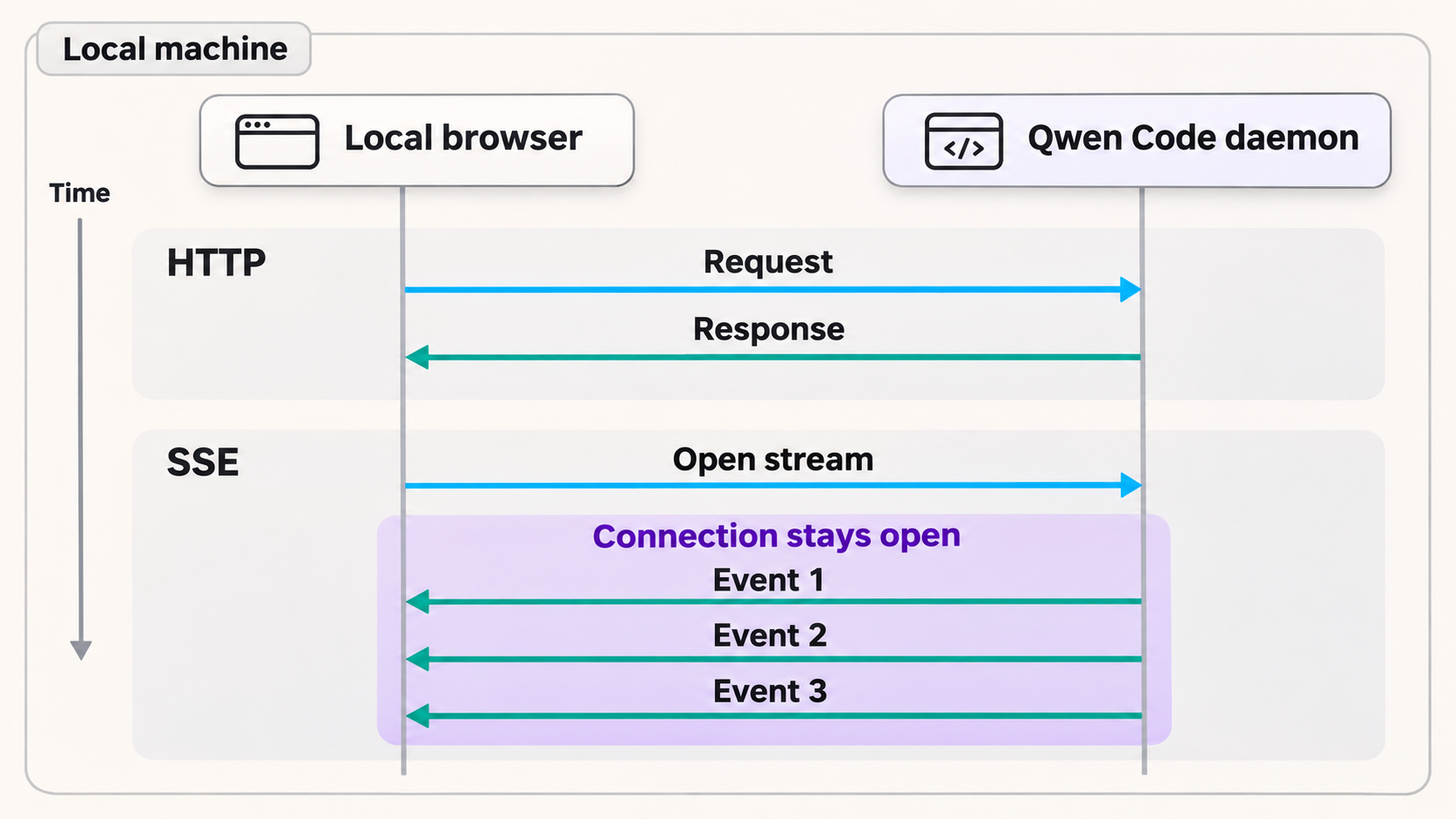
Local verification should prove three separate things: the process is listening, the browser interface can load, and an agent operation can complete in the intended workspace. A page that merely opens does not prove that provider authentication or agent execution is working.
1. Open the loopback endpoint
From a browser on the same machine, visit http://127.0.0.1:4170. The Web Shell should load from the local Qwen Code process. If the browser cannot connect, return to the terminal where qwen serve --open is running and inspect its output.
2. Check the workspace before issuing a task
Confirm that the daemon was launched from the intended project directory. Start with a low-risk, read-oriented request that helps establish context without changing files. Review any permission or approval prompt rather than accepting it automatically.
3. Test a controlled operation
Once read access is understood, use a disposable test project for the first operation that may modify content. Inspect every resulting change with your normal version-control tools. AI-generated changes should go through the same review, test, and commit process as changes produced through the terminal interface.
4. Validate SSE through the actual client
The Web Shell uses the daemon's network interface, but a custom HTTP and SSE client should be tested independently. Confirm that it can establish its event subscription, receive ongoing updates, and recover predictably when the daemon or network connection is interrupted. Use the route catalog and typed event schema for the exact installed version rather than inventing an SSE path.
A successful TCP connection is not enough. Before adding remote access, verify provider authentication, workspace scope, tool approvals, file changes, session behavior, and client reconnection locally. Debugging those layers through a public tunnel makes failures harder to isolate and may expose an unsafe configuration.
Secure Qwen Code before remote access
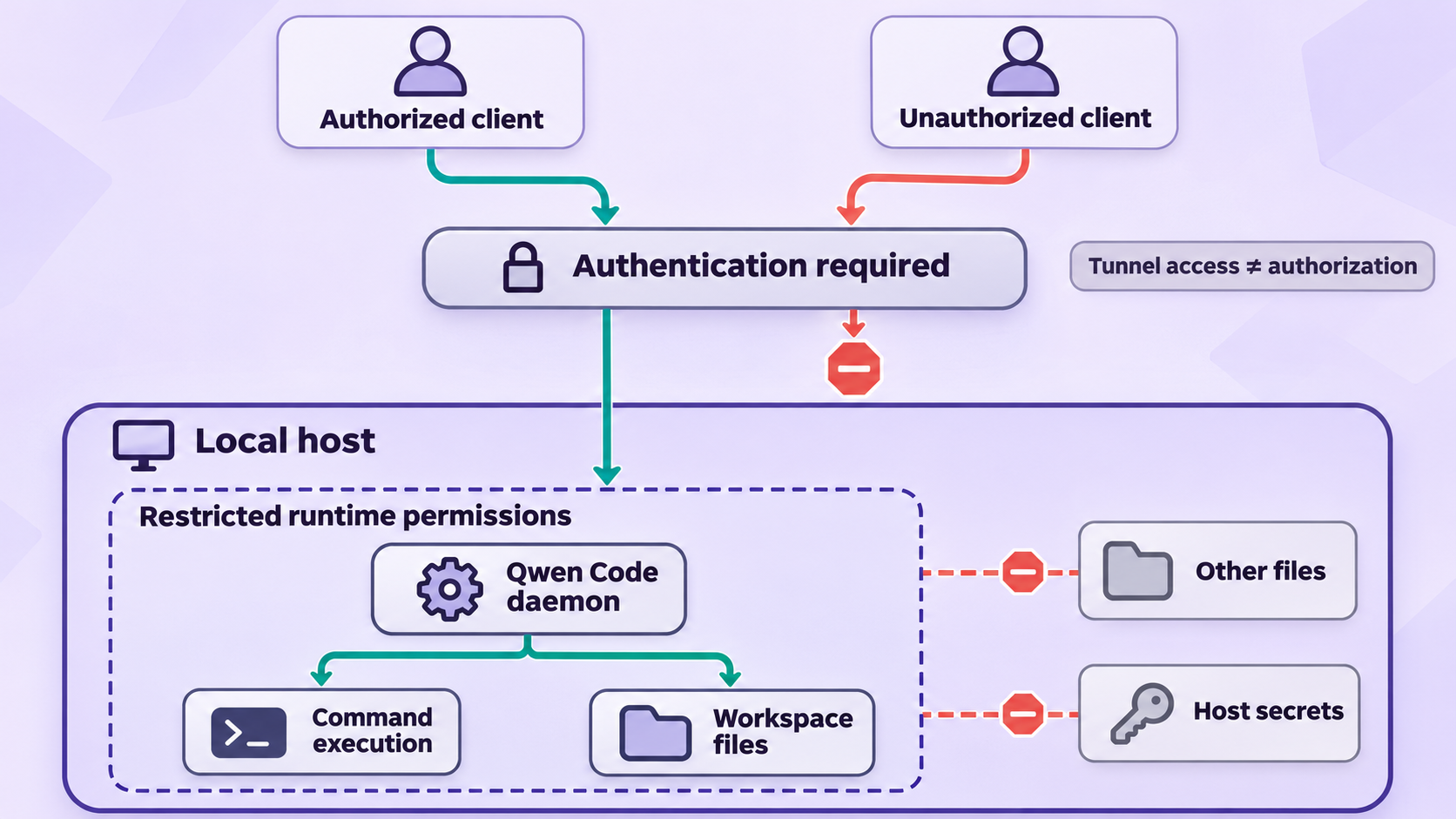
Qwen Code's documented quickstart identifies the initial loopback daemon as having no authentication. That can be acceptable for a local-only test on a trusted machine, but it is not an acceptable configuration to place directly on a public URL. A tunnel changes reachability. It does not automatically transform an unauthenticated application into an authenticated one.
Follow the current Qwen Code authentication and security documentation for your installed release before remote exposure. The supplied evidence confirms that authentication and a daemon security model are documented, but it does not establish stable flag names or credential syntax that can safely be reproduced here. We therefore do not guess them.
Consider the impact of compromise, not just the probability. A user who can control an AI coding agent may be able to inspect source code, influence generated changes, invoke enabled tools, or reach credentials available to the process. Repository history can restore some modified files, but it cannot revoke a secret after it has been disclosed.
Keep model-provider credentials outside the repository and avoid displaying them in the Web Shell, prompts, screenshots, or remote client logs. If a credential may have been exposed, rotate it through the provider rather than relying on deletion from a conversation or terminal history.
Expose the verified daemon with a Localtonet HTTP tunnel
After the daemon works locally and application authentication is configured, an HTTP tunnel is the appropriate Localtonet family for the Web Shell and HTTP plus SSE interface. Our client establishes an outbound connection to a Localtonet relay server. The resulting tunnel provides a public HTTPS URL without requiring inbound router port forwarding, firewall changes, VPN setup, or a public IP address.
Keep Qwen Code listening on 127.0.0.1:4170 when the Localtonet client runs on the same host. This preserves the useful loopback boundary for direct network access while allowing our client to reach the local target.
Install and run the Localtonet client
Install our client for the operating system on the machine running Qwen Code, then run it so that the device can establish its outbound connection. Keep the device-specific authentication token private.
Select the authenticated device
In the Localtonet dashboard, select the device or authentication token associated with the client that can reach 127.0.0.1:4170. Never copy another device's token into an article, repository, or shared configuration.
Select an available relay server
Choose from the relay server or region values currently presented by the dashboard. Availability can vary, so this guide does not hardcode a server code or claim that every option is available on every plan.
Create an HTTP tunnel to the local daemon
Configure the HTTP tunnel's local target as IP address 127.0.0.1 and port 4170. Select the currently available process type that fits the deployment. Random Sub Domain, Custom Sub Domain, and Custom Domain process types serve the same content at a public HTTPS address, but availability and custom-domain DNS requirements must be checked in the current dashboard and documentation.
Start the tunnel and test the assigned URL
Creating a tunnel does not start it. Press Start, then open the assigned public HTTPS URL from the intended remote client. Confirm authentication before performing any agent operation, and test that SSE-driven updates continue to arrive.
For the current dashboard sequence and available options, consult our Localtonet HTTP tunnel documentation. Exact domain and DNS procedures should be taken from the current documentation because they can change and are not fully established in the supplied context.
Do not start the Localtonet tunnel while Qwen Code remains in the documented no-auth quickstart state. Configure Qwen Code's supported authentication first, use strong credentials, limit operating-system privileges, and stop the tunnel whenever remote access is not required.
The Qwen Code process and the Localtonet tunnel are independent. The public address works only while the selected Localtonet client is connected, the tunnel is running, and Qwen Code is listening at the configured local target. Starting one does not automatically start the other.
Routine operation and troubleshooting
Recommended startup order
Start Qwen Code first and verify http://127.0.0.1:4170 locally. Next, start the Localtonet client if it is not already connected. Finally, start the HTTP tunnel and test the public HTTPS URL. This order separates application failures from tunnel failures.
Recommended shutdown order
Stop the Localtonet tunnel first so that new remote connections cannot arrive. Then end active Qwen Code sessions as appropriate and stop the daemon process. If the tunnel is no longer required, it can be deleted from the dashboard rather than merely stopped.
| Symptom | Likely layer | What to check |
|---|---|---|
| The local URL does not open | Qwen Code process | Confirm qwen serve --open is still running, inspect terminal errors, and verify that the documented port is not already occupied. |
| The Web Shell loads but agent work fails | Provider or workspace configuration | Review model-provider authentication, process permissions, workspace selection, approval prompts, and daemon output. |
| The public URL is unavailable | Localtonet lifecycle | Confirm the selected client is connected, the correct device was chosen, and the HTTP tunnel was started rather than only created. |
| The public URL returns a connection error | Local target | Verify that Qwen Code still responds locally at 127.0.0.1:4170 from the same machine as the Localtonet client. |
| The page loads but live updates stop | SSE connection or client behavior | Test locally first, inspect browser or client errors, and confirm the client supports SSE reconnection and the installed daemon protocol. |
| A custom client reports route or schema errors | Protocol version mismatch | Match the client or SDK to the installed CLI and use the route catalog and typed event schema for that version. |
| The wrong project appears available | Working directory | Stop the tunnel and daemon immediately, then restart Qwen Code from the intended restricted workspace. |
Port conflicts
If another process already uses port 4170, the daemon may fail to start. Do not guess an alternate Qwen Code flag. Check the current daemon CLI reference for the installed version before changing its listen configuration, then update the Localtonet local target to the same confirmed port.
Remote page works but SSE does not
Test the same operation through the local Web Shell. If streaming fails locally, the tunnel is not the cause. If it works locally but fails remotely, inspect the remote browser or client for connection termination, authentication failures, or protocol incompatibility. SSE clients should be prepared for interrupted connections, but retry behavior must not duplicate state-changing operations.
Authentication prompts or failures
Separate Qwen Code application authentication from model-provider authentication. One controls access to the daemon, while the other authorizes model usage. A working provider credential does not protect the public daemon URL, and successful daemon login does not prove that the configured model provider can process requests.
Upgrades
Stop public access before upgrading. Record the current CLI and client versions, stop the tunnel, stop the daemon, upgrade through the same package manager used for installation, and repeat local verification before restarting the tunnel. For custom clients, review protocol changes and typed event compatibility rather than assuming a new daemon is wire-compatible.
Frequently asked questions
What does qwen serve --open do?
It starts Qwen Code in daemon mode and opens its Web Shell. The documented default local endpoint is http://127.0.0.1:4170, and the service provides a Web Shell plus an HTTP and SSE interface.
Does Qwen Code daemon mode require Node.js?
The npm installation path requires Node.js 22 or newer. Homebrew and standalone installer paths are also documented, so Node.js is not presented here as a universal requirement for every installation method.
Can I expose the default no-auth daemon directly?
No. The documented loopback quickstart has no authentication and should remain local. Before creating a public tunnel, configure authentication supported by the installed Qwen Code release, restrict the workspace, use a least-privilege account, and review tool permissions.
Which Localtonet tunnel type should I use?
Use an HTTP tunnel for the Qwen Code Web Shell and its HTTP plus SSE service. Point the local target to 127.0.0.1 on port 4170 when using the documented default and running our client on the same machine.
Does Localtonet automatically add Qwen Code authentication?
This guide makes no such claim. A Localtonet HTTP tunnel provides remote reachability and a public HTTPS address for the local target. Configure and verify Qwen Code's own supported authentication before starting the tunnel.
Will SSE work through an HTTP tunnel?
Qwen Code serves its HTTP and SSE interface from the same local web service, making an HTTP tunnel the appropriate tunnel family. Test the actual Web Shell or client after starting the tunnel because SSE is a long-lived connection and client compatibility, authentication, reconnection behavior, and daemon version still matter.
Does creating a Localtonet tunnel make it immediately available?
No. Creating the tunnel and running it are separate lifecycle actions. The selected Localtonet client must be connected and the tunnel must be started. Qwen Code must also remain running at the configured local IP address and port.
Should I use a Localtonet HTTP tunnel or VPN Manager?
Use an HTTP tunnel when you specifically want a public HTTPS address for the Web Shell and HTTP plus SSE service. VPN Manager is our separate private mesh VPN feature and is a different architecture. Standard HTTP tunneling should not be described as VPN functionality.
Connect your verified Qwen Code daemon with Localtonet
Install and test Qwen Code locally first, secure its daemon interface, then use our HTTP tunnel to reach the authenticated Web Shell and SSE service without inbound router port forwarding or a public IP address.
Get Started Free →