

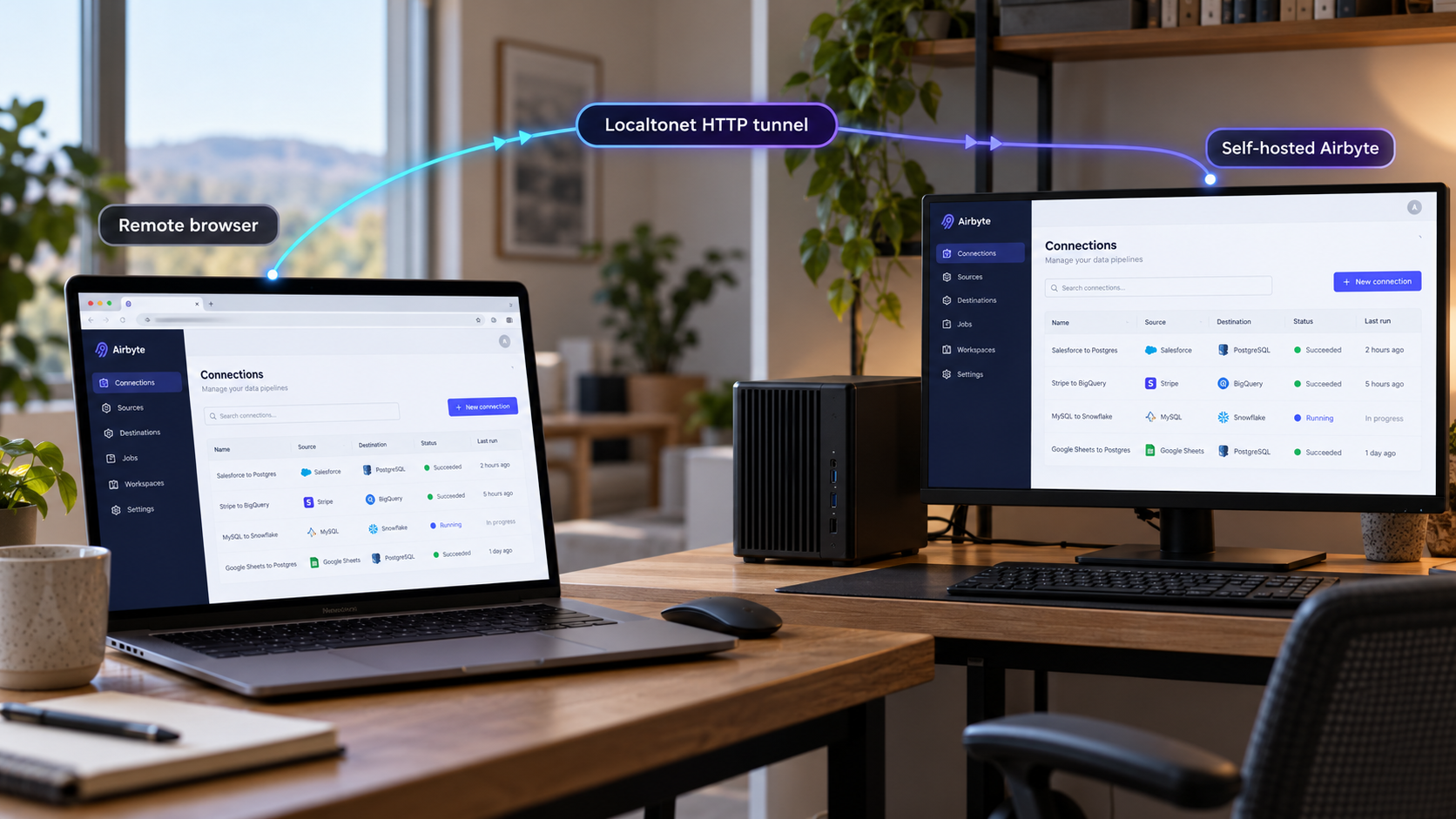
Build a working self-hosted data movement environment first, then make its verified web interface available remotely
Airbyte Open Source provides a self-hosted platform for moving data from APIs, databases, and files into destinations such as warehouses, lakes, and databases. This guide explains how to plan the deployment, follow Airbyte's current installation workflow, verify the resulting local service, create an initial ELT connection, and operate the environment responsibly. After the local web interface is confirmed to work, we show how to publish that specific HTTP endpoint through Localtonet without configuring inbound router port forwarding, changing firewall rules, setting up a VPN, or requiring a public IP address.
📋 What's in this guide
How the Airbyte and Localtonet architecture fits together
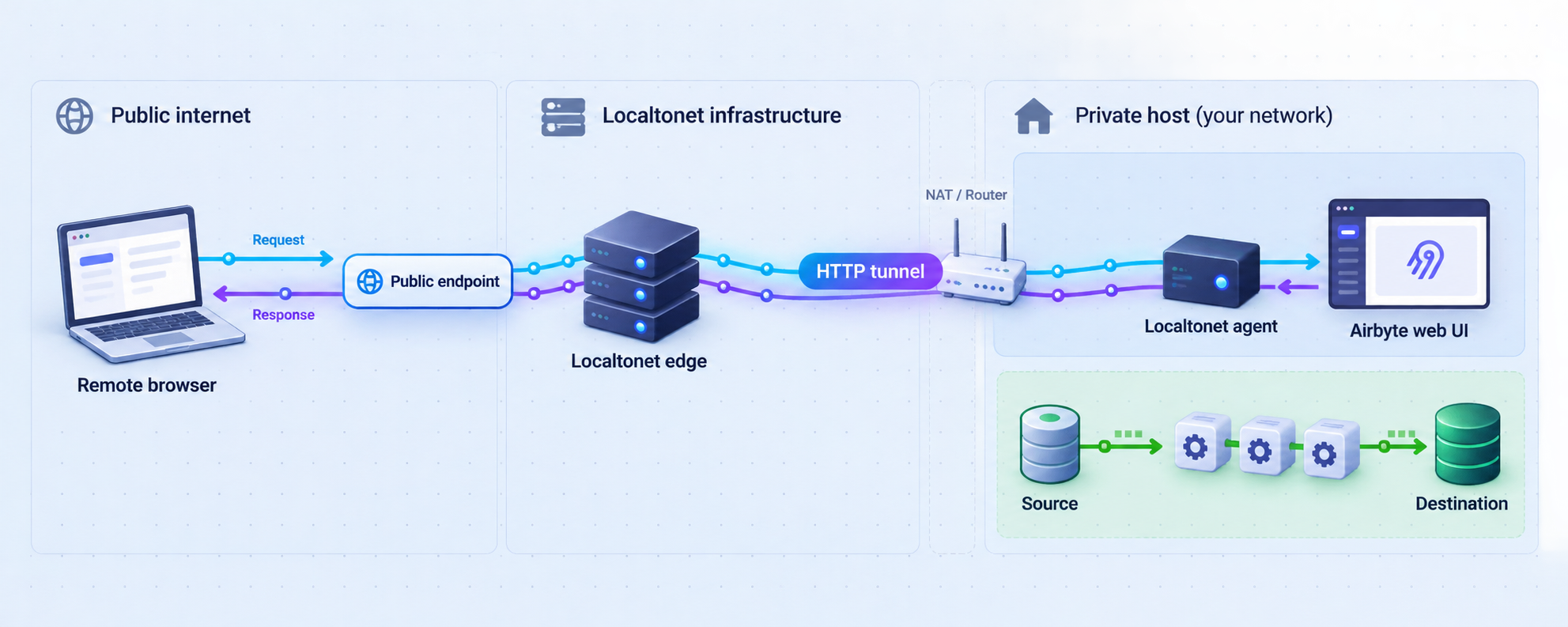
Airbyte Open Source is a data movement platform intended for ELT and ETL workflows. Its project describes moving data from sources such as APIs, databases, and files into destinations including databases, data warehouses, data lakes, and AI applications. Airbyte also provides a browser-based interface for managing the platform and an API that can be used for orchestration.
A typical Airbyte workflow has three important logical parts. A source connector reads from the system that owns the original data. A destination connector writes that data into the selected storage or processing system. A connection defines how those two sides operate together, including the streams and synchronization behavior selected in Airbyte.
Self-hosting adds an infrastructure layer beneath that workflow. The Airbyte services need to run on a host that has enough capacity for the deployment and its workloads. That host also needs network access to every source and destination involved in a sync. A functioning web interface does not, by itself, prove that a connector can reach an external database or that a destination account has sufficient permissions.
Localtonet belongs after the local deployment has been completed and verified. Our client runs on a device that can reach the Airbyte HTTP service and establishes an outbound connection to a Localtonet relay server. The resulting HTTP tunnel provides a public HTTPS address that forwards requests to the local IP address and port configured for the tunnel.
Airbyte's repository directs self-hosted users to its current “Deploy Airbyte Open Source” documentation, but the evidence available for this article does not establish a universal installation command, operating-system matrix, hardware minimum, default port, or local URL. Those details can change with Airbyte's deployment tooling and release line. We therefore do not invent commands or assume a port. Record the exact endpoint and lifecycle commands produced by the current Airbyte deployment path you choose.
Prerequisites and deployment decisions
Before installing anything, decide where Airbyte will run and which systems it must reach. The right host is not simply a machine that can open the Airbyte UI. It must also be able to execute synchronization jobs, resolve relevant hostnames, connect to sources and destinations, and preserve the state required by the selected deployment method.
Choose a supported Airbyte deployment path
Start from the current deployment documentation linked by the Airbyte Open Source repository. Use one documented installation path from beginning to end rather than combining commands from older tutorials, release branches, or different orchestrators. Airbyte has changed deployment tooling over time, so an old command can be syntactically valid while still creating an unsupported or difficult-to-upgrade environment.
Version awareness is particularly important. Airbyte 2.0 introduced deployment-related requirements for users of abctl and marked that release as the final version supporting Helm chart V1. The release notes state that new deployments should use Helm chart V2 because Airbyte versions after 2.0 support only Helm chart V2. If you are deploying a newer release, use the instructions for that exact release rather than treating the 2.0 notes as a complete current installation procedure.
Prepare a deployment worksheet
Capture the following information before installation. This makes later verification, upgrades, and tunnel configuration much safer:
- The Airbyte version or release channel being installed.
- The official deployment path selected for that version.
- The host operating system and architecture supported by that path.
- The runtime or cluster prerequisites required by the current guide.
- The CPU, memory, and storage allocated to the environment.
- The persistent storage locations or volumes created by the deployment.
- The documented start, stop, status, log, backup, and upgrade procedures.
- The actual local IP address, scheme, and port used by the Airbyte web interface.
- The source and destination network routes needed by planned connections.
- The people who are authorized to administer pipelines and credentials.
We intentionally do not prescribe CPU, memory, or disk figures here because the supplied Airbyte evidence does not establish current universal minimums. Connector behavior, data volume, concurrency, and deployment architecture all influence capacity. Use the requirements published for your chosen release and size the host for the jobs you intend to run, not merely for an idle web interface.
Prepare source and destination accounts
An ELT pipeline usually needs credentials for both ends. Create dedicated service identities where the connected systems support them. Give each identity only the permissions required to read selected source objects or write to the intended destination. Avoid reusing a personal administrator account.
Also identify any network allowlists, database listeners, TLS requirements, DNS dependencies, or outbound proxy rules that affect these accounts. The Airbyte host must be able to reach both systems independently of Localtonet. An HTTP tunnel to the Airbyte UI does not create a route from Airbyte to a private source or destination.
| Requirement | Why it matters | What to record |
|---|---|---|
| Supported deployment environment | Airbyte installation and lifecycle behavior depend on the selected deployment method. | Host, architecture, runtime, and official guide version |
| Persistent storage | Configuration and operational state must survive routine restarts according to the deployment design. | Volumes, storage classes, paths, and backup responsibility |
| Source connectivity | The Airbyte workers need to read from the systems selected as sources. | Hostname, port, TLS mode, identity, and allowed objects |
| Destination connectivity | The environment needs permission and network access to write replicated data. | Hostname, port, target database or storage area, and identity |
| Local web endpoint | This is the endpoint that will be tested locally and later used as the Localtonet target. | Scheme, local IP address, port, and expected page |
| Administrative controls | The UI may expose pipeline configuration, operational details, and credential-related settings. | Authentication method, authorized users, and access policy |
Deploy Airbyte Open Source without guessing the installation details
Open the current deployment guide from Airbyte's repository and select the Open Source workflow appropriate for your environment. Confirm that the page applies to the release you intend to run. If it offers multiple deployment technologies, choose one and stay with its matching installation, status, upgrade, and removal instructions.
Follow every prerequisite check in that guide before invoking its installer or applying its manifests. Do not substitute commands from this article because no exact installation command was established by the supplied official evidence. This is an important safety boundary: fabricating a convenient command could install an obsolete tool, select the wrong chart generation, expose the service unexpectedly, or create storage that does not match Airbyte's supported lifecycle.
During deployment, save the actual output and note any generated configuration. Do not copy credentials or secrets into a public ticket, shared chat, shell history excerpt, or this article. If the installer reports an endpoint, preserve it in your private deployment record. If it does not, use the deployment-specific status and service inspection procedure from the same guide to identify how the UI is exposed locally.
Wait until the deployment reports that its required components are ready. A process beginning to start is not the same as the complete platform becoming usable. If the deployment method exposes logs or health information, inspect them for repeated restarts, storage failures, image retrieval errors, resource exhaustion, or connection failures before continuing.
Record the installed environment
A compact private record can prevent considerable confusion later. It should contain factual values from your deployment rather than values copied from an unrelated example:
Airbyte release:
Deployment method:
Host or cluster:
Installation date:
Local UI scheme:
Local UI address:
Local UI port:
Start procedure:
Stop procedure:
Status procedure:
Log procedure:
Backup procedure:
Upgrade documentation version:
Responsible administrator:
Treat this record as operational documentation. Do not include connector passwords, API tokens, Localtonet device tokens, private keys, or other secrets in it unless it is stored in an approved secrets-management system.
The supplied Airbyte material confirms that a UI and API exist, but it does not establish a universal localhost URL or port for current self-hosted installations. Use the endpoint created by your selected deployment workflow. Copying a port from an old tutorial can target the wrong service or make troubleshooting misleading.
Verify Airbyte locally before exposing it
Local verification separates Airbyte deployment problems from tunnel problems. Complete this work from the Airbyte host or from a trusted machine on the same network before creating a Localtonet tunnel.
Confirm the deployment is ready
Use the status procedure documented for your selected Airbyte installation. Confirm that the components required by that deployment are running and stable. If the status output indicates that a component is still initializing, failing, or restarting, solve that condition before testing remote access.
Open the exact local endpoint
Enter the scheme, IP address or hostname, and port reported by the deployment into a browser. Verify that the page is genuinely the expected Airbyte interface and not an ingress default page, a runtime dashboard, a reverse proxy error, or an unrelated service listening on the same host.
Refresh the page and navigate within the interface. Confirm that the main application loads consistently and that browser requests are not failing because of a mismatched hostname, redirect loop, unavailable backend, or certificate problem. If your deployment deliberately uses HTTPS locally, retain that scheme when deciding which Localtonet tunnel type and target behavior are appropriate. Do not silently downgrade or assume the local service is plain HTTP.
Test from the Localtonet client device
The most important network test is from the device that will run our client. If Localtonet runs on the same host as Airbyte, verify the endpoint there. If it runs on another device, open the Airbyte endpoint from that device using the Airbyte host's reachable network address.
A service bound only to the Airbyte host's loopback interface can normally be reached from that same host, but not from a separate client device. Conversely, a service listening on a LAN interface may be reachable from other machines. Binding behavior depends on the Airbyte deployment, so inspect the actual configuration rather than changing it blindly.
Running the Localtonet client on the Airbyte host can allow the tunnel target to remain local to that device. If the client runs elsewhere, it must be able to reach Airbyte over the network, which adds another route and another firewall boundary to troubleshoot. Choose the arrangement that matches your operational and security requirements.
Perform an application-level check
A successful page load is only the first layer. Confirm that you can enter the administrative workflow expected for your installed edition, view the relevant workspace, and reach the areas used to configure sources, destinations, and connections. The exact navigation and authentication experience can differ by Airbyte version and edition.
If you plan to use the Airbyte API remotely, verify it separately using the official API instructions for your exact version. The existence of the web interface does not establish an API base path, authentication method, or compatibility with every request sent through the same public hostname. This guide does not invent those values.
Create and validate an initial ELT connection
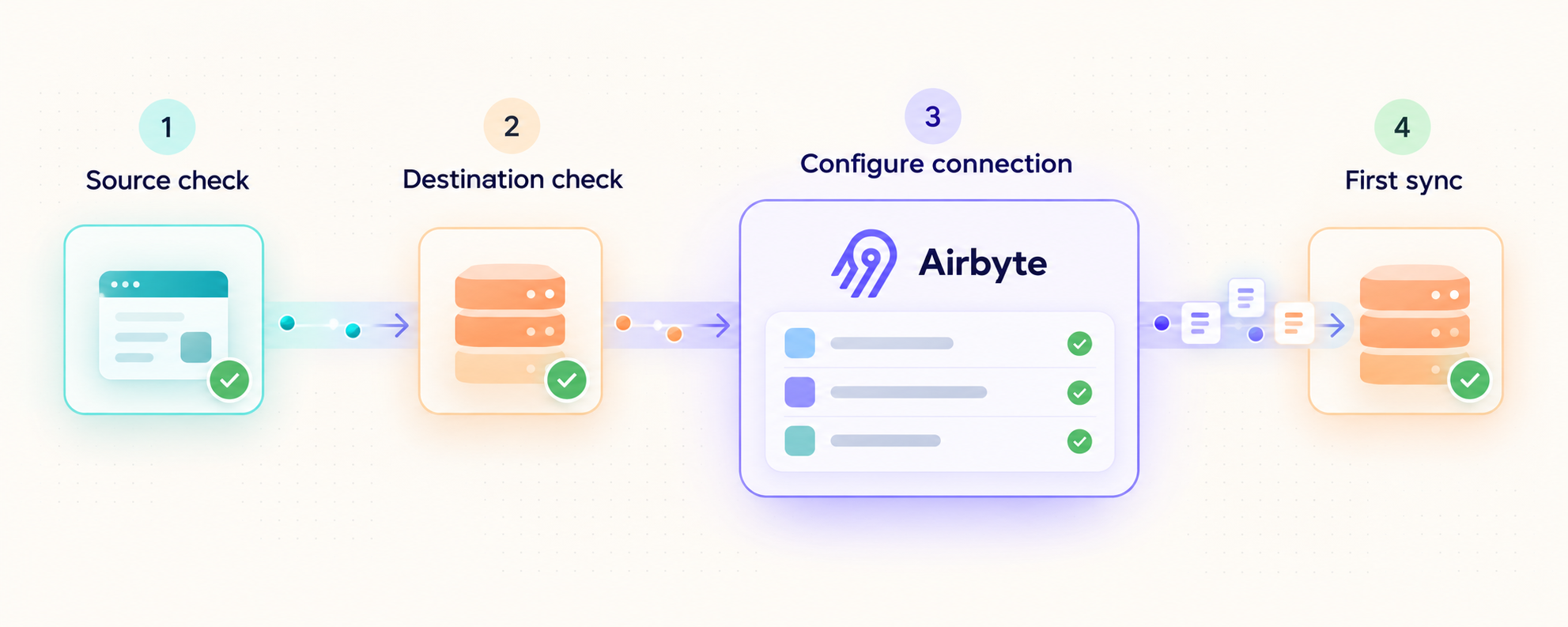
Once the platform is healthy, configure a small test connection before relying on it for production data. The exact labels and order in the Airbyte interface can change, but the underlying workflow is to define a source, define a destination, connect them, select the data to move, and run a controlled synchronization.
Configure the source
Select the appropriate connector for the system from which Airbyte will read. Enter the endpoint and dedicated credentials prepared earlier. Limit permissions and scope wherever the source supports it. For example, a database reader generally should not receive unrelated administrative privileges merely because setup is easier with a powerful account.
Use Airbyte's connection test where the installed connector provides one. If the test fails, distinguish authentication errors from DNS, routing, TLS, allowlist, and permission failures. A successful login can still be insufficient if the account cannot read a required schema or stream.
Configure the destination
Choose the connector for the destination and provide a dedicated writer identity. Confirm where replicated data will be stored and what objects the identity is allowed to create or modify. Test the destination from Airbyte before building the complete connection.
Consider the impact of a test synchronization. A destination test may create objects or write data depending on connector behavior. Use a non-production target or an explicitly approved namespace when evaluating a new deployment.
Create the connection and select data
Connect the source to the destination, inspect the streams Airbyte discovers, and select only what is required for the first validation. Configure synchronization behavior using the options presented by the installed connector and Airbyte version. Do not assume every source supports the same cursor, incremental mode, schema behavior, or data type handling.
Run a small synchronization
Start a limited initial sync and monitor its status in Airbyte. After completion, inspect the destination directly. Confirm that the expected records arrived, values have the expected representation, and no unauthorized objects were copied. A green job status is useful, but destination-level validation proves whether the result meets your data requirements.
If the first run fails, preserve the relevant job time, connector names, and sanitized error text. Never publish connector credentials or complete connection strings when sharing logs. Resolve the pipeline locally before introducing remote access, because a Localtonet HTTP tunnel affects how administrators reach the UI, not how the underlying connector logic processes data.
Access the verified Airbyte web UI with Localtonet
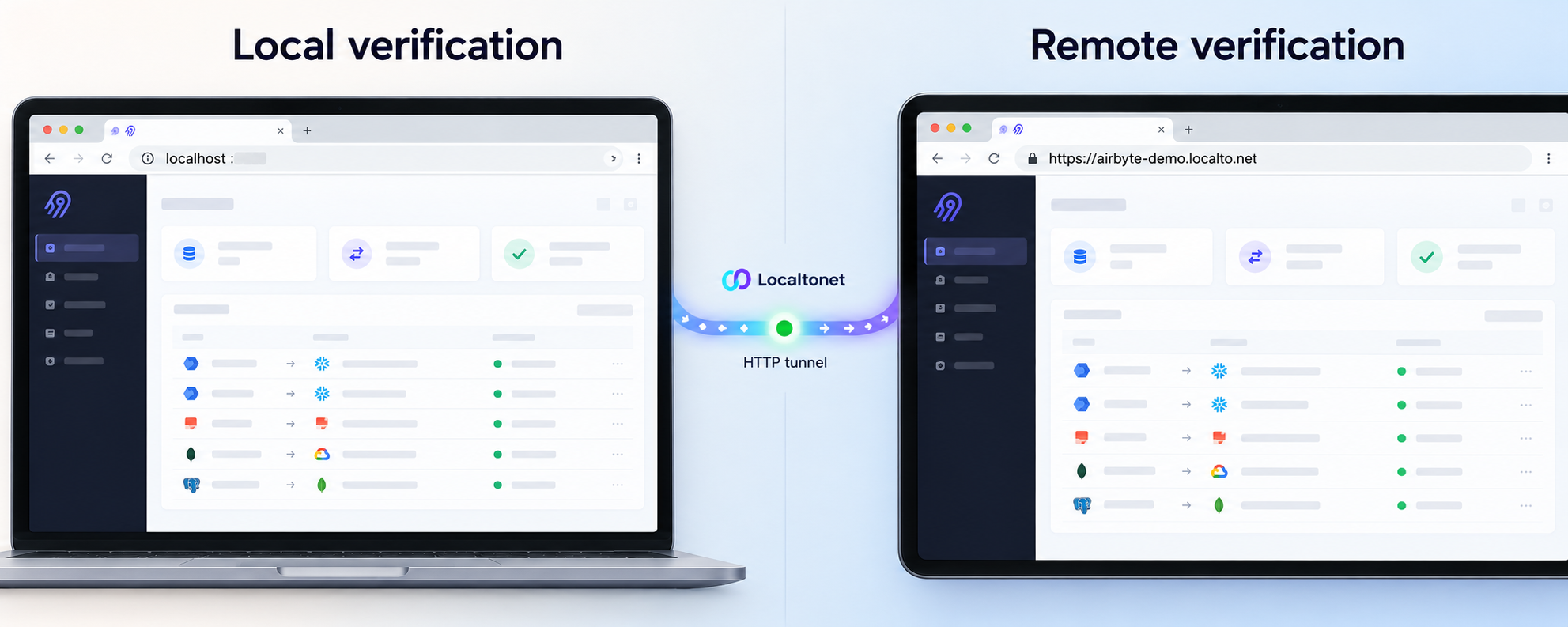
After Airbyte works locally, create a Localtonet HTTP tunnel for its web endpoint. Our client establishes an outbound connection to a relay server, so this workflow does not require inbound router port forwarding, firewall changes, VPN setup, or a public IP address.
The tunnel must target the exact address that worked from the Localtonet client device. If the client and Airbyte run on the same host, that may be a local address. If they run on different devices, use the Airbyte host address reachable from the client. Never copy an address from another installation without testing it first.
Install and run the Localtonet client
Install our client on the Airbyte host or on another device that can reach the verified Airbyte HTTP service. Keep the client running because the public tunnel is available only while the selected client device is connected and the tunnel is running.
Authenticate and select the client device
Use the device-specific authentication token assigned through Localtonet and select the device that will carry the traffic. Treat the token as a secret. Do not place it in screenshots, code blocks, support posts, pipeline configuration, or version control.
Select an available relay server
Choose a currently available relay server or region from the dashboard. Available server codes can vary, so obtain the value from the current product interface rather than copying a hardcoded code from a tutorial.
Create the HTTP tunnel configuration
Configure an HTTP tunnel using the tested local IP address and port of the Airbyte web interface. Select the appropriate Process Type offered for HTTP tunnels: Random Sub Domain, Custom Sub Domain, or Custom Domain. These process types serve the configured content at a public HTTPS address. Exact custom-domain DNS requirements should be checked against the current Localtonet documentation before making DNS changes.
Start the tunnel and test the assigned address
Creating a tunnel does not start it. Press Start, then open the assigned public HTTPS address in a private browser window. Confirm that the expected Airbyte interface loads, navigation works, and authentication behaves as intended.
Stop or delete access when it is no longer required
Stop the tunnel when remote administration is not needed. Delete it if the configuration should not be reused. Remember that the address is unavailable whenever the tunnel is stopped or the selected Localtonet client is disconnected.
Manage tunnel state from the Localtonet dashboard or REST API. If you automate lifecycle changes through the API, store credentials in an approved secrets system and avoid embedding them directly in scripts or repositories.
Anyone who discovers or receives the public address can attempt to connect to it. Before leaving the tunnel running, verify the application authentication and authorization available in your installed Airbyte edition, restrict administrative membership, protect all credentials, and expose the service only for as long as operationally necessary. A hard-to-guess URL is not an access-control system.
Security practices for remote Airbyte administration
An Airbyte administration interface can affect data sources, destinations, synchronization behavior, and operational jobs. Remote access should therefore be treated as privileged administrative access, not as an ordinary public website.
Protect both categories of credentials
Airbyte connector credentials and Localtonet device tokens serve different purposes. Connector credentials authorize access to business systems. A Localtonet token identifies the client device that runs a tunnel. Do not reuse them, expose them in logs, or include them in documentation intended for broad distribution.
Rotate a secret according to the policy of the system that issued it whenever exposure is suspected. After rotation, update only the component that legitimately needs the replacement and verify that old access no longer works.
Apply least privilege to data systems
A source account should be able to read only the approved data. A destination account should be limited to the target environment and required write operations. Separate development, test, and production identities when possible. This limits the effect of an accidental configuration change or compromised credential.
Control application membership
Use the user and workspace controls available in the Airbyte version and edition you installed. The exact controls are deployment-dependent, so verify them in the current Airbyte documentation rather than assuming that every self-hosted release has the same identity features.
Limit tunnel lifetime
If remote access is needed only during maintenance, start the tunnel for that session and stop it afterward. This does not replace authentication, but it reduces the period during which the endpoint is reachable. Assign clear ownership so operators know who may start, stop, modify, or delete the tunnel.
Keep administrative traffic separate from connector traffic
The Localtonet HTTP tunnel in this guide is for reaching the Airbyte web endpoint. It does not need to carry database replication traffic unless you deliberately design a separate, supported network architecture. Keep each route explicit so troubleshooting and access reviews remain understandable.
Routine operation, maintenance, and upgrades
A self-hosted data integration service needs ongoing care after its first successful sync. Maintain a simple operating procedure covering platform health, failed jobs, storage consumption, credential ownership, backups, upgrades, and remote-access state.
Start and stop Airbyte with the documented lifecycle
Use the lifecycle commands for the exact deployment method you installed. Do not substitute a command from another Airbyte environment simply because both deployments present a similar UI. Confirm that a graceful stop completes before shutting down the host or modifying storage.
Review synchronization results
Investigate failed and unexpectedly long-running jobs. Connector behavior can change when an upstream API changes, a database schema evolves, a credential expires, or a destination reaches a quota or permission boundary. Validate important data at the destination rather than relying exclusively on the application status indicator.
Back up according to the deployment architecture
Identify which state is persistent and use the backup procedure documented for the selected Airbyte deployment. Test restoration in a safe environment. A backup that has never been restored is not yet a verified recovery process.
Connector credentials require special handling during backup and recovery. Confirm how the installed release protects and restores sensitive configuration. The supplied evidence does not establish a universal secret-storage implementation for every Airbyte deployment, so this article does not claim one.
Plan upgrades instead of applying them blindly
Read release notes between the installed and target versions. Deployment tooling can impose version-specific prerequisites. For example, Airbyte 2.0 required abctl 0.30.2 before upgrading to Airbyte 2.0 when using that deployment tool. The same release was the final release supporting Helm chart V1, while later versions require Helm chart V2.
Those facts are historical upgrade boundaries, not permission to use the same versions indefinitely. Follow the current upgrade guide for your source and target releases, back up first, and verify the local interface and a representative sync before reopening remote access.
Coordinate Airbyte and tunnel maintenance
Stop the Localtonet tunnel when the Airbyte endpoint should not be reachable during maintenance. Upgrade or restart Airbyte using its own documented procedure, verify it locally, and only then restart the tunnel. This sequence keeps application failures distinct from tunnel failures.
Troubleshooting Airbyte and Localtonet access
| Symptom | Likely area | Checks to perform |
|---|---|---|
| The Airbyte page does not open locally | Airbyte deployment | Check deployment status, service readiness, the actual endpoint, local listener, logs, resources, and storage. |
| The UI works on the Airbyte host but not on the Localtonet device | Local network path | Check whether Airbyte is bound only to loopback, then verify routing, host address, and network policy between the two devices. |
| The public address is unavailable | Localtonet lifecycle | Confirm that the selected client is connected, the correct tunnel is started, and the assigned public address is being used. |
| The public address returns the wrong page | Target configuration | Recheck the tunnel's local IP and port against the endpoint verified from the client device. |
| The public page redirects incorrectly | Application or proxy behavior | Inspect the browser's redirect destination and verify the Airbyte deployment's hostname, ingress, and external URL expectations. |
| The UI works but a sync fails | Connector or data-system access | Check source and destination credentials, permissions, DNS, TLS, allowlists, schema selection, and connector job logs. |
| The environment becomes unstable during a sync | Capacity or workload | Review the deployment's resource usage and official sizing guidance for the actual connector workload. |
Use a layered diagnosis
Test one layer at a time. First verify that the Airbyte deployment reports ready. Next open the UI on the Airbyte host. Then test it from the device running the Localtonet client. Finally test the public URL. The first failed layer usually identifies where investigation should begin.
Do not troubleshoot connector failures as tunnel failures
A browser can reach Airbyte through Localtonet while an Airbyte worker still cannot reach a database or API. Those are independent routes. If the UI is responsive but a job fails, inspect the job and connector path rather than repeatedly recreating the HTTP tunnel.
Sanitize diagnostics
Before sharing logs, remove passwords, tokens, private URLs, connection strings, database names where sensitive, customer data, and request payloads. Preserve timestamps, component names, sanitized error messages, and version information because those details help distinguish configuration errors from release-specific behavior.
Return to the status and service-discovery procedure for the same Airbyte deployment method you installed. Do not scan random ports or copy a default from an unrelated guide. Once the endpoint is confirmed, test it from the Localtonet device before editing the tunnel.
Frequently asked questions
What port does a self-hosted Airbyte web interface use?
This guide does not assume a port. The supplied official evidence confirms that Airbyte has a web UI and API but does not establish a universal port for current self-hosted deployments. Use the scheme, address, and port produced by the official deployment path for your installed release.
Does Localtonet install or manage Airbyte?
No. Install, configure, update, and verify Airbyte using Airbyte's current official deployment documentation. Localtonet provides remote connectivity to the resulting local service after that service is working.
Do I need router port forwarding or a public IP address?
No. Our client establishes an outbound connection to a Localtonet relay server. The HTTP tunnel can expose the reachable local Airbyte endpoint without inbound router port forwarding, firewall changes, VPN setup, or a public IP address.
Does the tunnel remain available when the Localtonet client stops?
No. The tunnel is available only while the selected client device is connected and the tunnel is running. Creating the configuration is not enough because it must also be started.
Should the Localtonet client run on the Airbyte host?
It can, and doing so often provides the simplest target path because the client can connect directly to the local service. It may also run on another device that can reach Airbyte. In that arrangement, verify the endpoint from the client device and account for the additional LAN route.
Does publishing the UI also make Airbyte connectors work?
No. The HTTP tunnel controls how an administrator reaches the web endpoint. Airbyte still needs independent network access and valid credentials for every source and destination used by a connection.
Can I access the Airbyte API through the same tunnel?
Airbyte provides an API, but its path, authentication, and exposure behavior must be verified for your installed version and deployment. Do not assume that every API route is available through the UI hostname. Test the documented API locally first and apply appropriate authentication before considering remote access.
Is a public HTTPS URL sufficient protection for the Airbyte administration interface?
No. HTTPS connectivity does not replace application authentication, authorization, least-privilege connector accounts, or responsible tunnel lifecycle management. Verify the controls available in your Airbyte edition and stop the tunnel when remote access is no longer required.
Open your verified Airbyte interface with Localtonet
Finish the Airbyte deployment, confirm its exact HTTP endpoint from the device that will run our client, and then create a controlled HTTP tunnel without opening an inbound router port.
Get Started Free →

