

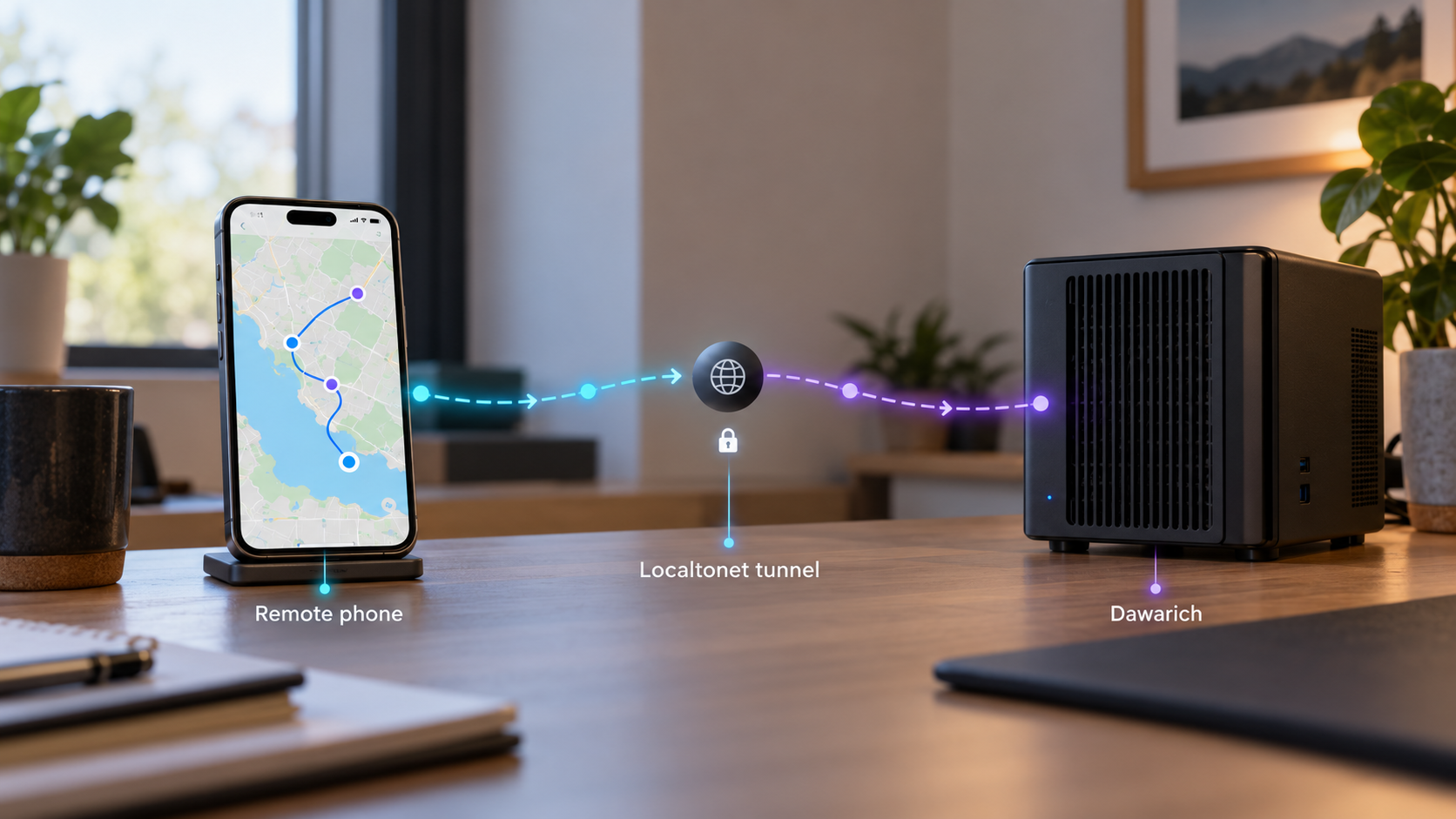
Keep your location history on your own machine and reach it safely when you are away
Dawarich is an open-source, privacy-focused location history application for tracking movements, visualizing journeys, importing existing records, and reviewing travel insights. In this guide, we install the official Docker Compose deployment, verify the application locally at http://localhost:3000, and explain the operational and security checks that should happen before remote exposure. Once the local instance works, we connect it to a Localtonet HTTP tunnel so authorized browsers or supported location-tracking clients can reach it without inbound router port forwarding, firewall changes, a VPN, or a public IP address.
📋 What's in this guide
What this Dawarich setup does
Dawarich is a self-hostable location history application designed to give users control over records that can reveal where they live, work, travel, and spend time. It can display location history on interactive maps, organize trips and places, produce movement statistics and insights, and import data from supported sources. The project documentation also identifies mobile applications and third-party trackers such as OwnTracks, Overland, and GPSLogger as possible ways to submit new location information.
The installation and remote-access phases are deliberately separate. Docker Compose first starts Dawarich on the host, where the documented local web endpoint is http://localhost:3000. You should create the account, sign in, inspect the interface, and confirm local health before exposing anything. A tunnel cannot repair an application that failed to start, has an incomplete database migration, or is listening on an unexpected port.
After local verification, the Localtonet client runs on the Dawarich host or another device that can reach it. Our client establishes an outbound connection to a Localtonet relay server. An HTTP tunnel then maps a public HTTPS address to the local Dawarich HTTP target. This removes the need to open an inbound router port, change firewall rules for internet traffic, configure a public IP address, or deploy a general-purpose VPN.
How requests travel through the setup
A local browser talks directly to Dawarich on port 3000. For a remote request, the browser or compatible client connects to the public Localtonet address. The relay passes the request through the outbound client connection to the configured local IP address and port. Dawarich handles the resulting application request in the same way it handles a local request.
Localtonet provides connectivity, not Dawarich account authorization. Dawarich remains responsible for its user accounts, sessions, API credentials, application permissions, and any client-specific authentication. Do not treat possession of a tunnel URL as an adequate security control. Use strong credentials, limit who receives the URL, protect tracking-client secrets, and stop the tunnel when continuous public availability is unnecessary.
This workflow publishes one local HTTP application. It is not a VPN and does not grant general access to the host or LAN. Localtonet VPN Manager is our separate private mesh VPN feature. For this guide, an HTTP tunnel is the appropriate match because Dawarich provides a web and API service on a local HTTP port.
Prerequisites and planning
Use a machine that can remain available whenever you want Dawarich to collect updates or serve the timeline. It may be a home server, small computer, virtual machine, or another Docker-capable system. The supplied project evidence establishes the Docker Compose installation route but does not define a universal CPU, memory, disk, operating-system, or architecture minimum. Requirements will vary with the container images, database size, imported history, concurrent use, and project version.
Before installation, make sure the host has Docker with the modern Compose command available, Git for cloning the repository, sufficient storage for application data and location imports, and permission to run Docker commands. You also need a browser on the host or another computer that can reach the host's local port.
| Requirement | Why it is needed | How to approach it |
|---|---|---|
| Docker Engine | Runs the Dawarich application and the supporting services declared by its Compose file. | Install a current Docker release supported by your host operating system. |
| Docker Compose | Starts the official multi-container definition at docker/docker-compose.yml. |
Confirm that the docker compose
|
| Git | Retrieves the official repository and preserves its file layout. | Use the package or installation method appropriate to your operating system. |
| Persistent storage | Location history and application state should survive container recreation. | Inspect the current Compose file and identify its declared volumes before establishing a backup process. |
| Local TCP port 3000 | The documented local web endpoint uses this port. | Check that another process is not already occupying the port. |
| Localtonet client | Creates the outbound relay connection used after local installation succeeds. | Install it on the Dawarich host or a device that can reach the Dawarich host and port. |
Confirm the local tools
The following standard version checks do not alter the machine. They help identify a missing executable before the application installation begins:
git --version
docker --version
docker compose version
Each command should return version information. If Docker reports a permissions or daemon connection error, resolve that host-level issue first. The remedy depends on the operating system and Docker installation method, so this guide does not prescribe an unverified service command or permissions change.
Choose the right host and trust boundary
Location history deserves a stricter threat model than an ordinary test page. Anyone who obtains application access may be able to infer routines, home addresses, travel dates, and periods when a user is away. Put the instance on a maintained host, keep its operating system and Docker installation updated, restrict administrative access, and avoid running unrelated untrusted workloads in the same environment.
Decide whether the Localtonet client will run on the same machine. The same-host layout is usually easiest to reason about because the local target can be the loopback service at port 3000. If the client runs on another LAN device, the Dawarich service must be reachable from that device. The exact listening address and network policy depend on the current Compose file and host configuration, so test that path locally instead of assuming it works.
Complete first-run registration and security checks over the local connection before starting the public tunnel. An installation waiting for its first administrator account can create an avoidable takeover risk if an unknown remote user reaches it first.
Install Dawarich with Docker Compose
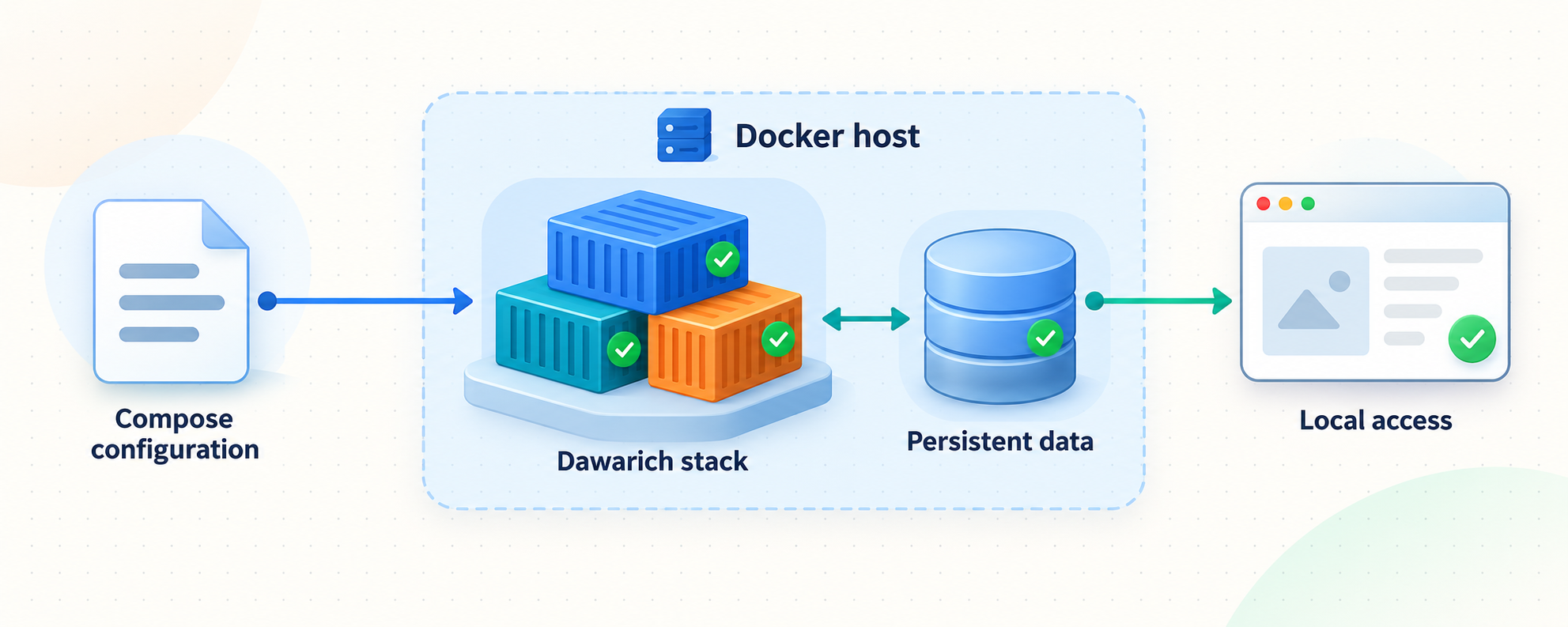
The official repository documents a concise Compose installation: clone the project and start the Compose definition stored under the docker directory. Run these commands in a location where you intend to retain the repository checkout. Do not place the checkout in a temporary directory that an automated cleanup process may remove.
Clone the official Dawarich repository
Retrieve the repository from its official GitHub location. This creates a directory named dawarich containing the application and its Docker configuration.
Enter the repository directory
Change into the new checkout so the relative path to docker/docker-compose.yml resolves correctly.
Start the official Compose stack
Run the documented Compose command. It starts in the foreground, allowing you to watch container output during the first launch and notice startup or migration failures.
git clone https://github.com/Freika/dawarich.git
cd dawarich
docker compose -f docker/docker-compose.yml up
Leave the terminal open while the stack initializes. First startup may involve container preparation, dependency startup, and database work, so the web interface may not respond immediately even though the command is still active. Read the output rather than repeatedly restarting the stack. Interrupting database initialization or an upgrade can make diagnosis harder.
Dawarich configuration can change between releases, and the supplied installation evidence does not establish a fixed list of mandatory environment variables, secret names, volume paths, or mail settings for every current version. The baseline command above is documented. Before a production deployment, inspect the checked-out Compose file and the version-matched Dawarich configuration documentation. Do not copy guessed secrets or obsolete variable names from an unrelated deployment.
Foreground startup is useful for the first run
Running Compose without detached mode keeps logs attached to the terminal. This is valuable during initial installation because a database connection problem, port collision, invalid configuration, or failed migration is immediately visible. Wait until the output settles and the application responds before proceeding.
Pressing Ctrl+C normally sends an interruption to the foreground Compose process. Use it only when you intentionally want to stop this foreground session. For unattended long-term operation, choose a lifecycle method appropriate to the Docker installation and current Dawarich documentation. We do not provide an unverified startup-at-boot configuration because operating systems and Docker packaging differ.
Do not substitute an unofficial fork by accident
Repository names can be copied or forked. For this workflow, confirm that the clone URL is exactly https://github.com/Freika/dawarich.git. An unrelated repository with a similar name may contain different Compose files, ports, defaults, or code. Pinning or reviewing a particular release may also be appropriate for a controlled environment, but the exact version policy is an operational decision rather than something the basic installation command determines for you.
Verify Dawarich locally before adding a tunnel
Open http://localhost:3000 in a browser on the Docker host. If the browser is on another machine, localhost refers to that other machine, not the server. In that case, use a LAN address only if the current Compose configuration publishes the service on an interface reachable from the browser and your host firewall permits the connection.
A first-run deployment should present the appropriate sign-up or sign-in flow for its state. Complete the administrator registration locally, use a unique password, and store the credential in a password manager. After signing in, move through several pages rather than treating one successful HTML response as complete verification.
Load the local endpoint
Visit http://localhost:3000 from the host and confirm that a Dawarich page appears rather than a browser connection error, unrelated application, or generic proxy response.
Complete the first-run account flow
If registration is offered, create the initial account over the local connection. If the instance already has an account, sign in with the expected credentials.
Check authenticated pages
Confirm that the map, timeline, settings, or other authenticated areas load without application errors. This verifies more than the sign-in page alone.
Check the health endpoint when supported
Current release information identifies /api/v1/health as the endpoint intended for uptime checks. Test http://localhost:3000/api/v1/health and evaluate the HTTP result before relying on it in monitoring.
Review the Compose output
Return to the terminal and look for repeated restarts, migration failures, database errors, or requests returning unexpected server errors.
Recent Dawarich release behavior redirects requests to the root path toward sign-in, so a redirect from / is not necessarily a failure. For automated monitoring, use the documented health path instead of requiring the root page to return a non-redirecting response. Because endpoint behavior can change between releases, verify it against the installed version before encoding strict monitoring rules.
Test with a small amount of data first
Dawarich supports location-history imports and integrations, but large archives can take time to process. Before importing an irreplaceable full history, confirm that the account works, establish a backup plan, and test with a small supported sample when practical. Verify timestamps, coordinates, map rendering, and expected timezone interpretation before committing to a large migration.
Do not upload the same archive repeatedly just because processing is not immediately visible. Check the application interface and logs first. Duplicate submissions can complicate troubleshooting even when an application has safeguards for some duplicate data.
Operate, update, and protect the instance
Self-hosting means the data is under your control, but it also means availability, backups, updates, and account security are your responsibility. A successful first launch is only the beginning. Location records can grow continuously, and an instance used by a mobile tracker may need to be available whenever the tracker submits queued or live points.
Identify persistent data before making changes
Read the current docker/docker-compose.yml file and identify every named volume and bind mount used by the stack. Record what must be backed up and how those resources map to the host. The supplied evidence does not establish one universal host path for all installations, so hardcoding an assumed database directory would be unsafe.
Backups should include the complete persistent application state required to restore the installed version, not only exported location files. A useful backup process is documented, repeatable, protected from unauthorized access, and periodically restored in a test environment. Encrypt backup media where appropriate because a database backup may be as sensitive as the live instance.
Read release notes before updating
Dawarich is actively developed, and releases can include schema work, background recalculation, routing changes, fixes, and new features. For example, release information can call out migrations that take longer on large instances or changes to the recommended health-check endpoint. Review the notes between the installed and target versions before updating.
This guide does not prescribe a generic pull-and-restart sequence because the correct update procedure can depend on the installed version, image references, local Compose edits, and migration requirements. Back up first and follow the version-specific official upgrade instructions. Allow migrations and background recalculation to finish instead of assuming a temporarily busy service is stuck.
Protect accounts and secrets
Use unique passwords, remove accounts that are no longer needed, and review any available two-factor authentication or account-security options in your installed release. Treat API credentials and mobile tracking secrets as passwords. Do not paste them into public issue reports, screenshots, tunnel names, shell history examples, or shared configuration snippets.
A public address will receive normal internet background traffic, including automated probes. Application authentication, supported access controls, least privilege, and timely updates remain necessary. If only occasional browser access is needed, stop the Localtonet tunnel between sessions to reduce the exposure window.
| Operational task | Recommended check | Why it matters |
|---|---|---|
| Backups | Include all persistent volumes and validate a restoration procedure. | An export alone may not reproduce accounts, settings, and complete application state. |
| Updates | Read release notes and create a backup before changing versions. | Database migrations and background jobs may require time or special attention. |
| Monitoring | Use the version-supported health endpoint and watch container restarts. | A login page alone does not prove that every supporting service is healthy. |
| Disk capacity | Monitor the storage holding database and application data. | Continuous tracking and large imports can increase storage use over time. |
| Credential review | Protect account, API, and tracker credentials and revoke unused access. | Location history has unusually high privacy impact. |
| Tunnel lifecycle | Run the tunnel only for the period required by the use case. | A stopped tunnel removes its public path while preserving the local service. |
Expose the working Dawarich instance with Localtonet
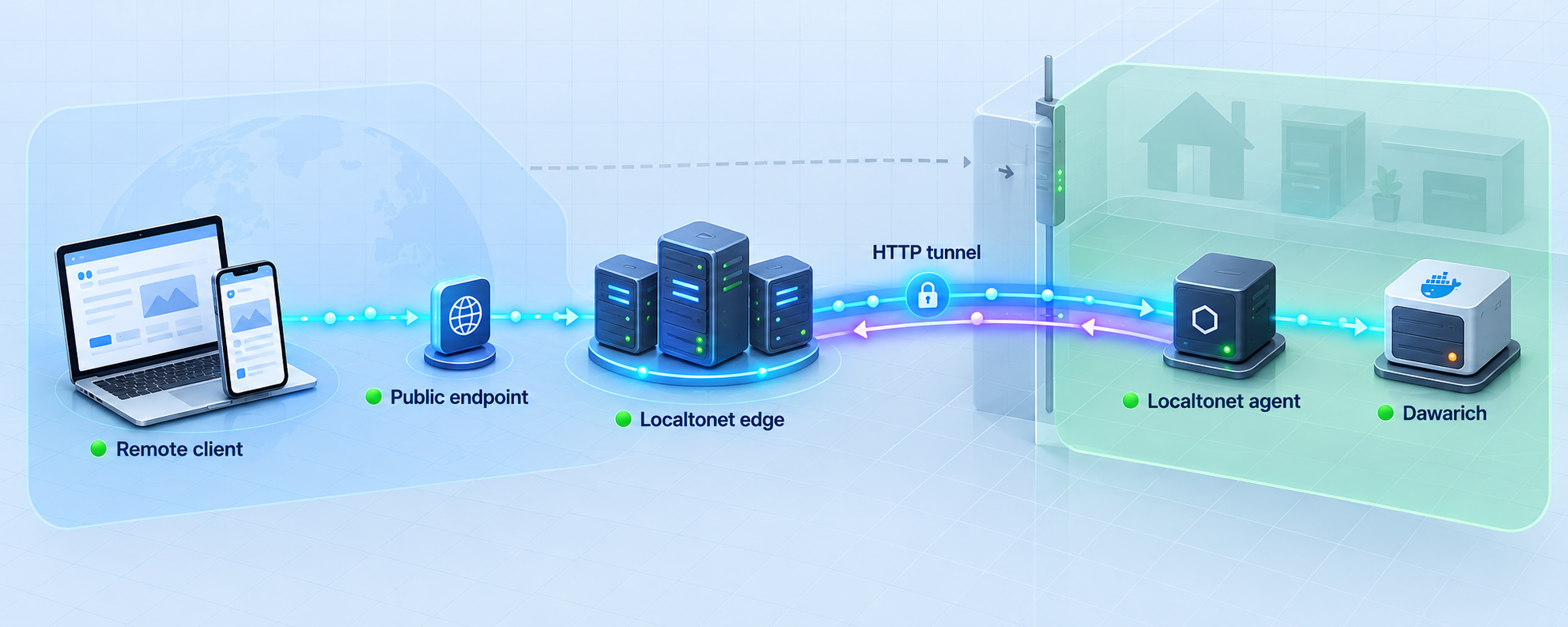
Do not begin this section until http://localhost:3000 works reliably. Install and run our client on the Dawarich host when possible. If it runs elsewhere, that client device must be able to reach the Dawarich IP address and port over the local network.
An HTTP tunnel is the appropriate tunnel family for the documented Dawarich web endpoint. A raw TCP tunnel could transport a TCP service, but it would not provide the same HTTP-oriented public URL workflow. UDP, File Server, Proxy Server, and VPN Manager solve different problems and should not be substituted merely because they are available on our platform.
Install and run the Localtonet client
Install our client for the operating system on the device that can reach Dawarich. Start the client so it can establish its outbound connection. Use the current installation instructions for that operating system because client packaging and commands can vary.
Authenticate or select the client device
Use the device-specific authentication token associated with the client that will run the tunnel. Keep the token private and select the correct connected device in the dashboard.
Select an available relay server
Choose a server or region currently available in the dashboard. Available server codes and regions can change and may vary by plan, so this guide does not hardcode one.
Create an HTTP tunnel to Dawarich
Configure the local target as the IP address that reaches Dawarich and local port 3000. When the client is on the same host, the documented local service is available through localhost:3000. Choose a currently available HTTP process type appropriate to your account and naming requirements.
Start the tunnel and test the assigned address
Creating the tunnel does not make it active. Press Start, wait for it to run, and open the assigned public HTTPS URL from a device outside the local network. Confirm that Dawarich presents its sign-in page and that authenticated pages load correctly.
Stop or delete the tunnel when appropriate
Stop the tunnel when remote access is temporarily unnecessary, or delete it when the configuration is no longer needed. The public endpoint is available only while the selected client is connected and the tunnel is running.
For the current dashboard workflow and field names, consult the Localtonet HTTP tunnel documentation. Do not copy another user's authentication token, relay selection, custom domain records, or public URL. Those values are specific to the account and active configuration.
The public HTTPS address protects transport between the remote client and the tunnel edge, but it does not replace Dawarich authentication or secure administration. Use a strong account password, protect API credentials, avoid sharing the URL publicly, and keep both Dawarich and its host maintained. Confirm the current project's proxy and public-URL requirements before relying on integrations that generate redirects or absolute links.
Select the correct local target
If the Localtonet client and Dawarich run on the same machine, start with the locally verified host and port. If they are on different devices, do not configure localhost, because it would refer to the Localtonet client device. Use the Dawarich host's reachable LAN IP address and port 3000, then test that exact path from the client device before creating the tunnel.
Avoid targeting a container-internal address unless you intentionally understand and maintain that Docker network path. Container addresses can change when containers are recreated. A stable host-published endpoint or deliberately managed network arrangement is easier to operate.
Generated subdomain, custom subdomain, or custom domain
Localtonet HTTP tunnels can use Random Sub Domain, Custom Sub Domain, or Custom Domain process types, and each serves the content through a public HTTPS address. Availability can depend on the current product and plan. Custom-domain DNS requirements must be checked against the current documentation before making records, so this article does not invent a CNAME target or verification procedure.
Prepare for remote mobile location updates
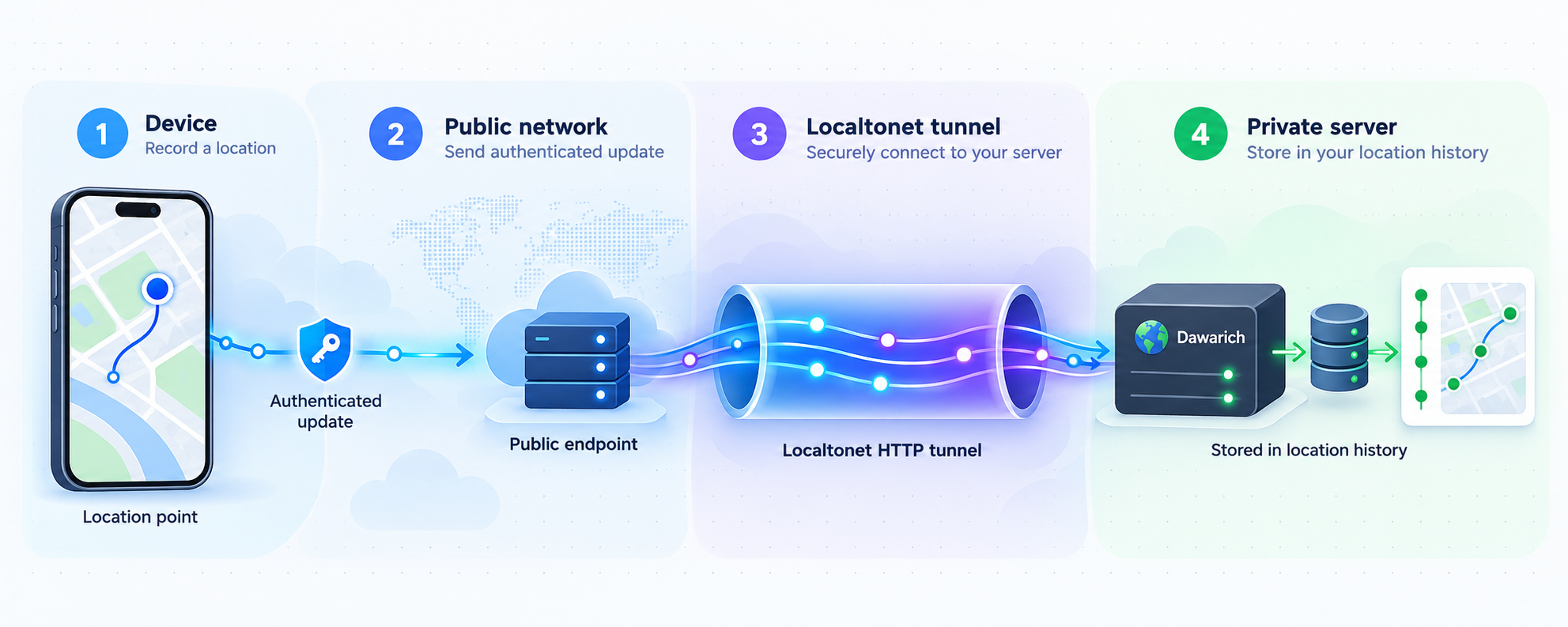
Dawarich documentation identifies native mobile applications and third-party tracking options, including OwnTracks, Overland, and GPSLogger. A continuously running Localtonet HTTP tunnel can make the self-hosted web and API service reachable while the phone is away from the LAN. However, the exact endpoint path, payload format, authentication method, and client fields are specific to the Dawarich version and selected mobile application.
Do not assume that the root public URL is the complete tracking endpoint. Follow the current Dawarich instructions for the chosen client and replace only the scheme and host portion as directed. Use the public HTTPS hostname assigned to the running HTTP tunnel, not localhost and not the server's private LAN address.
| Access pattern | Tunnel availability | Important consideration |
|---|---|---|
| Occasional remote browser access | Start the tunnel only when remote access is needed. | This reduces the period during which the application has a public route. |
| Continuous mobile tracking | Keep Dawarich, the Localtonet client, and the tunnel running. | The tracker cannot upload through the endpoint while any part of that chain is offline. |
| Queued offline tracking | The tunnel must be running when the mobile client retries its upload. | Offline behavior and retry timing depend on the selected tracking client. |
| LAN-only use | No public tunnel is required. | Use the local endpoint and keep the application inside the local network. |
Test remote tracking cautiously
Begin with a small test. Configure the supported client using its current official instructions, submit a limited update, and check whether it appears under the correct account with a reasonable timestamp and coordinates. Review both Dawarich and client-side errors before changing multiple settings at once.
Keep the application's API credential separate from the Localtonet device token. They serve different purposes. The Localtonet token identifies the device running the tunnel, while the Dawarich credential authorizes application-level requests. Neither value should appear in a public URL, screenshot, support post, or example configuration.
The available evidence confirms supported mobile and third-party tracking options, but it does not establish one universal endpoint, environment variable, or credential format for all clients and releases. Use the current Dawarich tracking instructions for the selected app rather than guessing an API path.
Troubleshooting the installation and tunnel
The Docker Compose command fails immediately
Confirm that you are inside the cloned dawarich directory and that docker/docker-compose.yml exists. Verify that the command is docker compose rather than relying on an older, separately installed Compose executable. If Docker cannot contact its daemon or reports insufficient permissions, fix the host's Docker installation before changing Dawarich files.
If the failure concerns an image, configuration value, or architecture, preserve the exact error message and compare it with the requirements for the checked-out release. Do not add random environment variables or switch to an unofficial image to silence the error.
Port 3000 is already in use
Another local service may already be listening on port 3000. Identify that service before stopping or reconfiguring anything. The documented Dawarich endpoint expects this port in the standard workflow. If you intentionally change host-side port mapping, document the change and use the resulting host port as the Localtonet target. Do not change a container-internal port without understanding the Compose definition.
The browser cannot open localhost:3000
Make sure the Compose command is still running and inspect its output for database failures, migrations, or container restarts. If the browser is on another computer, remember that its own localhost is not the Docker server. First test on the server itself. Then, only if required, test the server's LAN address and review how the Compose file publishes the port.
The root path redirects instead of returning a plain page
A redirect to sign-in is expected behavior in current Dawarich release information. For health monitoring, try the documented /api/v1/health endpoint. A browser following a redirect may hide this distinction, while a strict monitoring tool may report the root response as unexpected.
Local access works but the public URL does not
Check the problem in layers. Confirm that the selected Localtonet device is connected, the tunnel has been started, and the configured target uses the correct IP address and port. If our client runs on another machine, test the Dawarich LAN address from that exact machine. A local test performed only on the server does not prove cross-device LAN reachability.
Also verify that the assigned public URL belongs to the active tunnel. Creating a replacement tunnel can result in a different address. The old endpoint does not automatically represent the new configuration.
The public sign-in page loads but authenticated pages fail
This usually moves the investigation above basic connectivity. Inspect the browser's network errors and Dawarich logs for failed API requests, server errors, rejected origins, redirect problems, or application configuration that assumes another public host. Because the required proxy or public-URL settings can vary by release, use version-matched Dawarich guidance rather than inventing header or environment-variable changes.
A mobile tracker cannot upload
Confirm that the browser can reach the public HTTPS address from mobile data with Wi-Fi disabled. Then verify the client-specific endpoint, authentication credential, account association, and payload configuration against the current Dawarich instructions. A working sign-in page proves connectivity but does not prove that a tracker is using the correct API route.
Check whether the Localtonet client and tunnel remained online during the upload attempt. If the tracking application queues records while offline, inspect its documented retry behavior. Do not repeatedly regenerate every credential at once, since that makes it difficult to identify the original fault.
The instance becomes slow during an import or upgrade
Large imports and release-specific background work can consume processing and database resources. Current release notes may warn that recalculation or migration operations take time on large instances. Review container output, application status, disk capacity, and release notes before forcing a restart. Repeated interruptions can delay completion.
The tunnel stops unexpectedly
The tunnel is available only while the selected client device is connected and the tunnel is running. Check whether the host slept, rebooted, lost network access, stopped the client process, or stopped the Dawarich Compose stack. Restore the components in dependency order: Docker and Dawarich first, local verification second, Localtonet client connection third, and tunnel startup last.
Frequently asked questions
What is the default local URL for this Dawarich installation?
The official Docker Compose workflow identifies http://localhost:3000 as the local endpoint. Test it on the Docker host before configuring remote access. If you intentionally change the host-side port mapping, use your actual mapped port instead.
Does Localtonet require router port forwarding for Dawarich?
No. Our client establishes an outbound connection to a Localtonet relay server. The HTTP tunnel provides a public address without requiring inbound router port forwarding, firewall changes for an inbound internet port, a public IP address, or VPN setup.
Is the tunnel automatically active after I create it?
No. Creating a tunnel does not start it. Select Start after reviewing the configuration. The endpoint remains available only while the selected client is connected and the tunnel is running.
Should I use an HTTP tunnel or a TCP tunnel?
Use an HTTP tunnel for the documented Dawarich web service. It provides the public URL workflow expected for a browser-accessible HTTP application. Raw TCP tunnels are intended for services that need direct TCP forwarding rather than an HTTP-oriented public address.
Can the Localtonet client run on another computer?
Yes, provided that computer can reach the Dawarich host and port. In that layout, do not use localhost as the target because it would refer to the client computer. Configure the reachable Dawarich LAN IP address and verify that exact connection locally first.
Can I send mobile location updates through the tunnel?
A running HTTP tunnel can make the Dawarich service reachable to a supported mobile client outside the LAN. Configure the exact API path and authentication according to the current Dawarich instructions for the selected native app, OwnTracks, Overland, GPSLogger, or another documented client. The root tunnel URL alone may not be the complete submission endpoint.
Does the public HTTPS URL make the entire instance secure?
No. HTTPS protects transport to the tunnel edge, but application security still depends on Dawarich accounts, credentials, updates, host security, and appropriate access controls. A public URL should never be treated as a secret or as a replacement for authentication.
Can I keep Dawarich available only on my LAN?
Yes. Localtonet is an optional remote-access step. If you need only local browser access and do not require off-LAN tracking submissions, leave the tunnel stopped or do not create one.
What should I back up?
Back up every persistent volume or bind mount required by the current Compose deployment, along with any necessary version and configuration records. Inspect the installed Compose file because the available evidence does not establish one fixed host path for every release. Test restoration instead of assuming a backup archive is usable.
Why does the root URL redirect during a health check?
Current Dawarich release information says visitors opening / are redirected to sign-in. For uptime checks, use /api/v1/health when that endpoint is supported by your installed version.
Connect your self-hosted Dawarich instance with Localtonet
Once Dawarich works locally on port 3000, create an HTTP tunnel to reach your timeline from authorized remote browsers or supported tracking clients without opening an inbound router port.
Get Started Free →

