

Run a reproducible website-change monitor locally, protect its administration interface, and enable remote access only after verification
changedetection.io is an open-source application for watching web pages, comparing revisions, and notifying you when relevant content changes. This guide installs release 0.60.9 as a pinned Python package inside an isolated virtual environment, assigns persistent local storage, verifies a first watch, enables and tests application authentication, and then connects the protected interface to a Localtonet HTTP tunnel. The deployment deliberately remains a foreground process, so the terminal must stay open while changedetection.io is running. Remote access is optional and is introduced only after the local application and login flow work correctly.
📋 What's in this guide
How this changedetection.io deployment works
changedetection.io retrieves watched resources, keeps the state needed to compare successive checks, and presents results through a browser interface. Common uses include monitoring product prices and stock status, software releases, security advisories, regulatory notices, job listings, documents, JSON endpoints, and pages where manually checking for updates would be inefficient.
The application supports filters for focusing on relevant content. The project documents trigger text, ignored text, extracted text, regular expressions, CSS selectors, XPath, JSONPath, and jq-based filtering for JSON. It can display differences at word, line, or character level and supports numerous notification integrations. Current project capabilities and installation choices are described in the changedetection.io repository documentation.
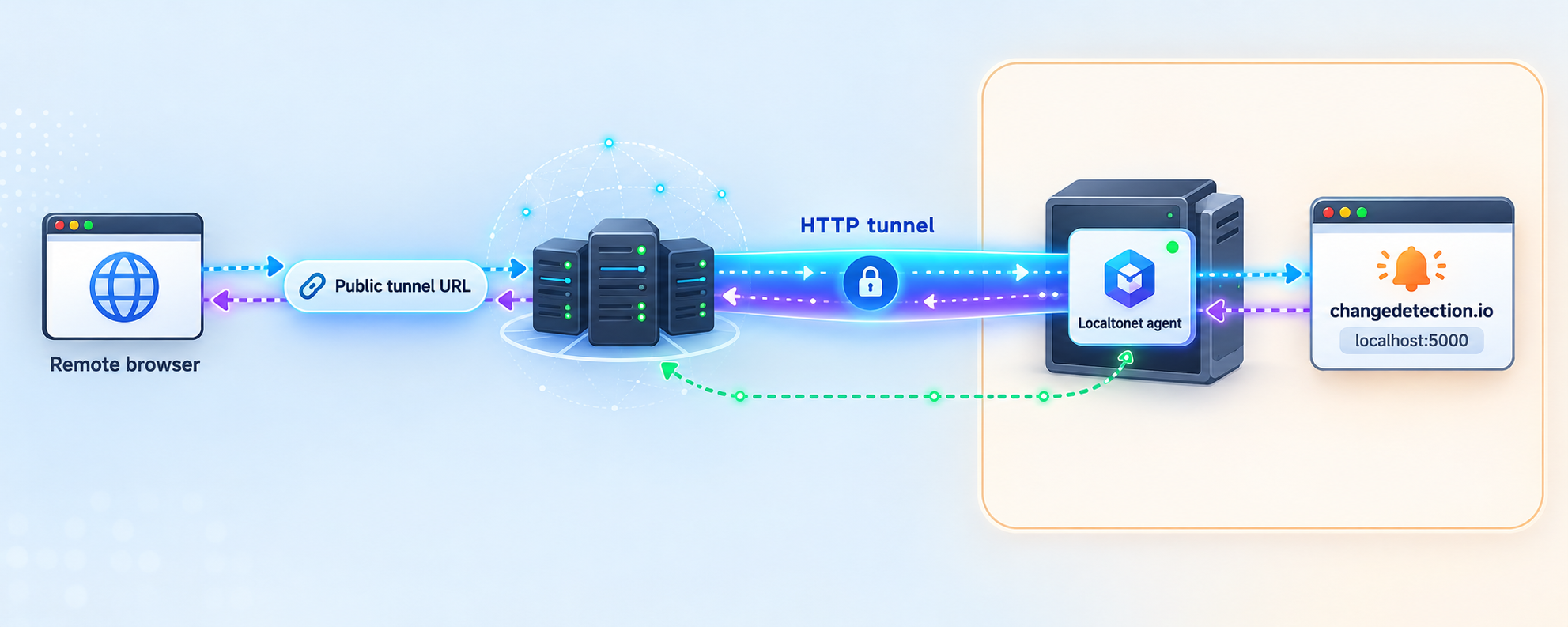
This tutorial separates the deployment into three layers. The first is the Python environment containing the pinned application package and dependencies. The second is a persistent data directory containing changedetection.io state. The third is the optional Localtonet HTTP tunnel that forwards an assigned public HTTPS address to the verified local service.
Keeping these layers separate makes troubleshooting safer. A working tunnel does not prove that changedetection.io is healthy, and a working local application does not prove that its tunnel is running. Similarly, replacing the virtual environment should not require deleting the application data directory.
What the basic pip deployment includes
The pip path runs the changedetection.io application directly in a Python virtual environment. It is useful for operators who already understand Python environments and do not want to introduce a container runtime. The official project maintains a dedicated pip installation guide alongside its broader repository documentation.
A basic pip installation should be treated as the non-JavaScript deployment path. It can fetch content that is present in an ordinary HTTP response. It does not, by itself, establish that a Playwright browser, Selenium WebDriver, Chrome runtime, or separate browser worker is installed and configured.
Browser Steps, visual element selection, and pages whose meaningful content appears only after JavaScript execution require an appropriately configured browser fetcher. Those components have separate dependencies and operational requirements, so they are outside this tutorial's installation scope.
| Installation model | Best suited to | Operational difference |
|---|---|---|
| Python package with pip | Python-oriented hosts and manual deployments | Runs from a virtual environment and uses a separately selected data directory. |
| Standalone container | Hosts already managed with containers | Separates the process in a container and normally maps persistent storage outside it. |
| Repository with Docker Compose | Repository-based or multi-service deployments | Uses the project's Compose configuration instead of the host Python environment. |
The changedetection.io process remains available only while its foreground terminal and process remain open. Closing the terminal or ending the process stops monitoring and the web interface. This guide does not present an unverified systemd, launchd, Windows Service, or third-party process-supervisor configuration. If unattended startup is required, validate a service definition against the current changedetection.io runtime documentation and the security conventions of your operating system before using it.
Prerequisites, Python compatibility, and storage planning
Release 0.60.9 is the reproducible application version used throughout this tutorial. Its current package metadata supports Python 3.10 through Python 3.13. Use one of those Python versions and confirm that the selected interpreter includes pip and virtual-environment support. Do not install this release with an older operating-system Python or assume that an unreleased or newer major Python version is compatible.
Package requirements can change between changedetection.io releases. Before choosing a different release, inspect its Python package metadata on PyPI and review the changedetection.io release history. A version accepted by pip on one host might not be suitable for another host with a different Python release or platform.
You need:
- A supported Python 3.10, 3.11, 3.12, or 3.13 interpreter.
- pip associated with that exact interpreter.
- Python virtual-environment support.
- Permission to create application and data directories.
- Outbound network access for package downloads and watched resources.
- A terminal that can remain open while the foreground process runs.
- A modern browser for local verification and authentication testing.
- The Localtonet client only if remote access will be enabled later.
Check Python and pip on a Unix-like host
If the selected interpreter is named python3, run:
python3 --version
python3 -m pip --version
python3 -m venv --help
The Python version must fall within the supported range. Calling pip as python3 -m pip confirms which interpreter owns it. The final command confirms that the virtual-environment module is available.
If the compatible interpreter is named python instead, use the same executable consistently:
python --version
python -m pip --version
python -m venv --help
Do not combine executable names accidentally. Use either python3 or python to create the environment, according to the compatible interpreter installed on that host. Once the environment is activated, its own python executable should be used for pip operations.
Check Python and pip in PowerShell
Resolve the exact Windows interpreter before creating the environment:
Get-Command python
python --version
python -m pip --version
python -m venv --help
If your installation uses the Windows Python launcher, list the installed interpreters with:
py -0pSelect a supported interpreter deliberately. The later PowerShell commands call the virtual environment's executables by full path, so their behavior does not depend on whether activation changes the shell search path.
Create separate application and data locations
The application directory contains the replaceable virtual environment. The data directory contains persistent changedetection.io state. Keeping them separate allows an environment to be rebuilt without deleting watches and history.
On a Unix-like host:
mkdir -p "$HOME/changedetection-app"
mkdir -p "$HOME/changedetection-data"
In PowerShell:
New-Item -ItemType Directory -Force -Path "$HOME\changedetection-app"
New-Item -ItemType Directory -Force -Path "$HOME\changedetection-data"The persistent data may reveal watched URLs, history, filters, and notification configuration. Restrict filesystem access to the account running changedetection.io, protect backups, and never place the directory under a public web root. Stop the application before making the filesystem-level backups used in this tutorial.
Install the pinned changedetection.io release with pip
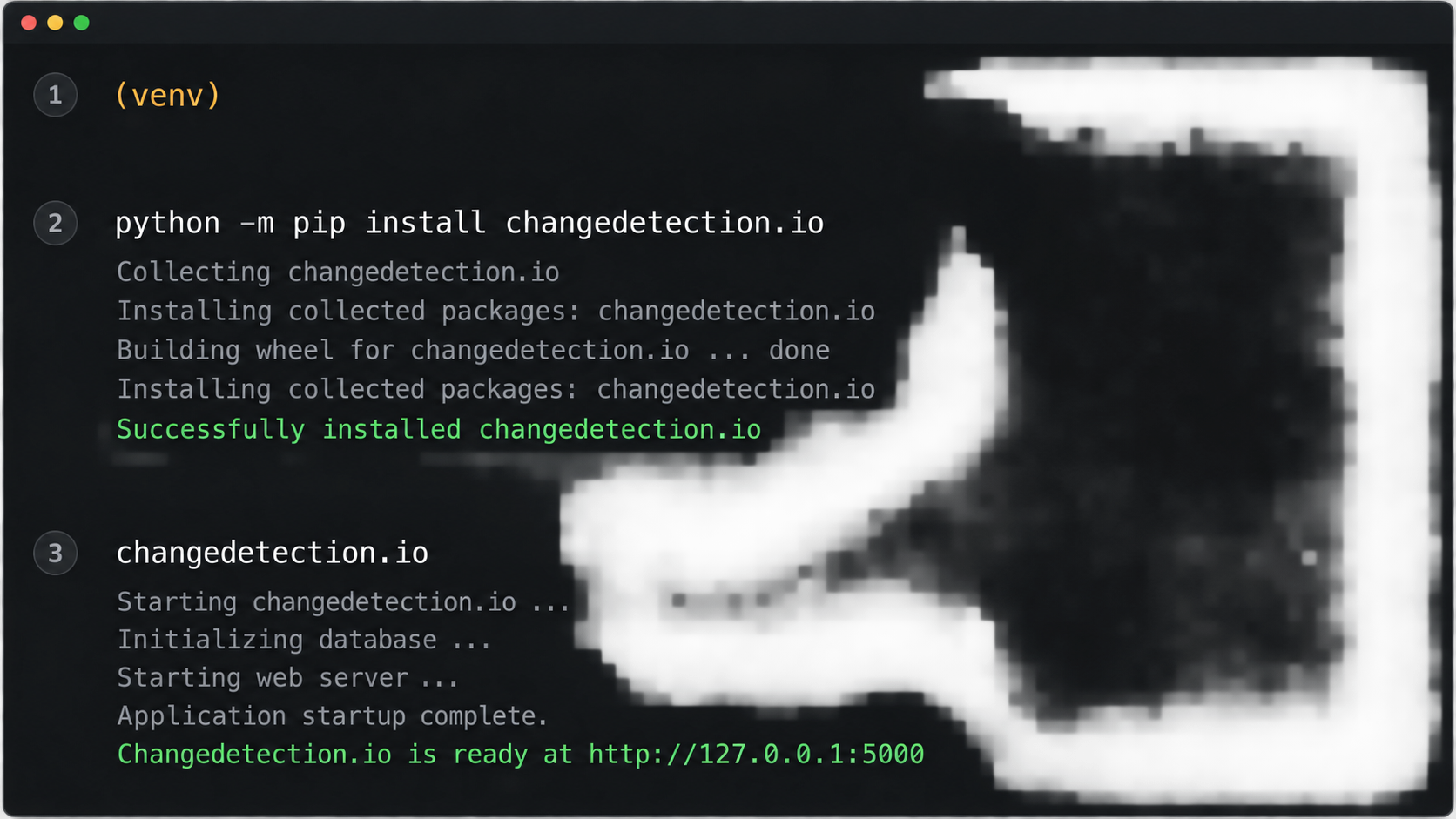
Pinning the package version makes the initial installation repeatable. Running an unqualified pip install changedetection.io at different times can select different releases, dependencies, behavior, and Python requirements.
Open the dedicated application directory
Use the directory created for the replaceable Python environment, not the persistent data directory.
Create the virtual environment
Create .venv with the supported Python interpreter checked in the prerequisite step.
Use the environment's Python executable
Activate the environment on Unix, or call its executables by explicit path in PowerShell.
Install changedetection.io 0.60.9
Install the exact audited release rather than silently selecting the latest available package.
Inspect the installed version
Use pip metadata to confirm the package version and installation location before starting it.
Start the application in the foreground
Supply the persistent data path and port 5000, then keep the terminal open during verification and use.
Unix-like installation commands
cd "$HOME/changedetection-app"

python3 -m venv .venv
source .venv/bin/activate

python -m pip install --upgrade pip
python -m pip install "changedetection.io==0.60.9"
python -m pip show changedetection.io
command -v changedetection.io

changedetection.io -d "$HOME/changedetection-data" -p 5000
If the supported interpreter on your host is named python rather than python3, use python -m venv .venv for the environment creation line. After activation, python -m pip should resolve to the interpreter inside .venv. The path returned by command -v changedetection.io should also point into that environment.
PowerShell installation commands
Set-Location "$HOME\changedetection-app"

python -m venv .venv

& "$HOME\changedetection-app\.venv\Scripts\python.exe" -m pip install --upgrade pip
& "$HOME\changedetection-app\.venv\Scripts\python.exe" -m pip install "changedetection.io==0.60.9"
& "$HOME\changedetection-app\.venv\Scripts\python.exe" -m pip show changedetection.io
Get-Command "$HOME\changedetection-app\.venv\Scripts\changedetection.io.exe"

& "$HOME\changedetection-app\.venv\Scripts\changedetection.io.exe" -d "$HOME\changedetection-data" -p 5000
These commands do not require activation because they invoke the environment's Python and changedetection.io executables directly. This avoids ambiguity about PowerShell execution policy and ensures that the package operation targets $HOME\changedetection-app\.venv.
If the executable is not present at the expected path, stop and inspect the pip output. Do not install the package globally with administrator privileges as a workaround. A missing entry point can indicate that installation failed, the wrong interpreter was used, or the expected virtual environment was not created.
The commands above start changedetection.io in the foreground. Startup messages and errors remain visible, but closing that terminal stops the process. Leave it running while completing local verification, authentication, watch testing, and any Localtonet access session.
Verify the local interface and persistent storage
On the same host, open:
http://127.0.0.1:5000
Using 127.0.0.1 avoids introducing hostname resolution into the first test. The changedetection.io interface should load instead of a connection-refused page, an unrelated application, or an error from another proxy.
Make a normal HTTP request from a second terminal if needed:
curl http://127.0.0.1:5000/Response details vary by release. The useful result is an HTTP response from the expected application. If the browser displays unexpected content, confirm which process owns port 5000.
On Linux:
ss -ltnp | grep ':5000'On macOS or another system with lsof:
lsof -nP -iTCP:5000 -sTCP:LISTENIn PowerShell:
Get-NetTCPConnection -LocalPort 5000 -State Listen| Test | Expected result | What it establishes |
|---|---|---|
| Package metadata | Version 0.60.9 appears inside .venv |
The intended release is installed in the intended environment. |
| Socket inspection | The foreground Python application owns port 5000 | The application reached its web-serving stage. |
| Local HTTP request | An HTTP response arrives from 127.0.0.1:5000 |
The local service is reachable. |
| Browser inspection | The changedetection.io interface and assets render | The browser application is usable. |
| Restart test | The first watch remains after restarting with the same -d path |
The intended persistent data directory is in use. |
Do not start a Localtonet tunnel yet. First create a controlled watch, verify persistence, configure changedetection.io authentication, and test that an unauthenticated browser cannot reach the dashboard.
Create and validate the first website watch
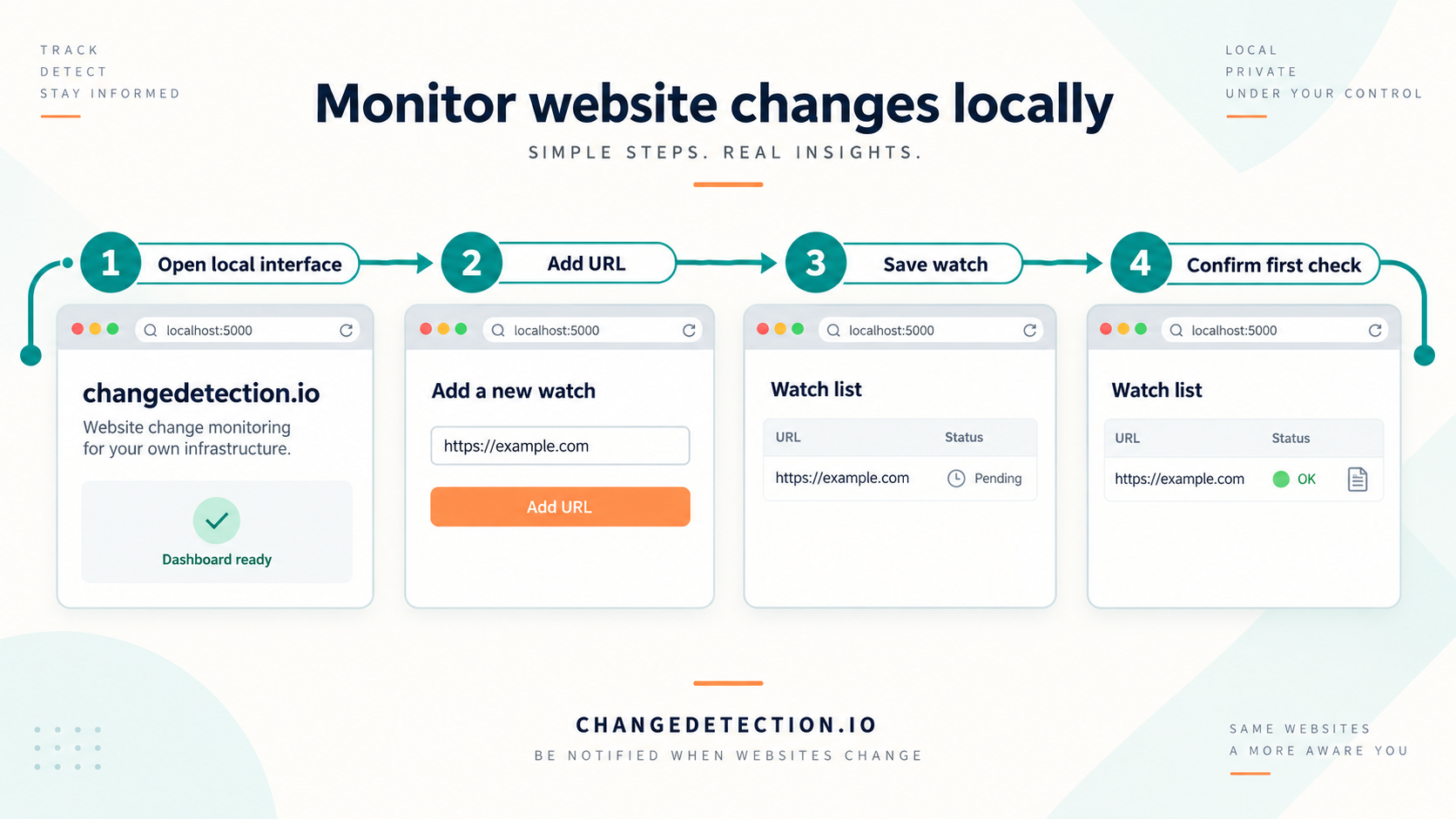
Begin with a public page that the host can retrieve without login, browser interaction, geographic restrictions, or JavaScript rendering. A page you control is ideal because you can make a harmless text change and verify the resulting difference.
In changedetection.io 0.60.9:
- Find the URL entry field on the dashboard under Add a new change detection watch.
- Enter the complete page URL, including
https://. - Select Watch to create the watch.
- Wait for its initial check to complete and confirm that the watch does not show a retrieval error.
- Change a small, known piece of text on the controlled source page.
- Use the watch's Recheck action, or Recheck all when that is the appropriate dashboard control.
- Open the watch history or difference view and confirm that the expected text change appears.
The first successful retrieval creates a baseline. Detection is demonstrated only after a later retrieval differs from that baseline. A watch appearing on the dashboard does not by itself prove that checks succeed.
Verify persistence
After the test watch exists, stop the foreground process using the terminal's normal interrupt sequence. Wait for it to exit, then start it again with the identical data directory and port.
On Unix:
cd "$HOME/changedetection-app"
source .venv/bin/activate
changedetection.io -d "$HOME/changedetection-data" -p 5000
In PowerShell:
& "$HOME\changedetection-app\.venv\Scripts\changedetection.io.exe" -d "$HOME\changedetection-data" -p 5000
Reopen the local interface and confirm that the watch remains. If it disappeared, compare the exact -d argument used before and after the restart. Do not proceed with production watches until persistence works.
Reduce changing-page noise
Modern pages often contain timestamps, rotating promotions, counters, request identifiers, recommendations, advertisements, and session-specific content. Monitoring the entire page can produce accurate but unhelpful alerts.
Narrow the watched content with the filtering method appropriate for the resource. CSS selectors and XPath can target elements in HTML. Text and regular-expression rules can include or exclude matching content. JSONPath and jq can focus on values in JSON responses. Test the filter across several checks before relying on it.
Know when a browser fetcher is required
The basic pip deployment retrieves content without establishing a separately configured JavaScript browser. If the required value appears only after scripts run, or the workflow requires clicking, typing, login, or cookie acceptance, an ordinary non-JavaScript fetch may not see it.
The project supports Playwright and WebDriver fetching. Browser Steps and the visual selector depend on an appropriate browser-capable fetcher. Follow the current repository documentation for those components instead of assuming the pip command above installed or enabled them.
Use reasonable check intervals and comply with the target site's terms, access controls, and applicable policies. Do not use monitoring to bypass authentication, rate limits, robots controls, or other restrictions. Protect credentials for authorized watches and restrict access to the administration interface.
Enable and test changedetection.io authentication
Authentication is a publication prerequisite, not a task to consider after the interface becomes public. Release 0.60.9 includes an application login flow. Configure it while the interface is reachable only through 127.0.0.1.
Open Settings locally
From the local changedetection.io dashboard, open Settings and select the Security section.
Set a strong application password
Enter a long, unique password in the password controls, confirm it in the confirmation field, and save the settings. Do not reuse a Localtonet password, device token, or notification credential.
End the authenticated browser session
Sign out if the interface presents a logout action. Also close the authenticated tab so that a stored session does not hide an access-control problem.
Test with a private browser window
Open http://127.0.0.1:5000 in a new private or incognito window. The application must show its login page rather than the dashboard.
Test rejected and accepted credentials
Confirm that an incorrect password does not open the dashboard, then sign in with the configured password and verify normal access.
Restart and repeat the test
Restart changedetection.io with the same data directory, use another private browser session, and confirm that authentication remains required.
The login-page language selector listed in the changedetection.io 0.60.9 release notes is additional confirmation that this audited release contains the login interface. Those release notes also document dependency updates and fixes that should be reviewed before upgrades.
If a fresh private browser session reaches the dashboard directly, stop and correct the application authentication configuration. Localtonet provides connectivity to the local service, but authorization inside changedetection.io remains the application's responsibility.
Expose the authenticated interface with Localtonet
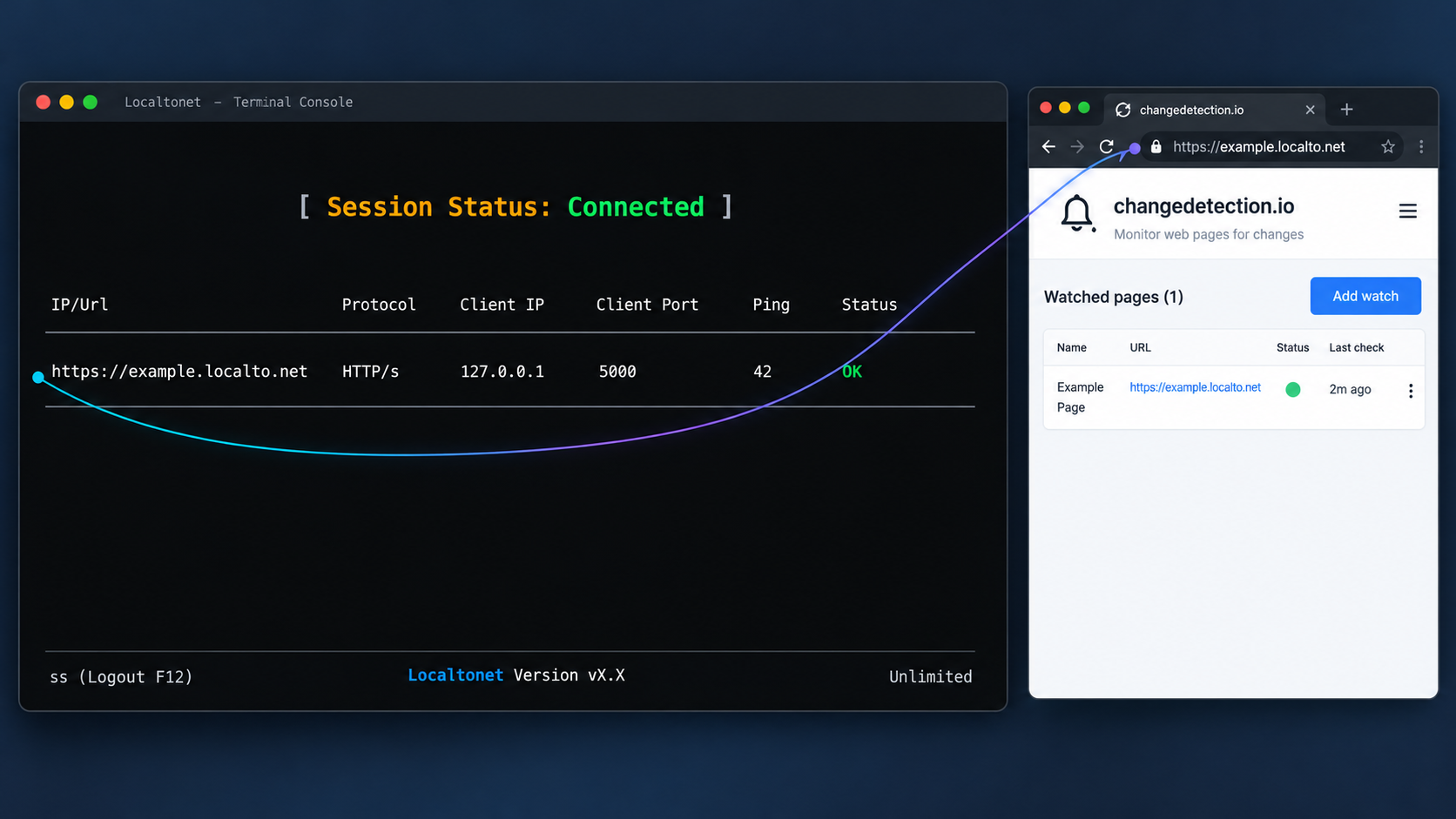
Continue only after all four prerequisites are true: changedetection.io responds locally, the first watch works, data survives a restart, and a private browser window must authenticate before displaying the dashboard.
Use a Localtonet HTTP tunnel because changedetection.io provides a browser-based HTTP interface. Our client establishes an outbound connection to a Localtonet relay server, so this workflow does not require inbound router port forwarding, firewall changes, VPN setup, or a public IP address.
Install and run the Localtonet client
Run the client on the changedetection.io host or another device that can reach the protected local service.
Authenticate or select the client device
Use the device-specific authentication token for the client that will run the tunnel. Keep the token private.
Select an available relay server
Choose a currently available server or region from the Localtonet dashboard. Do not hardcode a server value copied from an unrelated deployment.
Create an HTTP tunnel
When both applications run on the same host, configure the local target as 127.0.0.1 and port 5000.
Choose the process type
Select Random Sub Domain, Custom Sub Domain, or Custom Domain as appropriate. All serve the same local content at a public HTTPS address, but availability and custom-domain requirements can vary.
Start the tunnel
Use the Start button. Creating a tunnel record does not start it, and a saved but stopped tunnel does not provide remote access.
Test authentication through the public address
From a different network and a private browser window, open the assigned HTTPS address. Confirm that the login page appears before entering the valid changedetection.io password.
See our Localtonet HTTP tunnel documentation for the current product workflow. Do not select a raw TCP tunnel solely because the application uses a port. The administration interface is an HTTP application, so an HTTP tunnel is the appropriate family.
Select the correct local target
If Localtonet and changedetection.io run on the same host, 127.0.0.1:5000 refers to the correct loopback service. If the Localtonet client runs on another device, 127.0.0.1 refers to that other device and will not reach changedetection.io.
In a two-device topology, use a LAN address reachable from the Localtonet client and test that exact address from the client device before starting the tunnel. Making changedetection.io listen on a LAN interface changes its exposure, so apply host firewall policy and restrict which local devices can connect.
Verify the complete remote path
Test with a device outside the local network, such as a phone with Wi-Fi disabled. Use a new private browser session and confirm that:
- The assigned Localtonet HTTPS address opens.
- The changedetection.io login page appears before the dashboard.
- An incorrect password is rejected.
- The correct password allows access.
- Static assets and navigation load correctly.
- Stopping the tunnel makes the public address unavailable.
- Restarting the tunnel restores the login page while both clients remain running.
Keep the public address private, use a unique application password, and stop the tunnel when remote administration is unnecessary. Do not include credentials, Localtonet device tokens, private watch URLs, or notification secrets in screenshots or support messages.
Foreground operation, backups, upgrades, rollback, and restoration
Start the application again
On Unix:
cd "$HOME/changedetection-app"
source .venv/bin/activate
changedetection.io -d "$HOME/changedetection-data" -p 5000
In PowerShell:
& "$HOME\changedetection-app\.venv\Scripts\changedetection.io.exe" -d "$HOME\changedetection-data" -p 5000Keep the terminal open. This tutorial does not claim that the application continues after logout, terminal closure, host restart, or process termination. Start the Localtonet tunnel only after changedetection.io is running and locally healthy.
Stop each layer deliberately
- Interrupting changedetection.io stops monitoring and leaves the tunnel without a healthy local target.
- Stopping the Localtonet tunnel removes remote access but leaves local monitoring running.
- Disconnecting the selected Localtonet client makes its running tunnel unavailable.
- Stopping a tunnel preserves its configuration, while deleting it removes the configuration.
Inspect and record the installed version
On Unix with the environment activated:
python -m pip show changedetection.io
python -m pip freeze > "$HOME/changedetection-app/requirements-before-upgrade.txt"
In PowerShell:
& "$HOME\changedetection-app\.venv\Scripts\python.exe" -m pip show changedetection.io
& "$HOME\changedetection-app\.venv\Scripts\python.exe" -m pip freeze |
  Set-Content "$HOME\changedetection-app\requirements-before-upgrade.txt"
Record the working startup command, Python version, package version, and data path. The freeze file helps diagnose dependency changes, but it is not a replacement for backing up application data.
Back up the persistent data
Stop the Localtonet tunnel, stop changedetection.io, and then copy the complete data directory. One Unix backup method is:
tar -C "$HOME" -czf "$HOME/changedetection-data-backup.tar.gz" changedetection-dataA PowerShell equivalent is:
Compress-Archive `
  -Path "$HOME\changedetection-data" `
  -DestinationPath "$HOME\changedetection-data-backup.zip" `
  -Force
Protect this archive as sensitive data. Retain the version record with it so that restoration can begin with the same application release.
Upgrade to a reviewed version
Replace 0.60.9 below only after reviewing the target package metadata and release notes. For an explicit upgrade to the audited release, the command is:
python -m pip install --upgrade "changedetection.io==0.60.9"
python -m pip show changedetection.io
In PowerShell:
& "$HOME\changedetection-app\.venv\Scripts\python.exe" -m pip install --upgrade "changedetection.io==0.60.9"
& "$HOME\changedetection-app\.venv\Scripts\python.exe" -m pip show changedetection.io
Release 0.60.9 includes fixes such as decimal-comma price handling, a Unix timestamp notification filter, login-page language selection, and multiple dependency updates. Review its complete release notes before adoption.
After any upgrade, start changedetection.io locally with the same data directory. Repeat the local interface test, private-window authentication test, persistence test, controlled watch check, and notification test. Start the Localtonet tunnel only after these checks succeed.
Roll back the package version
A package rollback should be deliberate. Stop both the tunnel and application, preserve the current data, and install the exact previously working package version. If the previous release was 0.60.8, for example:
python -m pip install --upgrade --force-reinstall "changedetection.io==0.60.8"
python -m pip show changedetection.io
In PowerShell:
& "$HOME\changedetection-app\.venv\Scripts\python.exe" -m pip install --upgrade --force-reinstall "changedetection.io==0.60.8"
& "$HOME\changedetection-app\.venv\Scripts\python.exe" -m pip show changedetection.io
Use the version that you actually recorded before the upgrade rather than copying the example blindly. Package rollback alone may not reverse changes made to application data by a newer release. If the release notes describe a migration or the older application cannot read the upgraded data safely, restore the pre-upgrade data backup as well.
Restore the application data
Keep changedetection.io stopped. Move the current data directory aside rather than overwriting it immediately, then restore the complete backup to the original path.
For the Unix tar backup:
mv "$HOME/changedetection-data" "$HOME/changedetection-data.failed"
tar -C "$HOME" -xzf "$HOME/changedetection-data-backup.tar.gz"
For the PowerShell ZIP backup:
Move-Item `
  -Path "$HOME\changedetection-data" `
  -Destination "$HOME\changedetection-data.failed"

Expand-Archive `
  -Path "$HOME\changedetection-data-backup.zip" `
  -DestinationPath "$HOME" `
  -Force
Reinstall the package version recorded with the backup, start the application locally, and verify authentication, watches, history, and notification configuration. Keep the tunnel stopped until restoration tests pass.
A connected Localtonet device does not prove that changedetection.io is healthy. A healthy changedetection.io process does not prove that its tunnel is running. Our platform-wide Token and Tunnel webhooks can report Connected or Disconnected status for a selected Token Group, but those events describe Localtonet connectivity, not changedetection.io watch results.
Troubleshooting installation, authentication, and access
The changedetection.io command is not found
Confirm the package and installation location:
python -m pip show changedetection.io
python -m pip --version
command -v python
command -v changedetection.io
On Windows, invoke the expected executable directly:
Test-Path "$HOME\changedetection-app\.venv\Scripts\changedetection.io.exe"
& "$HOME\changedetection-app\.venv\Scripts\python.exe" -m pip show changedetection.io
If pip reports a different environment, repeat the install using the explicit virtual-environment Python path. Avoid global administrator-level installation.
pip rejects the Python version
Confirm that the interpreter is Python 3.10 through 3.13 for release 0.60.9. If another Python executable appears first in the shell path, recreate the virtual environment with an explicitly supported interpreter. Do not randomly downgrade changedetection.io to silence a compatibility error. Compare the intended release's package metadata and release notes first.
Port 5000 is already in use
Inspect the port owner before stopping anything. It may be another changedetection.io process or an unrelated application. If you deliberately select another application-supported port, change the startup command, browser tests, diagnostics, and Localtonet target together.
The browser reports connection refused
Check whether the foreground process exited and review its terminal output. Confirm that the data directory exists and is writable, then inspect the listening socket. Do not make the application listen on every network interface merely to hide a loopback connectivity problem.
The test watch cannot retrieve a page
Confirm that the host can reach the page, the URL is complete, and the target does not require browser interaction. A page may render in a desktop browser but expose little useful content to a basic HTTP fetch. Inspect the fetched result and decide whether a separately configured Playwright or WebDriver fetcher is necessary.
A watch reports a change every time
Look for timestamps, rotating banners, personalized content, advertisements, random ordering, tracking values, or anti-automation pages. Restrict monitoring to stable content with a selector or filtering rule. Increasing the interval alone will not remove noise when every response differs.
Authentication disappears after restart
Confirm that the restart used the same absolute -d path. If watches or password protection both disappear, changedetection.io is probably using a different data directory. Stop the tunnel immediately and correct persistence before restoring public access.
The public URL opens the dashboard without login
Stop the Localtonet tunnel immediately. Retest http://127.0.0.1:5000 in a private browser window. Return to Settings, open Security, set and confirm the password, save it, and repeat the unauthenticated and authenticated tests before restarting the tunnel.
The interface works locally but not through Localtonet
- Confirm changedetection.io still responds at the configured local target.
- Confirm the Localtonet client is connected.
- Confirm the tunnel is associated with the intended device token.
- Confirm the local IP address and port are reachable from that client device.
- Confirm an available relay server is selected.
- Confirm the tunnel was started after creation.
- Retest the assigned HTTPS address from an external network.
If the client runs on another machine, test the changedetection.io LAN address from that machine. A successful loopback request on the application host does not prove that a separate tunnel host can reach it.
The public page loads, but an action fails
Reproduce the same action locally. If it fails at 127.0.0.1:5000, investigate changedetection.io, its permissions, or the watched resource. If it works locally but fails remotely, inspect browser network errors and verify that the application is being accessed through the assigned HTTPS address.
Notifications do not arrive
First confirm that the watch recorded a qualifying change. Then test the notification destination, credentials, endpoint format, and provider permissions. Notification delivery is an outbound application function and does not require the changedetection.io administration interface to remain publicly exposed.
Frequently asked questions
Which Python versions support changedetection.io 0.60.9?
Package metadata for the pinned release supports Python 3.10 through Python 3.13. Check the package metadata again before installing a different changedetection.io release because compatibility can change.
Why does this guide install an exact package version?
Pinning changedetection.io==0.60.9 makes the installation reproducible. An unpinned command can install a different release later, with different dependencies, compatibility requirements, interface controls, or migration behavior.
Will changedetection.io continue running after I close the terminal?
No. This tutorial deliberately covers foreground operation. Closing the terminal or ending the process stops the application and its monitoring. A persistent operating-system service requires a separately validated process-supervisor configuration.
Does the pip installation automatically provide Playwright?
No such assumption should be made. The basic deployment in this guide covers non-JavaScript fetching. JavaScript rendering, Browser Steps, and visual selection require an appropriately configured Playwright or WebDriver fetcher with its own dependencies.
Must authentication be enabled before starting Localtonet?
Yes. Configure the changedetection.io password locally, confirm that a private browser window sees the login page, test rejected and accepted credentials, and repeat the test after an application restart. Start the public tunnel only after those checks pass.
Should I use a Localtonet HTTP or TCP tunnel?
Use an HTTP tunnel for the changedetection.io browser interface. It provides a public HTTPS address for the local HTTP application. A raw TCP tunnel is not necessary for this browser-based administration workflow.
Does creating a Localtonet tunnel make it immediately available?
No. The selected Localtonet client must be connected and the tunnel must be started with the Start button. Creating, starting, stopping, and deleting are separate lifecycle actions.
Do I need router port forwarding or a public IP address?
No. The Localtonet client establishes an outbound connection to our relay server, so this workflow does not require inbound router port forwarding, a firewall change, VPN setup, or a public IP address.
Will monitoring continue if I stop the Localtonet tunnel?
Yes, provided the foreground changedetection.io process remains running and has the outbound connectivity needed to fetch watched resources and send notifications. Stopping the tunnel removes remote administration access without stopping the local application.
Can the Localtonet client run on another device?
Yes, if that device can reach the changedetection.io host and port. In that topology, do not use 127.0.0.1 unless changedetection.io also runs on the client device. Use a reachable LAN address and apply appropriate firewall restrictions.
Connect your protected changedetection.io instance with Localtonet
Install and verify the application locally, confirm persistent storage, enable and test its login, and then create a Localtonet HTTP tunnel for controlled remote access. Keep the device token private and stop the tunnel whenever remote administration is not required.
Get Started Free →

