

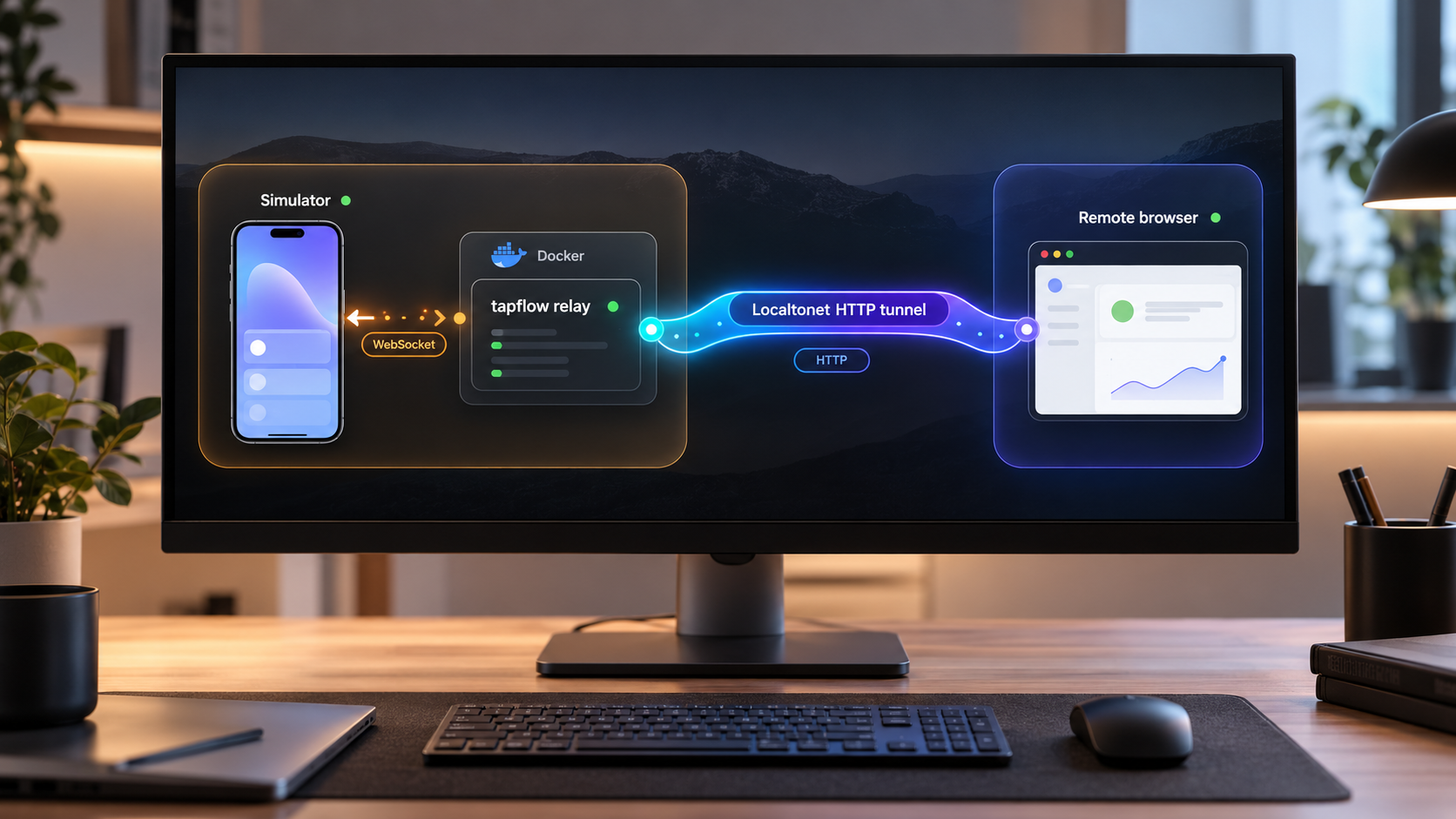
Run a private mobile-testing relay, verify it locally, and publish the working endpoint only when you are ready
tapflow provides browser-based access to iOS simulators and Android emulators through a self-hosted relay. In this guide, we deploy the relay from its published Docker image, confirm that its dashboard responds on port 4000, review the separate agent requirements, and cover routine container operations. We then connect the verified HTTP endpoint to a Localtonet HTTP tunnel so authorized teammates can reach it without configuring inbound router port forwarding, a public IP address, or a VPN. Because tapflow also uses WebSocket connections on the relay endpoint, the final verification includes both dashboard loading and a real streaming session.
📋 What's in this guide
How the tapflow relay architecture works
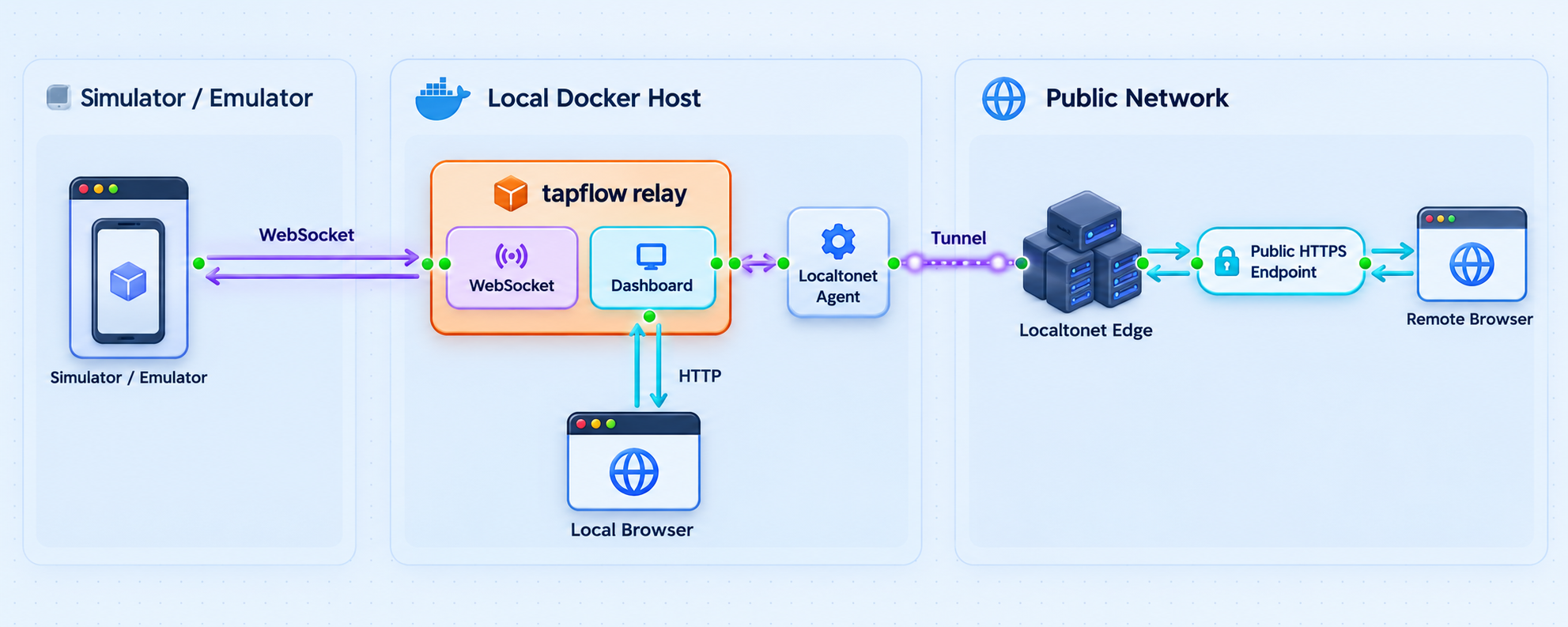
tapflow is an open-source, self-hosted platform for streaming iOS simulators and Android emulators into a browser. The relay is the network-facing part of that architecture. It serves the browser dashboard and coordinates browser and agent WebSocket connections through the same HTTP service.
The documented local relay endpoint is http://localhost:4000. That means port 4000 is not merely a static administration page. It is the application endpoint used by the browser interface and by the persistent connections involved in an interactive session. A successful HTTP response is therefore the first verification point, but it is not the final proof that streaming works.
The official Docker image, tapflow/tapflow:latest, provides a relay-only deployment. “Relay-only” is an important boundary. Running this image starts the central service, but it does not create an iOS simulator, Android emulator, Xcode installation, Android toolchain, or mobile-device host inside the container. At least one appropriately prepared machine still needs to run the tapflow agent-side workflow and provide the simulator or emulator.
This separation is useful when the relay should run continuously on a server while simulator or emulator machines connect when available. It also affects networking. A relay bound only to the Docker host's loopback interface can be reached by a Localtonet client on that host, but it cannot normally be reached directly by an agent on another LAN machine. A relay published on all host interfaces can accept LAN connections, but it also creates a broader local-network exposure that should be controlled with host firewall rules and application access controls.
Treat the Docker container as the tapflow relay service. The actual iOS or Android environment remains a separate prerequisite. Plan the relay host, agent hosts, and network path between them before expecting a device to appear in the dashboard.
Prerequisites and deployment decisions
The relay deployment itself has a short prerequisite list. The complete simulator-streaming workflow has additional requirements because mobile platform tools must exist somewhere outside the relay-only container.
Relay host requirements
- A machine with a working Docker installation and permission to pull and run images.
- Enough local access to publish host port 4000 or another chosen host port mapped to container port 4000.
- A web browser for local dashboard verification.
- A network route from the Localtonet client to the relay endpoint when remote access is added.
- A plan for container lifecycle and data retention before using the service for important work.
The supplied project evidence does not establish a minimum CPU, memory allocation, supported Docker version, required Linux distribution, or host architecture. We therefore do not prescribe values for them. If the image does not run on a particular host architecture or Docker version, consult the current tapflow release documentation rather than guessing at a compatibility workaround.
Simulator and emulator host requirements
The mobile host needs the appropriate platform environment for the device type it will provide. For iOS, that means a compatible Apple development environment and simulator setup. For Android, it means a working emulator environment. Exact operating-system versions, Node.js versions, Xcode versions, Android SDK versions, and hardware requirements can change between tapflow releases and are not established by the evidence available for this guide.
tapflow documents an npm-based setup path for preparing an environment:
npm install -g tapflow
tapflow setup
tapflow start
These commands install the tapflow CLI globally, prepare the local environment, and start tapflow. They are useful for a machine that will participate directly in the mobile-testing workflow. They are not a substitute for running the published relay-only image when the intended architecture is a dedicated Docker relay.
Keep port 4000 private while installing and testing. Confirm how authentication and authorization work in the tapflow release you deploy before sharing a public tunnel address. A public HTTPS address changes the service's trust boundary even when the underlying application was originally intended for a private network.
Choose how Docker should publish port 4000
| Publishing pattern | Best fit | Network consequence |
|---|---|---|
127.0.0.1:4000:4000 |
Local testing and a Localtonet client running on the same host | The relay is bound to host loopback and is not directly reachable from other LAN machines. |
4000:4000 |
Agent machines that must reach the relay over the LAN | Docker normally publishes the port on host interfaces, so firewall and LAN exposure must be reviewed. |
127.0.0.1:8080:4000 |
A host where port 4000 is already occupied | The browser and Localtonet target use host port 8080, while the container still receives traffic on port 4000. |
Use the loopback mapping when both local verification and the Localtonet client happen on the Docker host and no separate LAN agent needs direct access. Use a LAN-reachable mapping only when the architecture requires it. If agent registration needs an externally reachable relay URL, follow the current tapflow documentation for that release because the relevant connection setting is not established in the supplied evidence.
Deploy the tapflow relay with Docker
The following deployment uses the documented image name and the documented relay port. The container name tapflow-relay is an operator-selected Docker name, not a tapflow requirement. It makes later status, log, stop, and restart commands easier to read.
Pull the published image
docker pull tapflow/tapflow:latest
The latest tag follows the image publisher's current selection. That is convenient for an initial evaluation, but it does not provide deterministic upgrades. Before a production deployment, inspect the project's available image tags and release notes, then choose a versioning policy appropriate for your environment. Do not assume that recreating a latest container will always produce identical behavior.
Start a loopback-only relay
If the Localtonet client will run directly on the Docker host and no separate LAN machine needs to connect to the relay, start with a loopback-only port mapping:
docker run --detach \
  --name tapflow-relay \
  --publish 127.0.0.1:4000:4000 \
  tapflow/tapflow:latest
Docker maps host address 127.0.0.1 and host port 4000 to port 4000 in the container. The dashboard should then be available from the Docker host at http://localhost:4000.
Start a LAN-reachable relay when agents require it
If a simulator or emulator host must connect over the local network, the loopback mapping will not be sufficient. The general Docker port-publishing form is:
docker run --detach \
  --name tapflow-relay \
  --publish 4000:4000 \
  tapflow/tapflow:latest
This form commonly exposes port 4000 through the Docker host's network interfaces. The exact host firewall behavior depends on the operating system, Docker configuration, and network policy. Permit only the source networks or machines that need to act as tapflow agents. Do not open the port broadly merely to make initial troubleshooting easier.
The evidence available for this guide does not establish the relay's internal persistent-data path or an officially documented volume mount. The commands above therefore do not invent one. Data written only inside a container can be lost when that container is removed. Identify the current release's documented persistence path before relying on the relay for retained builds, run records, recordings, or other important state.
Confirm that Docker started the container
docker ps --filter name=tapflow-relayLook for the container in the running list and confirm that the expected host-to-container port mapping appears. If the container is absent, include stopped containers and inspect its logs:
docker ps --all --filter name=tapflow-relay
docker logs tapflow-relay
A container that exits immediately has not produced a usable relay, even if the image pull succeeded. Read the first application error rather than repeatedly restarting it. Typical categories include an incompatible host, a port conflict, an invalid image for the architecture, or a release-specific configuration requirement. Only the project documentation for the deployed release can establish any required tapflow-specific variables or files.
Prepare the simulator or emulator side
A responsive dashboard proves that the relay web service is running. It does not prove that an iOS simulator or Android emulator is available. To provide an actual device session, prepare a compatible machine using tapflow's CLI workflow and the relevant mobile platform toolchain.
Install the tapflow CLI
On the machine that will run the tapflow environment, install the documented global npm package with npm install -g tapflow. This requires a working npm installation. The available evidence does not establish a specific Node.js or npm version, so verify those requirements for the release you install.
Prepare the environment
Run tapflow setup. This is the project's documented environment-preparation command. Review its output carefully and resolve missing platform tools before proceeding. Do not assume the relay container includes or installs the host's iOS or Android tooling.
Start tapflow
Run tapflow start after setup completes. When using a separate Docker relay, connect the agent according to the current tapflow release's documented relay configuration. The exact relay-address option is not established by the evidence supplied for this article, so we do not invent a flag or environment variable.
If the CLI starts another local relay rather than connecting to the dedicated container, stop and review the chosen deployment mode. The goal is to avoid accidentally testing a local all-in-one process while believing the browser is connected to the Docker relay.
Network placement matters. A separate agent cannot connect to localhost:4000 on the Docker host because localhost on the agent means the agent itself. It needs a relay address that resolves to the Docker host and reaches the published port. Conversely, a browser using Localtonet should use the public tunnel address assigned by our platform, not the relay's private LAN address.
tapflow is actively developed. Agent enrollment, authentication, tokens, and command options can change. Use the exact connection method documented for the version you deploy. A token command associated with another tapflow component, such as an MCP integration, should not be assumed to authenticate dashboard users or simulator agents.
Verify the relay locally before tunneling it
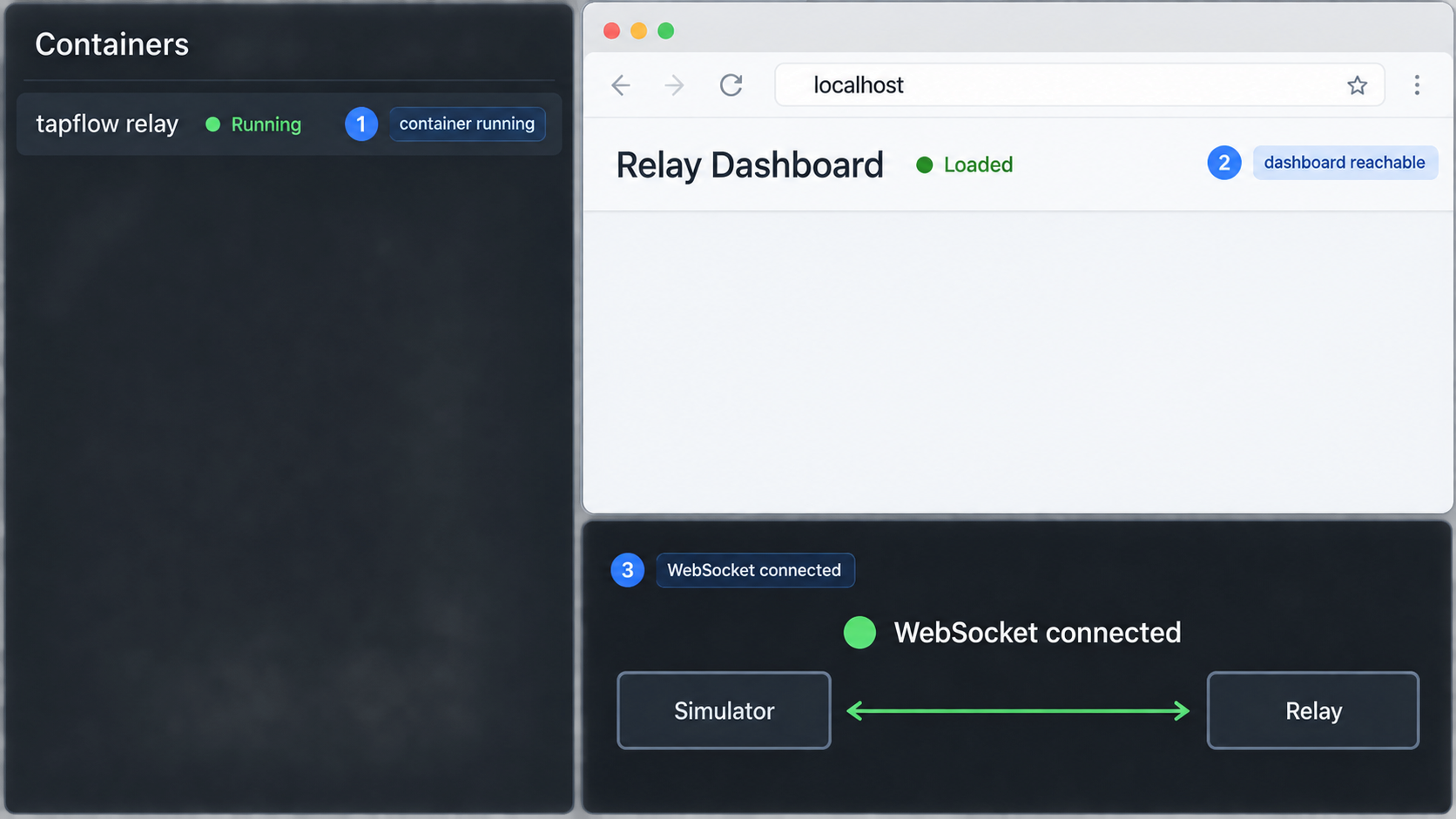
Local verification separates tapflow problems from tunnel problems. If the dashboard or streaming session does not work over the direct local endpoint, adding a public URL introduces another layer without fixing the underlying service.
Test the documented dashboard endpoint
From a browser on the Docker host, open:
http://localhost:4000
The tapflow dashboard should load. If you mapped a different host port, replace 4000 with that host port. For example, a mapping of 127.0.0.1:8080:4000 is tested at http://localhost:8080.
A command-line HTTP check can help distinguish a browser issue from a service issue:
curl -I http://localhost:4000The precise successful status code can depend on application routing and redirects, so do not treat only one status code as valid. The useful result is an HTTP response from the tapflow service rather than a connection-refused error, timeout, or response from an unrelated application.
Confirm that you reached the correct container
If port 4000 displays an unexpected page, identify the process that owns the host port and review the Docker mapping:
docker ps --filter name=tapflow-relay
docker port tapflow-relay
docker logs tapflow-relay
The published port must correspond to the URL you are testing. If another process already owned port 4000, Docker should normally report a bind failure and the tapflow container may not be running.
Run an end-to-end session
Once an agent is connected and a simulator or emulator is available, use the dashboard to open a real session. Confirm all of the following:
- The device or environment appears in the dashboard.
- The browser receives a live frame rather than an indefinitely loading placeholder.
- Controls or interactions expected by the current tapflow release work locally.
- The session remains connected for more than an initial page load.
- Container logs do not show repeated disconnects or authentication failures.
This is the meaningful WebSocket test. A basic request made by curl does not reproduce the browser's WebSocket upgrade or sustained streaming traffic. Browser developer tools can also show whether WebSocket requests connect, remain open, and exchange frames, but the exact request path is application-controlled and should not be hardcoded into firewall or proxy rules without checking the deployed version.
Operate and update the Docker relay
Routine container operations should be documented before teammates depend on the relay. The following commands use the operator-selected name tapflow-relay.
Read current logs
docker logs tapflow-relayTo follow new output while reproducing a connection problem:
docker logs --follow tapflow-relayAvoid sharing logs publicly without review. Application logs can contain internal hostnames, session details, identifiers, or other operational information even when passwords are not intentionally logged.
Stop and start the existing container
docker stop tapflow-relay
docker start tapflow-relay
Stopping the container makes the relay unavailable. A Localtonet tunnel can remain configured, but it cannot deliver a working tapflow application while the local target is stopped.
Restart the container
docker restart tapflow-relayUse a restart for a controlled process restart, not as a substitute for diagnosing recurring crashes. If the container repeatedly exits, inspect its logs and status instead of placing it in an unbounded restart cycle.
Update the image
Docker does not replace an already-created container merely because a newer image has been pulled. A basic update sequence is:
docker pull tapflow/tapflow:latest
docker stop tapflow-relay
docker rm tapflow-relay
Recreate the container with the same reviewed port mapping and any documented persistence or configuration options. Before removal, confirm that important relay state is stored according to tapflow's current persistence guidance. The minimal container in this guide has no verified volume mapping, so removal may discard container-local data.
After every update, repeat local dashboard and streaming verification before reopening or announcing the public tunnel. Release changes can affect the dashboard, agent compatibility, authentication, or long-lived connections even when the initial HTTP page still loads.
Expose the verified relay with a Localtonet HTTP tunnel
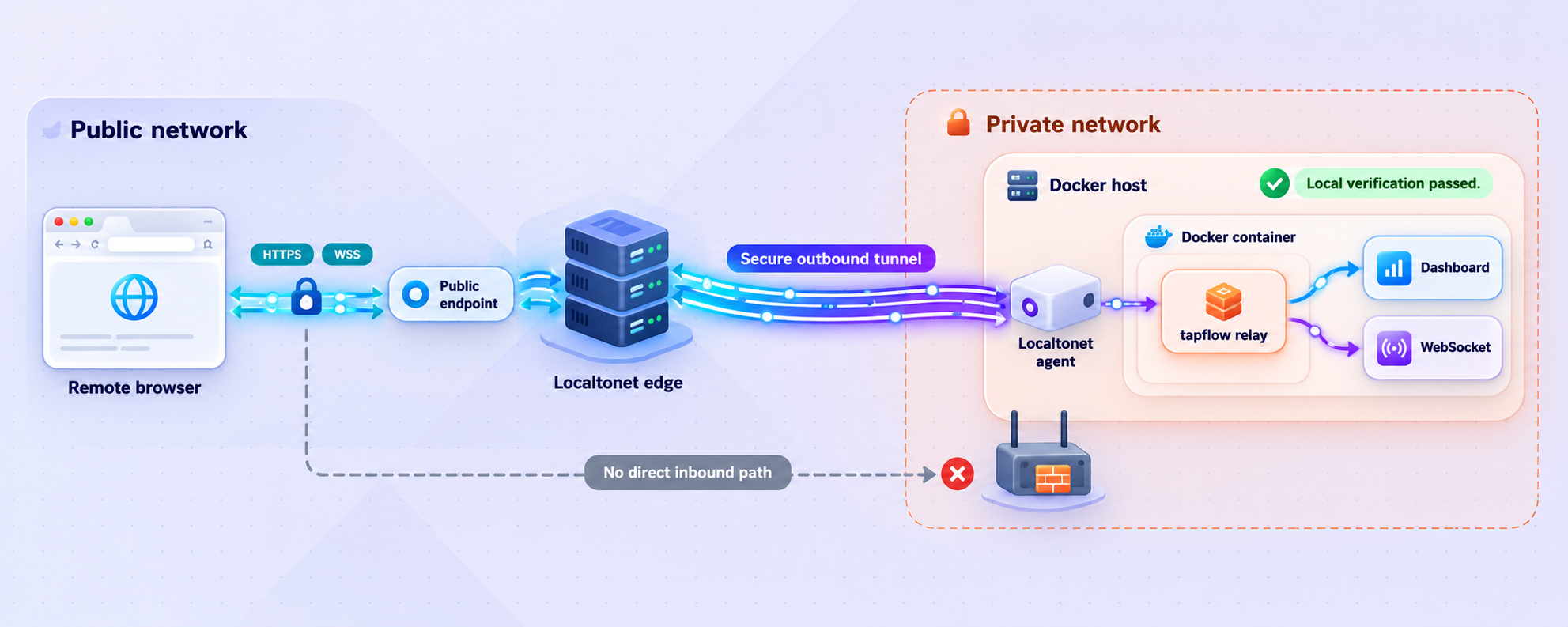
Once tapflow works locally, we can publish the relay through an HTTP tunnel. The Localtonet client establishes an outbound connection to one of our relay servers, so the setup does not require inbound router port forwarding, firewall changes for a new public listener, VPN setup, or a public IP address.
An HTTP tunnel is the appropriate starting point because tapflow serves its browser dashboard from an HTTP endpoint on port 4000. The browser and agent WebSocket behavior must still be tested through the final public address. Do not declare the deployment complete based only on the dashboard's first page.
Install and run the Localtonet client
Install the Localtonet client on the Docker host or on another device that can reach the tapflow relay. For the simplest loopback-only deployment, run our client on the Docker host so it can connect to 127.0.0.1:4000.
Authenticate and select the client device
Use the device-specific Localtonet authentication token through the supported client workflow, then select that connected device when creating the tunnel. Never publish the token in commands, screenshots, logs, or documentation.
Select an available relay server
Choose an available Localtonet server or region from the current dashboard. Available server codes and regions can vary, so obtain the value from the product rather than copying a hardcoded example from an older guide.
Create the HTTP tunnel
Choose an HTTP tunnel and point its local target to the tapflow relay. Use local IP address 127.0.0.1 and port 4000 when our client and Docker are on the same host with the loopback mapping. If they are on different devices, use a private address and published host port that the client device can actually reach. For Process Type, choose Random Sub Domain, Custom Sub Domain, or Custom Domain according to the options available to you.
Start the tunnel and test the assigned address
Creating a tunnel does not start it. Press Start, then open the assigned public HTTPS address in a separate browser session. Confirm the dashboard, authentication behavior, device listing, and a complete interactive streaming session. The public endpoint remains available only while the selected client is connected and the tunnel is running.
Random Sub Domain, Custom Sub Domain, and Custom Domain all publish HTTP or File Server content at a public HTTPS address, but domain setup and availability can depend on current product configuration or plan. Check the dashboard before promising a particular naming option. Exact custom-domain DNS instructions should come from current Localtonet documentation rather than being guessed.
The local target is resolved from the client device. If our client runs on another machine, 127.0.0.1:4000 points to that other machine, not to the Docker host. Test the Docker host's private address and published port from the client device before creating the tunnel.
Verify the public dashboard and WebSocket path
Open the assigned HTTPS address and compare the result with the verified local dashboard. Then start a real device session. A complete remote test should confirm:
- The public HTTPS page loads without mixed endpoint assumptions.
- The browser reaches the expected tapflow authentication or dashboard flow.
- Device and session data populate rather than remaining in a loading state.
- The application's WebSocket connection opens and stays connected.
- Video or simulator frames continue updating.
- Supported interactions reach the simulator or emulator.
- Refreshing and reconnecting behave as expected for the deployed tapflow release.
If the HTML loads but the interface never becomes live, inspect the browser's network and console output alongside the tapflow container logs. This pattern often indicates a difference between an ordinary HTTP request and a persistent connection, an application-generated URL, authentication, or the agent-to-relay side of the architecture. The observed error should determine the next step.
Secure the public tapflow deployment
tapflow's self-hosted design keeps the relay and mobile environment under the operator's control. Publishing it creates an intentional path from the public internet to that service. This does not mean application binaries or test data are sent to an unrelated hosted testing platform, but it does mean remote users can reach the exposed interface through the public tunnel.
Review security at three separate layers: tapflow access, host and agent access, and tunnel lifecycle. Do not rely on a hard-to-guess URL as an authorization control.
Confirm tapflow authentication behavior
Before distributing the URL, test it in a private browser session with no existing cookies. Determine whether an unauthenticated visitor can list devices, view sessions, control a simulator, access builds, or retrieve recordings and run information. The supplied evidence does not establish the dashboard's complete authentication model, so this guide does not claim that a specific credential or token protects every interface.
Follow tapflow's current release documentation for account, token, and permission configuration. Use least privilege where roles or access scopes are available. Do not reuse an MCP-specific token or agent credential as a general browser-sharing mechanism unless tapflow explicitly documents that use.
Limit the local network surface
Prefer loopback publishing when all inbound public access will arrive through a Localtonet client on the Docker host. If separate agents require LAN access, restrict host port 4000 to the required private source addresses where the operating system and firewall policy permit it.
The Localtonet tunnel removes the need to open a public router port, but it does not remove the need to manage the service safely. Keep the Docker host patched, protect its administration interfaces, and separate simulator infrastructure from unrelated sensitive systems where practical.
Protect tokens and internal details
- Never place a Localtonet device token in this article, a public repository, a shared shell history, or a screenshot.
- Do not publish tapflow credentials, agent tokens, private relay addresses, or session links.
- Review logs before attaching them to public issue reports.
- Rotate credentials according to the relevant product's documented process if exposure is suspected.
- Stop the tunnel when remote access is no longer required.
Understand tunnel lifecycle
A configured Localtonet tunnel is not automatically active. It must be started, and it depends on the selected client device remaining connected. You can stop the tunnel to withdraw public access while leaving the tapflow container running for local users. You can also delete the tunnel when the public endpoint is no longer needed.
Share the public address only with intended users and confirm application-level authorization before use. Localtonet provides the network path to the local service. The tapflow deployment remains responsible for deciding who may view or control its resources.
Troubleshooting the Docker and tunnel workflow
The container exits immediately
Check both the stopped-container list and logs:
docker ps --all --filter name=tapflow-relay
docker logs tapflow-relay
Use the first actionable error. If Docker reports that the host port is already allocated, either stop the conflicting service or choose another host port, such as 8080, while retaining container port 4000. If the error concerns image compatibility or an undocumented configuration requirement, consult the current tapflow release information rather than adding guessed variables.
Nothing responds at localhost:4000
Confirm the container is running and that Docker published the expected port. A mapping such as 127.0.0.1:8080:4000 must be opened at http://localhost:8080, not port 4000. Also verify that the test is running on the Docker host. Another computer's localhost does not refer to the Docker host.
The dashboard loads, but no devices appear
This usually means the relay's web layer is available while the mobile side is not fully connected. Confirm that the simulator or emulator host has the required platform tooling, that tapflow setup completed, and that the agent-side process is running. Verify that the agent is configured for the Docker relay rather than an unintended local relay.
If the agent is on another machine, confirm that the Docker host publishes port 4000 on a reachable interface and that the host firewall permits that agent. Do not disable the firewall globally. Add only the narrow access required by the deployment.
Local access works, but the public URL does not
Verify that the Localtonet client is connected, the correct device token was selected, and the tunnel was started. Then check the local target from the Localtonet client device. If that client runs on the Docker host, 127.0.0.1:4000 is appropriate for the loopback mapping. If it runs elsewhere, use the Docker host's reachable private address and published port.
Also confirm that the target protocol is HTTP rather than a tunnel type intended for an unrelated service. The tapflow dashboard is documented at an HTTP endpoint, making an HTTP tunnel the natural fit for browser access.
The public page loads, but streaming does not
Reproduce the problem while watching three places: the browser network panel, the browser console, and docker logs --follow tapflow-relay. Look for a failed WebSocket request, repeated reconnect attempts, an authentication response, or an application-generated address that points to an unreachable private host.
Do not assume that a successful page request proves the persistent connection works. Repeat the same device session locally. If it also fails locally, troubleshoot tapflow or the agent first. If it works locally but fails only through the public URL, record the status and error details for the WebSocket connection and compare how the application constructs its endpoint.
Remote users receive an authentication or permission error
Treat that response as application behavior, not a reason to bypass access controls. Confirm that the user has the appropriate tapflow credential and permission under the current release's authentication model. Avoid sharing an administrator session or embedding secrets in the public URL.
The tunnel works until the host restarts
The Docker container, Localtonet client, and tunnel are separate lifecycle components. Confirm that the tapflow container is running, that our client has reconnected as the intended device, and that the tunnel is running. This guide does not prescribe automatic-start settings because service-management methods differ by operating system and the available evidence does not establish a tapflow-specific restart policy.
An update removed previous relay data
A removed container can lose data that was stored only in its writable container layer. Restore from your own verified backup if one exists, then consult the deployed tapflow version's documentation for its supported persistence path. Do not mount a guessed internal directory, because that can fail to preserve the real state or interfere with the application.
Frequently asked questions
Does the tapflow Docker image include iOS simulators and Android emulators?
No. The documented Docker deployment is relay-only. It provides the relay and dashboard service, while compatible simulator or emulator environments run on separately prepared machines. Use the tapflow CLI setup workflow and the appropriate platform tooling on those agent machines.
Which local port does the tapflow relay use?
The documented local endpoint is http://localhost:4000. Docker can map another host port to container port 4000 if the default host port is unavailable. In that case, browsers and the Localtonet client use the selected host port.
Should I use an HTTP or TCP tunnel for tapflow?
Start with a Localtonet HTTP tunnel because tapflow serves its browser dashboard from an HTTP endpoint. After starting the tunnel, test a complete browser and streaming session because tapflow also uses WebSocket connections through the relay service.
Does Localtonet require router port forwarding for this setup?
No. Our client establishes an outbound connection to a Localtonet relay server. The resulting tunnel provides a public URL without requiring an inbound router port-forwarding rule, a public IP address, or VPN setup.
Can the Localtonet client run on a different machine from Docker?
Yes, provided that the client device can reach the Docker host's published port. In that design, the tunnel target must use the Docker host's reachable private address rather than 127.0.0.1. Restrict the LAN exposure with appropriate firewall rules.
Is loading the dashboard enough to prove remote streaming works?
No. The initial dashboard is ordinary HTTP content, while an interactive session also depends on agent connectivity and WebSocket traffic. Verify that a device appears, a live frame loads, the connection remains open, and supported interactions work through the public HTTPS address.
Does the minimal Docker command preserve tapflow data after container removal?
It should not be assumed to do so. The minimal command does not include a volume because a verified internal persistence path was not established for this guide. Identify and use the path documented for your tapflow release before relying on retained data or removing an existing container.
Is the public tunnel active as soon as I create it?
No. Creating a Localtonet tunnel does not start it. Press Start after reviewing the target. The tunnel remains available only while it is running and its selected client device is connected. Stop or delete it when remote access is no longer needed.
Connect your verified tapflow relay with Localtonet
After the Docker relay and a complete local simulator session work correctly, create an HTTP tunnel to the verified local endpoint and test the dashboard and WebSocket session through the assigned public HTTPS address.
Get Started Free →

