

Verify the media server locally, protect every route, then connect it through an outbound HTTP tunnel
Kawaii-Player combines local audio and video management with browser interfaces, playlists, media streaming, remote controls, casting, and an experimental Xvfb-based headless mode. This guide explains how to prepare its media server, verify the documented web endpoints, operate it on a Linux host, and connect the working service to a Localtonet HTTP tunnel. Because an HTTP tunnel forwards the target origin rather than selecting individual Kawaii-Player paths, the security workflow covers every route served by that origin.
📋 What's in this guide
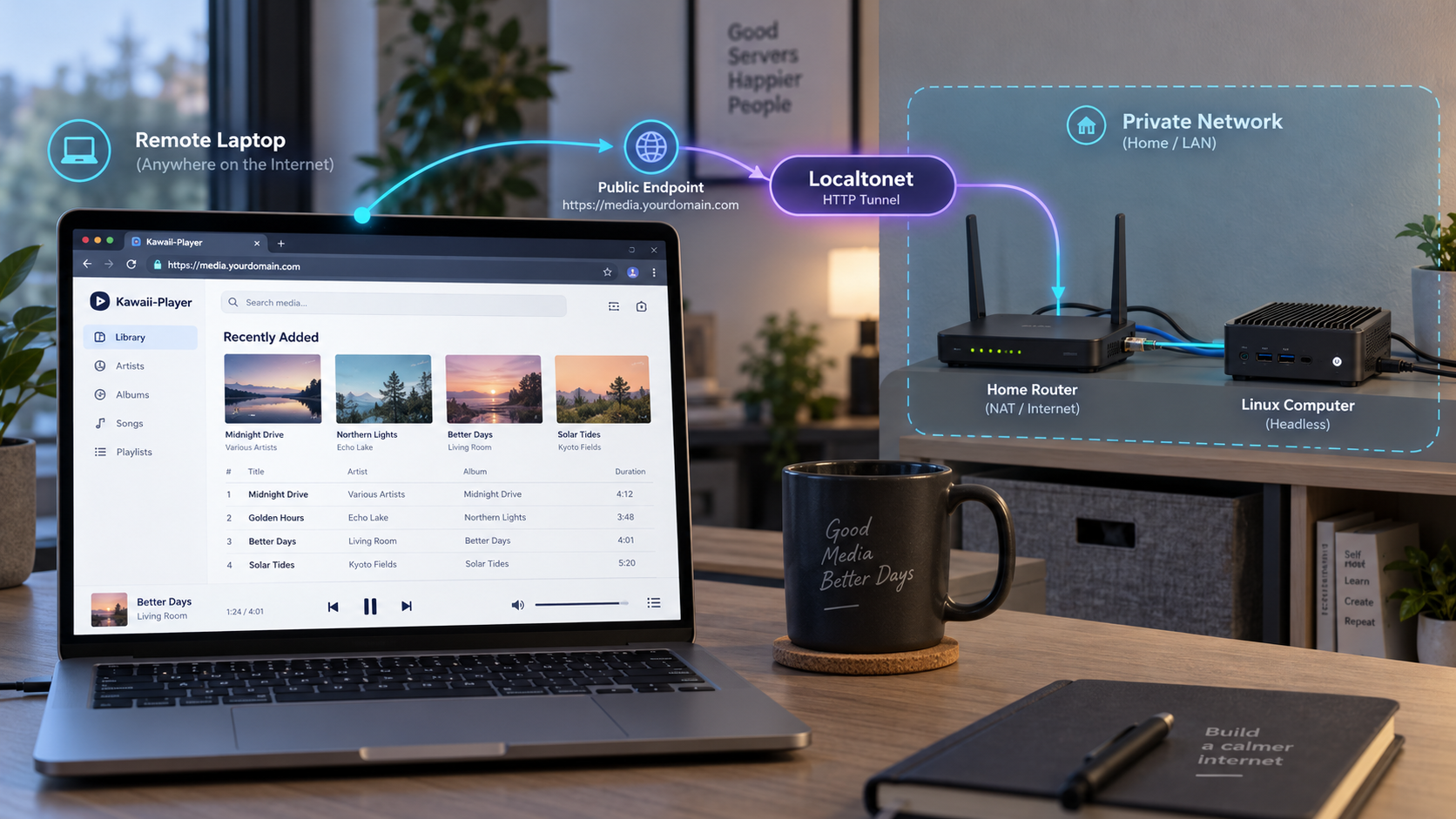
Understand the remote-access architecture
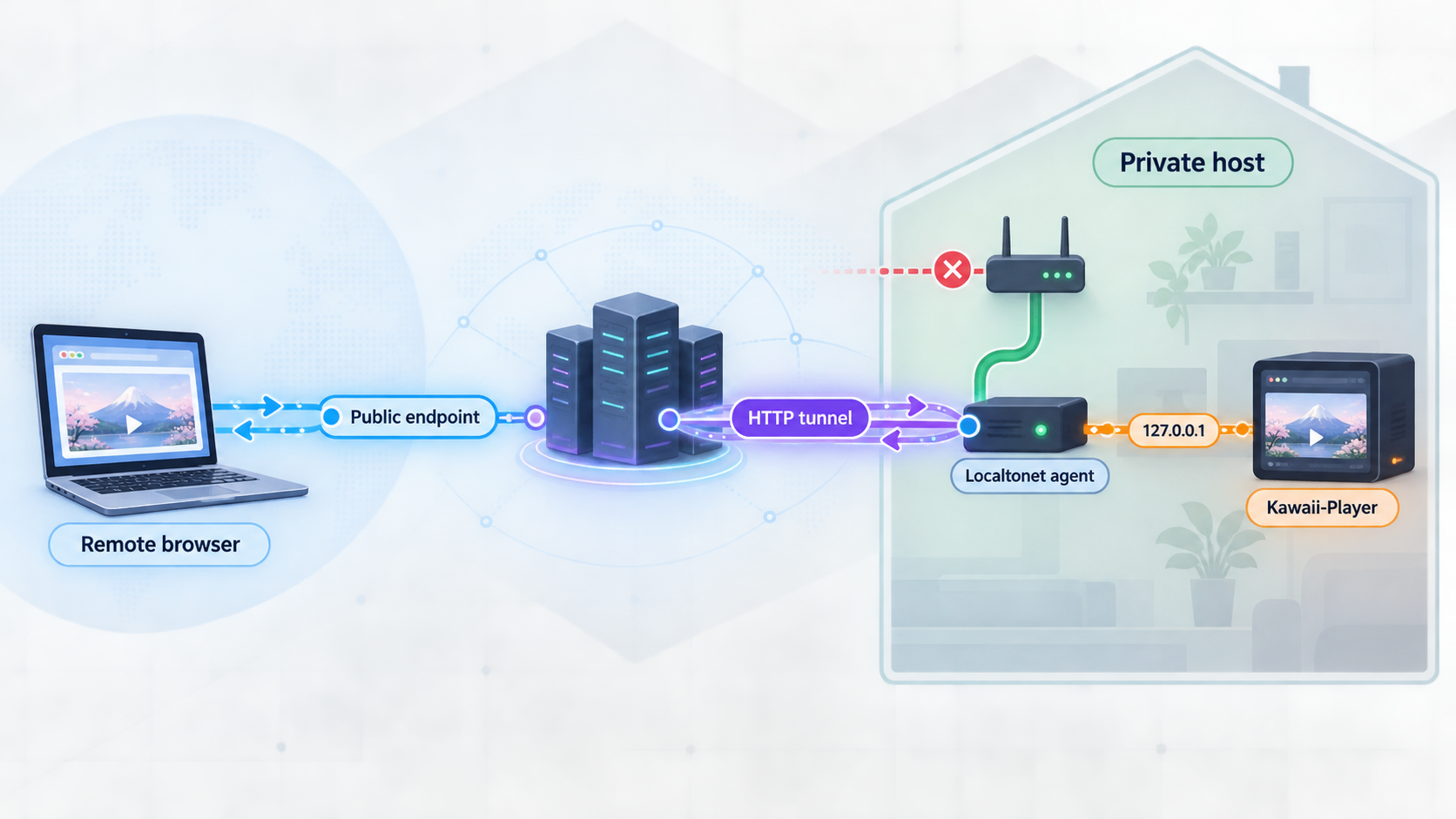
Kawaii-Player is an audio and video manager, multimedia player, and portable media server built around mpv and mplayer capabilities. Its project documentation describes SQLite-backed media management, browser access, M3U playlist generation, remote controls, PC-to-PC casting, torrent streaming, and an experimental headless mode. The canonical project information is maintained in the Kawaii-Player repository.
For remote browser access, the important component is Kawaii-Player's built-in HTTP media server. Its documented default address is http://127.0.0.1:9001. The address 127.0.0.1 is IPv4 loopback, so the service can be reached only by software running on the same host unless you deliberately change the listening address.
Localtonet can run on that same host, connect to the loopback service, and establish an outbound connection to one of our relay servers. The resulting HTTP tunnel provides a public HTTPS address without requiring inbound router port forwarding, firewall changes, VPN setup, or a public IP address.
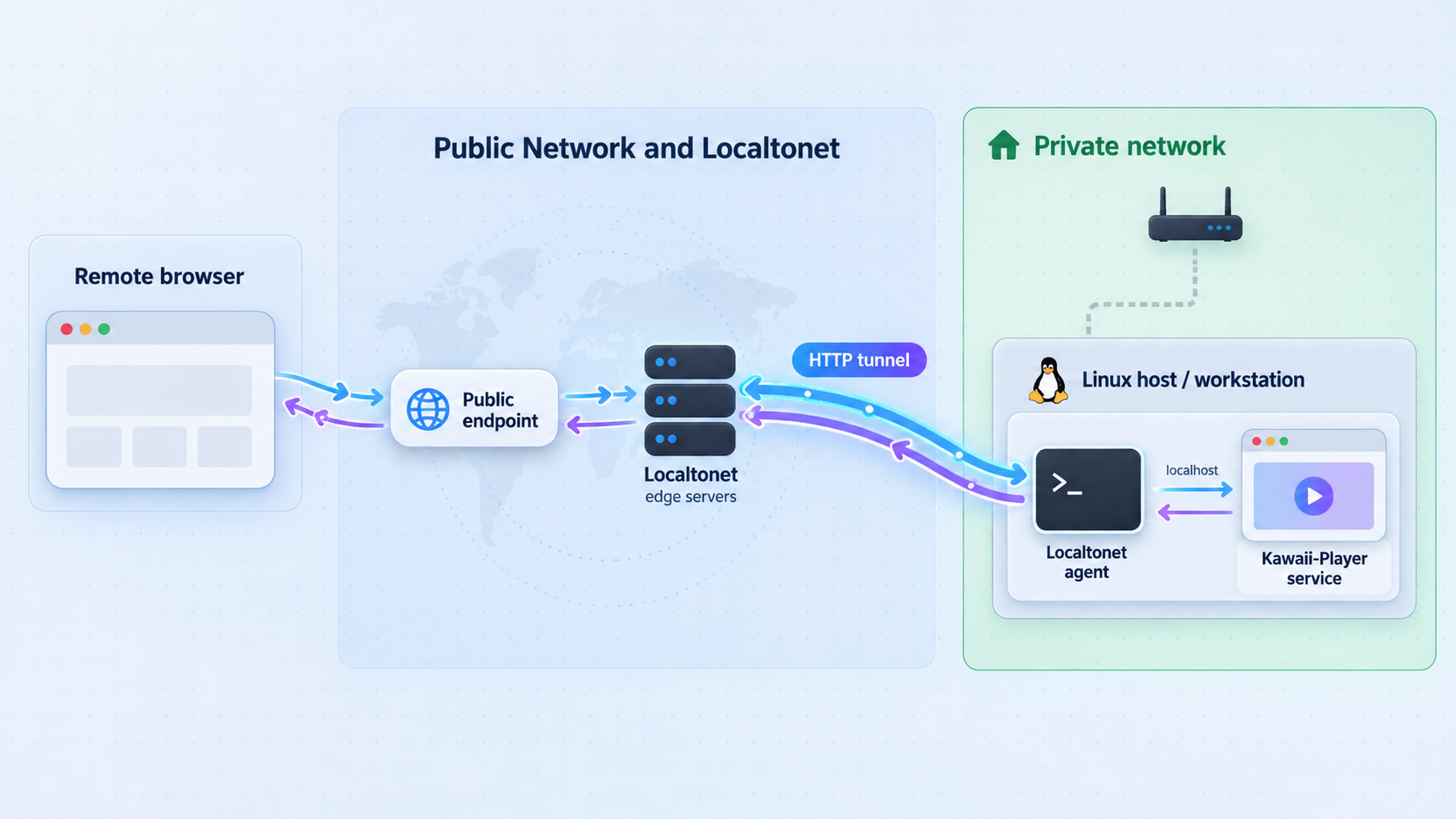
127.0.0.1:9001.
/admin and /browse. Other routes must be checked separately.
An HTTP tunnel targeting Kawaii-Player can carry requests for any route that the target origin serves. Localtonet path filtering is not part of this documented workflow. Do not assume that exposing /browse leaves legacy pages, playlists, the root stream, or /admin unreachable. Verify every route, remove sensitive content, or place a properly configured access-control layer in front of Kawaii-Player before creating public access.
Choose a release and prepare the host
Start by selecting one Kawaii-Player release and using the dependency instructions that belong to it. This matters because Kawaii-Player has crossed a Qt generation boundary. The v8.1.0-1 release page identifies that version as the final PyQt5-based release and says subsequent development will use PyQt6 without continued PyQt5 support.
The current repository README contains separate installation sections, including a PyQt6 section, while the repository itself includes Python packaging metadata such as pyproject.toml and setup.py. Those facts establish that source-based Python packaging is part of the project, but they do not make package names interchangeable across distributions or Qt generations.
Prepare the following before configuring remote access:
- A Linux host that satisfies the dependency instructions for the selected Kawaii-Player revision.
- The matching Python and Qt generation. Do not combine PyQt5 release instructions with current PyQt6 source instructions.
- A supported media backend and the multimedia utilities required by the selected installation path.
- Read access to the intended media directories and write access to Kawaii-Player's own configuration data.
- A graphical desktop for the first configuration run, or Xvfb when following the project's experimental headless workflow.
- A browser for local testing of the media server.
- The Localtonet client on the Kawaii-Player host, or on another private device that can reach the chosen listening address.
- A device-specific Localtonet authentication token obtained from the dashboard.
Do not install a PyQt5 release with a PyQt6 dependency recipe, or apply old PyQt5 package instructions to a newer source checkout. If you use v8.1.0-1, use the assets and documentation associated with that release. If you use the current branch, follow the current README's PyQt6 section and review new release notes before upgrading.
Choose where the Localtonet client will run
| Layout | Kawaii-Player target | Network effect |
|---|---|---|
| Both applications on one host | 127.0.0.1:9001 |
Kawaii-Player can remain reachable only through loopback locally. |
| Localtonet on another LAN device | Tested private IP and port | Kawaii-Player must listen on an interface reachable from that device. |
| Other LAN clients also need access | Private IP and port | The service becomes reachable to devices permitted by the local network and host firewall. |
Same-host deployment is the safer default because it allows Kawaii-Player to keep its loopback binding. If Localtonet runs on another device, remember that 127.0.0.1 on that device refers to the Localtonet device itself, not to the Kawaii-Player host.
Install and start Kawaii-Player
Kawaii-Player supports installation from project release material and from its Python source tree. The exact dependency commands are platform-specific and must come from the installation section associated with the selected revision. The available project evidence does not provide a complete, current package list for every supported Linux distribution, so this guide does not substitute guessed apt, dnf, pacman, or Python package commands.
Use one of these supported project paths:
Complete the first run interactively
Start Kawaii-Player using the launcher or executable installed by the selected release procedure. The current captured project documentation confirms normal graphical operation but does not provide one universal executable command for every release asset and installation method. Use the launcher created by that installation rather than assuming that a command from another packaging path is available.
On the first run, verify the application before enabling its HTTP server:
- Confirm that the main Kawaii-Player interface opens without a Python, Qt, or display error.
- Add or select the intended local media content.
- Confirm that the Kawaii-Player account can read representative audio and video files.
- Play representative files locally so media-backend or codec problems are not mistaken for tunnel failures.
- Close and reopen the application once to confirm that its configuration remains available.
Kawaii-Player documents ~/.config/kawaii-player/ as its configuration directory for the web administrative password and sessions. Protect that directory with appropriate ownership and permissions. Do not publish it through a file-sharing service, include it in a public repository, or expose it in screenshots.
The repository evidence supplied for this revision names the installation sections but does not include their complete package commands, executable invocation, or all release-asset names. Those values cannot be reproduced safely without guessing. The configuration and HTTP procedures below begin after the release-matched installation can open normally.
Configure the Kawaii-Player media server
Kawaii-Player documents the media-server controls in its graphical interface. Configure the listening address, start the server, and set the web password before creating a public tunnel.
Open the media-server preferences
In Kawaii-Player, open More > Preferences > Media Server. The documented default is 127.0.0.1 on port 9001.
Choose the listening address
Keep 127.0.0.1 when Localtonet will run on the same host. Use a suitable private address only when the Localtonet client or another authorized LAN device must reach Kawaii-Player over the network.
Start the media server
Select More > Start Media Server. Starting Kawaii-Player itself is not sufficient proof that the HTTP server has been started.
Create the administrative password
Open the web interface and create the password requested by Kawaii-Player. The documented username for /admin and /browse is admin.
Understand the documented routes
Kawaii-Player 7.1.0 added the newer /admin and /browse endpoints. The project also retains legacy browser pages, an M3U endpoint, and a root streaming workflow. These routes share the same HTTP origin when served from the same address and port.
| Path | Documented purpose | Required verification |
|---|---|---|
/admin |
Manage video information and metadata in bulk or individually. | Confirm that the admin username and configured password are required. |
/browse |
Browse and filter the prepared collection. | Confirm that the same documented authentication is required. |
/index.htm |
Open a legacy media-server web interface. | Test directly because the README does not state that it has the same authentication as the newer endpoints. |
/stream_continue.htm |
Open the other documented legacy browser interface. | Check whether it exposes collection or playback information without authentication. |
/stream_continue.m3u |
Retrieve the current media-server playlist in M3U format. | Treat the playlist and the media URLs it contains as potentially sensitive. |
/ |
Access the currently playing file in the documented radio-like workflow. | Check access without an existing session and verify client compatibility. |
The project states that compatible HTTP-streaming clients such as mpv and VLC can open generated playlists. It also provides these commands for the radio-like root stream when the server uses a private address:
mpv --loop http://192.168.2.2:9001/
mplayer -loop 0 http://192.168.2.2:9001/
Replace the example private address with the address you deliberately configured. These examples describe client playback, not Kawaii-Player installation or startup.
The Kawaii-Player README explicitly associates simple username and password authentication with /admin and /browse. It does not make the same statement for the legacy pages, root stream, or M3U endpoint. A public hostname can request all of these paths. If any route lacks adequate protection, keep the tunnel stopped or place a verified authentication proxy in front of the entire origin.
Run the experimental Xvfb workflow carefully
Kawaii-Player's README identifies an experimental headless media-server mode using Xvfb. Xvfb supplies a virtual X display so a graphical application can run on a Linux host without a physical display or normal desktop session.
A complete headless deployment has three process layers:
- Xvfb or an Xvfb wrapper starts the virtual display.
- Kawaii-Player starts in that display under the intended unprivileged account.
- Kawaii-Player's media-server function starts and begins listening on the configured address and port.
The captured current README available for this revision ends immediately after introducing the experimental Xvfb section. It does not include the project's complete Xvfb command, a stable command-line flag for automatically starting the media server, a shutdown command, or a service-manager definition. Supplying a display number or startup flag here would therefore be an invented instruction.
Review the complete headless section in the repository revision you install. If it provides a release-specific Xvfb command, use that command without substituting a flag from another release. If the selected release does not document automatic media-server startup, configure and test the server interactively rather than assuming that launching Kawaii-Player also starts its HTTP listener.
Validated migration sequence
Even when the release provides a complete Xvfb command, move to headless operation only after the graphical setup works:
- Install the selected release and its matching Qt and media dependencies.
- Run Kawaii-Player in a normal graphical session.
- Prepare the media library and test local playback.
- Configure the media-server address under
More > Preferences > Media Server. - Start the media server and create the web administrative password.
- Verify the base URL,
/admin,/browse, legacy pages, playlist route, and representative media playback. - Stop the application cleanly.
- Run the release-matched Xvfb sequence from the complete project documentation.
- Repeat all local HTTP and authentication checks without a physical display.
- Only after that, add persistence through the host's service manager.
Persistence requirements
No verified service-unit definition is included in the available project documentation, so a universal systemd unit would be inappropriate here. Whatever service manager you use must preserve the following dependency order:
- Media storage must be mounted before Kawaii-Player reads the library.
- The virtual display must be ready before the graphical process connects to it.
- Kawaii-Player must run as the account that owns its configuration.
- The media server must start before Localtonet can successfully forward requests.
- The Localtonet client must remain connected and the tunnel must be running for public access.
Capture standard output and standard error for both Xvfb and Kawaii-Player. Without logs, a missing display, Qt plugin failure, unreadable media directory, or application crash may look like an ordinary tunnel outage.
Verify the complete service locally
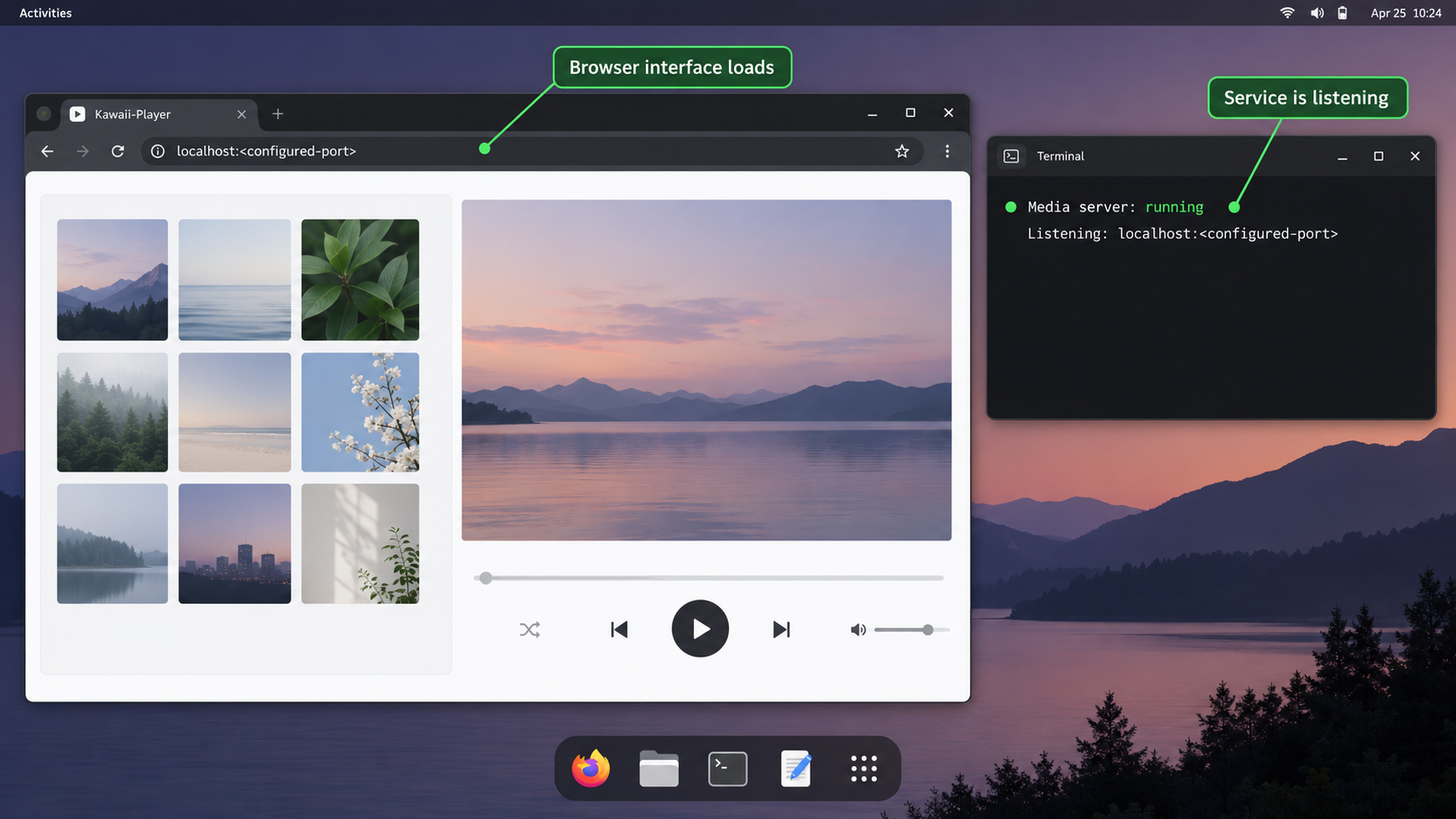
Perform same-host checks first when Kawaii-Player is bound to loopback. This isolates application problems from Localtonet configuration.
Open the local origin
Visit http://127.0.0.1:9001 on the Kawaii-Player host. If it does not respond, confirm that More > Start Media Server was selected and recheck the configured address and port.
Verify the administrative route
Open http://127.0.0.1:9001/admin in a private browser session. Confirm that authentication is requested, the username is admin, and the configured password works.
Verify collection browsing
Open http://127.0.0.1:9001/browse. Authenticate, filter the collection, and open representative items.
Test every other reachable route
Request /index.htm, /stream_continue.htm, /stream_continue.m3u, and / in a fresh private session. Record whether each route responds without authentication.
Play representative media
Test audio and video rather than relying on a successful HTML response. Confirm that the service account can read the files and that the selected client supports their formats.
If the Localtonet client will run on another LAN device, repeat the same tests from that device using the Kawaii-Player host's configured private address. Do not proceed until that exact address and port work from the tunnel client.
Reset the administrative password
Kawaii-Player documents password reset by deleting admin_password.json and admin_sessions.json from ~/.config/kawaii-player/. This removes the stored password and session information so a new password can be created through the web interface.
Stop Kawaii-Player before changing those files. Back up the two files if rollback is required, preserve directory ownership, and do not delete unrelated configuration data. This is a reset procedure, not a way to recover the previous password.
Create the Localtonet HTTP tunnel
Once the Kawaii-Player origin passes local testing, follow the current Localtonet HTTP tunnel documentation. HTTP and File Server tunnels use a Process Type to determine the public HTTPS address. Random Sub Domain, Custom Sub Domain, and Custom Domain all serve the configured target, but availability and domain requirements can vary.
Install and run the Localtonet application
Install our client on the Kawaii-Player host or on another device that has already passed the private-address connectivity test. Keep the selected client running whenever remote access is required.
Open the HTTP Tunnel page
In the Localtonet dashboard, go to the HTTP Tunnel configuration page.
Select Process Type
Choose Random Sub Domain, Custom Sub Domain, or Custom Domain as available for the account and current product configuration. Check the current documentation before making custom-domain DNS changes.
Select AuthToken and server
Choose the device-specific authentication token for the client that can reach Kawaii-Player, then choose an available relay server. Obtain current server or region values from the dashboard rather than copying a hardcoded code from an article.
Enter the local IP address and port
For same-host deployment with default Kawaii-Player settings, enter 127.0.0.1 and 9001. If the Localtonet client runs elsewhere, enter the tested private address and port instead.
Press Start
Creating the configuration does not start it. Use the Start control. The public address remains available only while the chosen device is connected and the tunnel is running.
After the documented setup sequence is complete, test the assigned public HTTPS address from a connection outside the server's LAN. Open every route that you tested locally, including unauthenticated legacy or streaming routes. Confirm that /admin and /browse still request credentials and that representative media plays through the public hostname.
Continue using http://127.0.0.1:9001 or the tested private address for server-side diagnosis. Remote users use the public Localtonet address. Do not replace Kawaii-Player's listening address with the public tunnel hostname.
Protect the origin before publishing it
A tunnel changes reachability, not Kawaii-Player's authorization model. While the tunnel is active, requests arriving at the public hostname are forwarded to the configured origin. Any route served by that origin may therefore become remotely reachable.
Test without an existing session
Browser sessions can hide security problems. A page that appears protected in one browser may be relying on a cookie obtained earlier. Repeat route checks in a private window or separate browser profile. Test the base path, legacy interfaces, playlist URL, browse page, and administrative page independently.
Do not treat an unlisted path as private
An obscure path is not access control. If legacy pages, playlists, or media streams respond without authentication, assume that anyone who can reach the public hostname may request them. Localtonet does not provide verified path-level filtering in this workflow.
When the application's access controls do not match the intended audience, place a properly configured authentication layer in front of the entire Kawaii-Player origin. Verify that the layer covers every route and media request, including direct playlist and stream URLs, before starting the tunnel.
Keep loopback when possible
With Kawaii-Player and Localtonet on the same host, 127.0.0.1 avoids exposing port 9001 independently to the LAN. Change the listening address only when a separate authorized device needs direct network access.
Protect tokens, sessions, and media
- Never publish the Localtonet device authentication token.
- Redact tokens, private hostnames, account details, media titles, and personal directory names from screenshots.
- Use a unique password for the Kawaii-Player web interface.
- Restrict access to
~/.config/kawaii-player/. - Grant the Kawaii-Player account only the media and configuration permissions it needs.
- Confirm that remote access to the media complies with applicable rights and policies.
The /admin endpoint can manage collection information and metadata. Do not share administrative credentials with users who only need browsing or playback. If Kawaii-Player's authorization model cannot separate those users as required, do not publish the administrative origin without an additional verified access-control layer.
Operate, update, and recover the deployment
Use a consistent startup order
- Confirm that media storage is mounted and readable.
- Start the graphical session or the release-matched Xvfb process.
- Start Kawaii-Player under the account that owns its configuration.
- Start or confirm the Kawaii-Player media server.
- Verify the local base URL and an authenticated route.
- Start or confirm the Localtonet client connection.
- Start the HTTP tunnel.
- Test the public address from an external connection.
For planned shutdown, stop the Localtonet tunnel first so new public requests no longer arrive. Then stop the Kawaii-Player media server and application. Stop Xvfb last if it exists only for Kawaii-Player.
Inspect logs by layer
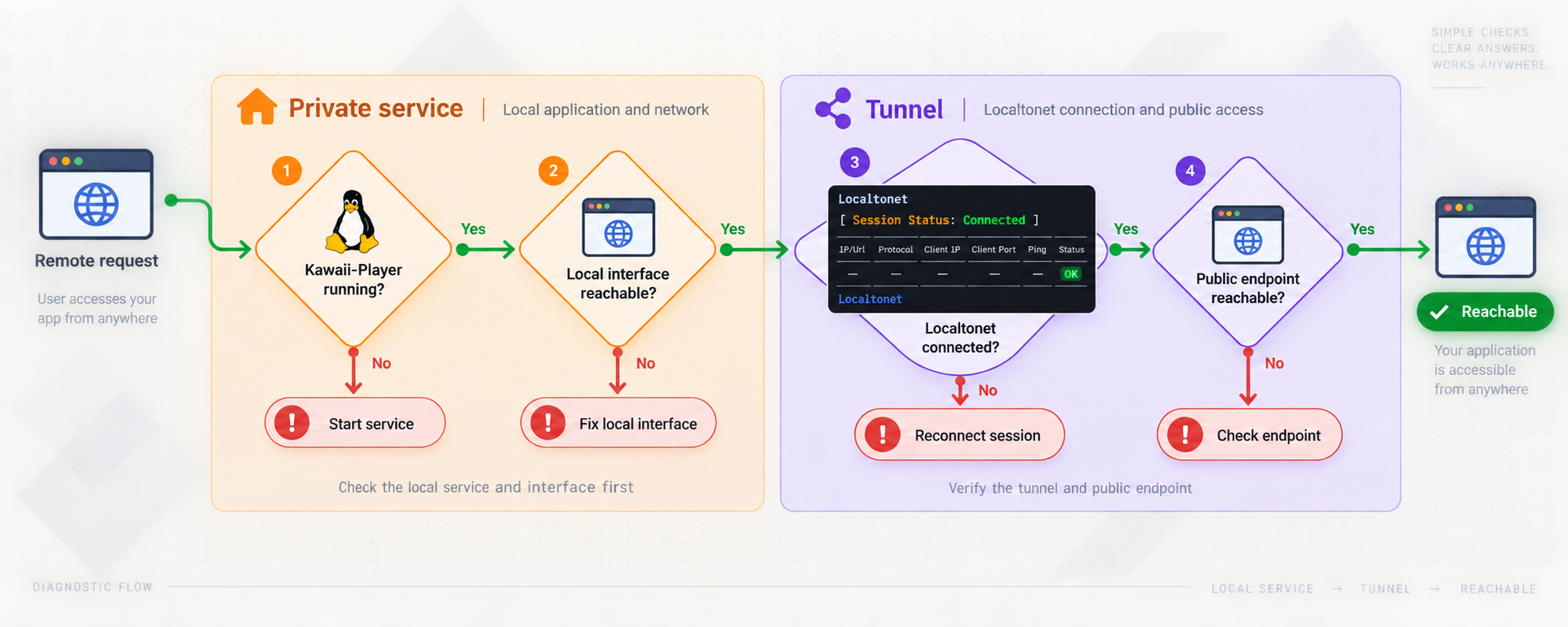
Keep Kawaii-Player, Xvfb, and Localtonet diagnostics separate. If the local URL is unavailable, inspect Kawaii-Player and the display environment. If the local URL works but the public URL does not, check the selected Localtonet device, tunnel state, and target address.
For a persistent headless deployment, configure the service manager to retain process output according to the host's normal logging policy. Review logs after reboot instead of assuming that every dependency restarted successfully.
Update without mixing Qt generations
Before updating, record the installed Kawaii-Player version, Qt generation, installation method, configuration directory, media paths, and current listening address. Back up configuration data while the application is stopped.
Review the target release notes and installation section. The move from v8.1.0-1, identified as the final PyQt5 release, to PyQt6-based development is a dependency migration rather than a routine in-place package replacement. After updating, test graphical startup, local playback, web authentication, every required route, playlist generation, and headless startup before restarting the public tunnel.
Recover in dependency order
After a host reboot or failure, check storage first, then the display environment, Kawaii-Player, the media-server listener, the Localtonet client, and finally the tunnel. This order prevents a downstream symptom from hiding the actual failure.
Troubleshoot each layer separately
Kawaii-Player does not start
Check that the installed Qt generation matches the selected release. Review the application output for missing Python modules, Qt platform-plugin failures, display errors, or unavailable media-backend components. If the problem followed an update, compare the previous and current release instructions instead of adding packages from both generations.
The local URL does not respond
Confirm that Kawaii-Player is still running and that More > Start Media Server was selected. Reopen More > Preferences > Media Server and verify the address and port. Do not change the Localtonet tunnel while the local target is unavailable.
The host works, but another LAN device cannot connect
A service bound to 127.0.0.1 is intentionally unavailable to other devices. If remote LAN access is required, configure an appropriate private address and retest. Check host firewall policy without disabling the firewall broadly.
A separate Localtonet device cannot reach Kawaii-Player
Do not use 127.0.0.1 as the target in this topology. It refers to the Localtonet device itself. Use the Kawaii-Player host's tested private address and confirm that exact URL from the Localtonet device before restarting the tunnel.
The public address is unavailable
Confirm that the selected Localtonet device is connected, the correct AuthToken was selected, and the tunnel was started. Compare the configured local IP and port with the origin that passed local testing. The endpoint is unavailable whenever the selected client disconnects or the tunnel stops.
The page loads, but media does not play
Test the same item through the local URL. If local playback also fails, check file permissions, mounted storage, collection information, and client codec support. The documented root stream does not transcode, so successful HTTP delivery does not guarantee that every browser or player can decode the media.
Authentication appears inconsistent
Test each path in a private browser session. The project explicitly documents authentication for /admin and /browse, not for every legacy and streaming route. If another route responds anonymously, assume it will also be reachable through the public hostname unless a separate access-control layer blocks it.
The administrative password no longer works
Stop Kawaii-Player, then remove admin_password.json and admin_sessions.json from ~/.config/kawaii-player/ as documented by the project. Start the application and create a new password through the web interface. Do not delete unrelated configuration files.
The application fails only under Xvfb
Return to the working graphical startup and confirm the library and HTTP server. Then compare the headless account, configuration directory, display environment, media mounts, and process order. Use the complete Xvfb command documented for the installed revision rather than improvising a display number or startup flag.
The service does not recover after reboot
Check whether storage mounted before startup, whether Xvfb is ready, whether Kawaii-Player runs under the correct account, and whether the media-server listener resumed. Then check the Localtonet client and tunnel separately. A connected tunnel cannot forward to an application that never resumed listening.
Frequently asked questions
What is the default Kawaii-Player media-server address?
The documented default is http://127.0.0.1:9001. Loopback is directly reachable only from the Kawaii-Player host, which makes it suitable when the Localtonet client runs on the same machine.
Does the tunnel publish only the Kawaii-Player path I open?
No path selection is established by this workflow. The HTTP tunnel targets the Kawaii-Player origin, so any route served by that origin may be requested through the public hostname. Test all legacy, playlist, streaming, browsing, and administrative routes.
Which routes have documented Kawaii-Player authentication?
The project explicitly documents simple username and password authentication for /admin and /browse. The username is admin, and the password is created through the web UI. Equivalent protection is not established for every legacy or streaming route.
Should I bind Kawaii-Player to a private LAN address?
Not when Kawaii-Player and Localtonet run on the same host. Keep 127.0.0.1 in that layout. Use a private address only when a separate authorized LAN device must connect, and understand that doing so broadens local reachability.
Can Kawaii-Player run without a physical display?
The project describes an experimental headless mode using Xvfb. Verify normal graphical operation first, then use the complete Xvfb sequence belonging to the installed revision. The available project extract does not contain a verified universal headless command or service definition.
Should I use PyQt5 or PyQt6?
Match the Qt generation to the selected release. Kawaii-Player v8.1.0-1 is identified as the final PyQt5-based release. The release note says subsequent development moves to PyQt6 without continued PyQt5 support.
How do I reset the Kawaii-Player administrative password?
Stop Kawaii-Player and delete admin_password.json and admin_sessions.json from ~/.config/kawaii-player/. Start the application again and create a new password through the web UI.
Does Localtonet require router port forwarding?
No. Our client establishes an outbound connection to a Localtonet relay server. The resulting tunnel does not require inbound router port forwarding, a public IP address, or VPN setup.
Is a created Localtonet tunnel automatically active?
No. Press Start after configuring the HTTP tunnel. Its public address is available only while the selected Localtonet client is connected and the tunnel is running.
Can remote players open Kawaii-Player's M3U playlist?
Kawaii-Player documents /stream_continue.m3u for retrieving the current media-server playlist. Compatible HTTP-streaming players can use it. Verify whether the endpoint requires authentication and whether its contents are appropriate for public reachability.
Connect your verified Kawaii-Player origin with Localtonet
Confirm local playback, test every served route, and put suitable access controls in place. Then create an HTTP tunnel to the tested IP address and port, press Start, and verify the public hostname from an external connection.
Get Started Free →

