

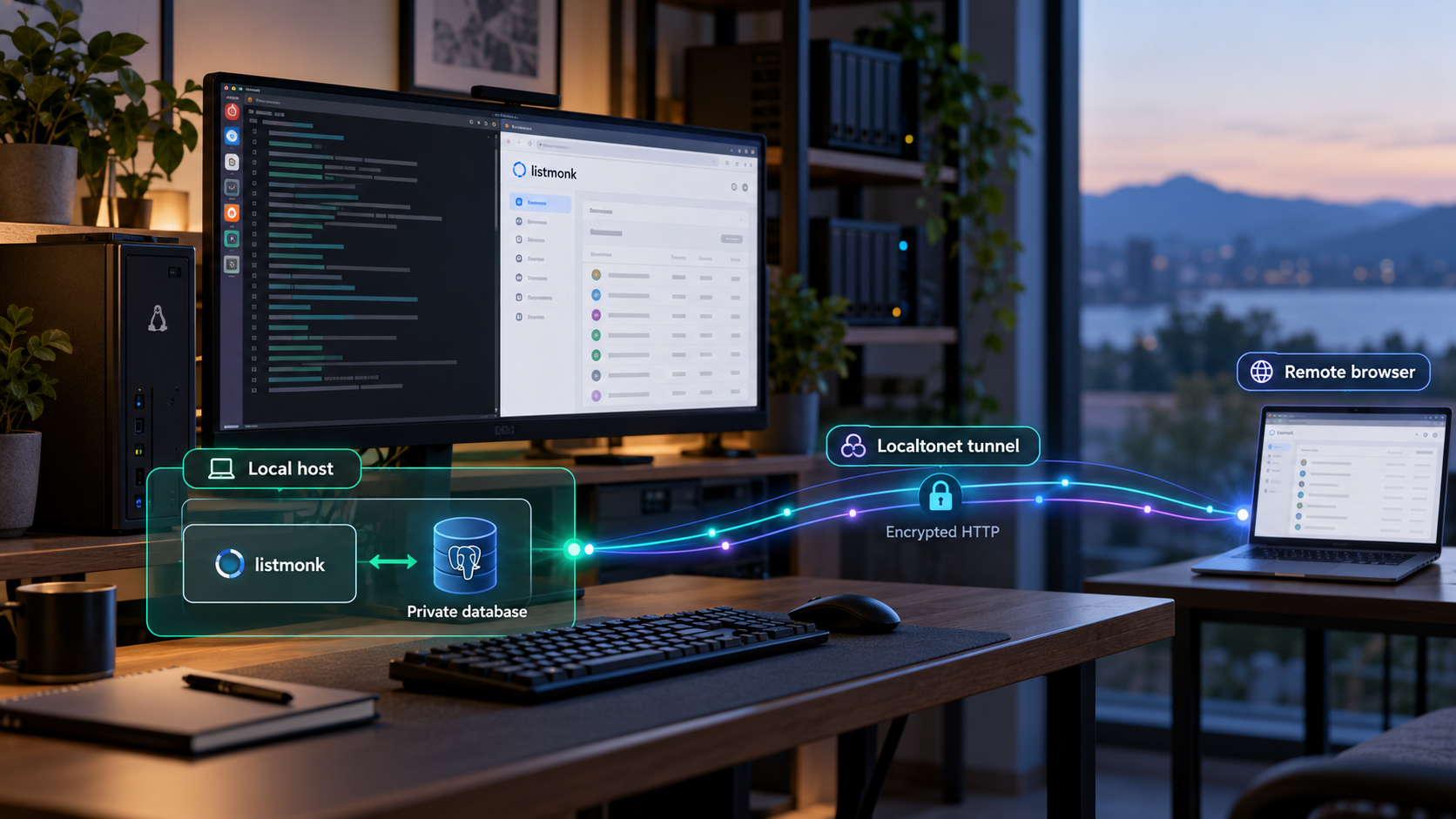
Run your own newsletter management service and reach it securely from outside your local network
listmonk is a self-hosted newsletter, mailing list, and transactional messaging application distributed as a standalone binary and backed by PostgreSQL. In this guide, we install the binary, prepare a PostgreSQL database, generate and edit config.toml, initialize the schema, create the first administrator, and verify the application at its documented local endpoint. Once the local installation works, we connect it to an HTTP tunnel with Localtonet so the service can be reached remotely without inbound router port forwarding, firewall changes, a VPN, or a public IP address.
📋 What's in this guide
How the listmonk deployment fits together
listmonk is a free and open-source application for managing newsletters, mailing lists, subscribers, campaigns, analytics, and transactional messages. Its server is delivered as a single binary, but the application is not completely standalone from a data perspective. It requires a PostgreSQL database in which it stores its application data.
The binary method covered here has four main parts: the listmonk executable, a generated config.toml file, PostgreSQL 12 or newer, and an HTTP listener. After installation, the documented local address is http://localhost:9000. That local URL is the first verification target and, later, the local target for an HTTP tunnel.
Keep installation and remote access as separate phases. First make PostgreSQL and listmonk work together on the host. Confirm that the dashboard opens locally and that the initial Super Admin can sign in. Only then create the Localtonet tunnel. This order prevents database, application, and networking problems from being mixed together during troubleshooting.
http://localhost:9000 after startup. Local verification should succeed before any public tunnel is added.
Binary installation compared with Docker Compose
listmonk officially documents both a standalone binary and Docker Compose. Docker Compose can start PostgreSQL and listmonk together from the supplied Compose file. The binary approach gives you direct control over the executable and config.toml, but it also means that PostgreSQL installation, process supervision, permissions, upgrades, and backups remain your responsibility.
| Installation path | What it manages | Best fit |
|---|---|---|
| Standalone binary | Runs listmonk directly while connecting to a separately managed PostgreSQL instance | Hosts where you want direct control over the process, configuration file, and database service |
| Docker Compose | Uses the supplied Compose definition to run the application and PostgreSQL as containers | Container-based environments where Compose is already part of the operational workflow |
| Source build | Builds an unreleased version after installing the documented development toolchain | Development and contribution work rather than a straightforward production installation |
This guide deliberately uses the binary path. Do not combine its commands with the initialization command embedded in the supplied Docker Compose workflow. Choose one installation model and manage it consistently.
Prerequisites and planning decisions
Prepare the host and decide where each component will run before downloading listmonk. The host needs a supported listmonk binary for its operating system and processor architecture, access to PostgreSQL 12 or newer, permission to create or use a database, and an available local TCP port for the HTTP listener.
The listmonk download page publishes binaries for Darwin, FreeBSD, Linux, NetBSD, OpenBSD, and Windows. Release assets and names can change, so select the asset that matches the operating system and CPU architecture shown on the current release page. The project identifies amd64 as the primary build for Intel and x86-64 CPUs. Do not assume that amd64 is correct for an ARM machine.
| Requirement | Why it is needed | What to confirm |
|---|---|---|
| Matching listmonk binary | Provides the application server | The operating system and processor architecture match the downloaded release asset |
| PostgreSQL 12 or newer | Stores listmonk data and schema | The server is running, reachable, and supported by the selected listmonk release |
| Database credentials | Allow listmonk to initialize and use its database | The role can connect to and own or otherwise manage the intended database |
| Local port 9000 | Hosts the documented default local HTTP endpoint | No other process is already listening on the selected address and port |
| Persistent storage and backups | Protect application data and configuration | The database and configuration are stored on durable media and included in a backup plan |
| Localtonet client for remote access | Creates the outbound connection to our relay | The client runs on the listmonk host or another device that can reach its HTTP listener |
Versioned stable releases are the safer default for a normal deployment. Beta releases may introduce significant changes, and nightly builds are explicitly described as untested and potentially buggy. Always back up PostgreSQL before testing a beta, nightly build, or upgrade. Do not select a prerelease only because its version number is newer.
Decide where PostgreSQL will run
PostgreSQL can run on the same host as listmonk or on a separate reachable database server. A same-host installation simplifies connectivity and can keep the database listener private. A separate database may fit an existing backup or database administration model, but it requires secure network connectivity and appropriate PostgreSQL access rules.
This guide uses a local PostgreSQL example and assumes that the database is reachable as localhost on PostgreSQL's standard port, 5432. If your PostgreSQL server is elsewhere or uses a different port, put its actual hostname and port into the generated configuration. Do not copy the local values blindly.
Choose the listener scope
If the Localtonet client runs on the same machine as listmonk, a loopback listener such as 127.0.0.1:9000 limits direct LAN exposure while still allowing our client to reach the service. If the client runs on another device, listmonk must listen on an address reachable from that device, and host firewall rules must permit that local connection.
The official container configuration example uses 0.0.0.0:9000, which listens on all available interfaces. That is useful in a container or when another LAN device must connect, but it broadens local exposure. Use it only when the deployment architecture requires it.
Prepare PostgreSQL for listmonk
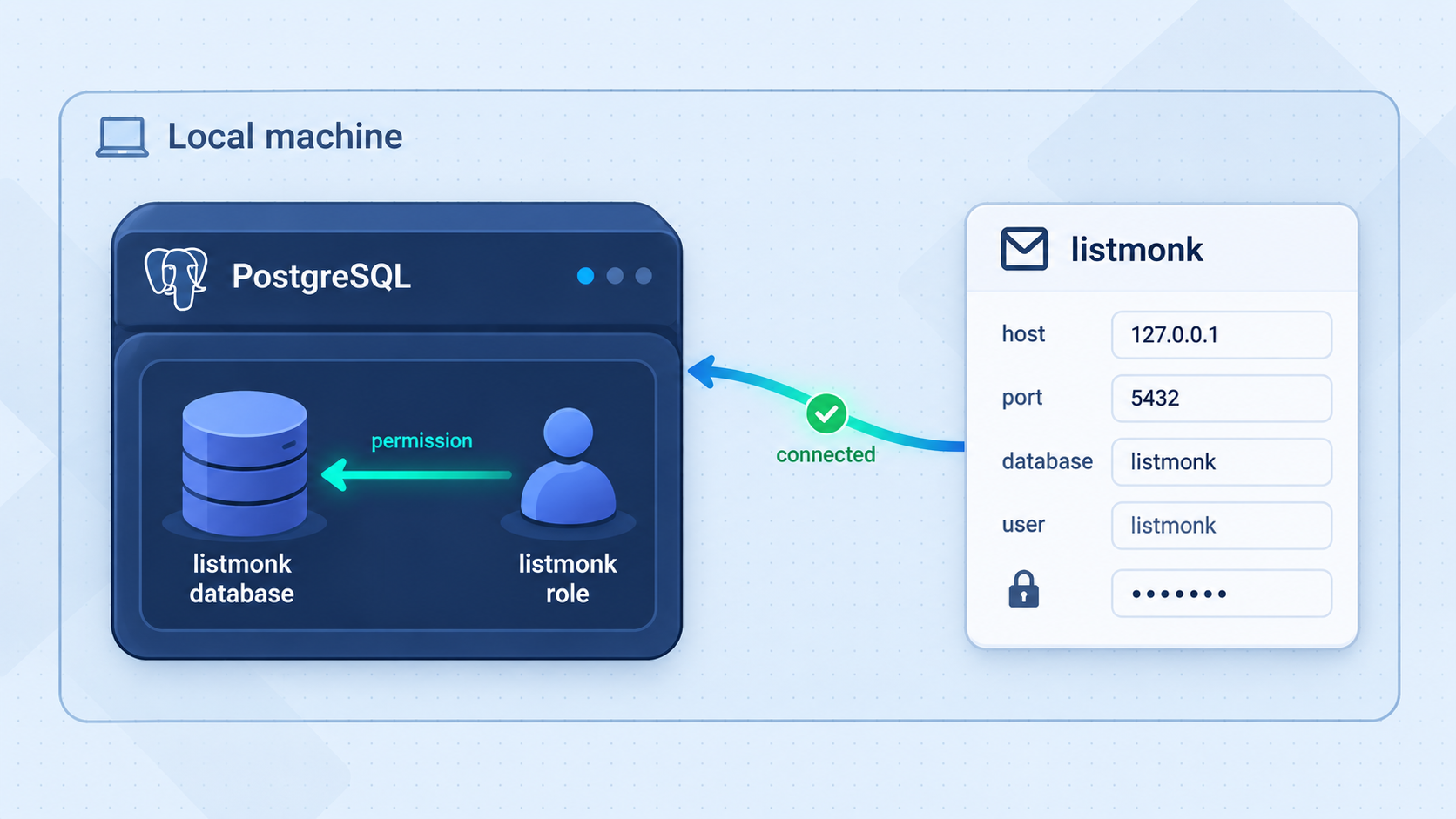
Install and start PostgreSQL 12 or newer using the supported package or service method for your operating system. The exact package names, service commands, storage locations, and authentication defaults vary across Linux distributions, BSD systems, macOS, Windows, and managed PostgreSQL services. Because there is no universal safe command for those tasks, confirm that PostgreSQL is running before continuing.
listmonk needs a database and credentials that can initialize its tables. A straightforward design is to create a dedicated login role and make it the owner of a dedicated database. Run the following SQL inside an authenticated PostgreSQL administrative session. Replace the example password before executing it:
CREATE ROLE listmonk WITH LOGIN PASSWORD 'replace-with-a-long-unique-password';
CREATE DATABASE listmonk OWNER listmonk;
These statements create an application-specific role and database. They do not make the role a PostgreSQL superuser. Keeping the application in its own database reduces accidental overlap with unrelated applications and makes database-level backup and restoration easier to organize.
Generate a unique password, store it in an appropriate secret manager or protected configuration workflow, and restrict access to config.toml. Avoid placing the real password in documentation, tickets, screenshots, source control, or shell history. The listmonk process needs the credential, but ordinary users on the host should not be able to read it.
Test the database relationship before application setup
Confirm that the new role can authenticate to the intended database using the same host and port that listmonk will use. The exact client invocation depends on how PostgreSQL authentication is configured. If a connection fails, fix PostgreSQL connectivity first. Running ./listmonk --install cannot compensate for an unreachable server, a rejected password, an unsupported PostgreSQL version, or an access rule that blocks the host.
Also decide whether the database connection requires TLS. The official local container example sets ssl_mode = "disable" because the application talks to its PostgreSQL container in that defined local Compose environment. That value should not be copied to a remote or untrusted network without evaluating the database server's TLS requirements. Use the SSL mode required by your actual PostgreSQL deployment.
Install and configure the listmonk binary
The following sequence preserves the documented binary installation order. Run commands from the directory containing the extracted executable. On platforms that use a different executable naming or invocation convention, use the equivalent executable name supplied by the release.
Download and extract the appropriate release
Obtain a versioned listmonk release that matches the host operating system and CPU architecture. Extract the archive into a directory intended for the application. Confirm that the resulting listmonk executable can be run by the operating-system account that will own the service. Avoid nightly builds for a normal installation unless you explicitly accept their untested status.
Generate the configuration file
From the extracted application directory, run ./listmonk --new-config. This creates config.toml. Generate the file instead of constructing an entire configuration from memory because the generated template corresponds to the downloaded application version.
Edit the generated configuration
Open config.toml and set the application listener plus the PostgreSQL host, port, user, password, database, and appropriate SSL mode. For a same-host deployment with the Localtonet client on the same machine, 127.0.0.1:9000 is a sensible listener scope. Preserve other generated settings unless you understand why they need to change.
Install the PostgreSQL tables
Run ./listmonk --install. listmonk connects with the database settings in config.toml and installs its tables. Treat an error at this stage as an incomplete installation. Read the reported database error and correct the configuration, credentials, server availability, or permissions before proceeding.
Start listmonk and create the first administrator
Run ./listmonk, then open http://localhost:9000. On a new installation, use the browser workflow to create the Super Admin user and sign in. Keep the process running while performing local verification.
Generate and inspect config.toml
./listmonk --new-configThe generated file is the authoritative starting point for your downloaded version. The following excerpt illustrates the relevant values for a local PostgreSQL server and a loopback-only HTTP listener. It is not a replacement for the complete generated file:
[app]
address = "127.0.0.1:9000"

[db]
host = "localhost"
port = 5432
user = "listmonk"
password = "replace-with-your-real-database-password"
database = "listmonk"
ssl_mode = "disable"
Use ssl_mode = "disable" only when it is appropriate for your database connection, such as a controlled same-host setup. For a remote database, follow that server's TLS and certificate requirements. The installation evidence does not establish one SSL mode that is correct for every environment.
Protect the configuration file with operating-system permissions suitable for the service account. It contains the database credential. The exact permission command depends on the operating system and account model, so apply the native least-privilege mechanism for the host rather than copying a command intended for another platform.
Initialize the database
./listmonk --install
This is the schema installation step for a new database. Do not substitute --upgrade during a fresh installation. The upgrade command is intended for an existing listmonk database when moving to a newer binary.
Optional non-interactive administrator bootstrap
listmonk also documents environment variables for setting the first Super Admin username and password during installation:
LISTMONK_ADMIN_USER=myuser LISTMONK_ADMIN_PASSWORD=xxxxx ./listmonk --installReplace both example values. This is an alternative to creating the initial administrator through the browser, not an additional installation to run after the database has already been initialized.
Automation can also request a Super Admin API user by adding LISTMONK_ADMIN_API_USER. The resulting API token is written to standard error in an export statement. If you use that workflow, capture the token through a protected automation channel and treat it as a secret. Do not paste it into this article, application logs, source control, or a Localtonet tunnel definition.
Supplying credentials through environment variables can be convenient for automation, but shell history, process inspection, CI logs, and job output may expose them if the surrounding system is not configured carefully. Prefer an approved secret-injection mechanism and prevent command output from being recorded.
Start the application
./listmonkKeep this terminal open during initial testing. If the process exits, inspect its output instead of moving directly to tunnel configuration. A public tunnel cannot make a stopped or failed local process available.
Verify listmonk locally before exposing it
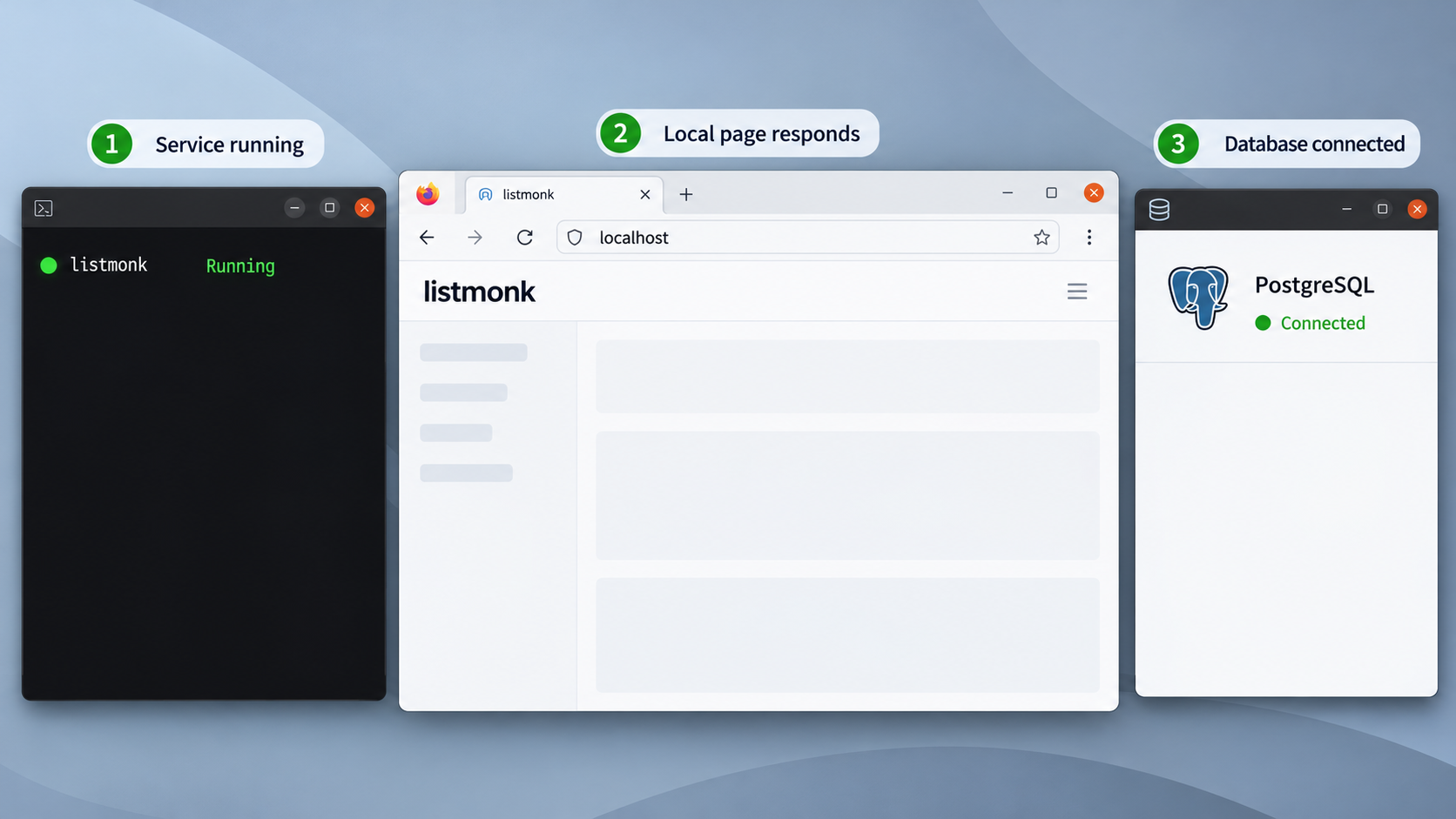
Open the documented endpoint from the listmonk host:
http://localhost:9000
A successful result should present the listmonk web interface or the first-run administrator workflow. Complete the Super Admin setup if it was not supplied during --install, then sign in and confirm that navigation inside the administration interface works.
You can also make a basic HTTP request from a host that has curl installed:
curl -I http://localhost:9000The exact HTTP status and headers can vary according to application state and routing, so do not require one specific status code as the only proof of health. The important checks are that a TCP connection succeeds, an HTTP response is returned, and the browser can complete the intended login or setup flow.
Verify from the same network position as the tunnel client
If Localtonet will run on the same host, testing 127.0.0.1:9000 exercises the relevant path. If our client will run on another LAN device, test listmonk from that device using the listmonk host's private address. A service bound only to 127.0.0.1 cannot be reached from a different machine.
Do not change the listener to 0.0.0.0 automatically. First confirm that cross-device access is actually required. If it is, adjust the listener, apply host firewall restrictions, and test only from the device that needs access.
When the dashboard works locally, PostgreSQL connectivity, schema initialization, application startup, and the HTTP listener are already proven. Any later remote-access problem can then be investigated as a tunnel target, device connectivity, relay selection, or access-control issue rather than an unknown application failure.
A working dashboard does not yet prove email delivery
listmonk supports campaigns, mailing lists, templates, analytics, transactional messages, multiple SMTP queues, and additional messenger integrations. However, the binary installation does not automatically provide an email delivery service. Configure the appropriate sender identity and delivery provider in listmonk according to the provider's requirements, then perform controlled delivery tests before scheduling a real campaign.
Keep administrative access, public subscription pages, delivery credentials, bounce processing, and sender-domain configuration conceptually separate. An HTTP tunnel makes the web service reachable. It does not configure SMTP, sender authentication, DNS records, reputation, unsubscribe policy, or legal compliance for email campaigns.
Routine operation, persistence, backups, and upgrades
Run listmonk under a process supervisor
Starting ./listmonk interactively is appropriate for installation and testing, but it does not establish automatic startup or recovery after a crash or reboot. For continuing use, run the binary under the native service manager or process supervisor used by the host.
A service definition normally needs a dedicated operating-system account, the directory containing the binary and config.toml, a working directory, a restart policy, and an explicit startup order or dependency relationship with PostgreSQL. Exact service files differ between operating systems and were not established by the supplied installation evidence, so this guide does not invent a supposedly universal unit file.
After configuring supervision, reboot or restart the host in a maintenance window and confirm that PostgreSQL starts, listmonk starts, and http://localhost:9000 becomes available again without an interactive shell.
Back up the database and configuration
PostgreSQL contains the application data, so a copy of the binary alone is not a useful backup. Use a PostgreSQL-supported backup process, protect the resulting files, and test restoration. Include config.toml in the operational backup set, but store it as sensitive material because it contains database credentials.
Define retention based on the value and rate of change of subscriber, campaign, template, analytics, and configuration data. A backup is not proven until it has been restored in an isolated environment and the restored application can be inspected.
The listmonk release instructions explicitly require a database backup before upgrading. This is especially important for major, beta, and nightly releases, where schema or configuration changes may accompany the new binary.
Upgrade a binary installation
Review the target release notes before changing versions. Major releases can include breaking configuration, API, template, or interface changes. The documented binary upgrade flow is:
- Back up the PostgreSQL database.
- Stop the running listmonk process.
- Download the intended release and replace the old binary.
- Run the database upgrade command.
- Start listmonk again and verify it locally.
./listmonk --upgradeDo not run the replacement binary against important data before taking the backup. After the upgrade, revisit the local dashboard, test the administrative workflow, and inspect the release-specific changes that affect your deployment. If a Localtonet tunnel was already configured, leave it stopped until local validation is complete.
Understand the two independent lifecycles
listmonk and the Localtonet tunnel have separate lifecycles. listmonk must be running and listening on the configured address. The Localtonet client must also be connected, and the selected tunnel must be started. Creating a tunnel in the dashboard does not start the application, and starting listmonk does not automatically start a stopped tunnel.
Access the working listmonk service through Localtonet
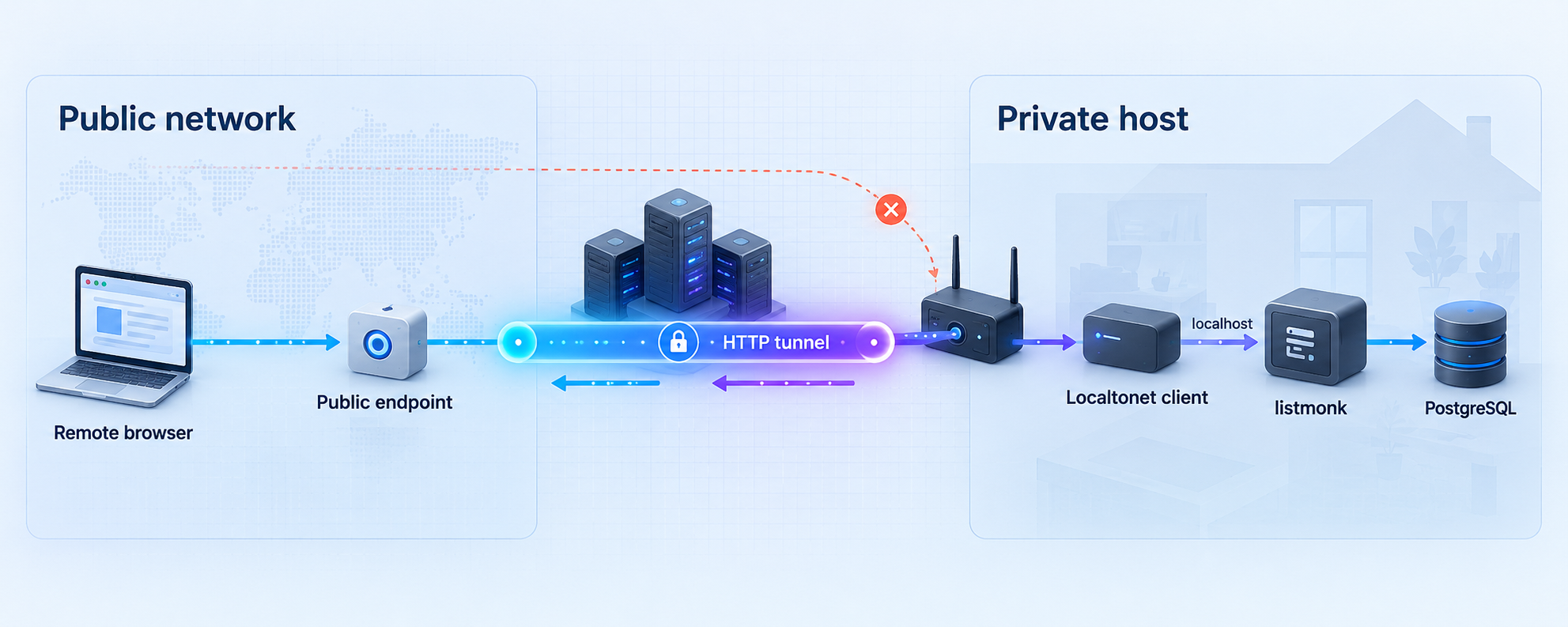
Once http://localhost:9000 works from the Localtonet client device, create an HTTP tunnel. Our client establishes an outbound connection to a Localtonet relay server. The tunnel then provides a public HTTPS address that forwards requests to the local HTTP service. This avoids inbound router port forwarding, firewall changes, VPN setup, and the need for a public IP address.
Use an HTTP tunnel because listmonk exposes an HTTP web application. A raw TCP tunnel is not necessary for the documented browser workflow, and PostgreSQL should not be exposed merely to make the listmonk dashboard available.
Install and run the Localtonet client
Install the Localtonet client on the listmonk host or on a device that can reach the configured listmonk listener. Start the client and keep it running. If the client is on the same machine, it can target the loopback service directly.
Authenticate or select the client device
Use the device-specific authentication token through the supported client workflow, then select that connected device in the dashboard. Tokens identify client devices and must not be published, guessed, embedded in examples, or committed to a repository.
Select an available relay server
Choose a currently available relay server or region from the dashboard. Available server codes can vary, so obtain the value from the current product interface rather than copying a hardcoded region from an article.
Create an HTTP tunnel to listmonk
Create an HTTP tunnel and set the local target to the address reachable from the selected client device. For a same-host installation using the listener in this guide, the target is 127.0.0.1 on port 9000. Select the appropriate HTTP Process Type, such as Random Sub Domain, Custom Sub Domain, or Custom Domain, according to the currently available dashboard options.
Start the tunnel
Use the Start button after saving the tunnel. Creating a tunnel does not mean it is running. The public address becomes usable only while the selected client is connected and that tunnel is running.
Test the assigned public URL
Open the assigned public HTTPS URL in a private browser session or from an external network. Confirm that the expected listmonk page loads and that authentication behaves as intended. Stop or delete the tunnel when remote access is no longer required.
For the current dashboard workflow and field descriptions, consult our HTTP tunnel documentation. The dashboard is the authority for currently available relay servers, process types, and account-specific options.
listmonk can remain available to the client as local HTTP while the HTTP tunnel provides a public HTTPS address. The supplied project evidence establishes http://localhost:9000 as the local endpoint. It does not establish a native listmonk HTTPS listener for this workflow, so this guide does not invent one.
Choosing the correct target address
| Client location | Likely target | Important condition |
|---|---|---|
| Same host as listmonk | 127.0.0.1:9000 |
listmonk must listen on the loopback address and port 9000 |
| Another device on the LAN | The listmonk host's private address on port 9000 | listmonk must listen on a reachable interface and local firewall policy must allow the client |
| Containerized client | An address reachable from the client's container network | Container loopback refers to the container itself, not automatically to the host |
If the public URL displays a connection or gateway error, retest from the Localtonet client device. A common cause is targeting 127.0.0.1 from a client that is not actually running on the listmonk host.
Security considerations for a public listmonk endpoint
A tunnel changes reachability. An interface that was available only on the host can become reachable from the internet through its assigned public URL. Treat this as deliberate publication, not as a harmless convenience setting.
Create the Super Admin, use a strong unique password, verify authentication, review application roles and permissions, and complete relevant configuration before starting the tunnel. Never expose PostgreSQL as part of this workflow. The HTTP application is the tunnel target, not the database port.
Use least privilege at every layer
Run listmonk under a dedicated operating-system account where practical. Give that account access to the binary, required configuration, and operational directories, but not broad administrative rights. Use a dedicated PostgreSQL role rather than a database superuser. Restrict read access to config.toml.
Inside listmonk, use its roles, permissions, and scoped API tokens according to the tasks each administrator or integration performs. Do not share the Super Admin account among unrelated users if narrower access is sufficient. Store API tokens separately from browser credentials and revoke credentials that are no longer needed.
Protect Localtonet device credentials
The Localtonet authentication token identifies the client device that runs the tunnel. Keep it out of screenshots, support posts, public repositories, application configuration, and listmonk templates. If a token is exposed, treat it as compromised and follow the current account workflow to replace or revoke it.
Limit exposure duration
The tunnel is available only while the selected client is connected and the tunnel is running. For temporary administration, start it when needed and stop it afterward. If listmonk must remain publicly reachable for subscriber pages or ongoing operations, maintain a process and monitoring plan for both listmonk and the Localtonet client.
A public URL may be discovered or shared beyond the intended audience. Application authentication remains essential. A difficult-to-guess URL is not a substitute for login controls, least privilege, secure credentials, or timely software updates.
Plan for data sensitivity
Mailing list systems can contain subscriber addresses, profile fields, campaign activity, and administrative credentials. Define who is authorized to access that data, how backups are protected, and how logs and exports are handled. Avoid copying real subscriber data into an unsecured test system.
Troubleshooting the installation and tunnel
listmonk cannot connect to PostgreSQL
Verify that PostgreSQL is running and is version 12 or newer. Recheck host, port, user, password, database, and ssl_mode in config.toml. Test the same credentials from the listmonk host using an appropriate PostgreSQL client.
If PostgreSQL is remote, examine its listener configuration, host-based authentication policy, firewall rules, DNS resolution, and TLS requirements. Do not weaken database security globally just to make one connection work.
The install command reports permission errors
Confirm that the configured database role owns the intended database or has the schema permissions required to create listmonk's tables. Ensure that the configuration points to the dedicated listmonk database rather than an unrelated database with restricted ownership.
Port 9000 is already in use
Another process may already be listening on the configured address and port. Identify the existing listener before stopping or reconfiguring it. If you intentionally choose another listmonk port, update config.toml, restart listmonk, verify the new local URL, and use that same port as the Localtonet target.
localhost works, but another LAN device cannot connect
The application may be bound to 127.0.0.1. That address accepts connections only from the same host. If the Localtonet client genuinely needs to run elsewhere, configure listmonk to listen on a reachable interface and restrict local access with host firewall policy. Retest from the client device before starting the tunnel.
The public URL fails while the local URL works
Confirm that the Localtonet client is connected, the correct device is selected, the tunnel has been started, and the target is reachable from that specific device. Check that the target port matches the active listmonk listener. If listmonk or the client was restarted, confirm both processes are running.
The public URL loads the wrong service
Check the tunnel's local port and target address. A different application may be using the selected port, or the tunnel may point at another LAN host. Stop the tunnel while correcting the target so unintended content is not left publicly reachable.
listmonk stops when the terminal closes
The binary was started as an interactive foreground process. Configure the host's service manager or an appropriate process supervisor. Verify startup after a reboot and ensure the service uses the directory containing the intended config.toml.
An upgrade starts but the application behaves unexpectedly
Stop remote exposure while investigating. Review the target release notes for breaking configuration, UI, API, or template changes. Confirm that ./listmonk --upgrade completed successfully against the intended database. Preserve the pre-upgrade backup until the application, administrative login, campaigns, templates, and required integrations have all been validated.
| Symptom | Likely layer | First check |
|---|---|---|
./listmonk --install fails |
PostgreSQL or configuration | Database availability, credentials, version, permissions, and SSL mode |
| No response on localhost:9000 | Application process or listener | listmonk output, process status, listener address, and port conflict |
| Local page works but tunnel does not | Localtonet client or target | Device connection, tunnel state, target address, and target port |
| Remote client cannot reach a loopback listener | Network binding | Whether listmonk listens on an interface reachable from that client |
| Dashboard works but mail does not send | Delivery configuration | Sender and messaging provider settings rather than the HTTP tunnel |
Frequently asked questions
Does listmonk require PostgreSQL?
Yes. The documented installation requires PostgreSQL 12 or newer. The standalone binary contains the application, but PostgreSQL stores its persistent data. The database must remain available whenever listmonk runs.
What is the default local listmonk URL?
The official installation workflow directs users to http://localhost:9000. If you change the listener or port in config.toml, use the corresponding address for local testing and for the Localtonet tunnel target.
Should listmonk listen on 127.0.0.1 or 0.0.0.0?
Use 127.0.0.1 when listmonk and the Localtonet client run on the same host and no other device needs direct access. Use a reachable interface only when another trusted device must connect, then apply appropriate local firewall restrictions. 0.0.0.0 listens on all interfaces and therefore broadens local network exposure.
Does Localtonet expose the PostgreSQL database?
Not in this workflow. The HTTP tunnel points to the listmonk web service on port 9000. PostgreSQL remains a private backend dependency and should not be exposed merely to provide remote access to the dashboard.
Does creating a Localtonet tunnel start listmonk automatically?
No. listmonk, PostgreSQL, the Localtonet client, and the tunnel each have their own runtime state. PostgreSQL and listmonk must be running, the client must be connected, and the tunnel must be started. Creating a tunnel configuration alone does not make it active.
Does the tunnel provide a public HTTPS address for the local HTTP service?
Yes. HTTP Process Types on our platform serve content at a public HTTPS address while forwarding to the configured local HTTP target. The project evidence for this installation establishes the local endpoint as http://localhost:9000; it does not establish a native listmonk HTTPS listener.
Can I use a custom domain for the listmonk tunnel?
HTTP tunnels can use Random Sub Domain, Custom Sub Domain, or Custom Domain process types. Availability can vary, and exact custom-domain DNS requirements should be checked in the current Localtonet dashboard and documentation before changing DNS records.
Is a working listmonk dashboard enough to send newsletters?
No. It confirms that the application and database are functioning, but message delivery still requires sender and provider configuration appropriate to your environment. A Localtonet HTTP tunnel provides web access and does not configure SMTP, sender-domain DNS, bounce handling, or campaign compliance.
How should I upgrade a standalone listmonk installation?
Back up PostgreSQL, stop listmonk, replace the old binary with the selected release, run ./listmonk --upgrade, and start the application again. Review the release notes first and verify the upgraded service locally before restarting public access.
Connect your verified listmonk service with Localtonet
After PostgreSQL is initialized and the listmonk dashboard works locally, create an HTTP tunnel to the verified port and manage remote access from our dashboard. Keep the application authenticated, protect the device token, and stop the tunnel whenever public reachability is no longer needed.
Get Started Free →

