

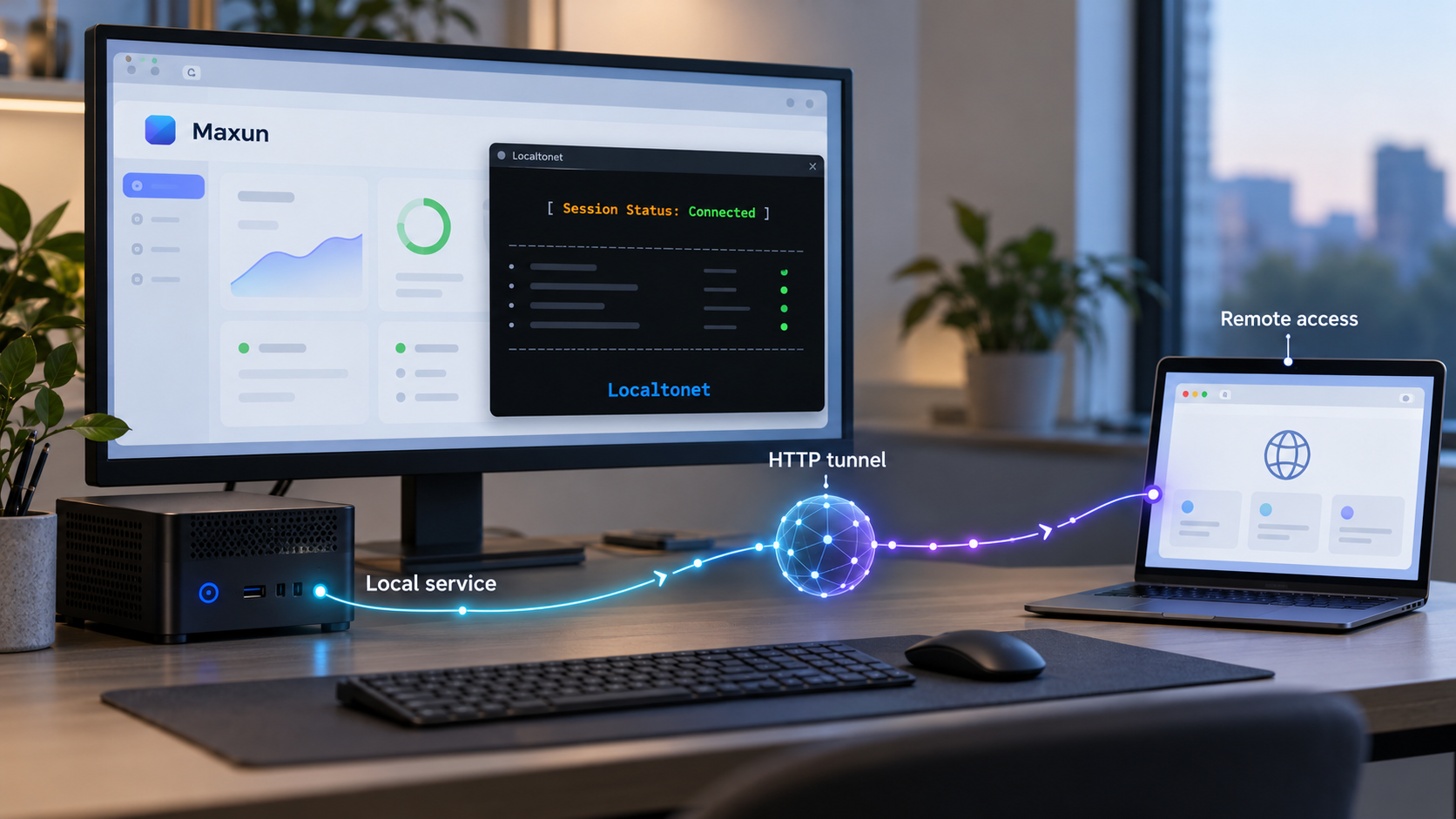
Run your web extraction platform locally, verify it first, then make the required interface remotely reachable
Maxun is an open-source platform for scraping, crawling, searching, monitoring, and extracting structured information from websites. This guide explains how to plan a self-hosted Maxun deployment, choose between its documented Docker Compose and local installation paths, configure it without exposing secrets, and verify the dashboard and API on the local network. Once the local service works, we show how to connect it to an HTTP tunnel with Localtonet. Because the available project evidence does not establish a universal Maxun hostname, port, URL path, protocol, dependency version, or startup command, this guide deliberately uses the endpoint reported by your selected Maxun release instead of inventing one.
📋 What's in this guide
How a self-hosted Maxun deployment works
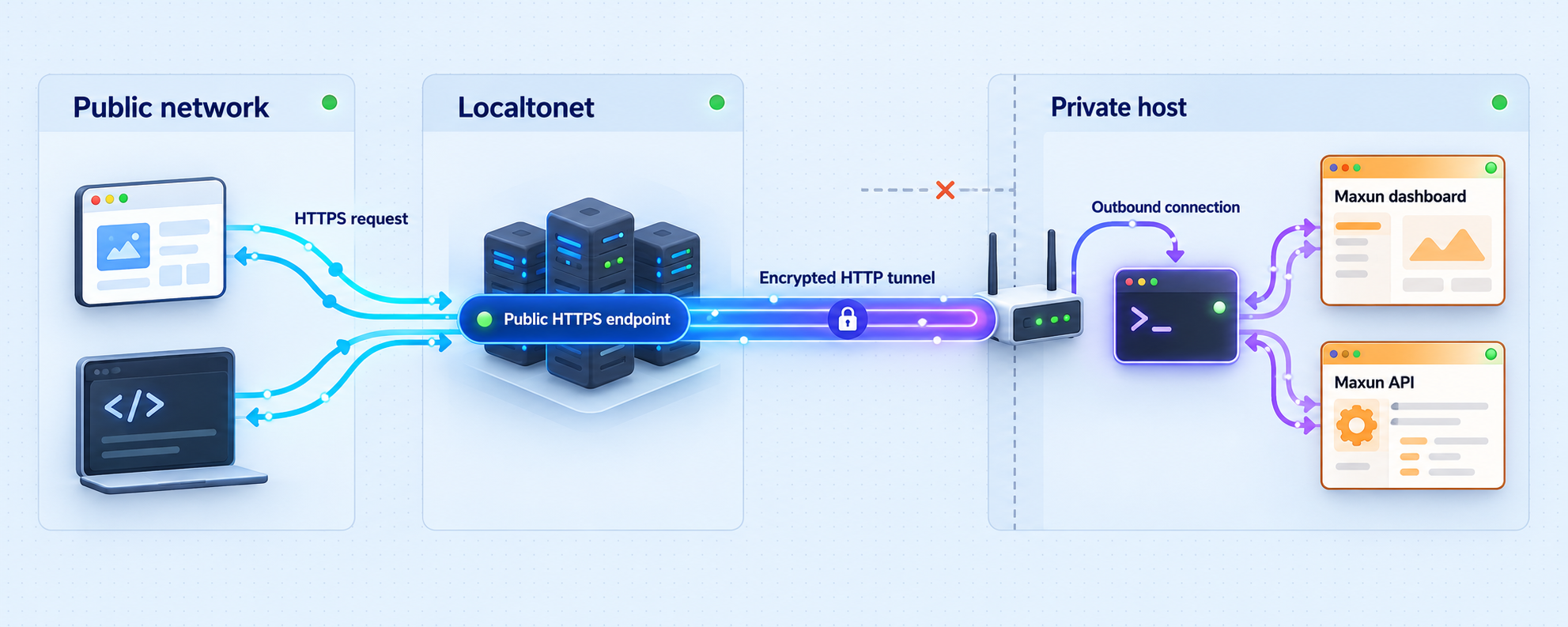
Maxun turns websites into structured data that applications and people can consume through several interfaces. Its documented capabilities include scraping individual pages, crawling websites, searching the web, extracting structured fields, and monitoring pages for changes. It also provides a visual recorder for building extraction workflows without writing every browser action by hand. Integrations can use a REST API, webhooks, SDKs, MCP, CLI tools, or the visual interface, depending on the feature and version being used.
Self-hosting separates the application into two concerns. First, Maxun and its required components run on a machine you control. Second, clients need a route to the dashboard or API. On the same machine or local network, that route can remain private. For remote access, an HTTP tunnel can publish the already working local endpoint without requiring an inbound router port-forwarding rule, a public IP address, firewall changes, or a VPN setup.
The order matters. A tunnel cannot repair a Maxun installation that is not listening, is restarting, or is configured with an incorrect dependency. Establish a healthy local service first. Record the exact scheme, hostname or IP address, port, and path that work locally. Those values become the target for the Localtonet tunnel.
Choose the interface you actually need to expose
Remote browser use normally requires the web dashboard. Programmatic consumers may need an API path instead. These interfaces can share an origin, use different paths, or differ between Maxun versions, so do not assume that confirming the dashboard also confirms every API operation. Test each required interface locally and publish only the smallest surface needed for the workflow.
The supplied Maxun project evidence confirms Docker Compose and non-Docker installation paths, but it does not establish a universal local hostname, port, URL path, or whether every deployment serves HTTP or HTTPS locally. Use the endpoint shown by the installation instructions and startup output for the exact release you deploy. Examples in this guide use placeholders rather than assigning an unsupported default.
Prerequisites and deployment decisions
Decide how and where Maxun will run before downloading it. The host needs enough capacity for the application and for the browser automation or extraction workload you intend to execute. The available evidence does not define a universal CPU, memory, disk, operating-system, browser, database, Node.js, or container-engine requirement. Treat requirements from the setup documentation bundled with your selected release as authoritative for that release.
For the Docker Compose path, install a Docker environment that supports the compose file included in the repository. The repository contains docker-compose.yml as well as separate frontend and backend Dockerfiles. For the local path, install every runtime and supporting service named in the release-specific setup instructions. Do not infer dependency versions from a current development branch when deploying an older tagged release.
You should have the following items ready:
- A host on which you are authorized to run browser automation and network services.
- Administrative access sufficient to install the documented dependencies or container runtime.
- Git, or another supported method for obtaining a specific Maxun release.
- Disk space for application files, generated data, logs, and any container images.
- A plan for persistent data and backups before creating production workflows.
- Values for all required Maxun environment settings, obtained from the selected release documentation.
- A Localtonet account and client installation for the later remote-access stage.
- Authorization to scrape or automate each target website, including compliance with applicable terms, access controls, privacy requirements, and request limits.
Docker Compose or a local installation?
| Approach | Best fit | Operational considerations |
|---|---|---|
| Docker Compose | Hosts where operators want the project components described as containers | Requires a compatible Docker and Compose environment, deliberate persistent storage, and release-specific environment configuration. |
| Local setup without Docker | Development, customization, or environments where containers are not appropriate | Requires installing and maintaining every runtime and supporting service documented by the selected Maxun release. |
| Local-only access | Single-host use, development, and initial validation | Keeps the service private and is the correct first state before configuring remote access. |
| Localtonet HTTP tunnel | Authorized remote dashboard or API access after local verification | Publishes the selected local target while the Localtonet client and tunnel are running. |
Select a release rather than an accidental branch state
The project repository has an active development branch and published releases. A tagged release is easier to reproduce than an arbitrary development commit. The supplied release evidence identifies v0.0.48, but a newer release may exist by the time this draft is reviewed or deployed. Select a version intentionally, read that version's setup and upgrade notes, and keep a record of the exact tag or commit.
The repository can be cloned with its published HTTPS address:
git clone https://github.com/getmaxun/maxun.git
cd maxun
After cloning, check out the release selected for your deployment. Avoid copying a tag from this article without confirming that it is the version you intend to operate. The setup files must be read from the checked-out release because required variables and startup procedures can change.
The available evidence does not provide validated dependency versions or complete startup commands for Maxun. We therefore do not prescribe package-manager commands, container build flags, database credentials, or environment-variable names here. Mixing guessed settings with a current application release can create an insecure or irreproducible deployment.
Install Maxun using the supported path
The repository contains SETUP.md, ENVEXAMPLE, docker-compose.yml, frontend and backend Dockerfiles, and separate frontend and backend package files. Together, these indicate that installation is more than starting a single executable. Your checked-out release must remain the source of truth for its exact dependency versions, environment-file destination, service preparation, and startup command.
Path A: Docker Compose
Use the Docker Compose path when the host has a compatible container environment and you want Maxun's components managed according to the project's compose definition. Before starting anything, inspect the compose file and the setup instructions in the same release. Identify which services are created, which volumes or bind mounts contain persistent data, which values must be supplied, and which local ports are published to the host.
Complete the Docker deployment in this sequence:
- Check out the chosen Maxun release rather than deploying an unrecorded branch state.
- Read that release's
SETUP.md,ENVEXAMPLE, anddocker-compose.yml. - Create the required environment configuration using the documented destination and names. Do not commit the completed secrets file.
- Review persistent storage mappings and place important data on storage included in your backup plan.
- Run the exact Compose build or startup command specified by that release.
- Inspect all service states and logs until the application is ready, rather than treating container creation as proof of readiness.
- Record the host-published endpoint that succeeds during local testing.
This guide intentionally does not supply a generic Compose command. Although the repository contains a compose file, the extracted evidence does not state whether the selected release requires a build, a detached startup, preparation commands, migrations, profiles, or another release-specific action. The exact documented command prevents us from silently omitting an essential stage.
Path B: local setup without Docker
A local setup is appropriate when you need to work directly with the frontend, backend, or source tree. It places more responsibility on the operator. You must install the exact runtimes, browser dependencies, supporting services, and package versions required by the checked-out release.
Follow this sequence for a non-container installation:
- Check out the intended Maxun release and read its
SETUP.md. - Install only the runtime and supporting-service versions documented there.
- Install frontend and backend dependencies with the package-manager commands selected by that release.
- Create the environment configuration from the supplied example, preserving the documented names and formats.
- Initialize any required supporting services or data stores using the documented procedure.
- Start the backend and frontend in the documented order.
- Keep their logs visible during the first verification run and record the endpoint each service reports.
Do not assume that the frontend and backend use the same port, that a development server is suitable for long-running operation, or that a process remains available after the terminal closes. If the official setup distinguishes development and production operation, follow the path that matches your use case.
Preserve an installation record
Record the Maxun tag or commit, installation method, configuration-file locations, persistent-data locations, startup procedure, local endpoint, and backup procedure. Do not place secret values in this record. A concise deployment record makes later troubleshooting and upgrades significantly safer because it distinguishes an application change from an undocumented host change.
Configure Maxun before exposing it
Maxun's repository includes an environment example, but the supplied evidence does not expose a verified list of variable names or defaults. Copy values only according to the instructions for the selected release. A similarly named variable from a blog post, an older release, or another branch may have different semantics.
Separate configuration from secrets
Non-sensitive settings and credentials should not be handled identically. Keep passwords, signing material, API credentials, webhook secrets, and any external service tokens outside version control. Restrict file permissions to the operating account or container that needs them. If the deployment platform offers a managed secret mechanism compatible with the Maxun instructions, prefer that over embedding credentials in shell history or source files.
Review all values that affect network binding and externally generated URLs. A service bound only to a container-internal interface may not be reachable by a Localtonet client running on the host. Conversely, binding broadly to every LAN interface may expose the dashboard to more devices than intended. The correct address depends on whether Maxun and the Localtonet client run on the same host, in separate containers, or on separate machines.
Plan data retention and backup
Identify which directories, volumes, and supporting data stores preserve Maxun configuration, robots, schedules, monitoring state, and results for your chosen release. Back up the persistent state rather than only the source tree or container image. A source checkout can usually be recreated from a tag; deployment-specific state cannot.
Test restoration on a non-production instance. A backup is incomplete if the restored application cannot start with compatible configuration and dependencies. Keep secrets protected separately and document how they are reintroduced during recovery.
Use websites responsibly
Remote access to Maxun does not grant permission to scrape a target. Operators remain responsible for website terms, applicable laws, authentication requirements, personal-data handling, and reasonable request rates. Do not use tunneling to evade authorization, network policy, access controls, or blocking decisions.
Complete Maxun's authentication and secret configuration before creating a public tunnel. If the selected release does not provide an access-control model suitable for internet exposure, keep the service local or place an appropriate authenticated gateway in front of it. A public URL is not itself an authorization control.
Verify Maxun locally
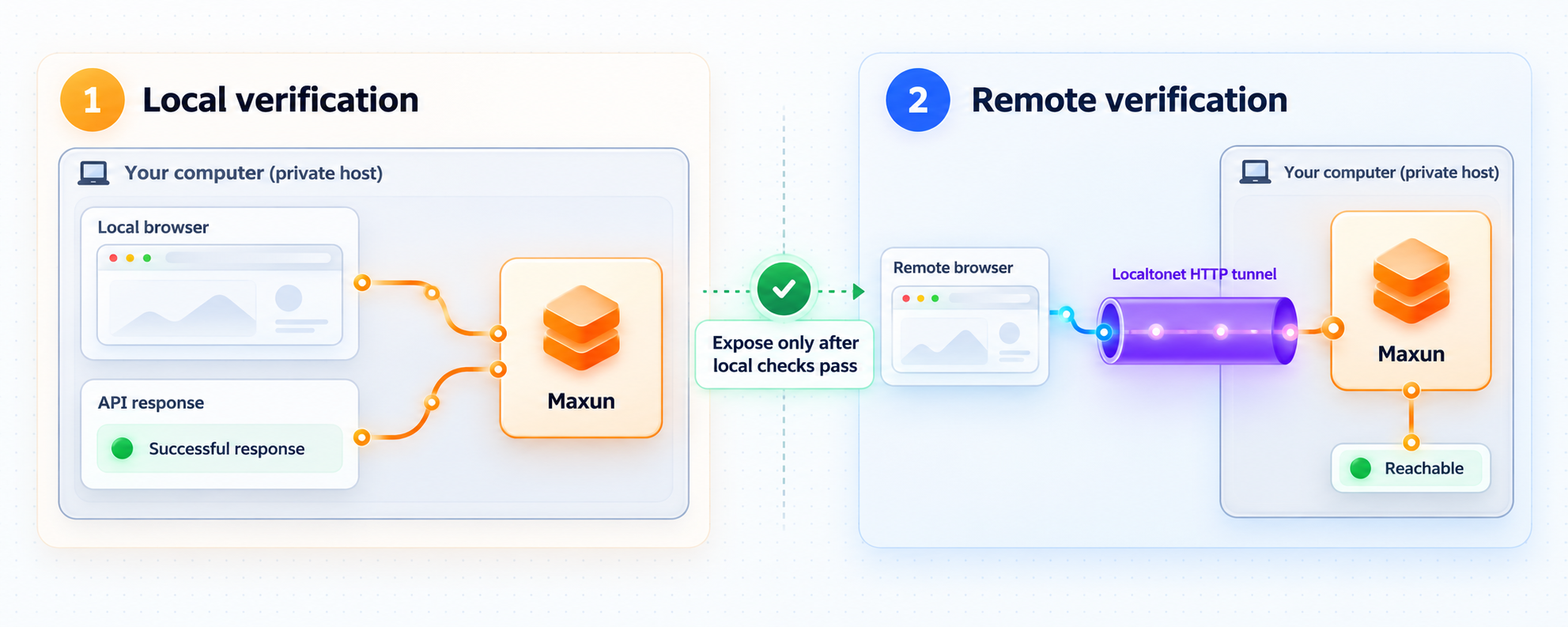
Verification should prove more than the presence of a listening socket. Confirm that the user interface loads, required components remain healthy, and a small authorized extraction workflow completes. Perform these tests from the same network location where the Localtonet client will run.
Confirm the exact local endpoint
Obtain the scheme, host, port, and path from Maxun's release-specific instructions and startup output. Write them down as one complete endpoint. If Maxun reports a URL, use it rather than substituting a familiar port. If the Localtonet client runs on another device, verify an address reachable from that device rather than relying only on a loopback address.
You can make a basic request after replacing every placeholder with the endpoint you actually verified:
curl -i '<scheme>://<local-host>:<documented-port>/<documented-path>'A successful response is useful, but the expected status code and response body depend on the route and authentication behavior of the selected Maxun release. A redirect to a documented sign-in route may be valid. An application page, documented JSON response, or expected authorization response can all demonstrate that the request reached Maxun.
Verify the dashboard
- Open the exact local URL in a browser.
- Confirm that the page loads without repeated frontend errors.
- Complete the documented sign-in or initial account flow, if the release requires one.
- Navigate to the area used to create or manage an extraction workflow.
- Check backend and frontend logs for recurring errors while using the interface.
Run a minimal authorized workflow
Use a website you control or have explicit permission to test. Start with a small page and a simple extraction rather than a large crawl. Confirm that Maxun can access the page, complete the operation, and present the expected result. If you plan to use monitoring, scheduling, or webhooks, test those separately after basic extraction works.
Verify the API separately
If remote consumers will use the API, test the documented API route and authentication method from the local environment. Do not infer an API base path from the dashboard URL. Do not place an actual API key in copied terminal output, screenshots, this article, or tunnel configuration.
The Maxun release evidence also identifies official Node.js and Python SDKs. SDK compatibility can change with application versions, and the release notes recommend current SDK and Maxun application versions for the best experience. Confirm the SDK package version against the application release before making it part of an automated workflow.
A practical acceptance gate is: the dashboard loads, authentication behaves as documented, one authorized extraction completes, required results persist, and the API operation needed by your client succeeds locally. Add the tunnel only after every applicable item passes.
Expose the verified Maxun endpoint with Localtonet
Once Maxun works locally, an HTTP tunnel is the natural Localtonet tunnel type for its web dashboard and HTTP-based API. Our client runs on a device that can reach Maxun and establishes an outbound connection to a Localtonet relay. The resulting tunnel provides a public URL without an inbound router port-forwarding rule, a public IP address, firewall changes, or VPN setup.
Creating a tunnel configuration does not start it. The selected Localtonet client must be connected, and the tunnel must be started. It remains available only while both conditions are true.
Install and run the Localtonet client
Install our client on the Maxun host or another device that can reach the verified Maxun endpoint. Use the current installation method for that operating system. The supplied product context does not define a universal client command, so do not copy an unverified command from another platform or client version.
Authenticate or select the client device
Use the device-specific authentication token through the supported Localtonet workflow, then select the connected device that will run the tunnel. Treat the token as a secret. Never place it in source control, screenshots, support posts, or application configuration intended for public distribution.
Select an available relay server
Choose a server or region from the values currently offered in the Localtonet dashboard. Availability can vary, so obtain the value from the current product rather than hardcoding a server code from an article.
Create the HTTP tunnel configuration
Select an HTTP tunnel and enter the local IP address and port that successfully reached Maxun during local verification. Use the actual local protocol shown by your Maxun deployment. HTTP tunnels can use a generated subdomain, a selected subdomain where supported, or a custom domain. Check current DNS instructions before configuring a custom domain.
Start the tunnel and test its public URL
Press Start after reviewing the target. Open the assigned public URL in a separate browser session and repeat the smallest relevant dashboard or API test. Confirm that authentication remains required and that the URL reaches Maxun rather than another local service.
Stop or delete access when it is no longer required
Stop the tunnel when temporary remote access ends. Delete the configuration if it will not be reused. Remember that the tunnel also becomes unavailable when the selected client disconnects.
For the current dashboard workflow and fields, consult our HTTP tunnel documentation. The local target must always come from your successful Maxun verification rather than an assumed example port.
Choose the correct local address
If both applications run directly on the same host, the endpoint that worked from that host is usually the relevant starting point. If Maxun runs in containers while the Localtonet client runs on the host, target the host-published service address documented by the deployment. If the client runs on another machine, use a local IP and port reachable from that machine.
Container loopback addresses are contextual. A loopback address inside one container does not automatically refer to another container or to the host. Test the Maxun endpoint from the Localtonet client's actual network context before creating the tunnel.
A locally reachable dashboard may become internet reachable through the public URL. Confirm Maxun authentication, remove placeholder credentials, apply least privilege, and expose only the required interface. Do not use a public tunnel to bypass organizational policy or application authorization.
Security checklist for a remotely accessible Maxun instance
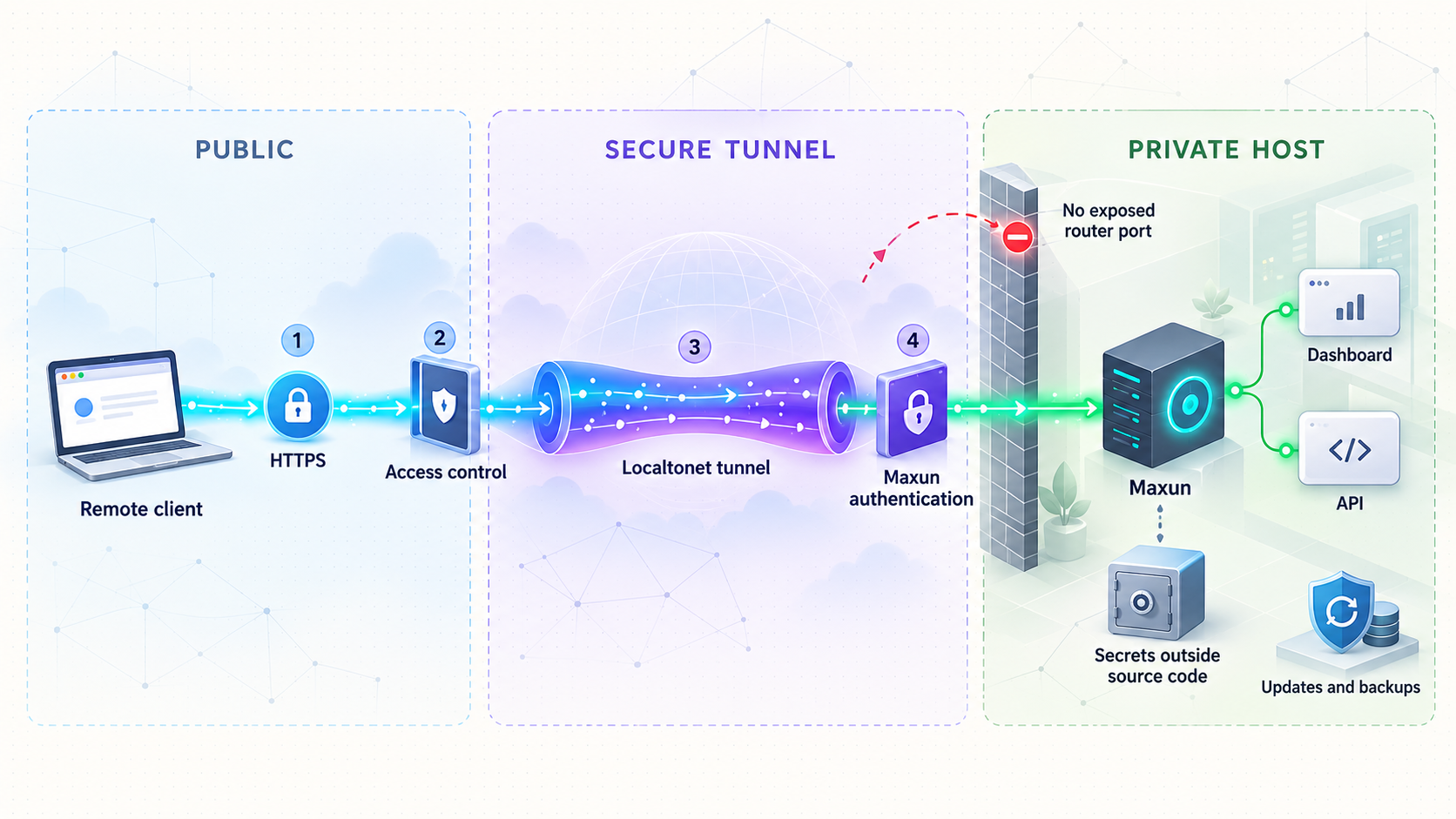
A tunnel solves reachability, not application authorization. Maxun remains responsible for its own accounts, API credentials, sessions, and permissions. Review the selected release's security documentation and apply its recommendations before remote use.
- Protect the Localtonet token: it identifies the client device and must not be embedded in public files.
- Require application authentication: verify the dashboard and API behavior from a signed-out browser before sharing the URL.
- Use least privilege: give users and integrations only the capabilities needed for their workflows.
- Limit exposure: publish only the required local service, not unrelated management ports or supporting data stores.
- Keep secrets out of URLs: URLs may appear in browser history, logs, monitoring systems, and screenshots.
- Rotate compromised credentials: replace exposed Maxun credentials and Localtonet device tokens through their supported management workflows.
- Review outbound activity: browser automation should access only authorized targets and use responsible request patterns.
- Maintain backups: protect both persistent Maxun state and the configuration needed to restore it.
- Patch deliberately: evaluate release notes, application compatibility, and upgrade instructions before changing versions.
- Stop temporary tunnels: a tunnel that is no longer required should not remain running out of convenience.
Dashboard access and API access are different risks
A dashboard can expose administrative actions, saved workflows, results, schedules, and configuration. An API can enable automated high-volume actions if a credential is compromised. Test both from an unauthenticated session and verify that each rejects unauthorized operations according to Maxun's documented behavior.
If your use case needs only API access, do not assume that exposing the complete dashboard is necessary. Whether path-level separation is possible depends on the Maxun version and any gateway you operate. The supplied evidence does not establish a Localtonet dashboard option that performs Maxun-specific path authorization, so do not claim that tunnel creation alone provides that control.
Routine operation, backups, and upgrades
A reliable self-hosted service needs a repeatable operating routine. Check Maxun application health, supporting services, storage capacity, failed extraction jobs, and logs. Also check the Localtonet client and tunnel status when remote access is expected.
Starting and stopping
Use the exact Maxun lifecycle commands documented by the deployed release and installation path. Stop the Localtonet tunnel before maintenance if remote users should not reach the application. After restarting Maxun, verify it locally before restarting or testing the tunnel.
A stopped tunnel does not necessarily stop Maxun, and stopping Maxun does not delete the Localtonet tunnel configuration. Treat application lifecycle and tunnel lifecycle as separate controls.
Backups
Back up persistent application data, required supporting-service data, and non-secret configuration. Protect secrets through a suitable secret-management or encrypted backup process. Record the application version associated with each backup so that restoration uses a compatible release.
Test a restore away from the production instance. Confirm that saved workflows, required configuration, and representative results are available after restoration. Then verify the restored dashboard and API locally without exposing it through the production tunnel.
Upgrades
Review the release notes and the upgrade instructions linked by the Maxun project. Back up first, record the running version, and confirm SDK compatibility if applications use the Node.js or Python SDK. Apply the exact migration and startup sequence required by the target release.
After upgrading, repeat the local acceptance tests. Confirm the endpoint because ports, routes, or proxy behavior can change between releases. Only then test the Localtonet public URL. If the local target changed, update the tunnel rather than leaving it pointed at the old service.
Monitoring availability
Remote availability depends on multiple layers: Maxun, its supporting services, the host, the Localtonet client, and the tunnel. A failed public request does not identify which layer failed. Diagnose from the inside outward, beginning with Maxun on the local host, then testing from the client device, and finally testing the public URL.
Localtonet also has platform-wide Token and Tunnel webhooks that report Connected or Disconnected status for a selected Token Group. These are tunnel lifecycle notifications, not Maxun extraction events and not file-level events. Keep them conceptually separate from any webhooks generated by Maxun workflows.
Troubleshooting Maxun and the HTTP tunnel
| Symptom | Likely area | What to check |
|---|---|---|
| Maxun does not start | Installation or configuration | Compare the checked-out release with its setup instructions, required dependencies, environment values, supporting services, and startup order. Read the first meaningful application error rather than only the final exit message. |
| Containers exist but the dashboard is unavailable | Readiness or port publishing | Inspect every required service, application logs, health indicators, and the host-published endpoint. Container creation alone does not establish application readiness. |
| The dashboard loads but actions fail | Backend or supporting service | Check browser developer errors and backend logs while repeating one small authorized operation. Verify required supporting services and configuration. |
| Local browser works but the Localtonet client cannot connect | Address scope | Test the endpoint from the device or network namespace running our client. A loopback address valid in one host or container may not be reachable from another. |
| The tunnel exists but has no public response | Tunnel lifecycle | Confirm that the selected device is connected, the tunnel was started, and Maxun still responds at the configured local IP address and port. |
| The public URL reaches the wrong page | Incorrect local target | Compare the tunnel target with the exact endpoint recorded during local verification. Check for another service listening on the selected port. |
| The dashboard works but the API fails | Path or authentication | Test the documented API endpoint locally with its documented authentication. Do not assume the dashboard root is also the API base path. |
| Access stops unexpectedly | Client, tunnel, host, or application | Check Maxun locally, then the Localtonet client connection, then tunnel running state. The public route is available only while the client is connected and the tunnel is running. |
| An upgrade breaks the deployment | Version compatibility or migration | Review the target release's upgrade procedure, migrations, environment changes, and SDK compatibility. Restore the tested backup if safe recovery requires rollback. |
Use inside-out diagnosis
- Confirm the Maxun process or required containers are running.
- Test the documented endpoint on the Maxun host.
- Test the same reachable endpoint from the Localtonet client device.
- Confirm the correct device is connected in Localtonet.
- Confirm the HTTP tunnel target matches the locally verified IP address and port.
- Confirm the tunnel is started.
- Test the public URL in a clean browser session.
- Repeat the smallest authenticated dashboard or API operation.
This order prevents a public connectivity symptom from hiding a local application failure. It also makes clear whether the problem belongs to Maxun, the host network, the Localtonet client, or the tunnel configuration.
Frequently asked questions
What is Maxun?
Maxun is an open-source web data platform for scraping, crawling, search, structured extraction, and website monitoring. It includes a visual recorder and can integrate through interfaces such as a REST API, webhooks, SDKs, MCP, CLI tooling, and its dashboard.
Should I install Maxun with Docker Compose or without Docker?
Both approaches are supported by the project. Docker Compose is appropriate when you want to operate the project components as containers. A local setup is useful for direct development or environments where containers are unsuitable, but it requires you to install and maintain every documented runtime and supporting service. Follow the setup instructions from the exact Maxun release you deploy.
What port does self-hosted Maxun use?
The supplied evidence does not establish a universal Maxun port, hostname, path, or local protocol. Obtain the endpoint from the setup instructions and startup output for the exact release and installation method you use. Verify that endpoint locally before entering its IP address and port in Localtonet.
Which Localtonet tunnel type should I use for Maxun?
Use an HTTP tunnel for the Maxun web dashboard or HTTP-based API. Configure it with the local IP address and port that passed your local verification. Do not use a raw port tunnel merely because a port is involved when the intended service is a web application.
Does creating a Localtonet tunnel immediately publish Maxun?
No. Creating the configuration does not mean the tunnel is running. The selected Localtonet client must be connected and the tunnel must be started. The public route remains available only while the client is connected and the tunnel is running.
Does a public Localtonet URL secure the Maxun dashboard by itself?
No. The tunnel provides connectivity to the configured local target. Maxun still needs appropriate application authentication, secure credentials, and least-privilege access. Verify behavior from a signed-out browser and never treat an unshared URL as a substitute for authorization.
Can the Localtonet client run on a different machine from Maxun?
Yes, provided the client device can reach Maxun at the configured local IP address and port. Test that endpoint from the client device before creating the tunnel. A loopback address on the Maxun host will not represent the same machine when the client runs elsewhere.
Do I need router port forwarding or a public IP address?
No. The Localtonet client establishes an outbound connection to our relay. This allows the configured Maxun service to receive traffic through its public URL without inbound router port forwarding, firewall changes, VPN setup, or a public IP address.
How should I upgrade a self-hosted Maxun deployment?
Back up persistent state, record the current release, review the target release notes and upgrade instructions, and apply the required migrations and configuration changes. Verify the upgraded service locally before testing the public tunnel. Also confirm compatibility with any Node.js or Python SDK version used by your applications.
Connect your verified Maxun service with Localtonet
Finish the Maxun installation, confirm its dashboard and required API operations locally, then create an HTTP tunnel to the exact endpoint that passed your tests. Keep authentication enabled and stop the tunnel whenever remote access is no longer needed.
Get Started Free →

