

Build the AI coding board from source, prove the local installation, and evaluate remote access without weakening its localhost security boundary
no_human is an open-source developer automation system that turns tasks into planned, tested, independently reviewed pull requests on your own machine. This guide follows the current source-installation path, including the separate frontend build required for a repository checkout. You will initialize the application, run its diagnostics, start the board and worker on 127.0.0.1:8420, verify that the complete interface renders, and learn the main operating commands. The final sections explain how a temporary Localtonet HTTP tunnel can be tested, while making an essential limitation explicit: no_human has no application-level user authentication, so an unrestricted public tunnel is not a secure remote-administration design.
📋 What's in this guide
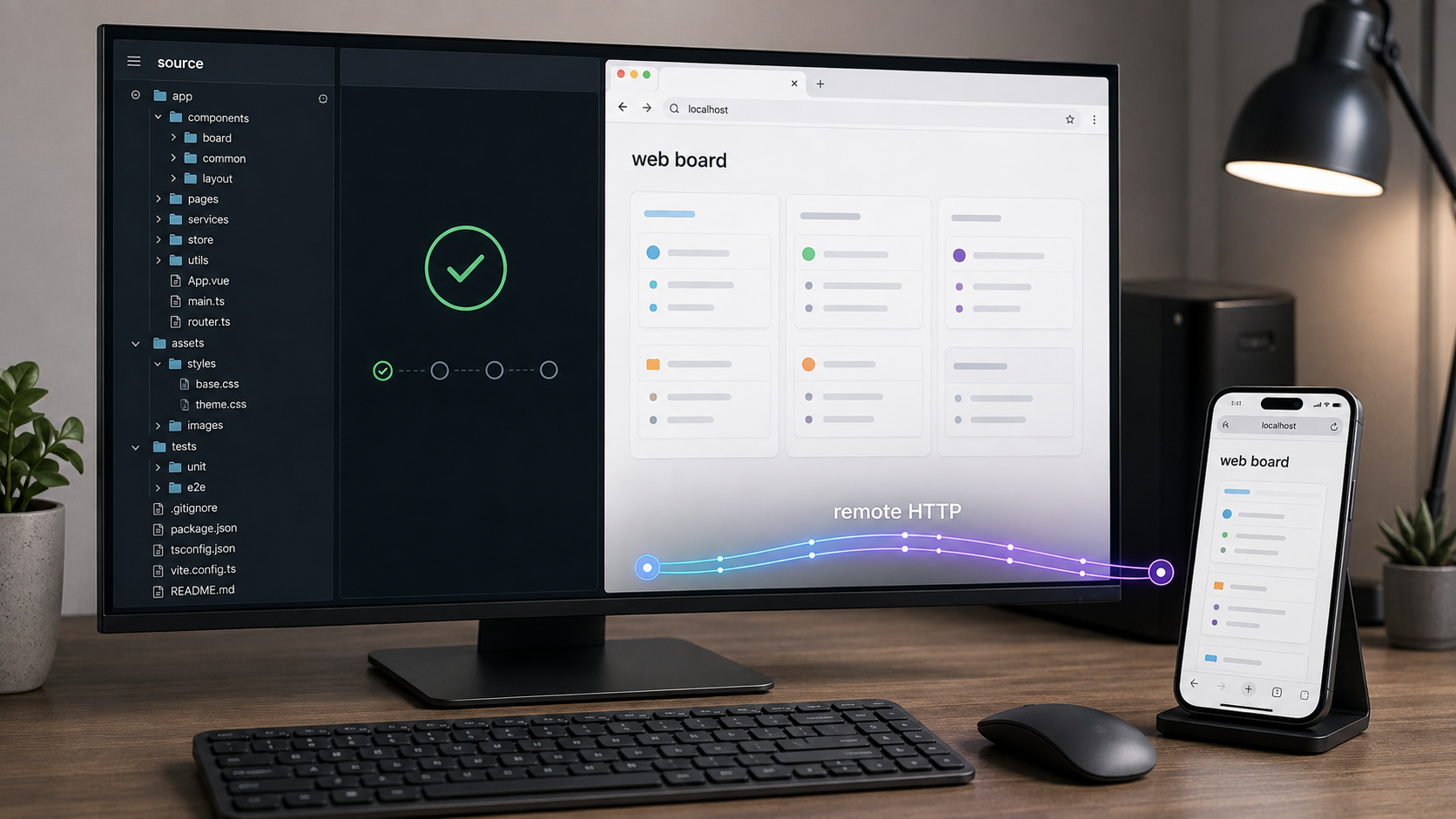
What no_human does and what this installation includes
no_human is an open-source AI coding workflow that runs on the operator's machine. Its intended loop starts with a task or tracker ticket, develops a plan from that request and the selected repository, makes changes, runs available tests, subjects the result to an independent review, and prepares a pull request for human approval. The board provides a visual place to follow that work, while the command-line interface supports task intake, status inspection, evidence review, diff inspection, approval, and rejection.
The project places several checks between generated code and approval. Its documented workflow can prepare explicit acceptance criteria and a plan before implementation begins. A separate reviewer, operating without the coder's session transcript, is asked to challenge the claim that the work is complete. The resulting review uses a pass or fail checklist with supporting file and line references rather than a numeric confidence score.
no_human also documents mechanical checks for deleted tests, newly skipped tests, and assertions changed into tautologies. Its reproduction gate can verify that proposed test evidence fails at the merge base and passes on the changed tree. If no test command is available, the pull request reports that tests were not run rather than presenting an empty test result as success. If the workflow cannot complete a task, it can stop with a specific question or a structured failure record instead of inventing a plausible result.
These controls improve the evidence available to a reviewer, but they do not eliminate the need for human judgment. The final diff, test evidence, repository permissions, model-provider usage, Git identity, and approval decision remain operational concerns. A successful installation proves only that the software and its immediate configuration work. It does not prove that every connected repository, tracker, model provider, CI system, or notification integration is correctly configured.
The canonical project materials are the no_human repository, its current quickstart, the project security guidance, and the no_human v0.2.0 release notes. Review those pages against the commit or release you install, especially when behavior affects network exposure, credentials, or approval.
Why a source installation requires an extra build
The packaged installation and source installation are not identical. The packaged command-line installation ships the board with the Python wheel. A fresh source checkout does not ship a prebuilt web/dist directory. The web application must therefore be built with npm before the browser board can render.
If that build is skipped, nh start can still serve the API, but there will be no complete board UI to display. This is one of the most important distinctions in the source workflow. A responding API does not by itself prove that the frontend was built successfully.
The project also documents uv tool install no-human and pipx install no-human for a packaged installation. Those paths are useful when the objective is simply to run the packaged CLI and board. The steps below instead clone the repository, create its uv-managed environment, and compile the board from its web source.
Prerequisites for building no_human from source
Prepare the machine before cloning the project. The current repository documents Python 3.12 or newer, uv, Git, and Node.js with npm for the source path. Node.js and npm are specifically required for the board build. The repository contains the Python project metadata and uv lock file, while the web directory contains the browser application and its npm dependencies.
| Requirement | Why it is needed | What to verify |
|---|---|---|
| Python 3.12 or newer | Runs the no_human Python application and command-line entry point. | The Python selected by uv satisfies the checked-out project's version requirement. |
| uv | Synchronizes the project environment and runs the source checkout's nh entry point. |
The uv command is available in the installation terminal. |
| Git | Clones the public repository and supports repository-oriented development workflows. | The git command can reach the official repository. |
| Node.js and npm | Install frontend dependencies and compile the browser assets. | Both node and npm are available before entering web. |
| Model and integration credentials | Required by the model backend or optional integrations you select. | Use credentials you control and enter them only through documented configuration paths. |
| A Git repository to work with | Initialization includes a first repository, and tasks operate against operator-selected repositories. | Use a controlled test repository for the first run. |
Check the toolchain without assuming an operating system
These version checks do not install anything and do not depend on a particular package manager:
python --version
uv --version
git --version
node --version
npm --version
Some operating systems expose Python 3 as python3 rather than python. That command-name difference does not change the project requirement. What matters is that uv can select a compatible interpreter. Installation procedures for Python, uv, Git, and Node.js vary by operating system, so obtain them from each tool's official instructions rather than copying an unrelated package-manager command.
Choose the host with the execution model in mind
no_human works against repositories and can run project commands and tests on the host. The operating account may therefore need access to source code, Git remotes, model credentials, build tools, and local services required by a repository's test suite. Treat this as a development execution environment, not as a read-only dashboard.
Use the least privilege practical for the repositories involved. Avoid running the application under an account with unrelated administrative access. Review how Git credentials are scoped, determine whether the selected repository can safely execute its own build and test commands, and keep production credentials out of the environment unless a specific workflow genuinely requires them.
A successful diagnostic does not validate every command that a future repository may execute. Begin with code and a task you understand, inspect the generated plan and diff, and confirm that review and approval behavior match your expectations before connecting more sensitive projects.
Clone no_human and build the web board
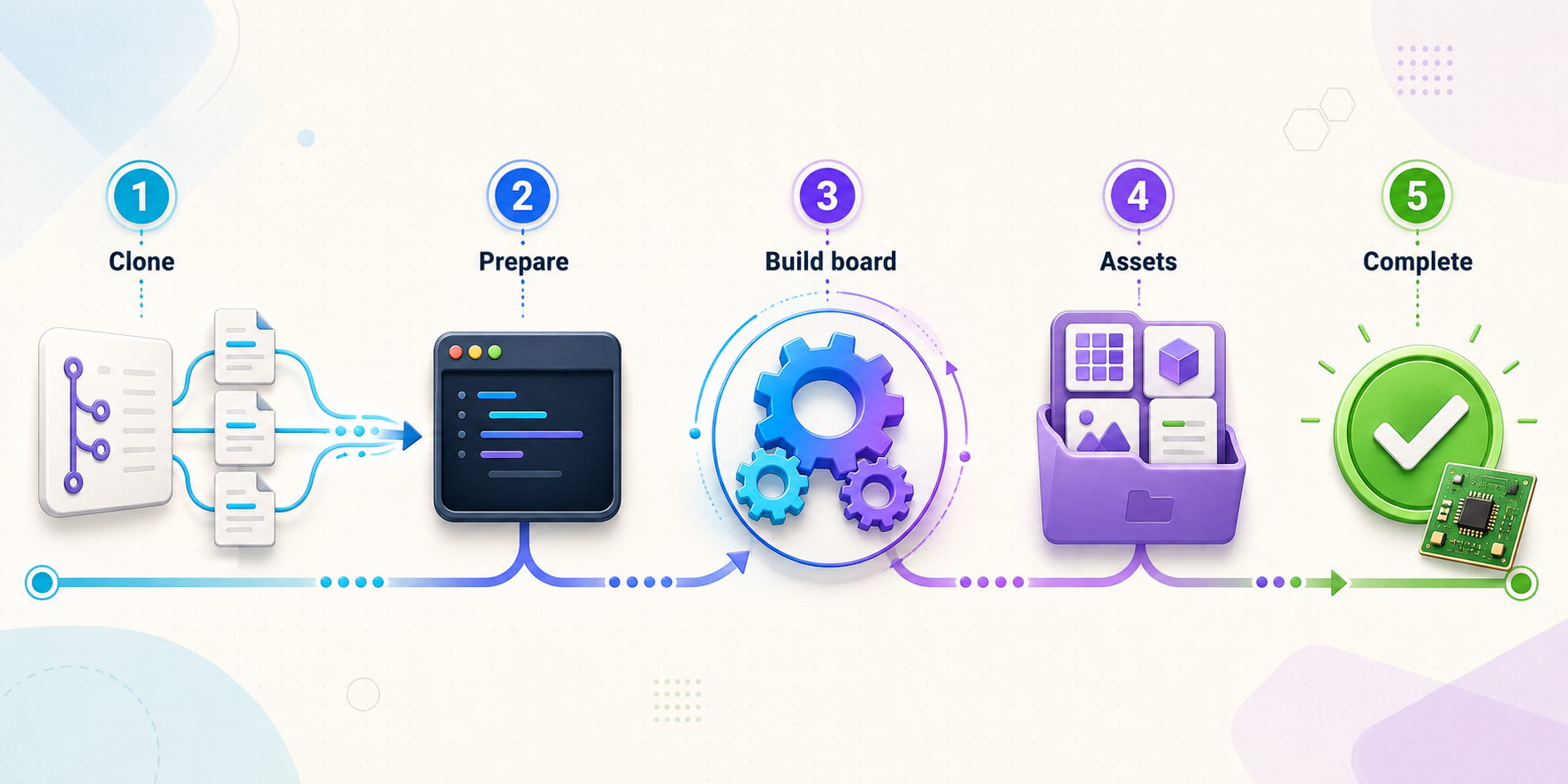
Run the installation in a terminal under the account that will operate no_human. Keep the repository directory after installation because the uv run nh commands in this guide execute the project entry point from that checkout.
Clone the official repository and enter it
Use Git to create a local checkout from the official repository, then make that checkout the current working directory.
git clone https://github.com/no-human-ai/no_human.git
cd no_humanSynchronize the Python environment
Run uv from the repository root. This installs the project dependencies and makes the nh entry point available in the checkout's environment.
uv syncInstall the board dependencies
Enter the web directory and let npm install the frontend dependencies. The repository warns that a cold first installation can take several minutes.
cd web
npm installCompile the web board
Build the browser assets while still inside the web directory. This produces the board distribution required by a source checkout.
npm run buildReturn to the repository root
Run the initialization, diagnostic, and startup commands that follow from the no_human repository root.
cd ..The repository presents the same source-build sequence in compact form:
git clone https://github.com/no-human-ai/no_human.git
cd no_human
uv sync
(cd web && npm install && npm run build)
The subshell around the web commands returns the terminal to the repository root after the frontend build completes. If you prefer to see each directory transition, use the five-step version above.
How to interpret a successful build
A successful uv sync establishes the Python environment and project entry point. A successful npm install establishes the frontend dependency tree. A successful npm run build compiles the web board. All three outcomes are required for the complete source installation described here.
Do not treat warnings and failures as interchangeable. A warning may still produce usable output, while a nonzero command exit normally means that stage did not complete. Read the first meaningful error in the output, not only the final summary. An incompatible runtime, failed dependency download, or incorrect working directory can generate many secondary messages after the original cause.
A source checkout does not include web/dist. If the npm build is omitted or fails, nh start may serve the backend API without rendering the web UI. Complete and verify the board build before treating a blank browser page as a networking or tunneling problem.
Initialize no_human and validate its configuration
With the Python environment synchronized and the board compiled, initialize no_human from the repository root. The current source instructions describe initialization as setting up the token, configuration, and first repository. Exact prompts and provider choices can evolve, so answer the prompts displayed by the checked-out version instead of copying credentials into an unverified configuration example.
Run the initialization workflow
Start the source checkout's command-line entry point through uv and complete the interactive setup for the token, configuration, and first repository.
uv run nh initRun the built-in diagnostics
Use the doctor command immediately after initialization. Resolve failed checks before relying on the installation for development work.
uv run nh doctor
Treat nh doctor as an acceptance check rather than a cosmetic command. If it reports a failed requirement, correct that problem and rerun the diagnostic. This gives a clearer signal than continuing until a later task fails for what appears to be an unrelated reason.
Credentials and configuration hygiene
no_human documents integrations involving model backends, Git hosts, issue trackers, messaging systems, and CI platforms. Core startup does not prove that an optional integration is enabled or healthy. Add integrations deliberately, use credentials with only the permissions each integration needs, and test each connection separately.
Do not place tokens in shell history, commit configuration containing secrets, paste credentials into a task, or include them in screenshots. A Localtonet device token identifies the device that runs a tunnel and must also be kept private. Repository credentials, model-provider credentials, and Localtonet device tokens serve different systems and should never be reused as substitutes for one another.
The board can start while an optional tracker, messaging platform, Git host, or CI integration is incomplete. Verify the core installation first, then validate each external integration using the documentation for the exact no_human version you installed.
Start the board and verify the local service
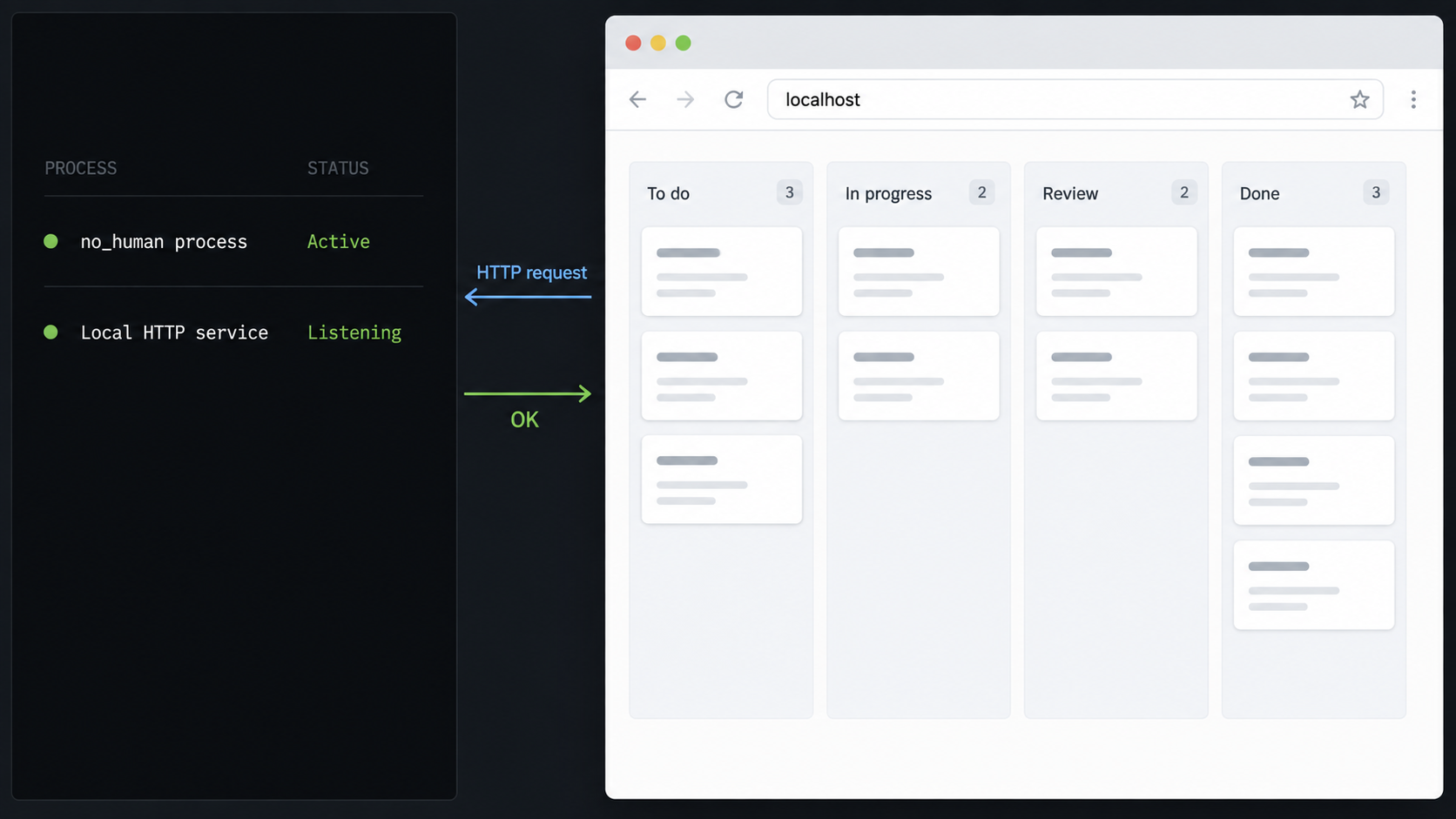
The documented start command runs the board and worker at 127.0.0.1:8420. Loopback binding means the service is addressed from the same host and is not directly listening on every network interface.
Start no_human from the source checkout
From the repository root, start the board and worker through uv. Keep this process running while testing the interface.
uv run nh startOpen the loopback board
On the same machine, open http://127.0.0.1:8420. Confirm that the complete board renders rather than an API-only response, empty page, or connection error.
Confirm continued application health
Watch the startup terminal for errors, exercise the board locally, and rerun uv run nh doctor in another terminal if the initial state appears incomplete.
What local verification should prove
A useful local acceptance test has several parts. The start command should remain running rather than exiting immediately. The browser should connect to the documented loopback address. The complete UI should render, proving that the npm build produced usable assets. The application should not show an immediate blocking configuration failure. Finally, nh doctor should not leave unresolved prerequisites that affect your intended workflow.
Test a harmless operation in a controlled repository before adding sensitive work. Confirm that task state appears on the board, that status can be inspected from the CLI, and that the displayed repository is the one you intended to use. This is also the right time to capture a verification screenshot if needed. Remove repository names, task contents, credentials, private endpoints, and other sensitive information before publishing it.
Perform all local checks before introducing Localtonet. This isolates build and application problems from tunnel configuration. If the board does not work at http://127.0.0.1:8420, an HTTP tunnel cannot repair it.
no_human v0.2.0 documents Host and Origin validation around its localhost-oriented board, but it does not provide application-level user authentication. Do not bind the service broadly merely to make remote access easier. The same-host Localtonet client can target the loopback address directly.
Common no_human operations after installation
Once the board and worker are healthy, the CLI provides direct access to the task lifecycle. When operating from a source checkout, prefix project commands with uv run so they execute the synchronized entry point without requiring manual virtual-environment activation.
Open the interactive shell
uv run nh
Running nh without arguments opens the shell. The repository describes lanes, a live event tail, and an intake where an operator can describe a task in plain language. Individual commands remain available when you prefer explicit terminal operations.
Add a task from an issue
uv run nh task add https://github.com/org/repo/issues/42 --repo ~/git/repoReplace the example issue URL and repository path with values you control. Confirm both before submitting the command. Do not use a production repository for the first test unless you have already reviewed the workflow's credentials, branch behavior, test commands, and approval path.
Inspect current task status
uv run nh statusStatus distinguishes work that needs human input, is actively working, is waiting, or is done. Check status before assuming that a quiet task has failed. It may be waiting for an external operation, parked for an answer, or complete and awaiting review.
Review evidence and inspect the proposed diff
uv run nh review TASK_ID
uv run nh diff TASK_ID
Replace TASK_ID with the identifier shown by no_human. The review command displays the reviewer's evidence checklist. The diff command shows the proposed changes. Use both. Review evidence explains why the work claims to satisfy the task, while the diff shows what will actually change.
Approve or reject the result
uv run nh approve TASK_ID
uv run nh reject TASK_ID --reason "Explain what must change"
Approval is consequential because the documented workflow squash-lands the pull request using the configured approval identity. Do not use it merely to dismiss a notification. Inspect the diff, tests, reproduction evidence, review findings, target repository, and target branch first.
Rejection sends the work back with feedback. Make the reason specific enough to guide the next attempt. Identify the incorrect behavior, missing acceptance criterion, unsafe change, or evidence gap instead of giving only a generic rejection.
| Command | Purpose | Operator check |
|---|---|---|
uv run nh |
Open the interactive shell and task intake. | Confirm the selected repository and task description. |
uv run nh task add ... |
Add a task associated with an issue and repository. | Verify the issue URL and local repository path. |
uv run nh status |
Show task states such as needs-you, working, waiting, and done. | Read the state before restarting processes. |
uv run nh review TASK_ID |
Display the independent review evidence checklist. | Confirm that blocking findings cite concrete evidence and are resolved. |
uv run nh diff TASK_ID |
Inspect the proposed code changes. | Check scope, tests, configuration changes, and accidental secret exposure. |
uv run nh approve TASK_ID |
Approve and squash-land the pull request using the configured identity. | Use only after reviewing the target and result. |
uv run nh reject TASK_ID --reason "..." |
Return the task with explicit feedback. | Provide a concrete and actionable reason. |
Test remote HTTP access with Localtonet
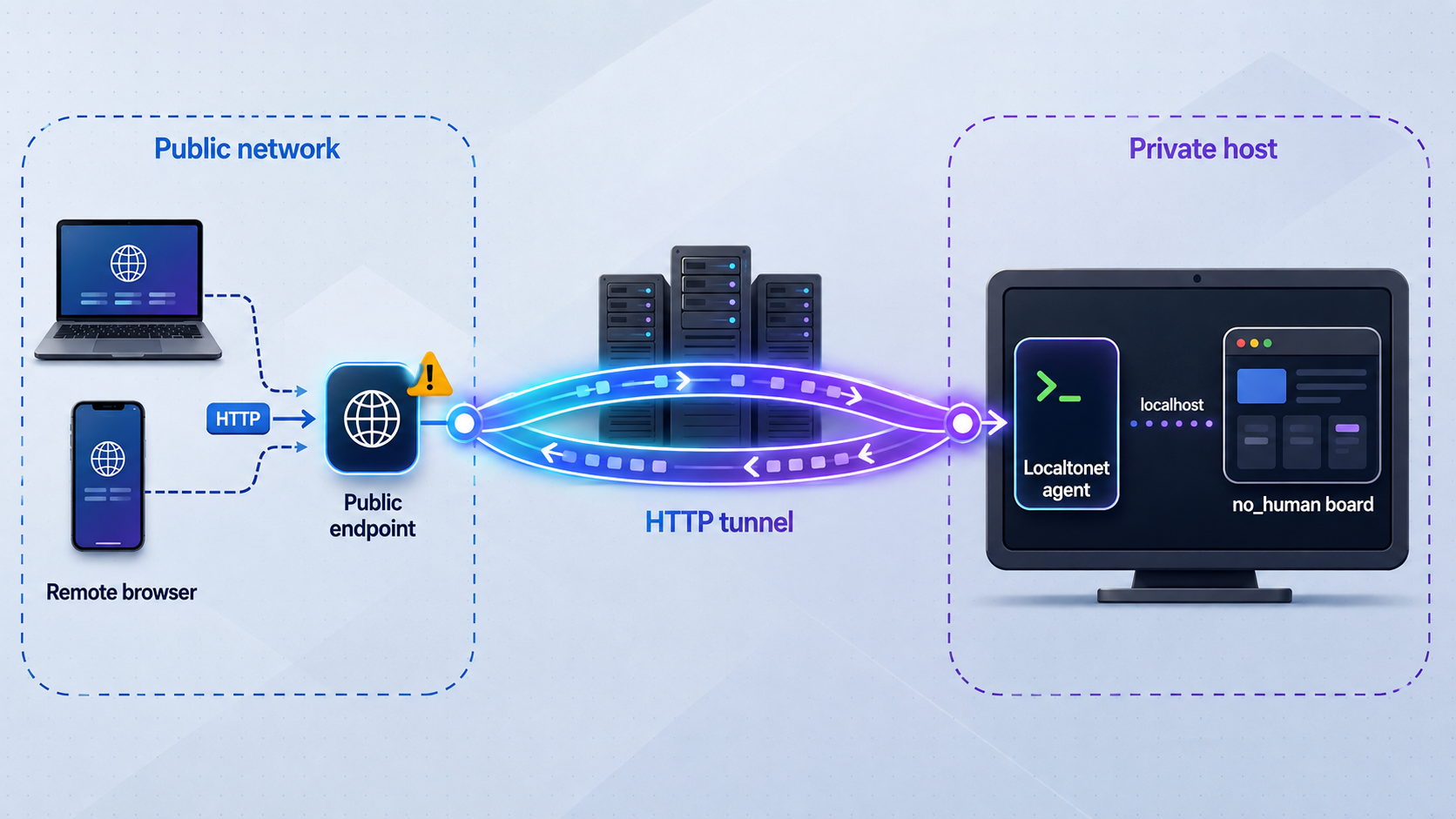
Remote access must remain a separate stage after the board works locally. With Localtonet, our client on the host establishes an outbound connection to a relay server. An HTTP tunnel can then provide a public HTTPS address for the local HTTP target without inbound router port forwarding, firewall changes, VPN setup, or a public IP address.
For this workflow, the local target is 127.0.0.1 on port 8420. The Localtonet client must run on the same machine as no_human, or in the same network namespace where that loopback address reaches the board. A client on another computer or in an isolated container will interpret 127.0.0.1 as its own loopback interface.
The current no_human evidence establishes Host and Origin checks, but not an application login or a verified authorization layer for public operators. A bare Localtonet HTTP tunnel therefore makes the board reachable to anyone who can reach its public address once hostname compatibility is satisfied. Do not use this configuration as permanent remote administration, do not expose sensitive tasks or repositories through it, and stop the tunnel immediately after testing.
Hostname compatibility and user authentication are separate problems
no_human v0.2.0 documents a local boundary that refuses a request when its Host is neither loopback nor the configured server.host. It also applies Origin checks to cross-origin browser writes and the WebSocket handshake. This means a public tunnel hostname may need to match server.host before the application will function through the tunnel.
The available primary evidence does not establish a stable configuration-file path or exact assignment syntax for server.host. We therefore do not provide a speculative configuration snippet. Check the
quickstart for your checkout,
the
current security documentation,
and the configuration generated by your installed version. If those materials do not document exactly how to set server.host, stop rather than guessing or disabling the Host check.
Even a correct server.host value only makes the hostname acceptable to the application. It does not authenticate a person. HTTPS protects traffic in transit to the public endpoint, but it does not prove that the browser belongs to an authorized operator. A random or hard-to-guess URL is also not a user-authentication mechanism.
Choose the public hostname before testing compatibility
Localtonet HTTP tunnels can use a random subdomain, a custom subdomain where supported, or a custom domain. These process types serve the same local content through a public HTTPS address. Available choices can vary by plan or current product configuration, and custom-domain DNS requirements must be checked against the current dashboard and documentation.
Because no_human validates the addressed host, determine the exact public hostname before attempting application configuration. Replacing one generated hostname with another can require a corresponding configuration change and a fresh test. Do not weaken Host validation to avoid that work.
Create and start the temporary HTTP tunnel
Install and run the Localtonet client
Run our client on the machine that can reach 127.0.0.1:8420. Keep no_human running while testing.
Authenticate or select the device
Use the device-specific authentication token assigned through Localtonet. Keep it private and never paste it into a repository, screenshot, article, or no_human task.
Select an available relay server
Choose from the relay server or region values currently offered in the dashboard. Do not hardcode a server code copied from another setup.
Create an HTTP tunnel to the board
Select an HTTP tunnel and set the local target to IP address 127.0.0.1 and port 8420. Record the exact assigned public hostname for compatibility testing.
Start the tunnel
Creating a tunnel does not start it. Use the Start button only after the device, relay server, process type, and local target are correct.
Run the controlled compatibility test
Open the assigned HTTPS address from a separate browser context. Verify page loading, API-backed state, and live updates. Do not use real secrets or sensitive tasks during this test.
See our Localtonet HTTP tunnel documentation for the current dashboard workflow. Exact server choices and domain requirements should come from the current product interface rather than an older deployment.
Run both intended-user and unintended-user tests
Begin with an intended-user compatibility test. From the browser you selected for the experiment, open the public HTTPS address and confirm that the board shell, API-backed data, state-changing requests, and WebSocket updates work. If the page renders but data or live updates fail, inspect the browser developer tools for Host, Origin, or WebSocket rejection.
Then run the unintended-user test from a separate browser profile or device that has not been given application credentials. Because the bare board has no login, successful access from that context demonstrates the deployment limitation. It does not demonstrate a security-control success. Possession of the reachable URL is effectively sufficient to reach the application.
A secure authenticated deployment would require the unintended context to be denied before it reached the board while an explicitly authorized operator was allowed. The supplied evidence does not establish a supported no_human authentication layer or a specific Localtonet access-control configuration that provides this property. Consequently, this article does not claim that the bare public tunnel can pass an authorization test.
Once compatibility testing is complete, stop the Localtonet tunnel and confirm that the public address no longer provides an active route to the board. If your deployment requires durable remote administration, keep no_human on localhost until you have a separately documented, supported, and tested authentication design that denies unauthorized users.
Understand the tunnel lifecycle
A Localtonet tunnel is available only while the selected client device is connected and the tunnel is running. If no_human stops, the tunnel may remain active but have no healthy local target. If the Localtonet client disconnects or the tunnel is stopped, the public route is no longer active.
Stop the tunnel when testing is finished. Delete it if the endpoint should not be retained. Stopping no_human is not a substitute for disabling an unnecessary public tunnel, and stopping the tunnel is not a substitute for safely handling application work in progress.
Security boundaries for a localhost-oriented board
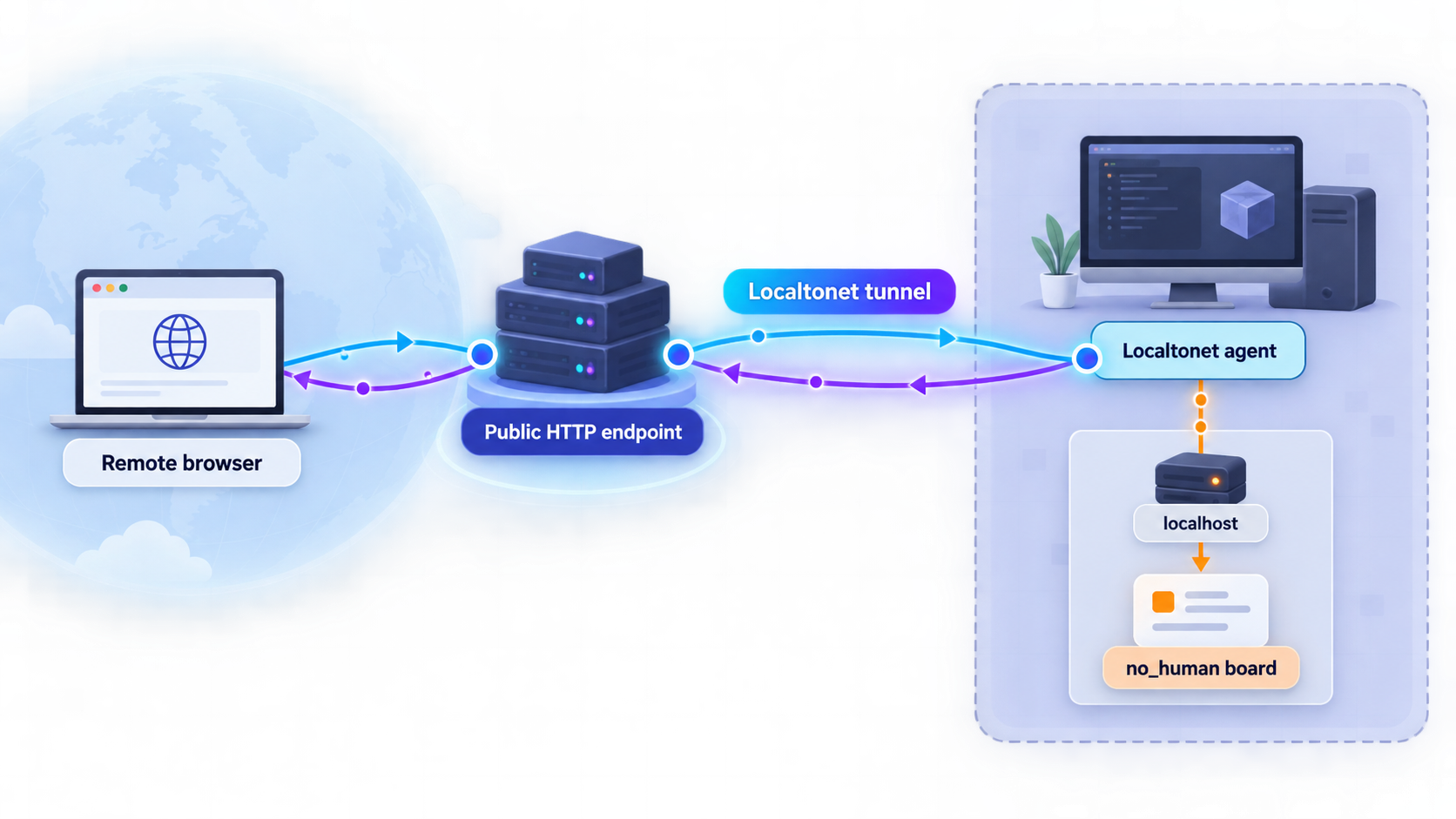
The central security fact is straightforward: no_human's board is designed around a localhost boundary and does not supply a username-and-password login for remote operators. An HTTP tunnel changes network reachability. It does not add application roles, authenticate a user, or make operator actions suitable for anonymous access.
The
v0.2.0 release notes
describe several board protections. A request whose Host is not loopback or the configured server.host is refused with a bad-host response. Cross-origin browser writes to state-changing routes are refused. CORS is restricted to exact allowed hosts, and the WebSocket handshake applies Host and Origin checks. The board also serves a strict Content Security Policy, and its Markdown handling is hardened against cross-site scripting.
Those are meaningful browser and request-boundary controls. They help address threats such as DNS rebinding, cross-origin writes, and untrusted content rendering. They are not user authentication. Configuring a public hostname as an allowed host tells the application which Host value it may accept. It says nothing about the identity or authorization of the person sending the request.
server.host, but an allowed host is not an allowed user.
Use a clear remote-access acceptance standard
A complete remote-administration design should satisfy four independent conditions. The application must remain healthy locally. The public hostname must be compatible with the application's Host and Origin rules. An authorized operator must be able to complete the required workflow. An unauthorized person must be denied before reaching board content or actions.
The source build and bare HTTP tunnel described here can establish the first two conditions. They can also demonstrate that a chosen browser can reach the board. They cannot establish the fourth condition because the board does not provide a login and no separate verified protective layer is documented in the supplied evidence.
If you later add a protective access architecture, test it independently. Use one context carrying the intended authorization and another context without it. Verify denial against the initial page, API routes, state-changing requests, and WebSocket connection. Also verify that direct alternate paths do not bypass the control. Do not declare the deployment secure based only on seeing an authentication screen somewhere in the request path.
Reduce exposure even when working locally
Keep the application on loopback, use a dedicated operating account where practical, scope Git and provider credentials to the work being performed, and begin with repositories you understand. Review diffs before approval and avoid displaying credentials, private task content, or sensitive repository details in screenshots.
If the objective is only to learn that a task needs attention, a configured notification integration may avoid exposing the interactive board. If remote interaction is mandatory, do not proceed until your organization has selected and verified an authentication and authorization architecture appropriate for the sensitivity of the repositories involved.
HTTPS protects traffic in transit to the endpoint. It does not establish which person is allowed to operate no_human. An unguessable URL is also not a substitute for identity, authorization, session management, and tested denial. Keep the service on localhost when those controls are unavailable.
Troubleshooting the build, board, and tunnel
uv sync fails before installing the entry point
Confirm that the terminal is in the cloned repository root and that uv is available. Check that the Python interpreter selected for the environment satisfies the current Python 3.12 or newer requirement. Read the earliest dependency or interpreter error, correct it, and run uv sync again. Do not continue to initialization if the project entry point was not installed successfully.
npm cannot find the package or build definition
Confirm that the terminal is inside the repository's web directory before running npm install or npm run build. Running those commands from the repository root targets the wrong directory. Also verify that Node.js and npm are available. If npm reports an engine mismatch, inspect the metadata in the checkout rather than assuming a universal Node.js version for every release.
The API responds but the browser board does not render
This points to the source-specific frontend requirement. A checkout without a successful web build has no usable web/dist, so nh start can serve the API without rendering the UI. Enter web, run npm install, run npm run build, and resolve any errors. Then restart no_human from the repository root.
The v0.2.0 release notes state that nh start can rebuild, or warn about, a stale web/dist. Do not treat that behavior as a reason to skip the documented initial frontend build. After updating the checkout, rebuild and verify the board whenever frontend source has changed.
nh doctor reports a failure
Use the diagnostic message to determine whether the problem belongs to the runtime, configuration, repository, credential, or integration layer. Correct one issue at a time and rerun the doctor command. A board process that launches does not invalidate a diagnostic problem affecting the intended workflow.
Nothing listens on 127.0.0.1:8420
Confirm that uv run nh start is still running and did not exit after printing an error. Make sure it was launched from the source checkout with the synchronized environment. Do not create a tunnel until the local browser can connect to http://127.0.0.1:8420.
The Localtonet tunnel exists but the public address is offline
Check each lifecycle dependency separately. The no_human process must be running. The Localtonet client must be connected on the selected device. The HTTP tunnel must be started because creating it does not start it. Its local target must be 127.0.0.1 and port 8420 from the client's own network context.
If the Localtonet client runs in a container or on another device, its loopback address does not refer to the no_human host. Run the client in the same network context as the board rather than broadly binding no_human to every interface as an improvised fix.
The public URL returns 400 or a bad-host response
This is consistent with no_human's documented Host boundary. Allowed hosts are loopback plus the configured server.host. Consult the exact version's documentation for the supported way to set that value. The available evidence does not establish stable syntax, so do not guess at a file path or disable Host validation.
The page opens, but buttons or live updates fail
A partial success can indicate Origin or WebSocket rejection rather than a basic connection problem. Inspect browser developer tools for failed requests and WebSocket handshakes. Confirm that the browser consistently uses the public HTTPS origin and that the exact hostname is compatible with the installed no_human configuration.
A second browser can open the board without signing in
That is expected for the bare tunnel because no_human does not provide application-level user authentication. It is not evidence that remote access is securely configured. Stop the tunnel. Do not place sensitive work on the board while the endpoint is publicly reachable.
The local board works only while the terminal remains open
The documented start command runs the application as an active process. When that process stops, the board and worker stop. The supplied evidence does not establish a canonical background-service definition, so this guide does not invent one. Use only a process-management approach documented for the installed version and appropriate to your operating system.
A task is quiet and appears stuck
Run uv run nh status and inspect the event stream before restarting the application. The task may be working, waiting, requesting human input, parked by a quota condition, or stopped with a structured explanation. Restarting blindly can hide the distinction between expected waiting and an actual process failure.
| Symptom | Likely layer | First check |
|---|---|---|
uv run nh is unavailable |
Python environment | Run uv sync successfully from the repository root. |
| API works but no board renders | Frontend build | Complete npm install and npm run build in web. |
| Local browser cannot connect | Application process | Confirm uv run nh start remains active on 127.0.0.1:8420. |
| Public endpoint is unavailable | Tunnel lifecycle or target | Check the client connection, tunnel Start state, local IP, and port. |
| Public endpoint returns bad host | Application Host boundary | Verify the exact hostname against documented server.host behavior. |
| Page renders but actions fail | Origin or WebSocket validation | Inspect rejected requests and confirm consistent HTTPS-origin use. |
| Another browser reaches the board without a login | Missing user authentication | Stop the public tunnel and keep the board on localhost. |
Frequently asked questions
What is the fastest documented way to install no_human?
The packaged CLI and board can be installed with uv tool install no-human or pipx install no-human, followed by nh init and nh doctor. This guide uses the longer source workflow because it is intended for readers who need a repository checkout and an explicit frontend build.
Is the npm build optional when installing from source?
No, not for the initial source installation if you want the browser board. A source checkout does not ship web/dist. Without a successful frontend build, nh start can serve the API without rendering the complete board UI.
Which local address and port does no_human use?
The documented nh start command runs the board and worker at 127.0.0.1:8420. Verify the complete board at that address locally before configuring any remote-access test.
Can Localtonet target a loopback-only no_human board?
Yes, an HTTP tunnel can target 127.0.0.1:8420 when our client runs in the same network context as the board. However, no_human validates Host and Origin values, and the bare board has no user authentication. Treat this only as a short-lived compatibility test unless a separate supported authorization layer has been documented and verified.
Does the no_human board include a username and password login?
No. Host, Origin, CORS, WebSocket, Content Security Policy, and Markdown protections do not replace user authentication. Do not expose the board as an unrestricted public application.
What value should I use for server.host?
The v0.2.0 release notes establish that allowed hosts include loopback plus the configured server.host, but the supplied primary evidence does not establish a stable configuration path or exact syntax. Use the instructions and generated configuration for your installed version. Do not guess, disable Host validation, or assume that setting an allowed hostname authenticates a user.
Does creating a Localtonet tunnel make it immediately available?
No. After creating the tunnel, use the Start button. The endpoint is available only while the selected client device is connected and the tunnel is running. The local no_human process must also remain active.
Why does the public address return a bad-host error?
no_human rejects requests whose Host is neither loopback nor the configured server.host. Consult the documentation for the exact version you installed. Do not remove the Host protection as a workaround because it is part of the documented DNS-rebinding defense.
Should I bind no_human to 0.0.0.0 for Localtonet?
It is not necessary when the Localtonet client runs on the same host and can reach 127.0.0.1:8420. Keeping the board on loopback avoids direct LAN exposure. The v0.2.0 notes also state that a non-loopback bind still returns a bad-host response when the addressed LAN name or IP does not match the configured server.host.
Can I leave the remote board online permanently?
Not with the bare public-tunnel design described here. no_human has no built-in user authentication, and the supplied evidence does not establish a supported protective layer that denies unauthorized users. Keep the board on localhost and use the tunnel only for a short, controlled, non-sensitive compatibility test.
Verify locally before using Localtonet
Build no_human, run its diagnostics, and confirm the complete board at 127.0.0.1:8420. If you need to test hostname compatibility through Localtonet, use non-sensitive data, keep the test short, confirm that an unauthenticated browser is not being mistaken for an authorized operator, and stop the tunnel as soon as the test is complete.


