

Run a loopback-only Qwen Code daemon and give approved token-aware clients a controlled remote path
Qwen Code is an open-source coding agent that normally runs in a terminal. Its experimental qwen serve mode exposes a shared agent daemon over HTTP and Server-Sent Events. This guide uses Qwen Code v0.22.3 as its release baseline, verifies model access locally, requires a bearer token, proves that an unauthenticated request is denied, and then connects the loopback service to a Localtonet HTTP tunnel. Because the currently supplied Qwen documentation does not establish a complete bearer-token entry flow for opening the built-in Web Shell directly at a public URL, the remote procedure is limited to clients that can explicitly send an Authorization: Bearer header.
📋 What's in this guide
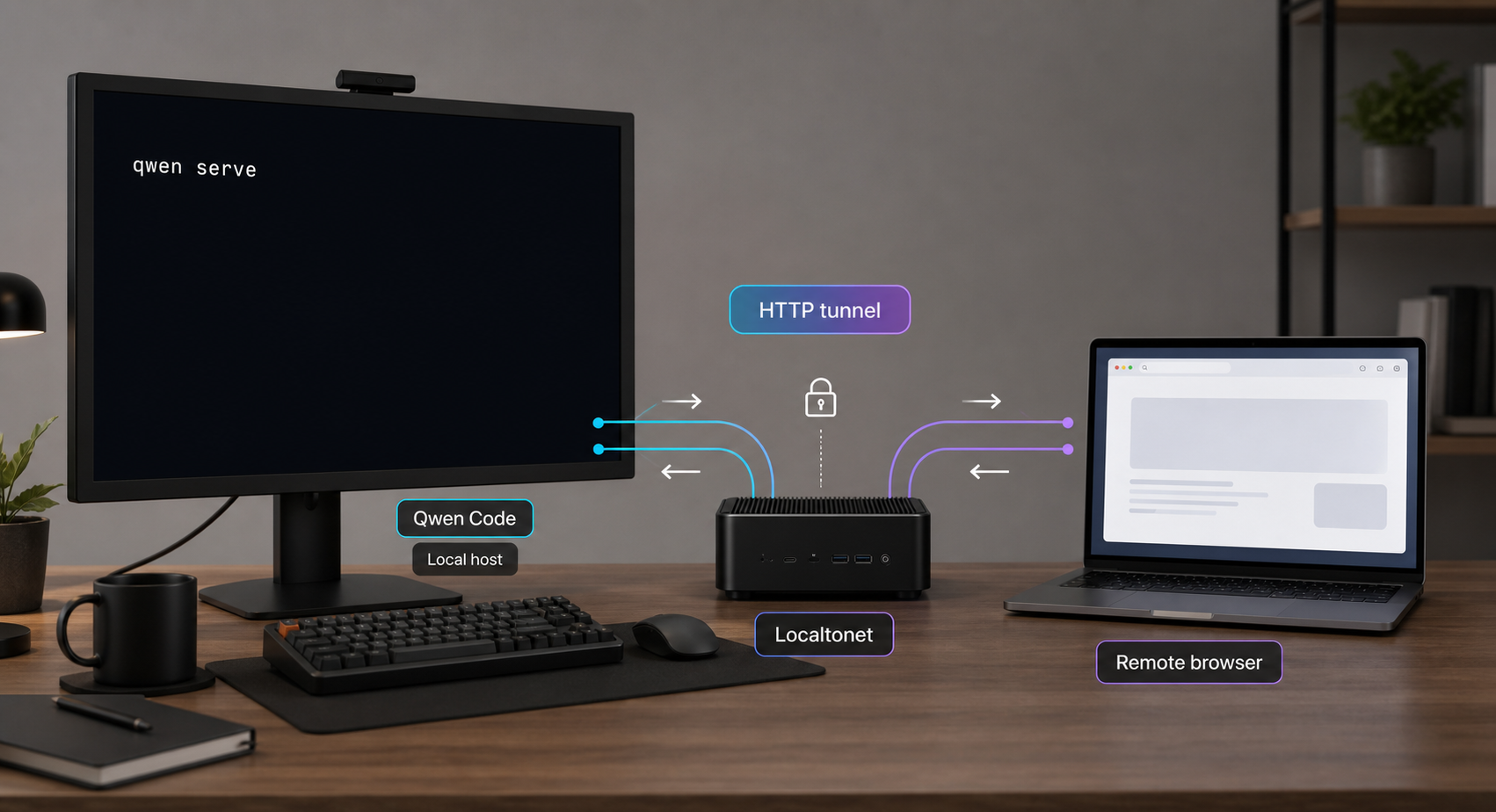
What this self-hosted Qwen Code workflow provides
Qwen Code is an agentic coding tool that runs on a computer with access to a selected project. Its normal interactive mode starts with the qwen command and presents a terminal interface. The project also supports headless operation, editor integrations, SDKs, desktop applications, channels, and an experimental daemon mode.
The daemon starts with qwen serve. According to the current
Qwen Code daemon documentation,
it provides a local HTTP service through which compatible clients can share agent functionality instead of each starting an independent Qwen Code subprocess. Events are streamed with Server-Sent Events, commonly abbreviated as SSE.
The daemon also serves a built-in Web Shell at its root. The documented default URL is http://127.0.0.1:4170/. The Web Shell and API use the same origin, so the local interface does not need a second application port. The loopback address is important: software on the same machine can connect, but another LAN or internet device cannot connect directly.
--no-web.
QWEN_SERVER_TOKEN or its documented token option, with --require-auth used to require authentication.
Localtonet does not install, configure, or authenticate Qwen Code. The daemon remains on your machine and keeps the project, model-provider access, session state, and tool permissions you configure. Our role begins only after the protected service works locally. The Localtonet client then forwards requests from a public endpoint to that local service.
This separation makes failures easier to diagnose. If the protected daemon cannot be reached at 127.0.0.1:4170, fix Qwen Code before creating a tunnel. If local authenticated access works but the public address does not, investigate the Localtonet client, selected device, target fields, relay selection, and tunnel state.
A connected agent may read project files, propose or perform edits, invoke tools, display conversation history, and consume model-provider tokens. Use a dedicated workspace, conservative approval controls, a least-privileged operating-system account, and required application-layer authentication. Do not depend on an unguessable public URL as an access control.
Release baseline and the v0.16-alpha documentation warning
This revision uses Qwen Code v0.22.3 as its release baseline. Pinning the npm installation to that release makes the executable version reproducible. If you use a standalone installer or Homebrew, verify the installed version before following version-sensitive daemon instructions.
Qwen Code is actively developed. The current daemon document still contains a prominent section describing the first qwen serve npm release as v0.16-alpha. That historical section says the initial release was text-only, local-only, experimental, and intended for developer prototyping or small-team collaboration. It also lists features deferred from that first alpha.
Those statements are useful history, but they must not automatically be treated as a complete description of v0.22.3. The v0.22.3 release notes show that daemon and Web Shell work continued after the alpha, including standalone daemon session APIs, daemon extension installation changes, Web Shell interface changes, and other fixes. Conversely, a newer release note does not by itself establish that every old limitation has disappeared.
| Evidence | What it establishes | How to use it |
|---|---|---|
| v0.16-alpha section in the daemon document | Historical launch scope, known limits, and experimental status of the first daemon release | Do not repeat every alpha limitation as a universal current limitation |
| v0.22.3 release page | Daemon and Web Shell development continued, with no known breaking changes listed for that release | Use v0.22.3 as this guide's reproducible baseline |
| Current daemon document on the main branch | Current documented commands and concepts, including --open, --no-web, bearer tokens, workspaces, SSE, and permissions |
Check it again before upgrading because the main branch can move beyond v0.22.3 |
| Your installed executable | The options actually available on the machine | Verify qwen serve --help before exposing the daemon |
This guide does not claim that v0.22.3 is production-grade or that every historical limitation has been resolved. The project continues to label daemon mode experimental. Review the release notes and daemon documentation that correspond to the version you deploy, particularly before using it for long-running, network-flaky, high-volume, or business-critical work.
Prerequisites and security decisions
Choose the host and workspace
Use a computer that contains, or is allowed to reach, the project Qwen Code will operate on. The host must remain running while remote access is needed. The Qwen daemon, Localtonet client, and tunnel must all remain active for the public endpoint to work.
Start with a dedicated test repository. Commit or back up important files before allowing an agent to modify them. Version control helps inspect and reverse tracked changes, but it does not protect untracked secrets, databases, external services, or commands with side effects.
Run Qwen Code under an operating-system account with only the required filesystem and command permissions. Avoid an administrator or root account unless a separately reviewed workflow genuinely requires it. Do not start the daemon from a home directory or broad filesystem root when only one project should be available.
Prepare a model provider
Qwen Code requires a model provider. Its first-run provider menu can offer Alibaba ModelStudio options, supported third-party providers, and a custom provider for a local server, proxy, or otherwise unsupported provider. Endpoint, model, account, API key, quota, and billing requirements depend on the selected provider.
Keep the model credential out of shell history, screenshots, source control, project instruction files, and support transcripts. A model-provider credential is not the same secret as a Qwen daemon bearer token or a Localtonet device token.
Prepare Localtonet
Create a Localtonet account and install our client on the same machine that runs Qwen Code. This same-host arrangement is required for the exact loopback target used here because 127.0.0.1 always refers to the device on which the connecting client runs.
A Localtonet authentication token identifies the client device. Device tokens are device-specific and must remain private. Relay servers, regions, Process Type choices, and other dashboard options can vary, so select from the current values shown for your account rather than copying a code from an older guide.
Prepare a daemon token safely
Generate a long, unique random secret with your approved password manager or secret-management system. Do not reuse the model-provider key, Localtonet device token, account password, or an ordinary project secret. The examples below prompt for the daemon token without embedding its real value in the command.
The model-provider credential authorizes model use. QWEN_SERVER_TOKEN authenticates a client to qwen serve. The Localtonet device token identifies the device running our client. Rotating one does not rotate the others.
Install Qwen Code and confirm v0.22.3
The Qwen Code overview documents standalone installers for Linux, macOS, and Windows, plus npm and Homebrew installation paths. Choose one method. Using several methods can put multiple qwen executables on PATH.
Reproducible npm installation
The most direct way to pin the release used by this guide is npm. Qwen Code requires Node.js 22 or later for this installation path:
node --version
npm --version
npm install -g @qwen-code/qwen-code@0.22.3
Confirm that the Node.js major version is 22 or later before installing. If npm reports success but qwen is unavailable, fix the global npm executable path rather than repeatedly reinstalling the package.
Standalone installer on Linux or macOS
curl -fsSL https://qwen-code-assets.oss-cn-hangzhou.aliyuncs.com/installation/install-qwen-standalone.sh | bash
Restart the terminal if qwen is not immediately available. A remote script piped into a shell executes its current contents, so review the script and your organization's software-installation policy in controlled environments.
Standalone installer on Windows
irm https://qwen-code-assets.oss-cn-hangzhou.aliyuncs.com/installation/install-qwen-standalone.ps1 | iexRestart PowerShell or the terminal application after installation if necessary.
Homebrew on macOS or Linux
brew install qwen-codeStandalone and Homebrew channels may install a release newer than this guide's baseline. Record the version reported by your installed executable and review its corresponding release information before applying version-sensitive instructions.
Inspect the installed command surface
qwen --version
qwen --help
qwen serve --help
Confirm that the installed version is v0.22.3 if you want to reproduce this baseline exactly. Also confirm that the serve help lists the authentication controls used below, including --require-auth, before creating any public tunnel. If your installed release does not expose the documented option, stop and use the documentation for that release rather than substituting an undocumented flag.
Configure the provider and verify the interactive agent
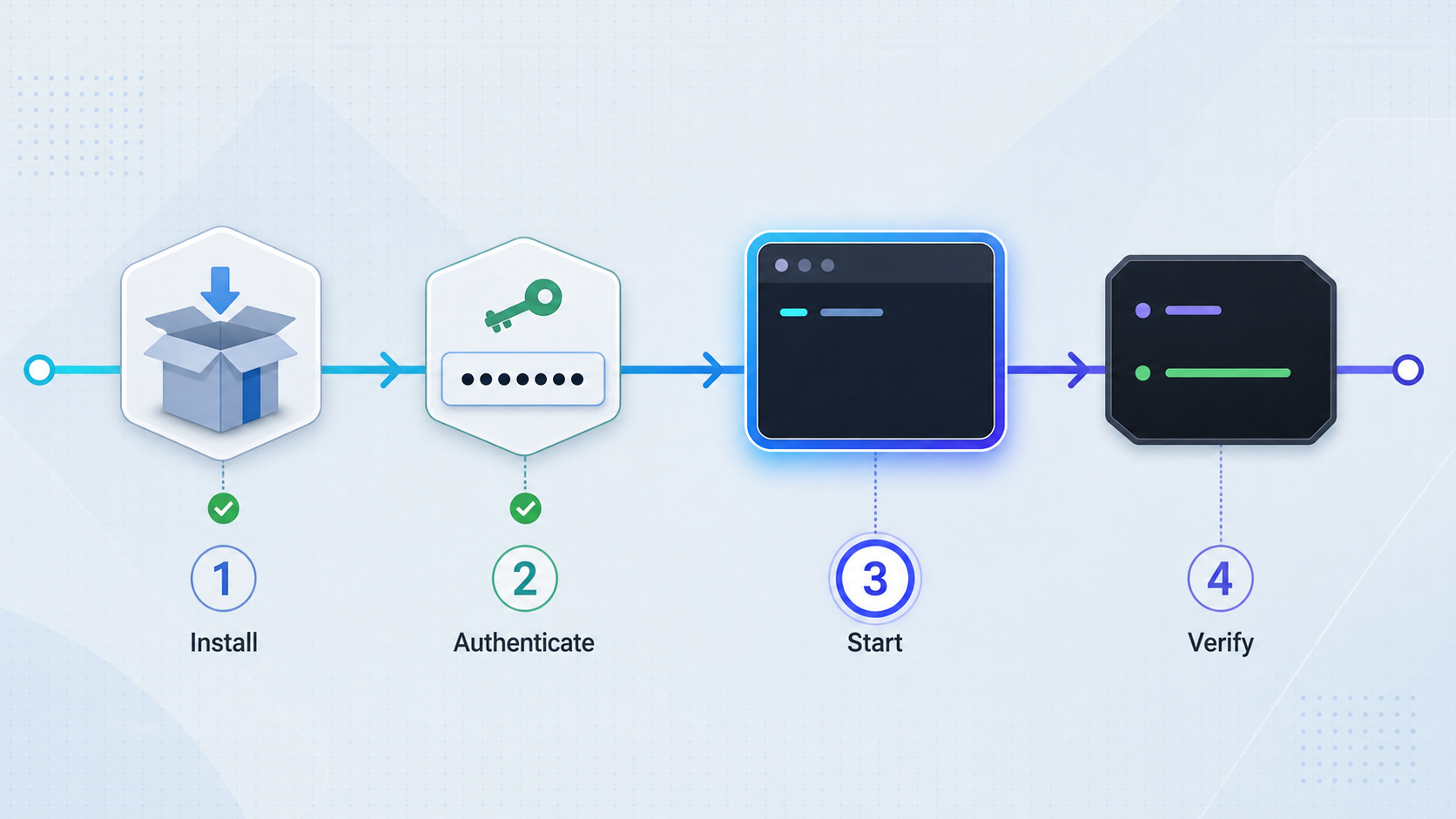
Test the normal terminal workflow first. This isolates installation, model-provider authentication, project access, and basic agent behavior from daemon and tunnel configuration.
Open the intended project
Change into a dedicated test repository that the current operating-system account may safely read and modify.
Launch Qwen Code
Run qwen. On first launch, select and configure a supported model provider using the prompts shown by the installed release.
Review authentication settings
Use /auth inside the session when you need to configure or change the provider and its credential.
Send a read-only prompt
Ask what the project does or request a repository-layout summary. Confirm that the response describes the intended project.
Review permission behavior
Observe how the installed version requests approval before tool use. Keep approval controls conservative and exit after confirming normal operation.
cd /path/to/your-project
qwen
Inside Qwen Code, use:
/authDo not continue until the intended provider works, a harmless prompt receives a response, and Qwen Code is operating in the correct workspace.
Start qwen serve on loopback
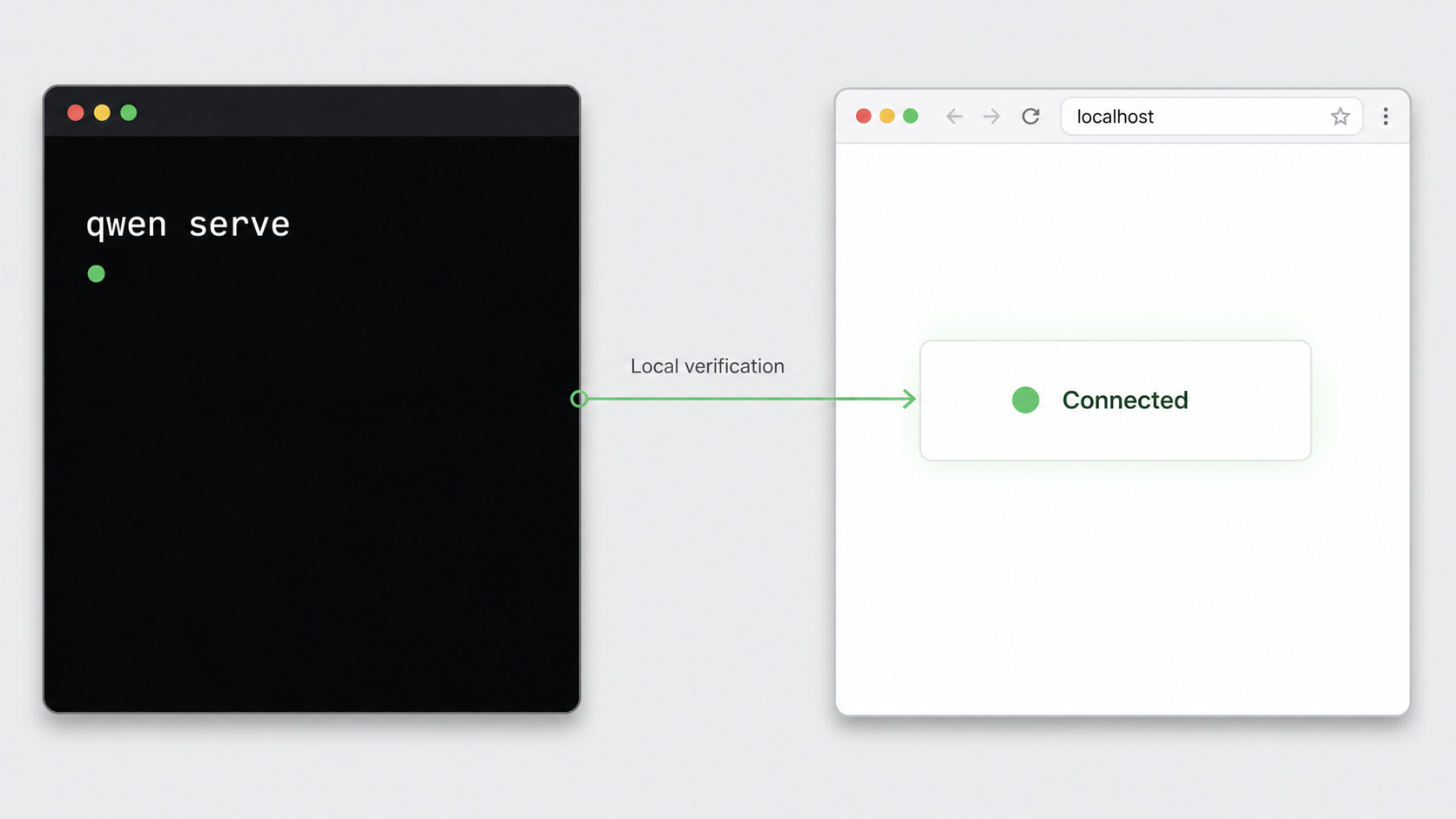
The daemon document identifies http://127.0.0.1:4170/ as the default Web Shell address. Retaining this loopback binding is the safest architecture for the same-host Localtonet workflow. It avoids exposing Qwen Code directly to the LAN.
Before adding authentication, you may perform one initial local-only startup to confirm that the daemon can launch:
cd /path/to/your-project
qwen serve
Open the following address only from the same machine:
http://127.0.0.1:4170/The current daemon documentation also lists these controls:
qwen serve --open
qwen serve --no-web
--open launches the local Web Shell in a browser. --no-web disables the built-in Web Shell for an API-only daemon. Do not use --no-web if local Web Shell verification is part of your test.
Local functional checklist
- The daemon remains running without a provider or configuration error.
- The local browser reaches
127.0.0.1:4170. - A harmless prompt receives a streamed response.
- The session uses the intended project rather than a home directory or unrelated repository.
- Tool permission requests can be reviewed and accepted or rejected.
- Stopping the daemon makes the local page unavailable.
Stop this initial tokenless process after the local test. Do not create a Localtonet tunnel to it. The next section restarts the daemon with authentication required.
Require a bearer token and prove unauthenticated denial
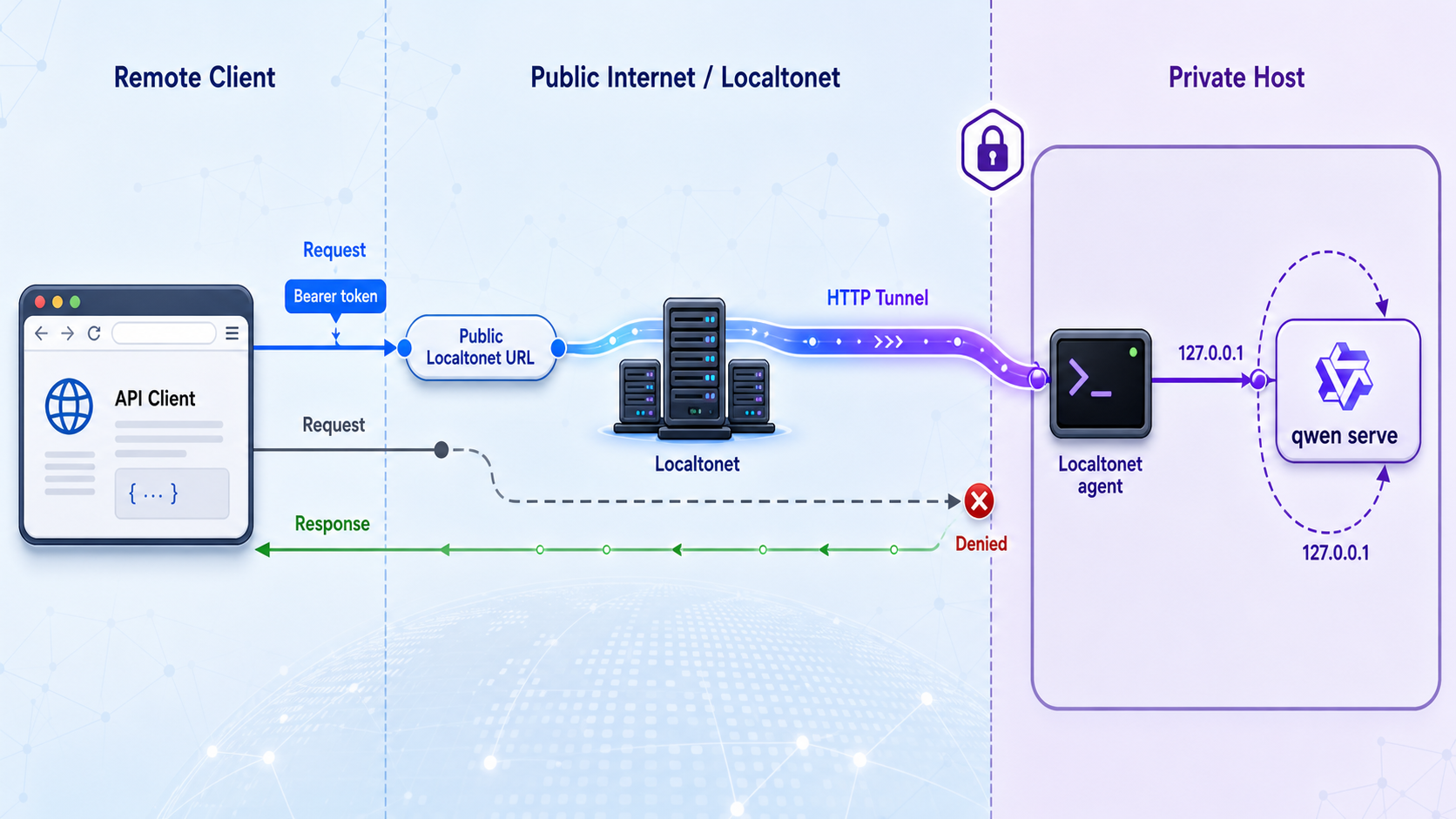
Qwen Code documents bring-your-own bearer-token support through the QWEN_SERVER_TOKEN environment variable and the --token option. It also documents --require-auth for requiring authentication. This guide uses the environment variable so the token value is not placed directly in the process command line.
Linux and macOS
Open a terminal in the intended project. Prompt for the token without echoing it, export it to the daemon's environment, and start Qwen Code with authentication required:
cd /path/to/your-project
read -rsp "Qwen daemon token: " QWEN_SERVER_TOKEN
echo
export QWEN_SERVER_TOKEN
qwen serve --require-auth
Keep that terminal open. Do not paste the token value into the command itself, a shell script stored in the repository, or a screenshot.
Windows PowerShell
In a current PowerShell environment that supports masked text input, use:
Set-Location C:\path\to\your-project
$env:QWEN_SERVER_TOKEN = Read-Host "Qwen daemon token" -MaskInput
qwen serve --require-auth
This environment variable applies to the current PowerShell process and programs launched from it. Closing the terminal removes it from that process environment. Do not use a persistent system-wide environment variable for a temporary test unless that storage method has been reviewed for your environment.
If qwen serve --help does not list the documented authentication option, if the daemon ignores --require-auth, or if an unauthenticated request succeeds, do not start the Localtonet tunnel. Resolve the release or configuration mismatch first.
Test the protected daemon on Linux or macOS
Open a second terminal. First make a request without an authorization header:
curl -i http://127.0.0.1:4170/The request must be denied rather than returning usable daemon content. Preserve the response status and headers in private operational notes if you need evidence of the test, but do not capture credentials.
Next, load the same token into the second terminal without echoing it and send it as a bearer token:
read -rsp "Qwen daemon token: " QWEN_SERVER_TOKEN
echo
export QWEN_SERVER_TOKEN
curl -i \
  -H "Authorization: Bearer ${QWEN_SERVER_TOKEN}" \
  http://127.0.0.1:4170/
The authenticated request should reach the protected resource while the unauthenticated request remains denied. The command history contains the variable name, not the token value.
Test the protected daemon on Windows
In a second PowerShell window, first test without a token:
curl.exe -i http://127.0.0.1:4170/Then load the token and send the bearer header:
$env:QWEN_SERVER_TOKEN = Read-Host "Qwen daemon token" -MaskInput
curl.exe -i `
  -H "Authorization: Bearer $env:QWEN_SERVER_TOKEN" `
  http://127.0.0.1:4170/
A successful security check has two parts: the no-header request is rejected, and the request carrying the correct bearer token reaches the daemon. Do not weaken --require-auth to accommodate a client that cannot send the header.
Current Web Shell limitation for this tutorial
The v0.22.3 release confirms active Web Shell development, and the current daemon document confirms that the Web Shell is served at the daemon root. However, the supplied current documentation and release evidence do not provide a complete, release-specific procedure showing where a user enters a bearer token in the standalone Web Shell, how that token is stored, and how subsequent API and SSE requests attach it.
For that reason, this guide does not recommend opening the Localtonet public URL in an ordinary browser and assuming the Web Shell will complete authentication. Use a compatible ACP, SDK, IDE, command-line, or other daemon client only after confirming that it can explicitly attach this header to every protected HTTP request and to the connection setup used for event streaming:
Authorization: Bearer YOUR_DAEMON_TOKEN
The placeholder above is descriptive. Never put a real token in documentation. If Qwen publishes a release-specific Web Shell token-entry procedure for your installed build, test it locally against --require-auth before using that interface through the public address.
Keep workspace and approval scope narrow
The daemon supports repeated --workspace options, with the first workspace acting as the primary default. Multiple workspaces increase the files and tools reachable through one listener, so register only those needed for the task.
Under the documented default single-session scope, clients targeting the same workspace may share conversation state, diffs, and permission prompts. When a tool permission request is shown to several clients, the first response wins. This is a collaboration model, not isolation between mutually untrusted users.
The daemon documentation also warns that some operations can cause additional model calls. Its session recap route is described as a pure-cost side query and historically had no per-route rate limit in the documented v1 behavior. Authentication limits unknown callers, but approved clients must still avoid uncontrolled request loops.
| Credential | Purpose | Handling rule |
|---|---|---|
| Model-provider credential | Authorizes Qwen Code to use the configured model service | Store through the provider's supported mechanism and never disclose it to remote users |
| Qwen daemon bearer token | Authenticates clients connecting to qwen serve |
Use a unique random value, require it for tunneled access, and rotate it after suspected disclosure |
| Localtonet device token | Identifies the device running our Localtonet client | Keep it device-specific and remove it from screenshots, repositories, and client instructions |
Create the Localtonet HTTP tunnel
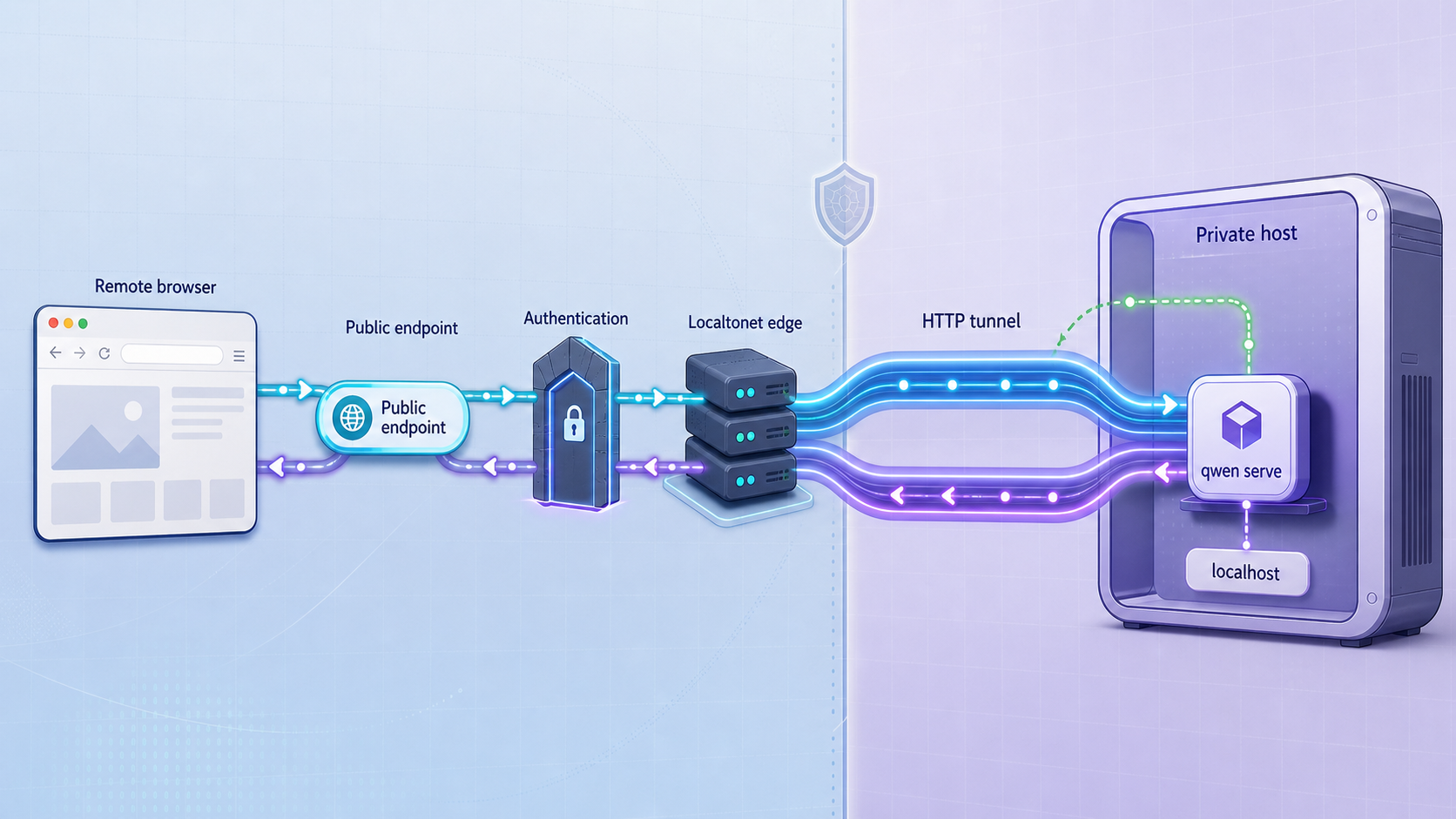
Create the tunnel only after the local test proves that a request without the bearer token is denied. HTTP is the appropriate Localtonet tunnel family because the Qwen daemon uses HTTP and SSE.
Our client establishes an outbound connection to a Localtonet relay. This provides a public URL without inbound router port forwarding, firewall changes, VPN setup, or a public IP address. The tunnel remains available only while the selected device is connected and the tunnel is running.
Follow the current Localtonet HTTP tunnel documentation alongside the sequence below. Use the fields and values currently displayed in your dashboard because relay and account options can vary.
Install and run the Localtonet client
Run our client on the Qwen Code host. This is required for the 127.0.0.1 target because loopback refers to the machine running the Localtonet client.
Open the HTTP Tunnel page and choose Process Type
Create an HTTP tunnel and select a Process Type. For a straightforward first test, choose Random Sub Domain. Custom Sub Domain and Custom Domain serve the same content at a public HTTPS address, but their availability and any custom-domain requirements must be checked in the current dashboard and documentation.
Select the connected device token
Choose the AuthToken for the device running Qwen Code. Confirm that the intended device is connected, and never copy its token into screenshots or client-facing instructions.
Select an available relay server
Choose a server or region currently offered by the dashboard. Do not hardcode a server value from an old tutorial because available choices can vary.
Enter the local target
Set the local IP address to 127.0.0.1 and the local port to 4170. Keep Qwen Code on loopback rather than changing it to listen on every network interface.
Start the tunnel
Creating the tunnel does not make it active. Press Start and confirm that the tunnel is running while the selected Localtonet device remains connected.
Verify denial and authenticated access remotely
From an approved remote machine, test the assigned public HTTPS address first without a bearer token and then with the token. Do not proceed to agent operations unless unauthenticated access is denied.
Stop or delete the tunnel when finished
Use Stop to end the public path while retaining the configuration for later use. Delete the tunnel when the configuration is no longer needed. Stopping and deleting are different lifecycle actions.
When Qwen Code and our client run on the same host, Localtonet can forward directly to the loopback listener. This avoids making the daemon directly reachable from the LAN. If our client runs on another computer, that computer's 127.0.0.1 points back to itself, not to the Qwen host.
Verify the public endpoint without exposing the token
On a remote Linux or macOS client, make the unauthenticated request first:
curl -i https://YOUR-ASSIGNED-PUBLIC-HOST/The public request must be denied. Then prompt for the daemon token and send it as a bearer header:
read -rsp "Qwen daemon token: " QWEN_SERVER_TOKEN
echo
export QWEN_SERVER_TOKEN
curl -i \
  -H "Authorization: Bearer ${QWEN_SERVER_TOKEN}" \
  https://YOUR-ASSIGNED-PUBLIC-HOST/
On Windows PowerShell:
curl.exe -i https://YOUR-ASSIGNED-PUBLIC-HOST/

$env:QWEN_SERVER_TOKEN = Read-Host "Qwen daemon token" -MaskInput
curl.exe -i `
  -H "Authorization: Bearer $env:QWEN_SERVER_TOKEN" `
  https://YOUR-ASSIGNED-PUBLIC-HOST/
Replace the placeholder host with the address assigned in your dashboard. Do not publish that address together with a credential. These requests prove the remote path and authentication gate. Actual agent interaction requires a compatible client that supports the daemon protocol and can attach the same bearer header to its protected requests.
End-to-end acceptance checklist
- The installed Qwen Code version has been recorded.
- The interactive CLI works with the selected provider.
- The daemon starts from the intended project.
- The daemon remains bound to the documented loopback address.
--require-authis active.- A local request without a bearer token is denied.
- A local request with the correct bearer token succeeds.
- The Localtonet client is connected under the selected device token.
- The HTTP tunnel targets
127.0.0.1:4170. - A public request without a bearer token is denied.
- An approved token-aware client can reach the protected service.
- Stopping the tunnel makes the public endpoint unavailable.
Routine operation and troubleshooting
Use a consistent startup sequence
- Start the host and confirm network connectivity.
- Open the intended project directory.
- Load
QWEN_SERVER_TOKENthrough the approved secret mechanism. - Start
qwen serve --require-auth. - Prove local unauthenticated denial and authenticated access.
- Start the Localtonet client and confirm the intended device is connected.
- Start the existing HTTP tunnel.
- Repeat the denial and authenticated-access checks through the public URL.
- Use only an approved token-aware daemon client for agent activity.
When finishing, stop the Localtonet tunnel first so new remote requests cannot arrive. Then stop Qwen Code. Delete the tunnel if that remote-access configuration is no longer required.
The qwen command is not found
Restart the terminal after using the standalone installer. For npm, verify Node.js 22 or later and confirm that npm's global executable directory is on PATH. For Homebrew, confirm that the Homebrew executable directory is available to the current shell. Installing through every available method can hide the underlying path issue.
The installed release is not v0.22.3
If you need exact reproducibility, install the pinned npm package:
npm install -g @qwen-code/qwen-code@0.22.3
If you intentionally use another version, inspect qwen serve --help and consult the daemon documentation and release notes for that build. Do not assume that a command copied from a moving main-branch document is present in an older executable.
The interactive CLI opens, but prompts fail
Use /auth and confirm the intended provider. Check the provider endpoint, account access, API credential, selected model, quota or billing state, and network reachability. Diagnose this locally because Localtonet is not involved in the terminal workflow.
The daemon does not start
Read the terminal error before changing settings. Confirm that the installed release supports qwen serve, that interactive provider access works, and that port 4170 is not already occupied. This tutorial does not guess a port-changing flag. Consult the daemon documentation for your exact release if a different port is required.
The local Web Shell does not load
Confirm that the daemon process is still running and test the exact address:
http://127.0.0.1:4170/
If the daemon was started with --no-web, the Web Shell is intentionally disabled. When authentication is required, an ordinary browser navigation may not provide the bearer header. Use the curl verification procedure or a documented token-aware client rather than disabling authentication.
An unauthenticated request succeeds
Stop the Localtonet tunnel immediately if it is running. Confirm that the daemon was started with --require-auth and that QWEN_SERVER_TOKEN was available in the same process environment. Verify the installed release and inspect qwen serve --help. Do not continue until a request without the Authorization header is denied.
An authenticated request is still denied
Confirm that the client uses the exact bearer format:
Authorization: Bearer YOUR_DAEMON_TOKENCheck for leading or trailing whitespace introduced while copying the token. Confirm that the client and daemon use the same value and that the environment variable was set before the daemon process started. Avoid printing the token while troubleshooting.
Local access works, but the public URL does not
Confirm that the Localtonet client is connected under the AuthToken selected by the tunnel. Verify that the tunnel is started rather than merely created. Check the HTTP tunnel target, which should be 127.0.0.1 and port 4170 for this same-host design. Use the current public address shown in the dashboard.
If our client is running on another device, its loopback address does not reach the Qwen host. Move the Localtonet client to the Qwen host for this architecture rather than exposing Qwen Code broadly on the LAN through a guessed bind option.
The page loads but streaming stalls
SSE keeps an HTTP response open while events are delivered. Test locally first to distinguish a Qwen process, client, or model-provider problem from the public network path. The daemon documentation describes reconnection through Last-Event-ID within its replay window, but the connecting client must implement compatible behavior.
Actual responsiveness depends on the host, model provider, client, network, active session, and available relay. This guide does not claim an uptime or performance guarantee for either component.
The public browser cannot authenticate
Opening a URL does not automatically attach a bearer token. The current evidence used for this guide does not establish a complete token-entry flow for the standalone Web Shell in v0.22.3. Do not work around that limitation by removing --require-auth. Use a client with documented bearer-token support or keep the Web Shell local until Qwen provides a release-specific authenticated browser workflow that you have tested.
The wrong project appears
Stop the public tunnel before investigating. Confirm the directory from which the daemon was started and review any explicitly registered workspaces. The first registered workspace is the documented primary default for requests that omit a working directory. Restart from the intended project, verify locally, and then restart the tunnel.
Multiple users interfere with permission prompts
This matches the documented first-responder permission model. Connected clients may see the same request, and the first answer determines the result. Restrict access to a coordinated trusted group and agree on who controls approvals. Do not treat a shared daemon session as tenant isolation.
Remote access stops unexpectedly
Check three independent states: the Qwen daemon process, the Localtonet client connection, and the tunnel's running state. A tunnel configuration can exist while stopped. A running tunnel also cannot reach a daemon that has exited. Host sleep, terminal closure, provider failure, or normal shutdown can interrupt the workflow.
Respond to possible credential disclosure
Stop the tunnel and terminate the daemon. Rotate the exposed credential through the system that owns it. Rotate the daemon bearer token if remote access may have been compromised, the provider credential if model access may have been exposed, and the Localtonet device token if the device credential may have leaked. Rotating one does not invalidate the others.
Frequently asked questions
Which Qwen Code version does this tutorial use?
The reproducible release baseline is Qwen Code v0.22.3. The npm command pins @qwen-code/qwen-code@0.22.3. Standalone and Homebrew installations may provide a different release, so verify the installed version and its serve help before continuing.
What does qwen serve do?
qwen serve runs Qwen Code as an experimental HTTP daemon. Compatible clients can share agent functionality over HTTP and SSE, and the daemon serves a built-in Web Shell unless started with --no-web.
What is the default qwen serve address?
The documented default Web Shell address is http://127.0.0.1:4170/. Loopback keeps the daemon local to the host unless a separate connectivity layer forwards requests to it.
How do I require authentication?
Set a unique bearer token in the daemon process environment as QWEN_SERVER_TOKEN and start qwen serve --require-auth. Verify that a request without the bearer header is denied and that the same request succeeds only when the correct Authorization: Bearer header is supplied.
Can I use the Web Shell through the public URL?
Not on the evidence available for this tutorial. The current materials confirm that the Web Shell exists but do not document a complete v0.22.3 bearer-token entry flow for the standalone public interface. Keep it local or use a client with explicit, documented support for attaching the bearer token.
Which Localtonet tunnel type should I use?
Use a Localtonet HTTP tunnel. For the same-host design in this guide, select the connected Qwen host and set the local target to 127.0.0.1 on port 4170.
Does Localtonet replace Qwen Code authentication?
No. Localtonet provides the connectivity path. Qwen Code remains responsible for authenticating its clients. Require daemon authentication and prove unauthenticated denial before starting the tunnel.
Do I need router port forwarding or a public IP address?
No. Our Localtonet client establishes an outbound relay connection, so this HTTP tunnel does not require inbound router port forwarding, firewall changes, VPN setup, or a public IP address.
Must the Localtonet client run on the Qwen Code host?
It must run there for the exact 127.0.0.1:4170 target in this guide. A Localtonet client on another device would interpret 127.0.0.1 as that other device.
Is qwen serve suitable for unattended production use?
Qwen Code describes daemon mode as experimental. Historical v0.16-alpha documentation explicitly scoped the initial daemon toward prototyping and local collaboration. Later releases added daemon and Web Shell functionality, but you should review the guarantees and limitations of your exact release before using it for an unattended or business-critical service.
Connect a verified Qwen Code daemon with Localtonet
Pin and verify Qwen Code, keep the daemon on 127.0.0.1:4170, require its bearer token, prove unauthenticated denial locally, and then create a Localtonet HTTP tunnel for approved token-aware clients.


