

Evaluate a pinned SlowBooks Pro container deployment, verify it locally, and publish it only after compatibility and recovery checks pass
SlowBooks Pro currently documents Docker as an optional installation path for Linux servers. Its current public project information does not explicitly confirm Docker on Intel-based Macs, and it does not establish that the macOS package is limited to Apple Silicon. This corrected guide therefore treats Docker Desktop on an Intel Mac as an unverified community deployment rather than an officially documented SlowBooks Pro installation path. It shows how to pin the reviewed v2.23.3 release, inspect the release-specific Compose configuration, validate the local application before using real accounting data, and add a Localtonet HTTP tunnel only after authentication, persistence, backup, and restoration requirements are understood.
📋 What's in this guide
Understand the current compatibility status
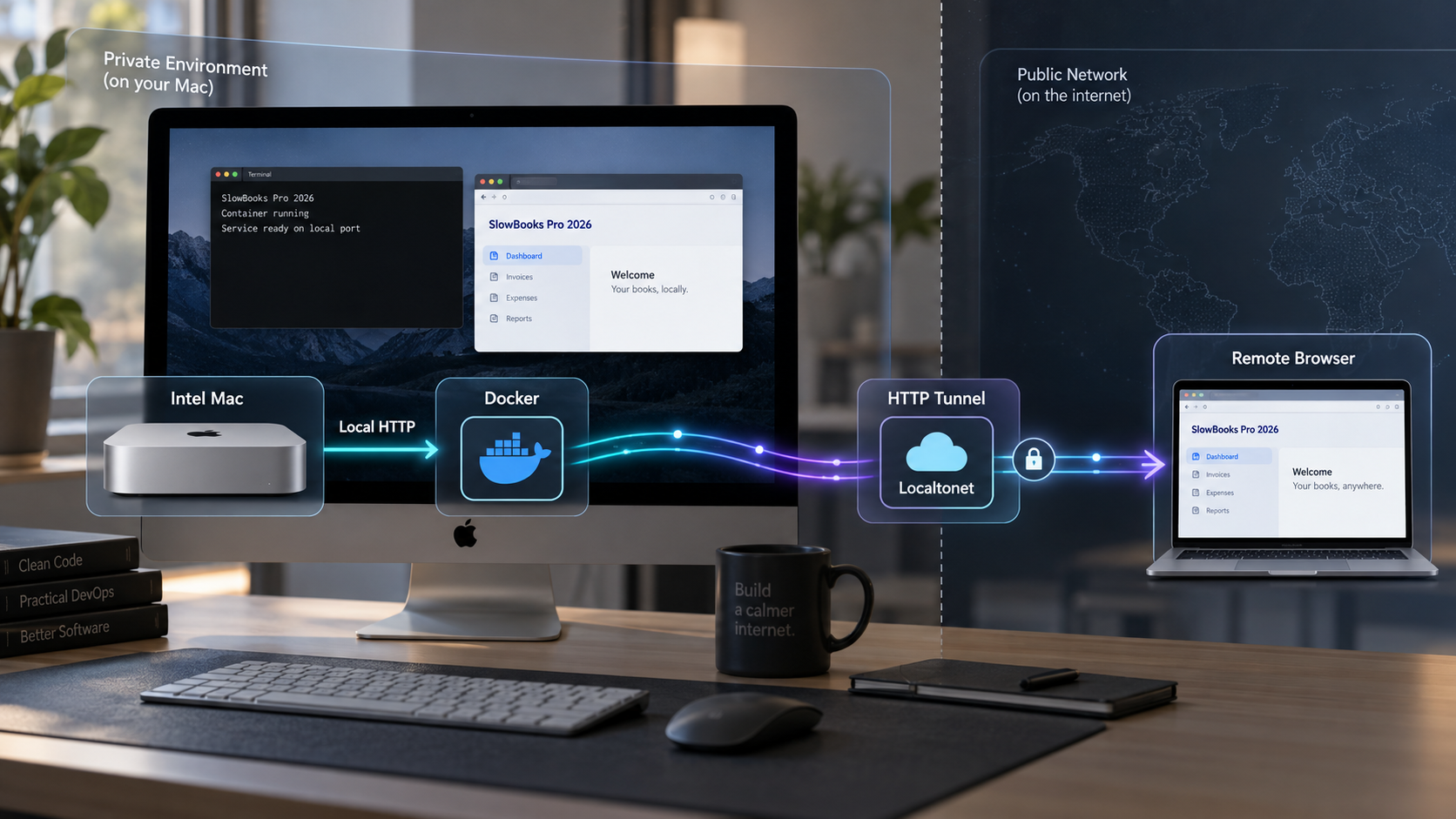
SlowBooks Pro 2026 is a source-available accounting and bookkeeping application. Its published capabilities include double-entry accounting, invoicing, accounts receivable, accounts payable, payroll-related workflows, inventory, bank feeds, analytics, imports and exports, and a local REST API. The project describes company records as living in PostgreSQL on hardware controlled by the operator.
The current repository describes the signed installer as containing the multi-user Server Edition and says that Docker remains an optional path for Linux servers. That wording replaces the earlier claim that Docker was the documented path for both Linux servers and Intel Macs. The available evidence also describes a signed and notarized macOS package, but it does not identify that package as Apple Silicon-only. We therefore cannot responsibly divide the installation choices by Mac processor architecture.
Despite the legacy page title, this article does not promise official SlowBooks Pro support on an Intel Mac. Running the Linux-oriented Compose project through Docker Desktop on macOS may work, but it should be treated as a community deployment until the SlowBooks Pro maintainers explicitly document and test that host configuration. For production accounting, prefer an installation path that the project currently supports and for which you can prove backup and restoration.
Docker Desktop itself is also version-sensitive. A Docker Desktop release must support both the specific macOS version and the Intel architecture of the host. Docker changes its supported macOS range over time, so an old Intel Mac can be incompatible with current Docker Desktop even when its processor is technically capable of virtualization. The supplied evidence does not establish a minimum macOS version, Docker Desktop version, memory allocation, or disk capacity for this SlowBooks Pro deployment.
Check the current Docker Desktop system requirements for the exact Mac before downloading it. Do not infer compatibility from an older tutorial, and do not install an obsolete Docker build merely to keep an unsupported operating system online with sensitive accounting data.
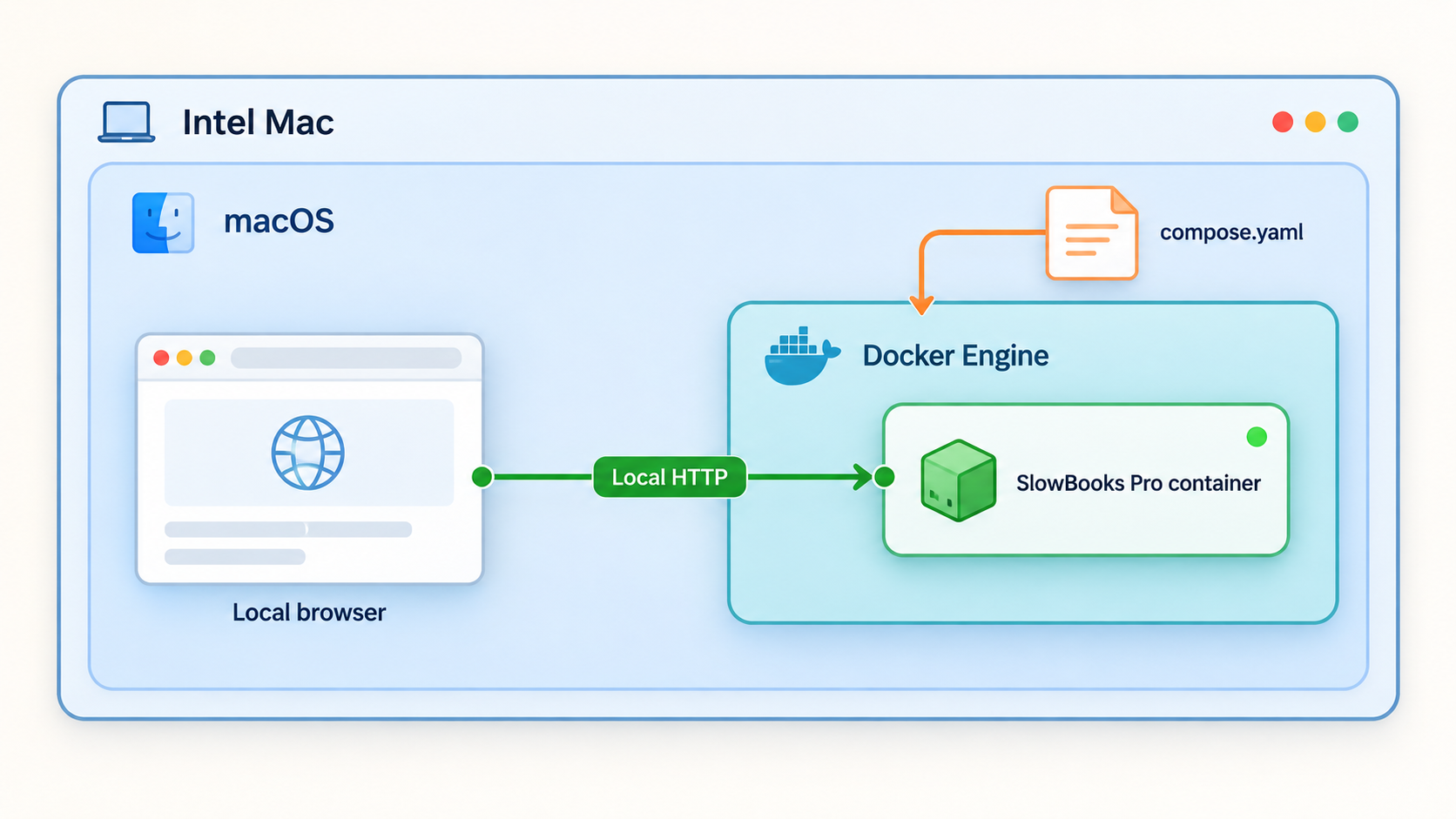
v2.23.3, associated with gated commit 3f98d08, instead of deploying a moving development branch.
Choose a deployment path based on current evidence
| Path | Current evidence | Recommended use |
|---|---|---|
| Docker on a Linux server | The current repository explicitly calls Docker an optional path for Linux servers. | Evaluate using the exact release documentation and Compose definition. |
| Docker Desktop on an Intel Mac | Not explicitly confirmed as a supported SlowBooks Pro installation target. | Community evaluation only unless the maintainers confirm support for the selected release. |
| macOS package | The current project advertises a Developer ID signed and notarized macOS package. The supplied evidence does not establish its processor architecture. | Inspect the current release assets and package requirements instead of assuming it is Apple Silicon-only. |
| Signed Windows installer and Server Edition | The repository says multi-user Server Edition is built into the signed installer and does not require Docker. | Consider it when a supported Windows host fits the deployment. |
Prepare the host and define a production gate
Before touching the repository, decide whether this is an evaluation or a production accounting system. An evaluation can stop when compatibility or documentation is unclear. A production deployment must not proceed until the release-specific configuration, initialization, persistence, backup, and restoration procedures are known and tested.
Verify Docker Desktop compatibility
Confirm the Mac model, processor architecture, and installed macOS version through the macOS system information interface. Then compare them with the current Docker Desktop requirements. Use an Intel-compatible Docker Desktop package only if Docker still supports the host operating system.
After installation, start Docker Desktop and verify that both the client and engine respond:
docker version
docker compose version
The first command should include server information. If it reports only client details or cannot connect to the Docker daemon, the engine is not ready. The second command must recognize the modern docker compose subcommand.
Verify Git and outbound access
git --versionGit is required to retrieve and pin the release. The host also needs outbound HTTPS access for the repository and any images or dependencies referenced by the Compose project.
Plan host availability
A laptop-style host is unavailable when it sleeps, shuts down, loses power, or disconnects from the network. Docker Desktop and the SlowBooks Pro containers must remain running for local access. For remote access, the Localtonet client and selected tunnel must remain running as well.
Review storage capacity without relying on an invented minimum. Required space depends on database growth, attachments, generated files, local images, logs, retained backups, and Docker's own virtual disk. Monitor both macOS free space and Docker Desktop storage consumption.
Stop the production rollout if the pinned release does not explicitly reveal required environment values, database initialization behavior, migration behavior, persistent storage, and a supported recovery method. Do not compensate for missing accounting-system recovery documentation by guessing PostgreSQL commands or container paths.
Pin and review the SlowBooks Pro release
The reviewed release is v2.23.3. Its release page identifies gated commit 3f98d08 and states that release testing covered Windows, macOS, and Linux with PostgreSQL. That gate does not by itself establish that the Docker Compose deployment is officially supported on an Intel Mac.
Clone the repository, fetch tags, and check out the fixed release before running Compose:
git clone https://github.com/VonHoltenCodes/SlowBooks-Pro-2026.git
cd SlowBooks-Pro-2026
git fetch --tags
git checkout v2.23.3
git rev-parse --short HEAD
git status
The revision should correspond to 3f98d08. A detached HEAD is expected when checking out a release tag. If the revision differs, stop and determine whether the tag changed, the checkout failed, or the local repository is not at the reviewed release.
Inspect the files that control deployment
The repository contains INSTALL.md, .env.example, docker-compose.yml, docker-compose.prod.yml, Dockerfile, docker-entrypoint.sh, migration files, and supporting scripts. These files are part of the pinned release and must be reviewed together.
git show --no-patch --decorate HEAD
sed -n '1,240p' INSTALL.md
sed -n '1,240p' .env.example
docker compose config --services
docker compose config
The rendered configuration is especially important because Compose applies variable interpolation and merges defaults before starting services. Review it for:
- Every required environment variable and whether it has a safe value.
- Database credentials and whether defaults are appropriate for production.
- Published host ports and the interface to which each port is bound.
- Named volumes and bind mounts used for PostgreSQL or application files.
- Image tags, build contexts, health checks, restart policies, and dependencies.
- The entrypoint or command responsible for database initialization and migrations.
The evidence supplied for this correction does not include the contents of the current INSTALL.md, .env.example, Compose files, or entrypoint. It therefore does not establish exact required variables, valid production values, service names, migration commands, volume names, host paths, first-run credentials, or an official backup and restore procedure. This article does not invent those details. If the checked-out release does not document them clearly, it is not ready for an independently supportable production deployment based on this guide.
Evaluate the pinned Compose deployment
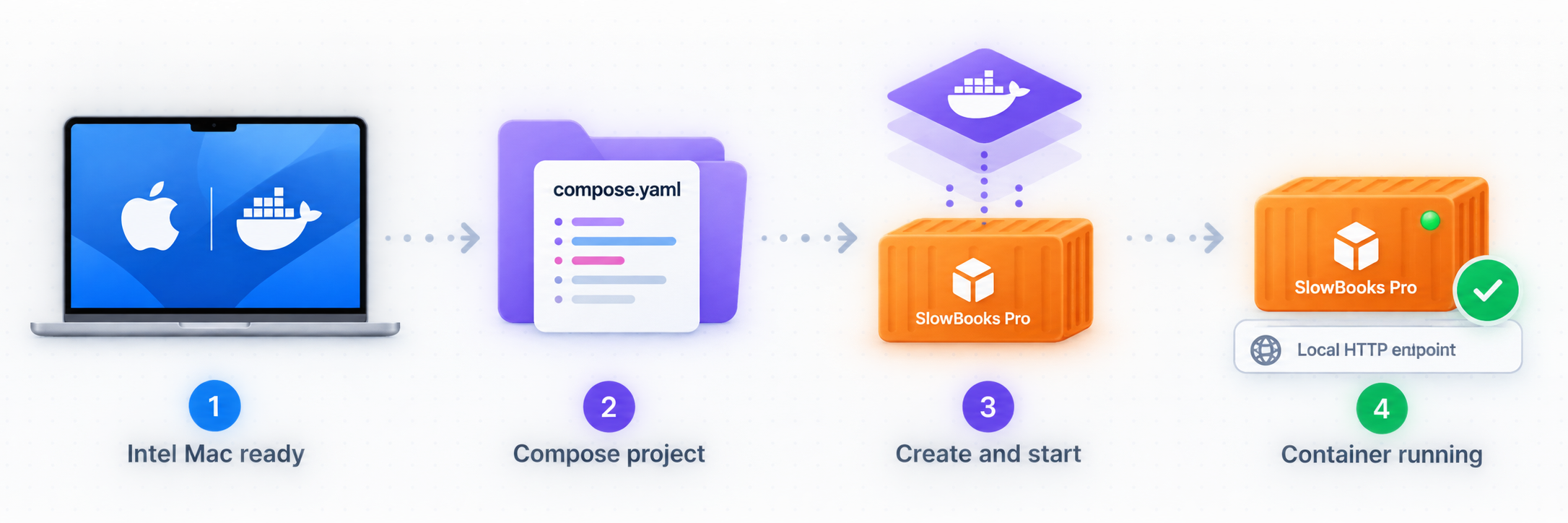
Continue only after the release inspection identifies every required environment value and explains how secrets should be supplied. Do not copy credentials from examples into a production deployment. Keep completed secret files out of Git, screenshots, terminal transcripts, and support archives.
Confirm the pinned release
Verify that the working tree is at v2.23.3, commit 3f98d08, and has no unintended local modifications.
git describe --tags --exact-match
git rev-parse --short HEAD
git statusPrepare only documented environment values
Follow the checked-out INSTALL.md and .env.example. Supply unique secrets for fields the release identifies as required. If the release does not explain a field or its valid format, stop rather than guessing.
Render and inspect the effective Compose configuration
Validate interpolation and review services, ports, mounts, commands, and dependencies before creating containers.
docker compose config --services
docker compose configStart the exact documented Compose profile
If INSTALL.md selects the default Compose file, use the default command below. If it explicitly selects docker-compose.prod.yml or another profile, use that documented invocation instead. Do not assume that files named “production” are interchangeable with the default project.
docker compose up -dObserve initialization and migrations
Inspect status and logs immediately. Confirm from the release documentation and logs whether schema initialization or migrations run automatically, require a separate command, or failed. Never run a guessed migration command against accounting data.
docker compose ps
docker compose logs --tail=300Identify the actual local endpoint
Read the published port from docker compose ps and the rendered Compose configuration. Earlier material used http://localhost:3001, but the current evidence provided for this correction does not independently confirm that binding for every release configuration.
Complete the documented first-run flow with test data
Open the verified local URL and follow only the setup presented by the pinned release. Create unique credentials if prompted. Do not assume a default administrator account, and do not enter real financial or personal data yet.
If the project documentation for v2.23.3 confirms port 3001, test it with:
curl -i http://127.0.0.1:3001/
Otherwise, replace the port with the host port actually shown by Compose. Do not point Localtonet at port 3001 merely because an older article used it.
Verify application behavior locally
Check every service
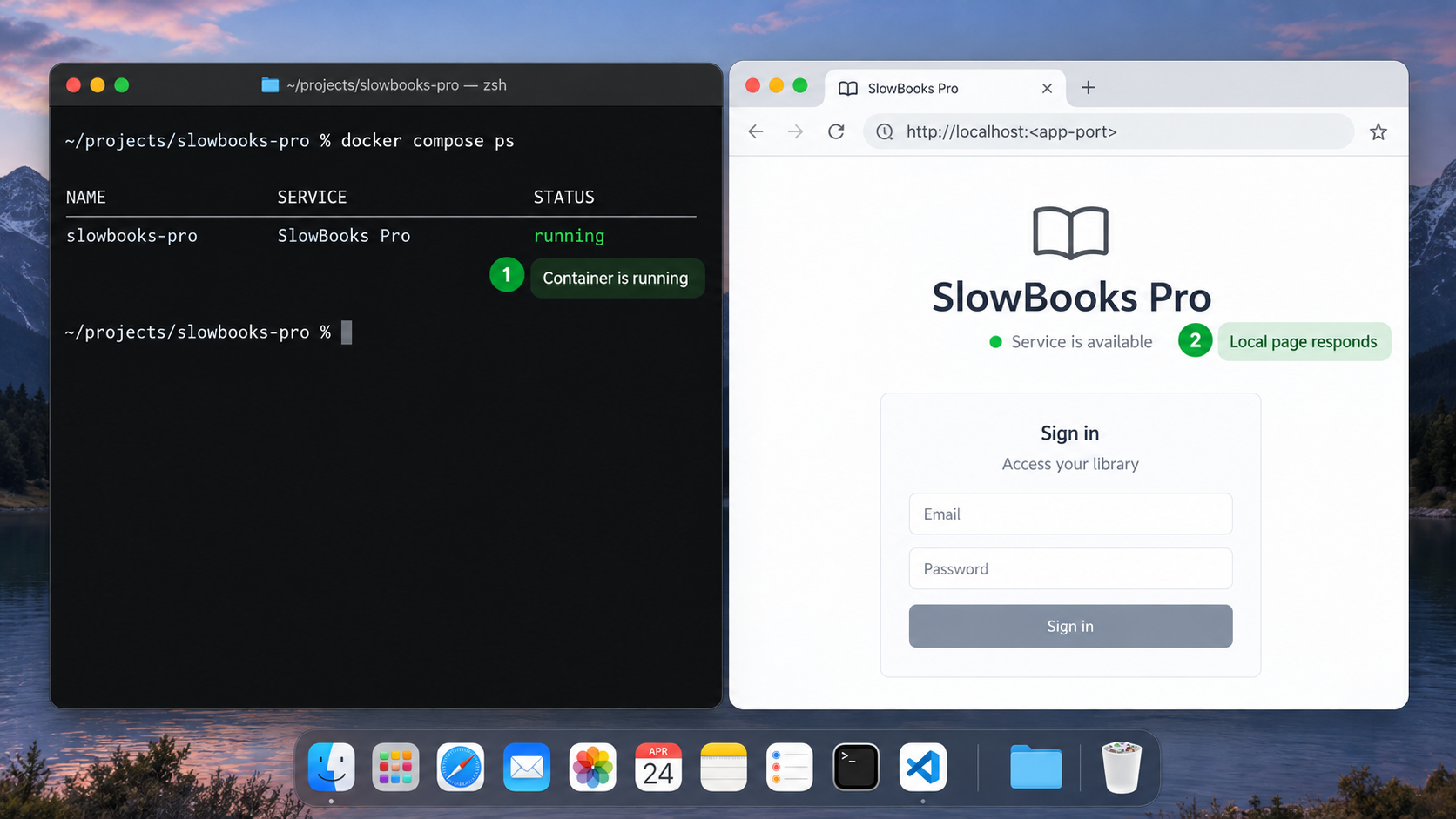
docker compose ps
docker compose logs --tail=300
A service that repeatedly restarts, exits, or reports a failed health check is not ready. Use the service names shown by docker compose config --services and docker compose ps. Do not assume generic names such as app, web, or db.
Confirm migrations and initialization
Search the startup output for explicit success or failure messages associated with database connectivity, schema creation, migrations, and application startup. A listening HTTP port does not prove that the database schema is current. If the release requires a separate migration operation, run only the command documented for that release and retain the output with the deployment record.
Test with a browser and an HTTP client
Open the actual local URL in a browser on the host. Confirm that scripts, styles, navigation, and sign-in behavior load correctly. Then inspect the HTTP response from Terminal using the verified port:
curl -i http://127.0.0.1:VERIFIED_PORT/
Replace VERIFIED_PORT with the published host port. A command-line response proves that an HTTP process answered, but only a browser and cautious functional test show whether the application interface works.
Test authentication and roles
The SlowBooks Pro project describes administrator, bookkeeper, and read-only roles for Server Edition. Do not assume that every Docker mode exposes the same workflow. Verify the user-management interface in the pinned release. Give each authorized person an individual account where supported, reserve administrative access for system management, and confirm that an unauthenticated session cannot read company records.
Perform a non-destructive restart test
After creating only non-sensitive test data, restart the project:
docker compose restart
docker compose ps
docker compose logs --tail=200
Reload the local application and confirm that the test state remains. This checks basic persistence across a container restart. It is not a backup test and does not prove recovery after volume loss, database corruption, or host failure.
Do not enter bank details, payroll records, tax identifiers, customer information, live invoices, or production credentials until you have identified all persistent data and successfully restored a separately retained backup into an isolated test deployment.
Establish persistence, backup, and restoration
For an accounting application, the persistence layout is part of the installation, not an optional operations topic. The effective Compose configuration must reveal whether PostgreSQL uses a named Docker volume, a bind-mounted host directory, or another storage arrangement. It must also reveal whether application-managed attachments, exports, configuration, keys, or audit files live outside the database.
Inventory mounts without changing them
docker compose config
docker compose ps
docker volume ls
Match the volumes and bind mounts in the rendered configuration to the services that consume them. Record the Compose project name, source volume or host path, destination path inside the container, ownership expectations, and purpose. Do not infer that backing up the PostgreSQL volume captures every application file.
Do not guess a PostgreSQL backup procedure
A reliable PostgreSQL backup can depend on database names, users, server versions, extension requirements, encryption, application consistency, and migration state. Copying a live database directory at the filesystem level is not automatically a valid backup. Likewise, an SQL dump alone may omit application files stored elsewhere.
The supplied project evidence does not publish an authoritative SlowBooks Pro backup command, backup artifact format, volume map, or restoration sequence for v2.23.3. It also does not establish whether the application interface includes a supported backup and restore operation. Until those details are obtained from the pinned release or its maintainers, this deployment should not be represented as production-ready.
Define a recovery acceptance test
A complete test should use an isolated environment and answer all of the following:
- Can a backup be created while the application is in a documented consistent state?
- Does the backup include the database, application files, configuration, and necessary encryption material?
- Can it be restored without relying on the original Docker volume?
- Does the restored application start on the same pinned release?
- Do test transactions, users, permissions, attachments, and audit history appear correctly?
- Can the recovery process be repeated by someone other than the original installer?
docker compose down removes containers and project networks, while volume-removal options can destroy persistent data. Do not add such options unless deletion is intentional, every affected volume has been identified, and a tested restoration path exists.
Routine container operations
| Task | Command | Effect |
|---|---|---|
| Show project state | docker compose ps |
Lists services, state, and published ports for the current Compose project. |
| Read recent logs | docker compose logs --tail=200 |
Shows recent project output without assuming a service name. |
| Follow logs | docker compose logs -f |
Streams new log output until the terminal command is stopped. |
| Stop existing containers | docker compose stop |
Stops project containers without intentionally removing them. |
| Start stopped containers | docker compose start |
Starts containers that were already created. |
| Restart services | docker compose restart |
Restarts existing project services. |
| Remove containers and networks | docker compose down |
Removes project containers and networks. It must not be expanded with destructive volume options casually. |
| Render configuration | docker compose config |
Displays the effective Compose configuration after interpolation. |
Upgrade deliberately
Do not update by pulling a moving branch over a production deployment. Identify the installed tag and commit, read the target release notes, review configuration differences, determine migration and rollback behavior, create a tested backup, and schedule a maintenance window.
After an upgrade, inspect logs and verify the application locally before restarting remote access. A source rollback may not reverse a database migration. A real rollback plan therefore depends on the target release's migration policy and a verified pre-upgrade backup.
Add a Localtonet HTTP tunnel after local verification
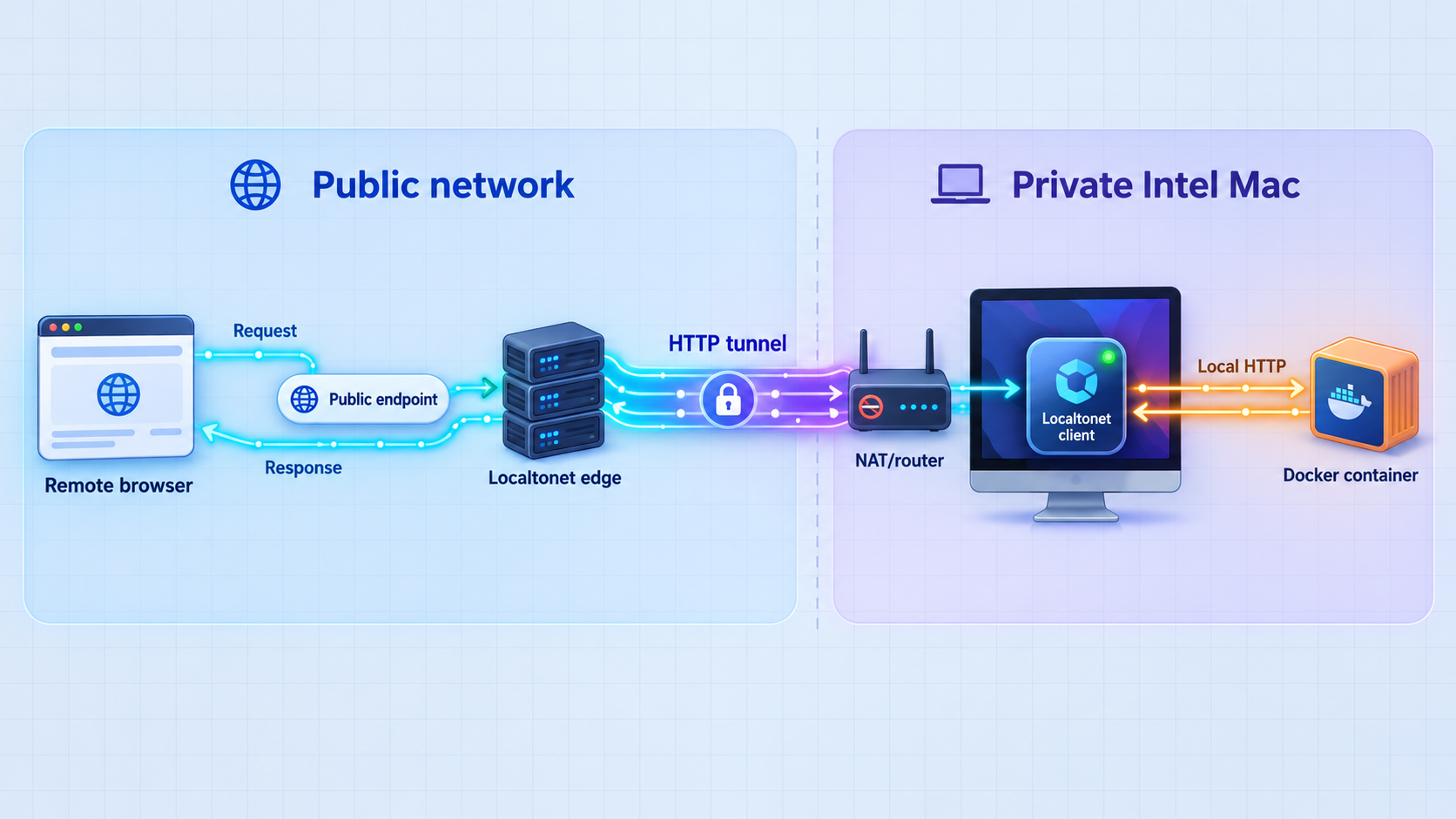
Localtonet can expose a local HTTP service without inbound router port forwarding, firewall changes, VPN setup, or a public IP address. Our client runs on the device that can reach SlowBooks Pro and establishes an outbound connection to a Localtonet relay server.
For an Intel Mac, the current Localtonet download list provides a MacOS 64-Bit client. Apple Silicon users should choose the separate MacOS ARM-64 download. Install the client that matches the host architecture and use the device-specific authentication token assigned through your Localtonet account.
Verify the local SlowBooks Pro target
On the same Mac that will run our client, open the actual local URL and verify sign-in and an authorized test workflow. Record the confirmed local IP and host port from Compose. Do not assume port 3001 unless the pinned release publishes it.
Install the MacOS 64-Bit Localtonet client
Use the MacOS 64-Bit download listed in the current Localtonet documentation for an Intel Mac. Run the client on the Docker host so a loopback target refers to the correct machine.
Authenticate the device
Authenticate the client with its device-specific token and confirm that the intended device appears connected. Tokens identify devices and must not be placed in screenshots, shared shell history, public repositories, or article examples.
Create an HTTP tunnel
In the dashboard, select an HTTP tunnel, the connected device token, and an available relay server. Obtain current server or region choices from the dashboard rather than hardcoding an old server code.
Set the verified local target
Enter 127.0.0.1 as the local IP only when the Localtonet client runs on the same host as Docker. Enter the host port confirmed from the pinned Compose deployment. If the client runs on another device, its loopback address does not point to the Mac.
Select the HTTP process type
Choose Random Sub Domain, Custom Sub Domain, or Custom Domain according to the options available in the current dashboard. These process types serve the target at a public HTTPS address. Follow current Localtonet instructions for any custom-domain DNS requirements.
Start and test the tunnel
Creating a tunnel does not start it. Press Start, wait until it is running, and test the assigned public URL from a private browser session or another authorized device. Confirm that unauthenticated visitors cannot access accounting records.
See the Localtonet HTTP tunnel documentation for the current HTTP dashboard workflow. The general Localtonet documentation provides the current operating-system downloads, including MacOS 64-Bit and MacOS ARM-64.
A Localtonet HTTP tunnel provides a network route to SlowBooks Pro. It does not replace SlowBooks Pro authentication, user authorization, least-privilege roles, session controls, host security, or backups. Do not rely on an unguessable URL as access control. Start the tunnel only after the application rejects unauthorized access and each remote user has the minimum permissions required.
Keep the local and public tests separate. If the public URL fails, retest the local endpoint on the Mac. If the local endpoint fails too, investigate Docker, initialization, migrations, storage, and SlowBooks Pro. If the local endpoint works, investigate the Localtonet device connection, tunnel state, selected relay, and target address.
Apply a production security checklist
Protect application identities
Use individual user accounts where the installed mode supports them. Apply read-only access for users who only need reports, bookkeeping access for users who enter transactions, and administrative access only for system management. Avoid shared administrator credentials because they weaken accountability and make offboarding difficult.
Protect the host
Use a strong macOS login credential, enable appropriate device security, apply supported operating-system updates, and restrict physical access. Keep Docker Desktop, the Localtonet client, Git, and browsers maintained. Do not run unrelated untrusted containers on a host that handles sensitive accounting records.
Protect secrets
Localtonet device tokens, application credentials, database passwords, payment credentials, and AI-provider keys must not be committed to Git. Exclude secret-bearing files from screenshots and support bundles. Rotate any secret that is exposed.
SlowBooks Pro offers optional AI integrations. Information sent to a cloud-backed model is processed under that provider's terms. Only a locally operated model that has been checked for outbound behavior can be treated as keeping its processing local.
Limit exposure time
Stop the Localtonet tunnel during maintenance, incident investigation, backup restoration, or periods when remote access is unnecessary. Delete obsolete tunnel configurations and retire device tokens associated with decommissioned hosts.
Record operational ownership
Document who maintains the host, who can administer SlowBooks Pro, who can start or stop the tunnel, where recovery material is held, and how access is revoked. A self-hosted system transfers operational responsibility to the operator.
The host must be powered on and awake, Docker Desktop and the required containers must be running, the Localtonet client must be connected, and the HTTP tunnel must be started. A failure at any layer interrupts remote access.
Troubleshoot by layer
Docker cannot connect to the engine
Start Docker Desktop and wait for it to become ready. Run docker version again. If the server section remains unavailable, resolve Docker Desktop compatibility or startup before investigating SlowBooks Pro.
The Intel Mac cannot install current Docker Desktop
Check whether the installed macOS release and Intel architecture remain supported by the current Docker Desktop package. Do not silently downgrade to an unsupported Docker release for a production accounting host. Move the Docker deployment to a supported Linux server or evaluate another officially supported SlowBooks Pro installation path.
Compose cannot find its configuration
pwd
ls
git status
Run Compose from the pinned repository directory. Confirm that the expected Compose files are present and that Git reports the v2.23.3 checkout.
Compose reports a missing variable
docker compose config
Compare the error with INSTALL.md and .env.example from the same tag. Do not copy a value from another release or invent credentials. If the release does not document the requirement, stop the production rollout.
A service exits or restarts continuously
docker compose ps
docker compose logs --tail=300
Find the earliest meaningful error. Possible categories include image architecture incompatibility, a missing environment value, database initialization failure, migration failure, unavailable storage, file-permission errors, or a port conflict. The emitted error and actual service name determine the remedy.
The expected port is not published
Inspect docker compose ps and docker compose config. Use the port defined by the pinned release. Do not add an arbitrary port override without understanding whether the application generates absolute URLs, applies origin checks, or expects a particular binding.
A port is already in use
Replace VERIFIED_PORT with the port shown by Compose:
lsof -nP -iTCP:VERIFIED_PORT -sTCP:LISTENStop the conflicting process only if you recognize it and understand its role. Follow the release's supported configuration if the host binding must change.
The local page opens but database operations fail
Inspect application and database logs. Confirm that initialization and migrations completed for the pinned release. An HTTP response proves only that a process is listening. It does not prove that PostgreSQL is reachable or that the schema is current.
The local URL works but the Localtonet URL fails
Confirm that the MacOS 64-Bit client is connected as the intended device, the HTTP tunnel is started, an available relay is selected, and the target matches the verified local address and port. When our client runs on the Docker host, 127.0.0.1 addresses that host. On another device, it addresses the other device instead.
The public page loads without requiring authentication
Stop the tunnel immediately. Review SlowBooks Pro's first-run state, authentication settings, user configuration, and intended deployment mode. Localtonet forwards requests to the application, so the application must enforce access to accounting records.
The service disappears while unattended
Check host sleep, power, Docker Desktop state, container state, Localtonet client connectivity, and tunnel status. Configure availability intentionally, balancing remote-access needs with host security and maintenance requirements.
Frequently asked questions
Does SlowBooks Pro officially support Docker on Intel Macs?
The current repository describes Docker as an optional path for Linux servers. The supplied current evidence does not explicitly confirm an Intel Mac Docker deployment, so this guide treats it as an unverified community configuration rather than an official installation path.
Is the SlowBooks Pro macOS package Apple Silicon-only?
That limitation is not established by the current evidence. The project advertises a Developer ID signed and notarized macOS package, but the supplied release information does not identify its architecture. Inspect the current release asset and its requirements before choosing it.
Why does this guide pin v2.23.3?
A fixed tag makes the source and deployment files reviewable and reproducible. Release v2.23.3 identifies gated commit 3f98d08. A moving main branch can change configuration, migrations, and application behavior without warning.
Does the Docker deployment always use port 3001?
Earlier material used http://localhost:3001, but the evidence supplied for this correction does not independently confirm that binding for every current Compose configuration. Use docker compose ps and docker compose config to identify the host port defined by the pinned release.
What is the official SlowBooks Pro Docker backup procedure?
The supplied project evidence does not establish an official backup artifact, exact database dump command, complete persistence layout, or restoration sequence for v2.23.3. Do not invent one. A production deployment should wait until all persistent data is identified and a supported restoration process succeeds in an isolated test.
Which Localtonet client should an Intel Mac use?
The current Localtonet documentation lists a MacOS 64-Bit client for x64 systems and a separate MacOS ARM-64 client. An Intel Mac should use the MacOS 64-Bit download, subject to the client's current macOS compatibility requirements.
Does Localtonet replace SlowBooks Pro authentication?
No. A Localtonet HTTP tunnel makes the configured application endpoint reachable through a public URL. SlowBooks Pro remains responsible for authenticating users, authorizing their actions, and protecting accounting records. Use individual accounts and least-privilege roles where the installed mode supports them.
Does Localtonet require router port forwarding?
No. Our client establishes an outbound connection to a Localtonet relay server. This provides a public URL without inbound router port forwarding, firewall changes, VPN setup, or a public IP address.
Does creating a tunnel make it active immediately?
No. Creating a tunnel does not start it. You must press Start, and the selected Localtonet client must remain connected. The local application must also remain available at the configured target.
Connect a verified local service with Localtonet
After the pinned SlowBooks Pro deployment passes compatibility, authentication, persistence, backup, restoration, and local HTTP checks, install the matching Localtonet client and create an HTTP tunnel to the verified host port.
Get Started Free →

