

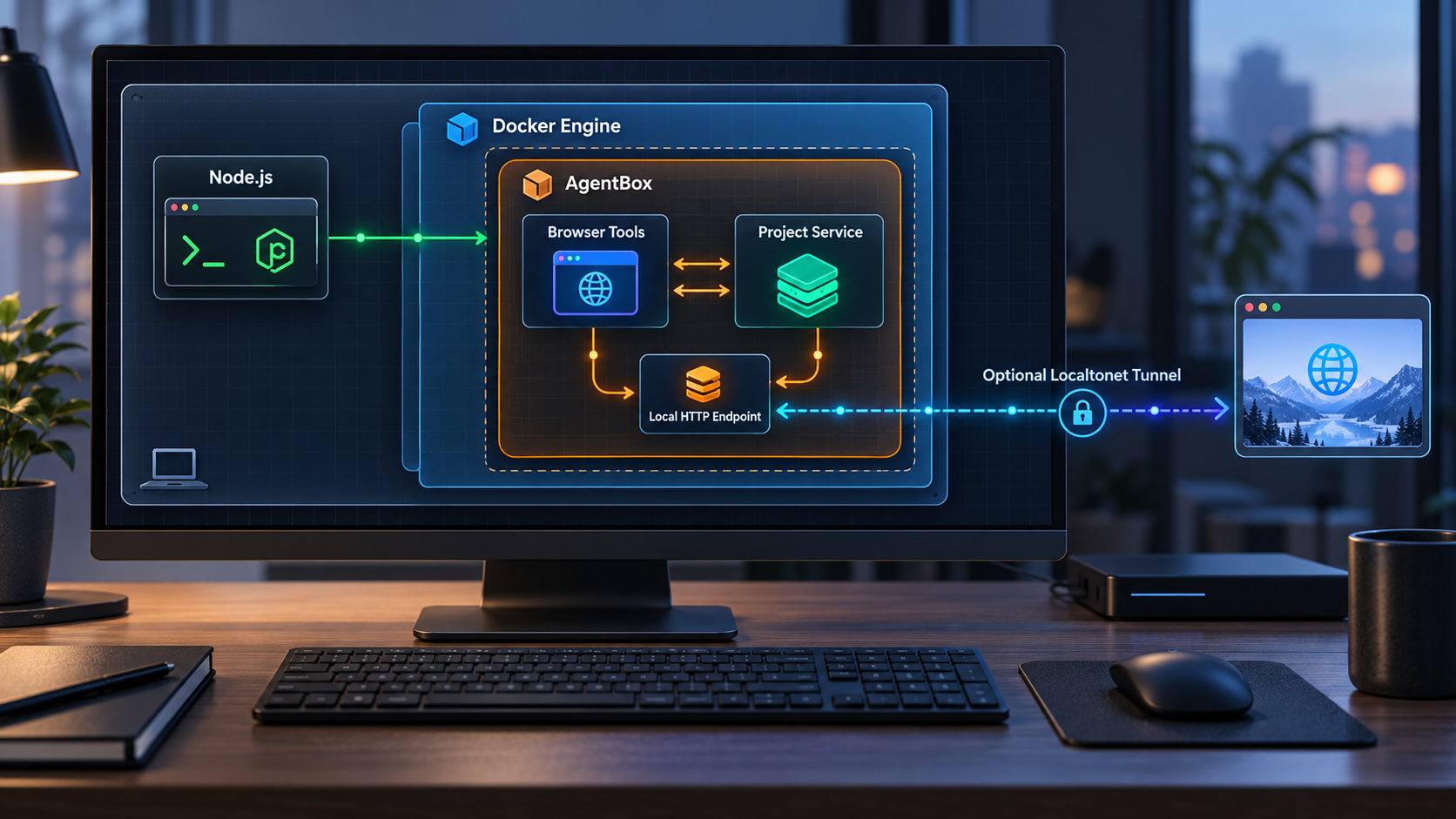
Build isolated local coding environments, verify their browser tools, and add remote HTTP access only when you need it
AgentBox runs coding agents and project workloads in dedicated boxes backed by Docker on macOS or Linux. In this guide, we install the official npm package, complete its interactive setup, create a local box, inspect its lifecycle, and verify its shell, web application, and browser-based screen tools. We then explain how to expose a discovered HTTP endpoint with Localtonet without guessing an address or port. Remote access is optional because AgentBox already includes local portless URLs and provider-specific private preview mechanisms.
📋 What's in this guide
What AgentBox installs and how the local workflow works
AgentBox is a command-line tool for creating dedicated environments in which coding agents and project services can run. Its local provider uses Docker, while the project also documents remote Docker and several optional cloud providers. This article focuses on the local Docker path because it gives you a practical way to evaluate AgentBox on your own macOS or Linux computer before introducing remote infrastructure.
A box is more than a single agent process. AgentBox provides a project workspace, a persistent shell, browser access, screen sharing through a browser-based noVNC viewer, and integrations for VS Code or Cursor. Its documented agent choices include Claude Code, Codex, OpenCode, and Pi. You can also create a box without immediately selecting one of those agent-specific launch commands.
The official installation path has two distinct layers. First, npm installs the @madarco/agentbox command globally. Second, agentbox install starts the interactive AgentBox setup. Docker remains responsible for running local boxes. Installing the npm package alone does not create a box, download the complete box image, or start a project service.
agentbox url command opens a box web application, while agentbox screen opens its browser-based noVNC viewer.
node_modules.
AgentBox uses portless URLs for local box web applications and documents private preview URLs across its providers. Localtonet is therefore an optional integration for cases where you specifically need a Localtonet-managed public HTTP address. It is not required to install AgentBox, create boxes, open local previews, or use AgentBox cloud previews.
Sandboxing is not a reason to ignore application security
Isolation reduces accidental interference between projects and agent workloads, but it does not automatically make every application inside a box safe to publish. A development server may expose debug pages, source maps, environment information, administrative actions, test credentials, or APIs designed only for trusted local users. The noVNC screen can be even more sensitive because it represents interactive access to the box desktop.
Treat the Docker host, the box, the application, and any public tunnel as separate security layers. Review what the application serves, require application-level authentication where appropriate, expose only the endpoint needed for the task, and stop remote access when the task is complete.
Prerequisites for the local Docker installation
The documented AgentBox requirements are macOS on Apple silicon or Intel, or Linux; Docker; and Node.js version 20.10 or newer. Docker Desktop and OrbStack are specifically listed as Docker options by the project. The extracted project documentation does not provide a complete operating-system installation matrix for Docker or Node.js, so use the current installation method recommended by the respective runtime vendor for your operating system.
| Requirement | Documented expectation | What to verify |
|---|---|---|
| Operating system | macOS on arm64 or Intel, or Linux | You are running the installation from a supported host operating system. |
| Node.js | Version 20.10 or newer | The active shell resolves a sufficiently recent node executable. |
| npm | Used to install @madarco/agentbox globally |
The npm command is available and can install global packages for your user environment. |
| Docker | Required for the local Docker provider | The Docker client can communicate with a running Docker engine. |
| Disk and network capacity | The first box build creates the approximately 1 GB agentbox/box:dev image |
The host has enough free space and can download required image and package data. |
| Project workspace | AgentBox operates in the context of a project | Open a terminal in the project directory you intend to use before creating the box. |
Check Node.js and npm
Print the active versions before installing AgentBox. The Node.js result must be at least 20.10. If multiple Node.js installations exist on your machine, run these checks from the same shell in which you will install and use AgentBox.
node --version
npm --version
A Node.js version manager can cause different terminal sessions to select different releases. If the version is too old, update Node.js using the method appropriate for your system, reopen the terminal if necessary, and run the checks again.
Check Docker availability
Confirm that both the command-line client and Docker engine are available:
docker --version
docker info
The first command only confirms that the Docker client is installed. The second requires communication with the engine. If docker --version succeeds but docker info fails, start Docker Desktop, OrbStack, or the Docker service used by your Linux installation before continuing.
Avoid copying unreviewed permission commands into your shell merely to make Docker errors disappear. Docker access is security-sensitive because it can provide extensive control over the host. Follow the supported permission model for your operating system and Docker installation.
Decide which provider you are configuring
The AgentBox installer can configure optional cloud providers, but they are not required for this guide. If your goal is a box on the current computer, choose the local Docker path during the interactive setup and skip cloud credentials you do not intend to use.
AgentBox documents separate interactive login commands for supported cloud providers, with credentials stored in ~/.agentbox/secrets.env. Do not add provider tokens merely to test local Docker. Never paste those tokens into project files, terminal transcripts, screenshots, tunnel settings, or support messages.
Install and configure AgentBox
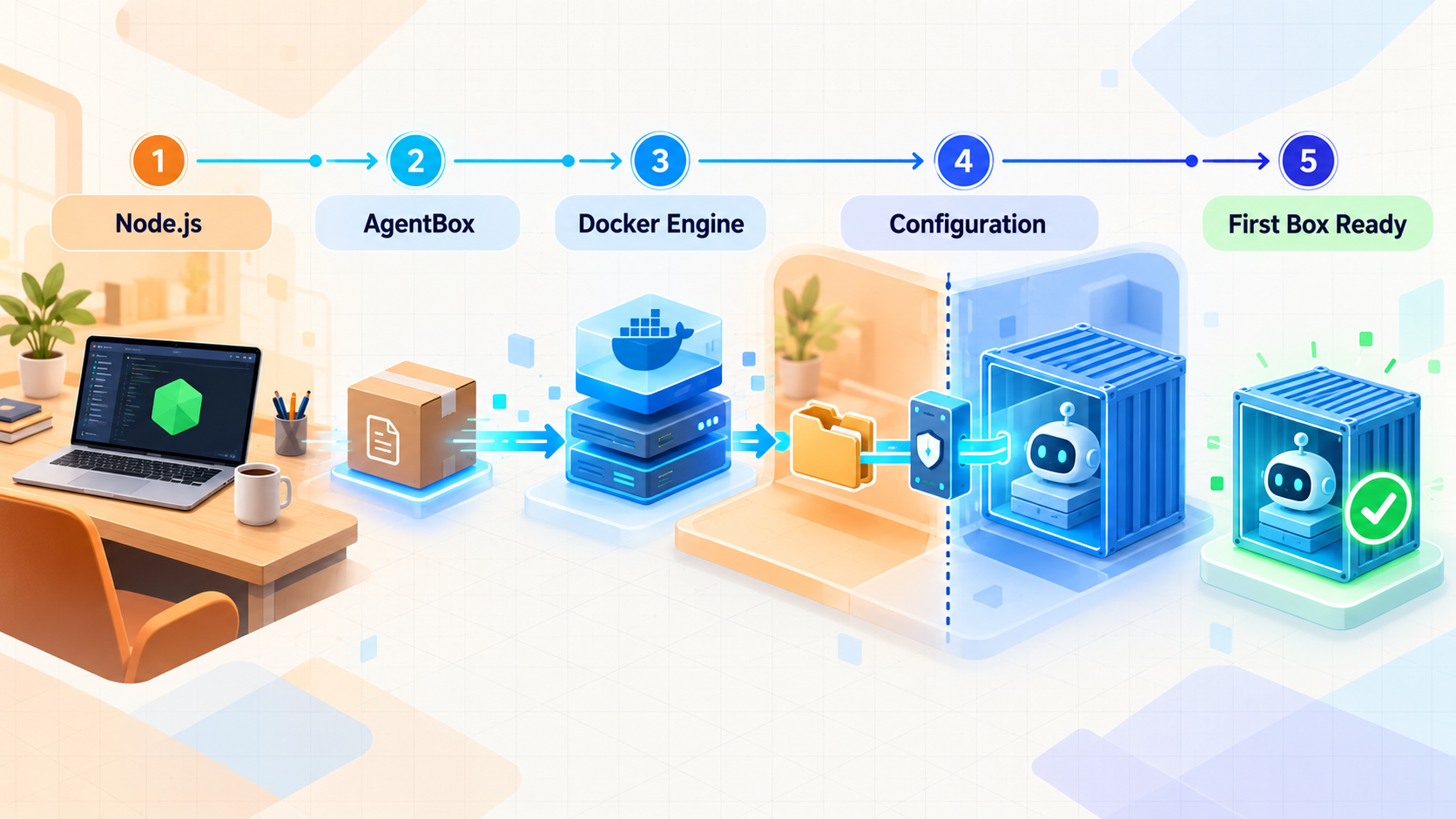
Use the stable globally installed npm package for the normal installation path. The project also publishes a nightly channel, but nightly builds are pre-release software and are unnecessary for this installation-first workflow.
Install the AgentBox npm package globally
Run the official stable installation command from a terminal with Node.js 20.10 or newer. A global installation makes the agentbox command available to your shell.
Run the interactive AgentBox installer
Start agentbox install and follow its prompts. Select the local Docker workflow for this guide. Configure optional providers only if you intentionally plan to use them and already understand their credential and billing requirements.
npm -g install @madarco/agentbox
agentbox install
Do not confuse the two commands. npm installs the CLI package, while the interactive installer performs AgentBox-specific setup. If the first command completes but your shell cannot find agentbox, the issue is normally command discovery or the npm global binary path rather than Docker.
AgentBox also has a native macOS menu bar application. The documented CLI installation command is agentbox install app. A direct DMG installation is also published, but the CLI is enough for this guide and Linux users should continue with the command-line workflow.
Stable and nightly channels
The project documents the following command for its nightly channel:
npm -g install @madarco/agentbox@nightlyNightly packages are intended for testing upcoming changes. If you opted into that channel and want to return to stable updates, AgentBox documents:
agentbox self-update --channel stableUnless a nightly feature is essential to your work, start with the stable package so that installation troubleshooting is not mixed with pre-release behavior.
Configuration boundaries
AgentBox supports an agentbox.yaml file for repeatable project setup, including project bootstrapping and services. The supplied project evidence does not establish a complete configuration schema, so this guide does not invent keys or example values. Begin with the interactive setup and a basic box. Add project automation only after you have checked the current schema for the version you installed.
Create your first local AgentBox
Open a terminal in the project directory you want to place inside a box. There are two useful starting points. Use agentbox create when you want to create and start a general box, or use an agent-specific command such as agentbox claude when you are ready to launch that supported coding agent in a detachable tmux session.
Enter the intended project directory
Run AgentBox from the workspace you want associated with the box. This matters because box selection can default to the box associated with the current project.
Create and start a box
Run agentbox create for a general-purpose environment. On the first creation, AgentBox builds the approximately 1 GB agentbox/box:dev image, which is a one-time initial build under the documented workflow.
Wait for creation and startup to finish
Let image preparation, workspace setup, and service startup complete. Do not interpret a longer first run as evidence that every later box will repeat the entire initial build.
Inspect the new box
Use the list and status commands to confirm that the box exists and to inspect its service and task state before launching browser tools or adding remote access.
agentbox create
agentbox list
agentbox status
If you want AgentBox to create a sandboxed box and launch Claude Code directly, use:
agentbox claude
The first agentbox create or agentbox claude invocation triggers the initial image build. Agent-specific authentication requirements can vary with the agent and your existing local setup. This evidence does not establish a universal credential procedure for every supported agent, so follow the prompts shown by the installed tool and do not place credentials in your repository.
How box identifiers work
Many AgentBox commands accept an optional box argument. When omitted, AgentBox can select the box for the current project. You can also identify a box using its short index, name, or an ID prefix. The examples below use 1 only as a short index returned by your own box list. Do not assume that every machine or project assigns the same number.
agentbox attach 1
agentbox shell 1
agentbox attach reconnects to a running agent session, while agentbox shell opens an interactive Bash shell inside the box. They serve different purposes. Use the shell to inspect the environment, install project dependencies through the project's documented process, and start a development service when AgentBox has not already done so.
Verify the box, project service, and browser tools
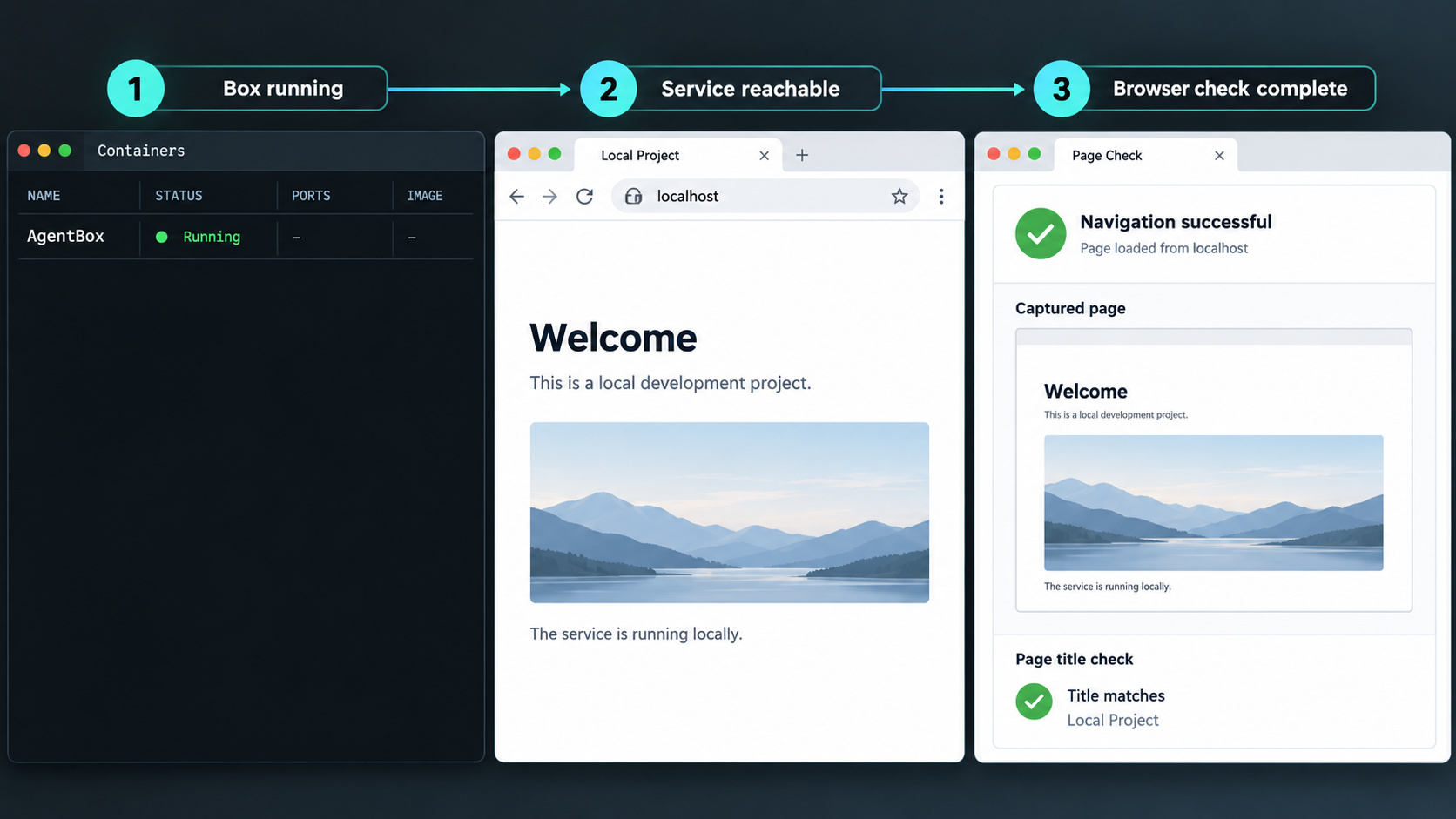
Verification should proceed from the lowest layer upward. First confirm that Docker is healthy. Then confirm that AgentBox sees a running box. Next inspect the box service state and shell. Only after those checks should you test a web preview, screen viewer, or public tunnel.
List boxes and inspect status
agentbox list
agentbox status
The list command, also available as ls, lists boxes for the current project. Its global option can list boxes across projects. The status command reports service and task status from the box's agentbox-ctl daemon. If a service is expected but not ready, inspect status before assuming the browser or networking layer is broken.
Open a shell and verify the workspace
agentbox shell 1
From the shell, inspect the project using its normal tools. AgentBox places the project workspace at /workspace for operations such as downloading the box workspace back to the host. The exact application installation and startup command depends on your project. Do not substitute a generic npm install or npm run dev if the project uses a different package manager or build process.
Open the box web application
agentbox url 1This command opens the box's web application URL in a browser. AgentBox uses portless so that box web applications can use the same URL from inside the box and on the host. A successful browser load verifies the AgentBox preview path as well as the application itself.
The command does not have a fixed hostname or port documented in the supplied evidence. The actual URL depends on runtime configuration and the project service. Record the address that AgentBox opens or presents on your machine. Do not copy a port from a tutorial and assume it applies to your box.
Open the browser-based screen viewer
agentbox screen 1
This opens the in-box browser through a webVNC or noVNC viewer. It verifies a different path from agentbox url: the URL command opens the project's web application, while the screen command opens an interactive view of the box's browser environment.
A screen viewer can reveal browser sessions, development tools, application data, and other activity inside the box. Do not publish it merely because it opens in a browser. If remote screen access is unavoidable, confirm the authentication and authorization behavior of the actual endpoint first, restrict who receives the address, and stop the tunnel immediately after use.
Inspect logs and resource use
agentbox logs
agentbox logs -f
agentbox top
agentbox logs prints recent log lines from a box service, and -f streams them. agentbox top provides a live view of CPU, memory, process, and disk usage. These tools help separate application startup failures from preview or tunnel problems.
Before moving on, verify all of the following:
- Docker is running and reachable.
- AgentBox lists the expected box.
- The box reports the expected service and task state.
- An interactive shell opens successfully.
- The project service starts using its own documented command or AgentBox setup.
agentbox urlopens the expected application.agentbox screenopens the noVNC viewer if you intend to use that feature.
Operate boxes without losing track of their state
AgentBox provides distinct commands for attaching, opening a shell, pausing, stopping, starting, and destroying boxes. Choosing the right command matters because these actions do not have the same persistence behavior.
| Command | Purpose | State implication |
|---|---|---|
agentbox attach 1 |
Reconnect to the detachable agent session | The box and session continue to exist. |
agentbox shell 1 |
Open an interactive Bash shell | Useful for project commands and direct inspection. |
agentbox pause 1 |
Freeze a box | Processes are paused rather than shut down normally. |
agentbox unpause 1 |
Resume a paused box | Processes continue from their paused state. |
agentbox stop 1 |
Stop the box | The upper volume is preserved, including installed dependencies. |
agentbox start 1 |
Start a stopped box | Docker starts it and AgentBox remounts the FUSE overlay. |
agentbox destroy 1 |
Remove the box | The box and its upper volume are discarded. |
Stop versus destroy
Use stop when you expect to return to the box. The documented stop behavior preserves the upper volume and installed project dependencies. Use destroy, also available through the rm alias, only when you intentionally want to discard that box's upper volume.
Do not assume every uncommitted change has already reached the host workspace or a remote Git repository. Inspect the box, commit or copy required work, and use the AgentBox download or copy workflow where appropriate before destroying it.
Move files and preserve project work
agentbox download downloads a box's /workspace into the host workspace and is gitignore-aware. agentbox cp <src> [dst] copies individual files between the host and box, with the direction selected by the name prefix. Because an incorrect source or destination could overwrite or misplace files, inspect the current command help for the exact prefix syntax supported by your installed version rather than guessing it.
AgentBox also supports checkpoints for capturing warm project state and starting future boxes from it. The bare checkpoint command lists checkpoints, while checkpoint create captures one:
agentbox checkpoint
agentbox checkpoint create
Optionally expose a discovered AgentBox HTTP endpoint with Localtonet
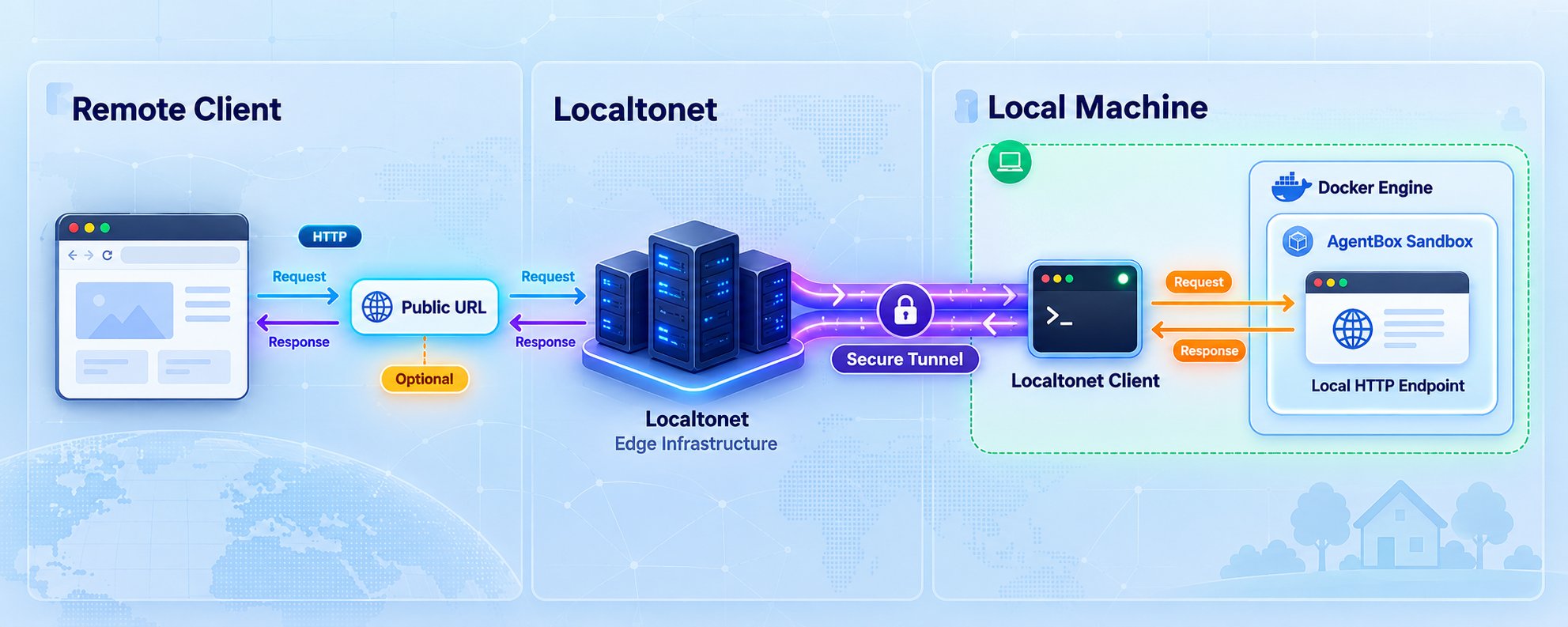
Add Localtonet only after the local browser workflow works. Our platform exposes a service running on your machine through an outbound connection to a Localtonet relay server. This means you do not need inbound router port forwarding, firewall changes, a public IP address, or VPN setup for a standard HTTP tunnel.
The Localtonet client must run on the AgentBox host or on another device that can reach the selected local target. Creating a tunnel is not enough to make it active. You must start it, and it remains available only while the selected client is connected and the tunnel is running.
First discover the actual local target
A Localtonet HTTP tunnel points to a local IP address and port. AgentBox does not document one universal hostname, bind address, or port for agentbox url or agentbox screen. It deliberately provides portless URLs and abstracts provider-specific preview connectivity. For that reason, this guide cannot honestly prescribe values such as 127.0.0.1:3000, 5173, or 5900.
Run agentbox url, inspect the address presented by your installed version, and determine the concrete host-reachable HTTP listener behind that preview. Your project logs or service status may also report its listening address. Test that precise local address from the same device on which the Localtonet client will run.
If AgentBox presents only a portless hostname and does not reveal a conventional host-reachable IP and port, do not guess the backing listener. Keep using the AgentBox preview, or consult the current AgentBox runtime details for your installed version. Localtonet needs a real reachable target for this workflow.
A guessed port may expose the wrong local service. Confirm both the IP address and port, load the target locally, and verify that it contains only the application you intend to share. Pay particular attention to wildcard listeners and unrelated services running on the Docker host.
Configure the HTTP tunnel
Install and run the Localtonet client
Run our client on the AgentBox host or on a device that can reach the verified local HTTP endpoint. Keep its device-specific authentication token private.
Select the authenticated device
In the Localtonet dashboard, select the client device identified by its authentication token. Never place the token in the AgentBox workspace, application source, screenshots, or public documentation.
Select an available relay server
Choose from the relay servers or regions currently offered in your dashboard. Availability can vary, so this guide does not hardcode a server code or region.
Create an HTTP tunnel for the verified local target
Enter the local IP address and port you discovered and tested at runtime. Choose the available HTTP process type appropriate to your account and use case, such as a random subdomain, supported custom subdomain, or custom domain.
Start the tunnel
Use the Start button after reviewing the configuration. Tunnel creation alone does not start connectivity. Once running, use the assigned public HTTPS address to test the application from a separate network.
Stop or delete access when finished
Stop the tunnel when remote access is no longer needed. Delete it if the configuration will not be reused. The public endpoint is available only while the selected client is connected and the tunnel is running.
For the current dashboard workflow, consult our Localtonet HTTP tunnel documentation. Exact custom-domain DNS instructions are intentionally not reproduced here because they must be checked against the current documentation before use.
Test the public result safely
Open the assigned public address from a device that is not relying on the same local browser state. Confirm that it shows the intended application, that application authentication behaves correctly, and that no administrative or debug routes are unintentionally exposed.
Then test the lifecycle explicitly:
- Load the application through the Localtonet public address.
- Stop the Localtonet tunnel and confirm that public access ends.
- Start it again and confirm that access returns.
- Stop the AgentBox service or box and confirm that the tunnel no longer delivers a working application.
- Restore the box and verify local access before testing the public URL again.
This sequence helps distinguish the Localtonet tunnel state from the AgentBox box state. Both must be operational: the Localtonet client and tunnel need to be connected, and the AgentBox application must be running and reachable at the configured local target.
Troubleshooting installation, boxes, previews, and tunnels
The shell cannot find agentbox
Confirm that the global npm installation completed successfully:
npm -g install @madarco/agentboxIf npm reports success but the command is missing, reopen the terminal and check whether npm's global executable location is included in your shell path. This can happen when Node.js was installed through a version manager or when the active shell uses a different Node.js environment from the one used during installation.
Node.js is too old
Run node --version. AgentBox requires Node.js 20.10 or newer. Updating the package in an old Node.js environment does not satisfy this requirement. Upgrade or select a compatible Node.js release, verify it in the current shell, and reinstall the global package if necessary.
Docker is installed but AgentBox cannot create a box
Run docker info. If it cannot reach the engine, start your Docker runtime and resolve its reported connection or permission issue. If Docker is healthy, inspect available disk space because the first box creation builds an approximately 1 GB development image and also needs space for layers, project files, and writable box state.
The first box takes longer than expected
The first agentbox create or agentbox claude builds the agentbox/box:dev image. Let the build complete and inspect its actual output rather than terminating it solely because it takes longer than subsequent starts. Network speed, image downloads, project setup, and host resources can all affect the initial run.
The box exists but the project page does not load
Separate box health from application health. Use:
agentbox status
agentbox logs
agentbox logs -f
agentbox shell 1
Confirm that the project's development service is running inside the box and has completed its startup. Check the project-specific logs for dependency, configuration, database, or bind errors. AgentBox cannot make a failed application service healthy merely by opening its URL.
agentbox url opens the wrong box
AgentBox can default to the box associated with the current project. Check your current directory, run agentbox list, and provide the intended box index, name, or ID prefix explicitly. Avoid assuming that index 1 always identifies the same box across projects.
The noVNC screen does not open
Confirm that the box is running and inspect its status. Then retry agentbox screen with an explicit box identifier. If the project web application works but the screen viewer does not, troubleshoot the screen feature independently rather than changing the application's HTTP service or Localtonet tunnel.
The Localtonet tunnel starts but the public page fails
Test the configured local IP address and port from the Localtonet client device. If that test fails, the tunnel has no reachable local service to forward to. Return to AgentBox, confirm the box and project service are running, and rediscover the endpoint instead of cycling through common development ports.
Also verify that you selected the correct Localtonet device and started the tunnel after creating it. A tunnel configuration can exist while stopped, and the public endpoint depends on the selected client remaining connected.
The public address shows an unexpected service
Stop the tunnel immediately. Recheck the local target and identify which process owns that listener using the trusted operating-system tools available on your host. Do not leave the public tunnel active while investigating. Resume only after the target loads the exact application you intend to expose.
The application redirects to a local-only hostname
Development applications sometimes generate absolute URLs or validate host headers according to their own configuration. The correct change is application-specific, and the supplied AgentBox evidence does not establish a universal setting. Review the application's documented public URL, trusted-host, proxy, and callback configuration. Do not invent environment variables or disable host validation without understanding the security effect.
Frequently asked questions
Does AgentBox support Windows?
The documented requirements supplied for this guide list macOS on Apple silicon or Intel and Linux. They do not establish native Windows support, so this article does not claim it. Use a documented supported host rather than assuming that a Windows-specific installation path exists.
What versions of Node.js and Docker do I need?
AgentBox requires Node.js 20.10 or newer and a working Docker environment. Docker Desktop and OrbStack are named options in the project documentation. A minimum Docker version is not established in the supplied evidence, so verify compatibility using current AgentBox and Docker documentation rather than guessing a version.
Does npm install AgentBox containers immediately?
No. npm -g install @madarco/agentbox installs the CLI package. agentbox install runs interactive setup. The first agentbox create or agentbox claude builds the approximately 1 GB agentbox/box:dev image.
Do I need a cloud provider to use AgentBox?
No. You can use local Docker on your own supported computer. AgentBox also supports optional remote Docker and cloud providers, but their login and credential setup can be skipped for a local installation.
What is the difference between agentbox url and agentbox screen?
agentbox url opens a box's web application URL. agentbox screen opens the browser-based noVNC viewer for the box. The screen viewer is more sensitive because it can provide interactive visibility into the box environment.
Is there a fixed AgentBox port I can enter in Localtonet?
No fixed hostname, listening port, or bind address is established by the supplied AgentBox evidence. AgentBox uses portless URLs, and individual project services can differ. Discover and verify the actual host-reachable IP address and port at runtime before creating a Localtonet HTTP tunnel.
Is Localtonet required for AgentBox?
No. AgentBox provides local portless URLs and documents private preview URLs for its providers. With Localtonet, you can optionally expose a verified local HTTP endpoint through our outbound tunnel when you need a public address managed from the Localtonet dashboard or REST API.
Does stopping a box delete its installed dependencies?
The documented agentbox stop behavior preserves the upper volume, including node_modules. By contrast, agentbox destroy discards the box's upper volume. Save or download important work before destructive cleanup.
Can I expose the AgentBox noVNC viewer with an HTTP tunnel?
It may be technically reachable through a browser endpoint if you discover a compatible local HTTP target, but exposing it carries substantially more risk than sharing a limited project preview. Confirm its authentication behavior and expose it only when necessary. A public URL alone is not an access-control strategy.
Connect your verified AgentBox service with Localtonet
Once your box is healthy and you have identified a real host-reachable HTTP address and port, create a Localtonet tunnel without changing router port-forwarding rules. Keep the target private until it has been reviewed, start the tunnel only when needed, and stop it when remote access is complete.
Get Started Free →

