

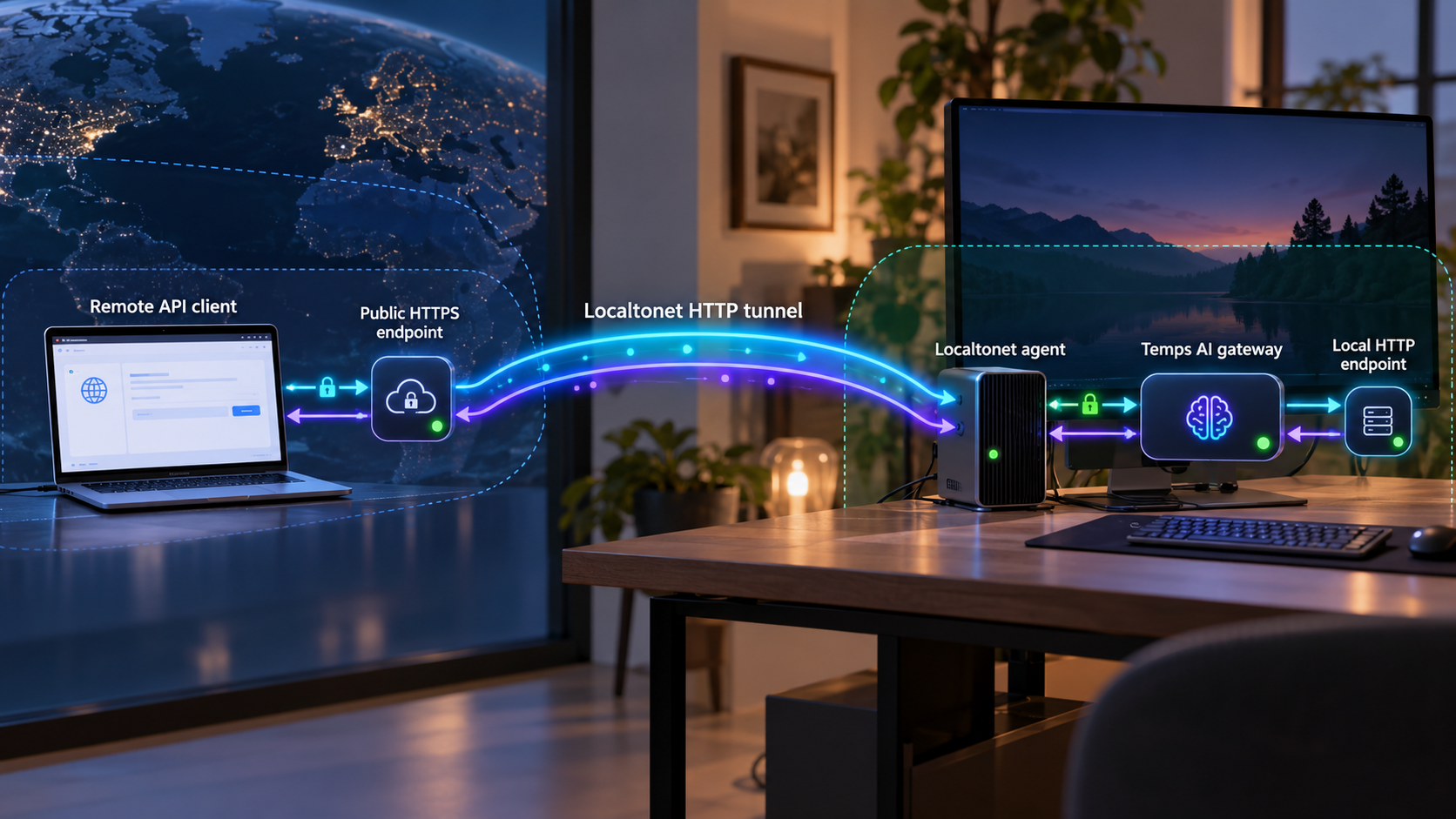
Run your AI gateway on your own Linux server, verify it locally, and expose only the HTTP endpoint you intend to use
Temps combines application deployment, observability, analytics, monitoring, telemetry, and an OpenAI-compatible AI gateway in a self-hosted platform. This guide starts with the supported Temps deployment workflow, explains the installation choices that matter when a tunnel will provide public HTTPS, and shows how to identify and test the local HTTP service before exposing it. We then connect that verified service to a Localtonet HTTP tunnel without requiring inbound router port forwarding, a public IP address, or inbound firewall changes for the tunnel itself. Because the documented Temps material does not define one universal AI gateway port or route, we also show how to discover those values safely instead of guessing them.
📋 What's in this guide
What you are building
Temps is a self-hosted deployment platform delivered as a Rust binary, with supporting services configured by its deployment installer. Its documented feature set includes a web console, application deployments, REST APIs, analytics, monitoring, telemetry ingestion, and an OpenAI-compatible AI gateway. For this workflow, the important networking fact is that these browser and API functions are reached over HTTP.
A complete setup has two separate layers. First, Temps must be installed, configured, started, and reachable from the machine on which it runs. Second, the Localtonet client must run on that machine, or on another device that can reach the Temps origin over the local network. The client establishes an outbound connection to one of our relay servers and maps a public HTTPS address to the selected local IP address and port.
This separation is useful for troubleshooting. If a local request fails, the problem is inside the Temps installation, its dependencies, its listener, or its configuration. If local access succeeds but public access fails, the investigation can focus on the Localtonet target, tunnel state, hostname handling, or access policy.
Why HTTP is the appropriate tunnel family
The gateway is an HTTP application rather than a generic byte stream. An HTTP tunnel therefore matches browser access, REST traffic, and OpenAI-compatible API requests. It also gives the service a public HTTPS URL. A raw TCP tunnel can forward arbitrary TCP traffic, but it is not the preferred starting point for a documented web dashboard and HTTP API workflow.
Standard HTTP tunneling is not a VPN. Localtonet also has a separate VPN Manager for private mesh networking, but that is a different feature and is not required for publishing a single Temps HTTP endpoint.
| Layer | Responsibility | How to validate it |
|---|---|---|
| Temps process and dependencies | Run the platform, console, gateway, database, and related local services | Check service output and request the documented local URL |
| Local HTTP listener | Accept HTTP requests on a concrete IP address and port | Use a browser or an HTTP client from the Localtonet client device |
| Localtonet client | Establish the outbound connection to our relay infrastructure | Confirm that its device is connected in the dashboard |
| Localtonet HTTP tunnel | Map a public HTTPS address to the verified local target | Start the tunnel and request its assigned public URL |
| Temps authentication | Authorize console and AI gateway requests | Use a limited test credential and confirm unauthorized requests are rejected |
Prerequisites and deployment decisions
The documented Temps quickstart expects a Linux server with at least 2 CPU cores and 4 GB of RAM. Ubuntu, Debian, and RHEL are listed as supported server choices. The installer can install Docker when Docker is not already installed and running, and it can configure TimescaleDB or ClickHouse as the analytics and log backend.
For normal direct-to-internet QuickStart or automatic TLS deployments, the Temps documentation requires inbound TCP ports 22, 80, and 443 in the provider firewall or security group. Port 22 is used for SSH administration, while ports 80 and 443 support public HTTP, HTTPS, and certificate issuance. Those public web ports are not required for the Localtonet tunnel itself because our client makes an outbound connection.
Temps also documents an external TLS mode for deployments behind a tunnel or reverse proxy. In that mode, the Temps origin remains on HTTP, initial certificate provisioning and on-demand certificate issuance are disabled, and the tunnel or reverse proxy supplies public HTTPS. The installer prints the HTTP origin that must receive traffic. This is the closest conceptual match for a Localtonet deployment.
Do not copy a port from an unrelated tutorial. The supplied Temps documentation says that the installer prints the HTTP origin and notes that it can use a fallback port such as 8080, but it does not establish 8080 as a universal default. Use the actual address reported by your installation, saved configuration, service output, or current Temps interface.
What to have ready
- A Linux machine meeting the documented minimum of 2 CPU cores and 4 GB of RAM.
- Administrative shell access to that machine.
- A way to download and inspect the Temps installer.
- An administrator email address and a strong password or a securely generated password.
- A decision between TimescaleDB, which the installer recommends by default, and ClickHouse.
- The Localtonet client installed on the Temps server or on a device that can reach its local HTTP listener.
- A Localtonet device token obtained from your account. Never paste that token into documentation, logs, tickets, or source control.
Choose the appropriate Temps setup mode
| Temps mode | Documented behavior | Relevance to this guide |
|---|---|---|
| Local | Runs on the machine through a 127.0.0.1.sslip.io address and uses HTTP only | Useful for trying Temps locally, but hostname-sensitive routing must be tested before tunneling |
| QuickStart | Uses a public IP with an sslip.io hostname and attempts to issue Let's Encrypt certificates on demand | Designed for direct public access and normally expects ports 80 and 443 to be reachable |
| Advanced | Uses a custom domain and a wildcard Let's Encrypt certificate with DNS configuration | Appropriate when Temps manages its own domain and certificates, but more complex than a single tunnel |
| External TLS parameters | Keeps the origin on HTTP while a tunnel or reverse proxy provides public HTTPS | Architecturally appropriate for Localtonet, provided hostname and domain routing are configured consistently |
Temps can route its console and deployed applications by hostname. Its external TLS documentation instructs a proxy to preserve the original Host header and route both a console hostname and wildcard application hostnames to the origin. A single generated Localtonet hostname may be sufficient for a specific gateway endpoint only if the installed Temps configuration accepts that hostname. Verify this locally and in the current Temps configuration. Do not assume that one tunnel URL automatically replaces a complete wildcard application-domain setup.
Install Temps using the supported deployment script
The current Temps quickstart recommends downloading the deployment script to a file, reviewing it, and then running that local copy. This is safer than piping a changing network response directly into a privileged shell. It lets you inspect the URLs fetched by the script and the files it intends to write before execution.
Connect to the Linux server
Open an administrative shell on the machine that will run Temps. When using a remote VPS, this will normally be an SSH session. Confirm that the server has the required CPU and memory before starting.
Download the installer without executing it
Save the official deployment script locally so that you can inspect the exact content that will run.
curl -fsSL https://temps.sh/deploy.sh -o deploy.shReview the downloaded script
Read the script before running it. Pay particular attention to downloaded artifacts, package installation, service creation, written configuration files, and any network or firewall assumptions.
less deploy.shRun the interactive installer
Start the reviewed local copy. The wizard will ask about Docker, the setup mode, administrator credentials, the analytics and log backend, and installation of the background service.
bash deploy.shComplete the installer prompts
Approve Docker installation only if needed, select the mode that matches your networking design, set the administrator identity, choose TimescaleDB or ClickHouse, and confirm the background service if you want Temps to start during system boot. Record the resulting console URL and HTTP origin without publishing credentials.
Using external TLS parameters
Temps documents a parameter-based installation for a custom application domain, a separate console hostname, and externally terminated TLS. The example below is the documented command shape. Replace every example value with domains and credentials you control before execution.
bash deploy.sh \
  --domain apps.example.com \
  --external-url https://manager.example.com \
  --tls-mode external \
  --skip-dns-records \
  --admin-email admin@example.com \
  --yes
In this mode, Temps leaves the origin on HTTP and expects the tunnel or reverse proxy to provide public HTTPS. The public proxy must route the configured hostnames to the origin while preserving the original Host header. Exact Localtonet custom-domain DNS instructions are intentionally not included here because they can change and must be checked against the current dashboard and documentation. A generated Localtonet subdomain should not be substituted into a multi-host wildcard design without confirming that the resulting Temps routes work.
Temps also supports supplying an administrator password from a file with --admin-password-file. This avoids placing a password in shell history or process arguments. Do not include the password itself in a command example, and protect the password file with restrictive filesystem permissions.
Non-interactive installation
For CI or a terminal-free remote installation, Temps requires --yes explicitly. Non-interactive mode is not automatically enabled merely because a terminal is unavailable. Its documented quick-mode example also requires an email address:
bash deploy.sh --mode quick --email you@example.com --yesThat QuickStart example is for a public-IP deployment and is not automatically the best choice for a tunnel-only server. Use it only when its public DNS, certificate, and open-port behavior matches your intended design.
The installer writes its machine-readable result to ~/.temps/setup-result.json with mode 0600. It contains an administrator password and an API key. Never print the complete file into logs, paste it into chat, commit it, or include it in support material. Extract only the individual non-secret field required for an operation. On a rerun that reuses an existing administrator, the password field can be null because the installer preserves the existing password but cannot verify whether it was changed later.
Starting from the standalone binary
The project also references running the server with temps serve, and release artifacts provide binary installation options. That route is useful for experienced operators, but the supplied evidence does not completely define the supporting database configuration, listener defaults, production service unit, or all environment variables needed to reproduce the full platform manually. For that reason, this guide uses the deployment installer as the complete self-hosting path and does not invent a manual configuration around temps serve.
If you deliberately use the standalone command, inspect its version-specific help and current documentation, then record the listener it reports:
temps serveDo not assume that the listener, port, data path, or dependency behavior from one release applies to another.
Complete onboarding and identify the AI gateway endpoint
Open the console URL reported by the installer and sign in with the administrator credentials created during setup. Complete any onboarding presented by the installed version. The platform may expose more than one HTTP surface, including the console, deployed applications, REST APIs, telemetry ingestion, and the AI gateway. These are conceptually related but should not be treated as interchangeable endpoints.
Locate the AI gateway configuration in the installed Temps console or current version-specific documentation. Record four pieces of information privately:
- The local origin address, including its IP address or hostname and port.
- The exact OpenAI-compatible base URL or route expected by the installed release.
- The authentication method and the test credential you intend to use.
- Any hostname requirement used by Temps routing.
The available evidence confirms that Temps includes an OpenAI-compatible AI gateway, but it does not establish a stable universal path, default provider configuration, model name, API-key header, or port. Those values can change between releases and installations. This guide therefore does not present guessed examples such as a presumed /v1 route or a presumed authorization header.
Separate the origin from the route
The origin identifies the listening HTTP service, such as an address and port reported by the installer. The route identifies the gateway path under that origin. Localtonet needs the origin IP address and port as its local target. AI clients need the final public base URL, which consists of the assigned Localtonet hostname plus the confirmed gateway path.
For example, if the installation reports a local listener, configure Localtonet with that exact listener rather than embedding a URL path into a port field. The path remains part of the client request. This distinction prevents a common configuration error in which an operator tries to put an entire HTTP URL into a field that expects only an IP address and port.
Confirm provider and model configuration inside Temps
Before testing through Localtonet, configure the upstream AI provider or local model backend according to the current Temps interface. Use the least-privileged provider credential available and store it only through the supported secret mechanism. Do not place provider keys in public URLs, command history, sample source code, browser bookmarks, or Localtonet tunnel names.
A tunnel only delivers the HTTP request to Temps. It does not create the upstream AI provider account, choose a model, transform an invalid gateway configuration into a working one, or replace application authentication. Any provider, quota, billing, model-access, or credential error must be resolved at the Temps or upstream-provider layer.
Verify Temps locally before creating the tunnel
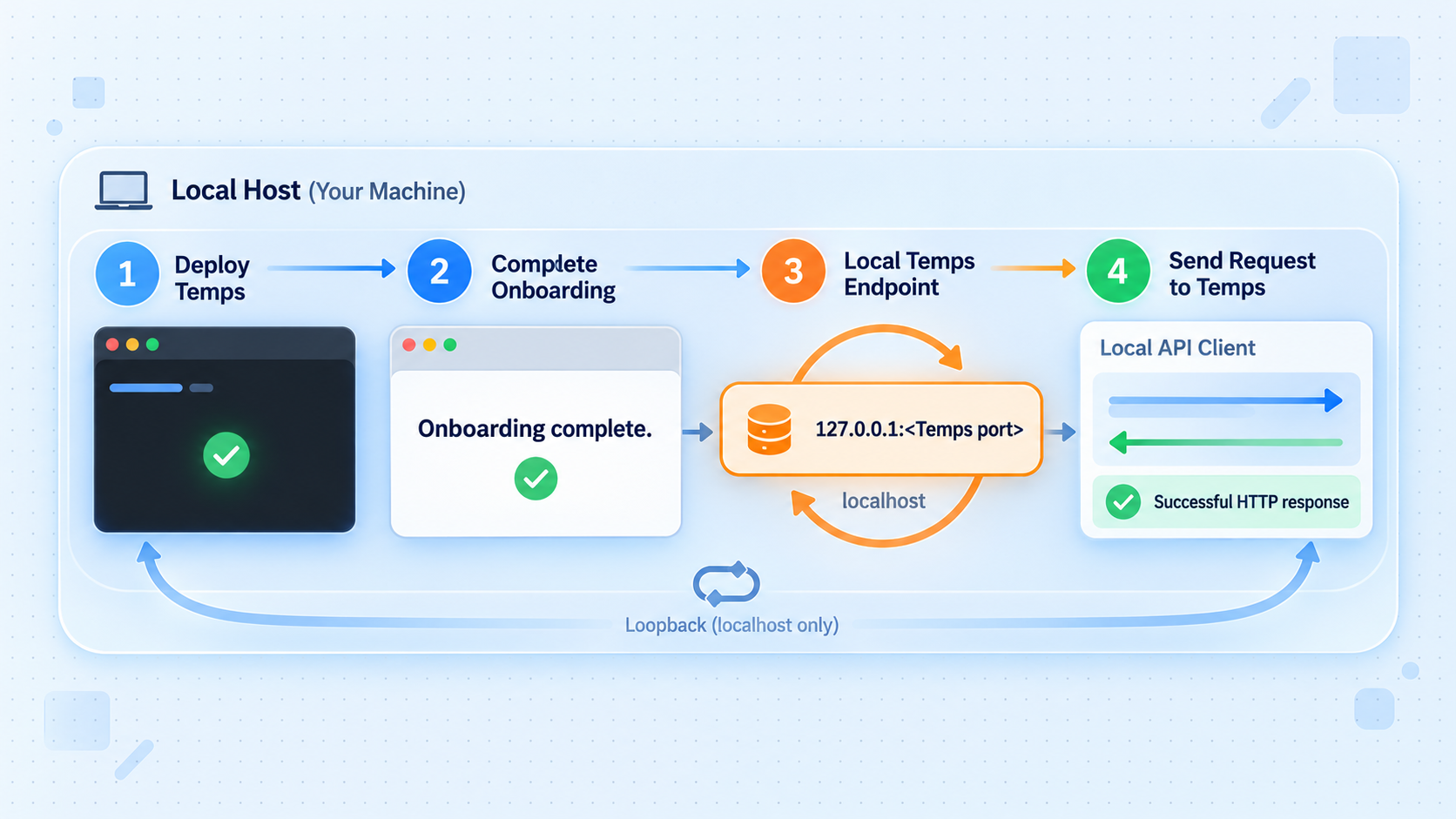
Local verification is the most important diagnostic step in this workflow. The request should originate from the same device that will run the Localtonet client, because that proves the client device can reach the target exactly as configured. If the client runs directly on the Temps server, test from that server. If it runs on another machine, test from that other machine using the Temps server's reachable LAN address.
Read the actual installation result
Use the console URL and origin printed by the installer, or extract only the required non-secret field from the protected setup result. Never display the complete result file because it contains secrets.
Confirm that the service is running
Check the background service and installer output using the service-management information produced by your installation. The available evidence does not establish one universal service-unit name, so do not assume it without checking the installed configuration.
Open the local console URL
Request the reported console URL from a browser or HTTP client. A successful page or expected authentication response confirms that an HTTP listener is reachable. A connection refusal means the tunnel is not yet the relevant problem.
Test the exact AI gateway route
Use the route, request format, model, and authentication mechanism shown by your installed Temps version. Begin with a minimal request and a limited test credential. Record the HTTP status and response without logging secret headers or complete sensitive prompts.
Test from the Localtonet client device
Repeat the request from the machine that will establish the tunnel. When that is a separate device, replace loopback with an address reachable from that device. A service bound only to loopback cannot be reached from another LAN host.
An expected 401 or 403 response can show that the request reached Temps even though the credential was missing or invalid. A connection refusal, timeout, DNS failure, or response from an unrelated service indicates a lower-level targeting problem. Resolve network reachability before debugging AI provider behavior.
Check hostname-dependent behavior
A successful request to an IP address and port does not always prove that the public tunnel hostname will be accepted. Temps can use hostnames to separate the console and deployed applications. If the local origin only responds correctly when a particular Host header is present, document that requirement before continuing.
When the installation uses external TLS with explicitly configured public hostnames, those names should match the public routing design. If you need wildcard application hostnames or a separate console hostname, confirm that your current Localtonet custom-domain configuration supports the required DNS arrangement. The exact DNS procedure must come from the current dashboard documentation rather than assumptions in this article.
Publish the verified Temps endpoint with Localtonet
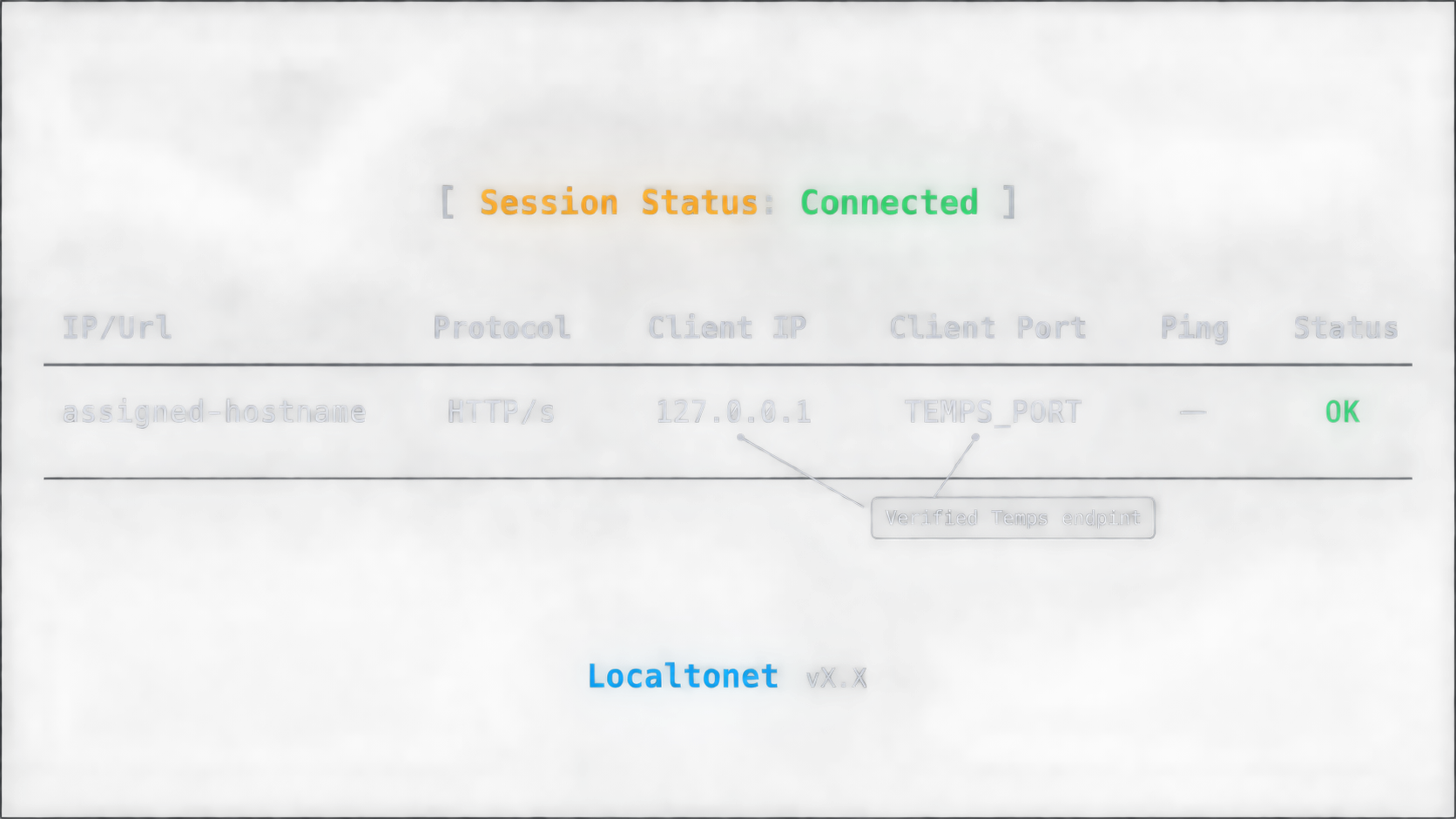
Once the local endpoint works, configure a Localtonet HTTP tunnel. The client must run on the Temps host or on another device that can reach the verified listener. Creating the tunnel configuration does not start it. The selected client must be connected, and the tunnel must be started before its public address becomes available.
Install and run the Localtonet client
Install our client for the operating system on the device that can reach the Temps origin. Keep it running so it can establish its outbound connection. Refer to the current Localtonet download and installation workflow for the device because installation packages and commands can change.
Authenticate the intended device
Use the device-specific authentication token from your Localtonet account. Confirm that the correct device appears connected. Do not reuse a token as application authentication and never expose it in a command example, screenshot, repository, or log.
Select an available relay server
Choose an available server or region from the current dashboard. Available server codes and regions can vary, so obtain the value from the product instead of copying a hardcoded code from an article.
Create an HTTP tunnel for the verified origin
Select the HTTP tunnel family and enter the local IP address and port that passed the test from the Localtonet client device. Choose the appropriate HTTP process type: Random Sub Domain, Custom Sub Domain where supported, or Custom Domain. Do not enter a guessed port or an upstream AI provider address.
Start the tunnel
Use the Start action after creating the configuration. Creation alone does not make a tunnel active. The public address remains usable only while the selected client is connected and the tunnel is running.
Test the assigned public URL
Request the public HTTPS address first, then append the exact gateway route confirmed during local testing. Use a limited test credential and compare the status and response with the known-good local request. Stop or delete the tunnel when remote access is no longer required.
For the current dashboard sequence and field descriptions, consult our Localtonet HTTP tunnel documentation. Use the documentation to confirm current labels rather than relying on screenshots from an older client or dashboard release.
A public HTTPS URL protects transport to the tunnel edge, but it does not replace application authorization. Require strong Temps credentials, protect AI gateway keys, apply least privilege, and expose only the interface needed by remote clients. If the installed release cannot adequately restrict a sensitive route, keep it private until suitable controls are available.
Build the public AI gateway URL
The public gateway address is the Localtonet public HTTPS origin followed by the gateway path confirmed in Temps. Preserve any path components required by the installed version. Configure the AI client with that base URL and with a Temps gateway credential, not with the Localtonet device token.
Keep the three credential categories separate:
- The Localtonet device token authenticates the machine running the tunnel.
- The Temps administrator credential controls the management console.
- The gateway or upstream-provider credential authorizes AI requests.
These credentials serve different trust boundaries and should not be substituted for one another.
Secure a publicly reachable AI gateway
Publishing an AI endpoint changes its threat model. A service that was previously reachable only from the host may now receive requests from the public internet. Before giving the URL to an application or collaborator, review authentication, secret handling, route scope, request data, upstream-provider limits, and operational monitoring.
Avoid accidental secret disclosure
The Temps setup result deserves special care because it contains both an administrator password and an API key. Commands that dump the complete JSON file can send those values to shell transcripts, CI logs, terminal recording tools, or support systems. Extract only a required field and make sure the extraction itself does not reveal a secret.
The same rule applies to AI gateway testing. Do not paste real authorization headers into issue trackers or public command examples. Redact secrets before sharing diagnostic output. If a credential has already been disclosed, redaction after the fact is not sufficient. Revoke or rotate it.
Use public exposure deliberately
A generated URL can be difficult to guess, but obscurity is not authentication. Treat the address as discoverable. The endpoint must reject requests that lack valid authorization, and clients should store credentials using their platform's supported secret storage.
If only a small private set of devices should access the broader server network, consider whether publishing an HTTP endpoint is the correct model. Localtonet VPN Manager provides private mesh networking with granular firewall rules, but it is a separate architecture from the public HTTP tunnel described here.
Routine operations and troubleshooting
Starting and stopping the service
If you accepted installation of the Temps background service, it should be configured to start on boot. Use the service information reported by your installation to inspect and manage it. The supplied evidence does not provide a universal service-unit name, so this article does not guess one.
The Localtonet tunnel has a separate lifecycle. Its device must be connected, and the tunnel must be in the running state. Stopping Temps leaves the tunnel active but without a healthy origin. Stopping Localtonet leaves Temps running locally but removes public access. This distinction is useful during maintenance.
Rerunning the Temps installer
Rerunning the installer without a new mode resumes the saved domain, public URL, and TLS choice. Explicit parameters override saved values. Unchanged reruns preserve passwords that were changed in the console.
To change an existing installation's domain, public URL, TLS choice, or administrator identity, the documented process also requires --admin-password-file. Supply the current password to preserve it or a new password to reset it explicitly. Supplying that file also reapplies setup when the configuration would otherwise be unchanged.
External TLS requires a Temps binary that supports temps setup --tls-mode external. The installer should report a clear error when an older installed or pinned binary lacks that support. The older temps setup --skip-ssl behavior is not equivalent: it skips initial provisioning while still allowing on-demand issuance.
Troubleshooting by symptom
| Symptom | Likely layer | What to check |
|---|---|---|
| The local request is refused | Temps process or listener | Confirm the service is running and use the actual IP address and port reported by the installation |
| Local access works only on the Temps host | Bind address or host firewall | The service may listen only on loopback; run Localtonet on that host or configure a supported reachable listener |
| The local console works but the gateway route returns 404 | Temps route configuration | Confirm the exact version-specific gateway base path and whether gateway setup is complete |
| The gateway returns 401 or 403 | Application authentication | Verify the expected credential type without exposing its value; do not substitute the Localtonet device token |
| The tunnel URL does not connect | Localtonet client or tunnel lifecycle | Confirm the selected device is connected, the correct relay is selected, and the tunnel was started |
| The public URL reaches the wrong service | Local target | Compare the configured target IP and port with the exact locally verified origin |
| The public hostname produces a routing error | Hostname routing | Check the Temps external URL, app-domain configuration, and Host-header expectations |
| Temps reaches the gateway but AI requests fail | Provider or model configuration | Check upstream credentials, model access, request format, limits, and provider availability |
| The tunnel stopped working after a reboot | Process startup | Confirm both the Temps background service and Localtonet client restarted and reconnected |
Diagnosing hostname mismatches
A hostname mismatch often appears as a 404, an unexpected application, a redirect to an internal hostname, or a certificate and URL inconsistency in a direct deployment. Compare the hostname configured in Temps with the hostname used by the public request. External TLS deployments are designed around explicit public names and preservation of the original Host header.
If your use case requires the console at one hostname and deployed applications under a wildcard domain, treat that as a domain-routing project rather than a simple one-endpoint tunnel. Confirm the current custom-domain support and DNS requirements in Localtonet before changing production DNS.
Diagnosing timeouts
Start at the origin. Repeat the known-good local request from the Localtonet client device. If it now times out, inspect the Temps process, resource pressure, database availability, and local networking. If it succeeds, confirm that the Localtonet device is connected and that the tunnel is running.
A successful HTTP response carrying an upstream AI timeout means the tunnel likely delivered the request and Temps could not complete the provider operation. Investigate provider connectivity, model availability, and provider-side limits rather than changing the Localtonet target.
Upgrading safely
Before changing Temps versions, protect configuration and application data according to the project's current backup procedure. The supplied evidence does not define a complete backup command or storage layout, so no generic command is offered here. After upgrading, repeat local console and gateway tests before reopening the tunnel.
Verify the version, read its release-specific changes, confirm that external TLS remains supported, and check whether routes or authentication requirements changed. Revalidate the Localtonet target if the listener changed.
Frequently asked questions
What port does the Temps AI gateway use?
The supplied official material does not establish one universal gateway port. The Temps installer reports the HTTP origin, and external TLS documentation notes that an origin can use a fallback port such as 8080. That example is not a guaranteed default. Use the address produced by your installation or current service configuration.
Do I need to open ports 80 and 443 when using Localtonet?
Not for the Localtonet tunnel itself. Our client establishes an outbound connection, so the tunnel does not require inbound router port forwarding, a public IP address, or inbound firewall changes. Direct Temps QuickStart and automatic certificate modes have their own documented requirements for ports 80 and 443. Use external TLS mode when a compatible tunnel or reverse proxy will provide public HTTPS.
Can I run the Localtonet client on another machine?
Yes, provided that machine can reach the Temps local IP address and port. Test the origin from the client machine before creating the tunnel. A Temps service bound only to loopback is reachable only from the same host, so either run Localtonet there or use a supported listener reachable over the local network.
Does the Localtonet URL replace Temps authentication?
No. The tunnel makes the selected HTTP service reachable, but application authorization remains the responsibility of Temps and the gateway configuration. Require strong administrator credentials and valid gateway authorization. Never give an AI client the Localtonet device token.
Can one tunnel publish the Temps console and every deployed application?
That depends on the hostname design. Temps external TLS documentation describes a separate console hostname and wildcard application hostnames routed to the HTTP origin with the original Host header preserved. A single generated hostname should not be assumed to reproduce that multi-host arrangement. For a gateway-only workflow, expose and test the specific accepted hostname and route. For console plus wildcard applications, confirm current custom-domain and DNS requirements first.
Why does the local URL work while the public URL returns a routing error?
The most likely difference is the request hostname. Temps may route the console, applications, and gateway according to its configured domains. Compare the public hostname with the external URL and domain settings in Temps. Also confirm that the tunnel targets the same origin used in the successful local test.
Is a Localtonet HTTP tunnel the same as putting Temps on a VPN?
No. An HTTP tunnel publishes a selected local HTTP service through a public HTTPS address. Localtonet VPN Manager is the separate private mesh VPN feature. Choose the HTTP tunnel when an authorized internet client needs a web or API endpoint, and evaluate VPN Manager when the requirement is private network connectivity between devices or LANs.
What happens when the Localtonet client disconnects?
The tunnel is available only while the selected client device is connected and the tunnel is running. Temps can continue operating locally during a Localtonet disconnection, but remote users cannot reach it through that tunnel until the client reconnects and the tunnel is active.
Publish your verified Temps gateway with Localtonet
Install Temps, confirm the exact local listener and gateway route, then map that known-good HTTP target to a public HTTPS address without inbound router port forwarding. Keep application authentication enabled and stop the tunnel whenever remote access is no longer required.
Get Started Free →

