

Build a controlled training environment, keep Redis private, prove that the agent reads test data, and add remote access only after local verification
Versus Incident is a self-hosted incident management service with an AI SRE agent, an embedded administration dashboard, a REST API, and an inbound webhook endpoint. This guide uses the published v1.4.24 source release at commit c06e41e, builds the application image locally, places Versus and Redis on a private Docker network, and starts the agent in non-alerting training mode. It also provides a controlled sample-log generator, a persistent Redis configuration, safer secret handling, local verification, routine Docker operations, and an optional Localtonet HTTP tunnel to port 3000. Where the available release evidence does not establish an exact Versus setting or source schema, the guide says so rather than presenting an unverified configuration as executable.
📋 What's in this guide
Release scope and an important source-schema limitation
This tutorial is anchored to the published
Versus Incident v1.4.24 release
and its signed source commit c06e41e. Building from that commit avoids relying on an untagged container image whose contents could change between installations. You can review the
primary Versus Incident repository
before running the commands.
The repository documentation says that its AI Agent Getting Started walkthrough contains ready-to-copy configuration and a sample log generator. However, the version-matched contents of that walkthrough, including the exact file-source fields accepted by v1.4.24, are not present in the evidence available for this revision. The repository overview establishes that agent_sources.yaml is required, but it does not expose enough of the schema to reproduce a truthful, working file source here.
A YAML file containing guessed fields such as type, path, or service may parse incorrectly or may start without reading anything. Before launching the agent, open the AI Agent Getting Started walkthrough from the pinned v1.4.24 repository and copy its complete file-source example without renaming fields. Point that verified source definition at /var/log/versus-training/training.log, which is the controlled in-container path used below. This release-specific gate is mandatory.
The rest of the deployment is designed so that the source file needs only one environment-specific change: its log path. The sample log directory is mounted read-only at /var/log/versus-training, and the generator writes to sample-logs/training.log on the host. If the v1.4.24 walkthrough requires additional fields, retain them exactly as documented.
This limitation is explicit because a tutorial that silently guesses a source definition can produce a misleading result: the dashboard may load, Redis may be healthy, and the container may remain running even though training never receives a line. The verification process later in this guide requires direct evidence of source reads, cursor movement, and learned patterns before the installation is considered successful.
What this deployment runs
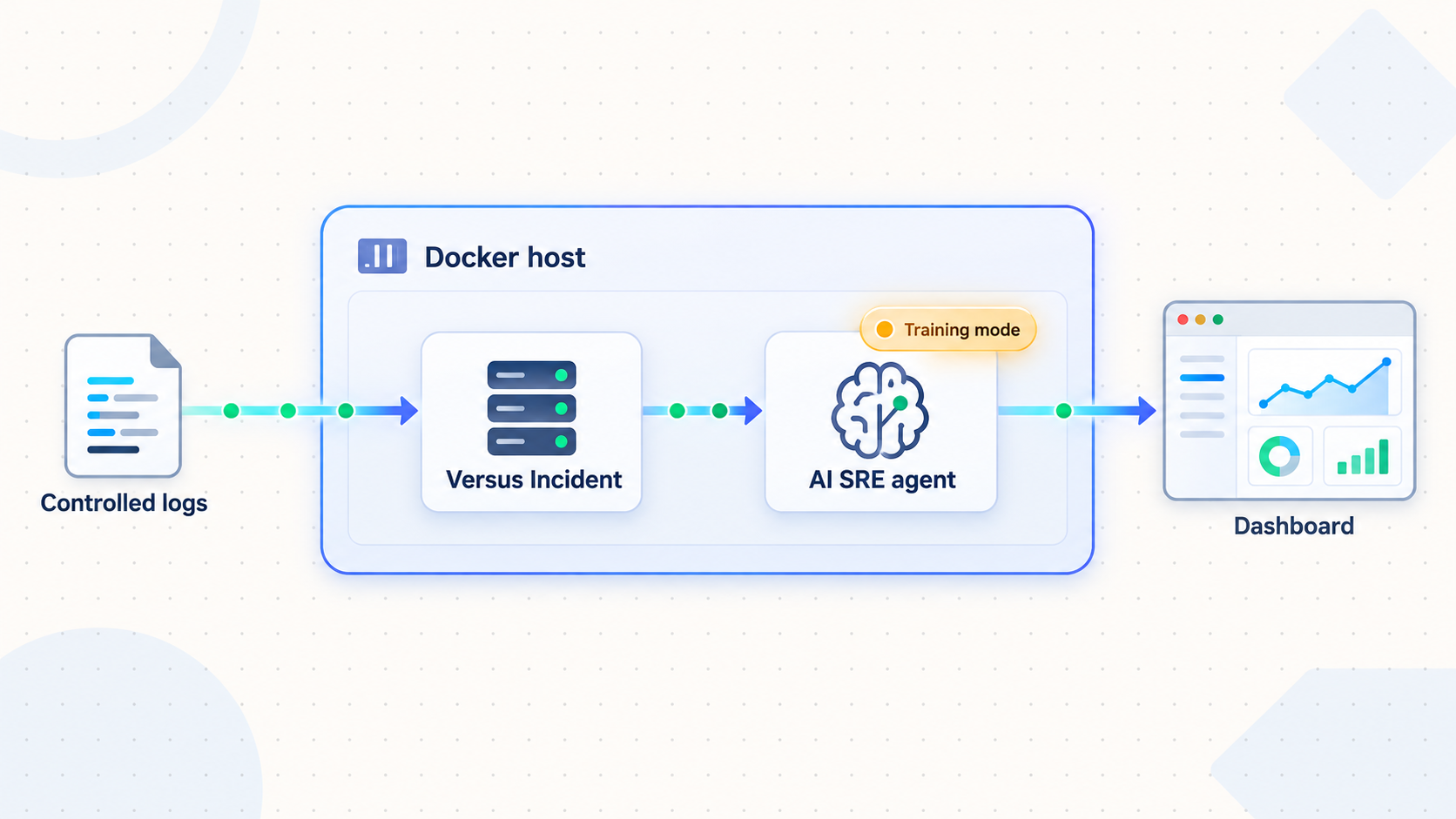
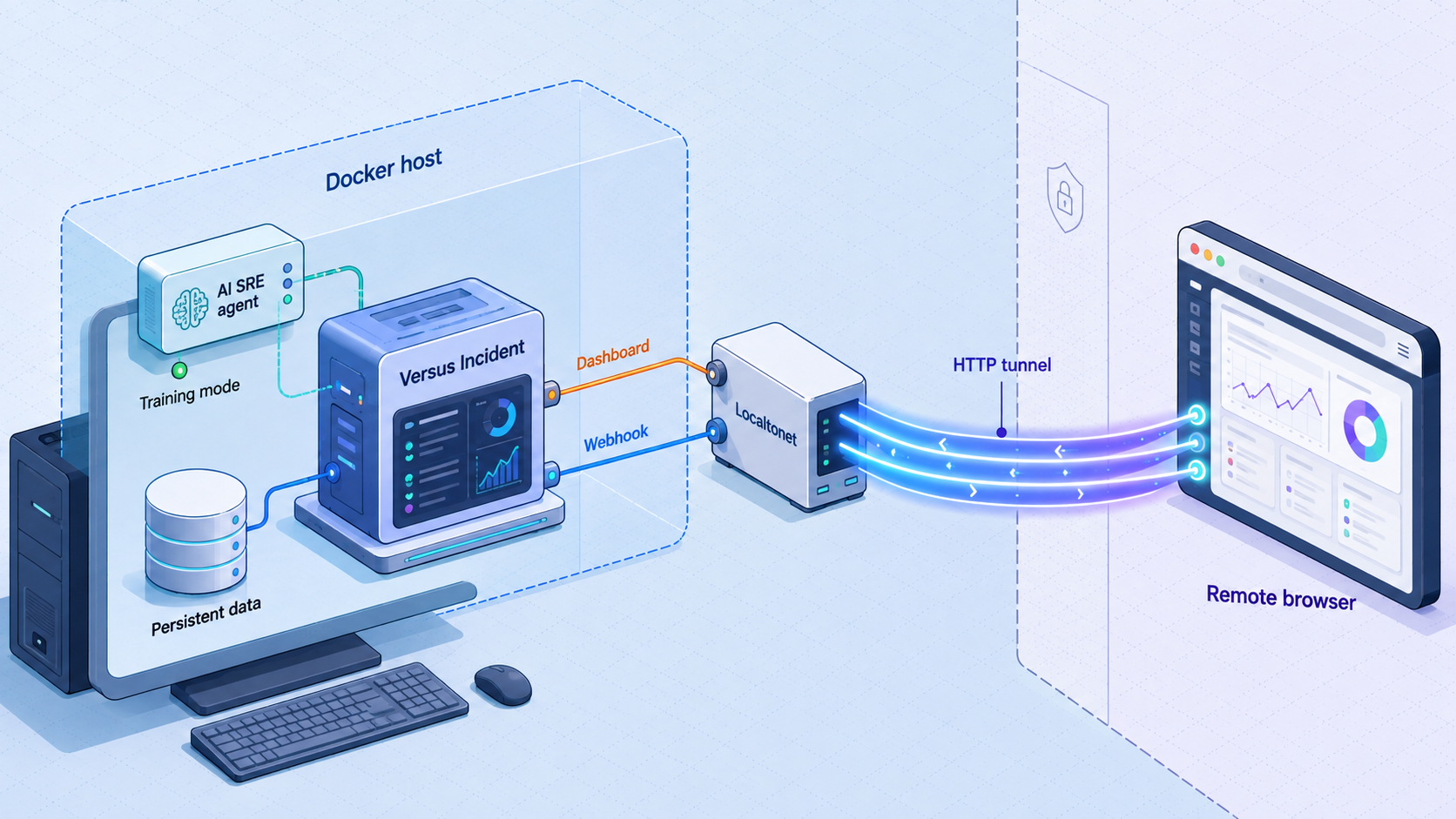
Versus Incident accepts incidents through two complementary paths. Its AI SRE agent reads configured log sources, learns recurring patterns, and can identify lines it has not seen before. Its webhook receiver accepts incidents submitted by monitoring systems and custom integrations. Both paths can feed the same notification, templating, and on-call workflow, but this tutorial exercises only the AI-agent training path.
Training mode is the cautious starting point. The agent watches its configured sources and learns normal patterns without sending alerts. That lets you validate source access, cursor persistence, catalog persistence, and dashboard behavior before evaluating shadow mode or enabling detect mode.
127.0.0.1:3000.
Training, shadow, and detect modes
| Mode | Documented behavior | Creates real alerts? | Appropriate stage |
|---|---|---|---|
training |
Watches configured logs and learns their normal patterns. | No | Initial installation and baseline learning. |
shadow |
Watches and learns, then writes a “would have alerted” log entry when a line would trigger an alert. | No | Judgment evaluation before activation. |
detect |
Creates incidents for previously unseen lines and performs AI-assisted triage with a summary, severity, and suggested next steps. | Yes | Controlled production use after review. |
Success in this guide means that the source is active, controlled lines are consumed, progress survives a tested restart, and learned information appears through the application. Do not switch to detect mode just to force visible alerts.
Prerequisites and directory layout
The commands use a POSIX-style shell on a Docker host. You need Git, Docker with the Compose plugin, permission to build and run containers, and a browser or HTTP client on the host. Host port 3000 must be available. Redis does not require a free host port because it remains inside the private Docker network.
Clone the project, pin the source commit, and create a separate deployment directory:
git clone https://github.com/VersusControl/versus-incident.git
cd versus-incident
git checkout c06e41e
git status --short
git rev-parse HEAD
docker build -t versus-incident-local:c06e41e .

cd ..
mkdir -p versus-training/config
mkdir -p versus-training/data
mkdir -p versus-training/sample-logs
mkdir -p versus-training/backups
cd versus-training
The final git rev-parse HEAD output must identify the pinned commit associated with v1.4.24. The short commit shown by the release is c06e41e. Building locally ties the resulting image to the reviewed source checkout instead of pulling an untagged application image.
Your deployment directory will contain:
versus-training/
├── compose.yaml
├── versus.env
├── config/
│   ├── config.yaml
│   └── agent_sources.yaml
├── data/
├── sample-logs/
│   └── training.log
├── generate-sample-logs.sh
└── backups/
Create the gateway-secret file safely
Versus supports reading GATEWAY_SECRET from the environment. Docker Compose can supply it through an environment file, which avoids putting the literal secret in a reusable shell command. Generate the file with restrictive permissions:
umask 077
printf 'GATEWAY_SECRET=' > versus.env
openssl rand -hex 32 >> versus.env
chmod 600 versus.env
This keeps the secret value out of the displayed command and ordinary shell history. It does not turn an environment variable into a dedicated secret store. Users with sufficient access to the Docker daemon, container metadata, process environment, deployment directory, or backups may still retrieve it. Protect the host, restrict Docker access, exclude versus.env from source control, and use a supported secrets manager if your environment requires stronger controls.
Create the Versus configuration and controlled log stream
Create config.yaml
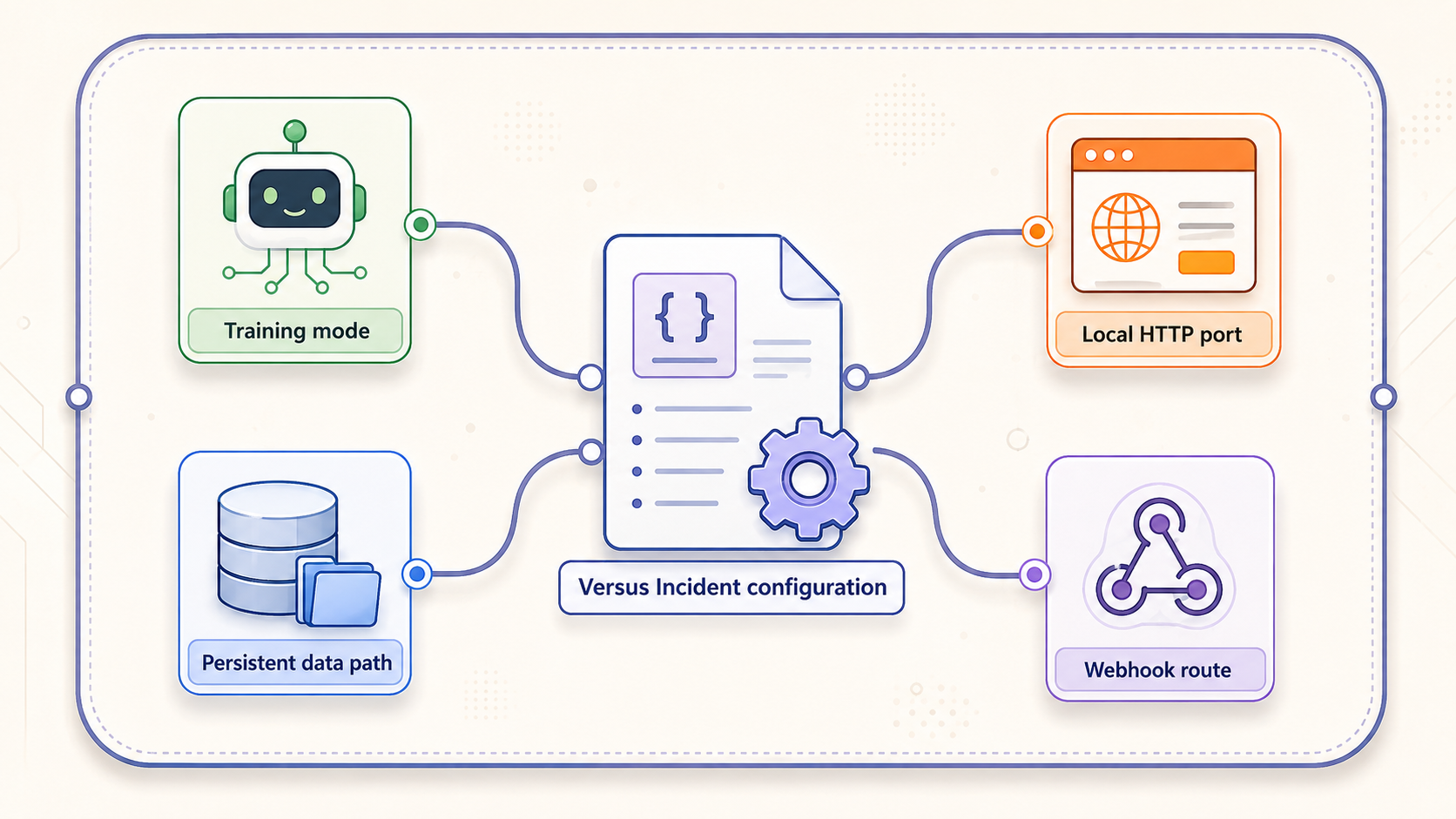
The following settings are present in the published project overview for this release line. They enable the agent in training mode, use file-backed application storage, resolve the source file relative to the main configuration, and obtain the gateway secret from the environment:
name: versus
host: 0.0.0.0
port: 3000

gateway_secret: ${GATEWAY_SECRET}

storage:
  type: file
  file:
    max_incidents: 1000

agent:
  enable: true
  mode: training
  poll_interval: 30s
  sources_path: ./agent_sources.yaml
  catalog:
    persist_interval: 30s
    auto_promote_after: 100
  redaction:
    enable: true
    redact_ips: false
    extra_patterns:
      - "(?i)password=\\S+"
Save this as config/config.yaml. File storage is the documented implemented backend for the pattern catalog, shadow log, and incident history. The project describes Redis and database values for that application storage setting as configuration stubs, so this deployment does not substitute Redis for the /app/data mount.
The redaction example establishes only that the project supports optional regular expressions before clustering. Treat redaction as one layer, not as permission to ingest arbitrary sensitive logs. Inspect representative input before using a real source, and confirm the behavior of every expression with the pinned release.
Create the release-matched agent_sources.yaml
Open the AI Agent Getting Started walkthrough linked from the v1.4.24 repository documentation. Copy its complete file-source definition to config/agent_sources.yaml. Preserve the documented top-level structure, source type, field names, and any parser options. Change only its sample file location to:
/var/log/versus-training/training.logA complete source file is mandatory. Do not create an empty file merely to satisfy the mount, and do not copy an example from a different release without comparing it with v1.4.24. Before continuing, check that both configuration files exist:
test -s config/config.yaml
test -s config/agent_sources.yaml
grep -n '/var/log/versus-training/training.log' config/agent_sources.yaml
The final command should display the configured in-container path. If it does not, correct the release-matched source file before starting Docker.
The controlled path and mount are complete, but the exact v1.4.24 source keys are not reproduced because they were not included in the audited evidence. Treat obtaining the source block from the pinned project walkthrough as a required prerequisite, not as optional reading. A future revision can inline it after the exact release file is captured and reviewed.
Create the sample-log generator
Save the following script as generate-sample-logs.sh. It writes only controlled synthetic events. The messages repeat a small number of shapes while varying timestamps and identifiers, giving the agent a safe stream to observe:
#!/bin/sh
set -eu

LOG_DIR="./sample-logs"
LOG_FILE="${LOG_DIR}/training.log"

mkdir -p "$LOG_DIR"
touch "$LOG_FILE"

counter=1
while true; do
  timestamp="$(date -u '+%Y-%m-%dT%H:%M:%SZ')"

  case $((counter % 3)) in
    0)
      event="level=info service=checkout event=request_complete status=200"
      ;;
    1)
      event="level=info service=checkout event=cache_hit status=200"
      ;;
    2)
      event="level=warning service=checkout event=retry_scheduled attempt=1"
      ;;
  esac

  printf '%s %s request_id=tutorial-%06d\n' \
    "$timestamp" "$event" "$counter" >> "$LOG_FILE"

  counter=$((counter + 1))
  sleep 2
done
Make it executable and initialize the file:
chmod 700 generate-sample-logs.sh
: > sample-logs/training.log
This generator does not submit webhook incidents and does not contain production data. It only writes lines to a file mounted read-only into Versus. Training consumption still depends on the exact v1.4.24 source definition.
Create the private Docker deployment
Save this as compose.yaml:
services:
  redis:
    image: redis:7
    container_name: versus-redis
    command:
      - redis-server
      - --appendonly
      - "yes"
    restart: unless-stopped
    volumes:
      - versus_redis_data:/data
    networks:
      - versus_private

  versus:
    image: versus-incident-local:c06e41e
    container_name: versus-incident
    restart: unless-stopped
    env_file:
      - ./versus.env
    environment:
      AGENT_ENABLE: "true"
      AGENT_MODE: "training"
      REDIS_HOST: redis
      REDIS_PORT: "6379"
    depends_on:
      - redis
    ports:
      - "127.0.0.1:3000:3000"
    volumes:
      - ./config:/app/config:ro
      - ./data:/app/data
      - ./sample-logs:/var/log/versus-training:ro
    networks:
      - versus_private

networks:
  versus_private:
    driver: bridge

volumes:
  versus_redis_data:
There is deliberately no ports entry under Redis. Docker provides private service-to-service resolution, so Versus connects to the hostname redis on port 6379. The Redis command enables append-only persistence and stores its data in the named volume versus_redis_data.
The Versus web port is bound to host loopback instead of every host interface. This is appropriate when the Localtonet client runs on the same host. If a Localtonet client on another trusted device must reach Versus over the LAN, the binding and host firewall require a separate, deliberate network decision.
The upstream Versus quick start names redis:7, but that tag can move as Redis 7 receives updates. For a reproducible production deployment, resolve an approved Redis 7 image digest in your registry and replace the image reference with redis:7@sha256:VERIFIED_DIGEST. No digest is supplied here because the evidence does not establish one.
Build, validate, and start the stack
Confirm all required files
Verify the main configuration, release-matched source file, environment file, sample generator, and locally built image before starting containers.
Validate the Compose model
Ask Docker Compose to render the configuration. Review mount paths, the loopback port binding, the image name, and the absence of a Redis host port.
Start Redis and Versus in the foreground
Use foreground mode for the first launch so parsing, permission, Redis, and source errors remain visible.
Start the controlled generator
Run the generator in a second terminal only after both containers remain healthy enough for inspection.
Verify local training before background operation
Confirm HTTP access, source activity, learned patterns, Redis writes, and restart behavior before adding remote access.
Run the preflight checks:
test -s config/config.yaml
test -s config/agent_sources.yaml
test -s versus.env
test -x generate-sample-logs.sh
docker image inspect versus-incident-local:c06e41e >/dev/null
docker compose config
Inspect the rendered output carefully. It should publish only 127.0.0.1:3000 for Versus. Redis should have a volume and private network, but no host port.
Foreground startup for the first run
docker compose upWatch for malformed YAML, missing configuration, permission failures, Redis connection errors, and source initialization errors. Do not ignore an agent source warning just because the dashboard starts. Stop the foreground stack with your terminal interrupt after inspection.
Detached startup for routine operation
Once startup is clean, run:
docker compose up -d
docker compose ps
docker compose logs --tail=100 versus
docker compose logs --tail=100 redis
The stable container names are versus-incident and versus-redis. The unless-stopped restart policy supports ordinary host and daemon restarts, but it is not a substitute for monitoring or tested recovery.
Start the generator in a separate terminal:
./generate-sample-logs.shLeave it running long enough to pass multiple configured polling and catalog-persistence intervals. The documented example uses 30 seconds for each, so a meaningful first observation should span more than a single interval.
Prove that training mode consumes data
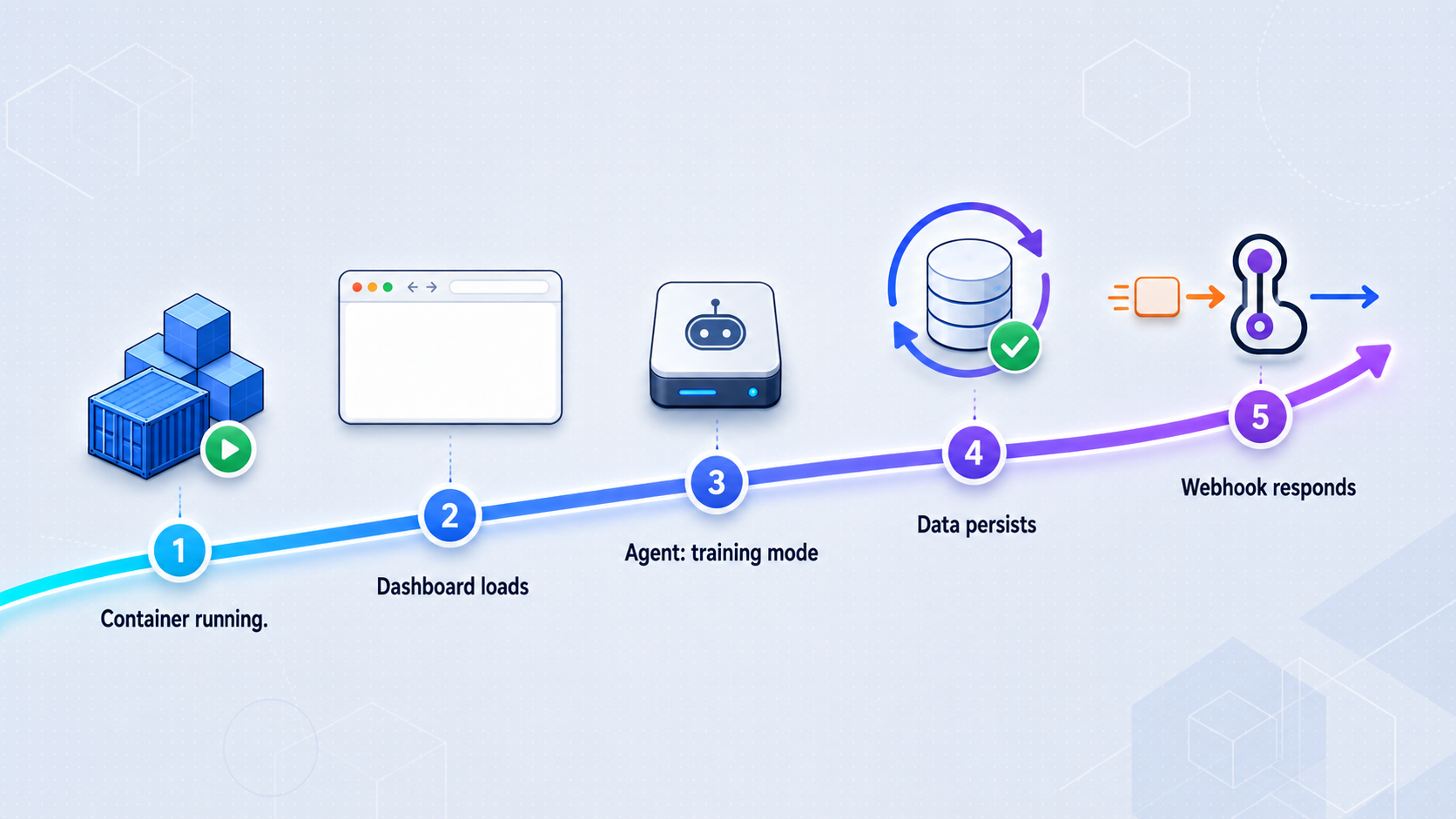
Verification should move from the inside out. A responding dashboard proves only that the web service is reachable. It does not prove that Redis is connected or that the agent has consumed a source.
1. Confirm runtime state
docker compose ps
docker compose logs --tail=200 versus
docker compose logs --tail=100 redis
Both services should remain running. Review the Versus output for explicit source, file-access, configuration, and Redis errors. Because exact log wording can change, this guide does not prescribe a success string that is not established by the release evidence.
2. Confirm that the generator is producing controlled input
tail -n 10 sample-logs/training.log
docker exec versus-incident \
  sh -c 'tail -n 10 /var/log/versus-training/training.log'
The same recent tutorial lines should appear in both commands. If the host sees them but the container does not, troubleshoot the bind mount before examining agent behavior. The container mount is read-only, so Versus can read the test data without modifying the source directory.
3. Confirm the local HTTP service
curl -i http://127.0.0.1:3000/
Then open http://127.0.0.1:3000/ in a browser on the Docker host. Authenticate with the configured gateway secret when the application requests it. Retrieve the value directly from your protected environment file for local use rather than placing it in a URL or command-line header.
4. Confirm training mode and source activity
In the v1.4.24 dashboard, confirm that the agent is enabled and remains in training mode. Inspect the agent or pattern views exposed by that release for activity associated with the configured controlled source. Compare the time of the newest generated line with the application logs and dashboard observations.
The available evidence does not establish exact v1.4.24 dashboard labels, counters, or screenshot locations, so this guide does not invent them. A human-reviewed screenshot from this exact release would be valuable here, but no approved screenshot was supplied. Use three independent observations instead:
- The controlled file is visible inside the container and continues to grow.
- Versus logs show no source-read or source-configuration failures while polling occurs.
- The dashboard presents learned source or pattern activity after the configured polling and persistence intervals.
If the file grows but the dashboard remains empty, the deployment has not passed. Recheck the exact v1.4.24 agent_sources.yaml structure and the configured path.
5. Test Redis durability and cursor continuity
First verify that Redis append-only persistence is enabled and that its data volume exists:
docker exec versus-redis redis-cli CONFIG GET appendonly
docker volume inspect versus-training_versus_redis_data
The Compose project prefix in the volume name can differ if the directory or project name differs. Use docker volume ls to find the actual name.
Allow the generator to produce a known group of lines, then stop it. Note the final line number:
wc -l sample-logs/training.log
tail -n 1 sample-logs/training.log
Restart only the Versus service:
docker compose restart versus
docker compose logs --since=2m versus
Resume the generator and observe the source again. The agent should continue from its persisted source position rather than treating the whole controlled file as unseen input. Exact cursor keys and internal Redis key names are not documented in the supplied evidence, so do not delete or edit them as a test.
Next, restart Redis without deleting its volume:
docker compose restart redis
docker compose restart versus
docker compose ps
docker compose logs --since=2m redis
docker compose logs --since=2m versus
Repeat the continuation check. If prior content is processed again, investigate whether the source integration actually uses Redis cursor state as expected, whether append-only data was flushed, and whether the intended volume remained attached.
docker compose down preserves named volumes by default. docker compose down -v deletes them. Do not use -v during a durability test or routine stop unless you intentionally want to remove Redis cursor state.
Add a Localtonet HTTP tunnel after local verification
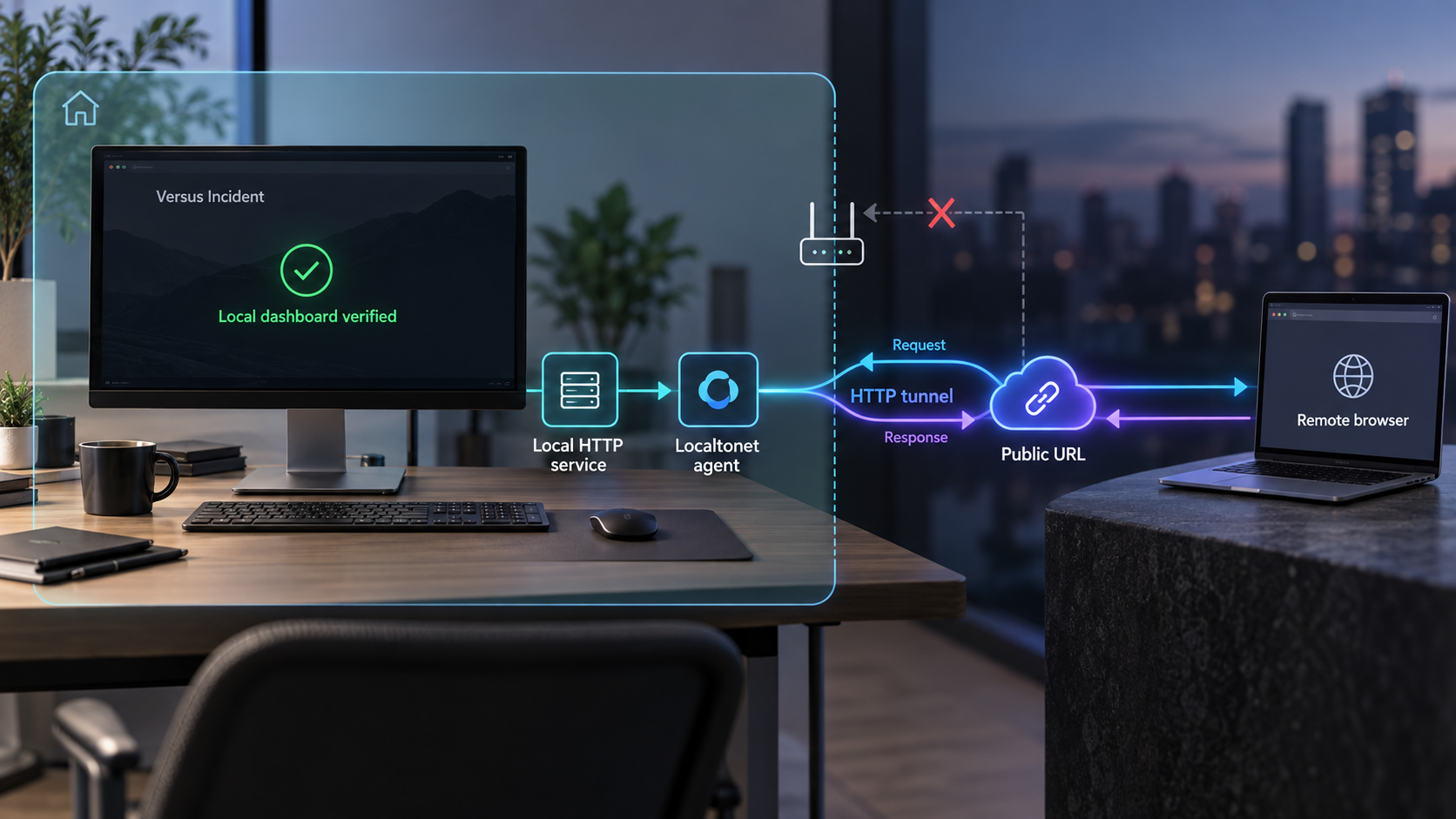
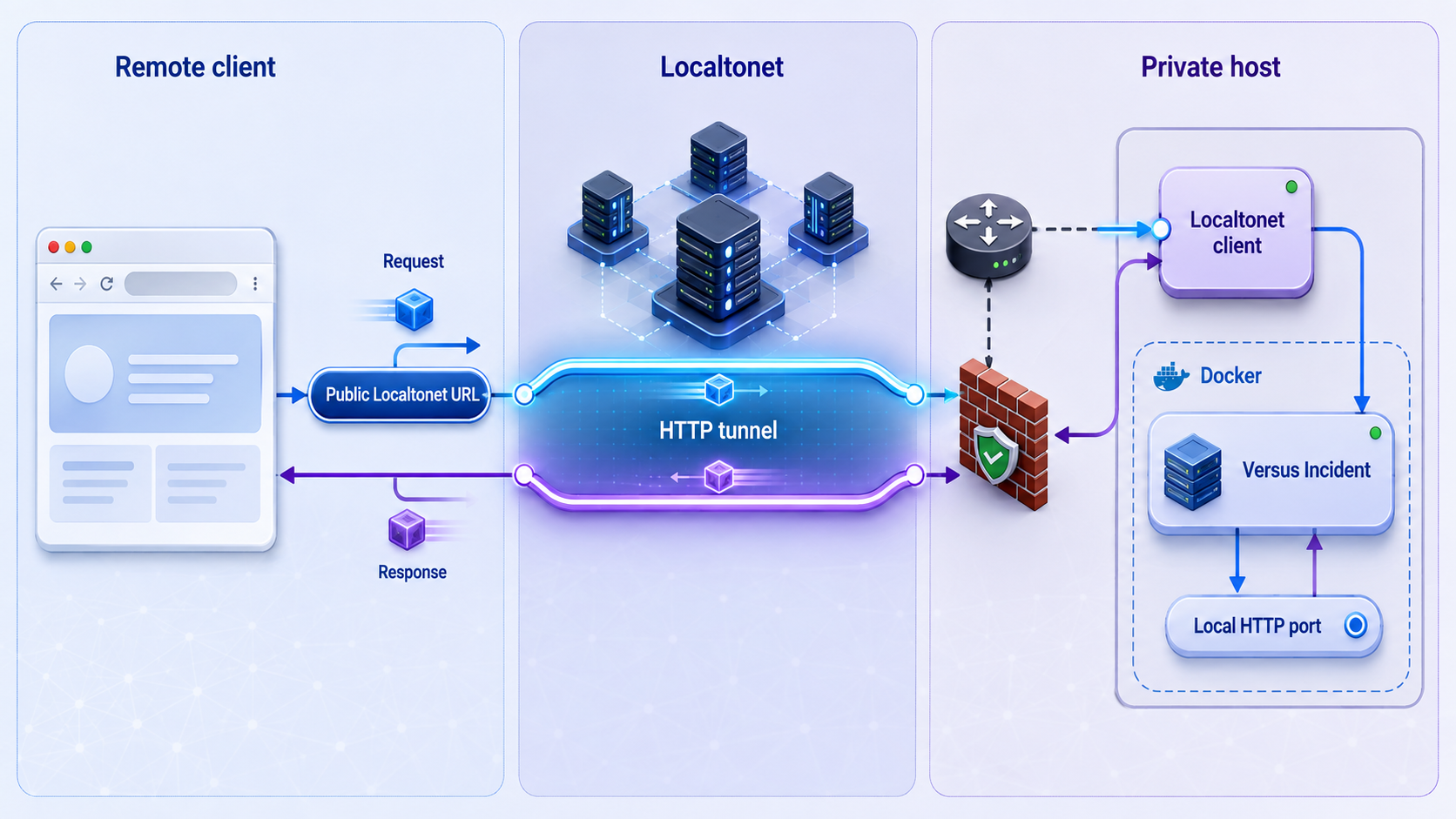
Once http://127.0.0.1:3000/ works consistently, Localtonet can expose the service without inbound router port forwarding, firewall changes, VPN setup, or a public IP address. Our client establishes an outbound connection to a Localtonet relay server and forwards the assigned public HTTPS address to the configured local target.
Creating a tunnel does not start it. The selected Localtonet client must remain connected, and the tunnel must be running. Stop the tunnel when public access is no longer required.
Install and run the Localtonet client
Install the client on the Docker host for this loopback-bound deployment. Confirm that the device appears connected in the Localtonet dashboard.
Select the device with its authentication token
Select the device-specific token associated with the connected client. Never place that token in Versus configuration, screenshots, source control, or public commands.
Select an available relay server
Choose a currently available server or region from the dashboard. Obtain the value from the current product rather than copying an old server code.
Create the HTTP tunnel
Select an HTTP tunnel and the desired Process Type, then set the local target IP to 127.0.0.1 and the local port to 3000.
Start and verify the tunnel
Press Start, wait for the tunnel to run, and open its assigned public HTTPS address from a separate network. Confirm that the dashboard authentication boundary still behaves as expected.
Random Sub Domain, Custom Sub Domain, and Custom Domain Process Types serve the same local content through a public HTTPS address. Availability can vary by plan or current product configuration. Check our HTTP tunnel documentation for the current dashboard fields and any custom-domain DNS requirements.
Verify from outside the Docker host
Test the assigned public HTTPS address from a different network, such as a mobile connection. A test from the Docker host alone may not prove the complete remote path. Confirm all of the following:
- The Localtonet client is connected.
- The HTTP tunnel is running rather than merely created.
- The root dashboard responds through HTTPS.
- Application authentication is still required.
- Stopping the tunnel makes the public address unavailable while local access continues to work.
This guide intentionally does not prescribe a Versus public_host setting. The audited evidence does not establish its exact v1.4.24 behavior, accepted syntax, environment-variable mapping, or reload behavior. Add such a setting only if the pinned Versus documentation requires it for your proxy arrangement.
The same caution applies to the webhook endpoint. Versus documents POST /api/incidents, but the evidence does not establish a complete v1.4.24 request schema or a universal webhook authentication mechanism. Do not test it with guessed payloads, and never put the administrative gateway secret in a webhook URL.
Localtonet provides connectivity to the selected local service. It does not replace Versus authentication, authorize users, sanitize source data, or secure an incorrectly configured webhook integration. Protect the gateway secret, expose only the required HTTP service, and never create a tunnel to Redis for this architecture.
Security checklist for training and remote access
:ro, preventing the application from changing the generated source file.
Real operational logs may contain credentials, session identifiers, personal data, internal hostnames, query parameters, and confidential business information. Review representative lines before ingestion. Grant source credentials the narrowest available permissions, prefer read-only access, and verify redaction behavior against the pinned Versus release.
Administrative routes, the dashboard, and incident ingestion do not necessarily share the same security requirements. The project states that administrative and agent API paths under /api/admin/* and /api/agent/* require the gateway secret. Do not extrapolate that statement to every other route without release-specific documentation.
Routine operation, backup, restoration, and upgrades
Status and logs
docker compose ps
docker compose logs --tail=200 versus
docker compose logs --tail=100 redis
docker compose logs -f versus
Use the follow command during source tests, then stop following logs with your terminal interrupt. Avoid posting unreviewed logs publicly because they may contain source content or deployment details.
Stop, start, and restart
docker compose stop
docker compose start
docker compose restart versus
docker compose restart redis
Restart one service at a time when diagnosing persistence. Restarting Versus tests cursor reuse from the application side. Restarting Redis tests whether its append-only data and named volume survive a normal service restart.
Remove containers without deleting persistent data
docker compose downThis removes the containers and private network while preserving the Redis named volume and host directories. Recreate the deployment with:
docker compose up -d
Do not add -v unless deletion of Redis cursor state is intentional and approved.
Back up application configuration and data
Stop the generator and application to obtain a quiet application-data copy:
docker compose stop versus
archive="backups/versus-files-$(date -u '+%Y%m%dT%H%M%SZ').tar.gz"
tar -czf "$archive" config data versus.env compose.yaml
docker compose start versus
The archive contains the gateway secret through versus.env. Protect it with storage access controls and encryption appropriate to your environment. If secrets must not enter this archive, back up the environment file separately through your secret-management process.
Back up Redis cursor state
Ask Redis to write its current data, then archive the named volume through a temporary container:
docker exec versus-redis redis-cli SAVE
docker compose stop redis
docker run --rm \
  -v versus-training_versus_redis_data:/source:ro \
  -v "$(pwd)/backups:/backup" \
  alpine \
  sh -c 'tar -czf /backup/versus-redis-data.tar.gz -C /source .'
docker compose start redis
docker compose restart versus
Replace the volume name if docker volume ls shows a different Compose project prefix. The temporary Alpine image should also be pinned by an approved digest in a production backup process. It is shown here only as a conventional volume-copy mechanism.
Restore application files
Restore into an empty test directory first. Inspect the archive before replacing live files:
mkdir -p restore-test
tar -tzf backups/versus-files-TIMESTAMP.tar.gz
tar -xzf backups/versus-files-TIMESTAMP.tar.gz -C restore-test
After inspection, stop Versus, restore the intended config and data contents, confirm ownership and permissions, and start the service. Do not overwrite a current secret unintentionally.
Restore Redis data
Stop the stack and restore only into the intended named volume:
docker compose down
docker run --rm \
  -v versus-training_versus_redis_data:/restore \
  -v "$(pwd)/backups:/backup:ro" \
  alpine \
  sh -c 'rm -rf /restore/* && tar -xzf /backup/versus-redis-data.tar.gz -C /restore'
docker compose up -d
Perform restoration tests in a disposable environment before relying on this process. Confirm that the source resumes correctly after restoration instead of assuming that the presence of Redis files proves recovery.
Upgrade Versus deliberately
Do not rebuild the existing tag from a moving branch. Choose a published release, review its notes, record its commit, and create a new local image tag:
cd ../versus-incident
git fetch --tags
git checkout VERIFIED_RELEASE_COMMIT
git rev-parse HEAD
docker build -t versus-incident-local:VERIFIED_RELEASE_COMMIT .

cd ../versus-training
Back up application files and Redis first. Change the Versus image reference in compose.yaml to the new local tag, render the configuration with docker compose config, and test in a non-production copy of the deployment. Start in training mode and repeat the complete source and persistence verification.
Keep the old image until rollback is no longer required. Rollback means restoring version-compatible configuration and data as well as changing the image reference. Do not assume that data written by a newer release is always safe for an older release.
Troubleshooting quick reference
| Symptom | First checks | Likely boundary |
|---|---|---|
| Dashboard does not open locally | Container state, logs, port 3000, YAML parsing, bind mounts | Versus process or Docker publication |
| File grows but no training activity appears | Pinned source schema, in-container path, source errors, polling delay | agent_sources.yaml or source reader |
| Versus cannot reach Redis | Redis state, private network membership, hostname redis, port 6379 |
Docker network or Redis process |
| Lines are reprocessed after restart | Redis volume, append-only setting, volume deletion, source cursor behavior | Cursor persistence |
| Local access works but public access fails | Localtonet client, tunnel Start state, target 127.0.0.1:3000 |
Localtonet client or tunnel configuration |
| Public dashboard opens unexpectedly without a login challenge | Versus authentication configuration and effective gateway-secret behavior | Application security, not tunnel transport |
Frequently asked questions
Does Versus Incident send alerts in training mode?
No. The documented training mode watches configured sources and learns normal patterns without sending alerts. Shadow mode records when it would have alerted, while detect mode creates incidents for previously unseen lines.
Why is there no guessed agent_sources.yaml block in this guide?
The available v1.4.24 evidence confirms that the file is required and that the project provides a walkthrough, but it does not expose the accepted file-source fields. Guessing those fields would make the tutorial unsafe. Copy the complete file-source definition from the AI Agent Getting Started walkthrough linked by the pinned repository, then set its path to /var/log/versus-training/training.log.
Why is Redis not published on port 6379?
Versus and Redis share a private Docker network, so Versus can reach the Redis service by the hostname redis. Publishing port 6379 on host interfaces is unnecessary for this architecture and would broaden the exposure boundary.
What survives a container restart?
Versus application files survive through the host-mounted data directory. Redis cursor data is configured to use append-only persistence in a named Docker volume. Restart behavior should still be tested with the controlled source before the deployment is trusted.
Is an environment file a complete secret-management solution?
No. It avoids placing the literal gateway secret in the startup command and ordinary shell history, but privileged Docker users and users with access to the deployment files may still retrieve it. Use a supported secrets manager where stronger isolation is required.
Which port should the Localtonet HTTP tunnel target?
With this deployment, run the Localtonet client on the Docker host and target 127.0.0.1 port 3000. Redis should not receive a Localtonet tunnel.
Does creating a Localtonet tunnel activate it immediately?
No. After creating the tunnel, press Start. The assigned address works only while the selected Localtonet client remains connected and the tunnel is running.
Does Localtonet replace Versus authentication?
No. Localtonet provides connectivity to the configured local HTTP target. Versus remains responsible for application authentication and authorization. Keep the gateway secret private and verify authentication again through the public address.
Can webhook alerts and the AI agent run together?
Yes. The project documents the two paths as complementary. Configure and test them independently, and use a version-matched webhook schema rather than guessing a payload or authentication method.
Expose the verified Versus dashboard with Localtonet
After the controlled source is being consumed in training mode and persistence has passed a restart test, create a Localtonet HTTP tunnel to 127.0.0.1:3000. Keep Redis private and run the tunnel only while remote dashboard access is required.


