

Run a persistent WhoDB workspace locally, verify it with Docker, and make it reachable through a public HTTPS address
WhoDB provides a browser-based workspace for connecting to databases, inspecting data, and working with database structures. In this guide, we install WhoDB with Docker Compose, preserve its encrypted login sessions across container recreation, verify the application locally, and cover the networking details required to reach databases from inside the container. Once the local deployment is working, we connect it to an HTTP tunnel with Localtonet so the interface can be reached through a public HTTPS address without inbound router port forwarding or a public IP address.
📋 What's in this guide
How the WhoDB and Localtonet architecture works
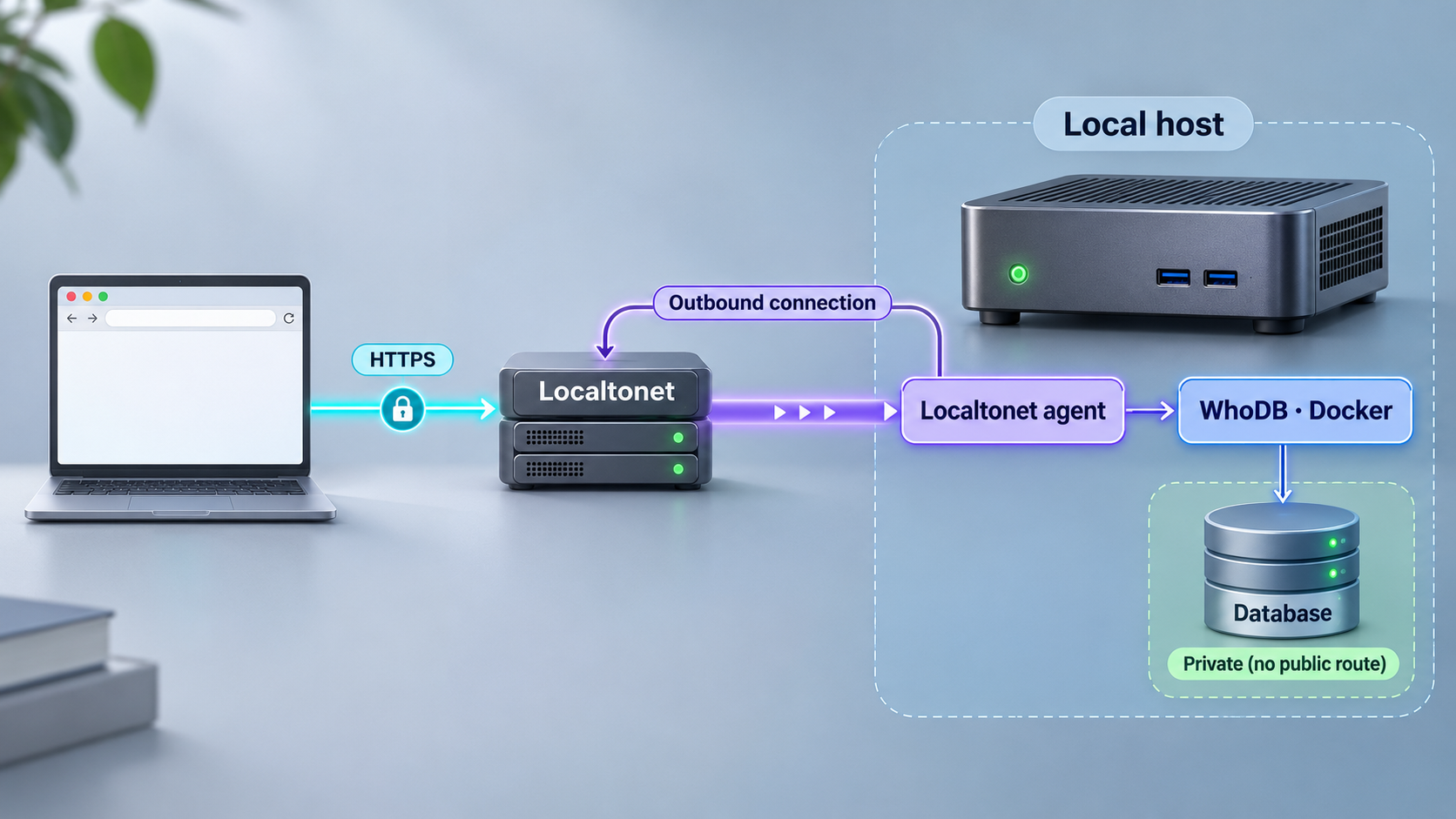
The installation has two distinct layers. First, WhoDB runs as a Docker container on a machine you control. The published container listens on port 8080 by default, and Docker maps that listener to port 8080 on the host. A browser on the host can then open http://localhost:8080.
Second, after local verification succeeds, the Localtonet client runs on a device that can reach that host and port. The client establishes an outbound connection to a Localtonet relay server. An HTTP tunnel forwards requests from its assigned public HTTPS address to the local WhoDB service. This does not require an inbound router port-forwarding rule, a public IP address, firewall changes, or VPN setup.
The tunnel does not install or configure WhoDB for you. WhoDB must already be running and reachable from the Localtonet client device. Keeping these layers separate makes troubleshooting much easier: verify the container first, verify its health endpoint second, and only then add remote access.
clidey/whodb image runs the browser interface and backend. Its default internal HTTP listener is port 8080.
/data retains WhoDB's encrypted session database and generated data across container recreation.
WHODB_ENCRYPTION_KEY supplies the stable 64-character hexadecimal key used to encrypt stored login sessions.
WHODB_SECURE=true marks its session cookie as Secure.
Publishing WhoDB makes its web interface reachable at the tunnel address. Treat that address as sensitive, use least-privilege database accounts, avoid exposing production credentials unnecessarily, and stop the tunnel when remote access is no longer required. A public HTTPS address protects the browser connection in transit, but it does not replace database authorization, careful credential management, or application-level access controls.
Prerequisites and deployment decisions
This guide uses Docker Compose because it makes the persistent volume, encryption key, restart policy, and environment settings explicit. The simpler docker run workflow is included first for evaluation, but it is not the preferred configuration when you need login sessions to survive container replacement or image upgrades.
Before continuing, prepare the following:
- A machine with Docker installed and the Docker Compose command available.
- Permission to create containers, images, named volumes, and local files on that machine.
- Port
8080available on the Docker host, unless you intentionally choose a different host-side port. - A database that the WhoDB container can reach, plus an appropriately limited database account.
- OpenSSL if you want to use the documented command for generating the session-encryption key.
- The Localtonet client installed on the same machine or another device that can reach the WhoDB host and port.
- A Localtonet device authentication token obtained from your account. Do not place this token in the Compose file or publish it in logs, screenshots, or source control.
Confirm that Docker and Compose are callable before creating the deployment:
docker --version
docker compose version
The exact Docker installation procedure depends on the host operating system and is outside the WhoDB-specific workflow. If either command is unavailable, complete the supported Docker installation for that host before proceeding.
Choose a port strategy
WhoDB listens on port 8080 inside the published container by default. Docker's port mapping has a host side and a container side. The mapping 8080:8080 means host port 8080 forwards to container port 8080. If port 8080 is already occupied, you can change only the host side, for example 3000:8080. WhoDB still listens on 8080 inside the container, but the local browser URL becomes http://localhost:3000.
Changing the internal listener is a different operation. If you intentionally set PORT=3000, the mapping must target the new internal port, such as 3000:3000. For this guide, retaining the documented internal and host port of 8080 keeps the health check and Localtonet target straightforward.
| Configuration | Local URL | When to use it |
|---|---|---|
8080:8080 |
http://localhost:8080 |
Default workflow used throughout this guide. |
3000:8080 |
http://localhost:3000 |
Use a different host port while leaving WhoDB's internal listener unchanged. |
PORT=3000 with 3000:3000 |
http://localhost:3000 |
Use only when you intentionally need WhoDB itself to listen on a different internal port. |
Run a quick local WhoDB container
A temporary installation is useful for proving that the image starts successfully and that port 8080 is available. It also gives you a clean baseline before introducing persistent storage or remote access.
Pull and start the published image
Run the documented detached container with the name whodb and publish its web interface on host port 8080.
Open the local interface
Visit http://localhost:8080 from a browser on the Docker host. If the browser is on another machine, the host must be reachable according to your own local network and firewall policy.
Inspect the container and logs
Confirm that the container remains running. If it exits or the page does not load, inspect its Docker logs before adding any tunnel.
docker run -d \
  --name whodb \
  -p 8080:8080 \
  clidey/whodb:latest
Check the container:
docker ps --filter name=whodb
docker logs whodb
You can follow new log output continuously with:
docker logs -f whodbStop following logs with your terminal's interrupt shortcut. This does not stop the container.
A plain container can generate an encryption key and store login sessions within its writable filesystem. That works until the container is recreated. Removing and replacing the container discards that container-local session state, so users must sign in again. Use the persistent Compose deployment below when sessions must remain valid through recreation and upgrades.
If you used the quick container and now want to move to Compose, remove it first so its name and port mapping do not conflict:
docker rm -f whodbInstall WhoDB with persistent encrypted sessions
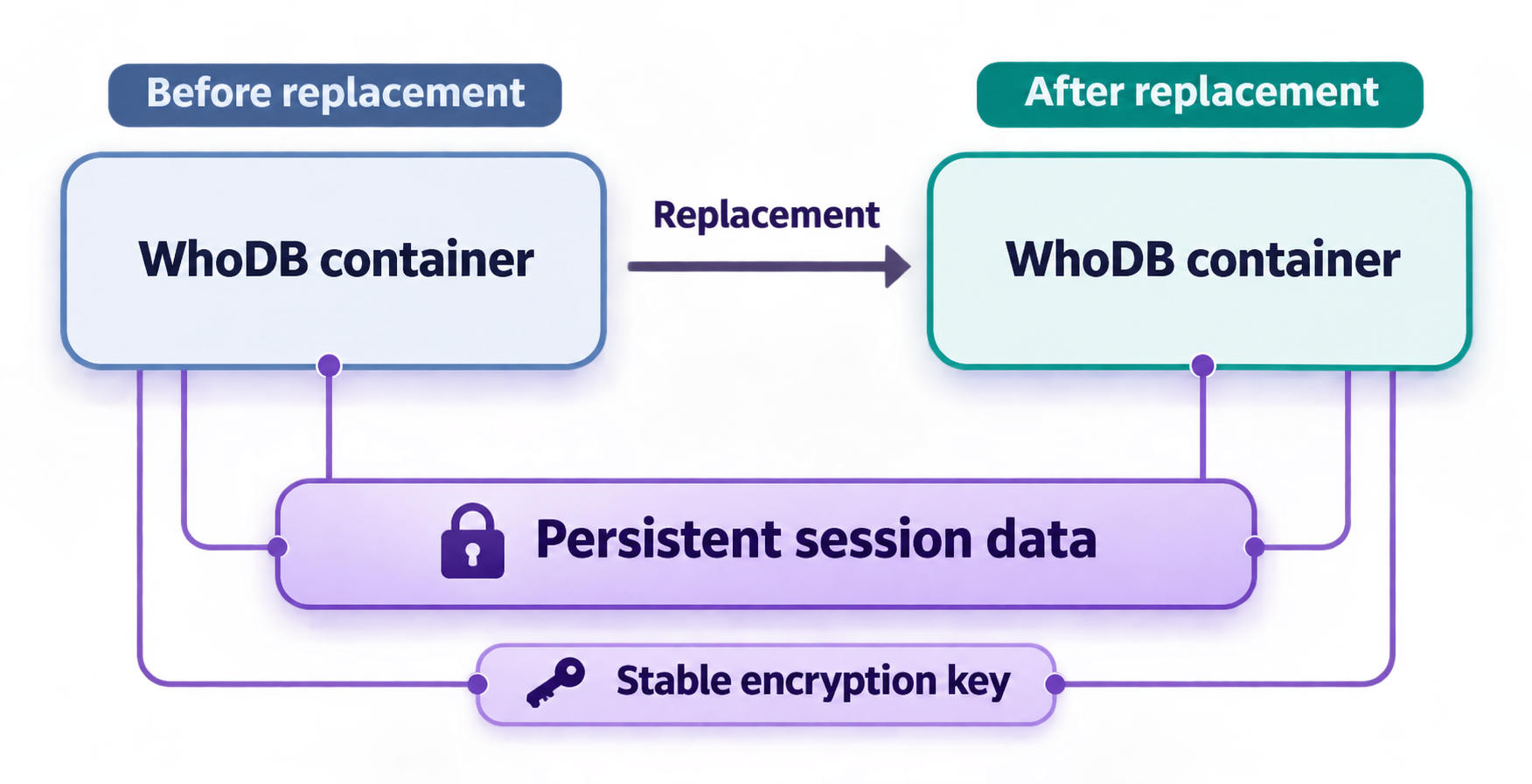
WhoDB keeps login sessions on the server. When a user signs in to a database, WhoDB stores the database credentials encrypted with AES-256-GCM in a local SQLite file under its data directory. The browser receives an opaque HttpOnly session cookie rather than the database credentials themselves.
Two pieces must remain stable for an existing session to survive container recreation. The data stored under /data must persist, and the encryption key used to protect that data must remain unchanged. A named Docker volume addresses the first requirement. A stable WHODB_ENCRYPTION_KEY addresses the second.
Generate the encryption key once
Generate a 32-byte random value represented as 64 hexadecimal characters:
openssl rand -hex 32Copy the generated value into a secure secret-management location. Do not reuse the example placeholder below, and do not commit the real value to a public or shared source repository. The key must remain stable for as long as you want existing encrypted sessions to remain usable.
Sessions encrypted with the previous key cannot be decrypted with a replacement key. Users are then logged out and must sign in again. Back up the key through an appropriately protected secret-management process, but never expose it in this article, a public repository, support output, or a tunnel configuration.
Create the Compose configuration
Create a deployment directory and place a file named docker-compose.yml inside it. The following configuration uses the published image, exposes port 8080, mounts a named volume at /data, and restarts the service unless it was explicitly stopped:
services:
  whodb:
    image: clidey/whodb:latest
    container_name: whodb
    ports:
      - "8080:8080"
    environment:
      PORT: "8080"
      WHODB_LOG_LEVEL: info
      WHODB_ENCRYPTION_KEY: replace_with_your_64_character_hex_key
    restart: unless-stopped
    volumes:
      - whodb-data:/data

volumes:
  whodb-data:
Replace replace_with_your_64_character_hex_key with the value generated once by OpenSSL. Be aware that a secret written directly into Compose may be visible to users who can read the file or inspect the container configuration. Protect the file according to the host's operating system and your deployment practices.
Start and inspect the Compose service
docker compose up -d
docker compose ps
docker compose logs whodb
Open http://localhost:8080. At this stage, WHODB_SECURE is intentionally absent because the local verification URL uses plain HTTP. Setting a cookie's Secure attribute while accessing WhoDB only through plain HTTP can cause the browser to drop the cookie, which looks like a failed or immediately disappearing login.
Understand the default session lifetime
WhoDB's documented default session time-to-live is 168h, or seven days, using a sliding idle timeout. It can be changed through WHODB_SESSION_TTL using a Go duration value. Do not increase the lifetime simply to avoid normal reauthentication. Longer sessions increase the importance of protecting browser sessions and the encryption key.
Persistence and session lifetime solve different problems. Persistence keeps the encrypted session database and encryption key available when the container is recreated. The session lifetime still determines when an otherwise valid session expires through inactivity.
Optional operational environment variables
| Variable | Documented behavior | Operational note |
|---|---|---|
WHODB_LOG_LEVEL |
Accepts debug, info, warn, error, or none. The default is info. |
Use more verbose logging temporarily when diagnosing a problem. |
WHODB_LOG_FORMAT |
Set to json for JSON logs. The default format is text. |
JSON can simplify ingestion by a log-processing system. |
WHODB_SESSION_TTL |
Controls the sliding idle timeout with a Go duration. The default is 168h. |
Choose a duration that matches your access policy. |
WHODB_SECURE |
Marks the session cookie Secure when set to true. |
Enable it when users access WhoDB through HTTPS. Leave it unset for plain HTTP testing. |
WHODB_ALLOWED_ORIGINS |
Provides a comma-separated CORS allowlist. | Set it only when the deployment has a specific cross-origin requirement. |
WHODB_MAX_PAGE_SIZE |
Controls the maximum rows allowed per page request. The documented default is 10000. | Changing it affects how much data a page request may return. |
WHODB_DISABLE_CREDENTIAL_FORM |
Hides the manual credential form and requires managed profiles or providers. | Do not enable it until the required managed login path is configured and tested. |
Connect WhoDB to a database from Docker
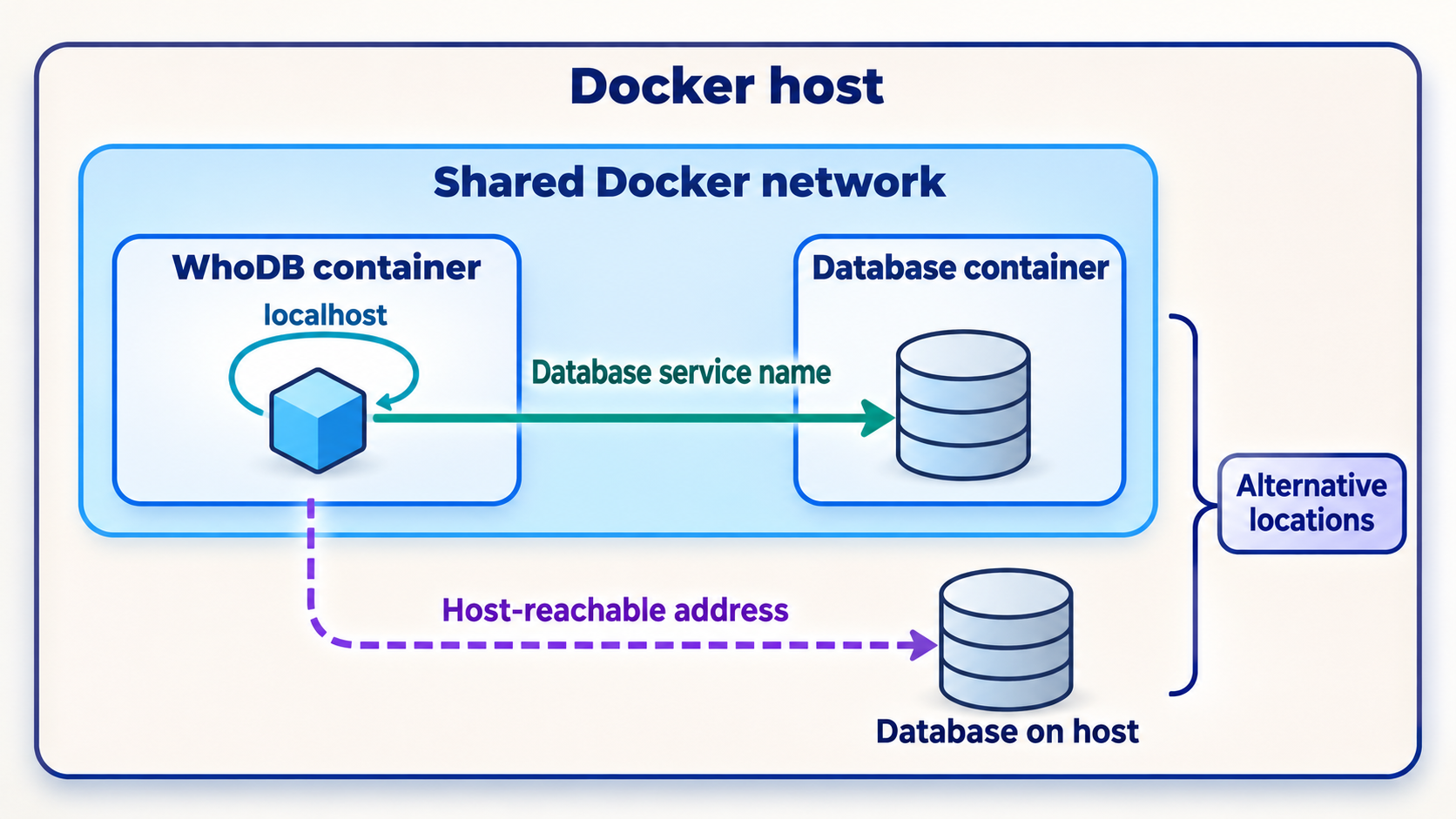
One of the most common container mistakes is entering localhost as the database host when the database is not running inside the WhoDB container. Inside a container, localhost refers to that container itself. It does not automatically refer to the Docker host or to another container.
Select the database hostname according to where the database runs:
- Another service in the same Compose project: use that service's Compose name, such as
postgres. - A database on the Docker host: use
host.docker.internalwhere the Docker environment supports it. - A database on another server: use a hostname or IP address routable from the WhoDB container.
- A database inside the WhoDB container: only this unusual case would make
localhostthe correct database host.
The port entered into WhoDB must be the port reachable from the container. When both services share a Compose network, use the database service's internal listening port, not necessarily a host-published port.
Example Compose network with PostgreSQL
The official Docker integration demonstrates a PostgreSQL service named postgres. In WhoDB's connection form, that service name becomes the database host:
services:
  whodb:
    image: clidey/whodb:latest
    container_name: whodb
    ports:
      - "8080:8080"
    environment:
      PORT: "8080"
      WHODB_LOG_LEVEL: info
      WHODB_ENCRYPTION_KEY: replace_with_your_64_character_hex_key
    restart: unless-stopped
    volumes:
      - whodb-data:/data
    depends_on:
      - postgres

  postgres:
    image: postgres:16
    environment:
      POSTGRES_USER: whodb
      POSTGRES_PASSWORD: replace_with_a_database_password
      POSTGRES_DB: whodb

volumes:
  whodb-data:
Replace the database password before using the example. The sample shows container networking, not a production database hardening policy. Avoid publishing the PostgreSQL port to the host unless another application genuinely requires host-level access.
In the WhoDB connection form, use postgres as the hostname. Do not use localhost, because PostgreSQL is running in a different container.
WhoDB can be used for data access and changes, so the database permissions granted to its account directly determine what a signed-in user can do. Prefer a dedicated account with only the schemas, tables, and operations needed for the task. Do not use a database superuser merely because it is convenient.
Verify WhoDB before creating a tunnel
Local verification establishes whether WhoDB itself is healthy. If the local URL fails, a tunnel cannot repair the application, container, port mapping, or database connection. Complete each check in order.
Confirm that the service is running
Run docker compose ps and verify that the WhoDB service is not repeatedly restarting or exiting.
Check the health endpoint
Request http://localhost:8080/health. WhoDB CE documents a plain-text response of ok.
Open the browser interface
Load http://localhost:8080 and confirm that the interface renders without a connection error.
Test the database connection
Sign in with the dedicated database account and the container-reachable database hostname. Confirm only the access that account is intended to have.
Test session persistence
Recreate the WhoDB service without deleting its named volume, then revisit the interface. A stable volume and encryption key should allow the stored session to remain usable, subject to its normal expiration.
Check the health endpoint from a terminal:
curl http://localhost:8080/healthThe expected response body is:
okTo recreate the service while retaining the named volume, run:
docker compose up -d --force-recreate
Do not run docker compose down -v for this test. The -v option removes the named volume, which intentionally deletes the persisted data needed for the session.
Add a Docker health check
WhoDB's documented health endpoint can also be used by Docker Compose:
services:
  whodb:
    image: clidey/whodb:latest
    container_name: whodb
    ports:
      - "8080:8080"
    environment:
      PORT: "8080"
      WHODB_LOG_LEVEL: info
      WHODB_ENCRYPTION_KEY: replace_with_your_64_character_hex_key
    restart: unless-stopped
    volumes:
      - whodb-data:/data
    healthcheck:
      test: ["CMD-SHELL", "wget -qO- http://localhost:8080/health | grep -qx ok"]
      interval: 30s
      timeout: 5s
      retries: 3
      start_period: 20s

volumes:
  whodb-data:
This checks application health from inside the container. It complements, but does not replace, testing the host port from the Localtonet client device.
Expose the verified WhoDB service through Localtonet
Once http://localhost:8080 and the health endpoint work, the deployment is ready for the remote-access layer. An HTTP tunnel is the appropriate family because WhoDB presents a browser-based HTTP service. The public side can use the HTTPS address assigned to the tunnel while the local target remains the WhoDB HTTP listener.
The Localtonet client must run on a device that can reach the configured local target. If it runs on the Docker host, the target can normally be the local host address and port 8080. If it runs on another device, use the WhoDB host's reachable local network address instead of localhost, because localhost would then refer to the Localtonet client device.
Install and run the Localtonet client
Install our client for the operating system on the device that can reach WhoDB. Keep the client running because the tunnel is available only while the selected client or device remains connected and the tunnel is running.
Authenticate the client device
Use the device-specific authentication token from your Localtonet account. Tokens identify client devices and must not be guessed, shared publicly, or inserted into this article's example files.
Select an available relay server
Select a currently available server or region from the dashboard. Available server codes can vary, so obtain the value from the current product rather than copying a hardcoded code from a tutorial.
Create an HTTP tunnel to WhoDB
Configure the local target as the IP address reachable from the client and port 8080. If you changed the host-side Docker port, use that host-side port instead. Select the HTTP process type appropriate for the address you intend to use.
Start the tunnel
Creating a tunnel does not start it. Use the Start button and wait until the tunnel and selected client are connected.
Open and verify the assigned HTTPS address
Open the public address assigned by the tunnel, confirm that the WhoDB interface loads, and test a login through that HTTPS address. Stop the tunnel when public access is no longer required.
HTTP and File Server tunnels can use a generated subdomain, a selected subdomain where supported, or a custom domain. Exact custom-domain DNS requirements can change, so verify the current dashboard and our HTTP tunnel documentation before changing DNS records.
Enable secure session cookies for HTTPS access
WhoDB does not infer the original HTTPS scheme from proxy headers. When users access WhoDB only through the public HTTPS tunnel, add WHODB_SECURE: "true" to the service environment:
services:
  whodb:
    image: clidey/whodb:latest
    container_name: whodb
    ports:
      - "8080:8080"
    environment:
      PORT: "8080"
      WHODB_LOG_LEVEL: info
      WHODB_ENCRYPTION_KEY: replace_with_your_64_character_hex_key
      WHODB_SECURE: "true"
    restart: unless-stopped
    volumes:
      - whodb-data:/data

volumes:
  whodb-data:
Apply the change:
docker compose up -d
Test login through the tunnel's HTTPS address after applying the setting. A Secure cookie is not sent over a plain HTTP browser connection, so local authentication through http://localhost:8080 may no longer behave as it did during initial testing. The local health endpoint can still be used for service checks because it does not depend on an authenticated browser session.
Saving the tunnel configuration is not the same as running it. The public address works only while the selected Localtonet client is connected and the tunnel has been started. You can later stop the tunnel temporarily or delete it when it is no longer needed.
Verify the complete remote path
Test from a device or network other than the Docker host when possible. Load the assigned HTTPS URL, sign in using the intended database profile, and confirm that the browser keeps the session after a refresh. Then test only the database operations authorized for that account.
If the public URL fails but the local URL works, concentrate on the Localtonet client status, tunnel status, selected target address, and target port. If both URLs fail, return to the container and health checks. If the page loads but login does not persist, inspect the WHODB_SECURE setting, browser cookie behavior, session-encryption key, and persistent volume.
Operate, update, and monitor the deployment
Routine container commands
These Compose commands cover the normal service lifecycle:
docker compose ps
docker compose logs -f whodb
docker compose restart whodb
docker compose stop
docker compose start
A restart keeps the same container configuration and persistent volume. A service recreation creates a replacement container, which is why the named volume and stable encryption key matter.
Update the WhoDB image
A deployment using clidey/whodb:latest does not update merely because a newer image exists. Pull the current image and recreate the service:
docker compose pull
docker compose up -d
Verify /health, load the browser interface, and test an existing session after the update. Keep the whodb-data volume and the same encryption key. If you prefer controlled releases, WhoDB also publishes versioned image tags. Review the chosen release before replacing latest with a specific tag.
Stop remote access independently
The WhoDB container and Localtonet tunnel have independent lifecycles. You can stop the public tunnel while leaving WhoDB available locally. This is useful when remote access is needed only during a maintenance window. Conversely, leaving a tunnel started does not make an unavailable WhoDB container work. The local target must remain healthy.
Back up the pieces that matter
Session continuity depends on the named volume and the stable encryption key. Protect both according to your backup policy. A backup of only the volume is insufficient if the key is lost. A backup of only the key does not preserve the session database. Database content itself remains subject to the database server's own backup and recovery process. The WhoDB session volume is not a backup of the connected databases.
Review logs without leaking secrets
Standard Docker output is available through docker logs or docker compose logs. WhoDB also documents optional file logging and an append-only NDJSON audit log for audited actions such as logins, data reads, and changes. Before sharing logs, inspect them for hostnames, database names, usernames, queries, or other sensitive operational data.
The documented default file-log directory is /var/log/whodb/. Writing logs there requires a suitable mounted path if you want the files to survive container replacement. Do not enable additional logging without planning retention, filesystem permissions, and access controls.
Troubleshoot common WhoDB and tunnel problems
The container does not start
Run docker compose ps and docker compose logs whodb. Common causes include an occupied host port, invalid YAML, a container-name conflict from the earlier quick installation, or an invalid environment configuration. If the quick container named whodb still exists, remove it before starting the Compose service.
Port 8080 is already in use
Change the host side of the mapping while keeping WhoDB's internal port at 8080:
ports:
  - "3000:8080"
The local URL and Localtonet target port then become port 3000. Do not set PORT=3000 unless you also intend to change the container's internal listener.
The health endpoint fails
Confirm the service is running, inspect logs, and verify that the port mapping matches WhoDB's internal listener. If you changed PORT, update the Docker mapping and health-check URL consistently. A connection refusal normally means there is no reachable listener at the requested address and port. An unexpected HTTP response means a service answered, but it may not be the expected WhoDB endpoint.
WhoDB cannot connect to the database
Recheck the hostname from the container's perspective. Use a Compose service name for a sibling service, host.docker.internal where supported for a host database, or a routable network hostname for a remote server. Also verify the database listener, port, credentials, network policy, and permissions. Successful loading of the WhoDB page proves only that WhoDB is running, not that its target database is reachable.
A login disappears after container recreation
Confirm that /data is mounted to the same persistent volume and that WHODB_ENCRYPTION_KEY has not changed. Check whether the session exceeded its idle lifetime. If the old key was lost, the previous encrypted sessions cannot be recovered and users must sign in again.
Login fails only on local HTTP after enabling HTTPS mode
A browser does not send a Secure cookie over plain HTTP. If WHODB_SECURE=true, use the public HTTPS tunnel URL for authenticated access. For a local-only HTTP deployment, leave the variable unset. Do not repeatedly toggle the setting without understanding which URL users are expected to use.
The public URL does not load
Verify that the Localtonet client is connected, the tunnel is started, and the target address is reachable from the client device. If the client runs on a different machine from Docker, localhost:8080 points to the wrong device. Use the WhoDB host's reachable local address and ensure local network policy permits that connection.
The public page loads but authentication does not persist
Verify that the browser is using the HTTPS URL and that WhoDB was recreated after adding WHODB_SECURE=true. Confirm that the encryption key is valid and stable, and that the /data volume is mounted. Browser privacy settings can also affect cookies, so inspect the browser's cookie and network diagnostics without exposing the cookie value.
The tunnel stopped unexpectedly
The tunnel depends on both the Localtonet client connection and the tunnel's running state. Check whether the device went offline, the client process stopped, or the tunnel was stopped in the dashboard. Starting the WhoDB container does not automatically start a stopped Localtonet tunnel.
| Symptom | First check | Likely configuration area |
|---|---|---|
| Both local and public URLs fail | docker compose ps and WhoDB logs |
Container state, listener, or Docker port mapping |
| Local works, public fails | Localtonet client and tunnel status | Tunnel lifecycle, target IP, or target port |
| Page works, database fails | Database hostname from inside Docker | Container networking, credentials, or database permissions |
| Session resets after recreation | Volume mount and encryption key | /data, key stability, or session expiration |
| HTTPS page works but login loops | Cookie behavior and WHODB_SECURE |
Secure-cookie mode or browser cookie policy |
Frequently asked questions
What port does WhoDB use by default?
WhoDB's documented default HTTP port is 8080. With Docker mapping 8080:8080, the local interface is available at http://localhost:8080. You can change only the host side, such as 3000:8080, without changing WhoDB's internal listener.
Why do WhoDB sessions need both a volume and an encryption key?
The volume retains the encrypted session database under /data, while the stable WHODB_ENCRYPTION_KEY allows WhoDB to decrypt those existing sessions after container recreation. Losing either component prevents the old sessions from continuing normally.
Should WHODB_SECURE be enabled before local testing?
No, not when the browser is using plain http://localhost. First verify WhoDB over local HTTP with the variable unset. When authenticated access moves to the Localtonet HTTPS address, set WHODB_SECURE=true and test login through that HTTPS URL.
Does Localtonet require router port forwarding for WhoDB?
No. Our client establishes an outbound connection to a Localtonet relay server, so the workflow does not require inbound router port forwarding, a public IP address, firewall changes, or VPN setup. The selected client must remain connected and the tunnel must be running.
Why does localhost fail as the database hostname?
Inside the WhoDB container, localhost means the WhoDB container itself. Use the Compose service name for another container, host.docker.internal where supported for a database on the Docker host, or a routable hostname or IP address for a remote database.
Does the Localtonet tunnel expose the database port itself?
Not in this workflow. The HTTP tunnel points to WhoDB's web service on the chosen host port. WhoDB then reaches the database through its own container network path. There is no need to create a public raw database tunnel merely to use the WhoDB browser interface.
Will the WhoDB tunnel remain available after a reboot?
The Compose configuration uses restart: unless-stopped for WhoDB, but remote availability also depends on the Localtonet client reconnecting and the tunnel being in its running state. Verify both layers after a host reboot rather than assuming that one service's restart policy controls the other.
Can I stop public access without stopping WhoDB?
Yes. Stop the Localtonet tunnel while leaving the WhoDB container running. The application can remain available locally, and the public address becomes unavailable until the tunnel is started again.
Give your verified WhoDB deployment HTTPS access
Once WhoDB is healthy on its local Docker port, create a Localtonet HTTP tunnel to reach the workspace remotely without configuring inbound router port forwarding. Keep the tunnel active only when needed and protect every database connection with least-privilege credentials.
Get Started Free →