

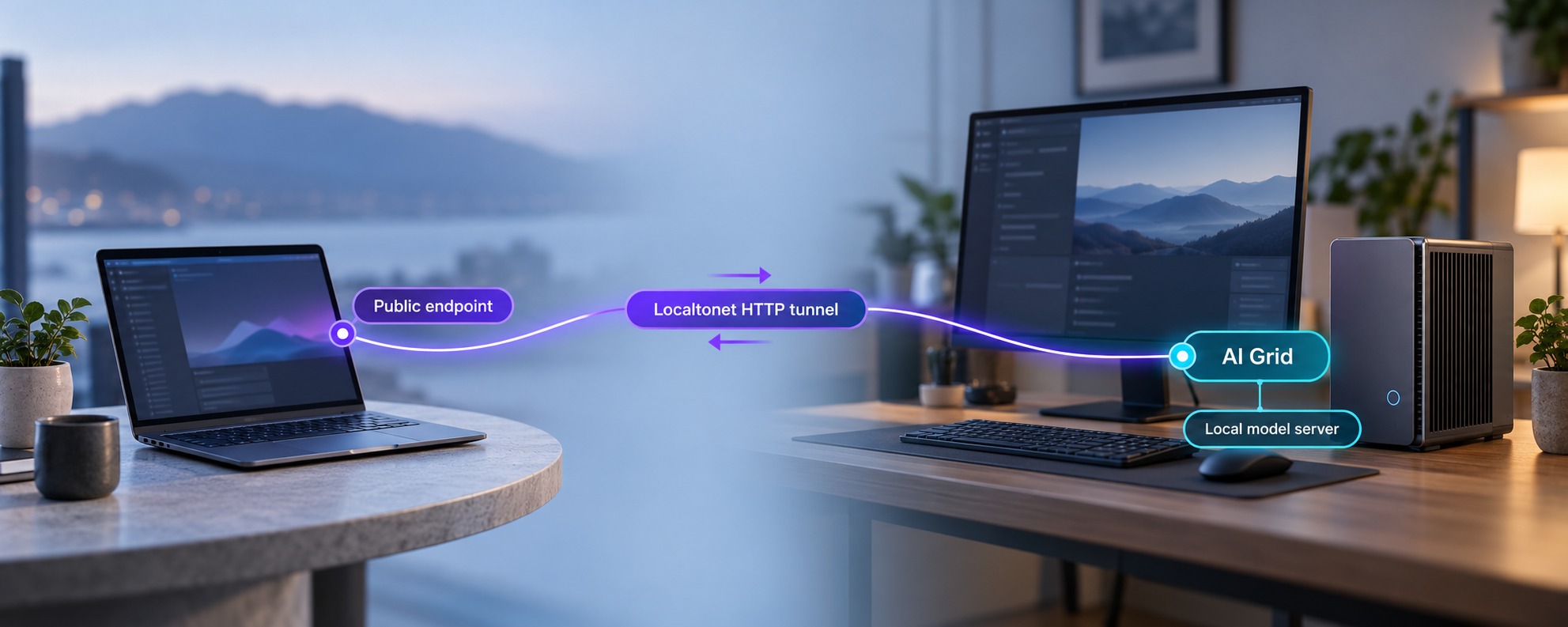
Build one OpenAI-compatible gateway for your local model servers, verify it on your network, and expose it only when remote access is required
AI Grid, also called autonomous-grid, connects model-serving computers behind a shared OpenAI-compatible HTTP endpoint. This guide explains the documented installation paths for macOS, Linux, Windows 10, and Windows 11, then shows how to start the grid host, connect an existing Ollama, vLLM, or LM Studio environment, and verify the resulting service locally. After the local workflow works, we add a separate Localtonet HTTP tunnel so an approved remote application can reach the grid without inbound router port forwarding, firewall changes, VPN setup, or a public IP address. Where the project documentation does not establish an exact command or setting, we call that out rather than guessing.
📋 What's in this guide
What AI Grid adds to a local model-serving environment
Ollama, vLLM, LM Studio, and llama.cpp can each serve models from a computer. AI Grid sits above these model-serving systems as an orchestrator. Its purpose is to network computers that already perform inference and present their capabilities through one shared endpoint. Applications that understand the OpenAI API format can then use the grid endpoint instead of being configured separately for every model server.
This distinction matters when planning the installation. AI Grid is not a model and does not remove the need for working inference software. At least one computer must be capable of loading and serving a model. The grid host provides the common entry point, while joined model-serving computers contribute their available inference resources. A small deployment may run the grid host and model server on the same machine. A larger deployment can place them on separate computers connected through the same trusted local network.
The project describes support for existing Ollama, vLLM, LM Studio, and llama.cpp environments. It also presents its shared endpoint as OpenAI-compatible. That makes the endpoint useful for desktop applications, coding tools, agents, and custom software that allow the OpenAI API base URL to be changed.
Host address versus model-server address
Keep two types of address separate while configuring the deployment. The model-server address belongs to Ollama, vLLM, LM Studio, or another supported runtime. AI Grid uses that service as an inference resource. The grid host address is the unified HTTP endpoint that applications use after the grid is running.
The project documentation includes an example grid host at http://192.168.1.25:8090 and an example OpenAI API base URL at http://192.168.1.25:8090/v1. These are examples, not universal defaults. Do not copy the example IP address or assume that every installation listens on port 8090. The correct value for a real installation is the address reported by grid info.
Run grid info after starting the host and record the actual endpoint it reports. Use that IP address and port for local testing and as the Localtonet tunnel target. The example address in the project documentation may not match your network, interface, or installed version.
Prerequisites and deployment decisions
A successful setup starts with a working model-serving computer and a clear choice about where the grid host will run. Confirm these requirements before executing an installer.
| Requirement | Why it matters | What to confirm |
|---|---|---|
| Supported host operating system | The documented installers differ by platform. | Use the shell installer on macOS or Linux, or the PowerShell installer on Windows 10 or Windows 11. |
| Working model server | AI Grid orchestrates inference resources but still needs a server that can load and run a model. | Confirm that Ollama, vLLM, or LM Studio can complete a local inference request before joining it to the grid. |
| Network reachability | The grid host must be able to communicate with participating model-serving computers. | Confirm that local routing and host firewall policy permit the intended connection. |
| Terminal access | Installation and host management use the grid command. |
Use a shell account that is allowed to install and run the required software. |
| Model capacity | Available memory, accelerator support, and model format determine what the underlying server can run. | Validate these details in the documentation for the chosen model server and model. |
| Localtonet client host | The client must be able to reach the grid HTTP service. | Plan to run our client on the grid host or another trusted device that can reach the reported grid address. |
Choose the host machine
The simplest arrangement is to run the grid host on a stable computer that remains online whenever applications need the shared endpoint. This can be the same computer that runs a model server, but it does not have to be. If the host and model servers are separate, verify bidirectional network policy where the selected integration requires it.
Prefer a stable local address for a host that other devices will use. Dynamic addressing can cause the endpoint to change after a reboot or lease renewal. The exact method for reserving an address depends on the network and is outside AI Grid itself. Whatever method is chosen, always treat grid info as the authoritative description of the active service.
Verify the existing model server first
Do not add AI Grid and Localtonet while the underlying inference service is still failing. Start the existing Ollama, vLLM, or LM Studio server and use its normal local client to send a prompt to a model. Confirm that the model loads and returns a response. This isolates GPU drivers, model files, runtime dependencies, and model-server configuration from later grid and network troubleshooting.
The evidence available for this guide establishes that AI Grid works with Ollama, vLLM, and LM Studio, but it does not provide one universal join command that applies to every version and every server type. Runtime addresses, model identifiers, and authentication settings can differ. We therefore do not invent a command-line flag or fixed port. The connection must use the workflow shown by the installed AI Grid version and the real endpoint reported by the existing model server.
A tunnel cannot repair a model that fails to load, a server that is bound to the wrong interface, or a grid node that has not joined correctly. Finish local model-server and grid verification before creating remote access.
Install and start autonomous-grid
Use the installation path that matches the host operating system. The commands below come from the project’s documented installation workflow. Downloaded installation scripts execute code on the machine, so review the script first if that is required by your security policy. Run installers only from the documented project location.
Install on macOS or Linux
On macOS or Linux, the project provides a shell installer at https://grid.autonomous.ai/install.sh. Run:
curl -fsSL https://grid.autonomous.ai/install.sh | bash
Let the installer finish, then open a new terminal if the current shell does not immediately recognize the grid command. Shell path changes commonly require a fresh session. Do not substitute an unrelated package or similarly named project.
Install on Windows 10 or Windows 11
On Windows 10 or Windows 11, the project provides install.ps1 in its repository. Run the documented PowerShell command:
powershell -ExecutionPolicy ByPass -c "irm https://raw.githubusercontent.com/autonomous-ai/autonomous-grid/main/install.ps1 | iex"
The supplied release evidence for version 0.3.61 notes fixes for Windows updating and Windows 11 Smart App Control. In particular, a Windows installation on version 0.3.60 should be updated by running the installer again rather than using grid update. The release also describes a launcher fallback for cases where Smart App Control blocks the unsigned grid.exe launcher.
Version 0.3.61 is present in the supplied release evidence, but that evidence does not establish a reliable calendar year for the displayed release date or confirm the project’s ongoing maintenance cadence. Check the installed version and review the current project release information before relying on version-specific behavior.
Check the installed command
On every supported platform, confirm that the executable is available:
grid --versionA version response confirms that the command is installed and available through the current shell. It does not yet prove that the host is running or that a model server is connected.
Start the grid host
Start the host with:
grid startAllow startup to complete, then inspect the deployment:
grid info
Save the actual host URL and OpenAI-compatible base URL shown by this command. If the output reports an address such as http://192.168.1.25:8090, the corresponding documented example API base is http://192.168.1.25:8090/v1. Your values may differ.
Run the documented installer
Use the shell installer on macOS or Linux, or the repository PowerShell installer on Windows 10 or Windows 11.
Confirm the installed version
Run grid --version. If the command is not found, reopen the terminal and check whether the installer reported a path or permission error.
Start the host
Run grid start on the machine selected to provide the shared endpoint.
Read the active endpoint
Run grid info and record the address actually reported by the running installation. Do not replace it with the documentation’s example address.
Connect Ollama, vLLM, LM Studio, or llama.cpp
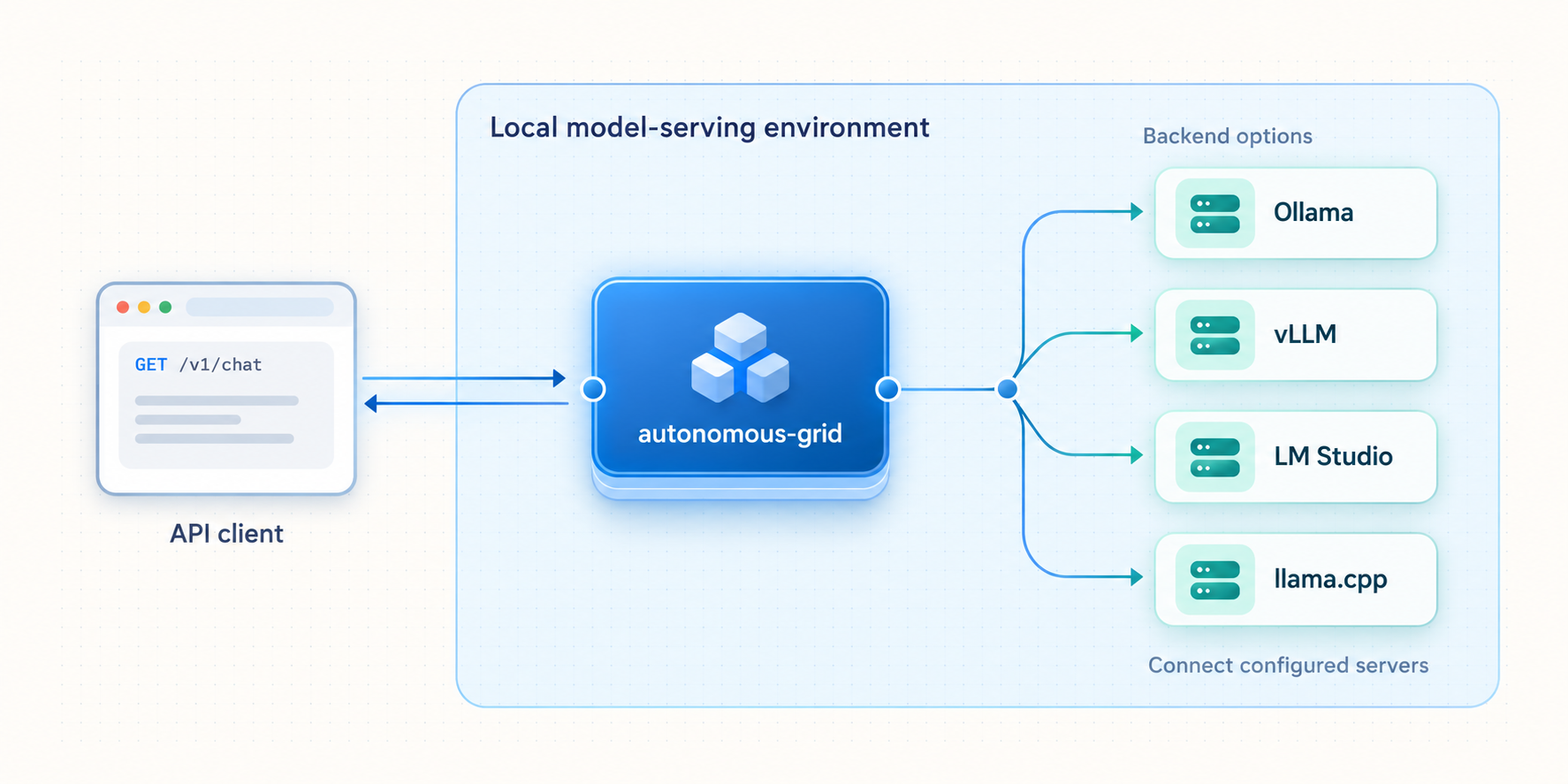
AI Grid needs at least one usable inference resource. The project identifies Ollama, vLLM, LM Studio, and llama.cpp as supported model-serving choices. If one is already running, connect that existing server rather than installing a second runtime merely for this tutorial.
The exact connection flow can vary by model server and AI Grid version. The project documentation also describes installing llama.cpp and joining a model-serving computer, but the supplied evidence does not establish the exact current commands, interactive prompts, port defaults, or configuration file paths. Those values should be read from the installed version rather than inferred from an older example.
Information to collect before joining a server
- The local or LAN address where the model server is listening.
- The server type, such as Ollama, vLLM, LM Studio, or llama.cpp.
- A model identifier that the server can successfully load.
- Any authentication requirement already enabled on the model server.
- Whether the grid host is on the same machine or must connect over the LAN.
Use the AI Grid join or node workflow presented by the installed release. Supply the real model-server details you collected, then inspect grid info again. The goal is to see the participating resource represented by the grid and to make an inference request through the grid host rather than directly through the model server.
Ollama
Ollama can run local models and provides APIs for applications. First confirm that Ollama itself can run the intended model. Then use the current AI Grid connection workflow to register that working server. Do not assume an Ollama network port or change its bind address based solely on a copied tutorial, since installation and network configuration may differ.
vLLM
vLLM provides an OpenAI-compatible API server and supports a broad range of inference and deployment configurations. Start and test the chosen vLLM deployment before connecting it to AI Grid. Record the exact listen address, API behavior, model name, and any access credential configured by the operator. AI Grid must be able to reach that service from the network context in which the grid component runs.
LM Studio
LM Studio can provide a local model server for applications. Load a compatible model, start its serving function, and verify it from the local machine before connecting it to the grid. Use the server address displayed by LM Studio rather than assuming that a value from another computer is correct.
llama.cpp
The project documentation describes a path for installing llama.cpp and joining a model-serving computer. That is useful when no existing server is available. However, the precise current installation and join commands are not established by the evidence supplied for this article. Use the workflow exposed by the installed AI Grid release, and avoid guessing executable names, model paths, accelerator flags, or server ports.
A fabricated command could register the wrong address, rely on a removed option, or expose a server on an unintended interface. AI Grid’s verified installation, startup, and inspection commands are shown exactly. For the server-specific join operation, use the prompts or help presented by the installed release and enter the actual details of the already verified model server.
Verify the grid endpoint on the local network
Verification should proceed in layers. This makes failures easier to locate and prevents a remote tunnel from obscuring a local configuration problem.
Layer 1: verify the command and host process
Run grid --version to confirm the command exists, then use grid start and grid info. Record all endpoint information reported by the current installation. If the host does not start, resolve that problem before checking model connectivity.
Layer 2: verify the model-serving computer
Send a request directly to Ollama, vLLM, LM Studio, or llama.cpp using the runtime’s normal local workflow. A successful direct response proves that the model is installed, can be loaded, and can perform inference independently of AI Grid.
Layer 3: verify the grid from the host machine
Configure an OpenAI-compatible application with the API base URL reported by grid info. The documented example format is:
http://192.168.1.25:8090/v1Replace the entire example with your reported address. Select a model known to be available through the joined model server and send a small test prompt. A completed response proves that the request reached the grid, was routed to an inference resource, and returned through the shared endpoint.
Layer 4: verify from another LAN computer
If remote applications will eventually reach the host through another device, test the reported grid address from a second computer on the same network. A failure here often indicates interface binding, host firewall policy, network segmentation, or an incorrect address. A service can work through localhost while remaining unreachable through its LAN address.
| Test | Success proves | If it fails |
|---|---|---|
grid --version |
The command is installed and available in the current shell. | Reopen the terminal, inspect installer output, and check executable path and permissions. |
grid start |
The host can begin its startup workflow. | Read the terminal error and address installation, dependency, permission, or blocked-executable issues. |
grid info |
The installation can report its current host and grid state. | Confirm that startup completed and that the correct user session is managing the host. |
| Direct model-server request | The model runtime and selected model work independently. | Fix the runtime, model file, memory, driver, or server configuration first. |
| Request through the grid API base | The grid can route an application request to a joined inference resource. | Check node membership, model availability, API base URL, and model identifier. |
| Request from another LAN device | The grid endpoint is reachable beyond the host’s local loopback interface. | Check the reported address, service binding, firewall policy, and LAN segmentation. |
Add remote access with a Localtonet HTTP tunnel
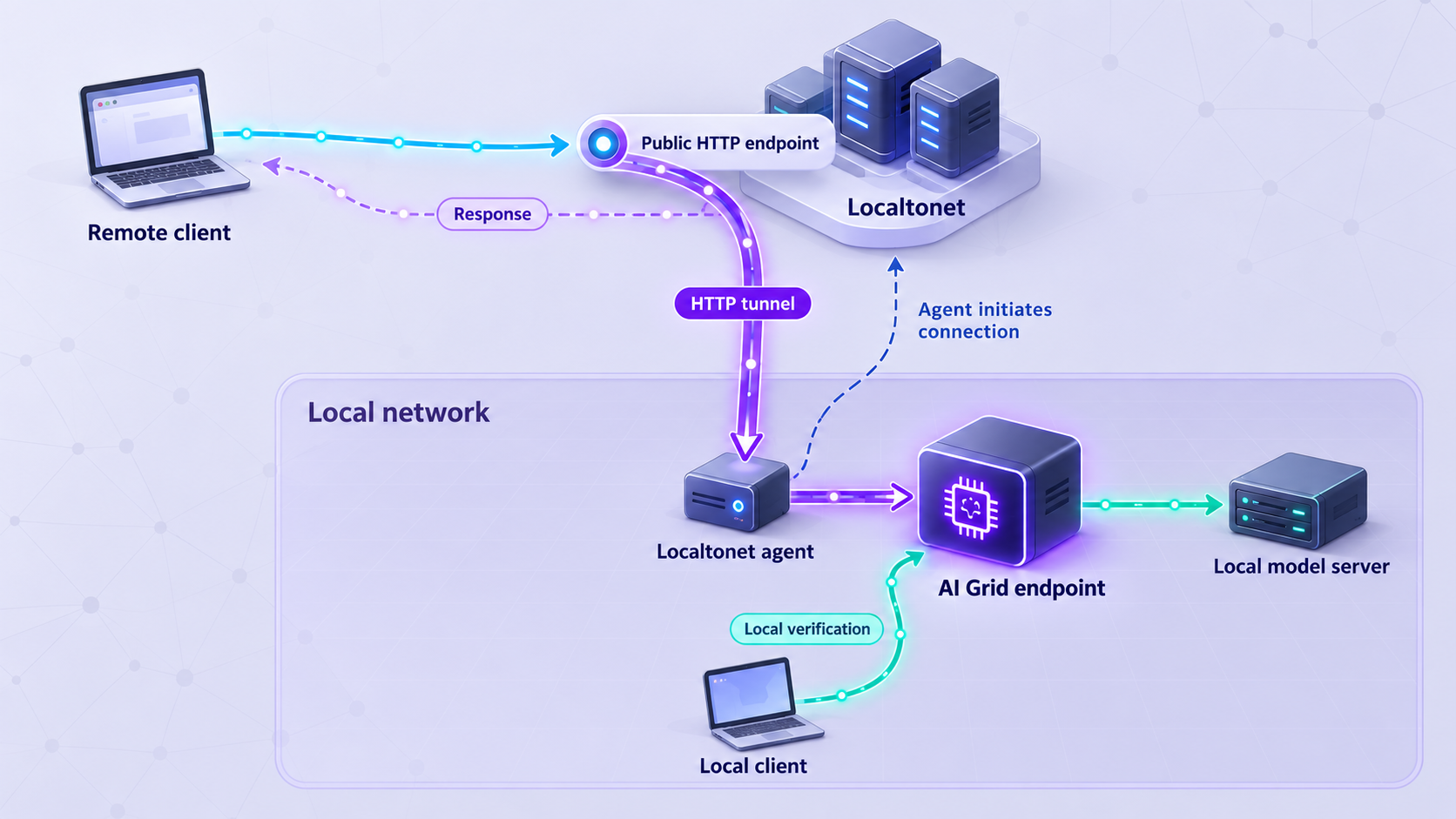
Only continue after an OpenAI-compatible client can successfully use the grid endpoint locally. With Localtonet, the client application on a device establishes an outbound connection to one of our relay servers. The resulting HTTP tunnel provides a public HTTPS address without requiring inbound router port forwarding, firewall changes, VPN setup, or a public IP address.
Run the Localtonet client on the grid host or on another trusted machine that can reach the grid host’s reported IP address and port. If both applications run on the same machine, the local target may be reachable directly there. If the Localtonet client runs on a different LAN device, use the actual reachable LAN address reported for the grid service.
An HTTP tunnel is appropriate because the grid exposes an HTTP endpoint used by OpenAI-compatible applications. Do not create a File Server, proxy, UDP, or VPN configuration for this workflow. Standard HTTP tunneling is not VPN functionality.
Install and run the Localtonet client
Install our client on the grid host or another device that can reach the working grid HTTP endpoint. Keep the client running for as long as remote access is required.
Authenticate or select the client device
Use the device-specific auth token associated with the intended client. Treat the token as a secret, and never paste it into public documentation, application code, screenshots, or support messages.
Select an available relay server
Choose from the servers or regions currently presented in the Localtonet dashboard. Availability can vary, so do not copy a hardcoded server code from another installation.
Create an HTTP tunnel to the grid host
Enter the local IP address and port reported by grid info. Use the host address itself as the tunnel target. OpenAI-compatible applications will add or retain the required /v1 path in their API base URL.
Start the tunnel
Creating the configuration does not make it active. Press Start and wait for the tunnel to run. The public endpoint is available only while the selected client is connected and the tunnel is running.
Test the assigned public HTTPS address
Replace the local origin in an approved OpenAI-compatible client with the assigned public HTTPS address while preserving the API path required by the client. Send a small inference request and confirm that it reaches the same model available during local verification.
HTTP tunnels can use Random Sub Domain, Custom Sub Domain, or Custom Domain process types, and each serves the same target content at a public HTTPS address. If using a custom domain, consult the current dashboard and documentation before changing DNS because exact DNS requirements are not established in the supplied context.
For the general HTTP workflow and currently available options, review the Localtonet documentation. Available servers, regions, options, and plan entitlements should always be taken from the current dashboard rather than assumed from an article.
An inference endpoint that was previously reachable only on a trusted network can receive internet traffic after the tunnel starts. Use authentication supported by the application stack, restrict who receives the URL and credentials, apply least privilege, avoid exposing unnecessary administrative interfaces, and stop the tunnel when remote access is no longer needed.
Secure remote AI inference access
Remote access should be designed around the data sent to the model and the actions available to connected applications. Prompts may contain source code, customer details, internal documents, credentials copied by mistake, or agent instructions. Model responses can also reveal sensitive context. Treat the grid endpoint as an application API, not as a harmless demonstration page.
Require application-layer authorization
A difficult-to-guess public URL is not a replacement for authentication. Use the authentication mechanism supported by the deployed grid or surrounding application stack. Do not place credentials directly in a URL, publish them in a repository, or reuse a Localtonet device token as an application API credential. The Localtonet token identifies the client device and must remain private.
Expose only the grid endpoint
The tunnel target should be the verified AI Grid HTTP host and port. Do not expose unrelated dashboards, model directories, operating-system shares, development servers, or administrative ports. If an application needs only the shared API base, provide only that route through the intended HTTP service.
Separate model access from administrative access
An inference client normally needs to submit requests and receive results. It should not automatically receive operating-system access or model-management privileges. Keep host administration on a separate trusted path. Localtonet HTTP tunneling publishes the configured web service; it does not require exposing remote shell access.
Manage availability deliberately
The tunnel exists only while the selected Localtonet client is connected and the tunnel is running. This lifecycle is useful for temporary work. Start the tunnel when an approved remote client needs it, then stop or delete it when the workflow is complete. Also remember that stopping Localtonet does not stop AI Grid, and stopping AI Grid does not delete the tunnel configuration. Manage both lifecycles explicitly.
Review downstream application behavior
OpenAI-compatible tools vary in what they transmit. Some may send conversation history, project context, files, tool descriptions, or agent state with each request. Before pointing a remote application at the grid URL, inspect its configuration and determine what data it will send. Remote connectivity should not be interpreted as permission to upload all available context.
Routine operation and troubleshooting
A working deployment has three independent layers: the inference runtime, the AI Grid host, and the Localtonet tunnel. Troubleshoot in that order. Testing from the bottom upward prevents a public connectivity symptom from being mistaken for a model or grid problem.
Normal startup sequence
- Start the model server and make sure the intended model is available.
- Start AI Grid with
grid start. - Run
grid infoand confirm the active host endpoint and joined resources. - Send a local request through the grid endpoint.
- Start the Localtonet client.
- Start the configured HTTP tunnel.
- Test the public HTTPS API base from the approved remote application.
Normal shutdown sequence
Stop the public tunnel first if remote access is no longer required. Then stop application workloads, AI Grid, and the model server according to their current operational controls. Stopping the tunnel reduces public exposure immediately, while preserving the saved configuration if it will be used again. Delete the tunnel if the configuration should not remain in the dashboard.
grid is not recognized
Open a fresh terminal and rerun grid --version. If it still fails, inspect the installer output for a path or permission message. On Windows, Smart App Control can block unsigned launchers. The supplied 0.3.61 release information states that the installer can use a grid.cmd launcher through signed Python when the small grid.exe launcher is blocked.
A Windows installation on 0.3.60 no longer starts after an update
The 0.3.61 release notes identify a Windows update problem in 0.3.60. Run the documented PowerShell installer again instead of relying on grid update from the affected installation.
The grid starts, but no model is available
Test the model server directly. If that fails, fix the inference runtime first. If direct inference works, inspect the AI Grid join state and confirm that the registered address is reachable from the grid host. Also verify that the model identifier used by the client matches a model exposed through the participating server.
The grid works on the host but not from another LAN device
Compare the URL used by the remote LAN device with the output from grid info. A loopback address works only on the same machine. If the reported service is intended to be reachable over the LAN, check host firewall policy, network segmentation, and whether the service is listening on an appropriate interface. Do not disable broad security controls without understanding the impact.
The Localtonet tunnel is configured but the public address is offline
Confirm that the selected Localtonet client is connected and that the tunnel has been started. Creating a tunnel does not start it. Then verify that the same client device can reach the configured local target. If the target IP address changed, update the configuration to the current address reported by grid info.
The public endpoint responds, but inference fails
Retest the same request through the local grid API base. If local inference also fails, the issue is inside the model-server or grid layer. If local inference works, compare the remote client’s API base, path, authentication, model identifier, and request format with the working local configuration. Preserve the public HTTPS origin assigned by Localtonet and the API path expected by the OpenAI-compatible client.
Requests are slow or time out
Measure each layer separately. Model loading and generation can take longer than a simple HTTP connectivity test, especially when hardware resources are constrained. Compare direct model-server inference, local grid inference, and remote grid inference. This distinguishes model execution time from grid routing and network transit. No performance percentage, latency guarantee, or universal timeout can be inferred for this architecture because results depend on hardware, model size, runtime configuration, network path, and workload.
The host address changes after a reboot
Run grid info again and compare the result with the Localtonet target. If the host uses a dynamically assigned LAN address, consider a stable local addressing strategy appropriate to the network. Do not continue forwarding to an old address that may later belong to another device.
Frequently asked questions
Does AI Grid replace Ollama, vLLM, or LM Studio?
No. AI Grid orchestrates model-serving computers and presents a shared OpenAI-compatible endpoint. Ollama, vLLM, LM Studio, llama.cpp, or another supported runtime still performs the underlying inference work.
Is the AI Grid port always 8090?
Do not assume that it is. The project documentation shows http://192.168.1.25:8090 as an example. Run grid info and use the actual address and port reported by your installation.
What URL should an OpenAI-compatible application use?
Use the API base URL reported for the running grid. The documented example is http://192.168.1.25:8090/v1, but your address may differ. After adding Localtonet, replace the local origin with the assigned public HTTPS address while preserving the API path required by the application.
Does Localtonet require router port forwarding?
No. Our client establishes an outbound connection to a Localtonet relay server. This allows the configured service to receive traffic through its public endpoint without inbound router port forwarding, firewall changes, VPN setup, or a public IP address.
Is a Localtonet HTTP tunnel a VPN?
No. The HTTP tunnel publishes the configured HTTP service. Localtonet VPN Manager is the separate VPN feature. This AI Grid workflow uses an HTTP tunnel because the grid provides an HTTP API endpoint.
Can the Localtonet client run on a different computer from AI Grid?
Yes, provided that the client device can reach the grid host’s real IP address and port. Test that route locally from the client device before configuring the tunnel. Running both on the same machine is often simpler, but it is not required.
Does creating a tunnel immediately make AI Grid public?
No. Creating the tunnel configuration does not mean it is running. Start the tunnel explicitly. It remains available only while the selected Localtonet client is connected and the tunnel is running.
Should I expose the individual model server or the grid host?
For this workflow, expose the verified grid host. Its purpose is to provide the shared OpenAI-compatible endpoint across participating model-serving computers. Exposing individual runtimes separately would bypass that common entry point and create additional public services to manage.
Can I use a custom domain for the grid endpoint?
HTTP tunnels support Random Sub Domain, Custom Sub Domain, and Custom Domain process types. Check the current Localtonet dashboard and documentation for availability and exact DNS requirements before configuring a custom domain, since options can vary and should not be hardcoded from an older guide.
Why are there no fixed join commands for every model server in this guide?
The verified evidence establishes compatibility with Ollama, vLLM, LM Studio, and llama.cpp, but it does not establish one current universal command, fixed port, or configuration path for every combination. We show the verified installation, startup, and inspection commands and avoid inventing server-specific options. Use the join workflow presented by the installed AI Grid release with the real address of the already tested model server.
Connect your verified AI Grid endpoint with Localtonet
After autonomous-grid is running, a model server is joined, and local inference succeeds through the reported API base, install our client and create an HTTP tunnel to that exact host and port. Keep credentials private, start the tunnel only when needed, and test the assigned public HTTPS endpoint from an approved OpenAI-compatible application.
Get Started Free →

