

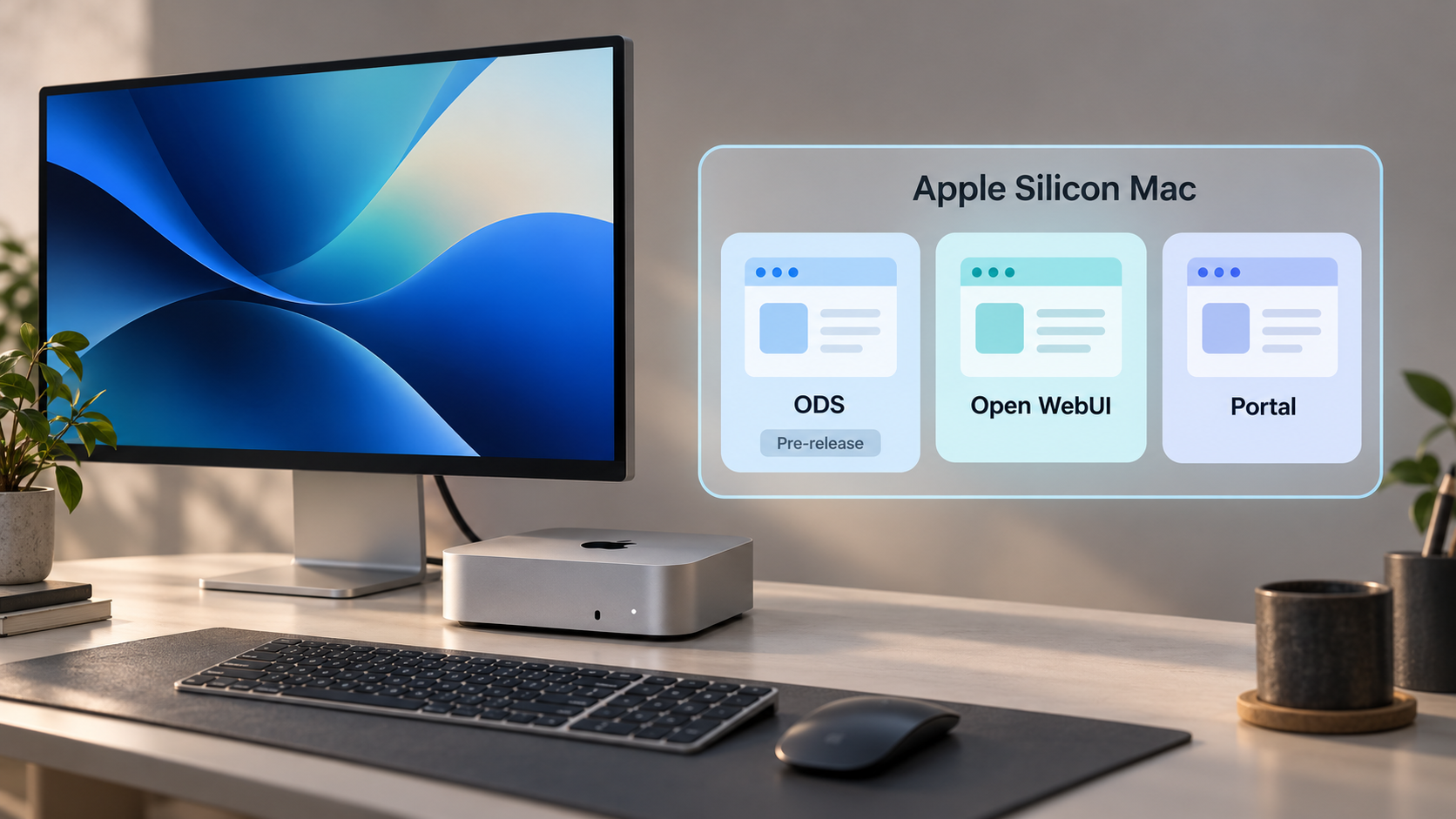
Build a private AI workspace on your Mac, verify it locally, then publish only the interface you intend to use
ODS turns a Mac, PC, or Linux system into a self-hosted AI server with browser-based services such as Open WebUI and Portal. In this guide, we focus on an Apple Silicon Mac, beginning with Docker preparation and the official ODS bootstrap workflow before checking both local interfaces. We also explain the important limitations of the ODS V3 pre-release, including its changing main branch and installer trust considerations. Once the local installation works, we show how to expose one selected HTTP interface with Localtonet without configuring inbound router port forwarding, changing firewall rules, setting up a VPN, or requiring a public IP address.
📋 What's in this guide
What ODS provides on an Apple Silicon Mac
ODS, or Osmantic Deployment System, is a self-hosted AI server stack. Its V3 documentation describes a system designed to turn a PC, Mac, or Linux computer into a private AI server. For a Mac user, the practical result is a collection of locally hosted services that can be opened from a browser instead of relying entirely on a hosted AI interface.
The current ODS V3 release is explicitly a pre-release. It is in public testing and refinement ahead of the official V3 launch. That distinction matters because a successful installation does not imply production readiness, completed compatibility testing, or stable behavior across every supported workflow. The release notes state that fleet qualification remains in progress and that some complex generated applications and event research workflows still have known acceptance failures.
The official installation path for Linux and macOS uses a hosted shell bootstrap. Docker must already be installed and running. After installation, the two browser endpoints documented for this workflow are:
- Open WebUI:
http://localhost:3000 - Portal:
http://localhost:3001/pixel
Open WebUI is the most direct target when the goal is remote browser access to AI chat. Portal is a separate ODS interface and should be treated as a separate service, even though both are part of the same local deployment. You do not need to expose both. In most cases, publishing only the specific interface you need is safer and easier to troubleshoot.
http://localhost:3000 after a successful installation.
http://localhost:3001/pixel. It uses a different port and can be tested independently.
Treat this installation as a testing or evaluation deployment unless your own qualification process establishes otherwise. The release notes distinguish passing CI and focused checks from complete installed-user acceptance across the project’s test fleet.
Prerequisites for installing ODS on Apple Silicon
Complete the preparation work before running the ODS bootstrap. The installer expects Docker to be available, and a partially configured container environment can make later failures difficult to distinguish from ODS problems.
An Apple Silicon Mac
This guide is specifically for a Mac using Apple Silicon. Confirm that you are working on the intended Mac and that you have permission to install and run Docker-based services on it. If the Mac is managed by an employer or school, review the applicable device and network policies first.
ODS can require substantial local resources depending on the AI workloads, models, and services you choose. The available evidence does not establish one universal minimum for memory, storage, or processor configuration, so we do not recommend inventing a fixed hardware threshold. Check your available disk space and memory before installation, then monitor actual use during testing.
Docker installed and running
Docker is a documented prerequisite for the macOS installation. Install a Docker distribution that supports your Apple Silicon Mac, start it, and wait until its container engine is ready. Merely having a Docker application in the Applications folder is not enough if the engine is stopped.
Before proceeding, confirm that Docker can start containers successfully. If Docker reports a startup, virtualization, permission, storage, or networking error, resolve that problem before running the ODS installer. ODS cannot provide its services when the underlying container runtime is unavailable.
Administrative awareness and installer review
The macOS workflow uses a hosted shell bootstrap. A hosted bootstrap is convenient, but it also means you are obtaining executable instructions from a remote location. ODS is under active development, and its default main-based installer can change after a tagged release.
Review the current command and script shown in the official ODS repository immediately before use. Confirm that the repository owner, branch, and script path are the ones you expect. If your environment requires pinned, signed, or independently audited installation artifacts, the continuously changing bootstrap channel may not satisfy that requirement.
The exact hosted installer command is intentionally not reproduced here because the documented installer follows the changing main branch and must be checked at the time of installation. Copy the current macOS or Linux command directly from the official ODS README, inspect the referenced script, and proceed only if you accept what it will execute.
Local browser access
You need a browser on the Mac for the first verification. Test the services through localhost before introducing remote access. This separates application problems from tunnel configuration problems and gives you a known working baseline.
A Localtonet account and client for the remote-access stage
Localtonet is not required to install ODS or use it locally. It becomes relevant only after ODS is working on the Mac. For remote access, install and run our client on the same Mac, or on another device that can reach the Mac’s local service. You will also need a device-specific authentication token and an available relay server selection from the current dashboard.
Do not place the device token in screenshots, shell history shared with others, public notes, or configuration examples. Tokens identify the client device that runs the tunnel and must be kept private.
| Requirement | Why it matters | How to validate it |
|---|---|---|
| Apple Silicon Mac | This guide targets the Apple Silicon installation workflow. | Confirm the Mac model and processor architecture in macOS system information. |
| Running Docker engine | ODS uses Docker-based services and requires Docker before bootstrap. | Open Docker and confirm its engine is ready without an error. |
| Current official ODS installer | The main-based installer can change as pre-release fixes are merged. | Read the current official repository README and inspect the referenced script. |
| Local browser | Local verification must happen before a tunnel is introduced. | Be ready to open ports 3000 and 3001 through localhost. |
| Localtonet client and token | These are required only when publishing the working service remotely. | Confirm the client is connected and the correct device appears in the dashboard. |
Install ODS using the official macOS bootstrap
The supported evidence for this workflow establishes a short installation sequence: Docker must be installed and running, and Linux or macOS users then run the hosted shell bootstrap provided by the ODS project. Because the bootstrap channel follows an actively changing pre-release branch, the safe approach is to retrieve its current command from the official repository instead of relying on a copied historical command.
Install Docker for your Apple Silicon Mac
Install a current Docker distribution compatible with the Mac. Complete any macOS permission or virtualization prompts presented by that installer. The ODS evidence does not establish a universal Docker version requirement, so use the version currently recommended for your supported macOS environment rather than guessing a pinned version.
Start Docker and confirm that its engine is ready
Launch Docker and wait for the container engine to finish starting. Resolve Docker errors before continuing. Running the ODS bootstrap while Docker is unavailable can leave you with an incomplete setup and unclear failure state.
Review the current ODS bootstrap instructions
Open the official ODS repository at github.com/Osmantic/ODS. Read the current macOS or Linux installation section, verify that it points to the expected official repository, and inspect the hosted shell script before executing it. This review is particularly important because V3 is a pre-release and default main-based installations may change beyond the fixed release tag.
Run the current official bootstrap and let it finish
Copy the current hosted shell bootstrap command from the official README and run it in the macOS terminal. Follow its displayed prompts and do not interrupt Docker while services are being prepared. Read any warnings or errors before closing the terminal. The exact command is not embedded in this article because reproducing a mutable remote-execution command could leave readers with an obsolete or unsafe installer reference.
Do not configure Localtonet during the bootstrap. First establish that ODS completed and that its documented browser endpoints respond locally. A tunnel cannot repair a failed container, missing service, unavailable model runtime, or incomplete ODS installation.
The fixed v3.0.0 source tag and the default main-based installation channel are not equivalent. The source tag remains pinned, while qualification fixes can continue on main. Checking the current README lets you see which channel the project currently directs new users to and what warnings accompany it.
Verify Open WebUI and Portal locally
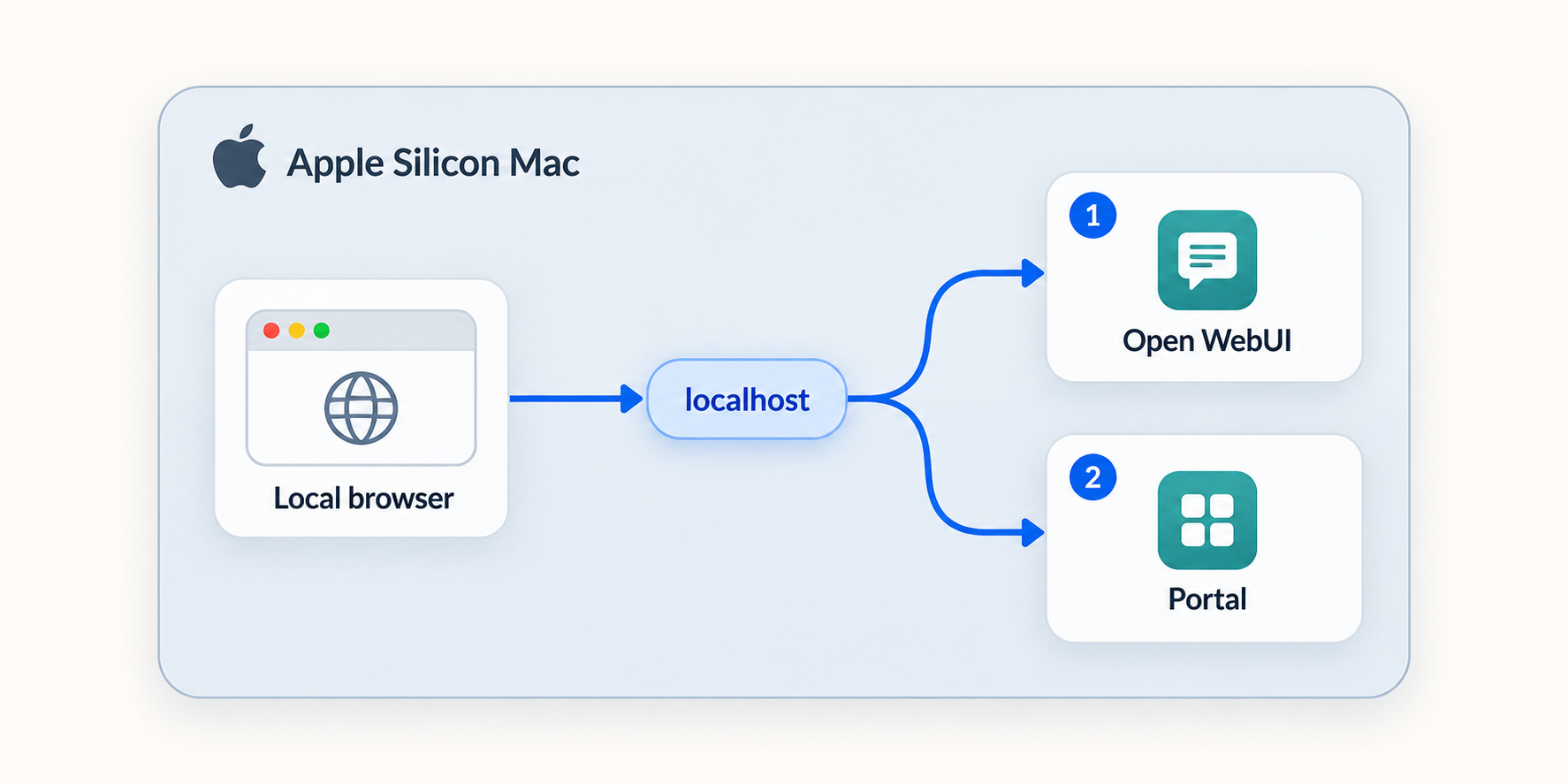
Verification should proceed one interface at a time. Begin on the Mac where ODS is installed and keep Localtonet stopped until both the relevant local endpoint and its expected page are confirmed.
Test Open WebUI
Open a browser on the Mac and visit:
http://localhost:3000A successful result should display the Open WebUI interface rather than a browser connection error. Complete any setup presented by the application and determine how user access is controlled before considering remote exposure.
Do not treat the appearance of a page as a complete AI functionality test. If your intended workflow includes selecting a model and submitting a chat request, perform that test locally. Confirm that the interface can reach the required local backend and that a response completes. The release notes indicate that broader model-switching qualification was not complete, so test the exact model and workflow you intend to use.
Test the ODS Portal
In a separate browser tab, visit:
http://localhost:3001/pixel
Confirm that the Portal route loads. Because this interface uses port 3001 and a specific /pixel path, a successful Open WebUI test on port 3000 does not prove that Portal is available.
The V3 release notes say that Hermes opens without an owner card on default installations. Administrators can opt into the owner-card gate, while internal API and WebSocket authentication remain in place. Do not interpret internal API authentication as proof that every browser-facing route is appropriate for unrestricted public access. Review the actual access behavior of your installation.
Distinguish common browser results
| Result | Likely layer | Next check |
|---|---|---|
| The page loads and the intended operation works | Local ODS service is functioning for that test | Review access controls, then proceed to remote-access planning. |
| The browser says it cannot connect | Service startup, container runtime, or local port availability | Confirm Docker is running and review ODS installation or service output. |
| Port 3000 works but port 3001 does not | Portal-specific service or route | Test the exact /pixel path and inspect the relevant ODS service state. |
| The interface loads but AI requests fail | Model, backend, runtime, or application configuration | Reproduce the failure locally before adding a tunnel. |
| The local page works but the public address does not | Localtonet client, tunnel lifecycle, or target selection | Confirm the selected device is connected, the tunnel is started, and the target port matches. |
Initial setup pages can create privileged accounts or expose configuration choices. Finish local initialization and verify the application’s access controls before making the service reachable from the public internet.
Operate and update a pre-release ODS installation
ODS V3 requires more cautious operational practices than a stable, fixed production package. Record when you installed it, which branch or release channel you used, and which workflows you verified. This information is valuable if behavior changes after an update.
Keep the installation channel clear
The V3 release tag is fixed to a particular commit, while the default README installers use main. Main can include later qualification and security fixes that are not part of the fixed tag. Before updating, determine whether your installation follows a tagged source snapshot or the main-based installer channel.
Avoid assuming that a numeric version label tells the entire story. Two installations displaying similar V3 metadata can differ if one came from the fixed tag and another received later main-branch changes.
Handle the V3 security notice correctly
The V3 release notice reports that the fixed v3.0.0 release is affected by a critical security advisory identified as GHSA-vqpg-pvjj-4cmq. It states that the fix is on main and that the README installers use main.
The same notice warns that running ods update alone does not apply code fixes. Existing installations must follow the project’s current “Updating an existing installation” procedure. Because the exact update procedure is not included in the supplied evidence and can change, retrieve it from the current official ODS README rather than substituting an invented command sequence.
For the security issue identified in the V3 release notice, the project explicitly says that ods update alone is insufficient. Follow the current official existing-installation update procedure, then repeat local verification before restarting any public tunnel.
Use a controlled change process
Before an update, note which local endpoints work and which model or application workflow you rely on. Stop remote exposure while making significant changes. After updating, verify Docker, Open WebUI, Portal, authentication behavior, and the intended AI request locally.
If the updated local service behaves differently, keep the Localtonet tunnel stopped until you understand the change. This prevents an incomplete setup page, unexpected route, or changed access policy from becoming publicly reachable.
Back up data according to what your installation actually stores
The supplied ODS evidence does not establish one universal backup command, volume name, or data directory for this pre-release workflow. Do not guess these paths. Inspect the current ODS configuration and documentation for the version you installed, identify the Docker volumes or host directories that contain persistent data, and test restoration before relying on the backup.
Access ODS remotely with a Localtonet HTTP tunnel
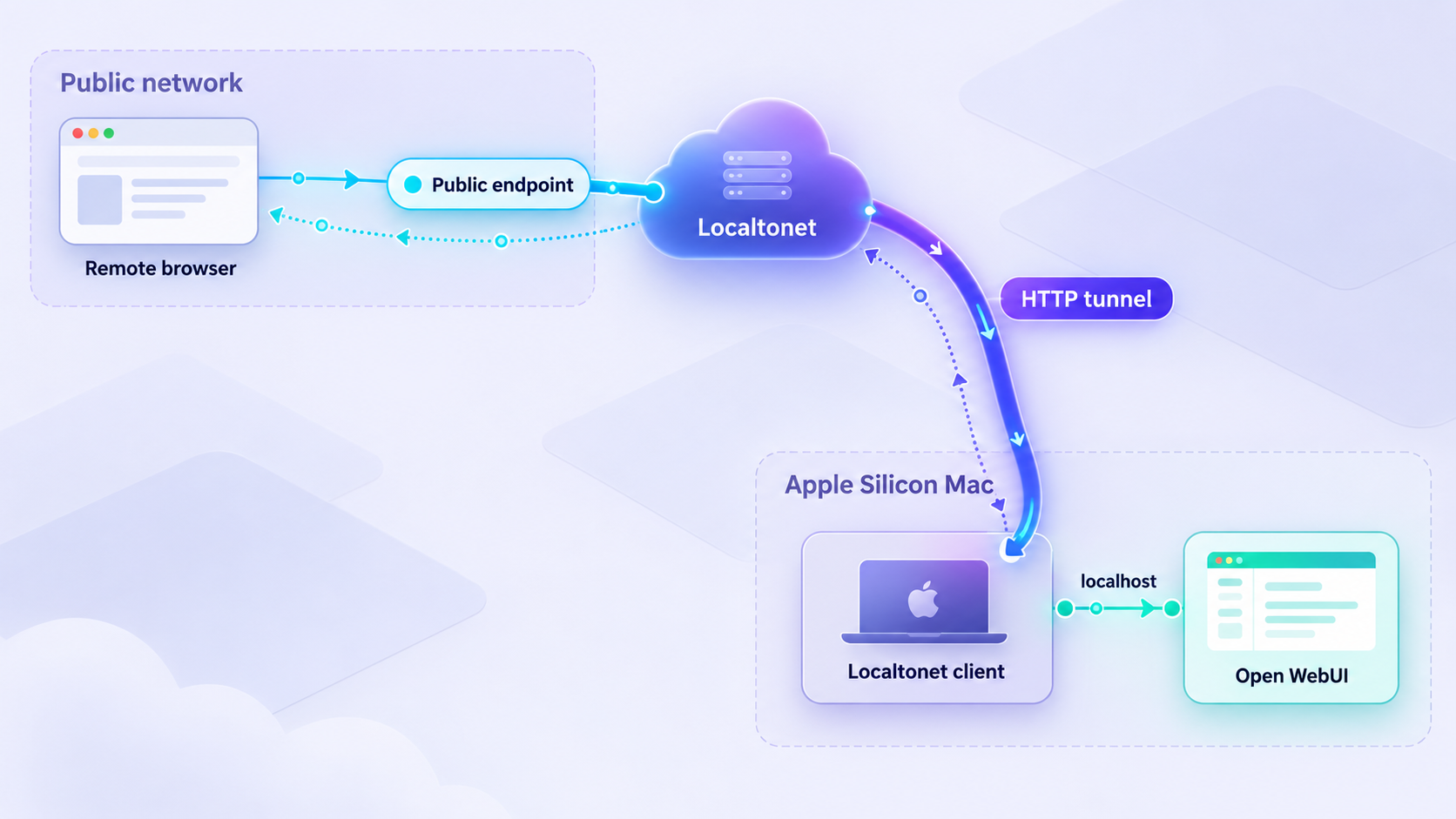
Once Open WebUI or Portal works locally, Localtonet can expose the selected HTTP service. Our client on the Mac establishes an outbound connection to a Localtonet relay server. The resulting tunnel provides a public address without requiring inbound router port forwarding, firewall changes, VPN setup, or a public IP address.
Create a separate HTTP tunnel for the interface you intend to publish. For Open WebUI, target local port 3000. For Portal, target local port 3001; users can then open the assigned public address with the /pixel route when required.
Install and run the Localtonet client
Run our client on the Apple Silicon Mac hosting ODS, or on another device that can reach the ODS service over the local network. Using the same Mac makes the local target straightforward because the service is already available through its loopback interface.
Authenticate and select the correct device
Use the device-specific authentication token associated with the client that will run the tunnel. Keep this token private. Confirm that the intended device is connected before creating the tunnel.
Select an available relay server
Choose a currently available relay server or region from the Localtonet dashboard. Available values can vary, so obtain them from the current product interface rather than copying a hardcoded server code from a tutorial.
Create the HTTP tunnel for one ODS interface
Select an HTTP tunnel and set the local target to 127.0.0.1 with port 3000 for Open WebUI, or port 3001 for Portal. Use 127.0.0.1 only when the Localtonet client runs on the same Mac. If it runs elsewhere, use the Mac’s reachable local network address and ensure ODS is actually listening on an interface accessible from that device.
Start the tunnel
Creating a tunnel does not start it. Press Start and wait for the selected client and tunnel to become active. The public address works only while the selected device remains connected and the tunnel is running.
Test the assigned public address
Open the public HTTPS address from a separate connection or device. For Portal, append /pixel to the public origin if the assigned address does not already include that path. Confirm both page access and the intended authenticated workflow. Stop or delete the tunnel when remote access is no longer needed.
HTTP tunnels can use a random subdomain, a custom subdomain where supported, or a custom domain. These process types serve the same local content through a public HTTPS address. Custom-domain DNS requirements can change, so consult the current dashboard and Localtonet HTTP tunnel documentation before making DNS changes.
| Interface | Local target on the ODS Mac | Remote usage |
|---|---|---|
| Open WebUI | 127.0.0.1:3000 |
Open the assigned public HTTPS address for the AI chat interface. |
| ODS Portal | 127.0.0.1:3001 |
Open the assigned public HTTPS origin with the /pixel path. |
| Both interfaces | Two separate local ports | Create separate HTTP tunnels only if both genuinely need remote access. |
The tunnel must be started, and it remains available only while the selected Localtonet client is connected and the tunnel is running. This makes stopping the tunnel a useful part of a controlled testing workflow.
Secure a remotely accessible AI interface
A service bound only to localhost has a much smaller exposure surface than the same service published through a public URL. Tunneling changes reachability, not the application’s authorization model. Before starting the tunnel, determine what an unauthenticated visitor can see or do.
Finish first-run setup locally
Complete account creation, owner setup, or other initialization before public exposure. Test with a private browser session to see whether an unauthenticated user reaches a sign-in screen, a setup screen, or the application itself.
Expose only the interface you need
If your goal is remote AI chat, begin with Open WebUI on port 3000. Do not expose Portal merely because it is available. Each additional public interface adds another route that must be understood, monitored, and secured.
Use least privilege inside ODS
Avoid sharing administrative credentials for routine chat access. Use the narrowest application permissions supported by the installed version. The supplied evidence does not establish every current ODS or Open WebUI authorization setting, so verify the actual controls in your installation rather than assuming a particular default.
Protect secrets and conversations
AI systems can contain model credentials, provider tokens, prompts, generated files, and conversation history. Never put authentication tokens into a public URL or article. Review what the interface displays, what it stores, and whether remote users can access configuration or other users’ data.
Stop remote access during maintenance
Stop the tunnel before upgrades, recovery, or access-control changes. Recheck the service locally after maintenance, then restart the tunnel and perform an external authentication test. Delete tunnels that are no longer required instead of leaving unused public endpoints configured indefinitely.
An unlisted or difficult-to-guess address should not be treated as sufficient protection for an AI server. Use application authentication, least privilege, and any appropriate access restrictions available in your current deployment. Do not publish a service that permits anonymous administrative access.
Troubleshoot ODS installation and remote access
Docker is installed but ODS does not start
Confirm that Docker’s engine is running, not merely that the application is installed. Review the terminal output from the bootstrap and the state of the relevant containers. If Docker itself reports a resource, permission, virtualization, network, or storage problem, resolve that first.
Also confirm that you used the current official installer instructions. A command copied from an old article or fork can point to a different script or branch than the current ODS workflow.
Open WebUI does not load on port 3000
Test http://localhost:3000 directly on the Mac. If the browser cannot connect, the problem is local and should be resolved before examining Localtonet. Review whether installation completed and whether the service responsible for Open WebUI is running.
If a different application already occupies port 3000, do not invent a replacement ODS port. Check the current ODS documentation and configuration for a supported way to resolve the conflict.
Portal does not load
Use the complete documented address, http://localhost:3001/pixel. Testing only the root of port 3001 is not the same as testing the documented Portal route. If the exact route fails while Open WebUI works, investigate Portal as a separate service.
The page loads but model requests fail
Keep the test local. A tunnel transports HTTP traffic but does not install models, repair model runtimes, supply missing credentials, or resolve application configuration. Reproduce the failure at the localhost address and inspect the ODS service responsible for the request.
Because V3 qualification is still in progress, record the model, operation, and visible error. A basic page-load test is not sufficient evidence that every model-switching or generated-application workflow is working.
The Localtonet public address is offline
Confirm all lifecycle conditions:
- The Localtonet client is running and connected.
- The selected device token belongs to that client.
- The intended tunnel has been started, not merely created.
- The chosen relay selection is currently available.
- The local target points to the correct ODS port.
- The ODS page still works through
localhost.
If the Localtonet client runs on the same Mac, use the loopback target for the selected port. If the client runs on another device, 127.0.0.1 refers to that other device, not the ODS Mac. In that arrangement, the target must be a local network address that the client device can reach, and ODS must listen in a way that permits that connection.
The public page loads but the Portal path returns the wrong page
Verify that the tunnel targets port 3001 and that the remote URL includes /pixel. Do not point a Portal URL at the Open WebUI tunnel on port 3000. Keep each service’s public address clearly labeled.
Behavior changed after an ODS update
Determine whether the update changed the installed code, configuration, containers, or only displayed version metadata. Remember that the project specifically warns that ods update alone does not apply the code fixes described by the V3 security notice.
Stop the public tunnel, follow the current official existing-installation update process, and repeat the complete local verification sequence. If access-control behavior changed, do not restore public access until it has been reviewed.
Frequently asked questions
Is ODS V3 ready for production use?
ODS V3 is explicitly described as a pre-release in public testing and refinement. Its release notes do not claim complete fleet qualification or completed acceptance for every model-switching and generated-application workflow. Evaluate it as pre-release software and perform your own qualification before relying on it for production.
What are the local ODS URLs after installation?
The documented Open WebUI address is http://localhost:3000. The documented Portal address is http://localhost:3001/pixel. Test each address locally before creating a tunnel.
Which ODS port should I expose for remote AI chat?
Use local port 3000 for the documented Open WebUI interface. Port 3001 is used for Portal, with the /pixel path. Publish only the interface you need.
Does Localtonet require router port forwarding?
No. Our client establishes an outbound connection to a Localtonet relay server. This allows the selected local service to receive a public URL without inbound router port forwarding, firewall changes, VPN setup, or a public IP address.
Does creating a Localtonet tunnel make it immediately available?
No. Creating a tunnel and starting it are separate lifecycle actions. Press Start after configuration. The tunnel remains available only while the selected client is connected and the tunnel is running.
Can the Localtonet client run on a different device?
Yes, provided that device can reach the ODS service over the local network. In that case, do not use 127.0.0.1 as the target because it refers to the client device itself. Use the ODS Mac’s reachable local address and confirm that the service is listening appropriately.
Is the public Localtonet URL enough to secure ODS?
No. The tunnel provides reachability, not application authorization. Confirm that the ODS interface requires suitable authentication, complete first-run setup locally, use least privilege, and avoid exposing administrative interfaces that do not need remote access.
Why is the ODS bootstrap command not copied into this guide?
The official macOS workflow uses a hosted shell bootstrap from an actively changing pre-release repository. Reproducing a mutable remote-execution command could leave readers with an outdated reference. Retrieve the current command from the official ODS README, verify the repository and script, inspect it, and then run it if you accept its behavior.
Does running ods update apply the V3 security code fix?
The V3 release notice explicitly says that ods update alone does not apply code fixes for the identified advisory. Existing installations must follow the project’s current updating procedure, after which the local services and their access controls should be verified again.
Access your verified ODS interface with Localtonet
Once Open WebUI or Portal works locally and its access controls have been reviewed, create an HTTP tunnel for the specific port you need. Keep the device token private, start the tunnel only when required, and stop it during maintenance or updates.
Get Started Free →

