

Verify a local OpenAI-compatible model endpoint, then run a short-lived remote connectivity test
Atomic Chat combines a desktop local AI application with an OpenAI-compatible HTTP service. This guide is specifically scoped to Linux x86_64 because that is the Linux architecture identified on the current Atomic Chat download page. You will install the current desktop release, load a model, verify http://localhost:1337/v1, and connect the loopback service to a temporary Localtonet HTTP tunnel. Atomic Chat's documented placeholder API key does not authenticate callers, so the public procedure below is intentionally limited to a supervised, short-lived, unauthenticated test rather than ongoing access for authorized users.
📋 What's in this guide
How Atomic Chat and Localtonet fit together
Atomic Chat is an open-source local AI desktop application and inference engine. Its current repository documents an OpenAI-compatible server at http://localhost:1337/v1. Applications that support the OpenAI API format and allow a custom base URL can point to this local endpoint instead of a hosted API.
Chat completion requests use http://localhost:1337/v1/chat/completions. Atomic Chat binds the service to 127.0.0.1 by default. Loopback binding means a process on the same Linux computer can reach the service, while another computer cannot connect to it directly through the LAN.
Atomic Chat also documents changing the host to 0.0.0.0 for LAN exposure. That broader binding is not required for this Localtonet layout. When our client runs on the same Linux computer, it can forward requests to 127.0.0.1:1337 while Atomic Chat remains unavailable through the host's ordinary LAN interfaces.
The Localtonet client establishes an outbound connection to a Localtonet relay server. An HTTP tunnel provides a public HTTPS URL and forwards incoming HTTP traffic to the configured local IP address and port. This avoids inbound router port forwarding, firewall changes, VPN setup, and a public IP requirement. The public path exists only while the selected client is connected and the tunnel is running.
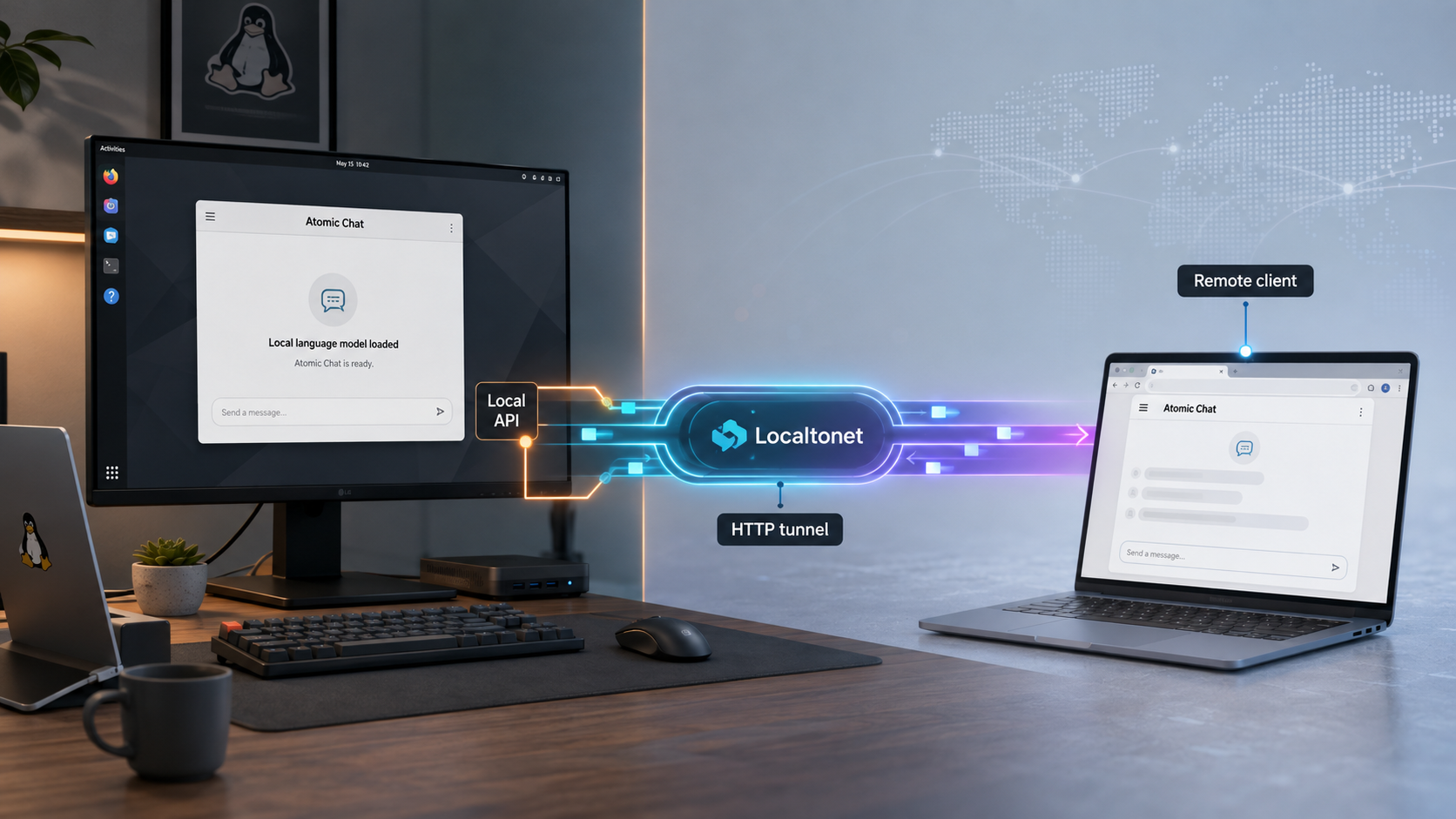
127.0.0.1 by default. Running Localtonet on the same computer preserves that local-only listener.
Atomic Chat's documented example uses not-needed as a placeholder API key. That value does not verify caller identity. The direct tunnel in this guide is therefore suitable only for a brief, supervised test. It is not an operational authorization design.
For current project information, use the official Atomic Chat website and the Atomic Chat repository documentation. Product behavior can change between releases, so compare the installed release with the current project documentation before exposing any service.
Prerequisites for Linux x86_64
The current Atomic Chat download page identifies its Linux desktop download as Linux x86_64. This article does not claim Linux ARM support or compatibility with every Linux distribution because the supplied project evidence does not establish either point. Confirm the machine architecture before downloading the application:
uname -m
An x86_64 system commonly reports x86_64. If the command reports an ARM architecture such as aarch64, do not assume the x86_64 desktop download will run. Check the current project releases for a separately documented artifact that matches the computer.
| Requirement | What to confirm | Why it matters |
|---|---|---|
| Processor architecture | The computer reports x86_64 and matches the Linux download identified by Atomic Chat. | A binary built for a different processor architecture will not run correctly. |
| Graphical desktop | The current Linux account can launch a desktop application. | Atomic Chat is distributed as a desktop application even when its HTTP API is the main objective. |
| Model resources | The computer has enough memory and storage for the chosen model. | Resource needs vary by model, quantization, context length, and inference engine. |
| Local port | No unrelated service is occupying TCP port 1337. |
Atomic Chat documents its OpenAI-compatible service on this port. |
| Outbound connectivity | The Localtonet client can establish an outbound connection. | The tunnel depends on an active client connection to a selected relay server. |
| Same-host placement | Atomic Chat and the Localtonet client will run on the same Linux computer. | This allows the tunnel target to remain 127.0.0.1:1337. |
The project lists local model families such as Llama, Gemma, Qwen, Mistral, and Phi. Availability can change, and an individual model may have its own license, access conditions, storage requirements, or hardware expectations. Start with a model appropriate for the available computer rather than assuming every listed model will fit.
The current evidence does not define one minimum RAM, GPU, storage, or Linux distribution requirement that applies to every model. A model-loading failure should be investigated separately from an API or tunnel failure.
Download and install the current Atomic Chat desktop release
Begin with the official Atomic Chat download page. It currently presents a Linux x86_64 download. You can also inspect the project's latest GitHub release before installation.
Release packaging can change. The current web evidence confirms the Linux x86_64 download but does not expose enough release-asset detail to guarantee that every current or future Linux download uses the same filename or package format. Check the downloaded filename before applying package-specific instructions.
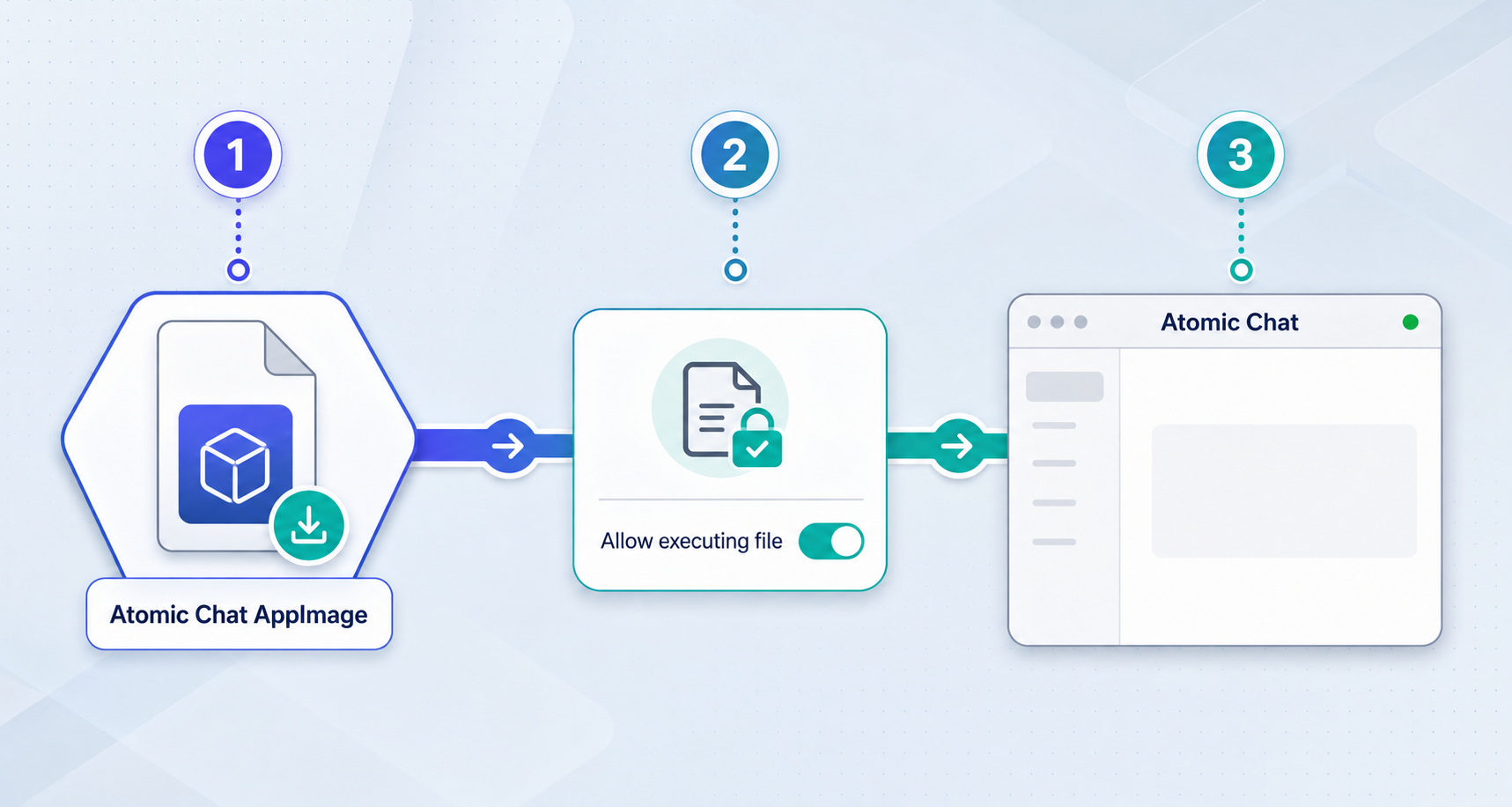
If the downloaded file is an AppImage
Use the following workflow only when the current official asset actually has an .AppImage filename. The AppImage quick-start guidance explains the same basic executable-permission requirement.
Download the official Linux x86_64 file
Download it from Atomic Chat's website or current GitHub release. Avoid unofficial mirrors, old tutorial filenames, and repackaged binaries.
Confirm that the file is an AppImage
Inspect the actual filename. Continue with these commands only if the downloaded asset is identified as an AppImage.
Grant executable permission
Use the file manager's permission controls or run chmod against the exact downloaded path.
Launch the AppImage
Run the executable file. Launching it from a terminal during the first test preserves useful startup diagnostics.
chmod u+x "/full/path/to/the-downloaded-file.AppImage"
"/full/path/to/the-downloaded-file.AppImage"
Replace the example path with the real filename and location. Quoting the path prevents spaces from being interpreted as separate shell arguments.
If the official download uses another package format
Do not rename it to .AppImage or apply AppImage commands to it. Follow the package instructions attached to that release. The supplied evidence does not establish a universal package-manager command for every Linux distribution or every possible Atomic Chat artifact, so this article does not invent one.
If the application does not open, launch it from a terminal and save the complete output. Architecture mismatches, incomplete downloads, package-format mistakes, and distribution-specific runtime issues require different fixes.
Load a model and prepare the inference service
Once the Atomic Chat window opens, choose a model that fits the computer. The project's basic user workflow is to download Atomic Chat, pick a model, and start chatting. Complete that desktop workflow before testing the HTTP API.
Choose a suitable model
Consider available memory, storage, acceleration hardware, and the model's own requirements. A smaller model is useful for separating installation problems from resource exhaustion.
Download or select the model
Allow required files to finish downloading. Complete any license acceptance or access conditions required by the model publisher.
Load the model in Atomic Chat
Make the model active and record the model identifier recognized by Atomic Chat. API requests must use that identifier.
Send a short desktop prompt
Confirm that the application can produce a response before introducing the API client or tunnel.
Atomic Chat exposes its inference engines through the same documented API base URL. Compatible tools do not need to know which engine is active underneath the API. The model field must still identify a model recognized by the running application.
Do not change the host to 0.0.0.0 merely to use Localtonet. Our client can reach 127.0.0.1:1337 when it runs on the same computer. Keeping loopback binding avoids creating a separate LAN-accessible listener.
Verify the OpenAI-compatible API locally
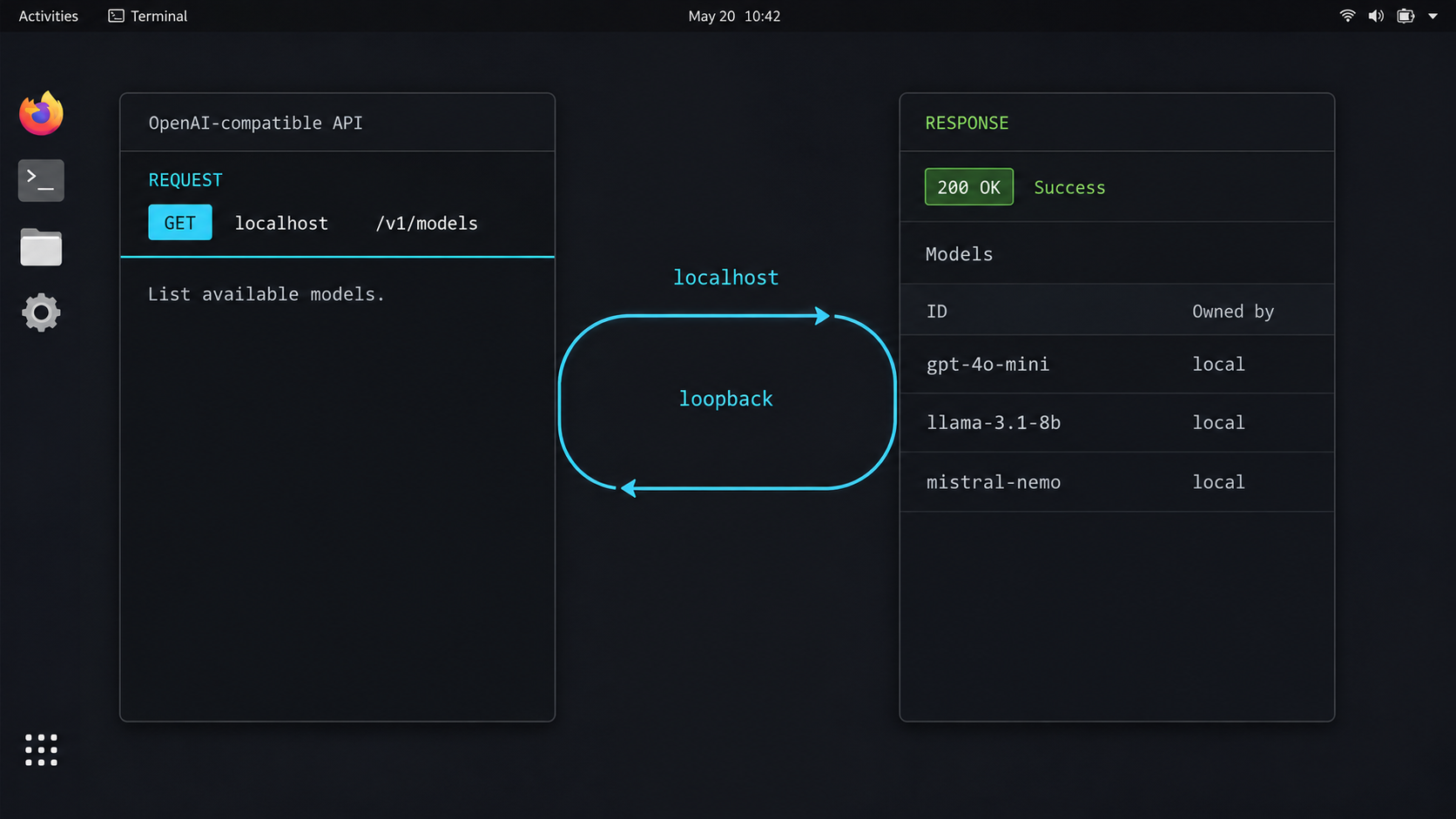
Local verification is the most important checkpoint. A tunnel cannot start Atomic Chat, load a model, correct a model identifier, or resolve a local port conflict. Do not continue until the same Linux computer can reach the API directly.
With Atomic Chat running and a model loaded, replace the model placeholder and send the documented chat completion request:
curl http://localhost:1337/v1/chat/completions \
  -H "Content-Type: application/json" \
  -d '{
    "model": "<model-id-loaded-in-atomic-chat>",
    "messages": [
      {
        "role": "user",
        "content": "Say hello in one word"
      }
    ]
  }'
A successful result should be structured JSON in an OpenAI-compatible chat completion format. Generated text and response time depend on the model and hardware. The important result is that the server accepts the request, recognizes the model, performs inference, and returns a completion instead of a connection or model error.
Optional Python client check
Atomic Chat's repository also demonstrates the OpenAI Python client with a custom base_url. The value not-needed is only a placeholder for client libraries that require a nonempty API-key setting.
from openai import OpenAI

client = OpenAI(
    base_url="http://localhost:1337/v1",
    api_key="not-needed",
)

response = client.chat.completions.create(
    model="<model-id-loaded-in-atomic-chat>",
    messages=[
        {
            "role": "user",
            "content": "Say hello in one word",
        }
    ],
)

print(response.choices[0].message.content)
This check assumes Python and a compatible OpenAI package are already installed. Those are client-side dependencies, not AppImage or Atomic Chat runtime requirements. Use curl first when you want the smallest diagnostic path.
| Local result | Meaning | Next action |
|---|---|---|
| Structured completion JSON | The application, model, and local API are working. | Proceed to the temporary tunnel test. |
| Connection refused | No service is accepting the connection at that address and port. | Confirm Atomic Chat is open and the API is listening on port 1337. |
| Model-related error | The API responded, but the model name or loaded state is incorrect. | Load the intended model and use its recognized identifier. |
| Request remains pending | The model may be loading, resource constrained, or slow on the current hardware. | Test a short prompt in the desktop interface and inspect resource use. |
| Address already in use | Another process may occupy port 1337. |
Identify the conflicting process before changing a documented default. |
Create a temporary Localtonet HTTP tunnel
This section directly publishes Atomic Chat's unauthenticated API for a short connectivity test. Do not treat the resulting URL as a protected endpoint. Keep the test supervised, avoid sensitive prompts, and stop the tunnel immediately after verification.
Review the current Localtonet documentation for the supported Linux client installation path. The supplied evidence does not include a stable distribution-specific installation command that we can safely reproduce for every Linux system, so we do not invent a package command here. Install and run the current Localtonet client on the same Linux x86_64 computer that is running Atomic Chat.
For the tunnel itself, use the Localtonet HTTP tunnel documentation alongside the sequence below. Current server and region choices must come from the dashboard rather than from hardcoded examples.
Install and run the Localtonet client
Use the current Linux installation method in our documentation. Run the client on the Atomic Chat computer so it can reach 127.0.0.1:1337.
Open the HTTP Tunnel page
Sign in to the Localtonet dashboard and create an HTTP tunnel configuration for the local web service.
Select the process type
Choose one of the process types currently available to the account: Random Sub Domain, Custom Sub Domain, or Custom Domain. They serve the target through a public HTTPS address. Option availability can vary.
Select the AuthToken and relay server
Select the device-specific token for the Linux client, then choose an available server or region shown in the dashboard. Keep the token private and do not copy it into client application settings or test requests.
Enter the local target
Set the local IP address to 127.0.0.1 and the local port to 1337. Atomic Chat must remain open with the model loaded.
Start the tunnel
Creating the configuration does not start it. Press Start and wait until the selected client and tunnel are connected. Copy the assigned public HTTPS URL.
Run one controlled remote test and stop the tunnel
Test from a device you control. Once the completion succeeds, stop the tunnel. Delete it if the configuration will not be reused.
If the assigned public origin were represented as https://your-assigned-host.example, the API base would conceptually be:
https://your-assigned-host.example/v1The hostname above is deliberately illustrative and is not a real Localtonet endpoint. Copy the actual public URL from the running tunnel. Test the chat completion path with a non-sensitive prompt:
curl "https://your-assigned-host.example/v1/chat/completions" \
  -H "Content-Type: application/json" \
  -d '{
    "model": "<model-id-loaded-in-atomic-chat>",
    "messages": [
      {
        "role": "user",
        "content": "Reply with the word connected"
      }
    ]
  }'
Replace both placeholders. A successful result proves public connectivity to the local API. It does not prove caller authentication because the request contains no credential that Atomic Chat validates.
Sending the URL to an intended tester communicates its location, but it does not enforce who may use it. Anyone who obtains an unauthenticated public URL may be able to submit requests while the tunnel is running.
Understand transport security, URL secrecy, and caller authorization
These are separate controls and should not be treated as interchangeable. An HTTPS URL protects transport differently from an application credential, and an unlisted hostname is not an identity check.
| Security concept | What it does | What it does not do |
|---|---|---|
| HTTPS transport | Provides the public HTTP service through an HTTPS address. | Does not make Atomic Chat validate an API key or identify the caller. |
| URL secrecy | Reduces casual discovery when the URL is not broadly distributed. | Does not enforce access after the URL is copied, logged, leaked, or shared. |
| Caller authorization | Evaluates a caller's credential or identity against an access policy. | Is not provided by Atomic Chat's not-needed placeholder. |
| Tunnel lifecycle | Removes the public route when the tunnel is stopped. | Does not restrict callers while an unauthenticated tunnel is active. |
A Localtonet HTTP tunnel does not transform the placeholder key into authentication. For recurring use, multiple users, unattended operation, or access to sensitive prompts, do not point the public tunnel directly at Atomic Chat. Place a separately verified authentication gateway in front of the local API and point Localtonet at that protected target.
This article does not provide a gateway configuration because no specific gateway product, version, installation method, credential format, or policy has been established by the supplied evidence. A partial example would create the false impression of an operational authorization solution. Before publishing a protected endpoint, verify both of these outcomes:
- A request without valid credentials is rejected by the gateway and never reaches Atomic Chat.
- A request with valid credentials is accepted and returns a completion through the same protected path.
Also apply the controls appropriate to the selected gateway and environment, including least privilege, credential rotation, rate or request limits, logging that avoids prompt leakage, and a process for revoking access.
127.0.0.1 when Localtonet runs on the same computer, avoiding an additional LAN path.
Operate and stop the service reliably
The end-to-end request path has four runtime layers: the Atomic Chat desktop process, the loaded model and inference engine, the Localtonet client, and the HTTP tunnel. Remote requests fail if any layer is unavailable.
Start each layer in a testable order
- Open Atomic Chat.
- Load the intended model and test it in the desktop interface.
- Run the local curl request against
localhost:1337. - Start the Localtonet client.
- Start the configured HTTP tunnel.
- Run the controlled remote request.
This order gives you a known working checkpoint before each new layer is introduced. If the final request fails, repeat the local curl test before changing the tunnel.
Stop exposure without stopping local inference
Stopping the Localtonet tunnel removes the public route while Atomic Chat can continue serving local applications. Creating a tunnel does not mean it is running, and a stopped tunnel can be started again later if the configuration is retained. Delete configurations that will not be reused.
Handle model changes carefully
Client requests name a model. If the active model changes, the client may need a different model identifier even though the /v1 base URL remains the same. Verify the replacement model locally before starting another remote test.
Allow for local inference latency
Model startup and generation time depend on the model, context, inference engine, and hardware. A remote client can time out while Atomic Chat is still working. Measure the local response first and adjust the client according to observed behavior rather than assigning an arbitrary universal timeout.
Keep the local health check
Preserve the curl request as a routine diagnostic. If it succeeds while the remote request fails, investigate the Localtonet client, selected device, tunnel state, public URL, or remote client configuration. If it fails locally, troubleshoot Atomic Chat before changing Localtonet.
Troubleshoot installation, API, and tunnel failures
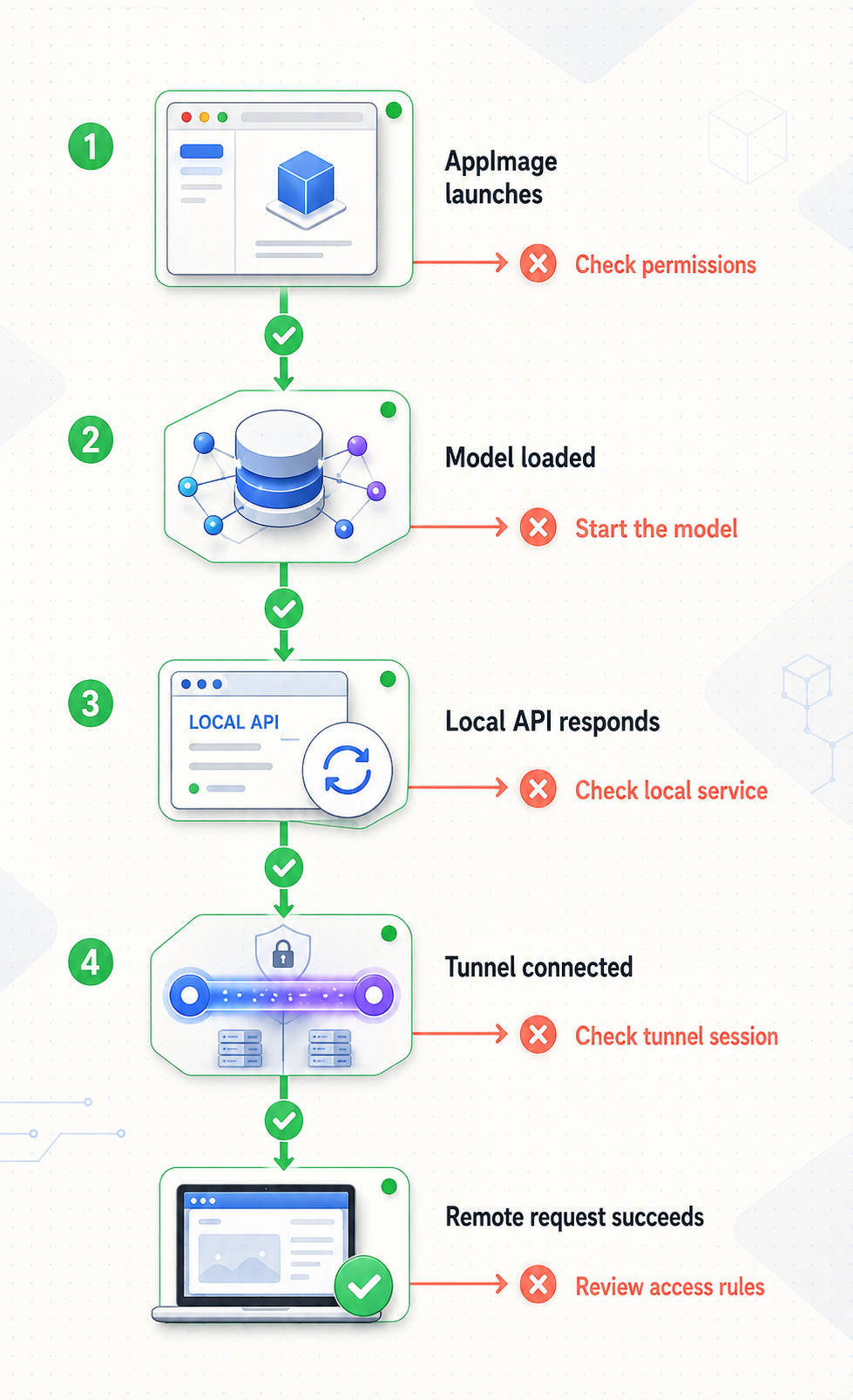
| Problem | Likely layer | Diagnostic path |
|---|---|---|
| The Linux download does not launch | Architecture, package format, permissions, download integrity, or runtime compatibility | Confirm x86_64, inspect the actual package format, run it from a terminal, and preserve the exact error. |
| Atomic Chat opens but cannot answer | Model state or hardware resources | Load a suitable model and test a short prompt in the desktop interface. |
| Local curl reports connection refused | Local listener | Confirm Atomic Chat is running and accepting connections on port 1337. |
| The API returns a model error | Request configuration | Use the exact identifier of the model loaded in Atomic Chat. |
| Local requests work but remote requests fail | Localtonet client, tunnel, target, or public URL | Confirm the device is connected, the tunnel is started, and the target is 127.0.0.1:1337. |
| The remote client receives a route error | API path construction | Use the public origin plus /v1 as the base URL and avoid duplicating /chat/completions. |
| The Python client rejects an empty key | Client-library validation | Use a non-secret placeholder if required, while recognizing that it adds no authentication. |
| Requests time out | Model loading or resource pressure | Test one short local prompt, observe resource use, and reduce demand or choose a smaller model. |
| The public endpoint is unavailable after a restart | Runtime lifecycle | Check Atomic Chat, the loaded model, the Localtonet client connection, and whether the tunnel has been started. |
Remember what loopback means
Test 127.0.0.1:1337 on the computer running Atomic Chat. Testing that address from another computer reaches the other computer's own loopback interface, not the Atomic Chat host.
Check for a duplicate API path
Many OpenAI-compatible clients expect a base URL such as https://assigned-host/v1 and append /chat/completions themselves. Entering the full completion route into a base URL field can produce a duplicated and invalid path.
Separate tunnel state from application state
A connected Localtonet client does not prove that Atomic Chat is responding. A working Atomic Chat desktop chat does not prove that the HTTP tunnel is started. Test each layer independently and avoid changing multiple settings at once.
Separate future authorization errors from inference errors
If you later add an authenticated gateway, an authorization rejection should occur before Atomic Chat handles the request. A model error indicates that the request progressed to an application layer that evaluated the model field. Test both layers independently.
When to build Atomic Chat from source instead
Most users should start with the released Linux desktop download. Building from source is more appropriate for contributors, developers inspecting implementation details, or users testing unreleased changes.
The current repository contains development documentation and a Makefile, but the supplied evidence does not expose the current contents needed to verify every prerequisite version, dependency-installation command, system package, and development target. Earlier instructions should not be treated as current merely because they once named particular Node.js, Yarn, Rust, or Make versions.
Before attempting a source build, inspect the current Atomic Chat development documentation, the repository's current package metadata, and the instructions for the exact commit or release you intend to build. Follow those files as a single versioned set rather than combining commands from unrelated releases.
| Path | Best for | Main consideration |
|---|---|---|
| Official Linux x86_64 download | Running a released desktop build | Confirm the current package format and follow its release-specific launch instructions. |
| Source development workflow | Contributing, modifying code, or testing unreleased changes | Use the current repository files for prerequisites and commands. |
| LAN binding | Direct access from trusted devices on the same network | Binding to 0.0.0.0 creates an additional network path and requires appropriate network security. |
| Temporary Localtonet tunnel | Short remote connectivity validation without router port forwarding | Direct publication remains unauthenticated unless a separately verified authorization gateway is added. |
A released desktop package and a source checkout have different dependencies and failure modes. Resolve package launch issues using the release format. Resolve source-build issues against the exact repository revision and its current development documentation.
Frequently asked questions
What Linux architecture does this guide cover?
It covers Linux x86_64 because that is the architecture identified on Atomic Chat's current download page. This article does not claim ARM support or compatibility with every Linux distribution.
Is the current Linux download always an AppImage?
Do not assume the package format from an older filename. Confirm the current asset on the official download or release page. Apply the AppImage permission and launch commands only when the downloaded file is actually identified as an AppImage.
What URL does Atomic Chat use for its local API?
The documented base URL is http://localhost:1337/v1. Chat completion requests use http://localhost:1337/v1/chat/completions. A model must be loaded before a completion can succeed.
Must I bind Atomic Chat to 0.0.0.0 for Localtonet?
No. When the Localtonet client runs on the same computer, it can target 127.0.0.1:1337. Keeping the loopback binding avoids exposing the API directly to other LAN devices.
Does Atomic Chat's not-needed key protect the endpoint?
No. It is a placeholder for client software that requires a nonempty field. It does not authenticate a caller, grant permissions, or prevent another person with the public URL from submitting requests.
Does the Localtonet HTTPS URL authorize users?
No. HTTPS transport, knowledge of a URL, and caller authorization are different concepts. Directly tunneling Atomic Chat provides public connectivity but does not add API authentication to the upstream service.
Can I leave the direct tunnel running for regular remote use?
This guide does not recommend that. The demonstrated direct endpoint is unauthenticated. Limit it to a supervised test and stop it immediately afterward. Recurring access needs a separately verified authorization gateway and appropriate operational controls.
Why must the local curl request work first?
Localtonet forwards requests to a local target. It cannot load a model, start Atomic Chat, correct the model identifier, or resolve a port conflict. A successful local request proves that the target service is ready.
Will the endpoint remain available after Atomic Chat closes?
No. Atomic Chat must remain running with the model available. The selected Localtonet client must also remain connected, and the tunnel must be started. Losing any one of those layers interrupts the request path.
Test your local Atomic Chat endpoint with Localtonet
After the local completion request works on Linux x86_64, use an HTTP tunnel to 127.0.0.1:1337 for one controlled connectivity test. Keep the prompt non-sensitive and stop the unauthenticated public tunnel as soon as verification is complete.


