

Inspect coding-agent traffic locally, verify the trace viewer, and share it for a limited review window
Claude Tap is a local proxy and trace viewer for inspecting API traffic and context produced by AI coding agents. This tutorial uses Claude Code as the worked example, while also explaining the broader client support available in current Claude Tap releases. You will install and verify Claude Tap, generate a low-risk test trace, check the live viewer locally, and then decide whether publishing that viewer through a Localtonet HTTP tunnel is appropriate. A public HTTPS URL provides transport to the viewer, not authentication or authorization, so do not expose it unless suitable access controls have been verified for your environment.
📋 What's in this guide
What Claude Tap captures and how the workflow fits together
Claude Tap is a local proxy and browser-based trace viewer for AI coding agents. You run a supported command-line client through Claude Tap, or use one of its documented transcript-listening or application-specific modes, and then inspect the resulting requests in a local browser. The viewer can show system prompts, conversation history, messages, tool definitions, tool calls, tool results, reconstructed streaming responses, token usage, and differences between adjacent requests.
This visibility is valuable when an agent behaves differently between turns, selects an unexpected tool, receives an incorrect parameter, or appears to lose relevant context. Instead of inferring what happened from the terminal's final answer, you can examine the request evidence and compare how prompts, messages, tools, or parameters changed.
Claude Tap does not require a hosted trace dashboard. Each run writes a local trace session, and the project documents redaction of common authentication headers before recording. That is a useful safeguard, but it is not a guarantee that a trace is safe to distribute. Prompts, source fragments, tool inputs, tool results, filenames, local paths, error messages, conversation history, and model responses can still expose confidential information.
The primary project documentation is maintained in the Claude Tap repository. Check that repository when behavior differs from this tutorial, particularly after an upgrade or when using a client other than the Claude Code example covered here.
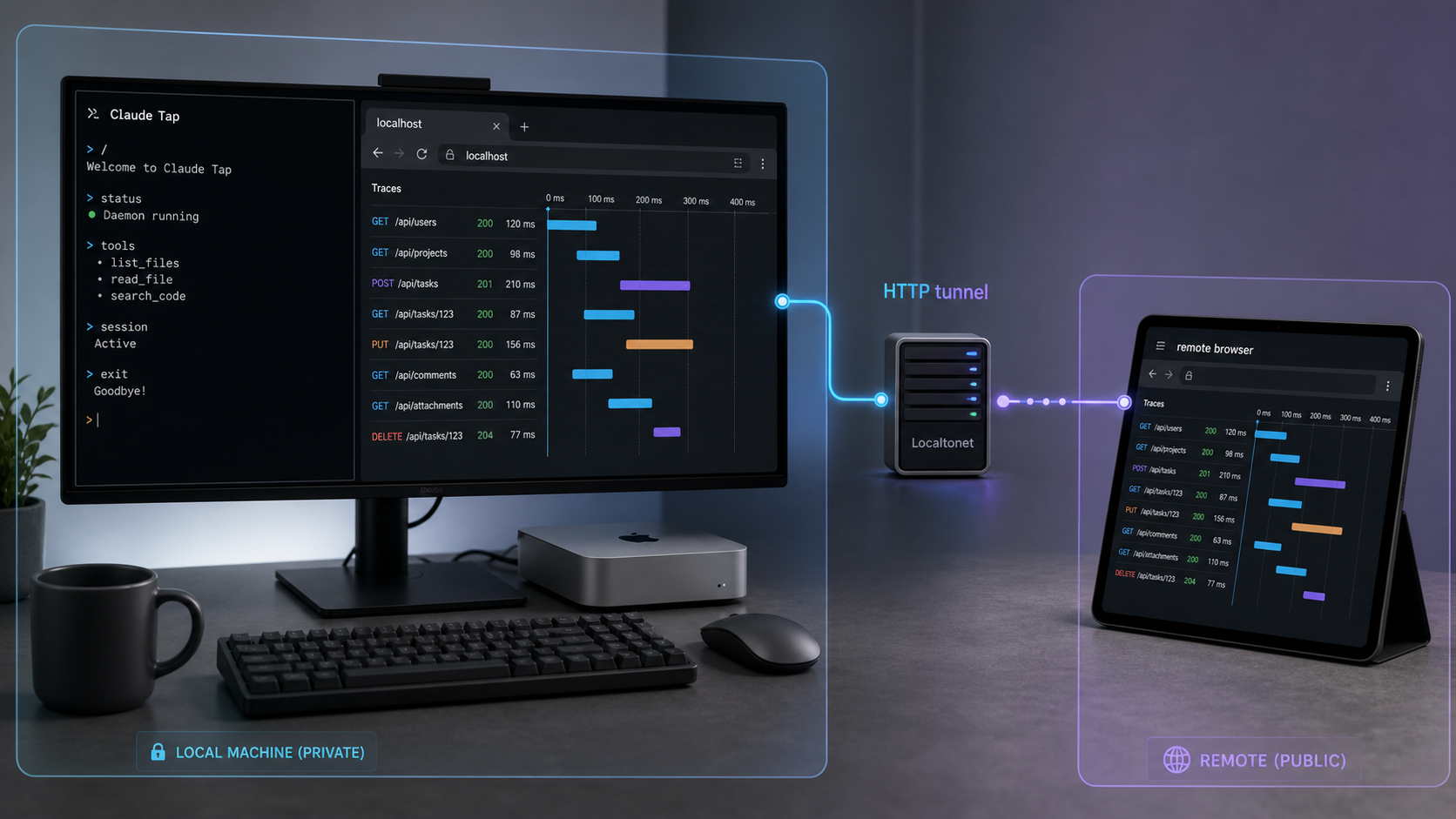
Supported clients extend well beyond Claude Code
The current Claude Tap repository lists support for Claude Code, Codex CLI, Codex App, Gemini CLI, Grok Build CLI, DeepSeek Harness, legacy Kimi CLI, Kimi Code CLI, MiMo Code, OpenCode, OpenClaw, Pi, Hermes Agent, Cursor CLI and IDE Agent transcripts, Qoder CLI, Antigravity CLI, and CodeBuddy CLI. These integrations do not all operate identically. Some launch a CLI through a proxy, some use forward-proxy behavior for an application, and some watch local transcripts.
This article deliberately keeps the worked procedure focused on Claude Code, with one verified Codex CLI command for reference. For another client, use the exact selector and mode in the current Claude Tap repository rather than assuming that the Claude Code launch command applies. Client availability and invocation details can change between releases.
| Client or group | Documented use | What to verify first |
|---|---|---|
| Claude Code | Run claude-tap in place of the normal claude command. |
Claude Code installation, authentication status, and ordinary CLI operation. |
| Codex CLI | Select it with claude-tap --tap-client codex. |
The normal Codex CLI configuration and authentication workflow. |
| Codex App and forward-proxy clients | Use the application-specific mode documented by Claude Tap. | That the installed application and current Claude Tap version support the selected mode. |
| Cursor CLI or IDE Agent | Launch the CLI with transcript watching, or use the documented transcript-only mode. | Which Cursor workflow you intend to capture and whether a CLI launch is required. |
| Other supported agents | Use the current client selector and arguments from the repository. | The upstream client must work independently before tracing is added. |
Prerequisites and a safe test environment
Prepare the underlying agent and Python environment before installing Claude Tap. This separation matters because a tracing tool cannot repair a broken agent installation, an expired login, or a shell that is using the wrong Python environment.
Python 3.11 or newer
Claude Tap requires Python 3.11 or newer. Check the interpreter selected by your shell:
python --version
Some systems expose the intended interpreter under python3 instead:
python3 --versionContinue only when the reported version is 3.11 or later. If both commands exist, make sure the installation tool you select uses the environment you intend. A system Python, virtual environment, pip installation, and uv tool installation can place executables in different locations.
A working supported agent client
Install and configure the client you want to trace before adding Claude Tap. For this tutorial, that client is Claude Code. Its official CLI provides commands for checking authentication and installation health:
claude auth status
claude doctor
According to the
Claude Code CLI reference,
claude auth status reports the authentication state and exits successfully when logged in, while claude doctor performs read-only installation and settings diagnostics. If authentication is required, use the login workflow documented for your environment:
claude auth loginAlso start a normal Claude Code session in a low-risk test directory before introducing Claude Tap. If Claude Code itself cannot launch or complete a simple interaction, resolve that problem first. The broader Claude Code commands documentation explains session commands and diagnostic options available inside Claude Code.
An appropriate Python installation method
The Claude Tap project recommends installation as a uv tool and also documents pip as an alternative. A uv tool installation is isolated from project dependencies and is often easier to reason about for a command-line application. A pip installation can also work, but the executable will be associated with the Python environment into which pip installed the package.
If you intentionally use a virtual environment, activate it before installing with pip and again before running Claude Tap. If you need the command from arbitrary directories without activating that environment, use an installation approach designed to expose the executable globally for your user account, such as the documented uv tool method.
A low-risk test project
Begin in a small test directory that does not contain production source code, customer data, credentials, deployment files, confidential prompts, or private environment configuration. Ask the agent to perform a harmless task that produces at least one request without requiring access to sensitive files. This gives you a trace to validate while minimizing the consequences of accidental sharing.
The Localtonet client on a device that can reach the viewer
For the remote-access portion, run our Localtonet client on the same device as Claude Tap or on another device that can reach the viewer's actual local IP address and port. Running both processes on the same device is the simplest topology when Claude Tap listens only on a loopback address such as 127.0.0.1.
Keep the Localtonet device token private. Tokens identify client devices and must not be placed in trace output, screenshots, terminal recordings, documentation, issue reports, or chat messages.
Do not publish the live viewer unless you have reviewed a low-risk trace and verified suitable application-side or environment-approved access controls. A public HTTPS address provides encrypted browser transport to the Localtonet edge, but this procedure does not configure authentication or decide who is authorized to view the trace. If suitable access controls are unavailable, keep the viewer local and do not start a public tunnel.
Install Claude Tap and verify a local trace
Complete the local workflow from end to end before creating a Localtonet tunnel. The important checkpoint is not merely that the package installed. Claude Tap must launch the intended agent, the agent must generate a trace, and the runtime-provided viewer URL must load in a browser.
Confirm Python and Claude Code health
Verify Python 3.11 or newer, run claude auth status, and use claude doctor if the installation or settings need diagnosis. Complete a simple normal Claude Code interaction in the low-risk test project.
Install Claude Tap with one documented method
Use the recommended uv tool command or the pip alternative. Avoid installing through both methods unless you intentionally maintain separate environments and can identify which executable is active.
Verify that the executable is available
Ask the installed executable for help. If the shell cannot find it, resolve the PATH or environment issue before continuing.
Launch Claude Code through Claude Tap
Run claude-tap from the test project. For Claude Code, no separate client selector is required. The live browser viewer is enabled by default.
Generate a low-risk trace
Complete a harmless interaction through the Claude Code process launched by Claude Tap. Do not use a production repository merely to test whether recording works.
Read the viewer URL from runtime output
Record the actual host and port printed by Claude Tap. This tutorial does not assume a fixed URL or port because the supplied primary evidence does not establish one for every version and environment.
Verify the viewer in a local browser
Open the printed URL, confirm that the interface loads, and verify that the new test interaction appears. Inspect enough of the trace to confirm that requests, messages, and relevant tool activity are visible.
Recommended installation with uv
uv tool install claude-tapAlternative installation with pip
pip install claude-tapVerify the installed command
claude-tap --helpA successful help response confirms that the shell can find and execute Claude Tap. It does not yet prove that the selected coding agent can launch, that traffic will be captured, or that the browser viewer is reachable. Those checks happen next.
Start Claude Code with the live viewer
claude-tap
Use Claude Tap in place of the normal claude command. If you need to pass ordinary Claude Code arguments, the project documents placing them after --. Keep initial validation simple rather than adding model, permission, or upstream overrides before the basic path works.
Claude Tap also documents claude-tap -c for continuing the most recent Claude Code conversation. For first-time validation, a new low-risk session is easier to inspect and less likely to include older sensitive context.
Codex CLI reference command
claude-tap --tap-client codexThis selector launches the documented Codex CLI tracing workflow. Other supported clients have their own selectors and, in some cases, additional launch or transcript-watching behavior. Use the current repository for those exact commands.
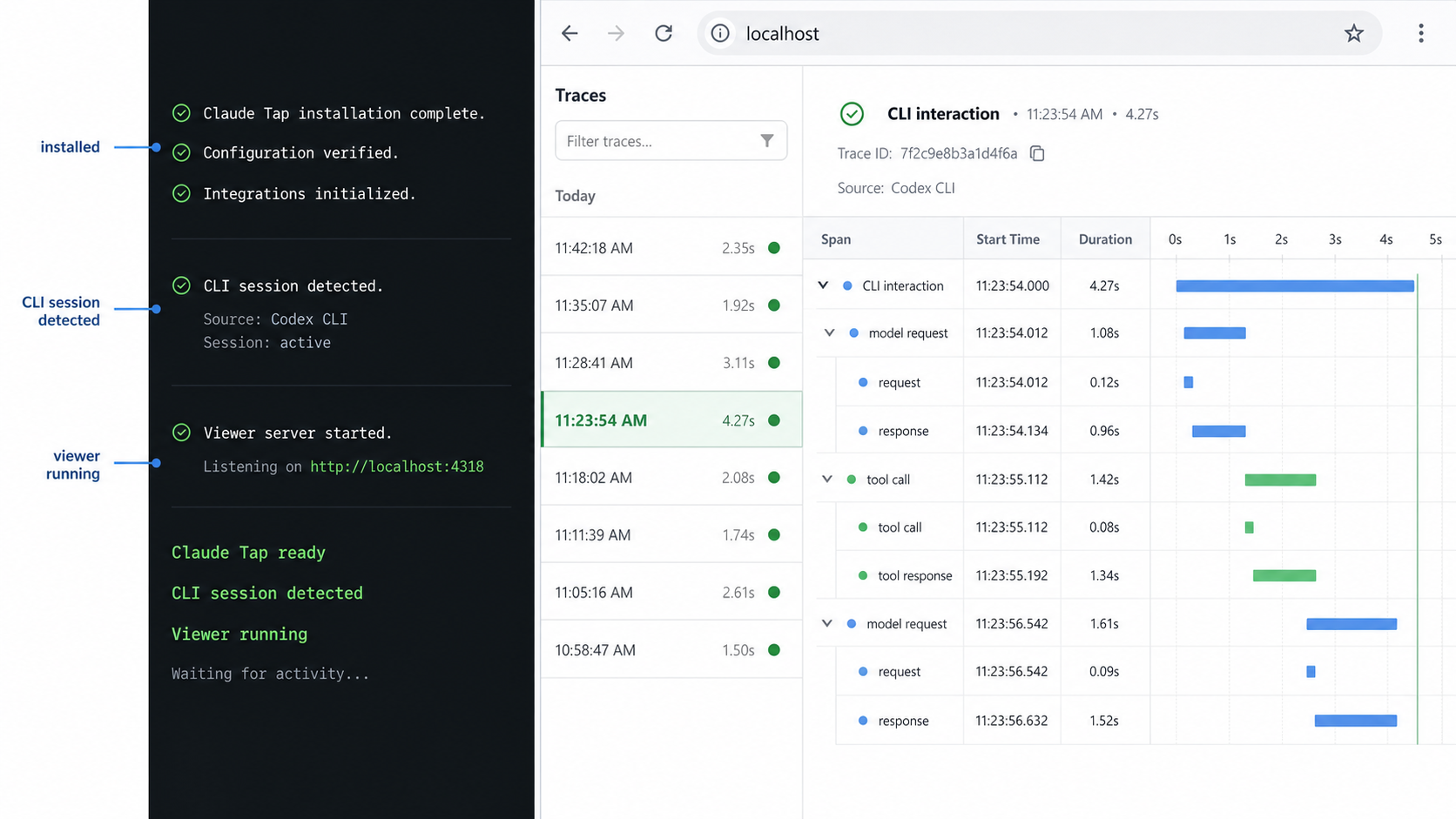
Use the exact viewer URL printed by the running Claude Tap version. Verify it in a local browser and separate its hostname or IP address from its port when creating the Localtonet target. A remembered port from another machine or release is not a reliable configuration value.
Update, stop, restart, and manage trace data
Use one documented update path
Claude Tap documents three update options. Choose the one matching how you installed it:
claude-tap updateuv tool upgrade claude-tappip install --upgrade claude-tap
Do not run all three automatically. If you installed with uv, the uv upgrade command keeps the update associated with that tool installation. If you installed with pip, run the pip upgrade through the same Python environment that owns the existing package. The project also provides the claude-tap update option.
After updating, repeat the executable check, launch a low-risk trace, and verify the runtime-provided viewer URL again. Do not assume an existing process changes version while it is running.
Stop and restart the live process
When Claude Tap is running in the foreground, end the active agent session and interrupt the process from its terminal, commonly with Ctrl+C. Confirm that the command exits before treating the viewer as stopped. If an agent child process remains active in your environment, close it through its normal process controls rather than assuming that closing a browser tab stopped the underlying session.
To restart the live viewer, return to the intended project and run the same verified launch command again:
claude-tapRead the newly printed viewer address after every restart. If the host or port changes, update the Localtonet target before restarting remote access. Test the local page before testing the public URL.
Trace storage and cleanup
The primary evidence confirms that each run writes a local trace session, but the supplied documentation extract does not establish one universal storage path or a verified cleanup command. Storage details can depend on the installed version and operating environment. Do not invent a directory, delete broad Python application folders, or assume that uninstalling the package removes trace data.
Before cleanup, inspect the current repository documentation and the runtime output of your installed version for its trace location and supported retention behavior. If the application identifies a session directory, close Claude Tap before modifying it, preserve anything required for an approved investigation, and delete only the specific reviewed sessions according to your organization's retention policy. Treat backups and copied trace artifacts as sensitive too.
If no authoritative cleanup procedure is available for your version, leave the data in place until you can identify the correct session files safely. Removing unknown files from a Python environment or user configuration directory can damage unrelated settings without proving that all trace copies were erased.
Choose between local review, a live tunnel, and export
Local review is the lowest-exposure option. Use it whenever the person investigating the trace can work on the machine running Claude Tap. No public route is required, and you avoid making an active development viewer reachable from the internet.
A live HTTP tunnel is appropriate only when an authorized remote reviewer needs the interactive viewer and your environment provides suitable access controls. The Localtonet route works while our selected client is connected, the tunnel is running, and the upstream Claude Tap viewer is available. Stopping any one of those components ends the usable path.
Claude Tap's repository states that a trace session can be exported to a self-contained HTML viewer for review or archiving. However, the supplied primary evidence does not include the exact export command, its arguments, output location, or a validation procedure. For that reason, this tutorial does not provide a guessed command or present export as a completed step.
If you want to use export, consult the current Claude Tap repository documentation for the command supported by your installed release. Validate any resulting artifact offline by confirming that it opens in a browser, displays the intended session, does not depend on the live viewer process, and contains no unapproved sensitive material. Until those checks are complete, treat export as an available project capability rather than a verified outcome of this procedure.
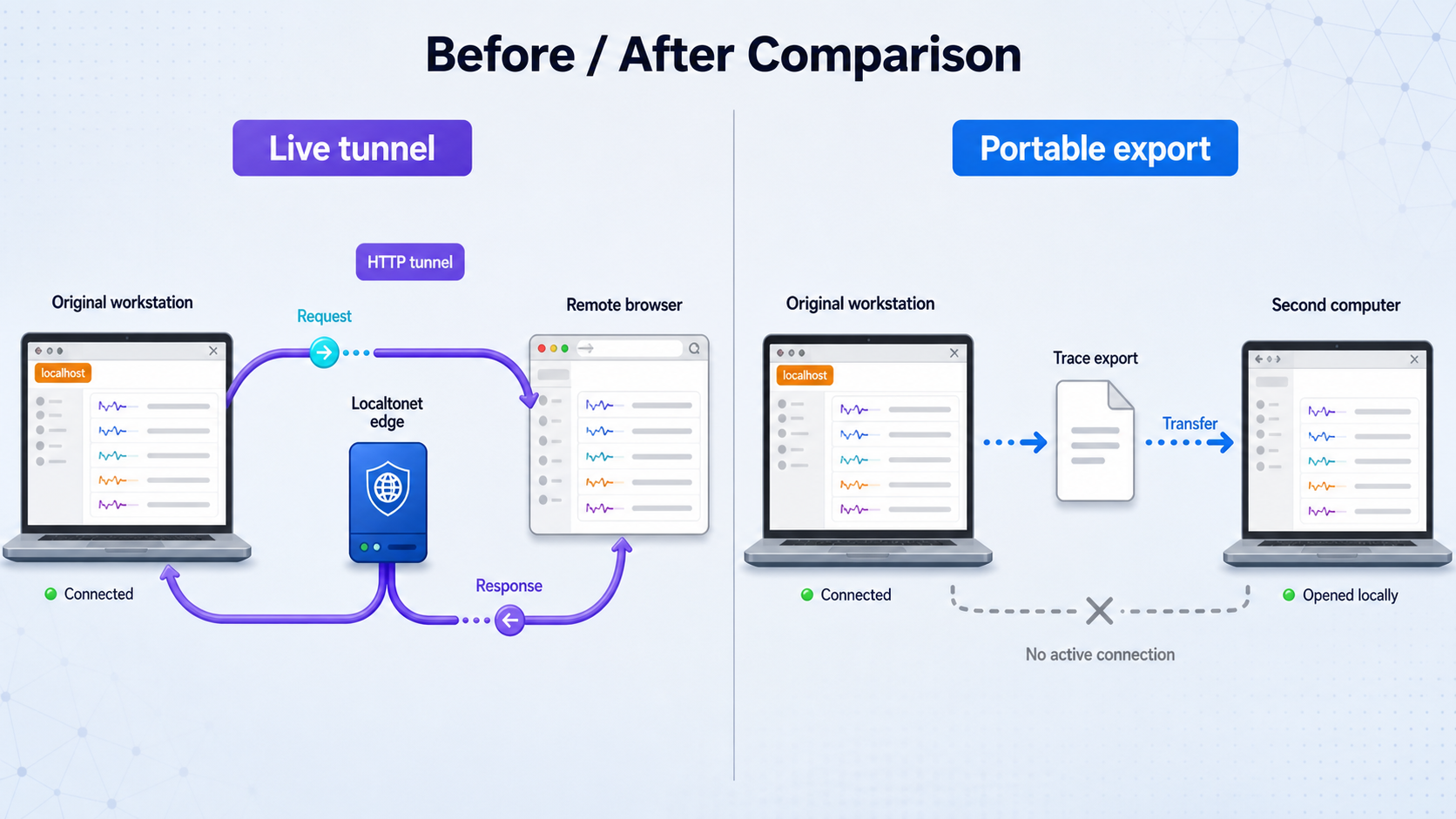
| Review approach | Best suited to | Operational requirement | Security consideration |
|---|---|---|---|
| Local live viewer | Review on the Claude Tap host | Claude Tap remains running and the local URL loads. | Avoids a public route, but trace files and on-screen content still require protection. |
| Live viewer through Localtonet | Temporary remote browser review | Claude Tap, the Localtonet client, and the started HTTP tunnel must all remain available. | Requires separately verified access controls. The URL itself is not authorization. |
| Self-contained HTML export | Review or archiving after a session | Use the exact command documented for the installed Claude Tap release and validate the output. | The file can contain sensitive trace data and must be protected wherever it is copied. |
Share a verified live viewer with Localtonet
Proceed only after the local viewer works and the exposure decision has been approved. With Localtonet, our client establishes an outbound connection to a relay server. This lets you expose the selected local HTTP service without inbound router port forwarding, firewall changes, VPN setup, or a public IP address.
An HTTP tunnel points to a local IP address and port on, or reachable from, the Localtonet client device. The tunnel then provides a public HTTPS address. This is a transport path to the Claude Tap viewer. It does not automatically add user accounts, passwords, identity checks, authorization rules, or trace-specific permissions.
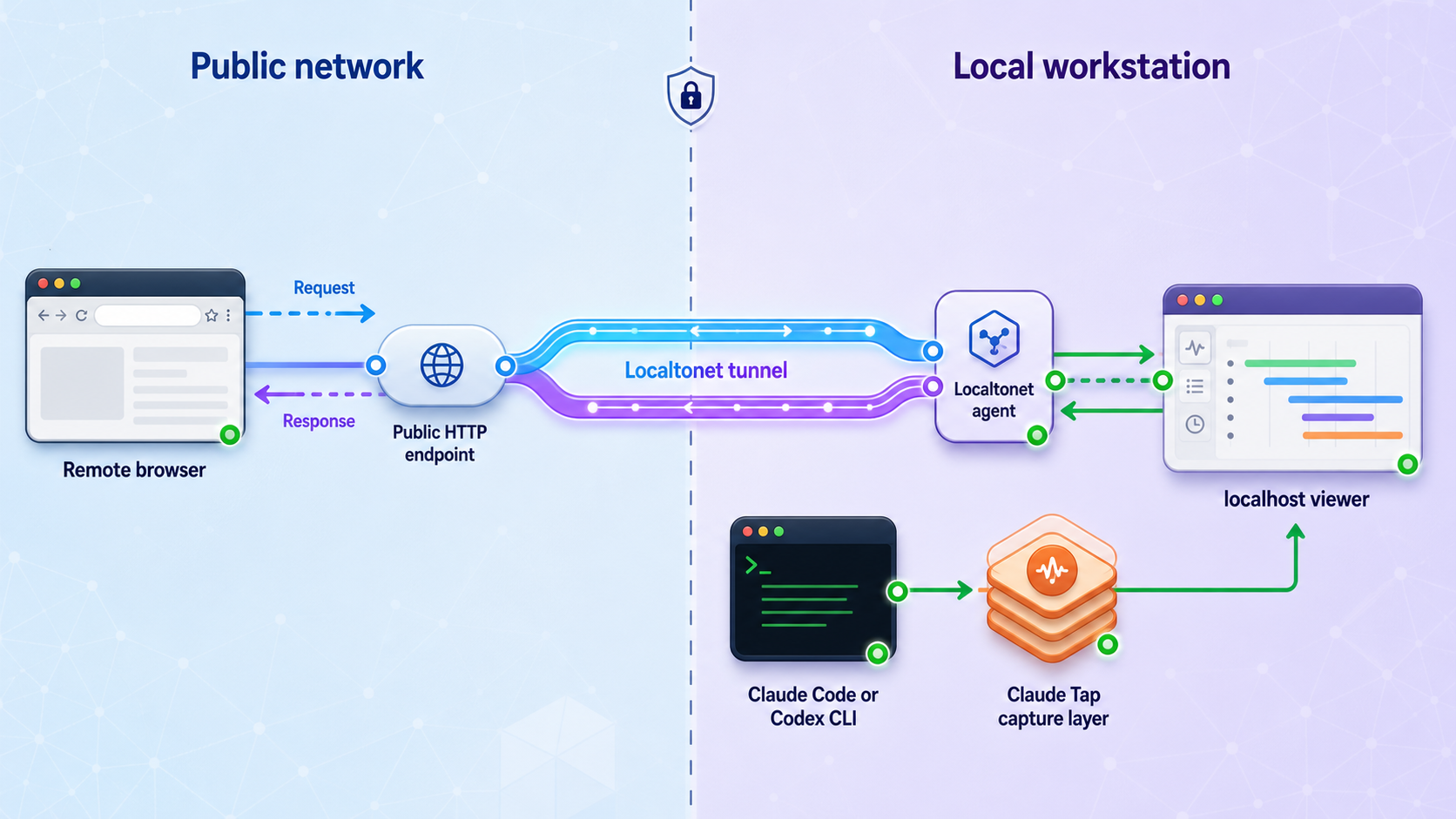
Install and run the Localtonet client
Run our client on the Claude Tap host or on a device that can reach the verified viewer endpoint. Keep Claude Tap active while configuring and testing the route.
Authenticate or select the client device
Use the device-specific authentication token associated with the client that will carry the tunnel. Keep the token secret and out of the trace being reviewed.
Select an available relay server
Choose a server or region currently offered in the dashboard. Do not copy a hardcoded server code from an old example because availability can vary.
Create the HTTP tunnel
Enter the exact IP address and port from the working Claude Tap viewer. Use the appropriate HTTP process type available to you. If using a custom domain, follow current DNS documentation rather than guessing the required records.
Start the tunnel
Creating a tunnel does not make it active. Use the Start button and confirm that the selected Localtonet client remains connected.
Verify the public URL remotely
Open the assigned HTTPS URL from the intended remote device. Confirm that it shows the correct reviewed trace viewer, not another service on the machine. Test the access controls required by your environment before sharing the URL with anyone else.
Stop or delete the tunnel after review
Stop the tunnel immediately when remote review ends. Delete it if the configuration will not be reused. Then stop Claude Tap if local tracing is also complete.
The Localtonet HTTP tunnel documentation contains the current dashboard workflow. Confirm current server choices, domain options, and plan availability in the product rather than inferring them from this example.
Understand loopback binding before choosing the client device
A viewer advertised on 127.0.0.1 or localhost is normally reachable only from the same device. If the Localtonet client runs on that device, target the exact locally verified loopback endpoint. If our client runs on another computer, that computer cannot use its own 127.0.0.1 to reach Claude Tap because loopback refers back to itself.
The supplied Claude Tap evidence does not establish a supported command for changing the viewer's bind interface. Do not invent one. If the viewer is loopback-only, place the Localtonet client on the same host or consult current Claude Tap documentation for an approved binding option. Do not weaken host firewall or network controls merely to make the topology convenient.
The public address transports requests securely to the tunnel edge, but this setup does not configure a login screen or decide which people may view a trace. Do not treat a long or unguessable URL as sufficient protection. If the installed viewer and your environment cannot provide suitable access controls, do not expose it. Use local review or a separately reviewed sharing process instead.
Security and shutdown checklist
Trace inspection can reveal the exact context supplied to an agent. Apply the same care you would use for source archives, diagnostic bundles, terminal recordings, or incident evidence.
When the review ends, close the remote browser, stop the Localtonet tunnel, verify that it is no longer running, end the Claude Tap process, and apply the approved trace-retention procedure. Deleting the tunnel is appropriate when the configuration will not be reused. Remember that copied screenshots or exported files are separate artifacts and remain available until handled independently.
Troubleshooting the complete request path
claude-tap is not found
Confirm that installation completed in the environment currently used by the shell. If you installed with pip inside a virtual environment, activate that environment before running the command. If you installed with uv, ensure the uv tool executable directory is available on your PATH. Open a new terminal after changing PATH configuration, then retry:
claude-tap --helpAvoid repeatedly installing into different environments. Multiple copies can make upgrades unpredictable because the shell may execute a different installation from the one you updated.
The Python version is too old or inconsistent
Compare python --version and python3 --version if both exist. Then confirm that pip belongs to the intended interpreter or use the isolated uv tool installation. Claude Tap requires Python 3.11 or newer, so an older interpreter cannot be corrected by changing the tunnel configuration.
Claude Code does not launch through Claude Tap
Run claude auth status and claude doctor, then test the ordinary claude command without Claude Tap. If the underlying client fails, fix its installation, authentication, settings, or network access first. Once Claude Code works normally, return to the low-risk project and run claude-tap.
The agent starts, but no trace appears
Confirm that you interacted with the client launched through Claude Tap rather than opening a separate normal agent session. Generate a new harmless prompt and wait for it to complete. Use the live viewer created by that same running process. If you selected another client, verify its current --tap-client value against the repository because integrations use different modes.
The viewer does not start or its page does not load locally
Keep the Claude Tap terminal open and inspect its output for startup errors and the actual viewer address. Make sure the process has not exited. Enter the printed URL exactly in a browser on the same device. If the browser cannot load it locally, stop troubleshooting Localtonet because the upstream service is not yet healthy.
The viewer works only through localhost
This indicates a loopback-reachability constraint. Run the Localtonet client on the same device and use the exact verified loopback target. If the Localtonet client is on another device, its localhost refers to that other device, not to the Claude Tap host. The available evidence does not verify a Claude Tap bind-address command, so consult the current project documentation rather than guessing a flag.
The Localtonet tunnel exists but no public URL is active
Creation and startup are separate lifecycle actions. Select the tunnel and use the Start button. Confirm that the associated Localtonet client is connected. A saved configuration does not carry traffic until it is started.
The tunnel starts, but the public page fails
Work from the inside out. First reload the Claude Tap viewer locally. Next compare the Localtonet target host and port with the current runtime URL. Then confirm that the selected Localtonet client is the device that can reach that endpoint and remains connected. Finally, confirm that the tunnel is running rather than merely configured.
If Claude Tap was restarted, it may have printed a different endpoint. Update the tunnel target to match the newly verified address before trying the public URL again.
The public URL opens the wrong application
Stop the tunnel immediately. A wrong local port can route to an unrelated service on the same device. Recheck the complete runtime-provided Claude Tap URL, correct the HTTP target, verify the viewer locally once more, and only then restart the tunnel.
The page loads, but traces are stale or incomplete
Confirm that the displayed session belongs to the current Claude Tap process and test project. Generate one distinctive, non-sensitive interaction and verify that it appears. If it does not, ensure the agent session was launched through the same Claude Tap instance rather than through an ordinary client terminal.
A trace contains sensitive information
Stop the Localtonet tunnel immediately and end sharing. Do not rely on changing or hiding the URL. Follow your incident-handling and retention requirements for any person, screenshot, browser cache, export, or copied artifact that may have received the data. Common authentication-header redaction does not remove every possible secret or confidential value.
An update appears not to take effect
Check whether the shell is finding a uv installation, a virtual-environment executable, or a different pip installation. Update through the method that owns the active executable, stop the old running process, start Claude Tap again, and repeat local verification. A running process does not become the new version merely because package files were updated elsewhere.
Frequently asked questions
What version of Python does Claude Tap require?
Claude Tap requires Python 3.11 or newer. Confirm the version selected by your shell before installing, especially when multiple Python environments are present.
How do I verify Claude Code before adding Claude Tap?
Run claude auth status to check authentication and claude doctor for installation and settings diagnostics. Then complete a simple normal Claude Code interaction in a low-risk directory.
Should I install Claude Tap with uv or pip?
The project recommends uv tool install claude-tap and documents pip install claude-tap as an alternative. Use one method appropriate to your environment so that executable discovery and upgrades remain predictable.
How do I update Claude Tap?
Claude Tap documents claude-tap update, uv tool upgrade claude-tap, and pip install --upgrade claude-tap. Choose the option matching the active installation, then stop and restart Claude Tap and repeat local verification.
Does Claude Tap support clients other than Claude Code and Codex CLI?
Yes. Current project documentation lists a substantially broader set, including Codex App, Gemini CLI, Grok Build CLI, DeepSeek Harness, Kimi variants, MiMo Code, OpenCode, OpenClaw, Pi, Hermes Agent, Cursor, Qoder CLI, Antigravity CLI, and CodeBuddy CLI. Check the repository for the exact current command because the capture mode varies by client.
What port does the Claude Tap viewer use?
Do not assume a fixed port. Use the viewer URL printed by the running Claude Tap process and verify it locally. Configure Localtonet with the host and port actually observed in that session.
Does a Localtonet HTTPS URL authenticate trace viewers?
No. The URL provides transport to the configured local HTTP target. This procedure does not configure viewer authentication or authorization. Do not expose the viewer unless suitable application-side or environment-approved access controls are verified.
Does creating a Localtonet tunnel start it automatically?
No. Creating and starting are separate lifecycle actions. Use the Start button after configuration. The route is available only while the selected Localtonet client is connected and the tunnel is running.
Can I export a Claude Tap session as HTML?
The project documents self-contained HTML export as a capability, but the supplied primary evidence does not establish the exact command or output procedure. Use the current repository instructions for your installed version and validate the artifact offline before sharing it.
Where does Claude Tap store traces, and how do I delete them?
The available evidence confirms that each run writes a local trace session, but it does not establish a universal path or cleanup command. Check the documentation and runtime behavior for your installed release, stop Claude Tap before cleanup, and delete only identified sessions under your approved retention policy.
Is a Claude Tap trace safe to share publicly?
It should not be treated as public by default. Common authentication headers are redacted before recording, but prompts, code, paths, messages, tool activity, and model output can still contain confidential information. Review the trace and use suitable access controls, or keep it local.
Share only a verified, approved trace viewer
Start with a low-risk Claude Tap session, confirm the viewer locally, and verify suitable access controls before creating an HTTP tunnel. With Localtonet, you can route an authorized remote browser to that specific endpoint without inbound port forwarding, then stop or delete the tunnel as soon as the review is complete.
Get Started Free →

