

Build and verify a monitoring-only UPS workflow before enabling shutdown actions or remote access
Eneru is a self-hosted monitoring and shutdown orchestration layer for Network UPS Tools. NUT communicates with the UPS hardware and supplies the upsc data model, while Eneru evaluates that information, presents operational status, and runs the configured shutdown policy. This guide walks through NUT verification, supported Eneru installation choices, a safe monitoring-only container deployment, configuration validation, dashboard authentication checks, shutdown-plan review, Localtonet access, updates, rollback, and troubleshooting. Destructive actions remain disabled until the monitored UPS identities and proposed shutdown sequence have been verified.
📋 What's in this guide
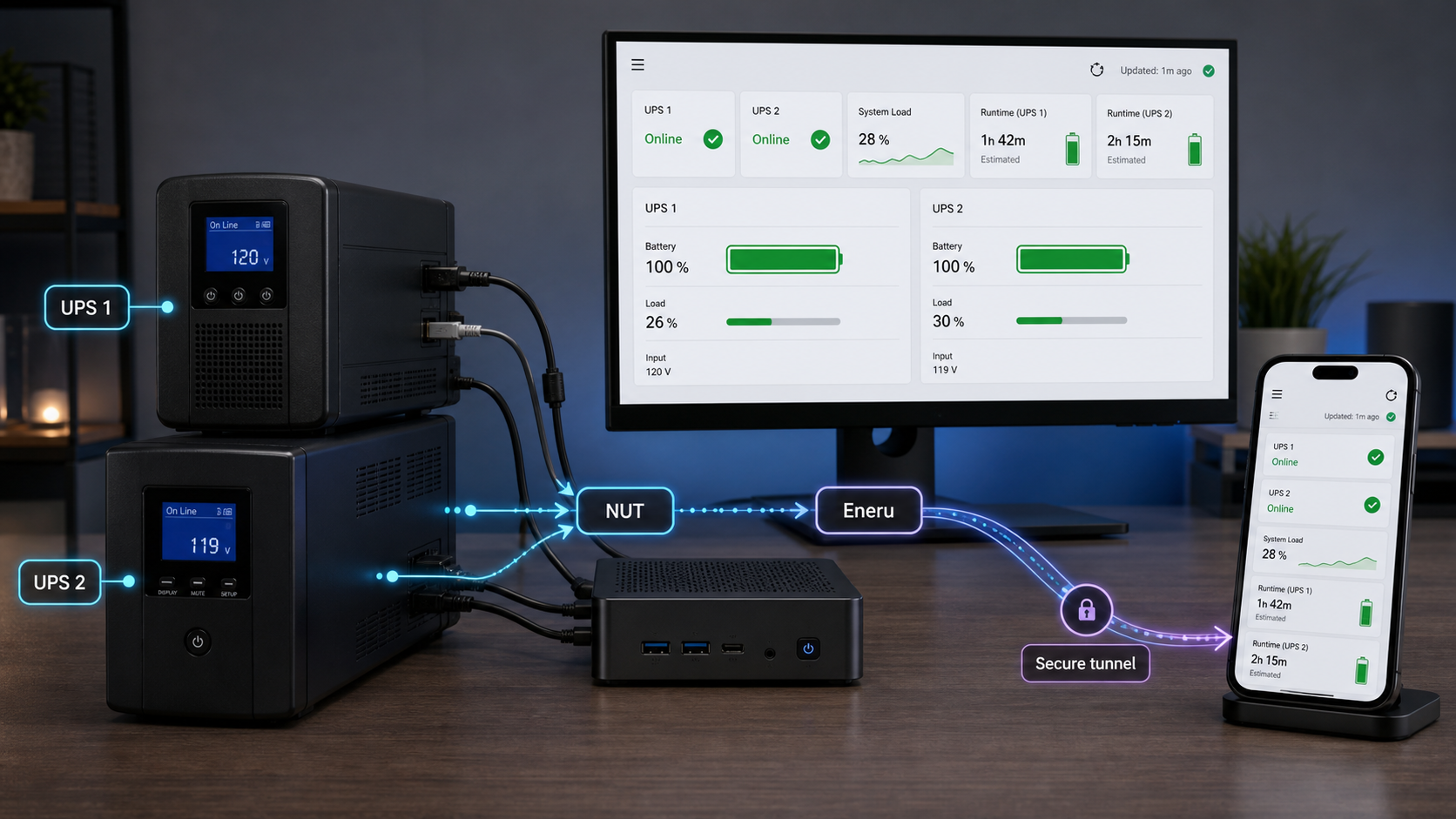
Understand the Eneru and NUT architecture
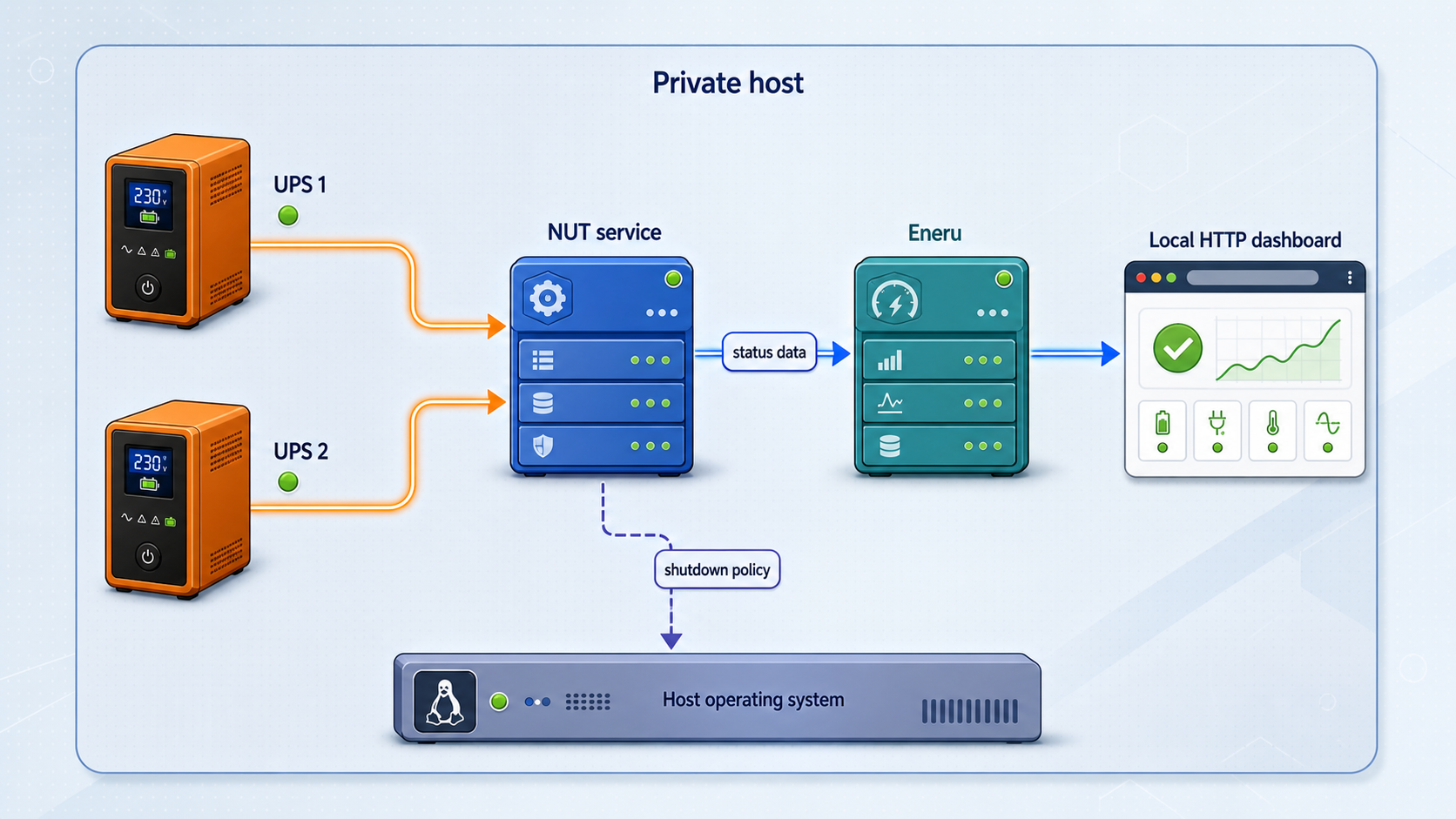
upsc data model. Eneru consumes that data, evaluates shutdown policy, and runs the enabled actions.
Eneru does not replace Network UPS Tools, commonly called NUT. NUT remains responsible for the hardware-facing layer, including UPS drivers, communication with each physical device, and the data made available through upsc. Eneru sits above NUT. It monitors one or more NUT UPS endpoints, records and presents operational information, evaluates independent trigger paths, and runs the shutdown policy configured for the affected UPS group.
This division of responsibility determines the correct troubleshooting order. If NUT cannot identify or query a UPS, installing Eneru will not repair the driver, cable, USB permissions, NUT server, or device configuration. Establish reliable NUT communication first. Only then should Eneru be expected to monitor the device or make policy decisions from its data.
A basic NUT deployment may be enough for one workstation with one UPS and no dependent services. Eneru becomes useful when a power event has an ordered operational impact. A virtualization host may need to stop guests before powering off. Compute systems may need to release NFS or SMB mounts before a NAS shuts down. Containers and compose stacks may have different shutdown dependencies. Multiple UPS devices may protect different racks, while a dual-power-supply server may remain available until a configured power quorum is lost.
A typical policy sequence is: detect a power event, evaluate the configured triggers, stop local virtual machines, stop compose stacks, stop remaining containers, synchronize and unmount filesystems, shut down remote systems by phase, and finally power off the local host. Every phase is optional. Multi-UPS mode applies the resource sequence per UPS group, while redundancy groups wait until their configured quorum is lost.
The browser interface shows information collected by Eneru, but the underlying UPS data comes from NUT. If Eneru reports that a UPS is unavailable, investigate the NUT server, UPS name, credentials where applicable, and network path before treating the issue as an HTTP dashboard problem.
Eneru configuration and behavior can change between releases. Consult the official Eneru documentation for the installed version, review the Eneru repository, and check the Eneru changelog before applying version-specific settings.
Prepare the host, NUT service, and deployment plan
Before installing Eneru, decide which machine will run it, which UPS devices it will monitor, and whether it will initially have any authority beyond reading NUT data. For the first run, the safest answer to the last question is no. Start in monitoring-only mode without local shutdown, remote SSH actions, VM teardown, container stops, filesystem unmounting, or NUT control operations.
Confirm the NUT UPS names with upstream client tools
Install or use the NUT client tools from a machine that has the same network path to the NUT server as the planned Eneru host. Ask the NUT server for its published UPS names:
upsc -l 192.168.1.100
Replace 192.168.1.100 with the actual NUT server address. The output supplies the UPS name portion used before the @ character. If it reports UPS, query the complete endpoint:
upsc UPS@192.168.1.100Repeat both checks for every NUT server in a multi-UPS deployment. The second command should return the variables NUT currently exposes for that device. Inspect identifying fields where available and compare status, charge, runtime, load, and other readings with the physical UPS or the existing NUT deployment.
A label printed on the UPS, a hostname, and the name exported by NUT are not necessarily the same. Use the identifier returned by upsc -l. A syntactically valid Eneru configuration can still monitor the wrong endpoint if its name or address was copied incorrectly.
If upsc -l or upsc UPS@host fails, resolve the NUT problem before proceeding. Possible categories include a stopped NUT server, an incorrect address, missing client access, network filtering, a driver problem, or an incorrect UPS identifier. Exact NUT driver and authentication configuration depends on the UPS model and deployment, so it should be taken from current upstream NUT guidance rather than generalized from an unrelated device.
Inventory protected resources and dependencies
Record which UPS physically powers every host, storage appliance, network device, VM group, and container host. Then document dependencies. A compute node may need to stop before shared storage. A hypervisor must remain online until its guests have stopped. Network infrastructure may need to remain powered long enough for SSH-based shutdown phases to finish.
Assign only one local-shutdown owner. Eneru supports multiple UPS groups, but the host running an Eneru instance must not receive conflicting local power-off decisions from unrelated groups. A dual-PSU server should be represented according to its actual redundant feeds and quorum requirements, not assigned casually to whichever UPS appears first.
Choose the installation profile
| Installation method | Best fit | Important behavior |
|---|---|---|
| OCI container with Docker or Podman | Monitoring, remote orchestration, and isolated deployment | The HTTP dashboard can be published on host port 9191. Local-host ownership requires the separate SSH loopback delegate security model. |
| Debian or Ubuntu package | Native systemd-managed installation | The package exposes eneru on PATH and installs the native application under /opt/ups-monitor/. |
| RHEL or Fedora package | Native RPM-based systemd deployment | The package is installed from the documented Eneru repository after enabling EPEL. |
| PyPI | User-managed or developer-managed Python environment | Eneru is installed into the selected Python environment. Service supervision and environment management remain the operator's responsibility. |
Install Eneru using a supported method
The container tutorial in the next section deliberately creates and validates a safe configuration before starting the long-running service. Do not launch a restart-enabled container against a missing or unreviewed configuration file.
Pull the official OCI image
docker pull ghcr.io/m4r1k/eneru:latest
The latest channel can move to a newer build. For an installation that will eventually control shutdown, record the tested image identifier and review release information before replacing it. The Eneru repository identifies ghcr.io/m4r1k/eneru:testing as the pre-release channel, which should not be substituted into a production power-control deployment without deliberate testing.
Install a native package if that profile fits better
On Debian or Ubuntu, add the Eneru signing key and repository, refresh package metadata, and install the package:
curl -fsSL https://m4r1k.github.io/Eneru/KEY.gpg | sudo gpg --dearmor -o /usr/share/keyrings/eneru.gpg

echo "deb [arch=all signed-by=/usr/share/keyrings/eneru.gpg] https://m4r1k.github.io/Eneru/deb stable main" | sudo tee /etc/apt/sources.list.d/eneru.list

sudo apt update
sudo apt install eneru
On RHEL or Fedora, use the documented RPM-family path:
sudo dnf install -y epel-release
sudo curl -o /etc/yum.repos.d/eneru.repo https://m4r1k.github.io/Eneru/rpm/eneru.repo
sudo dnf install eneru
Eneru can also be installed from PyPI with notification support:
pip install eneru[notifications]
PyPI installs expose the eneru command in the selected environment. The available project evidence does not establish one universal Python version, virtual-environment workflow, privilege model, or service supervisor for every operating system. Verify the requirements for the chosen Eneru release and ensure the intended environment places eneru on PATH.
Create a monitoring-only Eneru container safely
1. Create the persistent paths before launching anything
The documented container layout uses one configuration file and persistent directories for state, runtime data, and SSH material. Create them explicitly so Docker does not replace an absent file path with a directory:
sudo mkdir -p /srv/eneru/state
sudo mkdir -p /srv/eneru/run
sudo mkdir -p /srv/eneru/ssh
sudo touch /srv/eneru/config.yaml
Adjust the parent path if your host uses a different storage layout, but update every mount consistently. The configuration is mounted read-only into the container, so future edits must be made on the host.
2. Write a monitoring-only initial configuration
Begin with only the verified NUT endpoint and a readable display name. This single-UPS example intentionally omits local shutdown, remote servers, VM handling, container handling, filesystem actions, and NUT control:
ups:
  name: "UPS@192.168.1.100"
  display_name: "Main UPS"
Replace both parts of UPS@192.168.1.100 with the exact name and address verified using upsc. Because every shutdown phase is optional, omitting destructive resource blocks provides a suitable first-run monitoring configuration.
For multiple UPS devices, start with a list that still contains no resource actions:
ups:
  - name: "UPS1@192.168.1.10"
    display_name: "Rack A UPS"

  - name: "UPS2@192.168.1.11"
    display_name: "Rack B UPS"
Do not copy placeholder addresses into a live configuration. Confirm each NUT name and host separately. Resource assignments, triggers, remote accounts, local ownership, and redundancy groups should be added only after the monitoring-only deployment reports the correct devices.
3. Validate the configuration with a temporary container
Validate the mounted file before creating the persistent service:
docker run --rm \
  -v /srv/eneru/config.yaml:/etc/ups-monitor/config.yaml:ro \
  ghcr.io/m4r1k/eneru:latest \
  validate --config /etc/ups-monitor/config.yaml
Resolve every validation error before continuing. Validation confirms that Eneru accepts the configuration structure. It does not verify the physical power topology, UPS identity, battery duration, server identity, or safety of future shutdown actions.
4. Choose the correct Docker host-port binding
Port publication controls which host interfaces can reach the container. If the Localtonet client runs on the same host as Eneru, publish the dashboard only on loopback:
-p 127.0.0.1:9191:9191
This keeps host port 9191 reachable through 127.0.0.1 without intentionally publishing it to other LAN devices. It is the preferred topology for a same-host Localtonet client.
Docker's shorter publication form:
-p 9191:9191publishes the host port on all host interfaces by default. That can expose the Eneru dashboard to devices on the LAN, subject to host networking and firewall policy. Use this form only when another machine, such as a separate Localtonet client device, genuinely needs LAN access. Protect the LAN path appropriately and verify Eneru authentication before allowing broader access.
Eneru uses --api-bind 0.0.0.0 inside the container so the container runtime can reach the service. Docker's host-side -p 127.0.0.1:9191:9191 still restricts the published host endpoint to loopback. Do not replace the loopback host binding with all-interface publication merely to make Localtonet work on the same host.
5. Start the persistent monitoring-only container
For a same-host Localtonet client, use the loopback-only publication:
docker run -d --name eneru \
  --restart unless-stopped \
  -p 127.0.0.1:9191:9191 \
  -v /srv/eneru/config.yaml:/etc/ups-monitor/config.yaml:ro \
  -v /srv/eneru/state:/var/lib/eneru \
  -v /srv/eneru/run:/var/run/eneru \
  -v /srv/eneru/ssh:/var/lib/eneru/ssh \
  ghcr.io/m4r1k/eneru:latest \
  run --config /etc/ups-monitor/config.yaml \
  --api --api-bind 0.0.0.0 --api-port 9191
If the Localtonet client must run on another LAN device, replace the loopback publication with -p 9191:9191 only after deciding that LAN publication is required. Confirm host firewall policy, restrict network reachability where appropriate, and complete the authentication tests in this guide before creating a public tunnel.
Podman can use the same OCI image and Eneru entry point, but volume labels, rootless networking, port publication, and service management may differ. Verify the actual mounts and listening interfaces rather than translating Docker options without review.
Monitoring NUT and coordinating remote resources does not give the container safe control of its own host. Full local-host ownership uses Eneru's SSH loopback delegate and requires additional host networking, a read-only machine identity mount, a loopback SSH key, and the documented security model. Keep this tutorial's deployment remote-only until the complete current procedure has been reviewed in the official Eneru documentation.
Configure and start a native Eneru installation
Native package users normally work with /etc/ups-monitor/config.yaml. Use the same monitoring-only single-UPS or multi-UPS configuration shown above. Do not begin with the repository's action-enabled examples unless the associated policy has already been reviewed.
Create the monitoring-only configuration
Enter the UPS names and addresses verified with upsc. Omit local shutdown, remote servers, VM actions, container actions, filesystem actions, and NUT control during the first run.
Validate the configuration
Run eneru validate --config /etc/ups-monitor/config.yaml and resolve every reported error before starting or restarting the service.
Enable and start the systemd service
Run sudo systemctl enable --now eneru.service only after validation succeeds.
Observe monitoring in real time
Run eneru monitor --config /etc/ups-monitor/config.yaml and compare each reported UPS with the corresponding upsc output.
sudo nano /etc/ups-monitor/config.yaml
eneru validate --config /etc/ups-monitor/config.yaml
sudo systemctl enable --now eneru.service
eneru monitor --config /etc/ups-monitor/config.yaml
Enabling the browser dashboard for a native service can require release-specific configuration. The available evidence does not establish one universal native API configuration block for all supported Eneru versions, so this article does not invent one. Follow the Dashboard and Authentication guidance in the official Eneru documentation for the installed release, then verify the actual listening address and authentication behavior locally.
Verify the process, NUT data, dashboard, and authentication
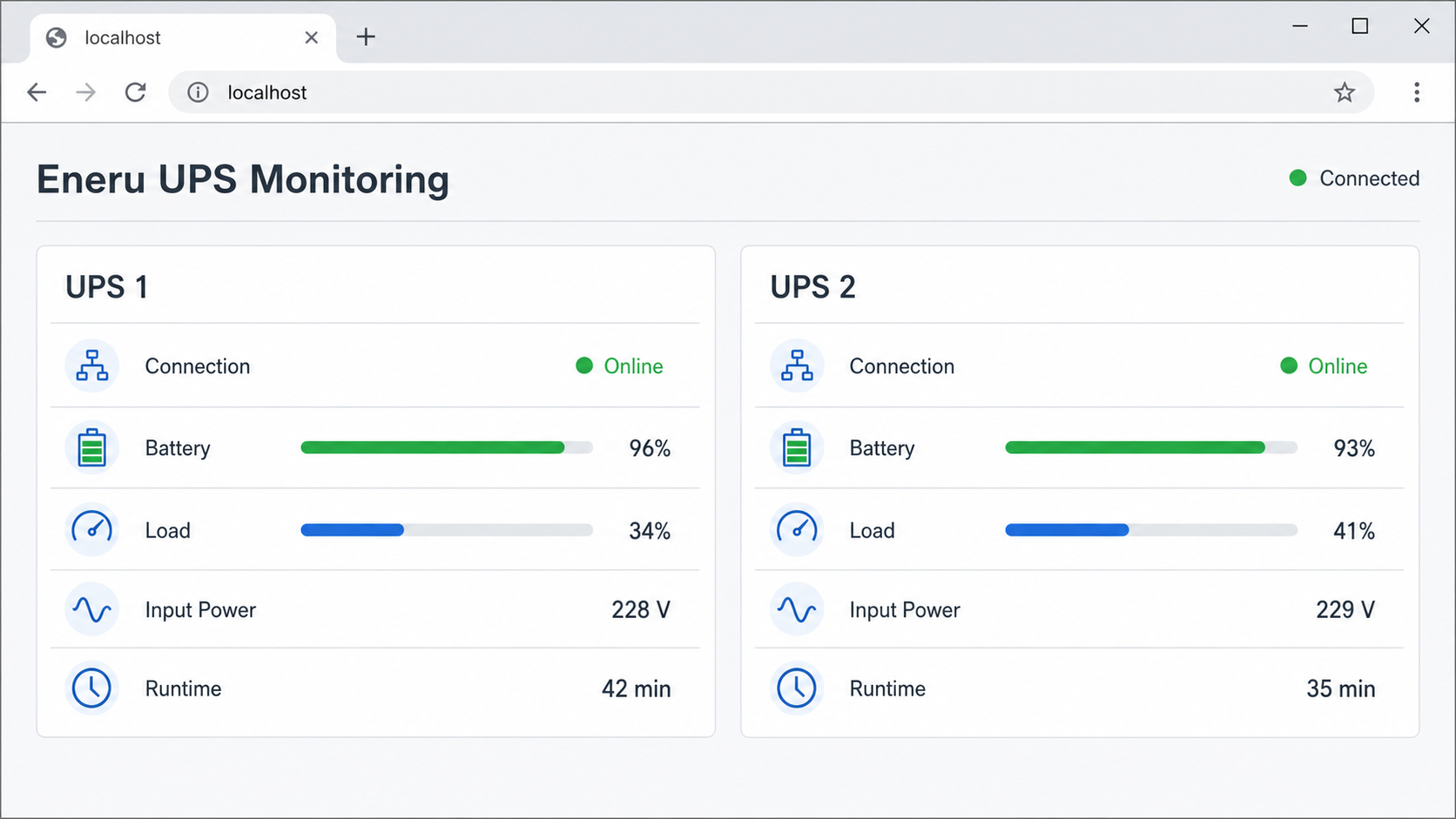
Remote access is the final verification stage, not the first. A Localtonet tunnel can carry requests to a working local service, but it cannot correct invalid YAML, a stopped container, an unreachable NUT server, an incorrect UPS name, or incomplete Eneru authentication.
Check container status and logs
docker ps --filter name=eneru
docker inspect --format '{{.State.Status}}' eneru
docker logs --tail 100 eneru
The container should remain in a running state. Review the logs for configuration rejection, unavailable NUT endpoints, permission errors, repeated restarts, or API startup failures. If it exits, inspect the first error rather than relying on the restart policy to conceal the failure.
Follow logs during initial verification:
docker logs --follow eneru
End log following with Ctrl+C. This does not stop the container.
Verify the local HTTP response
For the loopback-only container, request the local endpoint from the Eneru host:
curl -I http://127.0.0.1:9191/
An HTTP response confirms that a service is answering on the expected address and port. It does not, by itself, prove that every UPS is connected or that access control protects all relevant routes. Open http://127.0.0.1:9191 in a browser and inspect the dashboard.
If the port was deliberately published to the LAN for a Localtonet client on another device, perform the same test from that client device using the Eneru host's LAN address. Do not expect a LAN test to work when Docker is correctly restricted to 127.0.0.1.
Compare Eneru with NUT
Confirm that every UPS displayed by Eneru matches the name returned by upsc -l. Compare the dashboard status and available measurements with:
upsc UPS@192.168.1.100Repeat this for each UPS. In a multi-UPS environment, verify devices individually rather than accepting the presence of the expected device count. Two dashboard entries are not sufficient if Rack A and Rack B have been reversed.
Configure and prove authentication before public exposure
Eneru provides authenticated API write paths, but operators must not assume that every dashboard route and read operation is protected in every release or configuration. Use the Authentication section of the official documentation that matches the installed Eneru release. Configure credentials securely, restart or reload Eneru using only the release's documented behavior, and test the result locally.
Use two browser sessions for the access-control test:
- In a normal browser session, sign in with the intended Eneru credentials and confirm that the dashboard works.
- Open a separate private or incognito session that has no existing Eneru cookies or session state.
- Request the dashboard and any API paths that will be reachable through the tunnel.
- Confirm that the unauthenticated session is denied or required to authenticate according to the installed release's documented behavior.
- Sign in from the separate session and verify that valid credentials work without exposing secrets in the URL.
An unguessable URL is not a substitute for authentication. If a separate unauthenticated browser session can reach content or controls that should be protected, stop and correct the Eneru configuration before proceeding. Keep the Docker port loopback-only when Localtonet runs on the same host.
Review the shutdown plan before enabling actions
Eneru v6.1 includes a read-only shutdown-plan view. It shows the plan per UPS, including phases, per-phase timeouts, and an estimate. This view is the appropriate documented inspection surface for understanding what Eneru would attempt without triggering the actions from the dashboard.
Keep the monitoring-only configuration active while performing this review:
- Open the authenticated Eneru dashboard locally.
- Open the read-only shutdown-plan view.
- Select or inspect each configured UPS separately.
- Confirm that no destructive phases appear in the initial monitoring-only plan.
- After later adding one action category, reopen the plan and verify the target, order, phase timeout, and overall estimate.
- Repeat the review after every material policy change.
The current evidence confirms the read-only plan view but does not provide a verified universal dry-run command syntax. This guide therefore does not invent a command such as an assumed --dry-run flag. If the installed version's
official troubleshooting documentation
provides a dry-run procedure, follow that exact version-specific procedure in addition to reviewing the shutdown plan.
When actions are eventually introduced, add them incrementally. First map each resource to its physical UPS. Then review remote host identity and least-privilege SSH authorization. Measure how long each phase takes under controlled conditions. Only after those checks should local power-off authority or other destructive operations be enabled.
Threshold values must be based on the environment rather than copied from examples. The documented examples use a low-battery threshold of 20 and a critical-runtime threshold of 600, but these are not universal recommendations. Account for actual battery condition, load, guest shutdown duration, filesystem work, remote phases, network dependencies, and a safety margin.
Eneru 6.1 added battery-health scoring from 0 to 100, replacement prediction, energy and optional cost tracking, scheduled NUT self-tests, periodic reports, and the read-only shutdown-plan view. The battery_health, energy, self_test, and reports subsystems are opt-in. Use configuration syntax from the installed release rather than turning feature names into guessed YAML keys.
Reach the authenticated Eneru dashboard with Localtonet
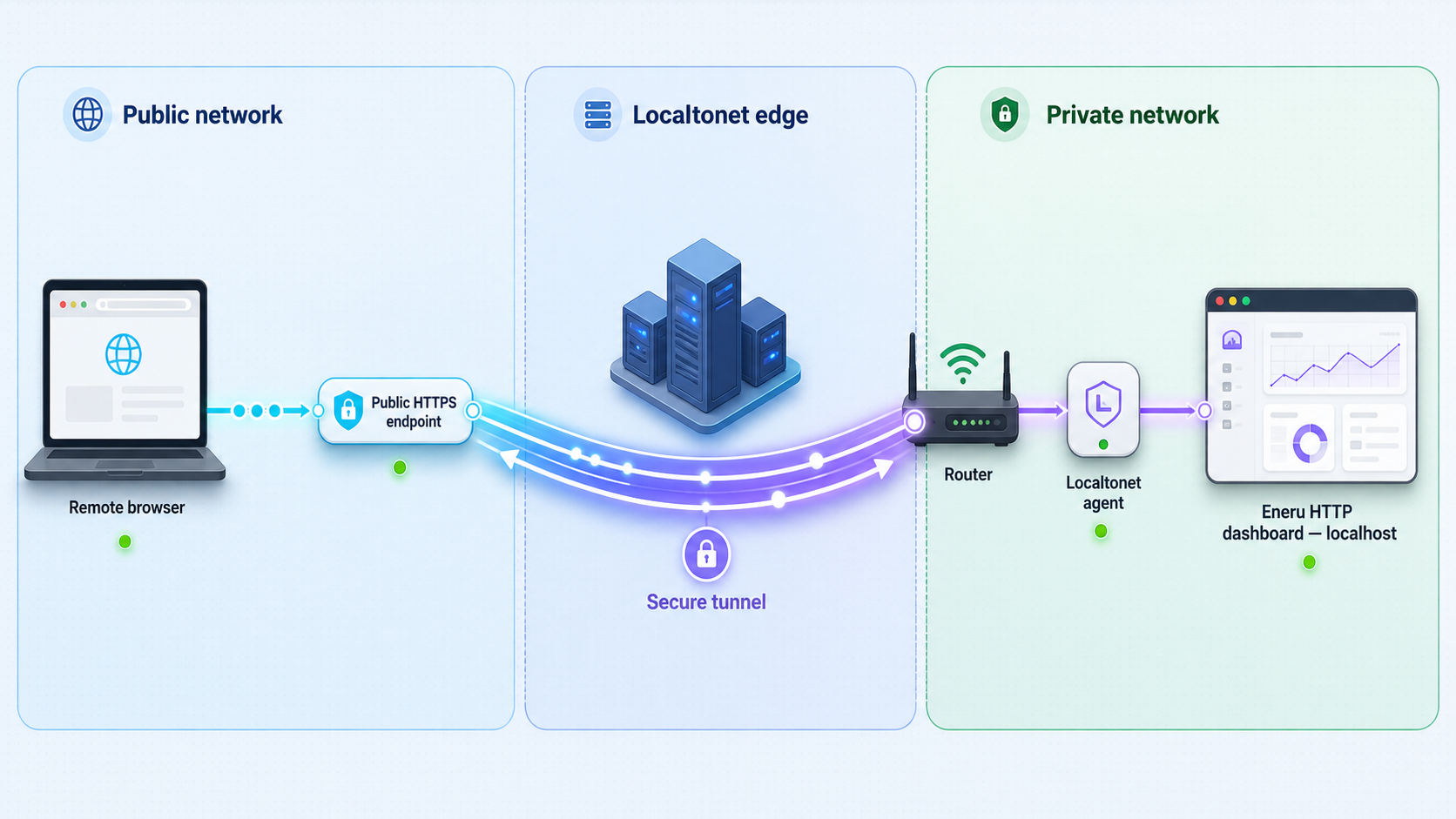
After the service, UPS data, HTTP response, and Eneru authentication have all been verified locally, a Localtonet HTTP tunnel can provide a public HTTPS address. Our client runs on the Eneru host or another device that can already reach it, then establishes an outbound connection to a Localtonet relay server. This avoids inbound router port forwarding, firewall changes for the tunnel, VPN setup, and a public IP address.
The tunnel is available only while the selected Localtonet client is connected and the tunnel is running. Creating a tunnel configuration does not start it automatically. It must be started, and it can later be stopped or deleted.
Install and run our client on a device that can reach Eneru
The preferred topology places the Localtonet client on the Eneru host and uses Docker's loopback-only publication. If our client runs elsewhere, verify LAN access to Eneru from that device before creating a tunnel.
Select the correct device token
Authenticate or select the client using its device-specific Localtonet token. Obtain it from the current dashboard and keep it secret. Never store it in Eneru YAML, screenshots, repositories, or shared command history.
Create an HTTP tunnel configuration
Use an HTTP tunnel because the documented Eneru container endpoint serves HTTP on port 9191. Select the appropriate process type for a random subdomain, supported custom subdomain, or custom domain.
Select an available relay server
Choose a currently available server or region from our dashboard. Do not copy a server code from an older tutorial because availability can vary by account, plan, region, and product version.
Set the verified local target
If our client is on the Eneru host, set local IP address 127.0.0.1 and local port 9191. If it is on another LAN device, use the Eneru host address that was already tested from that client device.
Start and test the tunnel
Press Start, wait for the tunnel to run, and open the assigned public HTTPS URL in a separate private browser session. Confirm that Eneru requires the expected authentication before showing protected content or controls.
For current dashboard fields and lifecycle behavior, see our Localtonet HTTP tunnel documentation. Custom-domain DNS requirements should always be checked against the current documentation rather than inferred from an older setup.
| Localtonet client location | Docker publication | Local tunnel target |
|---|---|---|
| Same host as Eneru | 127.0.0.1:9191:9191 |
127.0.0.1:9191 |
| Another device on the LAN | 9191:9191, only when LAN access is required |
Reachable Eneru host LAN address and port 9191 |
| Native Eneru package host | Not applicable | The locally verified address and port configured for that release's HTTP service |
Repeat the authentication test through the public URL. Use a fresh private browser session with no existing Eneru cookies. Confirm that unauthenticated access is rejected or redirected to the expected authentication flow, then sign in and verify read access. If the public URL exposes unexpected content or control paths, stop the tunnel immediately.
Operate, restart, update, and roll back safely
Use a deliberate change workflow
Treat power automation as production infrastructure, even in a homelab. Keep a backup of the last known-good configuration, change one policy area at a time, validate it, inspect the read-only shutdown plan, and observe live monitoring before enabling a new action. A successful syntax check or hot reload does not prove that the target system, threshold, or shutdown order is correct.
After changing the container configuration, validate it with the temporary validation command before restarting the service. Then restart and verify:
docker restart eneru
docker inspect --format '{{.State.Status}}' eneru
docker logs --tail 100 eneru
curl -I http://127.0.0.1:9191/
Recheck each UPS in the dashboard, compare it with upsc, inspect the shutdown plan, and repeat the separate-session authentication test. If the Localtonet tunnel is running, verify the public authentication boundary again after the local checks pass.
Protect persistent state and SSH material
The container layout stores persistent state under /srv/eneru/state, runtime material under /srv/eneru/run, and SSH information under /srv/eneru/ssh. Back up the configuration and persistent state before upgrades. If remote server shutdown is later enabled, private key files in the documented SSH directory must use mode 0400, while the directory remains writable so Eneru can persist learned host keys in known_hosts.
Do not put SSH private keys, Eneru credentials, Localtonet device tokens, or private endpoints into images, public repositories, screenshots, or browser URLs. Grant remote accounts only the authority required by the planned operation, and do not disable host identity verification merely to make a connection succeed.
Review releases before updating
Eneru v6.1 introduced battery-health scoring, projected replacement information, energy and cost tracking, scheduled self-tests, reports, and a rebuilt dashboard. Its release information also notes later 6.1 updates with AMD64 and ARM64 support for the official OCI image. Review the Eneru v6.1 release information and current changelog before changing an installation that controls shutdown.
The v6.0 to v6.1 upgrade is described as drop-in, with the statistics database migrating to schema version 7 on first start. Even when migration is automatic, back up the configuration and persistent state first. Do not assume that an older image can safely open a database after a newer release has migrated it.
Prepare and verify rollback
Before an update, record the currently running image identifier, preserve the last known-good configuration, and back up persistent state. If rollback is required, stop the Localtonet tunnel first so a partially recovered dashboard is not public. Stop and remove the failed Eneru container without deleting the host-mounted data, restore configuration and state only according to the release's migration guidance, and recreate the container with the previously tested image.
After rollback, repeat the complete verification sequence: container status, logs, local HTTP response, NUT data comparison, dashboard authentication, separate private-session denial, and shutdown-plan inspection. Restart the Localtonet tunnel only after those checks pass.
Control the Localtonet lifecycle independently
Eneru can continue monitoring locally while the Localtonet tunnel is stopped. Start the tunnel only when remote browser access is appropriate, and stop or delete it when that access path should no longer exist.
Localtonet platform-wide Token/Tunnel webhooks can report Connected and Disconnected changes for a selected Token Group. These are tunnel lifecycle events, not Eneru UPS events. Do not interpret a disconnected tunnel notification as a NUT power event or an Eneru shutdown trigger.
Troubleshoot installation, monitoring, and remote access
Eneru rejects the YAML configuration
Validate the exact configuration file used by the deployment:
eneru validate --config /etc/ups-monitor/config.yaml
For a container, use the temporary validation container shown earlier. Check YAML indentation, whether ups is a mapping for a single device or a list for multiple devices, and whether fields are valid for the installed release. Do not add guessed keys based only on feature names.
The container starts and exits repeatedly
Check status and logs:
docker ps -a --filter name=eneru
docker logs --tail 200 eneru
Confirm that /srv/eneru/config.yaml is a readable file rather than a directory. Confirm that mounted directories exist and have suitable access. Review the first reported configuration, permission, NUT connectivity, or API error. A restart policy repeatedly launches the same configuration but cannot repair it.
The dashboard does not answer on port 9191
Confirm that the container is running and includes the Eneru arguments --api --api-bind 0.0.0.0 --api-port 9191. Test locally with:
curl -I http://127.0.0.1:9191/
A same-host Localtonet deployment should use -p 127.0.0.1:9191:9191. A client on another device cannot reach that loopback-only publication. If LAN reachability is genuinely required, publish on a suitable host interface, review network protection, and retest authentication before creating a tunnel.
The dashboard opens, but a UPS is unavailable
List and query the NUT endpoint again:
upsc -l 192.168.1.100
upsc UPS@192.168.1.100
Confirm that the Eneru configuration uses the exact exported name. Check NUT service health and the route from the Eneru environment. Container networking can differ from host networking, so a successful host query is useful but does not always prove that the container has the same route. Eneru logs should indicate whether its own connection succeeds.
Eneru shows the wrong UPS or resource group
Compare every configured name@host value with the corresponding NUT listing. Then compare the physical power map with Eneru's UPS groups. Keep destructive actions disabled while correcting assignments. For dual-feed systems, review the intended redundancy quorum rather than duplicating the server under unrelated groups.
Local access works, but the public URL does not
Confirm that the selected Localtonet client is connected and the tunnel has been started. Verify that the tunnel type is HTTP and that the target is reachable from that client. Use 127.0.0.1:9191 only when our client runs on the Eneru host. A client on another machine needs the tested LAN address.
Select an available relay server from the current dashboard rather than hardcoding a server code from another account or tutorial. Remember that creating a tunnel configuration and starting it are separate actions.
The public dashboard is reachable without expected authentication
Stop the Localtonet tunnel immediately. Confirm the result in a fresh private browser session to rule out an existing login cookie. Review the Authentication guidance for the installed Eneru release and verify all dashboard and API routes that the tunnel exposes. Do not reopen the tunnel until unauthenticated access is denied according to the intended policy.
A restart or update changed behavior
Stop the Localtonet tunnel, inspect Eneru logs, and compare the active configuration with the last known-good copy. Review the installed release and changelog for configuration or database changes. If rollback is necessary, use the recorded image version and backups rather than guessing whether an older binary is compatible with migrated state.
Frequently asked questions
Does Eneru replace Network UPS Tools?
No. NUT owns UPS drivers, hardware communication, and the upsc data model. Eneru consumes that data, evaluates shutdown policy, runs enabled actions, and adds multi-UPS grouping, dashboards, history, notifications, and observability.
How do I verify the NUT UPS name before configuring Eneru?
Run upsc -l NUT_SERVER to list the names exported by the NUT server, then query the selected device with upsc UPS_NAME@NUT_SERVER. Use the returned name exactly in the Eneru configuration and repeat the check for every UPS.
Can one Eneru instance monitor several UPS devices?
Yes. Eneru supports multiple UPS groups with independent resources, triggers, policies, and failure handling. Begin with a monitoring-only list, verify each device, and add resources only after mapping them to their physical power source.
Should Docker publish Eneru on all network interfaces?
Not when the Localtonet client runs on the same host. Use -p 127.0.0.1:9191:9191 so only the host loopback interface receives the published port. Use broader publication such as -p 9191:9191 only when another LAN device must reach Eneru, and protect that path appropriately.
Is configuration validation enough before automatic shutdown?
No. Validation confirms that Eneru accepts the configuration. It cannot prove physical power topology, server identity, battery duration, SSH permissions, or shutdown timing. Start in monitoring-only mode, compare Eneru with NUT, inspect the read-only shutdown-plan view, and follow any version-specific dry-run procedure documented by Eneru before enabling destructive actions.
What port does the documented Eneru container dashboard use?
The documented container command enables the embedded API and dashboard on TCP port 9191. The host-side reachability depends on Docker publication. With loopback-only publication, test it at http://127.0.0.1:9191 from the container host.
Should I use an HTTP or TLS Localtonet tunnel for Eneru?
Use an HTTP tunnel for the documented local Eneru endpoint because it serves HTTP on port 9191. The Localtonet HTTP tunnel provides a public HTTPS address while forwarding to the local HTTP service.
Does Localtonet require router port forwarding?
No. Our client establishes an outbound connection to a Localtonet relay server. The tunnel does not require inbound router port forwarding, a public IP address, VPN setup, or firewall changes. The client must still be able to reach the local Eneru target.
Can a containerized Eneru instance shut down its own host?
Eneru supports local-host ownership from a container through its SSH loopback delegate. That profile requires additional networking, mounts, a loopback SSH key, and a reviewed security model. A standard remote-only container should not be assumed to have local-host shutdown authority.
How should I verify Eneru authentication before opening a tunnel?
Configure authentication according to the installed Eneru release, verify a valid login locally, then open a separate private browser session with no existing cookies. Confirm that unauthenticated dashboard and API requests are denied before starting the Localtonet tunnel. Repeat the same test through the public URL.
Reach your verified Eneru dashboard with Localtonet
Confirm NUT connectivity, start Eneru with a monitoring-only configuration, validate the dashboard and authentication locally, and review the read-only shutdown plan. Then create a Localtonet HTTP tunnel from a connected device that can reach port 9191, keep the device token private, and stop the tunnel whenever remote access is no longer required.
Get Started Free →

