

Deploy the platform, verify every Swarm and Traefik layer, then add a controlled remote access path
HivePaaS is a self-hosted application platform built on Docker Swarm, with Traefik v3 providing domain-based HTTP and HTTPS ingress. This guide follows the current HivePaaS quick-start workflow, shows how to inspect services and failed tasks, and explains how to verify the dashboard route before exposing it. It then installs the Localtonet Linux client through the supported DEB or RPM package path and creates an HTTP/s tunnel for a verified local target. Special attention is given to Host-header routing, redirects, custom domains, backend HTTPS, and the limits of what can safely be assumed from the currently available documentation.
📋 What's in this guide
How HivePaaS, Docker Swarm, Traefik, and Localtonet fit together

HivePaaS is a lightweight, open-source, self-hosted Platform-as-a-Service built on Docker Swarm. Its control plane manages applications, databases, functions, domains, deployments, logs, backups, and other platform operations. Applications run as ordinary Docker Swarm services, and Traefik v3 provides the HTTP and HTTPS ingress layer.
The documented architecture places Traefik, the HivePaaS application, and PostgreSQL on the primary control-plane node. Worker nodes can run application workloads and the HivePaaS agent. A shared hivepaas_net overlay network lets Traefik reach containers intended for public ingress, while project and environment networks isolate internal application communication.
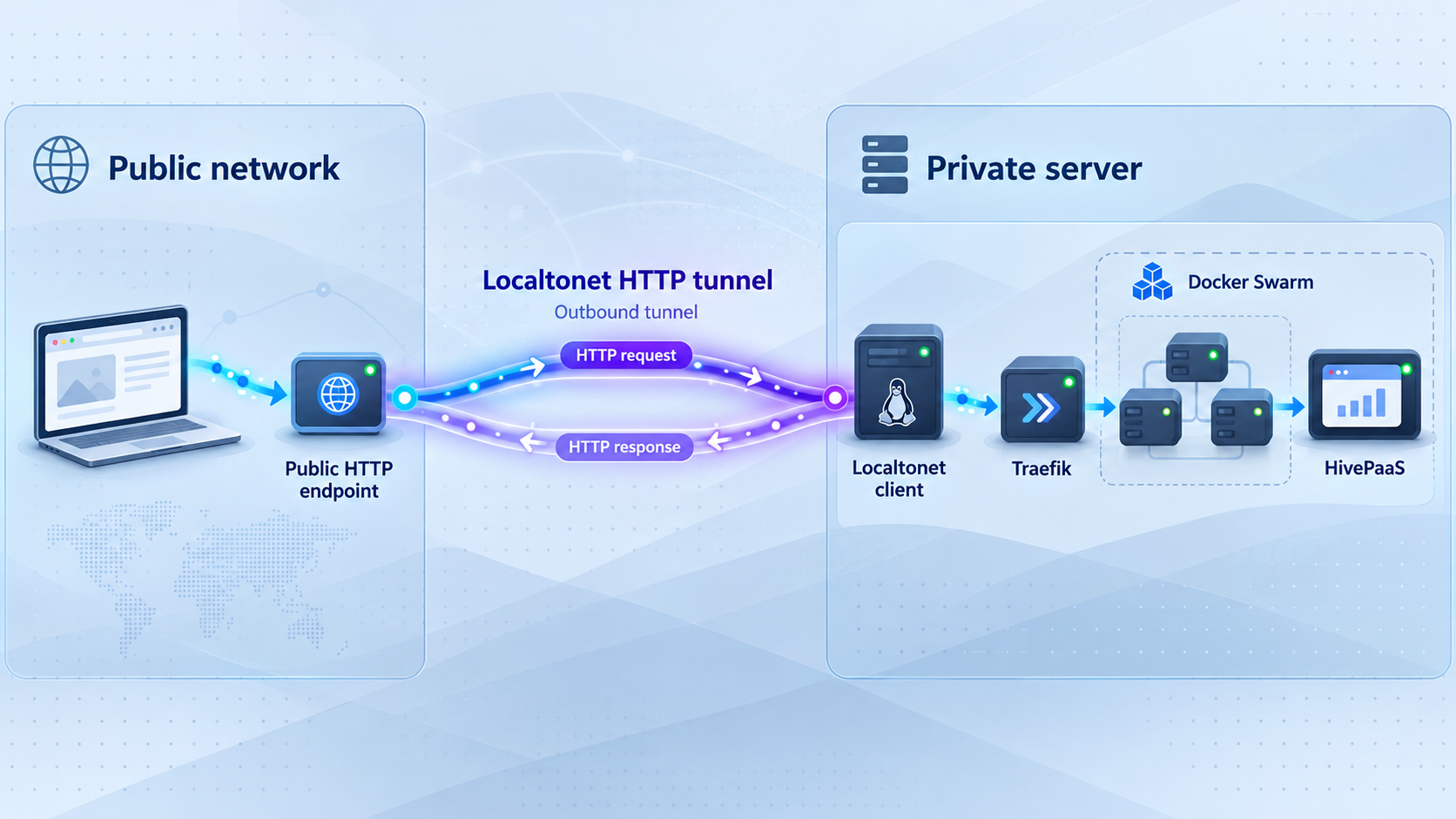
A normal dashboard request reaches the domain entered during HivePaaS installation. Traefik accepts the connection on port 80 or 443, evaluates the request hostname and routing rules, and forwards a matching request to the HivePaaS service. Port 80 can also participate in redirects or certificate-related traffic, depending on the active configuration.
With Localtonet, our client establishes an outbound connection from the selected device to a Localtonet relay. The resulting tunnel provides a public URL and forwards requests to a local IP address and port reachable from that device. This removes the need to create a separate inbound router port-forwarding rule for the Localtonet path. It does not replace Traefik, rewrite HivePaaS routes automatically, or make an unhealthy Swarm service healthy.
Localtonet transports traffic to the configured local target. Traefik decides whether the request matches the HivePaaS dashboard route. Basic port reachability therefore does not prove that a generated Localtonet hostname will be accepted by the existing HivePaaS route.
HivePaaS currently documents ports 80 and 443 as free and open to the internet for its quick-start installation. This guide preserves that project requirement. Adding Localtonet later does not establish that HivePaaS supports an installation in which those documented conditions are omitted.
Prepare the HivePaaS server and dashboard domain
Prepare the host before running the root-level installer. Port ownership, DNS, Docker upgrades, and existing workloads are easier to assess before HivePaaS changes the server.
| Requirement | Current project expectation | Pre-installation check |
|---|---|---|
| Operating system | Linux with root access | Documented families include Debian, Ubuntu, Fedora, RHEL, Rocky, AlmaLinux, Amazon Linux, SLES, openSUSE, Arch, and Alpine. |
| Resources | 4 CPUs, 8 GB memory, and 100 GB disk recommended | Allow additional capacity for builds, applications, databases, logs, metrics, and backups. |
| Docker | Docker 29.5 or newer | The installer can install or upgrade Docker. Review existing containers, services, networks, and storage first. |
| Ingress ports | Ports 80 and 443 free and open to the internet | Confirm that another proxy, web server, container, or host service does not own either port. |
| Dashboard domain | A domain supplied during installation | Configure DNS so the hostname resolves to the intended server according to the current HivePaaS deployment guidance. |
| Administrator account | Email address and password supplied to the installer | Use a unique password and keep it out of commands, screenshots, tickets, and repositories. |
Inspect ports 80 and 443
On systems that provide ss, inspect listening TCP sockets before installation:
sudo ss -ltnp | grep -E ':(80|443)\s'No output means this command did not find a matching TCP listener. It does not prove that cloud firewalls, routers, host firewalls, or DNS are configured correctly. If a listener appears, identify its owner before making changes. Do not stop an existing production proxy merely to continue the quick start.
Prepare the dashboard hostname
Use a hostname you control, such as hivepaas.example.com. The available evidence establishes that the domain should point to the server, but it does not provide one universal DNS record recipe for every IPv4, IPv6, DNS proxy, or provider configuration. Confirm the final DNS answer from an independent network before treating the domain as ready.
Also inspect upstream security groups, host firewall rules, and any router between the internet and the host. The documented quick start expects the web ports to be available publicly. A local listening socket alone is not proof of internet reachability.
The official command downloads a script and runs it with elevated privileges. HivePaaS can install or upgrade Docker when required. Back up important data, inspect existing Docker workloads, verify the official hostname, and use a server intended for the platform.
Install HivePaaS on the Linux server
The current repository documents a three-part quick start: run the installer, open the dashboard, and use the recovery system if a later routing or proxy change locks you out.
Run the official HivePaaS installer
Connect to the server with an account that can use sudo. Run the official installer. It asks for the administrator email, administrator password, and dashboard domain, then sets up Docker Swarm and deploys HivePaaS.
curl -fsSL https://get.hivepaas.com | sudo bashOpen the configured dashboard domain
After installation, open the exact HTTPS domain supplied to the installer, such as https://hivepaas.example.com. Sign in using the administrator account created during installation.
Use the documented recovery path if a later change locks you out
HivePaaS applies changes to the Traefik startup command and HivePaaS routing or proxy settings on a trial basis. Those changes are undone automatically unless confirmed. If automatic recovery cannot run, follow the version-appropriate instructions in the HivePaaS recovery documentation.
The evidence available for this revision confirms where the current recovery procedure is maintained and which settings receive trial rollback. It does not include the contents of the version-specific manual recovery commands. This guide therefore does not reproduce or guess those commands. Use the recovery file that matches the installed HivePaaS release, and do not delete services, volumes, or platform data as an initial recovery action.
Installer completion is only the first result to verify. DNS, TLS, Traefik, the HivePaaS service, and its supporting services can fail independently. Inspect the Swarm before adding another network layer.
Verify Docker Swarm, service tasks, logs, and Traefik
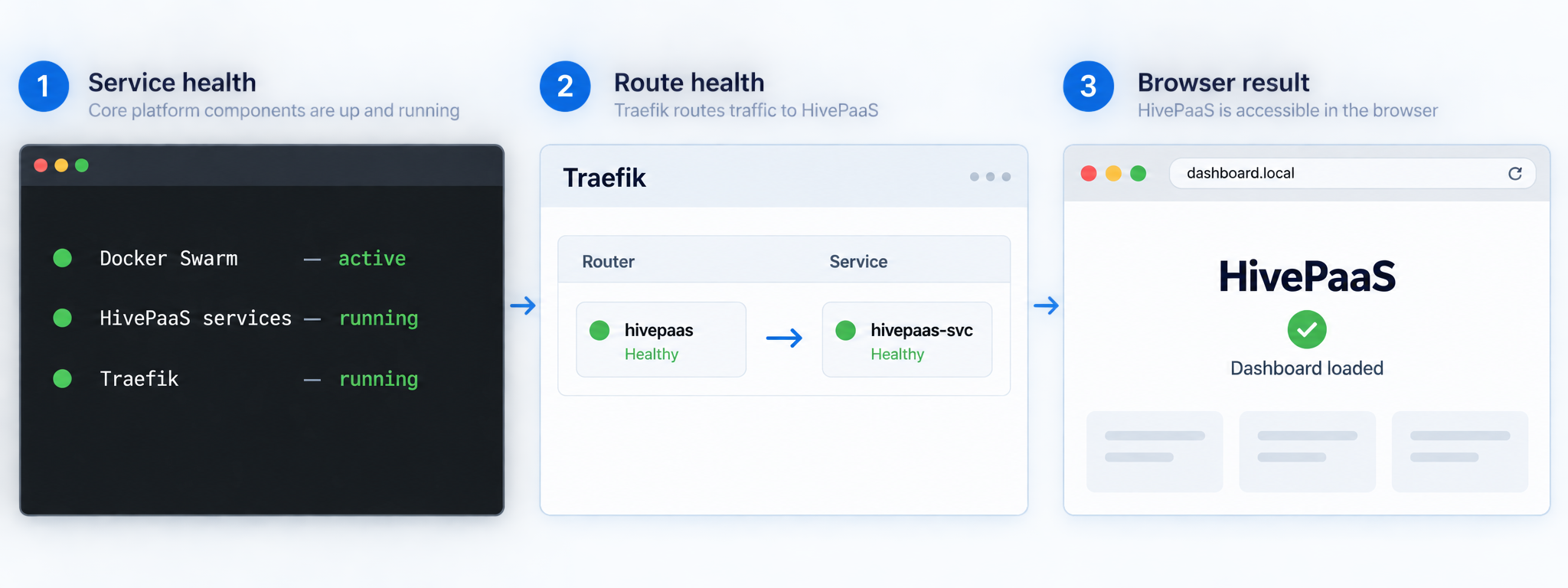
Confirm that the host is an active Swarm node
Ask Docker for the local Swarm state:
sudo docker info --format '{{.Swarm.LocalNodeState}}'
The expected result is active. An inactive result means the Swarm setup did not complete or the command is running against the wrong Docker daemon. Do not continue to tunnel configuration while the orchestration layer is inactive.
On a manager node, inspect cluster membership:
sudo docker node ls
A healthy node normally reports Ready availability and an appropriate manager status for a manager. Worker nodes cannot run manager-only inspection commands, so perform the remaining cluster-wide checks on the primary control-plane manager.
List services and compare desired versus running replicas
sudo docker service ls
Review the REPLICAS column. A replicated service showing 1/1 has one desired replica and one running replica. A result such as 0/1 indicates that its desired task is not currently running. Global services use a count based on eligible nodes, so interpret their replica total in relation to the cluster.
Do not assume service names from an old tutorial. Copy the current service name or ID from the command output. If the deployment is represented as a stack, this command can help identify stack names:
sudo docker stack lsInspect current and failed service tasks
For any service that is not at its desired replica count, inspect its task history:
sudo docker service ps --no-trunc SERVICE_NAME_OR_ID
Replace SERVICE_NAME_OR_ID with a value obtained from docker service ls. Healthy current tasks should reach a Running state. Historical tasks may remain visible after an update or restart. Repeated states such as Rejected, Failed, or continual restarts require investigation. The full error column can reveal image-pull failures, invalid mounts, unavailable ports, resource constraints, or placement problems.
Inspect details without modifying the service:
sudo docker service inspect --pretty SERVICE_NAME_OR_IDThis output can clarify the image, update state, networks, published ports, constraints, and replica configuration. Avoid sharing unredacted inspection output publicly because a real deployment can contain internal addresses or sensitive configuration.
Read relevant service logs
Use the service name discovered on the host rather than assuming that the Traefik or HivePaaS service has a fixed name:
sudo docker service logs --since 15m SERVICE_NAME_OR_IDService logs are available when the service's logging configuration supports Docker's service-log retrieval. If the command reports that logs are unavailable, inspect the configured logging driver and use the corresponding host or centralized logging system. For a dashboard failure, start with the HivePaaS service and the service running Traefik, then inspect supporting components implicated by their errors.
A lack of recent errors is useful but is not a complete health check. Combine logs with service replica counts, task states, listener checks, and an actual HTTP request.
Confirm the active web listeners
sudo ss -ltnp | grep -E ':(80|443)\s'
Record whether each listener is bound to a wildcard address, a specific interface, or loopback. The Localtonet client must be able to reach the exact IP address selected as the tunnel target. HivePaaS documents ingress on ports 80 and 443, but the supplied project evidence does not promise a universal 127.0.0.1 binding.
Test the Traefik route while preserving the dashboard hostname
If port 80 is reachable on loopback, test it using the hostname configured during installation:
curl -I -H 'Host: hivepaas.example.com' http://127.0.0.1/Replace the example hostname. If listener inspection shows another local address, substitute that verified address. A redirect to the configured HTTPS dashboard can be expected. A generic Traefik response, an unrelated application, or an unexpected hostname indicates that the route is not yet verified.
To test HTTPS locally while retaining the correct hostname for certificate validation and HTTP routing, use --resolve:
curl -I --resolve hivepaas.example.com:443:127.0.0.1 https://hivepaas.example.com/Run this only when port 443 is actually reachable at the selected address. Replace both occurrences of the example hostname. Do not add options that suppress certificate validation, since that would hide one of the properties this test is intended to verify.
Verify the normal public dashboard
curl -I https://hivepaas.example.com/The expected result is either a successful response or an intentional redirect that leads to the configured dashboard. Complete the test in a browser and confirm that the HivePaaS sign-in page loads without a certificate warning. Repeated redirects, a stale hostname, or a default Traefik response should be fixed before Localtonet is installed.
Record the reachable local IP, local port, local scheme, expected Host header, redirect destination, and certificate result. The tunnel target should come from these observations, not from an assumed 127.0.0.1:80 default.
Install the Localtonet client on Linux
Install our client on the HivePaaS host or on another trusted Linux device that can reach the verified Traefik listener. Running it directly on the primary node often makes local reachability easier to reason about, but it is not a requirement if another permitted device can reach the target.
The current Localtonet download and installation documentation provides installable DEB and RPM packages for x64 and ARM64. These packages require systemd 247 or newer and OpenSSL 3. Examples of compatible distributions in the current documentation include Debian 12, Ubuntu 22.04 or newer, and RHEL 9.
This package requirement is separate from HivePaaS's broader Linux support. For example, HivePaaS lists Arch and Alpine, while the documented Localtonet DEB and RPM service path does not apply directly to those package formats. Our download page also lists standalone Linux, ARM, ARM64, MUSL, and Docker options, but the available evidence for this revision does not include their complete service installation procedures. Use their current platform-specific instructions rather than adapting the DEB or RPM commands.
Install the downloaded DEB or RPM package
Download the package matching the host architecture from our documentation. Open a terminal in its directory. On Debian or Ubuntu, install the matching DEB package:
sudo apt install ./localtonet-linux-x64.deb
For an ARM64 Debian or Ubuntu host, use the downloaded localtonet-linux-arm64.deb file instead. On Fedora or RHEL, install the matching RPM:
sudo dnf install ./localtonet-linux-x64.rpm
For an ARM64 Fedora or RHEL host, use the downloaded localtonet-linux-arm64.rpm file. Do not install an x64 package on ARM64 or an ARM64 package on x64.
Configure and protect the device AuthToken file
Edit /etc/localtonet/auth-token as root. Replace the package's dummy value with the device-specific AuthToken on one line. Do not pass the real token in a command that will be copied into shell history. Protect the file and validate the configuration:
sudo chmod 600 /etc/localtonet/auth-token
sudo localtonet --headless --authtoken-file /etc/localtonet/auth-token --check-config
Continue only after the configuration check succeeds. Never publish the file, its contents, or command output that reveals the token.
Enable the service and inspect its journal
Start the standard tunneling service and enable it at boot:
sudo systemctl enable --now localtonet.service
sudo journalctl -u localtonet.service
Confirm that the service remains active and that its journal does not show repeated authentication, dependency, or connection failures. Exit the journal viewer after inspection. The VPN-specific service is not used in this HTTP/s tunnel workflow.
Check service status without exposing credentials
sudo systemctl status localtonet.service
sudo journalctl -u localtonet.service --since "15 minutes ago"
A healthy result is an active service without a repeating failure cycle. Avoid pasting complete journals into public issues until you have reviewed them for tokens, device identifiers, hostnames, addresses, and other deployment details.
Upgrade the package safely
For an upgrade, install the new package using the same package manager and architecture, then restart the service:
sudo systemctl restart localtonet.serviceThe documented package upgrade preserves the Localtonet configuration. Verify the service status and journal after the restart. A package upgrade does not start a stopped dashboard tunnel automatically unless that behavior is represented by the active tunnel and client configuration, so verify tunnel state separately in our dashboard.
Create and verify the Localtonet HTTP/s tunnel
The current Localtonet workflow is to install and run the client, select the connected device, select a currently available relay, configure the HTTP/s tunnel for a local IP and port, choose the Process Type, start the tunnel, and test the assigned public address. Available relay values must come from the current dashboard rather than an old article.
The HTTP/s tunnel's Process Type can be Random Sub Domain, Custom Sub Domain, or Custom Domain. These options provide a public HTTPS address for the same configured local content. They should not be confused with the local backend scheme or with HivePaaS's own domain configuration.
The evidence available for this revision does not establish a universal Host-header rewrite rule for every HTTP/s tunnel configuration. It also does not establish how an HTTPS local target's certificate and Server Name Indication are selected or validated in every current configuration. Do not claim that a generated hostname preserves the HivePaaS dashboard Host header, and do not target port 443 by disabling certificate validation. Use observable request, redirect, route, and log results to determine compatibility.
Confirm that the intended Localtonet device is connected
Open the HTTP/s tunnel workflow and select the device whose client can reach the verified Traefik listener. Confirm that it is connected. The AuthToken identifies this device and must remain private.
Select a currently available relay server
Select an available server or region from the current dashboard. Do not copy a server code from an older tutorial because available values can change.
Enter the verified local IP address and port
Use the local address and port proven during HivePaaS verification. If the client runs on the HivePaaS host and Traefik is reachable on loopback, that verified loopback address can be used. If the client runs elsewhere, 127.0.0.1 points to the client device itself and cannot represent the HivePaaS server.
Select the Process Type
Choose Random Sub Domain, Custom Sub Domain, or Custom Domain according to the current account options and routing design. A generated hostname is appropriate for the first compatibility test. Do not assume that selecting Custom Domain alone makes Traefik accept the request. Its DNS requirements and the hostname reaching the backend must both be confirmed.
Create and start the tunnel
Save the configuration, then press Start. Creating a tunnel does not mean it is running. The public endpoint is available only while the selected device is connected and the tunnel is running.
Verify the assigned public HTTPS address
Open the assigned address in a private browser window. Inspect the certificate result, page identity, final hostname, and every redirect. Confirm that the page is the intended HivePaaS sign-in page rather than a generic Traefik response or another service.
Stop or delete the tunnel when it is no longer required
Press Stop to end public access while retaining the configuration. Delete the tunnel if it will not be reused. Stopping the tunnel does not stop HivePaaS or its Docker Swarm services.
For the current interface and field descriptions, compare the workflow with the Localtonet HTTP tunnel documentation shown for your account and client version. The device, relay, Process Type, local IP, and local port must all correspond to the deployment you verified.
Interpret the first public test
| Observed result | Likely layer | Safe next action |
|---|---|---|
| The HivePaaS sign-in page loads and remains on the intended secure hostname | Tunnel transport and Traefik route both appear compatible | Sign in with a test session, verify dashboard behavior, and review security controls before sharing the URL. |
| The public URL redirects to the original HivePaaS domain | Traefik or HivePaaS canonical-host or HTTPS behavior | Decide whether leaving the tunnel path is intended. Do not describe this as access through the tunnel after the redirect. |
| A Traefik 404 or default response appears | Hostname route mismatch is likely | Compare backend logs and the successful local Host-header test. Do not change ports at random. |
| The tunnel runs but the request times out | Local target reachability or client selection | Test the target from the Localtonet client device and inspect the client service journal. |
| A certificate warning appears | Public or backend hostname and certificate mismatch | Stop testing through the warning and identify which endpoint is presenting the certificate. |
Understand the Host header before using a HivePaaS domain
A browser requesting a generated Localtonet URL normally addresses that public hostname. The available evidence does not prove whether the selected tunnel configuration forwards that hostname unchanged or rewrites it before sending the request to Traefik. You can establish the actual result by comparing the response with the known local Host-header test and by inspecting relevant Traefik service logs.
If the generated hostname reaches Traefik but does not match the HivePaaS route, a custom-domain design may be appropriate. However, a custom domain helps only when all of the following are true: current Localtonet DNS requirements are satisfied, the browser requests the intended domain, that hostname reaches Traefik as required, public TLS is valid, and HivePaaS accepts the same domain. The evidence supplied here does not establish one exact DNS record recipe, so verify current instructions before changing production DNS.
Treat an HTTPS backend as a separate compatibility question
A public Localtonet HTTPS URL does not, by itself, prove that the connection from the relay path to the local service uses HTTPS. Likewise, a valid browser certificate does not prove how a local HTTPS certificate is validated. The current evidence does not define universal backend certificate-validation or SNI behavior for this tunnel configuration.
Use port 443 only when the current tunnel interface explicitly supports the intended HTTPS local target and the resulting certificate and hostname behavior has been verified without suppressing errors. Otherwise, a verified HTTP listener on port 80 may be simpler, but its redirects must still be tested. If it redirects the browser directly to the original HivePaaS domain, the final request no longer travels through the generated tunnel URL.
Operate, update, and recover the deployment safely
Use a layered health check
During routine operation, check the layers in a consistent order:
- Confirm that Docker reports an active Swarm.
- Check that required services have their desired replicas.
- Inspect failed or restarting tasks.
- Review recent HivePaaS and Traefik logs.
- Test the local listener with the intended hostname.
- Test the normal HivePaaS domain.
- Check the Localtonet systemd service and journal.
- Confirm that the selected device and tunnel are connected.
- Test the public Localtonet address and its redirects.
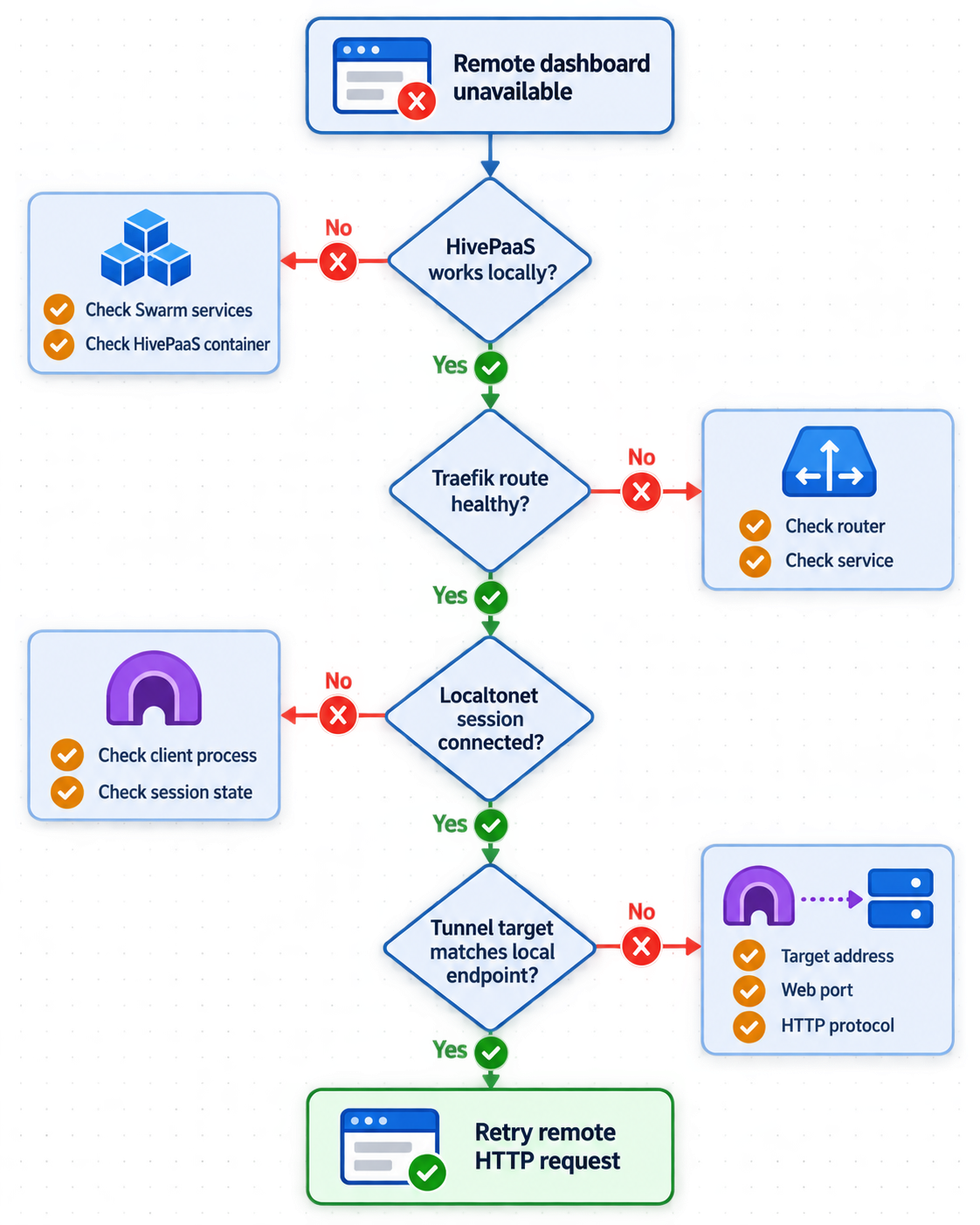
This order prevents a stopped application from being misdiagnosed as a relay problem. It also prevents a Host-header mismatch from being treated as a Docker failure.
Keep Swarm investigation observational first
Commands such as docker service ls, docker service ps, docker service inspect, and docker service logs gather evidence without changing service state. Prefer them before restarting, scaling, updating, or deleting anything.
Docker supports service rollback when a previous service specification exists, but HivePaaS manages its platform and application services. Do not issue an unplanned docker service update or rollback against a HivePaaS-managed service merely because a task failed. First determine whether the change should be corrected through HivePaaS, whether its trial recovery is active, and whether the release-specific recovery documentation applies.
Separate Localtonet upgrades from HivePaaS changes
Upgrade one layer at a time whenever possible. After upgrading the Localtonet package, restart localtonet.service, inspect its journal, and test the existing tunnel. After a HivePaaS or Docker change, verify Swarm tasks and the normal dashboard before testing the tunnel.
This separation gives you a useful rollback boundary. If two infrastructure layers are changed simultaneously, a new timeout or redirect is harder to attribute.
Protect cluster and device credentials
HivePaaS can manage a multi-node Swarm cluster. Swarm join tokens are cluster secrets and must not appear in articles, screenshots, public issue reports, or shell transcripts. Retrieve join information from the active cluster and follow current HivePaaS guidance when adding a node.
The Localtonet AuthToken is also device-specific. Keep it in the protected authentication file, avoid command-line exposure, and rotate it through the appropriate account workflow if disclosure is suspected.
Plan backups independently from access
HivePaaS supports encrypted, deduplicated Kopia backups to S3-compatible storage or a volume. It also supports optional logging and metrics components. A working dashboard or tunnel does not prove that backups are current or restorable. Define retention, monitor capacity, and test restoration separately from access checks.
Troubleshoot HivePaaS and Localtonet one layer at a time
A HivePaaS service shows fewer running replicas than desired
Run docker service ps --no-trunc for that service and inspect the latest failed task. Check whether the failure mentions image retrieval, mounts, resource availability, placement, port conflicts, or container startup. Review its recent service logs. Correct the identified cause through the supported HivePaaS or host workflow rather than repeatedly forcing restarts.
Tasks continually restart
A momentary old shutdown task after an update can be normal. A repeating cycle of new tasks entering Failed or Rejected is not healthy. Compare timestamps and task IDs, then inspect logs for the current task. Also check disk space, memory pressure, required networks, and the service's update state before changing its definition.
Traefik cannot bind ports 80 or 443
Re-run the listener inspection and identify the owner of each port. HivePaaS expects both ports to be free for this installation path. An existing Nginx, Apache, Caddy, standalone Traefik instance, or published container port can prevent the HivePaaS ingress service from starting.
The normal dashboard domain does not resolve
Check the exact hostname from more than one resolver or network. Confirm that it points to the intended server rather than an old address or an internal address unavailable to remote users. Do not troubleshoot Localtonet until the normal HivePaaS path required by this guide is understood.
Port 80 redirects to an unexpected hostname
Inspect the Location response header. A redirect to the configured HTTPS dashboard may be intended. A stale or unrelated hostname means the active routing or canonical-domain configuration still references it. Correct that configuration rather than attempting to hide the redirect in the tunnel.
The Localtonet Linux service does not start
Confirm that the DEB or RPM host meets the documented systemd 247 and OpenSSL 3 requirements. Run the configuration check again using the protected AuthToken file, then inspect:
sudo systemctl status localtonet.service
sudo journalctl -u localtonet.service --since "15 minutes ago"
Check for a malformed token file, incorrect file permissions, an unsupported package architecture, or a missing dependency. Do not paste the AuthToken into a public support request.
The tunnel is running but the page times out
Confirm that the selected dashboard device is the device running the installed client. From that device, repeat the request to the configured local IP and port. Remember that 127.0.0.1 always means the device on which the Localtonet client runs.
If the backend works from another machine but not from the client device, investigate local routing and permitted network access. Localtonet cannot forward to a target its client cannot reach.
The public URL displays a Traefik 404
Repeat the local request with the HivePaaS dashboard Host header. If that succeeds, while the public Localtonet hostname produces a 404, the tunnel may be reaching Traefik without satisfying the route. Inspect Traefik logs and evaluate the hostname design. Changing from port 80 to 443 does not inherently correct a Host rule.
The browser enters a redirect loop
Record each requested URL and Location response. Compare the scheme and hostname at every hop. A loop can occur when different layers disagree about the canonical scheme or hostname. Remove only the incorrect rule after identifying it. Do not disable all HTTPS redirects as a general workaround.
The browser reports a certificate error
Identify which hostname is open and which endpoint is presenting the certificate. Do not proceed through a certificate warning on an administrative dashboard. A certificate issued for the HivePaaS domain does not validate a generated Localtonet hostname, and a valid public tunnel certificate does not prove that a local port 443 certificate is being validated as intended.
A routing or proxy change made HivePaaS unreachable
Allow the documented trial recovery to undo an unconfirmed change. If automatic recovery cannot run, use the current HivePaaS recovery procedure that corresponds to the installed release. Avoid deleting Swarm services, volumes, databases, or networks as a first response.
Local access works but only the Localtonet path fails
Check the Localtonet service journal, device connection, selected relay, tunnel running state, and configured target. Then inspect the response using the public hostname. A timeout points toward target reachability or client connectivity, while a Traefik response indicates that the request reached the local ingress and should be investigated as an HTTP routing issue.
Protect the HivePaaS administrative control plane
The HivePaaS dashboard can control applications, databases, functions, domains, deployments, logs, terminals, credentials, backups, and infrastructure settings. Treat its public URL as access to an administrative control plane.
A difficult-to-guess URL is not an authorization mechanism. Continue to rely on HivePaaS authentication and any appropriate access restrictions. Confirm that the public route does not display an initial setup screen, default account, unrelated service, or certificate warning.
Keep the following values out of examples and public diagnostics:
- HivePaaS administrator passwords and session data
- Docker Swarm manager and worker join tokens
- Localtonet device AuthTokens
- Private API keys, registry credentials, backup credentials, and database secrets
- Private endpoints or internal addresses that should not be disclosed
Complete administrator setup, validate the normal dashboard, inspect service health, and confirm the intended hostname route before starting the public tunnel. If any test reaches an unexpected service or insecure page, stop the tunnel and correct the backend first.
Frequently asked questions
What does the HivePaaS installer configure?
The installer asks for the administrator email, password, and dashboard domain. It sets up Docker Swarm and deploys HivePaaS. It can install or upgrade Docker when the required version is not already present.
How can I tell whether the HivePaaS Swarm services are healthy?
Confirm that Docker reports an active Swarm, run docker service ls, and compare desired and running replicas. Use docker service ps --no-trunc for failed services and inspect relevant service logs. Current tasks should reach the Running state without a repeating failure cycle.
Does Localtonet replace HivePaaS's requirement for ports 80 and 443?
No. The current HivePaaS quick start documents ports 80 and 443 as free and open to the internet. This workflow adds Localtonet after the supported HivePaaS installation and verification steps.
Can every HivePaaS-supported Linux distribution use the Localtonet DEB or RPM service package?
No. The documented DEB and RPM packages are for x64 and ARM64 systems with systemd 247 or newer and OpenSSL 3. HivePaaS also supports Linux families for which those package formats do not apply. Use the matching Localtonet download and its current instructions on those systems.
Can I always target 127.0.0.1:80?
No. Inspect the actual listener and test it from the device running the Localtonet client. Use 127.0.0.1 only when Traefik is reachable through loopback on that same device.
Does Localtonet preserve the HivePaaS Host header automatically?
The supplied current evidence does not establish one universal Host-header rewrite rule for every HTTP/s tunnel configuration. Test the generated endpoint, compare it with a known local Host-header request, and inspect Traefik logs before relying on a hostname-sensitive route.
Will a Localtonet custom domain automatically solve a Traefik 404?
No. It can help only if current Localtonet DNS requirements are satisfied and the hostname reaching Traefik matches an accepted HivePaaS route. Confirm DNS, public TLS, request-host behavior, and rollback before changing a production domain.
Should the tunnel target port 80 or port 443?
Use only a locally verified target that is supported by the current tunnel configuration. Port 80 may redirect away from the tunnel hostname. Port 443 adds backend certificate and hostname considerations whose universal behavior is not established by the supplied evidence. Do not suppress certificate errors to force port 443 to work.
Does creating a Localtonet tunnel start it automatically?
No. After creating the configuration, press Start. The selected device must remain connected and the tunnel must remain running for the public endpoint to be available.
What happens when I stop the tunnel?
The Localtonet public endpoint becomes unavailable. HivePaaS and its Docker Swarm services continue running, and the normal HivePaaS domain continues to depend on its own DNS and ingress configuration.
Where should I start if a HivePaaS setting locks me out?
Allow HivePaaS's trial rollback to undo an unconfirmed Traefik startup, routing, or proxy change. If automatic recovery cannot run, follow the recovery documentation matching the installed release. Do not begin by deleting services, volumes, or platform data.
Add controlled remote access after HivePaaS is healthy
Verify the Swarm services, Traefik listener, dashboard hostname, redirects, and TLS result first. Then install our Linux client, validate its protected AuthToken configuration, and create an HTTP/s tunnel for the proven local target.
Get Started Free →

