

Run your workout tracker locally, bind passkeys to its final web identity, and make the verified service reachable from your devices
openGym is a self-hosted gym and body-weight tracker that can synchronize profiles, routines, workouts, and progress across devices. This guide follows the project's Docker Compose quick start, verifies the local service at http://localhost:8080, maps a final public hostname to the exact RP_ID and ORIGIN formats required for passkeys, and connects the working application to a Localtonet HTTP tunnel. The order changes slightly depending on whether you already know the public hostname or need Localtonet to assign one. HTTPS protects browser traffic in transit, while openGym remains responsible for authenticating users and authorizing access to their data.
📋 What's in this guide
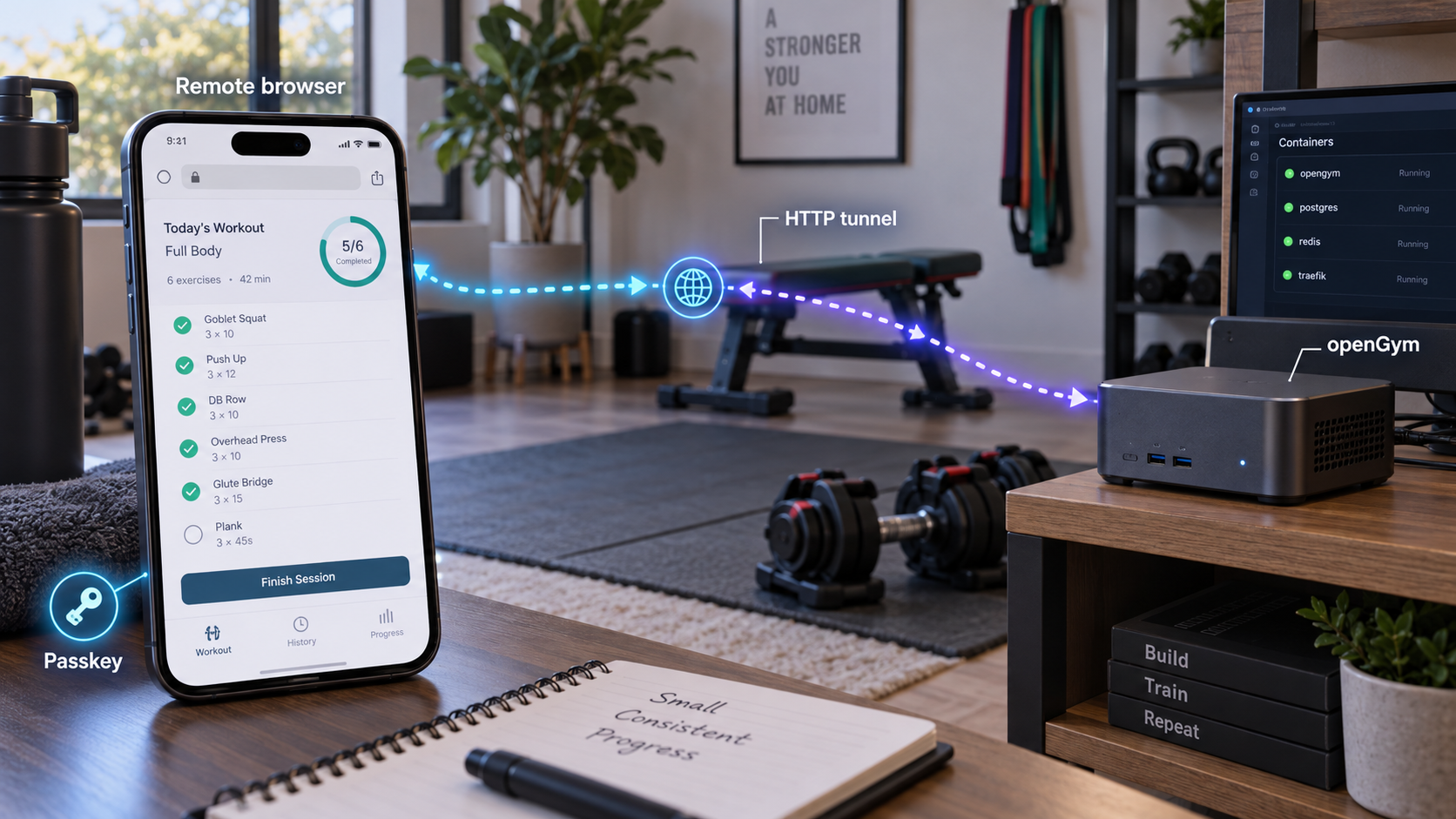
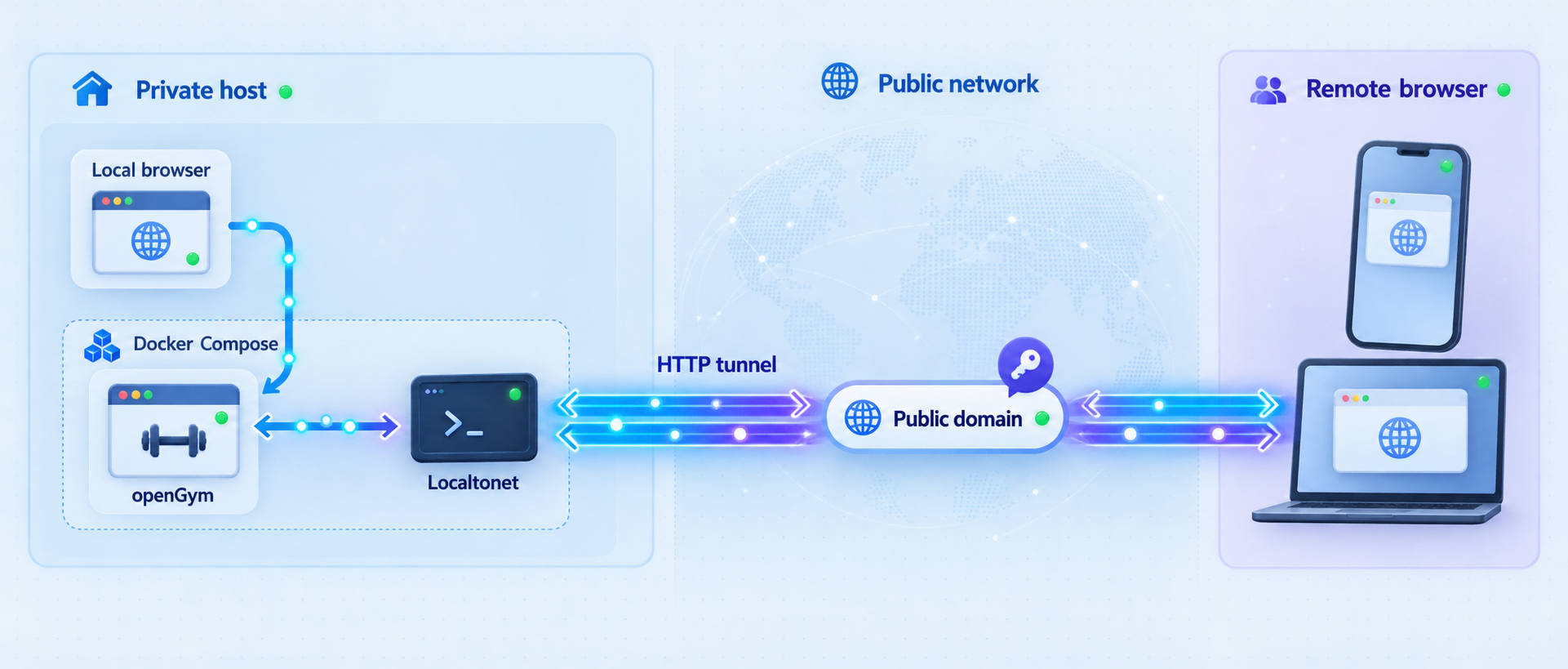
How an openGym and Localtonet deployment works
openGym is a self-hosted web application for planning routines, running guided workouts, recording sets and body weight, and reviewing training progress. Its self-hosted edition keeps application data on infrastructure you control while making a profile available across your devices. The project supports passkey profile sign-in, optional password sign-in when enabled for an instance, one-time-code or QR pairing for new devices, and JSON data export.
The documented quick start uses Docker with the Docker Compose plugin. The official
openGym repository
contains the Compose deployment and example environment file. The sequence clones the repository, enters its directory, copies .env.example to .env, pulls the published images, and starts the stack. With the documented defaults, the browser endpoint is http://localhost:8080.
Local and public connectivity are different layers. Docker Compose starts openGym and publishes its web service on the host. The Localtonet client then establishes an outbound connection to one of our relay servers and maps a public HTTPS address to that working HTTP endpoint. This approach does not require an inbound router port-forwarding rule, a public IP address, firewall changes for inbound internet traffic, or a separate VPN.
The tunnel does not authenticate an openGym profile or decide which profile data a visitor may use. It provides reachability and an HTTPS public endpoint. openGym must still perform its own authentication and authorization, including the server-side validation required by WebAuthn.
Understand the three relevant addresses
Each layer has a different address. Containers communicate according to the repository's Compose configuration. The Docker host publishes the web service on port 8080 by default. Remote browsers use the public HTTPS hostname assigned or configured for the Localtonet tunnel. Passkey settings must describe that final browser-visible identity, not a Docker-internal address and not the local development URL.
| Layer | Address or identity | Purpose |
|---|---|---|
| Compose network | Managed by the repository's Compose configuration | Connects openGym components inside the Docker deployment. |
| Docker host | http://localhost:8080 by default |
Provides the first endpoint to test before adding public access. |
| Public browser origin | The final Localtonet HTTPS address | Lets remote browsers reach openGym and supplies the identity used for passkey configuration. |
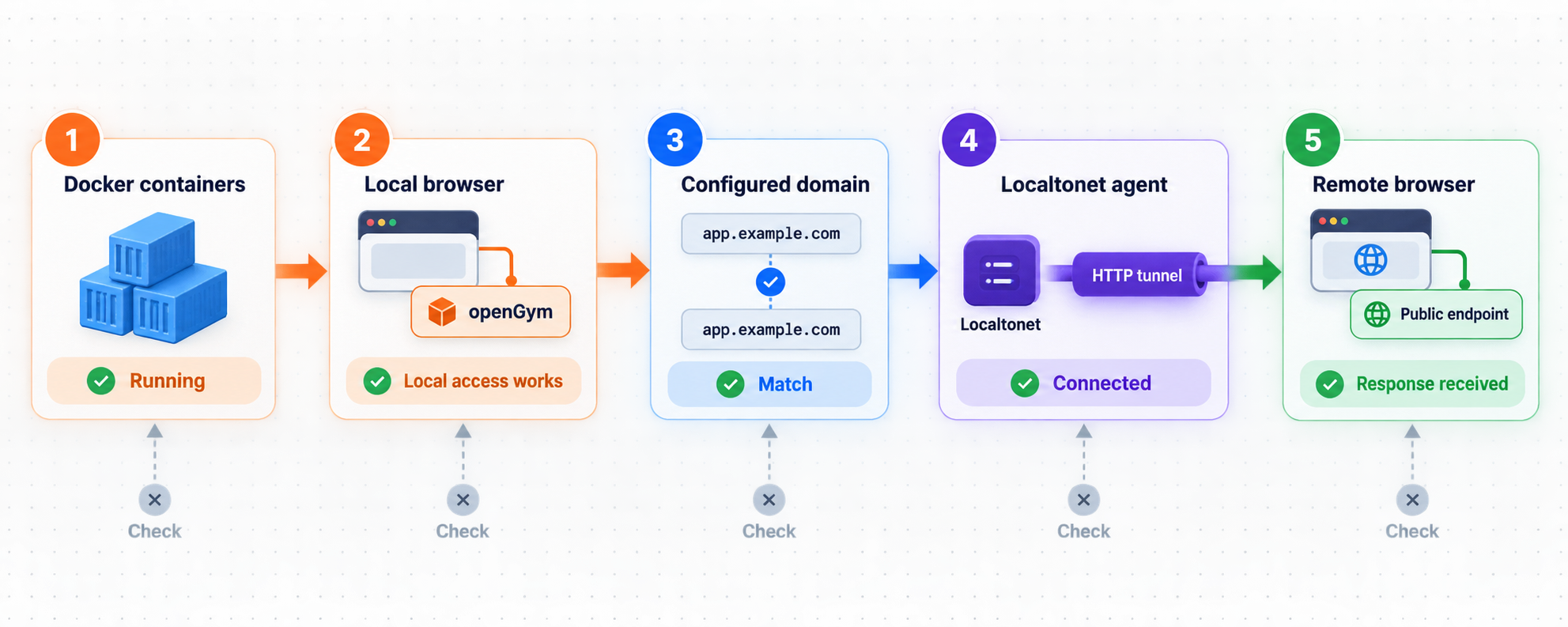
Start openGym and verify http://localhost:8080 before creating a tunnel. After you know the final public hostname, configure RP_ID and ORIGIN, recreate the application services, and then perform the final public and passkey tests. This sequence prevents a Docker failure from being mistaken for a tunnel or WebAuthn problem.
Prerequisites
Use a machine that can remain powered on whenever openGym should be available. The application containers must be running, and public access also depends on the selected Localtonet client being connected and the tunnel being started.
Docker and Docker Compose
The official openGym quick start requires Docker with Compose. Verify both components before cloning the repository:
docker --version
docker compose version
Both commands should return version information. This guide uses the current space-separated docker compose command rather than the older standalone docker-compose form. Your user must also be permitted to communicate with the Docker daemon. If Docker returns a permission error, correct the host's Docker permissions using the supported procedure for that operating system.
Git and persistent storage
Git is needed to clone the repository:
git --versionAllow local storage for the repository, images, application data, exports, and backups. A universal minimum disk size is not established by the supplied project evidence because actual use depends on retained data and media. The exercise animations are included in the images, so the documented quick start does not require a separate animation download.
A Localtonet account and reachable client device
Install the Localtonet client on the Docker host or on another trusted device that can reach the openGym host over the local network. The selected device token identifies that client and must be kept secret. Relay server and region choices must come from the current dashboard because availability can vary.
A plan for the public hostname
Decide whether you already know the final hostname. Localtonet HTTP tunnels can use Random Sub Domain, Custom Sub Domain, or Custom Domain process types. These process types serve the same local content at a public HTTPS address, but their setup order differs for passkey-enabled applications.
- Known hostname: If a supported custom subdomain or custom domain is already known, you can map it to
RP_IDandORIGINbefore the final public test. - Assigned hostname: If Random Sub Domain must generate the address, create the tunnel first to discover the assigned URL. Then configure openGym, recreate its services, and perform final passkey registration through that URL.
Use only process types available in your current account and dashboard. For a custom domain, check the current Localtonet documentation before changing DNS. Do not copy DNS targets or server codes from an old tutorial.
Verify openGym locally and establish its intended profile controls before sharing the public address. A public URL makes the web endpoint reachable, but it does not replace application authentication, authorization, host maintenance, backups, or least-privilege operating practices.
Install openGym with the documented Docker quick start
Run the following commands on the machine that will host openGym. The numbered sequence preserves the current quick start shown by the project's repository. Configuration review is explained after the sequence so that it does not alter the documented installation order.
Clone the openGym repository
Download the official repository containing the Compose file and example environment configuration.
git clone https://github.com/DuarteSantos8/openGymEnter the repository directory
Run subsequent commands from this directory so Compose can locate the project files.
cd openGymCopy the example environment file
Create the private local environment file from the version supplied by the repository.
cp .env.example .envPull the published images
Pull the prebuilt amd64 or arm64 images referenced by the current Compose configuration. The project notes that skipping this command causes a source build instead.
docker compose pullStart the stack
Start the configured services in detached mode.
docker compose up -d
You can compare the files used by this deployment with the current
openGym example environment file
and
openGym Docker Compose file.
Use the files from the same checked-out revision when deploying a release. Do not paste your completed .env into public issues, screenshots, or support messages.
Review configuration without changing the quick-start sequence
After the initial startup, inspect the copied .env. The documented default web port is WEB_PORT=8080. Keep it for the first local test unless port 8080 is already occupied. The current example configuration also contains the passkey-related RP_ID and ORIGIN variables. Their public values should be set only after you know the final hostname that remote browsers will use.
The project publishes its API and web images from the same release tag to GitHub Container Registry and documents a GitLab registry alternative. The normal quick start does not require changing image references.
Confirm that the containers started
docker compose psLook for services that remain running rather than repeatedly restarting or exiting. Service names come from the current Compose file, so they are not hardcoded here. If a service fails, inspect the project logs:
docker compose logsFollow new log entries while reproducing a problem with:
docker compose logs -f
Press Ctrl+C to stop following logs. This does not stop containers started in detached mode.
Verify openGym locally before remote access
Open a browser on the Docker host and visit:
http://localhost:8080With the documented default configuration, openGym should load. Select Create profile to begin the local application flow. This check proves that the containers started, the web service was published on the host, and the host browser can reach it.
A running container is not a complete application test. The container may be active while the page remains unavailable because of a startup error, dependency failure, or port conflict. Likewise, a Localtonet tunnel cannot repair an endpoint that already fails locally.
Test from the Localtonet client device when it is a separate machine
If our client will run on another device, test openGym from that device using the Docker host's LAN address and web port. Obtain the actual LAN address from the host or your network rather than guessing it. For example, the target has the shape http://LAN-ADDRESS:8080, but you must replace LAN-ADDRESS with the verified address.
If openGym works on the Docker host but not on the client device, investigate the host firewall, Docker's published-port binding, Wi-Fi client isolation, VLAN rules, and the selected host address. Do not solve this by creating a router port-forwarding rule. The Localtonet workflow uses an outbound connection instead.
Record the effective local target
If you changed WEB_PORT, use that port for local verification and for the Localtonet target. Record the exact IP address and port that work from the client device. If openGym and our client run on the same machine, the verified target is normally localhost on port 8080. If they run on different devices, use the Docker host's reachable LAN address.
Local verification confirms Docker and application availability. Public verification confirms the client, relay, tunnel target, hostname, and HTTPS route. Passkey verification adds another layer involving the exact origin, RP ID, browser, authenticator, and openGym's server-side checks.
Map the final hostname to RP_ID and ORIGIN
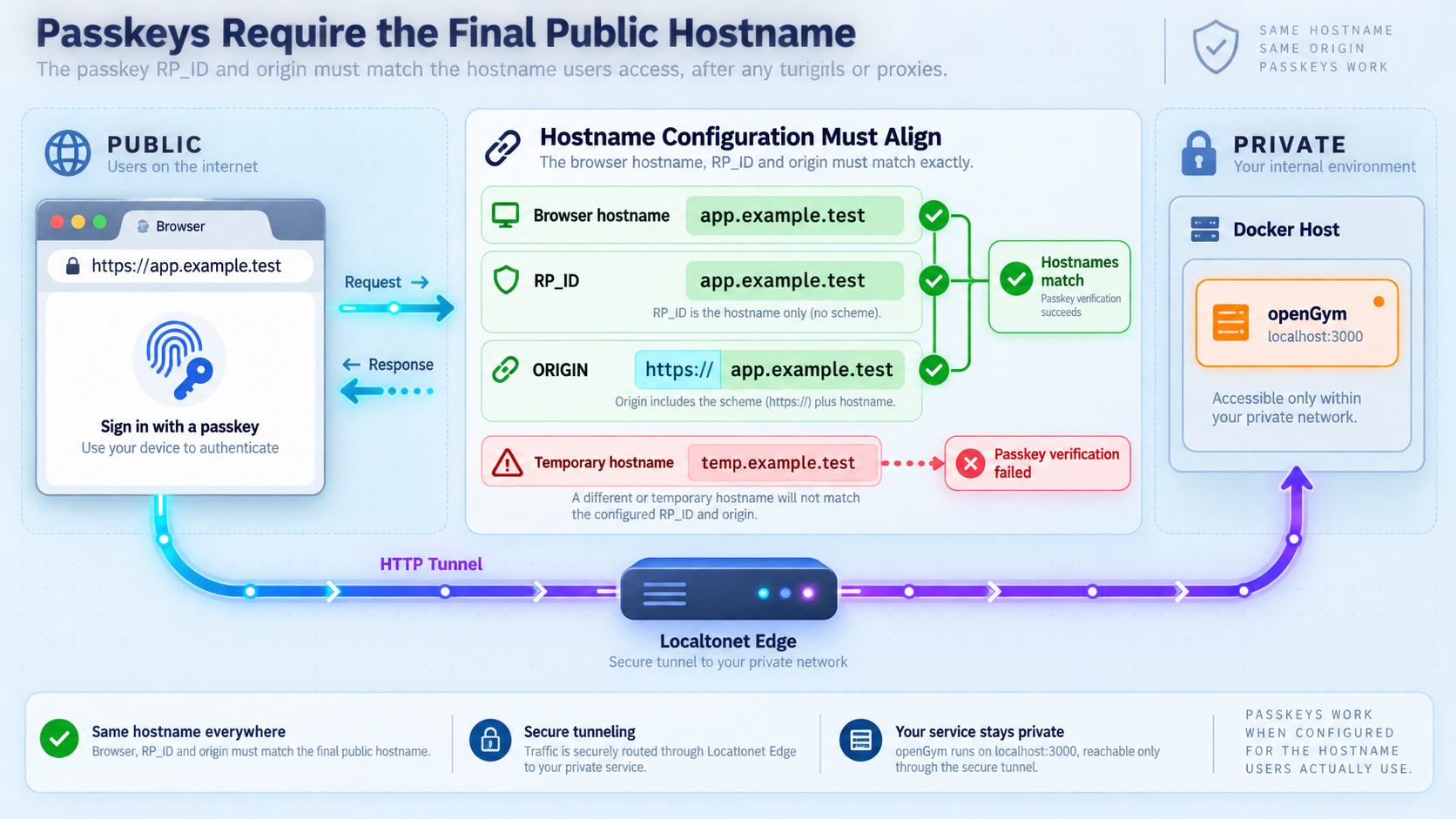
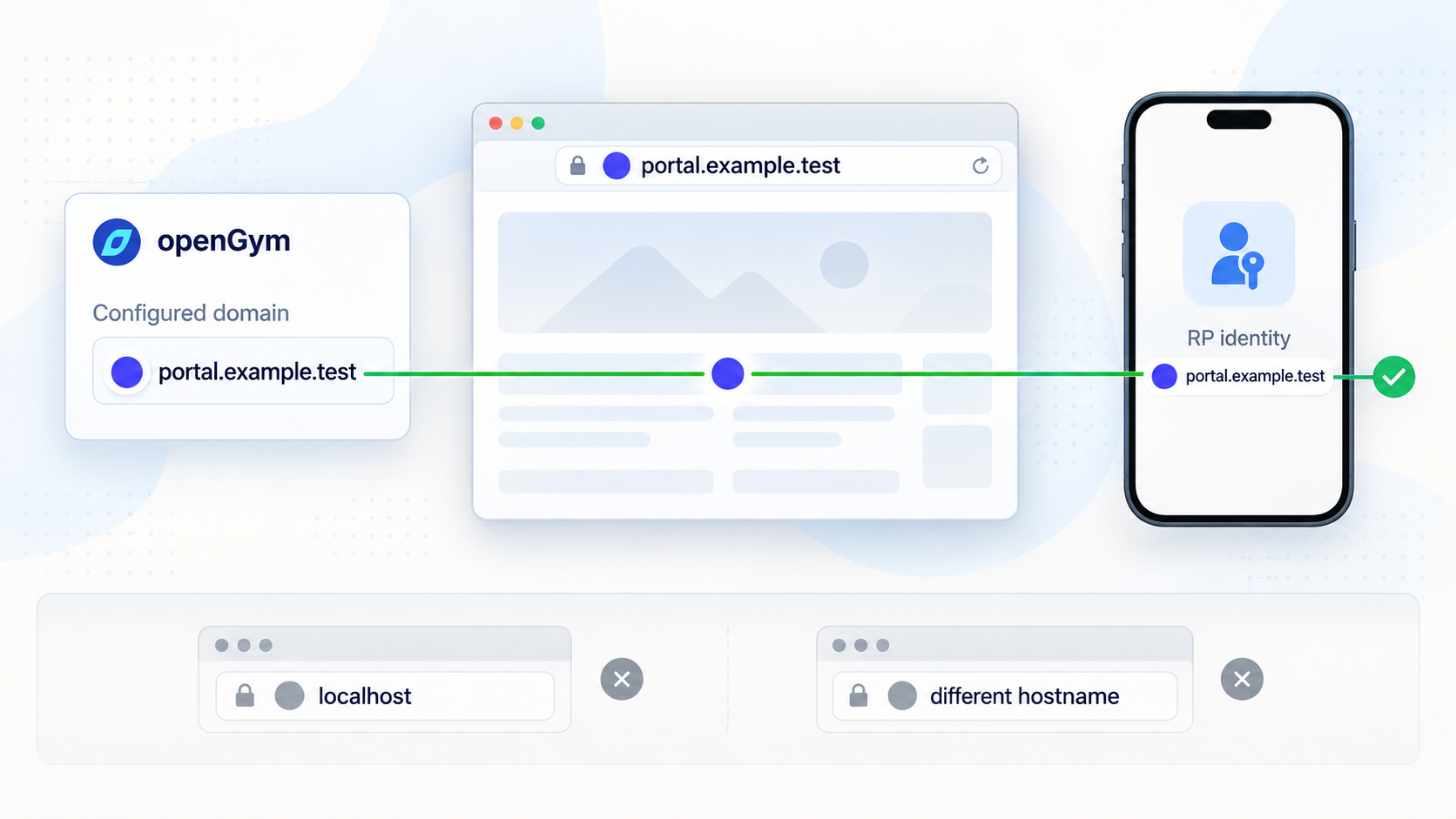
Passkeys use WebAuthn's domain-bound security model. A credential is registered for a relying party, and the application validates the browser origin involved in registration and authentication. This is an anti-phishing boundary. It is also why a passkey configured for one hostname should not be expected to work from an unrelated hostname.
openGym's current example environment file exposes two relevant settings: RP_ID and ORIGIN. They are related, but they are not interchangeable.
| Setting | Required value shape | Must not contain |
|---|---|---|
RP_ID |
A domain identifier such as gym.example.com |
A scheme, port, path, query string, or fragment |
ORIGIN |
The exact browser origin such as https://gym.example.com |
A path, query string, or fragment |
WEB_PORT |
The host port that publishes openGym, 8080 by default |
A hostname or URL |
RP_ID is a domain identifier, not a URL
Set RP_ID to the hostname portion of the final public address. It has no https:// prefix, no port, and no trailing path. If the illustrative final browser URL were https://gym.example.com, the mapping would be:
RP_ID=gym.example.com
The name gym.example.com is only a reserved illustrative domain. Replace it with the exact hostname shown in your own final Localtonet URL. Do not copy the example literally, and do not guess what hostname Localtonet will assign.
ORIGIN is the exact browser origin
Set ORIGIN to the scheme and hostname that appear in the browser. Include a non-default port if the public browser URL actually uses one. A path is never part of an origin.
For the same illustrative address, the mapping would be:
ORIGIN=https://gym.example.com
If a public URL genuinely used a non-default port, its origin would include that port, such as https://gym.example.com:8443. A normal HTTPS address using the default port does not need :443. Local port 8080 does not belong in ORIGIN merely because Docker publishes openGym there. The browser sees the public HTTPS origin, not the private tunnel target.
Derive both values safely from the final URL
Suppose the dashboard shows your actual final address in this shape:
https://YOUR-FINAL-PUBLIC-HOSTNAMEConfigure the variables using this direct mapping:
RP_ID=YOUR-FINAL-PUBLIC-HOSTNAME
ORIGIN=https://YOUR-FINAL-PUBLIC-HOSTNAME
Replace the placeholder with the real hostname. Do not include angle brackets or placeholder text in .env. Preserve the exact variable syntax in the
current openGym .env.example
from the revision you deployed.
RP_ID must not be written as a URL. ORIGIN must include the public scheme and any non-default public port. Neither value includes an application path. A page can load successfully even when these values are wrong, so loading the interface does not prove that passkeys are configured correctly.
Apply environment changes to the containers
After saving the final values in .env, recreate the Compose services so that the containers receive them:
docker compose up -dConfirm the resulting state and inspect logs:
docker compose ps
docker compose logs
Register passkeys only from the final public HTTPS origin that you intend to keep. A credential registered under localhost or an earlier public hostname should not be assumed to work after the relying-party identity changes.
Create the Localtonet HTTP tunnel
Start this phase only after openGym works through the local target. The HTTP tunnel forwards public browser requests to that target. It does not install openGym, start Docker, rewrite .env, or supply application authorization.
Install and run the Localtonet client
Run our client on the Docker host or another device that can reach the verified openGym address. It must remain connected whenever the tunnel is needed.
Authenticate or select the client device
Use the device-specific authentication token for the client that will run the tunnel. Keep the token secret and redact it from screenshots or support material.
Select an available relay server
Choose a currently available relay server or region from the dashboard. Obtain current choices from the product rather than copying an old server code.
Create an HTTP tunnel to openGym
Choose the HTTP tunnel family and the appropriate process type. Enter the IP address and port that succeeded during local verification. Use port 8080 unless you changed WEB_PORT.
Start the tunnel
Creating a tunnel does not start it. Use the Start button and confirm that the selected client and tunnel are connected. The public endpoint is available only while both remain operational.
Use the assigned public URL
Record the exact HTTPS address. Whether you can test passkeys immediately or must first update openGym depends on whether this hostname was known before the tunnel was created.
See the Localtonet HTTP tunnel documentation for the current dashboard workflow. Recheck the live interface before publication or support use because fields and available process types can change. Any setup screenshot must be current and must redact device tokens, private endpoints, and account details.
Choose the correct local target
When openGym and our client run on the same host, use the local address and port that passed the host test. When the client runs on a different device, localhost refers to that client device, not the Docker host. Use the Docker host's verified LAN address instead.
Avoid targeting a temporary Docker-internal container address. Container addresses can change when services are recreated. The host-published web port provides the stable boundary intended by this deployment.
Finalize the correct hostname workflow
Passkey setup must happen after the final hostname is known. The following two workflows resolve the ordering difference between known custom hostnames and newly assigned random subdomains.
Workflow A: the final hostname is already known
- Install openGym using the documented quick-start sequence.
- Verify the local endpoint at
http://localhost:8080or your deliberately configured port. - Confirm that the chosen custom subdomain or custom domain is available in the current Localtonet workflow.
- Set
RP_IDto the hostname only. - Set
ORIGINto the exact HTTPS browser origin. - Run
docker compose up -dto apply the environment values. - Create and start the HTTP tunnel for that hostname.
- Open the final HTTPS URL from a separate device and test openGym authentication.
- Register a passkey from that final origin, then sign out and test sign-in.
For a custom domain, complete only the current DNS procedure documented by Localtonet. Do not assume a DNS record type or destination from an older article.
Workflow B: Random Sub Domain assigns the hostname
- Install openGym using the documented quick-start sequence.
- Verify the local endpoint first.
- Create the Random Sub Domain HTTP tunnel using the verified local target.
- Start the tunnel so the dashboard supplies the public HTTPS URL.
- Copy the final hostname exactly. Do not register a passkey yet.
- If the instance is not ready for public use, stop the tunnel while changing application configuration.
- Set
RP_IDto the assigned hostname without a scheme, port, or path. - Set
ORIGINto the exact assigned HTTPS origin. - Run
docker compose up -dand inspect the resulting status and logs. - Start the tunnel again, open the same HTTPS URL, and complete the passkey tests.
This order is important because the application cannot be configured for an assigned hostname before that hostname exists. Creating and briefly starting the tunnel discovers the address. Reconfiguring and recreating openGym afterward ensures that the application validates passkeys against the address users actually visit.
Perform layered final verification
Test the deployment in this order:
- Confirm
docker compose psshows the application services running. - Load openGym through the verified local endpoint.
- Confirm the Localtonet client is connected and the tunnel is started.
- Open the public HTTPS URL from a separate browser or device.
- Confirm that openGym's normal profile controls appear and behave as expected.
- Register a passkey from the final public origin.
- Sign out, return to the same hostname, and authenticate with that passkey.
- If multiple devices are needed, use openGym's supported one-time-code or QR pairing flow rather than manually sharing credentials.
A successful page load validates reachability, not authorization. A successful passkey registration is also not enough by itself. Test a fresh authentication ceremony and verify that the resulting user reaches only the correct openGym profile.
Routine operation, updates, and recovery planning
Start and inspect openGym
From the repository directory, start or recreate the configured stack with:
docker compose up -dInspect it with:
docker compose psAfter a host reboot, check Docker, the Compose services, the Localtonet client, and the tunnel separately. A connected tunnel cannot serve stopped containers, and a healthy local application is not public while the client or tunnel is offline.
Stop the Compose stack carefully
docker compose downThis stops and removes the running containers and Compose network. Do not add volume-removal options unless you have verified exactly what data they would delete. The precise persistent-storage definitions can change, so inspect the Compose file from the deployed revision before performing destructive maintenance.
Update conservatively
Read release notes and create a verified backup before updating. Container releases can introduce environment changes or data migrations. A typical image refresh uses:
docker compose pull
docker compose up -d
These commands do not replace release-specific instructions. If repository files changed, review the differences in .env.example and docker-compose.yml. Merge required settings into your private .env without overwriting secrets or deliberate hostname values.
Back up application data and configuration
openGym provides JSON export, which gives you a portable copy of application data. Keep regular exports away from the server. Also back up the persistent locations defined by the exact Compose deployment you use.
This guide does not invent a universal host path because the supplied evidence does not establish one path for every release and storage arrangement. Review named volumes and bind mounts in the current Compose file, use consistency procedures appropriate to the services, and test restoration on a separate deployment.
Control public availability independently
Stop the Localtonet tunnel when openGym should remain local. You do not need to stop Docker. Conversely, stopping the containers leaves the tunnel configuration present but removes its working target. Delete the tunnel when it is no longer needed.
Security checklist for public openGym access
Self-hosting gives you operational control and responsibility. Workout history, body weight, profile information, and progress photos can be sensitive. Protect the service as a private application even when it is used only by a small number of people.
Do not commit provider credentials, Localtonet tokens, or private environment values to the repository. openGym's optional AI coach uses user-supplied provider configuration and is off by default. Review what an optional integration can access and how its credentials are stored before enabling it on a public instance.
Keep the public hostname deliberate and stable. Changing it can invalidate the assumptions behind existing passkeys and cause users to create duplicate credentials. Confirm that a replacement authentication path works before deleting the only credential associated with an older hostname.
HTTPS protects data in transit between the browser and public endpoint. The tunnel provides network reachability. Neither one decides which person may access a profile. Keep openGym's authentication and authorization correctly configured, and never treat an obscure URL as the sole control protecting personal data.
Troubleshooting openGym, passkeys, and the tunnel
Docker Compose cannot find the project configuration
Confirm that your shell is inside the cloned openGym directory. Verify that docker-compose.yml and .env.example exist. If cloning was interrupted, preserve any work you need before replacing the incomplete directory.
The docker compose command is unavailable
A working Docker engine does not guarantee that the Compose plugin is installed. Run docker compose version, then install or enable the current plugin using the supported method for your operating system.
Port 8080 is already in use
Identify the process using the port and decide whether to stop it or change openGym's WEB_PORT. After changing the port, run docker compose up -d, verify the new local endpoint, and update the Localtonet target. The public ORIGIN still describes the browser-visible HTTPS address, not the local port.
Containers exit or restart repeatedly
Run docker compose ps and docker compose logs. Check for invalid environment values, failed image pulls, unavailable dependencies, file-permission errors, or resource exhaustion. Return to the copied example configuration rather than making several speculative changes at once.
openGym works on its host but not from the Localtonet client device
Test the Docker host's LAN address and web port from the client device. Confirm that the network permits peer communication and that the host firewall allows the intended LAN connection. Remember that localhost always means the machine making the connection.
The public URL does not load
- Confirm openGym still loads from the exact local target.
- Confirm the Compose services are running.
- Confirm the Localtonet client is connected.
- Confirm the correct device is associated with the tunnel.
- Confirm the tunnel was started rather than only created.
- Confirm its local IP address and port match the tested endpoint.
If a previously working tunnel stops, check whether the host slept, the client exited, Docker stopped, the local address changed, or the tunnel was manually stopped.
The page loads, but passkey registration fails
Reachability is working, so focus on the WebAuthn and application layer. Confirm that the browser uses the intended HTTPS hostname. Verify that RP_ID contains only that hostname and that ORIGIN contains the exact HTTPS origin. Recreate the Compose services after modifying .env, then inspect logs.
Also verify browser and device support. Platform authentication, browser privacy settings, credential synchronization, and external authenticator behavior vary by device. These capabilities are independent of the tunnel.
RP_ID contains https:// or a port
Remove them. RP_ID is not a URL. For a browser origin such as https://gym.example.com, the RP ID is gym.example.com. A scheme, port, path, query, or fragment makes the value the wrong shape.
ORIGIN contains a path
Remove the path. For a page such as https://gym.example.com/profile/login, the origin is https://gym.example.com. The path identifies a resource within the origin and is not part of WebAuthn's origin value.
A passkey stopped working after the hostname changed
The credential may be scoped to the previous relying-party identity. Correct the environment for the final hostname and use openGym's supported profile or device-pairing workflow to establish access from the new origin. Do not delete the only working access method until the replacement has been tested.
The application appears stale after an update
Confirm which images are running, recreate the services, and try a private browser window to rule out cached frontend resources. Compare the current example environment file with your private file, preserving credentials and the final passkey hostname while adding required new settings.
Workout data appears missing
Stop making destructive changes. Verify that you opened the intended instance and profile, that the expected persistent storage is mounted, and that the update did not start a fresh Compose project from another directory. Inspect volume and bind-mount definitions before removing anything. Restore only after understanding the cause and validating the backup.
Frequently asked questions
What port does openGym use by default?
The documented default is WEB_PORT=8080, with a local quick-start endpoint of http://localhost:8080. If you change it, use the new port for local verification and the Localtonet target.
What exactly belongs in RP_ID?
RP_ID contains the final public hostname only. It does not include https://, a port, a path, a query, or a fragment. If the illustrative browser origin is https://gym.example.com, the RP ID is gym.example.com.
What exactly belongs in ORIGIN?
ORIGIN contains the exact browser-visible scheme and hostname, plus any non-default public port. It does not include a path, query, or fragment. A typical value has the shape https://gym.example.com.
Why is local port 8080 not included in the public ORIGIN?
Port 8080 belongs to the private target used by Docker and the tunnel. ORIGIN describes what the browser sees. If the browser opens a normal HTTPS URL without an explicit non-default port, port 8080 does not appear in the origin.
Can I use a Random Sub Domain with passkeys?
Yes, provided that you first create the tunnel to discover its assigned URL, configure openGym's RP_ID and ORIGIN for that exact hostname, recreate the services, and then register and test passkeys from the final HTTPS origin.
Can I test openGym before configuring a public domain?
Yes. Verify the application locally at http://localhost:8080. Public passkey testing is a later phase that requires the final HTTPS hostname and matching application settings.
Do I need to forward port 8080 on my router?
No. The Localtonet client establishes an outbound connection to our relay. This workflow does not require inbound router port forwarding, a public IP address, firewall changes for inbound internet traffic, or VPN setup.
Does HTTPS mean that anyone with the URL is authorized?
No. HTTPS protects transport between the browser and endpoint. It does not grant or deny profile access. openGym must continue to authenticate users and enforce authorization.
Does creating a Localtonet tunnel start it automatically?
No. Creating the tunnel saves its configuration. You must use the Start button, and the selected client must remain connected. You can stop or delete the tunnel independently of the openGym containers.
Can the Localtonet client run on another device?
Yes, if that device can reach the Docker host's LAN address and web port. In that arrangement, do not target localhost, because it would refer to the client device rather than the openGym host.
Is the public URL available when the host is turned off?
No. Remote access depends on the host, openGym containers, Localtonet client, and tunnel all being operational. The tunnel is available only while the selected client is connected and the tunnel is running.
Connect your verified openGym instance with Localtonet
Install openGym, verify its local web service, obtain or confirm the final public hostname, map that hostname precisely to RP_ID and ORIGIN, and then test the complete HTTPS and passkey flow without opening an inbound router port.


