

Deploy a persistent passkey identity provider, give it a canonical HTTPS origin, and publish it through an outbound HTTP tunnel
This tutorial uses Pocket ID v2.14.0 and a matching Docker Compose deployment. You will configure the application URL, publish Pocket ID on port 1411, preserve its data, confirm basic local HTTP reachability, create a Localtonet HTTP tunnel, and complete the first-user passkey setup through a secure HTTPS origin. We also cover OIDC discovery, redirect URIs, backups, upgrades, security, and two-layer troubleshooting. Localtonet supplies public network reachability, while Pocket ID remains responsible for authentication, clients, tokens, and authorization.
📋 What's in this guide
What Pocket ID does and where Localtonet fits
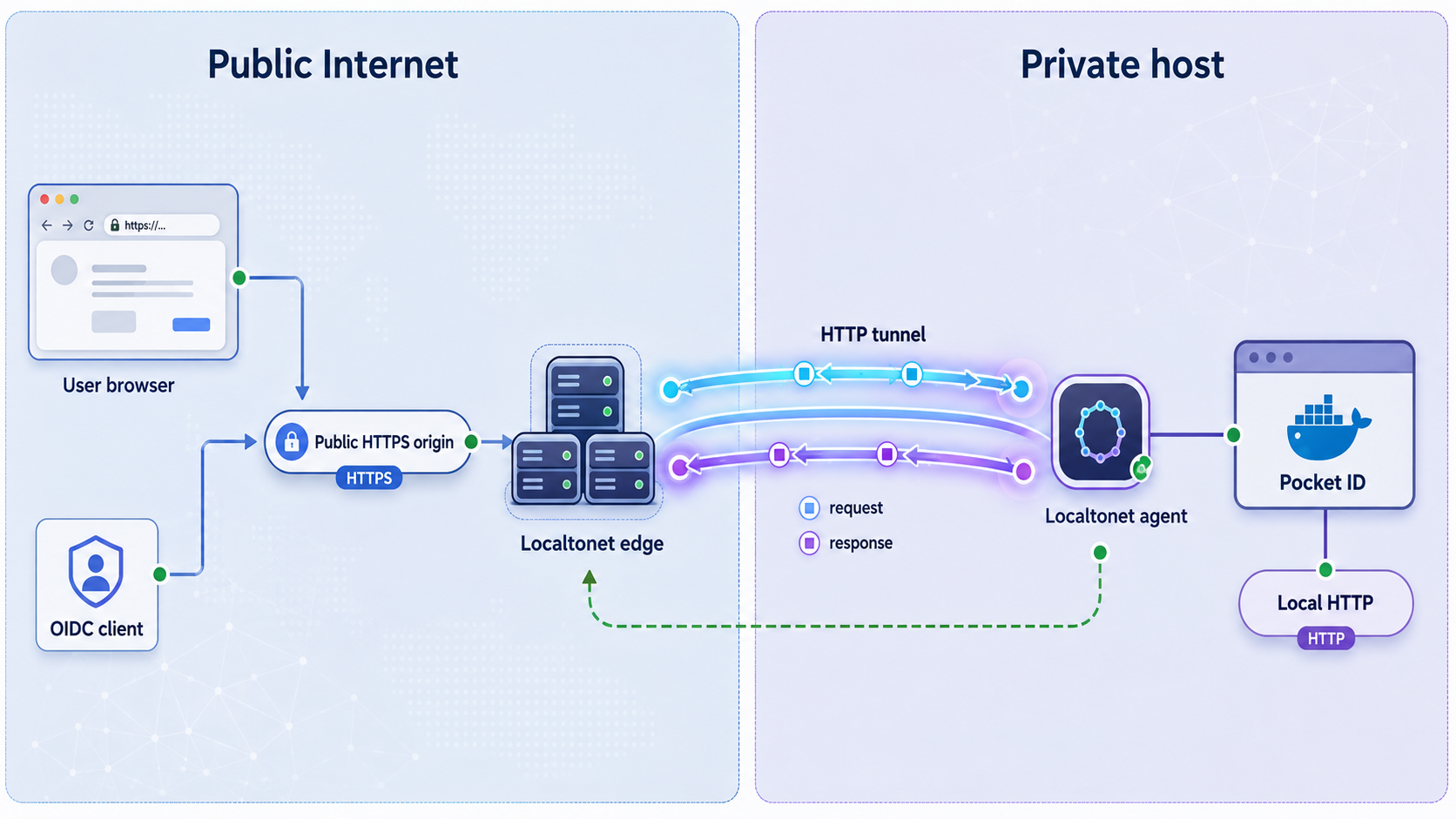
Pocket ID is a self-hosted OpenID Connect Certified and OAuth 2.0 provider that authenticates users with passkeys. The project supports passwordless authentication, group-based application access, LDAP integration, SCIM provisioning, audit logs, an administrative REST API, API resource indicators, and compatible metadata-based OAuth clients. Its official repository recommends Docker as the easiest deployment method.
OpenID Connect, usually shortened to OIDC, adds an identity layer to OAuth 2.0. A relying application sends the browser to Pocket ID, Pocket ID authenticates the user, and the browser returns to an exactly registered callback URI. The application validates the response and establishes its own session. Authentication confirms identity, while the application's permissions and Pocket ID access policies still decide what the user can do.
Localtonet does not replace Pocket ID or turn the deployment into a VPN. Our HTTP tunnel provides public reachability for Pocket ID's local web listener. The Localtonet client establishes an outbound connection to one of our relay servers, so this workflow does not require inbound router port forwarding, a public IP address, firewall changes, or VPN setup.
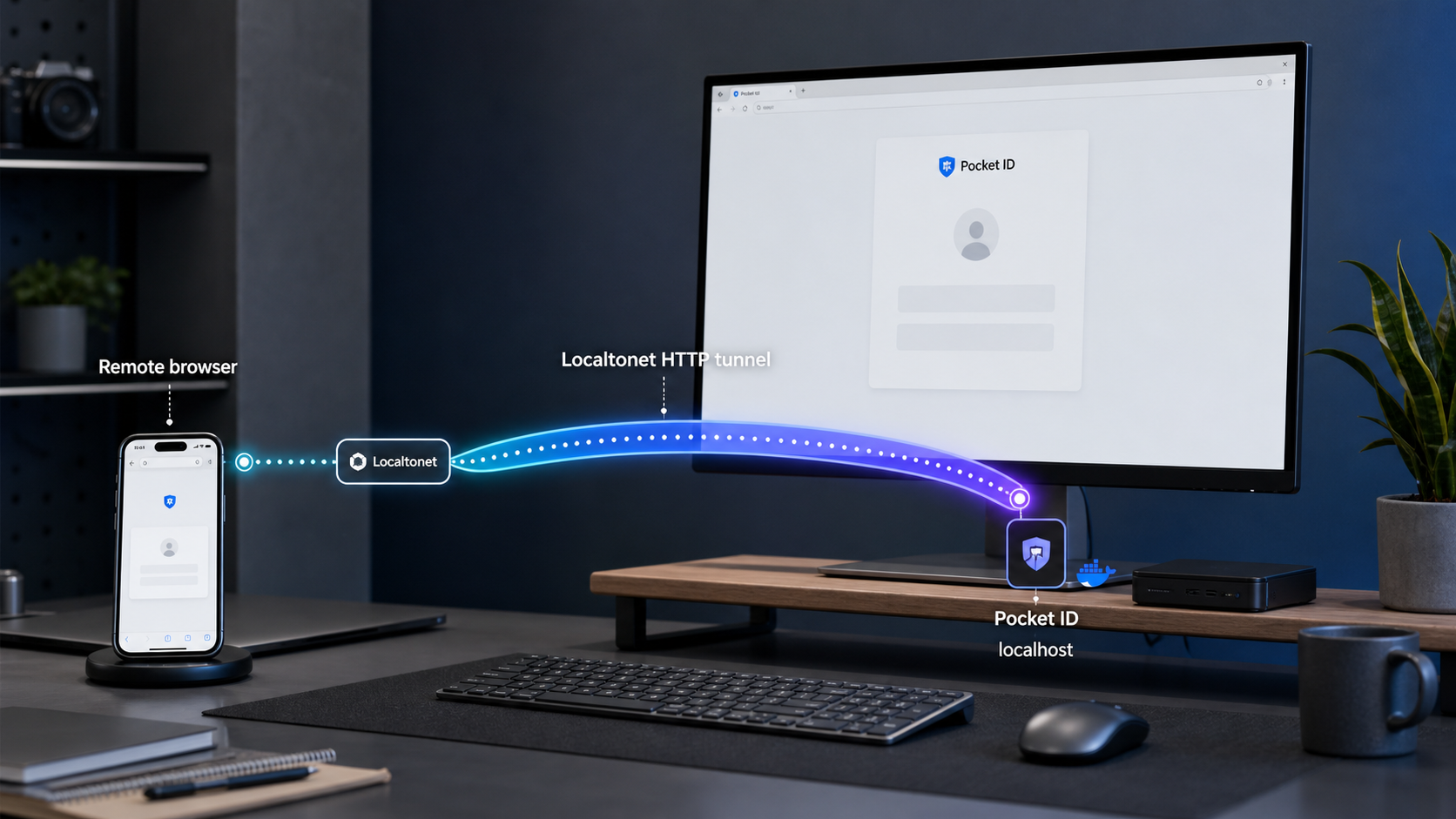
Why the public hostname must be chosen carefully
Pocket ID needs one canonical application URL. In this deployment, that is the value assigned to APP_URL. It becomes the public origin users visit and the origin represented by Pocket ID's issuer and discovery metadata. For example, if Localtonet assigns https://id-example.localto.net, use that complete HTTPS origin as APP_URL. Do not append an OIDC endpoint path to the value.
The same origin must appear consistently in Pocket ID, the relying application's issuer or discovery configuration, browser redirects, and any operational documentation. Changing it later can require updates to every relying application and redirect registration. It can also invalidate assumptions made by passkeys because WebAuthn credentials are scoped to a relying party identity associated with an origin.
A generated random subdomain is useful for evaluation, but do not assume it will remain suitable as the permanent identity-provider address. Use a Custom Sub Domain or Custom Domain where currently available if you need a retained operational hostname. Availability and DNS requirements can vary, so use the options and instructions shown in the current Localtonet dashboard.
Prerequisites and tested deployment assumptions
This tutorial targets Pocket ID v2.14.0. Pinning the image to that release prevents an unreviewed future release from being pulled merely because a container is recreated. The installation uses Docker Engine with the Docker Compose plugin on a Linux host. Equivalent Docker Desktop deployments may work, but host paths, file ownership, startup integration, and backup procedures differ by operating system.
Prepare the following before starting:
- A Linux host with Docker Engine and the Docker Compose plugin installed.
- A user permitted to run Docker commands.
- Reliable system time and DNS resolution.
- Persistent disk space for the Pocket ID data directory and protected backups.
- A passkey-capable browser and authenticator, such as a platform authenticator or compatible hardware security key.
- A Localtonet account and a device-specific authentication token for the client that will run the tunnel.
- A planned public HTTPS hostname for Pocket ID.
Confirm the Docker tools:
docker --version
docker compose version
This guide uses /opt/pocket-id as the deployment directory. Run the following file-creation commands as a user who can later manage the deployment, or adjust ownership and permissions to match your operating model.
Decide where the Localtonet client will run
The simplest arrangement is to run the Localtonet client on the same host as Pocket ID. The tunnel can then target 127.0.0.1:1411. This keeps the Docker-published listener on loopback and avoids making it available to every device on the LAN.
If the Localtonet client runs on another device, 127.0.0.1 will refer to that other device, not the Pocket ID host. You would need to publish Pocket ID on an address reachable from the client device and use the Pocket ID host's LAN address as the tunnel target. That increases local network exposure, so restrict the path with host and network controls appropriate to your environment.
Understand secure contexts before testing passkeys
WebAuthn is restricted to secure contexts. Browsers treat HTTPS origins as secure and give localhost special handling for local development. An arbitrary plain-HTTP LAN address such as http://192.168.1.20:1411 is not equivalent to localhost and should not be used as the expected passkey enrollment or login origin.
You may use plain HTTP to confirm that the server responds, that Docker published the expected port, and that another trusted machine can reach the listener. Perform the real passkey bootstrap and browser authentication test through the final Localtonet HTTPS origin. This distinction follows the WebAuthn secure-context requirement defined by the W3C Web Authentication specification.
| Address | Useful for | Passkey expectation |
|---|---|---|
http://127.0.0.1:1411 |
HTTP reachability checks on the Docker host | Do not make this the production Pocket ID origin. |
http://localhost:1411 |
Local browser checks where localhost handling applies | Localhost receives special secure-context treatment, but it is still not the final public identity-provider origin. |
http://192.168.x.x:1411 |
Basic LAN reachability from another device | Do not expect WebAuthn enrollment or login to work on arbitrary plain HTTP. |
https://your-public-hostname |
First-user setup, passkey verification, discovery, and OIDC flows | Use the final HTTPS origin configured as APP_URL. |
Deploy Pocket ID v2.14.0 with Docker Compose
The deployment below pins the container image, publishes Pocket ID on host port 1411, loads application settings from an environment file, and stores persistent state in ./data. The listener is bound to host loopback because this guide runs the Localtonet client on the same machine.
Create the deployment directory
Create a dedicated location for the compose file, environment file, and persistent data. Keep access limited to trusted administrators.
Create the Compose file
Use the v2.14.0 image and map the persistent data directory to /app/data inside the container.
Create the environment file
Set APP_URL to the exact public HTTPS origin and enable trusted reverse-proxy handling for this tunneled deployment.
Validate the resolved configuration
Ask Docker Compose to parse the files before starting the container. Treat rendered configuration as sensitive.
Start Pocket ID
Start the pinned container in detached mode, then inspect its state and startup logs.
Create the directory:
sudo mkdir -p /opt/pocket-id/data
sudo chown -R "$(id -u):$(id -g)" /opt/pocket-id
cd /opt/pocket-id
Create compose.yaml with the following configuration:
services:
  pocket-id:
    image: ghcr.io/pocket-id/pocket-id:v2.14.0
    restart: unless-stopped
    env_file:
      - .env
    ports:
      - "127.0.0.1:1411:1411"
    volumes:
      - "./data:/app/data"
Create .env. Replace the example URL with the exact HTTPS hostname assigned to this tunnel or the stable hostname you will configure:
APP_URL=https://id-example.localto.net
TRUST_PROXY=true
PUID=1000
PGID=1000
Use the numeric user and group IDs that should own files in the bind-mounted data directory. Check the current account with:
id -u
id -g
Replace 1000 when those commands return different values. Restrict the environment file even though this baseline does not place an OIDC client secret or Localtonet token in it:
chmod 600 .env
chmod 750 dataDo not add an invented application secret or copy one from another deployment. Pocket ID maintains its application state in the persistent data directory, and OIDC client secrets are created for individual client registrations where required. Copy a generated client secret directly into the relying application's protected server-side configuration. Never place a Localtonet authentication token in Pocket ID's environment file.
Validate and start the deployment:
cd /opt/pocket-id
docker compose config
docker compose up -d
docker compose ps
docker compose logs pocket-id
The docker compose config output expands the deployment model. Do not paste that output into a public issue without reviewing it for private hostnames or future secrets. The container should remain running rather than entering a restart loop. If it exits, resolve the first relevant error in the logs before creating a tunnel.
What must persist
The host directory /opt/pocket-id/data is the durable part of this deployment. The container itself is replaceable. The data directory must survive docker compose down, container recreation, host restarts, and image upgrades. Do not use volume-removal or destructive cleanup commands unless permanent deletion is intended.
Keep compose.yaml, .env, and a record of the pinned version with your protected operational configuration. Back up the data directory separately as described later in this guide.
Verify local HTTP reachability before publishing
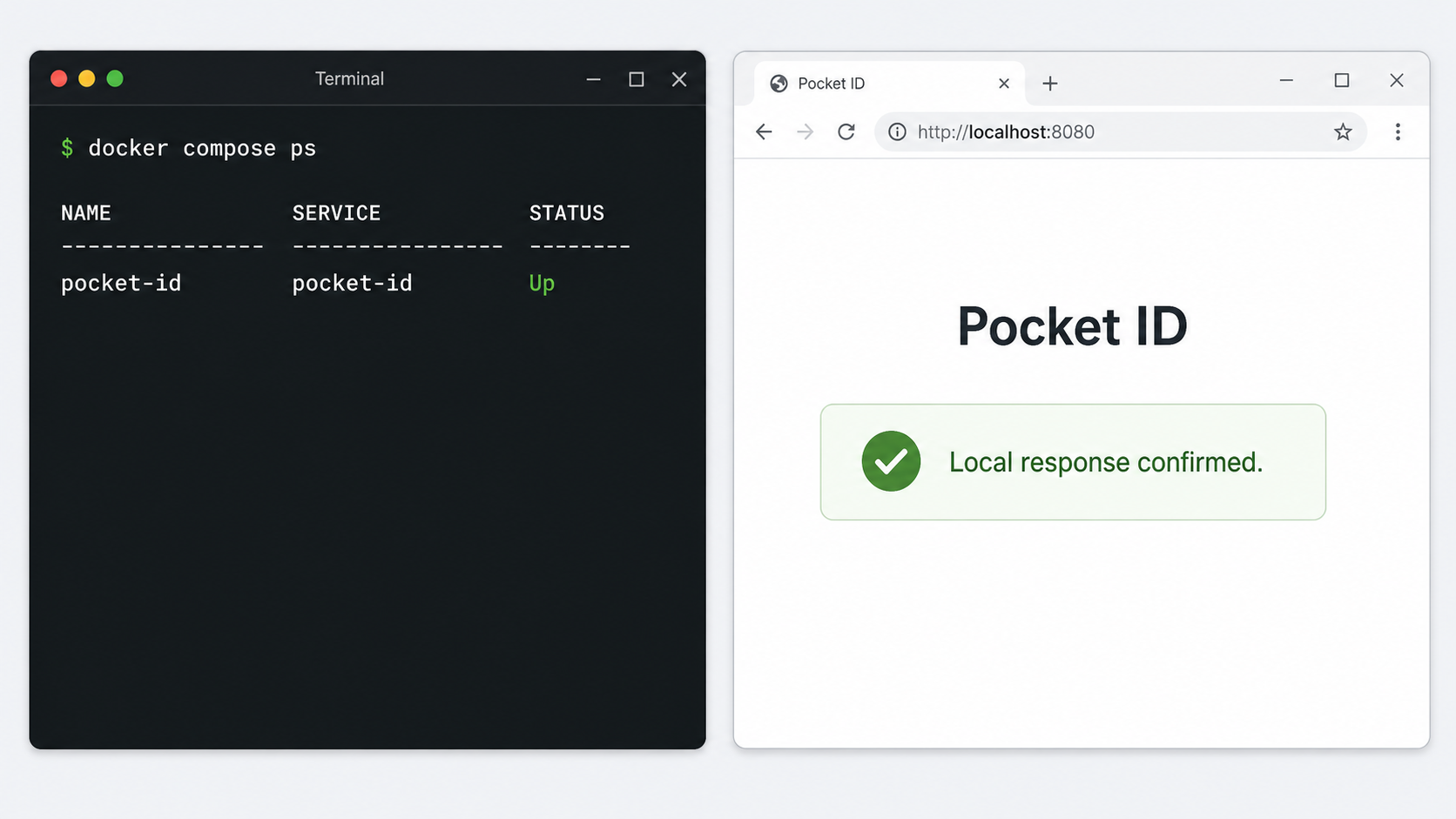
The local check establishes that Docker, Pocket ID, the published port, and the host path are working. It does not prove that passkeys or OIDC callbacks will work on the local HTTP origin.
Inspect container state and logs
cd /opt/pocket-id
docker compose ps
docker compose logs pocket-id
Look for configuration validation errors, permission problems involving /app/data, repeated restarts, or a port conflict on 1411. Correct those locally before involving Localtonet.
Request the local listener
From the Docker host, request the concrete address used by this deployment:
curl -I http://127.0.0.1:1411/An HTTP response or redirect proves that something is listening and responding. Follow the response in a browser on the host at:
http://localhost:1411
Pocket ID may redirect the browser according to APP_URL. That is expected when its canonical public origin is already configured. The important local baseline is that the listener responds and the logs do not show a failing application.
Loading a page at http://192.168.x.x:1411 can be useful as a network test when the listener is intentionally available on the LAN. It is not a valid substitute for the final HTTPS origin during WebAuthn testing. Complete first-user enrollment and sign-in through the public HTTPS address.
Recreate the container after changing environment values
A simple process restart does not reliably apply changed container environment values. If you update APP_URL, recreate the service from the Compose model:
docker compose up -d
docker compose ps
docker compose logs pocket-id
If you first used a placeholder to bring up the listener, replace it with the real Localtonet HTTPS origin before creating users or OIDC clients.
Publish Pocket ID with a Localtonet HTTP tunnel
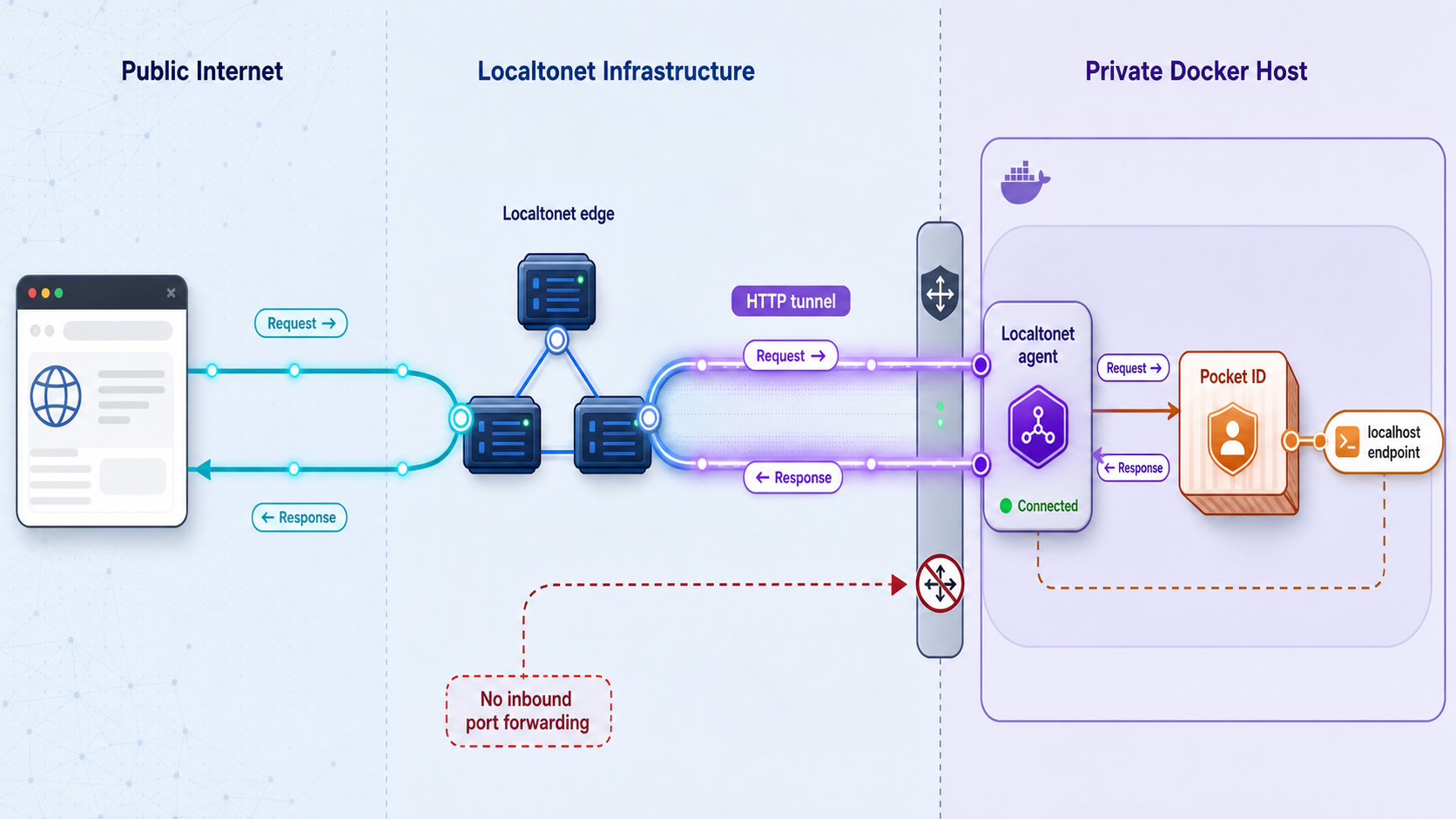
Install and run the Localtonet client on the Docker host. Use the current Localtonet download or client installation option for that operating system, then associate the client with its device-specific authentication token. Tokens identify client devices and must not be embedded in the Pocket ID compose file, committed to source control, or displayed in screenshots.
After the client is connected, use the HTTP tunnel page in the Localtonet dashboard. The verified target for this same-host deployment is 127.0.0.1 on port 1411.
Install and run the Localtonet client
Install the current client for the Docker host's operating system and keep it running on the device that can reach Pocket ID at 127.0.0.1:1411.
Open the HTTP tunnel configuration
In the Localtonet dashboard, create an HTTP tunnel. HTTP is the correct local target because Pocket ID listens for web traffic on port 1411.
Select the Process Type
Choose Random Sub Domain for evaluation, or choose Custom Sub Domain or Custom Domain where currently supported when you require a stable identity-provider hostname.
Select the AuthToken and relay server
Select the device token belonging to this Docker host, then select an available relay server or region from the dashboard. Do not copy an obsolete server code from another deployment.
Enter the local target
Set the local IP address to 127.0.0.1 and the local port to 1411. If the Localtonet client runs elsewhere, use a deliberately exposed address that the client device has already verified.
Create and start the tunnel
Save the tunnel, then press Start. Creating the configuration does not start it. The selected client must remain connected and the tunnel must remain running.
Copy the resulting HTTPS address
Record the complete public address exactly as displayed. This origin must match Pocket ID's APP_URL before first-user setup and OIDC client configuration.
If the assigned address differs from the value currently in .env, stop before creating the first user. Update APP_URL and recreate the Pocket ID container:
cd /opt/pocket-id
docker compose up -d
docker compose ps
docker compose logs pocket-id
The Localtonet HTTP tunnel documentation provides the current interface context. The essential mapping for this tutorial is:
| Localtonet field | Value for this deployment | Purpose |
|---|---|---|
| Tunnel family | HTTP | Publishes Pocket ID's local web listener. |
| Process Type | Random Sub Domain, Custom Sub Domain, or Custom Domain | Determines the public HTTPS hostname. |
| AuthToken | The token for the Docker host's Localtonet client | Selects the device that can reach Pocket ID. |
| Server | An available relay selection from the dashboard | Selects the Localtonet relay server or region. |
| Local IP | 127.0.0.1 |
Targets Pocket ID on the same host as the Localtonet client. |
| Local port | 1411 |
Matches the Docker-published Pocket ID port. |
| Lifecycle action | Start | Makes the saved tunnel operational while the client remains connected. |
A saved tunnel is not automatically reachable. Press Start and confirm that the selected Localtonet client is connected. If either the client or tunnel stops, the public URL cannot reach Pocket ID even while the container remains healthy.
Complete first-user setup through the HTTPS origin
Open the exact public URL configured as APP_URL. For this tutorial's example, that would be:
https://id-example.localto.netA new Pocket ID data directory presents the initial setup flow. Follow the interface to create the first administrative user and register that user's passkey. Complete this operation only from a trusted device and browser. Do not share a first-run link, one-time code, QR image, or browser screen that could grant access to the deployment.
If the expected first-run interface does not appear, check that the deployment really uses an empty data directory and review:
docker compose logs pocket-idDo not delete an existing data directory merely to make the setup page reappear. Existing data may already contain users, passkeys, signing material, application registrations, and audit information.
Verify the administrator passkey
After enrollment, sign out and sign in again through the same public HTTPS hostname. Successful enrollment alone does not prove that a later login works. If Pocket ID offers its cross-device QR workflow in the tested release, you can also verify that flow with a second passkey-capable device.
Pocket ID supports passwordless authentication rather than a fallback password. Plan resilient administrator access. Avoid relying on one phone, one browser profile, or one hardware security key. Add administrative recovery capacity according to the options exposed by the deployed Pocket ID version, and protect every enrolled authenticator.
Verify persistence after a restart
Restart the service without deleting its data:
cd /opt/pocket-id
docker compose restart
docker compose ps
docker compose logs pocket-id
Return to the public HTTPS origin and sign in again. Confirm that the administrator account and passkey remain available. If the deployment presents initial setup again, stop immediately and inspect the ./data:/app/data mapping, directory ownership, and actual deployment path.
Configure and verify an OIDC client
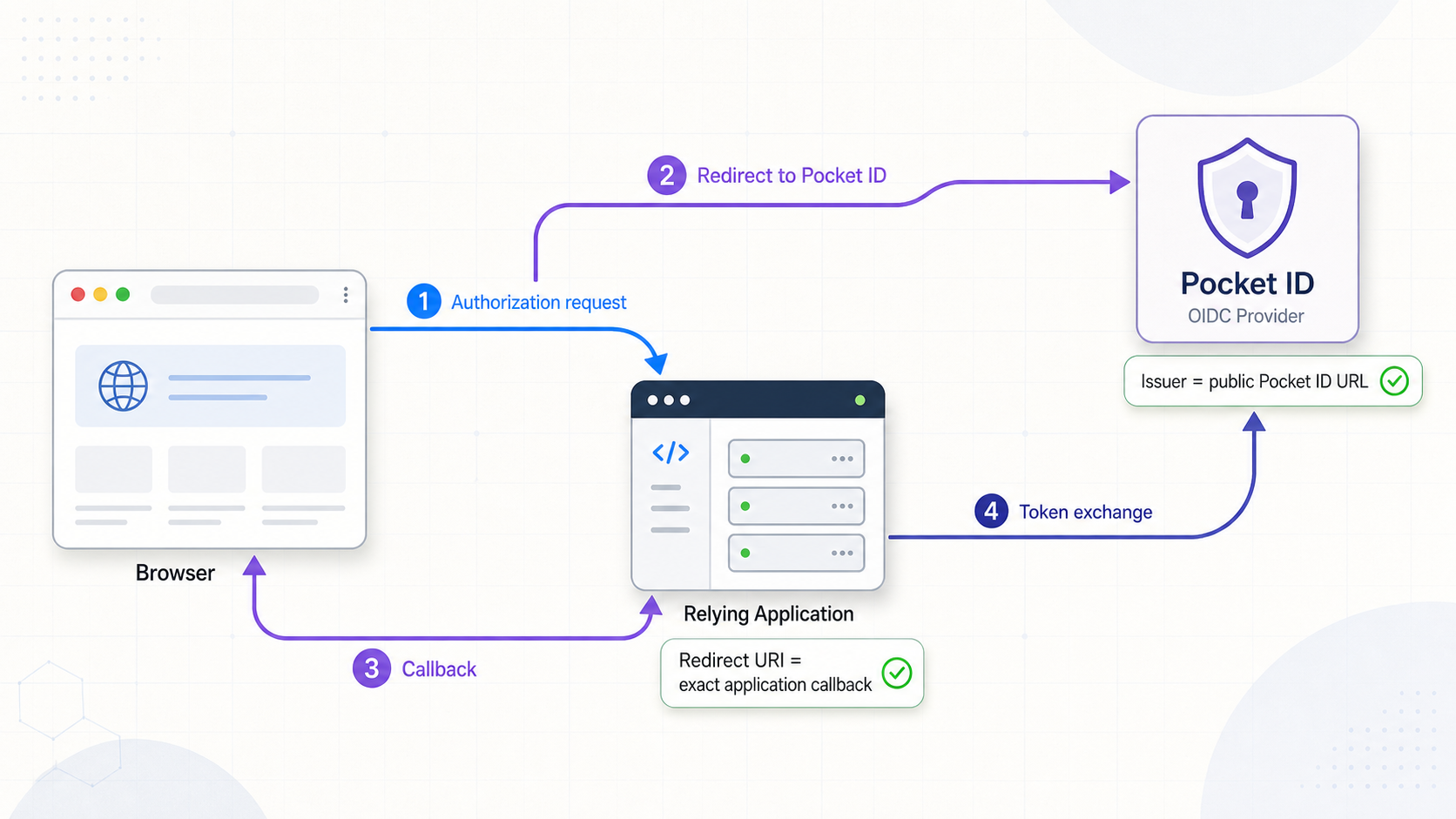
Connect one non-critical relying application before moving production services. Create a client in Pocket ID using the client type and settings required by that application's documentation. Copy the generated client identifier and, for a confidential client, its generated secret into the application's protected server-side configuration.
Do not construct authorization or token paths from memory when the application supports discovery. Point it to the Pocket ID issuer or discovery address presented by Pocket ID. For a root deployment at https://id-example.localto.net, the standard OpenID Provider discovery document is requested at:
https://id-example.localto.net/.well-known/openid-configurationPocket ID v2.14.0 also serves RFC 8414 authorization-server metadata. Use the metadata mechanism expected by the relying client rather than substituting one document for another without checking compatibility.
Inspect discovery metadata
Request the discovery document through the public tunnel:
curl https://id-example.localto.net/.well-known/openid-configuration
Inspect the returned JSON. The issuer and advertised endpoints must use the public HTTPS origin, not http://127.0.0.1:1411, a Docker service name, or a private LAN address. If local values appear, recheck APP_URL, TRUST_PROXY, container recreation, and the hostname used for the request.
Register the exact redirect URI
The redirect URI is supplied by the relying application. Register it in Pocket ID exactly, including scheme, hostname, port when present, path, capitalization, and any significant trailing slash. Do not enter the Pocket ID address where the application's callback belongs.
| Value | Example role | Must match |
|---|---|---|
| Pocket ID application URL | https://id-example.localto.net |
APP_URL, public issuer, and discovery metadata |
| Relying application URL | https://app.example.net |
The address users open for the application |
| Redirect URI | https://app.example.net/oidc/callback |
The application's actual callback and Pocket ID client registration |
| Client identifier | Value generated for this client | The matching Pocket ID client and application configuration |
| Client secret | Generated for a confidential client | Protected server-side application configuration only |
Run a complete callback test
Use a private browser window and perform the full flow:
- Open the relying application at its normal public address.
- Select its OIDC sign-in action.
- Confirm that the browser is redirected to the exact Pocket ID HTTPS hostname.
- Authenticate with the registered passkey.
- Complete any consent or authorization step shown by the configured client.
- Confirm that the browser returns to the exact registered callback URI.
- Verify the expected user identity and application permissions.
- Sign out and repeat the flow to rule out a result caused only by an existing session.
A successful visit to the Pocket ID homepage does not validate OIDC. Discovery, authorization, passkey authentication, callback handling, token validation, and application authorization must all succeed.
A confidential client secret belongs in protected server-side configuration. Do not place it in frontend JavaScript, a mobile binary, screenshots, compose examples, logs, tickets, or source control. Public clients cannot reliably keep an embedded secret confidential and must use the flow supported by their implementation.
Harden the public identity endpoint
Publishing an identity provider creates an internet-facing authentication endpoint. Passkeys reduce risks associated with reusable passwords, but they do not replace operating-system maintenance, least privilege, backups, careful redirect registration, access reviews, or application security.
Keep the Docker host maintained and accessible only to trusted administrators. Do not publish the Docker daemon or unrelated management services. Because the example binds Pocket ID to 127.0.0.1, only processes on the host can reach port 1411 directly. Preserve that narrower exposure unless a separate Localtonet client genuinely requires LAN access.
Review every registered redirect URI and remove unused clients. Authentication does not automatically grant authorization to every service. Use Pocket ID groups and the relying application's own permission model to restrict access. Where APIs use resource indicators and scopes, issue access only for the intended API and allowed actions.
Back up, restore, and upgrade Pocket ID
Create a consistent backup
Stop Pocket ID before copying its persistent data so the backup captures a consistent state. Stopping the container briefly interrupts authentication, so schedule the operation appropriately.
cd /opt/pocket-id
docker compose stop pocket-id
tar -czf pocket-id-data-v2.14.0.tar.gz data
docker compose start pocket-id
docker compose ps
Store the archive in protected backup storage rather than leaving the only copy beside the live deployment. Also retain protected copies of compose.yaml and .env. Backup filenames may include the Pocket ID release and date, but should not contain client secrets or private user information.
The data directory contains identity-provider state and must be treated as sensitive. Protect backups against unauthorized reading, modification, and deletion. A backup is not proven until restoration has been tested.
Test a restoration
Use an isolated host or isolated deployment directory. Do not overwrite the live data directory merely to test a restore. Install the same Pocket ID release, stop its container, replace its empty data directory with the restored data, correct ownership, and start the service.
docker compose stop pocket-id
rm -rf data
tar -xzf pocket-id-data-v2.14.0.tar.gz
chown -R "$(id -u):$(id -g)" data
docker compose start pocket-id
docker compose ps
docker compose logs pocket-id
Run destructive commands only in the isolated restoration directory after confirming the current path. Verify that users, passkeys, client registrations, and settings are present. Where possible, keep the restored system disconnected from production relying applications to avoid duplicate identity-provider instances using the same state.
Upgrade with a recovery point
Do not replace the pinned tag with an unbounded tag and pull blindly. Read the release notes for every version involved, check for configuration or data migrations, create a tested backup, and update the image tag in compose.yaml to the intended release.
docker compose pull
docker compose up -d
docker compose ps
docker compose logs pocket-id
After an upgrade, repeat all critical checks:
- Local HTTP reachability on
127.0.0.1:1411. - Public HTTPS page loading through Localtonet.
- Administrator passkey sign-in.
- OIDC discovery metadata and public issuer consistency.
- A complete authorization and callback flow through a test application.
- Group and scope authorization.
- Persistence across a controlled restart.
If a rollback is required after a data migration, use the release's documented rollback procedure and the backup created before the upgrade. Starting an older binary against data already migrated by a newer release may be unsafe.
Separate Pocket ID maintenance from tunnel maintenance
Stop the Localtonet tunnel when public access is not needed or while conducting maintenance. Stopping the tunnel does not stop Pocket ID locally. Likewise, stopping Pocket ID does not delete the Localtonet tunnel configuration.
A controlled maintenance sequence is to stop the tunnel, back up or upgrade Pocket ID, verify it locally, start the tunnel, and then perform a complete public login. This preserves the distinction between application health and network reachability.
Troubleshoot Pocket ID and Localtonet as two layers
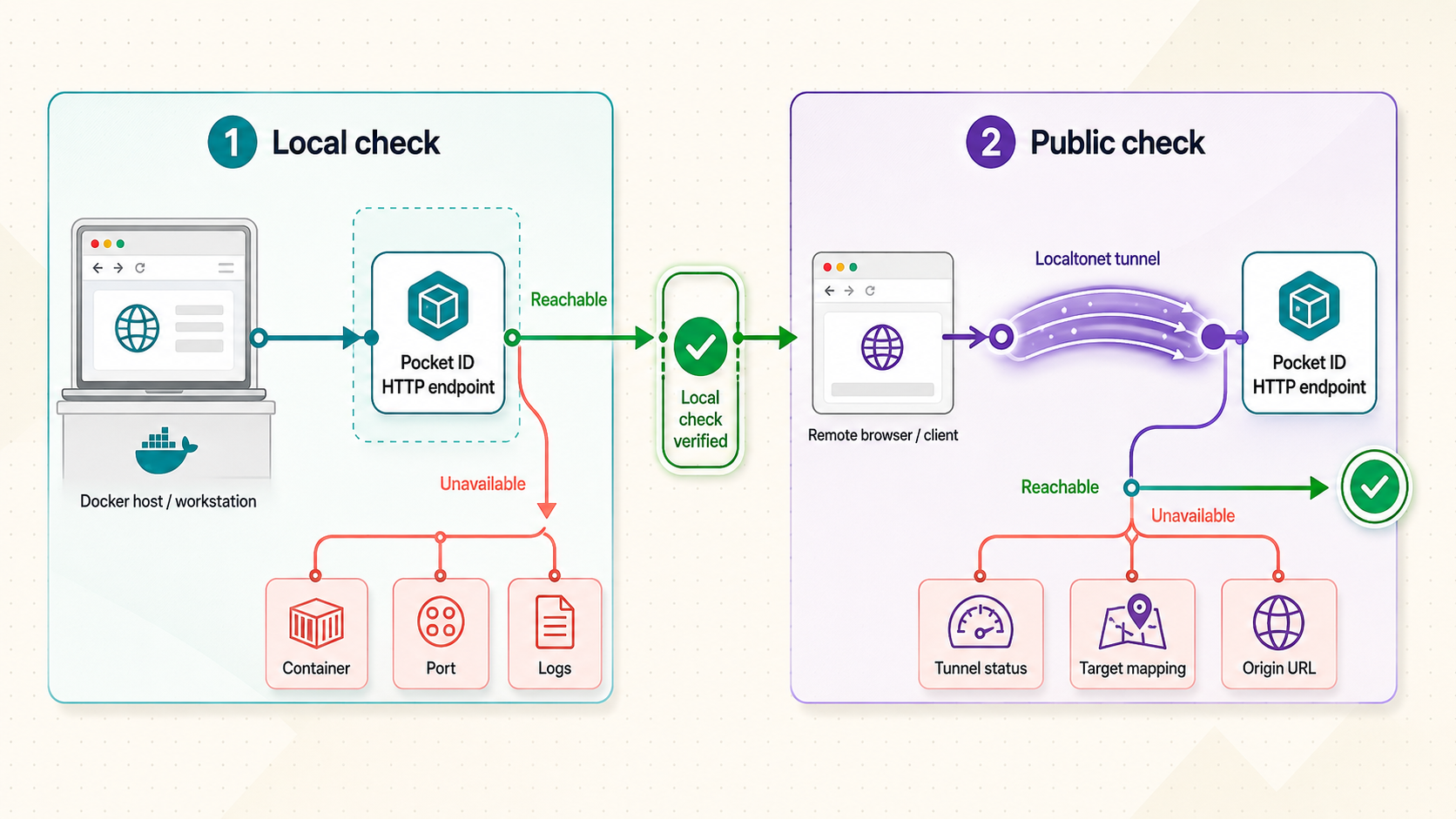
Always test the local service first. If http://127.0.0.1:1411 fails on the Docker host, the problem is in Docker, Pocket ID, the bind mount, the host port, or local policy. If the local listener responds but the public URL fails, move to the Localtonet client and tunnel configuration.
| Symptom | Likely layer | What to verify |
|---|---|---|
| Container repeatedly restarts | Pocket ID or Docker | Startup logs, environment validation, data-directory ownership, and port conflicts |
127.0.0.1:1411 does not respond |
Docker publication | Container state, the 127.0.0.1:1411:1411 mapping, and whether another process owns the port |
| The public URL is unavailable | Localtonet | Client connection, selected AuthToken, relay selection, tunnel Start state, local IP, and local port |
| The public page redirects to localhost | Pocket ID configuration | The exact APP_URL value and whether the container was recreated after changing it |
| Discovery reports an HTTP or private issuer | Canonical URL or proxy handling | APP_URL, TRUST_PROXY, public hostname, and returned metadata |
| Passkey controls fail on a LAN IP | Browser secure context | Use the final public HTTPS origin, not an arbitrary plain-HTTP LAN origin |
| The callback is rejected | OIDC client registration | Exact scheme, hostname, port, path, capitalization, and trailing slash |
| Authentication succeeds but access is denied | Authorization | Pocket ID group policy, requested scopes, API resource, and application permissions |
| Initial setup returns after recreation | Persistence | The ./data:/app/data mapping, current working directory, ownership, and restored content |
The Localtonet client cannot reach Pocket ID
Confirm where the client runs. The example target 127.0.0.1:1411 works only when Localtonet and Pocket ID run on the same host. If the client runs elsewhere, test the Pocket ID host's reachable LAN address from that device before entering it in the tunnel. Do not point a remote client at its own loopback address.
The public page loads but authentication loops
Compare the browser address, APP_URL, and discovery document. They should all represent the same HTTPS origin. Confirm that TRUST_PROXY=true is present and that the service was recreated after the environment changed. Also inspect the Pocket ID logs while reproducing the loop.
Passkey enrollment works on one hostname but not another
WebAuthn credentials are sensitive to relying-party and origin rules. Do not switch casually between localhost, a LAN IP, a random public subdomain, and a custom domain. Use the canonical HTTPS origin configured for Pocket ID. If the hostname must change, plan the change as an identity-provider migration and verify administrator access before retiring the old origin.
View current status without exposing private data
cd /opt/pocket-id
docker compose ps
docker compose logs pocket-id
Redact public identifiers where appropriate, private hostnames, user data, OIDC client secrets, Localtonet tokens, setup links, and one-time codes before sharing diagnostic output.
Frequently asked questions
Which Pocket ID release does this tutorial use?
It uses Pocket ID v2.14.0 and pins the Docker image to ghcr.io/pocket-id/pocket-id:v2.14.0. Review later release notes and update the tag deliberately rather than using an unbounded image tag.
Which port does Pocket ID use in this deployment?
The Compose configuration publishes Pocket ID on 127.0.0.1:1411. The Localtonet HTTP tunnel therefore targets local IP 127.0.0.1 and local port 1411 when the client runs on the same host.
Can I test Pocket ID passkeys through a plain-HTTP LAN address?
Do not rely on that workflow. WebAuthn requires a secure context, with special browser treatment for localhost. Use plain HTTP only for basic reachability checks and perform enrollment and login through Pocket ID's final public HTTPS origin.
What should APP_URL contain?
Set APP_URL to Pocket ID's complete canonical public HTTPS origin, such as https://id-example.localto.net. Do not use localhost, the Docker container name, a private LAN address, or an OIDC endpoint path.
Does Localtonet replace Pocket ID's OIDC configuration?
No. Localtonet provides public network reachability. Pocket ID still defines its issuer, users, passkeys, clients, groups, scopes, tokens, and authorization behavior. Relying applications still require exact issuer and callback configuration.
Do I need router port forwarding or a public IP address?
No. The Localtonet client establishes an outbound connection to a relay server. The HTTP tunnel publishes Pocket ID without inbound router port forwarding, firewall changes, VPN setup, or a public IP address.
Is a random Localtonet subdomain suitable for production?
It is useful for evaluation, but an identity provider normally needs a hostname intended to remain stable. A hostname change can affect APP_URL, issuer validation, passkeys, discovery metadata, and relying-application configuration. Use a stable supported option before onboarding important applications.
Where is Pocket ID's persistent data stored?
The example maps /opt/pocket-id/data on the host to /app/data in the container. Preserve and protect that host directory. Stop Pocket ID before creating a consistent file-level backup.
Does creating a Localtonet tunnel start it automatically?
No. Creating and starting are separate lifecycle actions. Press Start after saving the configuration. The public address works only while the selected client is connected and the tunnel is running.
Publish your Pocket ID HTTPS origin with Localtonet
Deploy the pinned Pocket ID container, verify port 1411 locally, connect the same host to Localtonet, and map an HTTP tunnel to 127.0.0.1:1411. Then complete passkey enrollment and a full OIDC callback test through the final public HTTPS hostname.


