

Verify a local ResumeForge workspace first, then add carefully controlled remote reachability
ResumeForge is a local-first, open-source resume and job-search workspace built with FastAPI, React, and SQLite. This guide follows the current 1.0.0 repository workflow for Windows and macOS, explains how to distinguish project-prepared packages from GitHub-generated source archives, and shows how to discover and test the local endpoint without guessing its port. It then explains how to map that verified endpoint through a Localtonet HTTP tunnel. ResumeForge has no account system, so the tunnel procedure should be used only with non-sensitive test data or behind a separately verified authentication layer.
📋 What's in this guide
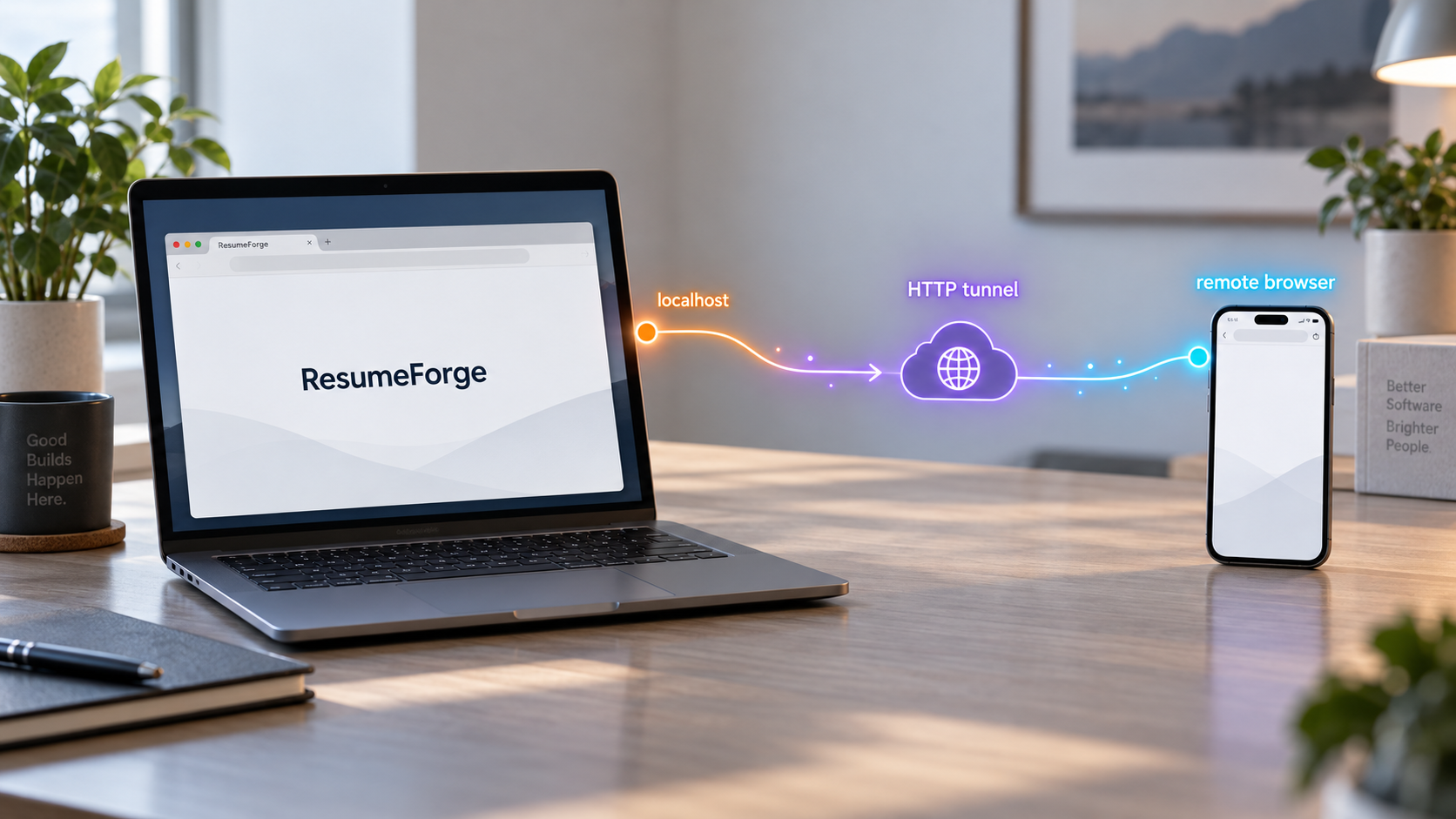
What ResumeForge is and what this setup accomplishes
The current ResumeForge repository identifies version 1.0.0 as the current version. ResumeForge describes itself as a Chinese-first, local-first workspace for resumes and the wider job-search process. Its architecture combines a FastAPI backend, a React interface, and SQLite storage. The application runs on your own computer and presents its interface in a browser.
ResumeForge does not require registration or login. Its resume records, personal information, SQLite data, and attachments are stored in a local application data directory rather than in a ResumeForge account. That local-first design keeps control of the workspace on the host computer, but it also makes the computer, its user account, its storage, and its backup process part of the security boundary.
The application covers job management, personal information, multiple resume versions, interview preparation, application tracking, reminders, exports, statistics, and a fact ledger. Only confirmed facts participate in generation, and generated content can be checked against stored information. Current project documentation also lists PDF, Word, Markdown, plain-text, JSON, and HTML export options.
Parsing, checking, previewing, and exporting can operate offline, and much of the application remains usable without configuring an AI model. Model-backed features can have separate configuration and connectivity requirements. A failed AI request therefore does not necessarily indicate that the local FastAPI service, React interface, or SQLite workspace failed to start.
Localtonet enters the workflow only after ResumeForge works locally. Our client establishes an outbound connection from the selected device to a Localtonet relay server. An HTTP tunnel can then forward an assigned public HTTPS address to the local IP address and port where ResumeForge is listening. This does not require inbound router port forwarding, a public IP address, or conventional VPN setup.
start.cmd for Windows and start.command for macOS. The first launch automatically prepares the environment.
ResumeForge contains identity details, employment history, education records, application notes, photographs, attachments, and generated documents. It has no built-in account system. Keeping a public URL secret and stopping the tunnel quickly are useful precautions, but neither one is authentication. Use the tunnel procedure in this guide only for a controlled test with non-sensitive demonstration data, or after placing the application behind a compatible access-control layer whose behavior you have separately verified.
Choose the correct ResumeForge 1.0.0 download
Begin at the official ResumeForge repository and review the current ResumeForge releases page. Confirm that you are reading instructions for version 1.0.0 or a later version if the project has advanced since this article was reviewed.
Do not anchor a new installation to the historical v0.18.0 release. That release documented a pure-source distribution, cross-site request protections, and repaired pre-update snapshots, but those details describe a historical release. They are not used here as proof of current 1.0.0 package names, data paths, updater behavior, or backup retention.
Project-prepared packages and source archives are different
A GitHub release can display more than one kind of download. Maintainers may upload prepared desktop or platform archives as release assets. GitHub also automatically generates “Source code” ZIP and tar.gz archives from a tagged repository snapshot. These files are not necessarily interchangeable.
A project-prepared package may include platform-specific files, bundled components, generated frontend assets, or a layout selected by the maintainer. A GitHub-generated source archive is a snapshot of tracked repository files. It should not automatically be described as an installer or desktop package merely because it can be downloaded as a ZIP file.
The evidence available for this revision confirms that the current repository contains the Windows and macOS launch scripts and that first launch automatically installs the required environment. It does not enumerate the exact 1.0.0 release-asset filenames, archive sizes, checksum filenames, or package contents. For that reason, this guide does not invent them.
| Download type | What it represents | What to verify |
|---|---|---|
| Project-prepared Windows archive | A Windows package uploaded or distributed by the ResumeForge project. | Confirm that it belongs to the current release and contains start.cmd after extraction. |
| Project-prepared macOS archive | A macOS package uploaded or distributed by the ResumeForge project. | Confirm that it belongs to the current release and contains start.command after extraction. |
| GitHub-generated source ZIP | An automatically generated snapshot of repository source files for a tag. | Do not assume it is identical to a project-prepared desktop archive. Check the current release instructions and extracted layout. |
| GitHub-generated source tar.gz | The same type of repository snapshot packaged as a tar archive. | Confirm that this source-oriented format is appropriate for your platform and intended installation path. |
Download the package intended for your operating system when one is supplied. Fully extract it into a persistent, writable folder. Do not run ResumeForge from inside an archive viewer, temporary extraction preview, email attachment window, or browser download preview.
The current project material supplied for this article does not state exact supported Windows releases, exact supported macOS releases, minimum disk capacity, memory requirements, dependency download size, or installation duration. On a managed or restricted computer, review the current release notes and obtain administrator or IT approval before allowing a launcher to install runtime components.
On Windows, verify that start.cmd is present. On macOS, verify that start.command is present. If the expected launcher is missing, stop and recheck the selected asset. Do not rename an unrelated script or borrow a launcher from an older release.
Set up ResumeForge 1.0.0 on Windows
The current repository documents start.cmd as the Windows quick-start launcher. First launch automatically installs the environment. The evidence does not establish a separate requirement to install Python, Node.js, React, FastAPI, or SQLite manually for this packaged workflow.
Download the current Windows package
Open the official repository and current releases page. Select the project-prepared Windows package for version 1.0.0 when one is listed. If you instead select a GitHub-generated source archive, understand that it is a repository snapshot and confirm that the current project instructions support that installation route.
Extract every file
Extract the archive into a stable folder that your Windows user can write to. Open the extracted folder and confirm that start.cmd exists. Keep the complete directory structure together.
Run the current launcher
Double-click start.cmd. Keep the command window open while the first-launch environment is prepared. Read any warning or error before retrying, and do not bypass Windows security prompts without confirming the package source.
Identify the endpoint produced by your installation
Watch the launcher output and any browser window opened by ResumeForge. Record the exact local URL that the current installation uses. The supplied 1.0.0 evidence does not establish a fixed default port, so do not copy a port from an old guide.
Verify the local interface
Open the observed local URL on the same computer. Confirm that the interface renders, navigation responds, and the application remains available while the launcher is running. Do not configure a tunnel until this check succeeds.
If Windows blocks execution, first confirm that the archive came from the official project repository or its documented distribution path. Security behavior depends on the Windows version, package provenance, device policy, and organizational controls. This guide does not recommend overriding a warning blindly.
Set up ResumeForge 1.0.0 on macOS
The current repository documents start.command as the macOS quick-start launcher. As on Windows, first launch automatically prepares the environment. Exact supported macOS versions and a universal Gatekeeper workaround are not established by the supplied current evidence.
Download the current macOS package
Use the official repository and releases page to locate the package intended for macOS and the current release. Do not assume that a GitHub-generated source archive is identical to a project-prepared macOS package.
Extract the package completely
Place the extracted application in a persistent folder where your macOS account can read and write its working files. Confirm that start.command exists and retain the surrounding directory structure.
Run the macOS launcher
Double-click start.command. Keep its terminal window open while the first-launch environment is installed and the service starts. Read the output rather than closing the terminal when startup takes longer than a later run.
Record the actual local URL
Use the URL shown by the current launcher or opened by the application. Preserve the hostname or IP address and numeric port. No fixed 1.0.0 endpoint is asserted in this article.
Test ResumeForge locally
Open the observed URL in a browser on the same Mac. Test normal navigation and confirm that the service stays available while its process is running. Resolve local failures before adding remote access.
If macOS blocks the launcher, confirm the package source and follow the current ResumeForge guidance for that package. Do not paste a generic quarantine-removal, permission, or code-signing command from an unrelated tutorial. The correct response depends on the warning and the computer's security policy.
Verify ResumeForge locally and discover its endpoint
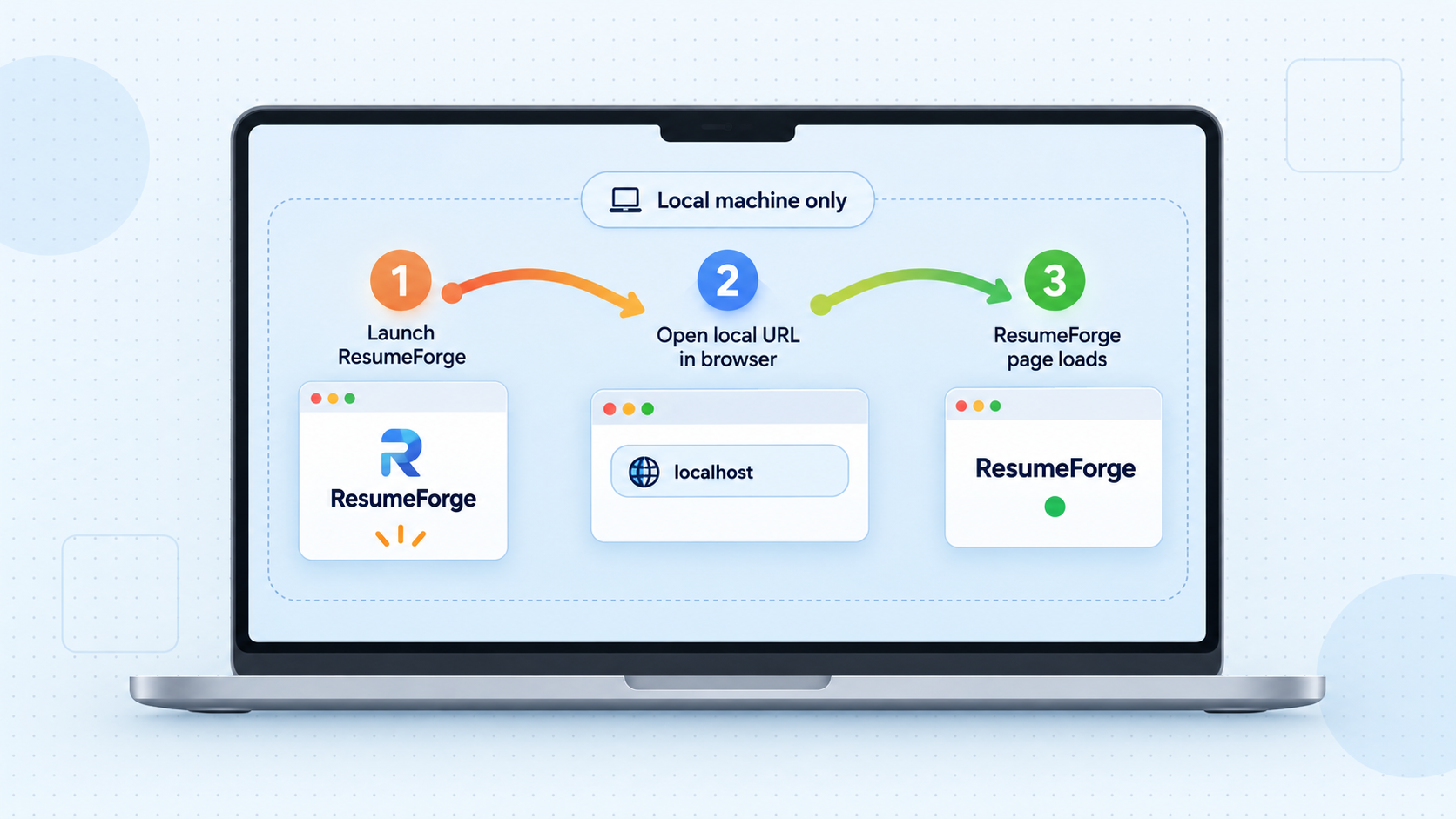
A tunnel forwards requests to an existing service. It cannot repair a failed installation, choose the correct port automatically, or keep ResumeForge running after its local process stops. Local verification is therefore the central diagnostic boundary in this tutorial.
Keep the launcher process visible
Leave the command or terminal window open after startup. Review its latest output for a ready state, local address, warning, or fatal error. If the process exits, the application is not available merely because an old browser tab remains open.
Use an observed address rather than an assumed default
Record the exact URL opened or displayed by your installation. A URL normally contains a scheme, hostname, optional port, and possibly a path. Localtonet needs the local IP address and numeric port for its target. A path, query string, and fragment are not part of the target port.
If the application opens a browser automatically but does not clearly print an endpoint, copy the address from the browser's address bar. If neither a browser nor a URL appears, consult the current ResumeForge output and documentation instead of trying common development ports at random.
Test both frontend and backend behavior
A first screen can load even when an API request is failing. Navigate through several areas and perform a harmless read-only action. For a fresh installation, use fictional or demonstration content rather than real employment records. Confirm that the interface remains responsive and that obvious errors are not accumulating in the launcher output.
Separate core operation from AI configuration
Current project documentation says parsing, checking, previewing, and all exports can work offline, while most features remain usable without a configured model. Test those ordinary functions separately. If only an AI-backed action fails, inspect its model configuration and connectivity rather than treating the whole installation as broken.
| Check | Expected result | If it fails |
|---|---|---|
| Launcher | The process remains active without an unrecovered fatal error. | Read the earliest relevant error before retrying. |
| Observed local URL | The URL opens on the ResumeForge host. | Recheck the address and whether the process is still running. |
| Interface assets | The page renders completely. | Confirm that first-launch preparation finished successfully. |
| Backend interaction | Navigation and harmless read operations respond. | Resolve the application problem before creating a tunnel. |
| Repeated access | The page remains available while ResumeForge is running. | Check for a stopped process or changed endpoint. |
A verified screenshot from ResumeForge 1.0.0 showing where the local URL appears would improve endpoint discovery. It is intentionally not fabricated in this article. Until an approved current screenshot is available, rely on the address shown by your own launcher or browser.
Start, stop, back up, update, and uninstall ResumeForge
The current repository tree includes start.cmd, stop.cmd, update.cmd, and uninstall.cmd for Windows. It includes start.command, stop.command, and update.command for macOS. The supplied tree does not show an uninstall.command file, so this guide does not claim that a matching macOS uninstaller exists.
Start the application
Use start.cmd on Windows or start.command on macOS. Wait until the service is ready and verify the current local endpoint. A bookmark from an earlier run is not proof that the same address is active now.
Stop the application cleanly
Use stop.cmd on Windows or stop.command on macOS when those files are present in the installed package. A controlled stop is preferable to terminating processes while SQLite or attachment operations may be active. Stop the Localtonet tunnel first if remote users could still be connected.
Locate and back up the data, not just exports
Current project documentation states that the workspace lives in a local application data directory and includes SQLite data plus attachments. It also states that the complete local data can be copied. The supplied evidence does not provide a verified operating-system-specific path for version 1.0.0, so this article does not guess one.
Identify the active data directory through the current ResumeForge documentation or application controls before updating, moving, or uninstalling the software. Then stop ResumeForge and copy the complete data directory to independent storage. Preserve the directory structure and attachments rather than copying only a single exported PDF or an assumed database file.
Verify the backup by checking that it exists outside the installation and data locations. Where the current application supports dataset backup and import, that can supplement the directory copy, but a backup is not proven until you understand how it would be restored.
The v0.18.0 release notes referred to backend/data and described three retained pre-update snapshots. Those statements belong to that historical updater. Current 1.0.0 evidence supplied for this revision does not reconfirm that exact path or retention behavior, so they are not presented as the current backup procedure.
Update the current installation
ResumeForge 1.0.0 includes platform update launchers and documents an ongoing database migration chain. Before updating, stop public access, finish active edits, stop ResumeForge cleanly, make an independent copy of the active data directory, and review the target release notes.
Use update.cmd on Windows or update.command on macOS when that script is included with your current installation and the current project instructions direct you to use it. Do not replace selected backend or frontend folders manually while the application is running. The supplied current evidence does not document every prompt or internal action performed by the 1.0.0 updater, so follow its visible instructions.
After updating, start ResumeForge locally and repeat the endpoint and application checks. Confirm that expected records and attachments are available. If the local endpoint changed, update the Localtonet target before restarting the tunnel.
Uninstall without deleting unverified data
On Windows, the current repository includes uninstall.cmd. Before using it, stop the tunnel, stop ResumeForge, locate the active data directory, and create a tested independent backup. Review any uninstall prompt carefully rather than assuming application data will be preserved.
For macOS, the supplied current repository listing does not establish an uninstall launcher or a complete removal procedure. Do not delete guessed directories. Follow the current project documentation, and preserve the verified data directory before removing application files.
Configure a Localtonet HTTP tunnel for ResumeForge
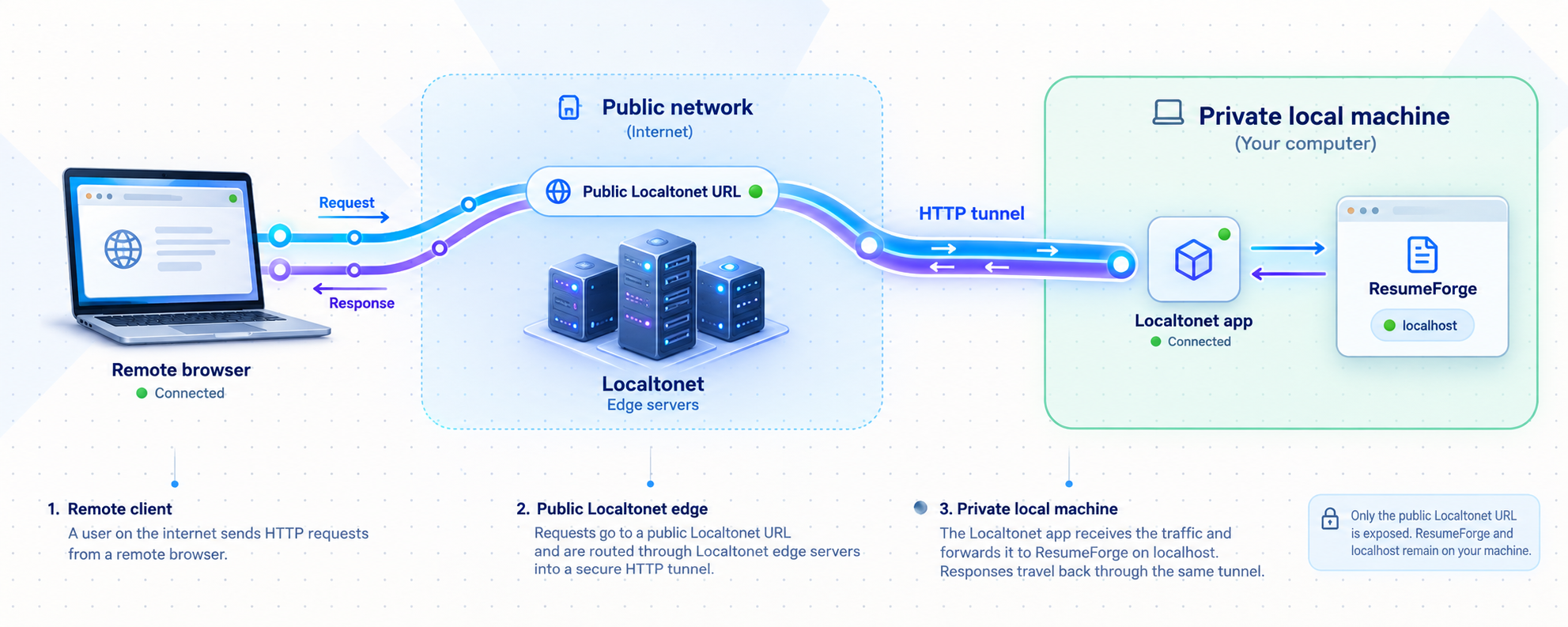
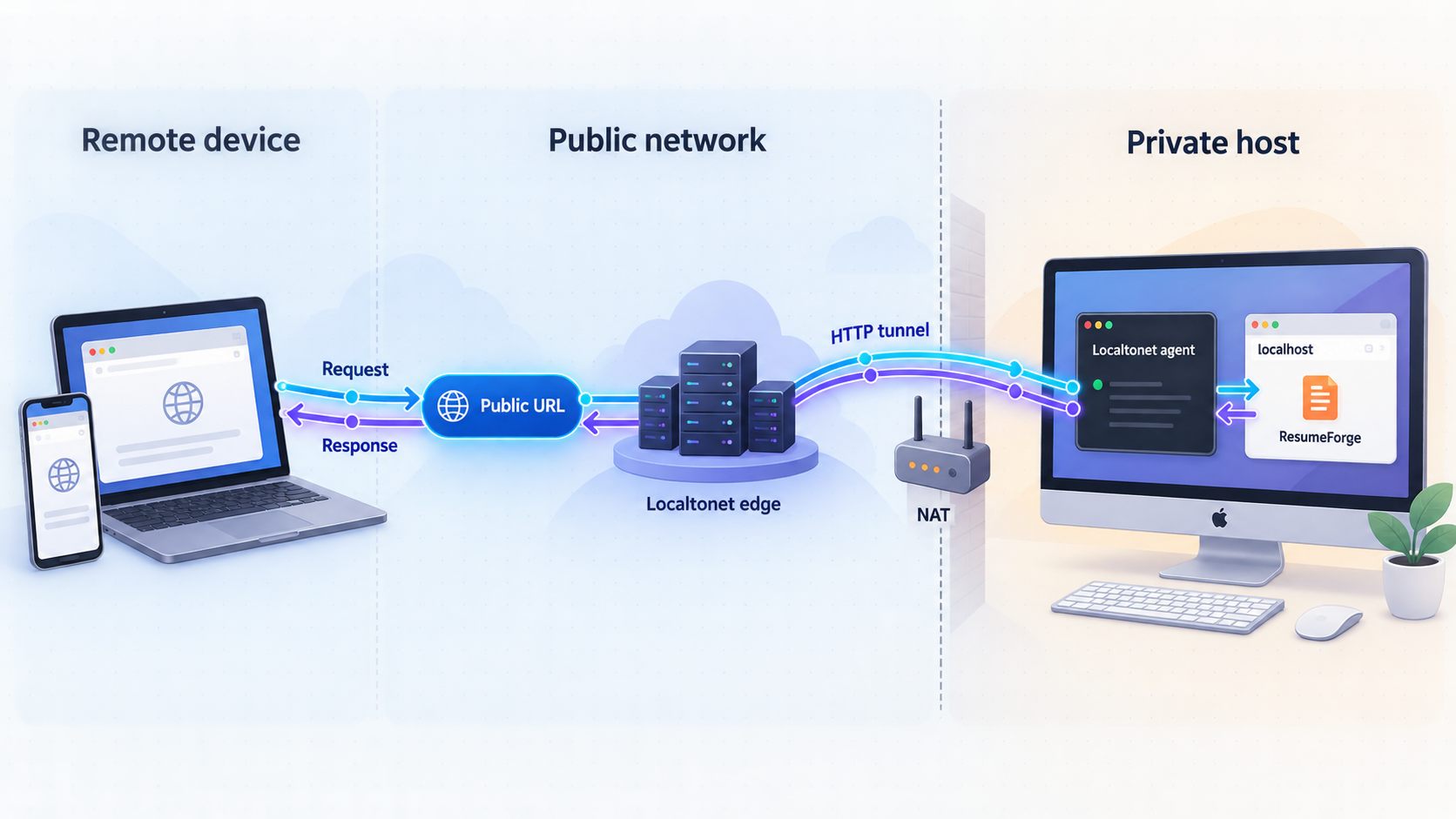
Continue only after ResumeForge works locally. Our client must run on the ResumeForge computer or on another device that can reach the verified service. Running both applications on the same computer is the simplest arrangement when ResumeForge is listening only on a loopback address.
ResumeForge does not have an account system. Do not expose a populated workspace directly to the public internet. Use fictional test data, or first deploy a separately verified authentication layer that is compatible with ResumeForge and your chosen topology. This article does not invent or imply a Localtonet authentication feature for the forwarded application.
Install and run the Localtonet client
Install our client on the computer running ResumeForge whenever possible. Keep ResumeForge active and confirm that its local page still works. The Localtonet client establishes the required outbound connection.
Select the connected device
In the Localtonet dashboard, select the device identified by its authentication token. Tokens are device-specific secrets. Do not publish them, place them in screenshots, or substitute a token copied from another device.
Select an available relay server
Choose a server or region from the values currently available in your dashboard. Do not hardcode a server code from an older tutorial because availability can vary.
Configure the HTTP tunnel and Process Type
Create an HTTP tunnel. Enter the local IP address and numeric port taken from the verified ResumeForge endpoint. Choose the appropriate Process Type from Random Sub Domain, Custom Sub Domain, or Custom Domain where available. All three serve the target at a public HTTPS address, but availability and custom-domain requirements can vary.
Review the target before exposure
Confirm that the selected device, relay server, local IP, port, and Process Type are intentional. Remove real personal data from the test workspace unless a verified protection layer is already in place.
Press Start and test the assigned address
Creating a tunnel does not start it. Press Start, wait for the tunnel to run, and test the assigned public HTTPS address from a separate browser context or remote device. Stop the tunnel immediately after the controlled test.
Use the current Localtonet HTTP tunnel documentation alongside this workflow. It is the appropriate place to confirm the live dashboard layout, available Process Types, and current domain requirements.
Translate the ResumeForge URL into a local target
Separate the observed local endpoint into its host and port. For example, if a browser address contains a local host, a colon, a numeric port, and an additional path, the tunnel target uses the reachable local IP address and numeric port. Do not enter the browser path as a port.
When Localtonet runs on the same computer, a loopback target can refer to the ResumeForge service on that computer. When Localtonet runs on another device, that device's loopback address refers to itself, not to the ResumeForge host. A separate-client topology would require ResumeForge to listen on a network-reachable address, and that bind configuration is not established by the supplied 1.0.0 evidence.
An approved screenshot of the current Localtonet HTTP tunnel form would help readers match the device, server, Process Type, local IP, port, and Start workflow. Any such screenshot must come from the current interface and redact authentication tokens, private addresses, custom domains, and customer-specific values.
Protect ResumeForge data during remote access
Local-first operation and public reachability are different security states. Activating a tunnel does not upload the SQLite database as hosted storage, but it does make the application interface reachable through a public address. A remote visitor may be able to read, add, change, export, or delete data through whatever operations the interface permits.
HTTPS protects the network connection to the public tunnel edge. It does not add a ResumeForge identity, login screen, authorization policy, or per-user permissions. A difficult-to-guess URL is also not a substitute for authentication.
Historical v0.18.0 release notes described browser cross-site checks for state-changing requests using origin and fetch-site information. Those protections address malicious cross-site browser requests. They do not authenticate a person who directly opens the public application. The supplied current evidence does not reconfirm the implementation details for version 1.0.0, so this tutorial does not rely on that historical mechanism as an access-control boundary.
ResumeForge states that its automated application workflow visits recruitment sites only after explicit configuration and explicit user action, does not run unattended, and leaves final submission under user control. It also states that recruitment-site passwords, cookies, tokens, and verification codes are not stored. These safeguards do not make the rest of the workspace non-sensitive.
URL secrecy can reduce accidental discovery, and a short exposure window reduces opportunity, but neither verifies the identity of a visitor. If you cannot verify a compatible protection layer, do not expose a ResumeForge workspace containing real personal or employment information.
Troubleshoot installation and tunneling by layer
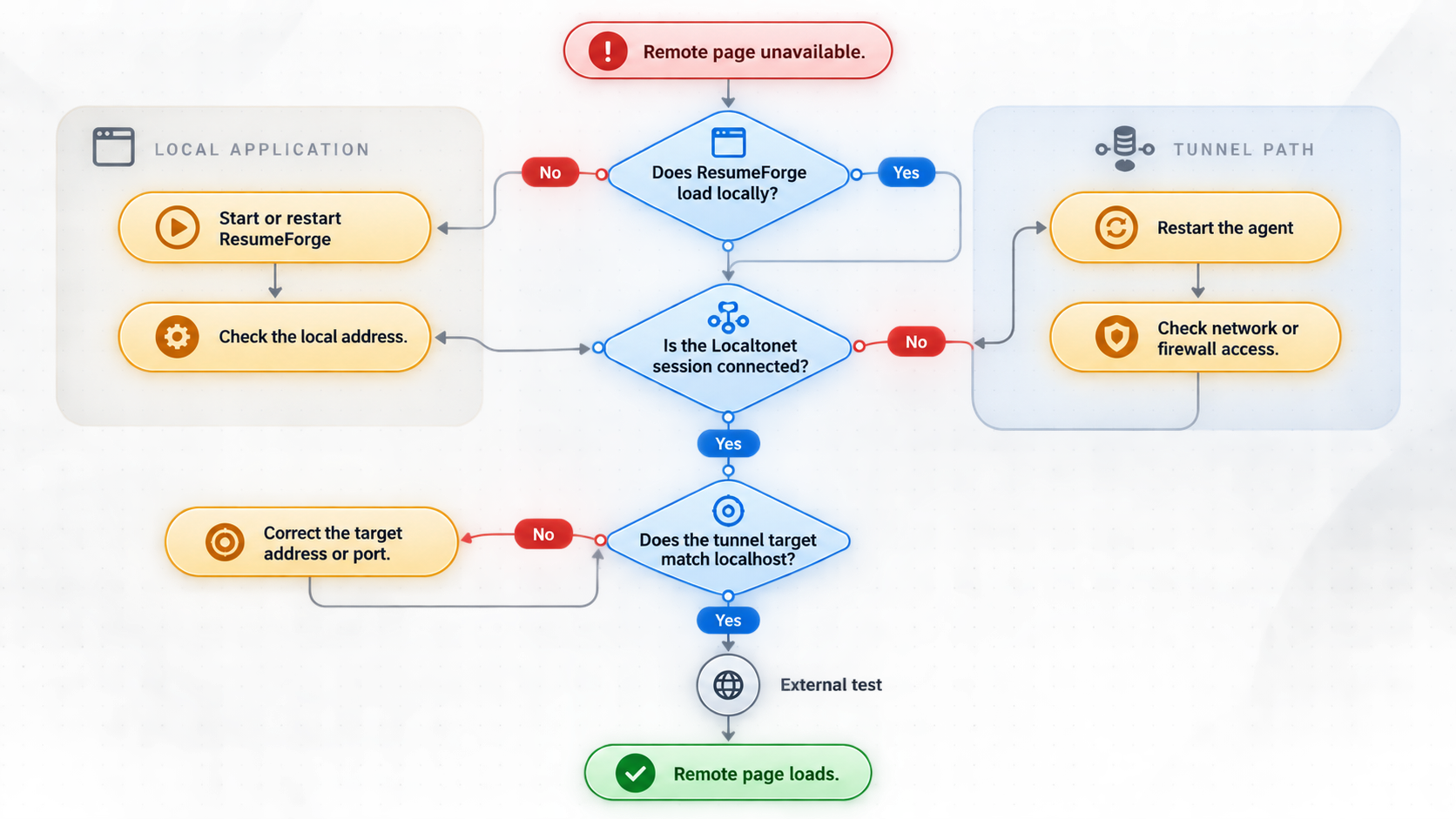
The first launch takes a long time
Current documentation says the first launch automatically installs the environment, so it can take longer than later starts. Keep the launcher visible, confirm that the archive was fully extracted, and verify that the folder is writable. Do not add unverified command-line flags or install random dependencies unless current project instructions require them.
The launcher closes immediately
Reopen it in a way that lets you read its output. Check that the package matches the operating system, the extraction completed, and the expected launcher is present. If the security system blocked execution, verify the package source before changing any policy.
No local URL is visible
Check whether ResumeForge opened a browser automatically and copy the browser address. Review the launcher output for a ready message or an error. The current evidence does not establish a universal port, so avoid scanning guessed ports or using a value from v0.18.0.
The local page does not open
Confirm that ResumeForge is still running and recopy the endpoint. If first-launch setup is incomplete, let it finish. If the launcher reports an error, resolve that error before changing Localtonet settings.
The interface works, but an AI operation fails
Test offline-capable operations such as navigation, checking, previewing, or exporting. If those work, inspect the current model configuration and connectivity. Do not reinstall the whole application solely because one model-backed action failed.
The local page works, but the public URL fails
Confirm that the selected Localtonet device is connected, the tunnel has been started, and the target IP and port match the current ResumeForge endpoint. Check that you did not enter a URL path into the port field.
The public page reports a gateway or connection failure
The public route may be active while the client cannot obtain a response from the target. Verify that ResumeForge is still running and test the local URL from the Localtonet device. If the client is on another computer, do not target that computer's loopback address.
An update changed the endpoint
Leave the tunnel stopped, verify the updated application locally, and record its current host and port. Update the HTTP target before restarting the tunnel. Do not keep probing the old endpoint.
The tunnel stops after the Localtonet client closes
This is expected. The public route depends on the selected client remaining connected and the tunnel remaining started. Restart the client, confirm the correct device connection, and start the tunnel only when the controlled session is ready.
| Local result | Remote result | Next action |
|---|---|---|
| Fails | Fails | Fix ResumeForge startup or endpoint discovery first. |
| Works | Fails | Check the selected Localtonet device, target IP and port, and Start state. |
| Works | Partly works | Reproduce the exact action locally and compare application output. |
| Works | Works with test data | Finish the controlled test and stop the tunnel. |
| Changed after update | Old route fails | Verify the new local endpoint and update the tunnel target. |
Frequently asked questions
What is the current ResumeForge version used by this guide?
The official repository identifies version 1.0.0 as current in the evidence reviewed for this revision. Check the current releases page before downloading because the project may publish a newer version later.
Is GitHub's Source code ZIP the same as a ResumeForge desktop package?
Not necessarily. GitHub generates source archives automatically from repository tags. A project-prepared platform package can have a different layout or additional prepared files. Select the documented package for your platform and inspect the extracted contents for the correct launcher.
What port does ResumeForge 1.0.0 use?
The supplied current evidence does not establish a fixed port. Start the application and use the exact local address displayed by the launcher or opened in the browser. Enter its reachable local IP address and numeric port into the Localtonet HTTP target.
Do I need to install Python or Node.js manually?
Not for the documented Windows and macOS quick-start workflow. The current project says the first run of start.cmd or start.command automatically installs the environment. A manual development setup can have different requirements.
Where does ResumeForge store its data?
Current project documentation says SQLite data and attachments are stored in a local application data directory that can be copied. The supplied 1.0.0 evidence does not provide a verified Windows or macOS path, so locate the active directory through current ResumeForge documentation or application controls before backing up or uninstalling.
Does a Localtonet HTTPS address add a ResumeForge login?
No. ResumeForge states that it has no account system. HTTPS protects transport, but it does not authenticate or authorize visitors. Do not expose a populated workspace without a separately verified protection layer.
Why use an HTTP tunnel instead of File Server or TCP?
ResumeForge presents a browser-based web interface, so an HTTP tunnel matches the application protocol and provides a public HTTPS address. Localtonet File Server publishes a folder, while raw TCP forwarding is intended for generic port-based services.
Does creating a tunnel start it automatically?
No. After creating and reviewing the configuration, press Start. The public route also depends on the selected Localtonet client remaining connected. You can later stop or delete the tunnel.
Can the Localtonet client run on a different computer?
It can target a service reachable from its own device, but a ResumeForge loopback address is reachable only on the ResumeForge host. The supplied current evidence does not document a network-bind configuration for ResumeForge, so running both applications on the same computer is the supported scope of this tutorial.
What should I do before updating or uninstalling?
Stop the public tunnel, finish active edits, stop ResumeForge cleanly, identify the current application data directory, and copy the complete data and attachments to independent storage. Review the current release notes and verify the backup before running an updater or uninstaller.
Test a verified ResumeForge endpoint with Localtonet
First confirm ResumeForge 1.0.0 locally with fictional data. Then install our client, create an HTTP tunnel for the observed local IP address and port, and keep the tunnel active only for the controlled test unless you have separately verified an appropriate authentication layer.
Get Started Free →

