

Connect Claude Code locally, choose the correct remote MCP architecture, and expose the independent UniFi API only when an application needs HTTP access
UniFi MCP supports several interfaces that solve different problems. Claude Code can run a local MCP server as a subprocess, remote MCP clients can use an explicitly configured Streamable HTTP or SSE-compatible transport, and the optional UniFi MCP Cloud Relay can route authenticated remote MCP requests back to local servers. Applications that do not speak MCP can instead use the independent unifi-api-server, which provides REST, GraphQL, SSE, API-key administration, and supported action endpoints. This guide separates those paths, explains their security boundaries, and shows where a Localtonet HTTP tunnel fits after an HTTP listener has been deliberately configured and verified locally.
📋 What's in this guide
Choose between local MCP, remote MCP, and the independent API
UniFi MCP is an independent, community-maintained open-source project for connecting compatible AI assistants and automation systems to supported UniFi environments. It is not an official Ubiquiti project. Its stable MCP server packages target UniFi Network, UniFi Protect, and UniFi Access, while the project currently describes its Cloud Relay components and standalone API server as beta.
The most important deployment decision is not which tunnel to create. It is which application interface the consumer actually needs. An MCP client should communicate with an MCP server. A conventional application should use the independent HTTP API. Those interfaces share underlying UniFi manager code, but they are not interchangeable.
unifi-api-server is for consumers that do not speak MCP. It provides REST, read-only GraphQL, SSE streams, scoped API keys, audit records, and supported REST actions.
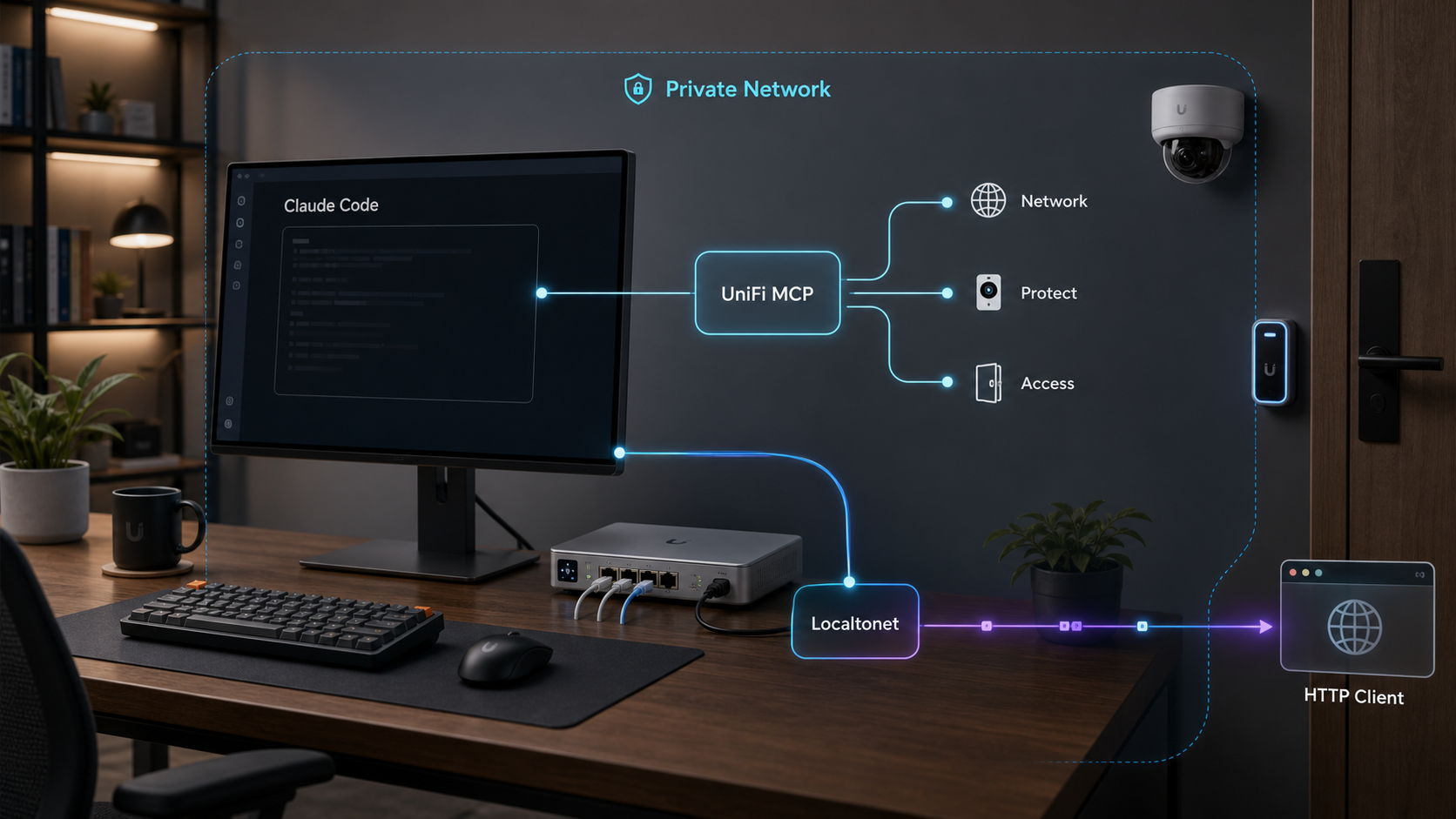
| Consumer | Correct target | Typical transport | Where Localtonet fits |
|---|---|---|---|
| Claude Code on the same workstation | Network, Protect, or Access MCP server | Local subprocess over standard input and output | Usually unnecessary because there is no HTTP listener to expose |
| Remote MCP client | An MCP server configured for HTTP | Streamable HTTP or an SSE-compatible MCP path | Can expose the verified HTTP listener when the client supports the configured transport |
| Remote MCP client using the project relay | UniFi MCP Cloud Relay Worker gateway | Client to Worker, outbound WebSocket to relay, then local MCP over HTTP | Not part of the official Cloud Relay architecture |
| Dashboard, script, or integration that does not speak MCP | unifi-api-server |
REST, GraphQL, SSE, and supported REST actions | Can expose the verified API listener through an HTTP tunnel |
The documented Cloud Relay path is remote MCP client to Worker gateway, then through an outbound WebSocket to the relay sidecar, and finally to configured local MCP servers over HTTP. unifi-api-server neither proxies this traffic nor needs to run for the relay to work.
Check prerequisites, accounts, and version compatibility
Compatibility must be evaluated at several layers. A working UniFi controller does not guarantee that every operation exposed by a particular server release is available. Behavior can vary by UniFi product, controller type, controller version, device firmware, user permissions, server package version, MCP protocol revision, and the API surface exposed by the controller.
Claude Code and local MCP prerequisites
- A current Claude Code installation that supports plugin marketplace commands and MCP server registration.
- Network access from the machine running the MCP server to the selected UniFi controller.
- A supported UniFi Network, Protect, or Access environment for the package being installed.
- A dedicated UniFi account with only the permissions required for the intended reads or changes.
- A supported package execution path. The project documents Claude Code plugins as the recommended path and also provides
uvx, container, andpipxoptions. - A plan for protecting controller credentials in the MCP client configuration or another restricted secret store.
The project identifies UNIFI_HOST, UNIFI_USERNAME, and UNIFI_PASSWORD as the basic controller connection variables for direct package execution. Additional settings can be version-specific. Use the configuration accepted by the exact package release you install rather than copying unverified variables from an older example.
Controller authorization is the innermost security boundary. Use a dedicated account, grant only the required product permissions, and begin with read-only access where possible. Never commit its password to a repository, include it in a container image, paste it into a tunnel configuration, or expose it in screenshots and support logs.
Version-sensitive MCP response compatibility
Current UniFi MCP documentation describes adaptive response behavior based on the date-based MCP protocolVersion negotiated during initialization. Requests advertising MCP 2025-06-18 or later receive concise text in content and the full structured result in structuredContent. Earlier protocol revisions, including 2024-11-05 and 2025-03-26, retain compatibility JSON in content. Missing or malformed revision metadata also receives the compatibility form.
If a client reads complete results only from content, the project documents UNIFI_MCP_CONTENT_MODE=compat. The value compact forces concise text plus the structured result outside the normal negotiation behavior. Product-specific overrides are available as UNIFI_NETWORK_MCP_CONTENT_MODE, UNIFI_PROTECT_MCP_CONTENT_MODE, and UNIFI_ACCESS_MCP_CONTENT_MODE.
These response modes affect result representation, not network transport. Changing the content mode does not turn a standard-input MCP process into an HTTP service. Diagnose protocol response compatibility separately from listener and tunnel problems.
Select the UniFi component that matches the task
Install only the product servers the client needs. This keeps the discovered tool set and controller permissions easier to review. Current project documentation lists stable MCP packages for Network, Protect, and Access.
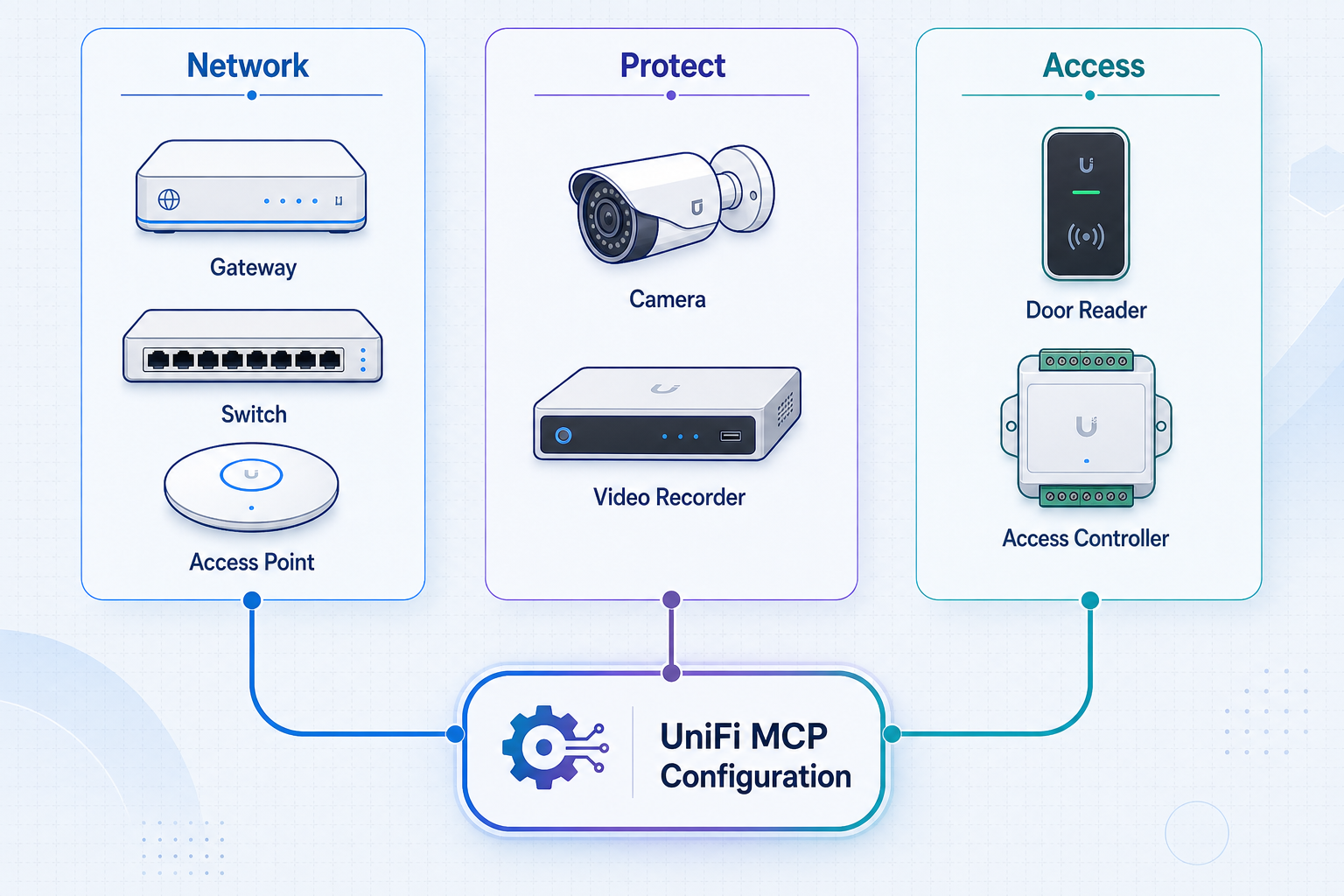
| Component | Typical focus | Claude Code plugin |
|---|---|---|
| UniFi Network | Inventory, clients, routing, Wi-Fi, firewall policy, traffic, and controlled configuration | unifi-network@unifi-plugins |
| UniFi Protect | Cameras, events, detections, recordings, devices, and incident investigation workflows | unifi-protect@unifi-plugins |
| UniFi Access | Doors, visitors, credentials, policies, devices, and activity records | unifi-access@unifi-plugins |
| Independent API server | Typed REST resources, read-only GraphQL, SSE, API-key administration, audit records, and supported actions | Not a Claude Code plugin and not an MCP server |
Install UniFi MCP for Claude Code
The project recommends its Claude Code plugin marketplace because each plugin includes the corresponding MCP server, an agent skill, and guided setup. The slash commands below are Claude Code commands. Enter them in Claude Code, not in a conventional operating-system shell.
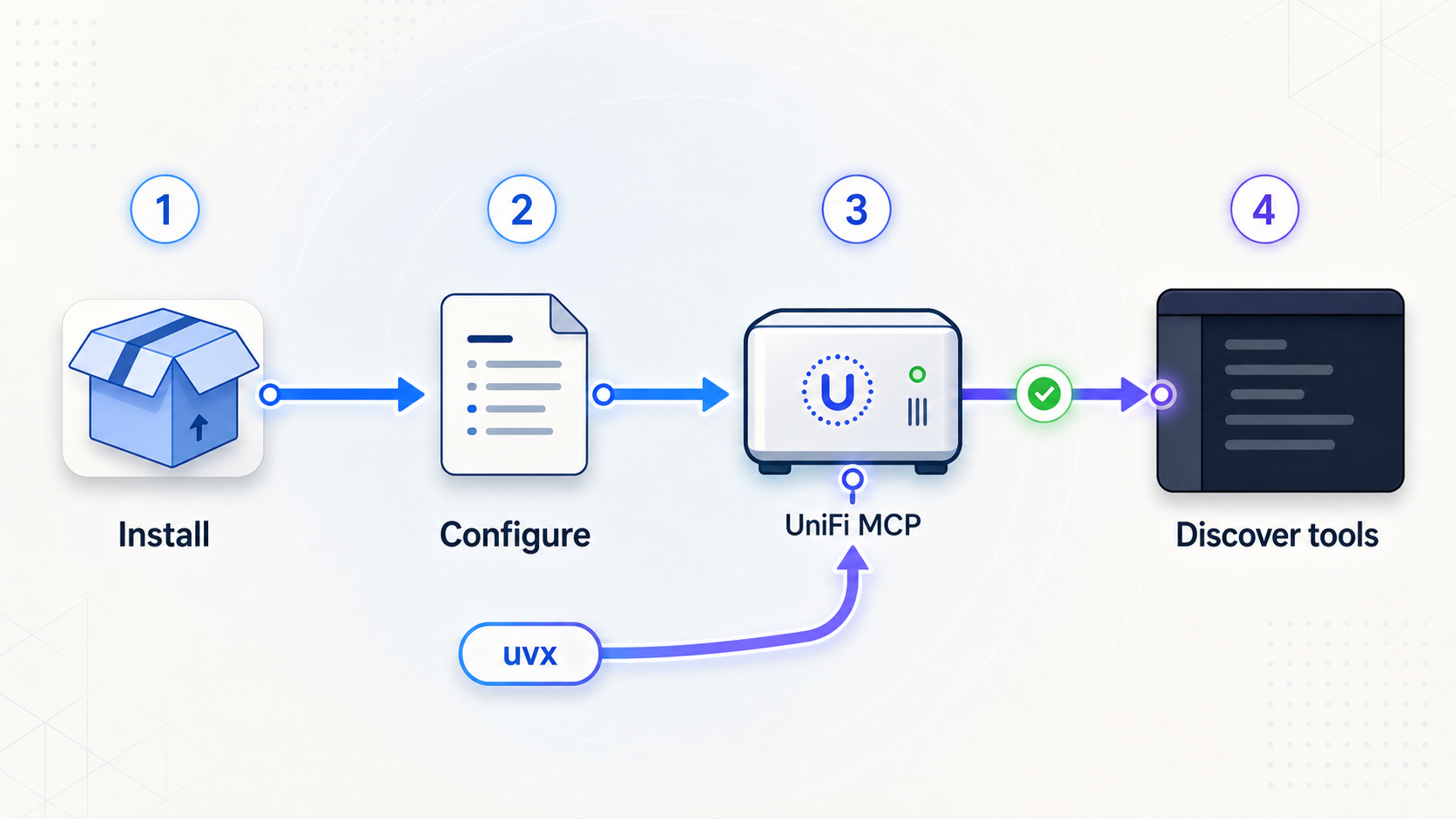
Add the UniFi MCP plugin marketplace
Register the project marketplace so Claude Code can find its Network, Protect, and Access plugins.
/plugin marketplace add sirkirby/unifi-mcpInstall the required product plugin
Install Network for Network tasks. Install Protect or Access only if the workflow needs those environments.
/plugin install unifi-network@unifi-plugins/plugin install unifi-protect@unifi-plugins
/plugin install unifi-access@unifi-pluginsRun the matching guided setup
For Network, run the documented setup skill below. It walks through controller connectivity and permissions. Use the corresponding setup skill supplied with Protect or Access when installing those plugins.
/unifi-network:unifi-network-setupRestart or reload Claude Code when required
MCP client configuration is commonly loaded when the client or MCP session starts. If the setup workflow requests a restart or the new server is not discovered, fully reload Claude Code before changing credentials or reinstalling packages.
Verify discovery and perform a read-only test
Confirm that the selected server is registered and its tools can be discovered. Begin with inventory, status, or another low-risk read. Do not use a configuration mutation as the first connectivity test.
How MCP tool discovery behaves
UniFi MCP follows standard MCP discovery through tools/list and invocation through tools/call. Its default lazy mode initially exposes meta-tools so the client can discover and load relevant functionality without placing the complete tool catalog into the initial context. Eager mode registers the selected domain tools directly for clients that prefer a complete standard tool list.
If Claude Code connects but appears to expose fewer tools than expected, determine whether the server is using lazy discovery before treating the result as an installation failure. Discovery mode, protocol response mode, controller permissions, and the installed package version are separate variables.
Direct execution with uvx
Direct execution is useful for diagnostics and for MCP clients that accept a command-based server registration. Supply the required controller settings through protected environment configuration, then run only the package matching the selected UniFi application:
uvx unifi-network-mcp@latest
uvx unifi-protect-mcp@latest
uvx unifi-access-mcp@latest
Using @latest follows the current package release and can change behavior over time. For reproducible deployments, select and test a specific project version according to your package-management policy. Recheck transport options, environment settings, controller support, and response compatibility when upgrading.
Every current server exposes a standard-input transport. Optional HTTP support must be deliberately configured. Do not point a Localtonet tunnel at an assumed port merely because the MCP process is running.
Provide remote MCP access through HTTP or the Cloud Relay
A remote MCP consumer needs an MCP-compatible route, not the independent REST API. Current UniFi MCP documentation describes two remote patterns: configure an MCP server with its optional HTTP transport, or use the project's optional Cloud Relay.
Option 1: deliberately configure an MCP HTTP transport
UniFi MCP supports clients that connect through Streamable HTTP or SSE-compatible MCP paths. Transport flags, endpoint paths, bind behavior, and defaults are version-sensitive, so they must be taken from the component documentation shipped with the exact server version being deployed. The supplied evidence confirms the transport capability but does not establish a universal command, port, or path that is safe to reproduce here.
A correct deployment therefore records four values before any tunnel is created: the installed package version, the bind address, the listening port, and the MCP endpoint path expected by the client. Start the server with the documented HTTP transport, verify initialization and tool discovery directly against that local endpoint, and only then configure remote routing.
Streamable HTTP is the preferred modern MCP transport when supported by both ends. SSE-compatible behavior exists for clients that require that style of connection. Because SSE uses a long-lived response, verify that the client reconnects correctly and that every network layer preserves streaming rather than buffering the complete response.
MCP tools can reveal infrastructure details or propose controller changes. Configure the authentication supported by the selected deployment, keep mutation confirmation and policy gates enabled, and expose only the required MCP endpoint. A public URL is not an authorization mechanism.
Option 2: use the official UniFi MCP Cloud Relay architecture
The optional Cloud Relay is part of the UniFi MCP project, not a Localtonet feature. Its documented architecture pairs a Cloudflare-hosted Worker gateway with a relay sidecar on the LAN. The Worker provides the authenticated edge MCP endpoint, a Durable Object broker, multi-location routing, a token boundary, and deployment management through the project's CLI.
The relay sidecar discovers configured local MCP servers over HTTP and maintains an outbound WebSocket to the Worker. The request path is:
Remote MCP client
→ Worker gateway
→ outbound WebSocket
→ relay sidecar
→ local MCP servers over HTTP
Current project documentation identifies the Worker package as unifi-mcp-worker and the relay package as unifi-mcp-relay. It documents the following initial Worker installation commands:
npm install -g unifi-mcp-worker
unifi-mcp-worker install
The relay must then be configured to find the intended local MCP HTTP servers and maintain its outbound connection. Read-only tools can use annotation-based fan-out across configured locations, while writes require an explicit location target.
Use the Cloud Relay when its managed MCP-specific architecture fits the remote client and operational model. Do not deploy unifi-api-server as a bridge for the relay. It is not in this request path.
Use unifi-api-server for non-MCP applications
unifi-api-server is an independent HTTP service for applications and automation that do not communicate through MCP. It shares the project's unifi-core manager layer with the MCP servers, but it does not proxy them and does not require them to be running.
Current project documentation describes typed REST reads across Network, Protect, and Access, read-only GraphQL over consumer-facing resource shapes, SSE streams, scoped API keys and administration, audit records, and a REST action endpoint for supported controller operations. Controller credentials are encrypted by the API service, and an administrative control-plane interface is provided.
Version and deployment prerequisites
- Select a documented
unifi-api-server - Provide network access from the API host to each intended UniFi controller.
- Use controller accounts whose permissions match the REST, GraphQL, or action operations being enabled.
- Choose either the published package or the project's GHCR container deployment path.
- Protect the API administrative interface and the storage containing encrypted controller credentials.
- Decide which local interface should accept connections. Loopback limits access to the same host, while a LAN bind permits access from other devices and therefore expands the trust boundary.
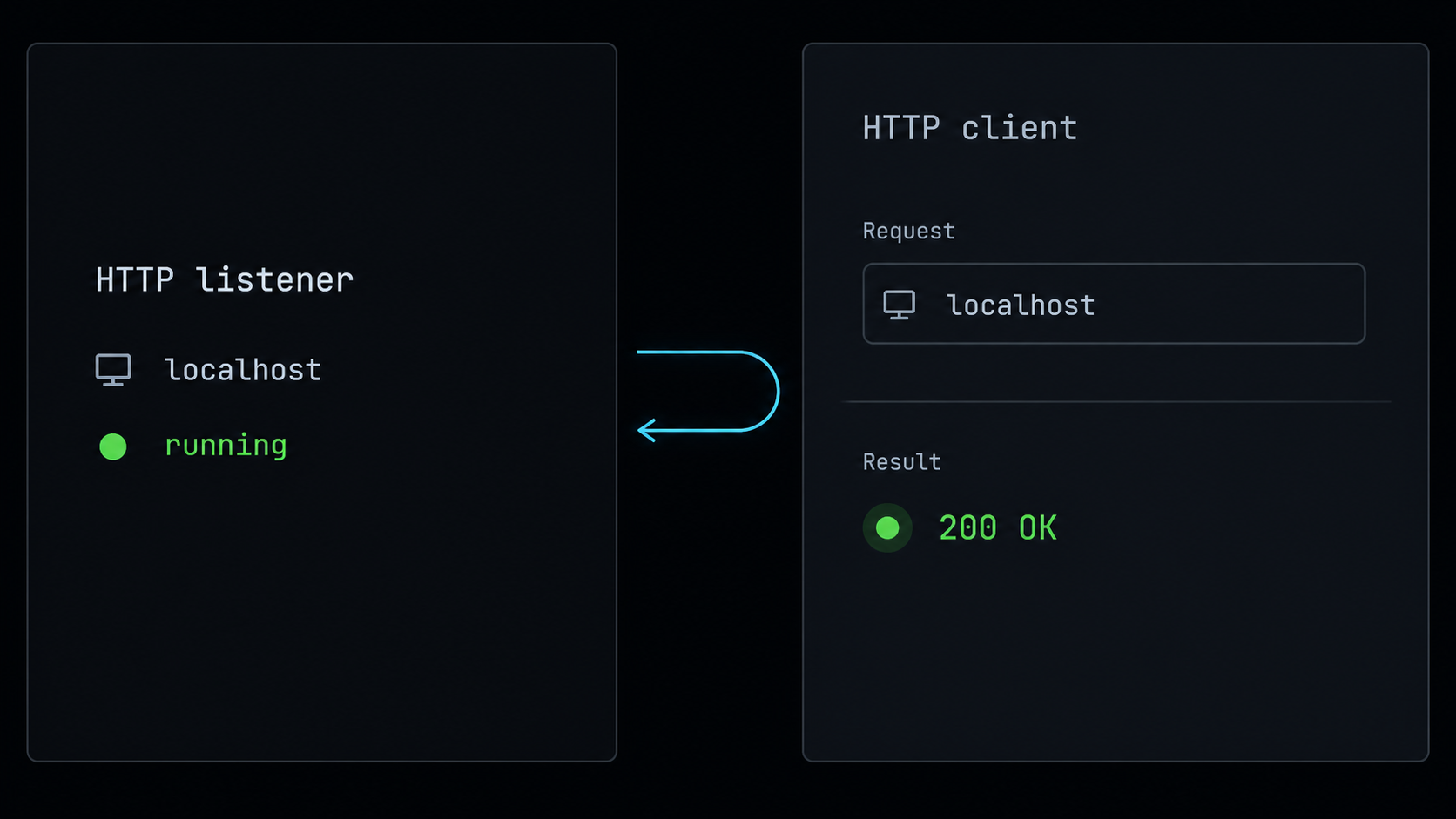
The supplied current evidence confirms package and container availability but does not expose the complete version-specific quick-start command, required configuration names, default bind address, default port, bootstrap command, or health path. We do not invent those operational values. Use the API documentation included with the exact release, record the resulting listener and bootstrap procedure in your deployment runbook, and do not continue to public exposure until local verification succeeds.
API-key bootstrap and local verification
The first administrative bootstrap must be completed through the mechanism documented by the selected API release. Create the initial administrative identity or key only from a trusted local environment. Then create a separate, narrowly scoped key for each consuming application. Do not reuse an administrative key as an ordinary application credential.
Before creating a tunnel, complete this local acceptance sequence:
- Confirm that the API process or container remains running and reports no configuration or controller-authentication failure.
- Record the actual bind address and listening port from the deployed service rather than assuming a default.
- Call the release's documented health or readiness endpoint locally.
- Use a scoped application key to request one low-risk REST resource.
- If GraphQL is needed, verify a read-only query and confirm that unsupported mutations are not being assumed.
- If SSE is needed, connect to the documented stream and leave it open long enough to verify delivery and reconnection behavior.
- If action endpoints are needed, test them separately with the smallest controller and API-key scopes that permit the intended operation.
- Confirm that requests and administrative changes appear in the expected audit records.
Keep the startup command, selected release, configuration location, bind address, port, health path, administrative recovery procedure, and key-rotation process together in the deployment runbook. If these values cannot be established from the installed release, the listener is not ready to publish.
Routine API operation
Monitor the API process independently from the MCP servers because they have separate lifecycles. Rotate application keys according to your operational policy, remove unused keys, review audit records, and retest local health after upgrades. A controller firmware or application update can change the upstream API behavior even when the UniFi API service itself has not changed.
SSE consumers require additional operational attention because their requests remain open. Distinguish an intentionally long-lived stream from a stalled ordinary request. Test reconnection after an API restart, a tunnel restart, and a temporary network interruption. Do not assume that a successful REST request proves streaming behavior.
Expose a verified HTTP listener with Localtonet
Localtonet can expose an HTTP service running on the same device as our client or on a local address reachable from that device. The client establishes an outbound connection to a Localtonet relay, so the workflow does not require inbound router port forwarding, firewall changes, VPN setup, or a public IP address.
The target can be either a deliberately configured UniFi MCP HTTP listener or the independent unifi-api-server. Do not label the API server as an MCP listener, and do not expect an MCP client to communicate with the REST API as though it were an MCP endpoint.
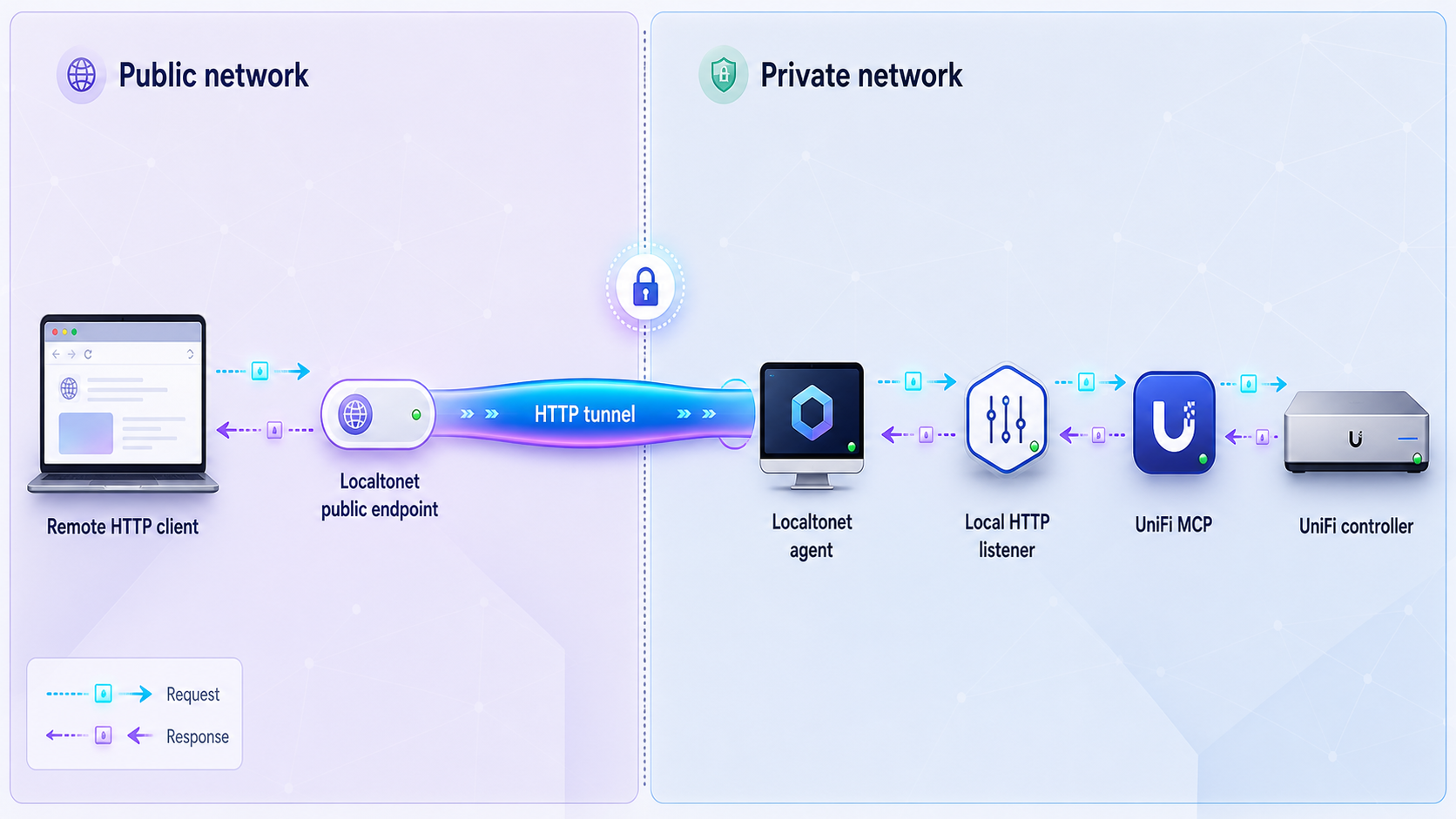
unifi-api-server for non-MCP REST, GraphQL, and SSE consumers.
Install and run the Localtonet client
Run our client on the host providing the HTTP service or on another device that can reach the verified local IP address and port. The client must remain connected while the public route is needed.
Authenticate and select the correct device
Use the device-specific Localtonet authentication token through the supported client and dashboard workflow. Keep this token secret and separate from UniFi credentials, MCP authentication, and API keys.
Select an available relay server
Choose a currently available server or region from the dashboard. Obtain current values from the product rather than copying a server code from an older tutorial.
Create the HTTP tunnel
Enter the exact local IP address and port that passed local verification. For an MCP target, this must be the deliberately configured MCP HTTP listener. For a non-MCP application, it must be the independent API listener. Select the appropriate available process type for the required public HTTPS address.
Start the tunnel
Creating a tunnel does not start it. Press Start, then confirm that the selected device is connected and the tunnel is running.
Verify the public endpoint
Test the assigned public HTTPS address with the authentication expected by the target service. For an API, repeat the low-risk local request. For MCP, verify protocol initialization, discovery, and a read-only tool call from the intended remote MCP client. Stop or delete the tunnel when remote access is no longer required.
See our HTTP tunnel documentation for the current dashboard workflow. HTTP and File Server process types can provide generated, selected, or custom-domain public HTTPS addresses where supported. Check current custom-domain DNS requirements before configuring one.
Keep MCP authentication, API-key validation, controller permissions, confirmation controls, and policy gates enabled. Never include credentials in the public URL. The public endpoint is available only while the selected Localtonet client is connected and the tunnel is running.
Secure each boundary independently
This architecture can include five distinct security boundaries. Treating them as one control leads to overprivileged accounts and accidentally public administration surfaces.
| Boundary | What it protects | Required operating practice |
|---|---|---|
| UniFi controller account | Native Network, Protect, or Access data and operations | Use a dedicated account with the smallest product permissions required. |
| MCP confirmation and policy controls | Agent-initiated mutations and categories of allowed behavior | Keep preview-before-confirm behavior enabled and use policy gates to disable unnecessary create, update, or delete operations. |
| API keys and administration | REST, GraphQL, SSE, actions, and API administrative functions | Use separate scoped application keys, protect bootstrap administration, rotate keys, and review audit records. |
| Cloud Relay authentication | The hosted MCP edge, location routing, and relay connection | Protect relay tokens, authenticate remote MCP clients, and require explicit location targeting for writes. |
| Localtonet device and tunnel | Public network reachability to the chosen local listener | Protect the device token, target only the intended listener, and stop the tunnel when it is not needed. |
UniFi MCP documents response redaction for known secret-bearing fields when responses leave the server boundary. This is useful defense in depth, but it does not replace careful controller permissions, application authorization, log review, or control over what remote clients can request.
Do not expose a controller management interface merely because the MCP server or API needs to reach it. The controller can remain private on the LAN. Publish only the specifically configured service endpoint required by the remote consumer.
Verify and operate the deployment safely
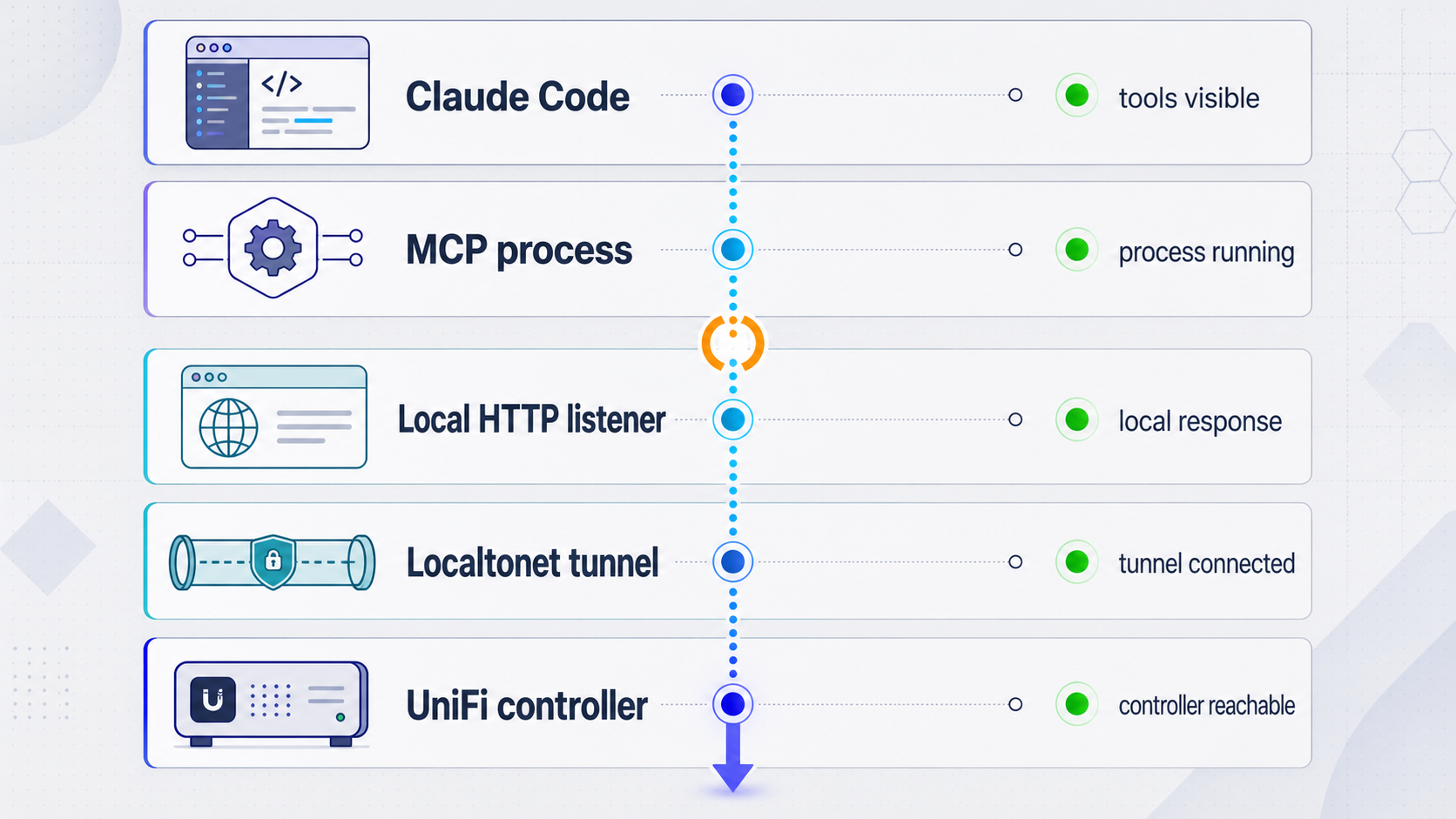
Use an inside-out acceptance process. Each successful check establishes a boundary before the next one is introduced.
- Verify that the UniFi account can perform only the intended operations directly against the controller.
- Verify the local MCP subprocess or local HTTP service without a public tunnel.
- Confirm MCP discovery, response compatibility, and a read-only operation.
- For the API, verify local health, a scoped REST request, and any required GraphQL or SSE behavior.
- Add only the selected remote route: direct HTTP tunneling or the official Cloud Relay for MCP, or an HTTP tunnel for the independent API.
- Repeat the same low-risk test remotely without weakening authentication.
- Record the running versions and retest after upgrades to UniFi controllers, firmware, MCP packages, API packages, relay components, or remote clients.
During routine operation, monitor the local process, its controller connectivity, and the selected remote route independently. A healthy Localtonet tunnel does not prove that the API or MCP service can authenticate to the controller. Likewise, a healthy local service does not prove that a remote client's token, protocol revision, endpoint path, or SSE handling is correct.
Stop unnecessary public routes. Remove unused API keys and relay credentials. Review proposed controller changes before approval. When upgrading, test in a controlled environment first because controller and exposed API compatibility can change by product, firmware, project version, and operation.
Troubleshoot by transport and security layer
| Symptom | Likely layer | What to verify |
|---|---|---|
| Claude Code cannot discover UniFi tools | Plugin or MCP registration | Confirm the marketplace, installed plugin, guided setup, client reload, registered server, and local process startup. |
| Tools appear incomplete | Discovery mode or permissions | Check lazy discovery, loaded tool categories, selected product server, controller permissions, and package version. |
| Tool output is missing expected structured data | MCP protocol compatibility | Check the negotiated protocol revision and whether the client requires compatibility content mode. |
| A direct uvx process runs but no port accepts connections | Transport selection | The process may be using standard input and output. Explicitly configure the documented HTTP transport instead of assuming a port. |
| Local MCP HTTP initialization fails | Endpoint or transport mismatch | Verify the installed version, bind address, port, Streamable HTTP or SSE-compatible path, client transport support, and authentication. |
| The API process exits during startup | API deployment | Check release-specific required configuration, storage permissions, controller settings, port conflicts, and process or container logs. |
| The API runs but cannot reach UniFi | Controller connectivity | Verify host reachability, account credentials, product permissions, controller compatibility, and local certificate or trust requirements documented by the selected release. |
| REST works but an API request is forbidden | API-key or controller scope | Check both the application key scope and the underlying controller account permission. Do not solve the problem by using an unrestricted administrative key. |
| REST works but SSE disconnects or buffers | Streaming path | Test the stream locally, confirm the client supports SSE, check timeouts and buffering across every HTTP layer, and verify reconnection behavior. |
| Local service works but the public URL does not | Localtonet configuration | Confirm the selected device is connected, the tunnel is started, and its target exactly matches the verified local IP address and port. |
| Cloud Relay Worker is reachable but tools fail | Relay path | Check remote client authentication, Worker and relay credentials, the outbound WebSocket, location selection, and relay access to local MCP HTTP servers. |
| The remote client is calling REST paths as MCP tools | Wrong component | Point the MCP client to an MCP endpoint. Use unifi-api-server only for applications using its REST, GraphQL, SSE, or action interfaces. |
Frequently asked questions
Can I expose the default Claude Code UniFi MCP process through an HTTP tunnel?
Not if it is running only as a standard-input and standard-output subprocess. An HTTP tunnel needs a local IP address and port. Configure and verify UniFi MCP's optional Streamable HTTP or SSE-compatible transport first, or use the Cloud Relay architecture for remote MCP access.
Is unifi-api-server a remote MCP endpoint?
No. It is an independent HTTP API for consumers that do not speak MCP. Its interfaces include REST, read-only GraphQL, SSE, scoped API keys, administration, audit records, and supported REST actions.
Does the UniFi MCP Cloud Relay use the API server?
No. Remote MCP requests travel through the Worker gateway, outbound WebSocket, relay sidecar, and local MCP servers over HTTP. The independent API server is not in that path.
When should I use Localtonet instead of the Cloud Relay?
Localtonet can publish a deliberately configured and locally verified HTTP listener, including an MCP HTTP endpoint or the independent API. The UniFi MCP Cloud Relay is a separate project architecture specifically for remote MCP clients, with a Worker gateway and relay sidecar. Choose based on the interface and architecture required by the consumer rather than treating the two paths as the same system.
Which port should I enter in a Localtonet HTTP tunnel?
Enter the exact port used by the locally verified HTTP deployment. Do not assume that the standard-input MCP process has a port, and do not copy a port from a different API or MCP release.
Does Localtonet replace MCP or API authentication?
No. A tunnel provides network reachability. Keep the target service's authentication, API-key scopes, controller permissions, mutation confirmation, and policy controls enabled.
Why does an MCP result look different between clients?
Current UniFi MCP response behavior depends on the negotiated date-based MCP protocol revision. Newer clients can receive concise text with a full structured result, while older or malformed negotiations retain compatibility JSON in content. Use the documented compatibility content mode when a client reads complete results only from content.
Is UniFi MCP an official Ubiquiti product?
No. It is an independent, community-maintained open-source project. Validate the current component version against your UniFi product, controller, firmware, account permissions, and exposed API surface before production use.
Publish only the HTTP service you have verified
After an MCP HTTP endpoint or the independent UniFi API works locally with appropriate authentication, create a Localtonet HTTP tunnel to its confirmed IP address and port. Keep controller credentials, API keys, relay tokens, and Localtonet device tokens separate, and stop the public route when it is no longer required.
Get Started Free →

