

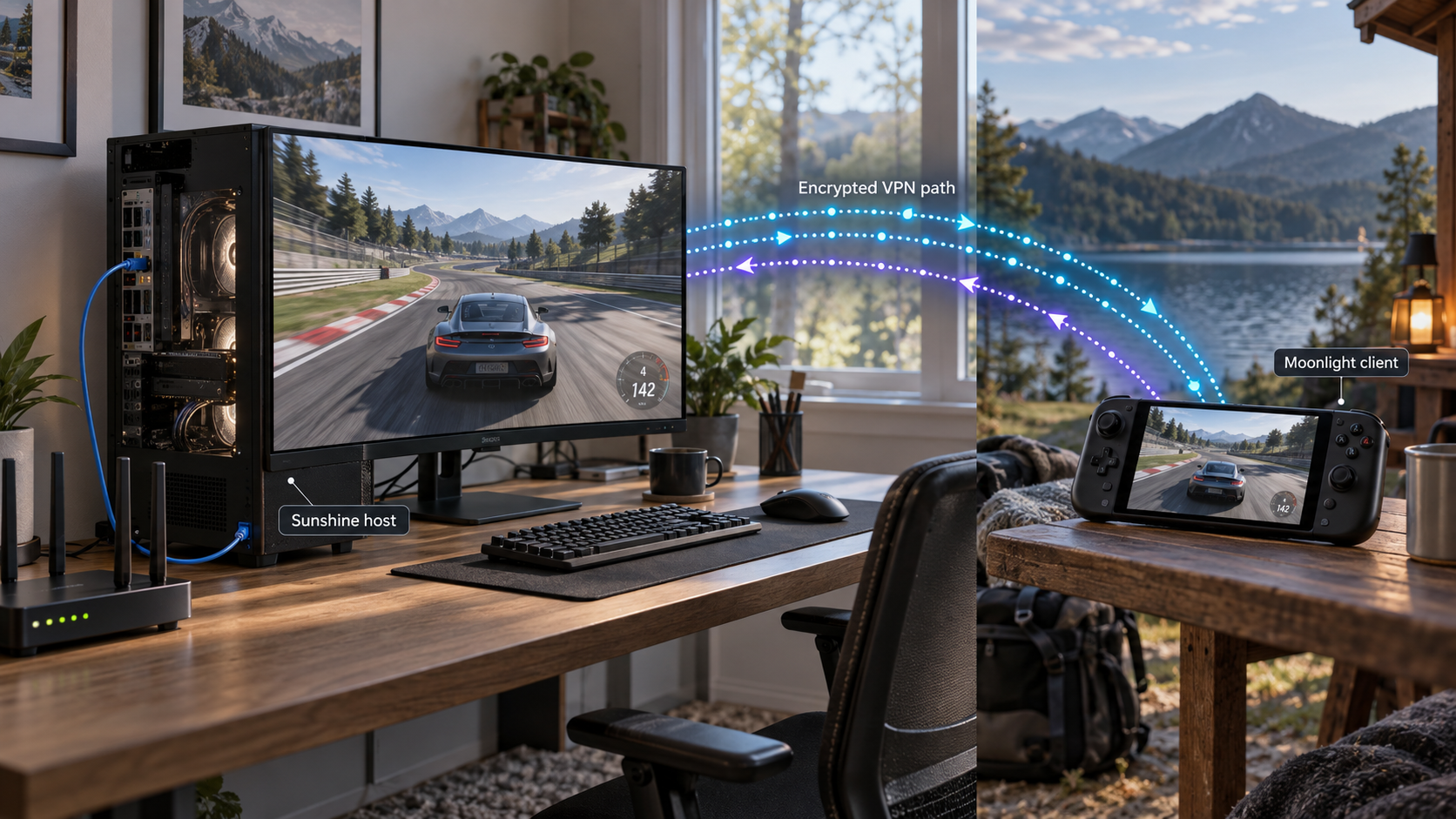
Stream games from your own PC without opening router ports
Sunshine turns a compatible computer into a self-hosted game-streaming host, while Moonlight connects from another screen and sends controller, keyboard, or mouse input back to that host. Local play should always be configured and tested before remote networking is introduced. For remote access, this guide uses a private Localtonet VPN Manager route when the host and client devices can both participate in that network. It also explains why publishing Sunshine's raw TCP and UDP ports is a separate, higher-risk design that must not be attempted without verified fixed-port compatibility.
📋 What's in this guide
How Sunshine, Moonlight, and Localtonet fit together
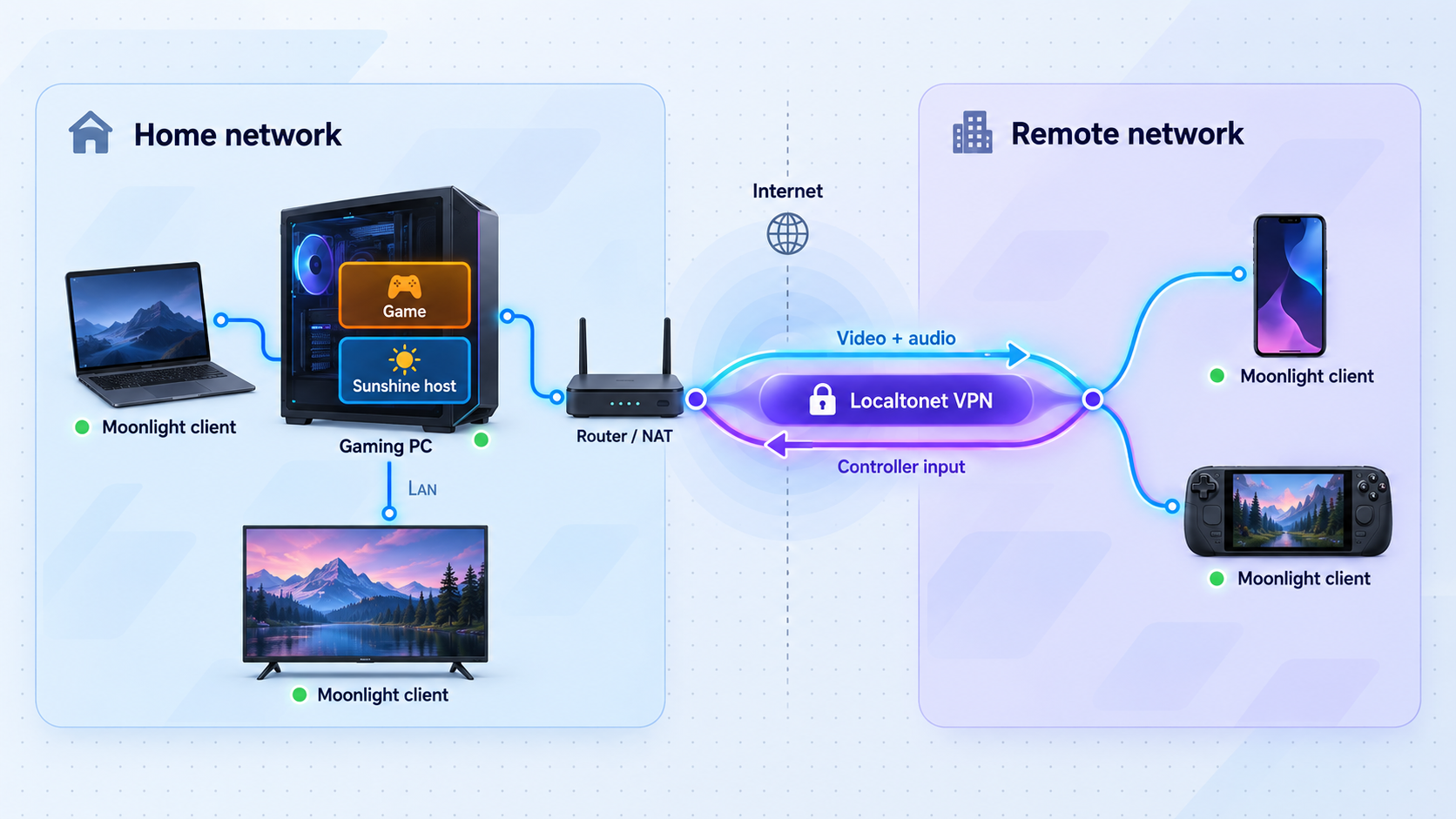
Sunshine is a self-hosted game-streaming host designed for Moonlight clients. It captures the host display, encodes the video, sends audio and video to the client, and receives input from the client. Sunshine supports hardware-encoding paths for AMD, Intel, and Nvidia GPUs where the operating system, driver, GPU, capture method, and selected encoding API are compatible. Software encoding is also available, but it places more work on the CPU and should not be assumed to deliver the same performance as a supported hardware encoder.
Moonlight is the client side of the connection. It discovers or manually connects to the Sunshine host, pairs using a PIN approval process, presents the available applications, and plays the resulting stream. Moonlight is available on a variety of device families, but availability and networking capabilities differ by operating system and device. Check the current downloads listed on the official Moonlight website before planning a particular client deployment. Do not assume that every television, mobile platform, browser, or locked-down device can run both Moonlight and a Localtonet networking client.
Localtonet handles the remote-network path in this design. The Localtonet client on a participating device establishes an outbound connection, so the home router does not need inbound port-forwarding rules and the host does not require a public IP address. For this use case, VPN Manager is preferable to public protocol tunnels when both endpoints can participate in the private mesh. VPN Manager is our private mesh networking feature with granular firewall rules and support for bridging local networks.
Recommended architecture
Moonlight client
      |
      | Private VPN Manager route over the internet
      |
Localtonet client on or near the Sunshine host
      |
      | Local host or LAN connection
      |
Sunshine streaming service

Sunshine administration interface:
https://localhost:47990
Keep this local or reachable only through an appropriately restricted private path.
This separation matters. Sunshine's streaming protocol and Sunshine's administration interface are not the same thing. The administration interface controls configuration and client pairing. It should not be published as a public web service just because it is convenient to open in a browser.
Complete installation, pairing, controller testing, audio testing, and at least one local stream before configuring remote access. If local streaming is unreliable, a tunnel or private mesh will not repair the underlying capture, encoder, firewall, driver, or application problem.
Prerequisites and compatibility checks
A self-hosted streaming setup depends on more than raw GPU performance. The host must support an appropriate screen-capture path, Sunshine must be able to initialize an encoder, the client must be able to decode the selected stream, and the network must carry the chosen bitrate with acceptable latency and packet loss.
Host computer
- A supported Sunshine host operating system and a compatible capture method.
- A GPU and driver combination that Sunshine can use for hardware encoding, or sufficient CPU capacity for software encoding if no compatible hardware path is available.
- A display environment Sunshine can capture. Headless systems may need additional display configuration that is specific to the operating system and hardware.
- Permission to install software and approve any operating-system capture, accessibility, input, audio, or firewall prompts.
- A stable local network connection. Ethernet is usually easier to diagnose than Wi-Fi on the host because it removes one source of interference and jitter.
- Games or applications configured to run under the account and desktop session used by Sunshine.
Sunshine's current compatibility tables cover Windows, macOS, Linux, and FreeBSD, but capture methods, encoders, and gamepad emulation differ substantially between them. The project explicitly describes its requirements tables as a work in progress, so do not purchase hardware solely from a simplified compatibility claim. Review the current Sunshine documentation and compatibility matrix for the exact host you intend to use.
Moonlight client
- A currently supported Moonlight application for the destination device.
- A controller or input method supported by that Moonlight client and by the Sunshine host's emulation capabilities.
- A decoder capable of handling the codec, resolution, frame rate, and color settings you select.
- A connection that can reach the host locally for initial validation, followed by a separate remote connection for off-site testing.
Controller support on the client does not guarantee that Sunshine can emulate that exact controller model on every host operating system. Sunshine's current feature matrix shows different gamepad-emulation support across Windows, macOS, Linux, and FreeBSD. Test the actual controller, game, host operating system, and client combination rather than relying only on the controller being recognized by the client device.
Localtonet requirements
- A Localtonet account and access to the current dashboard.
- A Localtonet client installed on the Sunshine host, or on another always-available device that can reach the host over the local network.
- A separate device-specific authentication token for each Localtonet client device.
- A currently available relay server or region selected from the dashboard.
- A Moonlight client device that can participate in the chosen VPN Manager design, either directly or through a supported routed network arrangement.
A Moonlight application being available for a device does not prove that the same device can run the required Localtonet client or participate in VPN Manager. Verify both applications on the exact client platform. If the streaming device cannot join the private network, do not silently fall back to public port exposure without reviewing the fixed-port, endpoint, plan, and security requirements described later in this guide.
Install and configure Sunshine on the host
Installation packages and host integration can change between Sunshine releases. Use the current stable installation path published by the project rather than copying an old package command from a third-party tutorial. The high-level process is consistent, but the permissions and capture stack are operating-system specific.
Choose the installation path for your operating system
| Host platform | Installation consideration | Post-installation checks |
|---|---|---|
| Windows | Use the current Sunshine package documented by LizardByte. Do not assume every release or installation mode creates identical service or firewall behavior. | Check Windows firewall prompts, Sunshine startup state, GPU driver availability, display capture, audio, and virtual gamepad behavior. |
| macOS | Use the current documented macOS package and follow the release-specific requirements. | Review screen-recording and input-related permissions. Confirm Sunshine can capture the selected display and receive input after permission changes. |
| Linux | Select a current package supported by the distribution and Sunshine documentation. Capture compatibility varies between X11, Wayland compositors, KMS/DRM, desktop portals, and GPU APIs. | Confirm the desktop session, capture method, device permissions, encoder initialization, audio source, and firewall configuration. |
| FreeBSD | Follow the project documentation for the available package and supported capture stack. | Review the current compatibility matrix carefully because some encoder and controller features are partial or unavailable. |
Exact package names and commands are intentionally not hardcoded here because they vary by Sunshine release, operating system, architecture, package source, and installation mode. The official Sunshine documentation is the authority for the current stable download and platform-specific installation procedure.
Install a current stable Sunshine release
Select the documented package for the host operating system and architecture. Complete any operating-system prompts, then start Sunshine using the installation mode you selected.
Open the administration interface locally
On the Sunshine host, open https://localhost:47990. A locally generated certificate can cause a browser warning. Confirm that the address is the local Sunshine service before proceeding.
Create the administrator credentials
Complete Sunshine's first-run credential-creation flow and choose a unique username and strong password. Sunshine does not simply display a reusable password for you to copy. Store the credentials in a password manager and do not reuse them on another service.
Review applications and host settings
Confirm that the desktop or intended applications appear in Sunshine. Avoid changing many codec, capture, display, or input options at once. A minimal baseline is easier to verify and troubleshoot.
Verify capture and encoder initialization
Review Sunshine's startup output or logs for the capture method and encoder that actually initialized. Do not assume a configuration page always proves which encoder became active. Resolve initialization errors before remote testing.
Understanding encoder selection
Sunshine documents multiple encoding APIs, including NVENC, QuickSync, AMF, VAAPI, VideoToolbox, Vulkan Video, Media Foundation, and software encoding, with availability depending on the operating system and GPU vendor. A vendor label alone is not enough. For example, a GPU family may support an encoding technology while a particular operating system, driver, capture method, or Sunshine build does not support that exact combination.
Use logs from the current session as the practical confirmation. Look for successful capture initialization, successful encoder creation, and the absence of repeated fallbacks or fatal errors. If hardware initialization fails, check the driver, Sunshine compatibility table, desktop session, permissions, and whether another process is preventing capture. Treat software encoding as a compatibility option, not a guaranteed low-latency substitute for a functioning hardware encoder.
Port 47990 serves Sunshine's configuration and pairing interface. It is protected by the credentials you created, but an administrative interface should still not become a generally reachable public endpoint. Keep it on the host, on a trusted local network, or behind a tightly restricted private management path.
Pair Moonlight and verify streaming on the local network
Pairing establishes trust between a Moonlight client and the Sunshine host. The PIN is generated or displayed by the client during the pairing attempt, then approved through Sunshine's pairing interface. After pairing succeeds, the trusted client normally remains paired. Moving that same client to a remote network should not require pairing it again unless its pairing state was removed, reset, or otherwise lost.
Install Moonlight on the client
Obtain the current Moonlight build for the client platform from the official project. Place the client on the same trusted local network as the Sunshine host for the first validation.
Add or select the Sunshine host
Allow local discovery to find the host, or add the host manually with its local IP address if discovery does not work. Local discovery failure does not necessarily mean the streaming ports are blocked, so manual addressing is a useful test.
Enter the Moonlight PIN in Sunshine
Start pairing in Moonlight, note the PIN shown by the client, then enter and approve it in Sunshine's local web interface. Do not approve an unexpected pairing request.
Start a simple local stream
Begin with the desktop or another predictable application. Confirm that video updates smoothly, audio reaches the client, and keyboard, mouse, or controller input returns to the host.
Test session start and stop behavior
End the stream from Moonlight, reconnect, and verify that the host remains usable. Check whether applications close, remain open, or return to the desktop according to the Sunshine application configuration.
What to validate before leaving the local network
- The host appears in Moonlight or works when entered by local IP address.
- Pairing completes and the client remains paired after Moonlight restarts.
- The selected application launches under the expected desktop session.
- Video is captured from the correct display.
- Audio comes from the intended source and plays on the client.
- Controller buttons and analog inputs work inside a game, not only in Moonlight's interface.
- Ending a session does not leave the host in an unusable display or audio state.
- Sunshine logs do not show repeated encoder, capture, or network errors.
A new client owned by a friend or family member is a separate trust decision. It must be explicitly paired and approved. Do not share administrator credentials or expose the administration page so another person can approve themselves.
Configure remote access with Localtonet VPN Manager
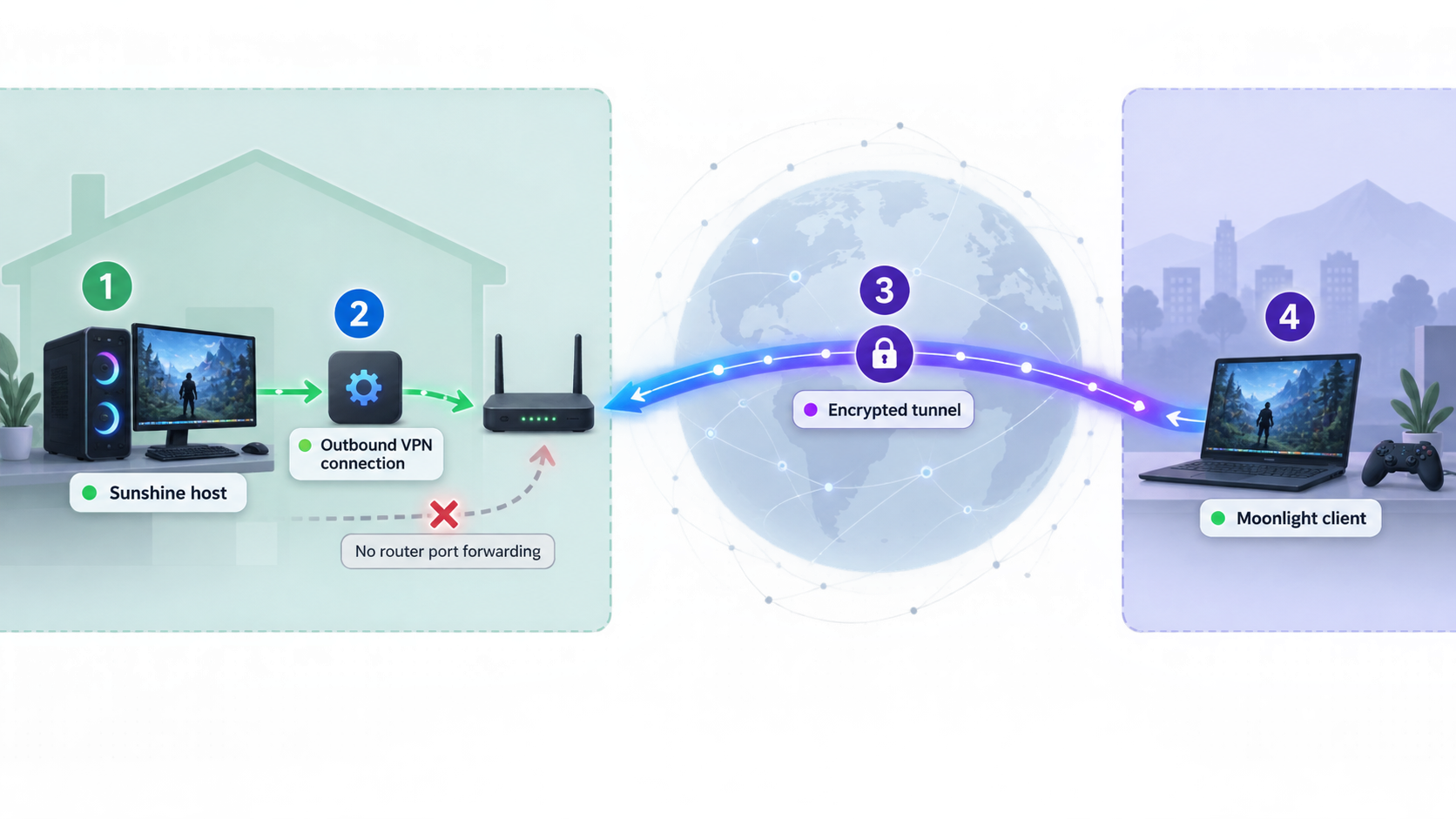
For devices you control, a private mesh is the recommended design because it avoids turning Sunshine's protocol listeners into unrestricted public endpoints. The Localtonet client establishes an outbound connection to our relay infrastructure, so this workflow does not require inbound router port forwarding, firewall changes on the router, a public IP address, or a separate traditional VPN server.
Remote packets still travel through internet networks and the selected Localtonet relay path. The security distinction is that access is carried through an enrolled private network instead of exposing a public host and port for any internet user to probe.
The exact VPN Manager enrollment controls and address presentation can vary with the current client and dashboard. The verified product behavior is that VPN Manager provides a private mesh with granular firewall rules and can bridge local LANs. Use the addresses, device identities, and routing information shown by the current dashboard rather than copying a virtual address from an example. The Localtonet VPN Manager guide provides current product context for the private-mesh feature.
Install the Localtonet client where Sunshine is reachable
Install and run the current Localtonet application on the Sunshine host or on an always-available device that can reach the host over the LAN. Installing it directly on the host produces the simplest reachability model.
Authenticate the host device
Use the device-specific authentication token created or selected in your Localtonet account. Treat this token as a credential. Do not paste it into screenshots, articles, support posts, scripts committed to a repository, or a shared chat.
Select a current relay server
Choose an available relay server or region from the current dashboard. Available values must be read from the product at setup time. Do not rely on a hardcoded server code from an older guide.
Create the VPN Manager network
Create or select the private VPN Manager configuration in the dashboard, then add the host-side device according to the current interface. Use the current device identity and private addressing information displayed there.
Enroll the remote client device
Install and authenticate the Localtonet client on the Moonlight device if that platform is supported, then add it to the same private network. If the Moonlight platform cannot run the Localtonet client, stop and reassess the architecture rather than assuming VPN Manager will work indirectly.
Apply least-privilege firewall rules
Permit the enrolled Moonlight device to reach only the Sunshine host and required streaming traffic. Do not grant broad access to the entire home LAN unless the use case genuinely requires it. Keep unrelated management services outside the allowed scope.
Start the private network connection
Creating a Localtonet configuration does not mean it is running. Start the selected VPN Manager connection and confirm that both devices report the expected connected state before opening Moonlight.
Add the private host address in Moonlight
In Moonlight, manually add the Sunshine host using the reachable private address or routed LAN address shown by the active VPN Manager design. Do not use Sunshine's public administration URL and do not enter a Localtonet account token.
An existing paired client separates network verification from pairing verification. If it connects remotely, the private route is working. If a completely new client must be paired remotely, an authorized person still needs to approve its PIN through Sunshine's protected administration interface.
Why direct TCP and UDP tunneling is not the default procedure
Sunshine uses several fixed TCP and UDP ports by default. A direct public-tunnel design would need to preserve the protocol, expected external port numbers, address behavior, and endpoint consistency required by Moonlight. It may also need all related ports to appear on a suitable common public endpoint. Those are product and interoperability requirements, not details that should be guessed.
The currently available evidence for the Localtonet TCP/UDP dashboard URL only exposes a login page and does not establish reserved-port availability, pricing, plan eligibility, cross-protocol endpoint behavior, or Moonlight compatibility. For that reason, this guide does not instruct readers to purchase an add-on or create a set of public tunnels. Validate those requirements with current Localtonet documentation and support before considering that architecture.
| Default port | Protocol | Sunshine role | Exposure guidance |
|---|---|---|---|
| 47984 | TCP | Streaming protocol service | Do not publish unless the entire direct-tunnel design has been validated. |
| 47989 | TCP | Streaming and pairing-related protocol service | Public reachability increases the exposed protocol surface. |
| 47990 | TCP | Sunshine administration web interface | Keep unexposed. Manage locally or through a restricted private path. |
| 48010 | TCP | RTSP session traffic | Requires correct fixed-port behavior in any direct-tunnel design. |
| 47998 | UDP | Control traffic | Requires UDP support and compatible public endpoint behavior. |
| 47999 | UDP | Audio traffic | Packet loss or blocked UDP can disrupt audio. |
| 48000 | UDP | Video traffic | Loss, jitter, or incompatible mapping can interrupt video. |
| 48002 | UDP | Input traffic | Blocked or delayed packets can affect controls. |
These are Sunshine's default ports. Configuration changes or port-offset options can alter the effective values. Confirm the active Sunshine configuration and current upstream documentation before using the table for firewall diagnostics.
A direct TCP or UDP tunnel does not become private merely because the host initiated the relay connection. The assigned public host and ports are reachable from the internet according to the tunnel configuration. Use applicable access restrictions, expose only required protocol listeners, keep the administration interface private, and stop the tunnels when they are no longer needed.
Verify the remote stream and tune it methodically
Test from a genuinely separate network. Turning off Wi-Fi on a mobile device and using cellular data is one option when data usage is acceptable. Another is testing from a different internet connection. Remaining on the home Wi-Fi can accidentally validate local discovery instead of the private remote route.
Confirm all required services are running
Verify that the host is awake, Sunshine is running, the host-side Localtonet client is connected, VPN Manager is started, and the remote device has joined the same permitted private network.
Test basic private reachability
Use the connectivity indicators and permitted diagnostics available on the participating platforms. A connected dashboard status alone does not prove that firewall rules allow the remote device to reach Sunshine.
Open the manually added host in Moonlight
Select the private host entry rather than a stale LAN discovery result. An already-paired client should normally display the available applications without requesting another pairing cycle.
Start with conservative stream settings
Choose settings below the maximum capabilities of the host, client, and network. If the stream is stable, increase quality gradually. Avoid applying a universal bitrate value because available upload capacity, relay path, mobile conditions, codec efficiency, resolution, and frame rate differ.
Observe latency, loss, decoding, audio, and input separately
Use Moonlight's available performance statistics and Sunshine logs to distinguish network delay from host encoding or client decoding problems. A single description such as “lag” can refer to several different failures.
How to interpret common performance signals
Change one variable at a time. Lower bitrate first when loss or congestion is suspected. If the issue remains, reduce resolution or frame rate and compare. If network statistics are healthy but decoding time is high, adjust the codec or client settings instead of continuing to reduce host upload bitrate.
Security and safe routine operation
Self-hosted game streaming gives a remote device interactive control of a computer. Treat it as privileged remote access, not merely as video playback. The client can potentially interact with the desktop, launch applications, type text, and access whatever the logged-in host account can access.
- Use a unique Sunshine administrator password and store it in a password manager.
- Pair only devices you recognize and remove devices that are lost, sold, or no longer trusted.
- Keep Sunshine's administration interface off public tunnels.
- Protect Localtonet device tokens as credentials and rotate or revoke them if exposed.
- Use VPN Manager firewall rules to limit which client can reach which host.
- Avoid granting the gaming account unnecessary administrative privileges.
- Keep Sunshine, Moonlight, the Localtonet client, GPU drivers, and operating systems current.
- Lock the host when appropriate and consider what a remote client can see in notifications, saved browser sessions, password managers, and messaging applications.
- Stop remote connectivity when it is no longer required.
Starting a remote gaming session
- Wake or power on the host through a separately tested method if it is not already running.
- Confirm Sunshine is running and has initialized capture and encoding correctly.
- Confirm the Localtonet host device is connected.
- Start the VPN Manager connection if it is not configured to run already.
- Connect the remote device to the private network.
- Open Moonlight and select the private host entry.
- Start the intended application and verify audio and controls before relying on the session.
Ending and shutting down safely
- Save progress and exit the game normally.
- End the Moonlight streaming session.
- Check whether the application remains running on the host.
- Stop VPN Manager when remote access is no longer needed, if continuous availability is not required.
- Stop or delete any temporary Localtonet configuration that should not remain available.
- Lock, sleep, or shut down the host according to your availability plan.
A Localtonet tunnel or network configuration must be started before it carries traffic. It can later be stopped or deleted. Remote streaming also requires the Sunshine service, the relevant Localtonet client, the network connection, and the host computer to remain available for the duration of the session.
Sleep, restart, and unattended availability
A sleeping or powered-off host cannot encode a stream. Wake-on-LAN may be useful on some networks and hardware, but it is a separate capability that must be configured and tested for the host, firmware, network adapter, operating system, and remote route. Do not assume that installing Sunshine or Localtonet automatically makes a sleeping computer remotely wakeable.
Startup behavior also depends on the installation mode and operating system. Verify what happens after a full restart. Check whether Sunshine starts before or after user login, whether the correct desktop session exists, whether the Localtonet client reconnects, and whether required permissions remain valid. Do not claim unattended availability until a cold-restart test has succeeded.
Self-hosted streaming compared with commercial cloud gaming
Sunshine and Moonlight do not replace every cloud-gaming use case. They stream a computer you operate, while services such as GeForce NOW and Xbox Cloud Gaming provide access under their own membership, catalog, device, regional, and session policies. Their commercial models are not identical, and availability can change.
| Consideration | Commercial cloud gaming | Sunshine, Moonlight, and Localtonet |
|---|---|---|
| Compute hardware | The provider operates the streaming hardware. | You supply, power, maintain, and secure the host computer. |
| Membership model | Varies by provider. Free or paid options, entitlements, queues, and limits may differ. | Sunshine and Moonlight are open-source projects, while Localtonet feature availability and plan terms must be checked in the current product. |
| Game availability | Depends on the provider's catalog, licensing, account connections, and membership rules. | Depends on what the host can run and whether a particular game, launcher, anti-cheat system, and input configuration work in the remote session. |
| Maintenance | The provider manages servers, drivers, and streaming infrastructure. | You manage the operating system, drivers, Sunshine, network path, accounts, updates, and physical availability. |
| Remote access risk | The provider controls its service boundary and account security model. | You are responsible for pairing, private-network rules, host-account permissions, tokens, and exposed services. |
| Setup effort | Usually focused on account, membership, game ownership, and client installation. | Depends on the host operating system, capture stack, encoder, client platform, network, and security requirements. |
Review the current GeForce NOW membership options and Xbox Cloud Gaming information for their present terms. GeForce NOW may provide a free membership option in supported locations, while paid memberships can offer different capabilities. Xbox Cloud Gaming availability is tied to Microsoft's current supported memberships, games, devices, and regions. These terms should not be reduced to a single claim that every service always requires the same type of paid subscription.
Self-hosting is most attractive when you already operate a suitable computer and want direct control over that host. It is less attractive when you need a provider to supply the hardware, do not want to maintain an always-available computer, or cannot provide a stable remote path. There may still be electricity, hardware, internet, relay, plan, and maintenance costs, so “no monthly cost” should not be treated as a universal promise.
Troubleshooting Sunshine, Moonlight, and remote connectivity
| Symptom | What to check | Recommended action |
|---|---|---|
| Sunshine does not open locally | Process state, installation mode, local port conflicts, and Sunshine logs | Confirm Sunshine is running and that another program is not using the configured administration port. Resolve local startup errors before testing Moonlight. |
| Browser warns about the Sunshine certificate | Address bar and local destination | Confirm that you opened the expected local Sunshine address. Do not use the warning as a reason to publish the administration interface through another service. |
| Moonlight cannot discover the host locally | Same-network status, guest Wi-Fi isolation, firewall rules, and local discovery support | Add the host manually by local IP address. If manual access also fails, inspect the host firewall and Sunshine logs. |
| Pairing does not complete | PIN direction, administrator login, expired request, and host identity | Start pairing in Moonlight, enter the displayed PIN into Sunshine, and approve only the expected client. Retry with a fresh request if necessary. |
| A previously paired client asks to pair again | Moonlight data reset, app reinstall, host reset, changed host identity, or removed client | Confirm that the request is expected, then perform a new pairing approval. Investigate unexpected host-identity changes before proceeding. |
| Encoder initialization fails | GPU driver, selected API, capture method, permissions, and Sunshine compatibility matrix | Review the current logs and correct the first encoder or capture error. Avoid assuming that software fallback will provide equivalent performance. |
| Local streaming works but remote host is unreachable | VPN Manager start state, both device connections, private address, routing, and firewall rules | Confirm both devices are enrolled and connected, then verify that the rule permits the client to reach the Sunshine host. Use the active private address, not a stale LAN address. |
| Video starts but stutters | Host upload stability, packet loss, jitter, relay path, Wi-Fi, encoder time, and decoder time | Use performance statistics to identify the constrained stage. Lower bitrate first for network congestion, or reduce resolution and frame rate when encode or decode time is too high. |
| Video is smooth but input feels delayed | Round-trip latency, display processing, controller connection, Bluetooth interference, and frame pacing | Compare wired and wireless input, enable the display's low-latency mode where appropriate, and test another relay or client network. |
| No audio reaches the client | Host output device, Sunshine audio configuration, muted applications, client volume, and UDP path | Verify local application audio first, then inspect the host audio source and Sunshine logs. Check the private firewall rules if only remote audio fails. |
| Controller works in Moonlight but not in a game | Host gamepad emulation support, operating-system permissions, driver availability, and game input mode | Compare the controller with Sunshine's host compatibility matrix and test it in the host operating system before changing network settings. |
| Remote access fails after the host restarts | Sunshine startup, user login, Localtonet client startup, token state, and VPN Manager lifecycle | Log in locally and determine which component did not return. Configure only the supported startup behavior for the selected installation mode. |
| The host disappears after a period of inactivity | Sleep settings, network-adapter power saving, laptop lid behavior, and client background restrictions | Adjust the host's power plan according to your security and availability needs. Test sleep and wake behavior separately from active streaming. |
Use logs to isolate the failing layer
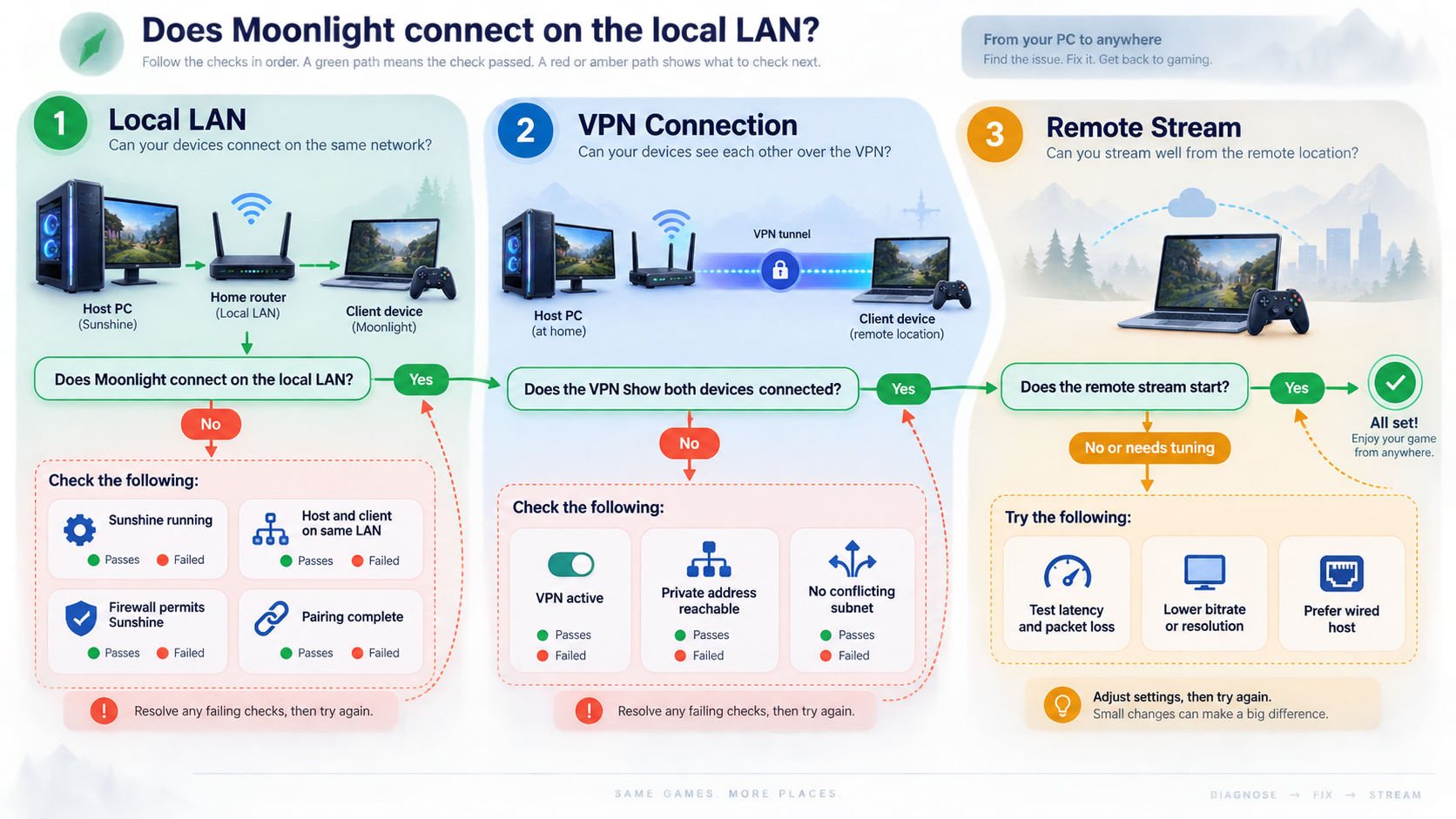
Start with Sunshine logs when capture, encoding, application launch, audio, or pairing fails. Start with Localtonet connection state and VPN Manager rules when local streaming succeeds but the private remote route fails. Start with Moonlight performance statistics when a stream connects but quality, decoding, frame pacing, or latency is poor.
Avoid changing the Sunshine encoder, Moonlight codec, Localtonet relay, firewall rules, resolution, and bitrate at the same time. That may temporarily hide the symptom without identifying the cause. Record a working local baseline, make one remote change, and compare the result.
Frequently asked questions
Do I need an Nvidia GPU to use Sunshine?
No. Sunshine documents hardware-encoding paths for AMD, Intel, Nvidia, Apple, and other platform-specific combinations, plus software encoding. Actual support depends on the operating system, GPU, driver, capture method, and encoding API, so verify the current compatibility matrix and Sunshine logs for the host.
Does VPN Manager keep the traffic off the public internet?
No. Remote traffic still travels over internet infrastructure and the selected relay path. VPN Manager provides a private mesh so Sunshine does not need to be exposed as a generally reachable public host and port.
Can every Moonlight device join Localtonet VPN Manager?
Do not assume so. Moonlight and the Localtonet client have separate platform requirements. Verify that both are available and supported on the exact device. Otherwise, use a separately validated routed-network design or reconsider the client platform.
Should I expose Sunshine port 47990?
No. Port 47990 is Sunshine's administration and pairing interface. It has authentication, but it remains a sensitive management surface. Keep it local or reachable only through a tightly restricted private management route.
Do I need to pair Moonlight again when I leave home?
Normally, no. An already-paired client should retain its trust relationship when the network path changes. Pair again only if the client or host pairing state was reset, removed, or lost. A new device must be explicitly approved.
Can I create public Localtonet TCP and UDP tunnels instead?
Localtonet supports TCP, UDP, and combined UDP/TCP tunnel families, but Moonlight compatibility requires more than generic protocol support. The public design must preserve the required fixed ports and compatible endpoint behavior. Current plan availability, reservation behavior, and cross-protocol endpoint requirements must be verified before deployment. Public protocol endpoints also have a larger exposure surface than a private mesh.
What bitrate should I use?
There is no universal value. Begin conservatively and use Moonlight's performance statistics to compare bitrate with the host's stable upload capacity, packet loss, latency, encoder time, and client decoding time. Increase quality gradually after the stream is stable.
Does the gaming PC need to remain on?
Yes. The host must be awake, Sunshine must be running, and the Localtonet connection must be active. Automatic startup and wake behavior depend on the operating system, installation mode, firmware, network adapter, and power configuration, so test them after a complete restart and sleep cycle.
Can a friend connect to my Sunshine host?
Only provide access after deciding how that device will join the private network and what it may reach. A new Moonlight client requires explicit pairing approval. Do not share the Sunshine administrator password or Localtonet device token, and remove the client and network permission when access is no longer required.
Build a private remote-streaming path with Localtonet
First verify Sunshine and Moonlight on your local network. Then enroll compatible devices in Localtonet VPN Manager, apply least-privilege rules, start the connection, and test from a genuinely remote network without exposing Sunshine's administration interface.
Get Started Free →

