

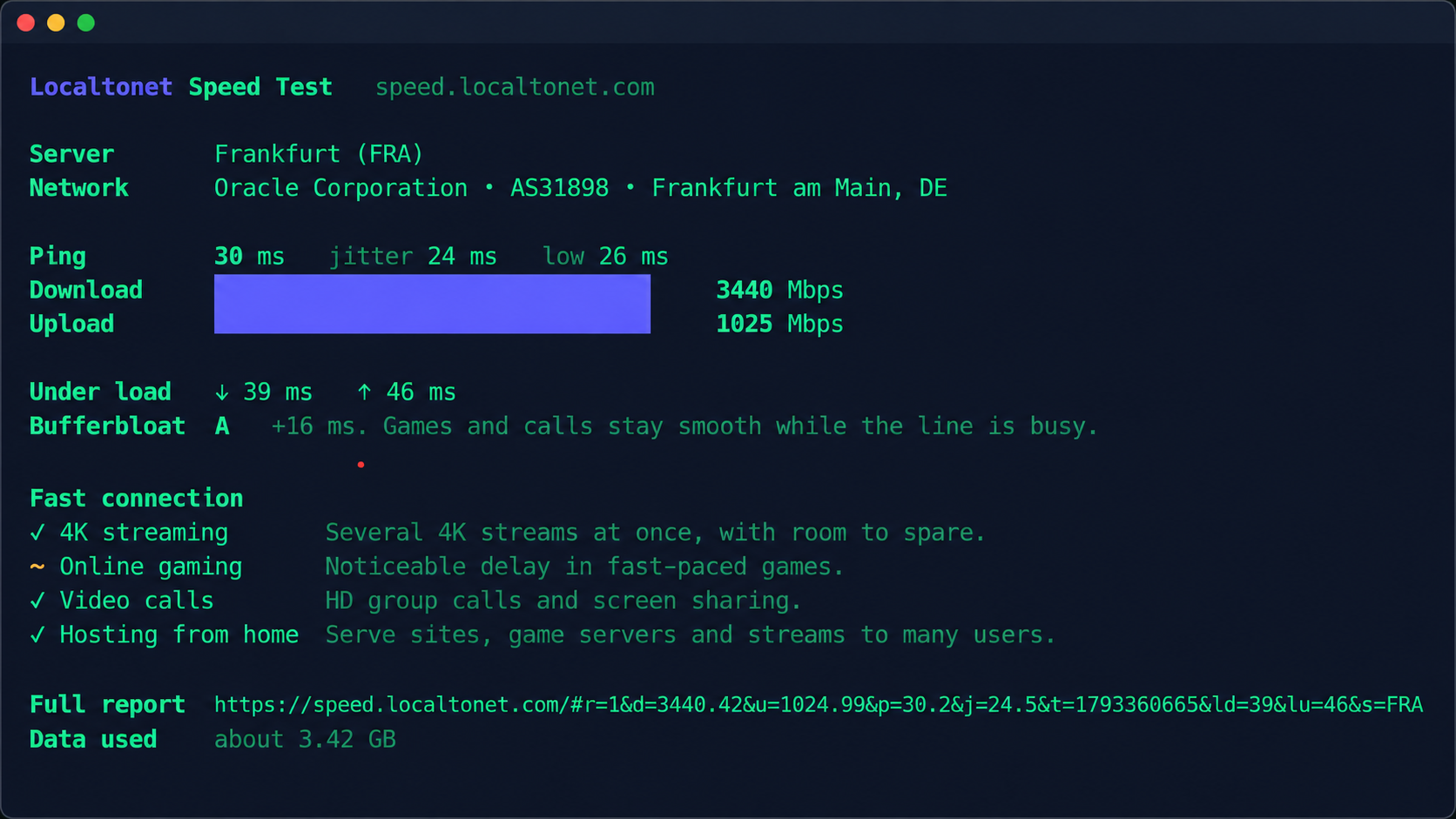
One command, no installer, and a verdict on what your connection can actually do
Most speed tests assume you are sitting in front of a browser. A lot of real work happens elsewhere: an SSH session to a VPS, a headless homelab box, a CI runner, a script that should log your line quality every few hours. We built a terminal speed test that runs on Windows, macOS and Linux with a single pasted command and nothing to install. This guide shows the exact commands for each system, explains how to read the output (including the bufferbloat grade), covers JSON output and scheduling, compares the approach fairly with other command line tools, and explains what you should check before piping any script into a shell.
📋 What's in this guide
Why test your speed from the terminal?
A browser speed test answers the question "how fast is the connection on this laptop right now?" That is useful, but it is not the question you ask in several common situations.
If you manage a server, the connection that matters is the one the server has, not the one your desktop has. You are usually connected over SSH, with no graphical browser available. If you run a homelab, a Raspberry Pi or a small VPS, the same applies. If you want to track your home line over days to catch evening congestion, you need something a scheduler can run unattended. And if you simply live in a terminal, opening a browser tab to check your speed breaks your flow.
The usual obstacle is installation. Many command line speed tests need a language runtime, a package repository, or a license acceptance before the first run. That is fine on your own workstation but awkward on a locked-down server or a throwaway container. Our terminal speed test takes a different route: it is a script you fetch and run in one step. On macOS and Linux it needs only sh and curl, which are commonly available. On Windows it uses PowerShell 5.1, which is built into Windows 10 and 11, and it also works in PowerShell 7.
A single run takes about 20 seconds and uses roughly 200 to 350 MB on a fast line. That is fine on broadband, but think twice on a metered mobile plan, a tethered phone or a capped VPS, and keep it in mind before you schedule repeated runs.
What the terminal speed test measures
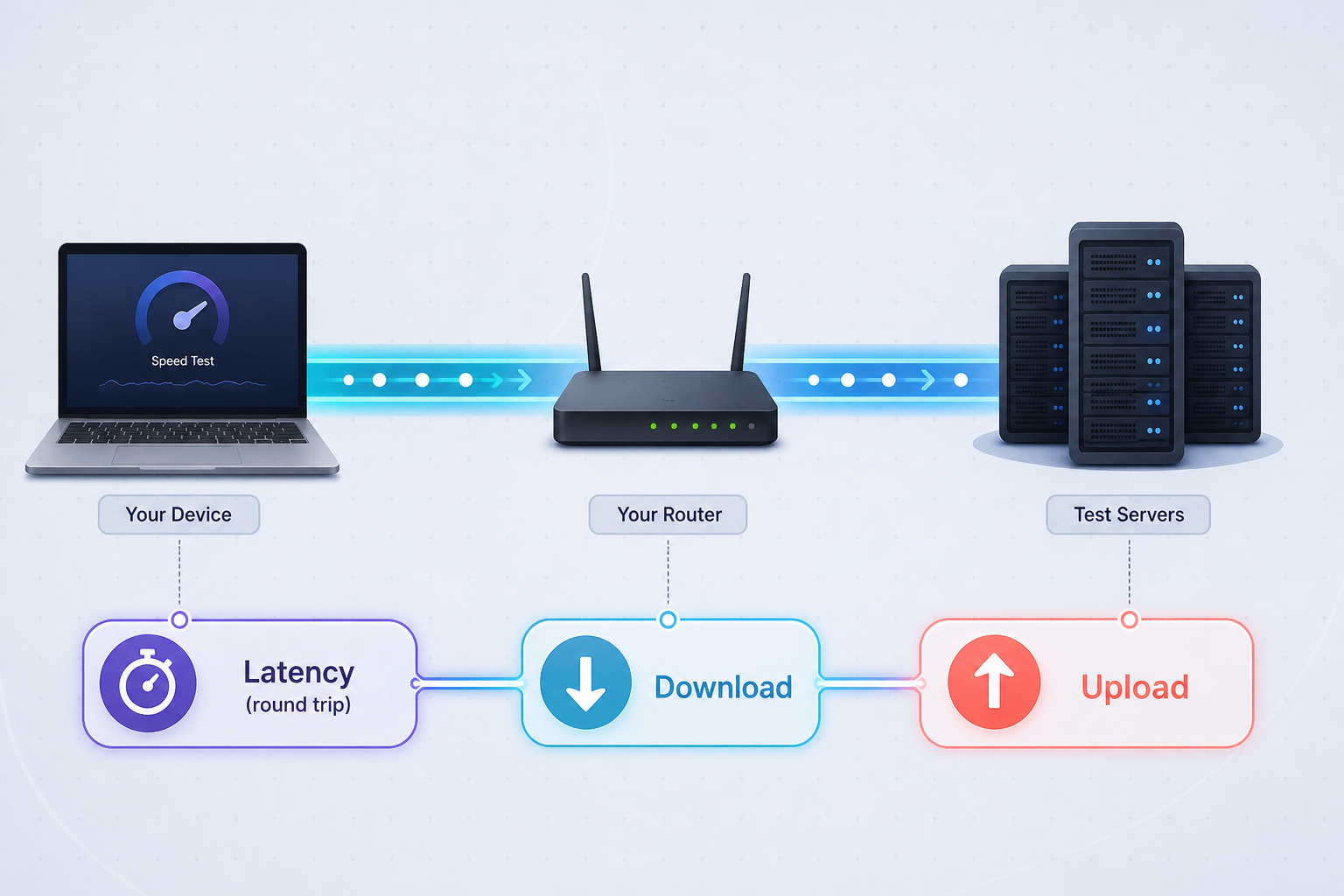
The test reports the numbers most people expect from a speed test, plus a few that explain why a fast connection can still feel slow.
While the test runs you see live progress in the terminal. When it finishes, it prints a "Full report" link that opens the same result on speed.localtonet.com, which is handy if you want a nicer view or want to share the result with someone.
Where the measurements go
The speed test measures your connection using network testing endpoints. Download and upload transfers exchange generated test data, while latency measurements track how quickly your device communicates with the test endpoint. The figures are calculated on your own machine, and the results are not sent to Localtonet. In our browser version, a shared result link keeps its numbers in the URL fragment, the part after the #, which browsers do not send to a server.
This has one consequence worth stating plainly. Because the test measures the network path between your device and a speed test endpoint, it provides a practical indication of your connection's real-world performance when accessing websites, applications and online services. It does not measure the path to your ISP's own test server, to a game server, or to your own VPS. Different speed tests measure different routes, so do not expect two tools to agree to the last megabit.
Run the speed test on Windows
Open PowerShell. On Windows 10 and 11 that is Windows PowerShell 5.1, which is already installed. PowerShell 7 works too. Paste this and press Enter:
irm https://speed.localtonet.com/ps | iex
irm is the short alias for Invoke-RestMethod, which downloads the script as text. iex is the alias for Invoke-Expression, which runs it. The script is wrapped in a single script block, so it does not leave functions or variables behind in your session.
Using Command Prompt instead
If you are in CMD rather than PowerShell, call PowerShell from it. The quotes keep CMD from interpreting the pipe character:
powershell -c "irm https://speed.localtonet.com/ps | iex"What you will see
The test starts with latency samples, then runs the download phase, then the upload phase, with live progress and a changing speed figure in the terminal. During each transfer phase it also takes extra latency readings so it can compare loaded latency with idle latency. At the end you get the summary: download, upload, ping, jitter, the bufferbloat grade, the verdict on what the connection suits, and the "Full report" link.
The exact layout of the summary may change over time, so we do not freeze a screenshot of it here. The reading guide in the table below applies whatever the layout looks like.
| Number | What it tells you | How to judge it |
|---|---|---|
| Download (Mbps) | Receive speed. Divide by 8 for megabytes per second. | 400 Mbps is about 50 MB/s. Compare it with your plan, remembering that plans are sold as "up to" figures. |
| Upload (Mbps) | Send speed. | Many cable and DSL plans are asymmetric, so upload is often 5 to 20 times lower than download. |
| Ping (ms) | Idle round-trip time to the test location. | Under 20 ms is excellent, 20 to 50 ms is good, and over 100 ms becomes noticeable in games and calls. |
| Jitter (ms) | How much ping varies between samples. | Under 10 ms is great. Above 30 ms usually points to Wi-Fi interference or congestion. |
| Latency under load | Ping measured while the download and upload run. | On a well-managed line it barely changes. A large rise means bufferbloat. |
| Bufferbloat grade | A+ to F summary of the rise in latency under load. | See the bufferbloat section below for the grade thresholds. |
Stopping a run and Constrained Language Mode
Press Ctrl+C at any time. The test stops, nothing is left running, and no files are left behind.
The Windows script checks the session's language mode before it starts. If your PowerShell runs in Constrained Language Mode, which some locked-down corporate or security-hardened machines enforce, the script prints a message and stops, because the measurement engine needs full PowerShell. In that case use the browser version at speed.localtonet.com instead.
Run the speed test on macOS
Open Terminal (or iTerm, Ghostty, or whatever you use) and paste:
curl -fsSL https://speed.localtonet.com/sh | sh
macOS ships with both sh and curl, so there is nothing to install and no Homebrew step. The curl flags are worth knowing, because they are a good habit for any download-and-run command:
-fmakes curl fail on HTTP errors instead of handing an error page to the shell.-ssilences curl's own progress meter so it does not mix with the test's output.-Sstill shows an error message if something goes wrong.-Lfollows redirects.
The output follows the same reading guide as the Windows table above. In a normal terminal you get live progress, coloring and a bar-style display. If your locale is not UTF-8 the script falls back to plain ASCII characters, and if output is not going to a terminal it skips the animated display. The script also respects the NO_COLOR environment variable, and you can pass --no-color to switch colors off explicitly.
Options for macOS and Linux
The shell version accepts four options. You pass them after sh -s --, which is how the JSON command in the automation section below is built.
| Option | Platform | What it does |
|---|---|---|
--json |
macOS, Linux | Prints the result as JSON for scripts instead of the live display. |
--ipv4 |
macOS, Linux | Forces the test over IPv4. |
--ipv6 |
macOS, Linux | Forces the test over IPv6. |
--no-color |
macOS, Linux | Turns off colored output, useful for logs and some terminals. |
-Json |
Windows | The PowerShell equivalent of --json. |
Run the speed test on Linux and over SSH
On Linux the command is the same as on macOS:
curl -fsSL https://speed.localtonet.com/sh | shThis is where a terminal-native test earns its keep. Log in to your VPS, homelab server or Raspberry Pi over SSH, paste the command, and in about 20 seconds you know what that machine's own connection can do, which is often quite different from what your laptop sees. It is also a quick way to check whether a hosting provider's advertised bandwidth is realistic from the server's point of view, or whether a VPN or tunnel on the box is slowing it down.
Requirements and minimal systems
The practical requirements are a POSIX shell and curl. The script also checks for awk, which it uses for arithmetic, and exits with a clear message if either tool is missing. On a minimal container image, curl is the usual absentee. If the script reports that curl is required, install it with your distribution's package manager (the script's own hint uses sudo apt install curl as the example for Debian-based systems) and run the test again.
The script also adapts to the curl version it finds. With curl 7.63 or newer, each request reports its result the moment it finishes, so the speed figure updates live. Very old curl builds may therefore give a less lively display. If you maintain old servers, that is the first thing to check when the live updates look sluggish.
Temporary files and cleanup
The script keeps its temporary files in a single directory and removes that directory when the test ends. Pressing Ctrl+C also stops everything cleanly, so an interrupted run does not leave stray processes or files on a server you care about.
IPv4 and IPv6 on dual-stack servers
Servers with both IPv4 and IPv6 sometimes perform very differently on each. The --ipv4 and --ipv6 options let you test each stack separately, which can explain complaints such as "it is fast for some users and slow for others". Run the test once per option and compare the two results.
What bufferbloat means, in plain words
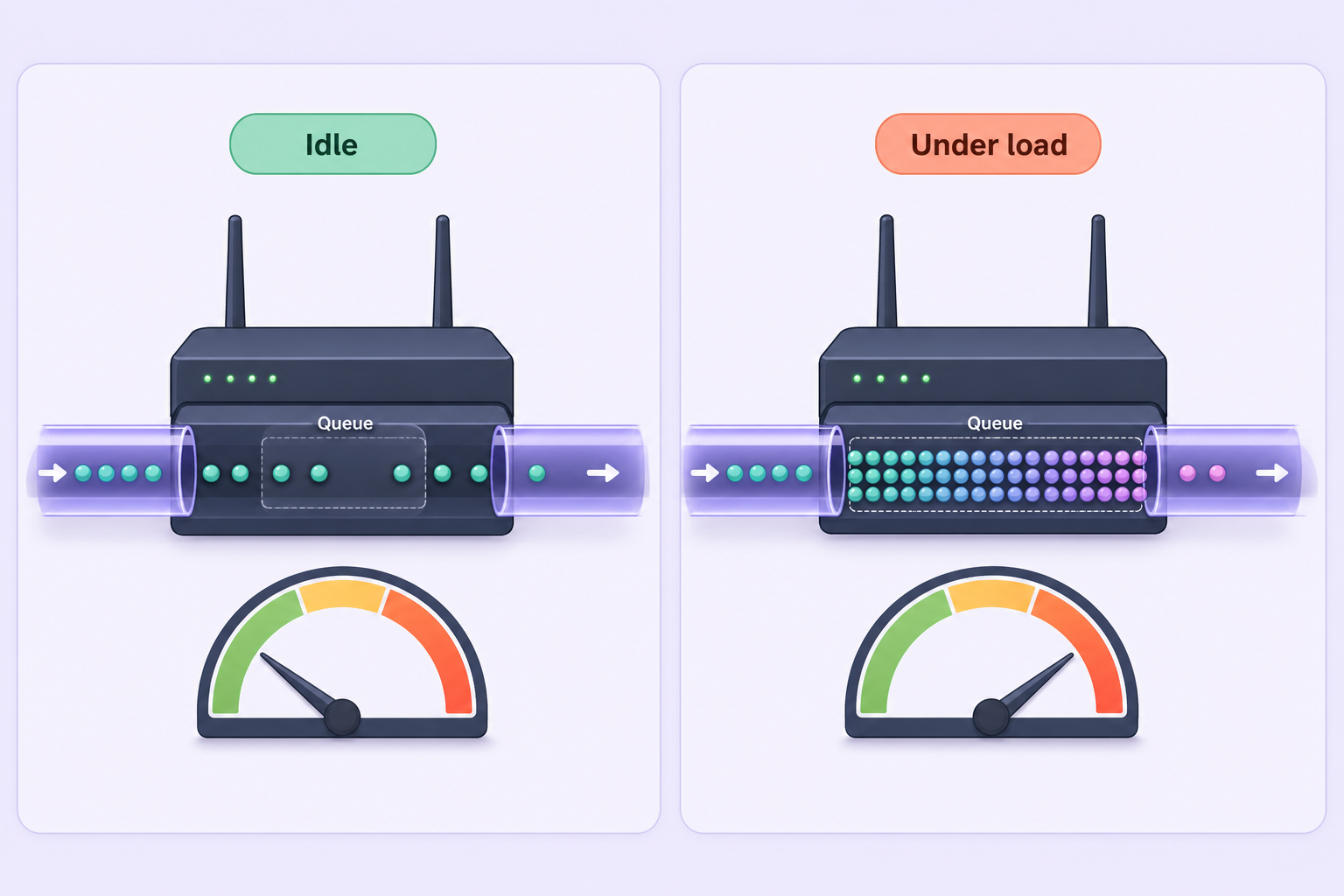
Speed and responsiveness are different things. A line can show a large download number and still make video calls stutter or games lag the moment someone starts a big upload. The usual cause is bufferbloat.
Think of your router (or your ISP's equipment) as a checkout queue. When data arrives faster than the link can send it, the excess waits in a buffer. A small queue is fine. A very large, unmanaged queue means that when the line is busy, every packet waits behind all the others, including the tiny, time-sensitive packets from your call or game. The line is not slower in megabits, but each packet now takes much longer to get through. Your ping, which looked fine while the line was idle, balloons whenever the line is saturated.
That is exactly what the test looks for. It measures idle latency first, then measures latency again while the download is running and while the upload is running. The increase over idle latency is the bufferbloat. Our browser test page publishes the grade thresholds, and the terminal result uses the same A+ to F scale:
| Grade | Latency increase under load | What it feels like |
|---|---|---|
| A+ | Under 5 ms | The line stays responsive even when saturated. |
| A | Under 30 ms | Very good. Calls and games should hold up. |
| B | Under 60 ms | Acceptable, with occasional noticeable lag during heavy transfers. |
| C | Under 200 ms | Noticeable lag whenever someone else uploads or streams. |
| D | Under 400 ms | Poor. Real-time use suffers on a busy line. |
| F | Beyond 400 ms | Severe. The line becomes close to unusable for real-time traffic when busy. |
The "what it feels like" column is our plain-language interpretation of the thresholds, not a separate measurement.
What to do about a poor grade
The usual remedy is a router with Smart Queue Management (SQM), typically using the fq_codel or CAKE algorithms. These keep the queue short so that small time-sensitive packets are not stuck behind bulk transfers. Whether your router supports this depends on its firmware, so check its documentation. After changing a setting, run the test again and compare the grade. If you have both Wi-Fi and a cable available, test each, because Wi-Fi problems and queueing problems can look similar from the outside.
Automating the test with JSON, cron and Task Scheduler
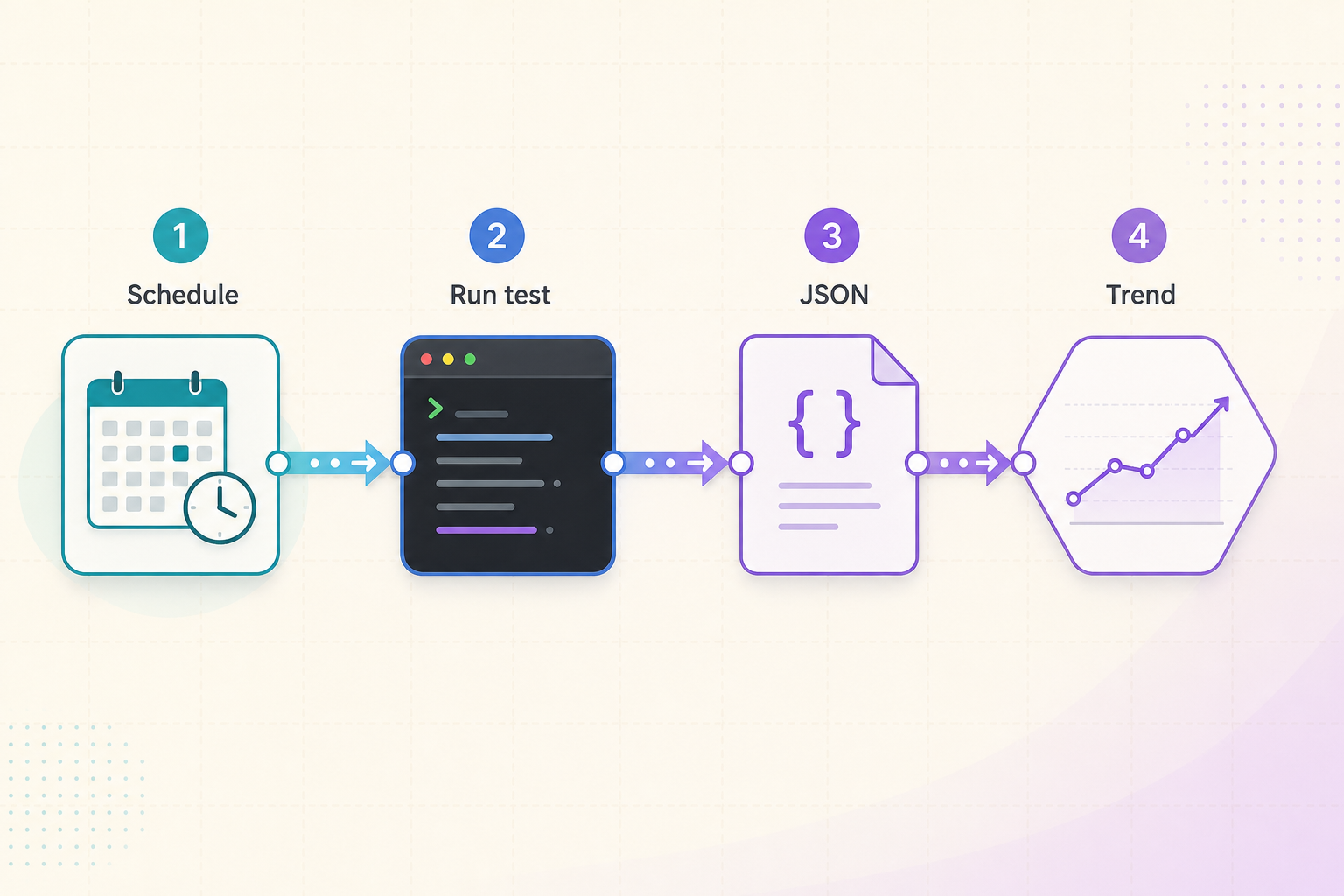
For scripts you want machine-readable output rather than a live display. Add the JSON option:
macOS and Linux:
curl -fsSL https://speed.localtonet.com/sh | sh -s -- --jsonWindows (PowerShell):
& ([scriptblock]::Create((irm https://speed.localtonet.com/ps))) -Json
The Windows form is different because -Json is a parameter, and a parameter cannot be passed through iex directly. Creating a script block from the downloaded text and calling it with & lets you pass -Json to it. On the shell side, sh -s -- tells the shell to read the script from standard input and treat everything after the double dash as arguments to that script.
This guide does not list JSON field names, because we are not fixing a schema in the article. Run the JSON command once by hand, look at the structure it prints, and write your parser against that. Re-check it if you update your tooling much later.
Scheduling with cron on Linux
Cron is the simplest way to build a history of your connection quality. Pick a sensible interval first. At roughly 200 to 350 MB per run on a fast line, an hourly schedule is about 5 to 8 GB per day, which is rarely what you want. Every six hours is a more reasonable starting point for spotting patterns.
Run the JSON command once by hand
Paste the JSON command into your shell and confirm that it prints a result and finishes. This confirms that curl, awk and outbound HTTPS all work from that machine before you automate anything.
Open your crontab
Run crontab -e for the user who should own the job. Cron runs commands with sh by default, which suits a command that pipes into sh.
Add one line that appends the result to a log
Add the entry below, save and exit. It runs at minute 0 of every sixth hour and appends each result to a file in your home directory.
0 */6 * * * curl -fsSL https://speed.localtonet.com/sh | sh -s -- --json >> $HOME/speedtest.log
After the first scheduled run, read the log file to confirm it contains the JSON you saw in the manual run. Cron uses a minimal environment, so if the job fails silently, check that curl and awk are available on cron's default PATH (they normally live in /usr/bin). Cron also emails or logs any output you do not redirect, which is useful for catching failures.
Scheduling with Task Scheduler on Windows
On Windows, Task Scheduler runs the same command through powershell.exe. Create the folder for your log first (the example uses C:\Logs).
Create a basic task
Open Task Scheduler, choose Create Basic Task, give it a name such as "Speed test", and set a trigger, for example daily and then repeating every few hours in the task's trigger settings.
Set the action to start a program
Choose Start a program, and enter powershell.exe as the program.
Paste the arguments
In the "Add arguments" field, paste the line below. The *>&1 part merges every output stream so that the result is captured regardless of how the script writes it, and -Encoding utf8 avoids the UTF-16 file that Windows PowerShell 5.1 would otherwise create.
-NoProfile -Command "& ([scriptblock]::Create((irm https://speed.localtonet.com/ps))) -Json *>&1 | Out-File -Encoding utf8 -Append C:\Logs\speedtest.log"Run the task once manually from Task Scheduler and open the log file to check that it contains JSON. We cannot guarantee how every Windows configuration routes output from a scheduled, non-interactive session, so treat that first manual run as part of the setup, not an optional extra. If a managed machine enforces Constrained Language Mode, scheduled runs will stop for the same reason interactive ones do.
Getting numbers you can trust
A speed test measures the weakest link between your device and the test location. Several things besides your ISP can be that weakest link, and the terminal makes it easy to run the same test repeatedly while you change one variable at a time.
- Wi-Fi is the usual bottleneck. Walls, distance, the 2.4 GHz band and crowded channels all cut speed. Test with a cable, or stand close to the router on 5 or 6 GHz.
- Other traffic shares the line. Cloud backups, system updates, streams and game downloads use bandwidth too. Pause them for an accurate result.
- VPNs and proxies add a hop. Encryption overhead and a distant exit server lower speed and add latency. Compare a run with the VPN on and off.
- Your own machine can limit it. Old network adapters, power saving modes and some security software can cap throughput, particularly above 500 Mbps.
- Peak hours matter. Evening congestion in your ISP's network is common, which is why a scheduled log across the day is more informative than a single result.
- Differences between tools are normal. Every service measures to different servers over different routes and summarizes data differently. On our browser test page we note that differences of 10 to 20 percent between services are normal, and that larger gaps usually point to a congested route to one of the servers.
What the verdict is based on
The closing verdict translates your numbers into activities. As a rough guide, our browser test page lists these comfortable figures per activity. Add them up if several people or tasks share the line.
| Activity | Download | Upload | Ping |
|---|---|---|---|
| HD video streaming (1080p) | 5 to 8 Mbps | Any | Any |
| 4K / UHD streaming | 25 Mbps | Any | Any |
| HD video calls | 4 Mbps | 4 Mbps | Under 80 ms |
| Online gaming | 10 Mbps | 3 Mbps | Under 40 ms, low jitter |
| Hosting a website or game server from home | Any | 10 to 50+ Mbps | Under 60 ms |
These are reference figures, not guarantees. The wording of the terminal's own verdict may group activities differently, so use the table as background rather than as an exact specification of the verdict logic.
How this compares with other command line speed tests
We are not the only way to test speed from a terminal, and other tools make different trade-offs. Which is best depends on what you need to measure and what you are willing to install.
| Tool | What it needs | Measures against | Notes |
|---|---|---|---|
| Localtonet terminal speed test | sh and curl on macOS and Linux; PowerShell 5.1 or 7 on Windows. Nothing installed. |
Internet speed test endpoints | Download, upload, ping, jitter, latency under load, bufferbloat grade, activity verdict, JSON option. Results not sent to Localtonet. |
| speedtest-cli | Python | Speedtest.net servers | A long-standing community tool. Its GitHub repository currently shows as archived by its owner and read-only, so check that it still suits your environment before building on it. |
| Ookla Speedtest CLI | Installation (Homebrew, apt, yum, FreeBSD packages or a direct download) and acceptance of a license | The Speedtest Server Network | Official Ookla tool. Its page lists download, upload, latency and packet loss, and output as CSV, JSONL or JSON. Windows builds are x64 only. |
| fast-cli | Node.js | fast.com | Tests download and upload using fast.com. Simple if you already have Node. |
An honest reading of the trade-offs
Pick our terminal test when you want a result on a machine you cannot or do not want to install things on, when you want the bufferbloat grade and the loaded-latency numbers without extra tools, or when you need the same one-liner on Windows, macOS and Linux.
Pick the Ookla Speedtest CLI when you want a server network you can compare directly with Speedtest results from other devices, when you need packet loss in the output, or when you want to integrate with dashboards through its CSV, JSONL or JSON formats. The trade-off is that you install it and accept its license.
Pick speedtest-cli or fast-cli if you already have Python or Node on the machine and one of those test targets, Speedtest.net or fast.com, is the one you want to compare against. They each depend on a runtime we do not require.
We are not claiming our numbers are more correct than anyone else's. Each service measures a different route, and a test against an internet speed test endpoint tells you something different from a test against a particular ISP-hosted server. If you need the closest match to what a given provider reports, use that provider's own tool. We also have no packet loss measurement to offer, and the documented options do not include choosing a specific test server.
How does the terminal speed test work?
Localtonet's terminal speed test is designed to be simple, lightweight, and easy to use. It runs directly from your terminal without requiring software installation, account registration, or administrator privileges.
On Linux and macOS
curl -fsSL https://speed.localtonet.com/sh | sh
The curl command downloads the speed test script over HTTPS,
while sh executes it using your system's standard shell.
No additional software needs to be installed.
On Windows
irm https://speed.localtonet.com/ps | iexPowerShell downloads and executes the Windows version of the speed test. The command works with Windows PowerShell 5.1 and PowerShell 7.
What happens when you run it?
Transparent and easy to inspect
Both speed test scripts are available as plain text, so you can inspect their contents before running them. As with any remotely downloaded script, review the source if your environment requires additional security checks.
- Linux and macOS: View shell script
- Windows: View PowerShell script
You can also test your internet connection directly at speed.localtonet.com . The browser version requires no commands, downloads, or account registration. Simply open the website and start testing your connection.
Browser version and where tunnels fit
If you are on a desktop with a browser and want a visual result, the same kind of test is available at speed.localtonet.com. It runs in any modern browser, needs no account or app, and lets you copy a link to the result, copy the text, or save an image. The browser page notes that it uses about 25 to 800 MB depending on your speed, a wider range than the terminal figure because it covers slower and faster lines.
The "hosting from home" verdict exists for a reason. Upload speed largely decides how well you can serve a local web app, a game server, a NAS or Home Assistant to the internet. If you want to publish something like that, a Localtonet tunnel is one way to do it without router port forwarding: our client on your machine makes an outbound connection to a Localtonet relay server and the tunnel provides a public URL or host and port while it runs. For setup details, see the Localtonet HTTP tunnel documentation. A tunnel is not magic bandwidth, though. What people can pull from your service is still bounded by the upload speed this test reports, which is exactly why it is worth measuring first.
Frequently asked questions
Do I need to install anything to run a speed test from the terminal?
No. On macOS and Linux the command needs only sh and curl, which are commonly available (the script also uses awk, which is normally present too). On Windows it uses PowerShell 5.1, which is built into Windows 10 and 11, and PowerShell 7 also works. Nothing is installed and nothing is left behind afterwards.
How long does the test take and how much data does it use?
A run takes about 20 seconds and uses roughly 200 to 350 MB on a fast line. Slower lines transfer less data. Avoid running it repeatedly on metered connections, and size any cron or Task Scheduler interval with that data use in mind.
Are my results sent to Localtonet?
No. The speed test exchanges generated data with testing endpoints to measure your connection's download speed, upload speed and latency. Results are calculated locally on your machine and are not sent to Localtonet. The "Full report" link at the end opens the result on speed.localtonet.com for viewing.
What does the bufferbloat grade mean, and what is a good one?
It summarizes how much your latency rises while the line is busy. A+ means the rise is under 5 ms, A under 30 ms, B under 60 ms, C under 200 ms, D under 400 ms, and F anything beyond. A or better is good for calls and gaming. A poor grade is commonly improved by a router with Smart Queue Management (fq_codel or CAKE).
How do I stop a test that is running?
Press Ctrl+C. The test stops, nothing keeps running in the background, and no files are left behind.
Why does my result differ from Speedtest or Fast.com?
Each service measures to different servers over different routes and summarizes the data differently. Our test measures performance using internet speed testing endpoints, which may follow different network routes from other services. Differences of 10 to 20 percent are normal. Larger gaps may point to congestion or other limitations along one of the network paths, so repeat the test at another time and, if needed, over a cable instead of Wi-Fi.
Is it safe to run a command that pipes a script into a shell?
Piping a script runs whatever code the URL returns, so the safe approach is to read it first. Both scripts are plain text: open the /sh URL (macOS and Linux) or the /ps URL (Windows) on speed.localtonet.com in a browser and review the code before you run it. Use an unprivileged account, and use the browser version if your policy does not allow downloaded scripts.
What if PowerShell says it is in Constrained Language Mode?
The Windows script needs full PowerShell for its measurement engine, so it stops with a message in Constrained Language Mode. Use the browser version at speed.localtonet.com on that machine, or run the test from a session or device that is not restricted, where your policy allows it.
Start with Localtonet
Now that you know your real upload speed and latency, you can decide what is worth hosting from home. Create a free Localtonet account to publish a local web app or service through a tunnel, without router port forwarding.
Get Started Free →

