

Validate your PWA where its browser, installation flow, storage, and offline experience actually run
Desktop device emulation is useful, but it cannot fully reproduce how a Progressive Web App behaves on a physical phone. This guide explains how to prepare a locally hosted PWA, verify it on the development computer, expose it through a Localtonet HTTP tunnel, and test it from a public HTTPS origin on Android or iPhone. It includes concrete installation, remote-inspection, state-reset, offline, service worker, update, Web Push, troubleshooting, and teardown procedures. An HTTPS tunnel provides connectivity and a secure origin, but browser-specific PWA eligibility and installation behavior still depend on your application and the phone’s browser.
📋 What's in this guide
Why test a local PWA on a physical phone?
A Progressive Web App is a web application that can use browser and operating-system capabilities beyond an ordinary page. Depending on the browser, operating system, application, and permission state, it may register a service worker, cache resources, launch from the Home Screen or app launcher, use a standalone display mode, or receive push messages. These behaviors involve the actual mobile browser, network stack, storage policy, permission model, and installation surface.
Responsive mode in desktop developer tools can reveal layout breakpoints, viewport mistakes, and touch-target problems. It does not turn the desktop browser into the phone’s browser or reproduce every operating-system integration. It cannot fully validate the real installation flow, standalone-window behavior, physical keyboard behavior, safe-area insets, mobile storage constraints, background suspension, notification delivery, or the experience of returning to an installed app after the operating system has removed it from memory.
Testing through localhost introduces another important distinction. On your development computer, localhost refers to that computer. On a phone, it refers to the phone. If browser-facing code points to http://localhost:3000, opening the application on a phone does not redirect that request to your workstation. The browser attempts to reach port 3000 on the phone itself.
A private LAN address can make a development server reachable when both devices share a network, but plain HTTP on a LAN does not necessarily behave like a secure production origin. Service workers and many powerful browser capabilities are generally restricted to secure contexts, subject to browser-specific exceptions and policies. Browsers commonly grant special local-development treatment to loopback addresses on the same computer, so success on desktop localhost does not prove that an HTTP LAN address will behave the same way on a phone.
With Localtonet, our client runs on a device that can reach your development server and establishes an outbound connection to a Localtonet relay. An HTTP tunnel points to the PWA’s local IP address and port and provides a public HTTPS address. This avoids inbound router port forwarding, firewall changes, VPN setup, and the need for a public IP address. The phone can open the assigned origin over Wi-Fi or mobile data while the selected client is connected, the tunnel is running, and the local PWA process is available.
Physical phone
Android browser or iPhone Safari
        |
        | HTTPS request to the assigned public origin
        v
Public Localtonet HTTPS address
        |
        v
Localtonet relay
        ^
        | Outbound client connection
        |
Connected Localtonet client
        |
        | Local IP address and port
        v
Local PWA target
For example: loopback or another client-reachable host + your actual app portA Localtonet tunnel makes the local application reachable through HTTPS. It does not create a manifest, register a service worker, repair worker scope, make an app installable, grant notification permission, or guarantee support for a browser capability. A service worker is required for features that depend on one, including service-worker-controlled offline behavior, but it should not be described as a universal installation requirement for every current browser. Installability criteria and installation UI are browser-specific and can change.
Prerequisites and supported inspection combinations
Begin with a locally runnable PWA and a physical phone. The development machine must be able to start the application. The Localtonet client must run on that machine or another device that can reach the application’s local IP address and port. You also need a Localtonet device token associated with the client. Tokens identify specific client devices and must not appear in screenshots, source code, test logs, browser recordings, or shared bug reports.
Know the exact command your project uses to build and start. There is no universal PWA startup command because projects use different frameworks, package managers, output directories, and preview servers. Use your project’s documented command and verify its output before adding the tunnel. Some development environments disable production service workers or change caching behavior to reduce stale-development problems, so use a production-like build when evaluating installation, offline behavior, and updates.
The application must also implement the capabilities under test. For manifest checks, it needs a linked web app manifest. For service-worker and offline checks, it needs a service worker with the intended fetch, caching, or fallback behavior. For Web Push, it needs a browser-supported subscription flow, application backend, delivery path, and notification handling. The tunnel cannot supply missing PWA logic.
Choose the desktop and phone combination
| Phone target | Inspection computer | Core requirements |
|---|---|---|
| Android Chrome | Windows, macOS, Linux, or ChromeOS with desktop Chrome | USB cable capable of data transfer, Android Developer options, USB debugging, authorization of the computer, and chrome://inspect |
| iPhone Safari | Mac with Safari | Data-capable cable or an already established supported device connection, device trust, Web Inspector enabled on iPhone, and Safari’s developer features enabled on the Mac |
| Android browser without Chrome debugging support | Depends on the browser vendor | Installation and manual tests can still run, but desktop Chrome inspection may not expose every non-Chromium browser target |
| iPhone browser or Home Screen web app | Mac with Safari | Apple’s Web Inspector is the primary supported inspection path; exact inspectable targets depend on the browser, iOS version, and current platform behavior |
Android remote inspection normally requires Developer options and USB debugging. Enabling Developer options varies by device manufacturer, but it commonly involves opening the phone’s build-number entry in system settings and tapping it repeatedly until developer features are enabled. Then enable USB debugging under Developer options. Use a trusted development computer, and revoke debugging authorizations when they are no longer needed.
For iPhone Safari, use a Mac with a current Safari version. Connect the phone with a data-capable cable for the most predictable initial setup, unlock it, and accept the trust prompt if shown. On the iPhone, enable Web Inspector under Safari’s advanced settings. Depending on the iOS release, Safari settings may appear directly under Settings → Safari or under Settings → Apps → Safari. On the Mac, enable Safari’s developer features so the Develop menu or equivalent developer interface is available. Apple’s current workflow is documented in the Safari Web Inspector instructions for iOS.
Android USB inspection requires Android Developer options and USB debugging. On iPhone, Safari website inspection primarily requires Web Inspector and a trusted connection to a Mac. Full iOS Developer Mode is generally associated with development-signed application workflows and is not normally the basic requirement for inspecting an ordinary Safari page. If a managed device, beta environment, or development workflow explicitly requests Developer Mode, follow the prompts and policies for that environment rather than enabling it unnecessarily.
Record the test environment
Record the phone model, operating-system version, browser and version, whether the application ran in a browser tab or installed mode, the public origin, the build identifier, and the initial storage state. Platform behavior changes over time, so a result from one device should not be generalized to every browser or operating-system release.
Define the required scenarios before testing. A useful plan separates a fresh browser visit, fresh installation, repeat launch with warm caches, upgrade from an older worker, offline launch, offline deep link, network recovery, and denied permission. This prevents every result from being collected in one already-warmed browser profile.
| Test state | What it reveals | Preparation |
|---|---|---|
| Fresh browser visit | Initial manifest fetch, first worker registration, first-load errors, and permission timing | Clear the tested origin’s site data before opening it again |
| Fresh installation | Installation UI, icon and name presentation, launch URL, display mode, and first installed launch | Uninstall the previous PWA and clear the origin’s browser data |
| Warm-cache launch | Repeat-launch behavior, cached shell operation, and stale-content risks | Visit online first and exercise the routes expected to be cached |
| Offline launch | App-shell availability, fallbacks, cached navigation, and uncached-route handling | Warm the intended cache, disconnect the device, then reload and relaunch |
| Upgrade from an older build | Worker update detection, waiting workers, cache cleanup, reload prompts, and state preservation | Install or visit an older build, then publish the changed build at the same origin |
| Denied permission | Whether the app respects refusal and remains usable | Reset permission state where supported, deny the prompt, and repeat the workflow |
The assigned tunnel address is public while the tunnel is active. Do not expose production credentials, customer records, administrative tools, debug consoles, directory listings, secrets in source maps, or unsafe development-only endpoints. Apply authentication, authorization, and least privilege within the application whenever the test surface is not intended for unrestricted public access.
Verify the PWA locally before creating a tunnel
A tunnel should not be the first diagnostic step. Verify that the application runs on the development machine and identify the exact target IP address and port. If the local server is unavailable, Localtonet has nothing to forward to. If the worker or manifest already fails locally, an HTTPS origin may change secure-context behavior, but it will not repair incorrect files or application logic.
Start the intended PWA build
Run the project’s documented development or production-preview command. For final PWA validation, prefer a build mode that resembles deployment because development servers may alter worker and cache behavior. Keep the process running throughout the test.
Open the local application
Visit the exact local address on the development computer. Confirm that the document, JavaScript, styles, icons, manifest, worker script, and required API requests load without unexpected errors.
Confirm the target IP address and port
Record the local target that the Localtonet client can reach. If the client runs on the PWA machine, this is often a loopback address and the application’s actual port. If the client runs elsewhere, use an address reachable from that client. Never copy an example port from another project.
Inspect browser-facing URLs
Check generated HTML, runtime configuration, API base URLs, authentication callbacks, WebSocket URLs, manifest references, icon URLs, and worker registration paths. Anything requested by the phone must resolve from the phone and must not unintentionally remain tied to desktop localhost.
Establish a local baseline
Record current console errors, worker state, manifest details, and expected online behavior. This baseline helps separate application failures from origin, proxy, or mobile-browser differences.
Check worker paths and scope
Service worker scope is controlled by the worker script location, registration options, response headers, and browser rules. A worker registered from a root-level path can generally control a broader part of the origin than one placed in a nested directory. Confirm that every page intended to use the worker falls within the reported scope.
Avoid hardcoding a development hostname into registration paths or cache keys unless that is intentional. Root-relative URLs such as /manifest.webmanifest and /sw.js follow the current origin, while absolute URLs remain tied to their encoded scheme and host. The right approach depends on whether the frontend and API share an origin.
Check proxy-sensitive behavior
Through a public origin, the externally visible scheme and host differ from the local upstream address. Some frameworks need carefully scoped trusted-proxy or public-origin configuration to generate correct absolute URLs and secure cookies. Do not enable broad proxy trust without understanding its security effect. Inspect redirects, links, cookie behavior, canonical URLs, and callbacks through the public address.
Tunneling the frontend does not automatically expose a separate local API. Browser requests execute on the phone. An API call to localhost targets the phone, while a private LAN address may be unreachable over mobile data. Use a phone-reachable API origin appropriate to the application and configure cross-origin, cookie, and authentication policies deliberately.
Create a Localtonet HTTP tunnel for the PWA
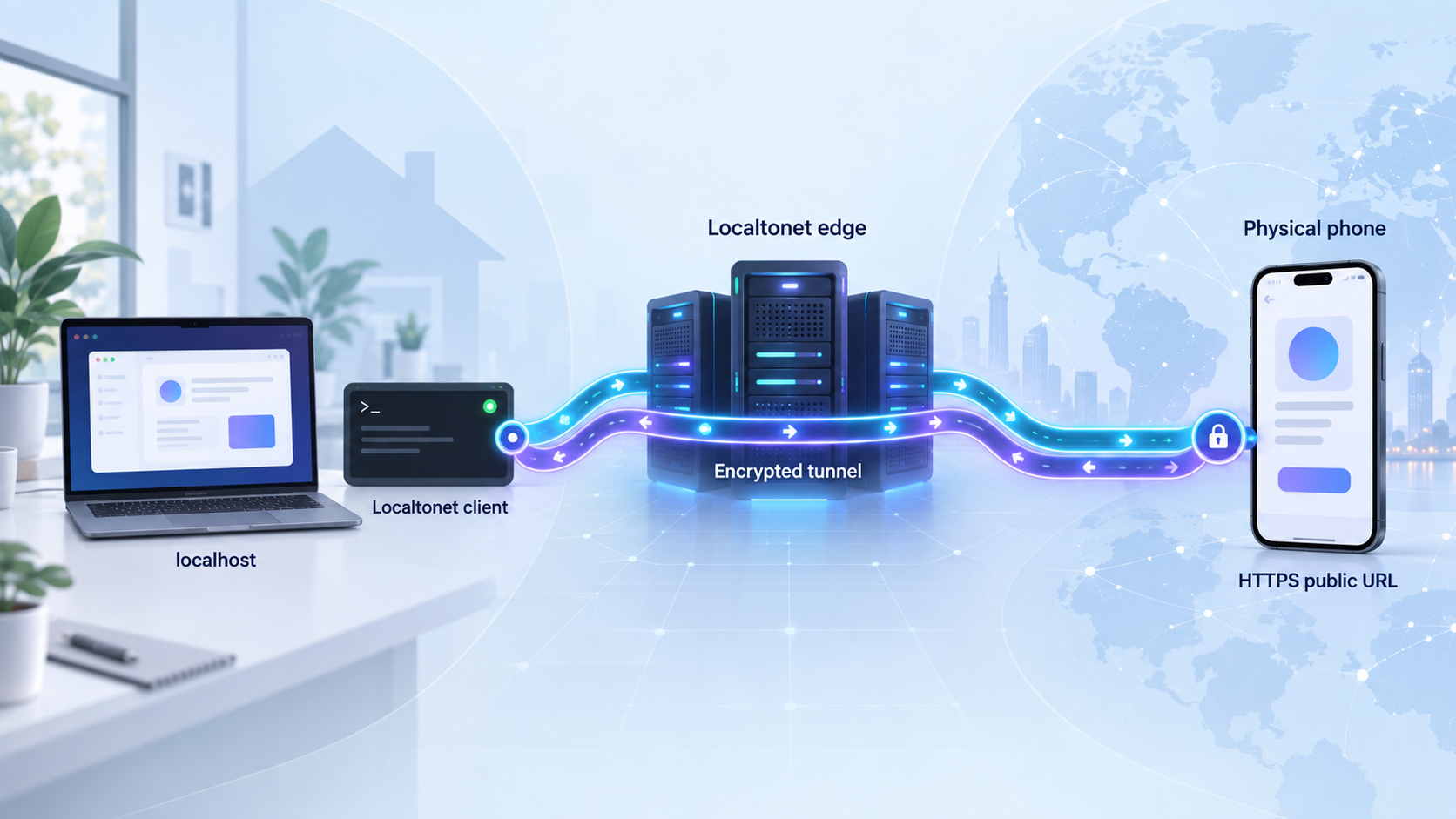
After the PWA works locally, use an HTTP tunnel to publish the web service. HTTP tunnels can use Random Sub Domain, Custom Sub Domain, or Custom Domain process types, and each serves the configured content at a public HTTPS address. Use the process type available and appropriate for your test. Server choices and option availability can vary, so select current values from the dashboard instead of copying a hardcoded server code.
The sequence below summarizes the product workflow. You can also consult the official Localtonet HTTP tunnel documentation when checking the current dashboard interface.
Install and run the Localtonet client
Install our client for the operating system on the device that can reach the PWA. Start it and keep it connected during the physical-device test. Use the current Localtonet download and dashboard workflow rather than copying old installation commands.
Select the client device
In the Localtonet dashboard, select the device using its AuthToken. The token identifies the client that will run the tunnel. Treat it as a secret and never place it in public documentation, screenshots, source control, or test artifacts.
Select an available relay server
Choose an available server or region from the current dashboard. Available values may vary by plan, region, client version, or deployment.
Create an HTTP tunnel
Create the HTTP tunnel, choose the desired Process Type, and enter the local IP address and exact port where the PWA is listening. The target must be reachable from the selected client device.
Start the tunnel
Creating a tunnel does not mean it is running. Use the Start button and wait for the tunnel to become available. Keep both the local PWA server and selected client running.
Open the assigned HTTPS address
Open the public HTTPS address in a desktop private window first to catch routing, redirect, asset, cookie, and mixed-content failures. Then open exactly the same address in the target phone’s browser.
The tunnel is available only while the selected client is connected and the tunnel is running. If the PWA process stops, requests can reach the tunnel edge but cannot be completed by the local target. If the client disconnects or the tunnel stops, the public test path becomes unavailable.
Service workers, Cache Storage, permissions, push subscriptions, cookies, site data, and installed-app identity are associated with an origin. If the public hostname changes, the browser treats it as a different origin. Keep the same address throughout one installation, offline, update, or push sequence. Availability of selected subdomains or custom domains depends on current product options, and exact custom-domain DNS instructions should be checked against current Localtonet documentation.
Test service worker registration, scope, and lifecycle
Once the phone loads the PWA through HTTPS, test the worker as a lifecycle rather than checking only whether registration resolved. A registered worker can still have the wrong scope, fail installation, remain waiting, serve stale files, or never control the current document.
Registration and control
Start with a defined clean state and load the public URL. Confirm that the worker script returns successfully and that registration produces no console error. Then determine whether the page is controlled. A first visit can register a worker without immediately placing the current page under its control. A later navigation or reload may be necessary, depending on the lifecycle and application code.
Inspect the active worker’s script URL and scope. Navigate to a route inside the intended scope and, if the design limits coverage, another route outside it. This detects workers placed too deeply in the URL hierarchy or registered with an unexpected scope.
Install and activate behavior
During installation, verify that intended application-shell resources enter the correct cache. A worker can fail if a required precache request fails. Inspect network failures and cache contents instead of assuming that a visible registration means installation completed.
During activation, check whether obsolete cache versions are removed according to the application’s policy. Deleting every unfamiliar cache can interfere with other components on the same origin, while never deleting old caches wastes storage and preserves obsolete responses. Cleanup must match the application’s cache naming and deployment design.
Fetch handling and data safety
Test static assets, navigation documents, images, API responses, authenticated data, and real-time information separately. These resources do not necessarily belong under the same caching strategy.
| Resource type | Question to test | Failure to detect |
|---|---|---|
| Application shell | Can the core interface load after caching when the phone is offline? | A missing script or stylesheet produces a blank screen |
| Navigation documents | Do reloads and direct deep links receive the intended document or fallback? | In-app navigation works, but direct routes fail |
| Hashed static assets | Are build files cached and replaced consistently? | Old HTML references removed files or stale assets survive |
| API responses | Does the app use live, stale, fallback, or unavailable data as designed? | Changing or user-specific information remains cached too long |
| Images and fonts | Can optional assets be cached without blocking installation of the shell? | One optional failure breaks the complete precache operation |
| Authenticated content | Is cached information isolated after sign-out or account changes? | Private information remains visible on a shared device |
Offline functionality creates data-retention risk. Review whether authenticated pages, API responses, personal records, and account-specific media belong in Cache Storage or other browser storage. Test sign-out, account switching, permission changes, and data clearing. A successful offline response is not automatically a safe response.
Install the PWA and test standalone and offline behavior
Open the manifest through the public origin and verify that the browser can fetch and parse it. Check names, icons, start URL, scope, display behavior, and theme information against the application’s intent. Installation requirements and browser UI vary by platform and release. A browser may use manifest information without presenting the same installation prompt or criteria as another browser.
Do not use the presence or absence of a service worker as a universal installation verdict. A worker remains central to service-worker-based offline behavior, push handling, and other worker features, but current installation eligibility is defined by each browser. Consult the current browser-focused PWA installation guidance and validate the exact browser under test.
Install on Android
Open the public origin in the target Android browser
Enter the assigned HTTPS URL directly and complete any in-app prerequisite needed for installation. Confirm that you are testing the intended browser, since Chrome, Edge, Samsung Internet, Firefox, and other browsers can expose different installation interfaces and capabilities.
Use the browser’s installation action
In Chrome, look for an offered installation action or open the browser menu and choose the available wording, such as Install app or Add to Home screen. The exact label and whether the result is a fully installed web app or a shortcut depend on Chrome, Android, and the site’s current eligibility.
Confirm the Android prompt
Review the displayed app name and icon, then confirm. If no installation action appears, inspect the manifest, browser console, current browser criteria, prior dismissal state, and whether the app is already installed.
Launch from the app launcher or Home Screen
Leave the browser and open the installed item from Android. Verify the start URL, icon, name, display mode, navigation, back behavior, rotation, keyboard-open layout, backgrounding, and resume behavior.
Google documents the current user-facing process in its Chrome web app installation instructions. Treat those instructions as version-sensitive because menu labels and the distinction between installation and a shortcut can change.
Add the PWA to the Home Screen on iPhone
Open the public HTTPS URL in Safari
Use Safari for the standard iPhone Home Screen flow. Load the intended start page and verify that it works before installing it.
Open Safari’s Share menu
Tap the Share button. If Add to Home Screen is not immediately visible, scroll through the available actions or edit the action list according to the current iOS interface.
Choose Add to Home Screen
Review the proposed name and icon, then choose Add. The exact preview and available options depend on the iOS and Safari version.
Launch from the Home Screen
Leave Safari and tap the new Home Screen icon. Verify the start URL, display mode, authentication flow, internal and external links, safe-area layout, keyboard states, backgrounding, and resume behavior.
Apple maintains the current procedure in its iPhone guide for adding a website to the Home Screen. Safari does not need to present a Chromium-style automatic install prompt for the Home Screen flow to be available.
Test authentication and callbacks
Confirm that login does not redirect to an unreachable localhost address, lose session state, or strand the user in an unintended browser window. OAuth and other identity systems may require the exact public HTTPS callback origin to be registered. Do not weaken callback validation to accommodate a temporary URL. Register only the intended test callback, use non-sensitive accounts, and remove temporary entries afterward.
Run the offline sequence
Begin with a defined storage state
Decide whether this is a clean-install, warm-cache, or upgrade test. Reset the site for a clean run or retain the older installation for an upgrade. Record the chosen state.
Load intended offline content while online
Visit the routes and features expected to work offline. Wait for the worker to activate and intended runtime caching to complete. One visit does not necessarily cache every route.
Disconnect the phone
Disable Wi-Fi and mobile data, or use airplane mode with other network paths disabled. Confirm that the phone has not silently switched to another connection.
Reload and relaunch
Reload the browser page, close and reopen it, and launch the installed PWA from its icon. These paths can expose different navigation and lifecycle failures.
Exercise cached and uncached routes
Navigate through routes that should work offline, then deliberately request an uncached route or resource. The app should show its designed fallback rather than hanging or presenting an unexplained blank screen.
Restore connectivity
Reconnect and verify that the application recovers, refreshes stale information as intended, and processes any explicitly implemented queued work without duplication. Background synchronization support is browser-dependent.
Include a cold offline deep-link test. Cache the content your design promises to support, fully close the app, remain offline, and open a direct route. Single-page applications often pass in-app navigation tests but fail direct navigation because the server or worker does not provide the correct document fallback.
Reset installed-app and site state for repeatable tests
Removing a Home Screen icon does not always clear the origin’s cookies, Cache Storage, IndexedDB, worker registration, permissions, or other website data. Conversely, clearing browser data may not remove every installed launcher entry. For a reproducible clean-install test, remove the installed PWA and clear the tested origin’s site data.
Reset an Android Chrome test
Uninstall the installed PWA
Long-press the app icon and choose the available app information or uninstall action, or open Android Settings, locate the installed web app in Apps, and uninstall it. If Chrome created only a shortcut, remove that shortcut from the Home Screen as well.
Open the origin’s settings in Chrome
Open the public origin in Chrome, use the address-bar site controls, and open the available permissions or site settings interface. Choose the option to clear or reset the site’s stored data and permissions when present. Chrome’s exact labels vary by version.
Use Chrome settings if per-site controls are unavailable
Open Chrome Settings, then Site settings or Privacy and security, locate the tested site under stored data or all sites, and clear its data. Avoid clearing unrelated sites unless a full-browser reset is part of the test plan.
Verify the clean state
Reopen the origin and inspect it remotely. Confirm that old workers, caches, storage, permissions, and installed-app state no longer affect the new run.
Google’s Chrome browsing-data documentation describes current data-clearing controls. Prefer a per-site reset when you need to preserve unrelated browser state.
Reset an iPhone Safari and Home Screen test
Delete the Home Screen web app
Touch and hold the Home Screen icon, choose the available removal action, and confirm deletion of the web app or bookmark. Wording varies by iOS version.
Open Safari website-data settings
Open Settings, then Safari, Advanced, and Website Data. On versions that group application settings, begin at Settings, Apps, Safari, then Advanced and Website Data.
Remove data for the tested hostname
Find the public tunnel hostname and delete its website data. Use the exact host tested during the sequence. Clearing all Safari history and website data is broader and may remove unrelated sessions, so use the per-site control when available.
Reopen and reinstall
Open the public URL in Safari again, verify the fresh visit, and repeat Share, Add to Home Screen, and launch from the new icon.
Clearing state proves that the newest build works from a fresh origin. It does not prove that an existing installation upgrades safely. Keep a separate device or scheduled test case with the older worker, caches, storage, and installed app intact, then publish the new build at the same origin.
Validate updates and Web Push behavior
Service worker and cache updates
An update test requires origin continuity. Install or visit an old build through one public HTTPS address, keep that address, modify the application, and serve the new build through the existing tunnel. Changing the hostname creates a new origin and converts the exercise into a fresh-install test.
Make an observable but safe change, such as displaying a build identifier in a diagnostic area. Update the worker or assets using the project’s normal build process, then revisit the app. Observe whether the browser detects a new worker, whether it installs and waits, and when it activates. Some applications let the old worker continue until controlled windows close. Others present a reload notice or implement an earlier activation policy.
Judge the update by consistency, not just speed. The active document, scripts, styles, and caches must belong to compatible versions. A new document paired with obsolete assets, or an old document referencing removed assets, can break the application. Test with one tab, multiple tabs, a backgrounded installed app, and a return after the device has been idle.
If the application announces an update, verify that the notice appears at the intended time and does not create an endless reload loop. Test while a form contains unsaved work if updates could interrupt user activity. Cache cleanup should follow the application’s versioning policy.
Web Push prerequisites
Web Push requires more than HTTPS. It depends on browser and operating-system support, notification permission, a service worker, application-side subscription handling, a push service, backend delivery, and notification interaction logic. Some platforms and versions may require an installed Home Screen web app or other conditions. Test the exact target browser and operating-system release.
Request notification permission in response to an appropriate user action and explain why notifications are useful. Test grant, denial, and dismissal. After denial, the application should remain usable and should not repeatedly pressure the user. The tunnel does not alter the browser’s permission decision.
Where supported, confirm that the subscription reaches the backend and is associated with the correct test account. Test delivery while the app is visible, backgrounded, and closed. Verify notification content and tap behavior. A notification link pointing to localhost, an obsolete hostname, or a route outside the intended scope can fail even if delivery succeeds.
HTTPS is a prerequisite for many PWA APIs outside special local-development contexts, but it is not proof of support. Feature-detect required APIs, verify current browser documentation for the release under test, and provide a usable fallback when push is unavailable or permission is denied.
Remotely inspect Android Chrome and iPhone Safari
Inspect Android Chrome with chrome://inspect
Enable Android Developer options and USB debugging
Enable Developer options using the procedure for the phone manufacturer, then enable USB debugging. Use a device and computer you are authorized to configure.
Connect the phone with a data-capable USB cable
Unlock the phone and connect it to the desktop. If the phone offers a USB mode, select one that permits data transfer rather than charge-only operation.
Authorize the debugging computer
Accept the phone’s USB debugging prompt. Confirm the computer’s key only if you trust that machine. If the prompt does not appear, disconnect and reconnect, check the cable and USB mode, or revoke old USB debugging authorizations and try again.
Open the PWA in Chrome on Android
Open the assigned public HTTPS URL on the phone. Keep the relevant tab visible initially so it is easy to identify.
Open chrome://inspect/#devices on the desktop
In desktop Chrome, open chrome://inspect/#devices and ensure Discover USB devices is enabled. The authorized phone and its inspectable Chrome tabs should appear.
Select Inspect for the public PWA page
Choose Inspect beside the correct tab. Use Console, Network, Application, Storage, Manifest, Service Workers, Cache Storage, IndexedDB, Cookies, and Security panels as appropriate. Keep the phone unlocked if the connection becomes unavailable when locked.
Revoke debugging access after the session
Disconnect the cable and disable USB debugging when it is not needed. On shared or temporary computers, revoke the computer’s debugging authorization from Android Developer options.
Google maintains the current procedure in its Chrome DevTools remote-debugging documentation. Desktop and phone Chrome versions that are far apart can cause inspection problems, so update them or follow Google’s compatibility guidance if the device appears but a debugging session does not open.
Inspect iPhone Safari from a Mac
Enable Web Inspector on the iPhone
Open Safari’s Advanced settings and enable Web Inspector. Depending on iOS, the path begins at Settings, Safari or Settings, Apps, Safari.
Enable Safari developer features on the Mac
In Safari settings, enable the option that exposes web developer features or the Develop menu. The wording and location can vary by macOS and Safari version.
Connect, unlock, and trust the iPhone
Connect the iPhone to the Mac using a data-capable cable. Unlock it, accept Trust This Computer if shown, and complete any required device passcode confirmation.
Open the public PWA origin on the iPhone
Load the assigned HTTPS address in Safari. For an installed-mode problem, reproduce it from the Home Screen app and look for an inspectable target representing that web content if the current platform exposes it.
Choose the iPhone and page from Safari on the Mac
Open Safari’s Develop menu or current device-inspection interface, choose the connected iPhone, then select the relevant page or web app target.
Inspect the live mobile page
Use the Web Inspector console, network timeline, resources, storage, and worker-related tools available in that Safari release. Reproduce the issue on the phone while watching requests and errors on the Mac.
If the iPhone does not appear, confirm that both devices are unlocked, the cable supports data, the trust relationship is established, Web Inspector is enabled, and Safari developer features are enabled. Managed-device policy can also restrict inspection.
Capture useful evidence
Reproduce the issue with a visible build identifier and record the public origin, route, initial storage state, worker status, device model, operating system, browser version, installed or tab mode, and relevant errors. Do not include Localtonet tokens, session credentials, authorization headers, push subscription secrets, private API payloads, or customer data.
Troubleshoot the public URL
If the public URL does not load, verify that the PWA still loads locally. Confirm that the Localtonet client is connected, the correct device was selected, the HTTP tunnel is started, and the local IP address and port match the running server. A configuration can exist without running, and a running tunnel cannot serve an upstream process that has stopped.
If the client runs on another device, confirm that it can reach the configured target. A server bound only to loopback is available to a client on the same machine but not automatically to another machine. Changing the bind address can increase LAN exposure, so make that choice deliberately and apply appropriate firewall rules.
Troubleshoot assets, workers, installation, and login
When the document loads but assets fail, inspect the requested URLs. Absolute paths may still reference localhost, a LAN address, an old hostname, or plain HTTP. Mixed-content rules can block insecure resources from an HTTPS page. Correct the browser-facing origins rather than disabling browser security.
If the worker does not register, verify secure-context status, the worker response, redirects, authentication interception, script syntax, requested scope, and browser support in the current mode. If it registers but does not control the page, compare the document URL with the reported scope, inspect active and waiting workers, and account for the first-load lifecycle.
If installation is not offered, validate the manifest, icon responses, start URL, scope, display configuration, HTTPS origin, console, prior dismissal state, and whether the app is already installed. Then check the exact browser’s current installation model. Safari’s Add to Home Screen path should not be judged by the presence of a Chromium-style prompt.
If login or redirects fail, inspect whether the application generates URLs from its local upstream host rather than the public origin. Review cookie domain, path, Secure, and SameSite behavior. Confirm that the identity provider recognizes the exact HTTPS callback and that browser-facing configuration no longer points to localhost.
Operate the test safely and tear it down cleanly
Expose only the local web port needed for the PWA, not a database, inspector, administration service, or unrelated port. Keep test accounts separate from production accounts and use non-sensitive data. Privileged routes must retain their own authentication and authorization because possession of a tunnel URL is not authorization.
Before sharing the address, open it in a signed-out browser and verify what an unauthenticated visitor can access. Remove verbose error pages and secrets from client-side configuration. Review source maps, diagnostics, test endpoints, sample credentials, and development utilities. A local development server can contain conveniences that are inappropriate on a public origin.
When testing is complete, stop the Localtonet tunnel. Delete it if the configuration is no longer needed. Stop the local application and client when appropriate. Creating, starting, stopping, and deleting a tunnel are distinct lifecycle actions.
Remove temporary accounts, callback registrations, and push subscriptions created only for the test. On a shared phone, uninstall the PWA and clear the origin’s site data, caches, permissions, and stored credentials. Revoke Android USB debugging access or disconnect the iPhone trust relationship when required by your device-management policy.
Preserve only sanitized evidence such as the build identifier, device model, operating-system version, browser version, expected result, actual result, and non-sensitive console or network details. Never preserve an AuthToken, session cookie, authorization header, private endpoint, or customer payload in a ticket.
A clean reset proves that the latest build works without old state. An upgrade test proves that existing users can move from old workers and caches to the new version. A complete release check needs both.
Frequently asked questions
Why can I not open desktop localhost directly from my phone?
Every device has its own loopback interface. On the phone, localhost means the phone, not the development computer. A Localtonet HTTP tunnel gives the phone a public HTTPS address that forwards to the local target reachable by the selected client.
Does an HTTPS tunnel automatically make my PWA installable?
No. HTTPS provides a secure public origin needed by many capabilities, but installation depends on the application and browser. Validate the manifest, icon responses, start URL, scope, browser-specific criteria, and available installation interface.
Is a service worker always required to install a PWA?
It should not be treated as a universal installation requirement. Browser criteria differ and change over time. A service worker is still required for application behavior that depends on one, including worker-controlled offline responses and push event handling.
Can I test over mobile data instead of the same Wi-Fi network?
Yes. The public address is internet-reachable while the selected Localtonet client is connected, the tunnel is running, and the local target is available. This lets the phone test through mobile data without sharing the development computer’s LAN.
Can Windows remotely inspect iPhone Safari?
Apple’s primary supported Safari Web Inspector workflow uses Safari on a Mac connected to the iPhone. A Windows computer can host the PWA and Localtonet client, but you need an appropriate Mac for the standard iPhone Safari inspection workflow.
Why does changing the public hostname affect the test?
A different hostname creates a different origin. Worker registrations, caches, permissions, cookies, push subscriptions, and installed-app state are associated with the origin. Keep one address throughout an update or offline sequence.
Is deleting the Home Screen icon enough for a clean test?
Not reliably. Remove the installed app or shortcut and clear the tested origin’s website data. This prevents old cookies, workers, caches, IndexedDB records, and permissions from contaminating a fresh-install result.
Should I test a development server or a production build?
Use a development server for rapid layout and interaction checks. Use a production-like build and serving mode for final installation, caching, offline, and update validation because frameworks can disable or alter service workers during development.
Does exposing the frontend also expose its local API?
Not automatically. An HTTP tunnel forwards to its configured local target. A separate API must have its own phone-reachable and secure architecture. Browser-facing API URLs must not unintentionally point to the phone’s localhost.
Is clearing browser data enough to test an update?
No. Clearing data tests a fresh installation. To test an update, establish an older worker and cache state at the same origin, serve the new build, and observe detection, waiting, activation, cleanup, reload behavior, and compatibility with existing clients.
Test your local PWA on a real phone
Run your intended PWA build, connect the reachable device with our client, and create an HTTP tunnel to test through a public HTTPS origin without inbound router port forwarding, firewall changes, VPN setup, or a public IP address.
Get Started Free →

