

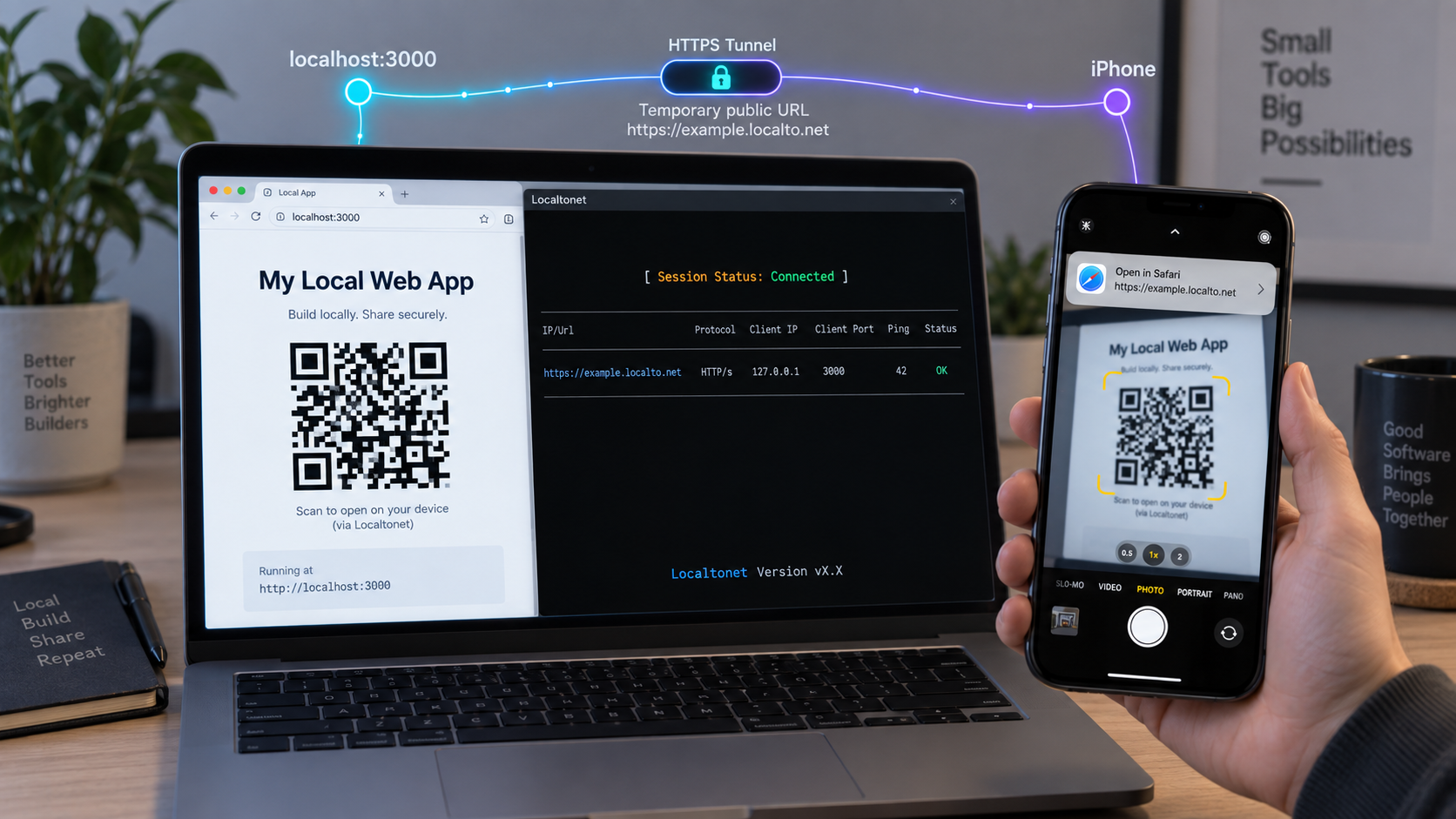
Move a live localhost session from your development machine to Mobile Safari with one camera scan
Desktop responsive mode is useful, but it cannot fully reproduce a physical iPhone, Mobile Safari, touch input, changing browser chrome, or a real mobile network path. In this guide, we will verify a local web application, expose it through a temporary Localtonet HTTP tunnel, encode the assigned public HTTPS URL in a QR code, and open it with the iPhone Camera app. We will also test redirects, cookies, API requests, touch behavior, and responsive layouts while accounting for host validation, origin checks, and development-server restrictions. The QR code is only a convenient way to transfer the URL. Security and connectivity come from the application configuration and the running tunnel, not from the QR code itself.
📋 What's in this guide
Why test a local web app on a physical iPhone?
Responsive design tools in desktop browsers are an excellent first testing layer. They make it easy to change viewport dimensions, simulate device pixel ratios, inspect breakpoints, and identify obvious overflow problems. They do not, however, turn a desktop browser into an iPhone. A real device introduces a different rendering environment, physical touch input, device-specific safe areas, mobile browser controls, on-screen keyboard behavior, and the actual performance characteristics of the phone.
Physical-device testing is particularly valuable when an interface depends on fixed or sticky elements, full-height sections, touch gestures, text inputs, camera or location permissions, scroll-linked effects, or navigation that changes according to available screen space. A page that looks correct at an iPhone-sized desktop viewport can still have an obscured button, an awkward keyboard interaction, a sticky header that consumes too much space, or a control that relies on hover behavior unavailable to a touch user.
Mobile Safari also gives us a realistic view of how the application behaves through its complete network path. The page might render correctly while one API call fails because it still points to localhost. Cookies might not be accepted under the public origin. A login callback may return to a desktop-only address. A development server may reject the forwarded host even though it responds normally at its loopback address.
Desktop emulation is faster for repeated layout inspection and debugging. A physical iPhone is the validation layer for real browser, touch, keyboard, viewport, and network behavior. The most efficient workflow uses both rather than treating either one as a complete replacement for the other.
How the Localtonet and QR-code workflow works
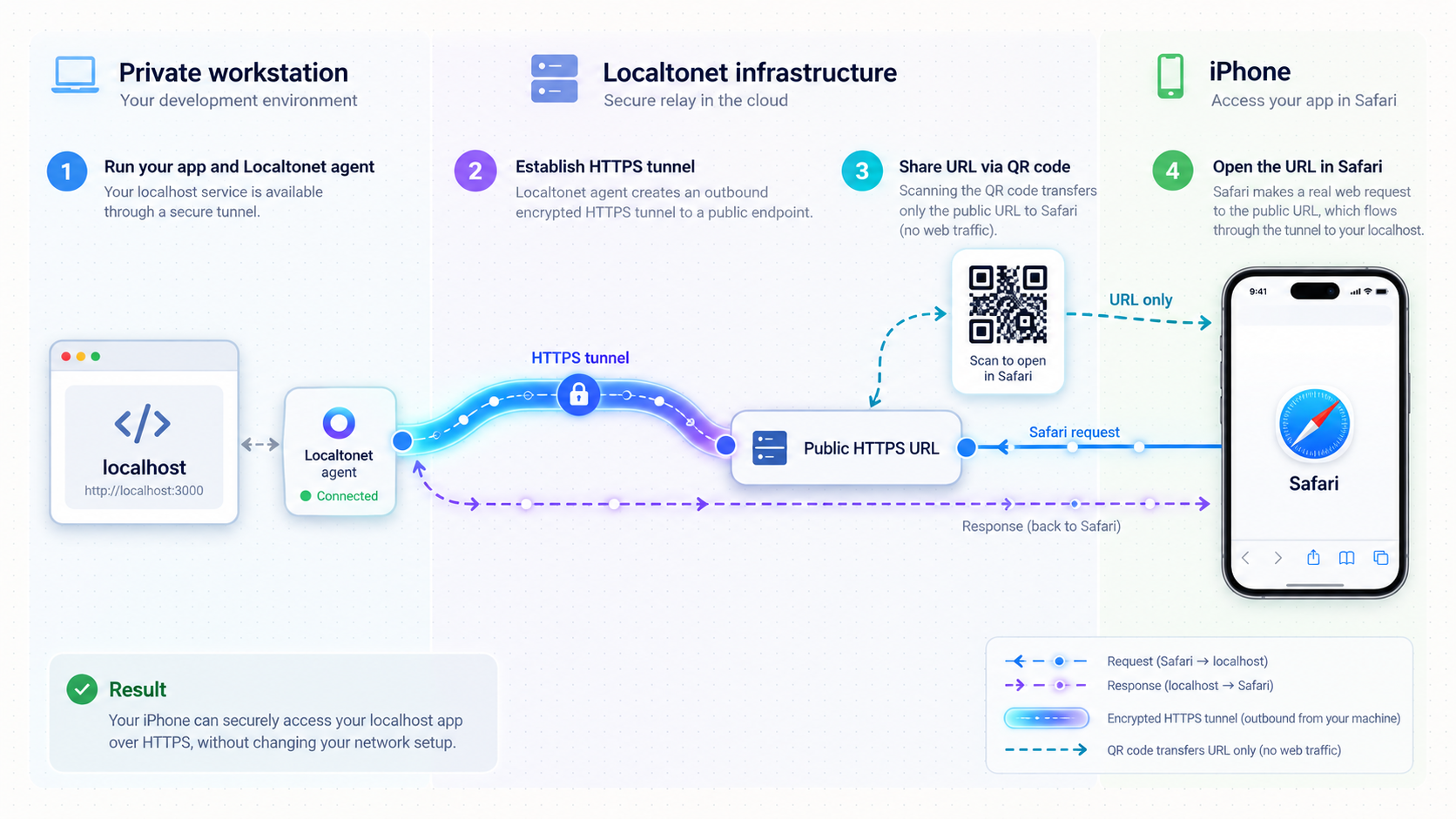
The development server continues running on the workstation as it normally does. The Localtonet client runs on a device that can reach that server and establishes an outbound connection to a Localtonet relay. An HTTP tunnel maps the local IP address and port to a public HTTPS address. A QR-code tool then encodes that public address as text so the iPhone can open it without manual typing.
This workflow does not require inbound router port forwarding, firewall changes, VPN setup, or a public IP address. The public endpoint remains dependent on two things: the selected Localtonet client must be connected, and the tunnel must be running. Creating a tunnel record alone does not start it.
| Component | Responsibility | What it does not do |
|---|---|---|
| Development server | Serves the application from a local IP address and port. | It does not automatically make itself reachable from the public internet. |
| Localtonet HTTP tunnel | Connects a public HTTPS address to the configured local web service. | It does not repair application errors, incorrect API URLs, or origin-sensitive configuration. |
| QR code | Encodes the assigned public URL so the iPhone can read it with its camera. | It does not add authentication, encryption, authorization, or network connectivity. |
| Mobile Safari | Loads and exercises the application on the physical iPhone. | It does not share the workstation's meaning of localhost. |
The last distinction is essential. In a browser running on the development computer, localhost means that computer. In Safari on an iPhone, localhost means the iPhone itself. If the page contains an API base URL such as http://localhost:8000, the phone will try to contact port 8000 on the phone, not on the workstation. The page URL can therefore load successfully while its data requests fail.
Prerequisites for testing localhost on an iPhone
Prepare the application before creating the public endpoint. This keeps local application problems separate from tunnel configuration problems and makes troubleshooting much faster.
Development workstation
You need a computer running the web application or one that can reach the application over a local network. Identify the exact local IP address and port that serve the page. Do not assume a framework's common example port is the port used by your project. Read the startup output or existing project configuration and record the actual value.
You also need permission to expose the application temporarily. Do not publish an employer, client, production, or confidential environment unless the responsible owner and applicable policy permit it.
Working application and known startup procedure
Start the project using its documented development command. This guide does not prescribe a framework-specific command because the correct command, host setting, environment variables, and default port differ among projects. Use the command already established by the application, then keep that process running.
If the project has separate frontend and API processes, identify both endpoints and determine how the browser reaches the API. A same-origin development proxy is usually easier to expose than a frontend that sends requests directly to a second localhost port, but the correct configuration depends on the framework and application architecture.
Localtonet client and device token
Install and run the Localtonet client on the workstation or on another device that can reach the development server. The device authentication token identifies the client that will run the tunnel. Treat that token as a credential: do not paste it into screenshots, source files, terminal recordings, QR codes, or public issue reports.
Physical iPhone and a QR-code generator
Use a physical iPhone with Safari and the Camera app available. The phone does not need to be on the same local Wi-Fi network when it accesses the public tunnel, although network policies on the phone's current connection can still affect access.
Use a trusted operating-system feature or a QR-code utility that can encode a URL. A local or offline generator minimizes unnecessary disclosure. The QR code must contain only the assigned public HTTPS URL. It must never contain the Localtonet device token, project secrets, session cookies, API keys, or embedded credentials.
Anyone who obtains a public tunnel URL may be able to request it while the tunnel is running. Use the application's own authentication and least-privilege controls when the content or available actions require protection. Avoid exposing production data, administrative panels, debug consoles, environment dumps, or development endpoints that execute arbitrary actions.
Verify the application locally before opening a tunnel
A tunnel forwards requests to a local target. It cannot provide a healthy page if the target is stopped, listening on a different port, returning an application error, or redirecting to an unusable address. Complete a local baseline test first.
Start the development server
Run the project's established development command and leave the process active. Read its output for the actual listening address, port, compilation status, and any startup errors.
Open the local URL on the workstation
Load the exact local address in a desktop browser. Confirm that the initial document, stylesheets, scripts, fonts, and images load successfully. Test at least one route beyond the home page if the application uses client-side or server-side routing.
Exercise the application's critical path
Perform the actions you plan to test on the phone, such as signing in, opening a menu, submitting a form, or loading API-backed content. Record any existing console or network errors so they are not misattributed to the tunnel later.
Confirm the tunnel client can reach the target
If Localtonet runs on the same workstation, the loopback service may be an appropriate target. If our client runs on another device, the target must be an address reachable from that device. The development server may also need to listen on an appropriate interface, subject to the project's own security controls.
Binding behavior deserves special attention. Some development servers intentionally listen only on the loopback interface. That can be correct when the Localtonet client runs on the same machine because the client can connect locally. If the client runs somewhere else, a loopback-only service is not reachable from that device. Do not change the binding blindly. Consult the framework's configuration and expose only the interface required for the intended path.
Also inspect absolute URLs generated by the application. Canonical URLs, asset URLs, API base URLs, WebSocket addresses, OAuth callbacks, and redirect targets can all be derived from a configured origin. If they remain fixed to a local hostname, the public page may partially load and then fail.
Create and start the Localtonet HTTP tunnel
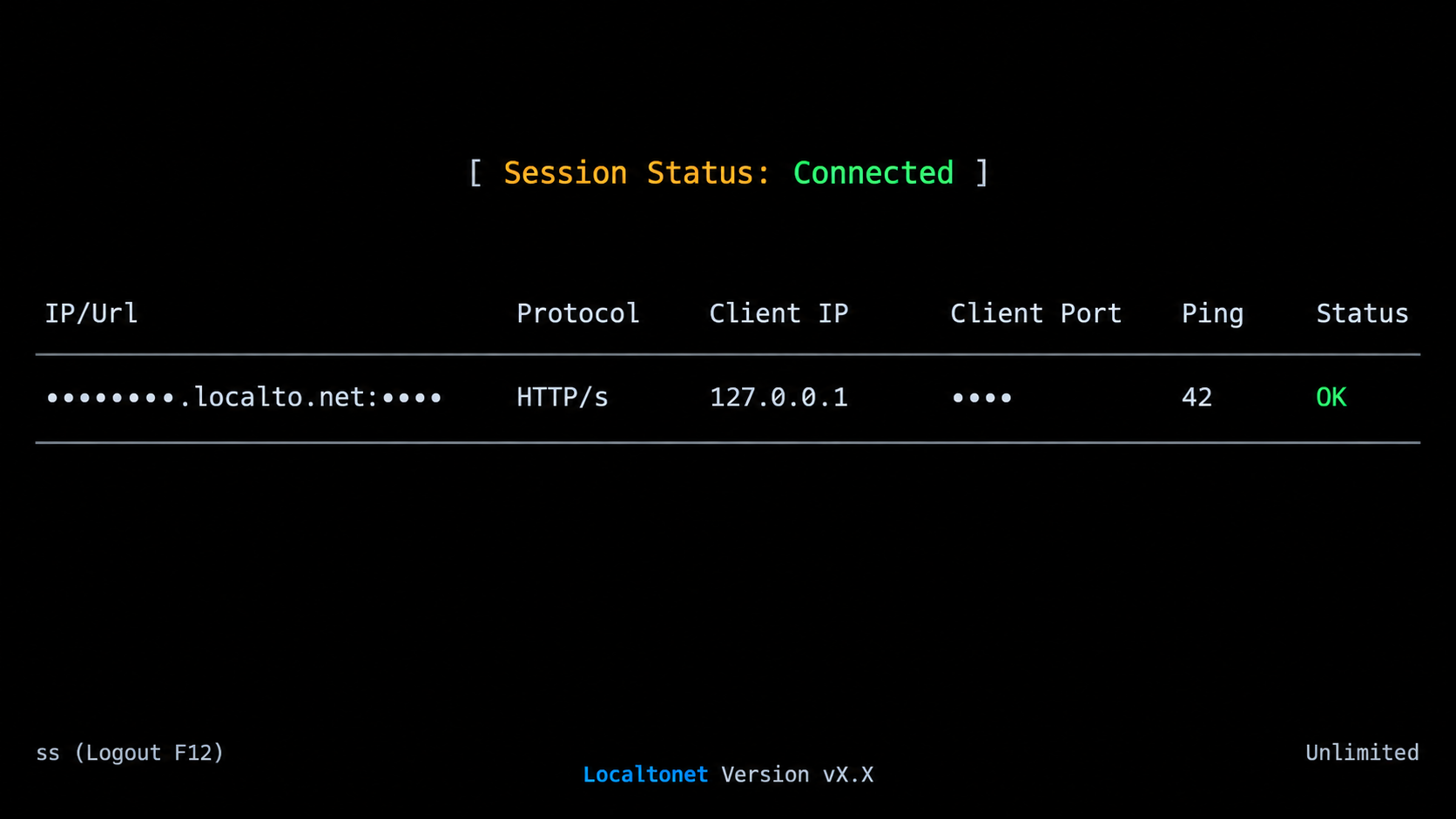
Once the application works locally, configure an HTTP tunnel to its actual local address and port. The available relay servers, regions, process types, domain options, and subscription availability can change. Select from the values currently presented in the Localtonet dashboard rather than copying a server code or domain setting from an old tutorial.
Install and run the Localtonet client
Run our client on the device that can reach the development server. Keep it active throughout the iPhone testing session because the tunnel is available only while the selected client is connected and the tunnel is running.
Authenticate or select the client device
Use the device-specific authentication token through the supported Localtonet workflow, then select that device for the tunnel. Keep the token private. The QR code will contain the public application URL, not this token.
Select an available relay server
Choose from the relay server or region values currently available in the dashboard. Do not hardcode a server code from another setup because availability can vary by plan, client version, region, or deployment.
Create an HTTP tunnel to the local service
Select the HTTP tunnel type and enter the local IP address and actual application port. Choose the available Process Type appropriate for the session. HTTP tunnels can use Random Sub Domain, Custom Sub Domain, or Custom Domain, and each serves the configured content through a public HTTPS address. Custom-domain DNS details should always be checked against the current documentation before use.
Start the tunnel
Use the Start button after saving the configuration. Creating the tunnel does not mean it is running. Confirm that both the selected device and tunnel are connected before testing the public address.
Open and verify the assigned public URL
Copy the assigned public HTTPS URL and open it in a separate desktop browser tab first. Confirm that it reaches the intended application and does not expose a different local service. After the testing session, stop or delete the tunnel when it is no longer required.
For the current dashboard workflow and available options, consult our Localtonet HTTP tunnel documentation. The documentation is especially important when using a custom domain because DNS requirements may change and should not be inferred from a generic tunnel example.
Even when the same application content is served, the public HTTPS address is a different origin from the local development URL. Browser rules involving cookies, CORS, storage, redirects, service workers, trusted origins, and WebSocket connections can therefore produce different results. That difference is useful to test, but it may require application-specific configuration.
Turn the public HTTPS URL into a QR code
After verifying the assigned URL on the workstation, encode that exact URL in a QR code. The QR code is a transport convenience: it replaces typing or sending the address through a messaging service. It should not alter the URL, shorten it through an unknown service, or add tracking parameters.
Copy the complete assigned HTTPS URL
Copy the address from the running tunnel, including the https:// scheme. If a specific route is needed, open and verify that route before encoding it. Avoid copying browser-added search terms or unrelated query parameters.
Generate the QR code with a trusted tool
Use a trusted local application, operating-system feature, or approved development utility to create a QR code containing the URL. Tool interfaces and commands vary, so follow the selected tool's verified instructions rather than pasting an unreviewed command from the internet.
Inspect the decoded destination
Before opening the page, confirm that the iPhone's scan preview shows the expected HTTPS hostname and route. Cancel if the preview contains a different hostname, an unexpected redirect service, embedded credentials, or a suspicious query string.
Scan with the iPhone Camera app
Display the QR code clearly on the workstation, open Camera on the iPhone, point it at the code, and tap the recognized URL. Safari should request the public tunnel address and display the application if the client, tunnel, and local server are all running.
Confirm that the correct build loaded
Check a visible build marker, recent UI change, page title, or other non-sensitive identifier. This prevents accidentally testing a cached page, an older service, or a different local process.
If the URL remains unchanged during the session, the same QR code can be scanned repeatedly. If the assigned address changes after recreating or reconfiguring the tunnel, generate a new code. A QR image is a snapshot of text and cannot discover a changed endpoint automatically.
Anyone who can scan the image can recover the encoded URL. Treat a screenshot of the QR code as equivalent to sharing the URL itself. Keep it out of public chat rooms, issue trackers, recordings, and repositories unless the endpoint and application are intentionally public and appropriately protected.
What to test in Mobile Safari
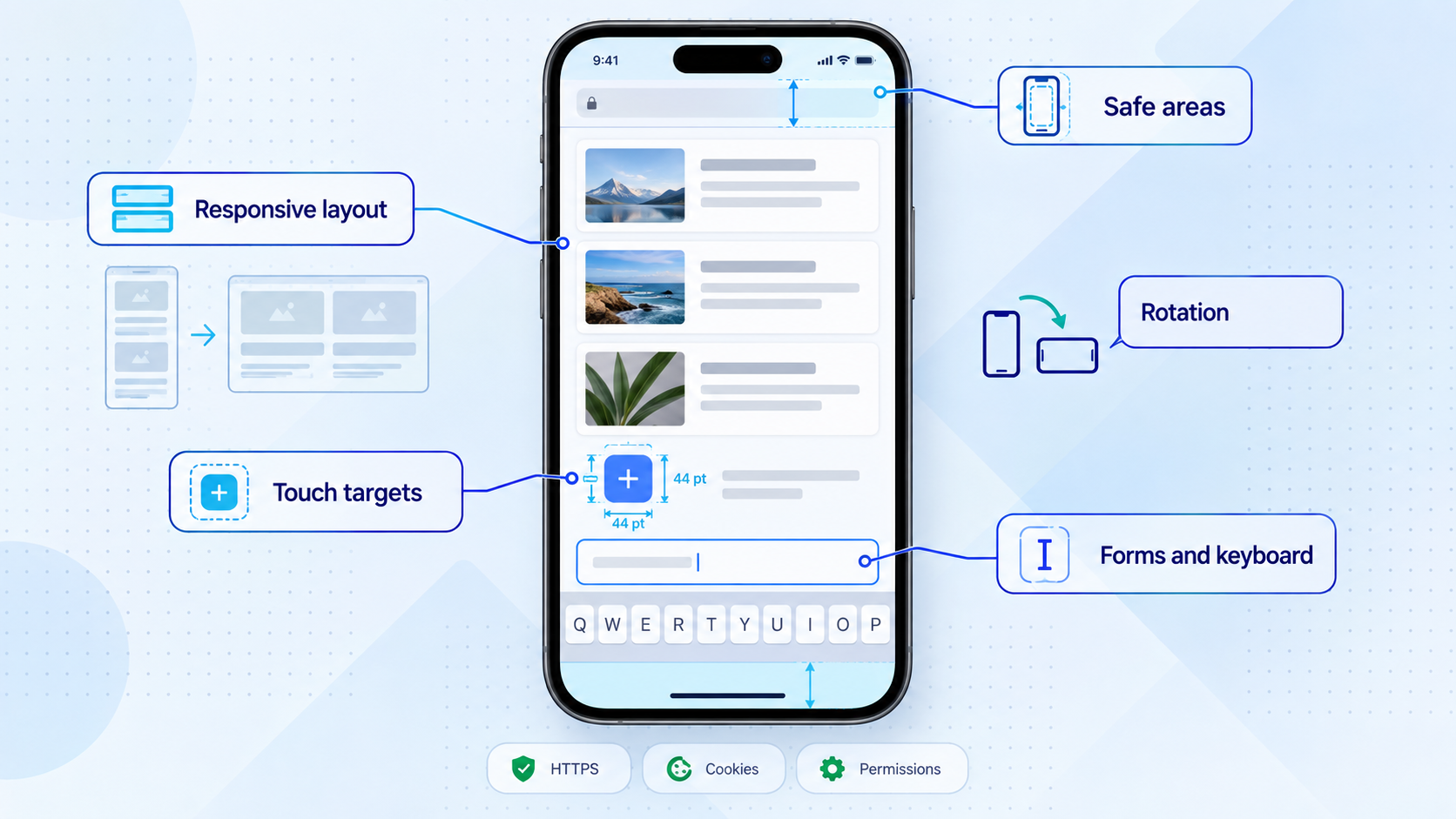
Loading the home page is only the first check. A productive physical-device session should cover visual layout, input behavior, navigation, application state, and the network calls that support the interface. Use a short repeatable checklist so fixes can be retested without overlooking another part of the flow.
Responsive layout and browser chrome
Test portrait and landscape orientations. Inspect headers, bottom navigation, fixed calls to action, dialogs, menus, drawers, and full-height sections. Scroll until Safari's controls change size and verify that important content remains visible and tappable. Check safe-area spacing around screen edges where the design uses full-width or fixed-position elements.
Look for horizontal overflow, clipped text, tiny controls, unexpected line wrapping, and images that exceed their containers. Increase text size if accessibility is part of the test plan. A layout should remain usable when content occupies more space than the designer's ideal screenshot.
Touch, hover assumptions, and scrolling
Tap each interactive control and verify that its target is large enough to activate reliably. Test nested controls, swipeable regions, carousels, drag interactions, and components near the screen edge. Ensure that a hover-only menu or tooltip does not hide essential functionality from touch users.
Exercise long pages with natural finger scrolling. Watch for fixed overlays that block content, scroll containers that trap gestures, and animations that become distracting or unreliable under mobile scroll behavior.
Forms and the on-screen keyboard
Focus every important input. Confirm that the keyboard does not cover the active field or submit control and that the page scrolls to a useful position. Test validation messages, autofill-sensitive fields, multiline text, selects, date inputs, and any custom input widgets used by the application.
Submit both valid and invalid data. Verify loading indicators, disabled states, error recovery, and preservation of entered values. If a form uses a browser API or device permission, test the actual permission prompt rather than assuming desktop behavior will match.
Navigation, redirects, and deep links
Navigate between client-side routes, refresh a nested route, and use Safari's Back and Forward controls. A single-page application may work when navigating internally but return an error when a deep URL is loaded directly. That is usually a development-server fallback or routing issue rather than a QR-code problem.
Inspect redirects for local hostnames. Authentication and callback flows often contain an allowed-origin or redirect-URI list. Do not broaden those lists more than necessary. Add only the exact temporary public origin when the application's identity provider and security policy permit it, then remove it after testing.
Cookies, storage, and sessions
The public HTTPS address has a different origin from the local address. Cookies scoped to another hostname will not automatically appear under the tunnel hostname. Cookie attributes, cross-site requests, and application session configuration can affect whether a login persists.
Test a fresh private browsing session when you need to distinguish a current application result from cached assets, prior cookies, or stored service-worker behavior. Remember that private browsing itself can change storage behavior, so compare it with a normal tab rather than treating it as the only test.
API and real-time connectivity
Confirm that API-backed content loads and mutations complete. If the browser code contains localhost, a private workstation address, or a desktop-only hostname, replace it through the project's supported configuration or route the API appropriately. Never solve the problem by embedding private credentials in browser code.
Applications using WebSockets or a development hot-reload channel may require explicit public-origin or forwarded-host support. The page can remain testable even if hot reload is unavailable, but application real-time features must be checked separately from development tooling. Consult the framework's official configuration for allowed hosts, origins, and WebSocket settings because field names and safe values differ.
| Test area | Action on the iPhone | Common failure signal |
|---|---|---|
| Responsive layout | Rotate, scroll, open menus, and inspect fixed elements. | Clipping, overflow, hidden controls, or unstable full-height sections. |
| Touch interaction | Tap, swipe, focus, dismiss, and repeat gestures. | Small targets, trapped scrolling, or essential hover-only behavior. |
| Forms | Focus fields, invoke the keyboard, validate, and submit. | Covered controls, lost values, or unusable validation feedback. |
| Navigation | Open a deep route, refresh it, and use browser history. | Unexpected 404 responses or redirects back to a local hostname. |
| Authentication | Sign in, refresh, sign out, and repeat in a clean session. | Rejected callback, missing cookie, or a redirect-origin mismatch. |
| API and live data | Load records, submit a mutation, and observe updates. | Requests sent to the phone's own localhost, CORS errors, or failed WebSockets. |
Secure a temporary frontend testing session
A development server often assumes that it is accessible only from the developer's computer. Publishing it changes that assumption. Review the application as if an unknown internet client could send it requests, because possession of the public URL may be enough to reach the endpoint while the tunnel is active.
Debug modes require particular care. Development error pages can reveal file paths, stack traces, dependency versions, environment details, or internal routes. Some development servers also provide utilities intended only for trusted local use. Disable unnecessary diagnostics before exposure and avoid testing with secrets loaded into a browser-visible environment.
Apply least privilege to any account used on the phone. If the goal is checking a profile form, a test user should not also have administrative permissions. If the workflow triggers email, payments, uploads, or destructive actions, point it to controlled test integrations and confirm that the test cannot affect production systems.
The label does not guarantee safe internet exposure. Review the framework, plugins, debug features, and application endpoints first. If the project cannot be safely exposed, use an isolated test environment or a private-access design instead of a public HTTP tunnel.
Troubleshooting iPhone access and application errors
The public URL does not open at all
Verify the dependency chain in order. The development server must be running, the Localtonet client must be connected, the correct device must be selected, and the tunnel must be started. Then confirm that the configured local IP address and port match the working local URL.
Open the public address on the workstation. If it fails there too, the QR code and iPhone are not the primary problem. If it works on the workstation but not the phone, try another network on the phone when policy allows, verify the scanned hostname, and check whether content restrictions or network filtering are involved.
The tunnel reports a target connection problem
Confirm that the service is listening on the expected port and that no earlier process changed it. If the client and server run on different devices, a service bound only to 127.0.0.1 on the server cannot be reached from the client device. Change the binding only through the framework's supported configuration and only as broadly as required.
Host firewalls and endpoint policies can also affect connections between separate local devices. Localtonet does not require an inbound router port-forwarding rule, but the client still needs to reach its configured local target.
The server rejects the public host
Some development servers validate the incoming Host header to reduce DNS rebinding and related risks. Use the framework's documented allowed-host configuration and permit only the hostname required for the test. Do not disable host validation globally unless the project's official guidance and threat model explicitly justify it.
The HTML loads but scripts, styles, or images fail
Inspect whether asset URLs are absolute and still reference a local hostname, private IP address, wrong port, or incompatible scheme. Prefer application-supported relative asset paths or a correctly configured public base URL. Also verify that a strict Content Security Policy is not limited to the local origin.
The page loads but API requests fail
Look for browser requests sent to localhost. On the iPhone, that destination is the iPhone. Configure the frontend through the project's supported environment mechanism, use an appropriate same-origin development proxy, or expose the required API through a separately reviewed endpoint. Which choice is correct depends on the architecture and cannot be safely guessed.
If the API has a public address but rejects requests, review CORS configuration, allowed origins, credentials mode, and cookie settings. Add the exact tunnel origin rather than an unrestricted wildcard when credentials or sensitive actions are involved.
Login redirects to the workstation or fails after authentication
Check the application's external base URL and the identity provider's registered redirect URI. The scheme, hostname, port, and callback path normally need to match the public flow expected by the application. Register only the exact temporary URL when permitted and remove it when testing is complete.
The page works, but hot reload does not
Hot reload frequently uses a separate WebSocket connection and may derive its hostname or port from local development settings. Test whether ordinary page refreshes deliver updated code. If so, the application tunnel is working and the remaining issue is specific to the development tool's live-reload channel.
Use the framework's official settings for public origin, WebSocket host, protocol, client port, or forwarded headers where applicable. Do not guess option names because they differ between toolchains and versions.
The QR code is not recognized
Increase the displayed size, improve contrast, clean the camera lens, reduce glare, and ensure the entire code is visible. If the URL is very long, unnecessary query parameters can make the code denser, but do not shorten it through an untrusted redirect service. The URL can also be transferred through an approved secure channel if scanning remains unreliable.
A stale page appears after a change
Confirm that the development server rebuilt successfully and that the public tunnel still points to the correct process. Reload the page, compare the public URL with the current running tunnel, and test a fresh Safari session if caching or a service worker may be involved. Be careful when clearing site data because it also removes cookies and application state useful for reproducing a problem.
The tunnel stopped unexpectedly
The public endpoint is available only while the selected client is connected and the tunnel is running. Check whether the client application exited, the workstation slept, connectivity changed, or the tunnel was stopped. Restart the appropriate component and verify the assigned public URL before reusing an existing QR code.
Frequently asked questions
Can an iPhone open localhost from my development computer?
Not by using the word localhost in Safari. On the iPhone, localhost refers to the iPhone itself. With Localtonet, an HTTP tunnel can provide a public HTTPS URL that forwards to the configured web service reachable by the Localtonet client.
Must the iPhone and development computer use the same Wi-Fi network?
Not for access through the public tunnel URL. The iPhone requests the public HTTPS address, while the Localtonet client establishes an outbound connection to our relay. The client must still be able to reach the configured local application, and the networks involved may enforce their own access policies.
Does the QR code secure the tunnel?
No. The QR code only encodes the public URL. It does not authenticate the person scanning it, authorize application actions, or create the tunnel. Use application-level authentication and protect the QR image as you would protect the URL itself.
Why does the page open while its API calls fail?
A common cause is frontend code that sends API requests to localhost, a private workstation address, or an origin not permitted by the API. On an iPhone, localhost points back to the phone. Review the application's API base URL, proxy configuration, CORS policy, cookie settings, and allowed origins.
Do I need to make my development server listen on every network interface?
Not necessarily. If the Localtonet client runs on the same machine, it may be able to reach a loopback-only service. If the client runs on another device, the target must be reachable from that device. Use the narrowest framework-supported binding that satisfies the intended setup instead of exposing every interface by default.
Will hot module replacement work through the public URL?
It depends on the development tool's WebSocket and origin configuration. The application can load normally even when its hot-reload channel fails. Verify ordinary page refreshes first, then configure the framework's documented public host, origin, and WebSocket behavior if live reload is required.
Does creating a Localtonet tunnel immediately make it available?
No. Creating the configuration does not start the tunnel. The selected client must be connected, and the tunnel must be started with the Start button. It can later be stopped or deleted when the testing session ends.
Should I use a generated subdomain or a custom domain for iPhone testing?
A generated address is often sufficient for a temporary visual and interaction test. A stable selected subdomain or custom domain can matter when an application requires a pre-registered origin or callback, where supported. Available options can vary, and custom-domain DNS requirements should be confirmed in the current Localtonet documentation before configuration.
Test your local web app on a real iPhone
Run the Localtonet client, create an HTTP tunnel to your verified development server, start it, and turn the assigned public HTTPS URL into a QR code for Mobile Safari. Keep the application protected, validate the destination before scanning, and stop the tunnel when the test is complete.
Get Started Free →

