

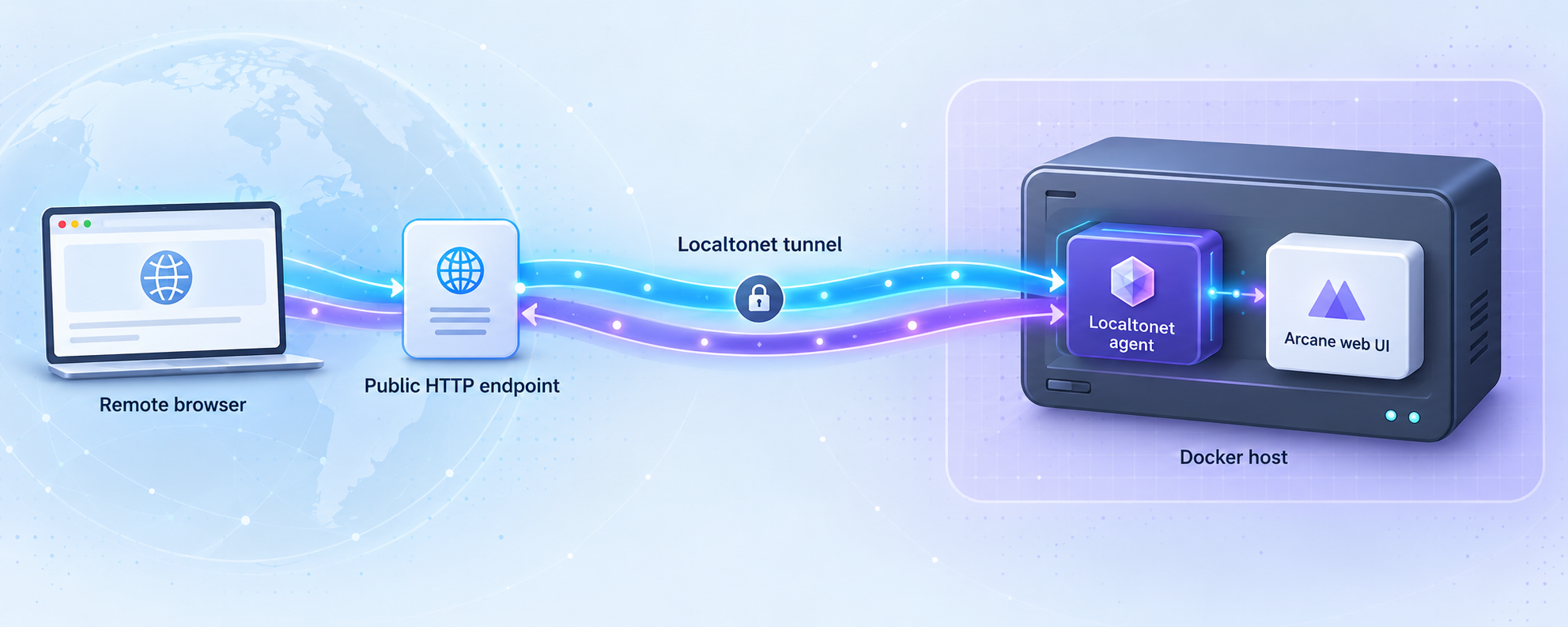
Install Arcane locally first, verify Docker management, then publish only its web interface
Arcane provides a self-hosted web interface for managing Docker containers and Compose projects. In this guide, we install Arcane with its documented Docker Compose configuration, explain its storage and Docker socket requirements, complete the first local sign-in, and verify that the service works before exposing anything. We then connect the working web UI to a Localtonet HTTP tunnel so an authorized administrator can reach it without opening an inbound router port, changing the firewall, configuring a VPN, or requiring a public IP address. The final sections cover security hardening, routine operations, removal, and troubleshooting for both the container and tunnel layers.
📋 What's in this guide
How the Arcane and Localtonet setup works
Arcane runs as a single container and provides a browser-based management interface for Docker. In the documented Compose deployment, the container listens on port 3552, stores its application data in a named Docker volume, mounts a directory containing Compose projects, and receives access to the host Docker socket. That socket access is what allows Arcane to inspect and manage Docker resources on the same host.
Localtonet serves a separate role. After Arcane is working locally, the Localtonet client on the same machine, or on another device that can reach the Arcane host, establishes an outbound connection to one of our relay servers. An HTTP tunnel then forwards requests from its public HTTPS address to Arcane's local IP address and port. The public endpoint remains available only while the selected Localtonet client is connected and the tunnel is running.
This separation is important. Arcane manages Docker, while Localtonet provides the remote path to Arcane's existing web service. A tunnel does not install Arcane, fix an unhealthy container, configure Docker permissions, or replace Arcane's own authentication. Verify each layer independently: Docker first, Arcane second, local browser access third, and the Localtonet tunnel last.
arcane-data named volume stores Arcane's database and application data independently of the container lifecycle.
/var/run/docker.sock, giving Arcane access to Docker on the host.
Arcane can control Docker resources through the Docker socket. Anyone who gains administrative access to the interface may be able to make consequential changes to the host's workloads. Complete the first local sign-in, replace the documented default password, use a unique strong credential, and review Arcane's access settings before starting a public tunnel. Do not treat an unguessable tunnel URL as authentication.
Prerequisites and deployment decisions
For the Docker Compose path, start with a machine that has a functioning Docker installation and Docker Compose support. Your account must be able to run Docker commands and create the directories that will hold your Compose projects. You also need a browser for the initial local sign-in and a Localtonet client on a device that can reach the completed Arcane service.
Confirm Docker and Compose before creating the Arcane configuration:
docker version
docker compose version
Both commands should return version information without a connection or permission error. If the Docker client cannot connect to the daemon, resolve that host-level problem before continuing. A Localtonet tunnel cannot make an unavailable Docker daemon or failed Arcane container operational.
Choose the projects directory
Arcane needs an absolute directory for Compose projects. The official example uses /opt/docker. You may retain that path or substitute another absolute path appropriate for your machine. If projects already exist, choose the directory that contains them. If this is a new installation, choose the directory in which you want Arcane to create and manage projects.
The documented example mounts the projects directory at the same path inside the container:
- /opt/docker:/opt/dockerIt then sets:
- PROJECTS_DIRECTORY=/opt/docker
Matching host and container paths makes relative mounts such as ./config resolve consistently for Arcane and Docker. A different container path is supported, but it introduces path translation that should be configured deliberately. For a first installation, keeping the paths identical is easier to understand and troubleshoot.
Choose the host UID and GID
The official images begin as root only to prepare the container and then run as a non-root user. The PUID and PGID values determine the host UID and GID that own files created by Arcane. The documented example uses 1000 for both, but those values must match the intended account on your own host rather than being copied without checking.
On a Linux host, these commands display the current user's numeric identifiers:
id -u
id -g
If PUID and PGID are omitted, Arcane uses its built-in user 65532:65532. Whichever method you choose, the resulting user must be able to work with the mounted projects directory.
Decide where the Localtonet client will run
The simplest target is a Localtonet client on the same host as Arcane. In that arrangement, the HTTP tunnel can target 127.0.0.1 on port 3552. If the client runs on a different machine, use an Arcane host address that is reachable from that client device. Test that network path locally before creating the tunnel.
| Component | Required role | Verification before installation |
|---|---|---|
| Docker Engine | Runs Arcane and exposes the Docker API used for management | docker version can communicate with the daemon |
| Docker Compose | Creates and maintains the documented Arcane service | docker compose version returns successfully |
| Projects directory | Contains existing or future Compose projects | The path is absolute and its ownership is intentional |
| Browser | Completes the first sign-in and local verification | The browser can reach the Arcane host on its local network |
| Localtonet client | Creates the outbound connection for remote access | The client device can reach Arcane's local IP address and port |
Install Arcane with Docker Compose
Arcane's documented Docker Compose installation has three primary steps: generate the required encryption key, create compose.yaml, and start the service. Perform these actions in a dedicated directory so later Compose commands use the same project configuration.
Generate a 32-byte encryption key
Arcane requires an ENCRYPTION_KEY that is 32 bytes long and may be represented as raw, Base64, or hexadecimal data. Generate it privately, copy the output, and do not publish it or commit the completed Compose file to a public repository.
Create the Compose configuration
Create compose.yaml, replace the encryption-key placeholder with the generated value, and adjust the projects directory, UID, GID, and time zone for the host where necessary.
Start Arcane
Run docker compose up -d from the directory containing compose.yaml. Docker creates the named data volume, starts the container, and publishes the Arcane interface on port 3552.
1. Generate the encryption key
Arcane documents three supported generation methods. You need to use only one. If Docker is already available, the temporary-container method avoids installing another utility:
docker run --rm ghcr.io/getarcaneapp/manager:latest /app/arcane generate secretIf OpenSSL is installed, the documented alternative is:
openssl rand -hex 32If the Arcane CLI is already installed, it can generate the value as well:
arcane-cli generate secret
Save the output somewhere protected while preparing the deployment. Arcane does not use JWT_SECRET. If an older configuration still defines that variable, Arcane logs a warning during startup, and it should be removed. Session tokens are signed using an ML-DSA-87 key that Arcane generates and stores itself.
Replace the placeholder locally and do not paste the real value into support messages, screenshots, source control, or the Localtonet tunnel configuration. The tunnel needs only Arcane's local IP address and port. It does not need Arcane's encryption key, Docker socket, login password, or database credentials.
2. Create compose.yaml
Create a deployment directory, enter it, and create compose.yaml. The following is the documented Arcane Compose structure. Replace <your-encryption-key> before starting it. Also replace the projects path and numeric user identifiers if the example values do not match your host.
services:
  arcane:
    image: ghcr.io/getarcaneapp/manager:latest
    container_name: arcane
    ports:
      - '3552:3552'
    volumes:
      - /var/run/docker.sock:/var/run/docker.sock
      - arcane-data:/app/data
      - /opt/docker:/opt/docker
    environment:
      - APP_URL=http://localhost:3552
      - PUID=1000
      - PGID=1000
      - ENCRYPTION_KEY=<your-encryption-key>
      - PROJECTS_DIRECTORY=/opt/docker
    cgroup: host
    restart: unless-stopped

volumes:
  arcane-data:
Preserve valid YAML indentation. Tabs, misplaced list markers, and an incorrectly indented top-level volumes section can prevent Compose from parsing the file. You can ask Docker Compose to render and validate the effective configuration before starting:
docker compose configReview the output carefully because it may contain the encryption key. Do not copy the rendered configuration into a public issue or shared log.
3. Start the service
From the directory containing compose.yaml, run:
docker compose up -dDetached mode returns control to the shell while Arcane continues running. On the first start, Docker may need to download the image, and Arcane may need time to initialize its database.
Alternative: use the Linux installation script
Arcane also documents a Linux convenience script that sets up Docker and Arcane:
curl -fsSL https://getarcane.app/install.sh | sudo bashA command that downloads a script and immediately runs it with elevated privileges should be used only after you have reviewed and accepted that workflow. The Compose method gives you an explicit configuration file to inspect before execution, while the convenience script can help on a Linux machine that does not yet have Docker configured. Do not run both methods for the same deployment unless the current Arcane documentation specifically directs you to migrate between them.
Understand Arcane's important configuration
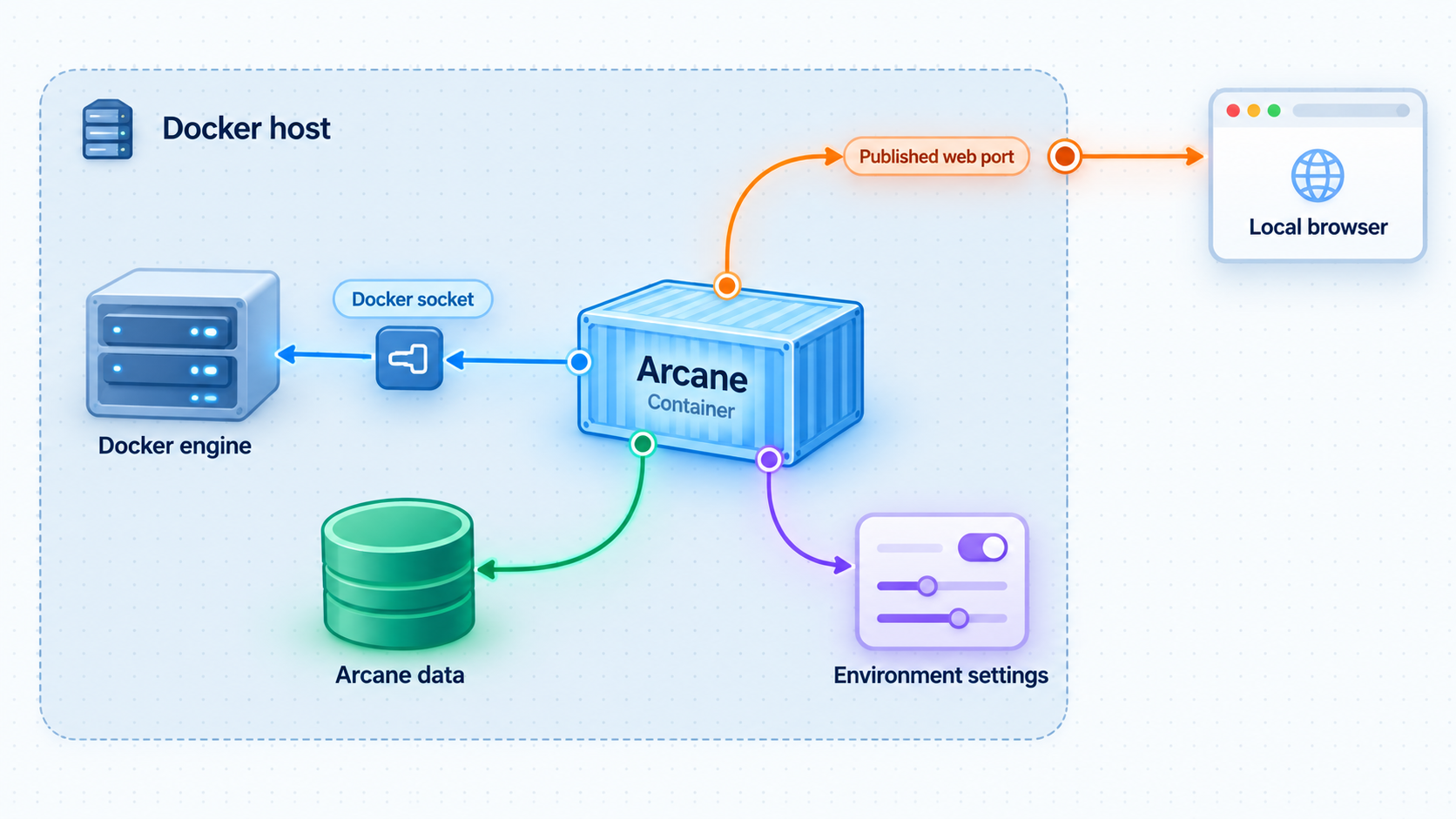
A working installation is easier to maintain when each mount and environment variable has a clear purpose. The base configuration is enough to start Arcane, but directory ownership, project path handling, health checks, and Docker access deserve deliberate review before remote access is enabled.
| Setting or mount | Purpose | Operational consideration |
|---|---|---|
/var/run/docker.sock |
Allows Arcane to communicate with Docker | This is highly privileged access. Arcane recommends a socket proxy when Docker access needs to be restricted. |
arcane-data:/app/data |
Stores Arcane's database and application data | Removing the container does not automatically mean this named volume has been removed. |
| Projects directory | Stores Compose projects managed by Arcane | Use an absolute path and ensure the selected UID and GID can work with its files. |
APP_URL |
Defines the configured application URL | The installation example uses http://localhost:3552. Validate behavior against the current Arcane documentation before changing it for an external URL. |
PUID and PGID |
Control ownership of files created by Arcane | Use values appropriate for the host, or omit them to use the built-in 65532:65532 account. |
ENCRYPTION_KEY |
Provides Arcane's required 32-byte encryption key | Keep it stable and private. Do not expose it through tunnel settings or public repositories. |
PROJECTS_DIRECTORY |
Tells Arcane where its Compose projects are located | If omitted, Arcane uses /app/data/projects. |
Project path translation
Matching paths, such as /opt/docker:/opt/docker, are the clearest arrangement because both the host and container refer to the project directory by the same name. Arcane can also work when the container path differs. For example, a host path could be mounted at another path inside the container, and Arcane can read its own mounts to translate project paths for Compose.
If you need to state the mapping explicitly, Arcane supports:
PROJECTS_DIRECTORY=<containerPath>:<hostPath>
Do not use a relative value such as opt/docker. The projects path must be absolute.
Optional build and backup folders
Arcane supports an optional /builds folder for Dockerfiles and build contexts used by the Build Workspace. It also supports an optional /backups folder for exported volume backups. These folders are not required for the initial deployment.
If you enable them, use either an intentional host bind mount or a declared named volume. A host path makes the storage location directly visible on the machine. A named volume leaves management to Docker and must also be declared in the top-level volumes section.
Container health check
Arcane includes an arcane health command that calls its local /api/health endpoint and exits with a nonzero status if the server is not responding. The documented health-check configuration is:
healthcheck:
  test: ['CMD', './arcane', 'health', '--timeout', '2s']
  interval: 10s
  timeout: 3s
  retries: 5
  start_period: 15s
Add this under the Arcane service at the same indentation level as image, ports, and volumes. The start_period allows time for first-start database migrations before failed checks begin counting against the retry limit.
SQLite and external PostgreSQL
Arcane stores data in a SQLite file inside arcane-data by default, and its documentation identifies that arrangement as suitable for most setups. Arcane can instead use PostgreSQL through DATABASE_URL. A database migration is an operational project of its own, so do not switch merely because remote access is being enabled. The Localtonet tunnel targets the Arcane HTTP interface and does not require direct access to SQLite or PostgreSQL.
SELinux hosts
On an SELinux host, Arcane recommends using a Docker socket proxy and adding :z to the projects-directory mount. If a direct socket mount is necessary, the documented alternative disables SELinux labeling for the Arcane container and relabels the projects mount:
services:
  arcane:
    image: ghcr.io/getarcaneapp/manager:latest
    container_name: arcane
    ports:
      - '3552:3552'
    security_opt:
      - label:disable
    volumes:
      - /var/run/docker.sock:/var/run/docker.sock
      - arcane-data:/app/data
      - /opt/docker:/opt/docker:z
    environment:
      - PROJECTS_DIRECTORY=/opt/docker
This excerpt illustrates only the SELinux-specific changes and is not a replacement for the complete deployment configuration. Prefer the socket-proxy approach when you need to limit Arcane's access to the Docker API.
Verify Arcane locally before creating a tunnel
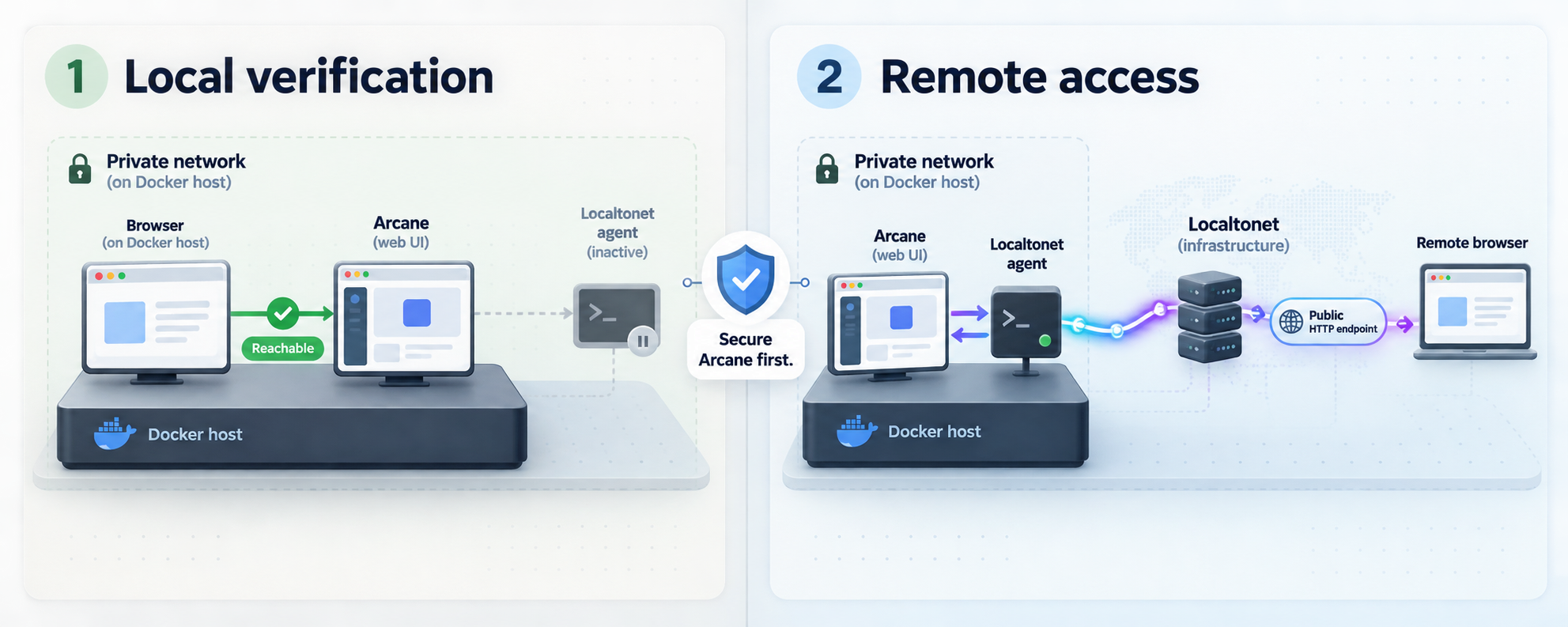
Local verification establishes a known-good baseline. If Arcane does not work directly on the host or local network, adding a public endpoint only creates another layer to investigate.
Check the container state
Run the following from the directory containing compose.yaml:
docker compose psThe Arcane service should be running. If it exits, inspect its recent output:
docker compose logs arcaneLook for direct errors concerning the encryption key, port binding, project-directory permissions, Docker socket access, YAML configuration, or database initialization. Correct the underlying setting rather than repeatedly restarting the same invalid configuration.
Open the web interface
On the Arcane host, open:
http://localhost:3552
If the browser is on another machine in the same trusted network, use the Arcane host's reachable local address with port 3552. Whether that path is available depends on the host's Docker port publication, local firewall, and network policy.
Complete the first sign-in
The documented initial credentials are:
Username: arcane
Password: arcane-admin
Arcane prompts you to change the password during the first sign-in. Complete that change before exposing the interface remotely. Confirm that the new credential works and store it using an appropriate password manager or other approved credential-management process.
Confirm Docker visibility
After signing in, the dashboard should summarize the environment and its resource usage. Confirm that Arcane can see the Docker resources you expect. If the application page loads but Docker information is missing or operations fail, focus on Docker socket access, the selected deployment mode, SELinux handling, and container logs.
Validate the exact path the Localtonet client will use
If Localtonet will run on the Arcane host, verify http://127.0.0.1:3552 from that host. If the Localtonet client will run elsewhere, open the Arcane URL from the client device using the Arcane host's reachable local IP address. This test distinguishes an Arcane problem from a route or firewall problem before a tunnel is involved.
Do not proceed merely because the container appears in docker compose ps. A complete local verification means the sign-in page loads through the address the Localtonet client will target, the default password has been replaced, the dashboard opens, and Arcane can communicate with Docker.
Secure Arcane before remote access
Publishing an administrative application changes its exposure. The safest approach is to expose only the web port, retain Arcane's authentication, minimize Docker permissions where practical, and keep secrets out of the tunnel configuration.
Replace the default password first
Never start remote access while the documented arcane and arcane-admin combination is still active. The first-login password change is a required security step, not optional cleanup. Use a unique password that is not shared with Docker registries, the host account, Localtonet, or other applications.
Review Arcane users and permissions
Use separate user identities where Arcane's current access controls support your intended team workflow. Grant only the level of access each administrator needs. Remove accounts that are no longer required and keep at least one controlled recovery path for authorized administrators.
Treat Docker socket access as privileged
The standard installation mounts /var/run/docker.sock. This gives Arcane the ability to manage Docker, but it also means that compromise of the Arcane application or an administrator account can have consequences beyond the web interface. Arcane's documentation recommends a socket proxy when Docker access should be restricted. Evaluate that design before exposing a production host or a host containing sensitive workloads.
Limit local port exposure when appropriate
The documented mapping 3552:3552 publishes Arcane through the Docker host. If the Localtonet client runs on the same machine and no other local device needs direct access, Docker supports binding a published port to loopback:
ports:
  - '127.0.0.1:3552:3552'
This is a general Docker networking choice rather than an Arcane requirement. Use it only when the Localtonet client runs on the same host, because another device cannot reach a loopback-only listener. If the client runs elsewhere, retain a reachable host binding and enforce access with the host firewall and network policy.
Keep secrets out of public configuration
Do not place the Arcane encryption key, login credentials, Docker registry credentials, database password, Localtonet device token, or private endpoint details in screenshots or public examples. A Localtonet device token identifies the client device and must not be guessed, reused casually, or exposed.
Keep both products current
Arcane releases can include authentication, authorization, Docker-operation, backup, and general reliability changes. Review current release notes before updates, especially when the interface manages important workloads. Keep the Localtonet client current through the supported installation and update process for its operating system.
The remote-access target in this guide is Arcane's authenticated HTTP interface on port 3552. Do not create a public tunnel to the Docker socket, an unauthenticated Docker API, the Arcane database, or a private PostgreSQL service. Remote management should pass through the application controls designed for that purpose.
Expose the verified Arcane web UI with Localtonet
Once Arcane works locally and its initial credentials have been changed, create a Localtonet HTTP tunnel. HTTP is the appropriate family because Arcane presents a browser-based web application. A raw TCP tunnel is not needed for the normal web UI workflow.
HTTP tunnels can use a generated subdomain, a selected subdomain where supported, or a custom domain. The exact options available can vary by current product configuration or plan. To avoid unsupported DNS assumptions, begin with an available generated address. If you later need a custom domain, verify its current DNS requirements in our documentation and dashboard.
Install and run the Localtonet client
Install our client on the Arcane host or on another device that can reach Arcane's local address. The client establishes the outbound connection used by the tunnel, so it must remain connected for remote access to work.
Authenticate and select the client device
Use the device-specific authentication token supplied through your Localtonet account and select the corresponding connected device. Keep this token private and do not place it in Arcane's Compose file.
Select an available relay server
Choose a server or region currently offered in the dashboard. Available values can change and may vary by plan, so this guide does not hardcode a relay code.
Create an HTTP tunnel to Arcane
Select an HTTP tunnel and set its local target to the Arcane address reachable from the Localtonet client. Use 127.0.0.1 and port 3552 when both run on the same host. Otherwise, use the tested local IP address of the Arcane host and port 3552.
Start the tunnel
Creating a tunnel does not automatically make it active. Use the Start control after reviewing the selected device, relay server, process type, local address, and port.
Open and test the assigned public address
Open the assigned public HTTPS URL in a separate browser session, confirm that Arcane's sign-in page appears, and authenticate with the replacement credentials created during local setup.
For the current dashboard workflow, see our Localtonet HTTP tunnel documentation. Use the current values shown in the dashboard rather than copying a server code, domain option, or device token from an unrelated example.
Select the correct local target
| Client location | Typical target | Required local test |
|---|---|---|
| Same host as Arcane | 127.0.0.1:3552 |
Arcane opens at http://127.0.0.1:3552 on that host |
| Another device on the same LAN | Arcane host's reachable LAN address on port 3552 |
The Arcane sign-in page opens from the Localtonet client device |
| Containerized Localtonet client | An address reachable from the client's container network | Connectivity is tested from the same network context as the client |
Do not assume that localhost always refers to the Arcane host. It refers to the network context in which the Localtonet client runs. If the client itself is in a container, 127.0.0.1 normally refers to that client container, not automatically to the host or Arcane container. Use an explicitly tested route rather than guessing a container hostname or gateway address.
Verify the remote session safely
Test from a network path that is genuinely remote, such as a separate internet connection, rather than relying only on the same browser and LAN used for local setup. Confirm that the assigned HTTPS address loads Arcane, authentication is required, the old default password no longer works, and the replacement credential succeeds.
After verification, stop the tunnel whenever remote administration is not needed. Stopping a tunnel removes the public route while leaving Arcane running locally. Deleting it removes the tunnel configuration. These actions do not uninstall Arcane or delete its Docker volume.
A configured tunnel is not necessarily running. Remote access requires the chosen Localtonet device to be connected and the tunnel to be started. If the client stops, loses connectivity, or the tunnel is stopped, the public endpoint will not reach Arcane even though Arcane may still work locally.
Routine operation, updates, backups, and removal
Check status and logs
Run Compose commands from the directory containing the Arcane configuration:
docker compose ps
docker compose logs arcane
To follow new log output while reproducing a problem:
docker compose logs -f arcaneAvoid publishing complete logs without reviewing them. Logs may contain hostnames, paths, user identifiers, project names, image names, or other deployment details.
Stop and restart Arcane
To stop the Compose application while retaining its configuration and persistent volume:
docker compose downStart it again with:
docker compose up -dIf Arcane is down, the Localtonet client may remain connected and the tunnel may remain marked as running, but the local target will not answer successfully. This is why tunnel status alone is not proof of application health.
Update the container image
The documented Compose example uses the latest image tag. Before updating a host that manages important workloads, review Arcane's current release information, protect application data, and account for any migration instructions. A standard Compose refresh for the configured image is:
docker compose pull
docker compose up -d
Verify the local sign-in and Docker dashboard again after the update. Then test the public address. This sequence identifies whether a regression is inside the application or only on the remote path.
Protect persistent data
The arcane-data volume contains Arcane's built-in SQLite database and other application data in the default setup. Compose project files live in the projects directory, not necessarily in that named volume. Optional exported volume backups can use /backups when configured.
A complete recovery plan must account for Arcane's persistent data, project files, any optional build or backup directories, external database data if PostgreSQL is used, and the encryption key. Test recovery procedures rather than assuming that the existence of a volume is equivalent to a usable backup.
Stop or delete remote access independently
Use the Localtonet dashboard to stop the tunnel when temporary remote work is complete. Arcane will remain available through its local address. Delete the tunnel if the public endpoint is no longer required. If the Localtonet client device is being retired, handle its device-specific token according to the current account workflow and do not transfer or expose it casually.
Uninstall Arcane
Arcane's recommended uninstall script asks before removing Arcane data, the Arcane user and group, or Docker:
curl -fsSL https://getarcane.app/uninstall.sh -o /tmp/arcane-uninstall.sh && sudo bash /tmp/arcane-uninstall.shReview downloaded administrative scripts before execution. Arcane also documents a noninteractive removal command:
curl -fsSL https://getarcane.app/uninstall.sh | sudo bash -s -- --force --remove-all
The --force --remove-all workflow removes Arcane, its data, the Arcane user and group, and Docker packages. Do not use it on a host that runs other Docker workloads unless removing Docker from the machine is explicitly intended and all required data has been protected.
Troubleshoot Arcane and Localtonet systematically
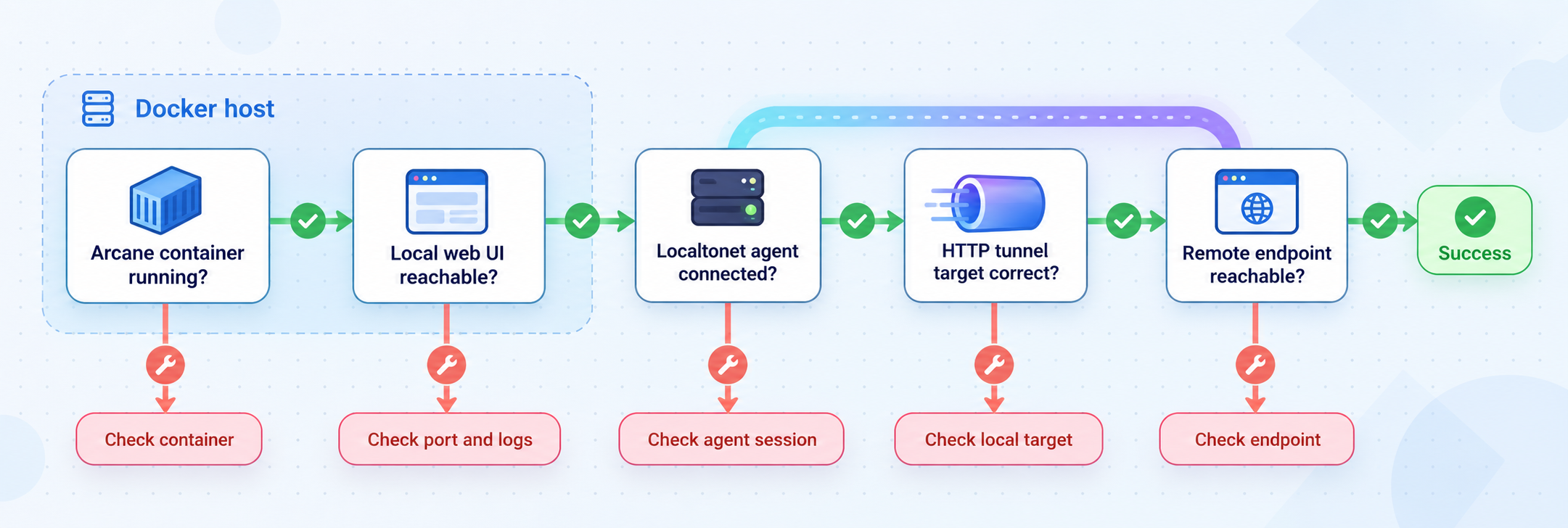
Begin at the lowest layer and move outward. First confirm Docker, then the Arcane container, then local HTTP access, then connectivity from the Localtonet client, and finally the public tunnel. This avoids changing a correct tunnel to compensate for a failed container or incorrect local route.
| Symptom | Likely area | What to check |
|---|---|---|
docker compose up -d rejects the file |
YAML or Compose syntax | Run docker compose config, check indentation, and confirm that the top-level volume is declared correctly. |
| Arcane repeatedly exits | Application configuration | Inspect docker compose logs arcane for encryption-key, database, permission, or startup errors. |
| Port 3552 cannot be published | Host port conflict | Determine which process already uses the port. Do not change Arcane's internal port or the tunnel target without updating the deployment consistently. |
| Web UI loads but Docker resources fail | Docker API access | Check the socket mount, Docker daemon status, SELinux handling, and any socket-proxy configuration. |
| Projects are missing | Projects directory | Confirm the path is absolute, the mount points to the intended host directory, and PROJECTS_DIRECTORY matches the container path or explicit mapping. |
| Arcane cannot write project files | Ownership or permissions | Verify PUID, PGID, host-directory ownership, and SELinux labels where applicable. |
| Arcane works on the host but not from the client device | Local networking | Check whether the port is loopback-only, whether the host firewall permits the route, and whether the client is targeting the correct local IP. |
| The tunnel exists but the public URL is unavailable | Localtonet lifecycle | Confirm that the selected device is connected and that the tunnel was explicitly started. |
| The public URL returns an upstream or connection error | Local target | Test the exact target from the Localtonet client device. Verify address, port 3552, Arcane container state, and local firewall behavior. |
| The wrong service appears at the public URL | Target selection | Verify that the tunnel points to Arcane's tested address and port rather than another local web service. |
The container starts but the browser cannot connect
Check docker compose ps and verify that port 3552 is published. Then test http://127.0.0.1:3552 on the host. If loopback works but another device cannot connect, investigate the port binding, host firewall, and LAN route. If loopback fails, inspect Arcane's logs and health before changing Localtonet.
The Localtonet client runs in a container
A container has its own network namespace. In that context, 127.0.0.1 points back to the Localtonet client container. It does not automatically point to the Docker host or the Arcane container. The correct target depends on the container network design. Because host gateway names and addresses differ by platform and configuration, this guide does not invent a universal value. Establish and test a reachable address from the client's actual network context.
Sign-in or redirect behavior differs through the public URL
First confirm that direct local sign-in still works. Then review the browser's exact URL and Arcane's current reverse-proxy and networking guidance. The installation example defines APP_URL=http://localhost:3552, but changing an application's canonical URL can affect redirects, cookies, callback URLs, or integrations. Do not guess a replacement value. Confirm the requirement against the current Arcane version and configuration documentation before modifying production settings.
The tunnel stopped after a reboot
Arcane's Compose configuration includes restart: unless-stopped, but that setting applies to the Arcane container, not automatically to the Localtonet client or tunnel. Confirm that the Localtonet client is running and connected after the reboot, and confirm that the tunnel itself is started. Container uptime and tunnel uptime are separate states.
Health checks fail during first startup
Arcane may run database migrations during its first boot. The documented health configuration includes a 15-second start_period so early failures do not immediately count against the retry limit. If failures continue beyond initialization, inspect the logs for a direct cause rather than indefinitely increasing health-check delays.
Frequently asked questions
What port does Arcane use in the documented Docker Compose installation?
The documented configuration publishes Arcane on port 3552 using 3552:3552. Local access is therefore available at http://localhost:3552 on the host. A Localtonet client running on that host can normally target 127.0.0.1 and port 3552.
What are Arcane's initial login credentials?
The documented username is arcane, and the initial password is arcane-admin. Arcane prompts for a password change during the first sign-in. Complete that change locally before starting a public tunnel.
Does Localtonet replace Arcane authentication?
No. The HTTP tunnel provides a public route to the local web application. Arcane's own authentication and authorization remain essential. Use strong credentials, review user permissions, and stop the tunnel when remote access is unnecessary.
Do I need router port forwarding or a public IP address?
No. The Localtonet client establishes an outbound connection to our relay infrastructure. This allows the tunnel to provide a public URL without inbound router port forwarding, firewall changes, VPN setup, or a public IP address.
Must the Localtonet client run on the same machine as Arcane?
No. It can run on another device that can reach Arcane's local IP address and port. Running both on the same host usually simplifies the target to 127.0.0.1:3552. If they run on different devices, test the Arcane URL from the Localtonet client device before configuring the tunnel.
Does creating a Localtonet tunnel start it automatically?
No. Creating the configuration does not mean the tunnel is running. The selected Localtonet client must be connected, and the tunnel must be started with the Start control. It can later be stopped or deleted independently of Arcane.
Why does Arcane need access to the Docker socket?
Arcane uses Docker API access to inspect and manage resources on the host. The standard installation mounts /var/run/docker.sock. Because this access is powerful, Arcane recommends a socket proxy when you need to restrict which Docker operations are available.
Can I use a custom domain for the Arcane tunnel?
Localtonet HTTP tunnels support generated subdomains, selected subdomains where available, and custom domains. Exact availability can vary, and custom-domain DNS requirements should be checked against the current dashboard and documentation before configuration. A generated address is the simplest starting point for initial verification.
What should I back up before updating or removing Arcane?
Protect the arcane-data volume, the Compose projects directory, the encryption key, optional build and backup directories, and any external PostgreSQL data if that configuration is used. Test recovery before relying on the backup. Be especially careful with Arcane's forced uninstall option because it can remove Docker packages as well as Arcane data.
Connect your verified Arcane dashboard with Localtonet
Install Arcane, replace its default password, confirm Docker management locally, and then create an HTTP tunnel to the tested port 3552 target. With our outbound tunnel workflow, you can reach the self-hosted interface without opening an inbound router port or requiring a public IP address.
Get Started Free →

