

Install a pinned Appsmith Helm chart, verify the Kubernetes workload, and publish a stable private endpoint
This guide deploys Appsmith on Kubernetes with its official Helm repository, verifies the resulting StatefulSet, Service, and persistent storage, and opens the initial setup page through a temporary local port forward. It then explains how to replace that temporary test path with a durable HTTP endpoint reachable by a continuously running Localtonet client. The public tunnel requires no inbound router port forwarding or public IP address, but Appsmith must already be healthy and protected by appropriate authentication. Commands use a dedicated namespace and an explicitly selected chart version so the installation can be reviewed and reproduced.
📋 What's in this guide
How Appsmith, Kubernetes, and Localtonet fit together
Appsmith is an open-source low-code platform for building dashboards, administrative panels, internal tools, and applications that connect to databases and APIs. Its project lists Docker as the recommended self-hosting method and Kubernetes as a documented installation method. Kubernetes is useful when Appsmith needs to fit an existing cluster operating model, use Kubernetes-managed persistent storage, or run near private services that Appsmith applications need to reach.
Kubernetes and Localtonet have separate responsibilities. Kubernetes creates and operates the Appsmith workload. Its controllers schedule containers, attach persistent volumes, restart failed workloads, and provide a stable Service in front of the application. Localtonet does not deploy Appsmith or repair Kubernetes resources. Our HTTP tunnel forwards a public HTTPS address to an HTTP endpoint that already works from the Localtonet client device.
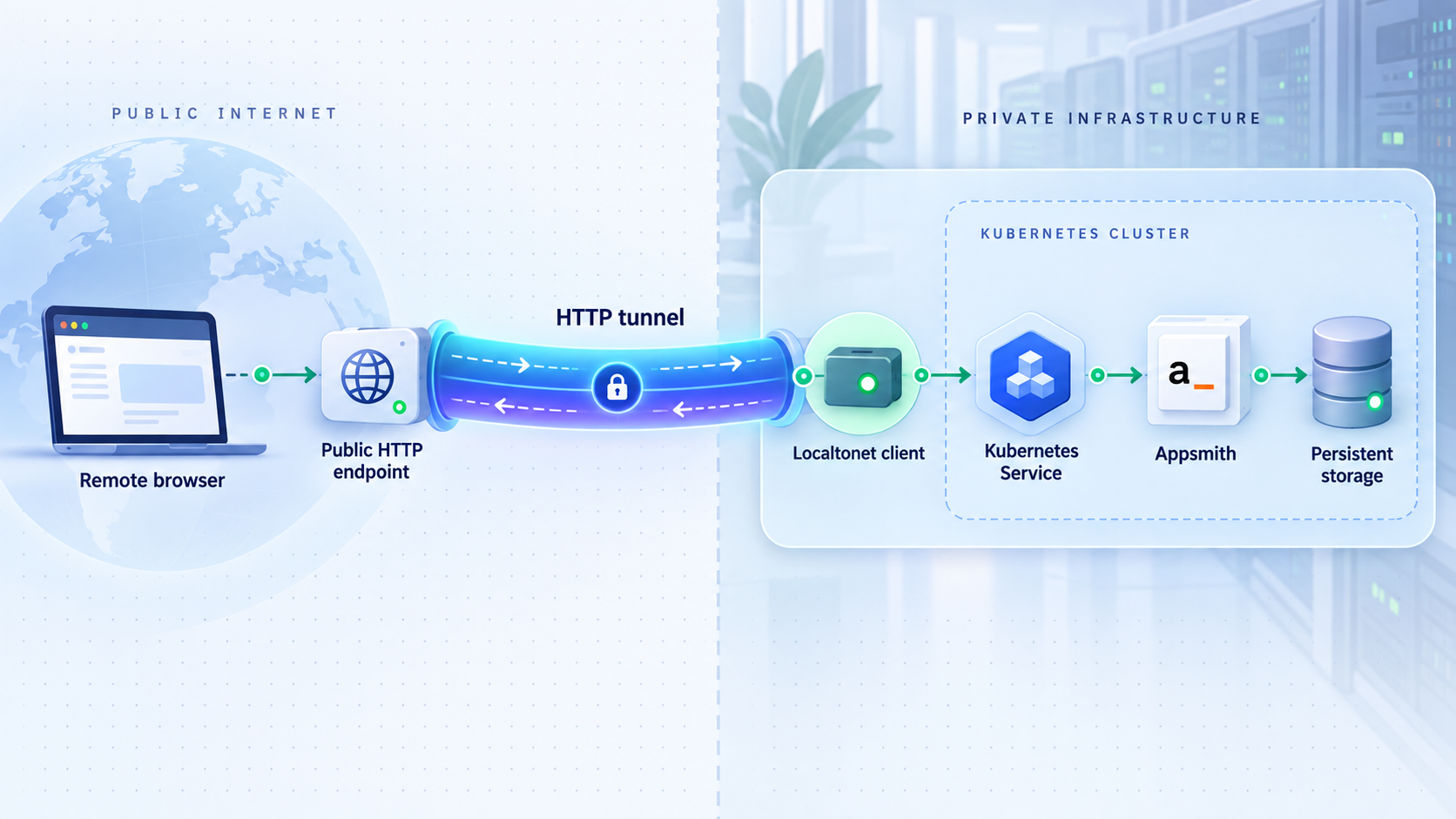
This separation creates a useful troubleshooting boundary. If Appsmith cannot pass its Kubernetes readiness checks, tunnel changes will not fix it. If Appsmith works from the Localtonet client device but not through the public URL, the investigation can focus on the tunnel target, client state, public-host behavior, and application access controls.
A kubectl port-forward session is appropriate for installation checks and the initial browser setup. It ends when its process or network connection ends and is not a resilient production endpoint. Long-lived Localtonet access should target a stable Service or ingress route reachable by a continuously managed client device.
Prerequisites and deployment plan
This procedure uses Appsmith’s official Helm repository. Before changing the cluster, confirm the current requirements in the Appsmith Kubernetes installation guide and review the chart release you intend to deploy. Appsmith evolves independently of this article, so do not treat a version number copied from an old tutorial as the current recommendation.
Required tools and access
- A working Kubernetes cluster with a usable default StorageClass or another StorageClass selected through reviewed chart values.
kubectlconfigured for the intended cluster and authorized to create namespaced workloads, Services, secrets, and persistent volume claims.- Helm 3 configured on the administration machine.
- Enough cluster CPU, memory, and persistent capacity for the chart version and workload size you intend to operate.
- A browser for completing Appsmith’s initial setup.
- For public access, a supported Localtonet client installed on a device that can continuously reach the selected Appsmith endpoint.
Appsmith’s current chart and documentation are the authority for numeric resource requirements. The supplied project evidence does not establish one universal CPU, memory, or disk allocation for every Kubernetes environment, so this article does not fabricate fixed production sizing. Inspect the pinned chart defaults and override them only after comparing them with current Appsmith guidance and your expected user load.
Confirm the cluster context
Check the active context before installing anything:
kubectl config current-context
kubectl cluster-info
kubectl get nodes
Stop if the context identifies the wrong cluster, if authorization fails, or if required nodes are unavailable. It is safer to correct context selection before Helm creates resources than to remove an accidental deployment later.
Confirm persistent storage
Appsmith must not be treated as a disposable stateless pod. List the available StorageClasses and identify the default:
kubectl get storageclassA default StorageClass allows a chart-created PersistentVolumeClaim to request storage without naming a class explicitly. If your cluster has no default, review the chart’s current values and set the appropriate storage class in a controlled values file. Do not guess a value key from another chart or environment.
Also review the storage provider’s reclaim, snapshot, expansion, and failure behavior. Kubernetes can reattach a persistent volume after routine workload replacement, but that is not a substitute for an Appsmith backup stored outside the failure domain.
Install Helm if it is not already available
Use Helm’s installation method for your administration operating system, then verify the installed client:
helm version
This tutorial does not reproduce operating-system package-manager commands because those differ across platforms and change independently. The required result is a functioning Helm 3 client connected to the same Kubernetes configuration used by kubectl.
| Check | Command or evidence | Ready condition |
|---|---|---|
| Cluster identity | kubectl config current-context |
The output identifies the intended cluster |
| Node availability | kubectl get nodes |
Required nodes report a usable state |
| Helm client | helm version |
A Helm 3 client responds successfully |
| Persistent storage | kubectl get storageclass |
A suitable class is available and its behavior is understood |
| Localtonet placement | Network test from the intended client device | The device can reach the durable Appsmith endpoint |
| Application policy | Authentication and authorization review | Public reachability will not expose an unprotected workspace |
Deploy Appsmith with the official Helm chart
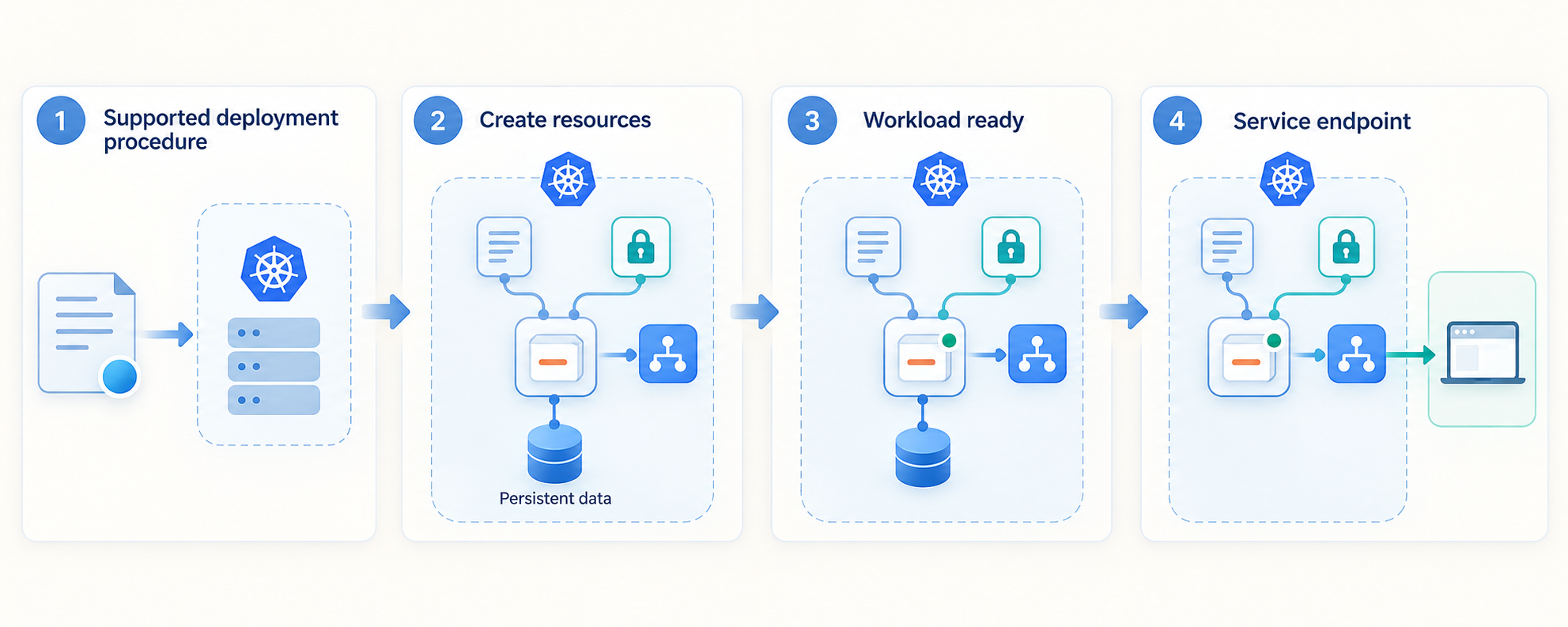
The sequence below adds Appsmith’s official Helm repository, discovers available chart versions, exports the selected chart’s defaults for review, installs it into a dedicated namespace, and checks the rollout. It uses the release name appsmith and namespace appsmith consistently.
Replace <reviewed-chart-version> with an exact version displayed by helm search repo appsmith/appsmith --versions. A chart version and an Appsmith application version are related release artifacts, but they are not necessarily interchangeable numbers. Preserve both the chart version and generated values used for your deployment.
Add the official Appsmith Helm repository
Register the repository published at https://helm.appsmith.com, then refresh the local Helm index.
Select and record an exact chart version
List available versions and choose one reviewed for your cluster. Do not silently install whatever version happens to be latest on a future date.
Export and review the chart values
Save the defaults for the selected version. Review storage, resource, Service, ingress, image, and application configuration before creating resources.
Install Appsmith in its namespace
Use helm upgrade --install with an explicit chart version, dedicated namespace, and reviewed values file.
Wait for the workload rollout
Discover the StatefulSet created by the release and wait for Kubernetes to report a successful rollout.
Inspect pods, Services, storage, and events
Confirm readiness, low restart counts, bound persistent claims, and a Service with endpoints before opening the application.
1. Add the chart repository
helm repo add appsmith https://helm.appsmith.com
helm repo update
If the repository name already exists, Helm reports that condition. Check the configured URL before reusing it:
helm repo list2. Discover and pin the chart version
helm search repo appsmith/appsmith --versionsSelect an exact version from the output and assign it for the remaining commands:
export APPSMITH_CHART_VERSION="<reviewed-chart-version>"
Review the corresponding Appsmith changes in the project’s
release notes.
The previously cited v2.4.1 example has been removed from this deployment procedure because an isolated application release should not be presented as the current recommended Kubernetes version.
3. Export the selected chart values
helm show values appsmith/appsmith \
  --version "$APPSMITH_CHART_VERSION" \
  > appsmith-values.yaml
Open appsmith-values.yaml and review it before installation. The exported file belongs to the exact chart version selected above. Preserve your reviewed copy in an access-controlled infrastructure repository, taking care not to commit credentials or other secrets.
Pay particular attention to the currently defined persistence, storage class, resource, Service, ingress, image, and application configuration sections. Value names can change between chart versions, so use the keys present in this generated file rather than keys copied from an old article. If the defaults fit your initial environment, the file can remain unchanged while still recording what was reviewed.
4. Install the release
helm upgrade --install appsmith appsmith/appsmith \
  --namespace appsmith \
  --create-namespace \
  --version "$APPSMITH_CHART_VERSION" \
  --values appsmith-values.yaml \
  --wait
The --create-namespace option creates appsmith if it does not exist. The --wait option makes Helm wait for relevant resources to become ready, subject to Helm’s timeout. A timeout does not necessarily mean that every resource was deleted or that the underlying cause is known. Inspect the cluster before retrying.
Record the installed release:
helm list -n appsmith
helm status appsmith -n appsmith
5. Discover the workload and check its rollout
kubectl get statefulsets -n appsmith
kubectl get deployments -n appsmith
kubectl get pods -n appsmith -o wide
The Appsmith chart has used a stateful workload because the application depends on persistent data. Discover the resource name from the actual release instead of assuming that every future chart produces the same object names. If a StatefulSet is present, capture its name and wait for the rollout:
APPSMITH_STATEFULSET="$(kubectl get statefulset -n appsmith \
  -l app.kubernetes.io/instance=appsmith \
  -o jsonpath='{.items[0].metadata.name}')"

printf '%s\n' "$APPSMITH_STATEFULSET"

kubectl rollout status \
  -n appsmith \
  "statefulset/$APPSMITH_STATEFULSET"
If the label query returns no name, use kubectl get statefulsets -n appsmith --show-labels and inspect the resources created by the installed chart. Do not proceed with an empty variable or substitute a guessed name.
6. Verify storage and Service endpoints
kubectl get pvc -n appsmith
kubectl get services -n appsmith
kubectl get endpoints -n appsmith
kubectl get events -n appsmith --sort-by=.metadata.creationTimestamp
Required claims should report Bound. Appsmith pods should be ready, and the Service used for access should have backend endpoints. A pod can be in the Running phase while one or more containers are unready, so read the readiness column and restart count rather than relying on phase alone.
Keep Appsmith private if a persistent claim is pending, containers are repeatedly restarting, Service endpoints are empty, or the setup interface cannot complete a local browser workflow. A public tunnel only forwards traffic. It cannot repair storage, scheduling, initialization, or application failures.
Open and verify Appsmith locally
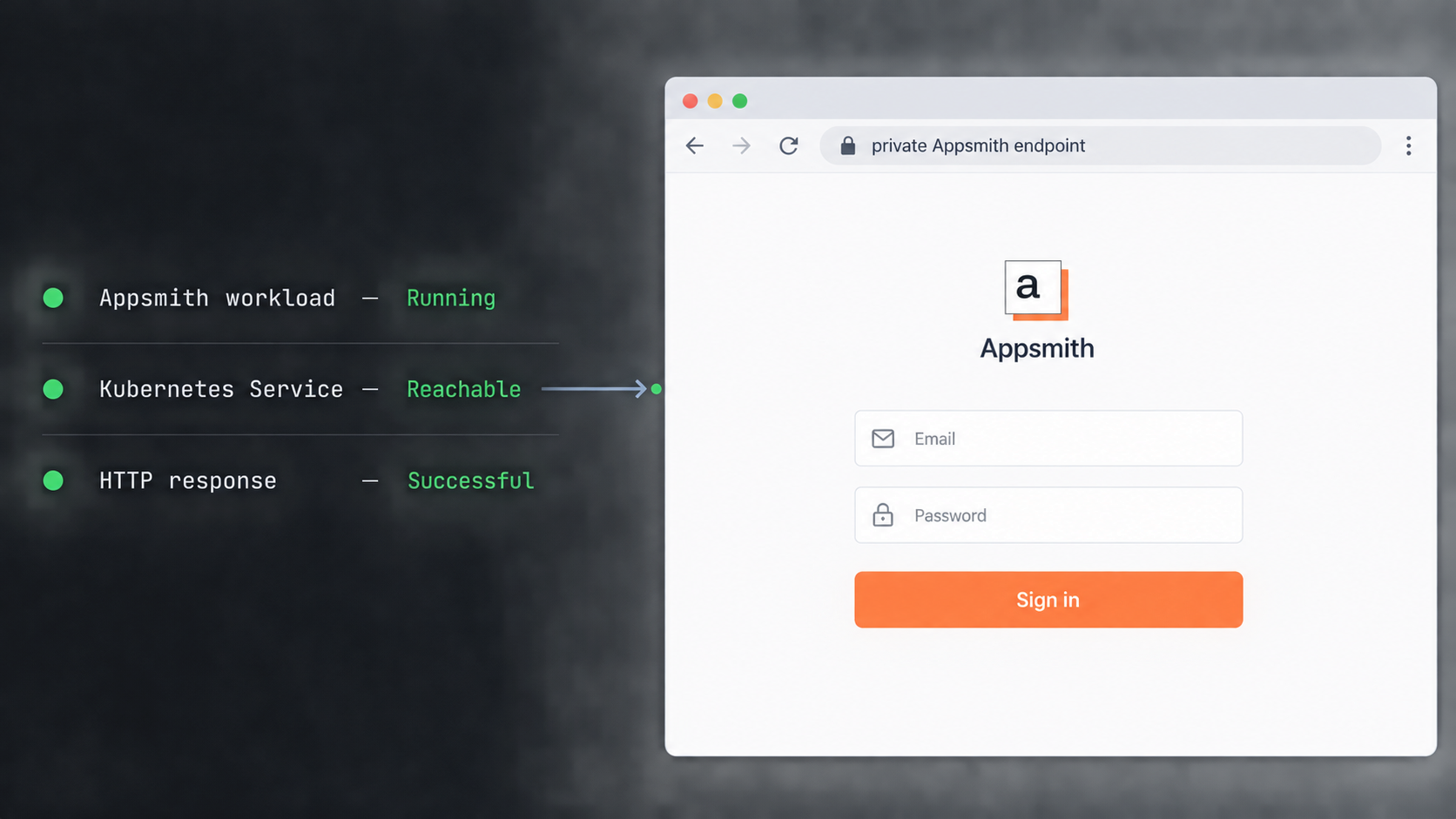
Use a temporary kubectl port-forward for the first access test. This keeps the validation path simple and avoids changing the Service type merely to determine whether Appsmith started correctly.
Discover the Service name and ports
kubectl get services -n appsmith -o wide
kubectl get services -n appsmith \
  -l app.kubernetes.io/instance=appsmith \
  -o custom-columns=NAME:.metadata.name,TYPE:.spec.type,PORT:.spec.ports[*].port,TARGET:.spec.ports[*].targetPort
Identify the HTTP-facing Service from this output. Assign its real name:
export APPSMITH_SERVICE="<discovered-service-name>"Inspect the selected object and confirm its exposed ports:
kubectl describe service \
  -n appsmith \
  "$APPSMITH_SERVICE"
Start a temporary port forward
When the discovered Service exposes HTTP on port 80, forward local port 8080 to it:
kubectl port-forward \
  -n appsmith \
  "service/$APPSMITH_SERVICE" \
  8080:80
If the Service output shows a different HTTP port, replace the right side of 8080:80 with that discovered Service port. Keep this terminal open and visit:
http://127.0.0.1:8080On a new installation, Appsmith presents its initial account or workspace setup in the browser. Complete the current on-screen setup using an administrative account intended for this deployment. Do not publish screenshots containing passwords, invitation links, private addresses, access tokens, or data-source credentials.
Complete an application-level check
- Confirm that the page is Appsmith rather than a default proxy or ingress page.
- Complete the initial setup or sign in with a designated test account.
- Confirm that static assets load and the browser does not repeatedly retry failed requests.
- Open or create a non-sensitive test application.
- Navigate between pages and exercise a harmless interface action.
- Verify only the data-source connections required for the test, using least-privileged credentials.
- Check Kubernetes pod readiness and restart counts again after the browser test.
Stop the port forward with Ctrl+C after testing. That shutdown affects only the forwarding process, not the Appsmith workload.
If Localtonet targets 127.0.0.1:8080 while this command is running, the public route will fail as soon as the terminal, administrator connection, or port-forward process ends. This is useful for a controlled test, but it is not a resilient deployment design.
Choose a durable endpoint for the Localtonet client
A Localtonet HTTP tunnel needs a local IP address and port reachable from its client device. In this context, “local” means local to that device’s network view. It does not automatically mean 127.0.0.1, a Kubernetes pod IP, or a ClusterIP copied from another host.
Kubernetes Services provide stable discovery in front of replaceable pods. The Kubernetes Service documentation explains the standard Service types and their network behavior. Choose a route that fits your cluster and security policy.
| Endpoint pattern | Suitable placement | Important limitation |
|---|---|---|
| ClusterIP Service | A managed Localtonet client environment with valid cluster-network access | ClusterIP is normally cluster-internal and may not be reachable from an external management host |
| Private ingress route | A dedicated host or managed client environment that can resolve and reach the private ingress | Host routing, DNS, ingress rules, and Appsmith behavior must all work from the client device |
| Node-reachable Service | A client host with authorized network access to the selected node address and port | Node lifecycle, firewall policy, and Service configuration must be managed deliberately |
| LoadBalancer with a private address | Clusters whose infrastructure provisions an internal load-balancer address | Availability and implementation depend on the Kubernetes environment |
kubectl port-forward |
Short installation tests and temporary troubleshooting | The route disappears when the forwarding process ends and should not be treated as unattended production access |
Avoid targeting a pod IP. Pods can be replaced during upgrades, restarts, rescheduling, or node maintenance. A Service or ingress route provides a more appropriate abstraction. Also avoid placing an ad hoc Localtonet process in a shell on a Kubernetes node and calling that a resilient design. A node can be drained or replaced, and Kubernetes does not supervise an unmanaged host process.
For durable access, operate the Localtonet client under the normal service-management mechanism of a stable host that can reach Appsmith. If your architecture runs a client within Kubernetes, its lifecycle, credentials, updates, placement, and network access must be managed explicitly. This article does not invent an unsupported Localtonet Kubernetes operator or manifest.
Verify the final target from the client device
From the exact device that will run our client, open the selected private URL in a browser or query it with an HTTP client. Record the target as an IP address and port for the Localtonet HTTP tunnel fields. If a private ingress relies on a hostname, verify that the client device resolves it correctly and that the route reaches Appsmith rather than a default backend.
A successful HTTP response is only the first check. Complete sign-in, navigation, asset loading, and a harmless application action through the durable private endpoint. This catches differences in host routing, redirects, cookies, and external URL assumptions before public access is introduced.
Publish Appsmith with a Localtonet HTTP tunnel
Install the Localtonet client for the operating system of the selected device by following the installation path in our HTTP tunnel documentation. Use the current package and instructions shown there rather than an unverified command copied from an older article. Start the client on the device that successfully reached the durable Appsmith endpoint.
The client device is identified by its Localtonet authentication token. Tokens are device-specific secrets and must not be placed in Kubernetes manifests, public screenshots, source repositories, command examples, or shared logs. Select the current relay server or region from the dashboard because available values can vary and should not be hardcoded here.
Install and run the Localtonet client
Use the OS-specific installation path in the current HTTP tunnel documentation. Run the client on the stable device that can reach the verified Appsmith Service or ingress endpoint.
Authenticate or select the client device
Use the device-specific AuthToken for the intended client. Keep the token secret and confirm that the corresponding device appears connected.
Select an available server
Choose a currently available relay server or region from the dashboard. Do not reuse a server code copied from a static tutorial.
Create the HTTP tunnel
Select the HTTP tunnel type. Enter the Local IP and Local Port corresponding to the Appsmith endpoint verified from the client device, then select the available Process Type appropriate for the deployment.
Start the tunnel
Creating the configuration does not run it. Use the Start button and confirm that both the selected device and tunnel report a connected state.
Verify the assigned public URL
Open the generated public HTTPS address in a separate browser session and repeat the essential Appsmith authentication and application checks.
Map the Kubernetes endpoint to the tunnel fields
| Localtonet field | Value source | Example interpretation |
|---|---|---|
| AuthToken | The device token for the client that can reach Appsmith | Select the real connected device without exposing its token |
| Server | A currently available relay shown in the dashboard | Choose from current values rather than hardcoding an old server code |
| Local IP | The address the client uses to reach the Appsmith Service or ingress | Use 127.0.0.1 only when a durable listener actually exists on the client host |
| Local Port | The verified HTTP port on that private route | Use the Service or ingress port tested from the client device |
| Process Type | Random Sub Domain, Custom Sub Domain, or Custom Domain where available | Each serves the target content at a public HTTPS address |
Test the public address from a separate browser profile or private browsing session so an existing administrative session does not hide authentication problems. Verify sign-in, navigation, static resources, a non-sensitive application action, and any required callback or redirect behavior. Inspect the browser network panel for requests that still point to a private hostname.
The tunnel remains available only while the selected client is connected and the tunnel is running. For planned shutdown, stop the tunnel first, then stop the client if appropriate. Delete the tunnel configuration when it should not be reused. Stopping or deleting a tunnel does not remove Appsmith from Kubernetes.
Require appropriate Appsmith authentication and authorization before publication. Apply least privilege to Appsmith users, connected databases, APIs, Kubernetes service accounts, and operational accounts. Do not rely on an unguessable hostname as the only protection for an administrative workspace.
Operate, upgrade, back up, and remove the deployment
A successful installation is only the beginning of the workload lifecycle. Preserve the selected chart version, reviewed values, Appsmith release information, storage design, and Localtonet target in your operational records. Review the current Appsmith release notes before every upgrade because application, dependency, configuration, and recovery behavior can change.
Routine health checks
helm status appsmith -n appsmith
kubectl get pods -n appsmith
kubectl get statefulsets -n appsmith
kubectl get services -n appsmith
kubectl get pvc -n appsmith
kubectl get events -n appsmith --sort-by=.metadata.creationTimestamp
Monitor readiness, restart counts, pending claims, capacity pressure, and application logs. Tunnel state and Appsmith state are different signals. A connected tunnel can forward to an unhealthy application, while a healthy Appsmith deployment can remain inaccessible if the Localtonet client or tunnel is stopped.
Restart behavior
Kubernetes normally recreates a failed Appsmith pod according to the workload controller. The replacement should reattach the persistent claim rather than initialize an empty environment. Test this behavior in a non-production environment using the discovered pod name:
kubectl get pods -n appsmith
kubectl delete pod -n appsmith <appsmith-pod-name>
kubectl get pods -n appsmith --watch
After the replacement becomes ready, repeat a local browser check and confirm that expected workspace state remains. Deleting a pod is not a backup or full disaster-recovery test. It only tests routine workload recreation against the same cluster storage.
Back up Appsmith
Appsmith includes appsmithctl for supported administrative operations. Discover the current pod and verify the tool available in the installed release:
kubectl get pods -n appsmith
kubectl exec -n appsmith <appsmith-pod-name> -- appsmithctl --help
kubectl exec -it -n appsmith <appsmith-pod-name> -- appsmithctl backup
Follow the prompts and output produced by the installed version. Record the generated backup location and copy the resulting backup to storage outside the Appsmith persistent volume and outside the cluster failure domain. A file left only on the same volume does not protect against volume loss.
If the pod contains multiple containers and Kubernetes asks for a container, inspect the pod and select the container that contains appsmithctl:
kubectl get pod -n appsmith <appsmith-pod-name> \
  -o jsonpath='{.spec.containers[*].name}'
Backup archive names and locations can vary by Appsmith version and configuration. Use the path printed by the successful backup command rather than inventing one. Protect exported backups because they can contain sensitive application configuration and data.
Test restoration
A backup is not verified until restoration succeeds in an isolated non-production deployment. Prepare a separate namespace and storage environment, transfer the selected backup there using the current Appsmith procedure, and inspect the installed tool before starting:
kubectl exec -n <restore-test-namespace> \
  <restore-test-pod-name> \
  -- appsmithctl restore --help
Run the restore command according to the syntax shown by that installed version. Current Appsmith releases support appsmithctl restore, and newer releases may include automation-oriented options. Do not assume flags from a different version. After restoration, verify authentication, applications, configuration, and representative data-source behavior without allowing the test deployment to send unintended production traffic.
Upgrade the Helm release
First create and export a verified backup. Then update the repository, review available chart versions, read the release notes between the installed and target releases, and export the target chart defaults:
helm repo update
helm search repo appsmith/appsmith --versions

export TARGET_APPSMITH_CHART_VERSION="<reviewed-target-chart-version>"

helm show values appsmith/appsmith \
  --version "$TARGET_APPSMITH_CHART_VERSION" \
  > appsmith-values-target.yaml
Compare the new defaults with your currently deployed values:
helm get values appsmith \
  -n appsmith \
  --all \
  > appsmith-values-installed.yaml
Reconcile renamed, added, or removed values deliberately. Test the upgrade and restoration path outside production before applying it to the live release. When the reviewed target values are ready:
helm upgrade appsmith appsmith/appsmith \
  --namespace appsmith \
  --version "$TARGET_APPSMITH_CHART_VERSION" \
  --values appsmith-values-target.yaml \
  --wait
Check the rollout, logs, storage, and local browser workflow before declaring the upgrade successful. Then verify the public Localtonet URL. Do not use an unverified chart downgrade as a recovery shortcut. Application data migrations may make a simple Helm rollback unsafe, so follow the recovery guidance for the affected Appsmith versions and use the tested backup when required.
Remove Appsmith safely
Stop or delete the Localtonet tunnel first so new public requests do not reach a service being removed. Create and export a final backup, then uninstall the Helm release:
helm uninstall appsmith -n appsmithInspect what remains:
kubectl get all -n appsmith
kubectl get pvc -n appsmith
kubectl get secrets -n appsmith
kubectl get configmaps -n appsmith
Persistent claims may remain after a Helm uninstall to reduce accidental data loss. Do not delete the namespace or claims until retention requirements are satisfied and the final backup has passed an appropriate restoration test. If the namespace is dedicated to this deployment and all retained resources have been reviewed, it can be removed explicitly:
kubectl delete namespace appsmithDeleting the namespace can remove remaining claims, secrets, and configuration depending on the cluster and storage policies. Confirm backups, retention obligations, and reclaim behavior before running the command.
Security and production-readiness checklist
Review network policy and firewall rules around the Appsmith endpoint. The client should be able to reach the required HTTP service without receiving unnecessary access to unrelated cluster services. Likewise, Appsmith data sources should use narrowly scoped accounts rather than owner or administrator credentials where a smaller permission set is sufficient.
Treat the generated public address as internet-reachable. Do not publish an unfinished setup screen, unauthenticated administrative application, or broadly privileged destructive workflow. The tunnel changes reachability, not authorization.
Troubleshoot the deployment from the inside out
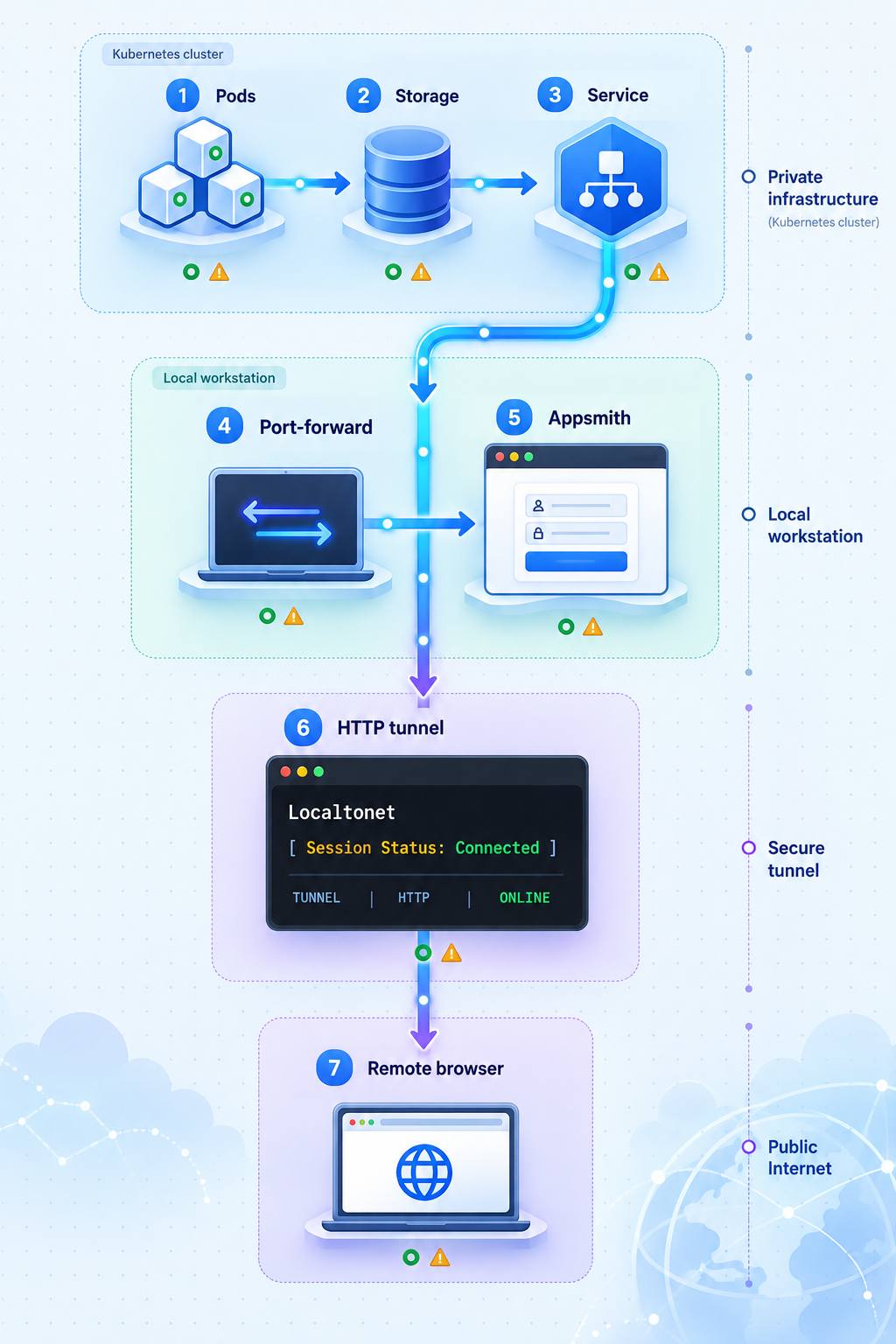
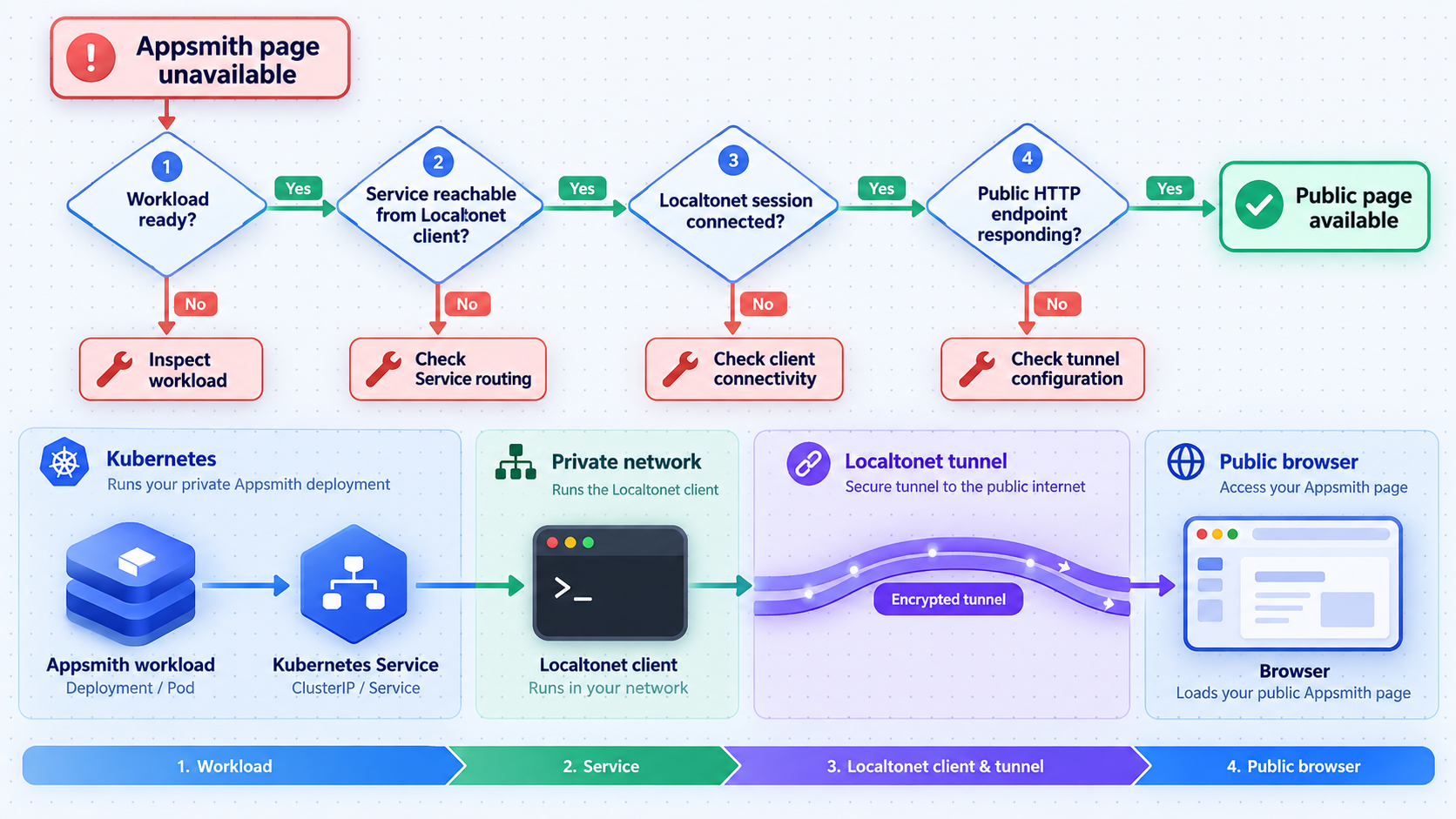
Helm times out during installation
Inspect the release, pods, persistent claims, and namespace events:
helm status appsmith -n appsmith
kubectl get pods -n appsmith -o wide
kubectl get pvc -n appsmith
kubectl get events -n appsmith --sort-by=.metadata.creationTimestamp
Events can reveal unschedulable resource requests, image retrieval failures, unbound claims, mount problems, or readiness failures. Correct the reported cause before repeatedly rerunning Helm.
A pod is pending
kubectl describe pod -n appsmith <pending-pod-name>Read the scheduling events at the bottom of the description. Confirm cluster capacity, placement constraints, and persistent-volume provisioning. A pending claim often points to an unavailable or incorrectly selected StorageClass.
A pod repeatedly restarts
kubectl logs -n appsmith <pod-name>
kubectl logs -n appsmith <pod-name> --previous
kubectl describe pod -n appsmith <pod-name>
If the pod contains multiple containers, list their names and add the appropriate -c selection. Look for configuration, storage, dependency, initialization, or resource failures rather than hiding the problem with repeated restarts.
The Service has no endpoints
kubectl describe service -n appsmith "$APPSMITH_SERVICE"
kubectl get endpoints -n appsmith "$APPSMITH_SERVICE"
kubectl get pods -n appsmith --show-labels
Compare the Service selector with pod labels and confirm that matching pods are ready. A Service object can exist even when it has no healthy backend.
The temporary port forward fails
Confirm that the selected Service name and port came from the current cluster. If the command reports that it cannot forward to a pod, inspect readiness and endpoints. Also ensure another process is not already using local port 8080.
The durable endpoint works from an administrator laptop but not from the client
Test from the Localtonet client device itself. Compare DNS resolution, routes, firewall rules, network policies, and ingress host requirements. Success from a different machine does not prove that the client has the same network path.
The tunnel appears offline
Confirm that the selected device is connected, its device-specific token is valid, the client process is running, and the tunnel has been started. Creating a tunnel configuration and starting it are separate actions. The public address is unavailable when the selected client disconnects or the tunnel stops.
The public URL returns an error
Test the exact Local IP and Local Port from the client device first. If the private target fails, repair the Kubernetes route. If it works, verify that the HTTP tunnel contains the same address and port and that the expected tunnel is running.
The page loads but assets, redirects, or sign-in fail
Use browser developer tools to inspect failed requests. Look for private hostnames, unexpected redirects, cookie problems, origin restrictions, or backend errors. Compare behavior through the private route and public URL. Change Appsmith external URL or proxy-related settings only when the setting names and expected values are verified in the documentation for the installed release.
The public route works only while a terminal remains open
The tunnel is probably targeting a kubectl port-forward session or the Localtonet client itself is running as an unmanaged foreground process. Replace the port forward with a stable Service or ingress route and operate the client under an appropriate service manager on a stable device.
Expected data disappears after pod replacement
Inspect persistent claims, mounted volumes, and chart values. Confirm that the replacement pod reattached the expected claim. Restore from a tested backup if storage was lost or replaced. The presence of a PersistentVolumeClaim alone does not prove that every recovery scenario is covered.
Frequently asked questions
Is Kubernetes an official Appsmith installation method?
Yes. Appsmith’s public project lists Kubernetes as a documented installation method. Its repository identifies Docker as the recommended method, with Kubernetes and AWS AMI also available as installation paths.
Why does this guide pin a Helm chart version?
Version pinning makes an installation reproducible and prevents a future repository update from silently changing the chart selected by the same command. List current versions, review the associated release information, and save the exact chart version with your deployment configuration.
What port does Appsmith use in this Kubernetes deployment?
Discover the port from the Service created by the pinned chart using kubectl get services -n appsmith and kubectl describe service. The temporary access example maps local port 8080 to Service port 80 only when the discovered Service exposes HTTP on port 80.
Can Localtonet target the kubectl port-forward address?
It can be used for a short controlled test if both processes run on the same device and Localtonet targets the forwarded local port. It is not a resilient production design because the public route fails when the port-forward process or its administrative connection ends.
Should Localtonet point directly to an Appsmith pod IP?
No for the normal design. Pod addresses can change during replacement, upgrades, rescheduling, or node maintenance. Target a verified Service or ingress route that remains stable across pod replacement.
Does Localtonet deploy or manage Appsmith?
No. Helm and Kubernetes deploy and operate Appsmith. Localtonet publishes an already working HTTP endpoint. Tunnel settings do not create Appsmith resources, attach storage, complete application setup, or repair failed pods.
Do I need router port forwarding or a public IP address?
No. The Localtonet client establishes an outbound connection to our relay, so this workflow does not require inbound router port forwarding or a public IP address. The client device must still be able to reach the private Appsmith endpoint.
Does a Helm uninstall delete Appsmith data?
Do not assume either outcome. Helm removes release-managed resources, while persistent claims can remain depending on chart and cluster policies. Inspect claims after uninstall and never delete the namespace or storage until retention requirements and tested backups have been confirmed.
Is a Localtonet HTTP tunnel a VPN?
No. An HTTP tunnel publishes a selected web endpoint. Localtonet VPN Manager is our separate private mesh VPN feature.
Publish your verified Appsmith endpoint with Localtonet
Install the pinned Appsmith chart, confirm its persistent workload and private Service route, then connect that verified IP address and port to a Localtonet HTTP tunnel.
Get Started Free →

