

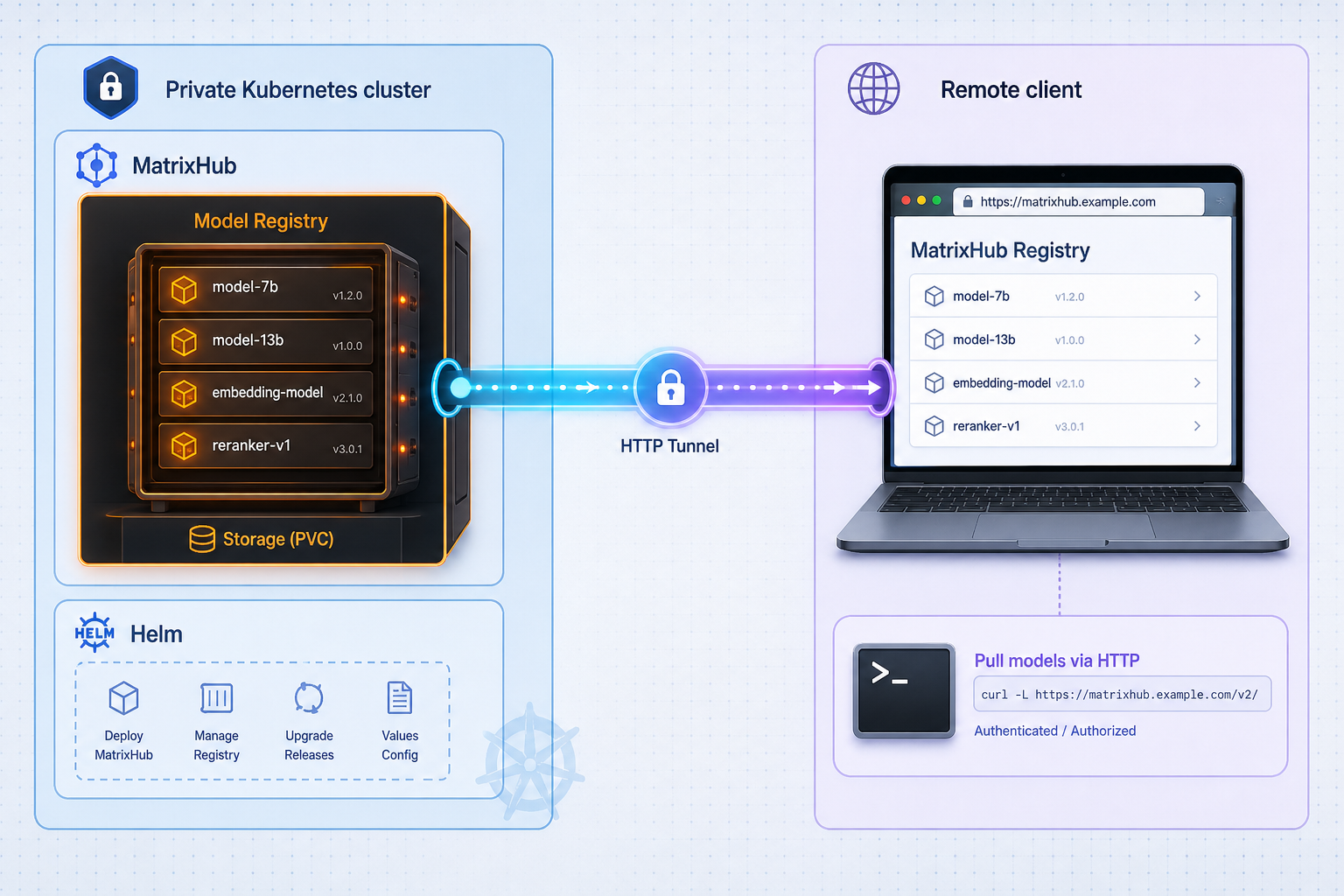
Install a private Hugging Face-compatible model registry on your cluster, then reach it from outside the LAN
MatrixHub is an open-source, self-hosted AI model registry that acts as a drop-in private replacement for Hugging Face and is built to speed up vLLM and SGLang workloads. This guide installs it on Kubernetes with the official Helm chart, verifies the web console locally, and explains how a Hugging Face client is pointed at it. After that we add Localtonet as a separate step, so teammates, laptops and remote inference nodes can reach the registry over a public HTTPS address without router port forwarding. Where the official material does not establish a detail, we say so instead of guessing.
📋 What's in this guide
What MatrixHub is and why you might self-host it
Once models move from experiments to production, the weights themselves become assets you have to govern. Pulling them from the public internet on every node, every restart and every deployment wastes bandwidth and ties critical systems to an external service. MatrixHub is built for that gap. Its project describes it as an open-source, self-hosted AI model registry for large-scale enterprise inference, and compares itself to Hugging Face the way Harbor compares to Docker Hub.
In practice that means you run a registry inside your own network, store model weights on your own storage, and point your existing tooling at it by changing the Hugging Face endpoint instead of rewriting training or inference code.
More than one project uses this name. The one in this guide is the model registry from the matrixhub-ai GitHub organization, installed from the OCI chart at ghcr.io/matrixhub-ai/matrixhub. A separate site called MatrixHub describes an open catalog of MCP servers, agents and tools with its own desktop client and CLI. That project is unrelated to this guide, and its installation steps will not give you a model registry.
Helm or Docker Compose: choosing the install path
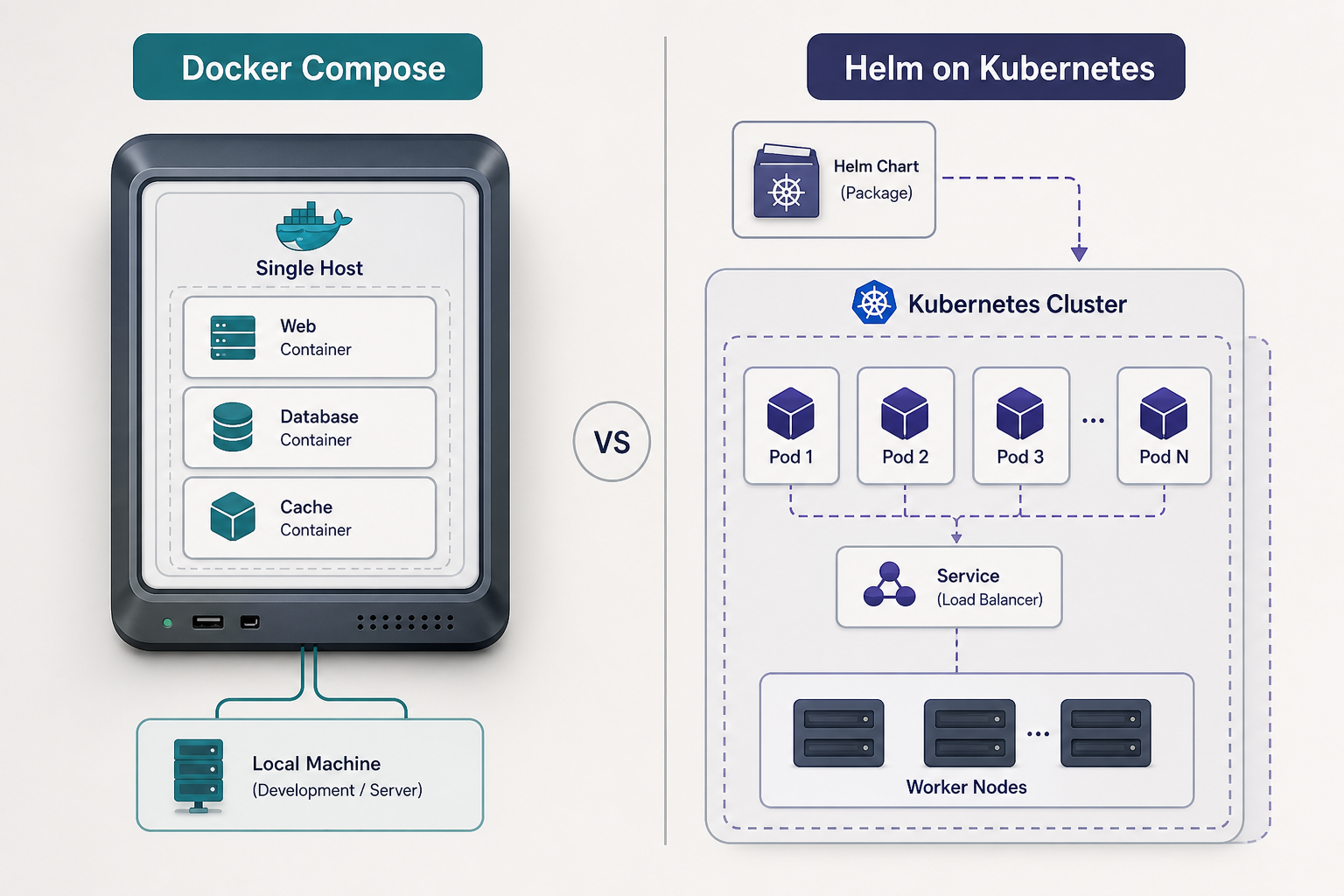
The official installation page names two supported methods: Docker Compose for single-node hosts, and Helm charts for Kubernetes clusters. This article focuses on Helm because that is the path for a cluster, but the comparison below helps you confirm it is the right one.
| Aspect | Docker Compose | Helm on Kubernetes |
|---|---|---|
| Intended target | A standalone virtual machine or server | A Kubernetes cluster |
| Default database | SQLite, with no separate database service (since v0.2.0). MySQL is available through a separate Compose file. | MySQL. SQLite is not supported on Helm/Kubernetes deployments. |
| Default web console address | http://127.0.0.1:3001, changeable with MATRIXHUB_HTTP_PORT | http://<node-ip>:30001 when installed with the NodePort setting shown below |
| Data location | ./data/matrixhub for SQLite, on a local filesystem, one instance only | PVC for data (50Gi default) and PVC for built-in MySQL (8Gi default) |
If you only have a single server and no cluster, the Compose route is shorter. The documented Linux and macOS commands pin a released version and pull two files, then start the stack:
export MATRIXHUB_VERSION=v0.2.0
mkdir -p matrixhub && cd matrixhub
curl -fL \
  "https://raw.githubusercontent.com/matrixhub-ai/matrixhub/$MATRIXHUB_VERSION/deploy/docker-compose.yml" \
  -o docker-compose.yml
curl -fL \
  "https://raw.githubusercontent.com/matrixhub-ai/matrixhub/$MATRIXHUB_VERSION/deploy/config.yaml" \
  -o config.yaml
MATRIXHUB_IMAGE_TAG="$MATRIXHUB_VERSION" docker compose up -d
Replace v0.2.0 with the version you want to run. If port 3001 is taken, set MATRIXHUB_HTTP_PORT before starting, for example export MATRIXHUB_HTTP_PORT=3002. The console then opens at http://127.0.0.1:3001 (or your chosen port). Everything later in this guide about verification, the Hugging Face endpoint and Localtonet applies to that address as well, with 3001 or your chosen port as the local target instead of the Kubernetes node port.
Prerequisites for the Helm install
The chart README lists three requirements, and the installation page adds the storage detail you need to act on:
- Kubernetes 1.19 or newer.
- Helm 3.8 or newer, because the chart is pulled from an OCI registry.
- A default StorageClass, or explicit storage settings for the PVCs the chart creates.
MatrixHub publishes the chart to GitHub Container Registry (ghcr.io) as an OCI artifact, so the machine running Helm needs outbound access to it. Your cluster nodes also need to be able to pull the container images the chart deploys. The documentation we reviewed does not list the exact image set, so confirm that your nodes can reach the relevant registries, or mirror them if your cluster is restricted.
Check your tool versions and the StorageClass before installing:
kubectl version
helm version
kubectl get storageclass
The StorageClass check matters most. The official installation page says the Helm chart currently supports PVC-backed storage for MatrixHub data. If no StorageClass is marked as default and you do not provide storage settings, the PVCs cannot bind and the pods will wait. For development clusters that have no StorageClass, the chart README has a section titled "Development-only Local Storage Setup". We have not reproduced its contents here because the supplied evidence only shows the section heading, so read that part of the README if you are in that situation. It is explicitly labeled development-only, so do not treat it as a production design.
The default Helm deployment includes a built-in MySQL instance, deployed as a StatefulSet with volume claim templates as of v0.2.0. The chart README also lists "Use an External Database" as a configuration option, which is the route to look at if you want the database managed outside the chart. The exact value names for that are in the README and are not reproduced here.
Install MatrixHub with Helm
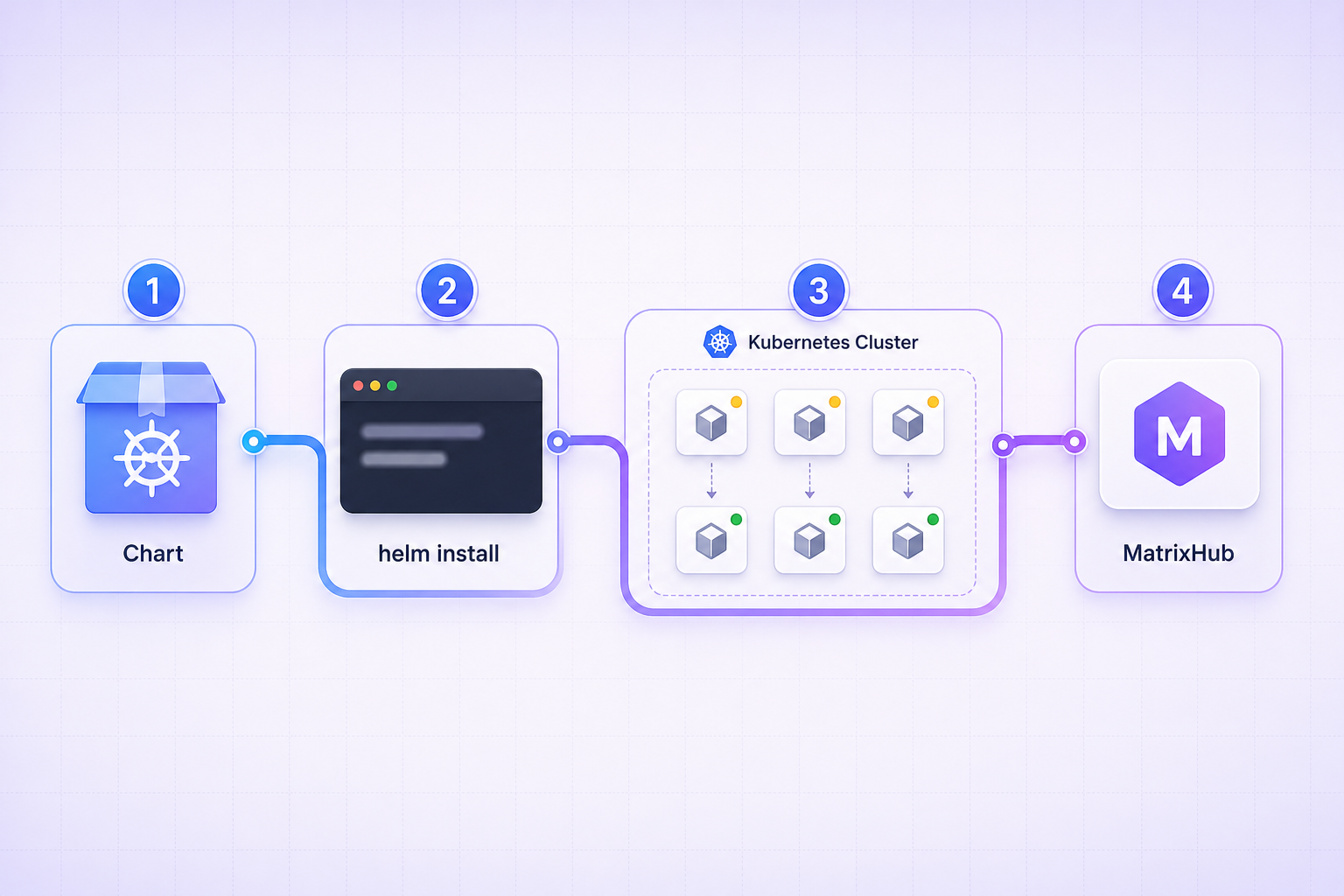
The official installation page installs the chart from the OCI registry and exposes the service through a NodePort. The steps below follow that sequence.
Confirm storage is ready
Run kubectl get storageclass and make sure a default StorageClass exists. If it does not, plan explicit storage settings for the PVCs the chart creates before continuing.
Set the chart version and namespace
Export the two variables used by the install command. The official example uses chart version 0.1.1 and the namespace matrixhub. For a newer stable release, replace 0.1.1 with the chart version you want to run.
Install the chart
Run helm install against the OCI chart with the NodePort service type, which creates the namespace if it does not exist.
Find a node IP and open the UI
List the nodes with kubectl get nodes -o wide, then open http://<node-ip>:30001 in a browser on a machine that can reach the node.
The commands for steps 2 and 3 are:
export CHART_VERSION=0.1.1
export NAMESPACE=matrixhub

helm install matrixhub oci://ghcr.io/matrixhub-ai/matrixhub \
  --version "$CHART_VERSION" \
  --namespace "$NAMESPACE" --create-namespace \
  --set apiserver.service.type=NodePort
A few details about this command are worth understanding rather than copying blindly:
- Service type. The README lists ClusterIP as the default service type and NodePort as the alternative. Without the
--set apiserver.service.type=NodePortflag, the service is reachable only inside the cluster. - Storage sizes. The MatrixHub data PVC defaults to 50Gi and the built-in MySQL PVC defaults to 8Gi. To change them, add
--set apiserver.storage.pvc.size=100Gior--set mysql.persistence.size=20Gito the install command. Size the data volume for the models you plan to cache, since model weights are large. - Version pairing. The installation page uses chart 0.1.1 as its example while the project's latest GitHub release at the time of our review is v0.2.0. The evidence we reviewed does not state which application version a given chart version deploys, so check the chart version you choose before assuming it includes v0.2.0 features such as the Compose SQLite default or the SSH Git access settings.
- Other settings. For other storage classes, existing PVCs and other Helm values, the chart README is the reference. It documents the full Configuration section and a Preset Models section that we do not cover here, because the supplied excerpts only contain their headings.
The official documentation states that helm uninstall removes resources including the default PVCs created by the chart. If you want model data to survive an uninstall or reinstall, use an existing PVC for MatrixHub data and an external database from the start, rather than discovering this later.
Verify the deployment locally before exposing it
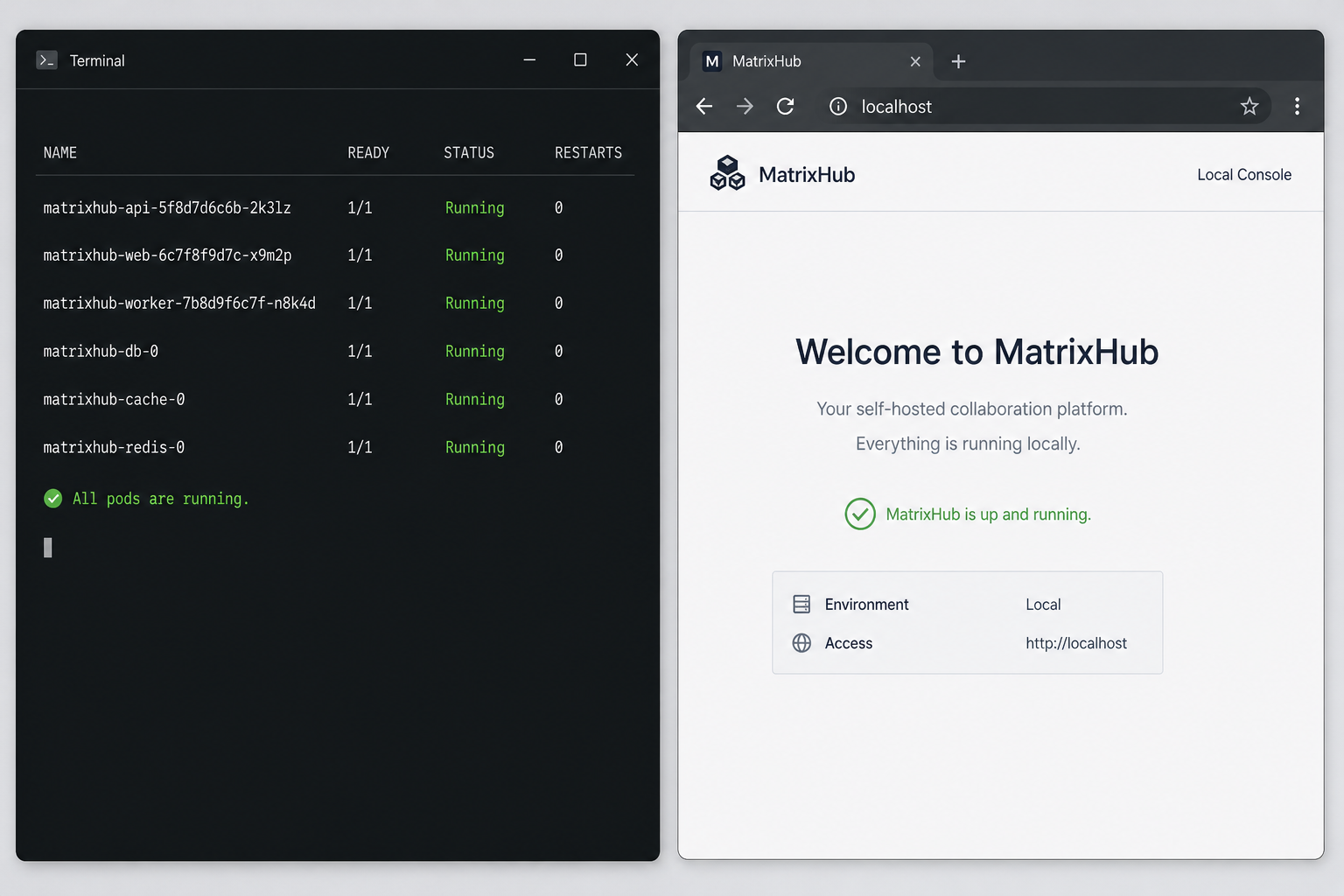
Do not add a tunnel to something you have not confirmed works on the local network. Proving it locally first narrows any later problem down to either the install or the remote path.
Check the Kubernetes objects
kubectl get pods --namespace "$NAMESPACE"
kubectl get svc --namespace "$NAMESPACE"
kubectl get pvc --namespace "$NAMESPACE"
helm status matrixhub --namespace "$NAMESPACE"
What you want to see:
- Pods in a Running state and eventually ready. A MySQL pod is expected in the default deployment alongside the MatrixHub application pod. We did not find the exact pod names in the evidence, so identify them from your own output.
- A service of type NodePort for the application, with node port 30001 as in the official example.
- PVCs in the Bound state. A PVC stuck in Pending usually means there is no default StorageClass or the requested class cannot provision.
Open the web console
Get a node address with kubectl get nodes -o wide and open http://<node-ip>:30001 from a machine on the same network. You can also test reachability from a terminal:
curl -I http://<node-ip>:30001Any HTTP response from the application confirms the NodePort path works. We are deliberately not naming a health-check endpoint, since none appears in the evidence we reviewed.
The installation page and release notes we reviewed do not state default administrator credentials or a first-run account setup procedure. Do not guess them. Look at the chart README and the current documentation for your version, and plan to change or set credentials before the registry is reachable from anywhere other than a trusted network.
Point a Hugging Face client at MatrixHub
MatrixHub's core compatibility promise is that a Hugging Face client keeps working when its endpoint is redirected. The project's own description is to set HF_ENDPOINT to MatrixHub and leave training and inference code unchanged.
Cache a model through the registry
NVIDIA's Dynamo documentation shows the pattern for pre-caching a model, run from a host that can reach your MatrixHub deployment:
HF_ENDPOINT="http://<node-ip>:30001" hf download Qwen/Qwen3-0.6B
The hf command comes from the Hugging Face Hub client, which you install separately on the machine that runs the download. In the Dynamo example, the endpoint is an in-cluster MatrixHub address on port 30001, and the guide treats the model repository as pre-cached before the deployment starts. Replace the address with your own endpoint and the model with the one you need.
The official MatrixHub installation page says the next step after installing is "Cache models through a proxy project". That guide covers how to create a project that proxies a public registry. Because the supplied evidence names that page without reproducing its steps, we are not going to invent the project creation workflow here. Follow that guide in the web console for your version. The v0.2.0 release notes also mention that registry creation is guided in the project creation flow when no target registry exists, which is consistent with a registry-first, project-second setup.
Use it from inference workloads
In the Dynamo example, the inference container receives HF_ENDPOINT as an environment variable pointing at MatrixHub, and the model is then loaded from the registry instead of from the public Hugging Face service. The same idea applies to any workload that honors HF_ENDPOINT. If you change the model, make sure the repository exists in MatrixHub first. Note that NVIDIA states the timings in its guide were measured in one environment with one model and a warm image cache, and are not a general benchmark. We are not quoting any performance figures for this article, and you should measure your own network.
Reach MatrixHub remotely with a Localtonet HTTP tunnel
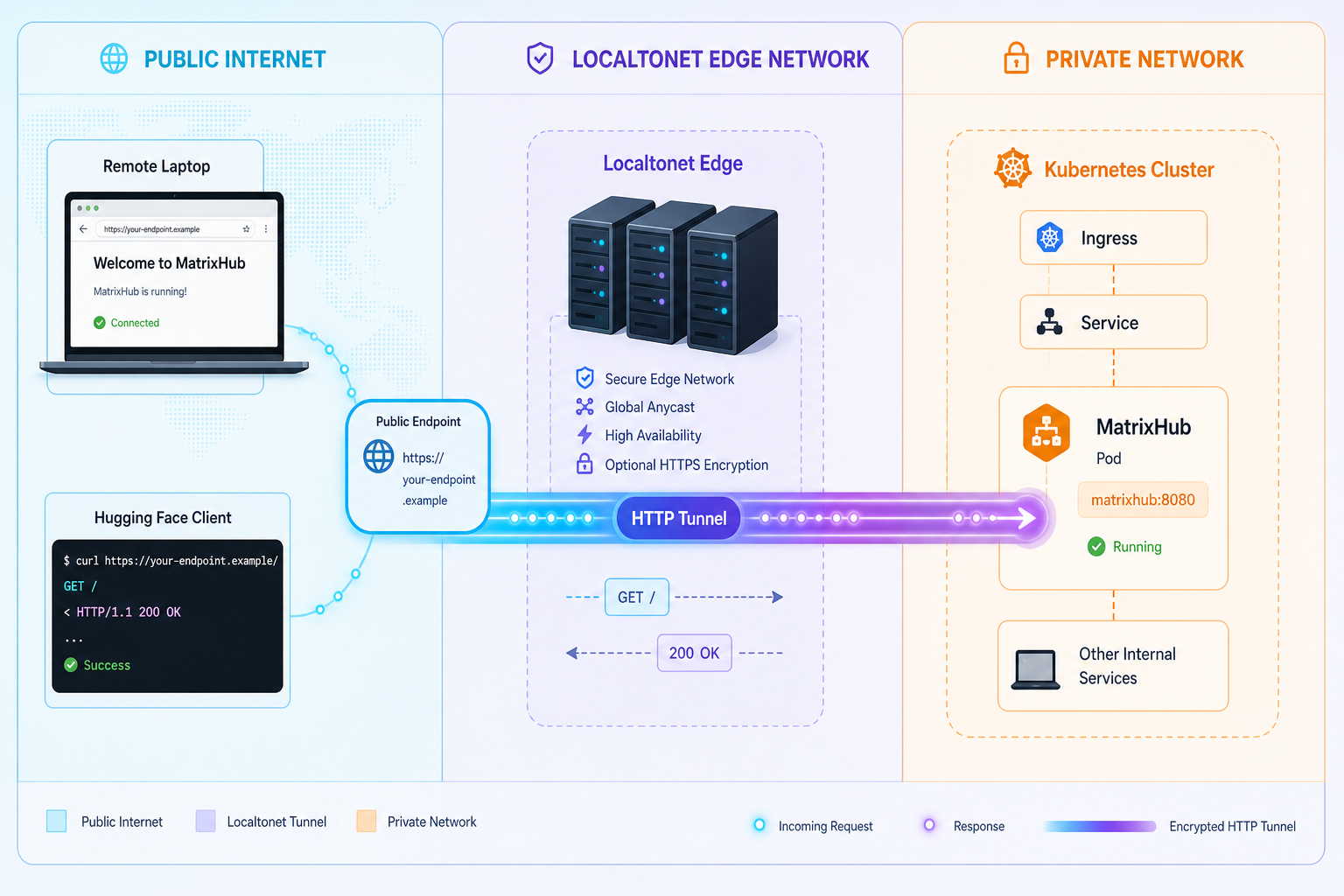
Everything above works for machines on the same network as your cluster. The remote-access problem appears when a data scientist works from home, when a contractor needs to pull a model, or when an inference node in another site needs to load weights. Opening a router port and publishing a node's address directly is possible, but it needs a public IP, firewall changes and care about exposure. With Localtonet, the client on a device that can reach MatrixHub makes an outbound connection to our relay server, and the tunnel provides a public HTTPS address. No inbound port forwarding, firewall changes or VPN setup are required.
Treat this as a distinct step that you do only after the local verification passes. MatrixHub is served over HTTP, so the HTTP tunnel type is the relevant one. It covers the web console and the Hugging Face-compatible HTTP endpoint.
Decide where the Localtonet client runs
A Localtonet HTTP tunnel points to a local IP address and port that is on, or reachable from, the device running the client. For this deployment you have two sensible options:
| Client location | Local target to enter | Consideration |
|---|---|---|
| A machine on the node network (a server, VM or workstation) | <node-ip> and port 30001 | Uses the documented NodePort. The machine must be able to reach the node, and it must stay online for the tunnel to work. |
| A cluster node itself | The node's address and port 30001 | Simple, but ties the tunnel to that node being up. Consider which node you choose. |
| An admin workstation using kubectl port-forward | 127.0.0.1 and the local port you forwarded | Useful when NodePort is not reachable. The forward must keep running, so it suits testing more than a long-lived setup. |
The third option relies on the general Kubernetes kubectl port-forward command rather than anything specific to MatrixHub. The service name and service port come from your own output of kubectl get svc, because the evidence we reviewed does not state the internal service port:
kubectl get svc --namespace "$NAMESPACE"
kubectl port-forward --namespace "$NAMESPACE" svc/<service-name> 8080:<service-port>
With that running, the local target for the tunnel would be 127.0.0.1 and port 8080. Verify it first in a browser at http://127.0.0.1:8080.
Create and start the tunnel
Follow the standard workflow for an HTTP tunnel. The exact labels in the dashboard can change between releases, so use the current Localtonet HTTP tunnel documentation alongside these steps.
Install and run the Localtonet client
Install the client on the device that can reach MatrixHub, using the installation instructions for your operating system in the Localtonet documentation.
Authenticate the device with its token
Use the device-specific auth token from your Localtonet dashboard to connect that device. Treat the token as a secret and do not paste it into tickets, chat or repositories.
Select a relay server
Choose from the servers that the dashboard currently offers. Available regions are shown in the product, so pick one by checking it there rather than relying on a fixed list.
Create the HTTP tunnel
Choose the HTTP tunnel type, select your authenticated device, and enter the local target, for example the node IP and port 30001. Pick a Process Type: Random Sub Domain, Custom Sub Domain or Custom Domain.
Start the tunnel
Creating a tunnel does not run it. Press Start. The tunnel is available only while the selected client is connected and the tunnel is running.
Use the public address
Open the public HTTPS address assigned to the tunnel in a browser, confirm the MatrixHub console loads, and then use it as the Hugging Face endpoint for remote clients. Stop or delete the tunnel when it is no longer needed.
| Process Type | What it gives you | Good fit for |
|---|---|---|
| Random Sub Domain | A generated subdomain serving the content at a public HTTPS address | Quick tests and verifying that the setup works |
| Custom Sub Domain | A subdomain you select, where supported | A predictable address to share with a team |
| Custom Domain | Your own domain name in front of the tunnel | A stable internal-looking registry hostname. Check the current Localtonet documentation for DNS requirements before configuring it. |
Use the public address from a remote machine
Once the tunnel is running, the registry address you give to Hugging Face clients is the public tunnel URL rather than the node IP:
HF_ENDPOINT="https://<your-tunnel-address>" hf download Qwen/Qwen3-0.6BAs with the local test, the model repository must already exist in MatrixHub, or your project must be set up to proxy it. Start with a small model to confirm the full path works, then move on to larger ones.
Model weights are big, and they now travel over the internet through a relay instead of across your local network. The evidence we reviewed does not establish upload-size, bandwidth or rate limits for HTTP tunnels on any plan, and we are not making any claims about them. The throughput figures on the MatrixHub website describe intranet distribution, not a tunneled path. Test a representative model before relying on a remote setup for production loads.
What an HTTP tunnel does not cover
The v0.2.0 release added SSH Git access to model repositories, with a configurable SSH port exposure for Docker Compose and Helm deployments. SSH is not HTTP, so an HTTP tunnel does not carry it. A raw TCP tunnel is a separate Localtonet tunnel type, and we have not validated that combination with MatrixHub, so we are not documenting it as a supported recipe. If you need Git over SSH remotely, treat it as a separate piece of work and test it yourself. For most remote use cases, the web console and the Hugging Face-compatible HTTP endpoint are what you need.
Security checklist before you publish a registry
A tunnel makes a service reachable. It does not decide who is allowed to use it, and it does not bypass authorization or network policy. A model registry may hold proprietary fine-tuned weights, so the application's own access controls are your main protection. Work through these points before sharing the public address with anyone.
- Set strong credentials first. Because the default account details are not documented in the evidence we reviewed, check your version's documentation and make sure no default or guessable credentials remain.
- Use project visibility deliberately. The v0.2.0 release added an explanation of public and private project types so users understand the visibility levels before picking one. Read it, and keep anything sensitive in a private project.
- Apply least privilege. Use the project role model. The release notes say new project members default to the Viewer role, and that the Create Model action is limited to project administrators and editors. Give people the lowest role that does the job.
- Prefer robot accounts for automation. The release notes describe robot accounts that enforce disabled and expired states and all-project permissions. Manually specified robot account tokens must be 8 to 20 characters and include at least one uppercase letter, one lowercase letter and one number. Create separate robots per workload so you can disable one without affecting others.
- Use the audit trail. The project lists audit logs for uploads and downloads. Review them after you open remote access.
- Restrict who can reach the tunnel where you can. Apply any access restrictions that are available for your tunnel in the Localtonet dashboard, and confirm what is offered in the current documentation, since we are not asserting specific options here.
- Stop the tunnel when it is not needed. A stopped tunnel is not reachable. For occasional remote access, starting and stopping the tunnel is a simple way to shrink the exposure window.
- Keep the software current. The v0.2.0 notes include hardening for malformed namespace and token inputs, author filters that could reach outside the configured storage directory, and updates to Go and quic-go for known vulnerabilities. Running an old version is a real risk for a public endpoint.
If you cannot confirm that sign-in is enforced and that sensitive projects are private, do not start the public tunnel. Test from a device on a different network, with no existing session, to confirm that anonymous visitors see only what you intend.
Verify the container image signature
The v0.2.0 release states that its container image is keylessly signed with Cosign and carries an attached SPDX SBOM. If your policy requires verifying images before deployment, the release page gives these commands for that version:
cosign verify \
  --certificate-identity-regexp 'https://github.com/matrixhub-ai/matrixhub/.*' \
  --certificate-oidc-issuer 'https://token.actions.githubusercontent.com' \
  ghcr.io/matrixhub-ai/matrixhub:v0.2.0

cosign download sbom ghcr.io/matrixhub-ai/matrixhub:v0.2.0
This applies to the image tag named in the release. Whether the image set your chart version deploys matches that tag depends on the chart version you choose, so check before relying on it.
Day-two operations
Inspect and change settings
To see what the release was installed with, and to change settings later, use standard Helm commands. These are general Helm behavior, not MatrixHub-specific features:
helm get values matrixhub --namespace "$NAMESPACE"

helm upgrade matrixhub oci://ghcr.io/matrixhub-ai/matrixhub \
  --version "$CHART_VERSION" \
  --namespace "$NAMESPACE" \
  --reuse-values \
  --set apiserver.storage.pvc.size=100Gi
Whether a PVC can be resized in place depends on your StorageClass and cluster, and the evidence we reviewed does not cover this. Check that your storage class allows expansion before depending on it. Also read release notes before upgrading across versions, since the v0.2.0 notes include changes to how the chart deploys MySQL.
Back up and preserve data
Because uninstalling removes the default PVCs, treat the chart-managed volumes as disposable unless you have decided otherwise. For anything you care about, the documented approach is to use an existing PVC for MatrixHub data and an external database. We do not have a documented backup procedure for MatrixHub to offer, so use your cluster's own volume snapshot or backup tooling, and test a restore.
Uninstall
helm uninstall matrixhub --namespace "$NAMESPACE"Also stop and delete the Localtonet tunnel pointing at the registry if you are decommissioning it, so the public address no longer resolves to a stale target.
Keep the tunnel path healthy
Localtonet offers a platform-wide webhook system that fires when a token or tunnel in a selected Token Group changes to Connected or Disconnected, with a JSON body containing the id, date, type and status. If a remote team depends on the registry, a webhook to your chat or monitoring system gives early notice that the client has disconnected. See the Localtonet webhook documentation for the details.
Troubleshooting
| Symptom | Likely cause | What to check |
|---|---|---|
| helm install fails to pull the chart | Helm older than 3.8, or no outbound access to ghcr.io | Run helm version and test network access from the machine running Helm. |
| Pods stay Pending, PVCs stay Pending | No default StorageClass, or storage settings the cluster cannot satisfy | Run kubectl get storageclass and kubectl describe pvc. Set explicit storage or use the development-only local storage section for dev clusters. |
| Service not reachable on port 30001 | Service left as ClusterIP, wrong node IP, or a firewall in front of the node | Run kubectl get svc and confirm NodePort. Confirm node firewall or security-group rules allow the port from where you test. |
| Local console works, public address fails | Tunnel created but not started, client disconnected, or wrong local target | Check the tunnel is running and the client is connected. Re-test the exact local IP and port from the client device. |
| Public address loads but login or downloads fail | Credentials, project visibility or role problems, or the model is not in the registry | Sign in locally with the same account, check project roles, and confirm the model repository exists or is proxied. |
| Copy buttons do nothing in the console | Older version served over plain HTTP | The v0.2.0 notes say copy buttons now work over HTTP. Upgrade, or use the HTTPS tunnel address. |
| Docker Compose port 3001 already in use | Another service holds the port | Set MATRIXHUB_HTTP_PORT to a free port before starting the stack. |
A systematic approach
Test one layer at a time, from the inside out. First confirm the pods and PVCs are healthy. Then confirm the NodePort answers from the machine that will run the Localtonet client. Then confirm the tunnel is running and the client is connected. Finally test from a machine on a different network. When the problem sits between two of those layers, you know which boundary to examine. Logs from the application pods (kubectl logs) are the next place to look for application-level errors. We have not identified specific log messages to look for, so we are not listing any.
Known limits worth remembering
- SQLite is not supported on Helm/Kubernetes deployments. If a guide you found tells you to use it there, it does not apply.
- The Helm chart supports PVC-backed storage for data. S3-compatible object storage in the chart is described as planned, not available.
- The SQLite database used by Compose should have one MatrixHub instance on a local filesystem.
- The project's public website carries a "Coming Soon" banner, and our review of the evidence does not establish how frequently the project is released or maintained. v0.2.0 was the latest release we saw, and the repository showed over a thousand commits. Evaluate it as an actively developed but young project, and pin versions in production.
Frequently asked questions
How do I install MatrixHub on Kubernetes with Helm?
You need Kubernetes 1.19 or newer, Helm 3.8 or newer, and a default StorageClass. Install the OCI chart with helm install matrixhub oci://ghcr.io/matrixhub-ai/matrixhub --version "$CHART_VERSION" --namespace "$NAMESPACE" --create-namespace --set apiserver.service.type=NodePort, then open http://<node-ip>:30001. The official example uses chart version 0.1.1 and namespace matrixhub.
Which port should the Localtonet HTTP tunnel point to?
For the documented Helm NodePort install, the local target is a node IP that the Localtonet client can reach, with port 30001. For a Docker Compose install, the default port is 3001 unless you changed MATRIXHUB_HTTP_PORT. If you use port-forward, use the local port you forwarded. Always confirm the target in a browser from the client device before creating the tunnel.
Can I use SQLite with the Helm chart?
No. The v0.2.0 release notes state that SQLite support is for single-node deployments, with Docker Compose using it by default, and that Helm/Kubernetes deployments do not support SQLite. The default Helm deployment uses MySQL, and the chart README documents an option to use an external database.
Will my data survive helm uninstall?
Not with the default setup. Uninstalling removes resources including the default PVCs the chart created. To preserve data, use an existing PVC for MatrixHub data and an external database.
Does an HTTP tunnel make the registry safe to share publicly?
A tunnel only makes the service reachable. It does not replace authentication or authorization. Use MatrixHub's own accounts, project visibility, roles and robot accounts, avoid default or weak credentials, and stop the tunnel when you do not need remote access.
Does the HTTP tunnel also carry Git over SSH?
No. MatrixHub v0.2.0 added SSH Git access with a configurable SSH port, but SSH is a different protocol from HTTP. An HTTP tunnel serves the web console and the HTTP endpoint only. We have not validated a TCP tunnel for SSH Git with MatrixHub, so test it yourself if you need it.
Start with Localtonet
Once your MatrixHub registry answers on the local network, create an HTTP tunnel with Localtonet and give remote teammates and inference nodes a public HTTPS address for it, without opening a router port.
Get Started Free →

