

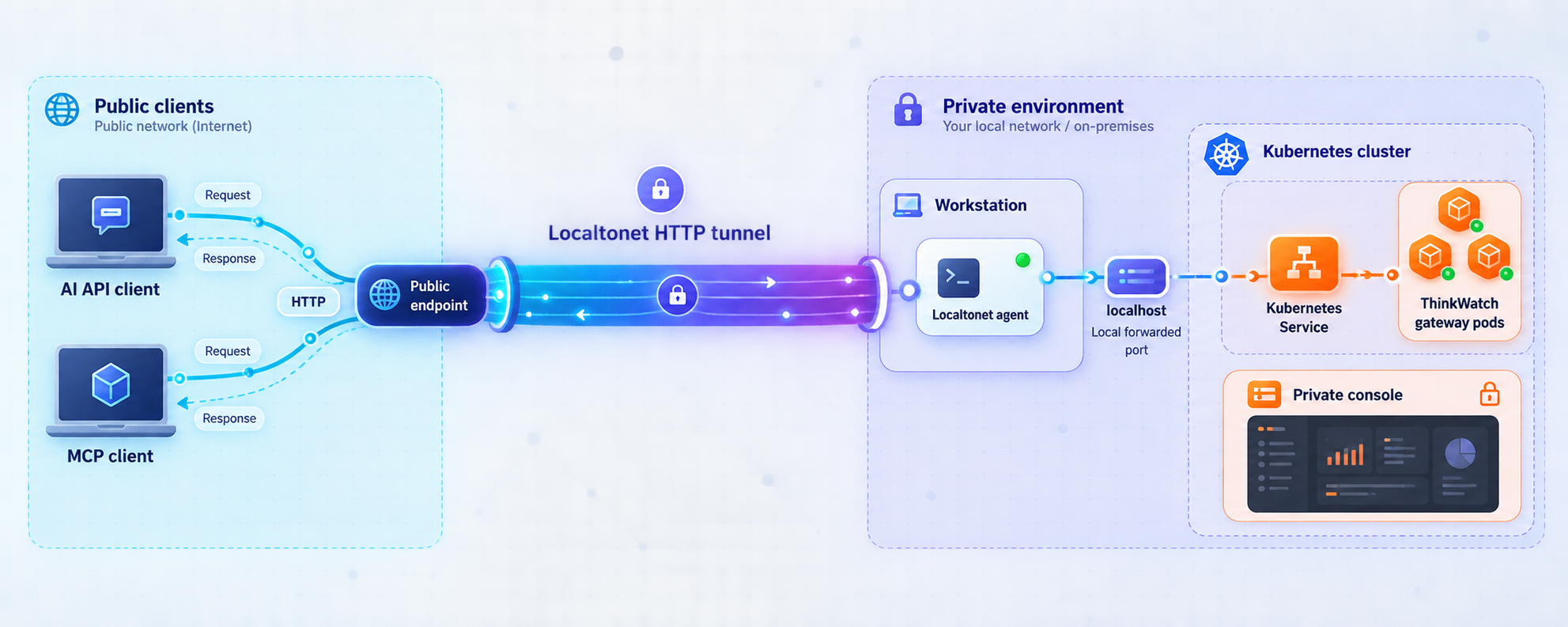
Deploy a centralized AI and MCP gateway, verify it inside Kubernetes, and publish only the client-facing endpoint
ThinkWatch Enterprise is a self-hosted AI API and MCP gateway for organizations. This guide installs it on Kubernetes with its documented Helm workflow, checks the resulting namespace and workloads, creates a controlled local access path to the gateway, and then exposes that gateway through a Localtonet HTTP tunnel. The ThinkWatch console remains private because its documented role is administrative and it belongs behind a VPN or firewall. Exact version requirements and environment-specific ThinkWatch configuration values are not documented in the supplied evidence, so we identify those boundaries instead of inventing them.
📋 What's in this guide
Understand the ThinkWatch deployment and exposure plan
ThinkWatch Enterprise provides a centralized gateway for model requests and MCP tool calls. Its documented capabilities include authentication, authorization, rate limiting, audit logging, cost accounting, routing, format conversion, outbound data inspection, and per-user identity for MCP calls. The deployment contains two endpoints with different audiences: the client-facing gateway on port 3000 and the administrative console on port 3001.
That distinction should shape the network design. AI clients and SDKs need a route to the gateway, but ordinary remote clients do not need direct access to the console. The safe scope for this guide is therefore narrow: deploy ThinkWatch, verify that Kubernetes is running it, make the gateway reachable from the machine running our client, and create an HTTP tunnel to that gateway only. Port 3001 is deliberately excluded from the public tunnel.
make helm-deploy, with a release-specific Helm command also published for version 3.8.1.
| Component | Documented endpoint | Intended audience | Recommended treatment |
|---|---|---|---|
| ThinkWatch gateway | Port 3000 | Approved AI clients, SDKs, and MCP clients | Verify locally, then expose through one authenticated HTTP access path |
| ThinkWatch console | Port 3001 | Administrators | Keep behind a VPN or firewall; do not add it to the public tunnel |
| Kubernetes control plane | Cluster-specific | Cluster operators | Keep private and use normal Kubernetes administration controls |
| Localtonet public endpoint | Assigned after the HTTP tunnel starts | Authorized remote gateway clients | Distribute only to intended users and stop the tunnel when it is not required |
Port 3001 is the administrative console and is documented as belonging behind a VPN or firewall. A public gateway requirement does not create a public-console requirement. Keep the console on a separate private access path and apply least-privilege administrative controls.
Prepare the Kubernetes and Helm environment
The documented installation path assumes an existing Kubernetes environment and a workstation or administration host that can operate it. Before deploying, confirm that the machine from which you will run the commands has Git, GNU Make or a compatible make implementation, Helm, and kubectl. Your current Kubernetes context must point to the intended cluster, and your identity must have permission to create a namespace and install the chart resources.
The available project evidence does not establish minimum Kubernetes, Helm, Docker, operating-system, CPU, memory, or storage versions. It also does not provide a universal list of required configuration values, secrets, ingress settings, or storage classes. We therefore cannot responsibly prescribe version numbers or cluster sizing. Validate those details against the ThinkWatch release and chart you intend to deploy, especially in a production environment.
Confirm the required command-line tools
Run the following checks from the administration host. They do not enforce unsupported version assumptions. They simply confirm that each tool is installed and callable.
git --version
make --version
helm version
kubectl version --client
Next, confirm which cluster and namespace context kubectl will use. This is important because Helm acts on the selected Kubernetes context unless you explicitly choose another one through supported Helm or Kubernetes configuration.
kubectl config current-context
kubectl cluster-info
If the context is wrong, stop before installation and select the intended context using your organization's established Kubernetes procedure. The correct context name is environment-specific and must not be guessed.
Check deployment permissions
The release-specific Helm example creates a namespace named thinkwatch. You can ask Kubernetes whether your current identity is permitted to create namespaces:
kubectl auth can-i create namespacesChart resources may require additional permissions. Required resource types depend on the current chart, so review your cluster's authorization policy and the rendered chart before production installation. A successful namespace permission check alone does not guarantee permission to create every chart resource.
Decide how the Localtonet client will reach the gateway
The Localtonet client must run on a device that can reach the local target. For a Kubernetes deployment, there are several possible network designs, but this guide uses a conservative local port-forward pattern. You run kubectl port-forward on an administration host, bind the gateway to 127.0.0.1:3000, and run our client on that same host.
This approach avoids guessing a cloud load balancer, ingress controller, node address, or cluster-specific service route. It also keeps the Kubernetes service from needing its own direct public exposure. The port-forward process must remain active for the Localtonet tunnel to reach the gateway.
ThinkWatch has active releases. The supplied evidence includes the general make helm-deploy workflow and a version 3.8.1 release example. Version 3.8.1 should be treated as a reproducible historical example, not as a claim that it is the newest release. Review the release you plan to operate before production deployment.
Install ThinkWatch on Kubernetes with Helm
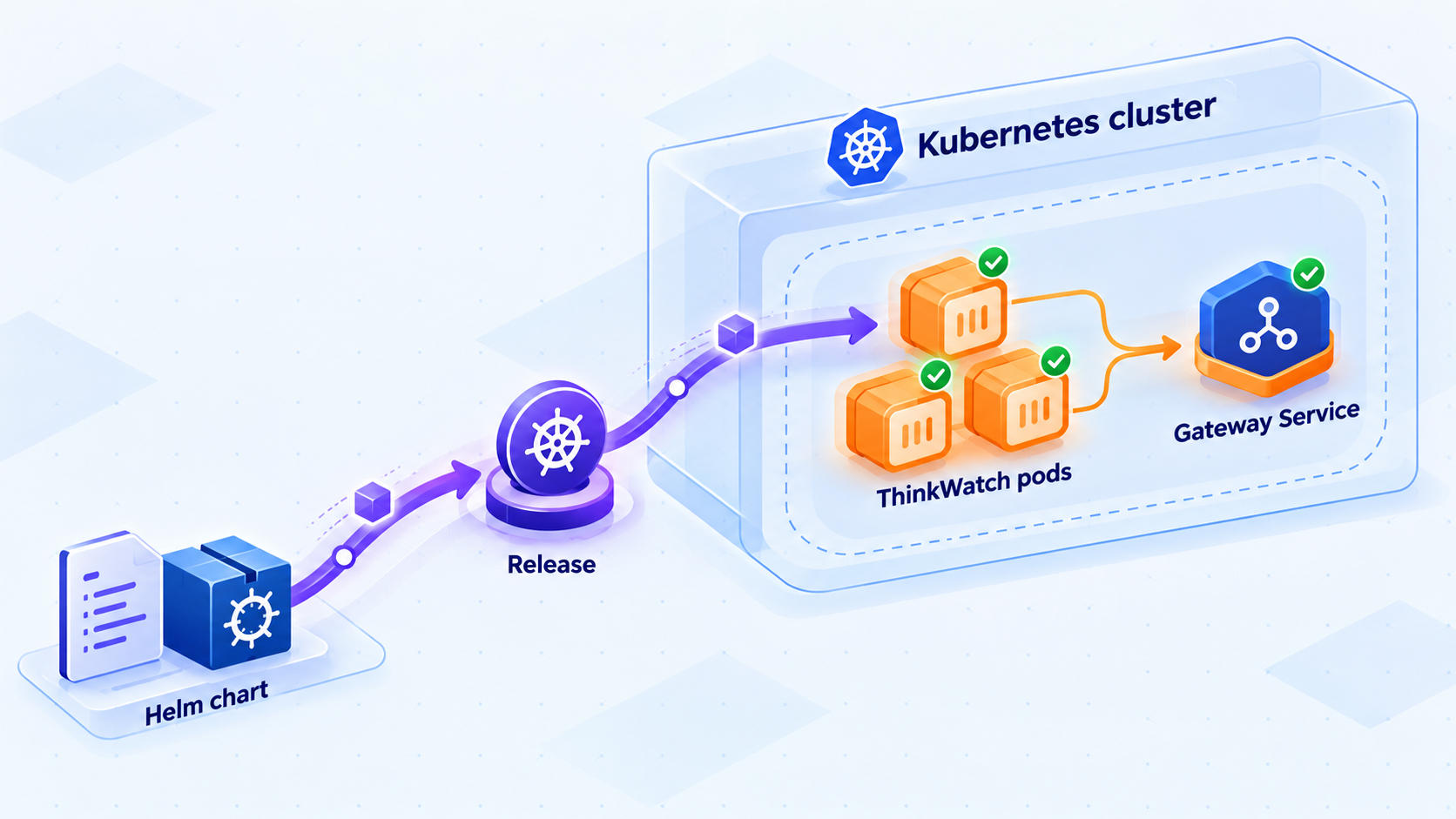
ThinkWatch documents make helm-deploy as its Kubernetes deployment command. This is the preferred path here because it uses the deployment automation maintained in the repository. A separate direct Helm example was published with the 3.8.1 release, which is useful when reproducing that specific packaged chart.
Clone the ThinkWatch repository
Clone the official repository and enter the checkout. For a controlled production process, select and review the intended release or commit according to your organization's software-pinning policy rather than assuming the default branch is a permanent version.
Review the deployment target and configuration
Inspect the repository's Makefile, Helm chart, values, generated resources, and secret requirements before applying them. The supplied documentation confirms the deployment command but does not establish a complete universal set of values or credentials, so do not invent environment variables or copy placeholder secrets into production.
Run the documented Helm deployment target
From the repository root, run make helm-deploy. Allow the command to finish, and keep its complete output. If it fails, the first Helm or Kubernetes error is usually more useful than later cascading messages.
git clone https://github.com/ThinkWatchProject/ThinkWatch.git
cd ThinkWatch
make helm-deploy
The command above deliberately does not add undocumented flags. Before running it in a production cluster, inspect what the Make target invokes and how the checked-out revision supplies chart values. Repository automation can evolve, so reviewing the target is part of operating a pinned, auditable deployment.
Alternative: reproduce the published 3.8.1 Helm installation
The ThinkWatch 3.8.1 release published a chart package named think-watch-3.8.1.tgz and the following installation command. Use it only after obtaining and verifying that release asset through your normal artifact-control process and placing it in the current directory:
helm install think-watch ./think-watch-3.8.1.tgz \
  --namespace thinkwatch \
  --create-namespace
This installs a Helm release named think-watch into a namespace named thinkwatch, creating that namespace if it does not already exist. It does not prove that version 3.8.1 is suitable for your current environment. The release also published server and web container images tagged 3.8.1, but image selection should be left to the matching chart rather than manually mixing chart and image versions without documented compatibility.
The evidence available for this guide does not define exact ThinkWatch secret names, identity-provider variables, upstream-provider credentials, database settings, or production storage values. Do not guess them. Inspect the chart and documentation for the exact release being installed, provide secrets through your approved Kubernetes secret-management process, and avoid committing credentials to Git.
Verify the ThinkWatch Kubernetes deployment
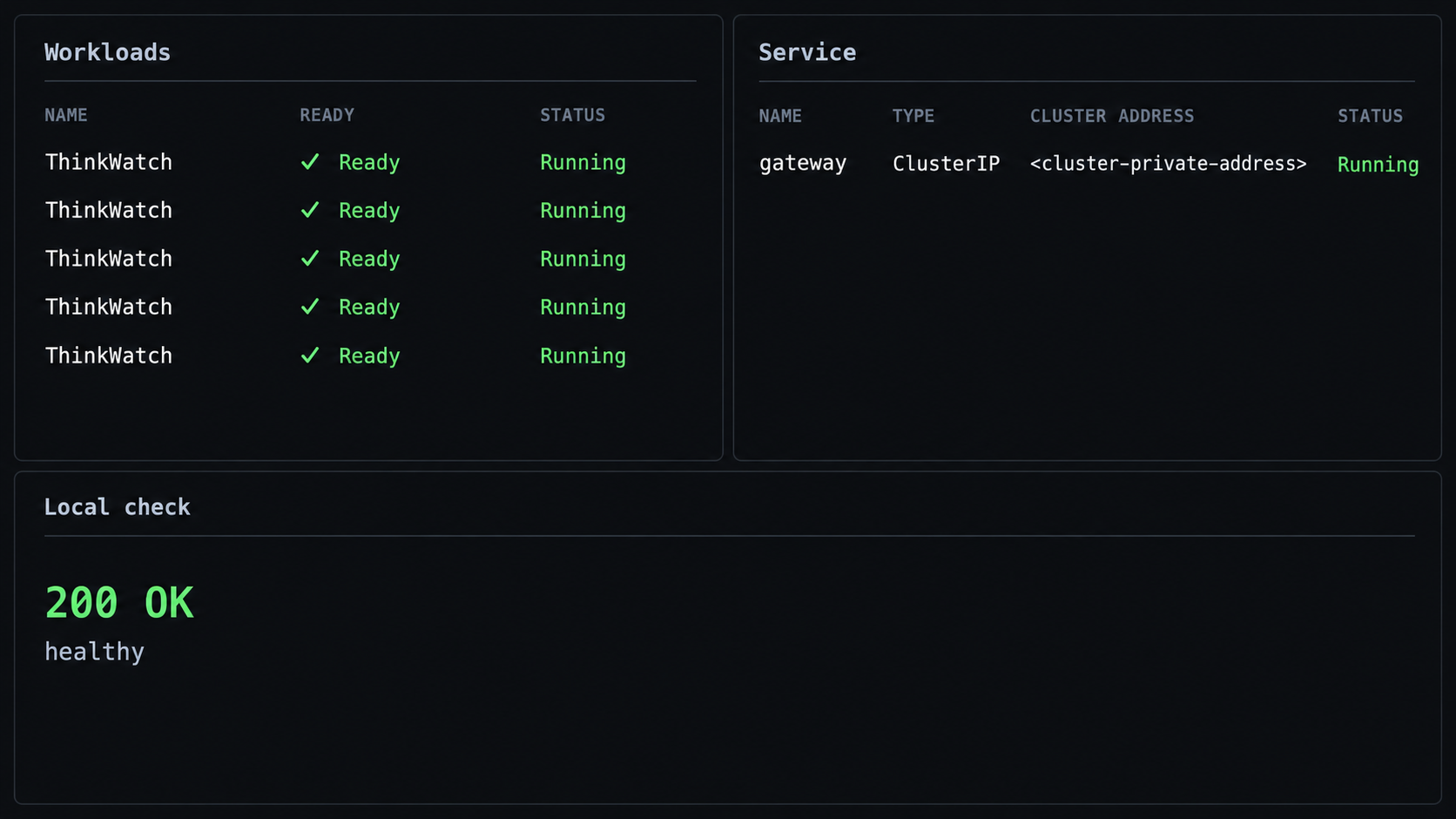
A completed Helm command is only the first verification point. It confirms that Helm submitted resources, not that every workload is healthy or that the gateway is configured for useful traffic. Verify the release, namespace, pods, services, and recent events before creating any public route.
Confirm the namespace and Helm release
If the deployment used the documented thinkwatch namespace, list its Helm releases and Kubernetes resources:
kubectl get namespace thinkwatch
helm list --namespace thinkwatch
kubectl get all --namespace thinkwatch
The Helm list should include the installed release. The resource list reveals the actual workload and service names created by your chart version. Use those names in subsequent commands rather than assuming that a Helm release name, deployment name, pod name, and service name are identical.
Watch pod readiness
kubectl get pods --namespace thinkwatch --watch
Wait for the expected pods to reach their ready state. Exit the watch with Ctrl+C. A pod that is running but not ready may still be failing a readiness check or waiting on a dependency. A completed installation should not be considered healthy solely because the pod phase says Running.
Inspect services and endpoints
kubectl get services --namespace thinkwatch
kubectl get endpoints --namespace thinkwatch
Identify the service that routes to the client-facing ThinkWatch gateway. Confirm its reported service port and that it has backing endpoints. The official reader-facing information identifies the gateway on port 3000, but the chart's service port and resource name should still be read from the deployed release. Kubernetes charts can map a service port to a different target port, and this guide does not guess that mapping.
Inspect failures without guessing resource names
If a pod is not ready, copy its actual name from kubectl get pods and use it in the following commands:
kubectl describe pod --namespace thinkwatch <pod-name>
kubectl logs --namespace thinkwatch <pod-name>
For a pod with multiple containers, kubectl logs may ask you to select one. Obtain the real container names first:
kubectl get pod --namespace thinkwatch <pod-name> \
  -o jsonpath='{.spec.containers[*].name}'
Then request logs for the relevant container:
kubectl logs --namespace thinkwatch <pod-name> \
  --container <container-name>
Namespace events can reveal scheduling, image-pull, volume, readiness, and admission failures:
kubectl get events --namespace thinkwatch \
--sort-by=.metadata.creationTimestampHealthy pods show that Kubernetes can run the workloads. They do not prove that an identity provider, upstream AI provider, policy, budget, virtual key, or MCP integration has been configured. Complete the exact application configuration required by your selected ThinkWatch release before sending real client traffic.
Create and test a local path to the gateway
Before involving Localtonet, prove that the machine running our client can reach ThinkWatch locally. This isolates Kubernetes and application problems from tunnel configuration problems. A local Kubernetes port-forward is useful because it creates a loopback listener without requiring a public ingress or load balancer.
Find the gateway service and its port
kubectl get services --namespace thinkwatchLocate the service associated with the client-facing gateway, not the administrative console. Record the service name and its reported gateway service port. The placeholders in the next command are intentional because service naming and service-port mapping are chart-specific.
Forward the gateway to local port 3000
kubectl port-forward --namespace thinkwatch \
  service/<gateway-service-name> \
  3000:<reported-gateway-service-port>
Keep this command running. It creates a listener at 127.0.0.1:3000 by default and forwards traffic through the Kubernetes API connection to the selected service. If local port 3000 is already occupied, stop the conflicting process or choose another unused local port. When choosing another port, use that same local port as the Localtonet HTTP target later.
Test transport from a second terminal
curl -i http://127.0.0.1:3000/Do not assume that the root path must return a particular status code or response body. The supplied evidence does not define a public health-check path. An authentication response, method error, or route-not-found response can still demonstrate that an HTTP server answered. A connection-refused or timeout result indicates that the local listener or forwarding path is not working.
If your actual gateway test requires authentication, a specific API path, or a request body, use the endpoint and credentials created through your ThinkWatch configuration. Do not place real API keys in shell history, screenshots, article examples, or support messages.
The public target in this design is the gateway on port 3000. Port 3001 is the console and should remain on a private administrative network. Verify the Kubernetes service identity instead of choosing a service merely because it returns a web page.
Expose the ThinkWatch gateway with a Localtonet HTTP tunnel
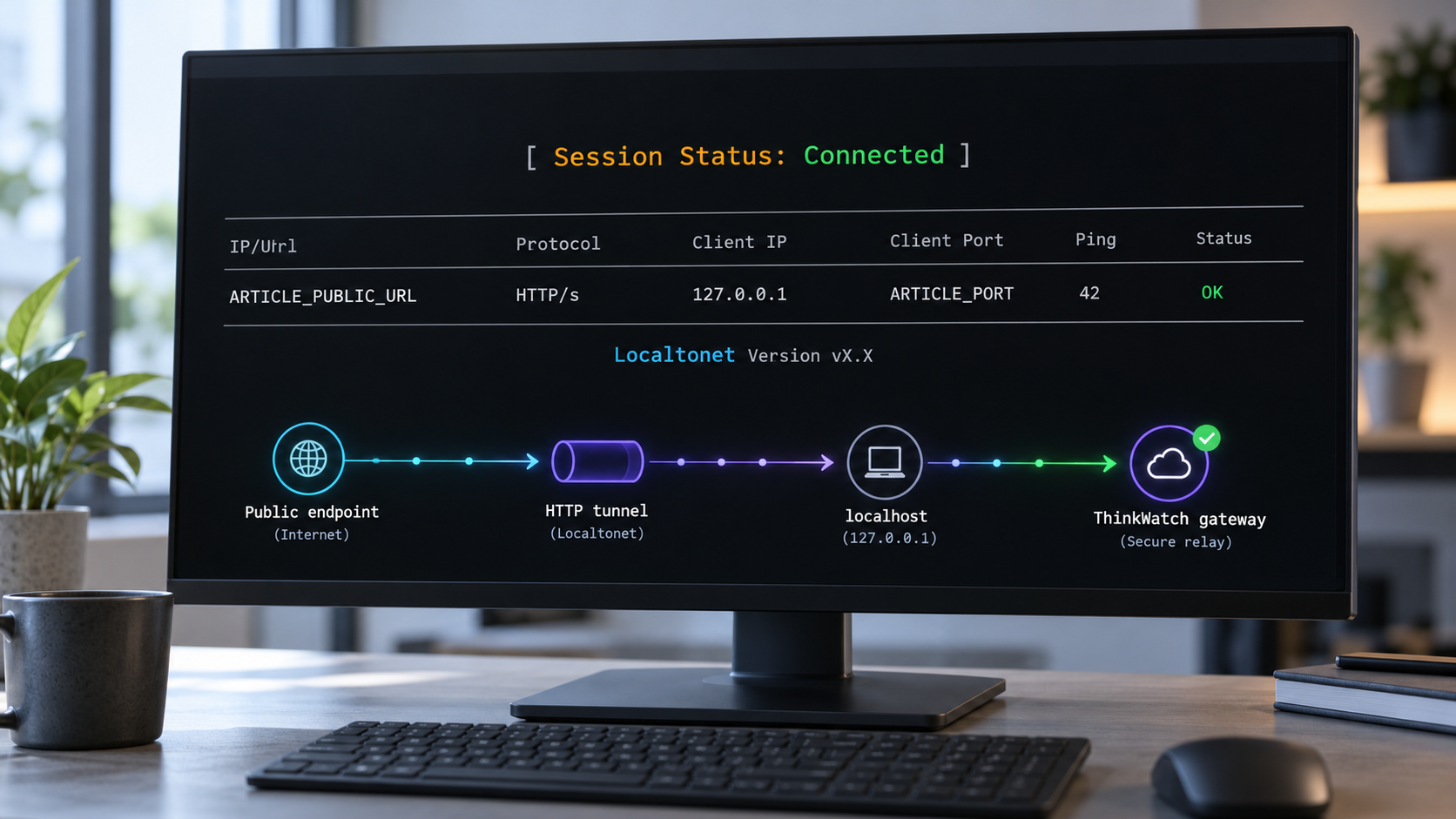
Once http://127.0.0.1:3000 is responding on the machine that will run our client, the Localtonet part is straightforward. The client establishes an outbound connection to a Localtonet relay server. The resulting HTTP tunnel provides a public HTTPS address without inbound router port forwarding, a public IP address, VPN setup, or firewall changes.
The tunnel is available only while the selected client device is connected and the tunnel is running. In this Kubernetes port-forward design, the kubectl port-forward process must also remain active. If either process stops, the public endpoint can no longer reach ThinkWatch.
Install and run the Localtonet client
Install our client on the same machine that owns the working loopback listener, then run it. Exact operating-system installation commands are not included in the supplied evidence and can vary by client version, so use the current Localtonet download and installation flow rather than copying an unverified command.
Authenticate or select the device
Use the device-specific authentication token for the client that will run this tunnel. Treat the token as a credential. Do not paste it into documentation, source control, terminal recordings, screenshots, or client configuration shared with other users.
Select an available relay server
Choose a currently available server or region from the dashboard. Available server codes and regions can change and may vary by plan, so obtain the value from the current product instead of hardcoding one from an article.
Create the HTTP tunnel configuration
Create an HTTP tunnel and point its local target to 127.0.0.1 on port 3000, or to the alternate local port you deliberately selected for the Kubernetes port-forward. Choose the required HTTP process type from the options available to your account.
Start the tunnel
Creating a tunnel does not make it active. Use the Start button and confirm that the selected client remains connected. Keep the Kubernetes port-forward terminal running at the same time.
Test the assigned public HTTPS address
Use the public address assigned to the running tunnel and test an appropriate ThinkWatch gateway request. Confirm the HTTP status, authentication behavior, and application logs before configuring production clients. Stop or delete the tunnel when public access is no longer required.
HTTP tunnels support Random Sub Domain, Custom Sub Domain, and Custom Domain process types. Each serves the target at a public HTTPS address. Availability can vary by plan and current product configuration. Custom-domain DNS requirements should be checked against the current Localtonet documentation before changing DNS.
For the current dashboard workflow and available options, consult our HTTP tunnel documentation.
Treat the tunnel as network reachability, not as permission to use ThinkWatch. Keep ThinkWatch authentication, scoped keys, role checks, tool authorization, rate limits, budgets, and other relevant controls enabled. Distribute the public gateway address only to approved users and clients, and grant the least privilege required.
Verify the complete request path
Test in layers so a failure has a clear boundary:
- Confirm the ThinkWatch pods and services are healthy in Kubernetes.
- Confirm the Kubernetes port-forward process is still running.
- Confirm
http://127.0.0.1:3000answers on the Localtonet client device. - Confirm the Localtonet device is connected.
- Confirm the HTTP tunnel is started rather than merely created.
- Send a request to the assigned public HTTPS address.
- Check ThinkWatch logs and audit information to confirm that the expected authenticated request arrived.
This layered sequence prevents a Kubernetes problem from being misdiagnosed as a tunnel problem. It also distinguishes transport success from authorization success. For example, an HTTP authentication rejection proves more about connectivity than a timeout, even though the request itself was not authorized.
Operate and update the deployment safely
A self-hosted gateway becomes part of the request path for AI and MCP clients, so routine operations deserve the same discipline as the initial installation. Track the deployed chart version, container image versions, configuration revision, secret rotation process, and the identity of the Localtonet device running the public route.
Keep the port-forward supervised
The port-forward command is a foreground process. Closing its terminal, losing Kubernetes API connectivity, or restarting the administration host breaks the local target. For a temporary test or controlled integration, that behavior is useful and easy to understand. For a durable production design, use an organization-approved process supervisor or a carefully designed private network path from the Localtonet client to the gateway service.
Do not blindly expose a Kubernetes service as a public load balancer merely to avoid the port-forward. That would create a second public access path and may undermine the purpose of using one controlled tunnel. Any persistent alternative should preserve the separation between the public gateway and private console.
Monitor both service layers
Monitor Kubernetes workload health and ThinkWatch request behavior separately. Kubernetes tells you whether pods, services, endpoints, and volumes are functioning. ThinkWatch provides application-level information about requests, routing, retries or failover, metering, policy decisions, and audit activity when those features are configured.
Localtonet also has its own lifecycle. A tunnel can be created but stopped, or the selected device can be disconnected. Platform-wide Token/Tunnel webhooks are available for Connected and Disconnected changes in a selected Token Group. They send a JSON body containing Id, ActionDate, Type, and Status. These connectivity webhooks are separate from application request logs and should not be interpreted as proof that ThinkWatch successfully processed a request.
Plan upgrades before applying them
Review release notes between the installed and target versions. Gateway behavior can change in ways that affect request inspection and policy outcomes. For example, the published ThinkWatch 3.8.1 release changed outbound redaction so that it searches written request text without modifying identifiers or other protocol values. It also noted that fields outside recognized written text can pass upstream as written, while stored-body redaction behavior remains separate.
That kind of change is operationally important. Test representative AI API and MCP traffic in a non-production environment, verify policy behavior, preserve a rollback path, and avoid mixing a chart from one release with container images from another unless compatibility is explicitly documented.
Stop access cleanly
When remote access is no longer required, stop the Localtonet tunnel. If the port-forward was created solely for the tunnel, terminate that process too. Deleting the Kubernetes deployment is a separate decision and is not required merely to disable public access.
| Change | Expected effect | What remains running |
|---|---|---|
| Stop the Localtonet tunnel | The assigned public route stops serving the local target | ThinkWatch and the local port-forward can continue running |
| Stop the Kubernetes port-forward | The Localtonet client can no longer reach 127.0.0.1:3000 |
The tunnel configuration and ThinkWatch workloads can remain present |
| Disconnect the selected Localtonet device | Tunnels assigned to that disconnected client cannot reach their targets | Kubernetes workloads continue independently |
| Uninstall the Helm release | Helm-managed ThinkWatch resources are removed according to chart behavior | Persistent data behavior depends on the chart and storage policy, which must be reviewed first |
Troubleshoot installation and remote-access failures
The make helm-deploy command is unavailable or fails immediately
Confirm that you are in the repository root and that the checked-out revision contains the documented Make target. Verify that make, Helm, and kubectl are callable. Then inspect the Makefile to see the exact underlying command for that revision. Do not substitute guessed chart paths or values.
Helm reports a namespace or permission error
Recheck the active Kubernetes context and your authorization. The published 3.8.1 example creates the thinkwatch namespace, which requires suitable cluster permission. In a restricted environment, ask the cluster administrator to create the namespace and grant the precise permissions required by the reviewed chart.
A pod remains pending
Use kubectl describe pod and namespace events. Common Kubernetes-level categories include unsatisfied scheduling requirements, unavailable persistent storage, admission-policy rejection, and resource constraints. The exact correction depends on the event message and the chart's documented requirements. Do not guess a storage class or weaken admission controls simply to force scheduling.
A pod enters an image-pull failure state
Inspect the pod description for the exact registry, image tag, and registry response. Confirm network access and any registry authentication required by your environment. Keep chart and image versions aligned. The evidence confirms published 3.8.1 images, but it does not justify changing an arbitrary release to those tags.
The service has no endpoints
Compare the service selector with pod labels and check pod readiness. A service without endpoints cannot forward traffic, even if the service object exists. Correct the underlying workload or chart configuration before creating a tunnel.
The port-forward reports connection refused
Confirm that you selected the gateway service and used the service port reported by Kubernetes. Verify that the service has endpoints and that the relevant pods are ready. If local port 3000 is already in use, either stop the conflicting process or choose a different local port and use that same port in the Localtonet target.
Local access works, but the public URL does not
Confirm that the port-forward is still active, our client is connected, the HTTP tunnel is started, and the tunnel target exactly matches the working local listener. Creating the tunnel alone is not enough. Also confirm that you are using the currently assigned public address rather than an old address from a stopped or deleted tunnel.
The public endpoint returns 401 or 403
An authorization response usually means the network path is functioning and the application rejected the request. Check the ThinkWatch client credential, role, API key scope, tool permission, and relevant policy. Do not disable authentication to turn an authorization failure into a successful response.
The public endpoint returns 404
Confirm that the client is requesting a valid ThinkWatch gateway path. The root path is useful only as a basic transport probe because the supplied evidence does not define it as a health endpoint. Use the path documented for the client integration and installed ThinkWatch release.
Requests reach ThinkWatch but upstream model calls fail
That result is beyond tunnel connectivity. Inspect ThinkWatch's routing, upstream configuration, credentials, provider response, budgets, rate limits, and policy decisions. The gateway can be reachable while an upstream is unavailable or unauthorized. Keep provider credentials private when collecting logs.
The gateway works until the terminal closes
The Kubernetes port-forward process ended with the terminal. Restart it and then retest the local endpoint before checking the public endpoint. For sustained use, operate the forwarding process under an approved supervisor or build a private, persistent route that does not expose the console or Kubernetes control plane.
Frequently asked questions
Which ThinkWatch endpoint should be exposed through Localtonet?
Expose the client-facing ThinkWatch gateway on port 3000. Do not include the administrative console on port 3001 in the public tunnel. The console should remain behind a VPN or firewall and be available only to authorized administrators.
Does Localtonet require a public IP address or inbound router port forwarding?
No. Our client establishes an outbound connection to a Localtonet relay server. The HTTP tunnel then supplies a public address for the selected local target without requiring inbound router port forwarding, a public IP address, VPN setup, or firewall changes.
Is make helm-deploy the documented Kubernetes installation command?
Yes. The ThinkWatch repository documents make helm-deploy for Kubernetes deployment. Review the Make target and the chart configuration in the exact revision you intend to run before applying it to a production cluster.
Can I install the published ThinkWatch 3.8.1 chart directly with Helm?
Yes, after obtaining and verifying the corresponding think-watch-3.8.1.tgz release asset. The published command installs a Helm release named think-watch in the thinkwatch namespace. Version 3.8.1 is a specific reproducible example, not a claim that it is the newest available release.
Why use a Kubernetes port-forward in this guide?
A port-forward provides a controlled loopback target for our client without requiring an ingress controller, cloud load balancer, public Kubernetes service, or guessed cluster-network route. It is particularly suitable for testing and controlled access. The process must remain running for the tunnel to work.
Does starting a Localtonet client automatically start the HTTP tunnel?
No. Creating a tunnel does not mean it is running. The selected client must be connected, and the tunnel must be started with the Start button. In this workflow, the Kubernetes port-forward must also remain active.
Does the public HTTPS address replace ThinkWatch authentication?
No. The tunnel provides network reachability. ThinkWatch should continue to enforce the authentication, scoped credentials, role checks, tool permissions, rate limits, budgets, and policies appropriate to the deployment. Network exposure and application authorization solve different problems.
Can the Localtonet client run on a different machine from the port-forward?
Not when the tunnel target is 127.0.0.1:3000. Loopback refers to the machine running our client. If the port-forward and Localtonet client are on different machines, you need a deliberately configured and protected network path between them. This guide avoids that additional exposure by placing both processes on the same host.
Connect your verified ThinkWatch gateway with Localtonet
After ThinkWatch is healthy in Kubernetes and the gateway responds locally, create an HTTP tunnel to the local gateway listener while keeping the administrative console private.
Get Started Free →

