

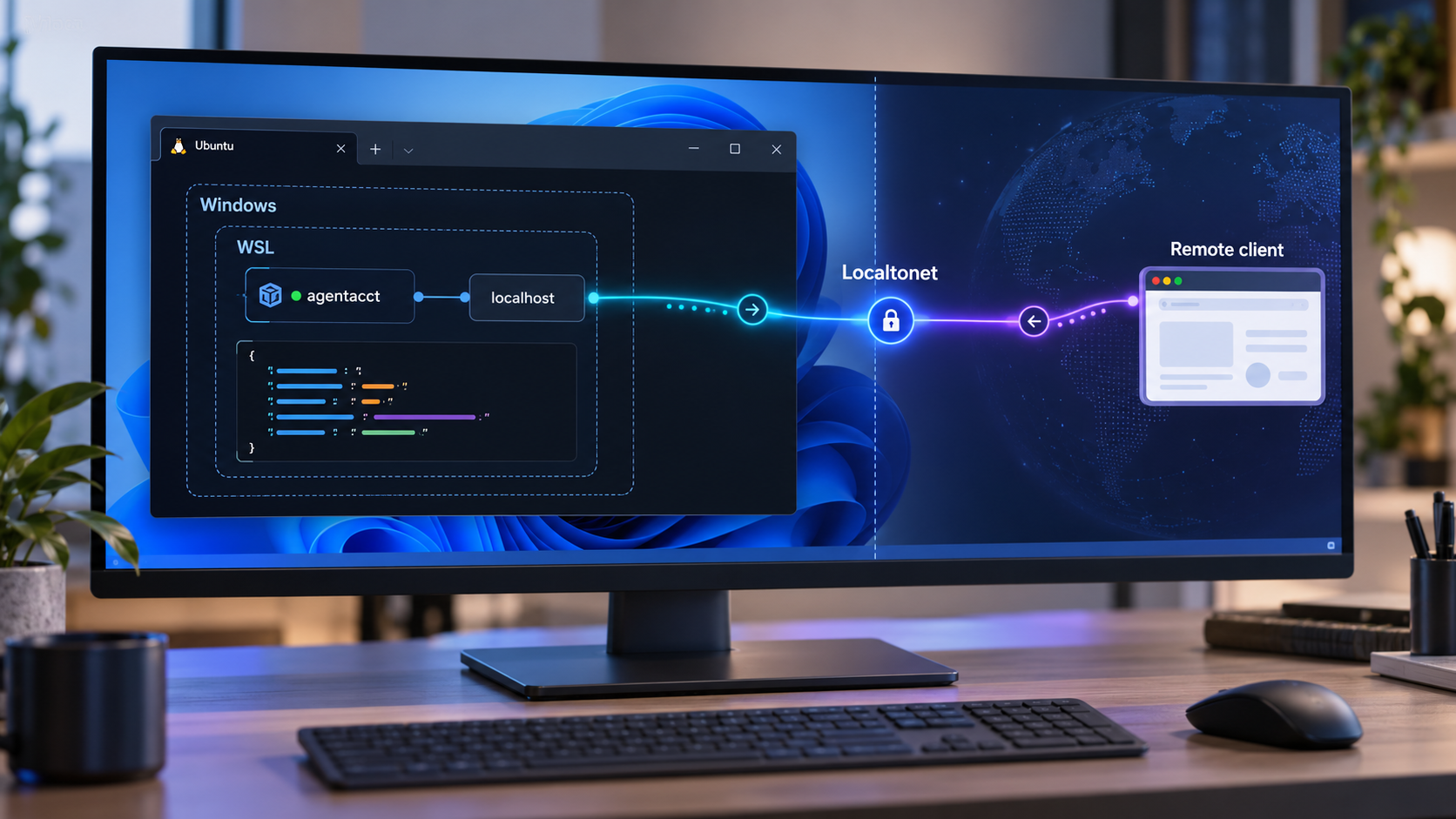
Run local AI-agent observability in WSL, verify its JSON endpoint, and add remote access only when you need it
agentacct is a local-first developer tool for reviewing what supported coding agents did, including recorded activity, tool calls, changed files, checks, tokens, and estimated costs. Its supported Windows installation path uses Windows Subsystem for Linux because the Python package requires Python 3.11 or newer on macOS or Linux. This guide walks through the documented installation commands, onboarding, terminal interface, and local JSON API at http://127.0.0.1:8765. Once the service works locally, we explain how to make that HTTP endpoint remotely reachable with Localtonet as an optional and carefully controlled next step.
📋 What's in this guide
How agentacct, WSL, and Localtonet fit together
agentacct is designed to collect and present evidence from local coding-agent activity. It reads supported clients' local session records and combines usage information with recorded work, steps, and checks. Its interface distinguishes an agent-reported result from a verified result, labels estimated costs as estimates, and represents uncertain attribution as a gap or a confidence level rather than silently treating missing evidence as zero.
The project is intentionally local-first. It does not require an agentacct account, does not request a provider API key, and listens only on 127.0.0.1. According to the documented privacy model, it records operational evidence such as tool names, categories, touched files, credential-scrubbed commands, exit codes, tokens, and recorded steps. It does not record prompts, model responses, or transcripts.
On Windows, agentacct is supported through WSL rather than as a native Windows Python installation. WSL supplies the Linux environment required by the documented pipx installation path. The resulting service remains on your computer and exposes its JSON API at the loopback address http://127.0.0.1:8765.
Localtonet enters the workflow only after that local installation is healthy. Our client establishes an outbound connection to a Localtonet relay server and can expose a local HTTP service through a public HTTPS address. This avoids inbound router port forwarding, a public IP requirement, VPN setup, and inbound firewall changes. The tunnel works only while the selected Localtonet client is connected and the tunnel is running.
agentacct tui command opens receipts, usage, capacity information, work groups, and review information in the terminal.
http://127.0.0.1:8765. Verify it from the environment where agentacct is running before attempting a tunnel.
Localhost is an important part of the default design
The address 127.0.0.1 is the IPv4 loopback address. A process bound only to that address normally accepts connections originating from the same network environment. It does not automatically listen on your LAN interface. In this setup, “the same environment” matters because WSL and Windows can have distinct networking contexts.
Before configuring Localtonet, confirm that the selected Localtonet client can reach the agentacct endpoint. The most direct arrangement is to run the client in the same WSL environment as agentacct, provided you use a currently supported Localtonet installation for that environment. If you instead run our client on the Windows side, first test the exact endpoint from Windows. WSL networking behavior can vary with Windows and WSL configuration, so do not assume Windows can reach a WSL-only loopback listener merely because the browser and service are on the same physical computer.
First install agentacct, complete onboarding, open its terminal interface, and verify the local API. Only then add Localtonet. This separation makes failures easier to diagnose because you can determine whether a problem belongs to agentacct, WSL networking, the Localtonet client, or the tunnel configuration.
Prerequisites for installing agentacct in WSL
You need a working WSL Linux distribution and a shell inside that distribution. The agentacct project documents Windows support through WSL but does not prescribe a particular Linux distribution in the evidence available for this guide. It also does not establish a specific WSL installation command or Windows version here. If WSL is not yet installed, complete Microsoft's supported WSL setup for your Windows release before continuing.
Inside WSL, the required Python version is 3.11 or newer. You also need pipx, which installs Python command-line applications into isolated environments while making their commands available from your shell. The exact operating-system package commands for Python and pipx depend on the selected WSL distribution and are not specified by agentacct's main installation instructions. We therefore do not substitute an unverified distribution-specific package command.
| Requirement | What to verify | Why it matters |
|---|---|---|
| Windows Subsystem for Linux | A WSL Linux shell opens successfully | Windows support for the Python installation is provided through WSL. |
| Python 3.11 or newer | python3 --version reports 3.11 or later |
Older Python versions do not meet the documented package requirement. |
| pipx | pipx --version completes successfully |
The documented installation command uses pipx. |
| A supported local coding agent | At least one supported client has local session data | agentacct builds its views from detected local agent records and capabilities. |
| A new agent session after onboarding | Start a fresh coding-agent session | Hooks and MCP servers bind when an agent session starts. |
| Localtonet client for remote access | The selected client can reach 127.0.0.1:8765 |
The tunnel forwards to a service reachable from the client device or environment. |
Check Python and pipx inside WSL
Open your WSL terminal and run the following checks. Run them inside Linux, not in Command Prompt or PowerShell, because agentacct will be installed into the WSL environment.
python3 --version
pipx --version
Continue only if Python reports version 3.11 or later and the pipx command is available. If either check fails, install the missing prerequisite using the official instructions for your chosen WSL distribution. Package names, repositories, and commands differ between distributions and releases, so guessing an installation command can leave you with an unsupported Python version.
Understand what onboarding can and cannot discover
The documented onboarding process finds supported coding agents, creates a local store, and starts the recorder. Support is capability-specific rather than a blanket promise that every integration provides identical data. Claude Code and Codex currently have the fullest receipt coverage described by the project, while other supported clients can have different levels of coverage.
You can inspect the capabilities reported by your installed version with:
agentacct capabilities agentsRun that command after installation. Its output is more reliable for your environment than assuming every client exposes every category of usage, receipt, check, or activity data.
agentacct does not require provider API keys for its documented local workflow. Localtonet device tokens are also device-specific secrets. Do not place provider credentials, Localtonet tokens, private endpoint values, or other secrets in screenshots, shell history, public configuration examples, or shared logs.
Install and onboard agentacct inside WSL
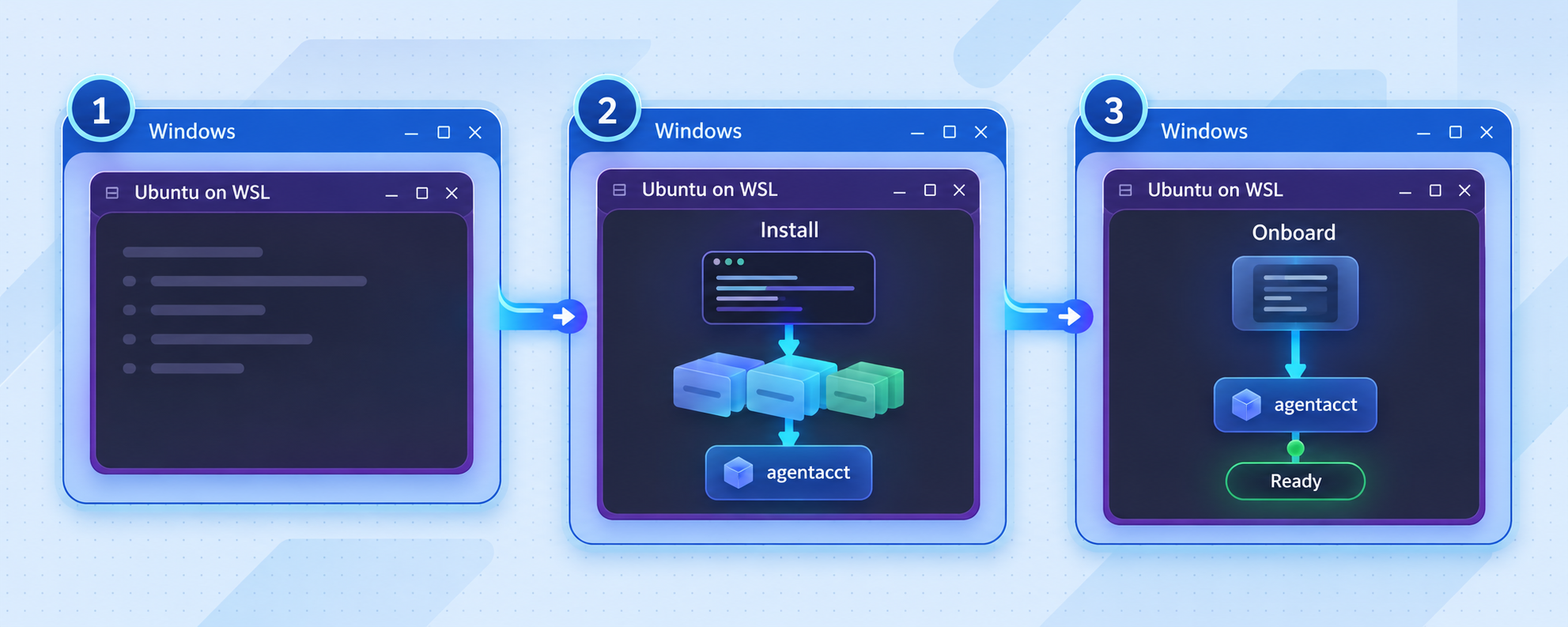
The normal documented installation consists of installing the package with pipx and running onboarding once per machine. Keep all of the following agentacct commands inside the same WSL distribution. Installing in one distribution and attempting to run from another creates separate filesystems and Python environments.
Install the package with pipx
pipx install agentacct
pipx creates an isolated environment for the application and exposes the agentacct command to your user shell. If installation succeeds but the shell says the command is not found, follow pipx's displayed PATH guidance, then close and reopen the WSL terminal before testing again. Do not repeatedly reinstall the package until you have checked whether the problem is only shell command discovery.
Run onboarding once for this WSL environment
agentacct onboardOnboarding detects supported agents, sets up the local store, and starts the recorder. Review the command's output instead of assuming every installed coding tool was detected. If your client is missing, use the capabilities command to compare the installed version's supported lanes with the software present in this WSL environment.
Windows and WSL files can be visible through mounted paths, but application configuration and session data do not automatically become interchangeable. A coding agent installed natively on Windows may store its records somewhere different from an agent running inside WSL. The evidence supplied for this tutorial does not establish that every native Windows client's records will be detected from WSL. Treat detection output as authoritative for the current installation rather than moving or duplicating files based on assumptions.
Start a new coding-agent session
After onboarding, open a new session in the coding agent you want to observe. This is required because relevant hooks and MCP servers bind at session start. A session that was already open before onboarding might not contain the integration needed for complete recording.
Perform a small, recognizable task in that new session. A suitable verification task might inspect a file, make a harmless change in a test project, or run an existing check. The objective is to create recent activity you can distinguish from older records. Avoid modifying a production repository solely to test observability.
Open the terminal interface
agentacct tui
The terminal interface provides receipts, usage, capacity details, review information, and folder-anchored work groups. It can show cross-agent timelines for sessions associated with a project. Press ? inside the interface to view the keys supported by your installed version.
Look for the new session and inspect the available evidence. The project intentionally distinguishes “Reported” from “Verified.” A coding agent saying that work is complete does not by itself create a verified result. Verification requires current passing checks after the last recorded change. Failed attempts remain part of the history because they can explain how the final result was reached.
Tokens come from client records, while costs are calculated from pricing tables and are marked as estimates. agentacct does not have invoice access. Dates represent session totals by activity date, and a session spanning multiple days is not necessarily divided into exact daily consumption.
Verify the local JSON API before tunneling it
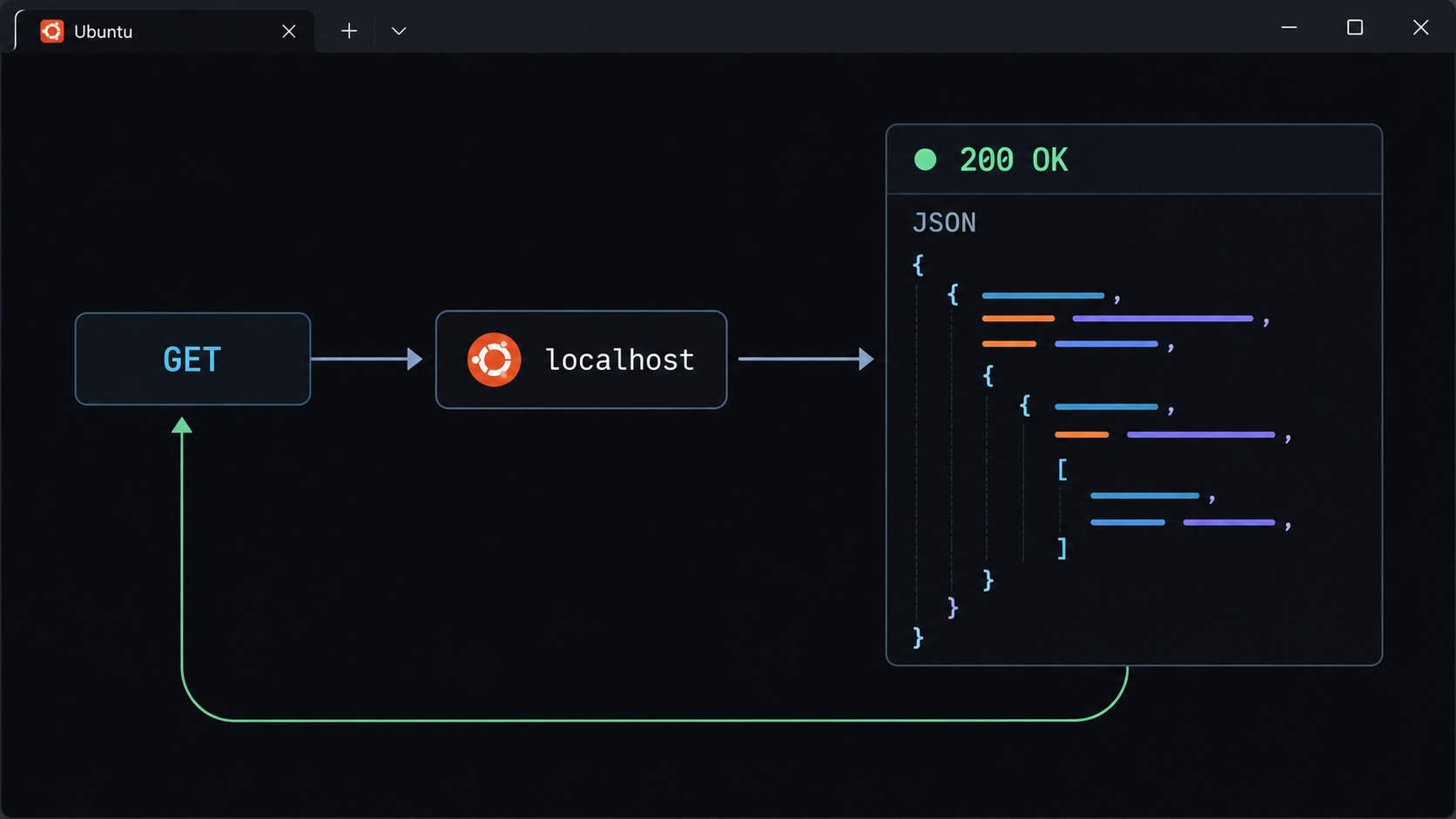
The documented local JSON API address is:
http://127.0.0.1:8765
Test this address from the same WSL environment in which agentacct is running. If your distribution includes curl, you can request the endpoint with:
curl -i http://127.0.0.1:8765
The -i option displays HTTP response headers with the response body. The evidence available for this guide establishes the API address but does not define a guaranteed response body for the root path. For that reason, do not compare the output to an invented JSON object. The meaningful checks are that a TCP connection is made, an HTTP response is returned, and the result is consistent with the installed agentacct version.
You can also open http://127.0.0.1:8765 in a browser available to the same environment. Browser access from Windows into WSL can depend on the current WSL networking configuration. A successful Windows browser test is useful if you intend to run the Localtonet client on Windows, but a failed Windows browser test does not necessarily mean agentacct is broken. Confirm from inside WSL first.
Interpret common local test results
| Observed result | Likely meaning | Next action |
|---|---|---|
| An HTTP response is returned | The address and port are accepting HTTP requests from the test environment. | Proceed to application-level inspection and optional tunnel setup. |
| Connection refused | No process is accepting the connection at that address and port in the current environment. | Review onboarding output and confirm the required agentacct process is running. |
| Connection times out | The request is not reaching a responsive listener. | Confirm where the request originated and whether it crosses the Windows and WSL boundary. |
| HTTP error status | The server is reachable, but the requested path or operation was not accepted. | Do not treat this as a transport failure. Check the API behavior supported by your installed version. |
| Windows works but WSL fails, or the reverse | The two requests are reaching different networking contexts. | Place the Localtonet client where it can reproduce the successful request. |
Verify from the intended Localtonet client environment
A successful request inside WSL proves that agentacct is locally available there. It does not automatically prove that a Localtonet client running elsewhere can reach it. Before creating a tunnel, repeat the test from the exact device and environment that will run our client.
If our client runs inside the same WSL distribution, the local target can remain 127.0.0.1 with port 8765. If our client runs natively on Windows, test http://127.0.0.1:8765 from Windows first. Do not replace the loopback address with a guessed WSL address, and do not reconfigure agentacct to listen on every interface merely to avoid diagnosing reachability. Broadening the listener would change the project's local-only security posture.
A tunnel cannot repair a stopped service, an incorrect port, an application error, or a client that cannot reach its target. Resolve the local request first. This avoids exposing an unstable configuration and keeps troubleshooting focused on one network boundary at a time.
Routine agentacct operations and interpretation
Once installed, the most common operation is opening the terminal interface:
agentacct tuiUse it to review recent activity, receipts, usage, capacity, and recorded work. The Work view groups activity by project folder and can show participating sessions from multiple agents on one timeline. The interface also carries a local-data freshness indicator, which helps distinguish current information from the last saved local copy.
Read evidence labels literally
agentacct is designed to expose uncertainty rather than hide it. A “Reported” result means the agent reported an outcome. A “Verified” result requires current passing checks after the last recorded change. Claims and checks remain separate. A failed attempt can remain visible even when a later attempt succeeds.
Attribution between usage and recorded work is labeled with confidence such as exact, high, medium, or low. If the relationship cannot be demonstrated, the project presents a gap instead of an invented zero. This is especially important when comparing clients because support differs by capability.
Check integration coverage after updates
Run the installed capabilities report whenever you add a coding client, troubleshoot missing data, or upgrade agentacct:
agentacct capabilities agentsThis reports the capability matrix from the version actually installed in WSL. It is more precise than relying on a general statement that a client is “supported,” since one client may expose usage information while another provides fuller receipts, checks, or recorded work.
Keep the local-first boundary unless remote access has a clear purpose
Many users do not need a tunnel. If you only review activity at the development computer, continue using the TUI and local endpoint. Remote access is appropriate when you have a defined operational need, such as reaching the API from another trusted location or integrating a controlled remote system.
A tunnel is not a deployment of agentacct to a hosted server. The data and application remain on your machine. Availability still depends on WSL, agentacct, the computer's network connection, our client, and the tunnel all remaining operational.
Expose the working agentacct API with Localtonet
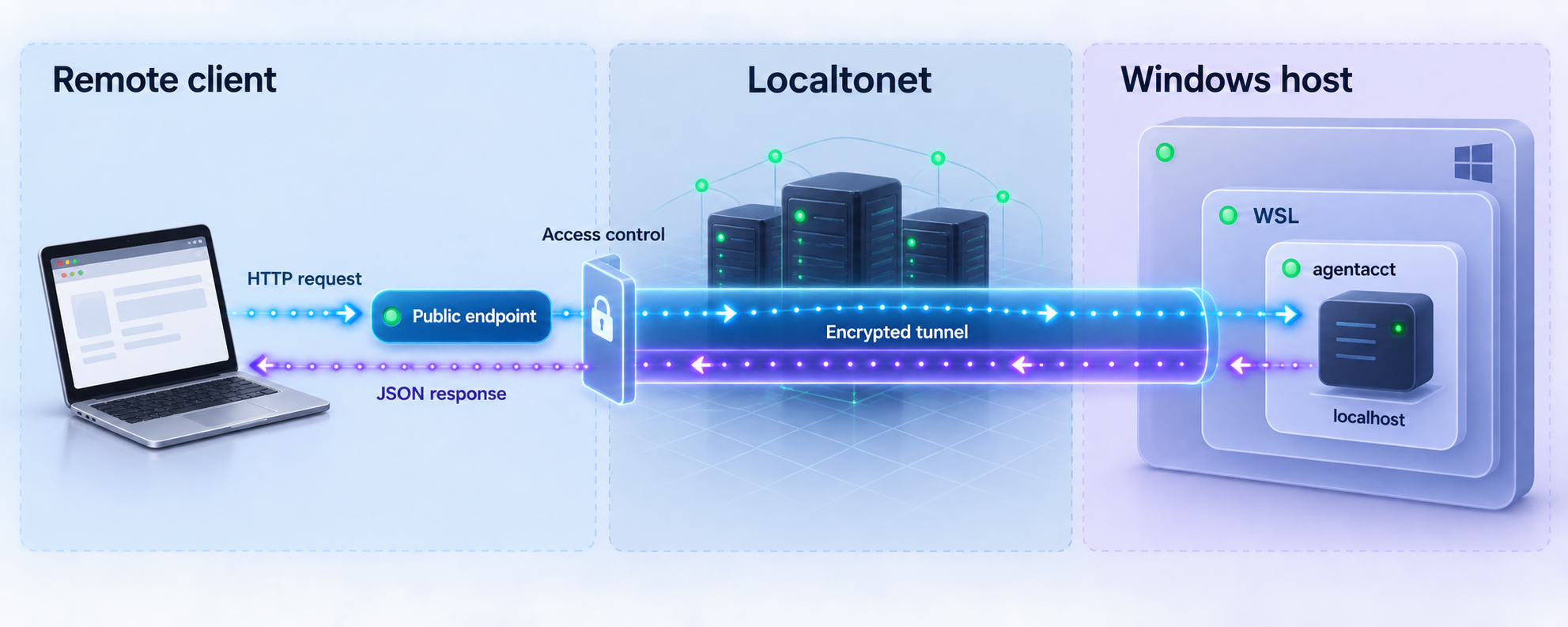
Use an HTTP tunnel because agentacct provides an HTTP JSON API. With Localtonet, our client connects outbound to a relay server and forwards requests from an assigned public HTTPS address to the local target. You do not need inbound router port forwarding, firewall changes, a public IP address, or VPN setup for this standard HTTP tunnel workflow.
The following sequence reflects the documented Localtonet lifecycle. Creating the configuration is not enough by itself. The selected client must remain connected, and the tunnel must be started.
Install and run the Localtonet client where it can reach agentacct
Choose the device or environment that successfully opens http://127.0.0.1:8765. For this workflow, that may be the same WSL environment. If you use a Windows-side client, verify Windows-side connectivity before proceeding.
Authenticate or select the client device using its token
Use the device-specific authentication token associated with the client that will run the tunnel. Treat the token as a secret and never include it in documentation, screenshots, repositories, or shared terminal output.
Select a currently available relay server
Choose an available server or region from the current Localtonet dashboard. Availability can vary, so obtain the value from the product rather than copying a hardcoded server code from an old tutorial.
Create an HTTP tunnel to the local API
Configure the local target as IP address 127.0.0.1 and port 8765, but only when the selected client can reach that exact address. HTTP process types can provide a random subdomain, a supported custom subdomain, or a custom domain, and all serve the target through a public HTTPS address.
Start the tunnel and test its assigned address
Use the Start button after creating the tunnel. Open the assigned public URL from the intended remote network and compare its application response with the verified local endpoint. A created but stopped tunnel is not available.
Stop or delete the tunnel when remote access is no longer required
Stop the tunnel to remove active public reachability while retaining the configuration, or delete it when the configuration is no longer needed. The public endpoint is available only while the selected client is connected and the tunnel is running.
For the current dashboard workflow and available options, consult our Localtonet HTTP tunnel documentation. Exact region choices and plan-dependent options should always be confirmed in the current dashboard rather than inferred from this guide.
Test locally and publicly as two separate checks
Keep one successful local request as your baseline. After starting the tunnel, send the equivalent request to the assigned public HTTPS URL. If the public request fails while the local request still succeeds from the Localtonet client environment, inspect the client connection and tunnel state. If both requests fail, return to agentacct rather than changing the tunnel repeatedly.
Do not assume that receiving an HTTP status means every API operation is safe or supported remotely. The supplied project evidence identifies the API address but does not document an authentication layer, a stable list of remote API routes, or authorization behavior for this particular workflow. Evaluate the installed version before allowing any untrusted user or automation to access the URL.
The Localtonet tunnel forwards requests to the service running on your machine. agentacct remains local, and the tunnel remains dependent on the selected client and local process. Stop the tunnel when you want to restore localhost-only reachability.
Secure the optional remote endpoint
agentacct's default loopback binding is a meaningful security boundary. Adding a public tunnel intentionally crosses that boundary. Even though the application does not record prompts or model responses, it can expose operational information about projects, files, commands, tools, checks, agent activity, token usage, and estimated costs. That information may be sensitive.
The available evidence does not establish built-in agentacct authentication for the JSON endpoint. It also does not establish that every Localtonet plan provides the same access-control options. Do not interpret an assigned HTTPS URL as proof that application-level authorization exists.
Until you have confirmed authentication and authorization behavior in the installed agentacct version, assume anyone who obtains a working public URL could attempt requests against it. Do not expose sensitive activity data merely for convenience. Local verification and the terminal interface remain the safer default when remote access is unnecessary.
Do not confuse an HTTP tunnel with a VPN
This workflow uses a standard HTTP tunnel to publish one HTTP service. It is not a VPN and does not join the remote device to your private network. Localtonet VPN Manager is our separate private mesh VPN feature. Use the protocol and access model that matches the requirement rather than describing all tunneling as VPN connectivity.
Protect Localtonet device tokens
A Localtonet authentication token identifies the client device that runs the tunnel. Never copy a real token into an article, public command, repository, screenshot, support forum, or coding-agent prompt. If a token is exposed, treat it as a credential incident and follow the current account controls for replacing the affected credential.
Troubleshooting the WSL and tunnel workflow
python3 --version reports an older release
agentacct requires Python 3.11 or newer for the documented pipx installation. Upgrade Python using the supported instructions for your WSL distribution. Do not force installation with an older interpreter, since successful package extraction would not establish runtime compatibility.
pipx install agentacct succeeds but the command is missing
This commonly indicates that pipx's application directory is not present in the current shell's PATH. Read the output produced by pipx, apply its PATH guidance, and open a new WSL terminal. Confirm the command can be discovered before running onboarding again.
Onboarding does not find the expected coding agent
Confirm that the coding agent and agentacct are operating in compatible environments. A native Windows application and a WSL application can use different home directories and configuration locations. Then run:
agentacct capabilities agentsCompare the installed capability matrix with the client you expect to detect. The project describes support by capability, so partial data does not necessarily mean the entire integration is broken. Avoid manually copying session records unless the project's documented installation path specifically requires it.
A recent agent session is absent
Start a new agent session after onboarding. Hooks and MCP servers bind at session start, so a pre-existing session may not be connected to the newly installed recorder. Perform a small task in the new session, then reopen or refresh the TUI and check its local-data freshness indicator.
The TUI opens but usage or receipts are incomplete
Review the capability matrix for that client. Missing information may reflect unsupported or partial evidence rather than an installation failure. Also inspect confidence labels and gaps. agentacct intentionally avoids inventing relationships between usage records and work when a reliable join is unavailable.
The local API returns “connection refused”
Confirm that onboarding completed and that the relevant local agentacct process is still running. Retry from inside the same WSL distribution. Do not create a tunnel until http://127.0.0.1:8765 accepts a local HTTP connection.
The evidence available for this guide does not document a separate API server command, service manager unit, or Windows startup configuration. We therefore do not invent one. Use the output and lifecycle controls supplied by the installed agentacct version if the recorder must be restarted.
The API works in WSL but not from Windows
This points to the boundary between WSL and the Windows host rather than the agentacct HTTP service itself. If your Localtonet client is running on Windows, it must be able to reproduce the request successfully. The safer solution is to run the client in an environment that can already reach the loopback endpoint, rather than changing agentacct to listen broadly on your LAN.
The Localtonet tunnel exists but the public URL does not work
Check these conditions in order:
- agentacct still responds locally at
127.0.0.1:8765from the Localtonet client environment. - The correct Localtonet client device is connected.
- The tunnel target uses the verified local IP address and port.
- The tunnel has been started rather than merely created.
- You are testing the currently assigned public address.
If the local request fails, fix agentacct or environment reachability first. If local access works but public access fails, focus on the client connection and tunnel state. Avoid changing several layers simultaneously because doing so removes the known-good baseline.
The public endpoint works and then disappears
This is expected if the Localtonet client disconnects, the selected device goes offline, WSL stops, or the tunnel is stopped. A Localtonet tunnel is available only while the selected client is connected and the tunnel is running. It does not convert a laptop-hosted process into an independently hosted cloud service.
The public endpoint reveals more information than expected
Stop the tunnel immediately. Review the installed agentacct API behavior and determine whether the endpoint has suitable authentication and authorization for remote use. Do not restart public access until the exposure is intentional, limited, and appropriate for the data being returned.
Frequently asked questions
Can I install agentacct directly in native Windows Python?
The documented Python installation supports macOS or Linux with Python 3.11 or newer. Windows support is provided through WSL. This guide therefore installs the package inside a WSL Linux distribution rather than claiming support for a native Windows Python installation.
Which commands are required for the normal installation?
After confirming Python 3.11 or newer and pipx are available inside WSL, run pipx install agentacct, then run agentacct onboard once for that environment. Start a new coding-agent session afterward because hooks and MCP servers bind at session start. Use agentacct tui to open the terminal interface.
What is the agentacct local JSON API address?
The documented local address is http://127.0.0.1:8765. Verify it inside WSL before creating a tunnel, then verify it again from the exact environment that will run the Localtonet client.
Does agentacct send coding-agent data to a cloud account?
The documented design is local-first, requires no agentacct account, has no telemetry, and does not request provider API keys. It reads local session files and listens on 127.0.0.1. Adding a Localtonet tunnel is optional and creates a remote path to the local service, so it should be enabled only after a security review.
Does agentacct record prompts and model responses?
The project states that it records work evidence such as tool names and categories, touched files, credential-scrubbed commands, exit codes, tokens, and recorded steps. It does not record prompts, model responses, or transcripts. The remaining operational metadata can still be sensitive and should not be exposed indiscriminately.
Does a Localtonet HTTP tunnel make agentacct a hosted service?
No. The application and its data remain on your machine. Our tunnel forwards requests to the local endpoint. Availability still depends on the computer, WSL environment, agentacct process, Localtonet client, and tunnel remaining online.
Is the agentacct API authenticated automatically?
The evidence available for this guide does not establish built-in authentication or authorization for the documented JSON endpoint. Treat it as unauthenticated until you verify otherwise in the installed version. Do not expose sensitive data publicly without an appropriate access-control layer.
Should the Localtonet client run on Windows or inside WSL?
Run it in an environment that can reach http://127.0.0.1:8765. The same WSL environment is the most direct network relationship when agentacct listens only on WSL loopback. A Windows-side client can also be considered if Windows successfully reaches that endpoint, but you should verify this rather than assume it.
Do I need router port forwarding or a public IP address?
No. The Localtonet client establishes an outbound connection to our relay server, so this workflow does not require inbound router port forwarding, firewall changes, VPN setup, or a public IP address.
How do I remove remote access without uninstalling agentacct?
Stop the Localtonet tunnel. You can retain its configuration for later use or delete it if it is no longer needed. Stopping the tunnel leaves the local agentacct installation intact while removing the active public route.
Add optional remote access after local verification
Install and verify agentacct inside WSL first. When its JSON API responds from the environment that will run our client, create a Localtonet HTTP tunnel for 127.0.0.1:8765, test the assigned address carefully, and stop the tunnel whenever remote access is not required.


