

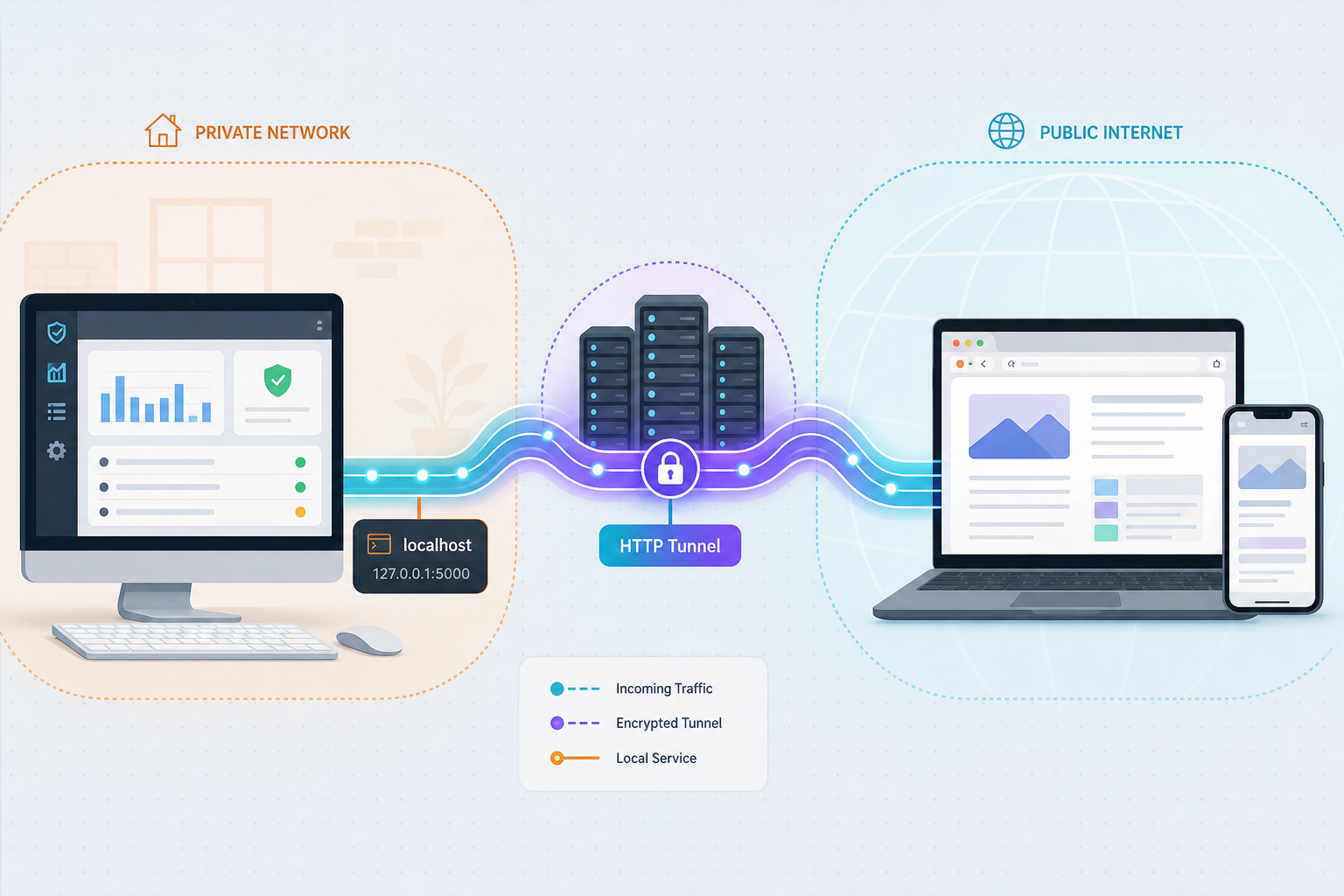
Run a self-hosted Microsoft 365 security dashboard on Windows, then reach it from outside your LAN
Vigil365 is a self-hosted dashboard that collects security alerts from Defender XDR, Entra ID Protection, Intune, Exchange Online, Compliance and other Microsoft 365 sources through Microsoft Graph. This guide covers the Windows installer route first, then local verification, and only after that the remote-access step. Remote access with Localtonet is an HTTP tunnel from the Windows host to a public HTTPS address. We also explain why a working tunnel alone does not guarantee a working remote sign-in, and where the available evidence stops.
📋 What's in this guide
Why a self-hosted security dashboard needs a remote-access plan
Vigil365 describes itself as a self-hosted Microsoft 365 security monitoring dashboard. It runs on your own Windows host and uses the Microsoft Graph API, with no third-party SaaS in the loop. Alerts are collected on a schedule, every 15 minutes by default. That design suits security staff and managed service providers who want tenant alert data on infrastructure they control.
The catch is reachability. A dashboard installed on a server in an office, a lab or a client site is easy to open from that server, but analysts are often elsewhere. The usual answers are a VPN, a reverse proxy with a public IP, or router port forwarding. Each needs network changes you may not control. With Localtonet, the client on the Windows host makes an outbound connection to a relay server, and the tunnel gives you a public HTTPS address for the local web interface. It needs no inbound firewall rule, no port forwarding and no public IP on the host.
An alert dashboard is also a sensitive target. Treat remote access as something you deliberately switch on, test and restrict, not a convenience you leave open by default. The security section later in this guide covers that.
We wrote this from the Vigil365 repository overview and its v1.1.0 release notes. Those sources establish the installer, the local-only address and the repository layout. They do not give every wizard field, Windows version requirement or network-mode port. Where a detail is not established, we say so instead of guessing, and you should confirm it in the project's own README and docs folder before relying on it.
Prerequisites
The checklist below separates what the evidence supports from what you should verify yourself.
You do not need to install Node.js or .NET on the server first. The v1.1.0 release notes say the installer carries the app, the web UI and the .NET runtime.
Choose an installation path
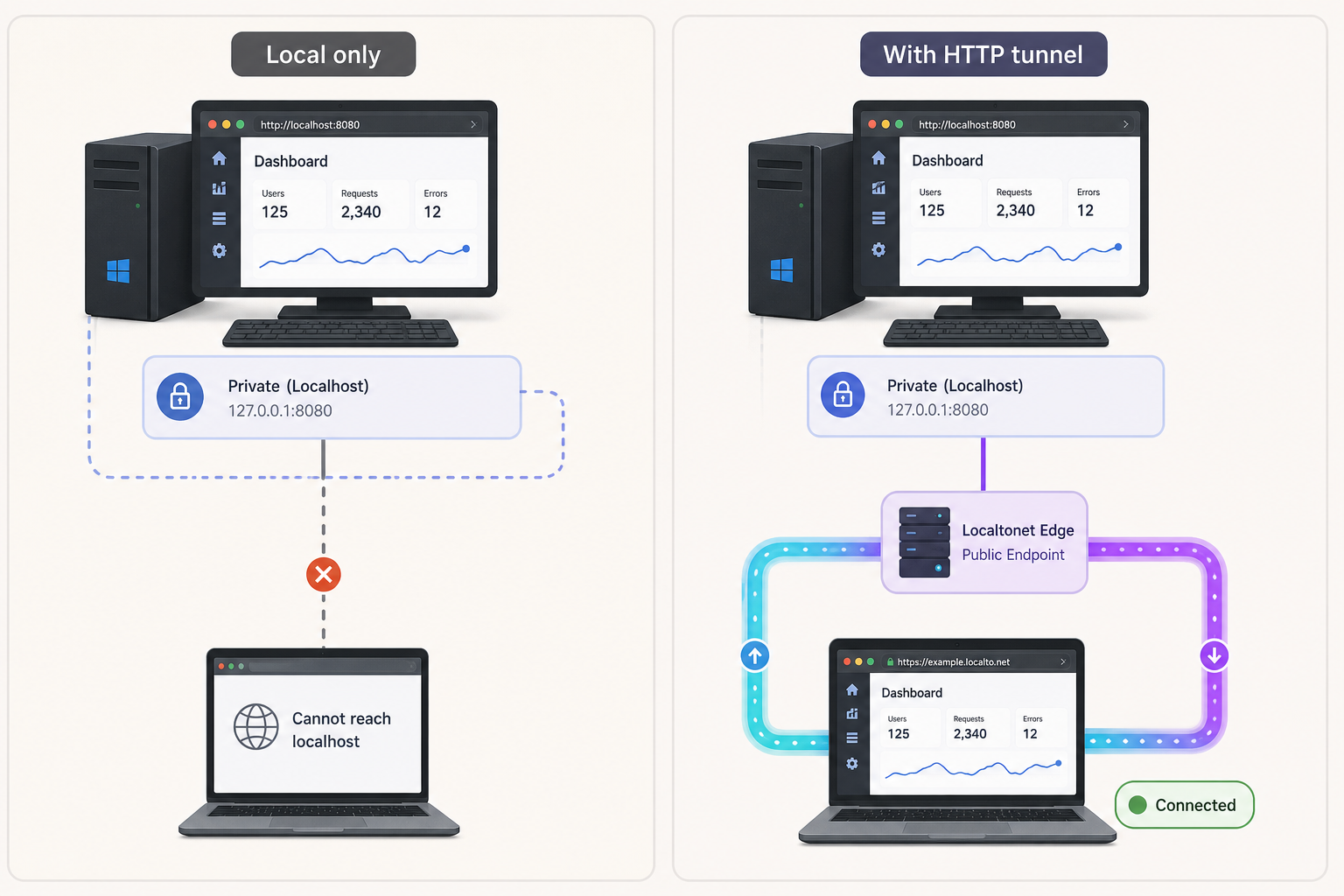
The repository contains several deployment artifacts. The table separates what each one is from what the evidence tells us about it.
| Path | What the repository shows | What we could not establish |
|---|---|---|
| Windows installer (Vigil365-Setup.exe) | Recommended route. Download it from the latest release and run it as administrator. A local-only mode serves the dashboard at http://localhost:8080. | Every wizard screen and field. The listening port for network (HTTPS) installations. |
| PowerShell scripts (install.ps1, enterprise-install.ps1, enterprise-install.sh, deploy.ps1) | These files exist at the repository root. | Their parameters and when to prefer them over the installer. |
| Docker Compose (docker-compose.yml, docker-compose.postgres.yml, Dockerfile, .env.example) | A container route exists, including a PostgreSQL variant. | The local endpoint it exposes and its environment variable names, so we do not give a Localtonet target for it. |
This guide follows the Windows installer because it is the recommended route and the only one with an evidenced local HTTP address. If you deploy with Docker instead, the Localtonet part still applies in principle: point an HTTP tunnel at whatever address and port the container publishes on the host. Read that address from your own Compose configuration rather than from this article.
Install Vigil365 on Windows
Download and run the installer
Open the project's releases page on GitHub and pick the latest release. At the time of our review that was Vigil365 v1.1.0, which lists three assets including Vigil365-Setup.exe. Download that file to the Windows host. Right-click it and choose to run as administrator, or start it from an elevated prompt.
The installer is a wizard. We can describe the choices that matter for this guide, but not every screen.
Local-only versus network installation
The wizard offers a local-only mode that binds the dashboard to http://localhost:8080. Network installations use HTTPS instead, and the evidence we reviewed does not give their listening port. For the Localtonet step later, the local-only address is the simplest to tunnel, since the Localtonet client runs on the same machine and can reach localhost.
That convenience has a consequence for sign-in, covered in the alignment section below. If you choose local-only mode, any sign-in configuration you create will probably reference the localhost address, and remote use needs extra work.
Database choice
Vigil365 needs a database. The v1.1.0 release fixed a bug where the installer forced Windows authentication for a remote SQL Server and discarded the SQL credentials, which failed the install. Database preparation is now authentication-aware. SQL-authentication connection strings are honored, and the Windows local-service login is created only for local Trusted_Connection installs. If you pick an older release, the remote SQL Server problem may still apply.
Microsoft Graph application registration
Because Vigil365 pulls data through Microsoft Graph, it needs an application identity in your tenant with the right permissions. The repository ships graph-permissions.json and register-app.ps1 for this purpose. The excerpt we reviewed does not explain how they are run or which values the installer asks for. Read them in the repository and follow the project's setup text. Do not copy permission lists from third-party posts, because the project's own file is the authority.
Any client secret, certificate or SQL password created during setup grants access to tenant security data. Keep it out of screenshots, tickets and chat. Never paste it into a shared document. The same applies to your Localtonet auth token.
Verify the installation locally
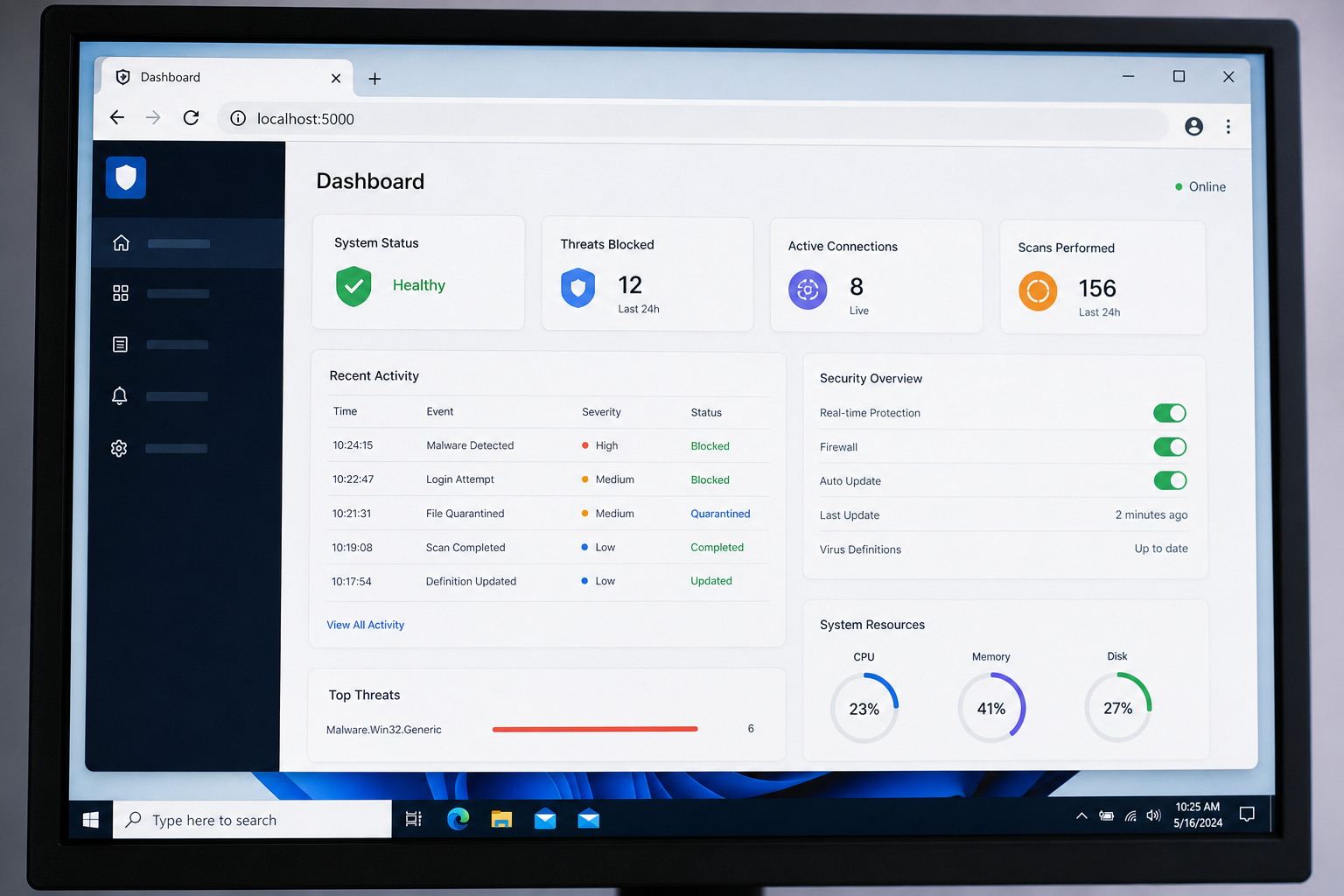
Verify on the Windows host itself before you add a tunnel. A tunnel only forwards traffic to a local service, so if the service is broken locally, the public address will fail too, and the cause is harder to see.
Confirm the port is listening
In local-only mode, open PowerShell on the host and test the documented port. A successful result means something is accepting connections on 8080.
Open the dashboard in a browser
Browse to http://localhost:8080 on the same host. You should see the Vigil365 sign-in screen. The project's README shows login and overview dashboard screenshots you can compare against.
Sign in and wait for a collection run
Alerts are collected on a schedule, every 15 minutes by default. Right after install the dashboard may be empty until the first collection finishes, so allow a full interval before concluding something is wrong.
Check the built-in metrics
Release v1.1.0 added a Metrics tab under Rules & Notifications that shows collector uptime, Graph calls per run, evaluation-latency p95 and live database size. These values are measured, which makes them a useful health signal after install.
Test-NetConnection -ComputerName localhost -Port 8080
Release v1.1.0 also introduced a GET /api/metrics endpoint. We do not know from the evidence whether it requires authentication, so treat it as an in-app feature to explore while signed in. Do not assume it is safe to expose without checking.
Move on only when the dashboard loads at its local address and you can sign in. If the local page fails, fix that first. A tunnel cannot repair a service that is not running.
Add remote access with a Localtonet HTTP tunnel
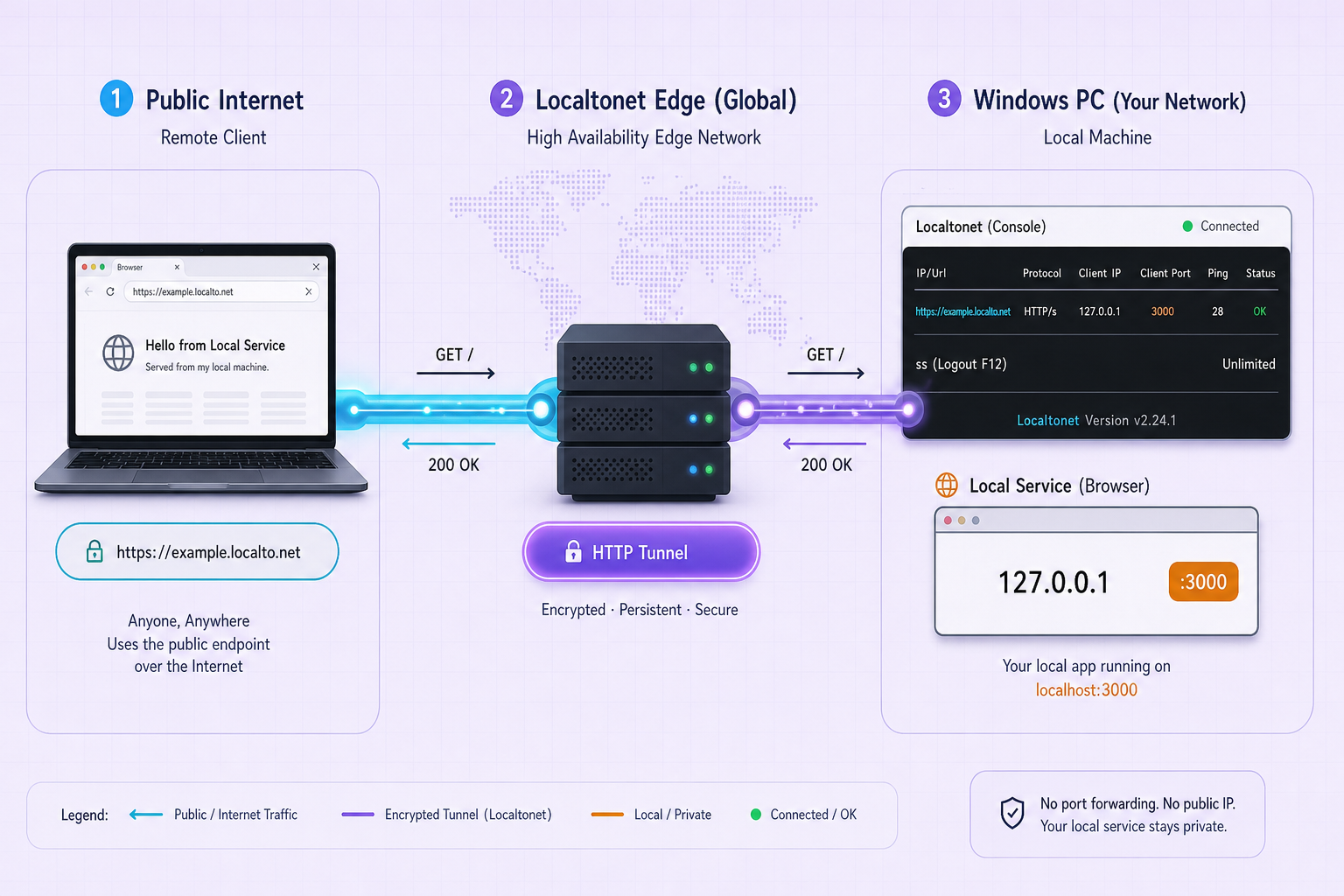
With the dashboard running locally, the Localtonet part is a separate step. We use an HTTP tunnel because the dashboard is a web application. The tunnel gives it a public HTTPS address, and the connection runs outbound from the Windows host to a Localtonet relay server. The tunnel only works while the selected device is connected and the tunnel is running. If the client or the tunnel stops, the public address stops responding.
The sequence below follows our common workflow for web services. For the complete field-by-field reference, see the Localtonet HTTP tunnel documentation, and confirm the current dashboard labels there, since interface wording can change.
Install the Localtonet client on the Vigil365 host
Install it on the same Windows machine that runs Vigil365, or on a machine that can reach the dashboard address. Using the same machine lets you target localhost directly. Get the current installer from the Localtonet download page.
Authenticate the device with its token
Use the auth token for this device from your Localtonet dashboard. Tokens are device-specific. Do not share or publish yours.
Select a relay server
Choose from the servers shown in your dashboard. Available values depend on the current product, so do not rely on a fixed list.
Create an HTTP tunnel to the local dashboard
Set the local target to 127.0.0.1 and port 8080 for the local-only install. Choose a Process Type: Random Sub Domain, Custom Sub Domain or Custom Domain. See the next section for why this choice matters here.
Start the tunnel
Creating a tunnel does not start it. Press Start, then copy the assigned public HTTPS address.
Open the public address from another network
Test from a phone on mobile data or a different connection. The Vigil365 sign-in screen should load. Whether sign-in itself then succeeds depends on the next section.
If you chose a network (HTTPS) installation, the app is already serving TLS on its own port. We have no evidenced port for it, so read the actual port from your installation before you set the tunnel target. Also check how the app's certificate and the tunnel interact. We do not have a verified recommendation for that combination, so test it before you depend on it.
Align the public address with Microsoft Entra sign-in
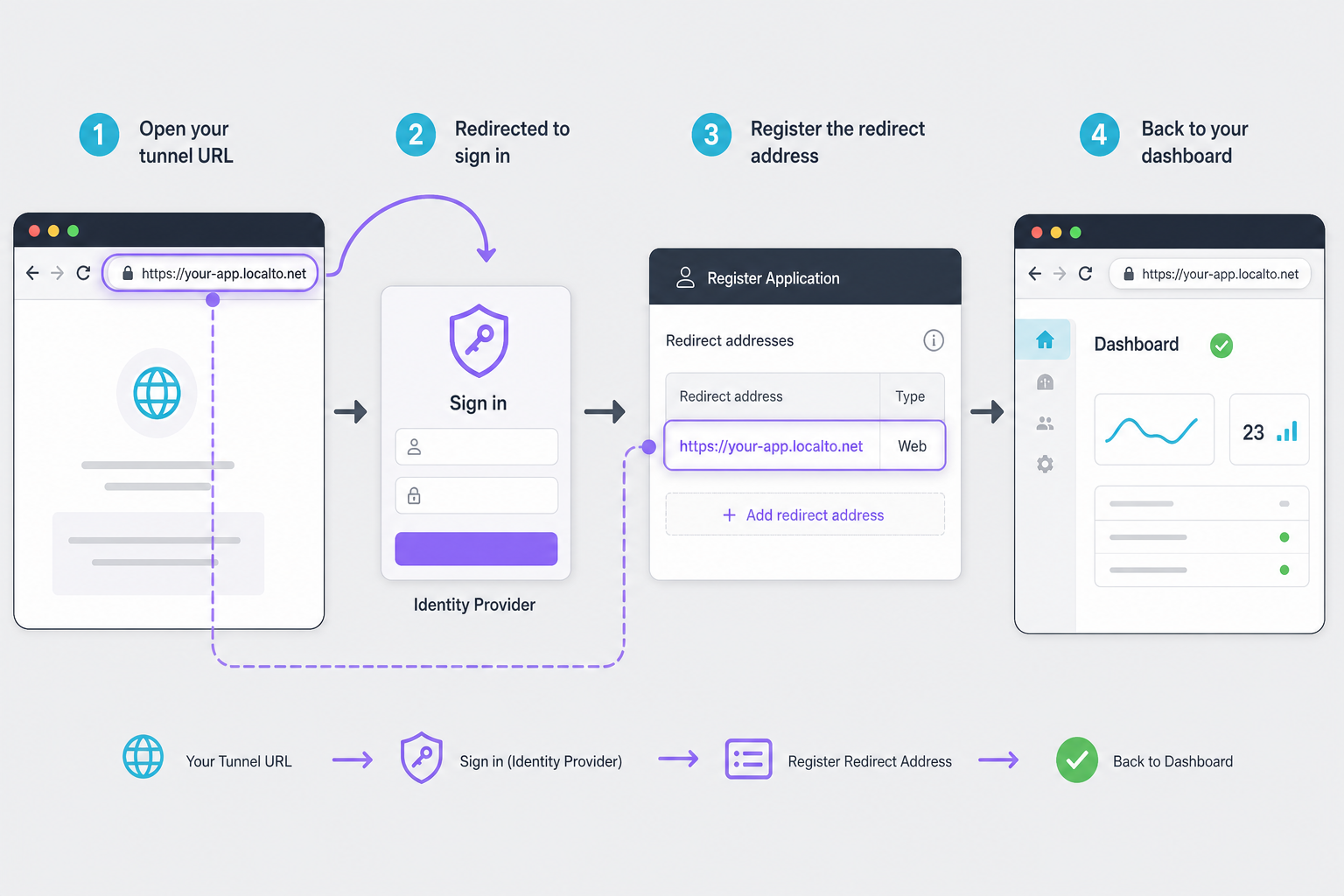
This is the part most likely to surprise you. A tunnel forwards requests, but it does not change the sign-in configuration inside your Microsoft tenant or inside Vigil365. A Microsoft sign-in flow redirects the browser back to an address registered in advance. If the dashboard was set up for http://localhost:8080, the browser may reach the public URL fine and then fail or redirect to the wrong place at sign-in.
For remote use, the external HTTPS address has to match what Vigil365 and its Entra configuration expect. That means choosing the public address first, then making the application registration and the app's own settings consistent with it. We could not verify the exact setting names from the evidence, so use the project's README, its docs folder and register-app.ps1 to find where the address is configured.
| Process Type | When it helps | Consideration for this setup |
|---|---|---|
| Random Sub Domain | Quick tests of whether the page loads. | You only learn the address after creating the tunnel, and we have not verified whether it stays the same across restarts. Poor fit if a fixed redirect address must be registered. |
| Custom Sub Domain | When you want a name you chose in advance. | You can register the known HTTPS address in your sign-in configuration before first use. Check availability and rules in the Localtonet dashboard. |
| Custom Domain | When the dashboard should live on your own domain name. | Requires DNS setup. Check the current Localtonet documentation for exact requirements before following any instructions. |
A practical order of work is: decide on the public hostname, create and start the tunnel, register that HTTPS address wherever Vigil365's sign-in requires it, then test a full remote login. Reinstalling is not necessarily required, but we cannot confirm from the evidence whether a change is a settings edit or a reconfiguration of the installer. Expect to read the project docs for that part.
Security checklist before you leave it exposed
A public URL means anyone who finds it can reach the sign-in page. Vigil365 holds a consolidated view of your tenant's security posture, so the aim is minimal exposure.
A tunnel does not bypass authorization or replace it. The Vigil365 sign-in, backed by your Microsoft identity controls, is what protects the data. Limit who has accounts, prefer multi-factor authentication on those identities, and add any further restrictions your Localtonet plan and dashboard offer. We have not verified which restriction options exist on which plans, so check the dashboard.
- Run the tunnel only when remote access is needed, and stop it afterwards. Stopped or deleted tunnels no longer serve traffic.
- Keep the Windows host patched and limit who can log into it, since it holds the app, the database and the Graph credentials.
- Use least privilege for the Graph application permissions. The project ships graph-permissions.json so you can see what it requests rather than guessing.
- Review the project's SECURITY.md in the repository for how vulnerabilities are reported and what it says about hardening.
- Keep your Localtonet auth token private. If you suspect it leaked, rotate it from your account.
A note on project maturity. Release v1.1.0 is marked latest and the repository shows 217 commits, with documentation, a changelog and a roadmap. We could not confirm how recently the project has been maintained from dated commit evidence, so check recent activity yourself before using it for production monitoring.
Routine operation
Day to day, three things matter: the collector keeps running, the tunnel keeps connected if you use it, and updates are applied deliberately.
- Collection health: use the Metrics tab for collector uptime, Graph calls per run and evaluation latency. The release notes say cumulative counters persist across restarts, so a restart does not reset them.
- Baseline and drift: v1.1.0 added a Baseline view that captures tenant posture from a real collection snapshot and tracks drift of the latest snapshot against it. Capture is admin-only and audited.
- Updates: read the CHANGELOG in the repository before upgrading. Upgrade steps for an existing install are not covered by the evidence we reviewed, so back up the database first and follow the project's guidance.
- Tunnel monitoring: if you need to know when the Localtonet client or tunnel drops, our platform-wide Token and Tunnel webhooks can post a Connected or Disconnected status for a token group you select.
Troubleshooting
| Symptom | Likely cause | What to check |
|---|---|---|
| Installer fails against a remote SQL Server | An older release forced Windows authentication and discarded SQL credentials. | Use v1.1.0 or later, where SQL-auth connection strings are honored. |
| http://localhost:8080 does not load on the host | The service is not running, or you chose a network install that does not use this address. | Run the port test, and check which mode you selected in the wizard. |
| Dashboard is empty after install | The first scheduled collection has not completed yet. | Wait one collection interval (15 minutes by default), then check the Metrics tab. |
| Public URL does not respond | The tunnel was created but not started, the client is disconnected, or the target port is wrong. | Confirm the tunnel shows as running and the client is connected, and that the target matches your local address and port. |
| Public page loads but sign-in fails or bounces to localhost | The sign-in configuration still refers to the local address. | Register the public HTTPS address in the sign-in setup, as described in the alignment section. |
When a problem is not in this table, start from the bottom of the chain: the local service, then the Localtonet client, then the tunnel state, then the sign-in configuration. Testing each layer separately saves a lot of guessing.
Frequently asked questions
How do I install Vigil365 on Windows?
Download Vigil365-Setup.exe from the latest release on the project's GitHub page and run it as administrator. The installer carries the app, web UI and .NET runtime, so you do not need Node.js or .NET on the server first. The wizard then handles configuration, including the local-only or network mode choice and the database.
What address does the dashboard use after a local-only install?
Local-only mode binds to http://localhost:8080. Network installations use HTTPS, and we could not establish their port from the evidence, so read it from your own installation.
Can Localtonet give remote access to Vigil365?
Yes for reaching the web interface: an HTTP tunnel from the Windows host to the local dashboard address gives it a public HTTPS address without router port forwarding. A working remote sign-in additionally requires your Microsoft Entra and Vigil365 sign-in settings to match that public address.
Does the tunnel stay available when the host is off?
No. A tunnel is available only while the selected client device is connected and the tunnel is running. If the host or the Localtonet client is off, the public address does not respond.
Can I use Docker instead of the installer?
The repository includes Docker Compose files, a Dockerfile and a PostgreSQL variant, so a container route exists. We did not have evidence for its local endpoint or environment variables, so this guide does not give commands for it. Use the project's own instructions, then point the tunnel at whatever address the container publishes.
Is exposing a security dashboard to the internet safe?
It carries real risk, because the sign-in page becomes reachable by anyone who learns the URL. Keep strong authentication on the accounts that can sign in, run the tunnel only when needed, keep the host patched, and apply any extra access restrictions available to you. A tunnel is not a substitute for application-level access control.
Start with Localtonet
Get Vigil365 running and verified on your Windows host first, then create an HTTP tunnel to reach its dashboard from anywhere you need it. Create a free account to try the workflow, and stop the tunnel whenever you no longer need it.
Get Started Free →

