

Build a verified Potpie context graph, connect an AI coding harness, and publish the graph explorer only when it is adequately protected
This tutorial installs the reproducible Potpie 2.0.1 release with uv or pip, completes the local setup, and verifies the daemon, active pot, repository source, graph, and integrations. It also covers installation, authentication, startup, and basic Potpie verification for Claude Code and OpenAI Codex. Finally, it explains how to expose the optional graph explorer through Localtonet, but only after confirming that the application has adequate access control.
📋 What's in this guide
What Potpie installs and why this guide pins version 2.0.1
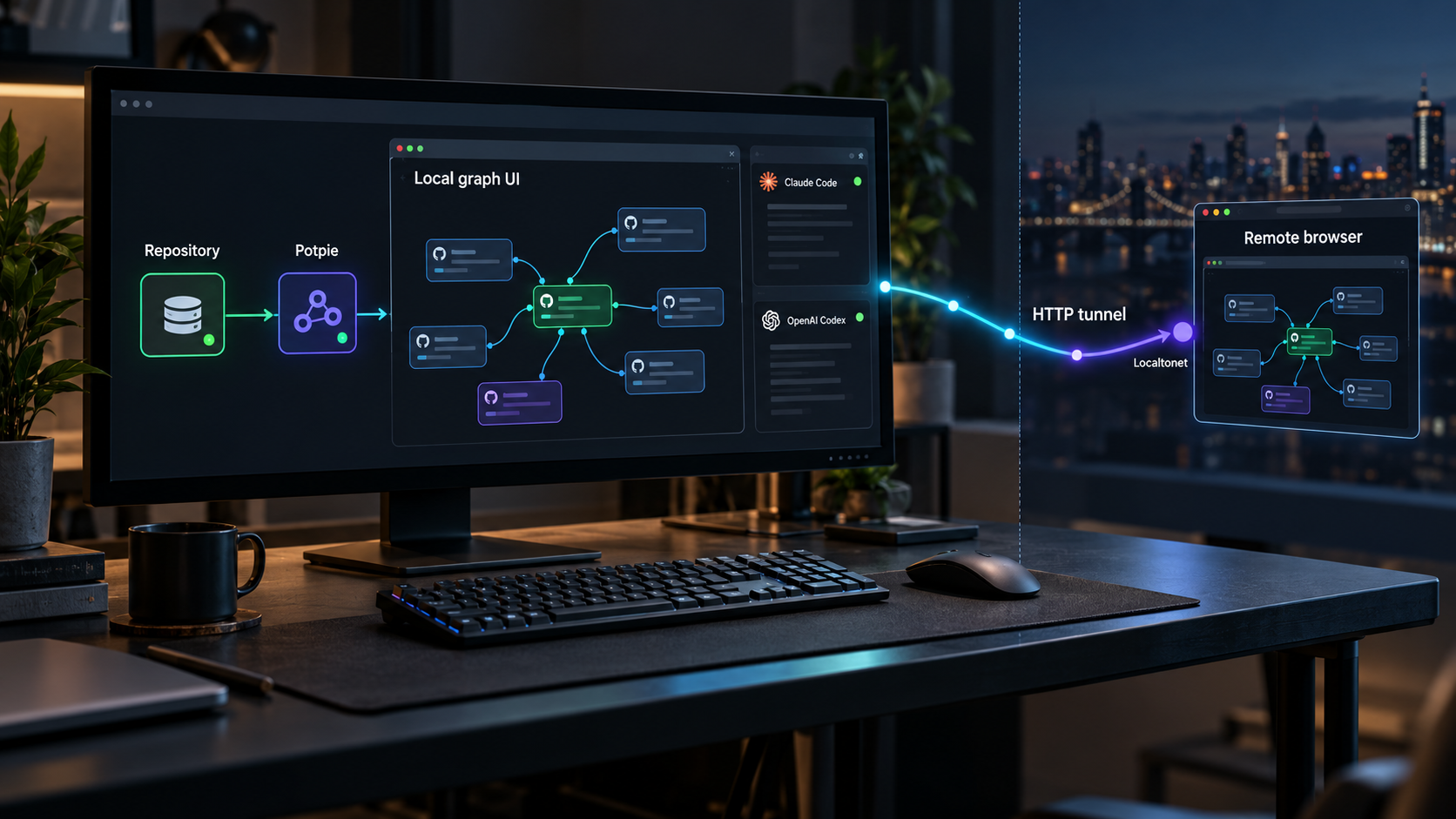
Potpie turns a codebase and its software development context into a graph that AI agents can query. It can index code, project structure, decisions, source history, team knowledge, and engineering workflows. That context helps an agent answer repository-specific questions, plan changes, investigate failures, and work with conventions that may not be visible in the current chat.
Potpie's current architecture is CLI-first. Developers and agents interact with the potpie command, while a local daemon supplies the supporting runtime. A pot is the active workspace through which Potpie resolves sources and context. The optional browser graph explorer gives you a visual way to inspect that context, but it is not required for every Claude Code or Codex task.
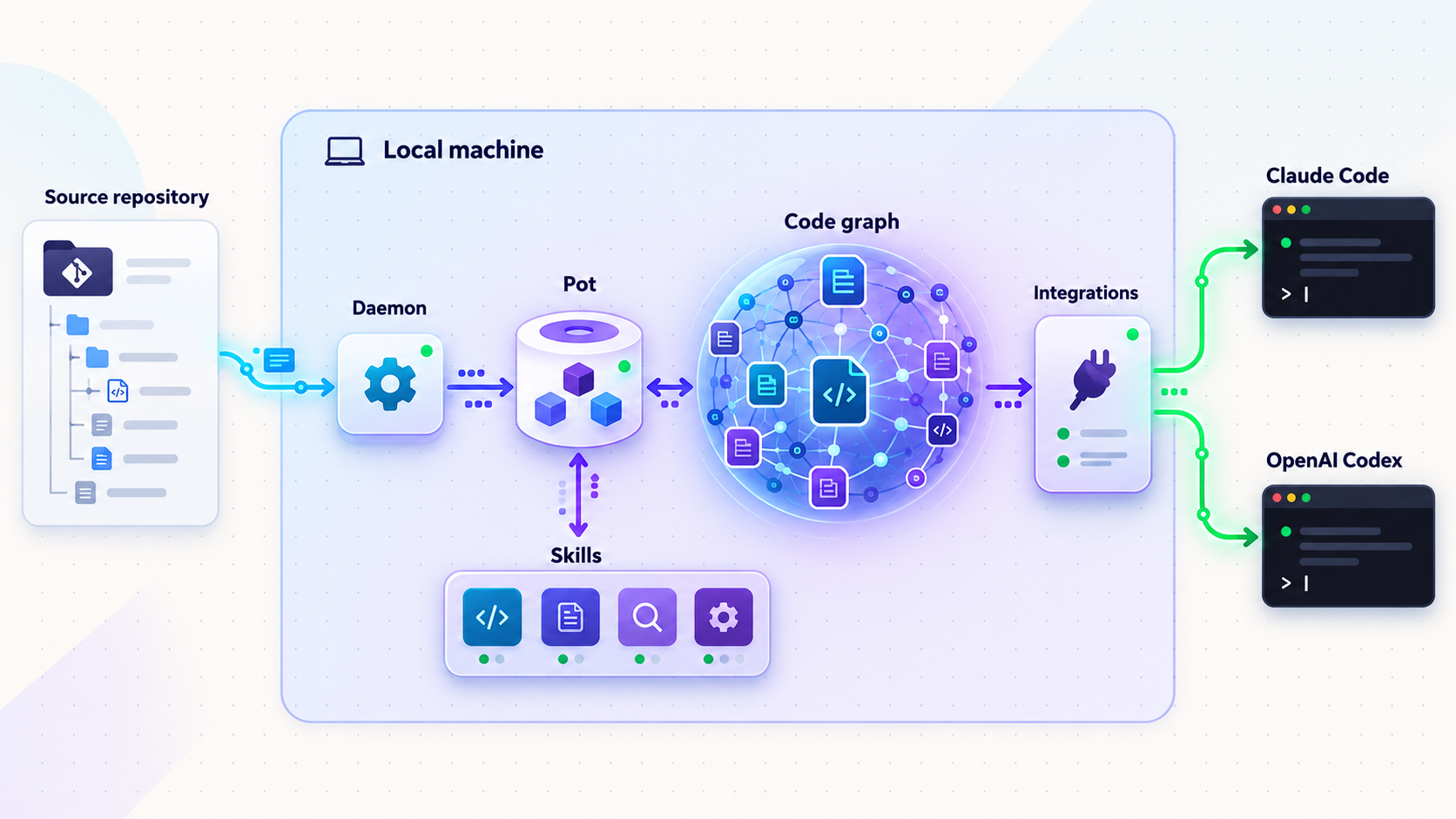
This tutorial is pinned to Potpie 2.0.1. Pinning matters because an unqualified command such as uv tool install potpie can install a newer release whose Python requirements, options, daemon behavior, or integrations differ from the commands verified here. Every Potpie installation command in the main workflow therefore requests potpie==2.0.1.
Version 2.0.1 consolidated the CLI and daemon under the root potpie package. It uses the canonical python -m potpie.daemon runtime internally, moved Context Engine imports to the potpie_context_engine namespace, and removed unsupported legacy service and pot-level ingestion commands. It also supports Python 3.12, 3.13, and 3.14. Its release artifacts were smoke-tested on macOS and Linux, although that statement is not a complete operating-system support matrix.
You may deliberately upgrade beyond 2.0.1, but do not assume that every version-specific note in this tutorial still applies. Check the active Potpie release, inspect its Python requirements and migration notes, rerun setup or skill installation when instructed, and complete all local verification checks before restoring remote access.
potpie status, potpie resolve, and potpie search support direct developer and agent workflows.
potpie ui opens a browser-based graph explorer served by the local daemon.
Prepare Python, uv or pip, and your development environment
Before installing Potpie, choose a repository for the initial test and decide whether Claude Code or OpenAI Codex will be the first configured harness. Keep the first test small and use a repository whose contents you are authorized to process. Potpie may work with code structure, source history, decisions, issue data, and team knowledge, so repository and integration permissions deserve the same care as other development credentials.
Check for a supported Python interpreter
Potpie 2.0.1 supports Python 3.12, 3.13, and 3.14. Check the interpreter your shell currently resolves:
python3 --version
On systems where the command is named python, use:
python --versionContinue if the reported version is within the supported 3.12 through 3.14 range. If Python is missing or outside that range, use an installer from the official Python downloads page, your operating system's supported package manager, or uv's managed Python installation described below. Avoid replacing an operating-system-managed Python interpreter merely to install one CLI.
Install and verify uv
Potpie recommends uv tool installation because it isolates CLI dependencies instead of globally mutating a Python environment. Review the current options in the official uv installation guide. On macOS or Linux, the documented standalone installer is:
curl -LsSf https://astral.sh/uv/install.sh | shOn Windows PowerShell, the documented installer is:
powershell -ExecutionPolicy ByPass -c "irm https://astral.sh/uv/install.ps1 | iex"Read an installer script and confirm that its source is appropriate for your environment before executing it. When installation completes, open a new terminal if instructed and verify command availability:
uv --versionIf you need a supported Python interpreter and want uv to manage it without replacing the system interpreter, install Python 3.12:
uv python install 3.12Confirm that uv can see its managed installations:
uv python listCheck pip only if you are using the alternative path
If uv is unavailable or your environment requires pip, verify pip through the same supported Python interpreter you intend to use:
python3 -m pip --versionIf that module is unavailable, follow the official pip installation guidance for your Python distribution. Do not download an unofficial copy of pip or run a privileged global package installation simply to make the command available.
Some Linux distributions mark their system Python as externally managed under PEP 668. In that environment, pip may reject even an otherwise familiar installation command. Do not respond by adding --break-system-packages or by using sudo pip. Install Potpie with uv tool, use a supported Python installation that you control, or create a dedicated virtual environment. These options avoid damaging packages required by the operating system.
Prepare the selected coding harness
Claude Code and OpenAI Codex are separate applications with their own installation and account authentication. Potpie installs guidance for a selected harness, but it does not install the harness itself or create an Anthropic or OpenAI account. The complete harness workflows appear later in this guide.
| Requirement | Minimum check | Purpose |
|---|---|---|
| Python 3.12, 3.13, or 3.14 | python3 --version |
Runs Potpie 2.0.1 and its CLI environment. |
| uv, recommended | uv --version |
Installs Potpie as an isolated command-line tool. |
| pip, alternative | python3 -m pip --version |
Installs the package into the selected user's Python environment. |
| Development repository | Open a terminal in its root directory | Supplies real project context for setup and verification. |
| Claude Code or Codex | Run its version command after installation | Acts as the coding harness that consumes Potpie guidance. |
| Browser, optional | Open a local HTTP address | Displays the Potpie graph explorer when potpie ui is used. |
Install Potpie 2.0.1 with uv or pip
Potpie is published on PyPI as the potpie package. Use one package-management method consistently. Installing the same CLI with both uv and pip can leave multiple executables on your path and make version checks misleading.
Recommended uv tool installation
Install the pinned release as an isolated command-line tool:
uv tool install potpie==2.0.1If uv does not select an appropriate interpreter automatically, explicitly request its managed Python 3.12 installation:
uv tool install --python 3.12 potpie==2.0.1If uv reports that its executable directory is not on your shell path, use uv's supported path helper:
uv tool update-shellStart a new shell and verify that Potpie is available:
potpie --versionConfirm that the output identifies version 2.0.1 before continuing. A different version means that another executable may be taking precedence or that an earlier installation is still active.
Alternative user-level pip installation
When pip is the appropriate installer for your environment, use the exact interpreter-qualified command documented by Potpie:
python3 -m pip install --user potpie==2.0.1Then inspect the package through the same interpreter:
python3 -m pip show potpieVerify that the displayed version is 2.0.1, then check the executable:
potpie --version
A successful pip installation does not guarantee that the user executable directory is on your shell path. If python3 -m pip show potpie succeeds but potpie is not found, read pip's installation output and determine the user executable directory for that exact interpreter. Do not copy a path from another operating system or Python distribution.
The package manager places the CLI in an environment. Potpie is not ready for repository work until the setup wizard has created local configuration, storage, the daemon, a default pot, and agent skills.
Run Potpie setup and configure local context
Change into the repository you want to use for the initial test:
cd /path/to/your/repositoryReplace the example path with your actual repository. Then run the interactive setup wizard:
potpie setupFollow the prompts shown by the installed 2.0.1 release. The wizard provisions local configuration, storage, the daemon, a default pot, and agent skills. It also lets you choose integrations and the coding harness Potpie should configure. Select Claude Code or OpenAI Codex according to the harness you installed.
Potpie also documents this repository-specific Claude setup example:
potpie setup --repo . --agent claude
Run it only from the repository that the dot should represent. The . value means the current working directory. For Codex, use the interactive wizard because the verified Potpie material for this tutorial confirms Codex support but does not establish a literal command-line value for --agent.
Potpie's documented workflow registers sources through the CLI, and the configured agent can ingest or update context when a task requires it. Instructions that use removed legacy service or pot-level ingestion commands do not apply to version 2.0.1.
Optional Potpie and source authentication
Basic local setup is distinct from account-backed features. When you need Potpie account-backed or managed capabilities, start the documented sign-in flow:
potpie loginSource integrations require separate authentication. For GitHub:
potpie github loginFor Linear:
potpie linear loginConnect only the systems needed for the task. Use accounts with appropriately scoped repository, issue, or document permissions. Do not paste access tokens into prompts, repositories, screenshots, or support messages.
Inspect configured authentication state with:
potpie auth statusWhen you need a lightweight API check of configured integration credentials, run:
potpie auth status --verifyInstall, authenticate, and verify Claude Code or OpenAI Codex
Complete one of the following harness workflows after installing Potpie. You may configure both later, but testing one at a time makes it easier to distinguish a Potpie problem from a harness installation or authentication problem.
Claude Code workflow
Use the current official Claude Code setup documentation to confirm that your operating system and account are supported. Anthropic provides native installers for common development environments.
On macOS, Linux, or Windows Subsystem for Linux, the official native installation command is:
curl -fsSL https://claude.ai/install.sh | bashOn Windows PowerShell, use:
irm https://claude.ai/install.ps1 | iexOpen a new terminal if the installer modifies your path, then verify the executable:
claude --versionChange into the repository and start Claude Code:
cd /path/to/your/repository
claude
On first launch, follow the authentication flow presented by Claude Code. Complete sign-in only through Anthropic's interface and do not copy session credentials into Potpie configuration or source control.
If you did not already configure Claude during Potpie setup, install or refresh its Potpie guidance with the verified agent identifier:
potpie skills install --agent claude
For a minimal integration check, open Claude Code from the repository and ask it to use Potpie to identify the repository's main components or retrieve the context needed before a small read-only task. Keep the first request non-destructive. If Claude cannot use Potpie, test the equivalent context operation directly with potpie resolve before changing harness settings.
OpenAI Codex workflow
OpenAI publishes the Codex CLI and its current installation details in the official OpenAI Codex repository. The npm installation path requires a supported Node.js and npm environment. Verify npm first:
node --version
npm --version
Install Codex globally through npm:
npm install -g @openai/codexVerify that the command is available:
codex --versionStart Codex from the repository:
cd /path/to/your/repository
codex
Follow the authentication choices displayed by the current Codex CLI, such as its supported ChatGPT sign-in flow. If your organization uses another supported authentication method, follow the current OpenAI instructions and keep credentials out of shell history, source control, screenshots, and prompts.
Run potpie setup and select OpenAI Codex when the wizard asks which coding harness to configure. The evidence for this tutorial does not establish a literal Codex value for Potpie's --agent option, so do not guess one.
For the minimal check, ask Codex from the target repository to use Potpie to summarize the context needed for a small read-only task. If Codex does not invoke or follow the Potpie integration, verify Potpie directly and rerun the setup wizard with Codex selected.
| Harness | Installation verification | Startup | Potpie configuration |
|---|---|---|---|
| Claude Code | claude --version |
claude from the repository |
Select Claude in setup or use --agent claude. |
| OpenAI Codex | codex --version |
codex from the repository |
Select Codex interactively in potpie setup. |
| Direct Potpie CLI | potpie --version |
Run a Potpie context command | Useful for separating Potpie health from harness behavior. |
Verify the daemon, active pot, source, graph, skills, and authentication
A successful installer exit is not enough. Verify the complete local chain before relying on Potpie inside a coding session.
Check overall context readiness
potpie statusStatus reports readiness for the active pot, including daemon, graph, and skill checks. Read the complete output. A running daemon does not prove that the intended repository is registered, the expected pot is active, or the graph contains useful context.
Run local diagnostics
potpie doctorThe doctor command checks local daemon behavior, backend capabilities, and skill drift. Skill drift is especially relevant after a package upgrade, a harness change, or a partial setup rerun.
Inspect and select the active pot
potpie pot listIf the intended workspace is not active, use an identifier or name displayed by your own installation:
potpie pot use <id-or-name>Pot identifiers and names are environment-specific. Do not copy them from another installation.
Register the current repository if necessary
From the repository root, run:
potpie source add repo .
Then repeat potpie status. Source registration and active-pot selection should be corrected before troubleshooting Claude Code or Codex.
Test context retrieval without a harness
Ask Potpie what context should be read before work begins:
potpie resolve "what should I know before working in this repository?"Search for a specific concept:
potpie search "authentication flow"If appropriate for the repository, record a durable project decision:
potpie record --type decision --summary "Prefer the Potpie CLI for graph work"These direct commands create a useful troubleshooting boundary. If they work but the harness ignores Potpie, investigate harness skills or setup selection. If they fail, remain at the Potpie layer and inspect the daemon, pot, source, graph, and integration state.
Begin with repository summaries, searches, and context-resolution requests. Confirm that Potpie resolves the intended repository and pot before asking an AI coding harness to edit files, run destructive commands, or interact with external systems.
Open the graph explorer and inspect its local security behavior
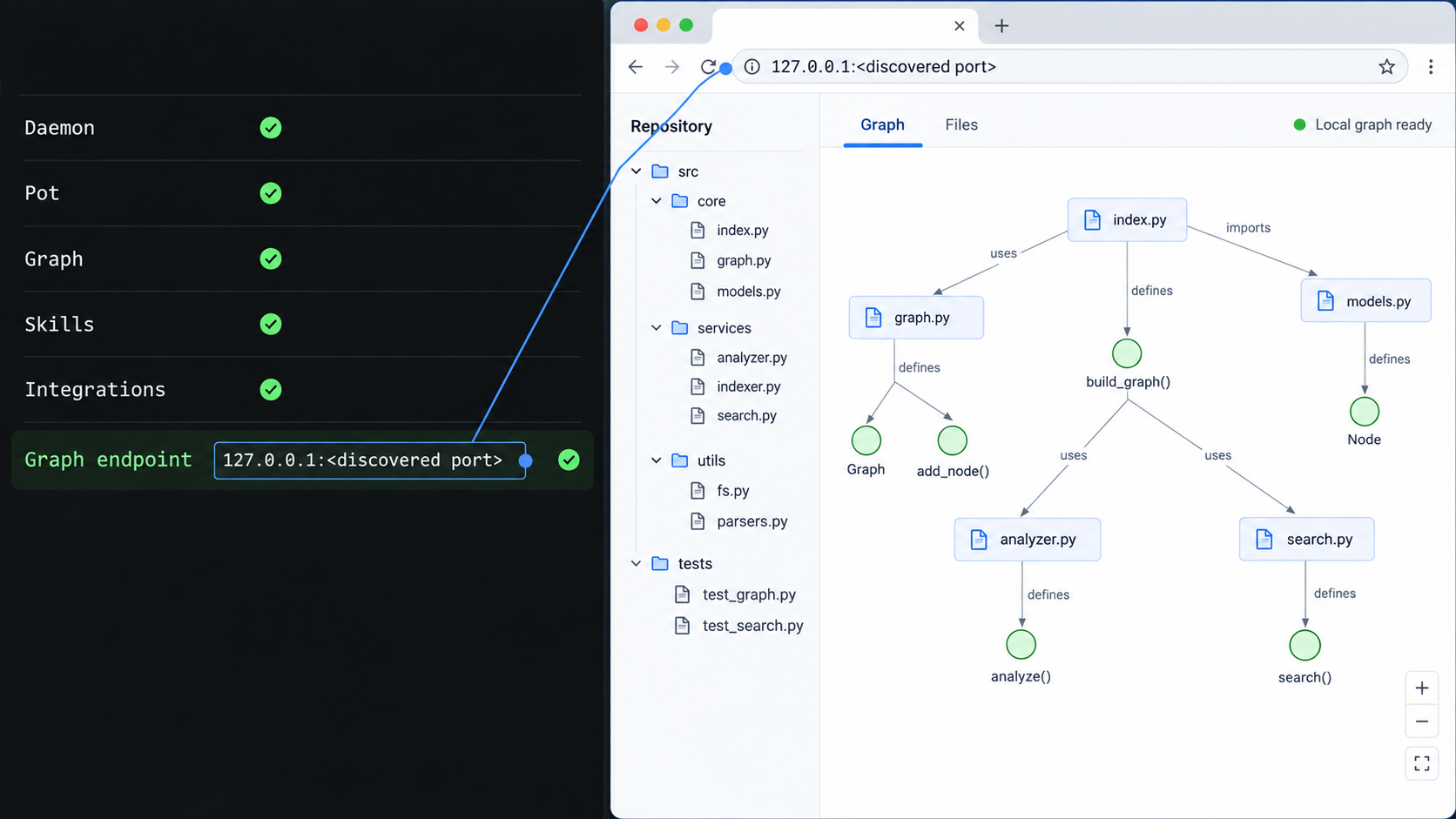
Once local status and context checks succeed, open the optional graph explorer:
potpie uiObserve the terminal output and the address opened by the browser. Record the complete endpoint, including its scheme, host, and port if present. Potpie's available documentation confirms that the command opens a graph explorer served by the daemon, but it does not establish one fixed hostname, port, scheme, or bind address for every installation.
Refresh the page and confirm that it represents the intended pot and repository. Also determine whether the UI requires authentication before showing project data. The available Potpie evidence does not establish an authentication default for the explorer, so this must be tested against the installed version rather than assumed.
Local graph explorer checklist
potpie uiruns without a daemon or graph error.- The browser opens the exact endpoint reported by the command.
- Refreshing that address continues to load the explorer.
- The displayed graph corresponds to the intended pot and repository.
- You understand what repository, decision, issue, or integration data is visible.
- You have confirmed whether authentication is required before the data appears.
Do not create or start a public tunnel until you have confirmed adequate application-level protection for the graph explorer. If the UI exposes repository context without authentication or another suitable access-control layer, keep it local. A public HTTPS address protects transport to the tunnel edge, but it does not create a Potpie login or authorize viewers.
Expose an adequately protected graph explorer with Localtonet
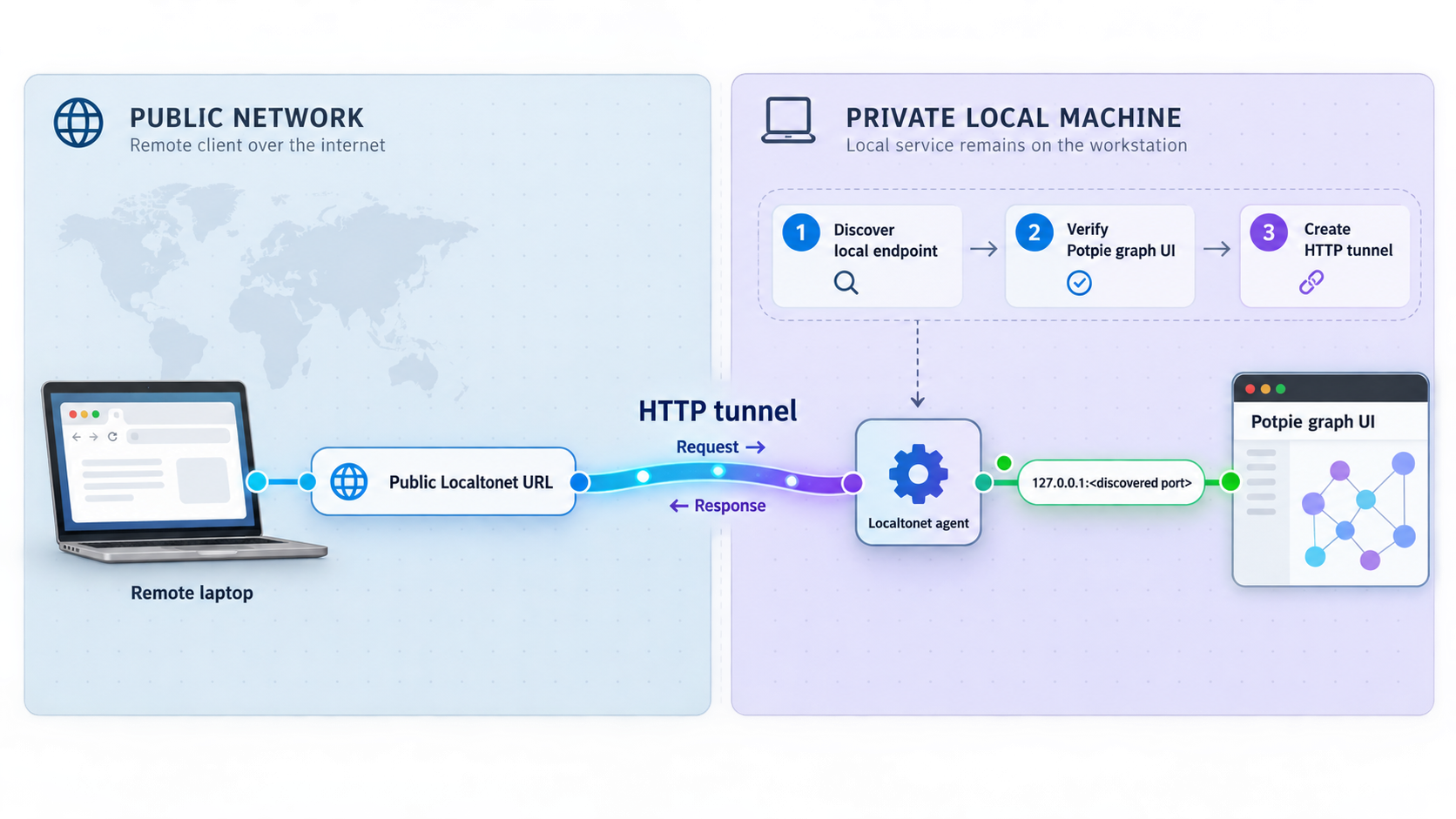
Continue only if the preceding security checkpoint passes. The Potpie UI must work locally, the target endpoint must be known, and the exposed application must have protection appropriate for the repository context it displays. If those conditions are not met, skip this section and keep the graph explorer local.
Localtonet exposes an existing service through an outbound connection to one of our relay servers. It does not install Potpie, initialize a pot, authenticate Potpie users, or repair a failed graph. An HTTP tunnel supplies a public HTTPS address without inbound router port forwarding, firewall changes, VPN setup, or a public IP address.
The client may run on the Potpie host and connect through a loopback address, or it may run on another device that can reach the verified Potpie service. In either case, use the exact reachable IP address and port. Do not assume that localhost on a different device refers to the Potpie machine.
Install and run the Localtonet client
Install our client on the device that can reach the verified Potpie HTTP endpoint. Confirm that the UI still works from that device before configuring a tunnel.
Select the client authentication token
Select the device-specific authentication token for the client that will run the tunnel. Treat it as a credential and never publish it in commands, screenshots, logs, source control, or support messages.
Open the HTTP tunnel configuration
Create an HTTP tunnel and choose the required process type. HTTP process types can use a random subdomain, a selected custom subdomain where supported, or a custom domain, with the content served at a public HTTPS address.
Select an available relay server
Choose an available server or region from the current Localtonet dashboard. Do not copy a hardcoded server code because available values may vary by current product configuration.
Enter the verified local IP address and port
Use the endpoint discovered from the working Potpie UI. If the client runs on another device, use an address for the Potpie host that the client device can actually reach rather than loopback on the client itself.
Start the tunnel only after the protection check passes
Press Start only when adequate access control is active. Creating a tunnel configuration does not start it. The selected client must also remain connected for the public address to work.
Verify the public HTTPS address
Open the assigned URL in a separate browser session and, when practical, from another network. Confirm that authorization is enforced before sensitive graph data appears and that the expected pot is displayed after authorized access.
Stop or delete the tunnel after use
Stop the tunnel when the remote inspection or collaboration session ends. Delete the configuration when it is no longer required. Potpie's local CLI workflow can continue without a public graph explorer.
Check the current Localtonet HTTP tunnel documentation while configuring the dashboard. If you use a custom domain, verify the current DNS requirements there before changing DNS records.
Trying unrelated ports until one responds can expose the wrong development or administrative service. Forward only to the exact Potpie browser endpoint you verified. If the endpoint changes after a Potpie upgrade or restart, verify it locally before updating or restarting the tunnel.
Inspect, upgrade, reinstall, or remove Potpie safely
Inspect the active version
Check the command resolved by your shell:
potpie --versionFor a pip installation, compare that result with the package metadata:
python3 -m pip show potpieA disagreement can indicate that the shell is resolving a different installation. Resolve that ambiguity before upgrading or troubleshooting.
Reinstall or upgrade with uv
To reinstall the pinned release:
uv tool install --force potpie==2.0.1When you deliberately choose to upgrade to the latest package available from the configured index, use:
uv tool upgrade potpie
A latest-version upgrade moves this environment beyond the pinned scope of the tutorial. Immediately inspect potpie --version, review the corresponding release notes, run potpie status and potpie doctor, refresh harness skills if required, and verify the UI locally. Keep any Localtonet tunnel stopped during that process.
Reinstall or upgrade with pip
To restore the pinned release:
python3 -m pip install --user --upgrade potpie==2.0.1To deliberately request the newest package from the configured index:
python3 -m pip install --user --upgrade potpie
Do not add sudo or override externally managed environment safeguards. If pip rejects the user installation because the interpreter is externally managed, migrate the CLI to uv rather than forcing a system-level mutation.
Uninstall the package
Remove an uv tool installation with:
uv tool uninstall potpieRemove a pip user installation through the same interpreter that installed it:
python3 -m pip uninstall potpiePackage uninstallation removes the installed package from that package-manager environment. Do not assume that it removes every local configuration file, graph artifact, cached item, integration credential, or external account authorization. Review local Potpie data and revoke source integrations separately according to your retention and security requirements.
Post-upgrade validation
After any version change, run this sequence before returning to normal work:
potpie --version
potpie status
potpie doctor
potpie auth status
Then run a small potpie resolve query, test the selected harness with a read-only request, and open potpie ui locally if you use the graph explorer. Confirm its endpoint and authentication behavior again before starting a stopped Localtonet tunnel.
Troubleshoot installation, harness, graph, and tunnel problems
The shell cannot find uv
Open a new terminal after running the installer and retry uv --version. If the installer reported a shell path change, follow that output. On an existing uv installation, uv tool update-shell can configure the tool executable directory. Do not repeatedly reinstall uv into unrelated locations without first checking which shell and user account are active.
The shell cannot find Potpie
For uv, inspect the installed tool list:
uv tool listFor pip, inspect the package:
python3 -m pip show potpieIf the package exists but the command is missing, correct the applicable user executable path. If both uv and pip copies are installed, uninstall the copy you do not intend to use and start a new shell.
pip reports an externally managed environment
Treat that message as a protection, not as an obstacle to disable. Do not use sudo pip or --break-system-packages. Install uv and use uv tool install potpie==2.0.1, or use a separate supported Python environment that you control.
Potpie has the wrong version
Run potpie --version and inspect the package through the installer you used. If the shell is resolving another copy, remove the duplicate or correct path ordering. Reinstall 2.0.1 with the pinned uv or pip command before following release-specific migration guidance.
Setup completes but status is not ready
potpie status
potpie doctor
potpie pot list
Check the daemon, graph, backend, and skill results. Select the correct pot if necessary. From the repository root, register the source with potpie source add repo ., then repeat status and a small resolve request.
Claude Code or Codex does not use Potpie
First test potpie resolve or potpie search directly. If those commands succeed, focus on the harness setup. For Claude, refresh guidance with potpie skills install --agent claude. For Codex, rerun potpie setup and select Codex interactively rather than guessing an agent identifier.
Also confirm that the harness was started from the intended repository and authenticated successfully. A working harness account does not prove that Potpie skills were installed, and a healthy Potpie daemon does not prove that the harness is operating from the correct directory.
The graph explorer does not open
Run potpie status and potpie doctor, then retry potpie ui and read its complete output. Do not substitute a port copied from a screenshot or another installation. Resolve the local Potpie problem before creating a Localtonet tunnel.
The local UI works but the public address does not
Confirm that the selected Localtonet client is connected and that the tunnel was explicitly started. Compare the tunnel target with the exact Potpie endpoint. If the client is on another device, verify that the target address is reachable from that device and is not a loopback address that points back to the client itself.
The public page shows the wrong graph
Localtonet forwards requests to the configured HTTP service, but it does not select a Potpie workspace. Stop the tunnel, use potpie pot list and potpie pot use <id-or-name>, confirm the repository source, and verify the corrected UI locally before restarting remote access.
An old tutorial mentions service or manual ingestion commands
Potpie 2.0.1 removed unsupported legacy service and pot-level ingestion commands. Use the current setup, source, pot, status, resolve, search, graph, and UI workflows. Do not mix commands from the older architecture with the pinned package in this tutorial.
Frequently asked questions
Should I install Potpie with uv or pip?
Potpie recommends uv tool installation because it isolates the CLI and its dependencies. Use pip's documented user-level command when uv is unavailable and the selected Python environment permits it. Do not install the same CLI through both methods unless you are deliberately managing separate environments.
Why does this tutorial install Potpie 2.0.1 instead of the latest release?
Pinning keeps the installation commands consistent with the verified Python support, architecture, migration notes, and CLI behavior described here. If you install a newer release, review its requirements and release notes and repeat all local verification before using it with a harness or tunnel.
Which Python versions support Potpie 2.0.1?
Potpie 2.0.1 supports Python 3.12, 3.13, and 3.14. A different Potpie release may change that requirement.
What should I do if pip says Python is externally managed?
Do not bypass the safeguard with --break-system-packages or sudo pip. Use uv tool install, a supported Python installation that you control, or a dedicated virtual environment.
Does Potpie install Claude Code or OpenAI Codex?
No. Install and authenticate the selected harness through Anthropic's or OpenAI's supported workflow. Potpie setup then installs its own instructions and skills for that harness.
Do I need a separate manual ingest command?
No separate manual ingest command is required in the documented 2.0.1 workflow. The CLI registers sources, and the configured agent can ingest or update context when a task requires it.
What port does the Potpie graph explorer use?
This workflow does not establish one fixed port, hostname, scheme, or bind address. Run potpie ui and use the complete endpoint reported by your installation.
Can I expose the Potpie UI if it does not require authentication?
Do not publish sensitive repository context without adequate access control. A Localtonet HTTP tunnel creates connectivity to the selected endpoint, but it does not create a Potpie login. Keep the UI local unless appropriate application authentication or another suitable protection layer is active.
Does the Localtonet client need to run on the Potpie host?
Not necessarily. It can run on the Potpie host or another device that can reach the verified Potpie HTTP endpoint. If it runs elsewhere, configure a reachable address for the Potpie host rather than using loopback on the Localtonet client device.
Should the Potpie UI tunnel stay online continuously?
Keep it stopped when remote graph access is not needed. Potpie is CLI-first, so Claude Code or Codex can continue using the local integration without a permanently public graph explorer.
Access a protected Potpie graph explorer remotely
Finish the pinned Potpie setup, verify your selected coding harness, confirm the graph explorer's actual endpoint and access controls, then create a temporary HTTP tunnel with Localtonet when remote access is genuinely required.
Get Started Free →

