

Connect an AI coding assistant to a real 1C:Enterprise information base
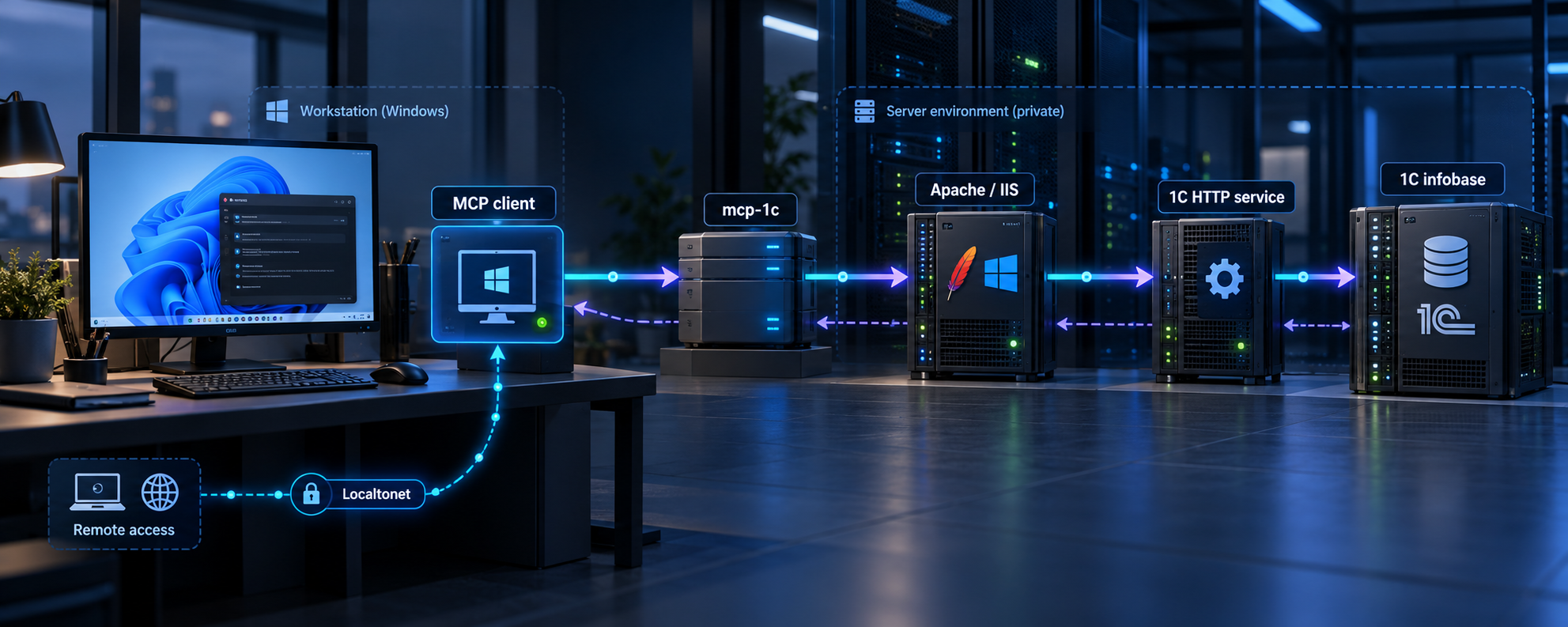
mcp-1c is a self-hosted MCP server that gives compatible AI assistants access to metadata and development tools for a 1C:Enterprise information base. In this guide, we install the executable, add its 1C extension, publish the required HTTP service through Apache or IIS, configure the local MCP process, and verify the complete connection. We then show when and how to make the underlying 1C HTTP service remotely reachable with a Localtonet HTTP tunnel. The distinction matters: mcp-1c normally communicates with the MCP client through a local process, while its connection to 1C uses HTTP.
📋 What's in this guide
How mcp-1c fits into a 1C:Enterprise environment
Model Context Protocol, commonly abbreviated as MCP, lets an AI application call structured tools supplied by an MCP server. In this workflow, mcp-1c is the MCP server. It runs as a local process and gives an MCP-compatible client a set of tools for working with a real 1C configuration instead of relying only on general information about the 1C platform.
The open edition documents 11 separate tools. Its capabilities include reading configuration metadata and information, working with forms, running parameterized data queries, searching code, re-reading an exported configuration, validation, accessing the registration log, consulting built-in BSL help, and analyzing subsystems. The project also documents full-text source search with smart, regular-expression, and exact modes. Some capabilities differ among the open, extended, and professional editions, so confirm the edition you are installing before relying on a particular tool.
There are two separate communication paths to understand. First, an MCP-compatible assistant starts or communicates with the local mcp-1c process. Second, that process contacts an HTTP service published by 1C through Apache or IIS. The documented example for the second connection is:
http://localhost:8080/hs/mcp-1c
The hostname and port are examples, not mandatory defaults for every installation. They depend on how the information base is published in Apache or IIS. The /hs/mcp-1c portion identifies the included 1C HTTP service in the documented setup.
Localtonet is not used to publish the mcp-1c standard-input and standard-output process. The tunnel exposes the HTTP service published by Apache or IIS. Your MCP client still launches or communicates with mcp-1c according to that client's MCP configuration model, and mcp-1c uses the remote HTTP URL as its 1C base endpoint.
Prerequisites and deployment decisions
Before installing anything, decide where each component will run. The simplest arrangement places mcp-1c, the MCP client, Apache or IIS, and the 1C information base on one computer. In that case, the web endpoint can usually be reached through a loopback address such as localhost. Larger environments may place the web server and 1C server on different machines, or run the MCP client on a developer workstation. Those designs require routing, firewall, authentication, and service-account decisions outside the mcp-1c executable itself.
Prepare the following items:
- A working 1C:Enterprise installation and access to the information base you intend to use.
- Administrative permission to install or load a configuration extension and update the database configuration.
- Apache or IIS, together with the normal 1C web publication components required by your platform installation.
- An MCP-compatible client that can launch a local executable and pass arguments to it.
- The mcp-1c binary for your operating system, or a Go development environment if you plan to build from source.
- A backup and change-control plan appropriate for the target information base.
- For optional remote access, a device that can run the Localtonet client and reach the published Apache or IIS listener.
The extension included with the referenced release declares compatibility mode Version8_3_14, and the release documentation states that it can be loaded on 1C:Enterprise 8.3.14 and later. That establishes the extension's documented compatibility floor for that release, but it does not guarantee compatibility with every custom configuration, security profile, operating system combination, or future mcp-1c version. Test the exact release with your own configuration before using it in a production workflow.
Automatic installation updates the database configuration, while manual installation also requires an explicit database configuration update. Back up the information base and test the process in a non-production environment before changing a production configuration. Confirm that your organization's 1C administrator approves the extension and its requested operations.
| Installation choice | Best for | Important requirement |
|---|---|---|
| Download a release binary | Most users who want the documented single-executable installation | Select the asset for the operating system and verify the downloaded file before running it |
| Build from source | Developers who need to inspect or build the current code | A compatible Go toolchain is required; the exact required Go version should be checked in the selected source revision |
| Automatic extension installation | Administrators with suitable command-line and 1C platform access | The command needs the correct information-base path and sufficient permission to update it |
| Manual extension installation | Hosted or RDP environments where command-line access to the 1C server is unavailable | Configurator access is required to load the CFE file, activate it, and update the database configuration |
Install mcp-1c and its 1C extension
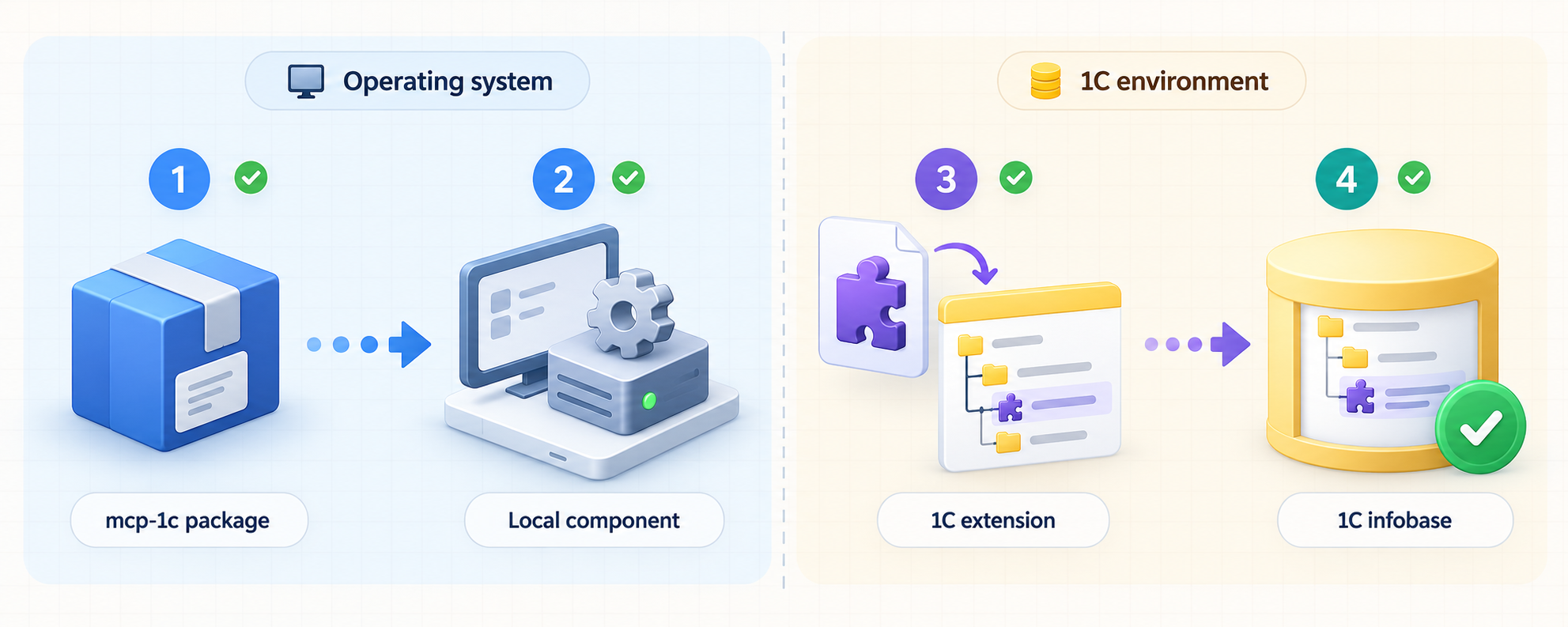
The project provides two executable installation paths: download a prepared operating-system binary from its release page, or build the executable from source with Go. Installing the executable alone is not enough. The target 1C information base also needs the supplied extension that implements the HTTP service.
Option 1: download a release binary
Open the project's release page and select the binary built for the operating system on the machine that will run mcp-1c. Release assets and naming can change, so use the asset descriptions from the selected release rather than assuming a filename. The release also supplies checksum information in checksums.txt. Verify the downloaded asset according to your organization's software-verification procedure before executing it.
Place the binary in a directory that your MCP client can access. You can either configure the client with the executable's absolute path or place it in an approved directory included in the process search path. The exact mechanism varies by operating system and MCP client, so do not assume that a command working in an interactive terminal will automatically be visible to an IDE launched by a desktop environment.
Option 2: build from source
From the root of a checked-out mcp-1c source tree, the documented build command is:
go build -o mcp-1c ./cmd/mcp-1c/
This requires Go, but the supplied evidence does not establish a universal Go version for every mcp-1c release. Check the module declaration in the exact source revision you are building and install a compatible toolchain. A successful build should produce the mcp-1c executable in the current directory, subject to operating-system executable naming conventions.
Automatic installation into a file-based information base
The documented automatic installer accepts the path to the information base:
mcp-1c --install "C:\path\to\information-base"Replace the example with the real path. Keep quotation marks when the path contains spaces or characters interpreted by the shell. On macOS or Linux, use the corresponding filesystem path and the executable invocation required by your shell. Do not copy the Windows path literally to another operating system.
The installer is documented as locating the 1C platform, installing the extension, and updating the database configuration. Run it under an account that has the necessary platform and filesystem permissions, and review its output rather than assuming completion merely because the process exited.
Client-server information bases
For a client-server installation, the project's instructions additionally use the --server option. The exact server connection value depends on the 1C deployment. Because the supplied evidence does not provide a safe universal placeholder or complete connection syntax, obtain the value from the current mcp-1c help output or documentation for your selected release instead of guessing it.
This is particularly important when clusters, non-default ports, separate database servers, or centrally managed credentials are involved. Do not embed administrator credentials into shell history, shared scripts, screenshots, or an MCP client configuration.
Manual extension installation in Configurator
Manual installation is available when an administrator can use 1C Configurator but cannot run the installation command on the server, such as some hosted environments accessed through RDP.
Download the extension file
Download MCP_HTTPService.cfe from the selected mcp-1c release. Verify it against the release checksum information before loading it into 1C.
Open the extension manager
In Configurator, open Configuration, then Configuration extensions, and choose the action for adding an extension from a file.
Load MCP_HTTPService.cfe
Select the downloaded CFE file and complete the loading process. Review any platform warnings before accepting them.
Confirm that the extension is active
Make sure the extension's Active flag is enabled. A loaded but inactive extension will not provide the required HTTP service.
Update the database configuration
Press F7 to update the database configuration. Wait for the update to complete and investigate any reported compatibility or permission errors.
The release notes state that on 1C:Enterprise 8.3.21 and later, information bases using security profiles may require the extension's protection against dangerous actions to be disabled before loading. This changes a security control and should not be treated as a routine convenience. Have the 1C security administrator review the extension, approve the change, limit its scope, and restore or replace the control as required by organizational policy.
Publish the mcp-1c HTTP service through Apache or IIS
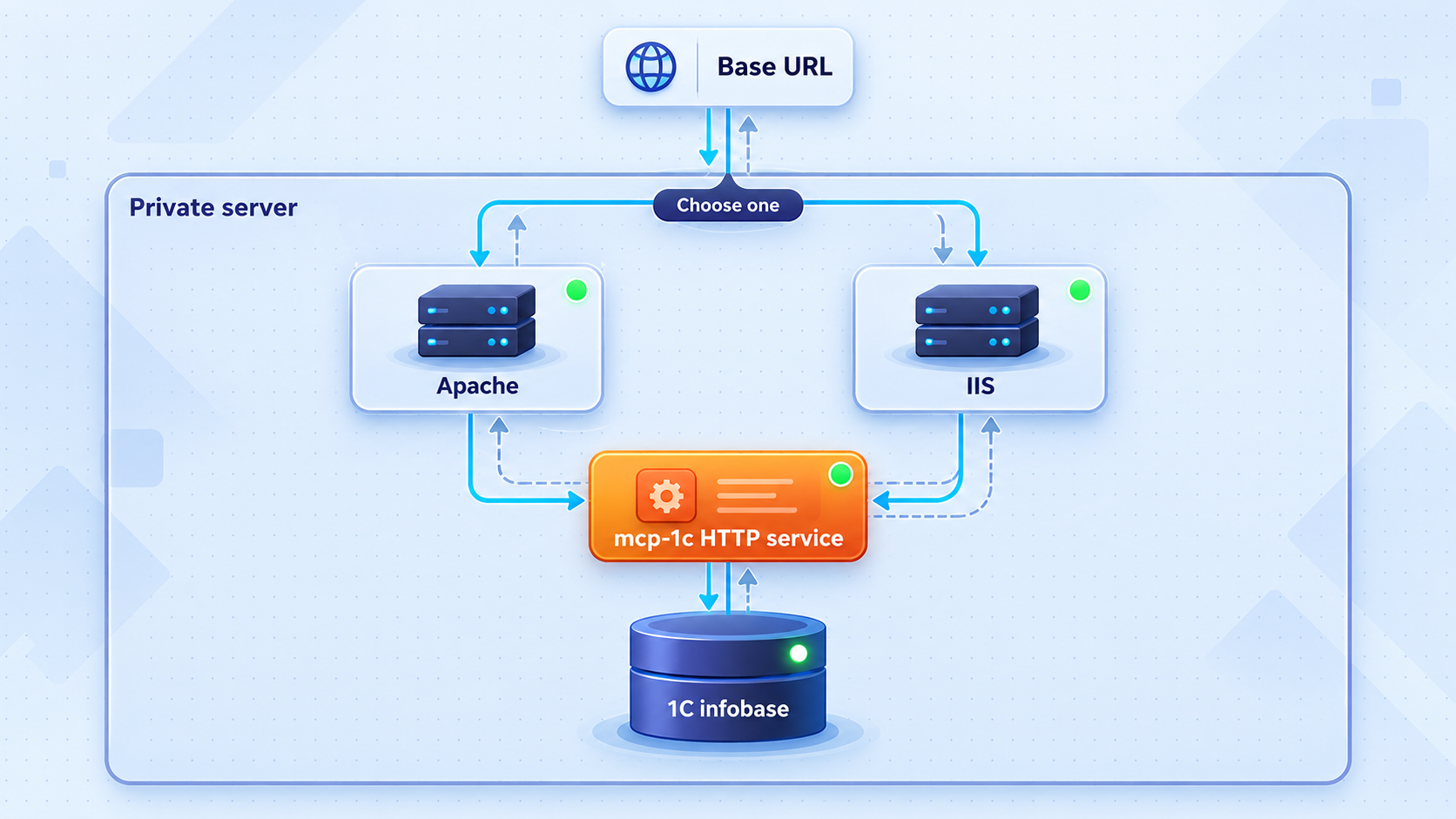
After the extension is installed and active, publish the information base's included HTTP service through Apache or IIS. mcp-1c cannot communicate with the base until this web publication is working.
Use the standard 1C web-publication tooling and the web server already approved for the environment. Select the intended information base, enable publication of the HTTP service supplied by the extension, and bind the publication to the desired web-server site, hostname, and port. The exact wizard screens, filesystem paths, Apache directives, IIS application settings, and service-account permissions vary by 1C platform release and operating system. They are not established by the supplied mcp-1c evidence, so this guide does not invent a universal configuration file.
The documented local endpoint example is:
http://localhost:8080/hs/mcp-1c
Treat this as a shape to verify, not a promise that every publication listens on port 8080. If IIS listens on port 80, Apache uses another virtual host, or the publication adds a base path, the actual URL will reflect that configuration. Record the exact URL that works locally because the same value will later be supplied to mcp-1c with --base.
A loopback-only listener is a strong default when the web server and mcp-1c run on the same machine. If mcp-1c runs on another device, bind the service only to an appropriate private interface and permit traffic from the required host. Avoid binding broadly merely to simplify testing.
mcp-1c does not replace the web server. If Apache or IIS is stopped, its site is disabled, the 1C publication is removed, or the application pool cannot reach 1C, the MCP process will not be able to use the information base even if the mcp-1c executable itself starts correctly.
Configure the MCP client and base URL
Configure your MCP-compatible client to launch the mcp-1c executable and provide the published 1C HTTP service as the base endpoint. The project documents the --base option for this purpose. With the documented local example, the resulting invocation is:
mcp-1c --base http://localhost:8080/hs/mcp-1cReplace the URL with the endpoint verified in your environment. If you downloaded the binary to a directory that is not in the MCP client's process path, configure the absolute executable path. Remember that desktop applications, remote IDE sessions, containers, and service accounts can have different environment variables and working directories from your interactive shell.
MCP client configuration formats are not standardized at the file-path level. One client may use a JSON file, another may provide a graphical settings page, and another may maintain project-specific configuration. Enter the executable as the command and provide --base plus the endpoint as arguments in the format required by that client.
Use the documentation for the exact MCP client and version you operate. Copying a configuration into an unrelated editor's directory can create the appearance of a successful setup while the client never reads it. Also avoid storing 1C credentials directly in a project file that may be committed to version control.
Restart or reload the MCP client after saving the configuration if that client does not watch its configuration automatically. Confirm that it starts the intended binary rather than an older copy found elsewhere in the system path.
Verify each layer before using AI tools
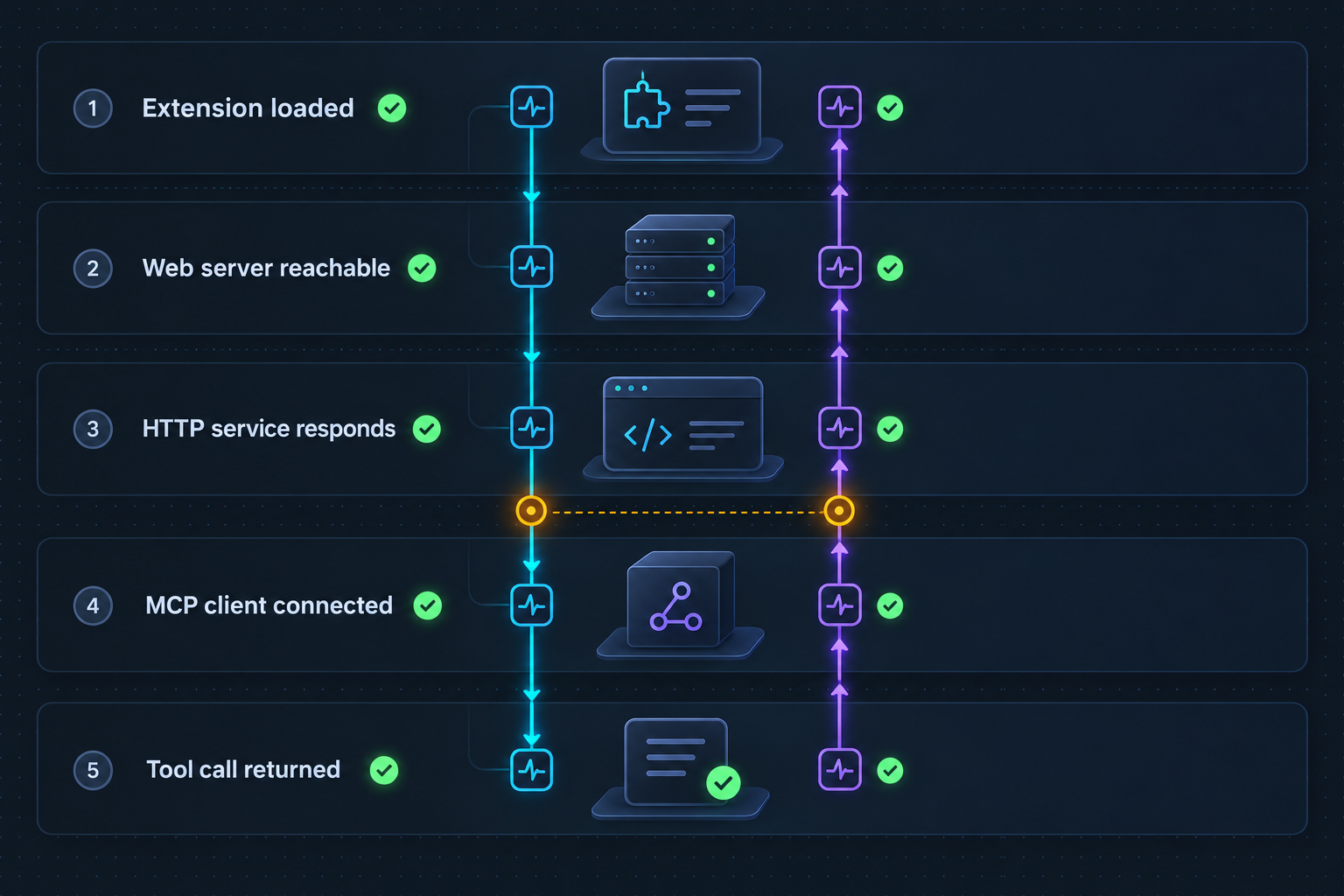
Verification is easier when performed from the inside out. Start with the information base and web publication, then test mcp-1c, and only then test the MCP client. This isolates failures and avoids attributing a web-server problem to the AI assistant.
1. Verify the extension
- Open the configuration extensions list and confirm that the mcp-1c extension is present.
- Confirm that its active flag remains enabled.
- Confirm that the database configuration update completed successfully.
- Review platform messages for compatibility, safe-mode, permission, or security-profile warnings.
2. Verify the web publication
From the machine that will run mcp-1c, request the configured service URL. If a command-line HTTP client is available, a basic diagnostic request can show whether the hostname resolves, the TCP connection succeeds, and Apache or IIS responds:
curl -i http://localhost:8080/hs/mcp-1cThis request does not necessarily perform a valid MCP operation. Depending on the service's expected method and authentication configuration, an HTTP error such as an authentication challenge or method-related response can still prove that the network path and web listener are reachable. A connection refusal, DNS failure, or timeout points to a lower-level publication or networking problem.
3. Verify mcp-1c startup
Start mcp-1c with the verified --base URL from a terminal under the same user account used by the MCP client, where practical. Review standard output and error output for an invalid URL, connection failure, missing permissions, or an inability to find required local files. Do not paste confidential logs into public issue reports without removing credentials, information-base names, internal hostnames, and business data.
4. Verify the MCP client
Open the client's MCP status or tool view and confirm that mcp-1c is running. Ask the client to perform a low-risk read operation, such as retrieving configuration information or metadata. Begin with read-only activity. A tool appearing in the interface only proves that the MCP process registered it; it does not prove that the call can reach the 1C HTTP service successfully.
5. Verify real data boundaries
mcp-1c works with the actual information base, so verify that the configured URL points to the intended development or test base. Names that differ only slightly between production and test environments are easy to confuse. Confirm the base identity with a harmless metadata query before allowing broader use.
| Observed result | What it establishes | What to check next |
|---|---|---|
| Connection refused | No process accepted the connection at that host and port | Apache or IIS status, listener binding, port, and local firewall |
| HTTP response with an authentication or method error | The network path and web listener are probably reachable | Publication authentication and whether mcp-1c is sending the expected request |
| mcp-1c starts but tools fail | The MCP process itself can launch | The base URL, extension status, credentials, and 1C permissions |
| Tools work from a terminal but not from the IDE | The binary and 1C endpoint can work under at least one environment | The IDE's command path, argument format, environment, and working directory |
| Local access works but remote access fails | The 1C extension and local publication are functional | The Localtonet target, running state, public URL, and application access controls |
Provide remote HTTP access with Localtonet
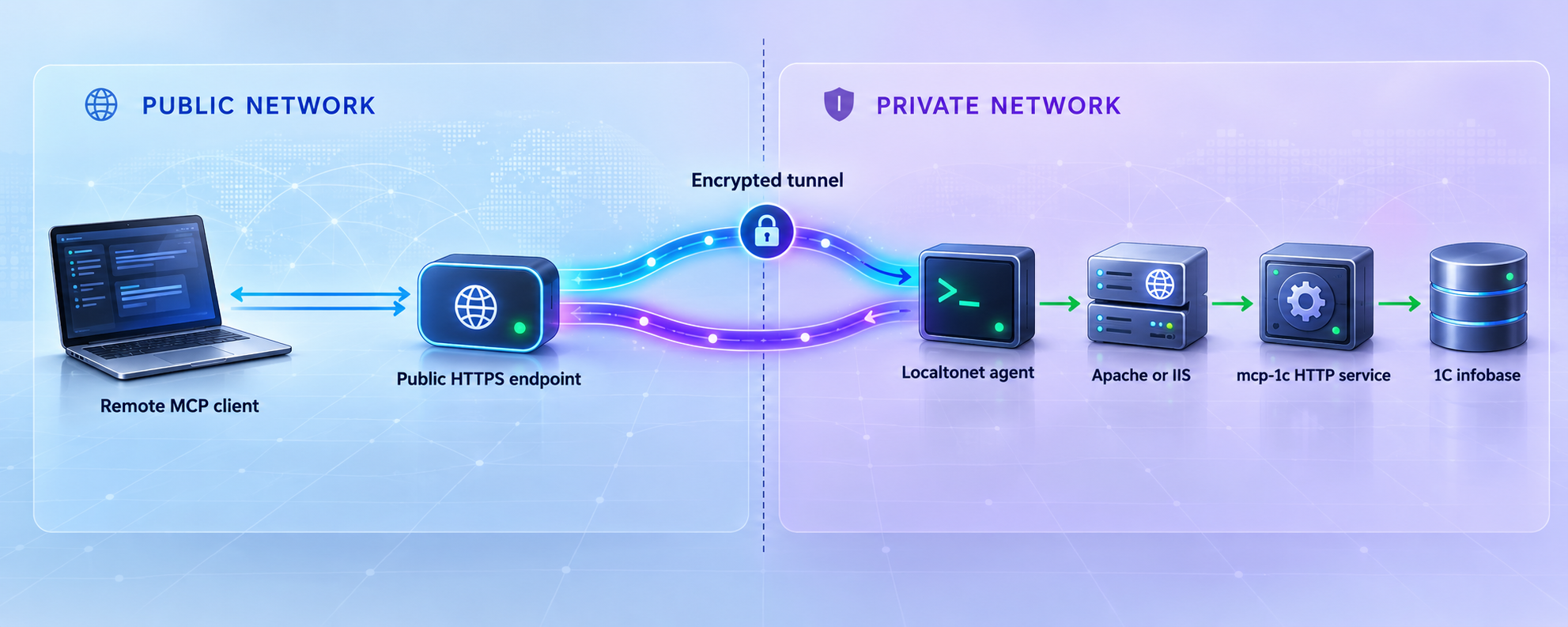
If mcp-1c and the 1C HTTP service are on the same LAN, keep using the private endpoint. A tunnel is unnecessary for a completely local deployment. Use remote access only when an authorized mcp-1c process must contact the published service from a network that cannot route to it directly.
With Localtonet, our client establishes an outbound connection to a relay server. This lets you expose the local Apache or IIS listener without configuring inbound router port forwarding, changing the edge firewall to accept unsolicited inbound connections, setting up a VPN, or requiring a public IP address.
An HTTP tunnel targets the local IP address and port, not the full service path. For the example http://localhost:8080/hs/mcp-1c, the local target is the host reachable by the Localtonet client and port 8080. The service path /hs/mcp-1c remains part of the URL used by mcp-1c.
Install and run the Localtonet client
Run our client on the web-server device or another trusted device that can reach the Apache or IIS listener. If it runs on the same machine, a loopback target may be appropriate. If it runs elsewhere, use a reachable private address instead of localhost.
Authenticate and select the device
Use the device-specific authentication token through the supported client and dashboard workflow. Treat the token as a secret. Never place it in this article's commands, source control, shared logs, or screenshots.
Select an available relay server
Choose a currently available relay server or region from the Localtonet dashboard. Available values can vary and must be read from the current product rather than copied from a hardcoded example.
Create an HTTP tunnel
Set the local target to the IP address and port where Apache or IIS serves the 1C publication. Choose the required HTTP process type from the available generated subdomain, supported custom subdomain, or custom-domain options. Exact custom-domain DNS requirements must be checked in the current documentation before changing DNS.
Start the tunnel and construct the service URL
Creating the tunnel does not start it. Press Start, wait for the selected client to connect, and note the assigned public HTTPS address. Append the verified 1C service path, such as /hs/mcp-1c, when configuring the remote mcp-1c process.
Stop or delete access when it is no longer needed
Stop the tunnel after the remote workflow ends, or delete it when the configuration is no longer required. The public endpoint is available only while the selected device is connected and the tunnel is running.
If the assigned address were represented conceptually as https://your-assigned-address, the base value supplied to the remote mcp-1c process would include the service path:
https://your-assigned-address/hs/mcp-1cThis is deliberately not a real hostname. Use only the public address assigned to your running tunnel. For the current product workflow, see our Localtonet HTTP tunnel documentation.
Once the tunnel is running, the published HTTP listener can be reached through its public address. Do not assume that an obscure URL is protection. Configure appropriate authentication and least-privilege 1C permissions, restrict the web publication to the required service, and avoid exposing unrelated applications on the same site or port.
Secure the mcp-1c and remote-access workflow
The most important security fact is that mcp-1c works with a real information base. The effect of a tool call depends on the installed edition, enabled tools, extension behavior, and permissions of the identity accepted by 1C. Treat an AI assistant as another application principal, not as an administrator who automatically needs unrestricted access.
Apply least privilege in 1C
Use a dedicated account or access context with only the permissions required by the intended tools. Start with read-oriented metadata operations and expand access only after testing. Do not reuse a full-administrator identity simply because it makes initial setup easier.
Separate production from development
Prefer a development or staging information base for code exploration and experimentation. If production access is necessary, define which operations are allowed, monitor their effects, and preserve normal backup and audit procedures. A successful technical connection does not constitute approval to expose production data to an AI workflow.
Protect credentials and device tokens
Do not store 1C credentials, Localtonet device tokens, private endpoints, or customer information in a repository. Be careful with process arguments because some operating systems and monitoring products can expose command lines to other users or logs. Use the credential-handling facilities supported by the relevant 1C publication and MCP client.
Constrain the web listener
If only the Localtonet client on the same machine needs access, prefer a local binding where the web-server architecture permits it. If the client runs on another LAN device, limit network access to that route. Do not open the Apache or IIS port directly on the router in addition to creating the tunnel.
Limit the publication scope
A Localtonet HTTP tunnel forwards to a host and port. If that listener also serves administrative consoles, unrelated applications, directory listings, or diagnostic endpoints, they may become reachable through the same public origin. Use a dedicated web-server site or listener where practical, disable unnecessary handlers, and test paths other than /hs/mcp-1c.
Manage the tunnel lifecycle
Leave the tunnel stopped when remote access is not required. Remember that saving a tunnel configuration is separate from starting it. If the device disconnects or our client stops, the tunnel will not remain available. Build operational checks around both the web publication and tunnel state rather than monitoring only one layer.
Troubleshooting common installation and connection problems
The install command cannot find the information base
Recheck the supplied filesystem path, quotation marks, and the account under which the command runs. A mapped drive visible in an interactive session may not exist for an elevated shell or service account. For a client-server information base, do not substitute a local directory path. Use the documented --server workflow and obtain the exact value required by your 1C deployment.
The extension is loaded but the HTTP endpoint does not exist
Confirm that the extension is active and that the database configuration was updated with F7. Then verify that the correct HTTP service was included in the Apache or IIS publication. Loading a CFE file does not automatically prove that the web server has published its service.
Apache or IIS responds with 404
A 404 usually means the request reached a web server but the requested path was not mapped by that publication. Check the publication's base path and confirm the documented /hs/mcp-1c service path. Also ensure that you are contacting the intended virtual host or IIS site rather than another site sharing the port.
The request receives 401 or 403
These responses normally indicate that the web server or 1C publication requires authentication or refuses the current identity. Review the approved authentication mode, service-account access, 1C roles, and any IIS authorization or Apache access rule. Do not disable authentication globally merely to make a test pass.
The endpoint works in a browser but not in mcp-1c
A browser may be using an existing operating-system session, cached credentials, a proxy, or an authentication mechanism that the mcp-1c process does not inherit. Test under the same account and environment as the MCP client. Compare the exact hostname, scheme, port, and path rather than relying on visual similarity.
The binary runs in a terminal but the MCP client reports it missing
Configure an absolute executable path and verify file permissions. Restart the client after editing its configuration. On systems that require an executable bit or application approval, complete that platform-specific step. Also check whether the client runs inside a container, sandbox, remote development host, or subsystem with a different filesystem.
The MCP server starts, but code search is initially unavailable
The project documents non-blocking startup for its full-text search. Indexing can continue in the background while the MCP server is already available, and search becomes usable when index construction finishes. Large configurations can take longer than small ones. Avoid interpreting temporary search unavailability as failure of every mcp-1c tool.
The Localtonet tunnel starts but returns a gateway or connection error
From the Localtonet client device, verify that the configured local IP address and port are reachable. If our client and Apache or IIS run on different machines, localhost points to the Localtonet client device, not automatically to the web server. Use the web server's reachable private address and confirm that its listener permits that connection.
The public root works, but the MCP base fails
Confirm that the complete public URL includes /hs/mcp-1c and any required publication base path. The Localtonet target configuration identifies the local host and port. The mcp-1c --base argument still needs the application path.
A custom domain does not resolve
Generated and custom domain workflows are not interchangeable. Check the current Localtonet dashboard and documentation for the exact custom-domain requirements supported by your configuration. Do not invent DNS records or copy values from another account, tunnel, or region.
The setup broke after an upgrade
Recheck the release notes, extension version, binary version, and publication after upgrading. The executable and CFE file should come from a compatible release unless the project explicitly documents another combination. Repeat local verification before testing through the public tunnel, and preserve the previous working files and configuration according to your rollback procedure.
Frequently asked questions
Does mcp-1c require Python, Node.js, Java, or EDT?
The project describes mcp-1c as a single Go binary with no Python, Node.js, JVM, or EDT runtime dependency. You can download a prepared executable or build it with Go. A functioning 1C platform, the installed extension, and an Apache or IIS publication are still required for the documented live-base workflow.
What 1C:Enterprise version is required?
The extension in the referenced mcp-1c release declares compatibility mode Version8_3_14, and its release notes state that it loads on 1C:Enterprise 8.3.14 and later. Test the exact mcp-1c release, platform build, and business configuration together before production use.
Do I need Localtonet for a local mcp-1c installation?
No. If mcp-1c can already reach the 1C HTTP service through localhost or a private LAN address, keep that direct route. Localtonet is relevant when an authorized mcp-1c process outside the LAN needs to reach the Apache or IIS publication without inbound router port forwarding or a public IP address.
Should I expose the mcp-1c process or the 1C HTTP service?
For the workflow documented here, expose the underlying Apache or IIS HTTP service. mcp-1c normally runs as a local process launched by an MCP-compatible client. It then contacts the 1C service through the URL supplied with --base.
Is port 8080 required?
No. Port 8080 appears in the documented local example, but the real port is determined by your Apache or IIS publication. Use the exact host, scheme, port, base path, and /hs/mcp-1c service path that you verify locally.
Can I install the extension without command-line access to the 1C server?
Yes. Download MCP_HTTPService.cfe, load it through Configurator's configuration-extension manager, confirm that it is active, and press F7 to update the database configuration. This still requires sufficient Configurator privileges and approval to change the information base.
Does starting a Localtonet tunnel automatically secure the 1C application?
No. Our tunnel provides reachability to the configured local service. Authentication, 1C permissions, web-server restrictions, safe handling of credentials, and limitation of exposed paths remain part of your application and infrastructure design. Use least privilege and stop the tunnel when remote access is unnecessary.
Why is the tunnel unavailable even though it exists in the dashboard?
Creating a tunnel does not start it. The selected device must be connected, and the tunnel must be running. Also verify that the Localtonet client device can reach the configured Apache or IIS host and port.
Connect your published 1C service with Localtonet
Once mcp-1c works against the local Apache or IIS endpoint, create an HTTP tunnel for authorized remote access without opening an inbound router port. Keep the tunnel stopped until the service, authentication, and least-privilege permissions have been verified.
Get Started Free →

