

Build the local voice AI stack first, prove each access layer, then publish only the API endpoint your clients require
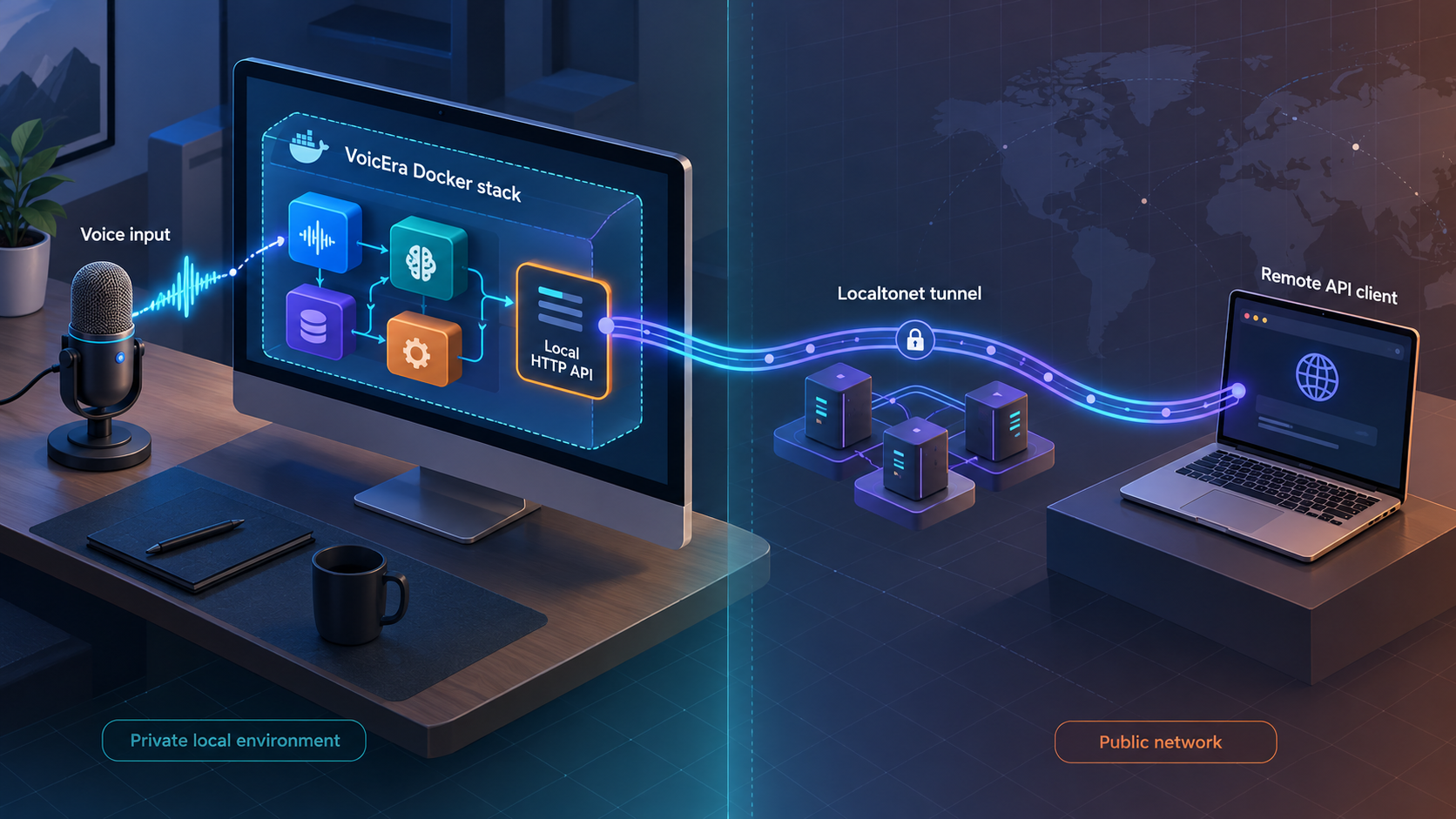
VoicEra combines a dashboard, REST API, real-time voice runtime, workers, storage, telephony integrations, and interchangeable AI providers in a Docker Compose stack. This guide follows the current repository quick start, explains what its published ports represent, and separates container state from application readiness, provider readiness, and authenticated API behavior. After the API works locally, we configure a Localtonet HTTP tunnel so authorized remote clients can reach port 8000 without inbound router port forwarding, firewall changes, VPN setup, or a public IP address.
📋 What's in this guide
What VoicEra installs and how the stack fits together
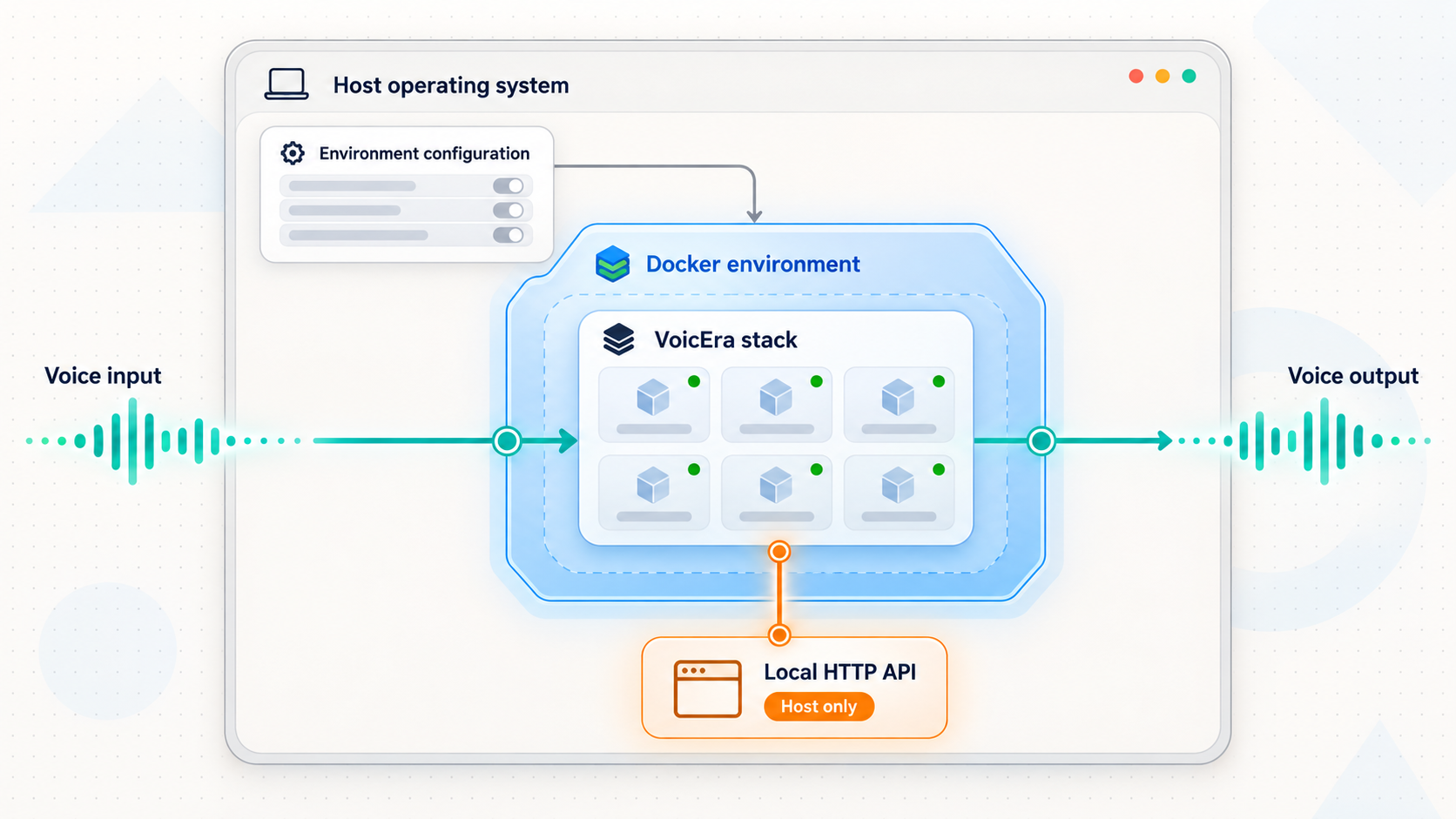
VoicEra is open-source infrastructure for self-hosted, real-time voice AI. It connects speech-to-text, a large language model, text-to-speech, and telephony through one platform. The dashboard is a client of the same HTTP API that developers can use, and the running API provides an interactive OpenAPI interface.
You can inspect the source, current Compose file, release history, configuration files, and lifecycle scripts in the official VoicEra repository. The official VoicEra documentation organizes the operational material into guides, developer documentation, and an API reference. Use those pages as the version-specific authority whenever the repository changes after this article is published.
The platform separates its control plane from real-time voice execution. The API handles agents, configuration, campaigns, authentication, and orchestration. The Pipecat-based runtime handles live call audio and model interaction. The dashboard provides an operator interface, while workers process asynchronous jobs and campaign work. FerretDB with PostgreSQL, MinIO, and Redis support database, media, artifact, and queue requirements.
VoicEra does not supply telephony accounts or AI inference as part of the software. Operators bring STT, LLM, and TTS access through supported cloud providers, self-hosted models, or a suitable combination. Real inbound or outbound phone calls also require a telephony account. The current project overview identifies Vobiz and Plivo integrations. Telephony is not required for browser-based testing.
http://localhost:3000 by the current quick-start deployment.
http://localhost:8000 for dashboard and API-client operations.
http://localhost:7860, separately from the control-plane API.
Local installation and remote access are separate milestones
Installing VoicEra does not automatically make it reachable from another device. The documented quick-start addresses use localhost, which refers to the machine running the Docker stack. This local-only milestone should be completed first because it narrows failures to the application and host before a public request path is introduced.
A Localtonet HTTP tunnel should be added only after the intended target responds locally. Our client establishes an outbound connection from the selected device to a Localtonet relay server. The tunnel provides a public HTTPS address and forwards requests to the configured local IP address and port. It remains available only while the selected client is connected and the tunnel is running.
API integrations normally need port 8000. Remote operators may need the dashboard on port 3000, but that is a different target and should be exposed separately only when required. A tunnel to the dashboard does not automatically publish the API, runtime, database, or object-storage interfaces.
Prerequisites for the Docker quick start
The current VoicEra quick start requires Docker to be installed and running. Docker Desktop is appropriate on systems where Docker supports it, while a Docker daemon can be used on a suitable server. The startup script checks access to Docker and fails when it cannot reach the daemon.
You also need Git because the documented workflow clones the repository. The lifecycle commands are shell scripts, so run them in an environment capable of executing the repository's .sh files. The available VoicEra evidence does not provide a complete operating-system support matrix or a native PowerShell translation. Do not convert the scripts or paths by guesswork. Use a compatible environment supported by your host and Docker installation.
| Requirement | Why it is needed | Preflight check |
|---|---|---|
| Docker | VoicEra starts as a Docker Compose stack. | Docker is installed, its daemon is running, and the current account can access it. |
| Git | The official quick start clones the source repository. | The git command is available in the same shell used for setup. |
| Compatible shell | The supplied lifecycle tools are shell scripts. | The environment can execute files in the repository's scripts directory. |
| Available host ports | The current Compose quick start publishes multiple services. | Check for conflicts on 3000, 8000, 7860, 9001, and 27018 before starting. |
| AI capabilities | A functional voice pipeline needs STT, LLM, and TTS components. | Prepare supported provider accounts or supported self-hosted models. |
| Telephony account, if applicable | Real phone calls require a carrier integration. | Prepare a supported Vobiz or Plivo account. Browser testing does not require one. |
| Localtonet client, for remote access | The client maintains the outbound relay connection. | Use the current installer offered by Localtonet for the device that can reach VoicEra. |
Localtonet client installation scope
Localtonet supports a client application that runs on the device responsible for the tunnel. For this tutorial, that should normally be the VoicEra host because 127.0.0.1:8000 is then directly reachable. A trusted device on the same network can also be used if it can reach the VoicEra host through an appropriate local address.
The supplied evidence does not include a current operating-system-specific Localtonet installer matrix, package command, or unattended-install command. We therefore do not provide a guessed command. Sign in to Localtonet and use the current download and installation path presented for your operating system. Run the client, associate it with its device-specific authentication token, and confirm that the device appears connected before creating the tunnel. Treat that token as a secret.
Client commands and authentication flows are product-specific and can change. Use the current Localtonet client supplied through our product rather than adapting a command written for another service.
Plan capacity before treating the quick start as production
A successful quick start proves that the host can begin launching the stack. It does not prove that the host has enough CPU, memory, storage, network capacity, or GPU resources for a production workload. Requirements depend on whether models run locally, the selected providers, call concurrency, campaign activity, retained media, and expected data volume.
The supplied evidence does not establish a universal minimum hardware specification. Measure the actual deployment, particularly when using the optional model server. Review VoicEra's current deployment, configuration, and hardening documentation before storing sensitive data or carrying live traffic.
Install and start VoicEra
The repository quick start clones the source, enters the project directory, and runs the supplied startup script. The current project description states that this script creates the environment, generates required secrets, and starts the stack.
Start Docker
Launch Docker Desktop or start the Docker daemon used by the host. Confirm that Docker commands work from the installation shell before continuing.
Clone the official repository
Clone VoicEra from the COSS-India repository:
git clone https://github.com/COSS-India/VoicEra.gitEnter the project directory
Run the lifecycle script from the repository root:
cd VoicEraStart the application services
Run the startup script supplied by the project:
./scripts/start-application-services.shKeep the terminal output available during the first launch. Docker may create a container before its application is ready to answer requests, so container presence alone is not a successful startup outcome. Wait for initialization, inspect the Compose state, and then test the published application interfaces.
What a successful quick start should establish
The current repository documents the dashboard at http://localhost:3000, API at http://localhost:8000, OpenAPI interface at http://localhost:8000/docs, runtime at http://localhost:7860, MinIO console at http://localhost:9001, and FerretDB at localhost:27018. These are distinct surfaces. A response from one does not prove that every other service or external provider is ready.
The available evidence does not publish exact health-check routes, Compose health-status criteria, expected response bodies, or a stable harmless API endpoint that can be called across every revision. It would be unsafe to invent those details. Use the current Compose file and API reference to identify any version-specific health checks and response schemas.
The startup script creates the local environment and required application secrets. It does not provision model accounts, telephony service, or provider capacity. You still need to configure the supported services selected for your voice workflow.
Verify container state, HTTP reachability, and application readiness
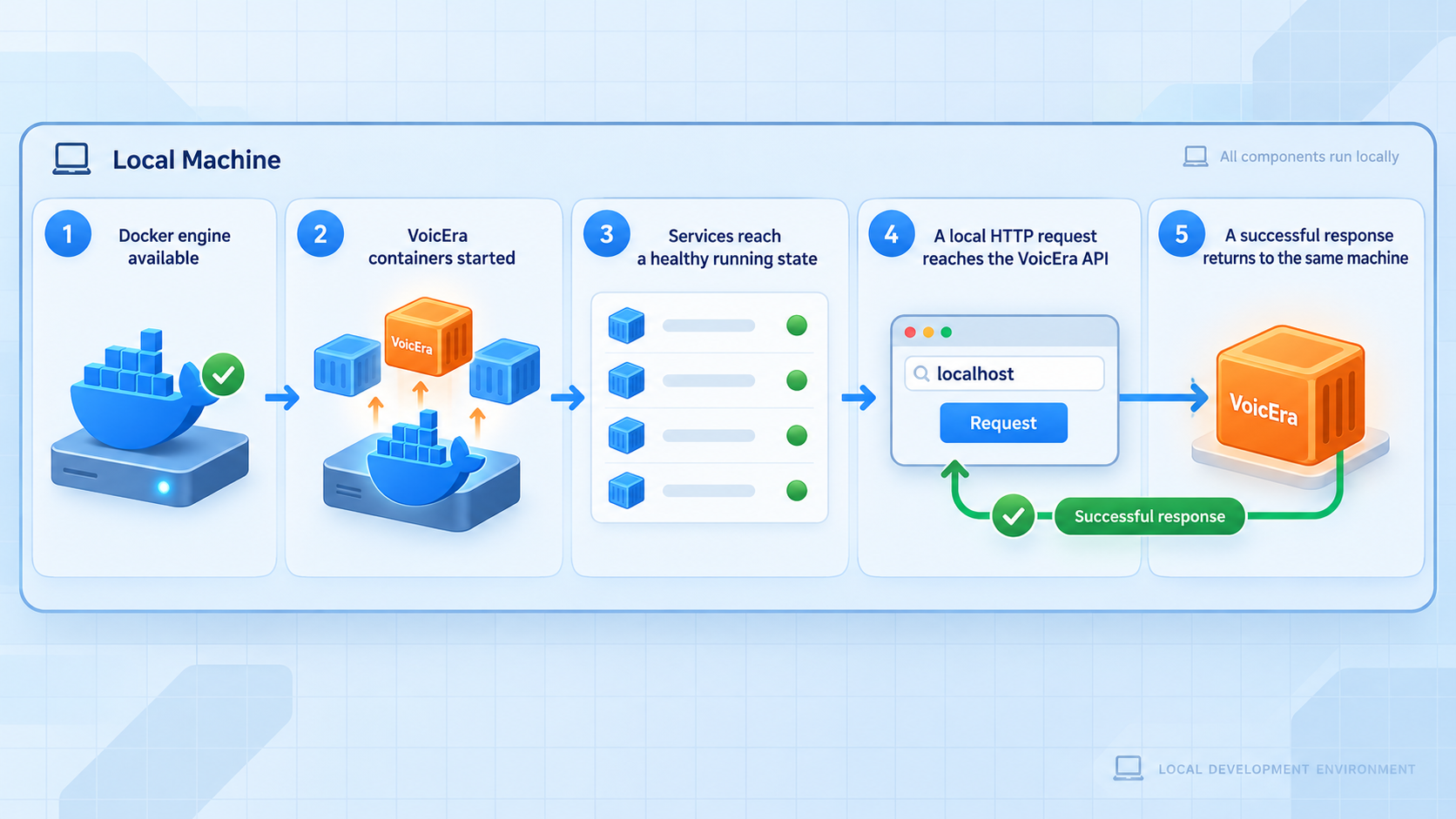
A useful verification process distinguishes five questions: Are the containers present? Are their ports reachable? Is the application ready to perform the selected operation? Are its external providers usable? Does authentication allow and reject requests correctly? Each question tests a different failure boundary.
Inspect Compose service state
From the repository directory, inspect the services launched by the current Compose project:
docker compose psA running state confirms that a container process exists. If the current Compose file defines a health check, inspect the reported health status as well. The evidence supplied for this article does not establish which services define health checks or their exact healthy criteria.
Check the dashboard response
Open http://localhost:3000 on the VoicEra host. A rendered interface confirms frontend reachability. It does not prove that API authentication, providers, workers, storage, or call execution are ready.
Check API HTTP reachability
Request http://localhost:8000 and record the HTTP status and response. Open http://localhost:8000/docs only as a development aid for viewing the routes generated by this running version. The documentation page confirms that the API process responds, but it is not the primary authorization test.
Check the runtime surface
Test http://localhost:7860 from the host. Reachability proves only that an HTTP surface answers at the documented runtime port. A complete conversation still depends on working STT, LLM, TTS, and any required telephony integration.
Validate one documented application operation
In the current VoicEra API reference, select a read-only or otherwise harmless protected operation appropriate to your account. Record its route, method, required role, authentication format, expected success status, and expected response schema. Run it locally with valid authorization, then repeat without credentials and with invalid credentials. Do not choose a create, call, campaign, delete, or provider-change operation merely for connectivity testing.
| Layer | What to inspect | What it does not prove |
|---|---|---|
| Container state | docker compose ps, restart loops, and any defined health status |
That the user-facing application or a provider operation succeeds |
| HTTP reachability | Connection, status code, and response from the intended local port | That authentication, storage, workers, or providers are ready |
| Application readiness | A documented, harmless operation with its expected response | That STT, LLM, TTS, or telephony accounts work |
| Provider readiness | A controlled provider test documented for the selected integration | That public API authorization is correctly enforced |
| Authenticated behavior | Expected success with valid access and expected rejection without it | That every role and every operation has been audited |
Current published port reference
| Service | Current quick-start address | Purpose in this tutorial |
|---|---|---|
| Dashboard | http://localhost:3000 |
Operator-facing web interface |
| API | http://localhost:8000 |
Control-plane target for the Localtonet tunnel |
| OpenAPI interface | http://localhost:8000/docs |
Development aid for inspecting the running API definition |
| Voice runtime | http://localhost:7860 |
Local real-time execution surface, not the control-plane API |
| MinIO console | http://localhost:9001 |
Storage management interface that should remain private by default |
| FerretDB | localhost:27018 |
Database endpoint, not an HTTP API for remote clients |
A client that needs VoicEra's REST API should not receive direct public access to FerretDB, MinIO, or unrelated Compose services. Keep internal services private unless a separately reviewed design and the current VoicEra documentation require otherwise.
Configure authentication and providers for a real workflow
Installation produces a running platform, but not a finished agent. A conversational workflow requires an STT component, an LLM, and a TTS component. Phone workflows also require a supported telephony account. VoicEra places these capabilities behind provider registries and supports cloud services, local models, or a combination.
Authentication evidence and safe configuration boundary
Current VoicEra documentation describes authentication, users and organisations, roles, scoped access, and provider credentials. However, the evidence supplied for this revision does not contain the exact login route, credential-creation flow, authorization header syntax, token lifetime, default account behavior, or role names for the current release. Supplying an example header or token request without those facts could cause an insecure or nonfunctional setup.
Before exposing the API, open the current VoicEra documentation and use its Authentication and API Reference sections to complete these concrete checks:
- Identify how the current release creates or bootstraps the first authorized user or organisation.
- Identify the documented credential type and exact authorization format used by API clients.
- Create a dedicated integration identity rather than sharing an operator credential where the current role model permits it.
- Grant only the scope or role needed for the selected operation.
- Confirm that a harmless protected request succeeds with valid authorization.
- Confirm that the same protected request is rejected when authorization is missing or invalid.
A visible /docs page does not prove that application routes are protected. Use the documented authentication mechanism and a protected API operation to test both allowed and denied behavior. Keep credentials out of URLs, source control, screenshots, tunnel names, and shell history.
Configure STT, LLM, and TTS providers
Use the current provider registry to select implementations supported by the version you installed. The repository overview identifies cloud providers, Bhashini and Kenpath adapters, and local providers, but provider-specific credentials, model identifiers, required fields, and validation procedures can differ. Enter secrets only through the documented dashboard or configuration path.
The evidence supplied here does not contain a complete provider form, exact environment-variable names, or a universal provider-test route. We therefore do not invent them. For each selected provider, record the provider name, model or capability, secret location, required endpoint settings, language support, and documented test outcome. If using the optional model server, also account for its GPU, memory, storage, and model-loading requirements.
Add telephony only when phone calls are required
Browser testing does not require telephony. Real calls require a supported account, currently Vobiz or Plivo according to the repository. API reachability on port 8000 does not by itself configure calling.
The supplied evidence does not establish one universal callback path, media path, signing method, or public URL format for every carrier. Use the current provider-specific VoicEra instructions and the carrier's documentation to identify the exact callback route and authentication requirement. Do not expose additional ports or guess a callback path.
Expose the VoicEra API with a Localtonet HTTP tunnel
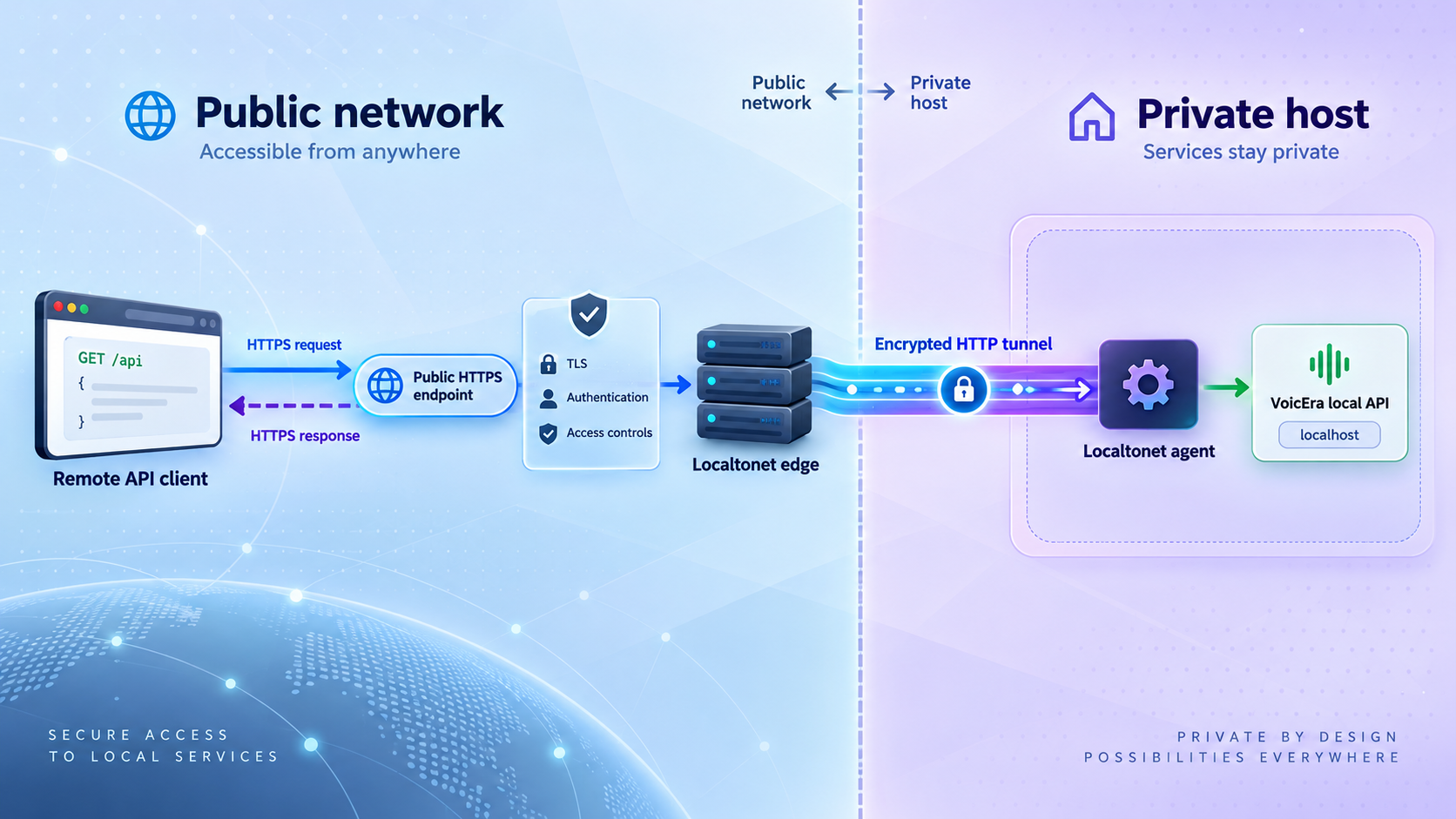
Proceed only after port 8000 responds locally and the intended protected operation has been identified. If the Localtonet client runs on the VoicEra host, configure the target as 127.0.0.1 with port 8000. If it runs on another device, use an address for the VoicEra host that is reachable from that client device and test that path before creating the tunnel.
Install and run the Localtonet client
Use the current Localtonet installation path for the operating system on the selected device. The supplied evidence does not establish a universal package command, so use the installer presented by our current product rather than a copied third-party command.
Authenticate or select the client device
Associate the client with its device-specific authentication token and confirm that the intended device is connected. Never publish or reuse a guessed token.
Select an available relay server
Choose a relay server or region currently offered in the Localtonet dashboard. Availability can vary, so do not hardcode an old server code from an article.
Create the HTTP tunnel
Select the HTTP tunnel family and enter the locally verified target. For a same-host client, use 127.0.0.1 and port 8000. HTTP tunnels support Random Sub Domain, Custom Sub Domain, or Custom Domain process types, subject to current availability and configuration requirements.
Start the tunnel
Creating a tunnel does not make it active. Review the device, relay, target address, target port, and process type, then use the Start button. The public endpoint is available only while the client remains connected and the tunnel remains running.
Record the public HTTPS origin
Copy the assigned or configured public HTTPS address without appending credentials. Use that origin for the external verification sequence in the next section.
See the Localtonet HTTP tunnel documentation for the current dashboard workflow. Custom-domain DNS requirements should be taken from current documentation rather than inferred from a generic DNS example.
The public HTTPS address forwards to the configured local service. It does not replace VoicEra users, organisations, roles, scoped access, provider controls, or credential validation.
Verify authorized and rejected requests through the public endpoint
Do not use the public /docs page as the primary test. It may reveal route names and operational schemas that remote users do not need. Instead, reuse the harmless protected operation already tested locally. This compares the same application behavior across the local and public paths.
Establish the local baseline
Record the selected method, path, expected successful status, and non-sensitive response shape at http://localhost:8000. Also record the expected rejection status for a request without valid authorization. Use the values documented by the installed VoicEra version rather than assuming a particular code.
Send an unauthorized public request
From a device or network outside the VoicEra host, request the same protected path through the Localtonet HTTPS origin without credentials. Confirm that VoicEra rejects it according to its current authentication documentation. A successful protected response at this stage is a reason to stop and review configuration.
Send an invalid-credential request
Repeat the protected request with a deliberately invalid credential using the documented authorization format. Confirm rejection without placing a real secret in the URL, terminal capture, screenshot, or shared log.
Send the authorized request
Use a dedicated least-privilege integration credential and repeat the harmless operation. Confirm that the status and response structure match the local baseline. Redact secrets and sensitive voice data from any retained diagnostic output.
Test insufficient privilege where supported
If the current VoicEra role model supports a lower-privilege test identity, verify that it cannot perform an operation outside its assigned scope. Do not create or modify production agents, campaigns, calls, users, or credentials merely to prove connectivity.
No concrete request command appears here because the supplied VoicEra evidence does not establish a stable harmless route or the current credential syntax. A fabricated command could test the wrong operation, leak a secret, or incorrectly report success. The correct request must come from the Authentication and API Reference pages for the exact revision being operated.
| Result | Interpretation | Next action |
|---|---|---|
| Local and public requests both fail to connect | The API may not be listening or ready. | Inspect Compose state and API logs before changing Localtonet. |
| Local works, public cannot connect | The issue is likely in client connectivity, tunnel state, relay selection, or target addressing. | Confirm the client is connected, the tunnel is started, and the target is reachable from that client. |
| Unauthorized public request succeeds | The selected route may be public or application authorization may be misconfigured. | Stop sharing the URL and verify a documented protected route and current authentication settings. |
| Unauthorized request fails and authorized request succeeds | Reachability and the tested authorization boundary behave as expected. | Continue with role, provider, data-retention, and operational review. |
| API works but a voice operation fails | HTTP access is available, but a provider, model, runtime, storage, or telephony dependency may not be ready. | Inspect provider configuration and relevant VoicEra logs. |
Limit and secure the exposed surface
Treat every public URL as internet-reachable. VoicEra can manage agents, providers, campaigns, users, call information, media, and other operational data. A Localtonet tunnel provides reachability to the chosen service, but the application must continue to enforce authentication and authorization.
If remote operators genuinely need the dashboard, create a separate HTTP tunnel targeting port 3000 and apply the same authentication and least-privilege review. Keeping the API and dashboard on distinct public endpoints makes their purposes and lifecycle easier to audit.
The /docs interface is useful for development, but it can expose route definitions and operational detail. The supplied evidence does not establish a universal setting for disabling or separately protecting it. Follow the current VoicEra production-hardening guidance and do not distribute that path as the normal API verification method.
Operate, back up, upgrade, and troubleshoot the deployment
Stop the application and public access deliberately
From the VoicEra repository directory, use the supplied stop script:
./scripts/stop-application-services.shStopping VoicEra removes the healthy local target, but the tunnel configuration can still exist. Stop the Localtonet tunnel as part of a planned shutdown so its public state accurately reflects application availability. Delete the tunnel if the remote workflow has ended permanently.
Inspect service state and logs
Begin troubleshooting with the local application. Standard Compose inspection commands can show service state and aggregated output:
docker compose ps
docker compose logs
Use the current Compose output to identify the affected service. Container names, health checks, and service relationships may change between revisions, so avoid relying on names copied from an older article.
Back up persistent data before production changes
VoicEra stores application data, media, and artifacts through its database and object-storage components. A production backup must therefore cover every persistent store and any required configuration or secrets, not merely the Git checkout. Copying the repository directory alone is not proof of a recoverable backup.
The available evidence identifies production deployment and configuration documentation but does not include exact volume names, database-consistent backup commands, MinIO backup procedures, secret-export steps, restore order, or recovery checks. Use the current VoicEra deployment guidance and current Compose file to inventory persistent volumes and externally mounted paths. Protect backups according to the sensitivity of recordings, transcripts, provider credentials, and user information.
A backup is operationally useful only after a restore has been tested in a controlled environment. Verify restored application data, object data, configuration, authentication, and one harmless API operation before relying on the process.
Upgrade with a rollback point
Before upgrading, record the deployed Git revision or release, review CHANGELOG.md, inspect configuration changes, and read any current migration instructions in the repository and documentation. Back up persistent data and configuration before pulling new code or replacing containers.
The evidence supplied here does not define one universal upgrade command or guarantee that reverting application containers is sufficient to reverse a data migration. Do not improvise a production rollback. Keep the prior application revision and a tested pre-upgrade backup, and follow any version-specific downgrade restrictions documented by VoicEra.
After an upgrade, repeat the layered verification sequence: Compose state, local HTTP reachability, documented application operation, provider readiness, authentication rejection, authorized local request, and authorized public request. Stop the rollout if any layer behaves differently from the documented expectation.
The startup script cannot reach Docker
Confirm that Docker Desktop or the host Docker daemon is running. Verify that the account executing the script can use Docker from the same shell. This is a local Docker issue, not a tunnel issue.
A published port is already occupied
Stop the conflicting application or use only the port customization supported by the current VoicEra configuration reference. Do not edit Compose mappings blindly because the dashboard, API, runtime, and provider settings may refer to related addresses.
The dashboard loads but API operations fail
A rendered page on port 3000 establishes only frontend reachability. Check port 8000 separately, inspect API and dependency logs, and test the selected operation with the documented authentication method. Provider credentials, storage, workers, or backend services may still be unavailable.
The API works locally but not through Localtonet
Confirm that the intended Localtonet device is connected and the tunnel has been started. If the client runs on the VoicEra host, retest 127.0.0.1:8000 there. If the client runs elsewhere, 127.0.0.1 points to that other device, not the VoicEra host. Use a reachable local-network address only after testing it from the client device.
The public endpoint is intermittent
Check the entire request path. The Localtonet client must remain connected, the tunnel must remain running, and the VoicEra API must remain available. Review host sleep, restarts, Docker state, container restarts, and resource pressure. Do not infer an uptime guarantee from a development quick start.
Web checks pass but voice interactions fail
HTTP reachability does not prove that STT, LLM, TTS, or telephony integrations are ready. Verify the selected provider configuration, supported model or language, credentials, account capacity, runtime state, and relevant logs. Do not expose additional internal ports unless current provider documentation explicitly requires them.
Frequently asked questions
What is the official VoicEra startup command?
After cloning the official repository and changing into its directory, run ./scripts/start-application-services.sh. Docker must already be running and accessible. The current repository states that the script creates the environment, generates required secrets, and starts the stack.
Which port should I expose for the VoicEra REST API?
The current quick start publishes the API at http://localhost:8000. If the Localtonet client runs on the same host, configure the HTTP tunnel for 127.0.0.1:8000. Port 3000 is the dashboard, not a substitute for the API.
Is opening the public /docs page enough to verify the API?
No. It confirms that the documentation interface responds, but it does not prove that a protected operation requires authorization. Select a harmless protected operation from the current API reference, verify it locally, confirm rejection without valid credentials through the public URL, and then confirm success with a least-privilege credential.
Why does this guide not provide a sample VoicEra authorization header?
The supplied current evidence does not include the exact credential-creation flow, header syntax, token lifetime, or stable harmless endpoint. Inventing those details would be unsafe. Use the Authentication and API Reference sections for the exact VoicEra revision you installed.
Does VoicEra include AI inference and telephony service?
No. Operators bring STT, LLM, and TTS access through supported cloud providers or self-hosted models. Real phone deployments also require a supported telephony account. The current repository identifies Vobiz and Plivo, while browser-based testing does not require telephony.
Can one tunnel expose both the dashboard and API?
An HTTP tunnel points to one local IP address and port. The dashboard and API use ports 3000 and 8000 respectively. Use the port 8000 tunnel for API clients, and create a separate port 3000 tunnel only when authorized operators require remote dashboard access.
Does Localtonet require router port forwarding?
No. Our client creates an outbound connection to a Localtonet relay server, so this workflow does not require inbound router port forwarding, firewall changes, VPN setup, or a public IP address. The selected client must remain connected and the tunnel must remain running.
What must be backed up before a VoicEra upgrade?
Back up all persistent application data, media and artifacts, required configuration, and secrets according to the current VoicEra production guidance. A copy of the Git repository alone is not sufficient. The supplied evidence does not establish exact volume names or backup commands, so inventory the current Compose deployment and test restoration before upgrading.
How do I stop VoicEra and remove public reachability?
Run ./scripts/stop-application-services.sh from the repository directory. Then stop or delete the associated Localtonet tunnel. Stopping VoicEra removes the healthy local target, while stopping the tunnel explicitly removes reachability through its public endpoint.
Connect your verified VoicEra API with Localtonet
Start VoicEra, validate a harmless protected API operation locally, and then create a focused HTTP tunnel for port 8000. Confirm both rejected and authorized behavior through the public HTTPS endpoint, keep every credential private, and stop the tunnel when remote access is no longer required.
Get Started Free →

