

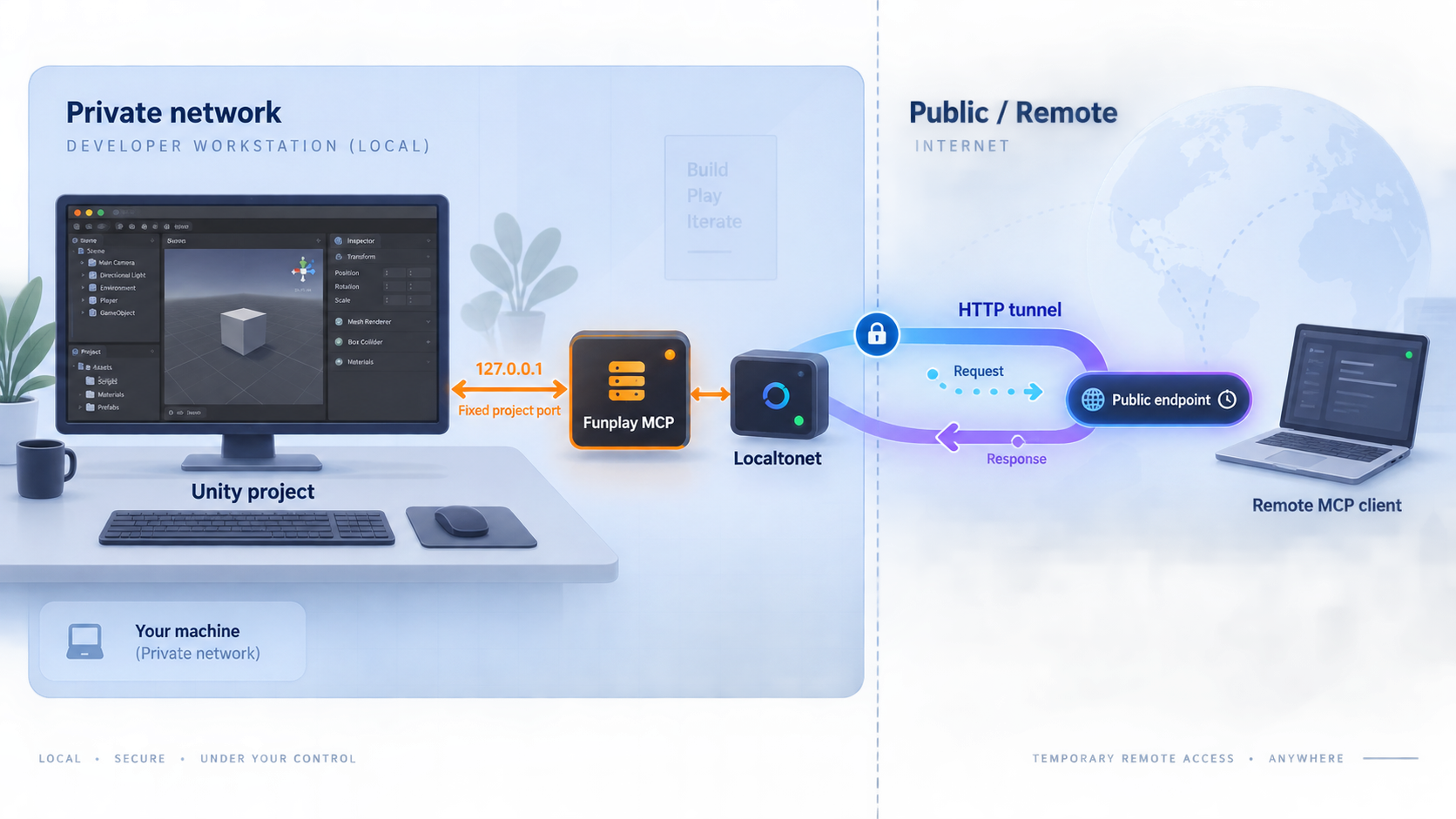
Give Unity Editor automation a predictable local endpoint, verify it safely, and keep it private unless access control is independently established
Funplay MCP for Unity runs an HTTP MCP server inside the Unity Editor so compatible AI clients can interact with the open project. This guide installs the current package, pins a stable project port, verifies the loopback endpoint, configures an MCP client, and explains routine operation. It also shows how a Localtonet HTTP tunnel can connect that endpoint to a remote client during controlled testing. Because the available Funplay documentation does not establish authentication for the MCP endpoint, public HTTPS transport must not be mistaken for authorization.
📋 What's in this guide
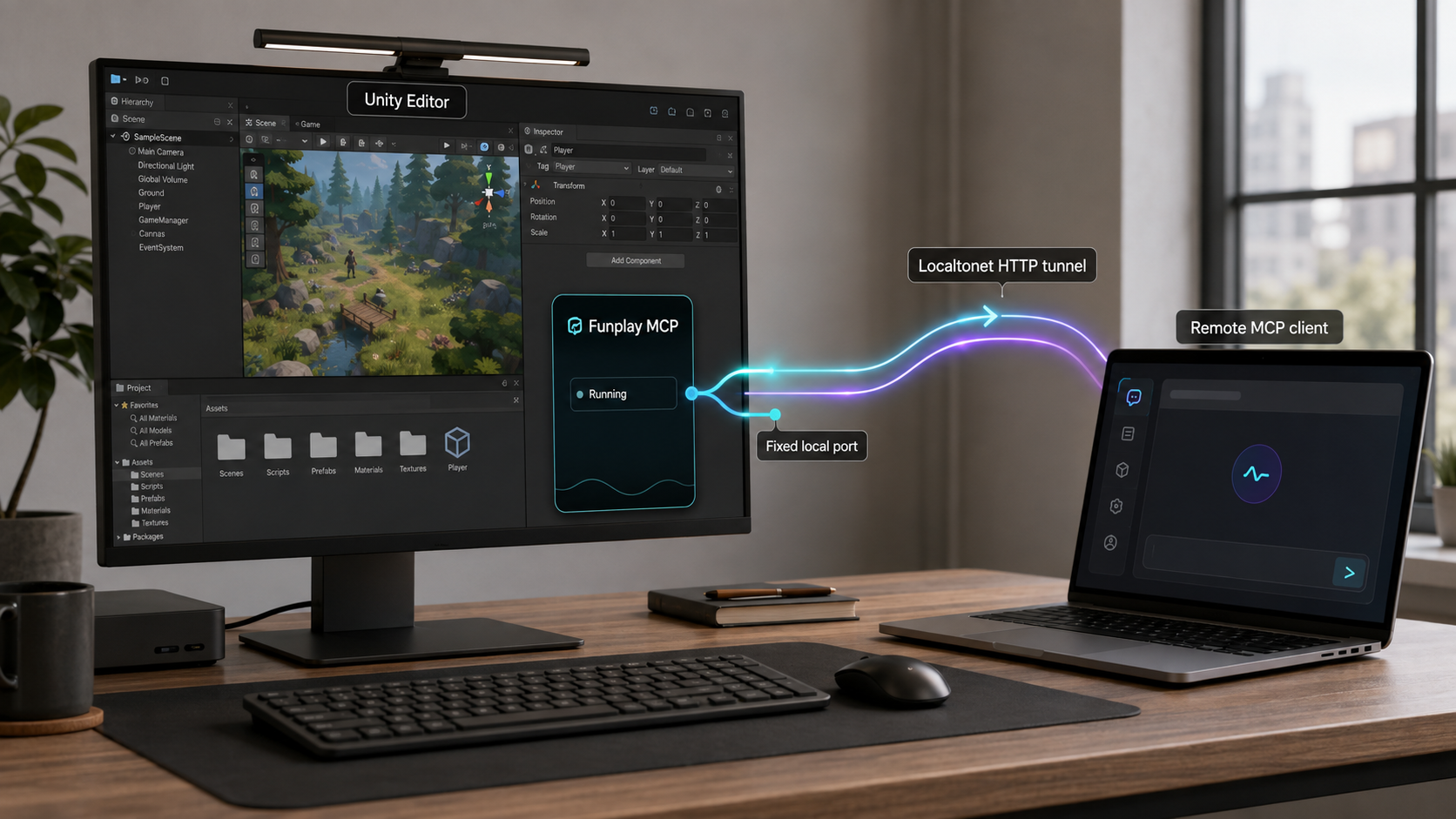
How the self-hosted Unity MCP workflow works
Funplay MCP for Unity is an open-source, MIT-licensed MCP server implemented as a Unity Editor package. It runs alongside the Unity project currently open in the Editor. A compatible local AI client connects to the package through an HTTP endpoint in the form http://127.0.0.1:<port>/. The MCP Server window displays the address that the server actually bound.
This architecture is important because the service belongs to an active editor session. It is not a standalone production web application, a Unity game server, or a runtime component for a built player. The Unity Editor must be running, the correct project must be open, package compilation must have completed, and the MCP server must be enabled. Closing Unity or disabling the server makes that project's endpoint unavailable.
New projects normally receive a deterministic per-project port derived from the normalized project path. The current multi-project documentation maps this derived value into the range 20000 through 29999. Because the derivation is stable for a particular project path, a client configuration can continue using the same endpoint across normal Editor restarts. Different project paths normally produce different ports, which allows several Unity projects to host separate MCP servers at the same time.
This tutorial uses a manually pinned port. Pinning is useful when another component needs an explicit and predictable target, such as a Localtonet HTTP tunnel, a firewall rule, a CI environment, or a manually maintained MCP client entry. There is no universal example port that is guaranteed to be free on every host. Select an appropriate port for your own machine and confirm that another process does not already own it.
The canonical package instructions are maintained in the current Funplay MCP for Unity README. Port derivation, fallback handling, entry naming, upgrades, and concurrent Editor behavior are documented in the Funplay multi-project setup guide. Check those pages when upgrading because package versions and editor labels can change.
Do not create a public tunnel as a diagnostic shortcut. First prove that Unity has the intended project open, Funplay is enabled, the displayed port is stable, and a local MCP client can initialize successfully. This isolates package and client problems from tunnel problems.
Prerequisites and decisions to make first
The current Funplay documentation requires Unity 2022.3 or later and the com.unity.nuget.newtonsoft-json package. Open the intended project with a supported Editor version and make sure Unity Package Manager can resolve dependencies. Installation and package compilation must finish without blocking errors before the MCP server can start.
You also need an HTTP-capable MCP client. The current project documentation lists compatibility with clients such as Claude Code, Claude Desktop, Cursor, Kimi Code, LM Studio, Windsurf, Codex, VS Code Copilot, and other MCP clients. Client configuration schemas and storage locations differ, so Funplay's built-in one-click configuration should be your first choice for local use.
A remote test additionally requires the Localtonet client on the same computer as Unity. The topology in this tutorial deliberately uses the same host because Funplay documents a listener on 127.0.0.1. Loopback is reachable only from the machine that owns it. Running Localtonet on another device would make that device's 127.0.0.1 refer to itself rather than the Unity computer.
Prepare these items
- A Unity project opened in Unity 2022.3 or later.
- Permission to add a package to that project.
- Working access to Unity Package Manager and the official Git repository.
- An available local port if you plan to pin one.
- A compatible MCP client for protocol-level verification.
- Version control or a current backup of the Unity project.
- The Localtonet client and a device-specific authentication token if controlled remote testing is required.
- Authorization from the project owner or organization before enabling any remote route.
Choose the right port behavior
| Port state | Best use | Important behavior |
|---|---|---|
| Per-project derived port | Normal local development and several open Unity projects | The port is derived from the normalized project path and remains stable while that path remains unchanged. |
| Pinned fixed port | Localtonet targets, CI environments, firewall rules, and manual client entries | The manually selected port takes precedence over automatic derivation and is retained for that project. |
| Fallback port | Temporary service continuity after a port conflict | The fallback is session-only, is not persisted, and prevents one-click client configuration until the conflict is resolved. |
Port availability depends on the host and its running processes. Choose a port appropriate for your environment, verify that it is available, and record it accurately. If Funplay reports a fallback, resolve that state before configuring a client or Localtonet tunnel.
Install the current Funplay MCP package
The primary documented installation method uses Unity Package Manager with the repository's Git URL. OpenUPM is an optional alternative when you want registry-backed version history and version selection. Use one source for the package. If a project already uses the Git dependency and you want to switch to OpenUPM, remove the Git dependency before adding the registry package.
Open the target Unity project
Start Unity with the project that the MCP client will control. Verify that the Editor is Unity 2022.3 or later. Package settings and the endpoint belong to this project, so do not perform the installation in an unrelated project.
Open Unity Package Manager
In the Unity Editor, select Window, then Package Manager. Open the plus menu and select Add package from git URL.
Add the official Git package URL
Enter https://github.com/FunplayAI/funplay-unity-mcp.git and let Unity resolve the package. Review an unofficial fork separately before using it because MCP tools can act on the open project.
Wait for import and compilation
Allow package resolution, import, and script compilation to finish. Resolve dependency or compilation errors before trying to start the HTTP service.
Open Funplay > MCP Server
Use the MCP Server window to enable the service, choose port behavior, inspect the active endpoint, and configure a supported local MCP client.
Optional OpenUPM installation
If OpenUPM is already part of your Unity workflow, the currently documented CLI command is:
openupm add com.gamebooom.unity.mcp
The current official README documents package version 0.6.9 in its manual OpenUPM manifest example:
{
  "scopedRegistries": [
    {
      "name": "OpenUPM",
      "url": "https://package.openupm.com",
      "scopes": [
        "com.gamebooom"
      ]
    }
  ],
  "dependencies": {
    "com.gamebooom.unity.mcp": "0.6.9"
  }
}
Version numbers are release-specific. Before copying the manifest into a project later, compare the dependency value with the
current official README
and choose the version your project has approved. Do not assume that 0.6.9 will remain the newest release indefinitely.
An existing Packages/manifest.json normally contains other scoped registries and dependencies. Preserve those entries when adding OpenUPM. JSON permits only one value for each key, so merge the new registry and dependency into the existing objects rather than pasting a second complete manifest over the file.
Account for version-dependent menu labels
This guide uses the current package documentation's main workflow labels: Funplay > MCP Server for server and port controls, Funplay > Tool Exposure for the exposed tool set, and Funplay > Plugin Settings for debug logging. Current repository pages are not fully consistent about the settings label, with the README also referring to MCP Settings. The execute-code safety toggle is documented in the MCP Server window for the current release documentation used here.
If your installed release displays MCP Settings instead of Plugin Settings, use that release's visible settings menu and compare it with the matching package documentation. Do not assume that a menu label from a different version means the package failed to install.
Start the MCP server and pin a fixed project port
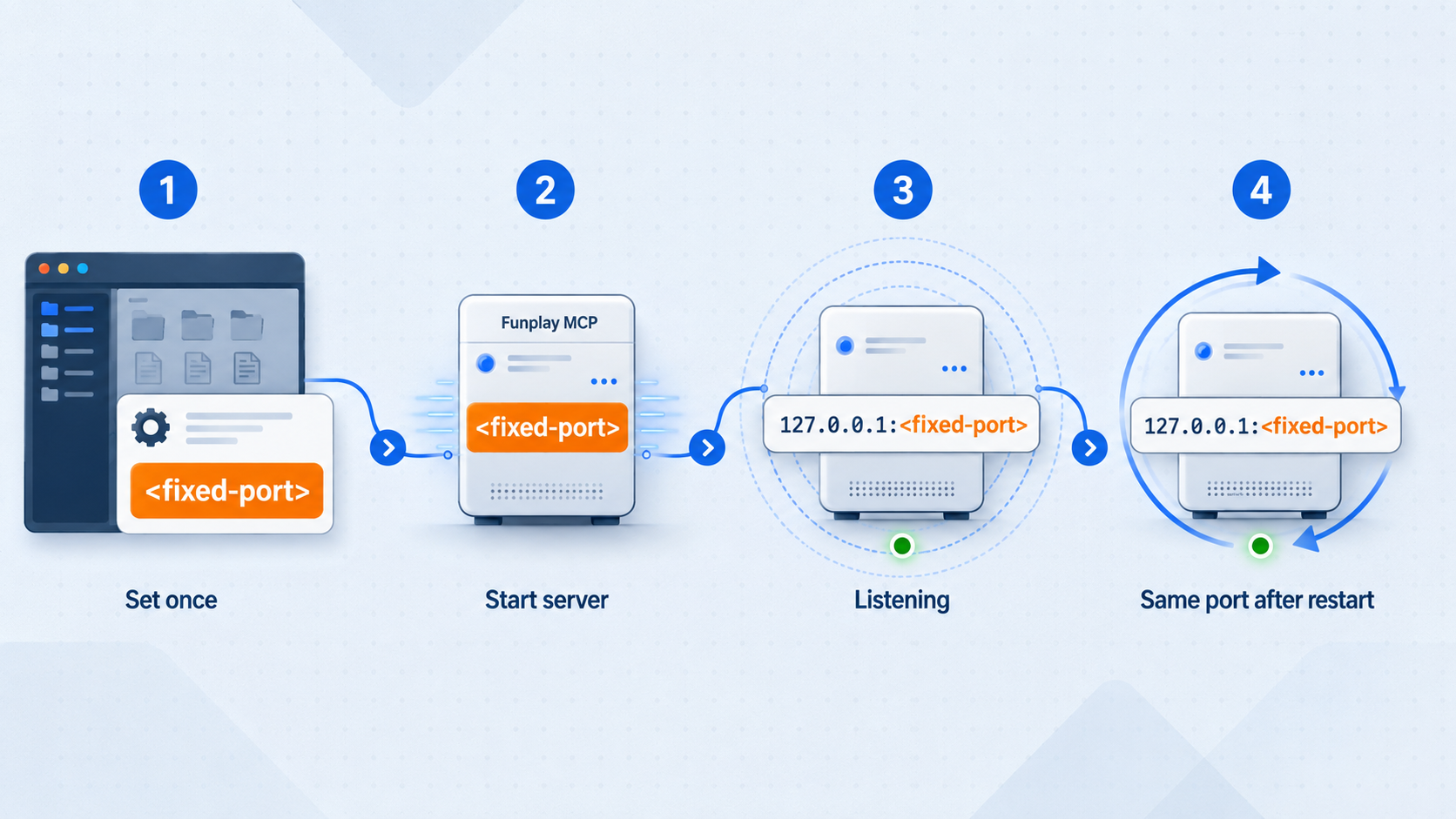
Use the MCP Server window to select the port and start the service. The active URL displayed by this window is the source of truth. Do not reuse a remembered port from another project or assume that the requested port was successfully bound.
Open Funplay > MCP Server
Keep the window visible while selecting the port. It reports the current URL and indicates whether the port is pinned, derived, or temporarily replaced by a fallback.
Enter the chosen value in Server Port
Type an available port into Server Port to pin it. If the intended value is already displayed but is not pinned, select Pin Current Port because retyping an unchanged displayed value does not commit a change.
Enable MCP Server
Enable the server and wait for its transport to start or restart. Direct in-process HTTP is the default mode. Do not assume startup has completed until the window reports the active endpoint.
Confirm the displayed loopback URL
Verify that the window shows http://127.0.0.1:<port>/ with the port you intended to pin. Record the complete URL, including the scheme and trailing slash, for local client configuration.
Resolve any fallback state
If another process owns the intended port, Funplay may bind a nearby free port and label it as a fallback. Free the pinned port, choose a different fixed port, or select Use Per-Project Port. Wait for the server restart and confirm the final stable URL before continuing.
To restore automatic behavior, select Use Per-Project Port. That releases the pin and returns the project to path-derived selection. Direct HTTP and Experimental Broker Mode use the same port resolution rules, so toggling the transport mode does not itself require a different client URL.
Understand fallback behavior
A fallback is intentionally temporary. Funplay does not persist it because the conflict that caused it may disappear after a restart. The package remembers the fallback for the current Editor session, which can improve continuity during domain reloads, but one-click client configuration remains blocked while fallback is active.
That block is a safety measure. Writing the occupied stable port could send project-changing calls to the unrelated process that owns it. Writing the temporary fallback would create a client entry that can become invalid later. Resolve the conflict and return to a stable pinned or derived endpoint before configuring the client or tunnel.
Run several projects without port collisions
Each project in per-project mode receives its own derived port and client entry. The entry name begins with funplay- and is based on the project directory name. If two projects would produce the same entry name, the current multi-project behavior can append a short project hash instead of overwriting the existing entry.
A manually fixed port transfers collision management to you. Two active processes on the same host cannot listen on the same IP address and port combination. Give each concurrently open Unity project a distinct fixed port, or leave those projects in per-project mode. The current multi-project port guide explains the selection order, fallback state, entry naming, and upgrade behavior in detail.
If an MCP client still targets a stable port that another process now owns, requests can reach that process instead of the intended Unity project. Stop testing, resolve the conflict, restart Funplay, and regenerate or correct the client entry before issuing any tool call.
Verify the local endpoint before considering remote access
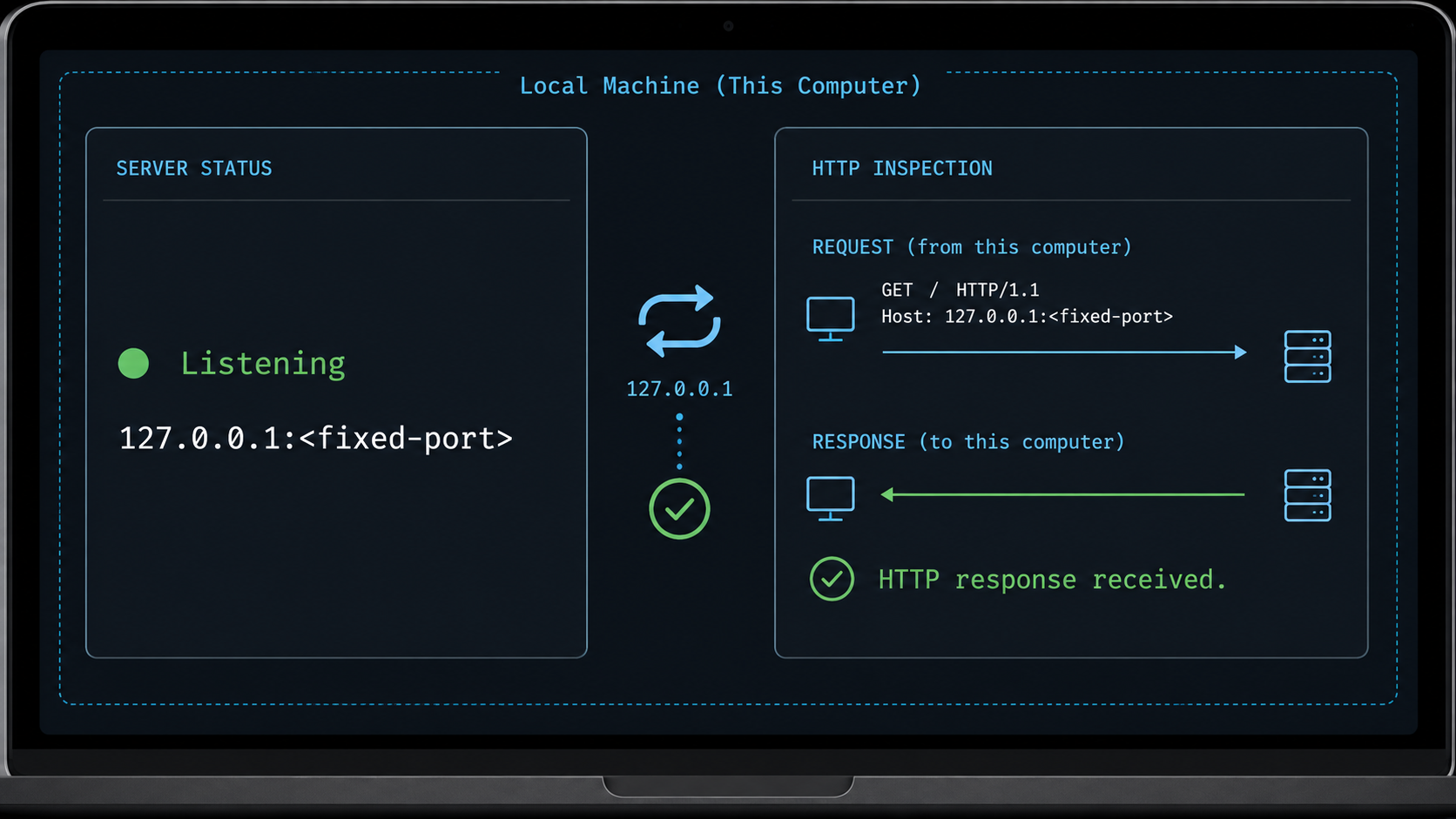
Local verification must answer three separate questions: did Funplay bind the expected port, can an MCP client complete its protocol connection, and is that client connected to the intended Unity project? A generic browser request cannot answer all three.
Inspect the MCP Server window
Confirm that the server is enabled and that the displayed URL contains the pinned port. The window must not show an active fallback warning. If the reported value differs from the port you entered, do not update external configurations yet. Resolve the discrepancy first.
Do not use a browser as the definitive test
The address is an MCP HTTP endpoint, not a conventional web page. Opening it in a browser sends an ordinary HTTP request that may not represent a valid MCP exchange. An empty page, method error, protocol response, or other non-page result does not necessarily mean the server is broken. Conversely, receiving any HTTP response proves only that a process answered the port.
Use a compatible MCP client
Configure a supported client with the exact loopback URL shown by Unity. Restart or reload the client if its own workflow requires that step. Inspect its MCP connection state and available tools. For the first functional test, use discovery or a read-oriented operation instead of asking the client to create assets, alter scenes, generate scripts, install packages, enter Play Mode, or execute code.
Watch the intended Unity project during the test. The open project path, Funplay entry name, port, and client session should correspond. A different configured project can legitimately appear offline when its Editor is closed. Match the current entry and URL rather than assuming every disconnected funplay-* entry belongs to the active project.
Test restart stability
After the first successful session, disable or stop the MCP server, start it again, and confirm that the same pinned port returns. Reconnect the local client and repeat the non-destructive check. This validates the property required by a persistent tunnel configuration: the local target remains stable after a normal server restart.
If script recompilation or Play Mode domain reloads interrupt direct connections, test Experimental Broker Mode in the MCP Server window. It uses Unity's bundled Mono and retains the same 127.0.0.1 port. The feature is explicitly experimental, so reverify local behavior before relying on it.
Configure a local MCP client
Begin with One-Click MCP Configuration in Funplay > MCP Server. Select the intended client and choose Configure. This lets the package write the expected project entry instead of requiring you to guess a client-specific file path or schema.
For supported clients such as Claude Code, Cursor, Codex, OpenCode, and DeepSeek Harness, the current package also offers Configure + Skills. That option installs the built-in unity-mcp-workflow and unity-ui-composition project skills. Project Skills can also be opened from the Funplay menu.
If manual configuration is necessary, use the entry name and exact port displayed in the MCP Server window. A generic HTTP MCP entry can have this shape:
{
  "mcpServers": {
    "funplay-<project>": {
      "type": "http",
      "url": "http://127.0.0.1:<port>/"
    }
  }
}
This structure is not universal. Cursor examples may omit the type field, while VS Code uses a top-level servers object. LM Studio configuration locations can vary by platform and version, so its documented path is Program > Install > Edit mcp.json. Prefer Funplay's Configure function whenever it supports your selected client.
Keep local and remote entries distinct
A local client on the Unity computer should continue using 127.0.0.1. A client on another computer cannot use that address to reach Unity because its own loopback interface points back to the remote computer. If you perform an approved remote test later, use a separate entry name so the local and remote transport paths remain easy to distinguish:
{
  "mcpServers": {
    "funplay-<project>-remote-test": {
      "type": "http",
      "url": "<assigned-public-https-url>"
    }
  }
}
This is only a structural example. The remote entry must not be enabled merely because a tunnel URL exists. The security prerequisite described below still applies, and the exact schema must match the MCP client being used.
Use Localtonet only for controlled remote testing
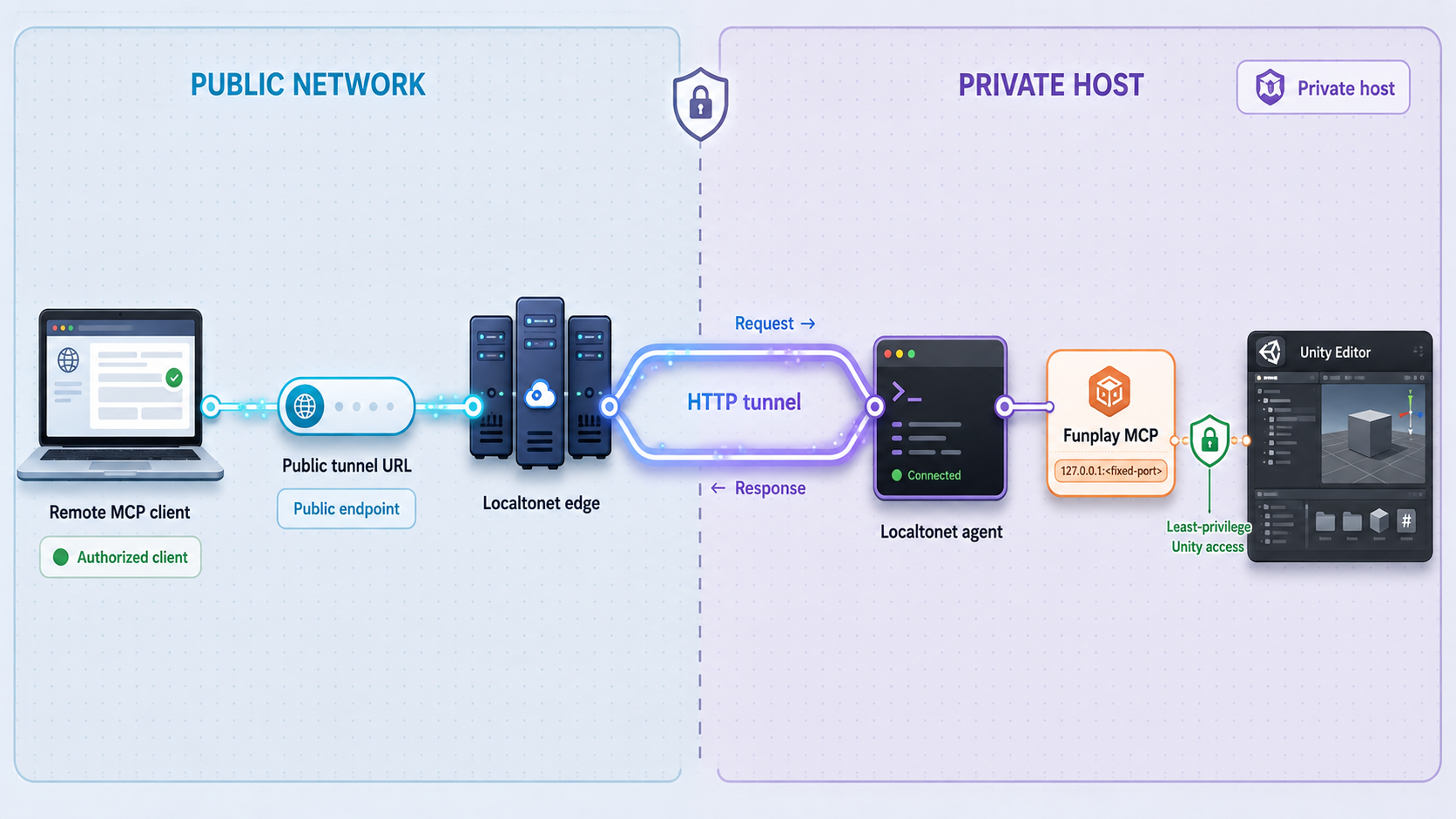
The available Funplay evidence does not establish compatible endpoint authentication or authorization, and this guide has no verified access-control layer to configure. A Localtonet HTTPS address protects transport to the tunnel edge but is not proof that a caller is authorized to operate Unity. Keep Funplay local for normal use. Perform the following public-tunnel procedure only as a short, supervised test in a controlled environment where the risk has been explicitly accepted. If your security policy requires authenticated access, do not expose this endpoint until your organization has independently validated a compatible control.
An HTTP tunnel is the relevant Localtonet tunnel family because Funplay exposes an HTTP endpoint. Our client establishes an outbound connection to a Localtonet relay and forwards the assigned public HTTPS address to the selected local IP address and port. This does not require inbound router port forwarding, a public IP address, firewall changes, or VPN setup.
The tunnel does not make Funplay independent of Unity. End-to-end access exists only while the correct Unity project is open, Funplay is enabled, the selected port remains active, the Localtonet client is connected, and the tunnel has been started.
Install and run the Localtonet client on the Unity host
Use the same computer that runs Unity because the documented Funplay listener uses 127.0.0.1. This allows our client to reach the loopback service directly.
Authenticate or select that device
Use the device-specific authentication token for the Localtonet client that will run the tunnel. Keep the token private. Never place it in MCP configuration, source control, prompts, screenshots, logs, or the public URL.
Select a currently available relay server
Choose an available server or region from the current dashboard. Values can vary by plan, region, or product state, so do not copy a hardcoded server code from another tutorial.
Create an HTTP tunnel
Select the HTTP tunnel family. HTTP tunnels can use Random Sub Domain, Custom Sub Domain, or Custom Domain process types, with availability depending on the current product configuration. All serve the target through a public HTTPS address.
Enter the verified local target
Set the local IP address to 127.0.0.1 and enter the pinned port currently displayed by Funplay. Confirm again that the MCP Server window is not reporting a fallback.
Start the tunnel for the supervised test
Creating a tunnel does not start it. Press Start, wait for the tunnel to run, and use the assigned public HTTPS URL in the remote test client's HTTP MCP entry. Stop or delete the tunnel as soon as the test is complete.
For the current dashboard workflow and field descriptions, use the Localtonet HTTP tunnel documentation. Confirm current server choices, process-type availability, domain requirements, and plan-dependent options in the dashboard rather than relying on a copied configuration.
The Localtonet device token belongs only to the client-device connection. It is not an MCP bearer credential and must not be added to the remote MCP client. Similarly, possession of the public tunnel URL must not be treated as proof of authorization.
Understand the availability chain
| Layer | Healthy state | Typical failure symptom |
|---|---|---|
| Unity project | The intended project is open without blocking compilation errors | Tools are unavailable or operate on an unintended project |
| Funplay MCP | Enabled on the stable pinned port without a fallback warning | The local MCP client fails or reaches another process |
| Localtonet client | The selected Unity host is connected to our platform | The public endpoint cannot reach the local target |
| HTTP tunnel | The configuration exists and the tunnel has been started | A tunnel appears in the dashboard but its public address is inactive |
| Remote MCP client | It uses the current HTTPS address and the correct client schema | Initialization fails even though local MCP access works |
| Security approval | The short test is supervised and explicitly authorized | The endpoint is left broadly reachable without established caller authorization |
Apply a strict security boundary
Funplay MCP is not merely a read-only project viewer. Its documented capabilities include scene and asset operations, script generation, prefab and UI workflows, screenshots, input simulation, Play Mode automation, package operations, editor-state access, and code-execution workflows. A connected client can therefore make substantial changes to the open project.
The package documents default-on checks for execute_code. These checks reject obvious destructive snippets, broad System.IO writes, raw file streams, and absolute, user, system, or traversal paths before compilation. The project explicitly describes this mechanism as a defensive guard rather than a complete sandbox. A trusted client can also pass safety_checks=false for an individual call.
These checks are valuable, but they are not caller authentication. Tool filtering, debug logging, transport encryption, URL secrecy, and code guards answer different security questions. None establishes who is permitted to connect to the endpoint.
This article cannot provide an evidence-backed, Funplay-compatible authentication configuration because one is not established in the available package documentation. Therefore, the safe default is local-only operation. Do not advertise an unprotected tunnel, leave it running unattended, or describe the resulting URL as production-ready.
Reduce exposed tools
Open Funplay > Tool Exposure and inspect the exact tools in the selected core or full profile. Enable only the capabilities required for the current task. If a workflow is limited to project inspection, avoid exposing mutation, package, Play Mode, input, filesystem, or code-execution capabilities simply for convenience.
Review safety and logging controls
For the current release documentation used here, review the execute-code safety controls in the MCP Server window. Use Funplay > Plugin Settings for debug logging. If your installed release instead displays MCP Settings, follow the matching documentation for that version. Keep safety checks enabled unless a reviewed local operation has a specific and justified need for an exception.
Debug logs can assist with troubleshooting, but logs may reveal project activity, endpoint details, error messages, paths, or tool inputs. Store and share them according to the project's confidentiality requirements.
Protect the project and host
- Commit or back up a known-good project state before enabling AI automation.
- Confirm the project folder, MCP entry name, and endpoint before every session.
- Use a dedicated project copy or controlled development environment for experimental prompts.
- Close unrelated confidential projects and assets.
- Review operations before allowing destructive scene, asset, package, filesystem, or code changes.
- Do not expose Localtonet tokens, repository credentials, registry credentials, or private endpoint details.
- Do not rely on a hard-to-guess tunnel address as access control.
- Stop the Localtonet tunnel immediately after a controlled test.
- Disable Funplay MCP when editor automation is no longer required.
Avoid an always-on public route
A continuously reachable tunnel is inappropriate when endpoint authorization has not been established. For an approved controlled test, start Unity first, verify the local endpoint, review the exposed tools, start the tunnel immediately before the test, supervise the session, and stop the tunnel immediately afterward. For ordinary work, use the local loopback endpoint only.
Routine operation and maintenance
Start a local work session
- Open the intended Unity project.
- Wait for package import and script compilation to finish.
- Open Funplay > MCP Server.
- Confirm the pinned port and make sure no fallback is active.
- Enable MCP Server and verify the displayed loopback URL.
- Connect the local MCP client.
- Begin with a non-destructive discovery or read-oriented operation.
Add a controlled remote test only when approved
- Confirm that the local workflow is healthy.
- Review Tool Exposure and remove unnecessary capabilities.
- Back up or commit the project state.
- Confirm that the test is authorized and supervised.
- Start the Localtonet client and the configured HTTP tunnel.
- Use the assigned HTTPS address in the dedicated remote test entry.
- Stop the tunnel immediately after the test.
End the session safely
- Finish or cancel active MCP operations.
- Save and review Unity project changes.
- Stop the Localtonet tunnel if it was used.
- Disable the Funplay MCP server when automation is no longer needed.
- Wait for project writes and imports to finish before closing Unity.
Move or rename a project
A per-project port is derived from the normalized project path, so moving or renaming the project can change that derived port. A pinned port is intended to preserve the selected value. After a move, rename, package upgrade, or machine migration, inspect the MCP Server window and verify the actual endpoint before trusting an old client or tunnel configuration.
Upgrade the package
The current documentation says an existing project keeps the port it was already using by recording it as a pin. This helps preserve existing client entries. Even so, verify the endpoint, menu labels, tool exposure, and safety settings after an upgrade. If you want automatic path-derived behavior again, choose Use Per-Project Port.
OpenUPM users should check the current README before changing the manifest version. Git installations resolve the Git package and do not provide the same registry-backed Version History interface as OpenUPM.
Change transport mode
Direct HTTP is the default. Experimental Broker Mode is designed for stronger continuity across script recompilation and Play Mode domain reloads. Both use the same port resolution mechanism, so changing between them should preserve the endpoint. Because broker mode is experimental, test startup, reconnection, and domain reload behavior locally before using it during an important session.
Troubleshoot local and remote connection failures
The Funplay menu does not appear
Confirm that Unity Package Manager finished installing the package and that the project uses Unity 2022.3 or later. Review package-resolution and compilation errors. The server cannot be configured until the Editor loads the package and displays Funplay > MCP Server.
The settings menu has a different name
Current package documentation uses Plugin Settings for debug logging, while another current repository page refers to MCP Settings. Check the installed package version and use the visible menu that corresponds to that release. The central server and port workflow remains under Funplay > MCP Server.
The displayed port differs from the pinned value
Look for a fallback warning. The intended port may belong to another process. Do not point the MCP client or Localtonet at the occupied stable port. Stop the conflicting process when appropriate, select another available fixed port, or choose Use Per-Project Port. Wait for restart and use only the final displayed endpoint.
One-click configuration is disabled
Funplay intentionally blocks one-click configuration during fallback. A transient fallback should not be stored as a permanent client target, while the occupied stable port could route mutating calls to another process. Select Use Per-Project Port or Pin Current Port, wait for the restart, and configure the client only after the fallback state clears.
Another Funplay server appears offline
MCP clients can retain entries for several Unity projects. A project-specific entry is unreachable when that project's Editor is closed. Compare the entry name and URL with the current project's MCP Server window. Do not delete another project's entry merely because it is offline during this session.
The browser does not display a page
Funplay exposes an MCP HTTP endpoint rather than a normal website. A browser request does not perform MCP initialization. Test with a supported MCP client and compare its entry with the exact URL displayed in Unity.
The local endpoint works but the tunnel does not
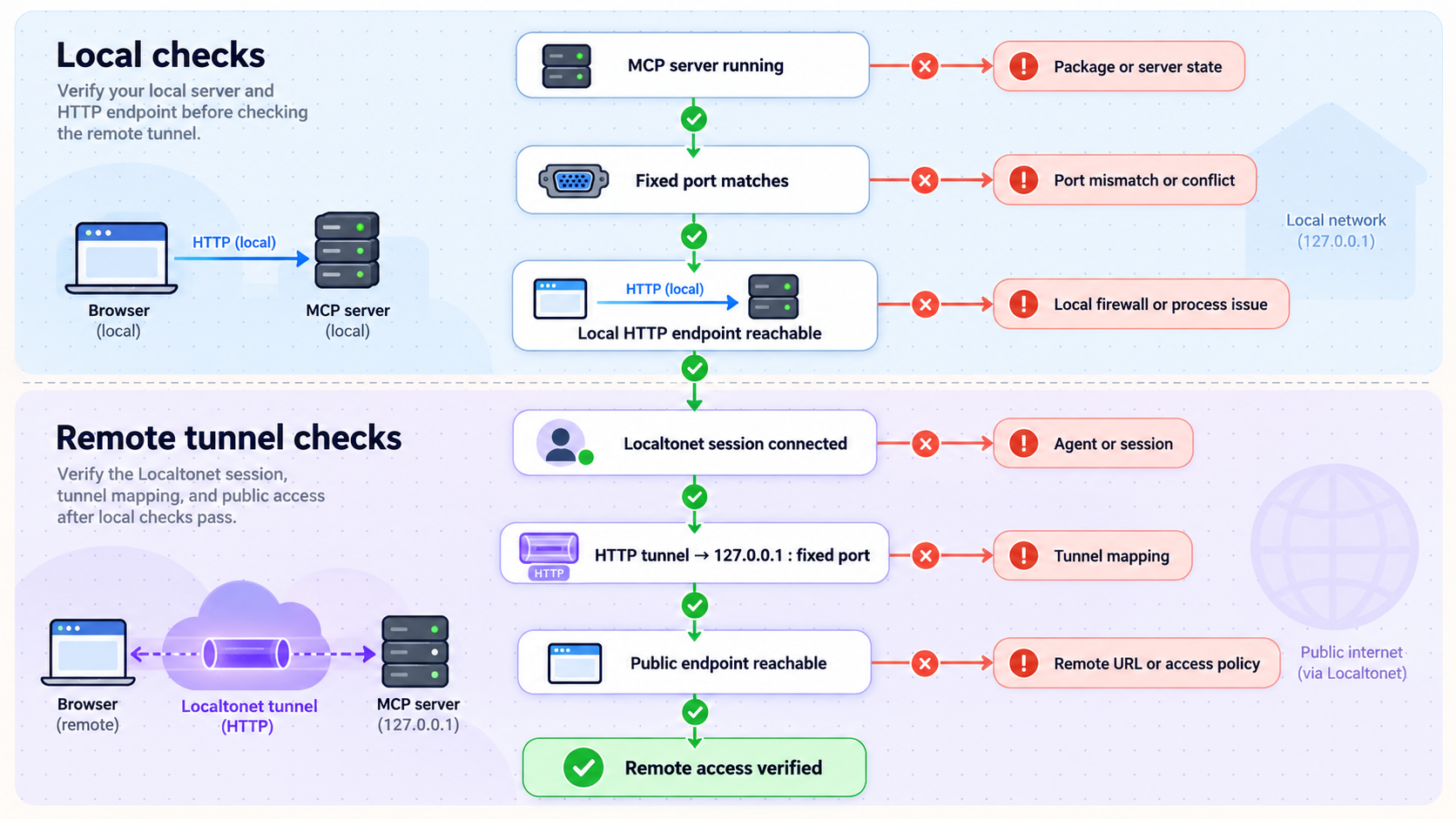
Verify the chain in order. Confirm that the Localtonet client on the Unity computer is connected, the HTTP tunnel is started, and its target is 127.0.0.1 with the current pinned port. Then confirm that the remote test client uses the assigned public HTTPS URL rather than its own loopback address.
If Localtonet runs on another computer, its 127.0.0.1 refers to that other computer. The evidence used for this guide does not establish a supported non-loopback Funplay bind configuration, so move the Localtonet client to the Unity host rather than inventing a network-listener setting.
The public URL responds but MCP initialization fails
A generic HTTP response does not prove MCP compatibility. Compare the remote entry against a successful local configuration generated by Funplay. Check the client's HTTP transport support, configuration object name, URL, trailing slash, and reload requirements. Do not invent raw JSON-RPC requests as a substitute for the client's normal initialization.
Connections drop during script compilation
Direct in-process HTTP can be interrupted by compilation or domain reload activity. Test Experimental Broker Mode locally. It is intended to retain the same loopback port while improving continuity. Reverify the client connection before conducting another controlled tunnel test.
The wrong project receives a request
Stop the client and tunnel immediately. Check the Unity project folder, Funplay entry name, displayed port, and Localtonet target. This risk is especially important after a conflict or when several projects have manually assigned ports. Give each concurrent project a unique port and clear entry name.
The tunnel exists but is unavailable
Creating a Localtonet tunnel does not mean it is running. Confirm that Start was pressed, the selected client device is connected, Unity remains open, and Funplay MCP is enabled. End-to-end access also ends when the Localtonet client disconnects.
Frequently asked questions
What Unity version does Funplay MCP require?
The current documentation requires Unity 2022.3 or later and com.unity.nuget.newtonsoft-json. Resolve package and compilation errors before starting the MCP server.
Which OpenUPM package version does the current README show?
The current README evidence used for this revision shows 0.6.9. Check the official README again before installing because the current release can change after this article is published.
Does Funplay MCP require a fixed port?
No. New projects normally receive a deterministic port derived from their project path. A pinned port is useful when a Localtonet target, CI environment, firewall rule, or manual client configuration needs a predictable value.
Can several Unity projects run Funplay MCP simultaneously?
Yes. Per-project mode derives separate ports and creates project-specific client entries. If you pin ports manually, each concurrently running project must use a distinct available port.
Why should I avoid using a fallback port as the tunnel target?
A fallback is temporary and is not persisted. Funplay blocks one-click configuration during fallback because the occupied stable port might reach another process, while the transient fallback can become invalid after restart. Resolve the conflict and use a stable displayed port.
Can I verify Funplay by opening its URL in a browser?
A browser may show whether something answers the port, but it does not complete MCP initialization or prove that the intended Unity project is connected. Use a compatible MCP client and a non-destructive operation for functional verification.
Should Localtonet run on the Unity computer?
Yes for this workflow. Funplay documents a loopback endpoint at 127.0.0.1, which is reachable only from the Unity host. Running our client on that host lets the HTTP tunnel target the loopback service directly.
Does a Localtonet HTTP tunnel authenticate Funplay users?
No authentication behavior for the Funplay endpoint is established by the evidence used in this guide. Localtonet provides remote HTTP connectivity and a public HTTPS address, but transport is not caller authorization. Keep the endpoint local unless a compatible access-control design has been independently validated.
Is a secret tunnel URL sufficient protection?
No. An unshared or difficult-to-guess URL is not a substitute for authentication and authorization. Do not leave this privileged editor endpoint publicly reachable on the assumption that nobody will discover the address.
Does the tunnel stay useful after Unity closes?
No end-to-end MCP service remains available after Unity or Funplay stops. A tunnel configuration may still exist, but its local target is unavailable. Access also requires the selected Localtonet client to remain connected and the tunnel to be running.
Is Experimental Broker Mode required for Localtonet?
No. Direct in-process HTTP is the default transport and can be targeted by an HTTP tunnel. Broker Mode is optional and is intended to improve continuity across script recompilation and Play Mode domain reloads while keeping the same local port.
Start with a verified local Unity MCP workflow
Install the current Funplay package, pin and verify the loopback port, review the exposed tools, and keep the endpoint local by default. If your organization authorizes a short supervised remote test, Localtonet can connect the verified endpoint without opening an inbound router port, but the tunnel must not be treated as application authorization.
Get Started Free →

