

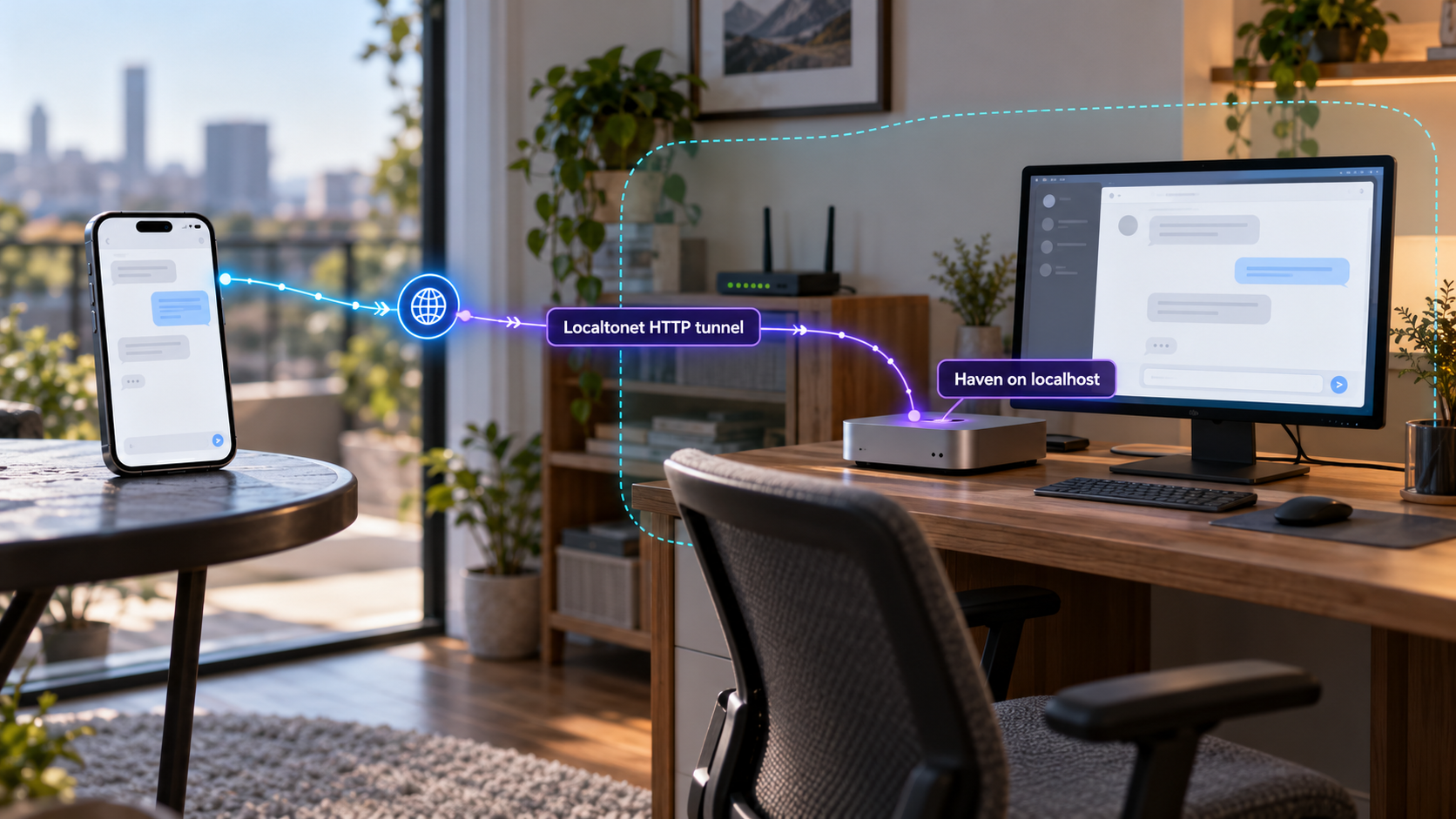
Run a private chat server on your own computer, verify it locally, then provide remote browser access
Haven is a self-hosted chat and collaboration server with browser access, text channels, file sharing, voice chat, screen sharing, roles, invite links, and other community features. This guide explains the documented Windows, Linux, macOS, and Docker installation paths, including startup, local verification, updates, backups, and common troubleshooting. Once Haven is working at its local HTTPS address, we will configure a separate Localtonet HTTP-family tunnel so authorized users can reach it without inbound router port forwarding, firewall changes, VPN setup, or a public IP address. Haven does not have a native Localtonet integration, so the tunnel is an independent remote-access layer around the working local service.
📋 What's in this guide
How a self-hosted Haven deployment works
Haven is a chat server that runs on a computer you control. Users can join through a browser, desktop application, or supported mobile client, while the server remains responsible for storing and serving the community's data. The project describes itself as a private, open-source alternative to hosted chat platforms, with no central Haven account required for operating your own server.
A basic installation has two separate connectivity layers. First, the Haven process must start successfully and listen on the host computer. The documented local address is https://localhost:3000. Second, if people outside the local network need access, the administrator must provide an external route to that service. This second layer can be traditional router port forwarding or a tunnel. In this guide, we use a Localtonet tunnel so the client makes an outbound connection to one of our relay servers and receives a public address.
https://localhost:3000. Haven creates its own certificate the first time it starts, and administrators can replace it with a real certificate.
haven_data is mounted at /data.
This separation is useful during setup. Do not create the public tunnel first and then try to diagnose the application through it. Start Haven, open it locally, complete the initial setup, and confirm that it remains available. Only then add Localtonet. That sequence makes it much easier to distinguish an application problem from a tunnel problem.
localhost refers to the machine on which a program is running. If Haven runs directly on a computer, a Localtonet client on that same computer can normally target the loopback service. If the client runs on another device, localhost would refer to that other device instead, so it must use an address through which it can actually reach the Haven host.
Prerequisites and installation choices
Choose one installation method before downloading or configuring anything. The archive-based installation is intended for Windows, Linux, and macOS. It uses the included startup script and requires Node.js for the server process. Docker provides a containerized alternative with a named persistent volume. You do not need both methods for the same server.
| Installation path | Best suited to | Documented startup | Important prerequisite |
|---|---|---|---|
| Windows archive | Administrators who prefer a downloaded folder and a batch file | Double-click Start Haven.bat |
Node.js is required; the startup flow can offer to install it if absent |
| Linux or macOS archive | Administrators comfortable launching a shell script | chmod +x start.sh && ./start.sh |
Node.js is required for a non-Docker installation |
| Docker image | Hosts where containers and named-volume persistence are preferred | docker run with port 3000 and the data volume mapped |
A working Docker installation and permission to run containers |
Host requirements to check
The supplied project material does not establish a minimum CPU, memory allocation, disk size, or complete operating-system version matrix. Resource needs will depend on the number of users, stored attachments, active calls, and other enabled features. Because those limits are not documented in the available evidence, we do not recommend inventing a fixed capacity estimate. Start with a maintained host, monitor its resources, and increase capacity based on observed usage.
For a non-Docker deployment, Haven Server 4.26.4 requires Node.js. That release specifically advises operators to use Node.js 22.23.4, 24.22.1, 26.12.1, or a newer fixed release because of a security issue affecting older versions. Future Haven releases may change this guidance, so review the release notes before upgrading either Haven or Node.js.
For Docker, confirm that the Docker service is running and that the current account can execute Docker commands. The documented image is hosted at ghcr.io/ancsemi/haven:latest. The supplied installation command publishes container port 3000 on host port 3000 and maps the named volume haven_data to /data.
Network and browser requirements
Port 3000 must be available on the Haven host. If another process already owns that host port, the documented Docker command cannot bind it, and a direct installation may also fail to listen there. The official evidence establishes port 3000 as the standard endpoint but does not document every supported remapping mechanism for archive installations, so this guide does not invent an alternative configuration variable.
Use a current browser for local testing. Haven creates its own certificate when it starts for the first time. A browser may therefore warn that it cannot independently trust the locally generated certificate. That is different from a connection failure. Inspect the certificate and make sure the address is your own server before proceeding. Do not teach users to ignore certificate warnings on unfamiliar or public websites.
Download Haven from its official project distribution and review the current release notes before installation. On Windows, the project notes that the downloaded server package and Start Haven.bat may trigger a Windows protection warning because the software is not code-signed. Confirm the file's origin and expected contents before choosing to run it. A warning should not be dismissed automatically.
Install and start Haven
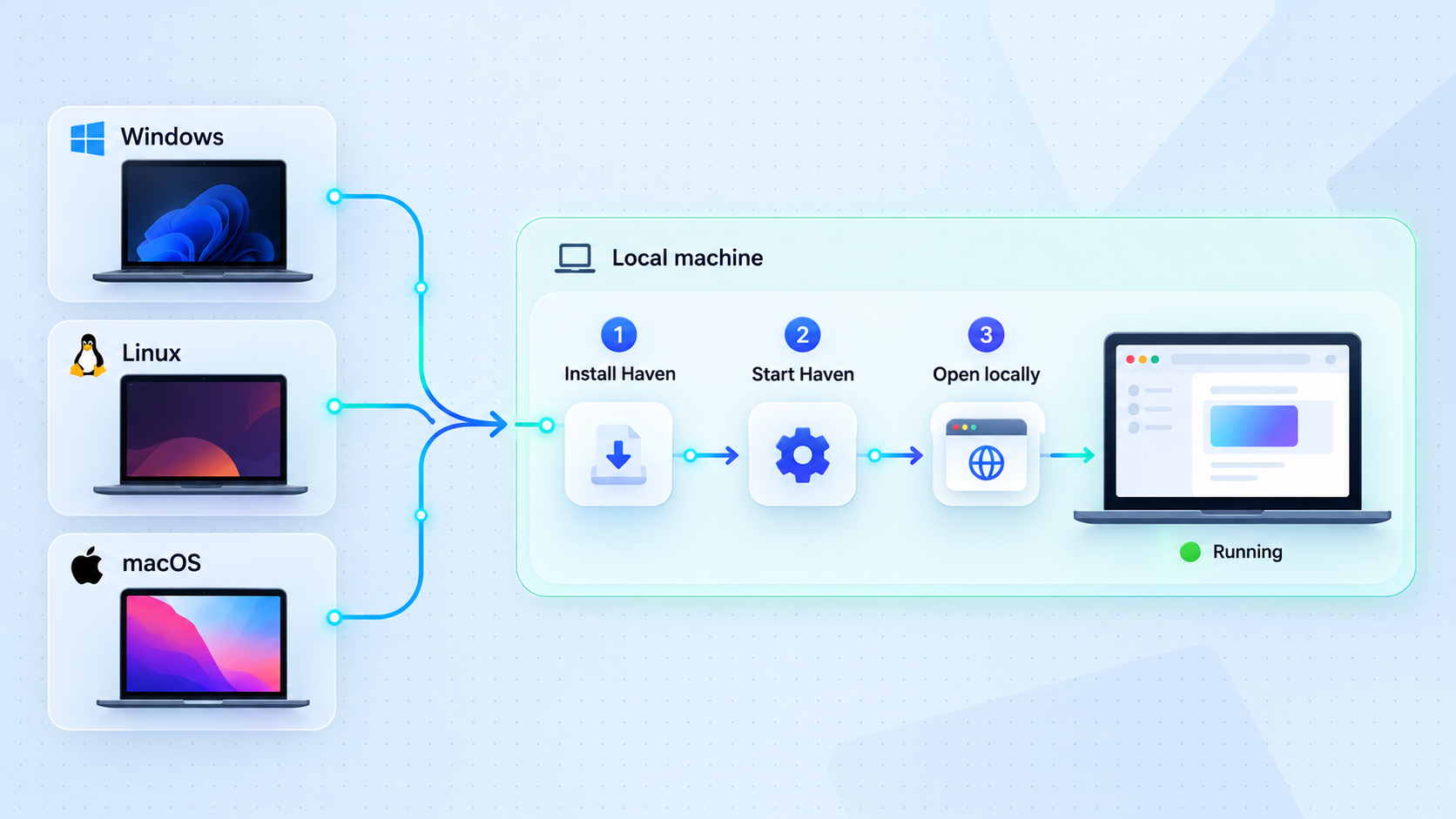
Follow only the subsection for your chosen installation path. These methods create the same type of local Haven service, but their startup, storage, and update procedures differ.
Install the Windows archive
Download and extract the Haven server archive
Obtain the current Haven Server ZIP from the official project distribution. Extract the archive into a folder where the account running Haven can read and write files. Do not try to operate the server from inside the compressed ZIP viewer.
Start the included Windows launcher
Open the extracted folder and double-click Start Haven.bat. The launcher sets up and starts the server. If Node.js is not installed, the documented setup can offer to install it. Review that prompt and ensure the resulting Node.js version meets the current Haven security guidance.
Keep the server running and note its address
Wait for the startup output to report that Haven is running. It prints the local and network addresses, including the local endpoint https://localhost:3000. Keep the Haven process open while testing it.
If Windows displays a protection warning for the batch file, verify that you downloaded the expected official release before continuing. The project documents that this warning can occur because the launcher is not code-signed. That explanation does not remove the need to validate where the archive came from.
Install the Linux or macOS archive
Download and extract the server archive
Download the current Haven Server archive and extract it into a suitable directory. Run the following commands from the extracted server directory so the shell can find the included start.sh file.
Make the startup script executable
Apply executable permission to the included script. The documented command combines this action with startup:
chmod +x start.sh && ./start.shWait for Haven to print its addresses
Leave the process running and read its terminal output. A successful startup reports the local HTTPS address at https://localhost:3000 and may also print a network address for other devices on the same LAN.
The available project evidence does not provide a complete system-service definition for systemd, launchd, or another process supervisor. This guide therefore does not invent one. For unattended operation, use a supervisor appropriate to your operating system only after confirming the command, working directory, runtime user, environment, restart behavior, and writable data location for your specific Haven release.
Run Haven with Docker
Confirm Docker is available
Make sure the Docker service is running and the current account has permission to create containers, publish a host port, and create a named volume.
Create and start the Haven container
Run the documented image with host port 3000 mapped to container port 3000 and the named data volume mounted at /data:
docker run -d -p 3000:3000 -v haven_data:/data ghcr.io/ancsemi/haven:latestConfirm that the container remains running
List running containers and identify the Haven container created from ghcr.io/ancsemi/haven:latest. If it exits, inspect its logs before attempting remote access.
docker ps
docker ps -a
The command runs the container in detached mode. Because it does not assign a fixed container name, Docker generates one. Use docker ps to obtain the container ID or generated name before viewing logs or stopping it.
docker logs <container-id-or-name>
docker stop <container-id-or-name>
The documented container stores persistent data in the named volume haven_data. Replacing a container is different from deleting that volume. Before updates or migration, create a tested backup and confirm that any replacement container mounts the same intended data volume.
Verify Haven before exposing it remotely
Local verification is a required checkpoint, not an optional convenience. A tunnel cannot repair a failed process, an occupied port, missing runtime dependencies, or an application that immediately exits. Complete the checks below on the Haven host before opening the Localtonet dashboard.
Open the documented local URL
On the computer running Haven, open https://localhost:3000 in a current browser. Use HTTPS as documented rather than silently changing the scheme to HTTP.
Inspect any local certificate warning
Haven creates a certificate during first startup, so the browser may not trust it automatically. Confirm that you are connecting to your own local Haven process. A certificate warning shows that an HTTPS service answered, while a timeout or connection-refused error usually means nothing reachable is listening at that address.
Complete the server's initial setup
Follow the on-screen Haven setup and establish the administrative access required for your deployment. Use a strong, unique credential and do not publish an incompletely configured server.
Test the essential application workflow
Sign in, navigate between channels, send a test message, refresh the page, and verify that the application behaves normally. If file sharing is part of your intended use, test a small non-sensitive file before external publication.
Confirm persistence across a controlled restart
Stop Haven cleanly, start it again using the same installation method, and confirm that the expected configuration and test data remain available. For Docker, make sure the replacement or restarted container uses the same haven_data volume.
Optional LAN verification
Haven can print a network address in addition to its localhost address. If another trusted device on the same LAN should be able to use the server, open the exact network URL printed by Haven. This test can reveal host firewall or local network isolation problems, but it is not required when the Localtonet client runs on the same host and can reach the loopback endpoint.
Do not guess a LAN IP address from examples. Addresses such as 192.168.1.20 are illustrative and may not match your network. Use the address reported by your Haven instance or confirmed by the host operating system.
| Observed result | Likely interpretation | Next check |
|---|---|---|
| Haven interface loads | The process and local HTTPS listener are working | Complete setup, restart once, then add remote access |
| Browser reports a certificate warning | The local certificate is not trusted automatically | Verify the host and certificate before proceeding |
| Connection refused | No reachable process is listening on that address and port | Check the Haven process, container state, logs, and port conflict |
| Request times out | Traffic may be filtered, misaddressed, or routed to an unreachable host | Test on the host itself, then check local firewall and network path |
| Page loads but data disappears after restart | Persistent storage may not be reused correctly | Check the installation directory or Docker volume mapping before continuing |
Back up, update, and operate Haven
Back up the data before making changes
Haven states that server data lives on the computer running the service and can be backed up, moved, or deleted by the operator. The exact archive-install data path is not established in the supplied evidence, so we do not provide a guessed folder. Identify the data location shown by the version you installed, stop or quiesce the server as appropriate, and back up the complete server data rather than selecting only visible attachments.
For the documented Docker deployment, persistent application data is mounted at /data from the haven_data named volume. Protect that volume as part of your backup process. A backup is only useful if you can restore it, so periodically test restoration in an isolated environment rather than assuming that the copied data is complete.
Update an archive installation
Read the release notes before replacing files or updating Node.js. Haven Server 4.26.4 was specifically published as a security update related to link previews and a Node.js vulnerability. For a non-Docker installation of that release, the project directs operators to update Node.js to 22.23.4, 24.22.1, 26.12.1, or newer. Later releases may specify different versions.
Create a backup, stop the Haven process, follow the release's documented upgrade procedure, and start it again. Then repeat the local browser and persistence checks. The available evidence does not define a universal file-copy command that is safe for every archive version, so this guide does not invent one.
Update a Docker installation
A container created from the latest tag does not automatically become a new image merely because a release is available. Pull the current image, preserve the data volume, and recreate the container according to the current release instructions. The security release states that Docker users should pull the rebuilt image.
docker pull ghcr.io/ancsemi/haven:latest
Pulling downloads the image but does not replace an already running container. Before removing or replacing anything, identify the current container, record any options you added, and verify that haven_data:/data will be mounted by the replacement. After recreation, inspect the logs and open https://localhost:3000 again.
Understand Haven's external connections
Self-hosting does not necessarily mean the server never makes outbound connections. Haven documents optional or action-triggered connections for update checks, push notifications, GIF searches, link previews, Discord import or bridging, linked media and presence services, emoji updates, connectivity tests, dynamic DNS, and voice relay setup. Several are disabled until configured or invoked, but administrators should still review the relevant settings for their privacy and network policies.
Link previews deserve particular attention because the server fetches a posted website to generate preview content. Keep Haven and its Node.js runtime patched, especially when a release is marked as a security fix. Restricting who can join and post links also reduces unnecessary exposure.
Expose the working Haven server with Localtonet
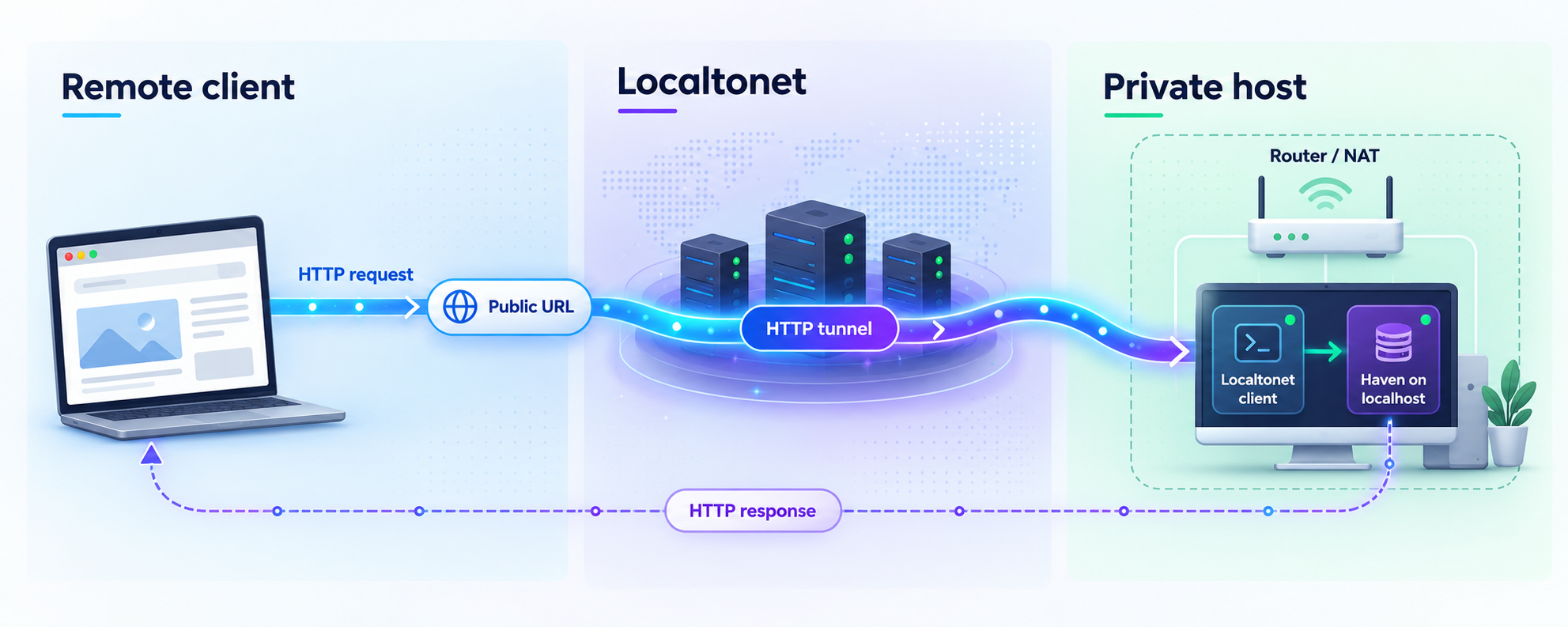
Once Haven works locally, Localtonet can provide remote browser access without an inbound router port-forwarding rule. Install our client on the Haven computer or on a device that can reliably reach it. The client establishes an outbound connection to a Localtonet relay server, and the resulting tunnel provides a public URL while the selected client is connected and the tunnel is running.
Haven is already an HTTPS service at https://localhost:3000. Use an HTTP/s tunnel configuration that matches the local HTTPS origin. Do not convert the target to plain HTTP unless current Haven documentation and your actual configuration establish that an HTTP listener exists. Dashboard details can change, so obtain available relay server choices and current field labels from the dashboard rather than copying hardcoded values from an old article.
Install and run the Localtonet client
Install the Localtonet client on the Haven host or another device that can reach the Haven service. Keep Haven running during configuration so the target can be tested immediately.
Authenticate the intended device
Use the device-specific authentication token associated with the client that will run the tunnel. Treat this token as a secret. Do not paste it into screenshots, support posts, scripts committed to source control, or chat messages.
Select an available relay server
Choose a currently available server or region from the Localtonet dashboard. Availability may vary by plan, client version, region, or deployment, so this guide does not hardcode a server code.
Create the HTTP/s tunnel configuration
Create an HTTP-family tunnel and point its local target to the Haven service on port 3000. When the client runs on the same host, the target host can be the loopback address corresponding to Haven's documented localhost endpoint. Match the target protocol to Haven's local HTTPS service. If the client runs elsewhere, use a local network address that the client device can actually reach.
Choose the appropriate public address process type
HTTP tunnels can use Random Sub Domain, Custom Sub Domain, or Custom Domain process types, subject to current availability. All serve the configured content at a public HTTPS address. If using a custom domain, follow the current dashboard and documentation because exact DNS requirements are not established in the supplied product context.
Start the tunnel
Creating the configuration does not make it active. Press Start for the tunnel and wait until the selected Localtonet client and the tunnel show that they are connected.
Test the assigned public URL
Open the assigned HTTPS URL from a separate network, such as a phone with Wi-Fi disabled. Confirm that Haven loads, authentication works, messages persist, and the browser does not redirect users to an unusable localhost or LAN-only address.
For current dashboard details, consult our Localtonet HTTP tunnel documentation. The tunnel remains available only while the selected client or device is connected and the tunnel is running. Stopping Haven, closing the Localtonet client, disconnecting the host, or stopping the tunnel will end remote availability.
Loading the Haven interface through the public URL confirms that the main web service is reachable. Voice chat and screen sharing can involve additional real-time networking behavior. The available evidence does not establish that every Haven voice or media mode works through one HTTP tunnel alone. Test calls and screen sharing from genuinely remote networks, and follow Haven's current voice-relay guidance if those features require additional configuration.
Secure a publicly reachable Haven server
A tunnel changes reachability, not the application's authorization model. Once the public URL works, anyone who obtains that address can attempt to connect to the web service. Haven's own sign-in, invite, guest-access, role, and permission settings remain responsible for deciding what a visitor can do.
Understand the limits of message encryption
Haven states that direct messages are end-to-end encrypted, so the server stores them without being able to read their contents. Channel messages are not end-to-end encrypted, and the server administrator can read them. Users should understand this distinction before treating every conversation as having the same confidentiality properties.
Connections use HTTPS, but transport encryption does not eliminate account compromise, malicious uploads, excessive permissions, an unpatched host, or an administrator with access to channel data. Security depends on the entire deployment, including the host, application, accounts, backups, and access policy.
Complete initial setup, establish administrative credentials, review guest and invite behavior, install current security updates, and verify backups before sharing the public URL. Never publish a default or unreviewed deployment merely to test whether the tunnel works.
Troubleshoot Haven and Localtonet methodically
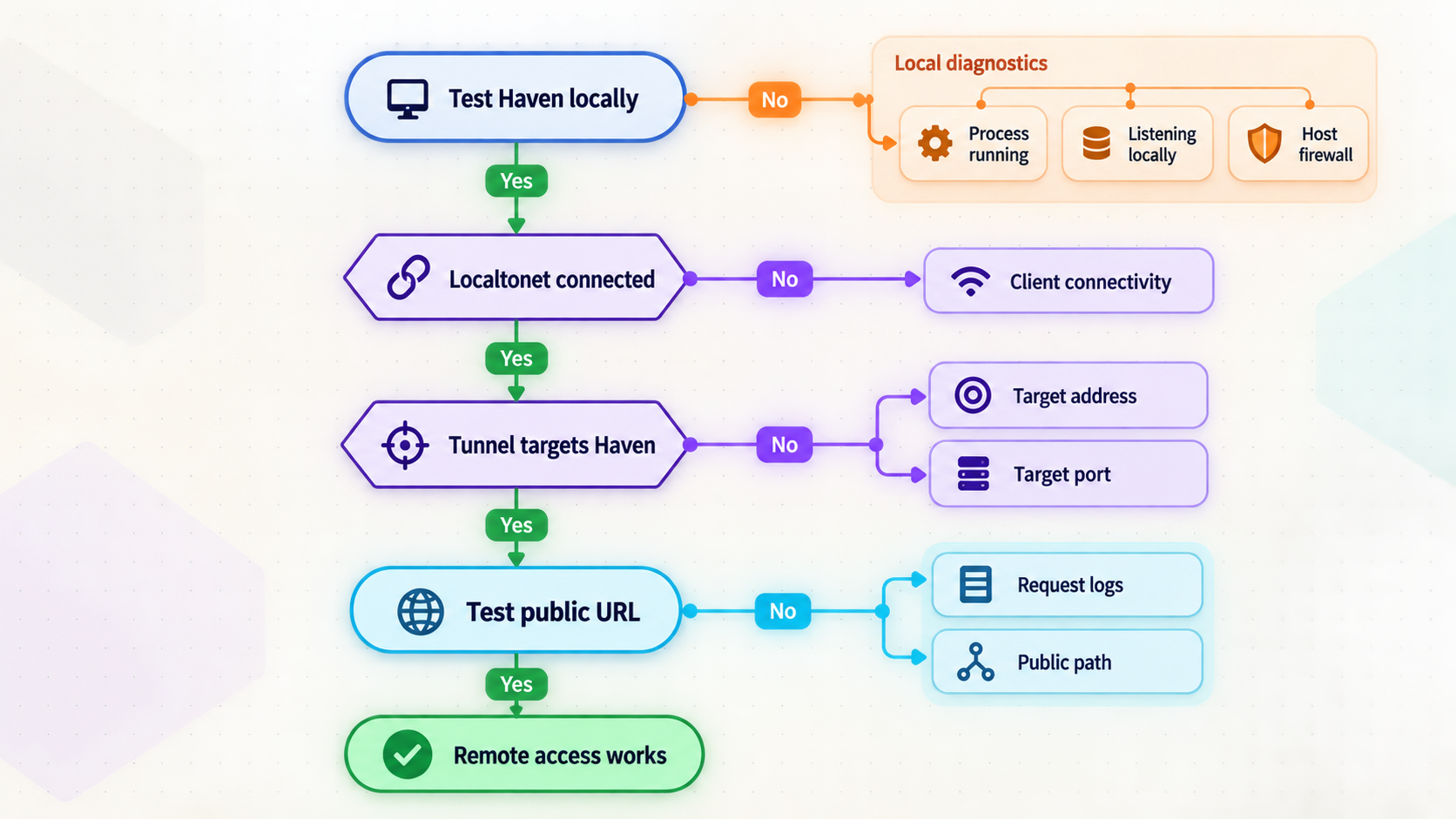
Haven does not open at localhost
Return to the Haven console or container logs. Confirm that the process remains running and that it reported a successful startup. If using Docker, compare docker ps and docker ps -a. A container visible only in the second output has stopped, so inspect its logs rather than repeatedly creating new containers.
Check whether another process already uses host port 3000. The exact inspection command varies by operating system, and the supplied Haven evidence does not prescribe one universal command. Close the conflicting service only after identifying it safely. Do not terminate an unknown process simply to free the port.
The local page works, but the tunnel returns an error
Verify that the Localtonet client is connected, the correct device token was selected, the tunnel was started, and the target points to the address as seen from the client device. A common mistake is placing the Localtonet client on one machine and configuring localhost even though Haven runs on another. In that arrangement, use the Haven host's reachable LAN address instead.
Also verify the local protocol. Haven's documented endpoint is HTTPS. A target configured as plain HTTP may fail because it sends an unencrypted request to a TLS listener. Use the current HTTP/s tunnel controls to match the local origin, and consult the current documentation if certificate validation behavior requires attention. We do not claim an undocumented certificate-bypass option.
The public page loads only while a terminal is open
Haven and the Localtonet client both need to remain running. Closing the terminal that owns the Haven process can stop the application, depending on how it was launched. Similarly, disconnecting the Localtonet client makes the public tunnel unavailable. For unattended hosting, configure supported startup and supervision mechanisms appropriate to the operating system, but do not improvise a service definition without confirming Haven's working directory and runtime requirements.
The Docker server loses data after recreation
Confirm that the replacement container mounts haven_data:/data. A new container without the original named volume may present an empty installation even though the previous volume still exists. Do not delete volumes while diagnosing the problem. Inspect the available volumes and restore from a tested backup if the intended data was removed.
Text chat works, but voice or screen sharing does not
Treat this as a separate media-path problem rather than proof that the web tunnel failed. Test with users on different external networks and review Haven's current voice-relay configuration. The project documents a separate voice relay for large-server setup and may use address detection involving STUN services. Exact voice-relay ports and settings are not established in the supplied evidence, so this guide intentionally does not guess them.
The public URL stopped working unexpectedly
Check the dependency chain in order: power and network connectivity on the host, Haven process or container state, successful local access, Localtonet client connection, tunnel running state, and finally the assigned public URL. Creating a tunnel does not start it permanently, and the tunnel is available only while its selected client is connected and the tunnel itself is running.
Frequently asked questions
What address does Haven use locally?
The documented local endpoint is https://localhost:3000. Haven may also print a LAN address when it starts. Use the exact address reported by your installation rather than copying an example IP address.
Does Haven require Docker?
No. Haven documents archive-based startup on Windows, Linux, and macOS, as well as a Docker image. The non-Docker server requires Node.js. Choose one installation method and follow its matching storage and update procedure.
Why does the browser warn about the local Haven certificate?
Haven creates its own certificate on first startup, and a browser may not trust that local certificate automatically. Verify that the address and certificate belong to your own server. Do not generalize this into ignoring certificate warnings on unknown sites.
Does Localtonet require router port forwarding?
No. Our client establishes an outbound connection to a Localtonet relay server. This allows the tunnel to provide a public URL without an inbound router port-forwarding rule, firewall change, VPN setup, or public IP address.
Is there a native Haven integration in Localtonet?
A native integration is not required and is not claimed here. Haven runs as a local HTTPS service, while a Localtonet HTTP/s tunnel independently forwards remote browser traffic to that local target.
Will one HTTP tunnel support Haven voice chat and screen sharing?
The tunnel can publish the main browser application, but the available evidence does not establish that every voice and screen-sharing mode works through a single HTTP tunnel. Test these functions separately from remote networks and follow Haven's current voice-relay instructions when additional media configuration is required.
Where does Docker store Haven data?
The documented Docker command mounts a named volume called haven_data at /data inside the container. Preserve and back up that volume when replacing the container. The exact archive-install data path is not established by the evidence supplied for this guide.
Is all Haven content end-to-end encrypted?
No. Haven states that direct messages are end-to-end encrypted, but channel messages are not. The server administrator can read channel messages, so users should join servers operated by people they trust.
Make your verified Haven server remotely accessible
Start Haven locally, confirm that https://localhost:3000 works, secure the server, and then create an HTTP/s tunnel with Localtonet for controlled remote browser access without inbound router port forwarding.


