

Build a persistent photo library on 64-bit Raspberry Pi hardware, prove it works locally, then publish only its web interface
PhotoPrism is a privacy-focused application for browsing, organizing, searching, and sharing photos and videos. Its stable Docker images support 64-bit ARM processors, which makes a suitably equipped Raspberry Pi a practical self-hosting platform. This tutorial covers architecture checks, Docker installation, the official Compose configuration, persistent storage, initial login, indexing, backup, updates, and local verification. Only after PhotoPrism works locally will we connect its HTTP service to a Localtonet tunnel without inbound router port forwarding, a public IP address, VPN setup, or firewall changes.
📋 What's in this guide
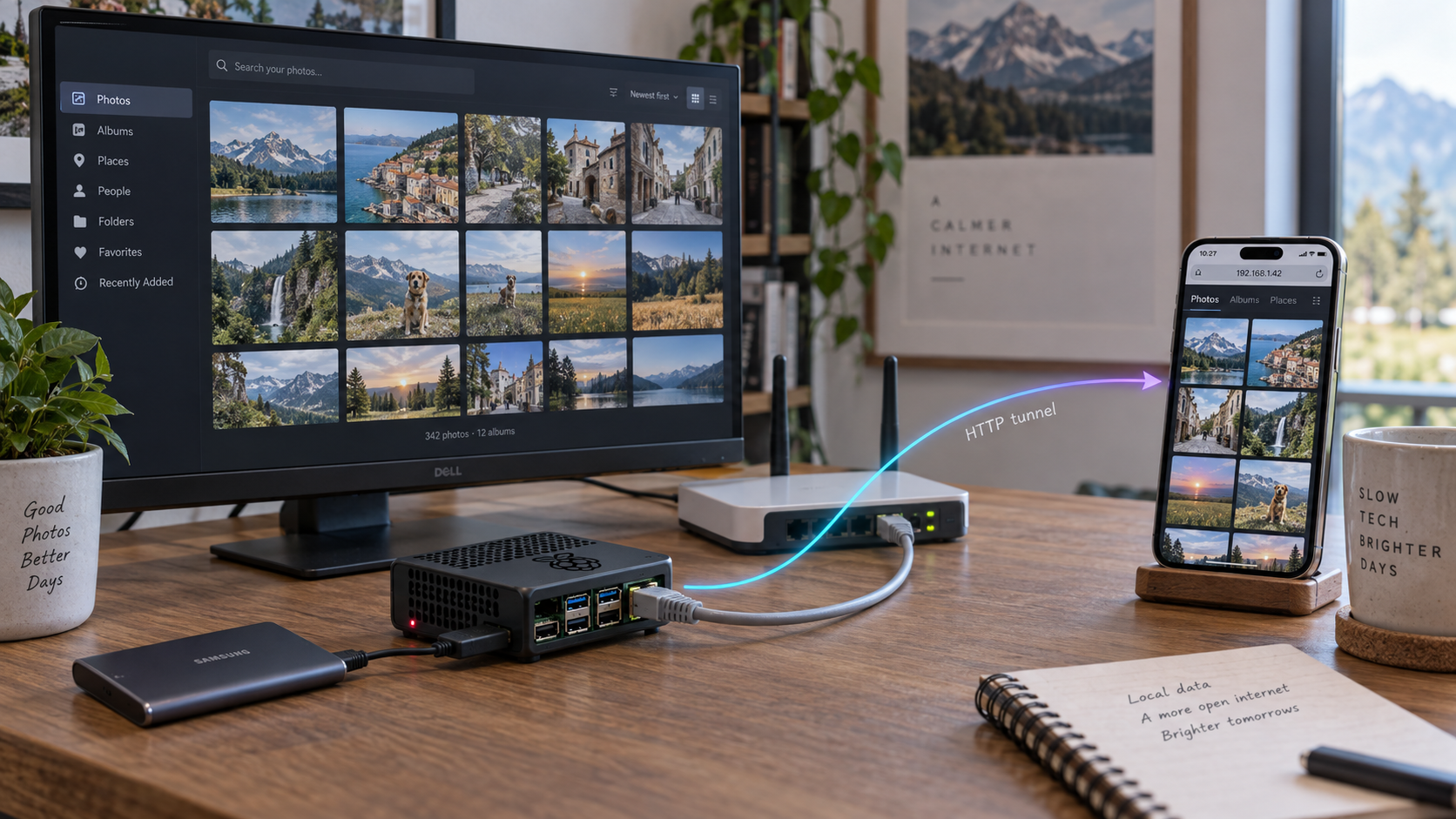
How the PhotoPrism and Localtonet architecture works
PhotoPrism is an AI-powered, privacy-first photo and video application with a browser-based progressive web interface. It can search and filter media, generate thumbnails, process metadata, recognize faces, create automatic labels, display maps, play supported videos and Live Photos, and connect to compatible WebDAV clients. Those features make it more demanding than a basic static file gallery, especially while it is indexing a new library.
In this project, Docker Compose runs PhotoPrism and MariaDB on a 64-bit Raspberry Pi. The originals directory contains the photos and videos presented to PhotoPrism. PhotoPrism's storage directory contains application-managed files such as configuration, cache data, sidecar data, thumbnails, and backups. MariaDB stores indexed application state and must also be persistent.
The official Compose configuration publishes PhotoPrism's web service on host port 2342 by default. A browser on the Pi can therefore normally reach it at http://localhost:2342/. A browser on another trusted LAN device can use http://PI_ADDRESS:2342/ when the active port binding and local firewall allow LAN access. Always confirm the effective mapping with Docker Compose rather than assuming an edited deployment still uses the default.
Remote access is a separate layer. The Localtonet client runs either on the Raspberry Pi or on another device that can reach the Pi. It establishes an outbound connection to a Localtonet relay server. A Localtonet HTTP tunnel then forwards a public HTTPS address to the local PhotoPrism IP address and port.
Running the Localtonet client on the Pi is one available topology, not a universal recommendation. It can target PhotoPrism on the same host and avoids a second LAN dependency. Running the client on another maintained device may be preferable when that device already handles tunnel connectivity. In either case, the selected client must be able to reach the exact local target.
Docker is responsible for running PhotoPrism and MariaDB. PhotoPrism is responsible for authentication and library behavior. Localtonet forwards traffic to the working HTTP service. A tunnel cannot repair a stopped container, an unavailable database, a failed storage mount, or an incorrect local port.
Raspberry Pi hardware, operating system, and storage prerequisites
PhotoPrism's current stable and preview Docker images are multi-architecture images for 64-bit AMD, Intel, and ARM processors. For this tutorial, use a Raspberry Pi running a 64-bit Linux operating system. Do not assume that an older 32-bit installation can run the same current image.
Check the CPU and operating-system architecture
Connect to the Pi locally or through an administrative shell and run:
uname -m
getconf LONG_BIT
dpkg --print-architecture 2>/dev/null || true
On a 64-bit ARM installation, uname -m normally reports aarch64, getconf LONG_BIT reports 64, and Debian-family systems normally report arm64. If the CPU supports 64-bit operation but the operating system reports 32 bits, install a supported 64-bit operating system before continuing.
Plan for indexing resource demand
PhotoPrism requires a 64-bit system and benefits from multiple CPU cores, several gigabytes of memory, and fast persistent storage. Raspberry Pi deployments should use a model and memory configuration suitable for containerized database and image-processing workloads. A Pi with at least 4 GB of memory is a practical baseline for this workflow, while additional memory improves headroom for indexing, database activity, thumbnails, face processing, and video operations.
Performance depends on the Pi model, cooling, storage, media formats, enabled features, and library size. There is no responsible universal photo-count limit. A library containing large RAW files and high-resolution videos can require much more processing and temporary storage than a similarly sized JPEG collection.
Use adequate cooling and a reliable power supply. Thermal throttling, undervoltage, and sudden power loss can make indexing slow or damage database and filesystem state. You can check for Raspberry Pi firmware warnings where the operating system provides the utility:
vcgencmd get_throttled 2>/dev/null || true
free -h
nproc
A result other than throttled=0x0 deserves investigation. The exact bit meanings depend on the Raspberry Pi firmware documentation.
Use durable storage
A USB 3 SSD or another reliable attached storage device is preferable to placing a busy PhotoPrism database, thumbnails, and a large photo library on a small microSD card. Database writes, cache activity, previews, and indexing can create sustained I/O. The storage device must be mounted before Docker starts PhotoPrism.
Confirm the filesystem and free space:
lsblk -o NAME,SIZE,FSTYPE,MOUNTPOINTS
df -h
df -i
The first command identifies devices and mount points. The second checks byte capacity. The third checks inode capacity, which can be exhausted by large numbers of files even when byte capacity remains.
If you place persistent directories on an external mount, configure that mount through the operating system so it returns after reboot. Before starting PhotoPrism, verify that the mount is present. Otherwise Docker may create ordinary directories on the root filesystem at the expected path, causing PhotoPrism to appear to have an empty library.
Separate the persistent data categories
| Data | Container location | Purpose | Backup requirement |
|---|---|---|---|
| Originals | /photoprism/originals |
Your source photos and videos | Back up independently and treat as irreplaceable |
| PhotoPrism storage | /photoprism/storage |
Configuration, cache, sidecar data, thumbnails, and backup files | Back up for efficient recovery and retained application state |
| MariaDB data | /var/lib/mysql |
Live database files | Use PhotoPrism's database backup process instead of relying only on a live file copy |
| Optional import folder | /photoprism/import |
Staging area for PhotoPrism's import workflow | Protect until imported files are confirmed in their intended destination |
| Compose configuration | Host deployment directory | Service definitions and deployment settings | Back up securely because it may contain passwords |
Containers, RAID, an SSD, and PhotoPrism's database backup are not substitutes for an independent media backup. Keep another copy of important originals on separate storage and test that it can be restored.
Install and verify Docker with Compose
PhotoPrism recommends Docker for private servers and NAS devices. On a 64-bit Raspberry Pi OS or another Debian-family Pi installation, use either Docker's current Debian installation procedure or packages maintained for the operating system. Avoid mixing packages from several installation methods.
PhotoPrism's Raspberry Pi guidance commonly uses Docker's official convenience installer. Review the downloaded installer before running it, especially on a host that already has Docker packages or custom daemon configuration:
curl -fsSL https://get.docker.com -o get-docker.sh
less get-docker.sh
sudo sh get-docker.sh
rm get-docker.sh
The convenience installer is useful for a new Pi host, but Docker recommends its managed package-repository procedure when administrators need controlled package provenance and lifecycle management. Follow the current Docker procedure that matches the installed distribution if this is a production-managed system.
Confirm that the engine is running and that the Compose plugin is available:
sudo systemctl enable --now docker
docker --version
docker compose version
sudo docker info
If you intentionally want a non-root account to control Docker, add only the appropriate trusted account to the Docker group:
sudo usermod -aG docker "$USER"
Log out completely and sign in again before testing docker info without sudo. Membership in the Docker group provides extensive control over the host and should be treated as administrative access.
If Docker reports a permission error, correct the service or account configuration. Changing /var/run/docker.sock so every local user can write to it creates a serious host-security problem.
Install PhotoPrism with the official Docker Compose configuration
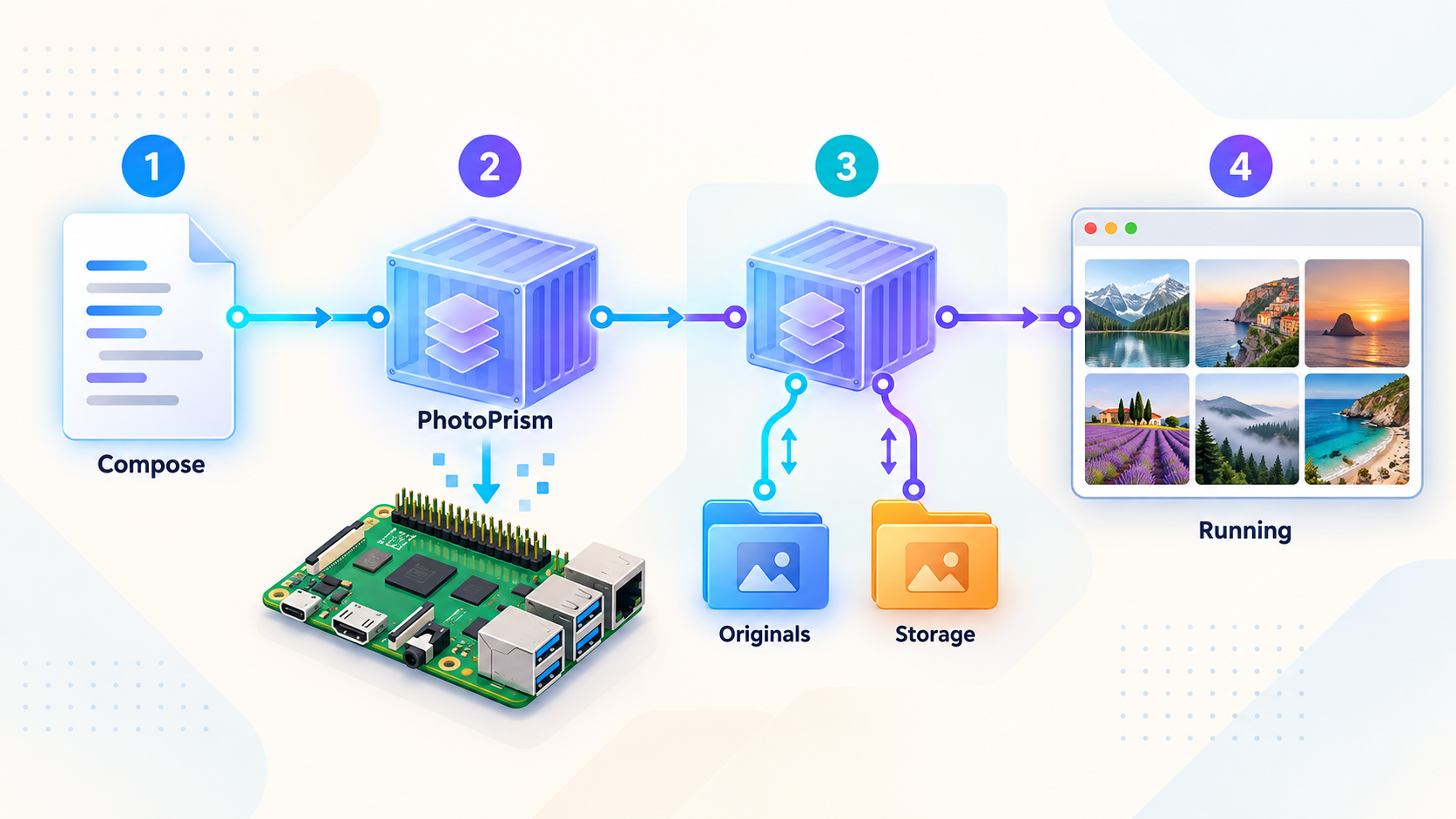
Use PhotoPrism's current official Compose file rather than rebuilding the full service definition from an old article. The standard stable image is multi-architecture and supports 64-bit ARM. Do not choose the development preview for a normal photo server unless you deliberately accept preview behavior and have a tested recovery plan.
Create the deployment and persistent directories
Create a private deployment directory and separate host directories for originals, PhotoPrism storage, the MariaDB data directory, and an optional import folder. Place these on the intended persistent filesystem before Docker creates any containers.
Download the official Compose file
Download the current stable Docker Compose configuration published by PhotoPrism into the deployment directory. Keep a private copy of the exact file used so future changes can be reviewed.
Configure passwords and the public site URL
Replace the example PhotoPrism administrator password and both MariaDB passwords. Ensure the PhotoPrism database password matches the non-root MariaDB account password. Start with the local site URL, then change it to the assigned public HTTPS URL before remote use.
Configure persistent volume mappings
Map the host originals, storage, and database directories to the documented container locations. Add an import mapping only if you plan to use the import workflow. Verify every source path before startup.
Validate the effective Compose model
Ask Docker Compose to parse the file. Inspect the selected images, port mapping, service dependencies, and volume sources. Keep the rendered output private because it may contain resolved credentials.
Pull images and start the services
Pull the configured multi-architecture images and start the stack in detached mode. Initial startup may take several minutes while images download and MariaDB initializes its persistent data.
Inspect service state and startup logs
Confirm that PhotoPrism and MariaDB remain running. Check recent logs for incorrect passwords, storage permissions, database initialization errors, unsupported architecture, or memory pressure.
Create the directory structure
The following example keeps everything under the current user's home directory. If you use an external SSD, replace the host path with a directory on its verified mount point:
mkdir -p "$HOME/photoprism"/{originals,storage,database,import}
cd "$HOME/photoprism"
pwd
df -h .
ls -ld originals storage database import
Do not continue if df -h . identifies the wrong filesystem. Correct the external mount first.
Obtain the official configuration
cd "$HOME/photoprism"
curl -L https://dl.photoprism.app/docker/docker-compose.yml -o compose.yaml
chmod 600 compose.yaml
Open compose.yaml in a local editor. Review the complete file rather than copying isolated settings from this tutorial. PhotoPrism may update image versions, database options, comments, and recommended defaults over time.
Set the required credentials
Find and replace the example values for these settings in the official file:
PHOTOPRISM_ADMIN_USER, normally configured asadminfor the initial account.PHOTOPRISM_ADMIN_PASSWORD, which must be replaced with a strong, unique password before startup.PHOTOPRISM_DATABASE_PASSWORD, used by PhotoPrism to connect to MariaDB.MARIADB_PASSWORD, which must matchPHOTOPRISM_DATABASE_PASSWORD.MARIADB_ROOT_PASSWORD, which must be a different strong password.PHOTOPRISM_SITE_URL, initially set to the local address and later changed to the public HTTPS address used for remote access.
Use long random values and store them in a password manager. Do not leave example values such as insecure in an internet-accessible deployment. Restrict access to the Compose file because environment values inside it can contain the database and administrator credentials.
Sign in as the configured administrator user with the exact password you set in PHOTOPRISM_ADMIN_PASSWORD. Do not rely on a password copied from an example file. Changing that environment value after the account has been initialized should not be treated as a substitute for PhotoPrism's account-management workflow.
Configure the persistent mappings
In the PhotoPrism service, map the host directories to the documented container locations:
volumes:
  - "./originals:/photoprism/originals"
  - "./storage:/photoprism/storage"
  - "./import:/photoprism/import"
The import folder is optional. It is separate from originals and is used only when you intentionally run PhotoPrism's import workflow. If you prefer to preserve an existing photo hierarchy in place, mount that library as originals and index it directly instead.
In the MariaDB service, map the database directory:
volumes:
  - "./database:/var/lib/mysql"
Keep PhotoPrism's storage directory separate from originals. Do not place the storage directory inside the originals directory, since generated files and cache data should not be indexed as source media.
Confirm the port and local site URL
The official Compose configuration normally publishes PhotoPrism as:
ports:
  - "2342:2342"
This maps host port 2342 to PhotoPrism's container port 2342. For initial local verification, configure the site URL using the actual local address:
PHOTOPRISM_SITE_URL: "http://PI_ADDRESS:2342/"
Replace PI_ADDRESS with the Pi's stable LAN hostname or address. Keep the trailing slash. If you change the host-side mapping to another port, use that host port in the browser and in the Localtonet target.
Find the Pi's current addresses with:
hostname -I
ip -br address
Validate and start the deployment
cd "$HOME/photoprism"
docker compose config --quiet
docker compose pull
docker compose up -d
docker compose ps
docker compose logs --tail=100
A successful docker compose config --quiet confirms that Compose can parse the model. It does not prove that paths, passwords, storage capacity, or application behavior are correct. If you render the full configuration with docker compose config, do not publish its output because secrets may be resolved into it.
Complete the initial login and verify PhotoPrism locally
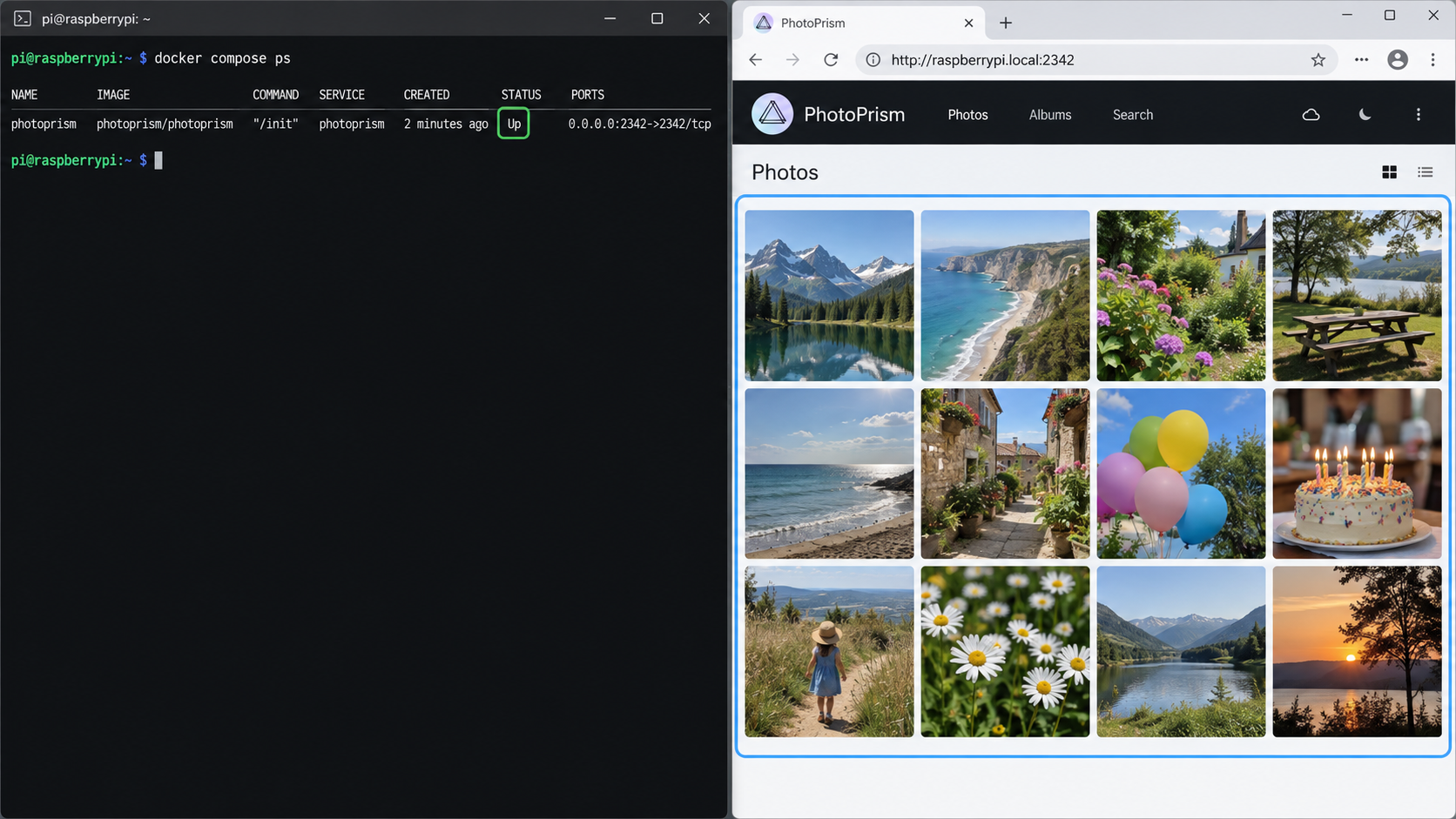
Local verification creates a clear diagnostic boundary. Complete every check in this section before configuring Localtonet.
Check container and port state
cd "$HOME/photoprism"
docker compose ps
docker compose logs --tail=100 photoprism
docker compose logs --tail=100 mariadb
The expected services should remain running rather than repeatedly restarting. The PORTS column should show the active host mapping for PhotoPrism. When the standard mapping is unchanged, it includes host port 2342.
PhotoPrism deployments and image versions do not all expose the same Docker health-check presentation, so do not depend solely on a healthy label. Use service state, logs, an HTTP response, and a real browser login together.
Test the HTTP endpoint
From the Raspberry Pi:
curl -I http://127.0.0.1:2342/Then open the service from a browser on the trusted LAN:
http://PI_ADDRESS:2342/
If you changed the host-side port, replace 2342 with the observed port. A successful local shell request but failed LAN request usually points to the host binding, local firewall, VLAN policy, or an incorrect address rather than a PhotoPrism login problem.
Sign in for the first time
Use the administrator username and PHOTOPRISM_ADMIN_PASSWORD configured before startup. Confirm that an unauthenticated private browser window receives the expected sign-in experience. Do not proceed to public access if the library or administrative controls are visible without the authentication you intended.
Index a small sample library
Copy a small, non-sensitive, representative sample into the host originals directory. Include only files you can safely use for testing:
find "$HOME/photoprism/originals" -maxdepth 2 -type f | headIn PhotoPrism, open the Library section, select Index, and start indexing the originals directory. Use a small sample before introducing a large archive. Confirm that thumbnails appear and that search, metadata, labels, and any media formats important to you behave as expected.
Indexing reads the originals hierarchy in place. The optional import workflow is different. It uses the import folder as a staging area and adds files to the originals library according to the selected PhotoPrism behavior. Do not use import on the only copy of irreplaceable media without first testing the workflow and maintaining a backup.
Test persistence across container recreation
After the sample has been indexed, record a visible item, album, or setting. Recreate the services without deleting volumes or host directories:
docker compose down
docker compose up -d
docker compose ps
Sign in again and confirm that the sample library and database-backed state remain available. Also confirm that the host files still exist:
find "$HOME/photoprism/originals" -maxdepth 2 -type f | head
du -sh "$HOME/photoprism/storage" "$HOME/photoprism/database"
Commands that remove Docker volumes can destroy database state when a deployment uses named volumes. A normal docker compose down followed by docker compose up -d does not require a volume-removal option.
Verify startup after a host reboot
The official Compose configuration uses restart behavior intended to return the services after Docker restarts. Test the complete host path instead of assuming it works:
sudo rebootAfter the Pi returns, verify the external storage mount before trusting the application:
findmnt
cd "$HOME/photoprism"
docker compose ps
curl -I http://127.0.0.1:2342/
If persistent directories live on an external device, ensure the operating system mounts that device before Docker starts the services. A missing mount can produce empty fallback directories on the root filesystem.
Operate, back up, restore, and update PhotoPrism safely
A self-hosted photo server needs a repeatable maintenance process. Keep the deployment path, storage mount, Compose file, local URL, backup destination, and recovery steps documented privately.
Monitor service and storage capacity
cd "$HOME/photoprism"
docker compose ps
docker compose logs --tail=100
df -h .
df -i .
du -sh originals storage database
Monitor both free bytes and inodes. PhotoPrism storage can grow as thumbnails, sidecar data, cache files, and backups are created. Originals can grow through manual uploads, synchronization, imports, or other library workflows.
Create a PhotoPrism backup
PhotoPrism includes a backup command that creates an application database backup in its storage backup area. From the Compose directory, run:
docker compose exec photoprism photoprism backup -a -iThe flags request a backup that includes albums and the index database. Confirm that a new backup appears under the PhotoPrism storage backup directory, then copy that backup and the rest of the required persistent data to independent storage.
A complete recovery set should include:
- The original photos and videos.
- The PhotoPrism storage directory.
- A recent PhotoPrism database backup.
- The Compose configuration and any separate environment file.
- A private record of the storage paths, database settings, and image version used.
Protect configuration backups because they may contain administrator and database passwords. Do not rely on copying the live MariaDB data directory while the database is writing. Use the application backup command, or stop the stack before taking a filesystem-level snapshot that includes database files.
Test restoration
PhotoPrism's restore command can restore a compatible backup into the configured deployment:
docker compose exec photoprism photoprism restore -a -iRestoration can overwrite current database state. Test it in an isolated recovery deployment or during a planned recovery window, using the backup files and image version appropriate to that backup. Confirm that expected albums, labels, settings, and indexed media return.
Restoring the database does not recreate missing original media. Restore the originals and required storage files to their configured paths as part of the same recovery plan.
Update conservatively
Read PhotoPrism's current release notes and update documentation before pulling a new image. Updates may include database migrations, changed defaults, new AI models, security fixes, or one-time maintenance commands. Do not run migration commands copied from an unrelated release.
Back up first, then use the documented Compose refresh sequence:
cd "$HOME/photoprism"
docker compose exec photoprism photoprism backup -a -i
docker compose pull
docker compose stop
docker compose up -d
docker compose ps
docker compose logs --tail=100
Open the local interface, sign in, inspect representative photos, and run a small indexing test after the update. Verify the public route only after local behavior is healthy.
A new release may migrate database or storage state in ways an older image cannot read. Keep pre-update backups and record the previous image identifier. Follow the release-specific recovery guidance rather than assuming that changing the image tag reverses every migration.
Release behavior must be checked again immediately before publication or upgrade. A dated release example can quickly become stale, so this tutorial intentionally uses a timeless process: read the notes for the exact image being deployed, identify explicit migrations, back up first, update, and validate locally.
Configure PhotoPrism for its public URL and add Localtonet
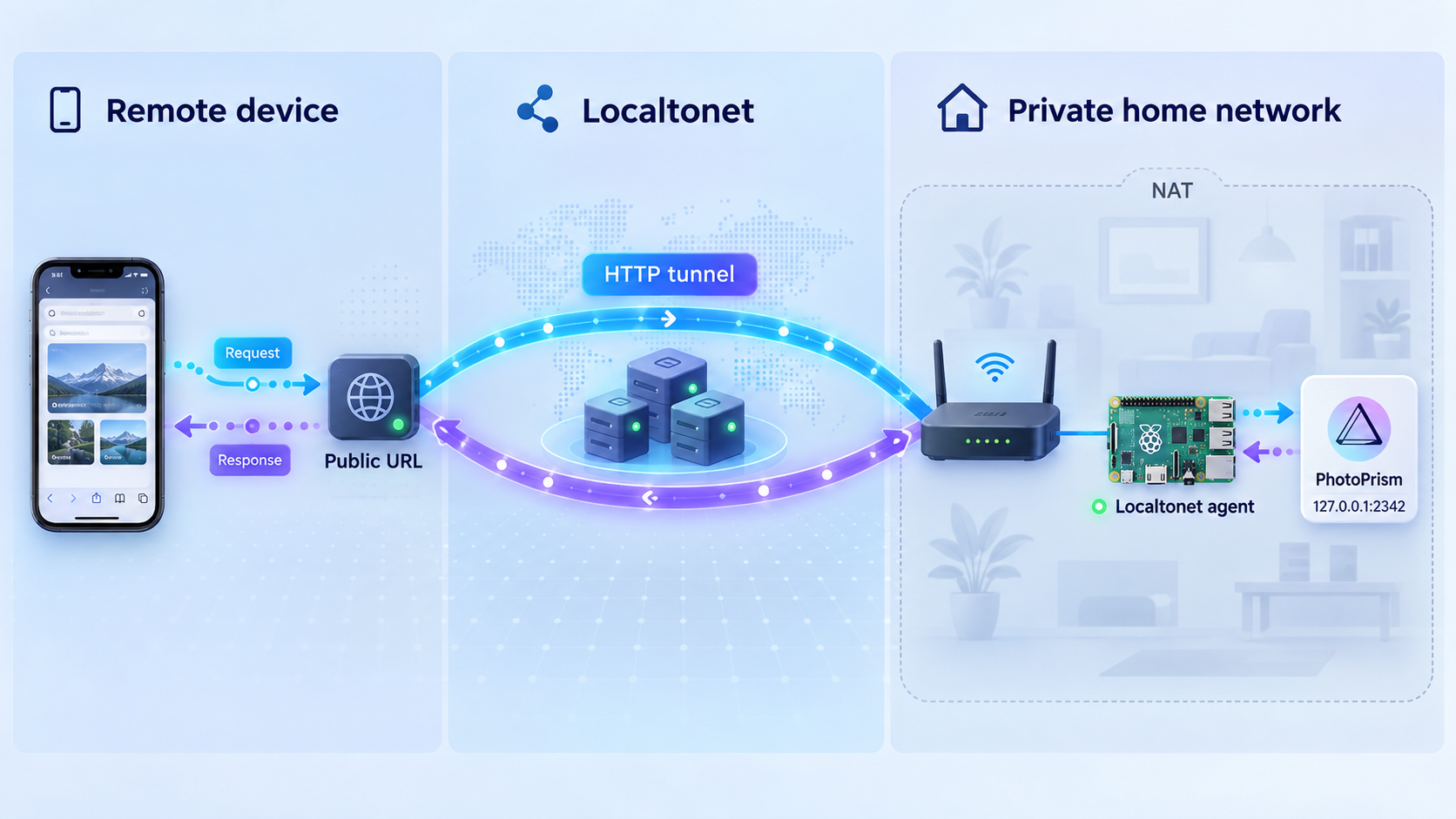
PhotoPrism must know the canonical URL through which users access it. For a Localtonet deployment, the browser uses the tunnel's public HTTPS address while the tunnel forwards traffic to PhotoPrism over the local HTTP endpoint. Configure PHOTOPRISM_SITE_URL with the final public HTTPS URL once Localtonet assigns it:
PHOTOPRISM_SITE_URL: "https://YOUR_ASSIGNED_PUBLIC_HOST/"Keep the trailing slash and use the exact host shown in the Localtonet dashboard. Then apply the changed PhotoPrism configuration:
cd "$HOME/photoprism"
docker compose up -d
docker compose ps
docker compose logs --tail=100 photoprism
PhotoPrism's built-in local target can remain HTTP because the public browser connection terminates at the HTTPS tunnel edge. Do not expose port 2342 through router forwarding in parallel.
Reverse-proxy and forwarded-request behavior
PhotoPrism's reverse-proxy guidance requires the external site URL to match the address users actually open. Forwarded host, protocol, and client-address headers affect generated URLs, secure-request detection, and request logging. Only trust proxy addresses that are genuinely under the deployment's control. Do not configure a universal trusted-proxy range merely to suppress a warning.
This topology does not require a separate public WebSocket port. Browser traffic, including upgraded connections supported by the application path, should use the same HTTP tunnel target. Because proxy behavior can vary with product and client versions, verify login, navigation, uploads, previews, and live interface behavior through the final public URL. If only proxied requests fail, compare the current PhotoPrism reverse-proxy guidance with the headers observed for that deployment before changing trust settings.
Localtonet's HTTP tunnel setup follows this sequence:
Install and run the Localtonet client
Install our client on the Raspberry Pi or another device that can reach PhotoPrism. Keep it running while the tunnel is needed. If you choose another device, first open the Pi's local PhotoPrism URL from that exact device.
Open the HTTP Tunnel page and select Process Type
Create an HTTP tunnel and choose Random Sub Domain, Custom Sub Domain, or Custom Domain as the Process Type available for the intended address. These process types publish the same HTTP content at a public HTTPS address. Follow current DNS instructions if you select Custom Domain.
Select the AuthToken or connected device
Select the device-specific AuthToken associated with the client that can reach PhotoPrism. Tokens identify client devices and must remain private. Never put a token in the PhotoPrism Compose file, screenshots, browser URLs, or public support messages.
Select an available server
Choose a currently available Localtonet server or region from the dashboard. Availability can vary, so use the values shown in the current product rather than copying a hardcoded server code from an article.
Enter the local IP address and port
If the client runs on the Pi, use the local address that reaches PhotoPrism from that client, with port 2342 when the standard host mapping is unchanged. If the client runs elsewhere, use the Pi's reachable LAN address and observed host-side port.
Press Start and verify externally
Creating the configuration does not start it. Press Start, confirm that the selected client is connected and the tunnel is running, then open the assigned HTTPS URL from a network outside the home LAN. Sign in and test normal application behavior.
For the current dashboard fields, see our HTTP tunnel documentation. The tunnel remains available only while the selected client is connected and the tunnel is running.
Verify from an external network
Disable Wi-Fi on a phone and use its mobile connection, or test from another network that is not routed through the home LAN. Confirm all of the following:
- The browser opens the expected public HTTPS host.
- The PhotoPrism sign-in page appears without exposing private library content.
- The configured credentials work.
- Navigation, thumbnails, search, and representative media load.
- A private browser session is challenged for authentication.
- The browser does not redirect back to the Pi's private address or to
localhost.
A redirect to a private address usually indicates that PHOTOPRISM_SITE_URL still contains the local URL. Correct it to the assigned public HTTPS URL and recreate the PhotoPrism service.
The tunnel provides reachability to the configured target. It does not replace PhotoPrism authentication, authorization, account management, backups, metadata controls, or host security. Stop the tunnel immediately if unauthenticated users can see content or administrative functions that should be private.
Security and privacy checklist for public photo access
A photo library can reveal faces, family relationships, homes, travel history, document images, device details, timestamps, and location metadata. Review more than the login screen before making the service internet-accessible.
Keep the PhotoPrism configuration readable only by trusted administrators. Avoid posting Compose output or unedited logs because they can include passwords, internal addresses, file names, and information about the library.
Review PhotoPrism's sharing and account behavior with a private browser window or a non-administrative account. Confirm whether shared items reveal original downloads, metadata, location, face names, or surrounding album content. If the installed edition provides privacy controls for people or metadata, configure them according to the intended audience rather than assuming administrative views and shared views are identical.
Do not weaken trusted-proxy configuration to accept forwarded client identity from every source. If client IP logging or proxy trust is important to your security model, determine the exact request path for the installed Localtonet client and PhotoPrism release, then allow only the required trusted source addresses.
Troubleshoot each layer without guessing
Docker or Compose is unavailable
Run docker --version, docker compose version, and systemctl status docker. If Docker exists but Compose does not, install the Compose plugin through the same supported package source used for Docker. Do not mix a stale standalone docker-compose binary with an otherwise current plugin-based installation unless the deployment explicitly requires it.
The image reports an architecture error
Recheck uname -m, getconf LONG_BIT, and the selected image. The standard current image supports 64-bit ARM. A 32-bit operating system or an image forced to an incompatible platform must be corrected before PhotoPrism can start reliably.
MariaDB repeatedly restarts
Inspect docker compose logs mariadb. Verify the database directory exists on the expected mounted filesystem, has sufficient free space, and is not populated by files from an incompatible or interrupted database deployment. Confirm that the MariaDB password values were configured before first initialization.
PhotoPrism cannot connect to MariaDB
Compare PHOTOPRISM_DATABASE_PASSWORD with MARIADB_PASSWORD. They must match for the application database account. Do not confuse either value with MARIADB_ROOT_PASSWORD. If MariaDB was initialized using an earlier password, changing only the Compose environment does not necessarily rewrite the existing database account.
PhotoPrism cannot read the originals directory
Check the effective Compose model and inspect the host source path:
docker compose config
findmnt
ls -ld "$HOME/photoprism/originals"
find "$HOME/photoprism/originals" -maxdepth 2 -type f | head
Confirm that the external drive is mounted and that the container can read the directory. Avoid recursively changing ownership or permissions across an irreplaceable archive until you understand the current filesystem identities and access requirements.
The local browser cannot open PhotoPrism
Use docker compose ps to identify the host-side port. Test curl -I http://127.0.0.1:2342/ on the Pi. If that fails, inspect PhotoPrism and MariaDB logs. If it succeeds but another LAN device fails, investigate the binding, Pi address, host firewall, VLAN, and local network policy.
The local page works but the public URL does not
Confirm that the selected Localtonet client is connected and the tunnel has been started. Verify the configured local IP and port. If the Localtonet client runs on another device, open the exact local URL from that device. Success from the Pi itself does not prove that another LAN host can reach a loopback-only or firewalled binding.
The public URL redirects to a private address
Set PHOTOPRISM_SITE_URL to the exact public HTTPS URL, including its trailing slash, and run docker compose up -d. Clear stale browser state or test in a private window after the service restarts.
Login works locally but fails through the tunnel
First confirm that the public host matches PHOTOPRISM_SITE_URL. Record the time of the failed request and inspect PhotoPrism logs. If the failure is proxy-specific, compare current PhotoPrism reverse-proxy requirements with the headers received in this topology. Do not add broad trusted-proxy ranges or disable authentication as a diagnostic shortcut.
The public URL shows a gateway or connection error
Work from the inside out. Check docker compose ps, test the local HTTP URL on the Pi, test the same target from the Localtonet client device, confirm the client connection, confirm the tunnel is running, and finally retry the public URL. This sequence distinguishes a failed application from an unreachable target or inactive tunnel.
Indexing makes the Pi unresponsive
Pause large library work and inspect memory, swap, temperature, storage capacity, and I/O. Start with smaller batches. Large RAW files, videos, thumbnails, face recognition, and metadata extraction can be resource-intensive. Improve cooling and storage performance or use more capable hardware rather than assuming one Pi configuration can process every library comfortably.
PhotoPrism appears empty after a reboot
Stop the stack and check the external storage mount immediately. Docker may have started against an empty directory on the root filesystem because the expected drive was not mounted. Restore the mount, verify the original files and database path, then start the services. Do not index the empty fallback directory or copy files between paths until you have identified which location contains the authoritative data.
An update changes database or face-processing behavior
Read the release notes for the exact release and identify migrations that require an explicit command. Existing libraries may intentionally keep older models or data formats until an administrator starts a documented migration. Back up first and do not apply a migration copied from a different version.
Frequently asked questions
Can PhotoPrism run on a Raspberry Pi?
Yes. PhotoPrism publishes stable multi-architecture Docker images for 64-bit ARM processors. Use a 64-bit Raspberry Pi operating system, adequate memory, reliable cooling, and durable storage. Performance depends on the Pi model, storage, media formats, enabled processing, and library size.
What port does PhotoPrism use in the official Compose setup?
The standard official Compose configuration publishes PhotoPrism on host port 2342, mapping it to container port 2342. The usual local URL is therefore http://PI_ADDRESS:2342/. Confirm the active mapping with docker compose ps because administrators can change the host-side port.
What credentials do I use for the first PhotoPrism login?
Use the administrator username and PHOTOPRISM_ADMIN_PASSWORD configured in the Compose deployment before first startup. Replace every example password with a unique secret. Do not expose the Compose file because it may also contain database credentials.
Should originals and PhotoPrism storage use the same directory?
No. Mount originals at /photoprism/originals and application storage at /photoprism/storage. Do not put the storage directory inside originals, since generated thumbnails, cache files, sidecars, and backups should not be indexed as source media.
Does Localtonet require router port forwarding?
No. Our client establishes an outbound connection to a Localtonet relay server. This provides a public address without inbound router port forwarding, a public IP address, VPN setup, or firewall changes.
Must the Localtonet client run on the Raspberry Pi?
No. Running it on the Pi is one topology because the tunnel client and PhotoPrism share a host. It can instead run on another device that can reliably reach the Pi's local IP address and port. Test the exact PhotoPrism target from the selected client device before starting the tunnel.
Does the HTTP tunnel replace PhotoPrism authentication?
No. The tunnel provides network reachability to the configured local target. PhotoPrism remains responsible for application accounts, authentication, authorization, sharing, and library privacy. Verify the unauthenticated experience before public access.
Does PhotoPrism need a public site URL behind Localtonet?
Configure PHOTOPRISM_SITE_URL with the exact public HTTPS URL assigned to the tunnel, including the trailing slash. This prevents generated links and redirects from using the Pi's private address or an obsolete local URL.
What should I back up before updating?
Back up the originals, PhotoPrism storage, a current application database backup, the Compose configuration, and any private environment file. Protect credentials and verify that the backup can be restored. Pulling an older image is not a guaranteed rollback after a database or storage migration.
Is the Localtonet tunnel always available after creation?
No. Creating a tunnel does not start it. The selected Localtonet client must be connected, the tunnel must be running, and PhotoPrism must remain available at the configured local target. You can stop or delete the tunnel when remote access is unnecessary.
Connect your verified PhotoPrism server with Localtonet
Once PhotoPrism is authenticated, persistent, backed up, and reachable through its confirmed local IP address and port, create a Localtonet HTTP tunnel and test the public HTTPS address from an external network.
Get Started Free →

