

Run your AI usage dashboard locally, verify every layer, and open only a temporary remote path when you need it
TokenTracker is a local-first token usage and cost dashboard for 41 AI coding tools. This tutorial installs its Node.js CLI, verifies the dashboard at http://localhost:7680, explains routine maintenance, and connects the working service to a Localtonet HTTP tunnel. The TokenTracker CLI works on macOS, Linux, and Windows, but the self-contained Localtonet client procedure in this guide is intentionally scoped to a Debian or Ubuntu x64 host using the official DEB package and systemd service. Because the available TokenTracker documentation does not establish dashboard authentication, the tunnel is treated as temporary, controlled access rather than a permanently public endpoint.
📋 What's in this guide
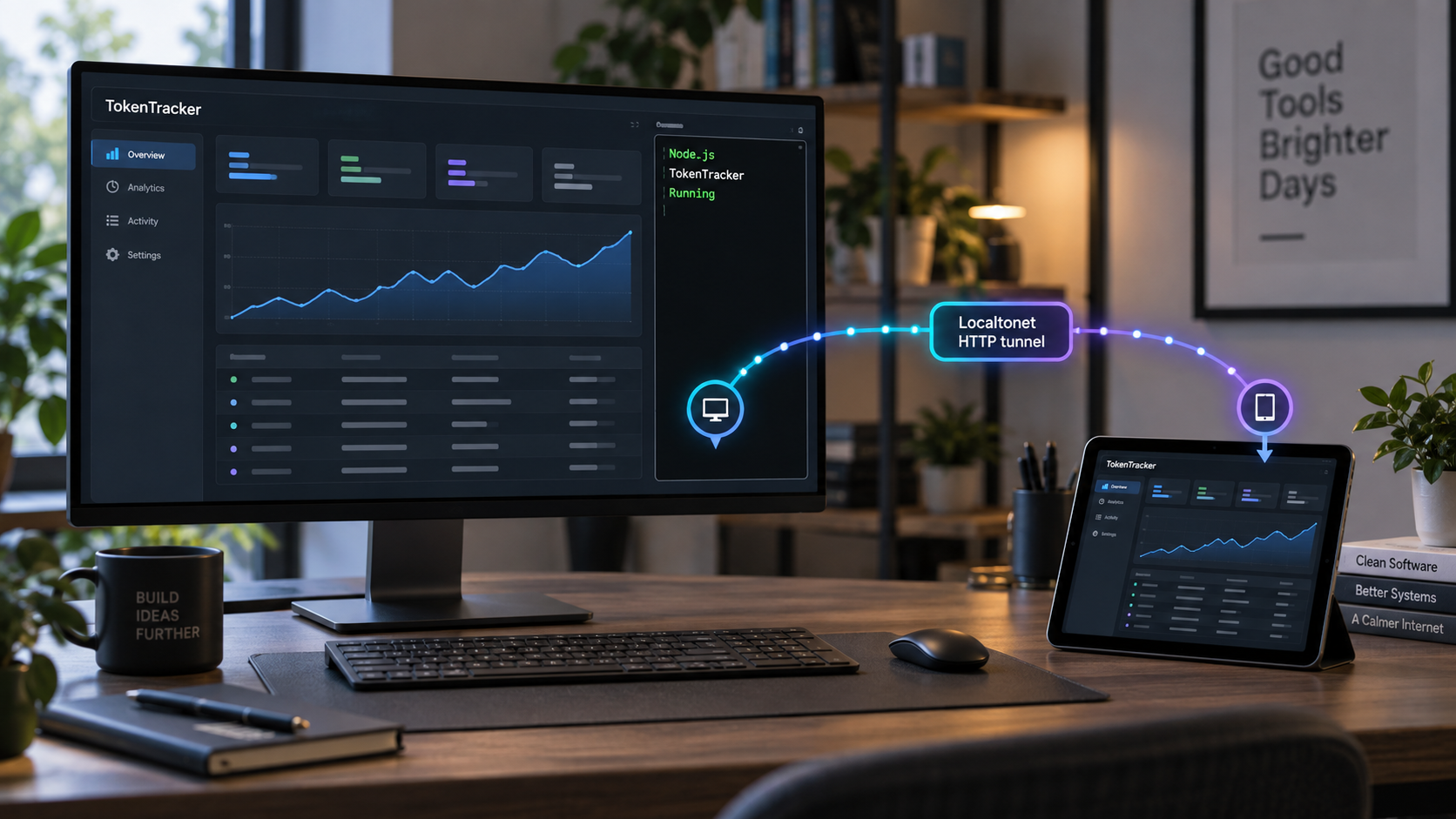
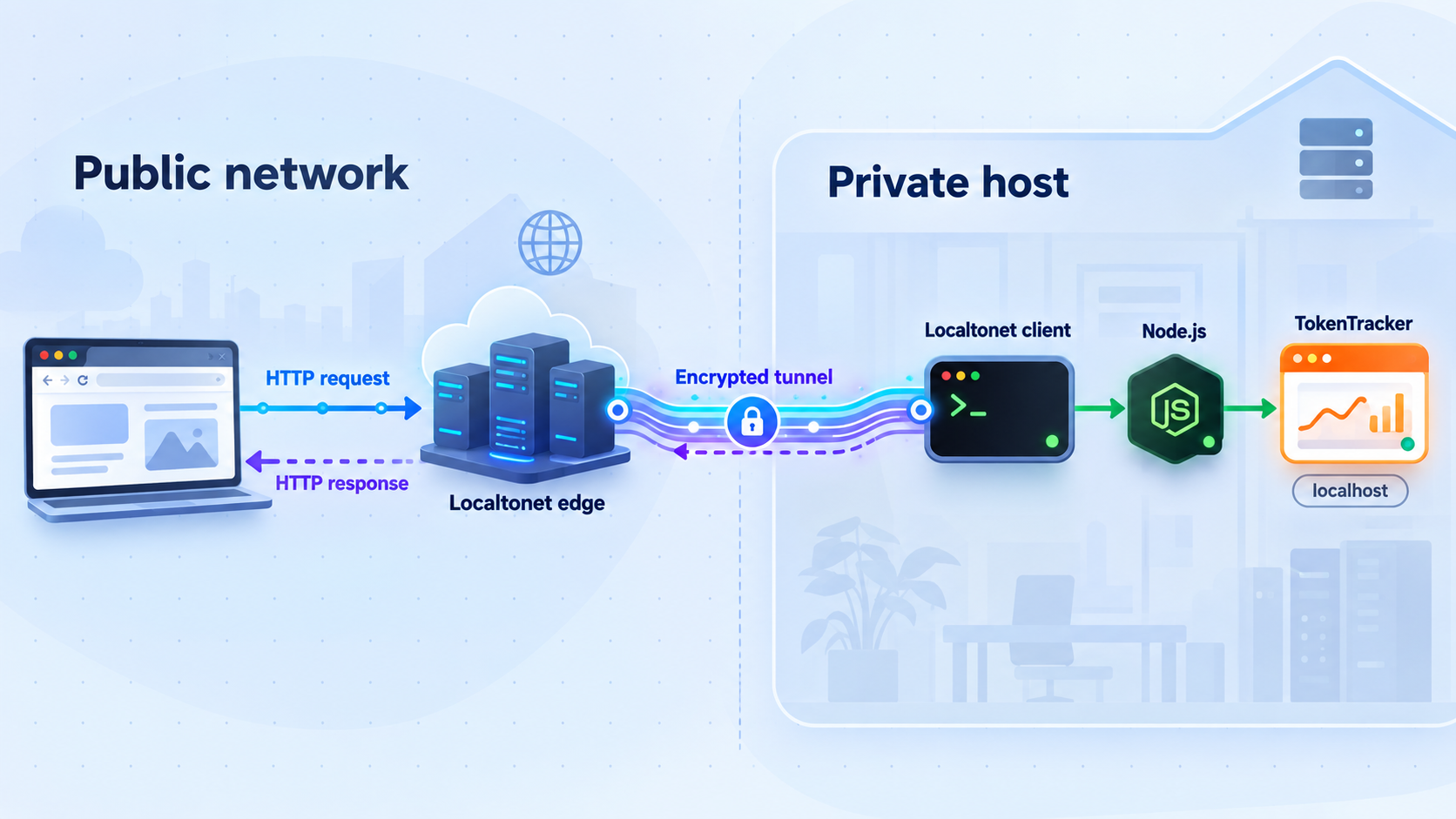
How TokenTracker and Localtonet fit together
TokenTracker collects token usage information produced by supported AI coding tools and presents normalized analytics in a browser dashboard. At the time of this revision, the project's official repository and website document support for 41 AI coding tools. The list includes Claude Code, Codex CLI, AStudio, Cursor, Gemini CLI, Antigravity, Kiro, OpenCode, GitHub Copilot, DeepSeek Harness, LM Studio, Unsloth Studio, Cline, MiniMax Code, and other supported tools.
The count and exact integration list are version-sensitive project facts. They can change as TokenTracker adds, removes, or revises readers and hooks. The stable workflow for this tutorial is narrower: use Node.js 20 or newer, run the documented CLI package, confirm the local dashboard on port 7680, and inspect the integration status before adding remote connectivity. The 41-tool count was rechecked against the official TokenTracker repository and website for this 2026 revision.
Integration behavior differs by source. TokenTracker currently documents SessionEnd hooks, TOML notification arrays, plugins, SQLite readers, JSONL readers, and other passive data readers. The first run detects supported tools installed for the current operating-system user, installs applicable hooks, synchronizes available data, and opens the local dashboard. A tool may therefore be supported without using the same collection mechanism as another tool.
TokenTracker describes the dashboard as local-first. It states that it tracks token counts rather than prompts or conversation content, and the documented local workflow does not require a TokenTracker account or provider API keys. Optional cloud synchronization is separate from the local setup covered here. This tutorial does not enable cloud synchronization.
The documented local address is http://localhost:7680. The name localhost resolves back to the same computer, so another laptop or phone cannot normally use that address to reach the Linux host. This local boundary is useful during installation because it lets you test the application without first opening a remote network path.
Localtonet solves the reachability part of the workflow. Our client application establishes an outbound connection from the Linux host to a Localtonet relay server. An HTTP tunnel provides a public HTTPS address and forwards incoming web requests to the configured local IP address and port. No inbound router port forwarding, public IP address, firewall change, or VPN setup is required for this standard tunnel.
Reachability is not authorization. The available TokenTracker evidence does not establish a login or access-control mechanism for this dashboard deployment. For that reason, this guide does not recommend leaving the endpoint continuously or broadly accessible. We will start the tunnel for a controlled test, verify it from an authorized browser, and stop it when the session is complete.
A tunnel cannot repair a stopped or unhealthy TokenTracker process. Confirm http://localhost:7680 on the host before installing or configuring the HTTP tunnel. This keeps application troubleshooting separate from Localtonet client and tunnel troubleshooting.
Prerequisites and scope
TokenTracker's Node.js CLI runs on macOS, Linux, and Windows, but this end-to-end tutorial uses a Debian or Ubuntu x64 computer for the Localtonet client. This narrowed scope lets us include the complete evidenced installation, authentication, configuration check, service startup, connection verification, shutdown, and update procedure instead of sending readers to a general download page to discover platform-specific steps.
If you run TokenTracker on macOS, Windows, ARM Linux, a MUSL distribution, Docker, or another supported environment, the TokenTracker commands below may still apply, but do not substitute the Debian or Ubuntu Localtonet package commands. Use the matching package and instructions from the current Localtonet getting-started documentation.
Host requirements
- A Debian or Ubuntu x64 host with systemd 247 or newer and OpenSSL 3, such as Debian 12 or Ubuntu 22.04 or newer.
- Node.js 20 or newer for the TokenTracker CLI.
- npm and npx available to the same user who owns the AI tool data.
- A browser for testing
http://localhost:7680. - At least one supported AI coding tool with local usage if you want populated analytics.
- A Localtonet account, a device-specific AuthToken, and access to an available relay server shown in the current dashboard.
- Administrative access for installing and managing the Localtonet system service.
Confirm Node.js and npm
Open a terminal as the ordinary user whose AI tool activity TokenTracker should read:
node --version
npm --version
npx --version
The Node.js output must report major version 20 or newer. If any command is unavailable, install a current Node.js release using an installation method appropriate for your Linux environment, reopen the terminal, and repeat the checks. Node.js distribution methods change independently of TokenTracker, so this article does not prescribe an unverified operating-system repository or version-manager command.
Use the correct operating-system account
Run TokenTracker as the same user who runs the supported AI coding tools. Integration files commonly live in that user's home directory. Starting the dashboard as root, another administrator, a service account, or an unrelated container user can cause TokenTracker to inspect a different home directory and miss the expected records.
The Localtonet client is different. The official DEB package runs as a system service and reads its AuthToken from a protected file under /etc/localtonet. It can still reach TokenTracker through the host's loopback network path as long as the dashboard is listening at the documented address and port.
Make the exposure decision before setup
The dashboard may disclose usage totals, activity times, models, costs, project attribution, provider information, and work patterns. TokenTracker states that it does not read prompts or conversation content, but that does not make every other dashboard field suitable for public viewing.
The supplied TokenTracker documentation does not establish built-in dashboard authentication, and this guide does not invent an unsupported authentication design. Do not leave the dashboard persistently or unrestrictedly public. If your organization requires durable remote access, deploy and independently verify an authorization layer supported by primary documentation before opening the endpoint. Otherwise, keep TokenTracker local and use the tunnel only for a short, controlled session.
| Component | Requirement | Verification |
|---|---|---|
| TokenTracker CLI | Node.js 20+, npm, and npx | Run the three version commands |
| Usage integrations | A supported tool and accessible local records | Use tokentracker status after installation |
| Local dashboard | A running TokenTracker process on port 7680 | Open http://localhost:7680 |
| Localtonet Linux service | Supported Debian or Ubuntu x64 host | Check the systemd service and journal |
| Remote session | Connected client and started HTTP tunnel | Test the assigned URL, then stop the tunnel |
Install and start TokenTracker with Node.js
TokenTracker documents two closely related Node.js paths. The npx command is the shortest way to start. A global npm installation provides the shorter tokentracker command and makes the documented status, synchronization, and health-check examples convenient to run.
Option 1: Run the CLI with npx
npx tokentracker-cli
On first run, npm tooling may retrieve the package before starting it. TokenTracker then detects installed supported tools, installs applicable hooks, synchronizes available data, starts the local dashboard, and opens http://localhost:7680. Keep the terminal open so you can see startup, package, hook, permission, database, or port errors.
If the browser does not open automatically, enter the URL manually. Automatic browser launch is a convenience, not the health check. The meaningful result is whether the page responds and displays the TokenTracker interface.
Option 2: Install the global CLI
npm i -g tokentracker-cliStart the globally installed command:
tokentracker
If installation succeeds but the shell does not recognize tokentracker, open a new terminal and inspect npm's global executable location for your user. The exact path depends on how Node.js and npm were installed, so copying a path from a different machine is not a reliable fix.
Understand what the first run does
TokenTracker's setup is not identical for all 41 tools. Some tools receive a hook, notification entry, or plugin. Other integrations only read local databases, logs, transcripts, or cumulative usage data. A source can therefore be detected without a new hook being installed.
The integration list and implementation details are release-sensitive. For example, the current project documentation says Cursor token reading uses the system sqlite3 command when available and falls back to node:sqlite on supported Node.js releases. Treat details like provider counts, model-price snapshots, integration paths, native package dependencies, and individual parser behavior as facts to recheck when upgrading.
First verify that the web interface loads. Then inspect integration status and run a manual synchronization. A newly installed dashboard may have no records if the detected tools have not generated supported usage under the current user account.
Keep this tutorial on one installation path
TokenTracker also publishes native desktop applications and Linux packages. Current project documentation includes a Linux AppImage, DEB, and RPM, plus native macOS and Windows applications. Those packages bundle their own runtime and have package-specific behavior. They are not needed for this Node.js tutorial.
Avoid running the native application and Node.js CLI simultaneously unless the project documentation for your version explicitly supports that arrangement. Two processes attempting to bind port 7680 can create a conflict or make it unclear which installation is serving the page.
Verify TokenTracker locally
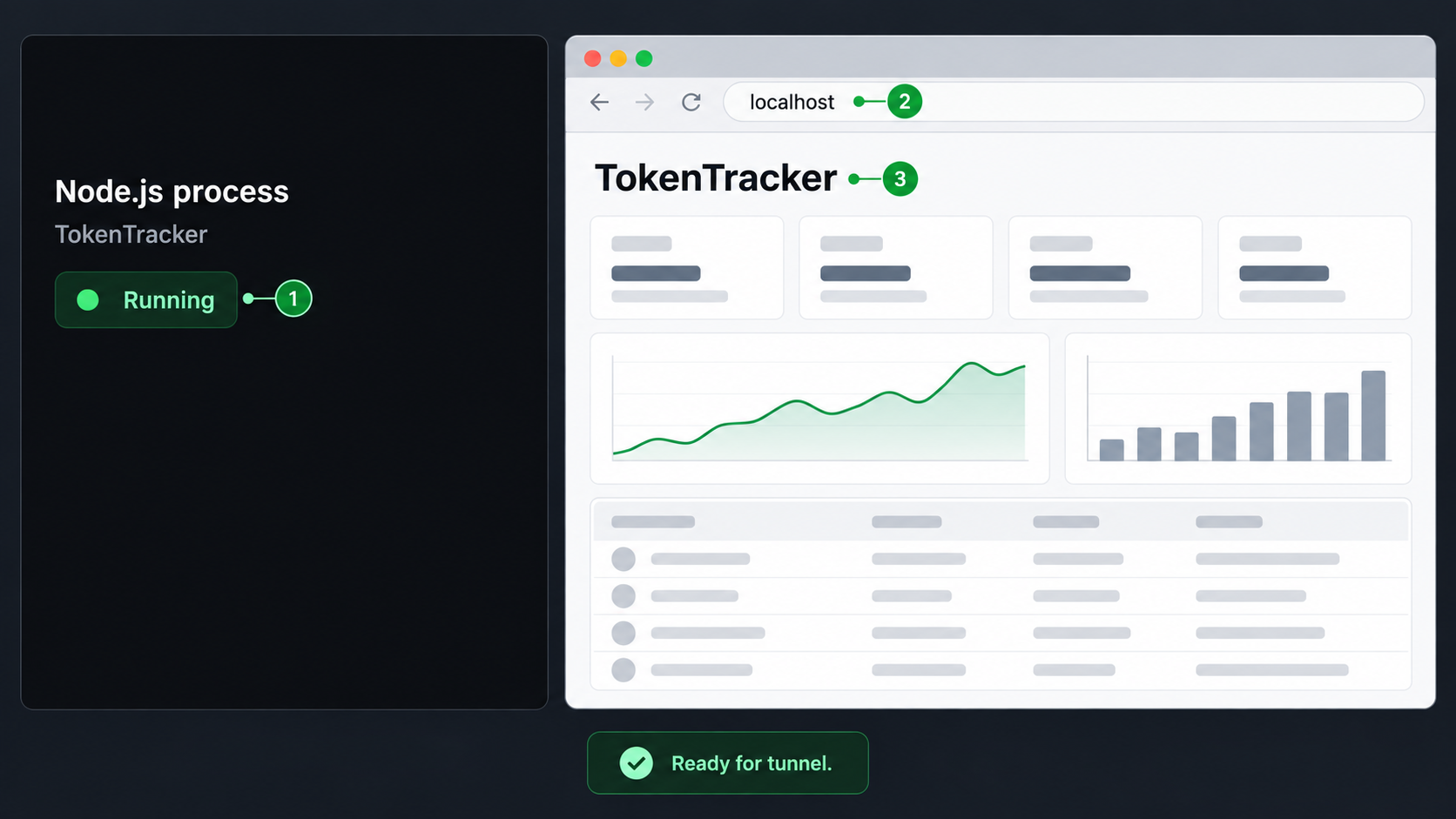
Local verification should answer three questions separately:
- Is the dashboard HTTP server responding?
- Does TokenTracker detect the expected integration?
- Has usable data been synchronized from that integration?
Open the dashboard
http://localhost:7680Open that address in a browser on the TokenTracker host. Confirm that the page loads and that its navigation responds. Current project documentation describes usage trends, model breakdowns, cost analysis, activity heatmaps, project attribution, usage limits, and related views. Which views contain data depends on your installed tools, providers, and activity.
Keep port 7680 in the later Localtonet configuration. The evidence supplied for this tutorial establishes that default address but does not provide a supported port-change procedure, so this guide does not invent one.
Check integration status
With the global installation, run:
tokentracker statusTokenTracker also documents two output variants:
tokentracker status --json
tokentracker status --light
The JSON form produces a machine-readable summary. The light form uses a plain ASCII table without a spinner, which can be useful over SSH or in an automated environment. Review the actual output for the tool you expect to see.
Run the health check and synchronize
tokentracker doctor
tokentracker sync
The doctor command performs the project's health check. The sync command asks TokenTracker to process currently available usage data. After synchronization, refresh the dashboard and inspect the expected time range, model, source, or project.
A warning for one integration does not necessarily mean the HTTP server is down. Conversely, a dashboard that loads successfully does not prove that every source is correctly configured. Preserve that distinction during troubleshooting.
Do not create an HTTP tunnel while http://localhost:7680 is unavailable. Resolve the TokenTracker process, package, user-account, integration, or port problem first. A tunnel only forwards requests to the target you provide.
Operate, update, and re-verify TokenTracker
Start and stop the dashboard
Start with npx tokentracker-cli or, for a global installation, tokentracker. Keep the process running while the dashboard is needed. If closing the terminal ends the process in your environment, both local and tunneled access will stop.
The supplied project evidence does not establish a supported systemd unit or another background service configuration for the Node.js CLI. This tutorial therefore does not invent one. Stop the foreground process with the normal terminal interrupt, usually Ctrl+C, and verify that http://localhost:7680 no longer responds.
Synchronize and inspect health
Use tokentracker sync for a documented manual synchronization. Run tokentracker status and tokentracker doctor after changing an AI tool, moving user data, changing Node.js, or updating TokenTracker. These commands give you a repeatable baseline before you test remote access.
Understand version-sensitive package behavior
The unpinned npx and global npm commands select package content according to npm's current resolution and cache behavior. Do not treat a command copied from an older session as proof that the same release is running later. Native release assets, checksums, dependencies, supported tools, and integration details can also change between releases.
With a global installation, repeating the documented installation command applies npm's current package selection:
npm i -g tokentracker-cliFor npx, continue using the documented launcher rather than assuming that this article can guarantee npm's cache state. Review terminal output when reproducibility matters. If your environment requires an exact package version, select and record a version according to your own package-management policy after verifying that version in the official package metadata.
Use a repeatable post-update check
After any TokenTracker or Node.js update, perform this sequence:
- Record
node --version,npm --version, and the installation path you are using. - Start TokenTracker with the same documented method used before the update.
- Open
http://localhost:7680and confirm that the dashboard loads. - Run
tokentracker statusand inspect the expected integrations. - Run
tokentracker doctorand address relevant reported problems. - Run
tokentracker sync, refresh the dashboard, and confirm that expected data appears. - If remote access is needed, test the Localtonet tunnel only after all local checks pass.
- Stop the tunnel after the controlled remote test.
This procedure checks the application, integration layer, data refresh, local HTTP server, Localtonet client, and tunnel in a known order. It also prevents a package update problem from being misdiagnosed as a tunnel failure.
Install and connect the Localtonet client on Debian or Ubuntu x64
Install the Localtonet client on the same host that can open http://localhost:7680. The same-host layout avoids introducing another LAN route and lets the HTTP tunnel target the host's loopback service.
The commands in this section follow the current Debian and Ubuntu x64 package workflow from our getting-started documentation. Download the current localtonet-linux-x64.deb package there, then open a terminal in the directory containing the downloaded file.
Install the downloaded DEB package
Install the official x64 package from its download directory:
sudo apt install ./localtonet-linux-x64.debSet the device AuthToken
Edit /etc/localtonet/auth-token as root. Replace DUMMY_AUTH_TOKEN with the device-specific token from your Localtonet account, placing only the token on that line. Do not paste the real value into shell history, screenshots, source code, or this tutorial.
Protect the token file and check the configuration
Restrict the file and run the documented headless configuration check:
sudo chmod 600 /etc/localtonet/auth-token
sudo localtonet --headless --authtoken-file /etc/localtonet/auth-token --check-configEnable and start the Localtonet service
Start the standard tunneling service only after the configuration check succeeds:
sudo systemctl enable --now localtonet.serviceInspect the service journal and connection state
Review the service output for startup or authentication errors:
sudo journalctl -u localtonet.serviceThen confirm in the Localtonet dashboard that the intended token or device is shown as connected. Do not continue with a disconnected device.
The AuthToken identifies the client device that can run the tunnel. Keep /etc/localtonet/auth-token restricted, do not commit it to a repository, and do not display its contents during support or troubleshooting sessions.
Update or stop the client service
To update this package-based installation, download and install the current package, then restart the service:
sudo apt install ./localtonet-linux-x64.deb
sudo systemctl restart localtonet.service
The official package workflow preserves the configuration during an upgrade. Confirm the service journal and connected device state again after updating.
To stop the client completely after stopping the tunnel:
sudo systemctl stop localtonet.serviceBecause the service was enabled during installation, it can start again during a later boot. If you do not want that behavior, disable and stop it:
sudo systemctl disable --now localtonet.serviceStopping the client disconnects every tunnel assigned to that device. It does not stop the TokenTracker process itself.
Create and verify the Localtonet HTTP tunnel
TokenTracker is a browser-based HTTP service, so use the HTTP/s tunnel family rather than a raw TCP, UDP, File Server, proxy, or VPN configuration. The current tunnel-specific workflow is documented on the Localtonet HTTP tunnel documentation page.
The HTTP tunnel configuration uses a local IP address and port. For this same-host deployment, enter 127.0.0.1 as the local IP and 7680 as the local port. Using the numeric loopback address avoids ambiguity about hostname resolution while targeting the same service verified through localhost.
HTTP process types include Random Sub Domain, Custom Sub Domain, and Custom Domain. They serve the same local content at a public HTTPS address. Availability can vary by current product configuration or plan. Custom-domain DNS requirements are outside this temporary-access tutorial, so choose an available subdomain option shown in your dashboard rather than inventing DNS records.
Open the HTTP tunnel page
Sign in to Localtonet and open the HTTP tunnel configuration page. Confirm that TokenTracker still loads locally before entering the tunnel fields.
Select Process Type
Choose an available HTTP Process Type. For this short controlled session, use an available subdomain option. Do not configure a custom domain unless you are following the current DNS requirements for that option.
Select AuthToken
Select the device-specific AuthToken belonging to the Debian or Ubuntu host where the Localtonet service is connected. Do not expose or copy the token into public notes.
Select the server
Select an available relay server shown in the current dashboard. Server codes and region availability can change, so this article does not hardcode a value.
Enter the local IP address and port
Set the local IP address to 127.0.0.1 and the local port to 7680. These values point the connected Localtonet client to the TokenTracker dashboard on the same host.
Press Start
Review the fields and press Start. Creating or saving a tunnel does not mean it is running. The tunnel becomes available only after it has been started while the selected client remains connected.
Verify the tunnel from an authorized browser
Copy the assigned public HTTPS address without exposing it in a screenshot, repository, issue, or shared chat. Open it from the specific remote browser authorized for this test. Confirm all of the following:
- The page is the expected TokenTracker dashboard.
- The visible data matches the local instance.
- Navigation works through the remote address.
- No unrelated application appears on port
7680. - The tunnel is used only for the planned test window.
If the public address fails, immediately repeat the local test on the host before changing tunnel fields. Also confirm that localtonet.service is running, the selected device is connected, and the tunnel shows a started state.
Shut down remote access
Stop the HTTP tunnel in the Localtonet dashboard as soon as the controlled session is complete. Delete it if you will not reuse the configuration. Stopping the tunnel removes the active public route even if the TokenTracker dashboard continues running locally.
If no other tunnel on the device is needed, you can also stop the client:
sudo systemctl stop localtonet.service
Finally, stop the foreground TokenTracker process if the local dashboard is no longer needed. Verify shutdown by confirming that the public URL no longer reaches the application and that http://localhost:7680 no longer responds after TokenTracker is stopped.
Remote access works only while TokenTracker is responding on port 7680, the selected Localtonet client is connected, and the HTTP tunnel is started. A saved public URL can exist even when one of those three requirements is offline.
Apply a strict security boundary
A public HTTPS URL encrypts browser transport to the Localtonet tunnel edge, but it does not prove that the viewer is authorized to use TokenTracker. Transport security and application authorization solve different problems.
The current evidence supplied for TokenTracker does not document a built-in login for this dashboard deployment. We therefore do not recommend unrestricted, persistent public exposure. We also do not recommend treating an obscure subdomain as a password. Anyone who obtains a reachable URL may be able to request the application unless a separately verified access-control mechanism is present.
An authentication proxy or another authorization layer could change that security model, but such a design must be configured and tested according to its own primary documentation. Mentioning one abstractly is not enough. Since no specific, verified authorization implementation is in scope here, the safe workflow is local-first operation with a temporary tunnel that is started only for a controlled session and stopped immediately afterward.
Until you have primary documentation and successful tests for an access-control design, keep TokenTracker on localhost. Use the tunnel only when a known remote user needs a short session, avoid distributing the URL, and stop the tunnel afterward.
Run TokenTracker as a non-administrator user where practical. Keep Node.js and the selected TokenTracker package current through their supported update mechanisms. After every update, repeat the local status, doctor, synchronization, browser, and tunnel checks rather than assuming that hooks and readers remained unchanged.
If multiple people use the Linux host, review who can access the local AI tool records and who can start TokenTracker. A tunnel does not alter local file permissions, but the dashboard can present processed information from those files to a browser.
Troubleshoot TokenTracker and the tunnel
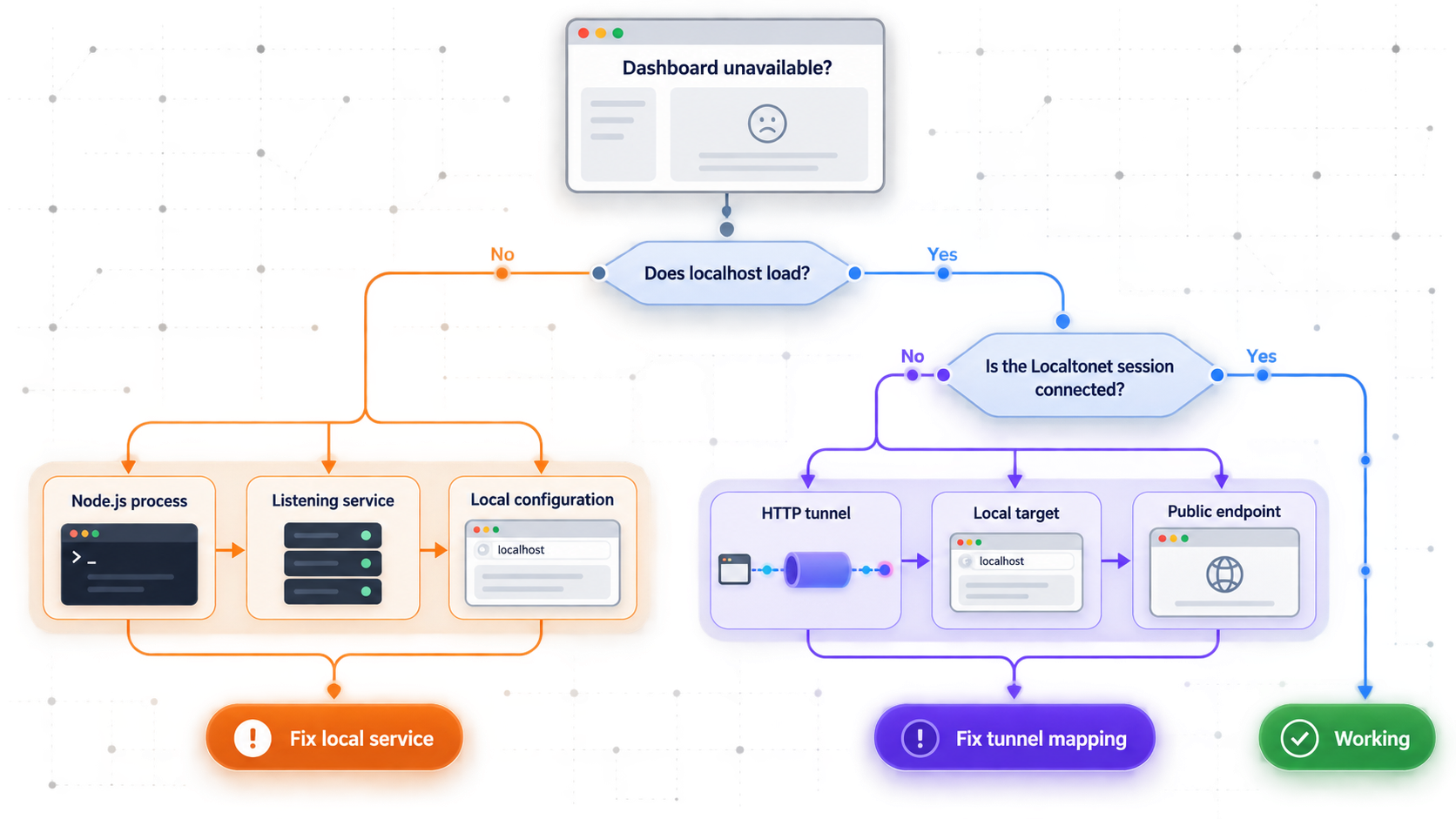
The shell cannot find node, npm, or npx
Confirm that Node.js is installed for the current user and reopen the terminal after installation. Run node --version, npm --version, and npx --version. TokenTracker requires Node.js 20 or newer for the CLI path.
The tokentracker command is not recognized
The short command follows the global installation:
npm i -g tokentracker-cli
If you chose not to install globally, use npx tokentracker-cli. If the global installation completed, open a new terminal and inspect the npm global executable path associated with your Node.js installation.
The browser does not open automatically
Manually open http://localhost:7680. If it loads, the dashboard is running. If it does not, inspect the TokenTracker terminal for package, permission, startup, or port errors.
Localhost refuses the connection
Confirm that the TokenTracker process is still running. Check for a port conflict, especially if a native TokenTracker application or an older CLI process is also active. With the global CLI, run tokentracker doctor, correct relevant errors, and restart the one installation you intend to use.
The dashboard opens but contains no usage
Run:
tokentracker status
tokentracker doctor
tokentracker sync
Confirm that the desired tool is in the current supported list, is installed for the same operating-system user, and has generated usage in a format the current integration recognizes. Passive readers require source data to exist in the expected local location.
The Localtonet configuration check fails
Confirm that /etc/localtonet/auth-token contains the correct device-specific token on one line and still has restricted permissions. Repeat:
sudo chmod 600 /etc/localtonet/auth-token
sudo localtonet --headless --authtoken-file /etc/localtonet/auth-token --check-config
Do not start the service until the configuration check succeeds. Never print or paste the real token while troubleshooting.
The Localtonet service does not start
Inspect the systemd status and journal:
sudo systemctl status localtonet.service
sudo journalctl -u localtonet.service
Check whether the correct Debian or Ubuntu x64 package was installed and whether the host meets the documented systemd and OpenSSL requirements. Address the specific package, configuration, or authentication error shown in the output.
The device is not connected in the dashboard
A running process is not enough if authentication failed. Confirm the configuration check, inspect the journal, restart the service, and check the dashboard again:
sudo systemctl restart localtonet.service
sudo journalctl -u localtonet.service
Make sure you are viewing and selecting the AuthToken associated with this host rather than another device.
Localhost works, but the public URL does not
- Open
http://localhost:7680again on the Linux host. - Confirm
localtonet.serviceis running. - Confirm the selected Localtonet device is connected.
- Confirm the HTTP tunnel is started rather than merely created.
- Confirm the local IP is
127.0.0.1. - Confirm the local port is
7680. - Confirm the tunnel uses the AuthToken for the intended host.
- Stop and restart the tunnel after correcting the configuration.
The public URL shows the wrong page
Stop the tunnel immediately. Open http://localhost:7680 on the Localtonet host and identify the process serving that port. A different application or another TokenTracker installation may be active. Restore the intended local page before starting the tunnel again.
Remote access works intermittently
Check all three availability layers. TokenTracker may stop when its terminal closes, the host may sleep or restart, or the Localtonet service may disconnect. Inspect the TokenTracker terminal, system state, and Localtonet service journal. Also confirm that the tunnel remains started.
The tunnel still appears after TokenTracker stops
A tunnel configuration can remain saved or started while its local target is unavailable. Stop the tunnel explicitly. If it will not be reused, delete it. A saved URL does not prove that the application behind it is healthy.
Frequently asked questions
How many AI coding tools does TokenTracker support?
The official TokenTracker repository and website document 41 supported AI coding tools at the time of this 2026 revision. The count and individual integration list can change by release, so recheck the current project documentation when upgrading.
What version of Node.js does the TokenTracker CLI require?
The documented CLI requirement is Node.js 20 or newer. Confirm it with node --version before running the npx or global npm installation.
Which TokenTracker address should the tunnel target?
TokenTracker documents its local dashboard at http://localhost:7680. For the same-host Localtonet setup in this guide, configure the tunnel's local IP as 127.0.0.1 and local port as 7680.
Does TokenTracker read prompts or conversations?
TokenTracker states that it tracks token counts and does not read prompts or conversation content. Its usage totals, costs, models, project attribution, and activity patterns can still be sensitive.
Does the local TokenTracker workflow require an account or API keys?
The documented local-first workflow does not require a TokenTracker account or provider API keys. Optional cloud synchronization is separate and is not enabled in this tutorial.
Is this TokenTracker dashboard safe to leave publicly available?
This guide cannot make that claim. The available project evidence does not establish dashboard authentication for this deployment. Keep the tunnel temporary and controlled unless you independently deploy and verify a supported authorization layer.
Does creating a Localtonet tunnel start it automatically?
No. Creating the configuration and running the tunnel are separate lifecycle actions. Press Start after reviewing the fields, and stop or delete the tunnel when remote access is no longer needed.
Why is the Localtonet installation limited to Debian or Ubuntu x64 here?
Localtonet supports additional operating systems and architectures, but package names, prerequisites, and startup procedures differ. Scoping the end-to-end procedure to the documented DEB and systemd path keeps the tutorial self-contained without inventing instructions for other platforms.
What should I verify after updating TokenTracker?
Record the Node.js and npm versions, start TokenTracker, open the localhost dashboard, run status and doctor, perform a manual sync, and inspect the expected data. Only then test the Localtonet client and HTTP tunnel. Stop the tunnel after the test.
Will the public URL work after TokenTracker or Localtonet stops?
No. Remote access requires a responding TokenTracker process, a connected Localtonet client, and a started tunnel. If any one of those components stops, the application will not be available through the public address.
Open a controlled path to your verified TokenTracker dashboard
Confirm TokenTracker on localhost:7680, install and verify the Localtonet Linux service, then start an HTTP tunnel only for the remote session you intend to conduct. Stop the tunnel as soon as that session ends.


