

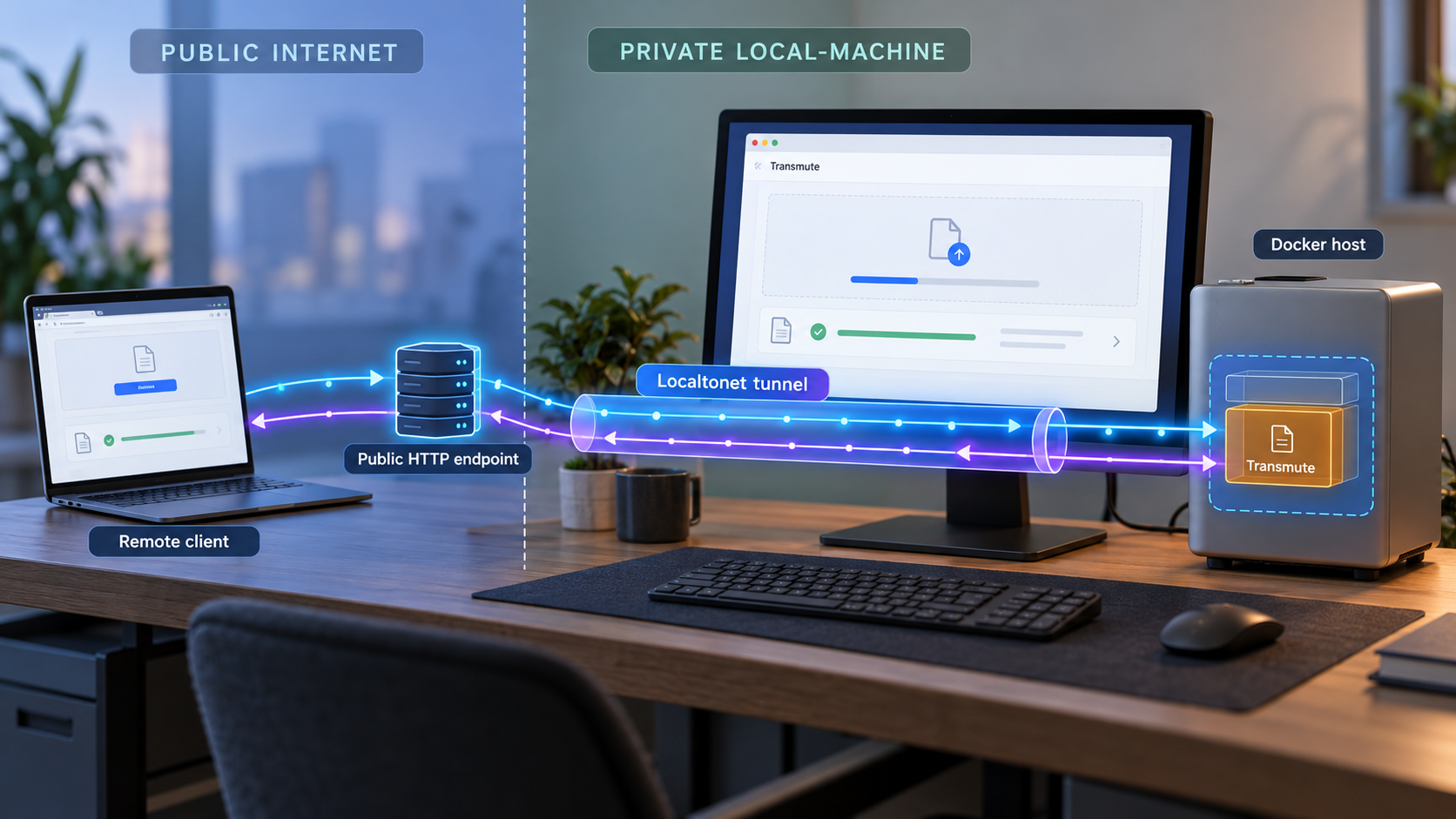
Run file conversion on your own infrastructure, verify it locally, and provide controlled remote HTTP access
Transmute is a self-hosted file conversion and compression application with a browser interface and a REST API. This guide installs it with Docker Compose, confirms that both interfaces work on port 3313, explains routine container operations, and helps diagnose the most common startup and connectivity problems. After the local deployment is healthy, we configure a Localtonet HTTP tunnel so an authorized remote user or application can reach the service without inbound router port forwarding, firewall changes, VPN setup, or a public IP address.
📋 What's in this guide
How the Transmute and Localtonet architecture works
Transmute is a self-hosted file converter and compression application. Its project describes support for images, video, audio, JSON, Excel, and other formats, with more than 3,000 conversion combinations. The application provides a browser-based interface for interactive work and REST API documentation for programmatic integration.
The installation documented in this guide uses the project's supplied docker-compose.yml file. Docker Compose creates and starts the application components described by that file, while the host exposes Transmute at http://localhost:3313. The API documentation is available under /api/docs, so a local installation can normally be checked at http://localhost:3313/api/docs.
Local operation and remote publication are deliberately separate stages. First, we install Transmute and prove that it works directly on the host. Only then do we create an HTTP tunnel targeting the working local service. This separation matters because it prevents tunnel configuration from masking an underlying container, port, or application problem.
http://localhost:3313. It provides the interactive interface used to submit and manage conversions.
http://TRANSMUTE_IP:3313/api/docs. On the same host, TRANSMUTE_IP can be replaced with localhost.
Request flow
Without a tunnel, a browser on the Transmute host connects directly to localhost:3313. A device elsewhere on the network cannot use that host's localhost, because localhost always refers to the device making the request.
With Localtonet, a remote request reaches the assigned public HTTPS address. Our relay sends the request through the outbound connection maintained by the Localtonet client. The client then forwards it to the configured local target, such as 127.0.0.1:3313, on the Transmute host. Transmute processes the request and returns the response through the same path.
| Endpoint | Purpose | When to use it |
|---|---|---|
http://localhost:3313 |
Transmute browser interface | Initial local verification and interactive conversion work |
http://localhost:3313/api/docs |
REST API documentation | Confirming API availability and learning the API operations exposed by the installed version |
| Localtonet public HTTPS address | Remote path to the local HTTP service | Authorized remote browser or API access after local verification |
Prerequisites and deployment decisions
Prepare the host before downloading the Compose file. The supplied Transmute evidence documents a Docker Compose installation, but it does not establish an exhaustive operating-system compatibility list, minimum CPU count, memory requirement, storage requirement, GPU requirement, or supported processor architecture. Check those details against the current Transmute release and the formats you intend to process rather than assuming a particular capacity.
Required software and access
- A host on which Docker is installed and running.
- Docker Compose v2, available through the
docker composecommand. - Permission to create a deployment directory and run Docker commands.
- A web browser for checking the Transmute interface and API documentation.
- Available local TCP port
3313. - A Localtonet account and client installation when you are ready to add remote access.
- A Localtonet device token obtained from your own dashboard. Do not copy a token into documentation, source control, screenshots, or public messages.
Docker Desktop commonly provides Docker Engine and Docker Compose together on desktop systems. Server installations may provide them as separate packages. Installation commands vary by operating system and package source, so this guide does not invent a universal package command. Confirm that both tools work before starting:
docker --version
docker compose version
These checks should print version information. If either command is unavailable, install or repair Docker using the instructions appropriate for the host operating system before continuing.
Confirm that port 3313 is available
Transmute's documented local address uses port 3313. If another process already owns that port, Docker may fail to publish it. The exact command for identifying a port owner differs among Windows, macOS, and Linux, so use the network inspection tool available on your host. Stop the conflicting service only if doing so is safe.
Do not change the Transmute port mapping speculatively. The evidence supplied for this guide establishes port 3313, but it does not document a supported environment variable or alternate-port procedure. If you need a different host port, review the current Compose file and Transmute documentation before editing it, then ensure the Localtonet target matches the resulting host port.
Plan storage and file handling
File conversion can temporarily require more disk space than the source file alone, especially when uploads, intermediate data, output files, and container layers coexist. The supplied documentation does not establish a universal storage formula, upload limit, conversion timeout, or retention default. Size the host according to your files and observe actual resource use during representative conversions.
The current Compose file is authoritative for volumes, service names, images, environment values, and persistence behavior. Inspect it before deployment. Do not add unverified environment variables or assume that data survives container removal unless the current file defines suitable persistent storage.
File conversion accepts data from users and can consume substantial CPU, memory, and disk resources. Confirm the local installation, determine how the installed Transmute version handles authentication and uploaded data, and define who may use it before giving the service a public address. The supplied Transmute evidence does not establish an authentication default, so this guide does not claim that anonymous access is enabled or disabled.
Install Transmute with Docker Compose
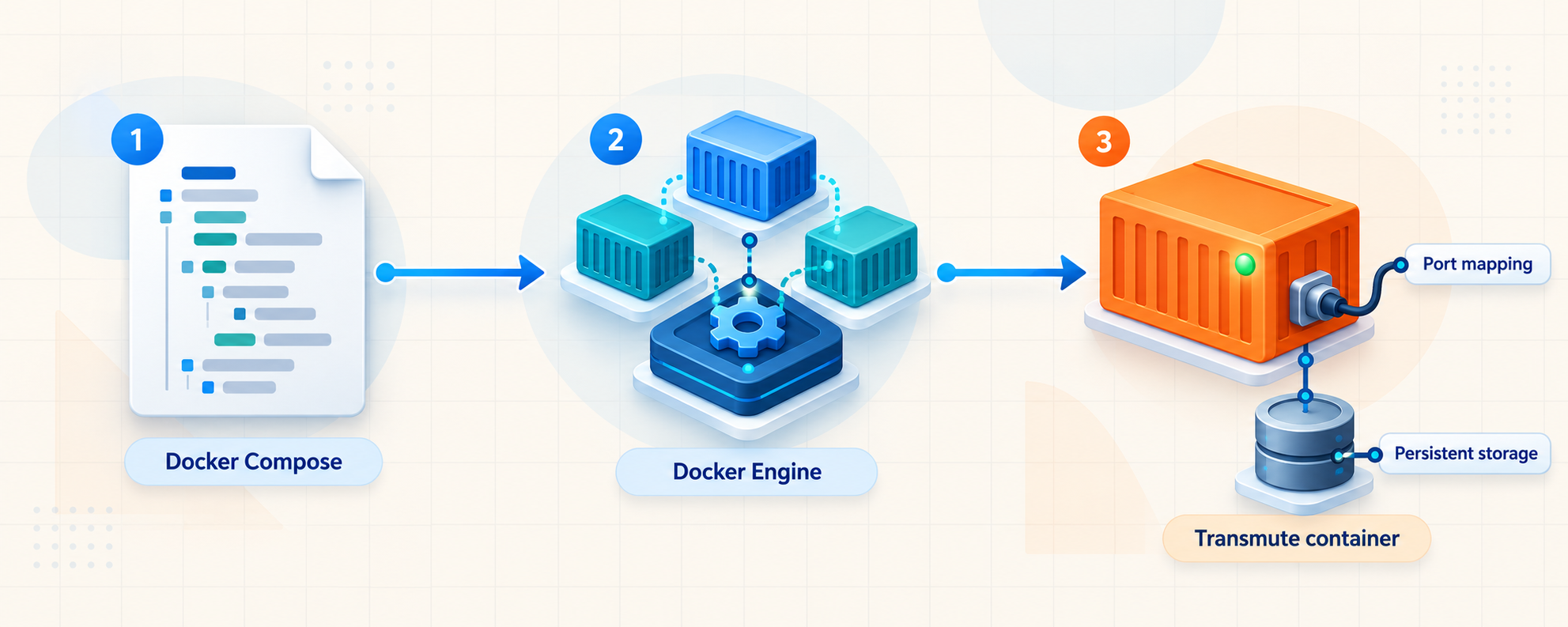
Transmute's documented installation path is concise: download the repository's docker-compose.yml file and run docker compose up -d. The following sequence keeps the deployment file in a dedicated directory and avoids introducing unverified configuration.
Create a dedicated Transmute directory
Choose a durable directory that your administrator account can access. Keeping the Compose file in its own directory makes later Docker Compose commands easier to understand because Compose uses the configuration in the current working directory.
Download the official Compose file
From the Transmute repository, download the root-level docker-compose.yml file into the directory created in the previous step. Preserve that exact filename. Review the downloaded file before running it so you understand the images, port mappings, volumes, and services it currently defines.
Open a terminal in the deployment directory
Change into the directory containing docker-compose.yml. Confirm that the file is present and that you are not accidentally using a similarly named development or test configuration.
Start Transmute in detached mode
Run the official startup command shown below. Docker Compose will process the supplied configuration, obtain required images when they are not already present, create the defined resources, and start the application without keeping the terminal attached to its foreground output.
Wait for startup and continue to local verification
Container startup does not by itself prove that the application is ready. After Compose returns, inspect container state and open the documented local endpoints before configuring any remote tunnel.
docker compose up -d
Run that command from the directory containing the downloaded Compose file. The -d option starts the services in detached mode, allowing them to continue running after the command completes.
The repository also contains files with names associated with development and OIDC testing. This installation workflow is based specifically on the root docker-compose.yml identified by Transmute's installation instructions. Do not substitute another Compose file unless you intentionally understand that configuration.
What not to configure by guesswork
The supplied project evidence does not document required environment variables, initial credentials, a mandatory external database, custom TLS settings, an alternate public base URL, or a supported change to the default port. Accordingly, this guide does not fabricate any of those settings. Start with the official Compose file as published, then follow the documentation for your exact Transmute version if the file itself requests additional input.
A release identified as v2.1.1 is a maintenance release that fixed a privacy issue related to telemetry in an updated onnxruntime dependency, improved cleanup of failed and finished jobs, and added a Korean translation. Its release notes state that telemetry is disabled with ORT_DISABLE_TELEMETRY=1 in both the Docker image and backend startup. They also state that no configuration changes are required for that upgrade. Do not assume these details describe older or future releases, and verify the version actually deployed on your host.
Verify the web interface and REST API locally
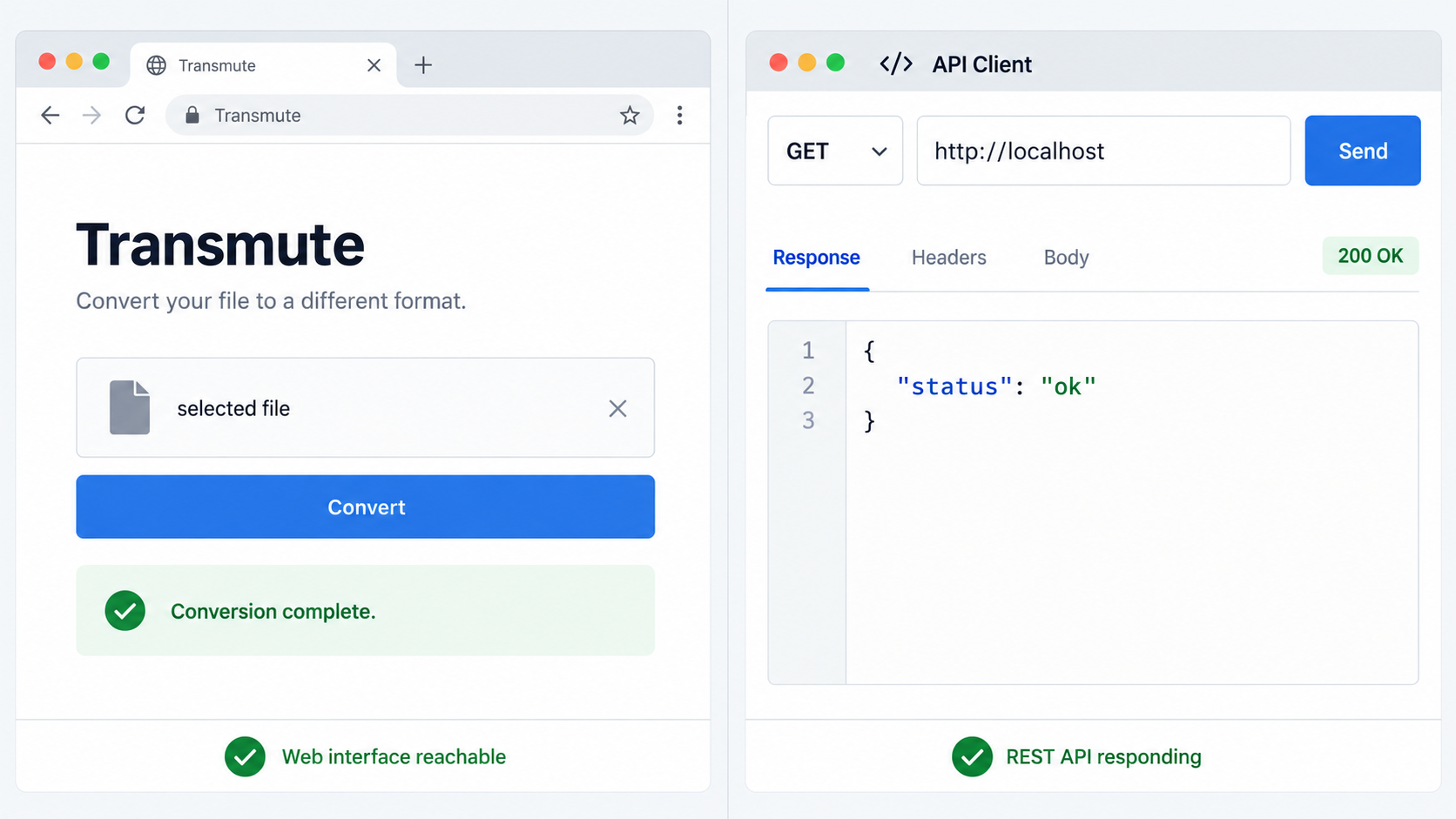
Local verification should test the application itself, not merely the existence of a running container. Perform these checks on the Transmute host before creating a Localtonet tunnel.
Inspect the Compose service state
From the directory containing docker-compose.yml, use the standard Compose status command. Confirm that the expected services are present and not repeatedly restarting or exiting.
Open the Transmute web interface
On the same host, browse to http://localhost:3313. A successful application page confirms that the browser can reach the HTTP listener and that Transmute has progressed far enough to serve its interface.
Open the API documentation
Browse to http://localhost:3313/api/docs. This confirms that the API documentation route is available on the same local service. Use the documentation generated by your installed version as the authority for request paths, methods, parameters, and response structures.
Run a representative conversion
Use a non-sensitive test file in a format supported by the installed version. Confirm that the upload or selection process, conversion job, and output retrieval all complete. Start with a small file so that basic configuration problems are easier to distinguish from resource exhaustion or long processing time.
Review logs if any check fails
Inspect the Compose logs from the deployment directory. Look for port conflicts, image download errors, permission failures, missing storage paths, repeated restarts, or conversion-tool errors. Resolve the local fault before proceeding to remote access.
docker compose ps
docker compose logs
The exact service names and log messages depend on the current Compose file and Transmute version. If the log stream is extensive, Docker Compose supports selecting a service, but use the service name reported by docker compose ps rather than guessing one.
Verify from another device only when necessary
The documented endpoint uses localhost, which is sufficient for same-host verification. Whether the Compose configuration listens on a LAN-accessible interface should be determined from the actual port binding, not assumed. If you test from another device, use the Transmute host's private network address only after confirming that the service is intended to be reachable over that network and that host firewall policy permits it.
Localtonet does not require another LAN device to access port 3313 when our client runs on the same machine as Transmute. In that arrangement, the tunnel target can use the loopback address and keep the origin path local to the host.
The verified evidence identifies the API documentation endpoint, but it does not provide specific conversion paths, JSON bodies, upload field names, authentication headers, or job-status operations. Open the documentation generated by your installed Transmute version and build clients from those definitions. Sending guessed requests can produce incorrect integrations and unsafe error handling.
Routine Docker Compose operations
Keep routine commands scoped to the directory containing the same docker-compose.yml used during installation. Running Compose from another directory can select a different project or fail to find the configuration.
| Operation | Command | Effect |
|---|---|---|
| Show service state | docker compose ps |
Lists the containers and status associated with the current Compose project. |
| Read logs | docker compose logs |
Displays application and container output useful for startup and conversion diagnosis. |
| Follow new logs | docker compose logs -f |
Keeps the terminal attached to new log output until you stop following it. |
| Restart services | docker compose restart |
Restarts the current project's existing containers without redefining the application. |
| Stop and remove project containers | docker compose down |
Stops and removes the Compose project's containers and default network. |
| Start or reconcile the deployment | docker compose up -d |
Starts the configuration in detached mode and reconciles it with the current Compose file. |
Do not add volume-removal options to docker compose down unless you have verified exactly which data they will delete. The supplied evidence does not establish all persistence paths or backup requirements for the current Transmute Compose file. Back up important application data and test restoration before treating the deployment as production-ready.
Upgrading Transmute
Review the release notes for the version you plan to install, preserve the Compose file and persistent data needed for recovery, and compare the current official Compose file with your deployed copy. Container update behavior depends on image tags and the contents of that file. Because the available evidence does not establish one universal upgrade command for every Transmute release, this guide does not prescribe an unverified pull-and-recreate sequence.
Release v2.1.1 states that it has no breaking changes and requires no configuration changes. It also states that the first cleanup run after that upgrade deletes old failed, completed, and cancelled jobs older than the configured cleanup TTL, measuring age from completion rather than creation. Queued and running jobs are not touched by that cleanup. Administrators moving through that release should account for this maintenance behavior, while readers on another version should use that version's own release notes.
Backups and recovery
Back up the deployment configuration and any storage that the current Compose file identifies as persistent. A meaningful recovery plan should restore both configuration and application data onto a clean Docker host, then verify the web interface, API documentation, and a representative conversion. Copying only docker-compose.yml may reproduce the container definition but does not necessarily preserve application state.
Publish Transmute through a Localtonet HTTP tunnel
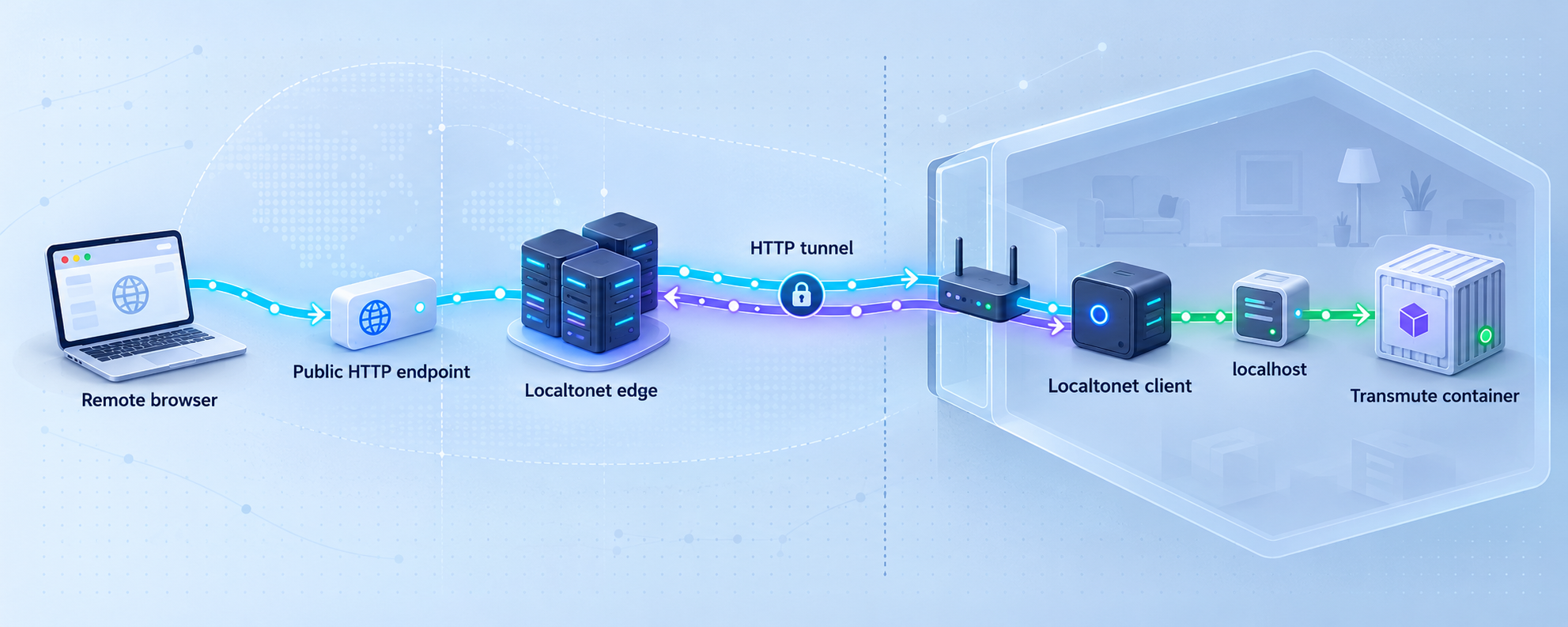
Proceed only after http://localhost:3313 and http://localhost:3313/api/docs both work on the Transmute host. For the simplest topology, install our client on that same host. It can then forward requests to the local loopback service without requiring Transmute to be exposed to the entire LAN.
An HTTP tunnel is the appropriate family for this workflow because Transmute provides an HTTP web application and API. Localtonet HTTP tunnels can use a generated random subdomain, a supported custom subdomain, or a custom domain. These process types serve content at a public HTTPS address. Availability and exact configuration can vary, so select only options currently shown for your account and follow current DNS documentation before using a custom domain.
Install and run the Localtonet client
Install our client on the Transmute host, or on another device that can legitimately reach the Transmute service. Keep the client running because it establishes the outbound connection used by the tunnel. Installation details differ by operating system and client version, so use the current Localtonet download and installation instructions rather than an unverified command.
Authenticate and select the device
Use the device-specific authentication token issued in your Localtonet account, then select that connected device when configuring the tunnel. Treat the token as a secret. Never place it in the Compose file, application code, shell history examples, or API client configuration.
Select an available relay server
Choose a server or region from the values currently available in the dashboard. Server codes and regional availability can change or vary, so this guide does not hardcode a value.
Create the HTTP tunnel target
Create an HTTP tunnel and point it to the Transmute service. When our client runs on the same host, use the loopback IP address 127.0.0.1 and local port 3313. If the client runs elsewhere, use an address that is reachable from that client device and verify the private-network path first.
Start the tunnel and test the assigned address
Creating the tunnel does not make it active. Press Start, then open the assigned public HTTPS address. Verify the root web interface first, followed by the same address with /api/docs. Stop or delete the tunnel when remote access is no longer required.
For the current dashboard workflow, consult our HTTP tunnel documentation. The public hostname is assigned or configured by Localtonet, while the local target remains the Transmute service on port 3313.
The selected Localtonet device must be connected, and the tunnel itself must be running. Transmute must also remain healthy on the configured local target. A saved tunnel configuration alone does not make the application available.
Verify the remote result
Test from a device that is not relying on the Transmute host's browser session. Open the assigned public address and confirm that the interface loads. Then append /api/docs and confirm that the documentation loads through the same tunnel.
Finally, repeat the small, non-sensitive conversion used for local verification. This checks more than page rendering: it exercises upload handling, conversion processing, and output delivery across the tunnel. If the local test succeeds but the remote test fails, focus on tunnel state, target address, client connectivity, request size, and request duration rather than reinstalling Transmute immediately.
Security guidance for a public file conversion service
A working tunnel changes reachability, not application authorization. Anyone able to reach a public application address can attempt to interact with the routes exposed there. Before sharing the address, determine what authentication and access-control mechanisms are actually enabled in your installed Transmute version.
The evidence available for this article does not establish Transmute's default authentication state, role model, API-token behavior, upload restrictions, or rate limits. We therefore cannot safely claim that a default deployment is suitable for unrestricted internet exposure. If the installed version does not provide the controls your use case requires, keep the tunnel stopped until you add an appropriate, documented access-control layer.
Publishing the Transmute service also makes its /api/docs path reachable through the same HTTP tunnel unless the application or another approved control restricts it. Treat API documentation as part of the exposed application surface. Do not publish it under the assumption that only the browser interface is reachable.
Troubleshooting Transmute and the HTTP tunnel
Docker reports that port 3313 is already allocated
Another host process or container is using the documented port. Identify that process and decide whether it can be stopped safely. If the deployment must use another port, consult the current Transmute configuration before changing the Compose mapping. After any supported port change, update the Localtonet target to the actual host port.
The Compose command cannot find a configuration file
Confirm that your terminal is in the directory containing the file and that it is named docker-compose.yml. Avoid accidentally using docker-compose-dev.yml or docker-compose-oidc-test.yml when following this production-oriented setup.
The containers start and then exit
Run docker compose ps and docker compose logs. Look for a concrete error rather than repeatedly restarting. Common categories include image retrieval failures, file permissions, invalid configuration, unavailable storage, and host resource pressure. The exact correction depends on the message and the current Compose definition.
The browser cannot open localhost:3313
Verify that the containers are running and that Docker has published the expected port. Ensure the URL uses HTTP and the exact port:
http://localhost:3313If you are typing this URL on another computer, it points to that other computer, not the Transmute host. Perform the first test directly on the host, or use an explicitly verified host address when testing over a private network.
The web interface loads but the API documentation does not
Check the exact path:
http://localhost:3313/api/docsPaths can be case-sensitive. If the exact route still fails, inspect application logs and confirm which Transmute version is running. Do not infer undocumented API routes from older examples.
Local access works but the Localtonet address does not
Confirm each layer in order:
- The Transmute web interface still loads locally.
- The Localtonet client is running and its device appears connected.
- The tunnel is configured as HTTP.
- The selected target address is reachable from the client device.
- The target port is
3313, unless you intentionally configured and verified another supported mapping. - The tunnel has been started, not merely created.
- You are using the currently assigned public address.
If the client runs inside a different container or on another machine, 127.0.0.1 refers to that client environment rather than the Transmute host. Use a network address that the client can reach, and test that private path before expecting the public tunnel to work.
The public interface loads but conversions fail
Repeat the same conversion locally with the same type and approximate file size. If it fails locally, investigate Transmute logs, available disk, memory pressure, format support, and the installed version. If it succeeds locally but fails remotely, compare the request behavior and inspect logs while reproducing the problem. The supplied evidence does not establish Localtonet plan limits or universal application upload limits, so do not assume a specific threshold without checking the current account and application behavior.
The public route stopped working after previously succeeding
Check whether the Localtonet client disconnected, the tunnel was stopped, Docker restarted, the Transmute containers exited, or the host lost connectivity. A Localtonet tunnel remains available only while its selected device is connected and the tunnel is running. The local target must also continue listening.
Frequently asked questions
What port does Transmute use in this Docker Compose installation?
The documented local web endpoint is http://localhost:3313, so this workflow uses local TCP port 3313. Confirm the current Compose file before deployment, particularly if you have modified its port mapping.
Where is the Transmute REST API documentation?
Transmute documents the API interface at http://TRANSMUTE_IP:3313/api/docs. On the Transmute host, use http://localhost:3313/api/docs. Through the Localtonet tunnel, append /api/docs to the assigned public base address.
Do I need router port forwarding to access Transmute remotely?
No. Our client establishes an outbound connection to a Localtonet relay server. That allows the tunnel to provide a public address without inbound router port forwarding, firewall changes, VPN setup, or a public IP address.
Should the Localtonet client run on the same host as Transmute?
That is the simplest arrangement because the HTTP tunnel can target 127.0.0.1:3313. The client may run on another device that can reach Transmute, but then the target must be an address reachable from that device. Do not use 127.0.0.1 when it points to the wrong machine or container.
Does creating a Localtonet tunnel immediately make Transmute public?
No. Creating the configuration does not start it. The selected client device must be connected and you must press Start. You can later stop or delete the tunnel when remote access is no longer needed.
Can the same HTTP tunnel expose both the web interface and REST API?
Yes. Both are routes on the Transmute HTTP service listening on port 3313. The root public address reaches the web application, while the same address with /api/docs reaches the API documentation. Remember that this also means API-related routes are part of the exposed application surface.
Does this guide prove that a default Transmute installation requires authentication?
No. The supplied evidence does not establish the default authentication state or an exact authentication setup procedure. Check the behavior and documentation for your installed Transmute version before public exposure, and add appropriate access controls if the application does not meet your requirements.
Can I use a custom domain for the Transmute tunnel?
Localtonet HTTP tunnels support Random Sub Domain, Custom Sub Domain, and Custom Domain process types. Exact availability can vary, and custom-domain DNS requirements must be checked against current Localtonet documentation before making DNS changes.
Is an HTTP tunnel the same as a VPN?
No. This workflow publishes a specific local HTTP service through a tunnel. It does not place the remote device on the host's private network. Localtonet VPN Manager is the separate feature intended for private mesh VPN connectivity.
Publish your verified Transmute service with Localtonet
Install Transmute, confirm its interface and API documentation on port 3313, then create an HTTP tunnel to provide controlled remote access without configuring inbound router port forwarding.
Get Started Free →

