

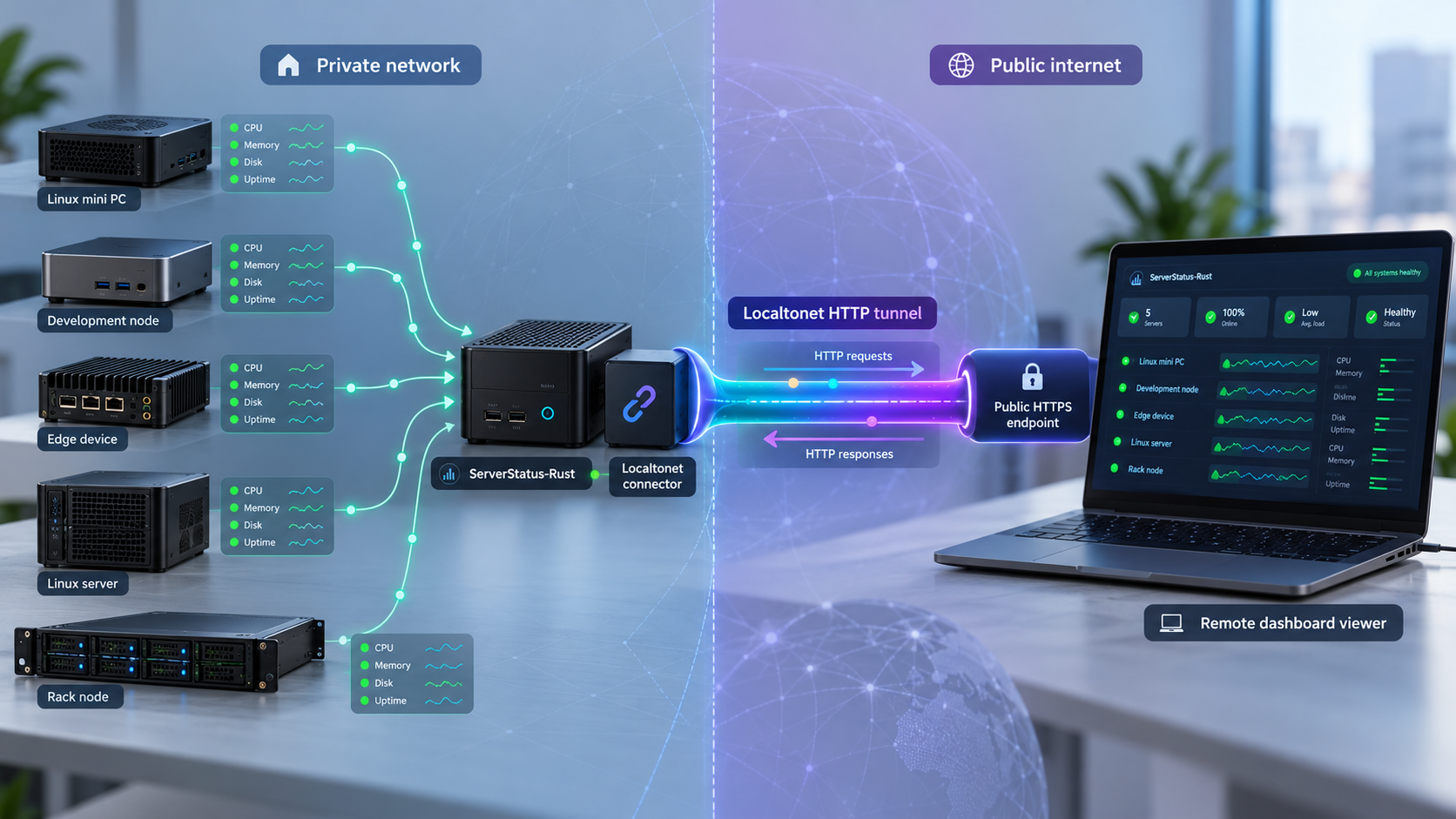
Build a private monitoring dashboard first, then give it a controlled public path
ServerStatus-Rust combines a lightweight status server, a browser dashboard, and monitoring clients that report host information to the server. This guide installs the server on a supported x86_64 Linux distribution, verifies the dashboard locally, registers monitoring clients, and covers routine management and troubleshooting. After the local deployment works, we connect its HTTP service to a Localtonet HTTP tunnel for remote dashboard access or HTTP-based reporting without configuring inbound router port forwarding. Security boundaries, credentials, listener addresses, and the separate gRPC service are explained throughout the workflow.
📋 What's in this guide
How ServerStatus-Rust and Localtonet fit together
ServerStatus-Rust is a self-hosted monitoring system written in Rust. Its server receives reports from monitored machines and presents their status through a web interface. The project supports Linux, macOS, Windows, Android, and Raspberry Pi in its wider server and client ecosystem, although the one-touch installation documented in this guide is specifically identified for x86_64 CentOS, Debian, and Ubuntu.
The default configuration shown by the project listens for HTTP traffic on port 8080 and gRPC traffic on port 9394. The HTTP side serves the dashboard and supports HTTP client reporting. The documented local dashboard address is http://127.0.0.1:8080/, while the HTTP reporting route is http://127.0.0.1:8080/report. The project also supports gRPC reporting, but that is a distinct raw service and is not carried by the HTTP tunnel described here.
We deliberately split deployment into two phases. First, install and validate ServerStatus-Rust entirely on the host. Second, expose the already-working HTTP service with Localtonet. This order makes failures easier to diagnose because a blank dashboard or rejected report can be isolated from tunnel configuration.
| Component | Documented endpoint | Role in this guide |
|---|---|---|
| Web dashboard | http://127.0.0.1:8080/ |
Local status interface and primary verification target |
| HTTP reporting | http://127.0.0.1:8080/report |
Reporting path available to HTTP-based monitoring clients |
| gRPC reporting | Port 9394 in the default configuration |
Separate protocol that is not transported by an HTTP tunnel |
| Localtonet public address | Assigned when the HTTP tunnel is started | Remote route to the local port 8080 service |
This tutorial uses ServerStatus-Rust's HTTP reporting capability because the dashboard and HTTP reports share the HTTP service. If your clients are configured for gRPC on port 9394, do not assume that placing an HTTP tunnel in front of port 8080 transports that traffic. Keep using a suitable private network path or evaluate a raw-port tunnel separately, subject to your security requirements and current Localtonet options.
Prerequisites and deployment choices
The documented one-touch experience applies to x86_64 CentOS, Debian, and Ubuntu. Run it from an account with permission to create /opt/ServerStatus, install required packages, create services, and manage the resulting processes. The example uses wget, bash, and unzip. Debian and Ubuntu systems use apt for the package example, while CentOS uses yum.
You also need at least one machine for the status server and, if you want real monitoring data, one or more machines on which to install the client. A client needs network reachability to the server endpoint selected for reporting. Test with one client before rolling the configuration out broadly.
Prepare unique client credentials in advance. In the project configuration, each entry in hosts has a unique name and a corresponding password. The name cannot be duplicated. Do not use the demonstration values from project examples on an internet-reachable deployment.
Choose an installation method
| Method | Best fit | Important consideration |
|---|---|---|
| One-touch script | Initial server deployment on documented x86_64 CentOS, Debian, or Ubuntu systems | Review downloaded scripts before running them with administrative privileges |
status.sh manager |
Separate server or client installation, upgrades, reconfiguration, backup, restore, and service control | Use only the documented flags and protect any credentials passed as command arguments |
| Manual binary execution | Operators who want direct control over the binary and config.toml |
You must provide your own process supervision unless you create a supported service arrangement |
| Docker Compose files | Container-oriented deployments based on the repository's Compose and configuration files | Inspect image, mounts, ports, and credentials in the current files before starting the stack |
The upstream examples download shell scripts and execute them. A shell script can install packages, create files, register services, and change system configuration. Download it first, inspect its contents, verify that the URL and revision are the ones you intend to trust, and only then run it with the required privileges. The upstream command includes --no-check-certificate, which disables certificate validation. Avoid disabling certificate verification unless you have a specific, reviewed reason to do so.
Install the ServerStatus-Rust server
The quickest documented server path creates /opt/ServerStatus, installs unzip, downloads the upstream one-touch script, and runs it. Package installation and system service creation may require a root shell or an appropriate privilege elevation method. Do not add sudo mechanically if your environment handles administration differently.
Confirm the operating system and architecture
Use the one-touch route only on the documented x86_64 CentOS, Debian, or Ubuntu targets. If your server uses another architecture or operating system, do not assume this particular script supports it merely because the wider project supports additional client platforms.
Create the installation directory
Create the documented directory and make it the current working directory:
mkdir -p /opt/ServerStatus
cd /opt/ServerStatusInstall the archive dependency
On Debian or Ubuntu, install unzip with apt. On CentOS, use the documented yum equivalent:
apt install -y unzipyum install -y unzipDownload and review the one-touch script
Download the script from the upstream repository without executing it immediately. This safer form retains normal TLS certificate validation:
wget -O one-touch.sh 'https://raw.githubusercontent.com/zdz/ServerStatus-Rust/master/scripts/one-touch.sh'
Open one-touch.sh with your preferred text viewer and inspect the package, download, file, and service operations. Scripts obtained from a moving branch can change over time, so review the actual copy you downloaded.
Run the reviewed installer
After reviewing the script and confirming that it matches your intended deployment, execute the documented installation script:
bash -ex one-touch.sh
The -e-x
Open the local dashboard
On the server itself, browse to http://127.0.0.1:8080/. From another trusted machine with direct network reachability, the project also documents using http://<server-ip>:8080/. Do not expose that port broadly merely to complete this test.
Alternative service-management script
The upstream status.sh script offers separate installation and management operations. Download and inspect it using the same precautions:
wget -O status.sh 'https://raw.githubusercontent.com/zdz/ServerStatus-Rust/master/scripts/status.sh'After review, install only the server with:
bash status.sh -i -sThis script also documents commands for upgrading, uninstalling, reconfiguring, controlling, backing up, and restoring server and client installations. These become useful after initial deployment, and the relevant commands are covered in the operations section.
Manual execution and configuration testing
If you already have the project binaries and configuration in the current directory, the documented manual server command is:
./stat_server -c config.tomlBefore starting it, test the configuration syntax:
./stat_server -c config.toml -tFor diagnostic logging, the project documents:
RUST_BACKTRACE=1 RUST_LOG=trace ./stat_server -c config.tomlTrace output can contain operational information. Capture and share it carefully, and redact credentials or private host information before including it in a support request.
Docker Compose alternative
The repository provides docker-compose.yml and config.toml files for container deployment. The documented downloads are:
wget -O docker-compose.yml 'https://raw.githubusercontent.com/zdz/ServerStatus-Rust/master/docker-compose.yml'
wget -O config.toml 'https://raw.githubusercontent.com/zdz/ServerStatus-Rust/master/config.toml'
Review both files before starting anything. In particular, verify the selected image, published ports, mounted paths, restart behavior, and all credentials in config.toml. The supplied evidence does not establish one universally correct Docker Compose startup command across Compose versions and environments, so this guide does not invent one. Use the command supported by your installed Docker Compose version after validating the current repository files.
Configure the server and monitoring identities
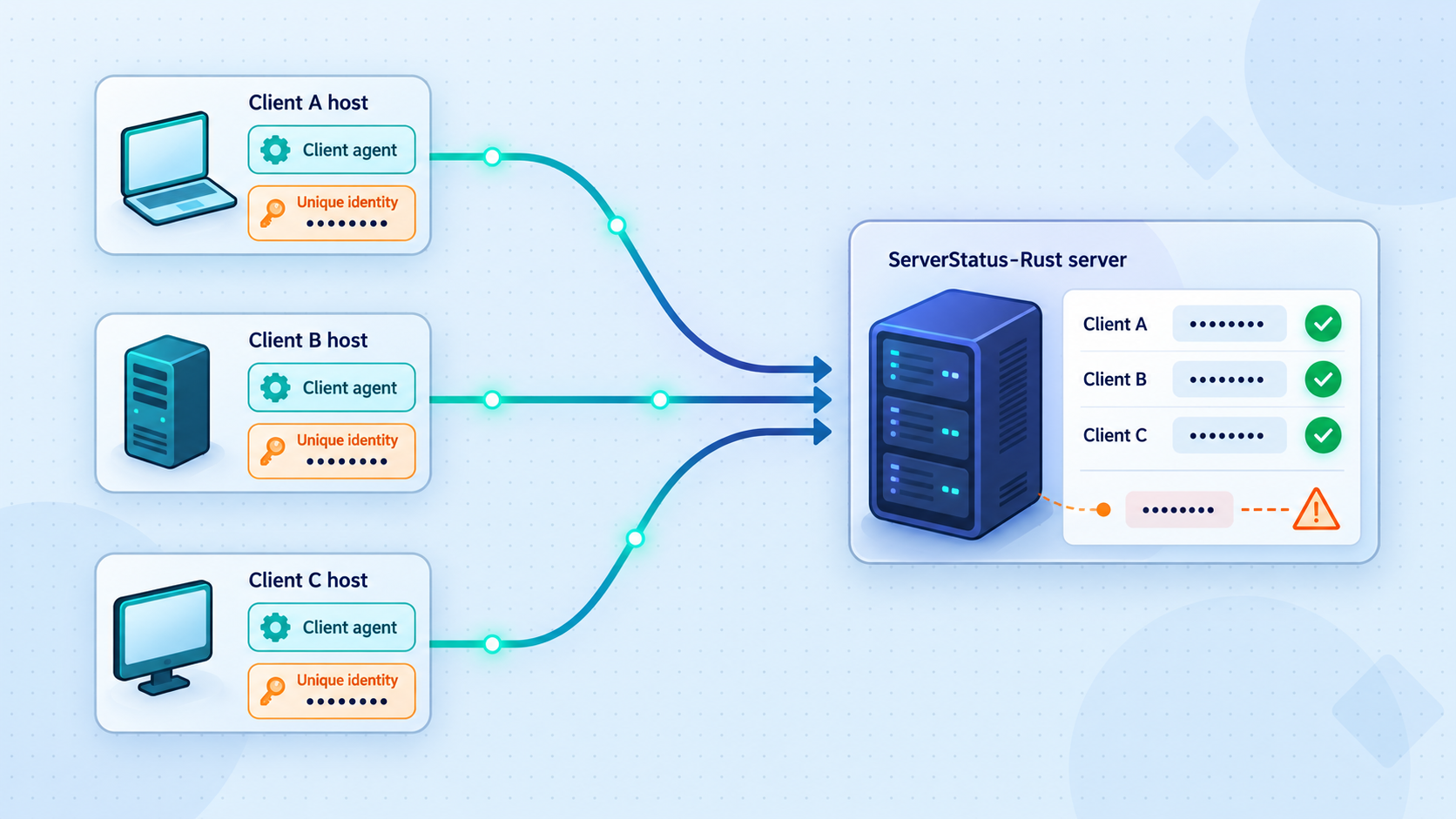
ServerStatus-Rust reads its server settings from config.toml. The project's example sets the gRPC listener to 0.0.0.0:9394 and the HTTP listener to 0.0.0.0:8080. A wildcard address accepts connections through every relevant interface unless the operating-system firewall restricts them.
grpc_addr = "0.0.0.0:9394"
http_addr = "0.0.0.0:8080"
offline_threshold = 30
The documented default offline threshold is 30 seconds. A host that does not report within that window can be treated as offline. Before changing it, consider the reporting interval, network stability, and how quickly you need an interruption to appear on the dashboard.
Binding HTTP to 0.0.0.0:8080 can make the service reachable through LAN, cloud, or public interfaces depending on the host's network and firewall configuration. If only a same-host Localtonet client needs access, a loopback-only listener can reduce exposure, but confirm that your chosen ServerStatus-Rust deployment supports the edited listener and test it afterward. If the Localtonet client runs on another device, loopback will not work because that device must be able to reach the server over the network.
Static host entries
The hosts configuration mode creates an individual identity for each monitored machine. Each name must be unique. The password authenticates reports for that identity, while alias controls the display label. The project also documents fields such as location, type, notify, monthstart, disabled, and semicolon-separated labels.
The following structure uses placeholders intentionally. Replace them with unique, strong credentials and meaningful values:
hosts = [
  {
    name = "unique-host-id",
    password = "replace-with-a-strong-unique-secret",
    alias = "Application Server",
    location = "us",
    type = "kvm",
    notify = true,
    disabled = false
  }
]
Do not commit real host passwords to a public repository or paste them into logs, tickets, screenshots, or shell history. Restrict read access to the configuration file because it contains credentials accepted by the reporting service.
Dynamic registration groups
As an alternative to defining every host separately, ServerStatus-Rust supports hosts_group. Each group has a unique gid and password. Groups can organize hosts by location or purpose and can set common properties such as notification behavior. The documented group garbage-collection interval defaults to 30 seconds through group_gc = 30.
hosts_group = [
  {
    gid = "replace-with-a-unique-group-id",
    password = "replace-with-a-strong-group-secret",
    location = "us",
    type = "kvm",
    notify = true
  }
]

group_gc = 30
Choose either the individual hosts model or the hosts_group model for a given deployment design. A shared group secret is operationally convenient, but its security scope is wider than a unique secret per host. If a shared secret is exposed, rotate it and reassess every client using that group.
Administrator and notification settings
The configuration includes admin_user and admin_pass for administrative views such as /detail and /map. The project states that random values are generated when these are not set. Record generated credentials securely if your deployment relies on them, or set your own strong values according to your secret-management policy.
ServerStatus-Rust can send online, offline, and custom-rule notifications through mechanisms including Telegram, WeChat, email, and webhooks. Notifications are optional. The documented notification interval is 30 seconds, and the project provides a test operation:
./stat_server -c config.toml --notify-testNotification templates can reference host data. Treat endpoint URLs, bot tokens, chat identifiers, email credentials, and webhook secrets as sensitive. Test with a controlled destination before enabling notifications for production systems.
Verify the local deployment before exposing it
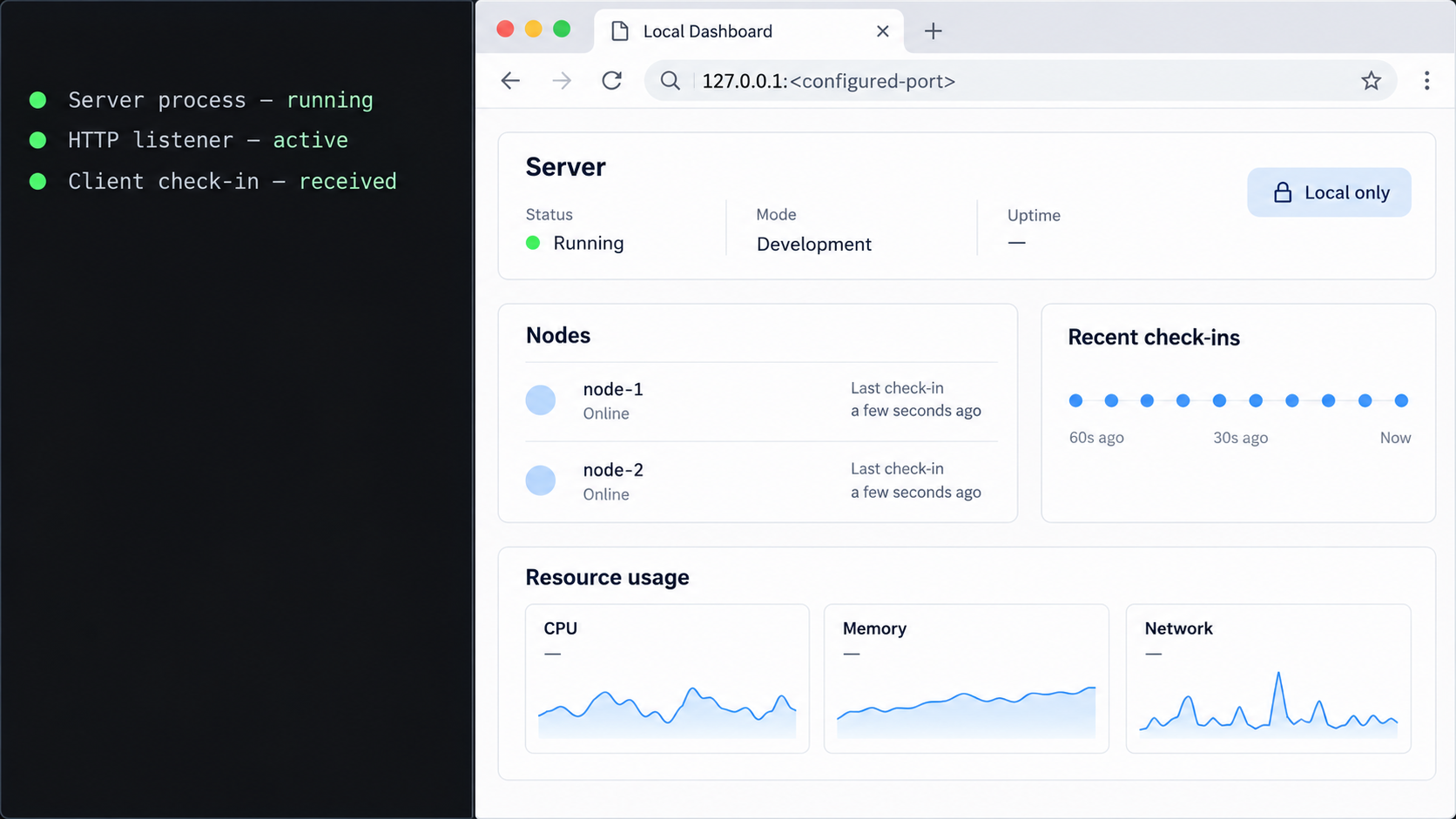
A successful installer is not sufficient proof that the application is usable. Confirm the process state, configuration validity, listener, dashboard, and reporting behavior while everything is still local.
Check the managed server state
If you installed with status.sh, use its documented status operation:
bash status.sh -s statusValidate the configuration
For a manual installation, run the built-in configuration test from the directory containing the binary and configuration:
./stat_server -c config.toml -tLoad the loopback dashboard
On the server, open http://127.0.0.1:8080/. A response confirms that the HTTP process can be reached through loopback. It does not yet confirm that a client can authenticate or that another machine can reach the listener.
Test a trusted network path if required
If the Localtonet client will run on another device, test http://<server-ip>:8080/ from that device. Keep the test inside a trusted network and remove unintended firewall exposure after confirming reachability.
Confirm one client report
Install and configure one monitoring client using an identity present in hosts or an approved dynamic group. Wait for it to appear online, then verify that its displayed alias and expected data belong to the intended machine.
If the dashboard works through 127.0.0.1 but not through the server's LAN address, inspect http_addr and host firewall policy. If neither address works, focus on process state, configuration errors, port conflicts, and logs before creating a tunnel. If the dashboard works but the client remains offline, investigate client credentials, protocol selection, endpoint construction, and network reachability.
Install and connect monitoring clients
The management script supports a client-only installation. After downloading and reviewing status.sh on the monitored machine, install the client interactively with:
bash status.sh -i -cThe script also accepts a complete connection string. The documented format is:
protocol://username:password@master:portFor a local HTTP server, the upstream example is:
bash status.sh -i -c http://h1:p1@127.0.0.1:8080
Here, h1 corresponds to a configured host name and p1 to its password. Those are demonstration values only. A client on another machine cannot use 127.0.0.1 to reach your server because loopback always refers to the client machine itself. Replace the master address with an endpoint that resolves and routes to the actual ServerStatus-Rust server.
The project also documents a gRPC form:
bash status.sh -i -c grpc://h1:p1@127.0.0.1:9394Choose the protocol intentionally. For this Localtonet workflow, HTTP is the relevant choice. Do not point a gRPC client at the public URL of an HTTP tunnel and expect protocol conversion.
A connection string containing a host password can be saved in shell history and may be temporarily visible to process-inspection tools. Use the interactive configuration route when that better fits your environment, protect administrative access to the machine, and remove exposed secrets from history. Rotate any credential that may have been disclosed.
Manage the client after installation
The service script provides direct client controls:
bash status.sh -c status
bash status.sh -c start
bash status.sh -c stop
bash status.sh -c restart
To change the client configuration, use the documented reconfiguration operation:
bash status.sh -rcA complete connection string can also be supplied to the reconfiguration operation, but avoid placing a real password in reusable documentation or support messages. After any change, restart the client if required by the script's workflow, then verify that the intended host becomes online on the dashboard.
Expose the HTTP service with a Localtonet tunnel
Once http://127.0.0.1:8080/ works and at least one client reports successfully, Localtonet can provide remote access to the HTTP service. Our client establishes an outbound connection to a relay, so this workflow does not require inbound router port forwarding, a public IP address, firewall changes, or VPN setup.
The Localtonet client must run on the ServerStatus-Rust machine or on another device that can reach its port 8080. If both processes run on the same machine, use 127.0.0.1 as the local target. If they run on different machines, use a private address reachable from the Localtonet client and restrict that network path appropriately.
Install and run the Localtonet client
Install our client on the device that can reach ServerStatus-Rust. Use the current Localtonet installation workflow for that operating system. This article does not invent a package command because installation details can vary by platform and client version.
Authenticate the intended device
Select the device using its Localtonet auth token. Tokens are device-specific secrets. Obtain the actual token from your account, keep it out of scripts and screenshots, and never substitute an example value.
Select a current relay server
Choose an available server or region from the current dashboard. Availability can vary, so this guide does not hardcode a server code or claim that every selection is included in every plan.
Create an HTTP tunnel to ServerStatus-Rust
Choose the HTTP tunnel family and set the local target to the address and port that the Localtonet client can reach. For a same-host deployment, the target is 127.0.0.1 on port 8080. For a separate client device, use the server's reachable private address instead.
Choose the public HTTP process type
HTTP tunnels can use Random Sub Domain, Custom Sub Domain, or Custom Domain process types, subject to current availability and account options. Each serves the local content at a public HTTPS address. Check current documentation before configuring custom-domain DNS because exact DNS requirements are not established in the supplied product context.
Start and test the tunnel
Creating a tunnel does not start it. Press Start, wait for the selected client and tunnel to show as connected, then open the assigned public URL. Confirm that the ServerStatus-Rust dashboard loads and that protected administrative views still require the expected credentials.
For the current dashboard sequence and field names, consult our Localtonet HTTP tunnel documentation. The public tunnel remains available only while the selected Localtonet client is connected and the tunnel is running.
Opening the public dashboard verifies browser traffic to the root HTTP path. It does not prove that a monitoring client can authenticate and submit reports. If remote clients will report through the tunnel, test one noncritical client with the public HTTPS endpoint and confirm that its status updates. The documented reporting route is /report, but use the ServerStatus-Rust client's supported connection syntax rather than manually appending paths to an unverified client command.
Secure the monitoring service before wider use
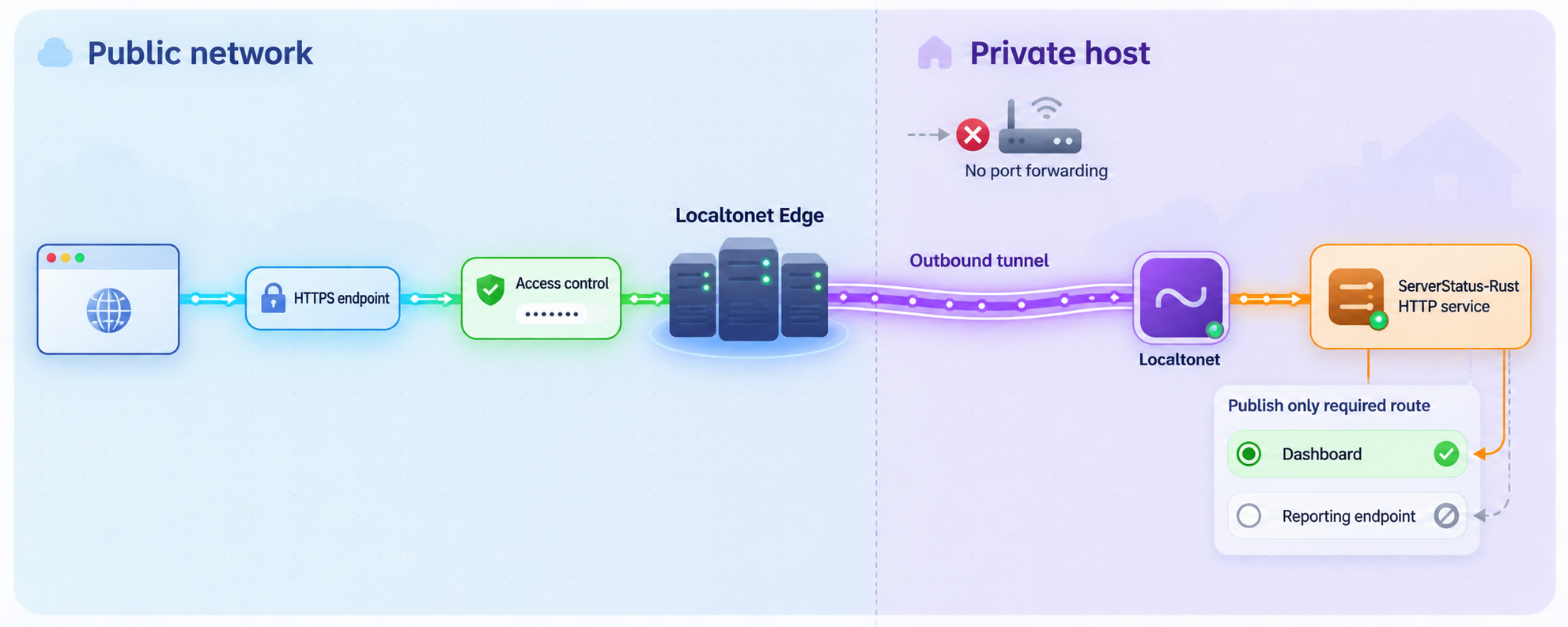
A monitoring dashboard can reveal host names, operating systems, capacity, utilization, locations, labels, and availability patterns. That information can be operationally sensitive even when the page does not provide direct server control. Publishing it should therefore be an explicit decision, not an accidental side effect of installation.
The public Localtonet HTTP address uses HTTPS at the tunnel edge. That protects the public browser connection to the edge, but it does not remove the need for application authorization, secure credential handling, least privilege, and a protected local path between the Localtonet client and ServerStatus-Rust.
If the Localtonet client and monitoring server are on different devices, traffic between them follows your local network path. Evaluate that segment according to your threat model. Do not assume that a public HTTPS URL automatically changes or secures every internal hop.
Before starting the public tunnel, replace demonstration host passwords, verify administrator access, remove unused host entries, review labels for sensitive information, and test authorization. The tunnel creates reachability. It does not decide which dashboard data is safe to publish or compensate for weak application credentials.
Routine operation, upgrades, backups, and troubleshooting
Service controls
The management script provides the following documented server operations:
bash status.sh -s status
bash status.sh -s start
bash status.sh -s stop
bash status.sh -s restart
Use the corresponding client operations with -c. When changing config.toml, validate it before restarting whenever the binary-based test is available. A configuration typo can prevent the process from returning after a restart.
Upgrades
The script supports separate and combined upgrades:
bash status.sh -up -s
bash status.sh -up -c
bash status.sh -up -a
The first upgrades the server, the second upgrades the client, and the third upgrades both. Before an upgrade, read the release notes for configuration changes, back up the current deployment, and plan a rollback. Do not assume that every historical configuration remains compatible with every release.
Backup and restore
The documented backup operations are:
bash status.sh -b -s
bash status.sh -b -c
bash status.sh -b -a
Restore operations use:
bash status.sh -rs -s
bash status.sh -rs -c
bash status.sh -rs -a
A backup is useful only if it can be restored. Periodically test restoration in an isolated environment, verify that credentials and configuration are present, and keep backup files protected because they may contain monitoring and notification secrets.
Uninstallation
When a server or client is no longer needed, the management script documents:
bash status.sh -un -s
bash status.sh -un -c
bash status.sh -un -a
Stop and delete the corresponding Localtonet tunnel separately. Removing ServerStatus-Rust does not automatically remove a tunnel configuration, and deleting a tunnel does not uninstall the local monitoring application.
Troubleshooting reference
| Symptom | Likely area | What to check |
|---|---|---|
| Local dashboard does not open | Server process or configuration | Check server status, validate config.toml, inspect logs, and confirm that another process is not using port 8080. |
| Loopback works but LAN access fails | Listener or firewall | Review http_addr, host firewall rules, container port publication, and whether the test uses the correct server address. |
| Dashboard works but a host remains offline | Client reporting | Check client status, selected HTTP or gRPC protocol, host name, password, endpoint, and the 30-second offline threshold. |
| Client reports under the wrong entry | Identity configuration | Confirm that every static host name is unique and that the client uses the matching credentials. |
| Local service works but public URL fails | Localtonet lifecycle or target | Confirm that the selected device is connected, the tunnel was started, and its local IP and port match the working service. |
| Public dashboard works but remote reports fail | Client syntax or authorization | Verify HTTP support, credentials, public endpoint construction, and that the client is not still configured for gRPC port 9394. |
| Tunnel disconnects intermittently | Localtonet client connectivity | Check whether the client process remains running and whether the device maintains outbound network access. The tunnel is available only while both client and tunnel are running. |
| Notifications do not arrive | Notification configuration | Validate the server configuration, review provider credentials and templates, and run the documented --notify-test operation. |
A practical diagnostic sequence
Work from the inside out. First confirm the ServerStatus-Rust process is running. Then verify http://127.0.0.1:8080/. If the Localtonet client runs elsewhere, verify the server's private port from that device. Next confirm that the Localtonet device is connected and the tunnel is running. Finally, test the assigned public URL.
For client-reporting issues, separate protocol problems from authentication problems. Confirm that an HTTP client is pointed at the HTTP service and that its host name and password correspond exactly to the server configuration. A dashboard that loads correctly proves basic HTTP reachability, but not reporting authorization.
Avoid changing the application, firewall, DNS, client credentials, and tunnel simultaneously. Make one controlled change, test it, and record the result. This approach is slower than random edits for the first minute but substantially faster when diagnosing a multi-layer deployment.
Frequently asked questions
Which operating systems support the one-touch ServerStatus-Rust installation?
The documented one-touch command targets x86_64 CentOS, Debian, and Ubuntu. The wider project lists additional systems, including Linux, macOS, Windows, Android, and Raspberry Pi, but that does not mean the same one-touch server script is appropriate for all of them. Use an installation path explicitly supported for your platform.
What local address should the Localtonet HTTP tunnel target?
If the Localtonet client and ServerStatus-Rust run on the same machine, target 127.0.0.1 on port 8080. If they run on separate devices, target the ServerStatus-Rust machine's private address on port 8080 and ensure the Localtonet client can reach it. Do not use loopback across two devices.
Can one Localtonet HTTP tunnel carry both the dashboard and client reports?
The ServerStatus-Rust dashboard and its HTTP reporting route are served through the HTTP service on port 8080, so the same HTTP tunnel can provide reachability to that service. Test browser access and client reporting independently because a successful dashboard request does not prove that client credentials or reporting configuration are correct.
Does the HTTP tunnel also expose ServerStatus-Rust gRPC on port 9394?
No. Port 9394 is the separate gRPC listener in the documented default configuration. An HTTP tunnel targeting port 8080 should not be treated as a transport or converter for the gRPC service. Configure monitoring clients for HTTP when using this workflow.
Do I need to forward port 8080 on my router?
No. With Localtonet, our client establishes an outbound connection to a relay and provides the assigned public URL. You do not need inbound router port forwarding, a public IP address, VPN setup, or firewall changes for the tunnel itself. Keep local firewall rules limited to the access actually required by your deployment.
Why does a client configured with 127.0.0.1 fail from another server?
On every machine, 127.0.0.1 refers to that same machine. A remote monitoring client pointed at 127.0.0.1:8080 looks for ServerStatus-Rust on itself, not on your monitoring server. Use a reachable private server address or the assigned public Localtonet endpoint for an HTTP-based remote client.
Is creating a Localtonet tunnel enough to make it available?
No. After creating the configuration, you must start the tunnel. It remains available only while the selected Localtonet client is connected and the tunnel is running. You can stop or delete it when remote access is no longer required.
Should I use static hosts or dynamic host groups?
Static hosts entries provide an individual name and password for each monitored machine, which gives clearer credential separation. hosts_group simplifies dynamic registration and grouping but can increase the impact of a shared group password being exposed. Choose according to your fleet size, automation needs, and secret-rotation model.
Connect your verified dashboard with Localtonet
Install and test ServerStatus-Rust locally first, then use our HTTP tunnel to provide a public HTTPS route to its port 8080 service without opening an inbound router port. Keep application credentials strong, protect your device token, and stop the tunnel whenever remote access is not needed.
Get Started Free →

